Updating to match new version of source page |
Updating to match new version of source page |
||
| (One intermediate revision by the same user not shown) | |||
| Line 3: | Line 3: | ||
{{#seo: | {{#seo: | ||
|title=Remove Elements from booking page - SimplyBook.me | |title=Remove Elements from booking page - SimplyBook.me | ||
|description= | |description=Hide specific elements from booking page. Remove service descriptions, provider photos, price display. Customize what clients see during booking. | ||
|titlemode=append | |titlemode=append | ||
|keywords=faq, frequently asked questions, booking software, appointment system questions, appointments online, calendar software, booking system, booking calendar, scheduling software, online appointment scheduling, online scheduling, setup, setup help, support, help content, remove elements, adjust look, remove information, remove link | |keywords=faq, frequently asked questions, booking software, appointment system questions, appointments online, calendar software, booking system, booking calendar, scheduling software, online appointment scheduling, online scheduling, setup, setup help, support, help content, remove elements, adjust look, remove information, remove link | ||
| Line 14: | Line 14: | ||
=Pay later possibility= | =Pay later possibility= | ||
Please navigate to <span style="background-color:#d4f8e5; padding:5px; border-radius:5px;">Payments</span> -> <span style="background-color:#d4f8e5; padding:5px; border-radius:5px;">Payment Processors</span> or <span style="background-color:#d4f8e5; padding:5px; border-radius:5px;">Custom Features</span> -> <span style="background-color:#cdeffc; padding:5px; border-radius:5px;">[[Accept_payments_custom_feature|Accept payments]]</span> -> <span style="background-color:#d4f8e5; padding:5px; border-radius:5px;">Settings</span> -> <span style="background-color:#d4f8e5; padding:5px; border-radius:5px;">Payment system settings</span> to go to SBPay.me interface and disable <span style="background-color:#d4f8e5; padding:5px; border-radius:5px;">Pay later</span> option there. | Please navigate to <span style="background-color:#d4f8e5; padding:5px; border-radius:5px;">Payments</span> -> <span style="background-color:#d4f8e5; padding:5px; border-radius:5px;">Payment Processors</span> or <span style="background-color:#d4f8e5; padding:5px; border-radius:5px;">Custom Features</span> -> <span style="background-color:#cdeffc; padding:5px; border-radius:5px;">[[Special:MyLanguage/Accept_payments_custom_feature|Accept payments]]</span> -> <span style="background-color:#d4f8e5; padding:5px; border-radius:5px;">Settings</span> -> <span style="background-color:#d4f8e5; padding:5px; border-radius:5px;">Payment system settings</span> to go to SBPay.me interface and disable <span style="background-color:#d4f8e5; padding:5px; border-radius:5px;">Pay later</span> option there. | ||
[[File:Payment processors settings path redesigned.png|1200px| border|center|link=https://help.simplybook.me/images/6/6f/Payment_processors_settings_path_redesigned.png]] | [[File:Payment processors settings path redesigned.png|1200px| border|center|link=https://help.simplybook.me/images/6/6f/Payment_processors_settings_path_redesigned.png]] | ||
<br><br> | <br><br> | ||
=Employee Step= | =Employee Step= | ||
Enable <span style="background-color:#cdeffc; padding:5px; border-radius:5px;">[[ | Enable <span style="background-color:#cdeffc; padding:5px; border-radius:5px;">[[Special:MyLanguage/Any_Employee_Selector_custom_feature|Any Employee Selector]]</span> in the <span style="background-color:#d4f8e5; padding:5px; border-radius:5px;">Custom Features section</span> and in its <span style="background-color:#d4f8e5; padding:5px; border-radius:5px;">Settings</span> on the right side of the page enable <span style="background-color:#d4f8e5; padding:5px; border-radius:5px;">Hide other service providers from booking interface</span> option<br/> | ||
[[File:Any employee hide provider redesigned.png|1200px| center|link=https://help.simplybook.me/images/6/68/Any_employee_hide_provider_redesigned.png]] | [[File:Any employee hide provider redesigned.png|1200px| center|link=https://help.simplybook.me/images/6/68/Any_employee_hide_provider_redesigned.png]] | ||
<br><br> | <br><br> | ||
| Line 47: | Line 47: | ||
=Gallery= | =Gallery= | ||
In <span style="background-color:#d4f8e5; padding:5px; border-radius:5px;">Custom Features</span> section disable <span style="background-color:#cdeffc; padding:5px; border-radius:5px;">[[ | In <span style="background-color:#d4f8e5; padding:5px; border-radius:5px;">Custom Features</span> section disable <span style="background-color:#cdeffc; padding:5px; border-radius:5px;">[[Special:MyLanguage/Photo_Gallery_custom_feature| Photo Gallery]].</span> | ||
[[File:Photo gallery disable path redesigned.png|1200px | center|link=https://help.simplybook.me/images/5/5f/Photo_gallery_disable_path_redesigned.png]] | [[File:Photo gallery disable path redesigned.png|1200px | center|link=https://help.simplybook.me/images/5/5f/Photo_gallery_disable_path_redesigned.png]] | ||
<br><br> | <br><br> | ||
| Line 62: | Line 62: | ||
To remove the checkbox you need to have enabled and correctly set all the options mentioned:<br><br> | To remove the checkbox you need to have enabled and correctly set all the options mentioned:<br><br> | ||
Either: <br> | Either: <br> | ||
1. <span style="background-color:#cdeffc; padding:5px; border-radius:5px;">[[ | 1. <span style="background-color:#cdeffc; padding:5px; border-radius:5px;">[[Special:MyLanguage/SMTP_custom_feature | SMTP]]</span> + <span style="background-color:#cdeffc; padding:5px; border-radius:5px;">[[Special:MyLanguage/Custom_Domain_custom_feature | Custom domain]]</span> + <span style="background-color:#cdeffc; padding:5px; border-radius:5px;">[[Special:MyLanguage/Terms_and_Conditions_custom_feature | Terms and Conditions]]</span> + <span style="background-color:#cdeffc; padding:5px; border-radius:5px;">[[Special:MyLanguage/Design |theme]]</span> different from blank. <br> | ||
Or: <br> | Or: <br> | ||
2. <span style="background-color:#cdeffc; padding:5px; border-radius:5px;">[[ | 2. <span style="background-color:#cdeffc; padding:5px; border-radius:5px;">[[Special:MyLanguage/SMTP_custom_feature | SMTP]]</span> + <span style="background-color:#cdeffc; padding:5px; border-radius:5px;">[[Special:MyLanguage/Terms_and_Conditions_custom_feature | Terms and Conditions]]</span> + <span style="background-color:#cdeffc; padding:5px; border-radius:5px;">blank [[Special:MyLanguage/Design |theme]]</span> + <span style="background-color:#cdeffc; padding:5px; border-radius:5px;">[[Special:MyLanguage/Widgets_for_your_own_website| Widget]]</span> on your website. | ||
<br><br> | <br><br> | ||
After that you will be able to enable <span style="background-color:#d4f8e5; padding:5px; border-radius:5px;">I confirm that I've added information about SimplyBook.me Ltd. as a supplier to my T&C</span> option in <span style="background-color:#d4f8e5; padding:5px; border-radius:5px;">Custom features</span> -> <span style="background-color:#d4f8e5; padding:5px; border-radius:5px;">Terms&Conditions</span> and after you save settings there the SimplyBook.me terms and conditions checkbox will be removed from the booking site. | After that you will be able to enable <span style="background-color:#d4f8e5; padding:5px; border-radius:5px;">I confirm that I've added information about SimplyBook.me Ltd. as a supplier to my T&C</span> option in <span style="background-color:#d4f8e5; padding:5px; border-radius:5px;">Custom features</span> -> <span style="background-color:#d4f8e5; padding:5px; border-radius:5px;">Terms&Conditions</span> and after you save settings there the SimplyBook.me terms and conditions checkbox will be removed from the booking site. | ||
| Line 78: | Line 78: | ||
=Unavailable timeslots= | =Unavailable timeslots= | ||
Please select <span style="background-color:#d4f8e5; padding:5px; border-radius:5px;">modern,</span> <span style="background-color:#d4f8e5; padding:5px; border-radius:5px;">modern provider,</span> <span style="background-color:#d4f8e5; padding:5px; border-radius:5px;">daily(available with [[Classes_custom_feature|Classes feature]] enabled)</span> or <span style="background-color:#d4f8e5; padding:5px; border-radius:5px;">weekly classes</span> calendar layout in <span style="background-color:#d4f8e5; padding:5px; border-radius:5px;">Settings</span> -> <span style="background-color:#d4f8e5; padding:5px; border-radius:5px;">Design settings</span> -> <span style="background-color:#d4f8e5; padding:5px; border-radius:5px;">Calendar Layout</span> -> <span style="background-color:#d4f8e5; padding:5px; border-radius:5px;">Calendar Layout settings</span> -> <span style="background-color:#d4f8e5; padding:5px; border-radius:5px;">Calendar Layout</span> drop-down. | Please select <span style="background-color:#d4f8e5; padding:5px; border-radius:5px;">modern,</span> <span style="background-color:#d4f8e5; padding:5px; border-radius:5px;">modern provider,</span> <span style="background-color:#d4f8e5; padding:5px; border-radius:5px;">daily(available with [[Special:MyLanguage/Classes_custom_feature|Classes feature]] enabled)</span> or <span style="background-color:#d4f8e5; padding:5px; border-radius:5px;">weekly classes</span> calendar layout in <span style="background-color:#d4f8e5; padding:5px; border-radius:5px;">Settings</span> -> <span style="background-color:#d4f8e5; padding:5px; border-radius:5px;">Design settings</span> -> <span style="background-color:#d4f8e5; padding:5px; border-radius:5px;">Calendar Layout</span> -> <span style="background-color:#d4f8e5; padding:5px; border-radius:5px;">Calendar Layout settings</span> -> <span style="background-color:#d4f8e5; padding:5px; border-radius:5px;">Calendar Layout</span> drop-down. | ||
[[File:Calendar layout settings redesigned.png|1200px |border|center|link=https://help.simplybook.me/images/4/4d/Calendar_layout_settings_redesigned.png]]<br/><br/> | [[File:Calendar layout settings redesigned.png|1200px |border|center|link=https://help.simplybook.me/images/4/4d/Calendar_layout_settings_redesigned.png]]<br/><br/> | ||
| Line 100: | Line 100: | ||
<br><br> | <br><br> | ||
==Phone field== | ==Phone field== | ||
<span style="background-color:#cdeffc; padding:5px; border-radius:5px;">([[ | <span style="background-color:#cdeffc; padding:5px; border-radius:5px;">([[Special:MyLanguage/Client_Login_custom_feature |Client login]]</span> feature is disabled)<br> | ||
:1. Go to <span style="background-color:#d4f8e5; padding:5px; border-radius:5px;">Settings</span> -> <span style="background-color:#d4f8e5; padding:5px; border-radius:5px;">Email and SMS settings</span> -> <span style="background-color:#d4f8e5; padding:5px; border-radius:5px;">Settings for email and SMS notifications</span> -> <span style="background-color:#d4f8e5; padding:5px; border-radius:5px;">Mandatory registration fields</span> -> <span style="background-color:#d4f8e5; padding:5px; border-radius:5px;">Email</span> (to make phone not mandatory). | :1. Go to <span style="background-color:#d4f8e5; padding:5px; border-radius:5px;">Settings</span> -> <span style="background-color:#d4f8e5; padding:5px; border-radius:5px;">Email and SMS settings</span> -> <span style="background-color:#d4f8e5; padding:5px; border-radius:5px;">Settings for email and SMS notifications</span> -> <span style="background-color:#d4f8e5; padding:5px; border-radius:5px;">Mandatory registration fields</span> -> <span style="background-color:#d4f8e5; padding:5px; border-radius:5px;">Email</span> (to make phone not mandatory). | ||
| Line 117: | Line 117: | ||
==Email field== | ==Email field== | ||
<span style="background-color:#cdeffc; padding:5px; border-radius:5px;">([[ | <span style="background-color:#cdeffc; padding:5px; border-radius:5px;">([[Special:MyLanguage/Client_Login_custom_feature |Client login]]</span> feature is disabled)<br> | ||
:1. Go to <span style="background-color:#d4f8e5; padding:5px; border-radius:5px;">Settings</span> -> <span style="background-color:#d4f8e5; padding:5px; border-radius:5px;">Email and SMS settings</span> -> <span style="background-color:#d4f8e5; padding:5px; border-radius:5px;">Settings for email and SMS notifications</span> -> <span style="background-color:#d4f8e5; padding:5px; border-radius:5px;">Mandatory registration fields</span> -> <span style="background-color:#d4f8e5; padding:5px; border-radius:5px;">Phone</span> (to make email not mandatory). | :1. Go to <span style="background-color:#d4f8e5; padding:5px; border-radius:5px;">Settings</span> -> <span style="background-color:#d4f8e5; padding:5px; border-radius:5px;">Email and SMS settings</span> -> <span style="background-color:#d4f8e5; padding:5px; border-radius:5px;">Settings for email and SMS notifications</span> -> <span style="background-color:#d4f8e5; padding:5px; border-radius:5px;">Mandatory registration fields</span> -> <span style="background-color:#d4f8e5; padding:5px; border-radius:5px;">Phone</span> (to make email not mandatory). | ||
Latest revision as of 15:26, 2 February 2026
Images for Service, Service Provider, Category and Location steps
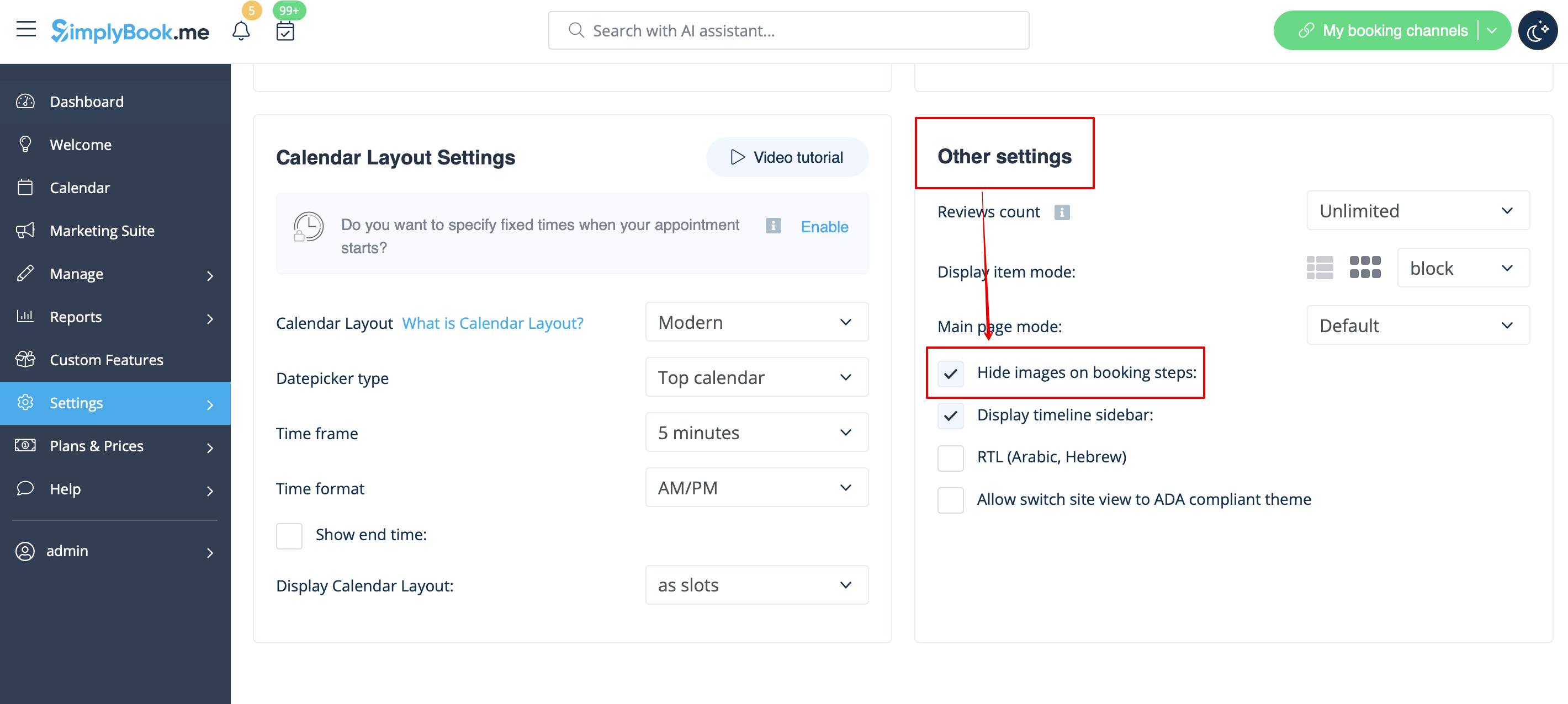
Go to Settings -> Design settings -> Other settings and check the box Hide images on booking steps. Save settings.
Pay later possibility
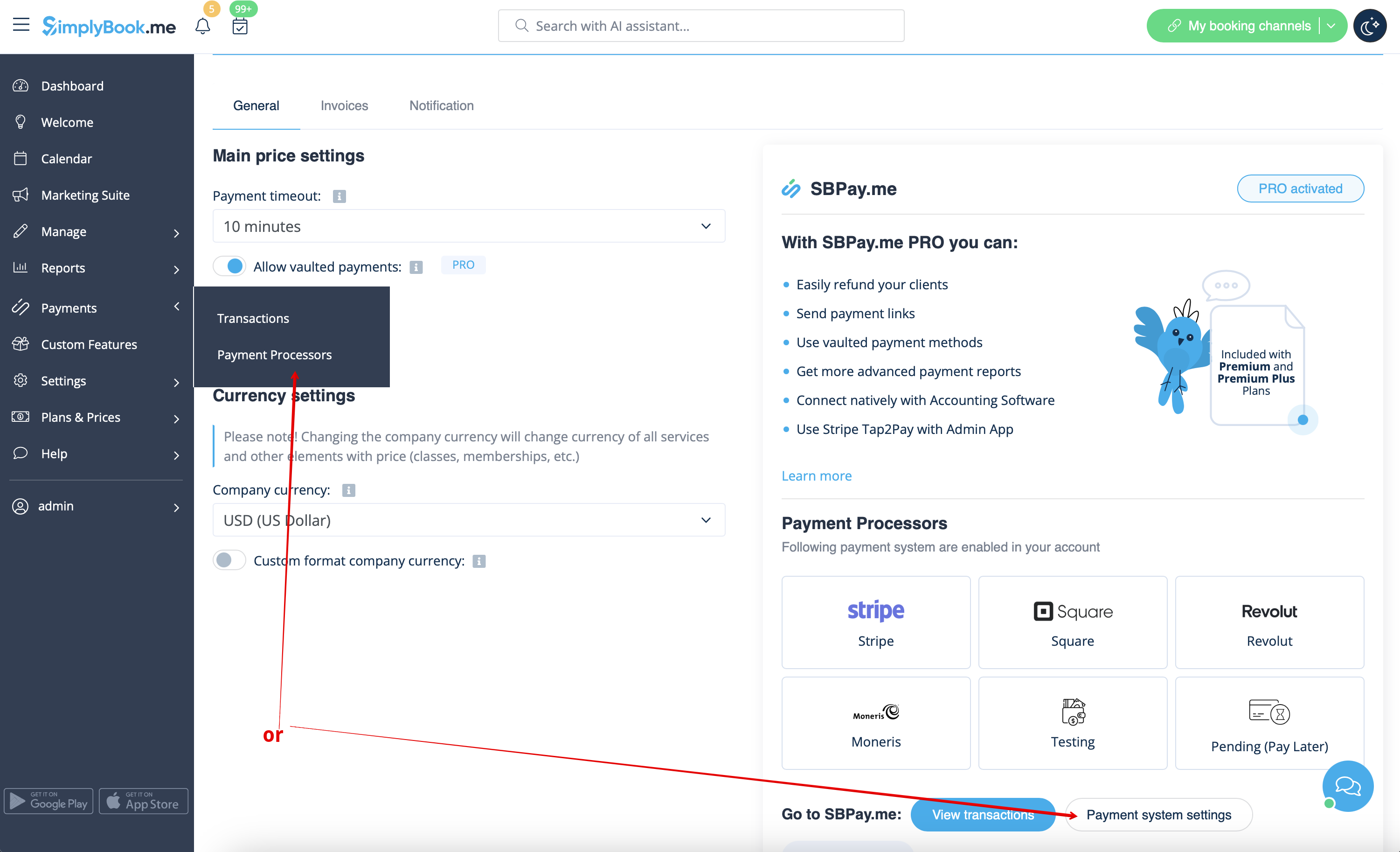
Please navigate to Payments -> Payment Processors or Custom Features -> Accept payments -> Settings -> Payment system settings to go to SBPay.me interface and disable Pay later option there.
Employee Step
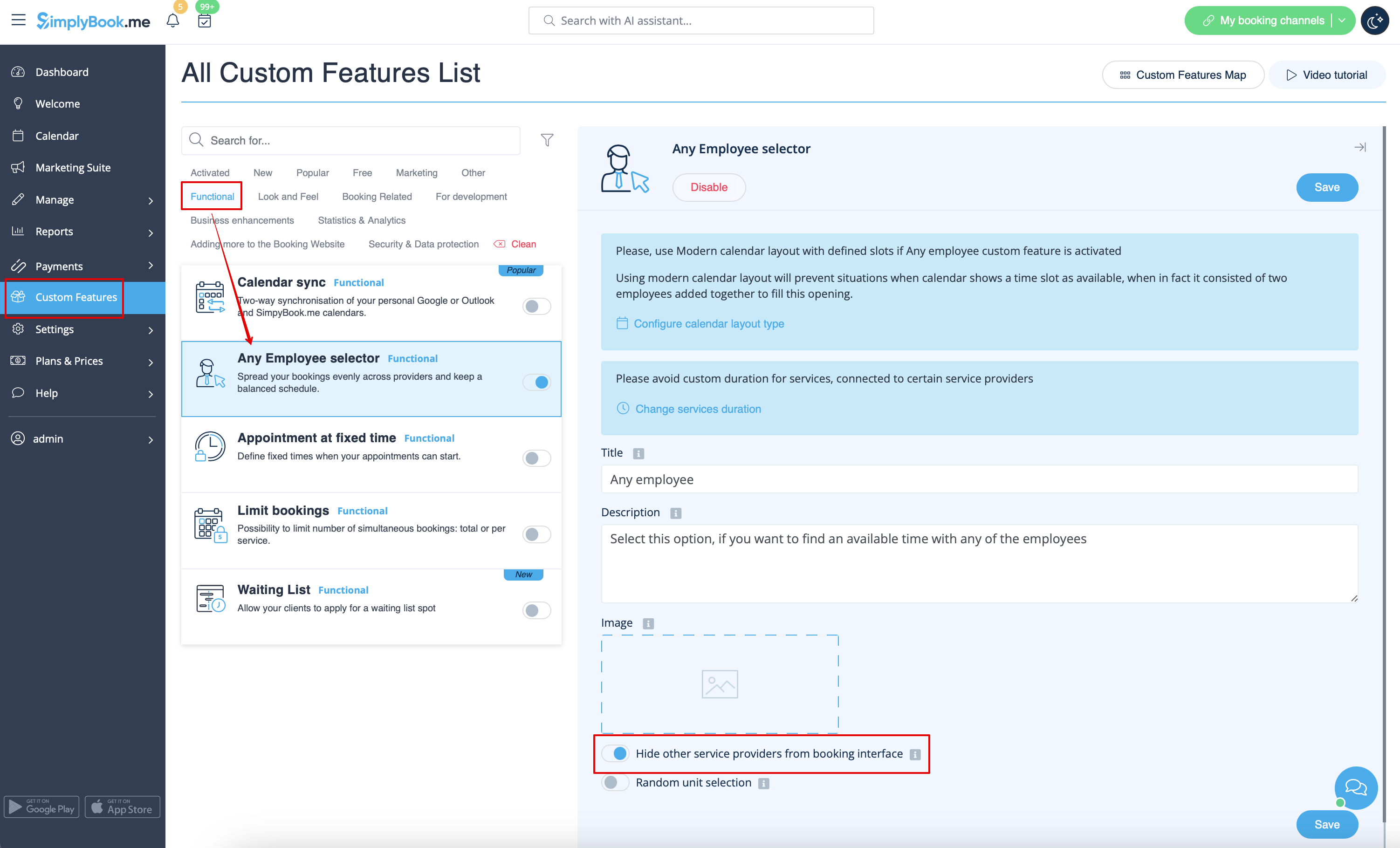
Enable Any Employee Selector in the Custom Features section and in its Settings on the right side of the page enable Hide other service providers from booking interface option
Map
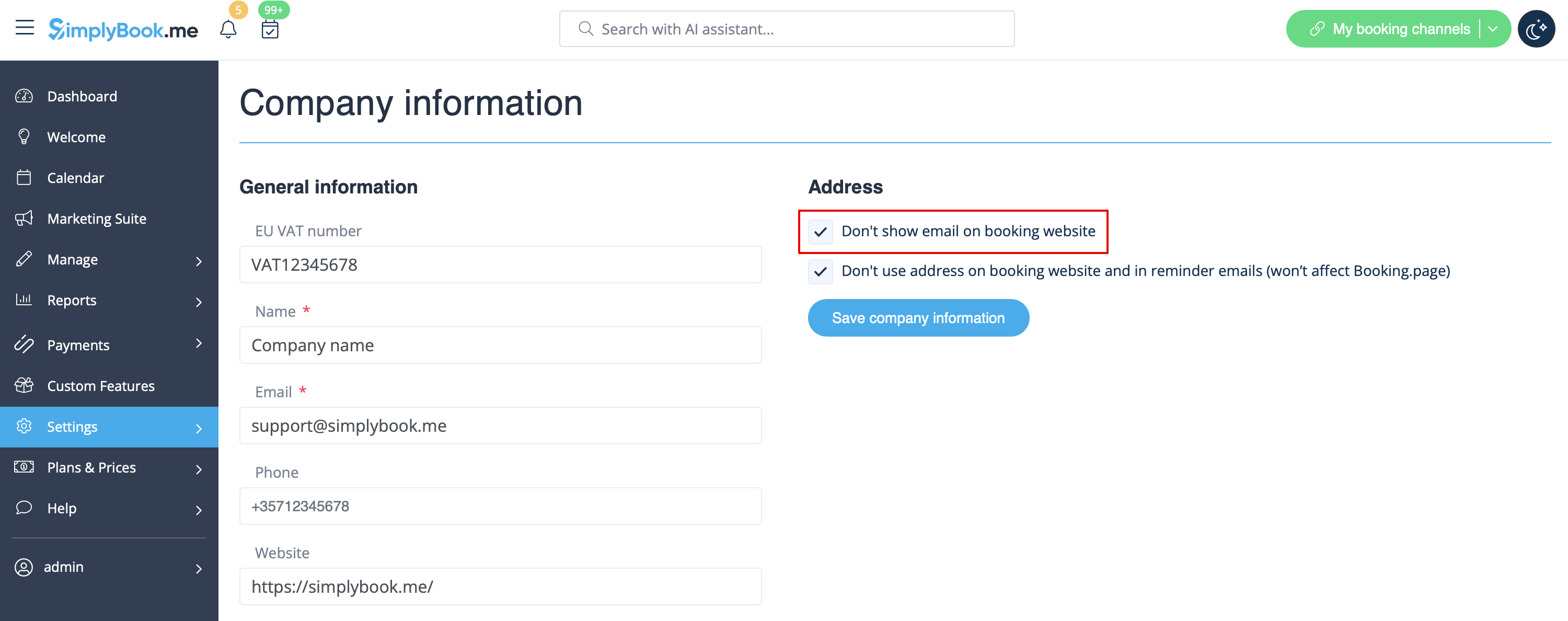
In Settings -> Company Information -> Don't use address checkbox.

Company email address
In Settings -> Company Information -> Don't show email on booking page checkbox.
"Change my time zone" option
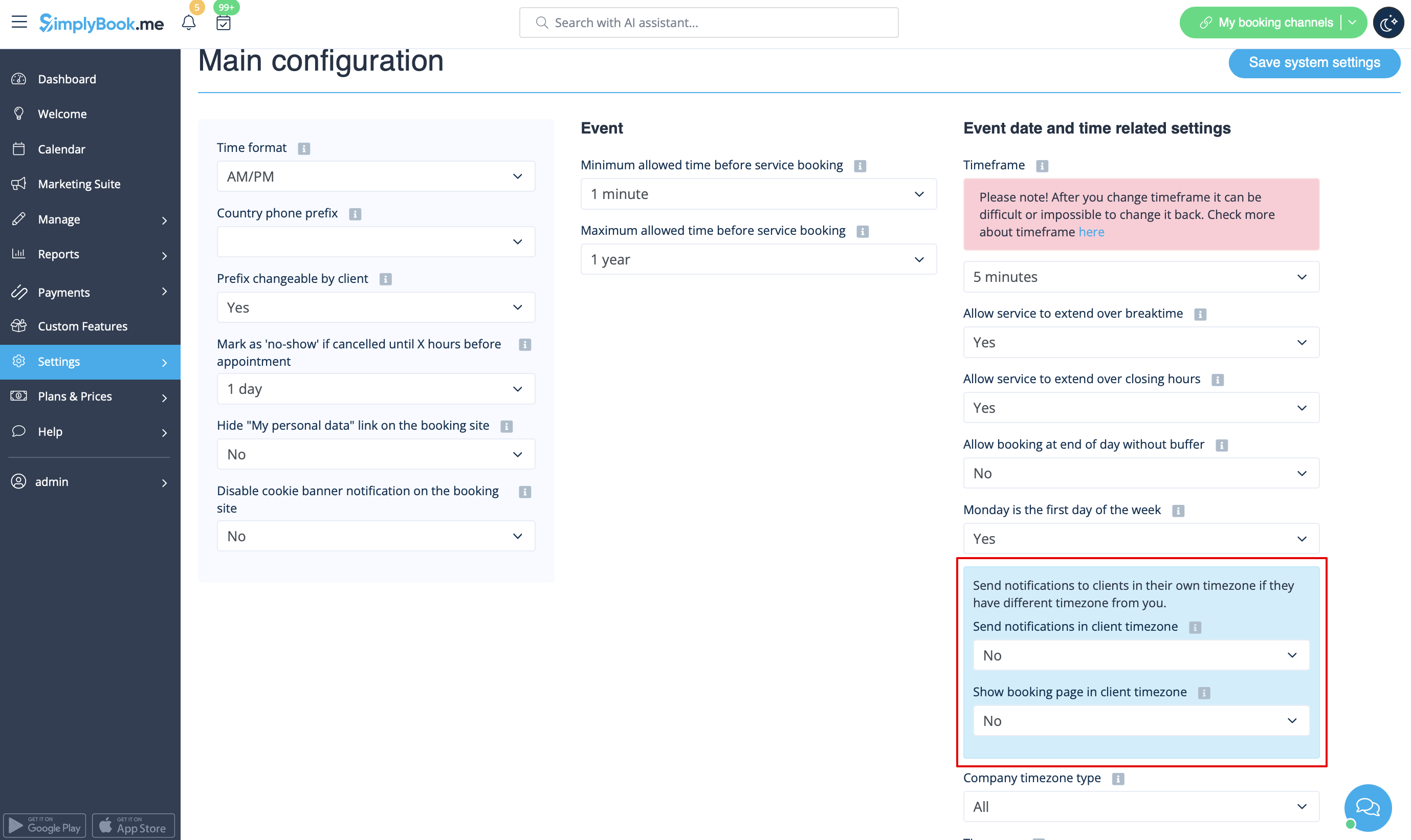
In Settings -> Main configuration set Show booking page in client timezone and Send notifications in client timezone to No and save settings.
Reviews
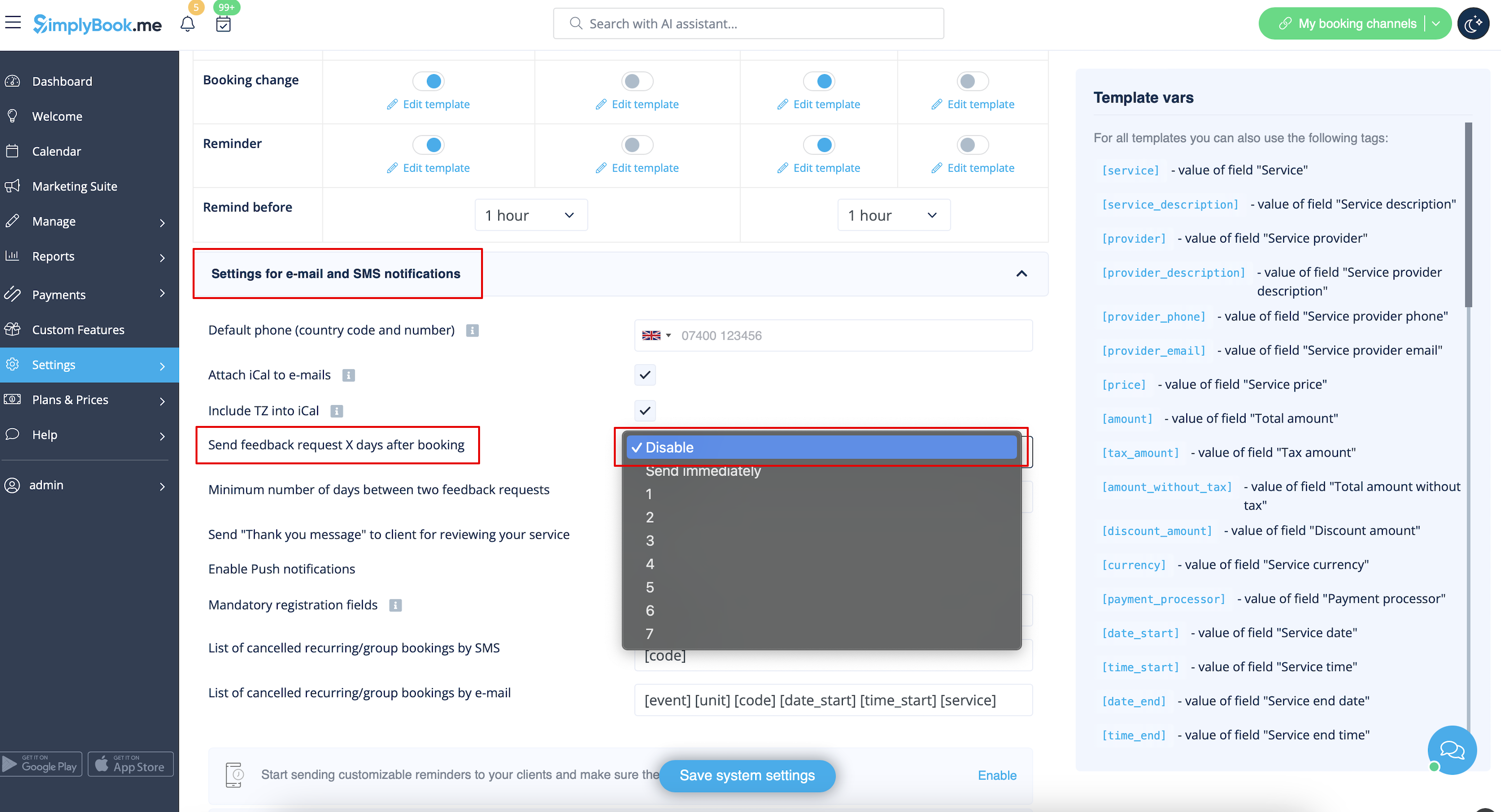
You can view all your reviews in the Reviews tab in left-side menu, under Reports. You can also delete reviews there if necessary. If you wish to remove the option to leave a review on your booking site and do not send feedback request then in Settings -> Email and SMS settings -> Settings for email and SMS notifications -> set Send feedback request X days after booking to Disable.
Gallery
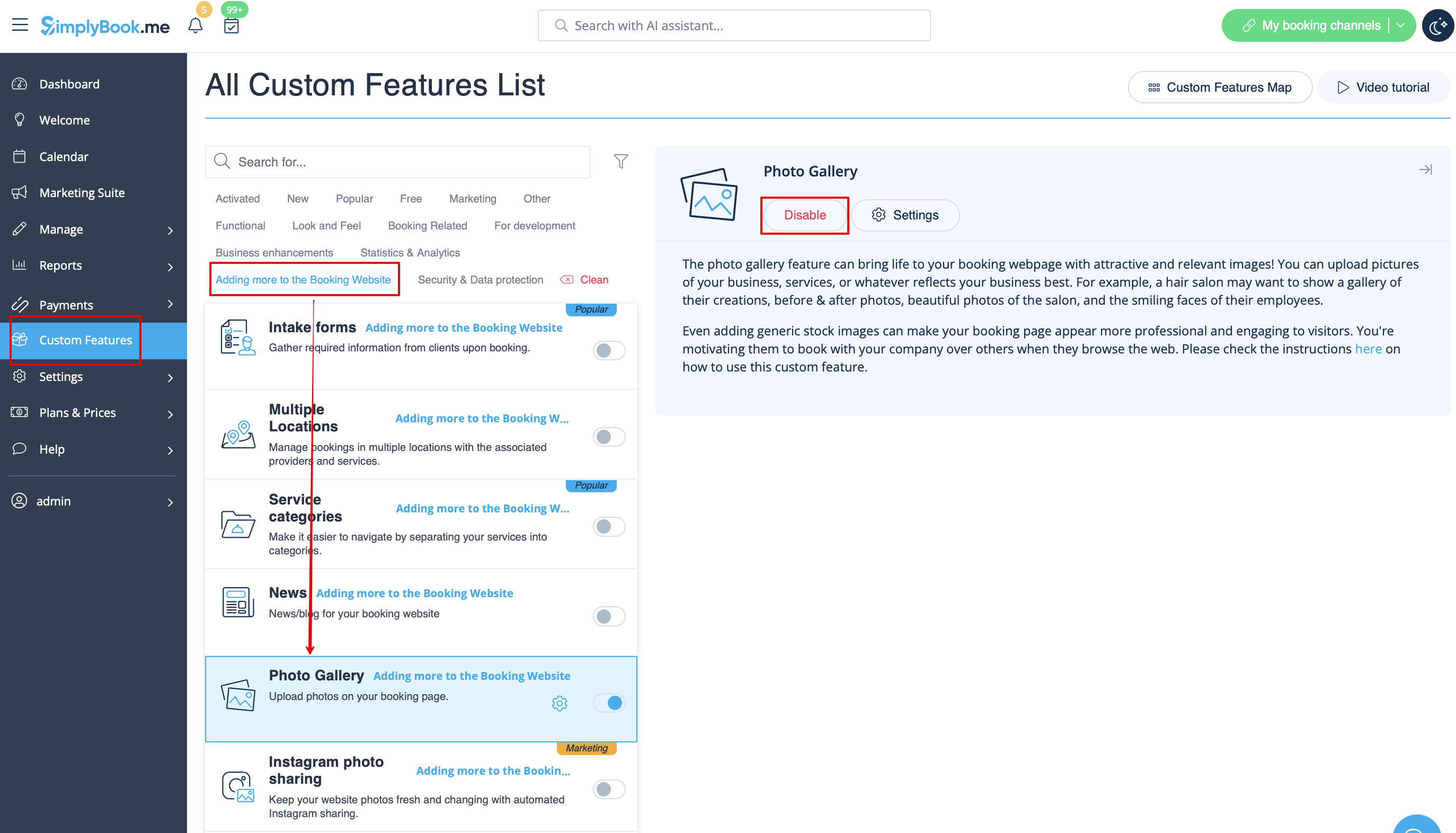
In Custom Features section disable Photo Gallery.
Working hours
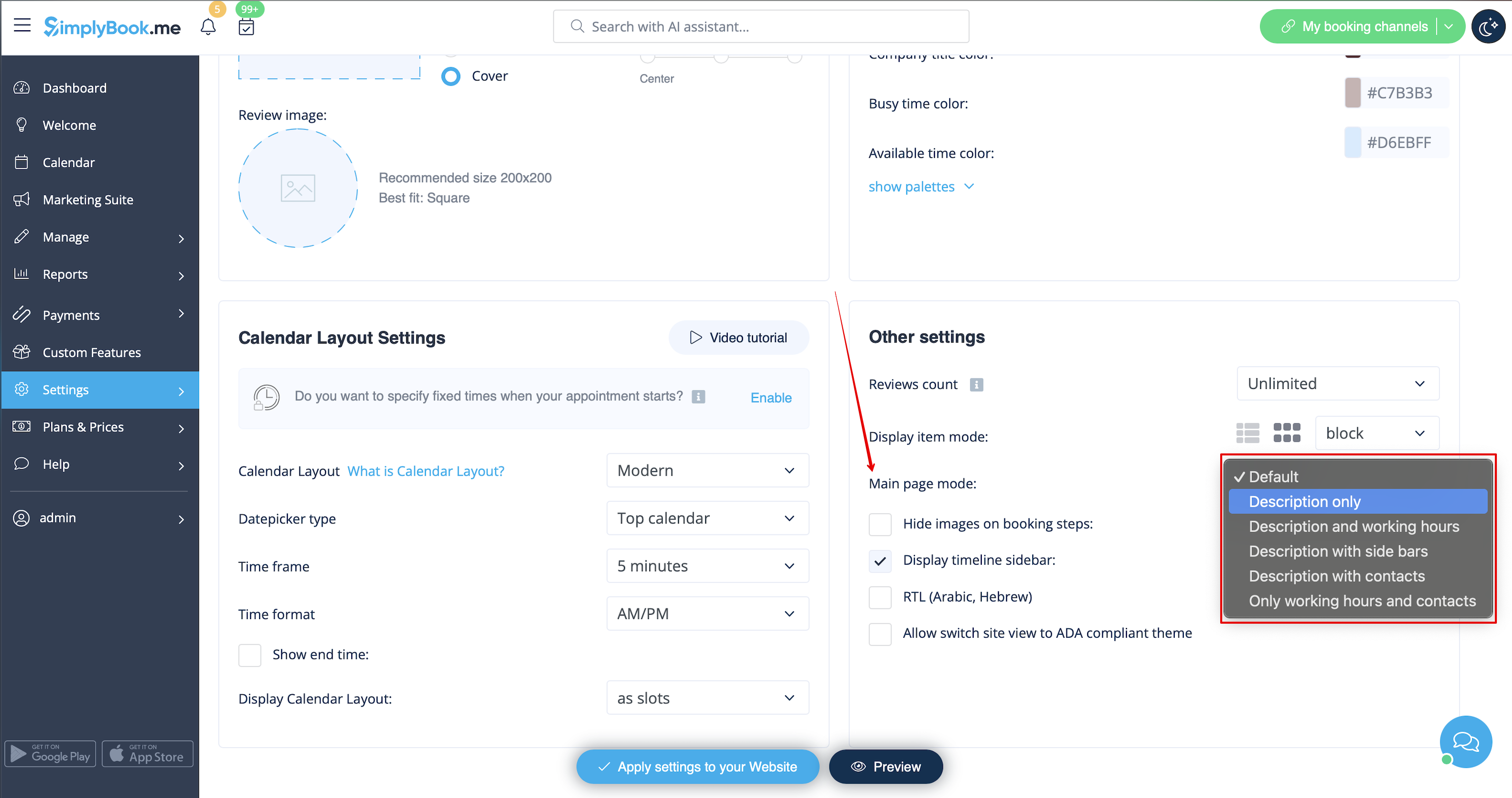
If you want to remove this section for new themes please go to Settings -> Design settings -> Other settings -> Main page mode and choose mode without working hours.
SimplyBook.me Terms and Conditions
- Please note, that you need to confirm that you've added information about SimplyBook.me Ltd. as a supplier to your Terms&Conditions.
To remove the checkbox you need to have enabled and correctly set all the options mentioned:
Either:
1. SMTP + Custom domain + Terms and Conditions + theme different from blank.
Or:
2. SMTP + Terms and Conditions + blank theme + Widget on your website.
After that you will be able to enable I confirm that I've added information about SimplyBook.me Ltd. as a supplier to my T&C option in Custom features -> Terms&Conditions and after you save settings there the SimplyBook.me terms and conditions checkbox will be removed from the booking site.

My personal data link
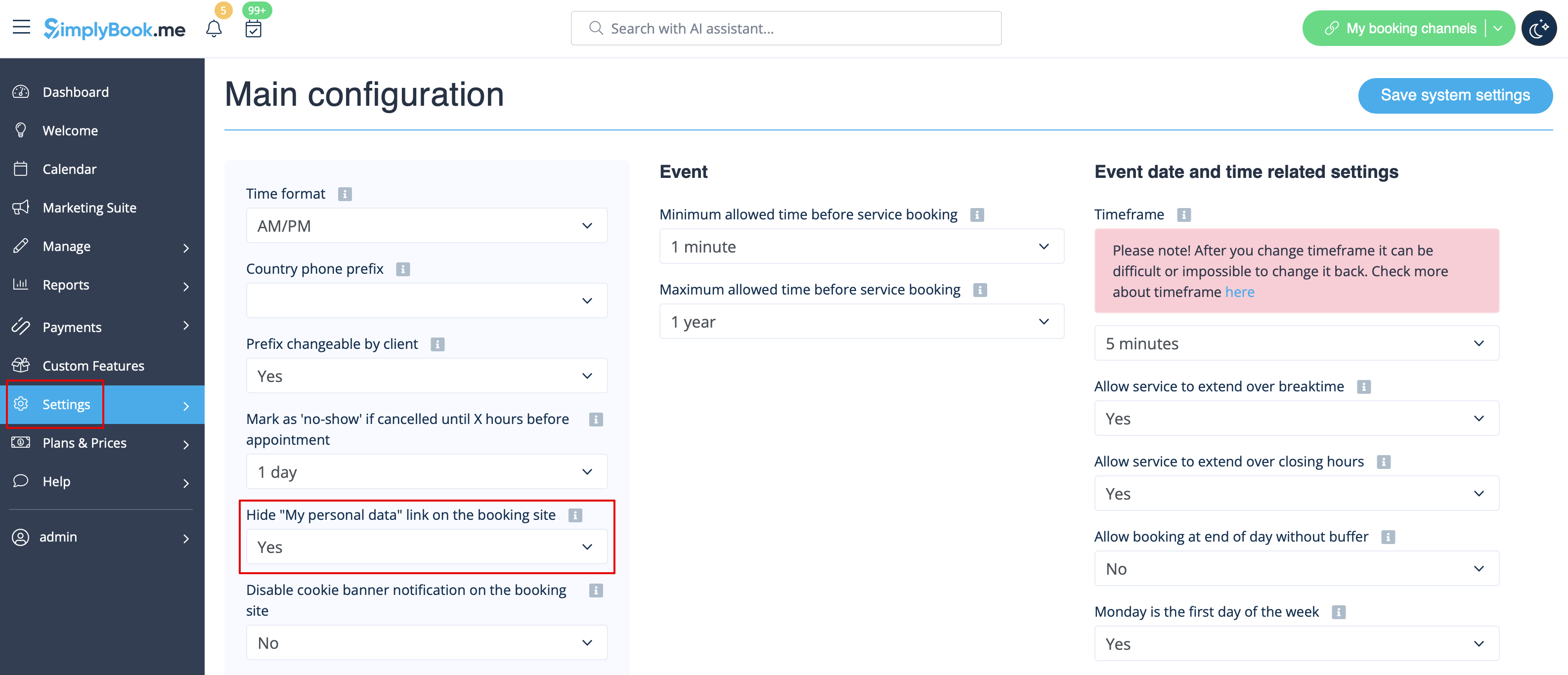
Go to Settings -> Main configuration and select Yes in Hide "My personal data" link on the booking site. save settings.
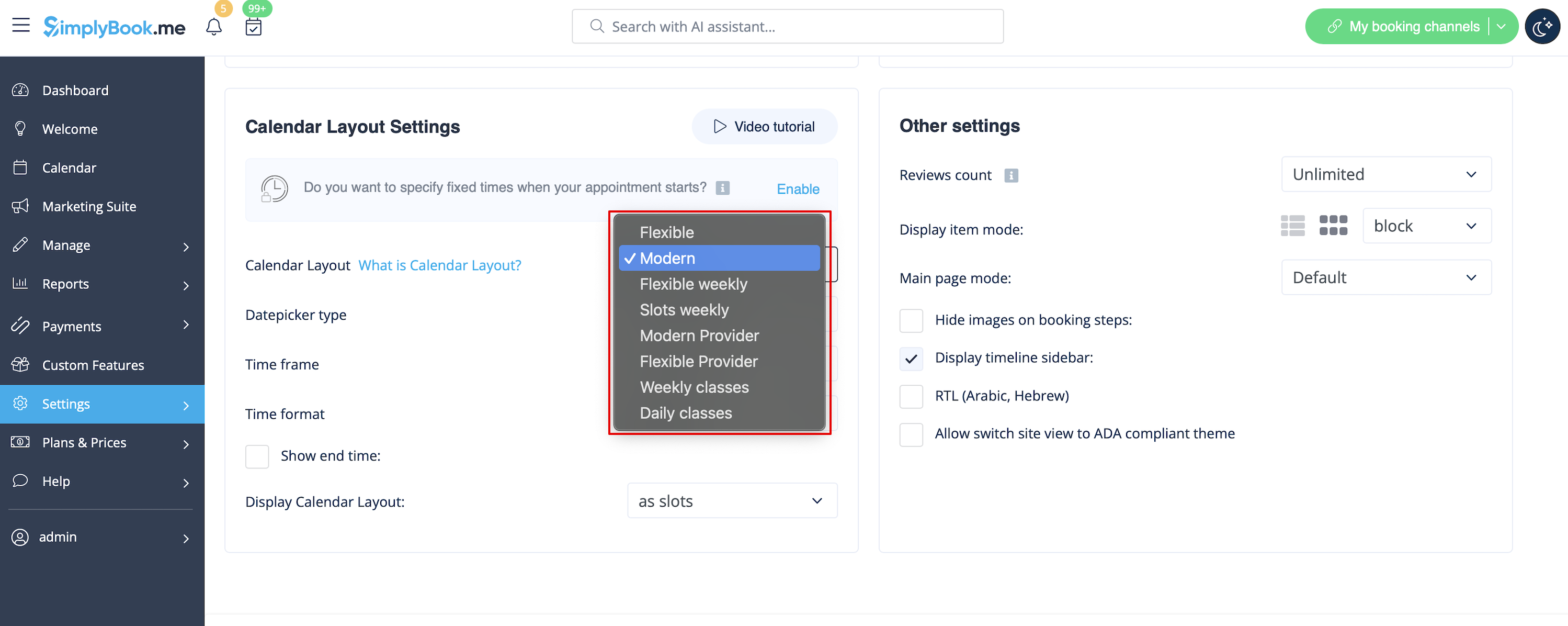
Please select modern, modern provider, daily(available with Classes feature enabled) or weekly classes calendar layout in Settings -> Design settings -> Calendar Layout -> Calendar Layout settings -> Calendar Layout drop-down.
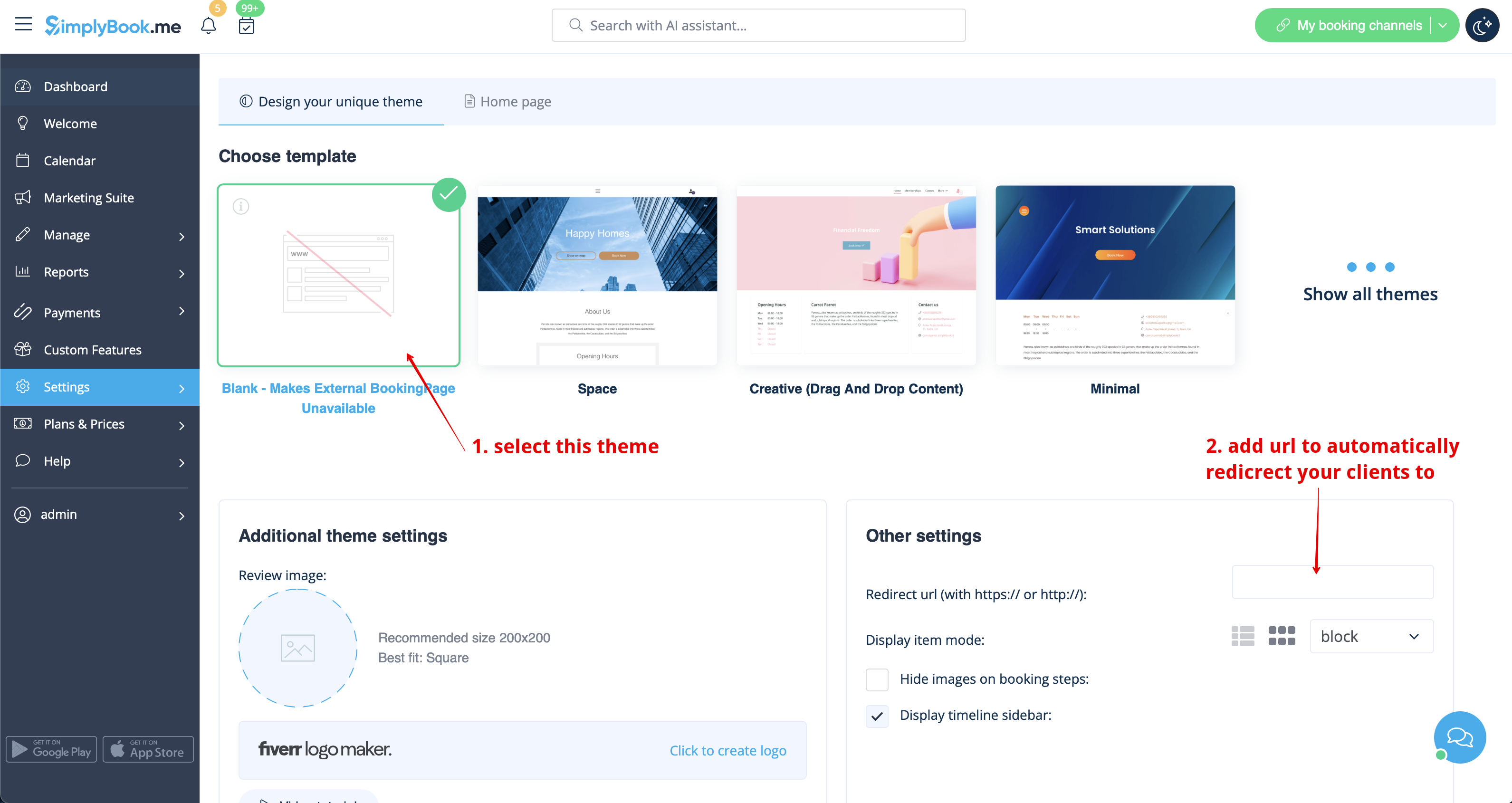
Disable booking page(available for paid accounts only)
In order not to show any info on your booking page (make it blank), you can put blank theme on your booking page in Settings -> Design settings.
Please select to show all themes and choose the last one without image, add the link to the page your clients should be redirected to in case they open your booking page and save settings.
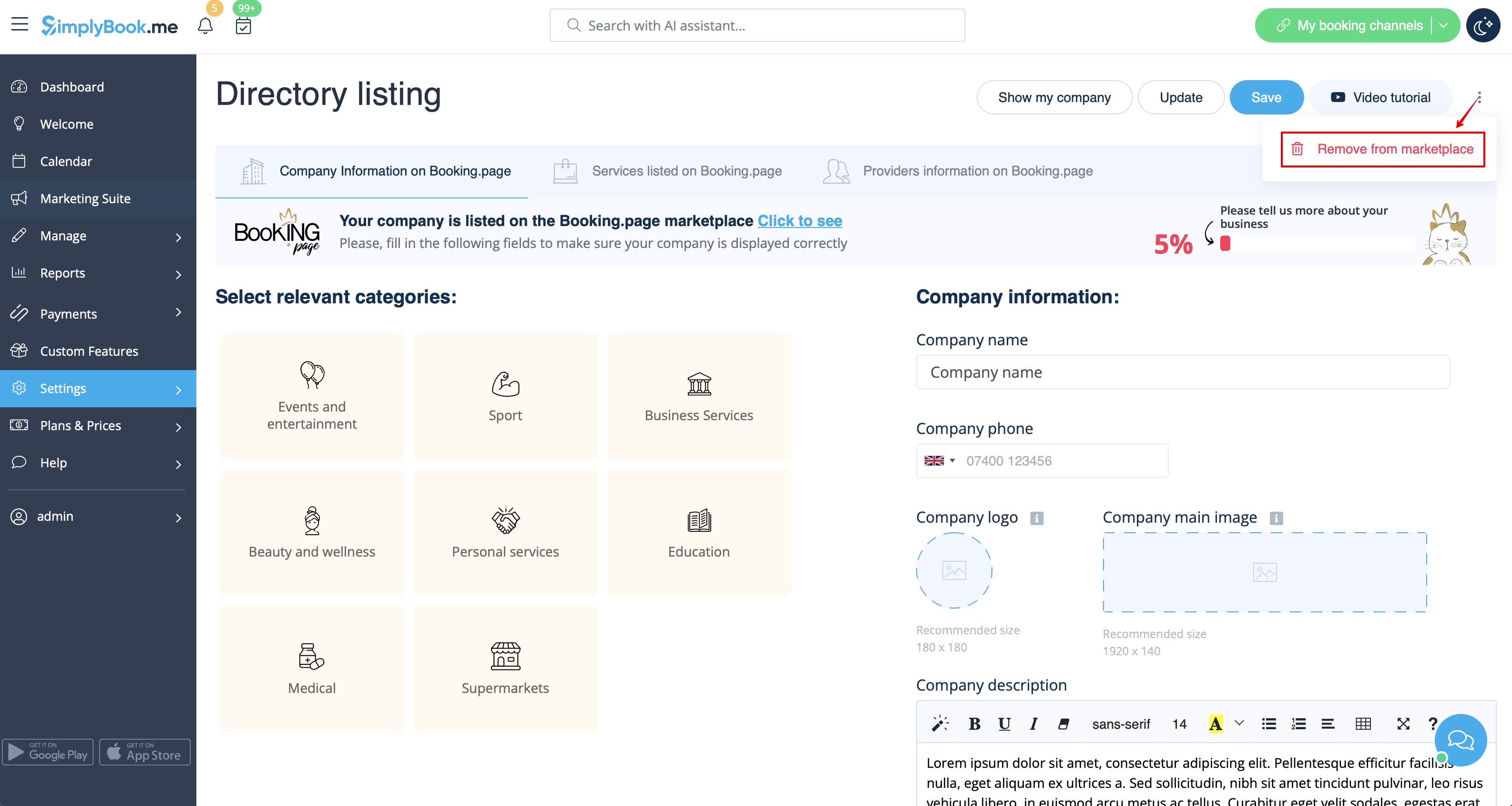
Please note! Even with blank theme your booking page will appear in Google and information will be shown in Booking.Page directory. To remove your company from directory, please click on Remove from marketplace button Settings -> Directory listing.
Removing with Custom CSS
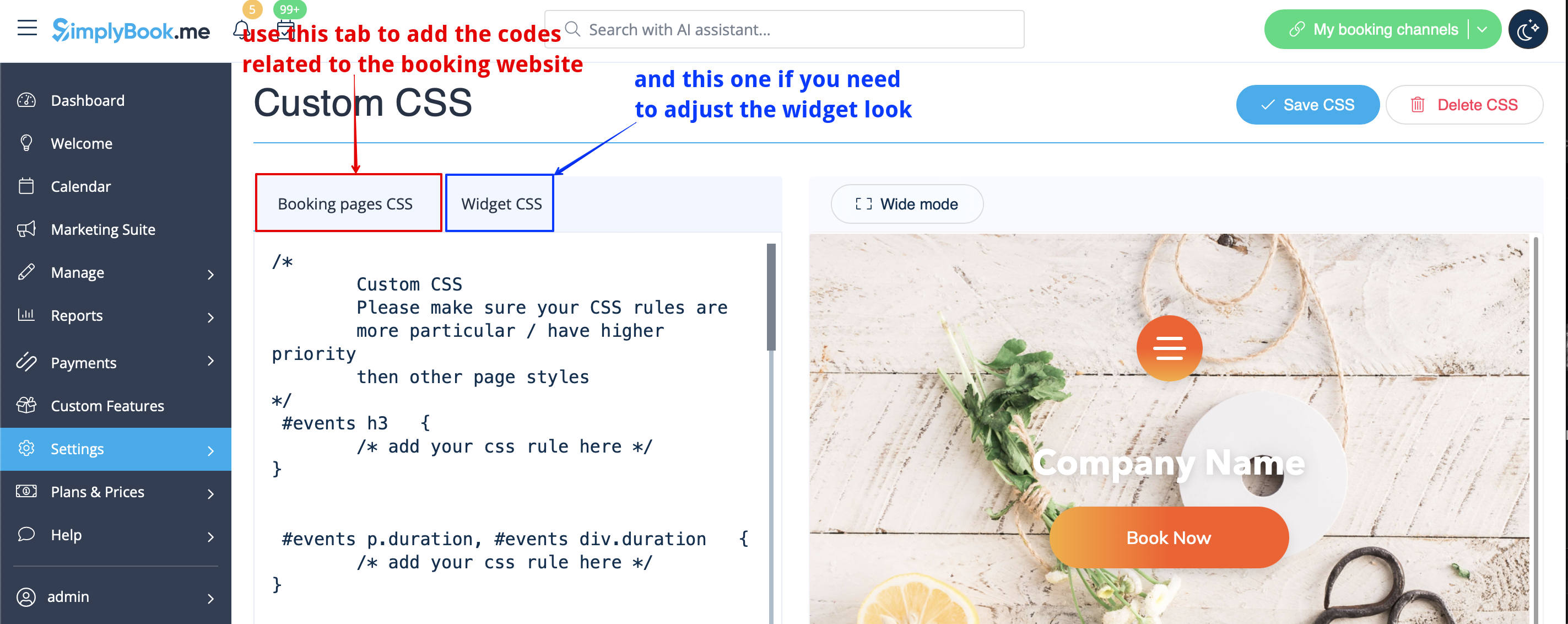
- Please note! Add the code(s) to adjust the styles to "Booking pages CSS" tab if you wish to edit the booking website
- or "Widget CSS" if you are editing widget on your website.
Phone field
(Client login feature is disabled)
- 1. Go to Settings -> Email and SMS settings -> Settings for email and SMS notifications -> Mandatory registration fields -> Email (to make phone not mandatory).
- 2. Please go to Custom Features -> Custom Features and enable Custom CSS feature. Then in this feature Settings or in Custom Features -> Custom CSS paste to Booking pages CSS window at the very top the following code:
.form-group.form-client-phone{
    display: none;
}
Email field
(Client login feature is disabled)
- 1. Go to Settings -> Email and SMS settings -> Settings for email and SMS notifications -> Mandatory registration fields -> Phone (to make email not mandatory).
- 2. Please go to Custom Features -> Custom Features and enable Custom CSS feature. Then in this feature Settings or in Custom Features -> Custom CSS paste to Booking pages CSS window at the very top the following code:
.form-group.form-client-email{
    display: none;
}
Our time
Please go to Custom Features -> Custom Features and enable Custom CSS feature. Then in this feature Settings or in Custom Features -> Custom CSS paste to Booking page CSS window at the very top the following code:
div#sb_booking_company_time {
    display: none;
}
May we send you promotions and relevant information
Please go to Custom Features -> Custom Features and enable Custom CSS feature. Then in this feature Settings or in Custom Features -> Custom CSS paste to Booking page CSS window at the very top the following code:
- Client login feature enabled:
#main #client-login .custom-form #sb_terms_and_conditions .promotions-letter-flag label[role=button]{
    display: none;
}
- Client login feature disabled:
#sb-main-container #main #sb-timeline #steps #details .detail-step-wrap .detail-step .license-links-container .promotions-letter-flag label[role=button]{
    display: none;
}
Filter by Services on Membership page
Please go to Custom Features -> Custom Features and enable Custom CSS feature. Then in this feature Settings or in Custom Features -> Custom CSS paste to Booking page CSS window at the very top the following code:
#membership-view #membership-filters {
   display: none;
}
Remove banner image
- Please note! "Book now" and other buttons that are displayed on top of banner will be hidden as well. The code may not work with some themes.
Please go to Custom Features -> Custom Features and enable Custom CSS feature. Then in this feature Settings or in Custom Features -> Custom CSS paste to Booking page CSS window at the very top the following code:
#main-buttons {
    display: none;
}
Remove some specific element
If you need to remove a specific element from your booking page, you will need to use Custom CSS feature and the corresponding code. If you don't know CSS, please contact support and they will create a request to check whether such change is possible.
Please note, that big requests may be done on a paid basis.
