From SimplyBook.me
Marked this version for translation |
No edit summary |
||
| (4 intermediate revisions by the same user not shown) | |||
| Line 1: | Line 1: | ||
<languages/> | <languages/> | ||
{{#seo: | |||
|title=Book Soon Notification System custom feature - SimplyBook.me | |||
<translate> | <translate> | ||
<!--T:5--> | |||
|description=Automate re-booking reminders to clients. Send follow-up campaigns encouraging repeat visits. Set intervals, customize messages to drive client retention. | |||
</translate> | </translate> | ||
|titlemode=append | |titlemode=append | ||
|keywords=faq, frequently asked questions, booking software, appointment system questions, appointments online, calendar software, booking system, booking calendar, scheduling software, online appointment scheduling, online scheduling, plugins, custom features, book soon, book again, come again, book again reminder, come again reminder, notification, reminder | |keywords=faq, frequently asked questions, booking software, appointment system questions, appointments online, calendar software, booking system, booking calendar, scheduling software, online appointment scheduling, online scheduling, plugins, custom features, book soon, book again, come again, book again reminder, come again reminder, notification, reminder | ||
| Line 27: | Line 29: | ||
;How to use | ;How to use | ||
:1. Enable this custom feature on your Custom features page. | :1. Enable this custom feature on your Custom features page. | ||
[[File:Book soon enable path | [[File:Book soon enable path redesigned.png|1200px | center|link=https://help.simplybook.me/images/1/1d/Book_soon_enable_path_redesigned.png]] | ||
<br><br> | <br><br> | ||
:2. Go to "Settings" near this option. | :2. Go to "Settings" near this option. | ||
[[File:Book soon settings path | [[File:Book soon settings path redesigned.png|1200px | center|link=https://help.simplybook.me/images/a/ac/Book_soon_settings_path_redesigned.png]] | ||
<br><br> | <br><br> | ||
:3. In the settings press "Add new". | :3. In the settings press "Add new". | ||
[[File: | [[File:Add new book soon redesigned.png|1200px | center|link=https://help.simplybook.me/index.php/File:Add_new_book_soon_redesigned.png]] | ||
<br><br> | <br><br> | ||
:4. Configure email and /or sms notifications by writing the subject and the text.<br> | :4. Configure email and /or sms notifications by writing the subject and the text.<br> | ||
:You can use the following variables in your message: [client_name], [client_phone], [client_email], [event](for the service name), [unit](for the provider name), [code], [date_start], [time_start]. | :You can use the following variables in your message: [client_name], [client_phone], [client_email], [event](for the service name), [unit](for the provider name), [code], [date_start], [time_start]. | ||
[[File:Book soon | [[File:Book soon template editing redesigned.png|1200px | center|link=https://help.simplybook.me/images/7/7d/Book_soon_template_editing_redesigned.png]] | ||
<br><br> | <br><br> | ||
:5. In the field "Book soon notifications" name this notification to distinguish it from other notifications you may want to create in future. | :5. In the field "Book soon notifications" name this notification to distinguish it from other notifications you may want to create in future. | ||
Latest revision as of 19:33, 2 February 2026

Make sure your clients come again! This Custom Feature will remind your clients to come back as you can send them a message x-number of days after their appointment. For example, you can compose your own message and send a reminder always 30 days after an appointment.
Please note!
- This custom feature is available with paid subscriptions only.
- The clients should be subscribed to your marketing materials to be able to receive such notifications.
- How to use
- 1. Enable this custom feature on your Custom features page.
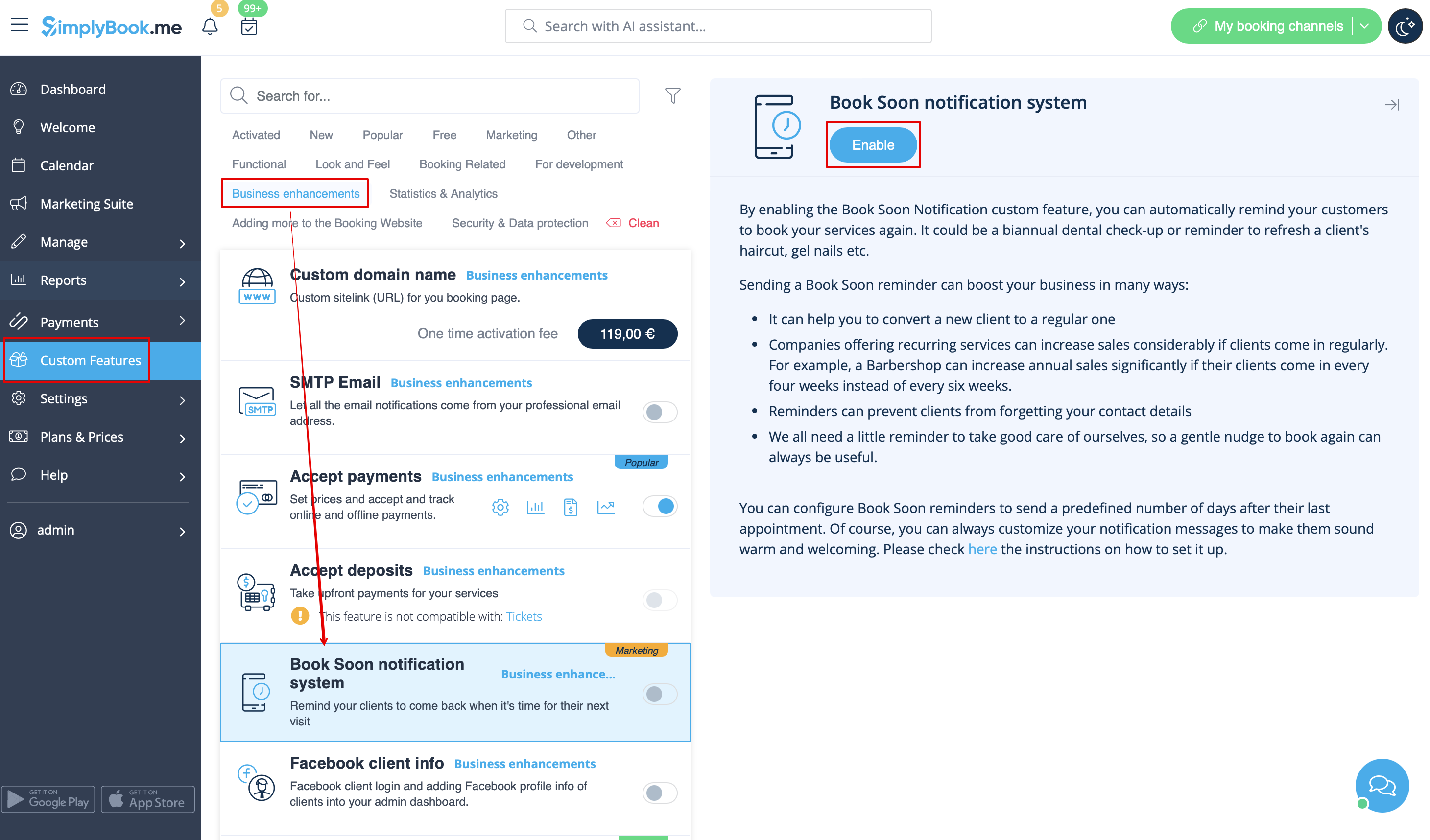
- 2. Go to "Settings" near this option.
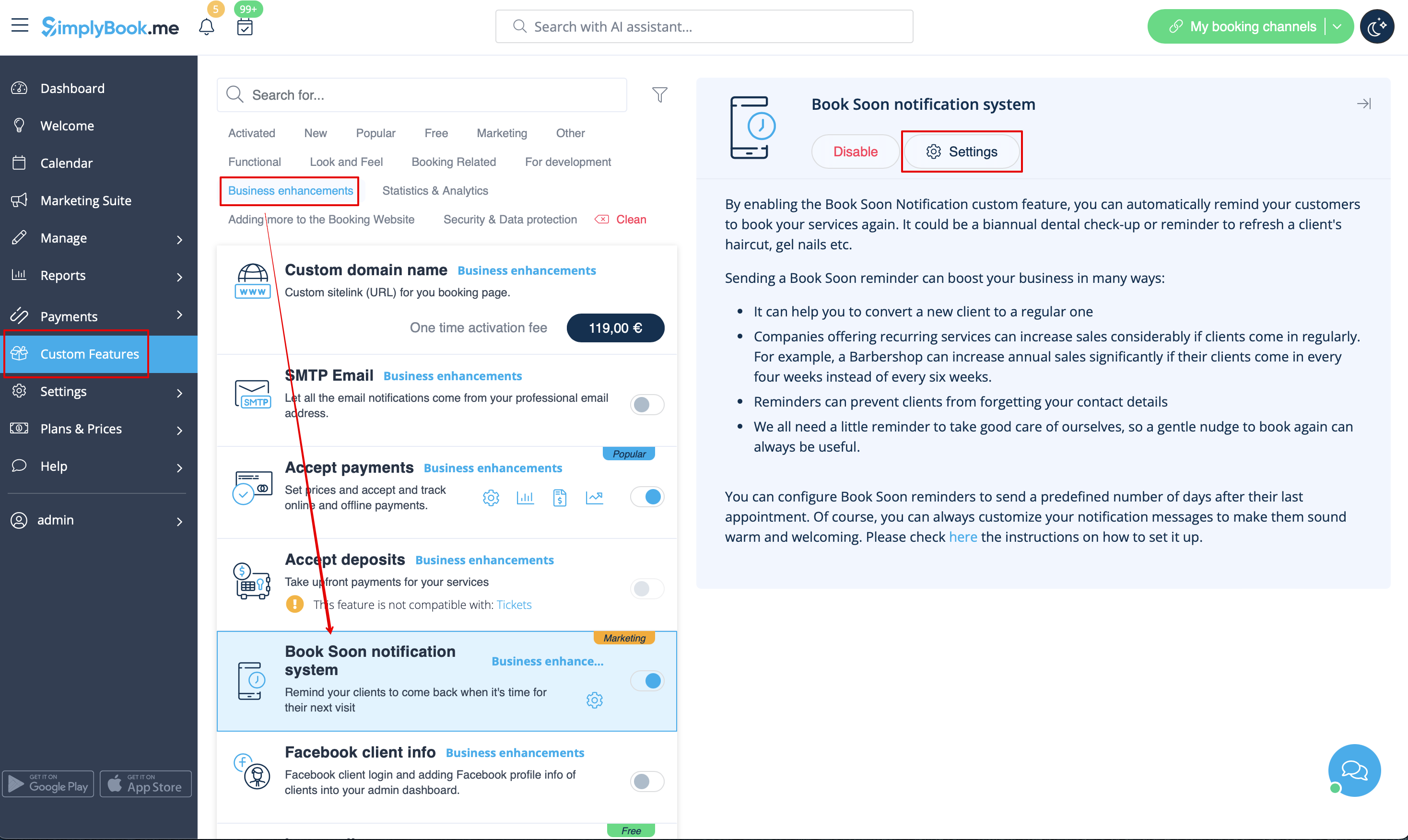
- 3. In the settings press "Add new".

- 4. Configure email and /or sms notifications by writing the subject and the text.
- You can use the following variables in your message: [client_name], [client_phone], [client_email], [event](for the service name), [unit](for the provider name), [code], [date_start], [time_start].
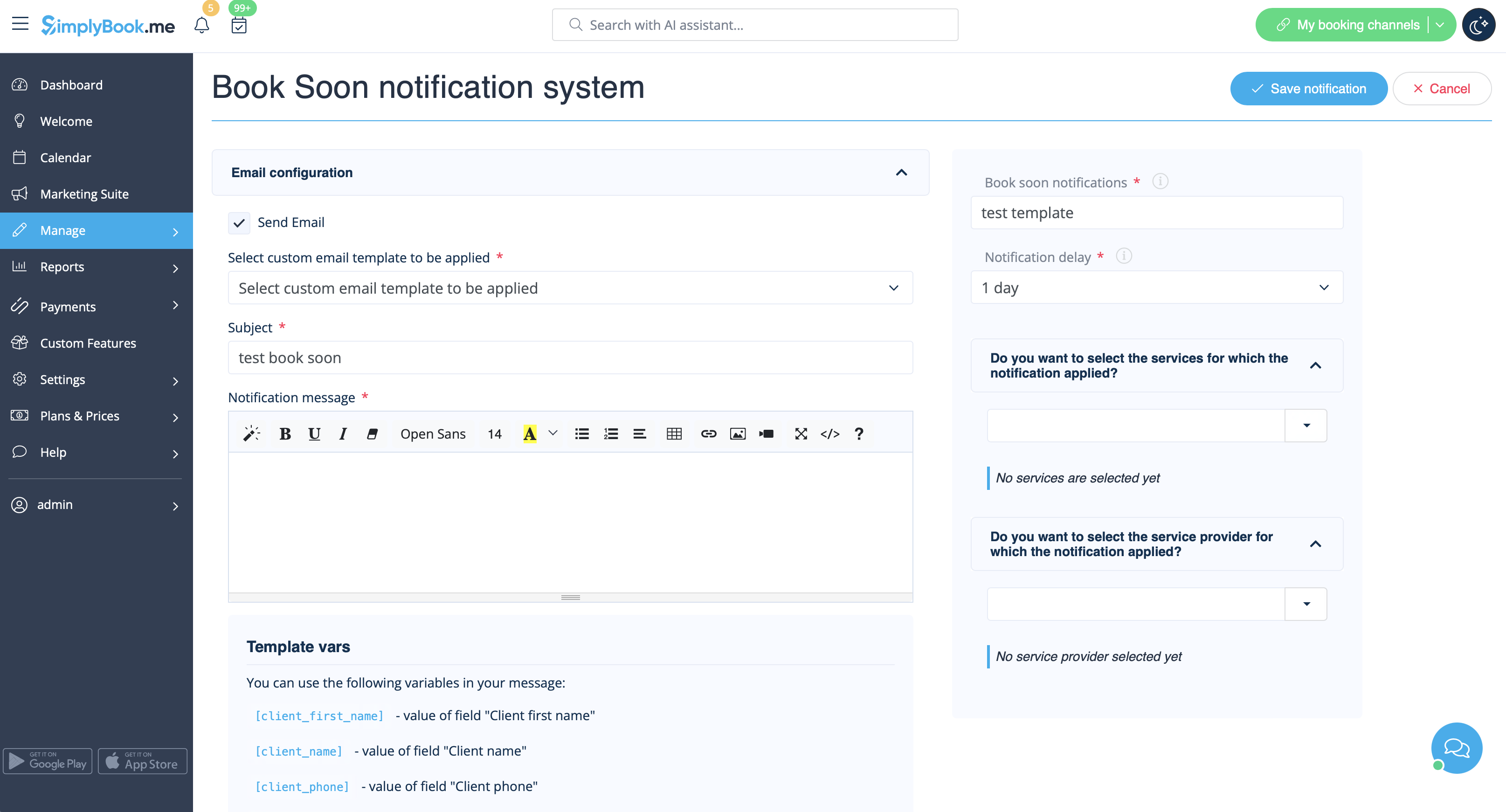
- 5. In the field "Book soon notifications" name this notification to distinguish it from other notifications you may want to create in future.
- 6. Set notification delay days (number of days after the appointment when notification should be sent)
- 7. Select service and provider for which the notification will be applied to (optional).
