From SimplyBook.me
No edit summary |
No edit summary |
||
| (7 intermediate revisions by the same user not shown) | |||
| Line 1: | Line 1: | ||
<languages/> | |||
{{#seo: | {{#seo: | ||
|title=Insights custom feature - SimplyBook.me | |title=Insights custom feature - SimplyBook.me | ||
<translate> | |||
<!--T:4--> | |||
|description=Access advanced analytics and business insights. Track booking trends, revenue, popular services. Make data-driven decisions to grow your business. | |||
</translate> | |||
|titlemode=append | |titlemode=append | ||
|keywords=faq, frequently asked questions, booking software, appointment system questions, appointments online, calendar software, booking system, booking calendar, scheduling software, online appointment scheduling, online scheduling, plugins, custom features, additional functionality, report, statistics, booking statistics, company statistics, analyze the load | |keywords=faq, frequently asked questions, booking software, appointment system questions, appointments online, calendar software, booking system, booking calendar, scheduling software, online appointment scheduling, online scheduling, plugins, custom features, additional functionality, report, statistics, booking statistics, company statistics, analyze the load | ||
}} | }} | ||
<translate> | |||
<!--T:1--> | |||
<br> | <br> | ||
[[File:Insights new icon.png |left]] | [[File:Insights new icon.png |left]] | ||
<!--T:2--> | |||
This Custom Feature creates a variety of charts with key performance indicators in your new financial dashboard. | This Custom Feature creates a variety of charts with key performance indicators in your new financial dashboard. | ||
<!--T:3--> | |||
Providers availability, total bookings, payment per provider etc | Providers availability, total bookings, payment per provider etc | ||
<br><br><br> | <br><br><br> | ||
;How to use | ;How to use | ||
:1. Enable Insights on your Custom features page. | :1. Enable <span style="background-color:#d4f8e5; padding:5px; border-radius:5px;">Insights</span> on your <span style="background-color:#d4f8e5; padding:5px; border-radius:5px;">Custom features</span> page. | ||
[[File: | [[File:Insignts enable path redesigned.png|1200px | center|link=https://help.simplybook.me/images/5/5f/Insignts_enable_path_redesigned.png]] | ||
<br><br> | <br><br> | ||
:2. Navigate to Dashboard to check the graphs and charts. | :2. Navigate to <span style="background-color:#d4f8e5; padding:5px; border-radius:5px;">Dashboard</span> to check the graphs and charts. | ||
[[File: | [[File:Insights on dashoboard overview redesigned.png|1200px | center|link=https://help.simplybook.me/images/b/b1/Insights_on_dashoboard_overview_redesigned.png]] | ||
<br><br> | <br><br> | ||
</translate> | |||
Latest revision as of 19:44, 16 February 2026

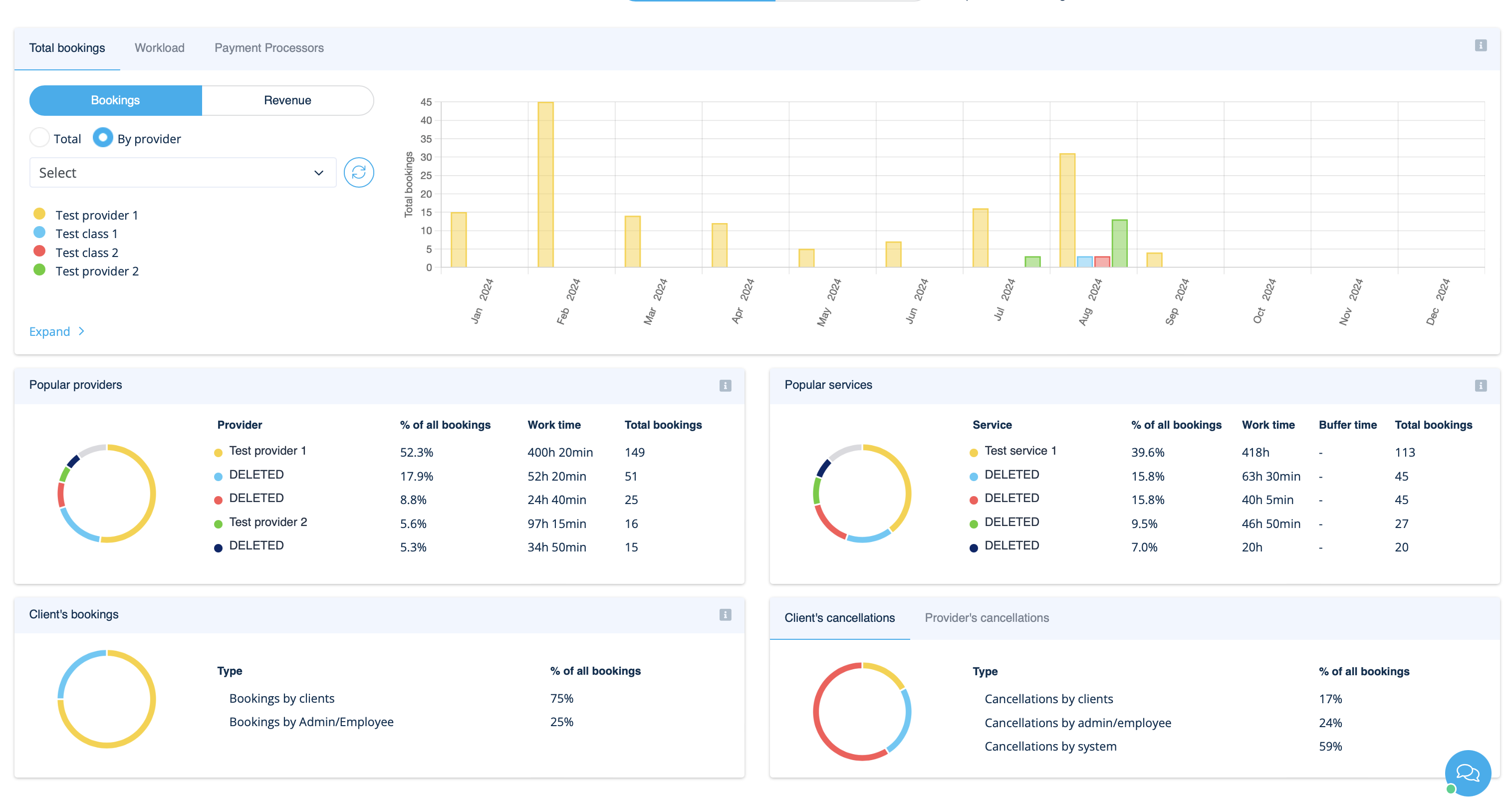
This Custom Feature creates a variety of charts with key performance indicators in your new financial dashboard.
Providers availability, total bookings, payment per provider etc
- How to use
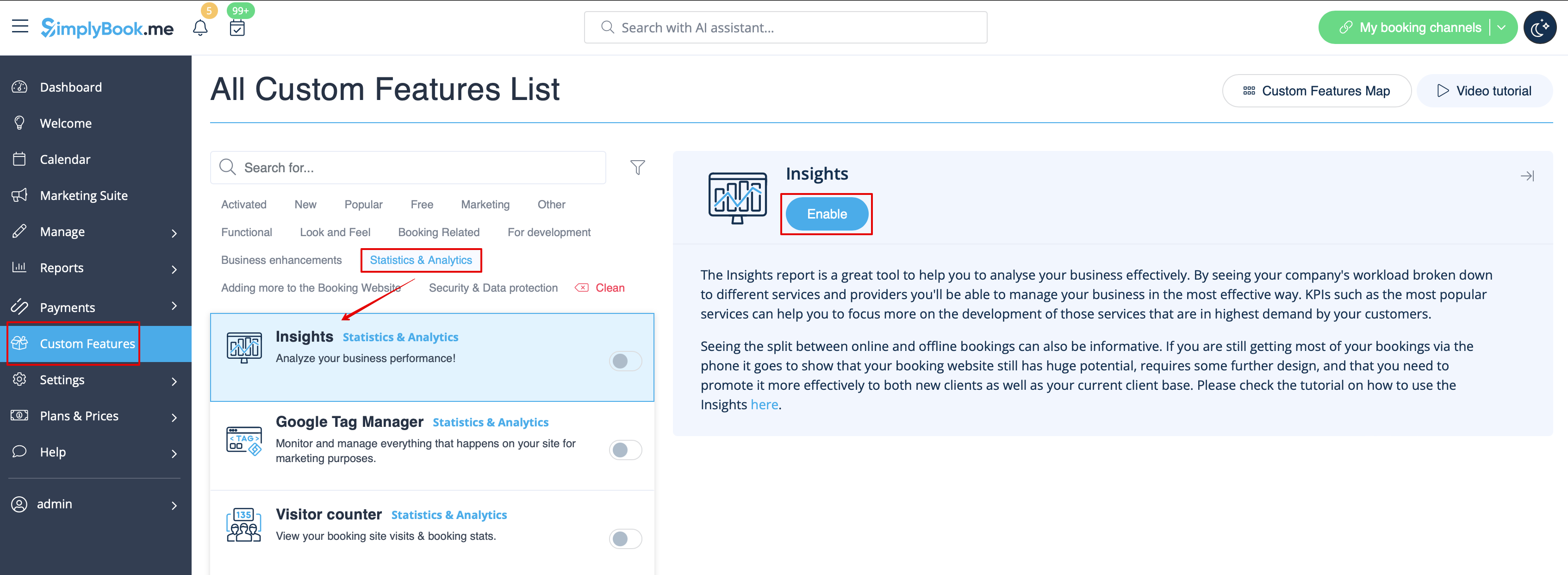
- 1. Enable Insights on your Custom features page.
- 2. Navigate to Dashboard to check the graphs and charts.