Translations:Integration with Mailchimp/3/en: Difference between revisions

From SimplyBook.me
FuzzyBot (talk | contribs)
Importing a new version from external source
 
FuzzyBot (talk | contribs)
Importing a new version from external source
 
Line 5: Line 5:
[[File:Select trigger sbm.png |border|center]]
[[File:Select trigger sbm.png |border|center]]
<br><br>
<br><br>
:6. Now you need to <span style="background-color:#d4f8e5; padding:5px; border-radius:5px;">connect your SimplyBook.me account.</span><br>
:6. Enable '''Zapier Connector''' custom feature on your custom features page.<br>
[[File:Connect to simplybook.png |border|center]]
Connect to your Zapier account using the ‘’’Quick connect’’’ option there.
[[File:Quick connect zapier.png|1200px|border | center|link=https://help.simplybook.me/images/8/84/Quick_connect_zapier.png]]
<br><br>
<br><br>
:7. Make sure to have your <span style="background-color:#d4f8e5; padding:5px; border-radius:5px;">login information to your SimplyBook.me account</span> and insert it to the relevant boxes. Confirm the selections.
:7. Or you can choose a manual connection by credentials.
[[File:Sbm credentials to zapier.png|border|center]]
- Go to Zapier.com -> App connections page and click on “Add connection” button<br>
[[File:Add connection zapeir side.png|1200px|border | center|link=https://help.simplybook.me/images/c/c2/Add_connection_zapeir_side.png]]
<br><br>
- Select SimplyBook.me<br>
- Copy company login, user login, generate and copy API key from your SimpyBook.me account<br>
[[File:Zapier manual connection new.png|1200px|border | center|link=https://help.simplybook.me/images/c/c3/Zapier_manual_connection_new.png]]
<br><br>
- Paste them to the corresponding fields on Zapier.com side and click on “Continue” option there. The account gets connected.
[[File:Credentials on zapier side new.png|1200px|border | center|link=https://help.simplybook.me/images/e/e9/Credentials_on_zapier_side_new.png]]
<br><br>
<br><br>
:8. Now <span style="background-color:#d4f8e5; padding:5px; border-radius:5px;">select MailChimp as an action app</span> and select the action that will take place when the trigger works.

Latest revision as of 10:35, 16 March 2026

Information about message (contribute)
This message has no documentation. If you know where or how this message is used, you can help other translators by adding documentation to this message.
Message definition (Integration with Mailchimp)
:5. Next <span style="background-color:#d4f8e5; padding:5px; border-radius:5px;">choose a trigger app</span> - put SimplyBook in the searchbox to find and select it.
<br><br>
[[File:Select simpybook as trigger.png|border|center]]
<br><br>
[[File:Select trigger sbm.png |border|center]]
<br><br>
:6. Enable '''Zapier Connector''' custom feature on your custom features page.<br>
Connect to your Zapier account using the ‘’’Quick connect’’’ option there.
[[File:Quick connect zapier.png|1200px|border | center|link=https://help.simplybook.me/images/8/84/Quick_connect_zapier.png]]
<br><br>
:7. Or you can choose a manual connection by credentials.
- Go to Zapier.com -> App connections page and click on “Add connection” button<br>
[[File:Add connection zapeir side.png|1200px|border | center|link=https://help.simplybook.me/images/c/c2/Add_connection_zapeir_side.png]]
<br><br>
- Select SimplyBook.me<br>
- Copy company login, user login, generate and copy API key from your SimpyBook.me account<br>
[[File:Zapier manual connection new.png|1200px|border | center|link=https://help.simplybook.me/images/c/c3/Zapier_manual_connection_new.png]]
<br><br>
- Paste them to the corresponding fields on Zapier.com side and click on “Continue” option there. The account gets connected.
[[File:Credentials on zapier side new.png|1200px|border | center|link=https://help.simplybook.me/images/e/e9/Credentials_on_zapier_side_new.png]]
<br><br>
:8. Now <span style="background-color:#d4f8e5; padding:5px; border-radius:5px;">select MailChimp as an action app</span> and select the action that will take place when the trigger works.
[[File:Select mailchimp.png|border|center]]
<br><br>
[[File:Select action on mailchimp side.png|border|center]]
<br><br>
:9. Connect <span style="background-color:#d4f8e5; padding:5px; border-radius:5px;">your MailChimp account.</span>
[[File:Log in to mailchimp.png|border|center]]
<br><br>
:10. <span style="background-color:#d4f8e5; padding:5px; border-radius:5px;">Set the required fields</span> depending on the action you have selected.
[[File:Mailchimp template.png|border|center]]
<br><br>
:11. Confirm your choices and <span style="background-color:#d4f8e5; padding:5px; border-radius:5px;">turn the Zap on.</span>
<br><br><br><br>
5. Next choose a trigger app - put SimplyBook in the searchbox to find and select it.


6. Enable Zapier Connector custom feature on your custom features page.

Connect to your Zapier account using the ‘’’Quick connect’’’ option there.
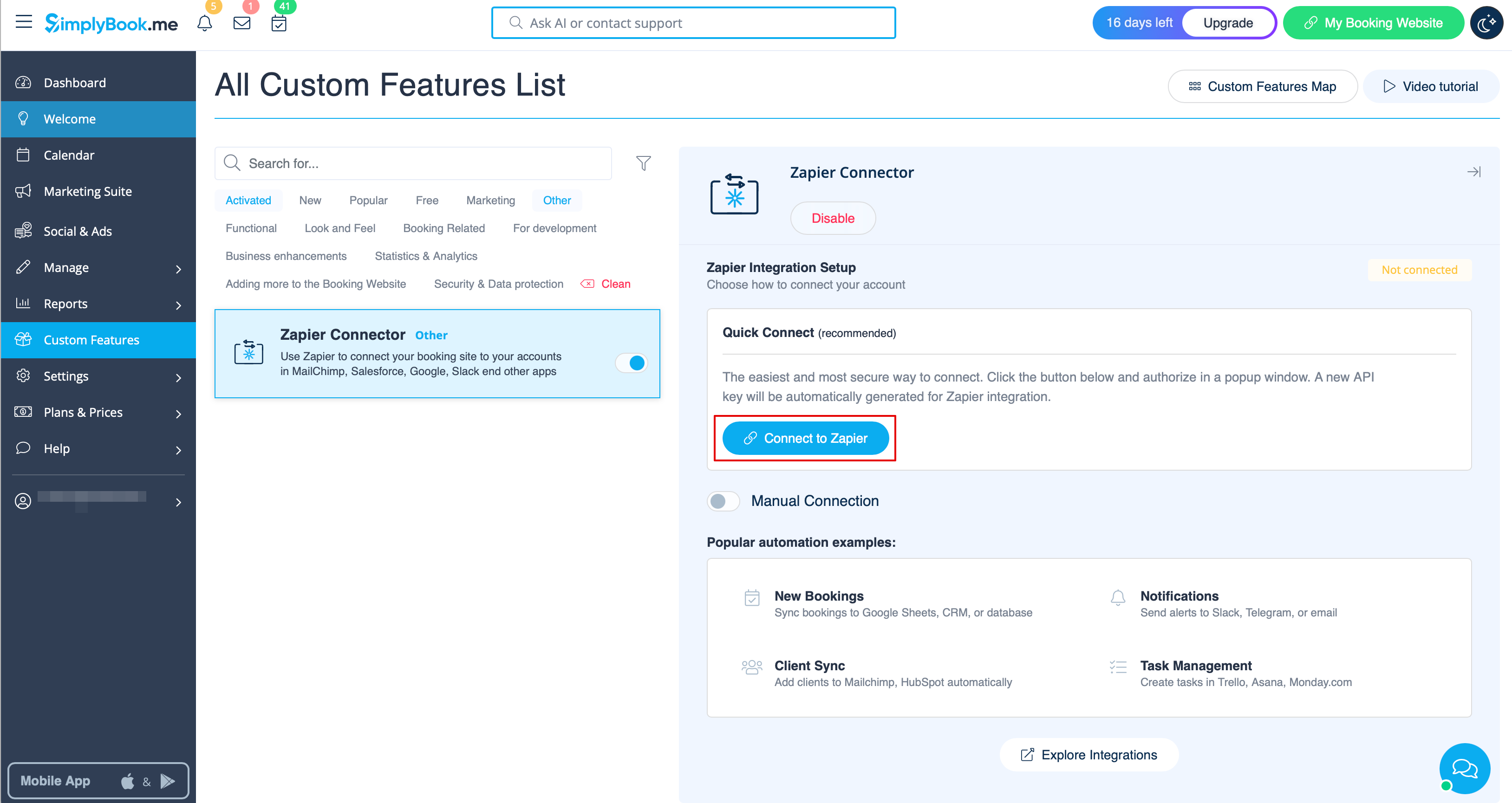


7. Or you can choose a manual connection by credentials.

- Go to Zapier.com -> App connections page and click on “Add connection” button
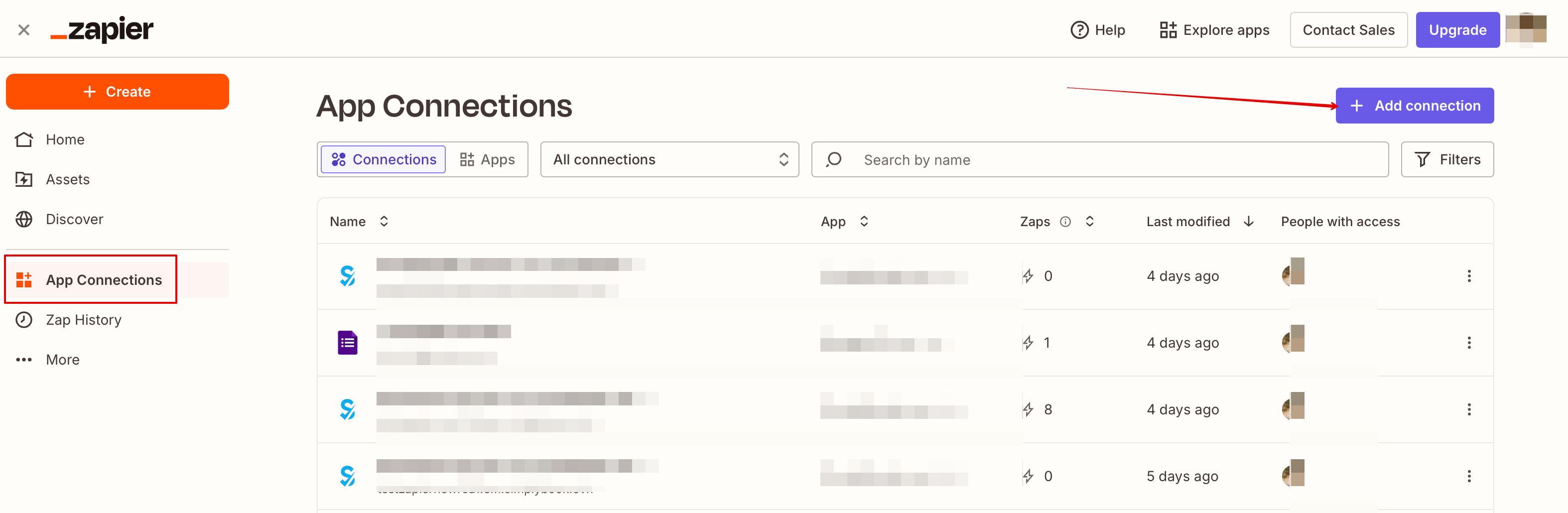


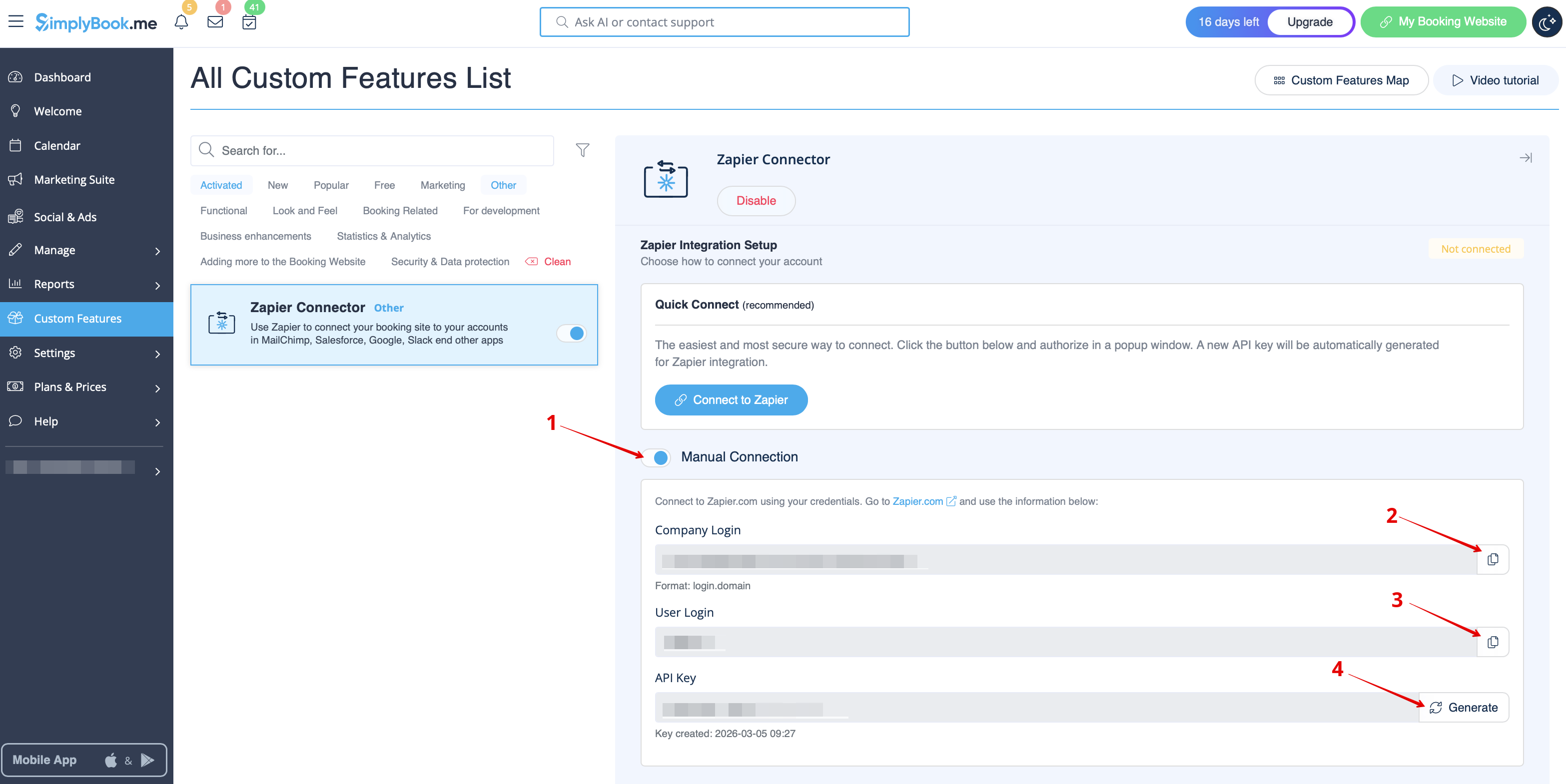
- Select SimplyBook.me
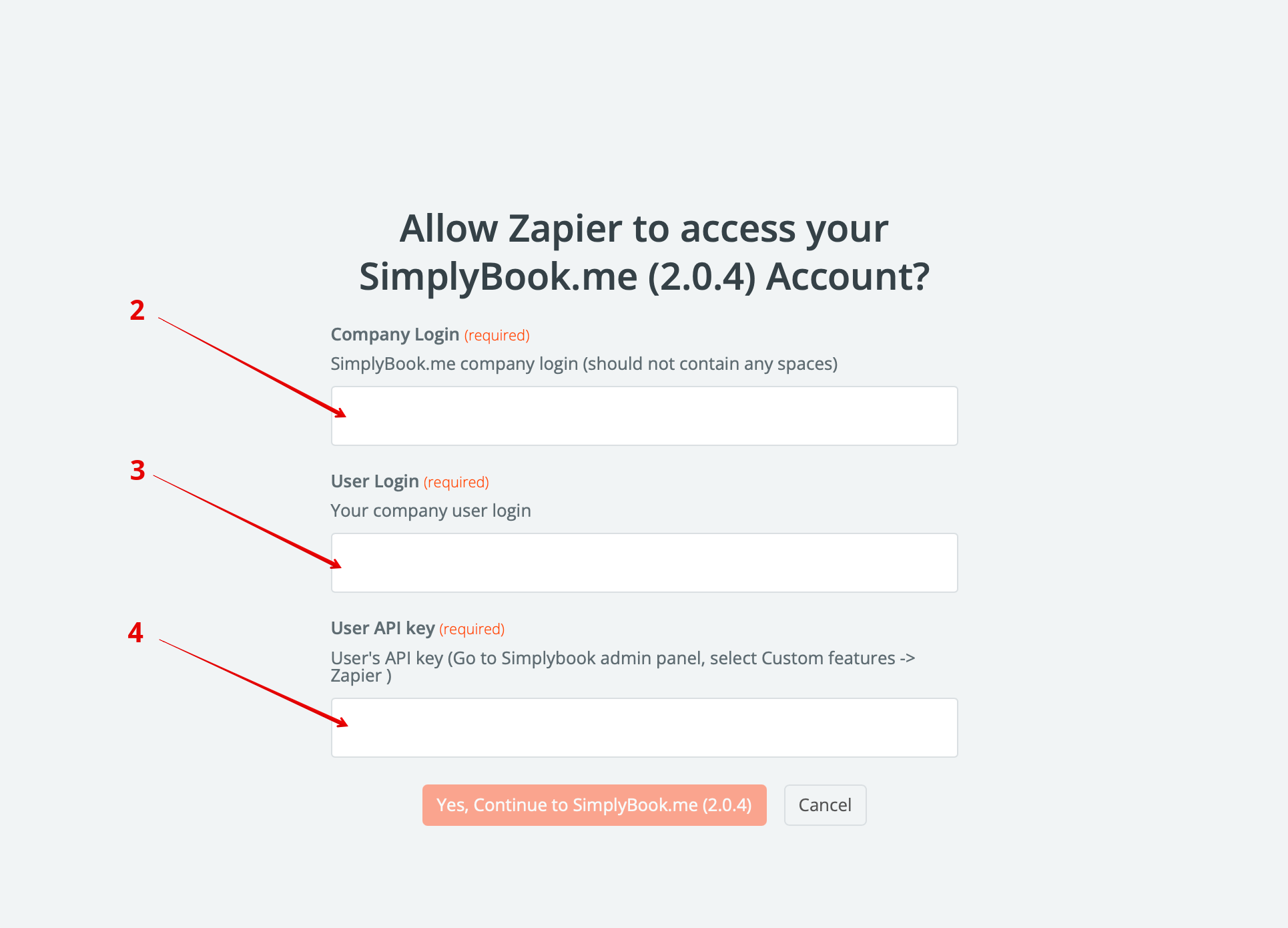
- Copy company login, user login, generate and copy API key from your SimpyBook.me account


- Paste them to the corresponding fields on Zapier.com side and click on “Continue” option there. The account gets connected.


8. Now select MailChimp as an action app and select the action that will take place when the trigger works.


9. Connect your MailChimp account.


10. Set the required fields depending on the action you have selected.


11. Confirm your choices and turn the Zap on.