From SimplyBook.me
No edit summary |
No edit summary |
||
| (7 intermediate revisions by the same user not shown) | |||
| Line 1: | Line 1: | ||
<languages/> | |||
<translate> | |||
<!--T:1--> | |||
{{#seo: | {{#seo: | ||
|title= Using Zapier and the Appointment Booking System Scheduler - SimplyBook.me | |title= Using Zapier and the Appointment Booking System Scheduler - SimplyBook.me | ||
| Line 4: | Line 7: | ||
|keywords=faq, frequently asked questions, booking software, appointment system questions,appointments online, calendar software, booking system | |keywords=faq, frequently asked questions, booking software, appointment system questions,appointments online, calendar software, booking system | ||
}} | }} | ||
</translate> | |||
<translate> | |||
<!--T:2--> | |||
<br><br> | <br><br> | ||
===Zap tutorial for SimplyBook and Gmail connection=== | ===Zap tutorial for SimplyBook and Gmail connection=== | ||
We are often asked how to send confirmation email to more than one email address. It may be needed if client has an agent or if some other people need to receive confirmation letters for clients. Now this option becomes available with our application on Zapier! | We are often asked how to send confirmation email to more than one email address. It may be needed if client has an agent or if some other people need to receive confirmation letters for clients. Now this option becomes available with our application on Zapier! | ||
</translate> | |||
<translate> | |||
<!--T:3--> | |||
;How to use | ;How to use | ||
:1. | </translate> | ||
[[File: | <translate> | ||
<!--T:4--> | |||
:1. Enable <span style="background-color:#d4f8e5; padding:5px; border-radius:5px;">Zapier connector</span> custom feature on your <span style="background-color:#d4f8e5; padding:5px; border-radius:5px;">Custom features</span> page. | |||
[[File:Zapier enable path redesigned.png|1200px| center|link=https://help.simplybook.me/images/b/b9/Zapier_enable_path_redesigned.png]] | |||
<br><br> | |||
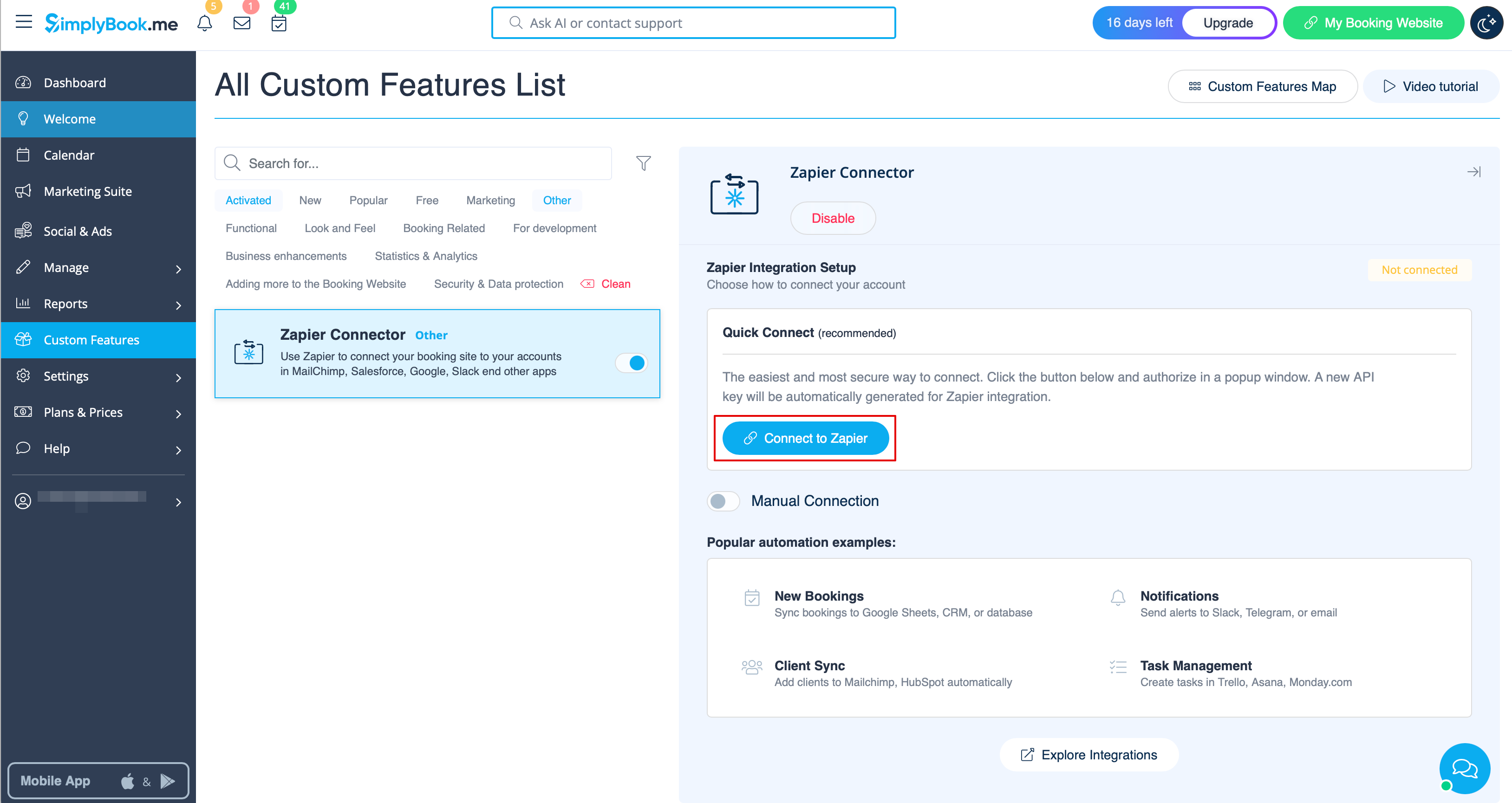
:2. Connect to your Zapier account using the ‘’’Quick connect’’’ option | |||
[[File:Quick connect zapier.png|1200px|border | center|link=https://help.simplybook.me/images/8/84/Quick_connect_zapier.png]] | |||
<br><br> | |||
:3. Or you can choose a manual connection by credentials. | |||
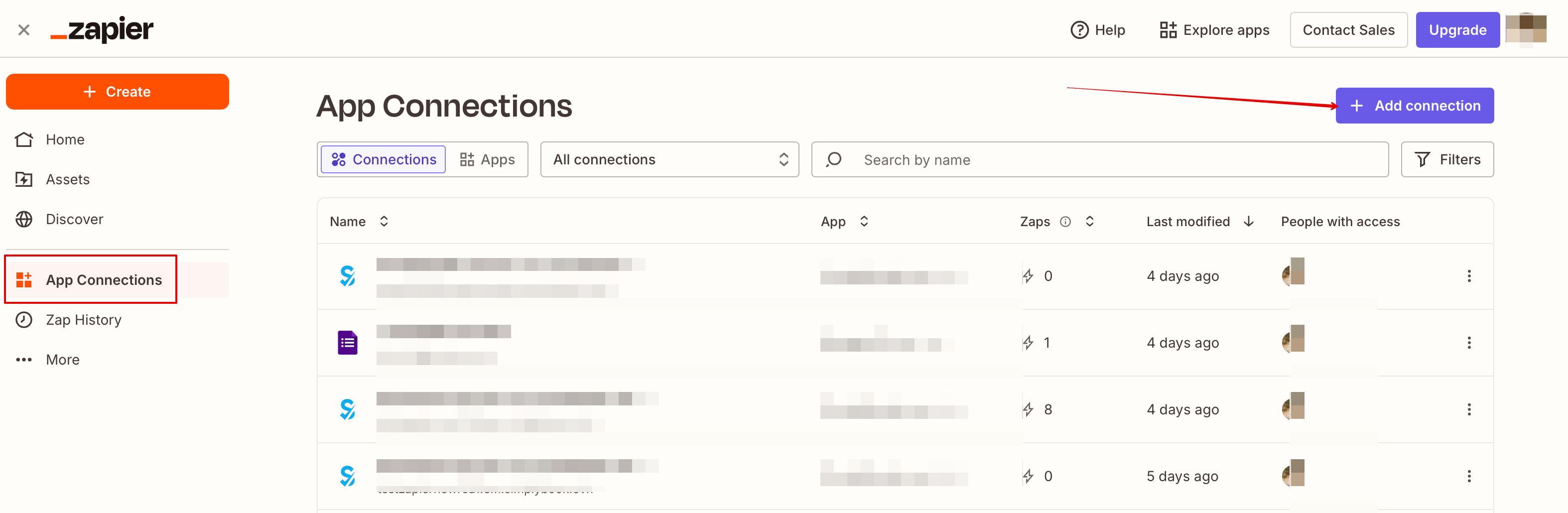
- Go to Zapier.com -> App connections page and click on “Add connection” button<br> | |||
[[File:Add connection zapeir side.png|1200px|border | center|link=https://help.simplybook.me/images/c/c2/Add_connection_zapeir_side.png]] | |||
<br><br> | <br><br> | ||
- Select SimplyBook.me<br> | |||
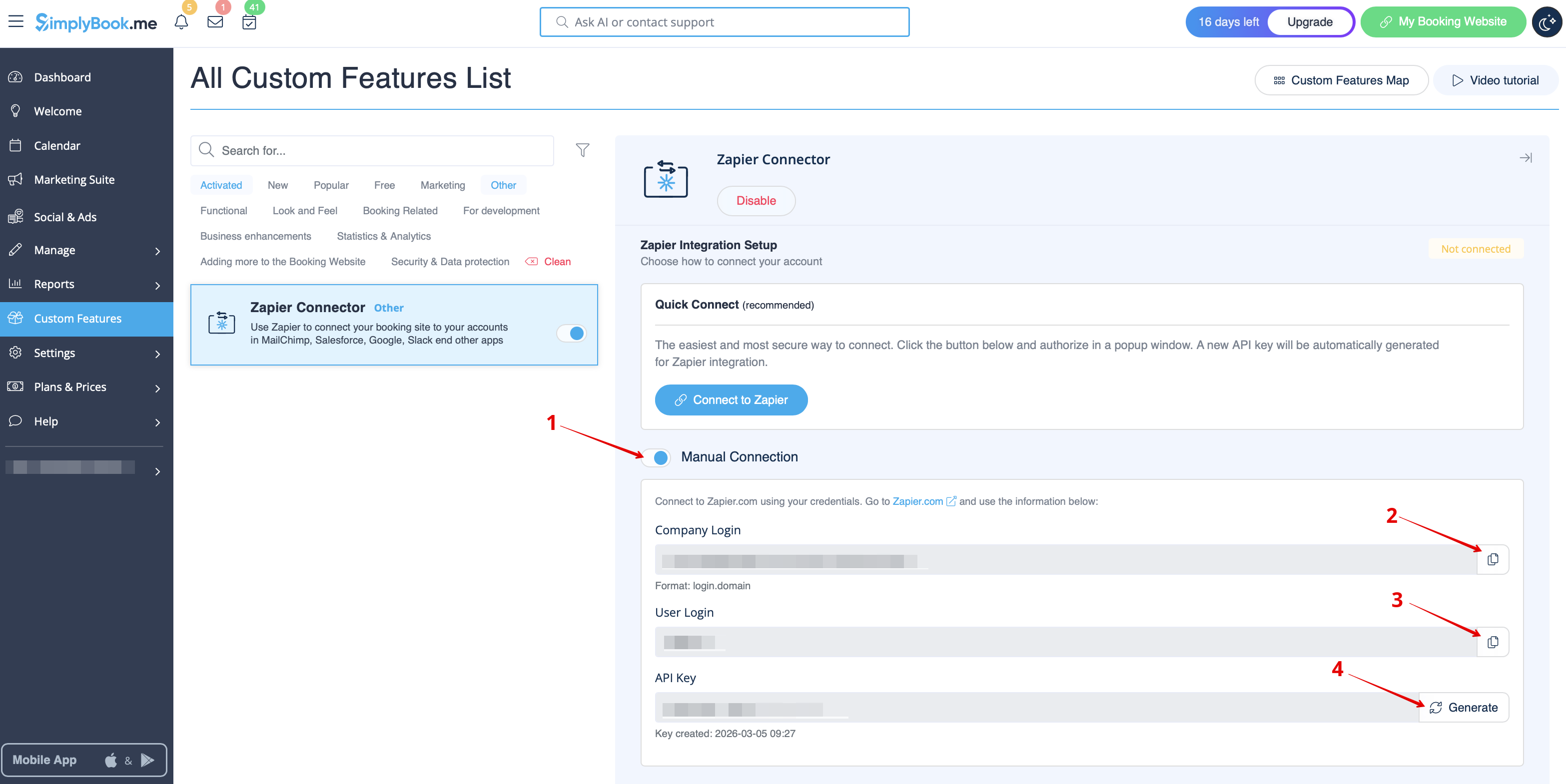
[[File: | - Copy company login, user login, generate and copy API key from your SimpyBook.me account<br> | ||
[[File:Zapier manual connection new.png|1200px|border | center|link=https://help.simplybook.me/images/c/c3/Zapier_manual_connection_new.png]] | |||
<br><br> | <br><br> | ||
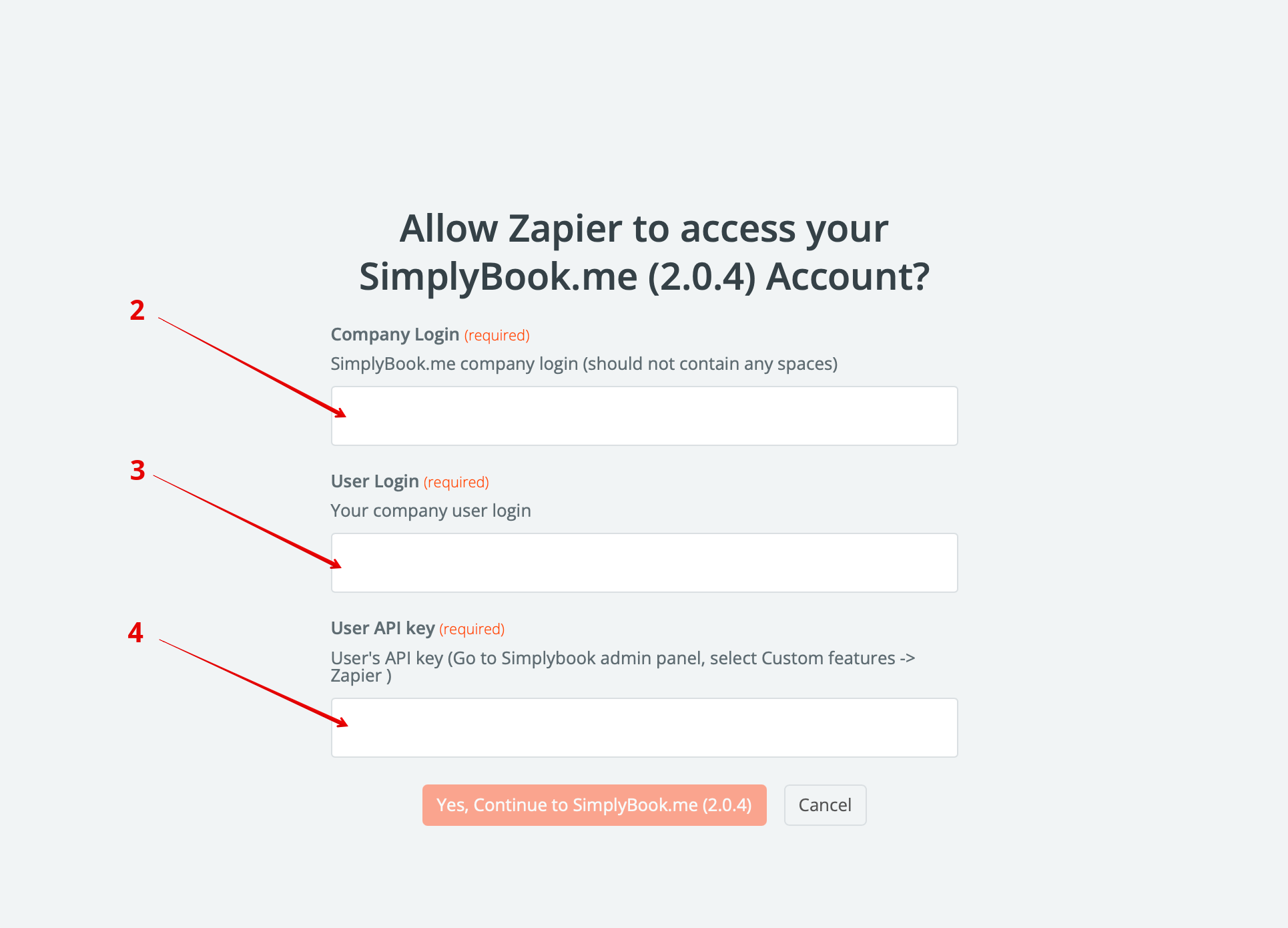
- Paste them to the corresponding fields on Zapier.com side and click on “Continue” option there. The account gets connected. | |||
: | [[File:Credentials on zapier side new.png|1200px|border | center|link=https://help.simplybook.me/images/e/e9/Credentials_on_zapier_side_new.png]] | ||
<br><br> | <br><br> | ||
: | :4. Create an intake form for the 2nd recipient in admin [https://simplybook.me/ Simplybook] app with the help of [[Custom_Features#Intake_Forms | Intake Forms Custom Feature]]. | ||
[[File: | [[File:Create new single line form redesigned.png|1200px| center|link=https://help.simplybook.me/images/b/b1/Create_new_single_line_form_redesigned.png]] | ||
<br><br> | <br><br> | ||
: | :5. After creating an intake form, you will see the variable name at the bottom of the variables list in Settings//Email and SMS settings | ||
[[File:Intake form variable redesigned.png|1200px | center|link=https://help.simplybook.me/images/a/a3/Intake_form_variable_redesigned.png]] | |||
<br><br> | <br><br> | ||
:9. | :6. In this picture, it is [data_field_30] (but it can be data_field_2, data_field_3, etc.). This variable will contain the alternative email address needed for synchronization with Gmail.<br><br> | ||
[[File: | :7. Then create a test booking on your [https://simplybook.me/ Simplybook] booking page. It is needed to notify the system that the new form was created in the system and is ready for further usage. <br><br> | ||
:8. When [https://simplybook.me/ Simplybook] preparations are over, it is time to switch to Zapier settings. If you don’t have Zapier account yet, please [https://zapier.com/sign-up/ register]. <br><br> | |||
:9. After that, press “Create a Zap”. | |||
[[File:Zapier redesigned create new zap from dashboard.png|1200px | center|link=https://help.simplybook.me/images/6/68/Zapier_redesigned_create_new_zap_from_dashboard.png]] | |||
<br><br> | <br><br> | ||
:10. | :10. Find [https://simplybook.me/ SimplyBook] in the list of applications. | ||
[[File: | [[File:Zapier redesigned select trigger app.png|1200px | center|link=https://help.simplybook.me/images/c/c1/Zapier_redesigned_select_trigger_app.png]] | ||
<br><br> | <br><br> | ||
:11. Add email recipients in "To:" and "Cc:" boxes. Please use the variables for correct Zap operation(select the variable of your recently created intake form). | :11. Select the connected account. | ||
[[File: | <br><br> | ||
:12. Choose New booking as trigger. | |||
<br><br> | |||
:13. Proceed to "Action step" - connect and verify your Gmail account. Set the action to send email when the booking triggers. | |||
[[File:Zapier redesigned gmail as action app.png|1200px | center|link=https://help.simplybook.me/images/0/01/Zapier_redesigned_gmail_as_action_app.png]] | |||
<br><br> | |||
:14. Add email recipients in "To:" and "Cc:" boxes. Please use the variables for correct Zap operation(select the variable of your recently created intake form). | |||
[[File:Zapier redesigned email setup variables selection.png|1200px | center|link=https://help.simplybook.me/images/5/5e/Zapier_redesigned_email_setup_variables_selection.png]] | |||
<br><br> | <br><br> | ||
:'''Please note''', that your client will receive 2 email notifications, one from [https://simplybook.me/ Simplybook] (sent immediately) and one from Zapier (is sent in 5 minutes after booking). You may disable email notifications for clients in [https://simplybook.me/ Simplybook] Settings//Email and SMS settings by unchecking the corresponding boxes.<br><br> | :'''Please note''', that your client will receive 2 email notifications, one from [https://simplybook.me/ Simplybook] (sent immediately) and one from Zapier (is sent in 5 minutes after booking). You may disable email notifications for clients in [https://simplybook.me/ Simplybook] Settings//Email and SMS settings by unchecking the corresponding boxes.<br><br> | ||
: | :15. Then setup email template text. As well add the necessary variables that will be replaced with the booking information in the real email. You can create more detailed and rich notification than the one on the example. | ||
[[File: | [[File:Zapier redesigned email template setup.png|1200px | center|link=https://help.simplybook.me/images/1/1d/Zapier_redesigned_email_template_setup.png]] | ||
: | |||
<br><br> | <br><br> | ||
: | :16. Test your newly created Zap and turn it on. | ||
[[File: | [[File:Zapier redesigned enable zap.png|1200px | center|link=https://help.simplybook.me/images/9/9b/Zapier_redesigned_enable_zap.png]] | ||
<br><br> | <br><br> | ||
Congratulations, you have created a new connection that will send the copies of confirmation emails to various recipients! | Congratulations, you have created a new connection that will send the copies of confirmation emails to various recipients! | ||
<br><br> | <br><br> | ||
</translate> | |||
Latest revision as of 10:55, 16 March 2026
Zap tutorial for SimplyBook and Gmail connection
We are often asked how to send confirmation email to more than one email address. It may be needed if client has an agent or if some other people need to receive confirmation letters for clients. Now this option becomes available with our application on Zapier!
- How to use
- 1. Enable Zapier connector custom feature on your Custom features page.

- 2. Connect to your Zapier account using the ‘’’Quick connect’’’ option
- 3. Or you can choose a manual connection by credentials.
- Go to Zapier.com -> App connections page and click on “Add connection” button
- Select SimplyBook.me
- Copy company login, user login, generate and copy API key from your SimpyBook.me account
- Paste them to the corresponding fields on Zapier.com side and click on “Continue” option there. The account gets connected.
- 4. Create an intake form for the 2nd recipient in admin Simplybook app with the help of Intake Forms Custom Feature.
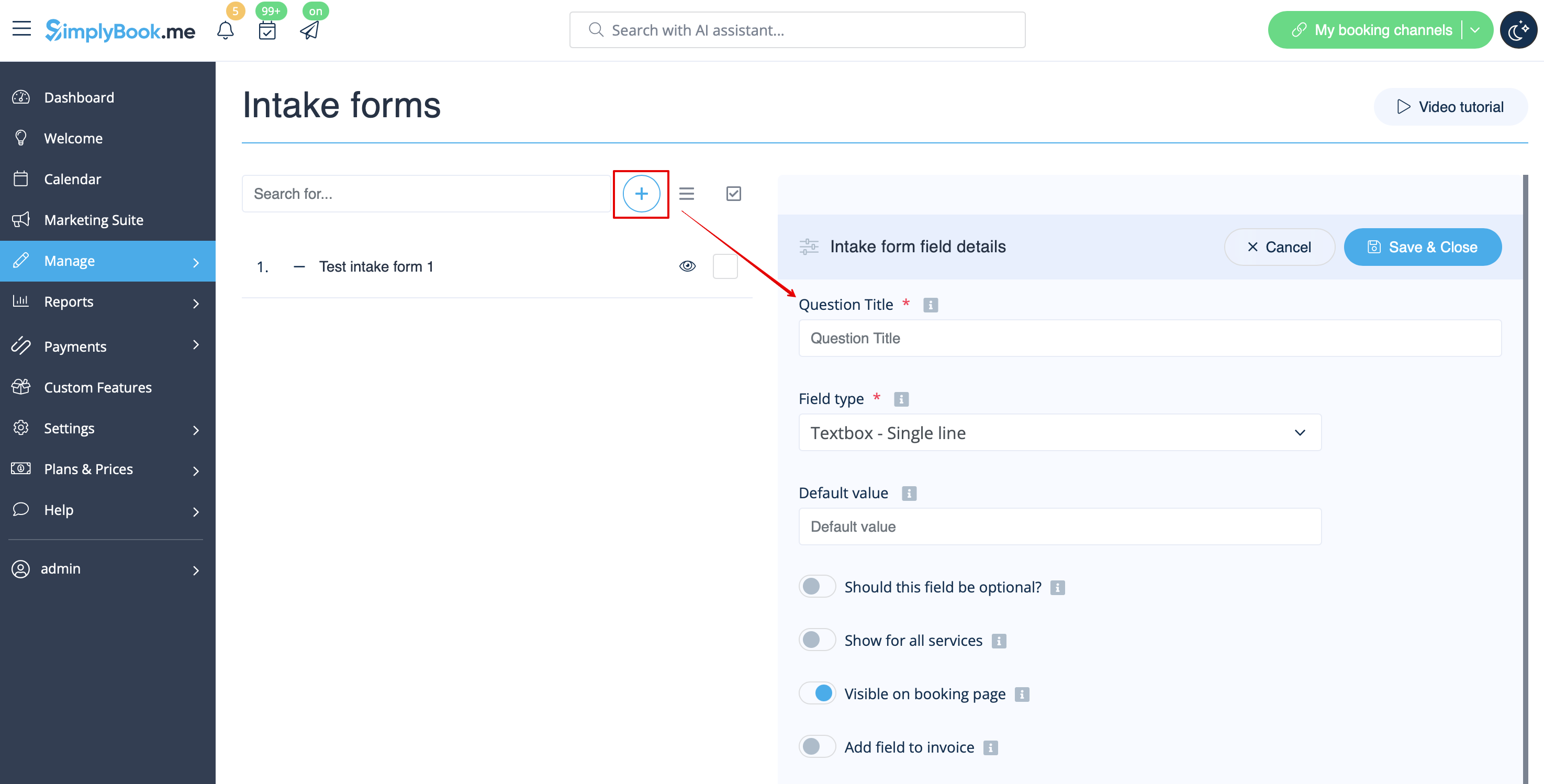
- 5. After creating an intake form, you will see the variable name at the bottom of the variables list in Settings//Email and SMS settings
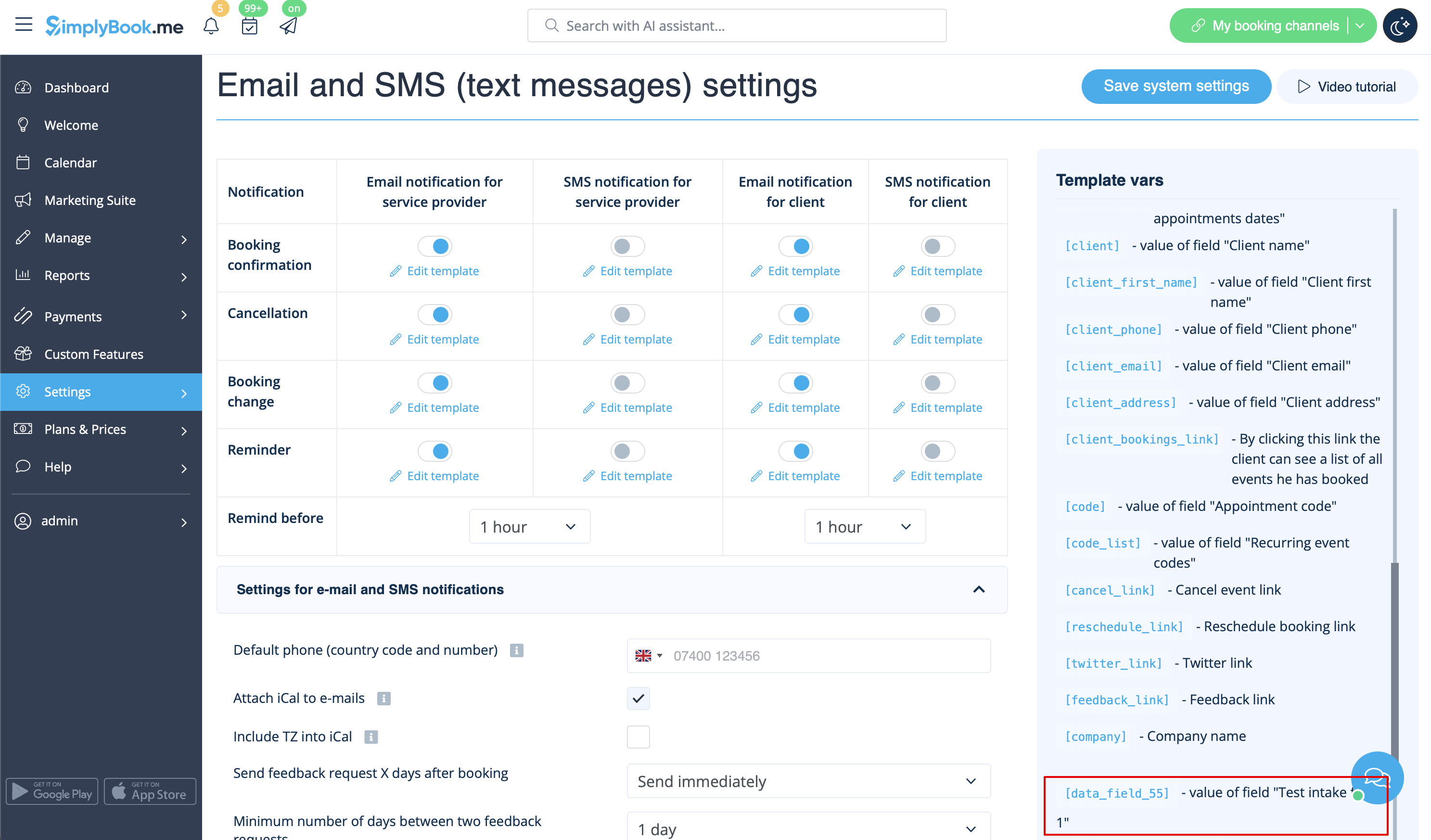
- 6. In this picture, it is [data_field_30] (but it can be data_field_2, data_field_3, etc.). This variable will contain the alternative email address needed for synchronization with Gmail.
- 7. Then create a test booking on your Simplybook booking page. It is needed to notify the system that the new form was created in the system and is ready for further usage.
- 8. When Simplybook preparations are over, it is time to switch to Zapier settings. If you don’t have Zapier account yet, please register.
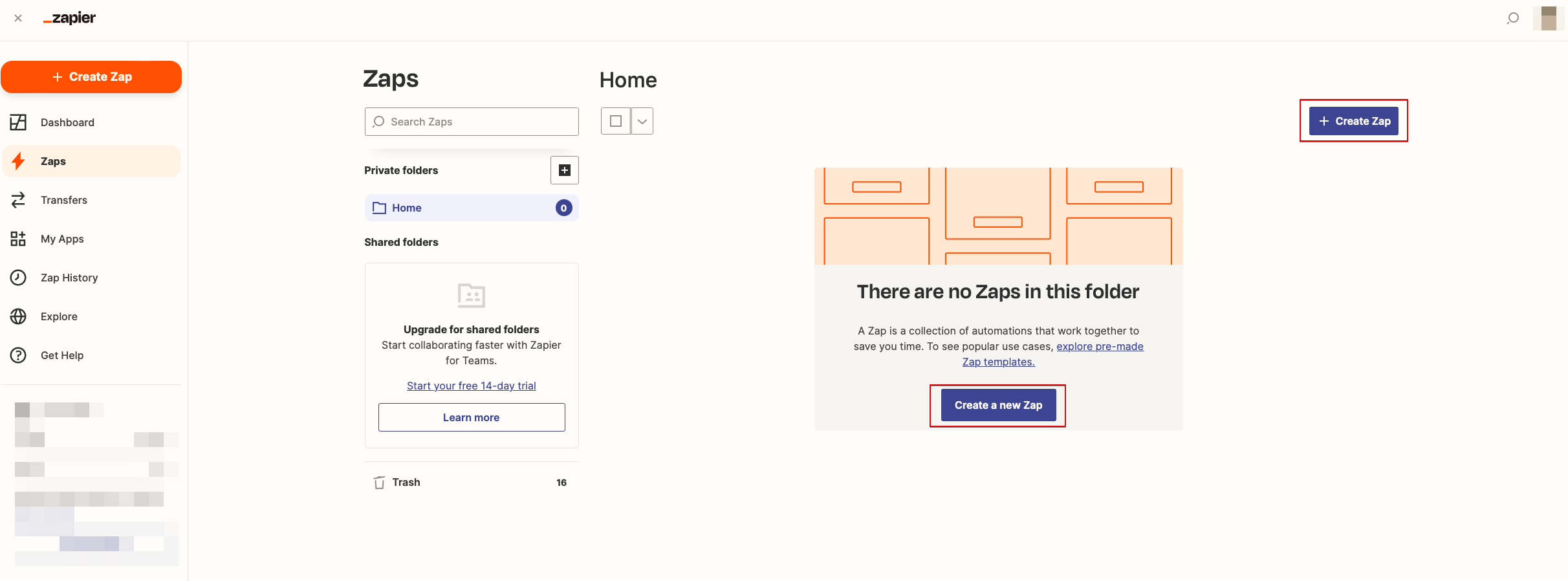
- 9. After that, press “Create a Zap”.
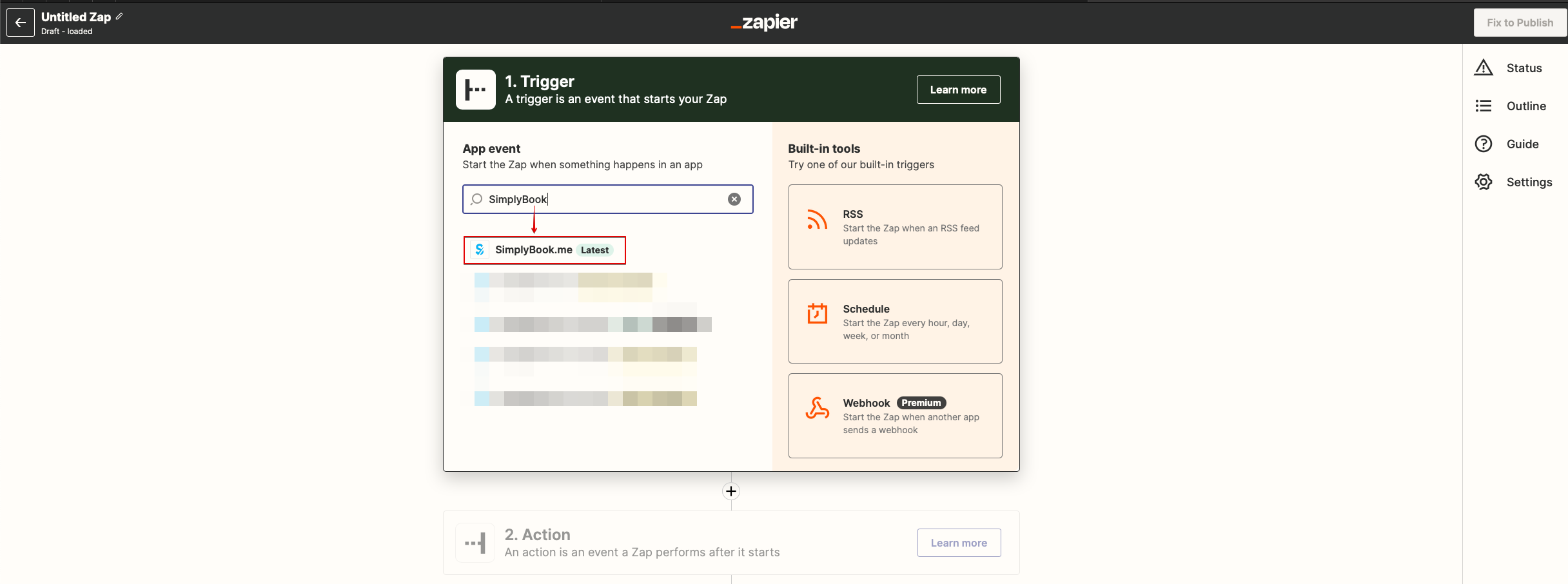
- 10. Find SimplyBook in the list of applications.
- 11. Select the connected account.
- 12. Choose New booking as trigger.
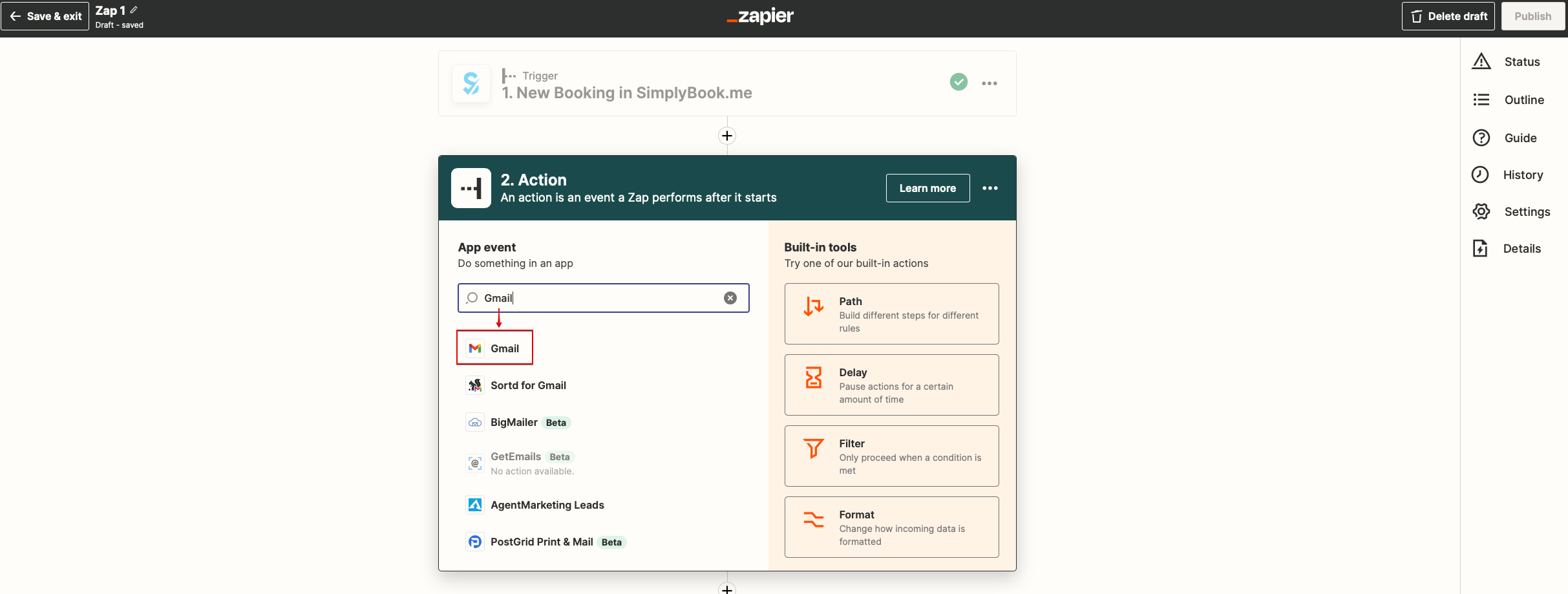
- 13. Proceed to "Action step" - connect and verify your Gmail account. Set the action to send email when the booking triggers.
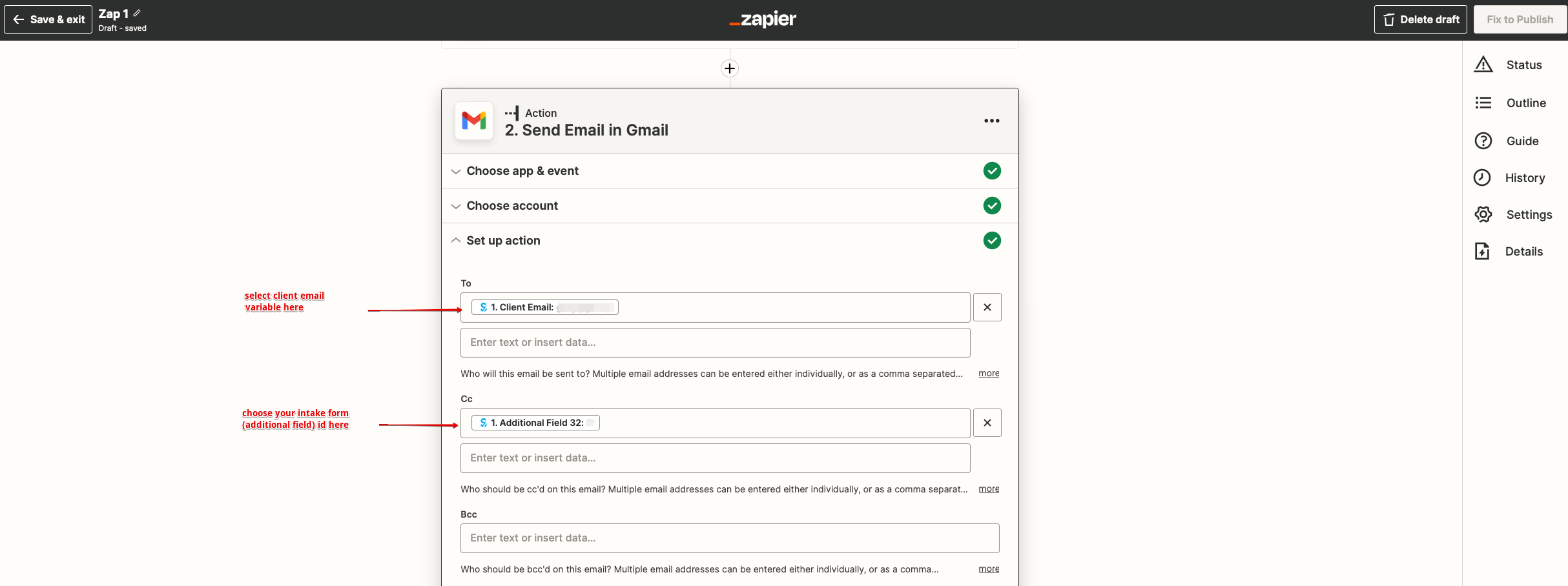
- 14. Add email recipients in "To:" and "Cc:" boxes. Please use the variables for correct Zap operation(select the variable of your recently created intake form).
- Please note, that your client will receive 2 email notifications, one from Simplybook (sent immediately) and one from Zapier (is sent in 5 minutes after booking). You may disable email notifications for clients in Simplybook Settings//Email and SMS settings by unchecking the corresponding boxes.
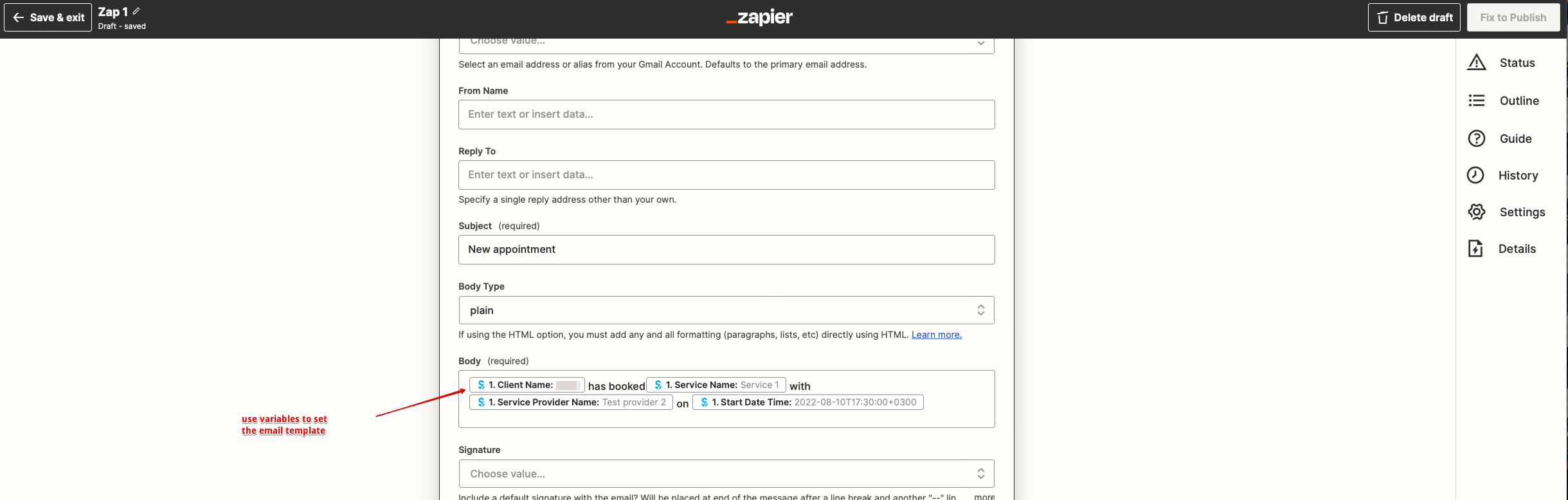
- 15. Then setup email template text. As well add the necessary variables that will be replaced with the booking information in the real email. You can create more detailed and rich notification than the one on the example.
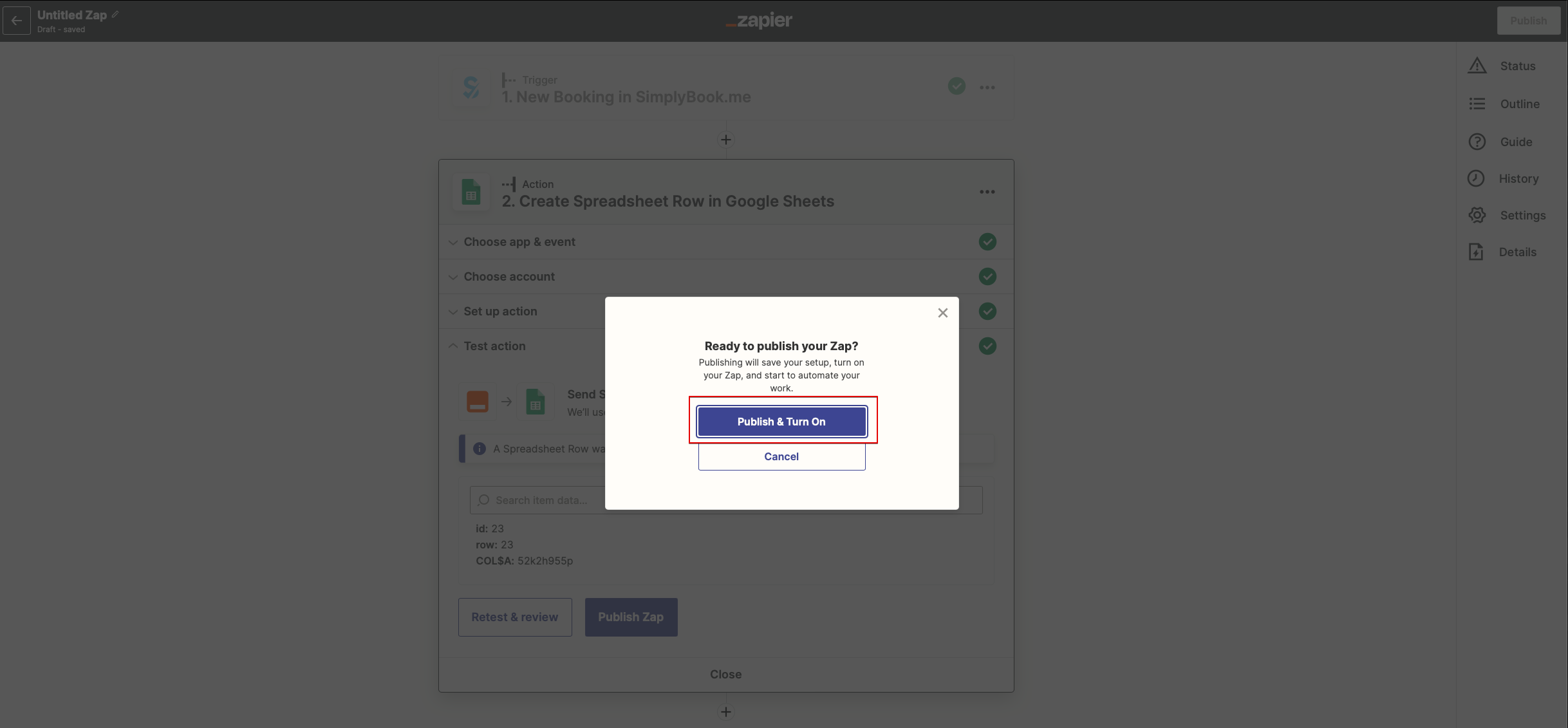
- 16. Test your newly created Zap and turn it on.
Congratulations, you have created a new connection that will send the copies of confirmation emails to various recipients!
