From SimplyBook.me
Importing a new version from external source Tags: Mobile edit Mobile web edit |
Importing a new version from external source |
||
| Line 2: | Line 2: | ||
[[File:Quick connect zapier.png|1200px|border | center|link=https://help.simplybook.me/images/8/84/Quick_connect_zapier.png]] | [[File:Quick connect zapier.png|1200px|border | center|link=https://help.simplybook.me/images/8/84/Quick_connect_zapier.png]] | ||
<br><br> | <br><br> | ||
:3. | :3. And now you can manage all your Zaps without leaving your SimplyBook.me account. | ||
[[File:Zapier manage zaps in sb.png|1200px|border | center|link=https://help.simplybook.me/images/b/bd/Zapier_manage_zaps_in_sb.png]] | |||
[[File: | |||
<br><br> | <br><br> | ||
:4. Select '''Edit''' near the one that you've created before. You can rename them, edit the flows, enable or disable, delete if necessary. After each action the page will be refreshed and will reflect the updated Zaps information for you. | |||
[[File:Edit zaps in sb.png|1200px|border | center|link=https://help.simplybook.me/images/c/cb/Edit_zaps_in_sb.png]] | |||
[[File: | |||
<br><br> | <br><br> | ||
:5. If you need to create a new one please click on '''+ Create Zap''' button. | |||
[[File: | [[File:Create zap path.png|1200px|border | center|link=https://help.simplybook.me/images/2/24/Create_zap_path.png]] | ||
<br><br> | <br><br> | ||
: | :6. In the popup that appears find SimplyBook.me in the list of apps to connect to. | ||
[[File: | [[File:Zapier new sb as trigger.png|1200px|border | center|link=https://help.simplybook.me/images/1/13/Zapier_new_sb_as_trigger.png]] | ||
<br><br> | <br><br> | ||
: | :7. Choose desirable trigger and the account that you have previously connected. Click "Continue". | ||
[[File:Zapier | [[File:Zapier new choose trigger event.png|1200px|border | center|link=https://help.simplybook.me/images/4/45/Zapier_new_choose_trigger_event.png]] | ||
<br><br> | <br><br> | ||
:8. Test your trigger, select the sample record and proceed to the action step. | |||
:8. | |||
<br><br> | <br><br> | ||
:9. Find the desirable app, connect it, test the step. Publish your Zap and close the popup. Now the page will refresh and you will see it active (with the green dot) in the list of your Zaps. | |||
<br><br><br><br> | |||
Latest revision as of 13:12, 15 April 2026
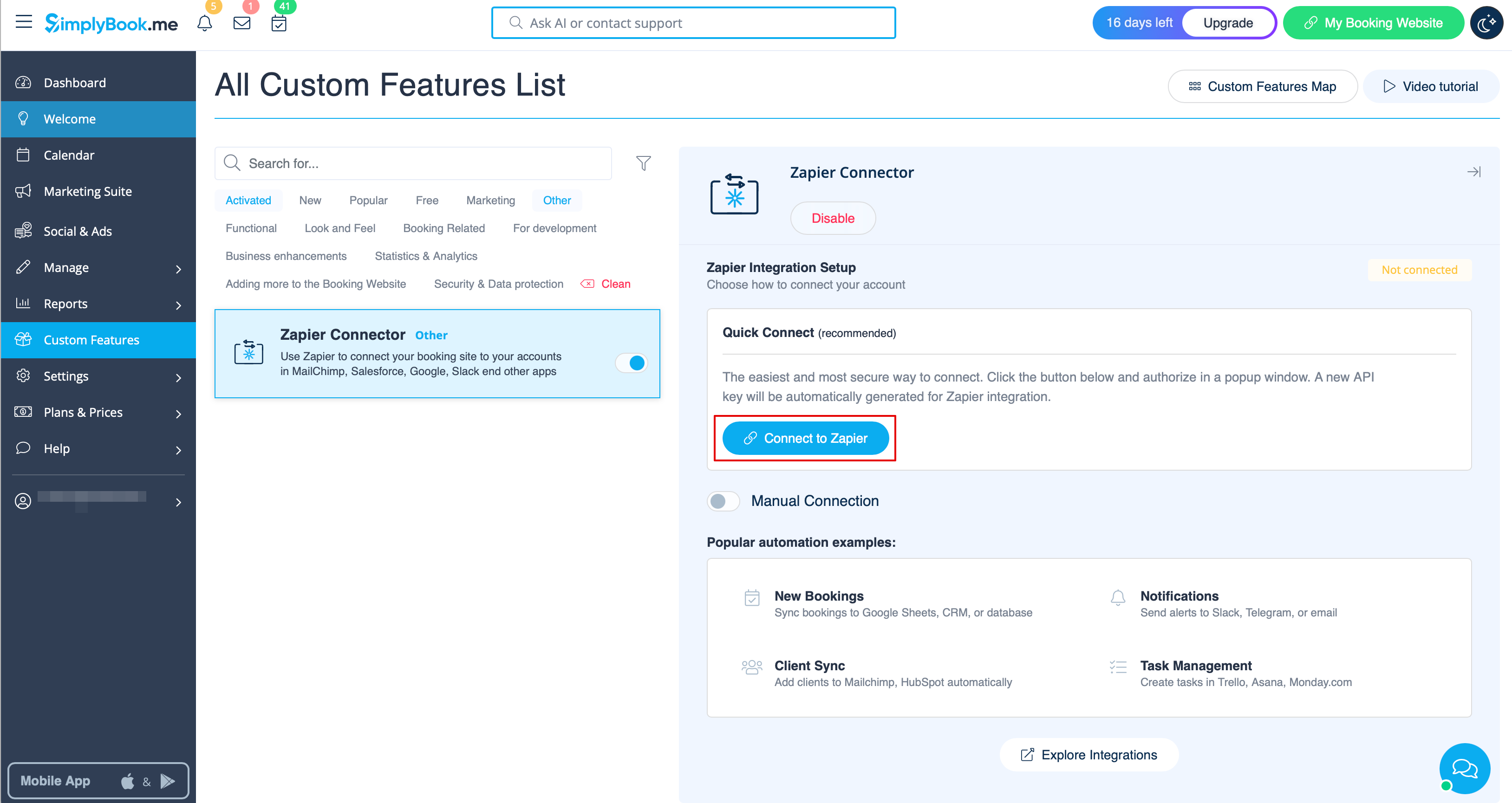
- 2. Connect to your Zapier account using the ‘’’Quick connect’’’ option
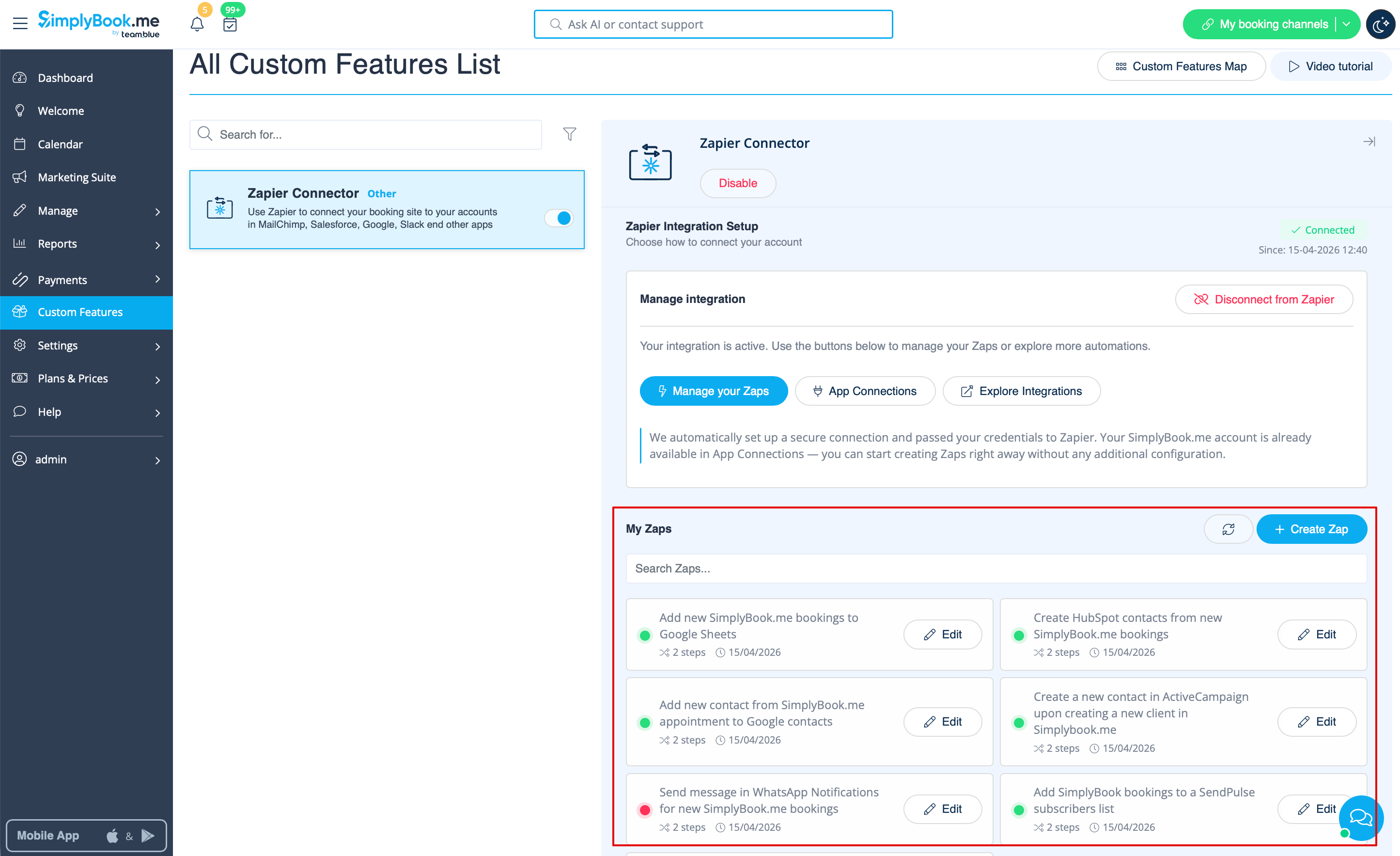
- 3. And now you can manage all your Zaps without leaving your SimplyBook.me account.
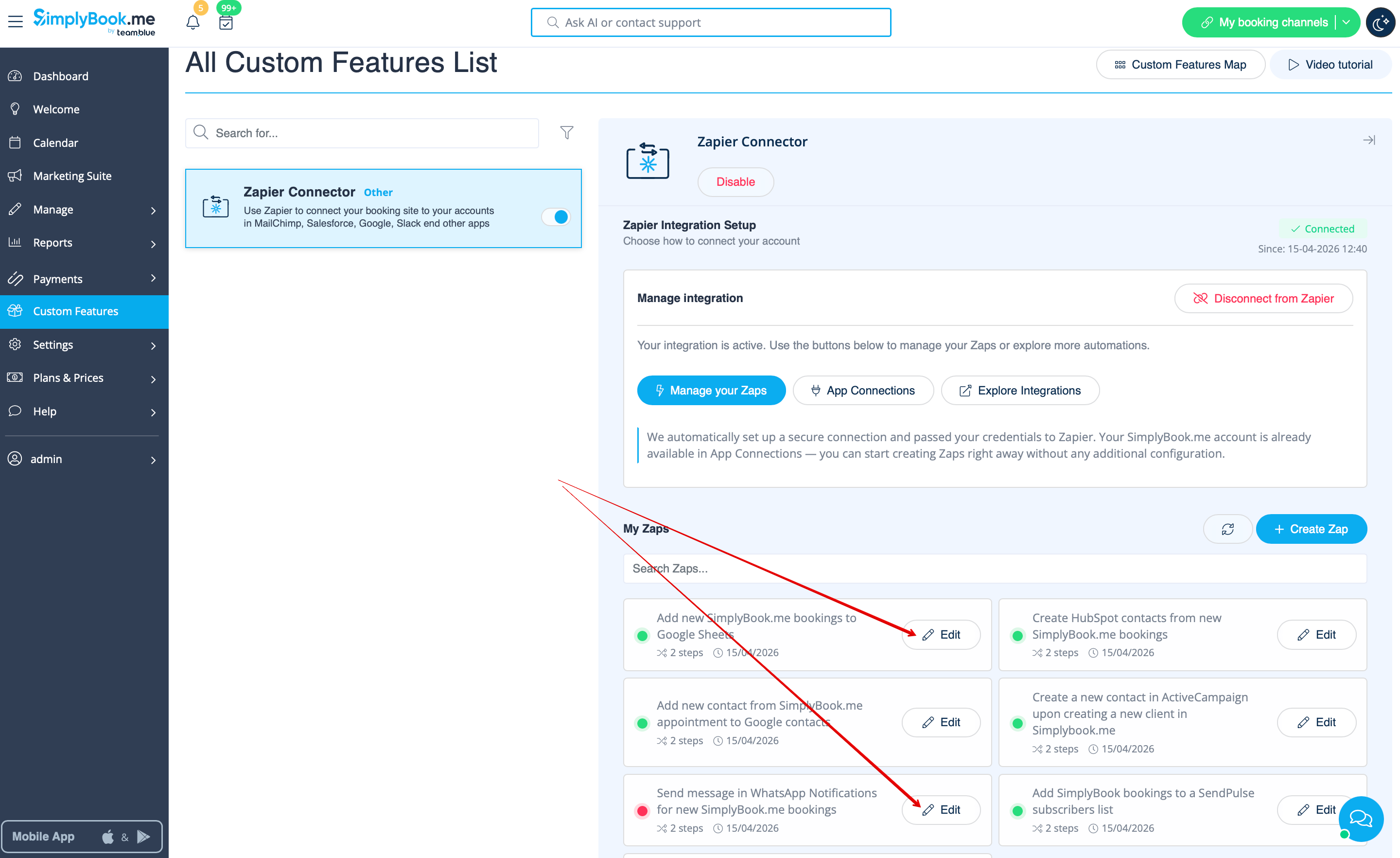
- 4. Select Edit near the one that you've created before. You can rename them, edit the flows, enable or disable, delete if necessary. After each action the page will be refreshed and will reflect the updated Zaps information for you.
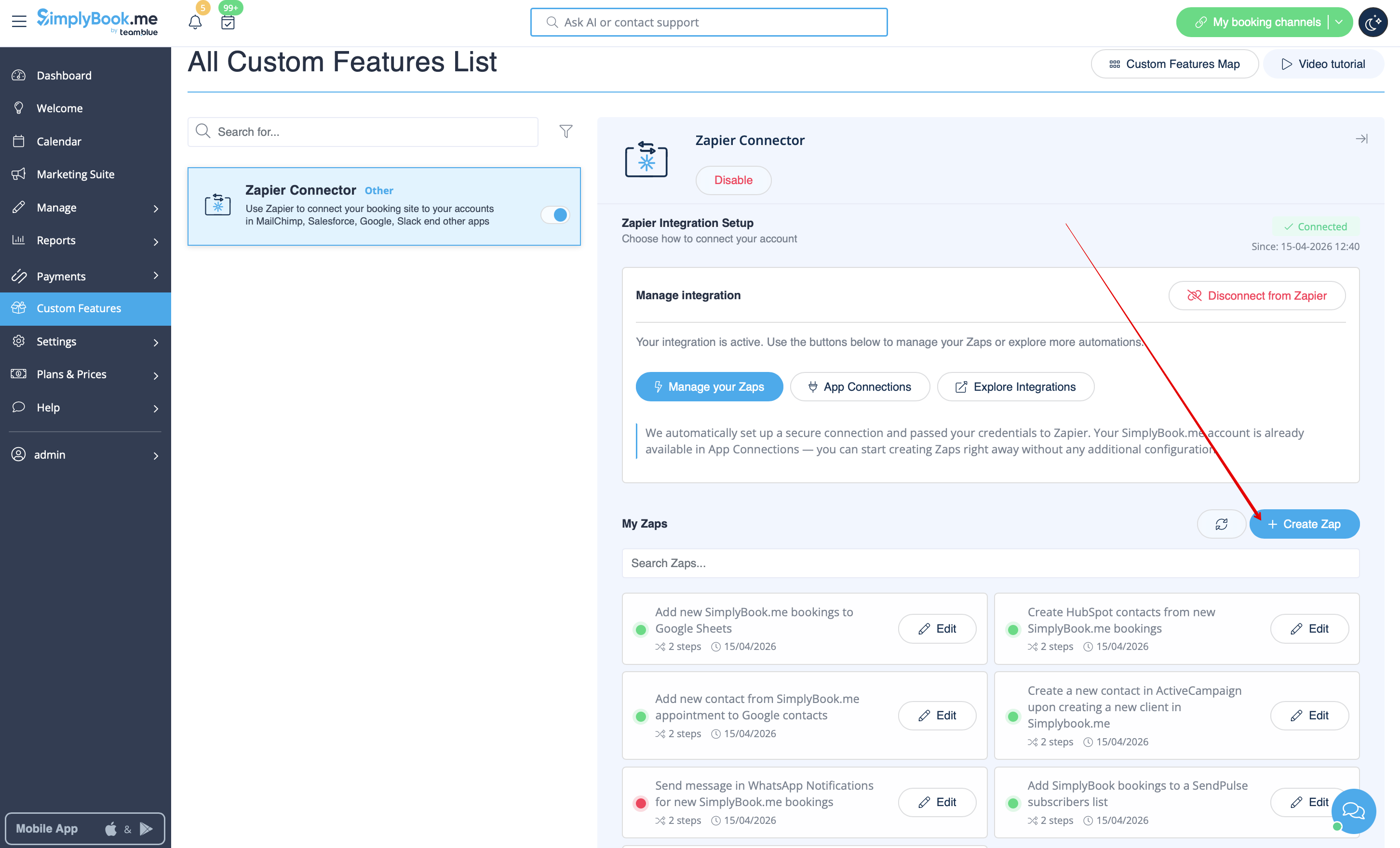
- 5. If you need to create a new one please click on + Create Zap button.
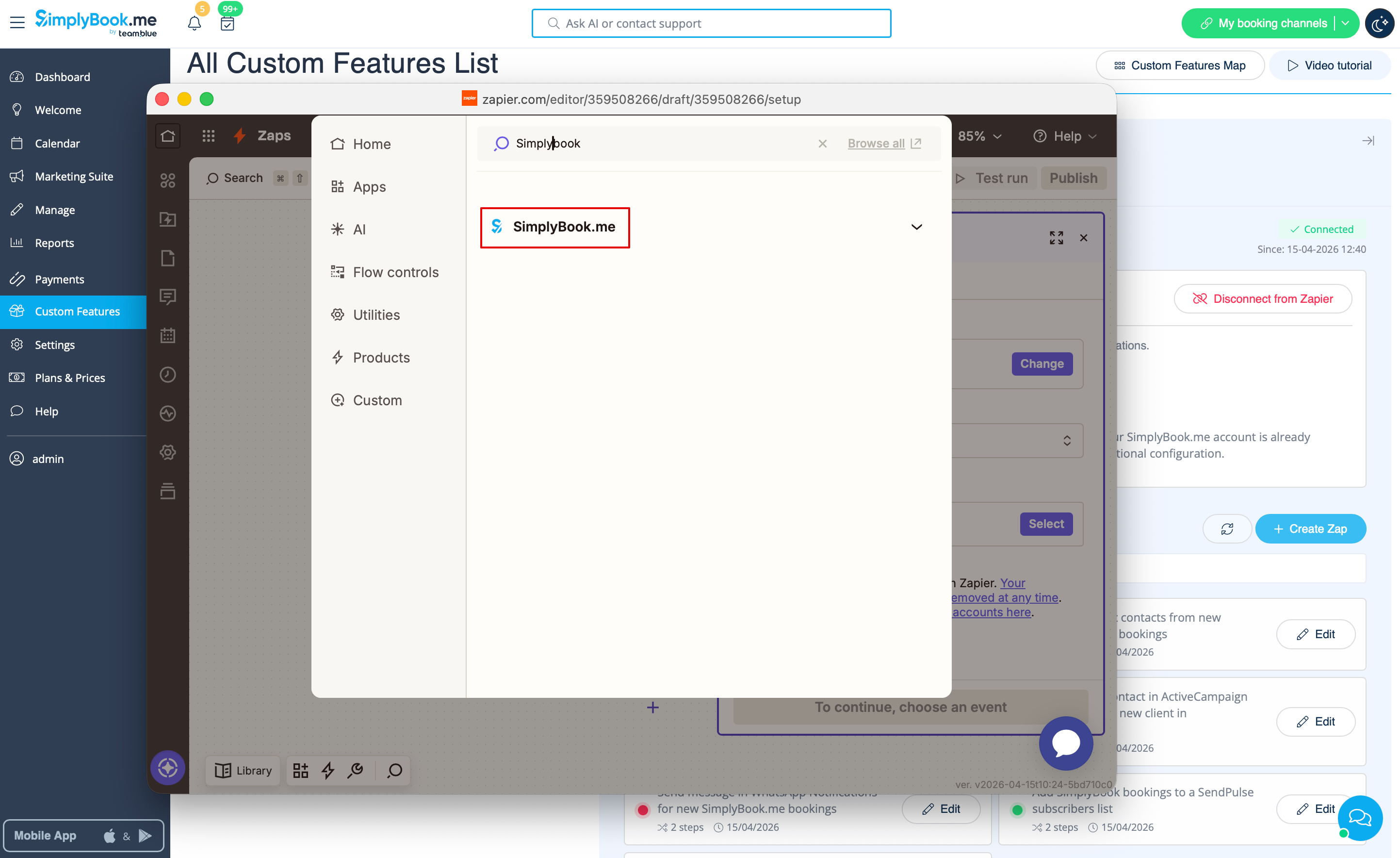
- 6. In the popup that appears find SimplyBook.me in the list of apps to connect to.
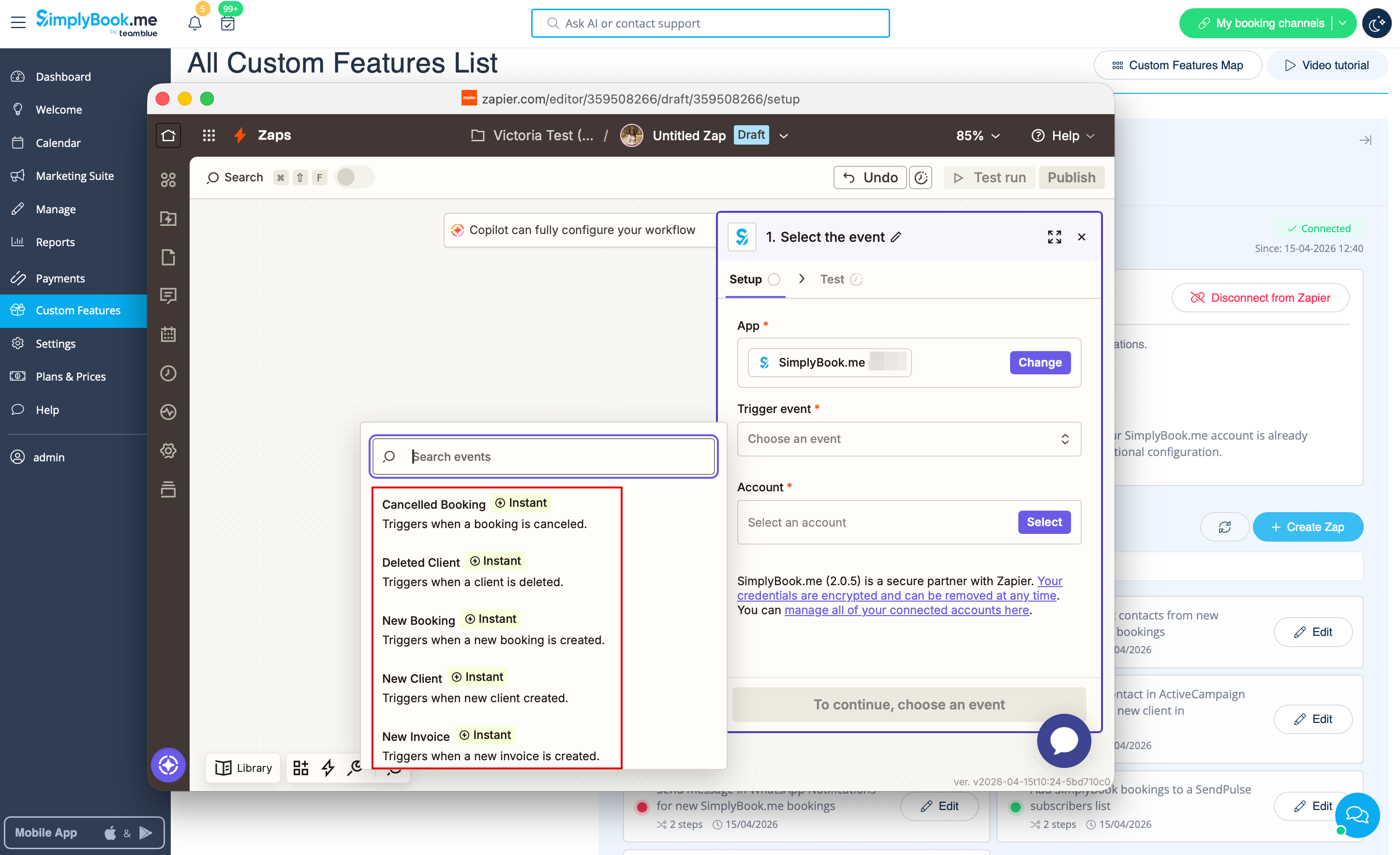
- 7. Choose desirable trigger and the account that you have previously connected. Click "Continue".
- 8. Test your trigger, select the sample record and proceed to the action step.
- 9. Find the desirable app, connect it, test the step. Publish your Zap and close the popup. Now the page will refresh and you will see it active (with the green dot) in the list of your Zaps.
