From SimplyBook.me
Created page with "{{#seo: |title=Integration with Mailchimp - SimplyBook.me |titlemode=append |keywords=faq, frequently asked questions, booking software, appointment system questions, appointm..." |
No edit summary |
||
| (5 intermediate revisions by the same user not shown) | |||
| Line 1: | Line 1: | ||
<languages/> | |||
<translate> | |||
<!--T:1--> | |||
{{#seo: | {{#seo: | ||
|title=Integration with Mailchimp - SimplyBook.me | |title=Integration with Mailchimp - SimplyBook.me | ||
| Line 4: | Line 7: | ||
|keywords=faq, frequently asked questions, booking software, appointment system questions, appointments online, calendar software, booking system, booking calendar, scheduling software, online appointment scheduling, online scheduling, setup, setup help, support, help content, zapier connection, mailchimp integration, mailchimp marketing, marketing integrations | |keywords=faq, frequently asked questions, booking software, appointment system questions, appointments online, calendar software, booking system, booking calendar, scheduling software, online appointment scheduling, online scheduling, setup, setup help, support, help content, zapier connection, mailchimp integration, mailchimp marketing, marketing integrations | ||
}} | }} | ||
</translate> | |||
<translate> | |||
<!--T:2--> | |||
<br><br> | <br><br> | ||
You can now add various functionality to the bookings that you receive in SimplyBook.me through the use of Zapier.com.<br> | You can now add various functionality to the bookings that you receive in SimplyBook.me through the use of Zapier.com.<br> | ||
| Line 14: | Line 18: | ||
:2. Create an account at <span style="background-color:#cdeffc; padding:5px; border-radius:5px;">[https://zapier.com/ Zapier.com],</span> it only takes 1 minute. | :2. Create an account at <span style="background-color:#cdeffc; padding:5px; border-radius:5px;">[https://zapier.com/ Zapier.com],</span> it only takes 1 minute. | ||
<br><br> | <br><br> | ||
:3. | :3. Enable <span style="background-color:#d4f8e5; padding:5px; border-radius:5px;">Zapier connector</span> custom feature on your <span style="background-color:#d4f8e5; padding:5px; border-radius:5px;">Custom features</span> page on SimplyBook.me side. | ||
[[File:Zapier enable path redesigned.png|1200px|border | center|link=https://help.simplybook.me/images/b/b9/Zapier_enable_path_redesigned.png]] | |||
<br><br> | <br><br> | ||
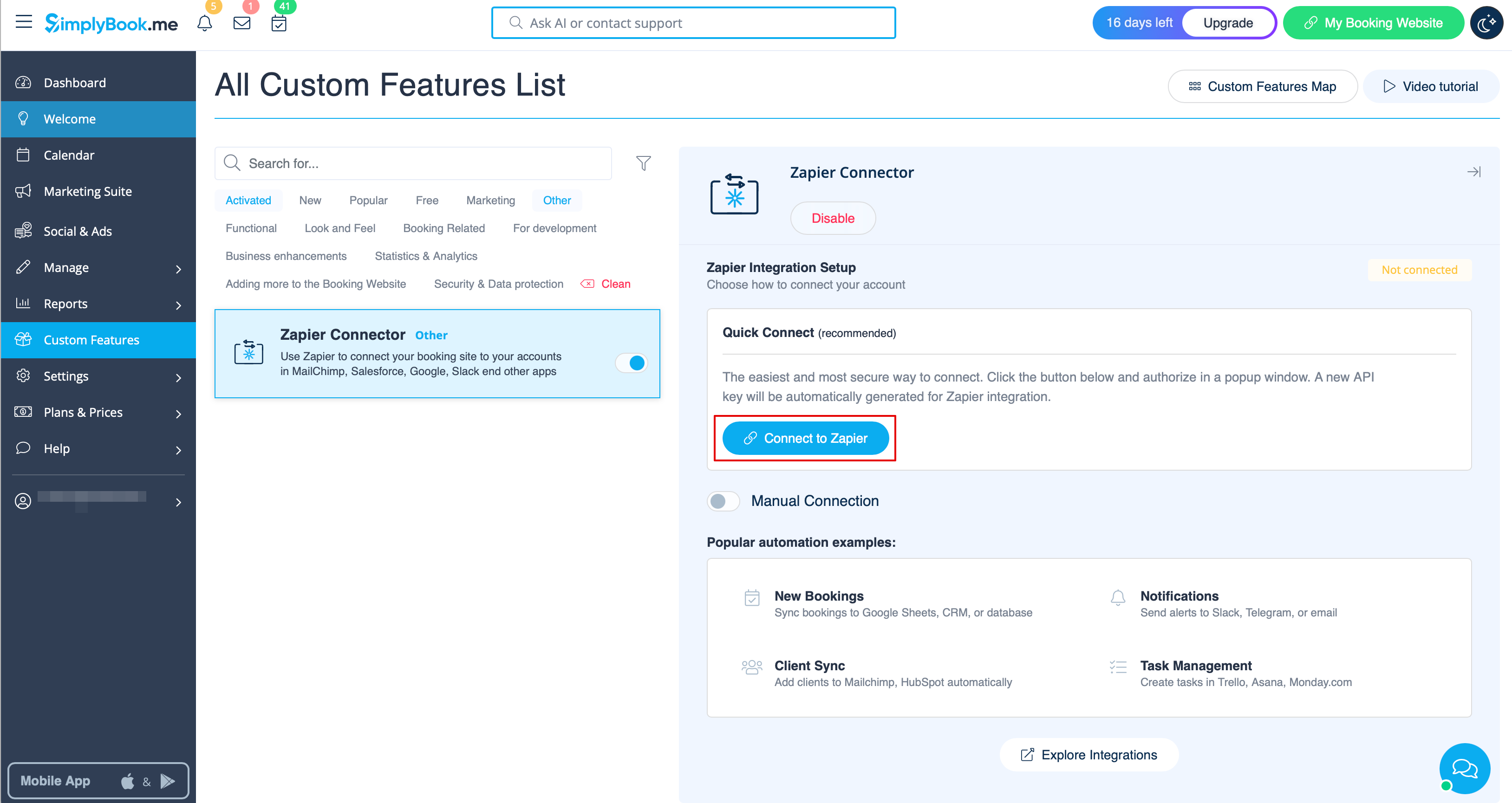
:4. | :4. Connect to your Zapier account using the ‘’’Quick connect’’’ option | ||
[[File: | [[File:Quick connect zapier.png|1200px|border | center|link=https://help.simplybook.me/images/8/84/Quick_connect_zapier.png]] | ||
<br><br></translate> | |||
<translate> | |||
<!--T:3--> | |||
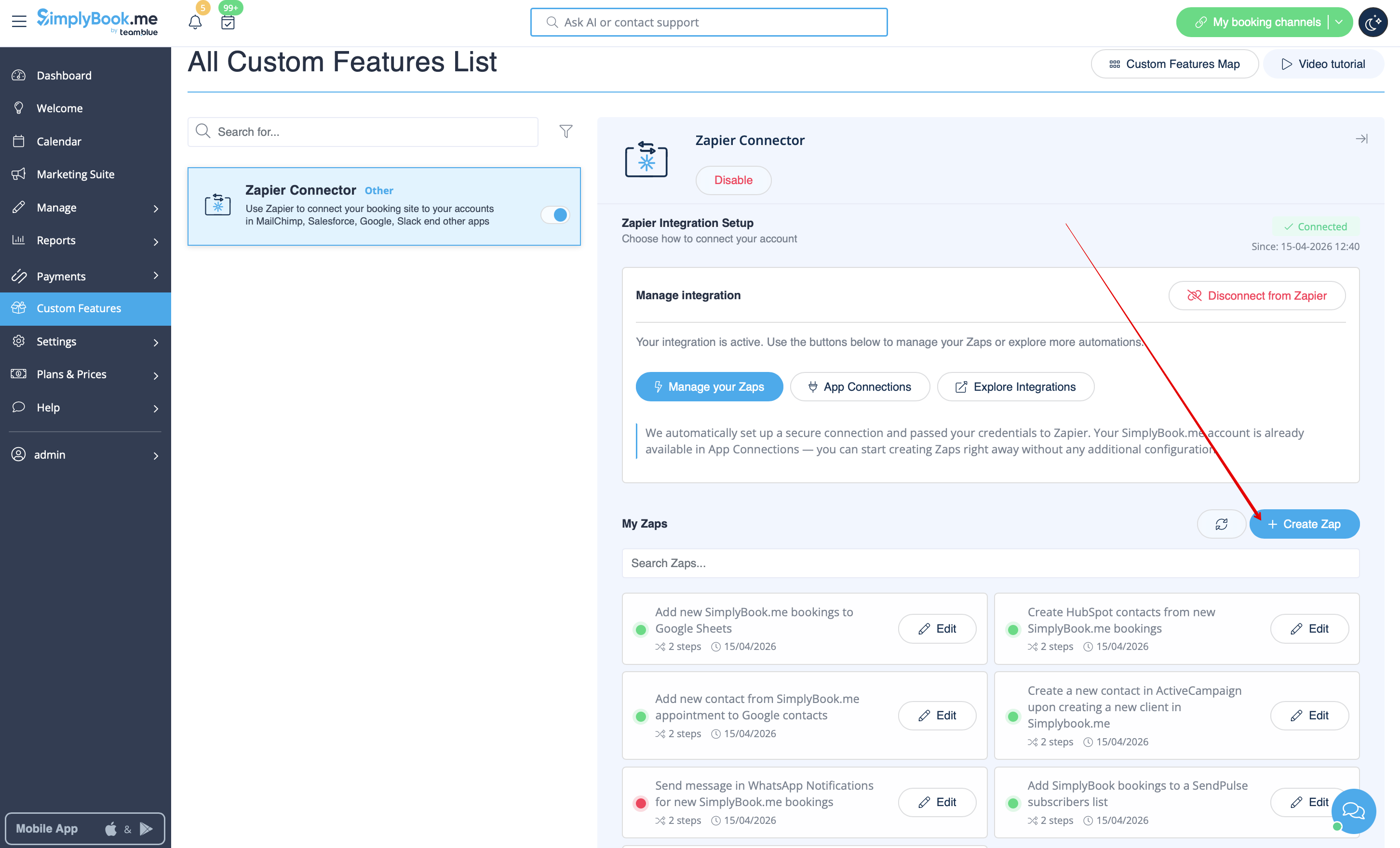
:5. Click on '''+ Create Zap''' button. | |||
[[File:Create zap path.png|1200px|border | center|link=https://help.simplybook.me/images/2/24/Create_zap_path.png]] | |||
<br><br> | <br><br> | ||
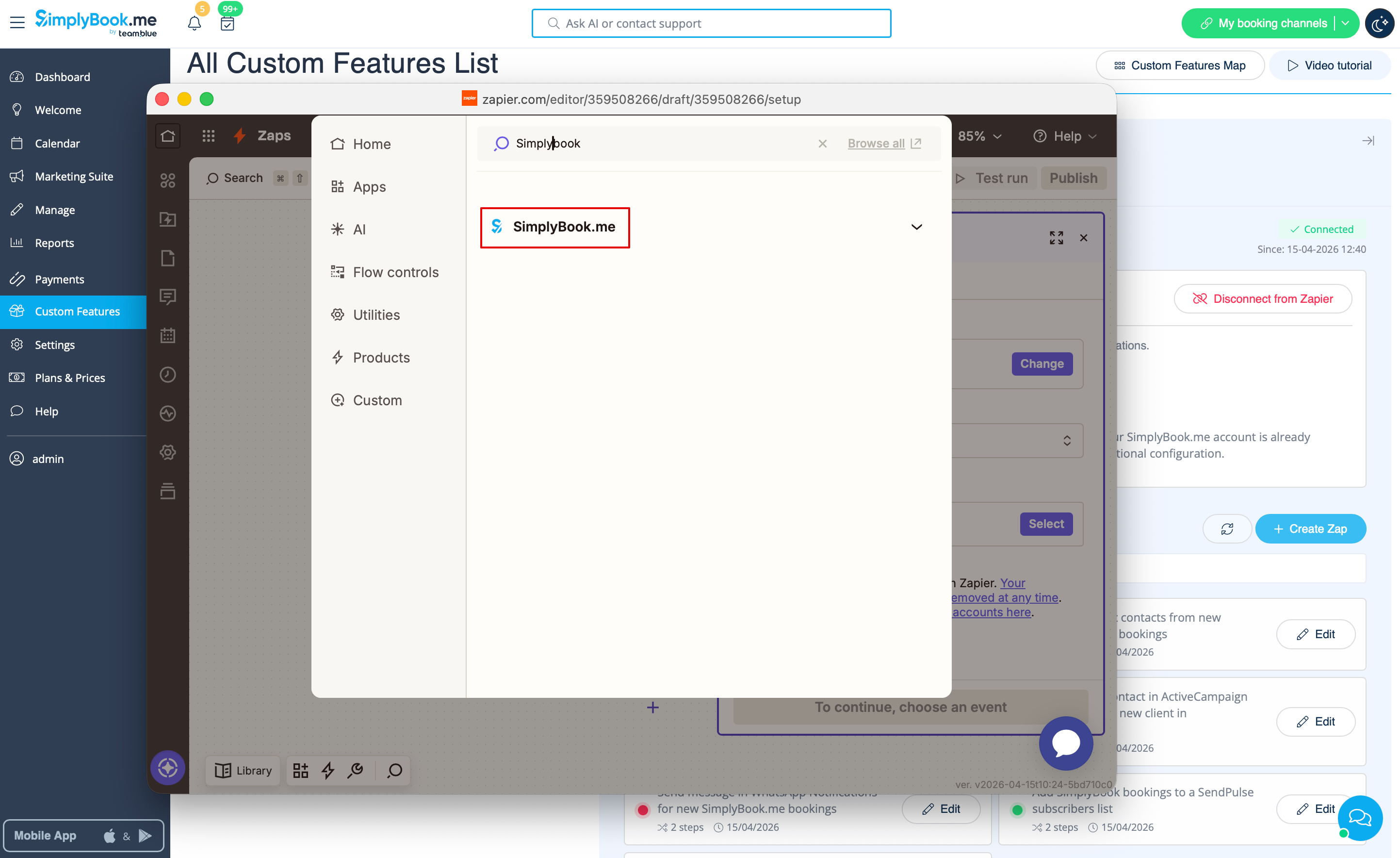
: | :6. In the popup that appears find SimplyBook.me in the list of apps to connect to. | ||
[[File:Zapier new sb as trigger.png|1200px|border | center|link=https://help.simplybook.me/images/1/13/Zapier_new_sb_as_trigger.png]] | |||
<br><br> | <br><br> | ||
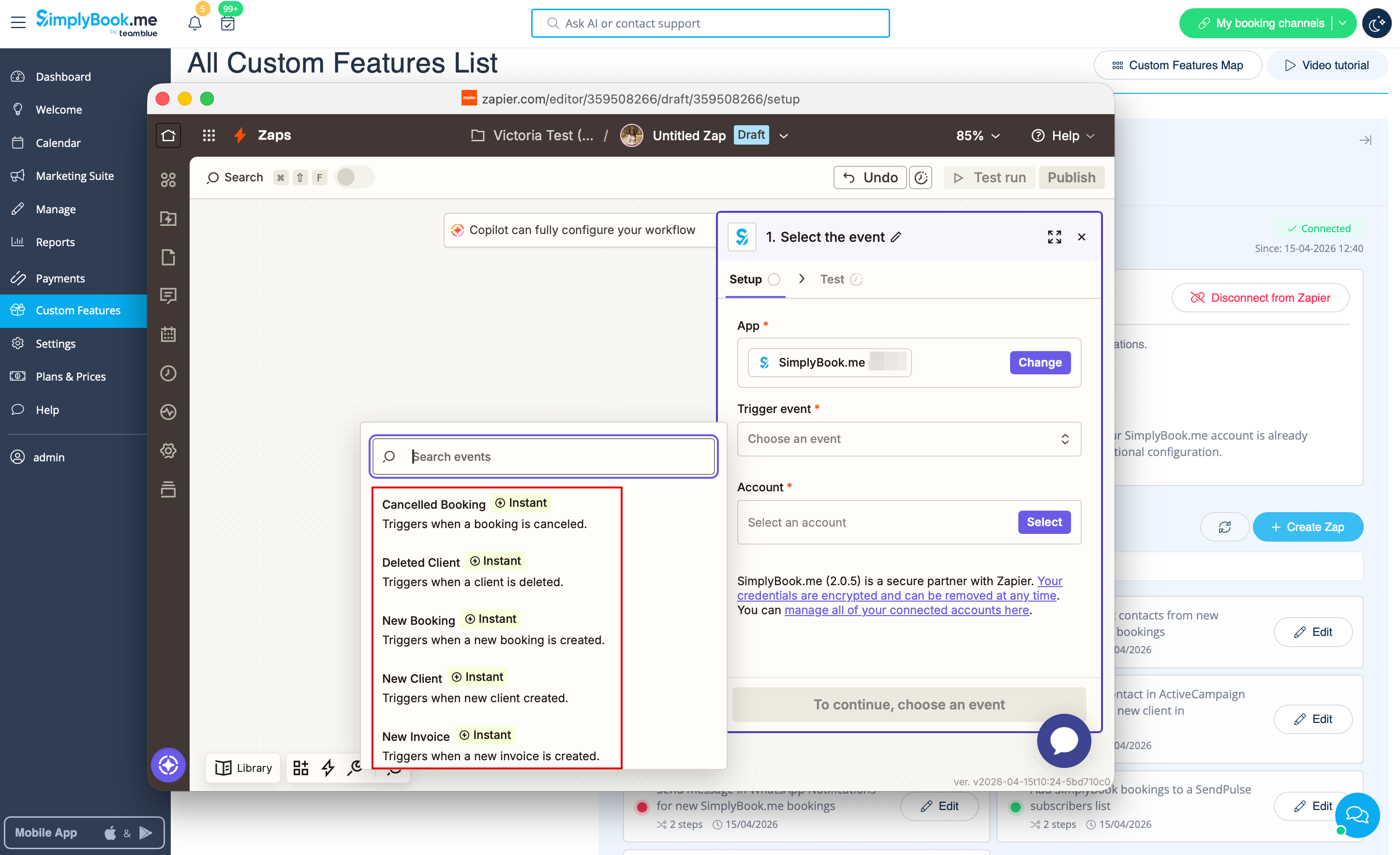
[[File: | :7. Choose the desired trigger and the account that you have previously connected. Click "Continue". | ||
[[File:Zapier new choose trigger event.png|1200px|border | center|link=https://help.simplybook.me/images/4/45/Zapier_new_choose_trigger_event.png]] | |||
<br><br> | <br><br> | ||
:8. Test your trigger, select the sample record and proceed to the action step. | |||
<br><br> | <br><br> | ||
: | :9. Now <span style="background-color:#d4f8e5; padding:5px; border-radius:5px;">select MailChimp as an action app</span> and select the action that will take place when the trigger works. | ||
[[File:Select mailchimp.png|border|center]] | [[File:Select mailchimp.png|border|center]] | ||
<br><br> | <br><br> | ||
[[File:Select action on mailchimp side.png|border|center]] | [[File:Select action on mailchimp side.png|border|center]] | ||
<br><br> | <br><br> | ||
: | :10. Connect <span style="background-color:#d4f8e5; padding:5px; border-radius:5px;">your MailChimp account.</span> | ||
[[File:Log in to mailchimp.png|border|center]] | [[File:Log in to mailchimp.png|border|center]] | ||
<br><br> | <br><br> | ||
: | :11. <span style="background-color:#d4f8e5; padding:5px; border-radius:5px;">Set the required fields</span> depending on the action you have selected. | ||
[[File:Mailchimp template.png|border|center]] | [[File:Mailchimp template.png|border|center]] | ||
<br><br> | <br><br> | ||
: | :12. Confirm your choices and <span style="background-color:#d4f8e5; padding:5px; border-radius:5px;">turn the Zap on.</span> | ||
<br><br><br><br> | <br><br><br><br> | ||
</translate> | |||
Latest revision as of 14:46, 17 April 2026
You can now add various functionality to the bookings that you receive in SimplyBook.me through the use of Zapier.com.
Here follows the detailed instruction on how to create a new zap that connects SimplyBook.me bookings to your email list at MailChimp.com.
- 1. First of all, make sure you have an account at MailChimp.com.
- 2. Create an account at Zapier.com, it only takes 1 minute.
- 3. Enable Zapier connector custom feature on your Custom features page on SimplyBook.me side.

- 4. Connect to your Zapier account using the ‘’’Quick connect’’’ option
- 5. Click on + Create Zap button.
- 6. In the popup that appears find SimplyBook.me in the list of apps to connect to.
- 7. Choose the desired trigger and the account that you have previously connected. Click "Continue".
- 8. Test your trigger, select the sample record and proceed to the action step.
- 9. Now select MailChimp as an action app and select the action that will take place when the trigger works.


- 10. Connect your MailChimp account.

- 11. Set the required fields depending on the action you have selected.

- 12. Confirm your choices and turn the Zap on.
