From SimplyBook.me
Importing a new version from external source |
Importing a new version from external source |
||
| Line 1: | Line 1: | ||
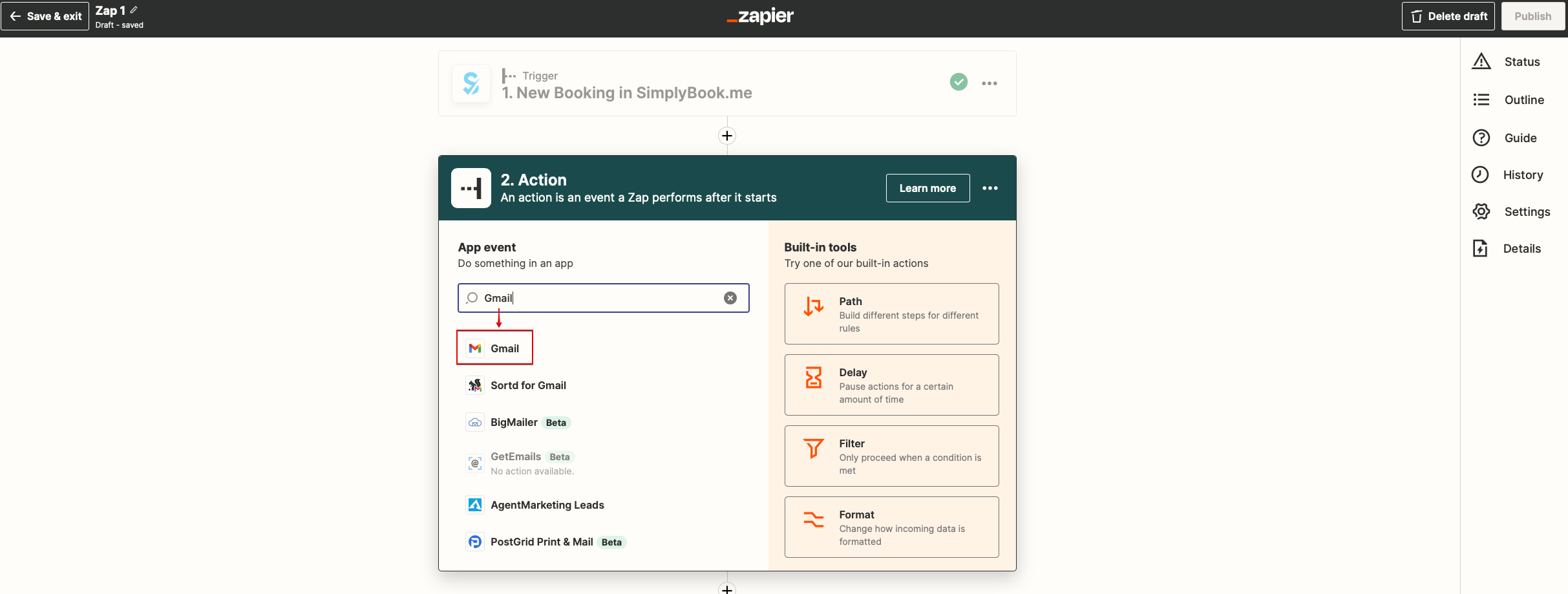
: | :7. Now you will be setting up actions step and as it is related to emails please find Gmail option using searchbox. | ||
[[File:Zapier redesigned gmail as action app.png|1200px|center|link=https://help.simplybook.me/images/0/01/Zapier_redesigned_gmail_as_action_app.png]] | [[File:Zapier redesigned gmail as action app.png|1200px|center|link=https://help.simplybook.me/images/0/01/Zapier_redesigned_gmail_as_action_app.png]] | ||
<br><br> | <br><br> | ||
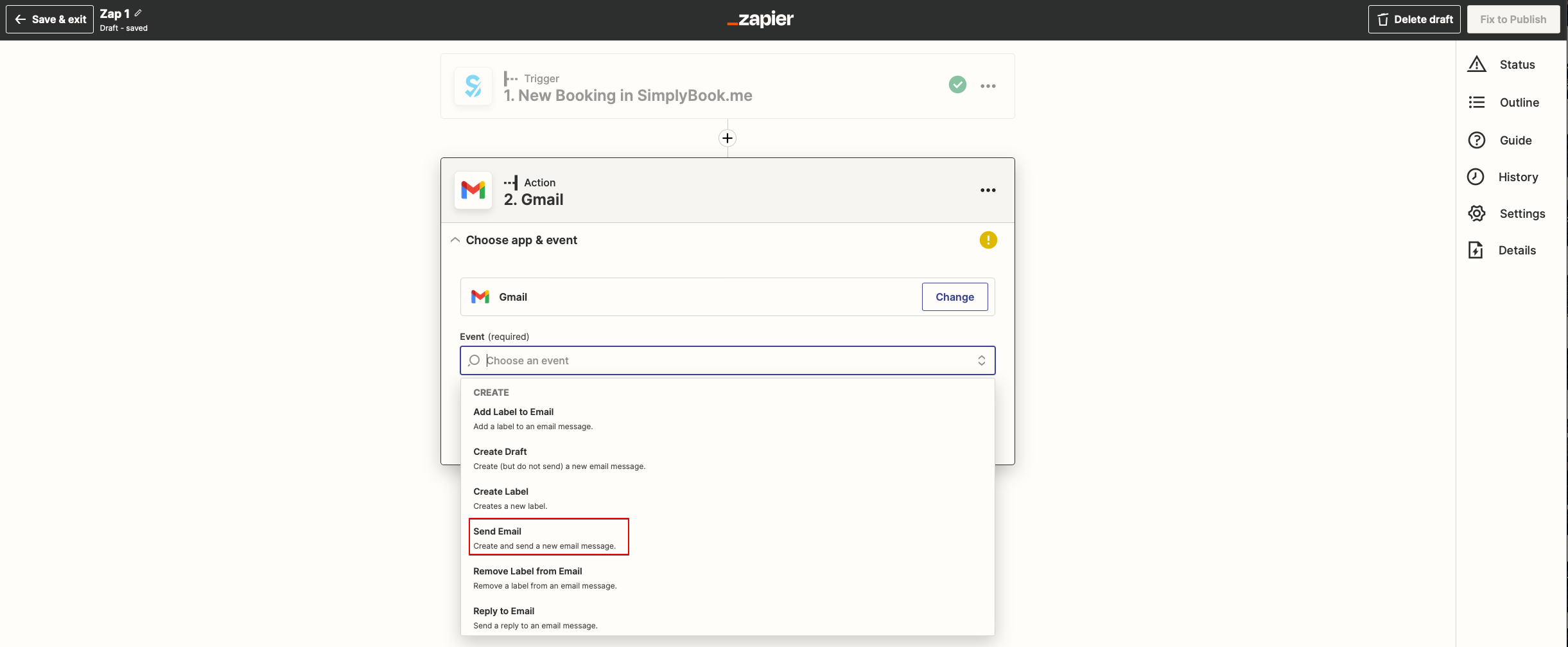
: | :8. From the list of available actions please choose "Send email" and connect Gmail account that will be used for sending notifications. | ||
[[File:Zapier redesigned send email action.png|1200px |center|link=https://help.simplybook.me/images/a/ac/Zapier_redesigned_send_email_action.png]] | [[File:Zapier redesigned send email action.png|1200px |center|link=https://help.simplybook.me/images/a/ac/Zapier_redesigned_send_email_action.png]] | ||
<br><br> | <br><br> | ||
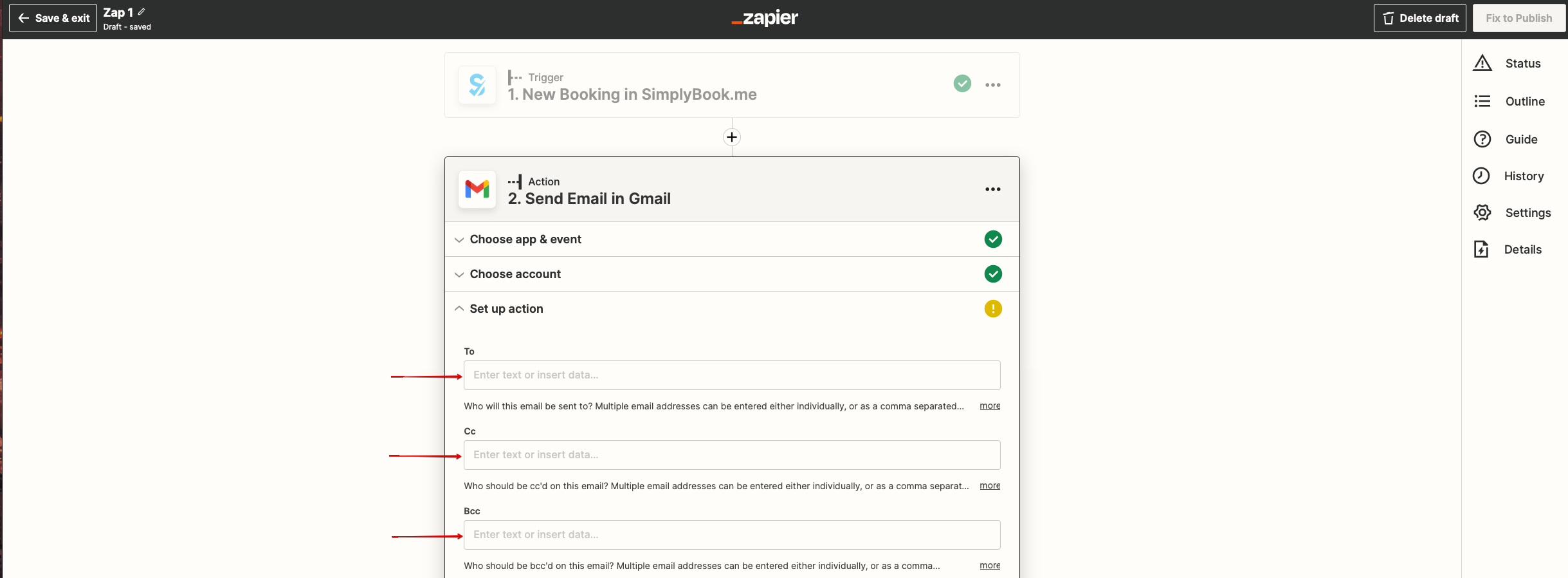
: | :9. On the next step please add email address(es) that you wish notification to be sent to. You may add only one address in "To(required)" email box or add some more addresses with the help of "Cc" and "Bcc" options or by clicking on "+" icon to add another email box. | ||
[[File:Zapier redesigned setup the email addresses.png|1200px |center|link=https://help.simplybook.me/images/5/5a/Zapier_redesigned_setup_the_email_addresses.png]] | [[File:Zapier redesigned setup the email addresses.png|1200px |center|link=https://help.simplybook.me/images/5/5a/Zapier_redesigned_setup_the_email_addresses.png]] | ||
<br><br> | <br><br> | ||
Latest revision as of 14:54, 17 April 2026
- 7. Now you will be setting up actions step and as it is related to emails please find Gmail option using searchbox.
- 8. From the list of available actions please choose "Send email" and connect Gmail account that will be used for sending notifications.
- 9. On the next step please add email address(es) that you wish notification to be sent to. You may add only one address in "To(required)" email box or add some more addresses with the help of "Cc" and "Bcc" options or by clicking on "+" icon to add another email box.