Created page with "{{#seo: |title=MCP Connector - SimplyBook.me |titlemode=append |keywords=faq, frequently asked questions, booking software, appointment system questions, appointments online, calendar software, booking system, booking calendar, scheduling software, online appointment scheduling, online scheduling, plugins, custom features, additional functionality, MCP, model context protocol, MCP connector, AI assistant, AI booking assistant, Claude, Claude Desktop, Cursor, AI agent, AP..." |
No edit summary |
||
| Line 6: | Line 6: | ||
[[File:Mcp icon.png|100px|left]] The MCP connector lets you connect AI assistants — and your own custom-built tools — to your SimplyBook.me account using the | [[File:Mcp icon.png|100px|left]] The MCP connector lets you connect AI assistants — and your own custom-built tools — to your SimplyBook.me account using the '''Model Context Protocol (MCP)''', an open standard for linking AI assistants to external data and tools.<br> | ||
Once connected, you can ask an assistant in plain language to look up clients, create or move bookings, check availability, and pull reports. The assistant only does what your account permissions allow, and you can revoke access at any time. | Once connected, you can ask an assistant in plain language to look up clients, create or move bookings, check availability, and pull reports. The assistant only does what your account permissions allow, and you can revoke access at any time. | ||
<br><br> | <br><br> | ||
Latest revision as of 08:07, 16 July 2026

The MCP connector lets you connect AI assistants — and your own custom-built tools — to your SimplyBook.me account using the Model Context Protocol (MCP), an open standard for linking AI assistants to external data and tools.
Once connected, you can ask an assistant in plain language to look up clients, create or move bookings, check availability, and pull reports. The assistant only does what your account permissions allow, and you can revoke access at any time.
Please note:
- This custom feature offers **two independent integration paths** — *Admin AI assistant* and *Public agent integration* — each with its own authentication method and its own set of available tools. They don't need to be set up together.
- The Admin AI assistant path only works with tools that support the Model Context Protocol (for example Claude Desktop, Cursor, or mcp-inspector).
- The assistant can only perform actions your own user account is permitted to do — if a non-admin user connects the assistant, it only gets non-admin access.
- Changing your account password immediately disconnects every linked Admin AI assistant.
- Which tools and data are available to either integration path depends on which other custom features are enabled on your account. Enabling more features exposes more data and tools — for example, more detailed service information becomes available once related plugins are turned on.
- The Public agent integration can only do what an anonymous visitor to your booking page could already do (search services, check availability, create bookings). It cannot access confidential account or client data.
- You stay in control: the assistant can only do what your user permissions allow. Changing your password, turning this custom feature off, or revoking the connection from your account immediately disconnects every linked assistant.
Connecting an Admin AI assistant (e.g. Claude Desktop, Cursor)
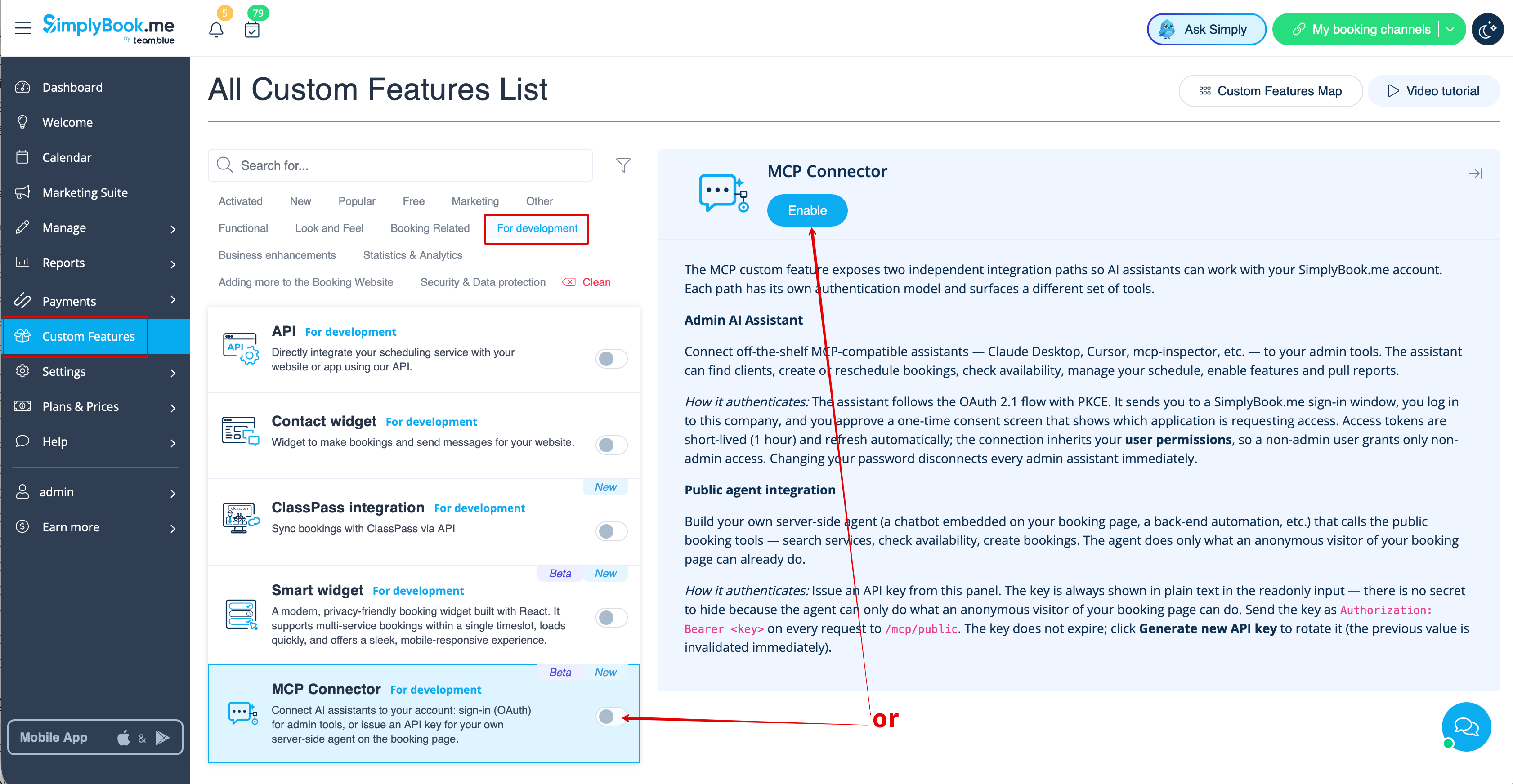
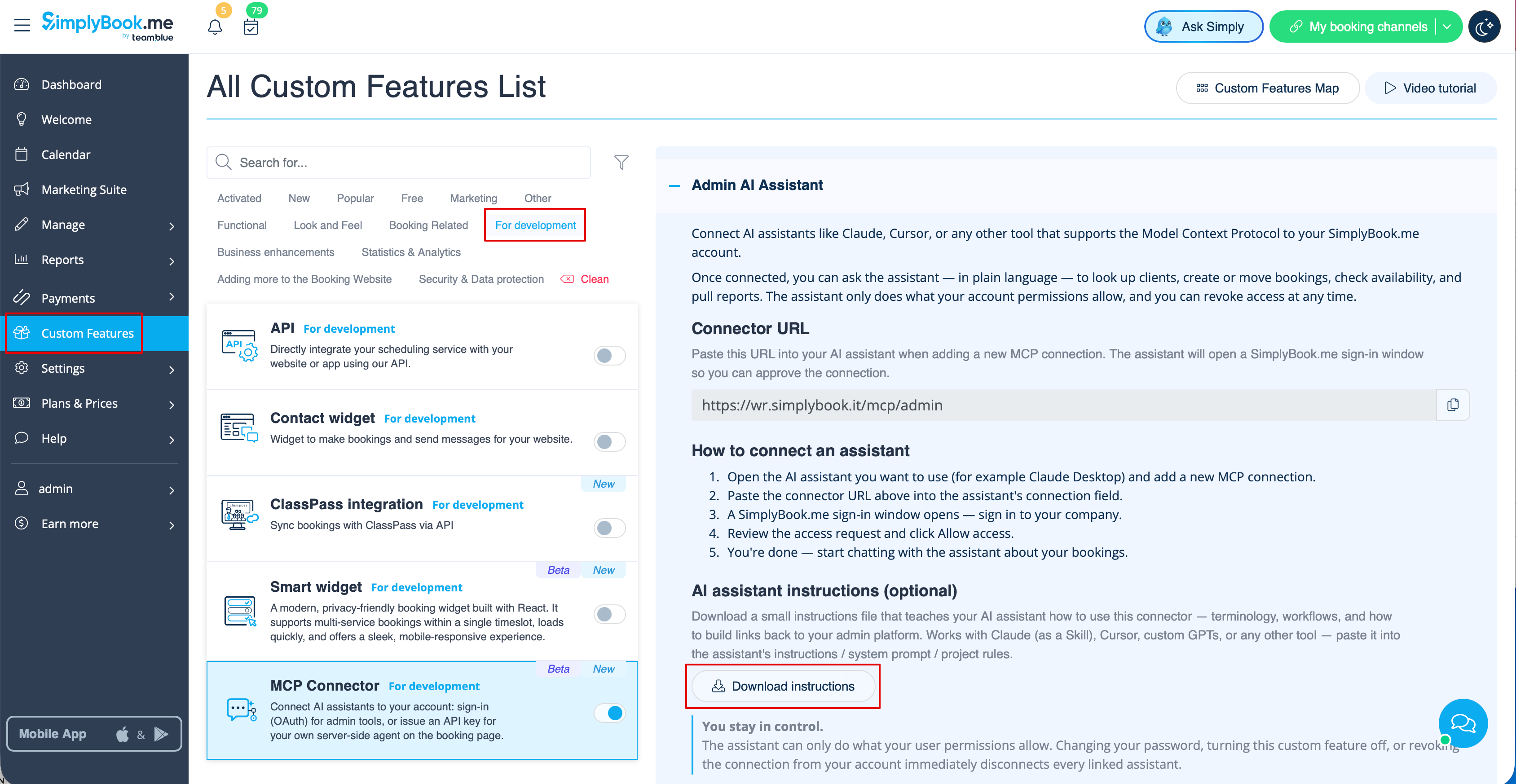
1. Navigate to the Custom Features page and enable the MCP connector custom feature.
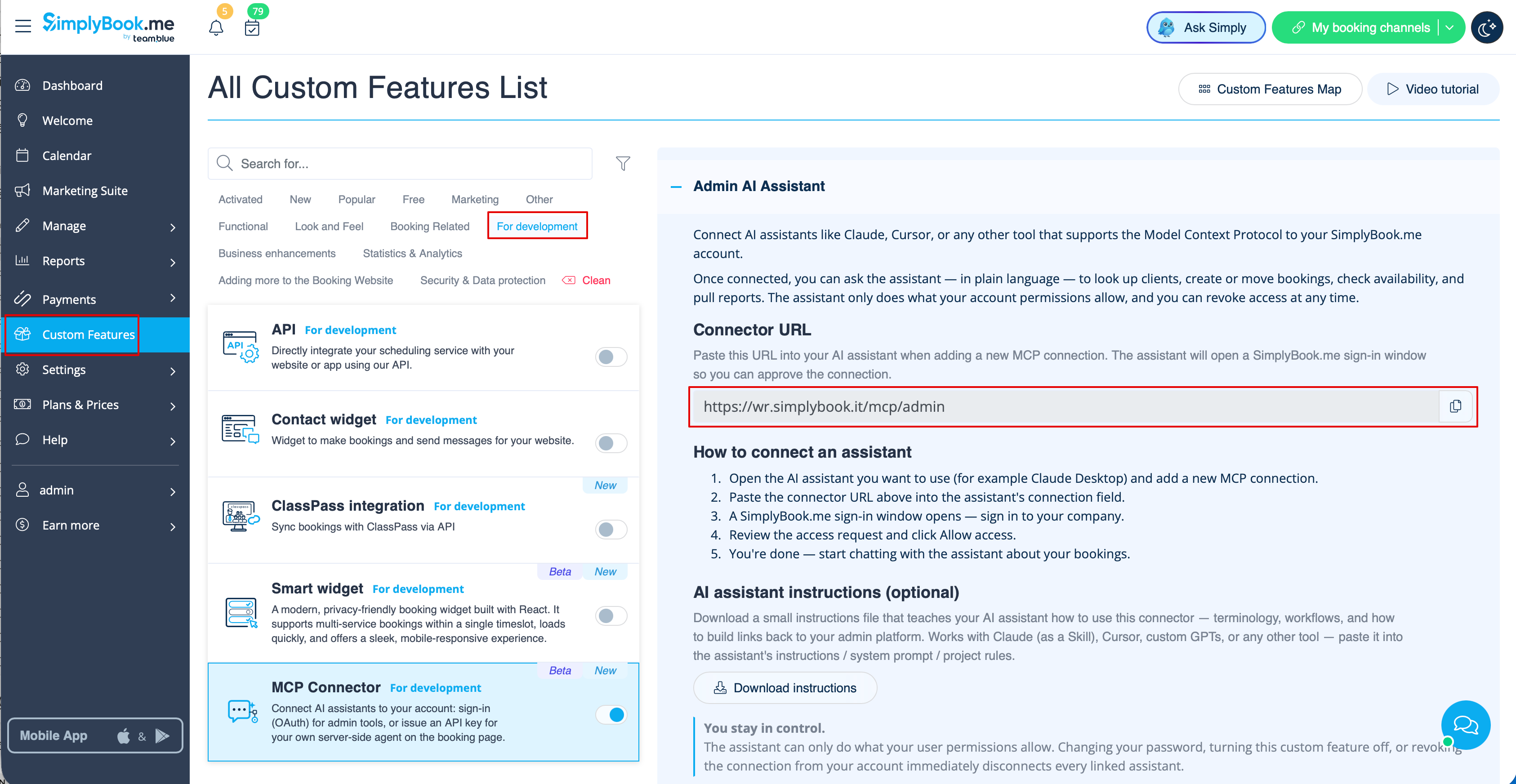
2. Open the Admin AI Assistant tab there and copy the connector URL shown there.
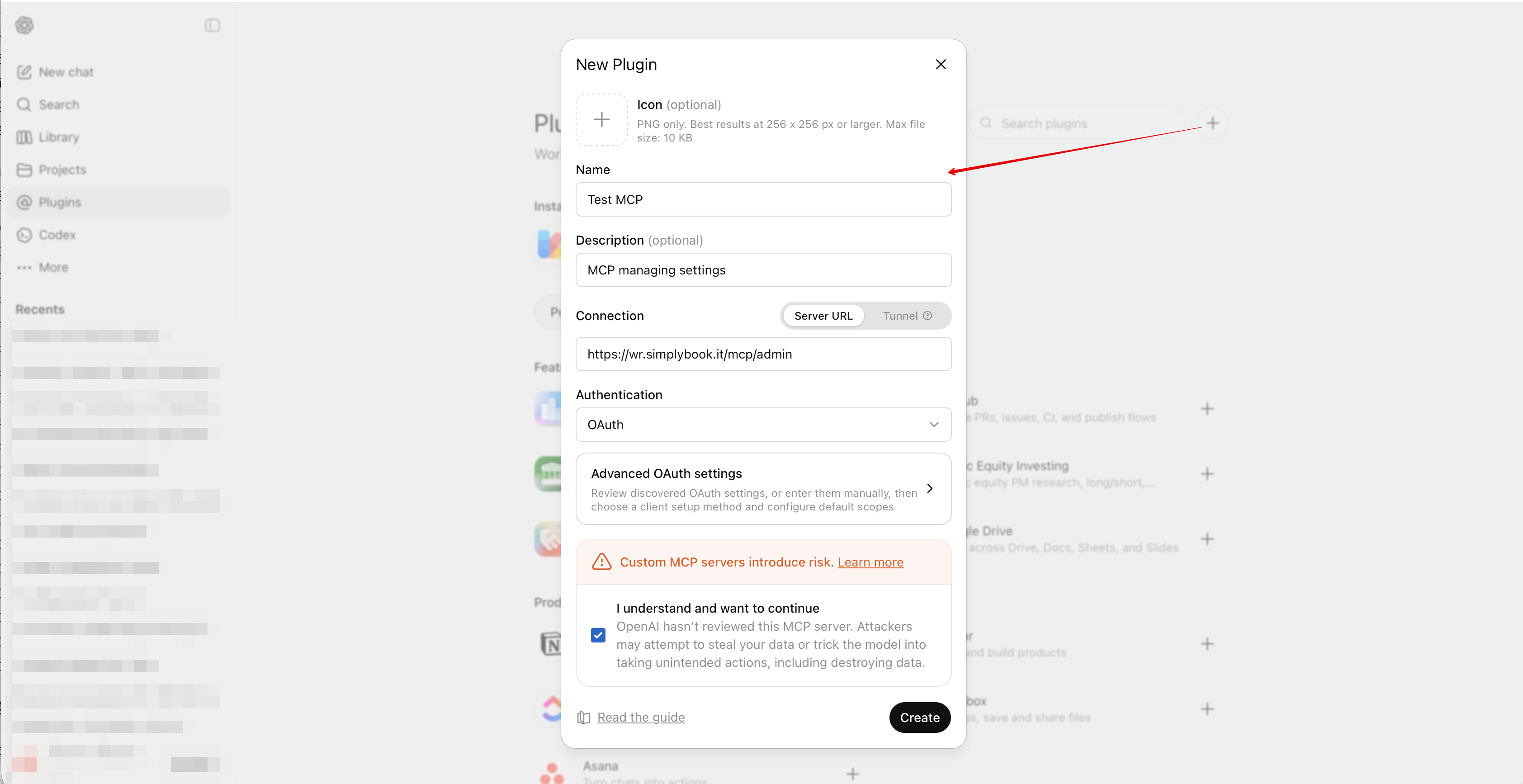
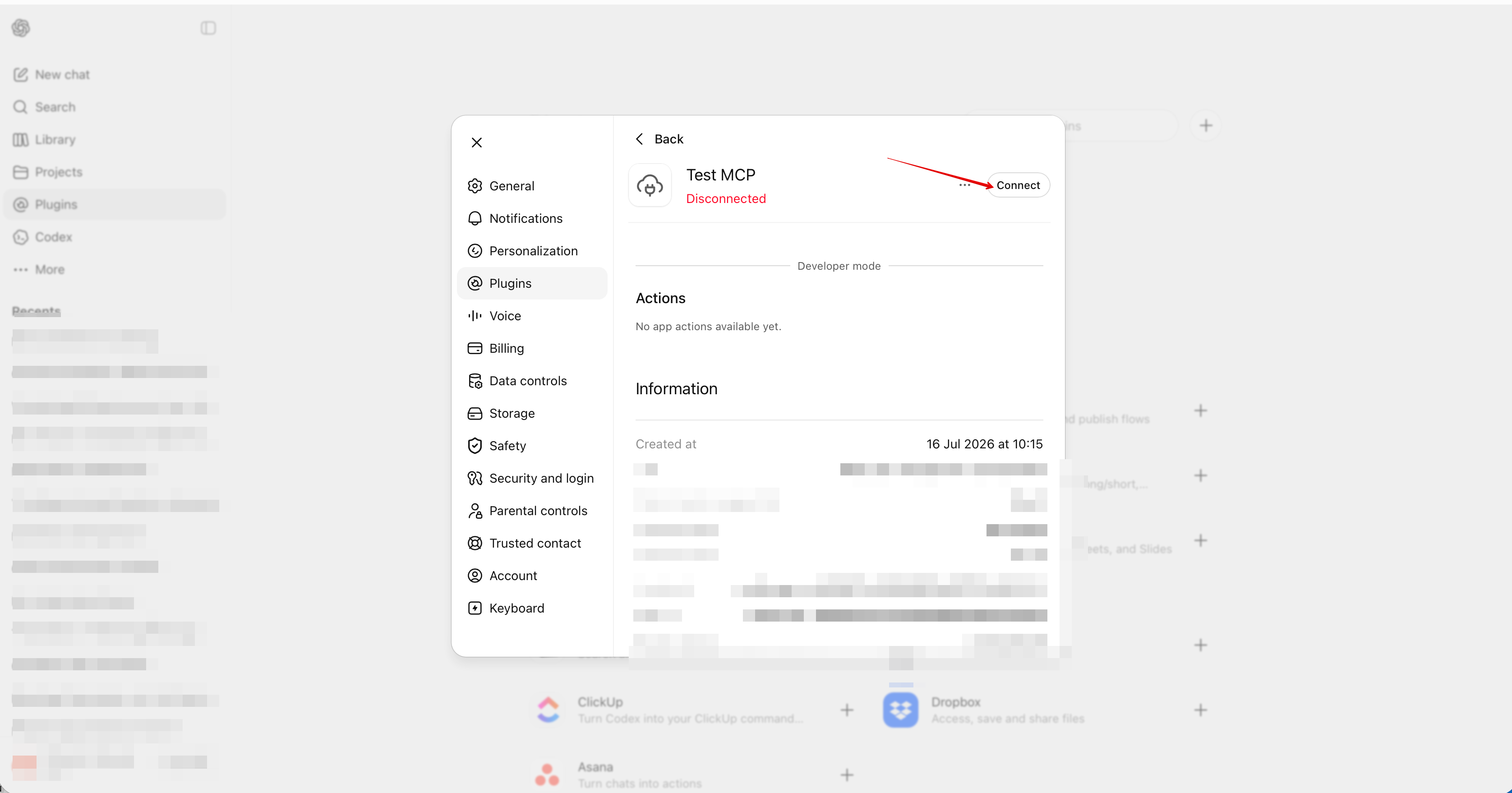
3. Open the AI tool you want to use and add a new MCP connection. Paste the connector URL into the assistant's connection field. (Connectors in Claude or Plugins in ChatGPT, etc.)
Click Connect.
4. A SimplyBook.me sign-in window will open — sign in to your company account.
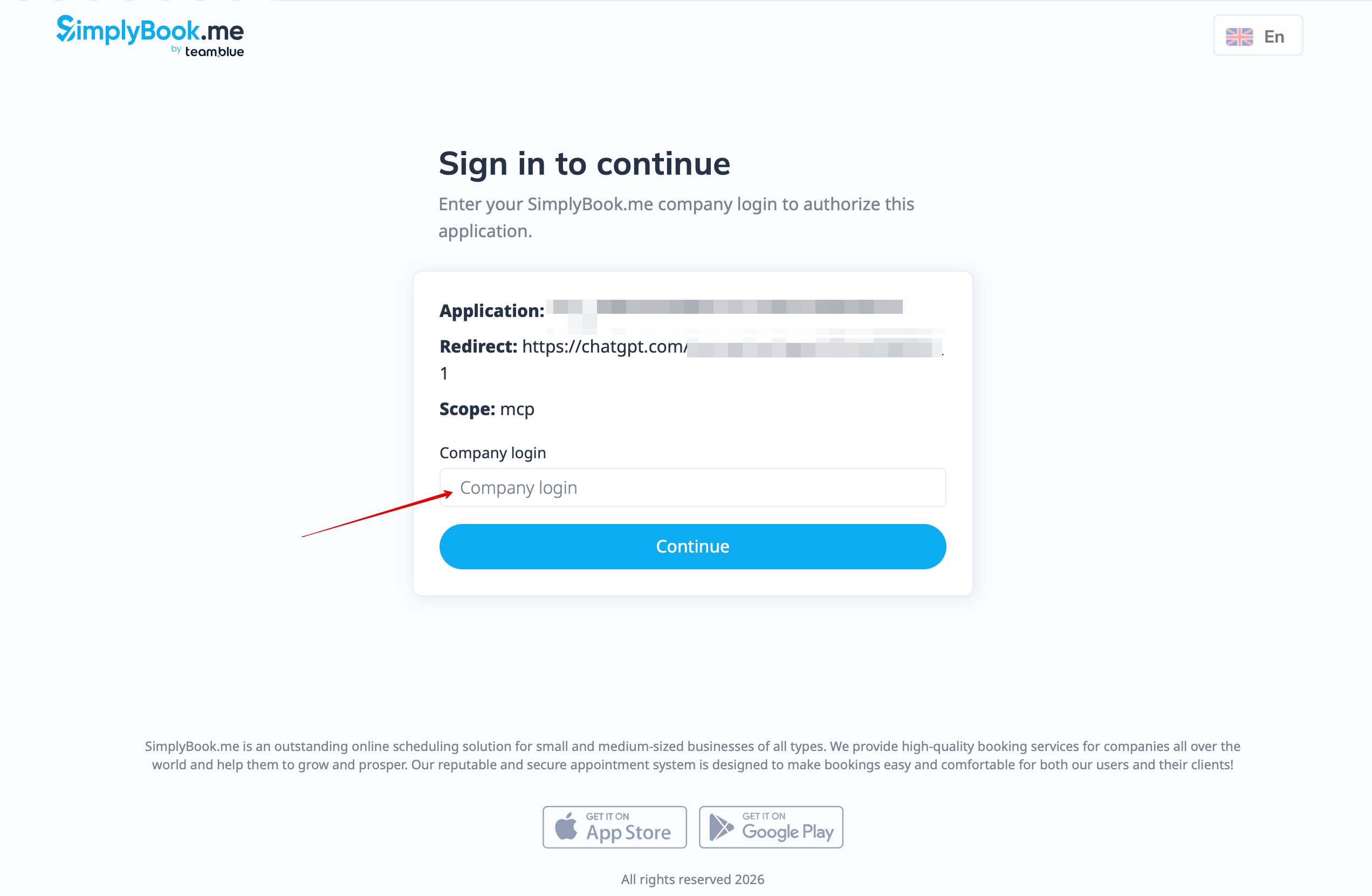
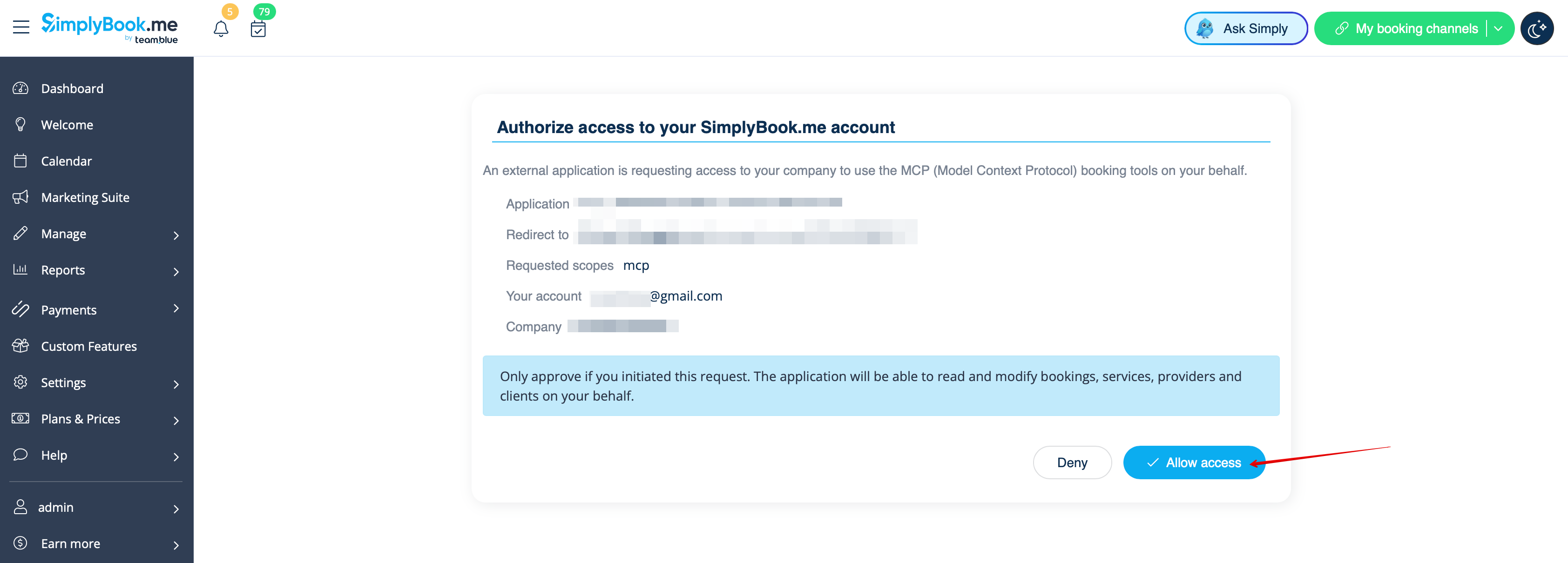
5. Review the one-time consent screen, which shows which application is requesting access, and click Allow access to confirm the connection.
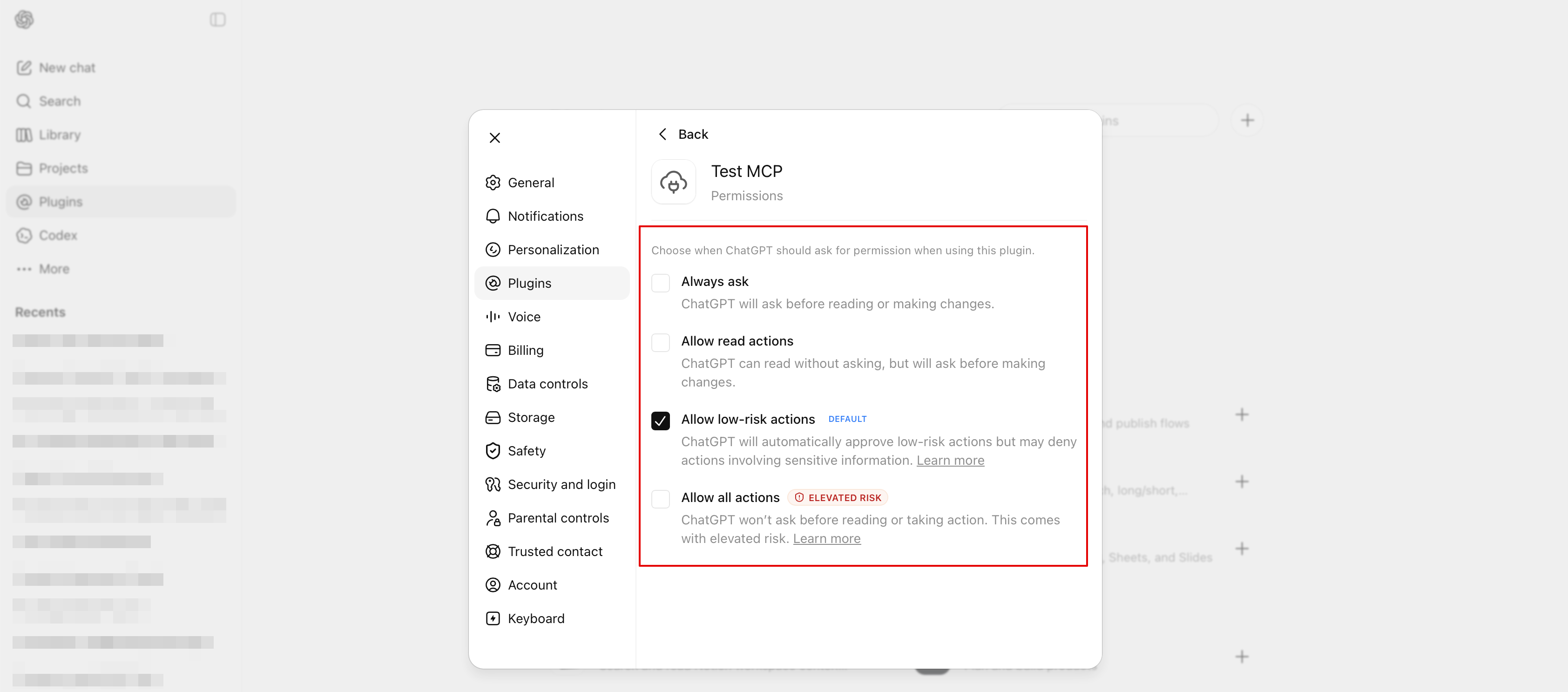
6. Some assistants will also ask you to choose a permission level for automated actions, such as always allow, ask for confirmation, or set the permission for each action individually. Pick whichever matches how much you want to review before the assistant makes changes — for instance, creating bookings, updating a provider's schedule, sending cancellation emails, or generating reports/charts on your business.
7. You're done — start chatting with the assistant about your bookings. For example, ask it to create a booking, check a provider's availability, or put together a chart of your business performance.
8. Optional: download the "AI assistant instructions" file from the feature's page and paste it into the assistant's instructions / system prompt / project rules. It teaches the assistant SimplyBook.me terminology, common workflows, and how to build links back to your admin platform. It works with Claude (as a Skill), Cursor, custom GPTs, or any other MCP-compatible tool.
Building a public agent integration (for developers)
1. Navigate to the Custom Features page, open the MCP connector feature, and go to the Public agent integration section.
2. Click to copy an API key. It's shown in plain text — there's no secret to hide, since this key only grants the same access an anonymous visitor to your booking page already has.
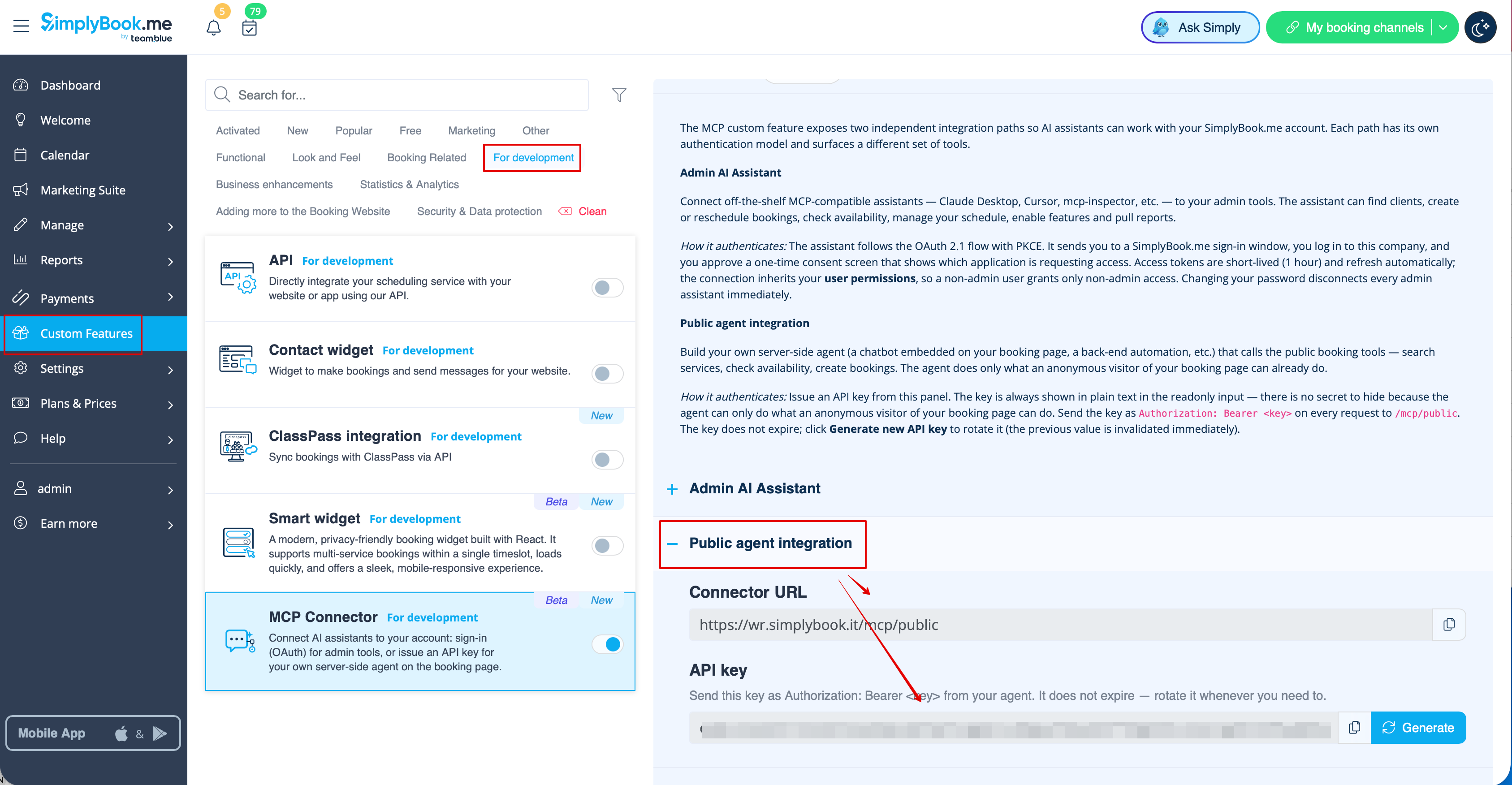
3. In your own server-side application (a chatbot embedded on your booking page, a back-end automation, or just a terminal for testing), send the key as an `Authorization: Bearer <key>` header on every request to `/mcp/public`.
4. Connect using the connector URL and API key to see the list of available tools — for example searching services, checking availability, and creating bookings. Which tools and fields you get back (such as provider lists, services, and contact details) depends on which plugins are enabled for your company; enabling more features exposes additional data, such as service IDs.
5. Use these tools to build your own booking assistant, chatbot, or automation on top of SimplyBook.me.
6. To rotate the key, click Generate new API key — the previous key is invalidated immediately.
