Translations:Accept payments custom feature/4/en: Difference between revisions

From SimplyBook.me
FuzzyBot (talk | contribs)
Importing a new version from external source
(No difference)

Revision as of 12:55, 12 January 2024

Information about message (contribute)
This message has no documentation. If you know where or how this message is used, you can help other translators by adding documentation to this message.
Message definition (Accept payments custom feature)
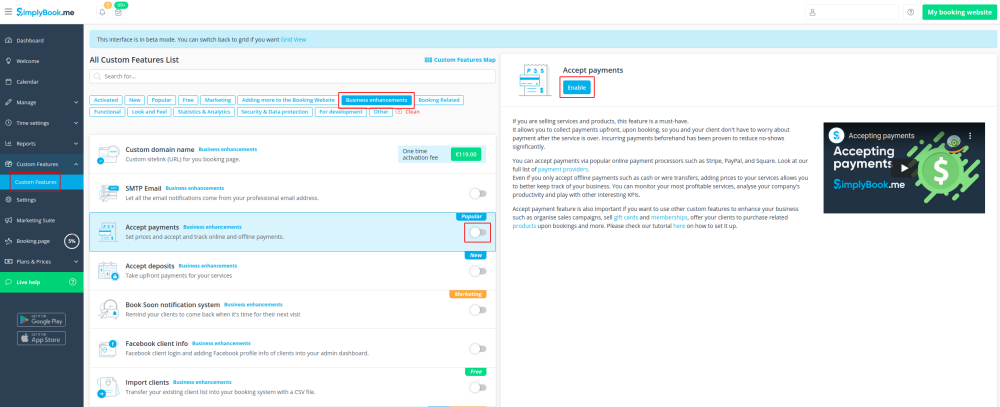
:1. Enable <span style="background-color:#d4f8e5; padding:5px; border-radius:5px;">Accept Payments</span> custom feature in <span style="background-color:#d4f8e5; padding:5px; border-radius:5px;">Custom Features</span> section.
[[File:Accept payments enable path redesigned.png|1200px| border | center|link=https://help.simplybook.me/images/9/9e/Accept_payments_enable_path_redesigned.png]]
<br><br>
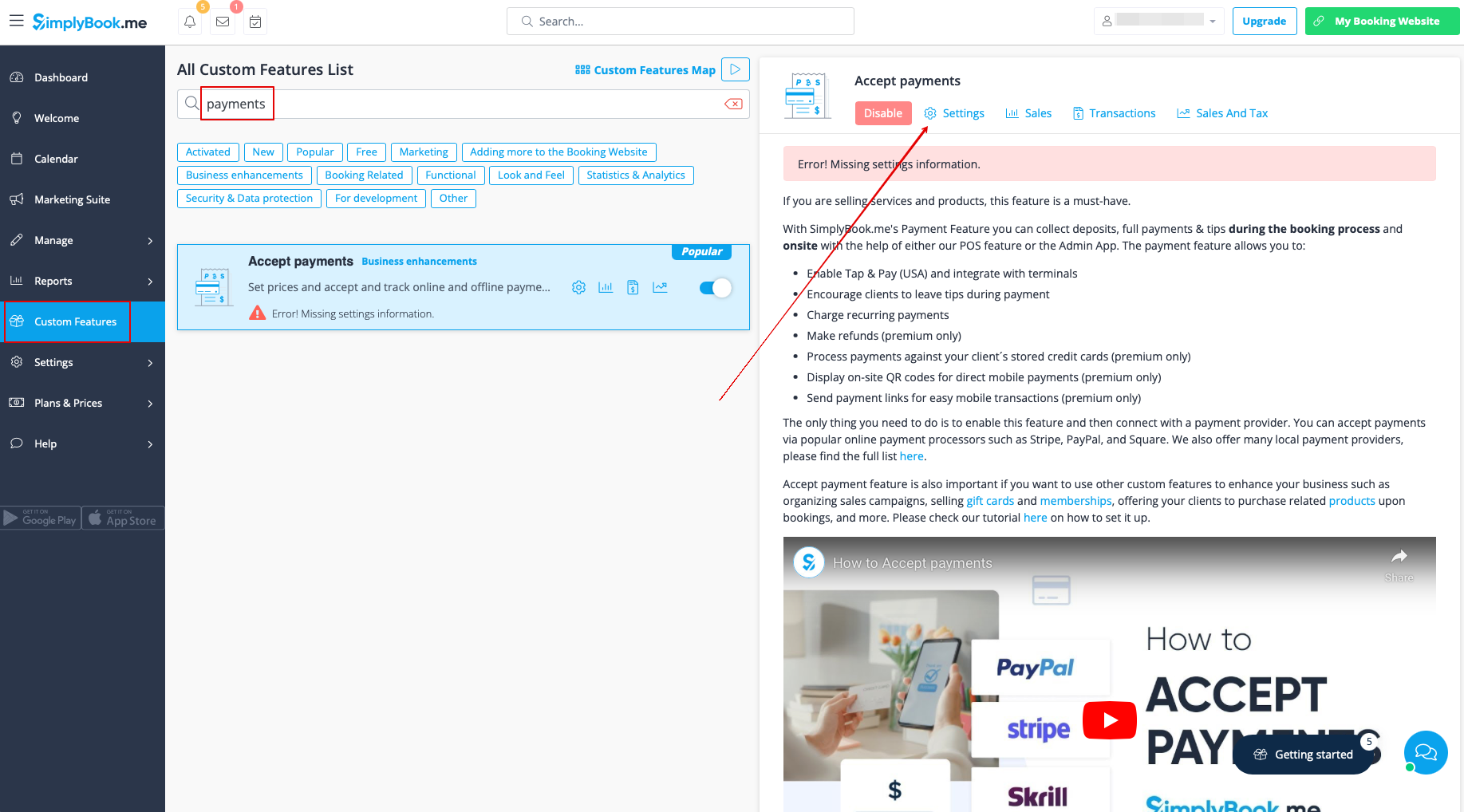
:2. Once enabled, click on the <span style="background-color:#d4f8e5; padding:5px; border-radius:5px;">Settings</span> button.
[[File:Accept payments settings path redesigned.png|1200px|border | center|link=https://help.simplybook.me/images/3/37/Accept_payments_settings_path_redesigned.png]]
<br><br>
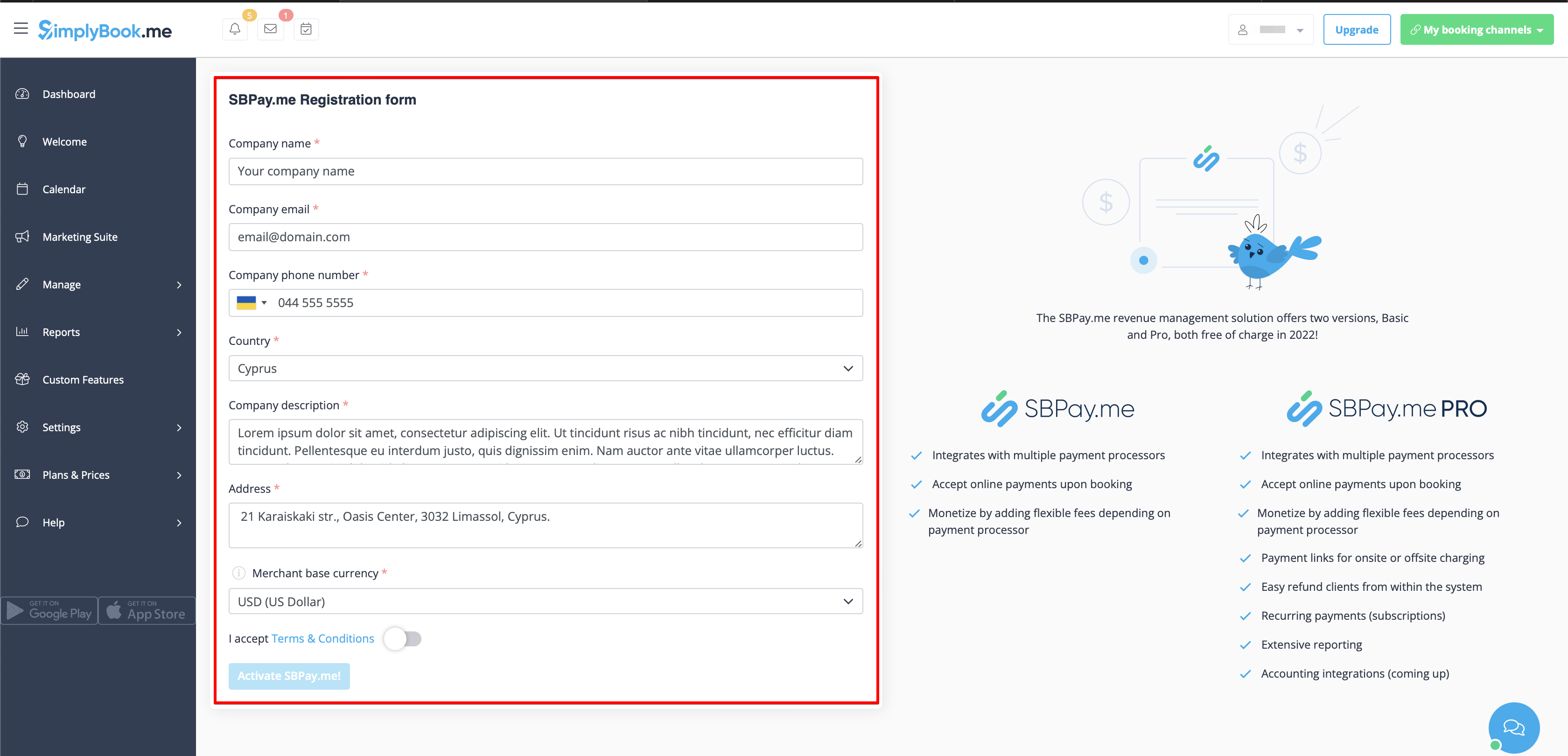
:3. Adjust your company information in the following form if necessary.
:(It will be autocompleted with the company details that you already have in your system).
[[File:Sbpay registration form redesigned.png|1200px|center|link=https://help.simplybook.me/images/d/dd/Sbpay_registration_form_redesigned.png]]
<br><br>
:4. Click on the <span style="background-color:#d4f8e5; padding:5px; border-radius:5px;">Activate SBPay.me</span> button.
<br><br>
:<span style="background-color:#ffe9e9; padding:5px; border-radius:5px;">'''Please note!''' The majority of your payment-related settings and configurations will be managed through SBPay.me, which becomes accessible upon enabling the Accept Payments feature through '''Payments''' item in the navigation menu. Please check more information [[Special:MyLanguage/SBPay.me integration|here]].</span>
<br><br>
1. Enable Accept Payments custom feature in Custom Features section.


2. Once enabled, click on the Settings button.


3. Adjust your company information in the following form if necessary.
(It will be autocompleted with the company details that you already have in your system).


4. Click on the Activate SBPay.me button.


Please note! The majority of your payment-related settings and configurations will be managed through SBPay.me, which becomes accessible upon enabling the Accept Payments feature through Payments item in the navigation menu. Please check more information here.