Marked this version for translation |
|||
| (9 intermediate revisions by the same user not shown) | |||
| Line 1: | Line 1: | ||
<languages/> | |||
<translate> | |||
<!--T:1--> | |||
{{#seo: | {{#seo: | ||
|title=Adding services, providers and availability - SimplyBook.me | |title=Adding services, providers and availability - SimplyBook.me | ||
|description=Learn step-by-step guide to add services and staff. Set durations, pricing, availability schedules. Configure provider working hours, service details in new ... | |||
|titlemode=append | |titlemode=append | ||
|keywords=faq, frequently asked questions, booking software, appointment system questions, appointments online, calendar software, booking system, booking calendar, scheduling software, online appointment scheduling, online scheduling, setup, setup help, support, help content, add service, add services, create services, add providers, create provider, copy service, copy provider, add events, setup services, setup providers | |keywords=faq, frequently asked questions, booking software, appointment system questions, appointments online, calendar software, booking system, booking calendar, scheduling software, online appointment scheduling, online scheduling, setup, setup help, support, help content, add service, add services, create services, add providers, create provider, copy service, copy provider, add events, setup services, setup providers | ||
}} | }} | ||
</translate> | |||
<translate> | |||
<!--T:2--> | |||
<br> | <br> | ||
<br> | <br> | ||
:'''See video tutorial on adding services and service providers | :'''See video tutorial on adding services and service providers | ||
<p><youtube>https://youtu.be/JZ6RaaIN2J8?si=Bx9lCVCVSKnO_tBe</youtube></p> | |||
<br> | <br> | ||
==Adding services== | </translate> | ||
: | <translate> | ||
==Adding services== <!--T:3--> | |||
<!--T:22--> | |||
===How to create a service=== | ===How to create a service=== | ||
In <span style="background-color:#d4f8e5; padding:5px; border-radius:5px;">Manage</span> -> <span style="background-color:#d4f8e5; padding:5px; border-radius:5px;">Services</span> press <span style="background-color:#d4f8e5; padding:5px; border-radius:5px;">+</span> button. | In <span style="background-color:#d4f8e5; padding:5px; border-radius:5px;">Manage</span> -> <span style="background-color:#d4f8e5; padding:5px; border-radius:5px;">Services</span> press <span style="background-color:#d4f8e5; padding:5px; border-radius:5px;">+</span> button. | ||
| Line 16: | Line 27: | ||
[[File:Create new service redesigned.png|1200px | center|link=https://help.simplybook.me/images/2/2d/Create_new_service_redesigned.png]] | [[File:Create new service redesigned.png|1200px | center|link=https://help.simplybook.me/images/2/2d/Create_new_service_redesigned.png]] | ||
<!--T:4--> | |||
<br><br> | <br><br> | ||
</translate> | |||
<translate> | |||
<!--T:5--> | |||
On <span style="background-color:#d4f8e5; padding:5px; border-radius:5px;">the right-side</span> of the page insert the <span style="background-color:#d4f8e5; padding:5px; border-radius:5px;">name</span> of your service and add service <span style="background-color:#d4f8e5; padding:5px; border-radius:5px;">description.</span> <br>It is possible to use <span style="background-color:#cdeffc; padding:5px; border-radius:5px;">[[Custom_Features#HTML_Description_Field_for_Events | HTML formatting for service description]]</span> to change the font, its color, etc.<br>You can also <span style="background-color:#d4f8e5; padding:5px; border-radius:5px;">upload picture</span> of a service, and <span style="background-color:#d4f8e5; padding:5px; border-radius:5px;">activate prices</span> to <span style="background-color:#cdeffc; padding:5px; border-radius:5px;">[[Custom_Features#Accept_Payments | accept payments on-line]].</span> | On <span style="background-color:#d4f8e5; padding:5px; border-radius:5px;">the right-side</span> of the page insert the <span style="background-color:#d4f8e5; padding:5px; border-radius:5px;">name</span> of your service and add service <span style="background-color:#d4f8e5; padding:5px; border-radius:5px;">description.</span> <br>It is possible to use <span style="background-color:#cdeffc; padding:5px; border-radius:5px;">[[Custom_Features#HTML_Description_Field_for_Events | HTML formatting for service description]]</span> to change the font, its color, etc.<br>You can also <span style="background-color:#d4f8e5; padding:5px; border-radius:5px;">upload picture</span> of a service, and <span style="background-color:#d4f8e5; padding:5px; border-radius:5px;">activate prices</span> to <span style="background-color:#cdeffc; padding:5px; border-radius:5px;">[[Custom_Features#Accept_Payments | accept payments on-line]].</span> | ||
<br><br> | <br><br> | ||
[[File:Service creation form redesigned.png|1200px | center|link=https://help.simplybook.me/images/9/9d/Service_creation_form_redesigned.png]] | [[File:Service creation form redesigned.png|1200px | center|link=https://help.simplybook.me/images/9/9d/Service_creation_form_redesigned.png]] | ||
<br><br> | <br><br> | ||
</translate> | |||
<translate> | |||
<!--T:6--> | |||
===How to clone a service=== | ===How to clone a service=== | ||
<br><br> | <br><br> | ||
| Line 30: | Line 48: | ||
Click on <span style="background-color:#d4f8e5; padding:5px; border-radius:5px;">Clone</span> button in the top right corner, confirm the copying of the settings. | Click on <span style="background-color:#d4f8e5; padding:5px; border-radius:5px;">Clone</span> button in the top right corner, confirm the copying of the settings. | ||
[[File:Clone service path redesigned.png|1200px| center|link=https://help.simplybook.me/images/2/20/Clone_service_path_redesigned.png]] | [[File:Clone service path redesigned.png|1200px| center|link=https://help.simplybook.me/images/2/20/Clone_service_path_redesigned.png]] | ||
</translate> | |||
<translate> | |||
<!--T:7--> | |||
The following service settings will be copied: | The following service settings will be copied: | ||
*service name | *service name | ||
| Line 43: | Line 64: | ||
[[File:Cloned service name redesigned.png|1200px | center|link=https://help.simplybook.me/images/3/31/Cloned_service_name_redesigned.png]] | [[File:Cloned service name redesigned.png|1200px | center|link=https://help.simplybook.me/images/3/31/Cloned_service_name_redesigned.png]] | ||
<br><br> | <br><br> | ||
</translate> | |||
<translate> | |||
<!--T:8--> | |||
===How to set service duration=== | ===How to set service duration=== | ||
<br><br> | <br><br> | ||
| Line 55: | Line 79: | ||
As well you can set fixed starting times for your service. Please check more about Appointment at Fixed Time Custom Feature <span style="background-color:#cdeffc; padding:5px; border-radius:5px;">[[Custom_Features#Appointment_at_Fixed_Time | here]].</span> | As well you can set fixed starting times for your service. Please check more about Appointment at Fixed Time Custom Feature <span style="background-color:#cdeffc; padding:5px; border-radius:5px;">[[Custom_Features#Appointment_at_Fixed_Time | here]].</span> | ||
<br><br> | <br><br> | ||
</translate> | |||
<translate> | |||
<!--T:9--> | |||
===How to set specific schedule for service=== | ===How to set specific schedule for service=== | ||
<br><br> | <br><br> | ||
| Line 68: | Line 95: | ||
[[File:Company schedule used redesigned.png|1200px | center|link=https://help.simplybook.me/images/5/5d/Company_schedule_used_redesigned.png]] | [[File:Company schedule used redesigned.png|1200px | center|link=https://help.simplybook.me/images/5/5d/Company_schedule_used_redesigned.png]] | ||
<br><br> | <br><br> | ||
</translate> | |||
<translate> | |||
<!--T:10--> | |||
If you need to set some exceptions in service schedule for holidays or other needs please choose <span style="background-color:#d4f8e5; padding:5px; border-radius:5px;">Special days</span> tab there and set times for the desired dates. | If you need to set some exceptions in service schedule for holidays or other needs please choose <span style="background-color:#d4f8e5; padding:5px; border-radius:5px;">Special days</span> tab there and set times for the desired dates. | ||
<br><br> | <br><br> | ||
[[File:Service schedule sepcial days tab redesigned.png|1200px| center|link=https://help.simplybook.me/images/5/55/Service_schedule_sepcial_days_tab_redesigned.png]] | [[File:Service schedule sepcial days tab redesigned.png|1200px| center|link=https://help.simplybook.me/images/5/55/Service_schedule_sepcial_days_tab_redesigned.png]] | ||
<br><br> | <br><br> | ||
</translate> | |||
<translate> | |||
<!--T:11--> | |||
===How to set 24/7 or after 00.00 services=== | ===How to set 24/7 or after 00.00 services=== | ||
If your services will cross midnight, after you set up your availability make sure to set <span style="background-color:#d4f8e5; padding:5px; border-radius:5px;">Allow service to extend over closing hours</span> to <span style="background-color:#d4f8e5; padding:5px; border-radius:5px;">Yes</span> in <span style="background-color:#d4f8e5; padding:5px; border-radius:5px;">Settings</span> -> <span style="background-color:#d4f8e5; padding:5px; border-radius:5px;">Main configuration.</span> | If your services will cross midnight, after you set up your availability make sure to set <span style="background-color:#d4f8e5; padding:5px; border-radius:5px;">Allow service to extend over closing hours</span> to <span style="background-color:#d4f8e5; padding:5px; border-radius:5px;">Yes</span> in <span style="background-color:#d4f8e5; padding:5px; border-radius:5px;">Settings</span> -> <span style="background-color:#d4f8e5; padding:5px; border-radius:5px;">Main configuration.</span> | ||
| Line 87: | Line 120: | ||
*[[Book_Soon_Notification_System_custom_feature|Add reminders to book again]]</div> | *[[Book_Soon_Notification_System_custom_feature|Add reminders to book again]]</div> | ||
<br><br> | <br><br> | ||
</translate> | |||
<translate> | |||
==Adding Providers== | ==Adding Providers== <!--T:12--> | ||
: | |||
<!--T:23--> | |||
===How to add a provider=== | ===How to add a provider=== | ||
<br><br> | <br><br> | ||
</translate> | |||
<translate> | |||
<!--T:13--> | |||
In <span style="background-color:#d4f8e5; padding:5px; border-radius:5px;">Manage</span> -> <span style="background-color:#d4f8e5; padding:5px; border-radius:5px;">Service Providers</span> press <span style="background-color:#d4f8e5; padding:5px; border-radius:5px;">+</span> button. | In <span style="background-color:#d4f8e5; padding:5px; border-radius:5px;">Manage</span> -> <span style="background-color:#d4f8e5; padding:5px; border-radius:5px;">Service Providers</span> press <span style="background-color:#d4f8e5; padding:5px; border-radius:5px;">+</span> button. | ||
<br><br> | <br><br> | ||
| Line 101: | Line 140: | ||
[[File:Service provider details redesigned.png|1200px | center|link=https://help.simplybook.me/images/2/22/Service_provider_details_redesigned.png]] | [[File:Service provider details redesigned.png|1200px | center|link=https://help.simplybook.me/images/2/22/Service_provider_details_redesigned.png]] | ||
<br><br> | <br><br> | ||
</translate> | |||
<translate> | |||
<!--T:14--> | |||
===How to clone a provider=== | ===How to clone a provider=== | ||
<br><br> | <br><br> | ||
| Line 112: | Line 154: | ||
[[File:Provder clone path redesigned.png|1200px | center|link=https://help.simplybook.me/images/c/c9/Provder_clone_path_redesigned.png]] | [[File:Provder clone path redesigned.png|1200px | center|link=https://help.simplybook.me/images/c/c9/Provder_clone_path_redesigned.png]] | ||
<br><br> | <br><br> | ||
</translate> | |||
<translate> | |||
<!--T:15--> | |||
The following provider settings will be copied: | The following provider settings will be copied: | ||
*provider name | *provider name | ||
| Line 127: | Line 172: | ||
[[File:Clone in provider name redesigned.png|1200px | center|link=https://help.simplybook.me/images/1/1f/Clone_in_provider_name_redesigned.png]] | [[File:Clone in provider name redesigned.png|1200px | center|link=https://help.simplybook.me/images/1/1f/Clone_in_provider_name_redesigned.png]] | ||
<br><br> | <br><br> | ||
</translate> | |||
<translate> | |||
<!--T:16--> | |||
===How to attach services to provider=== | ===How to attach services to provider=== | ||
<br><br> | <br><br> | ||
| Line 135: | Line 183: | ||
[[File:Provider edit attached services redesigned.png|1200px | center|link=https://help.simplybook.me/images/2/23/Provider_edit_attached_services_redesigned.png]] | [[File:Provider edit attached services redesigned.png|1200px | center|link=https://help.simplybook.me/images/2/23/Provider_edit_attached_services_redesigned.png]] | ||
<!--T:17--> | |||
<br><br> | <br><br> | ||
</translate> | |||
<translate> | |||
<!--T:18--> | |||
===How to set schedule for provider=== | ===How to set schedule for provider=== | ||
<br><br> | <br><br> | ||
You can set regular schedule for providers in <span style="background-color:#d4f8e5; padding:5px; border-radius:5px;">Manage</span> -> <span style="background-color:#d4f8e5; padding:5px; border-radius:5px;">Service Providers</span>, choose necessary provider on the left and switch to <span style="background-color:#d4f8e5; padding:5px; border-radius:5px;">Service provider schedule</span> tab. <br>For example, if you work Monday-Friday 9a.m - 5p.m you simply set schedule for those dates by moving the sliders to desired positions(bright blue line will mean available time). <br>To make day of the week working/off use <span style="background-color:#d4f8e5; padding:5px; border-radius:5px;">the switchers</span> near days' names. | You can set regular schedule for providers in <span style="background-color:#d4f8e5; padding:5px; border-radius:5px;">Manage</span> -> <span style="background-color:#d4f8e5; padding:5px; border-radius:5px;">Service Providers</span>, choose necessary provider on the left and switch to <span style="background-color:#d4f8e5; padding:5px; border-radius:5px;">Service provider schedule</span> tab. <br>For example, if you work Monday-Friday 9a.m - 5p.m you simply set schedule for those dates by moving the sliders to desired positions(bright blue line will mean available time). <br>To make day of the week working/off use <span style="background-color:#d4f8e5; padding:5px; border-radius:5px;">the switchers</span> near days' names. | ||
<br><br> | <br><br> | ||
</translate> | |||
<translate> | |||
<!--T:19--> | |||
[[File:Service provider schedule path in-tab redesigned.png|1200px | center|link=https://help.simplybook.me/images/6/69/Service_provider_schedule_path_in-tab_redesigned.png]] | [[File:Service provider schedule path in-tab redesigned.png|1200px | center|link=https://help.simplybook.me/images/6/69/Service_provider_schedule_path_in-tab_redesigned.png]] | ||
<br> | <br> | ||
| Line 148: | Line 203: | ||
You can set schedule for some specific date for provider in <span style="background-color:#d4f8e5; padding:5px; border-radius:5px;">Manage</span> -> <span style="background-color:#d4f8e5; padding:5px; border-radius:5px;">Service Providers</span>, choose necessary provider on the left and switch to <span style="background-color:#d4f8e5; padding:5px; border-radius:5px;">Service provider schedule</span> tab, choose <span style="background-color:#d4f8e5; padding:5px; border-radius:5px;">Show advanced settings</span> option and then <span style="background-color:#d4f8e5; padding:5px; border-radius:5px;">Special days</span> tab. <br>For example, if you work differently on certain date or have day off, you can click on the date and set schedule by clicking on the corresponding slots to make them available (bright blue)/not available (light blue). | You can set schedule for some specific date for provider in <span style="background-color:#d4f8e5; padding:5px; border-radius:5px;">Manage</span> -> <span style="background-color:#d4f8e5; padding:5px; border-radius:5px;">Service Providers</span>, choose necessary provider on the left and switch to <span style="background-color:#d4f8e5; padding:5px; border-radius:5px;">Service provider schedule</span> tab, choose <span style="background-color:#d4f8e5; padding:5px; border-radius:5px;">Show advanced settings</span> option and then <span style="background-color:#d4f8e5; padding:5px; border-radius:5px;">Special days</span> tab. <br>For example, if you work differently on certain date or have day off, you can click on the date and set schedule by clicking on the corresponding slots to make them available (bright blue)/not available (light blue). | ||
<br><br> | <br><br> | ||
</translate> | |||
<translate> | |||
<!--T:20--> | |||
[[File:Provider special days path.png|1200px | center|link=https://help.simplybook.me/images/a/a1/Provider_special_days_path.png]] | [[File:Provider special days path.png|1200px | center|link=https://help.simplybook.me/images/a/a1/Provider_special_days_path.png]] | ||
<br><br> | <br><br> | ||
| Line 153: | Line 211: | ||
[[File:Is working day popup redesigned.png|800px | center|link=https://help.simplybook.me/images/8/8e/Is_working_day_popup_redesigned.png]] | [[File:Is working day popup redesigned.png|800px | center|link=https://help.simplybook.me/images/8/8e/Is_working_day_popup_redesigned.png]] | ||
<br><br> | <br><br> | ||
</translate> | |||
<translate> | |||
<!--T:21--> | |||
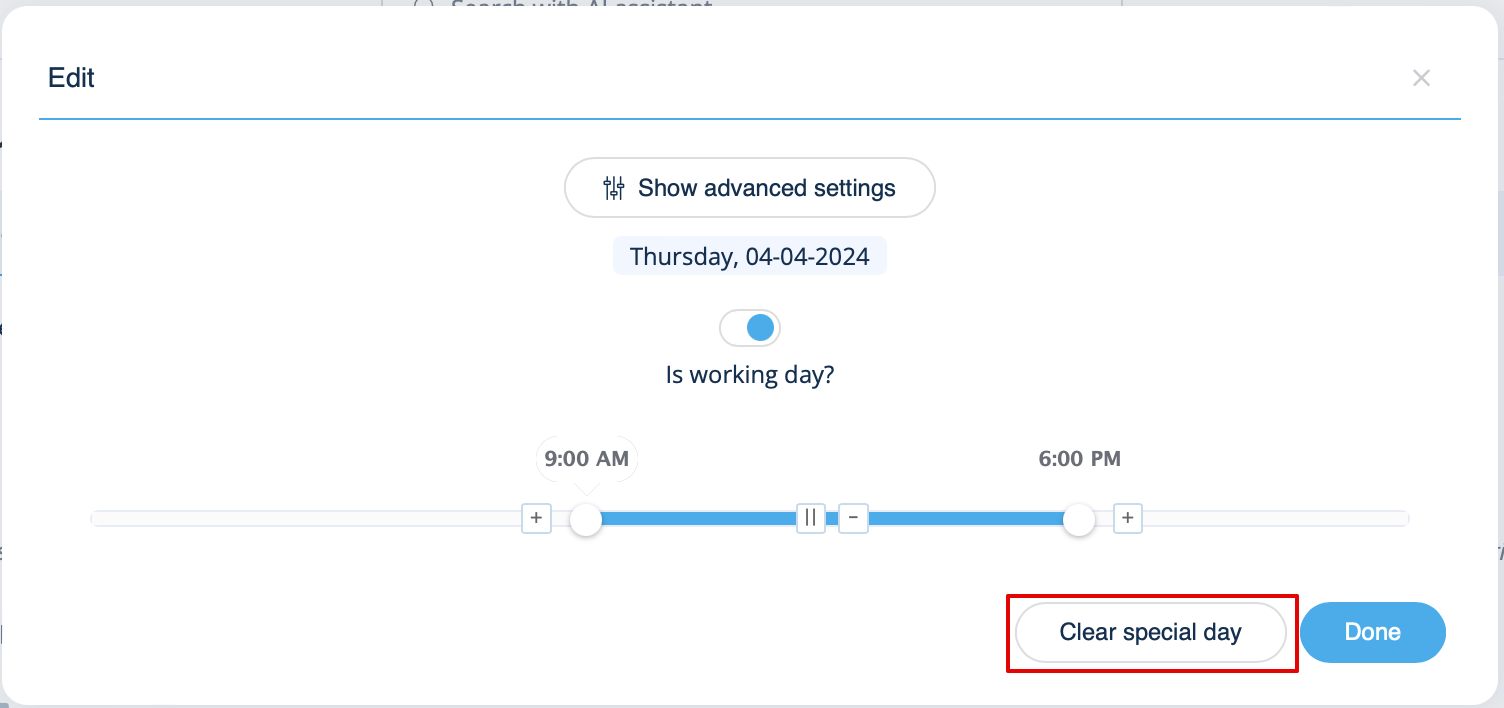
If you need to remove special day settings for some date, click on the date and press the <span style="background-color:#d4f8e5; padding:5px; border-radius:5px;">clear special day</span> button. | If you need to remove special day settings for some date, click on the date and press the <span style="background-color:#d4f8e5; padding:5px; border-radius:5px;">clear special day</span> button. | ||
<br><br> | <br><br> | ||
| Line 165: | Line 226: | ||
*[[Book_Soon_Notification_System_custom_feature|Add reminders to book again]]</div> | *[[Book_Soon_Notification_System_custom_feature|Add reminders to book again]]</div> | ||
<br><br> | <br><br> | ||
</translate> | |||
Latest revision as of 13:18, 3 February 2026
- See video tutorial on adding services and service providers
Adding services
How to create a service
In Manage -> Services press + button.
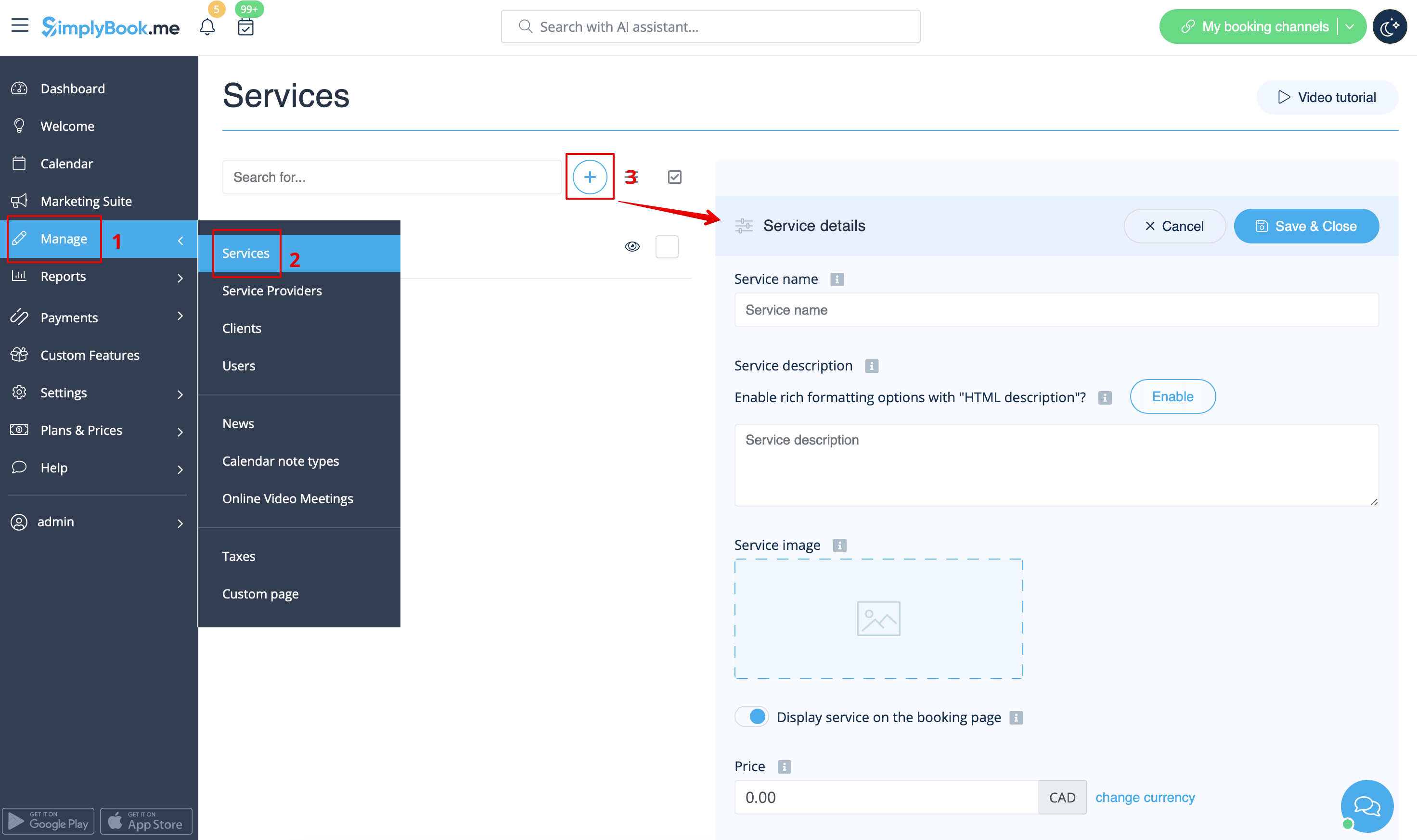
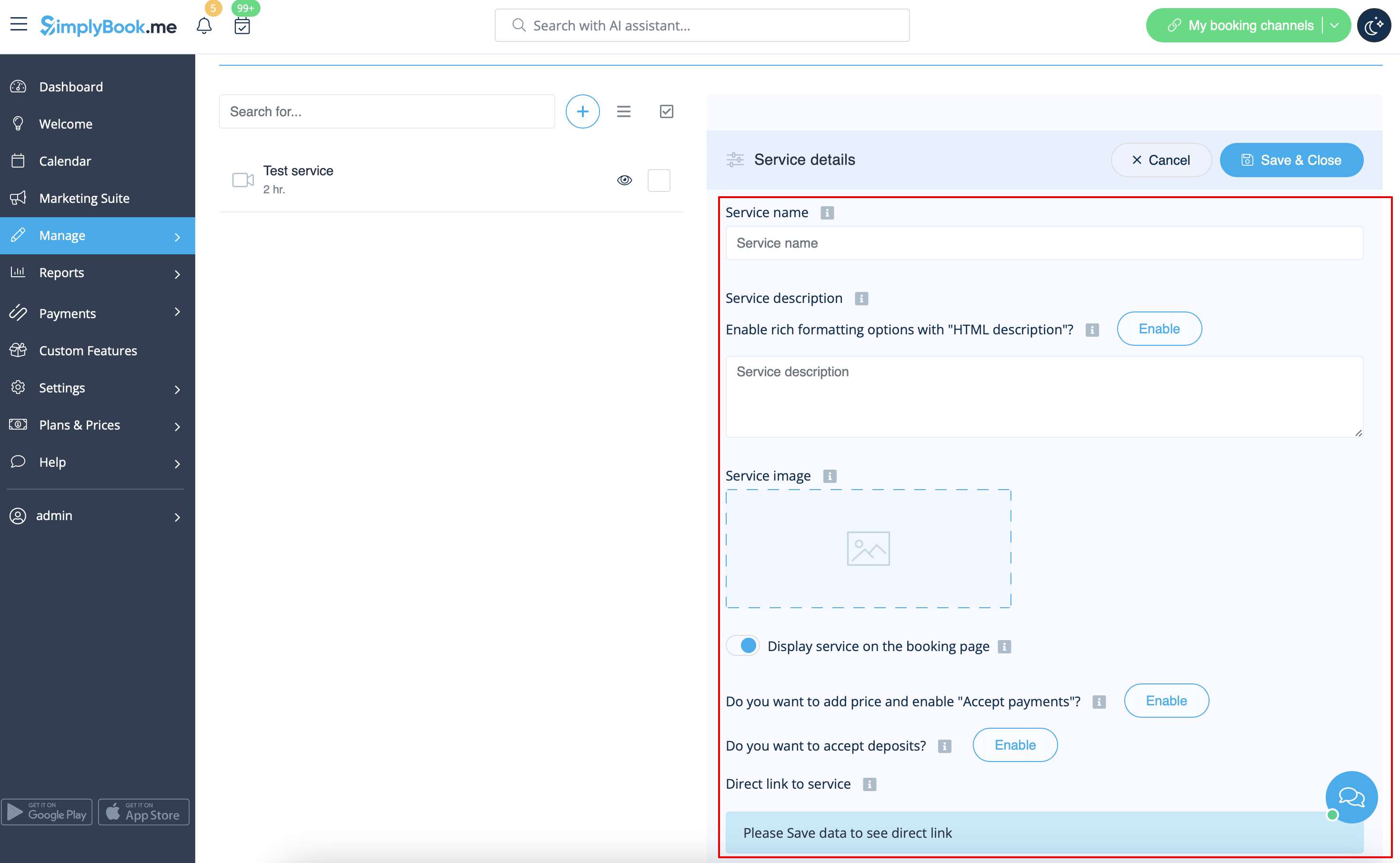
On the right-side of the page insert the name of your service and add service description.
It is possible to use HTML formatting for service description to change the font, its color, etc.
You can also upload picture of a service, and activate prices to accept payments on-line.
How to clone a service
It may happen that you need to create several similar services with the same settings.
Cloning option will definitely help you.
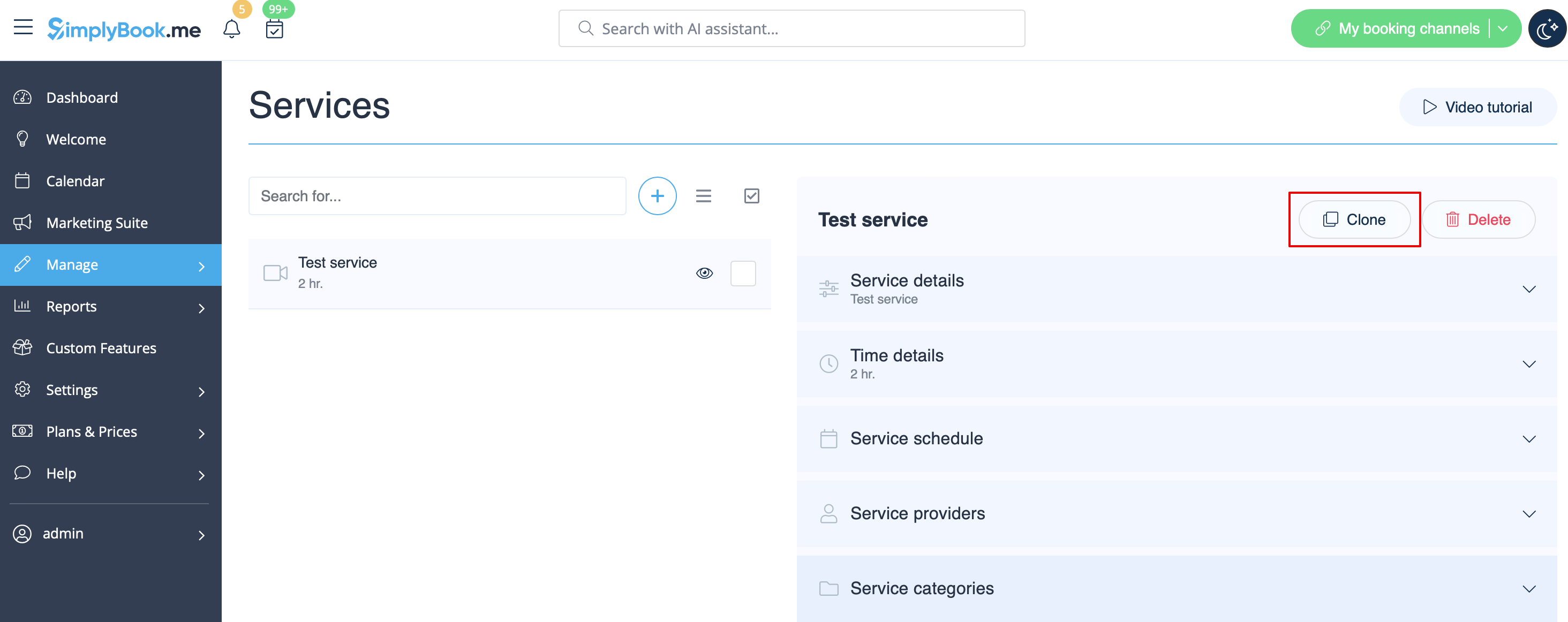
Please select the service you would like to make the copy of.
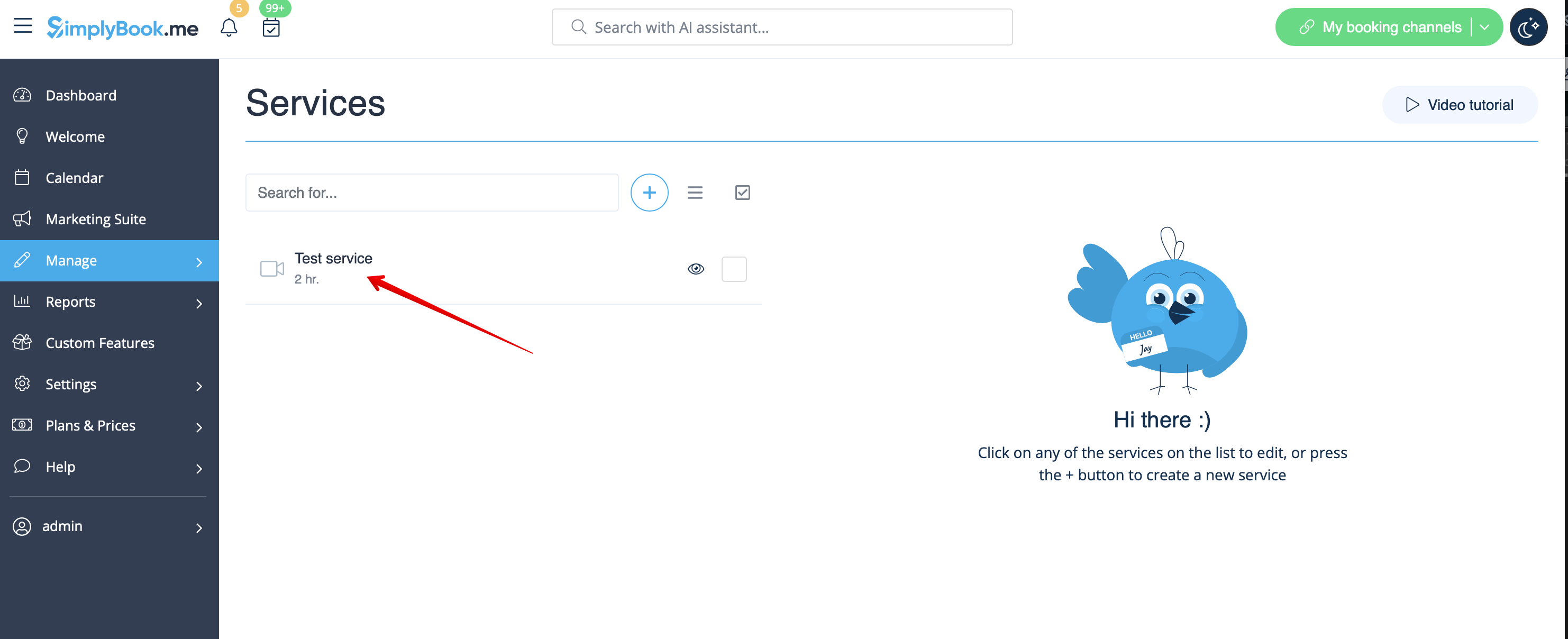
Click on Clone button in the top right corner, confirm the copying of the settings.
The following service settings will be copied:
- service name
- service description
- service price if Accept payments feature is enabled and set
- service image
- service schedule
- Flexible Notifications feature settings if enabled and set
- Book Soon Notification System feature settings if enabled and set
- Appointment at Fixed Time feature settings if enabled and set
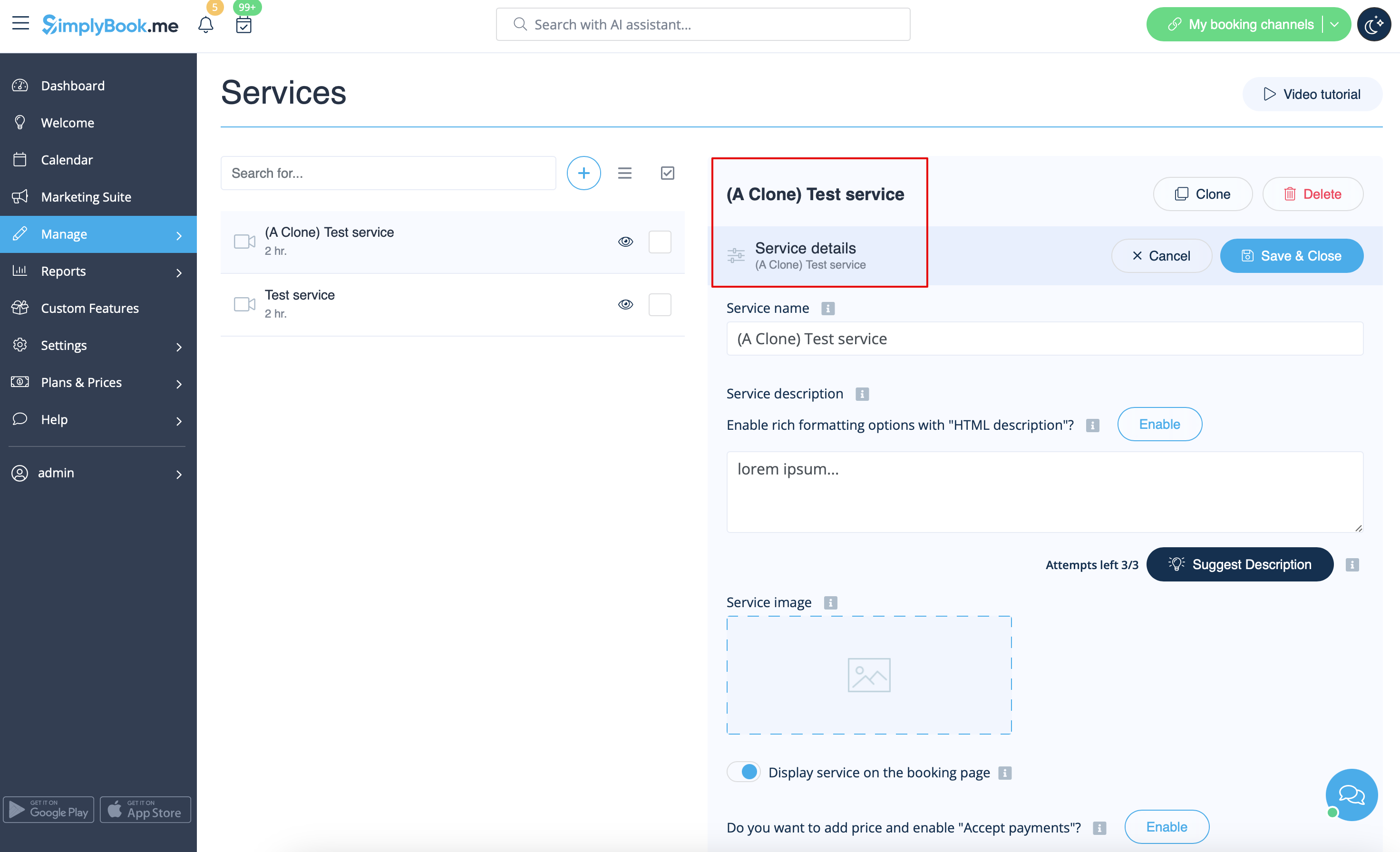
As the result, one more service will be added with Clone added to its name so that you will be able to easily see which services are the copies.
(You can edit these services names to adjust them to your needs in Service Details tab for the corresponding service)
How to set service duration
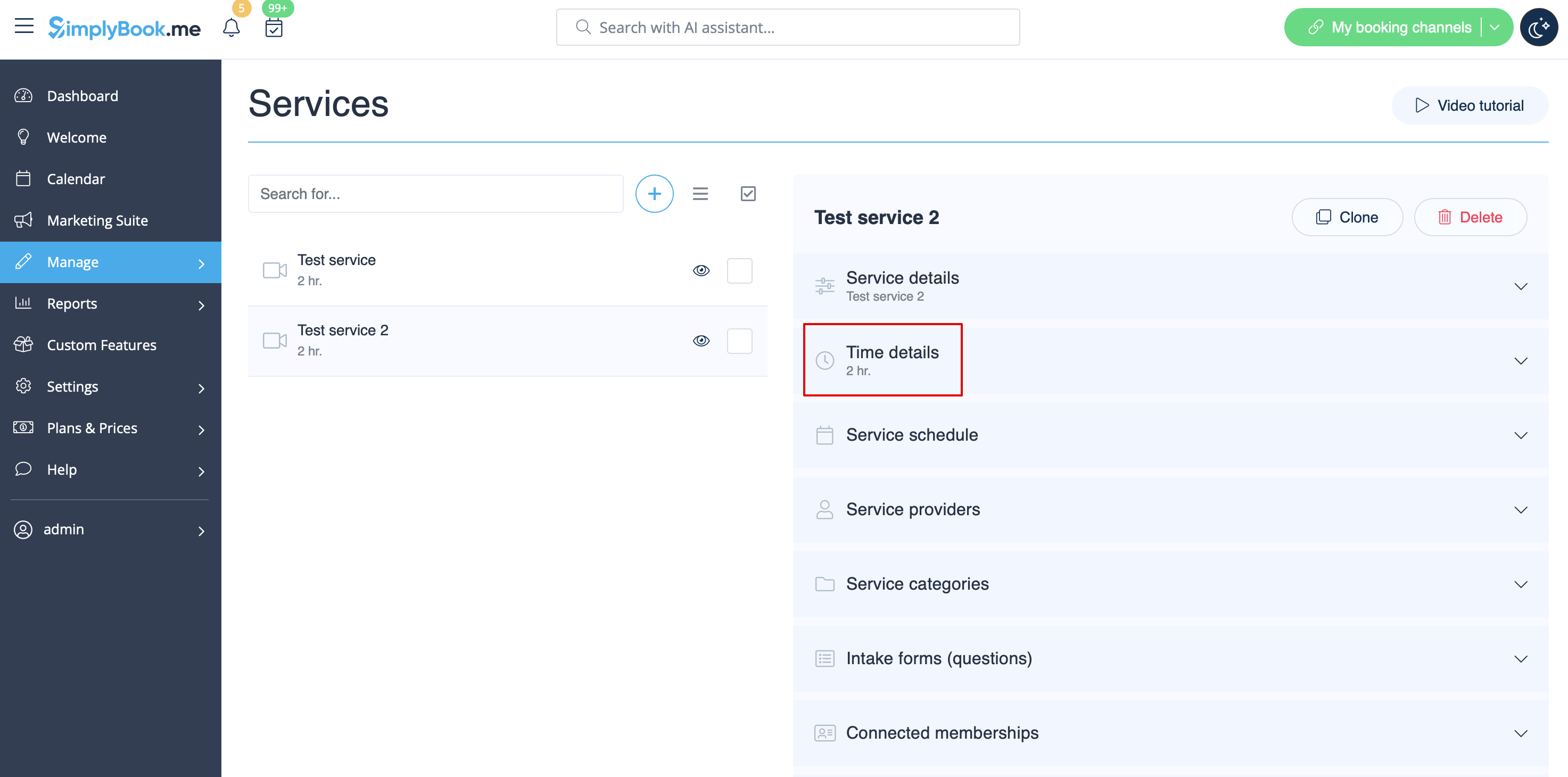
In Manage -> Services after the service selection on the right-side of the page choose Time details tab to set duration for your service.
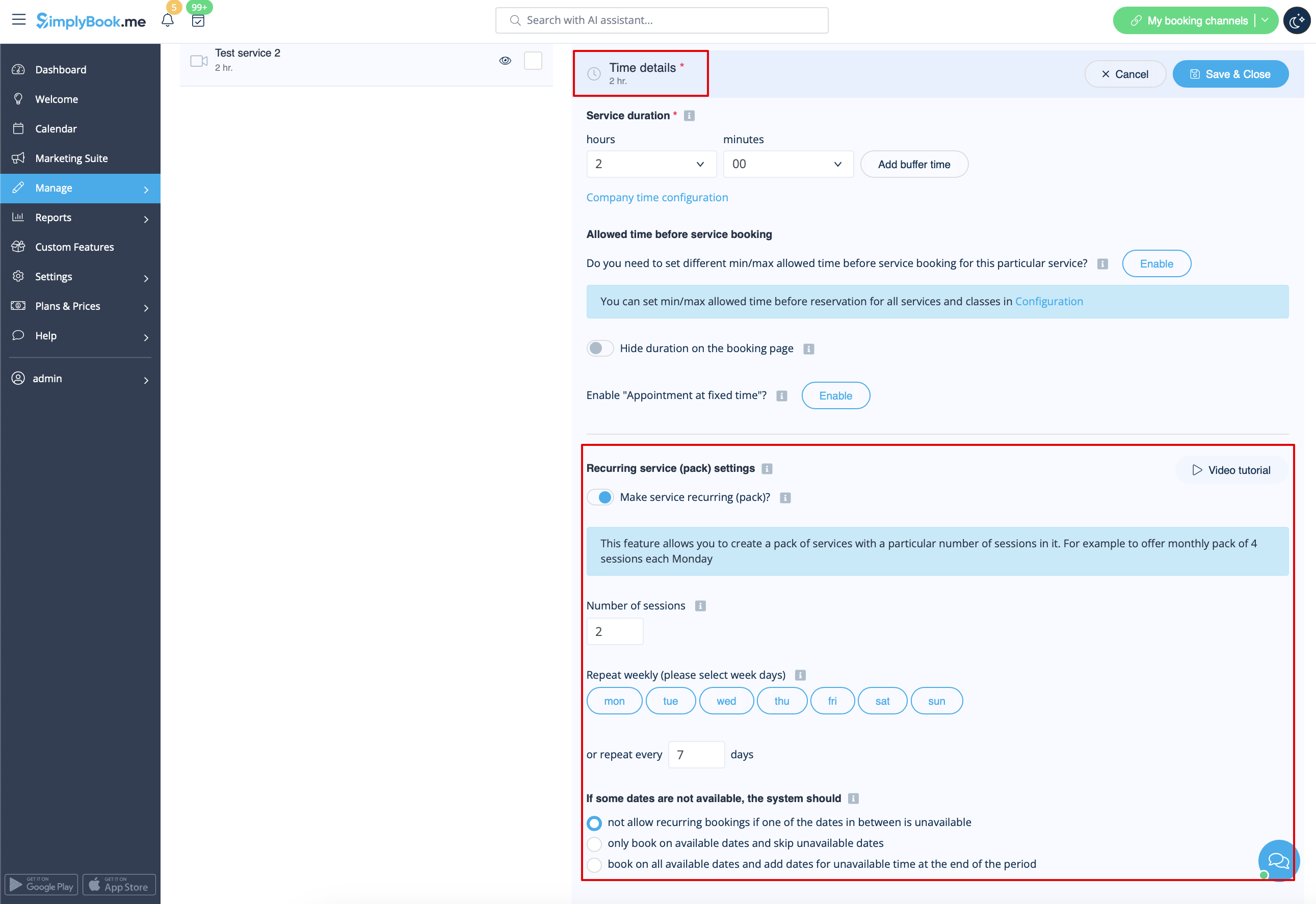
It is also possible to set service as recurring here.
As well you can set fixed starting times for your service. Please check more about Appointment at Fixed Time Custom Feature here.
How to set specific schedule for service
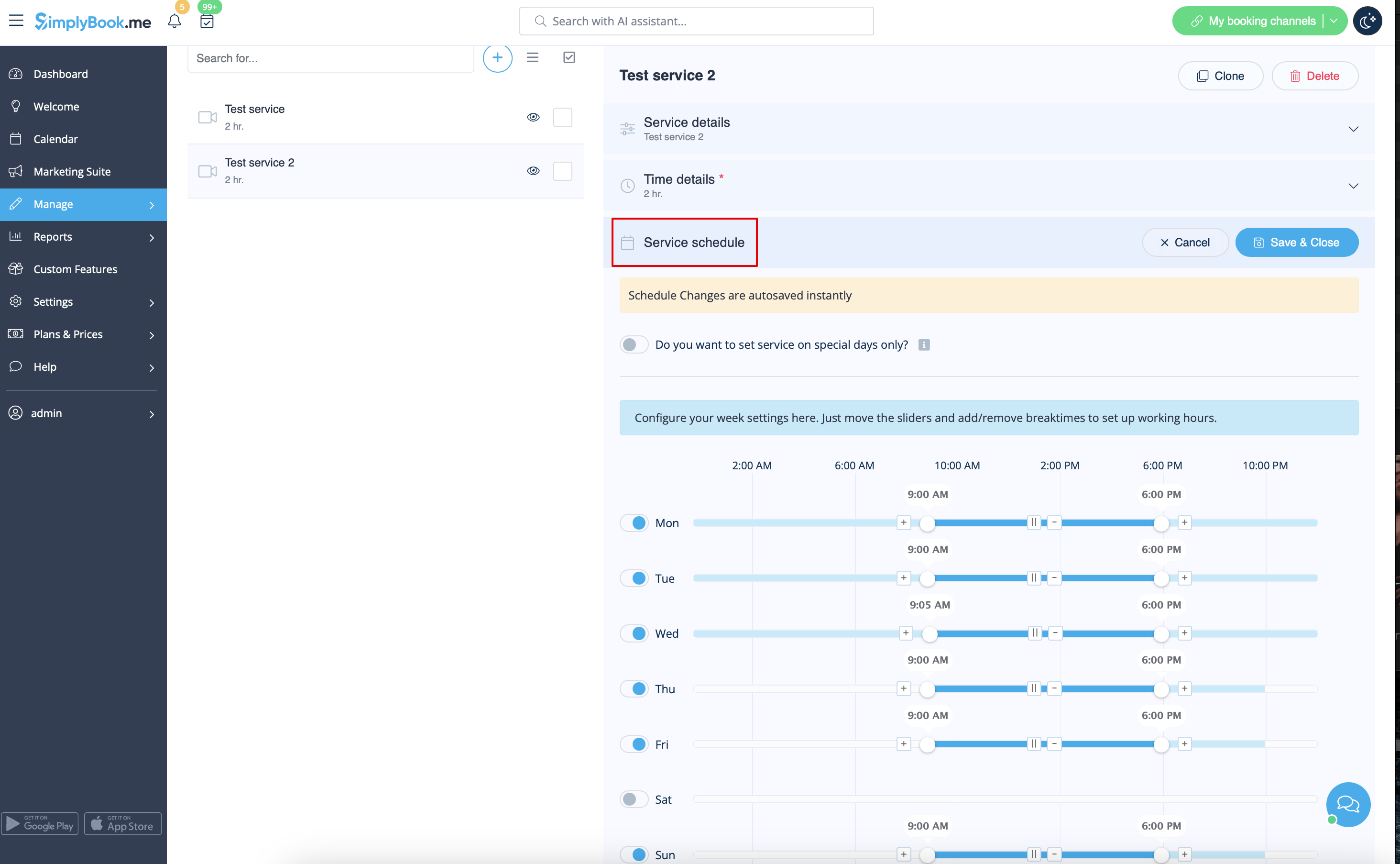
In Manage -> Services -> select the service -> Service schedule tab move the sliders to set
open times for this service if it differs from usual company schedule.
Or click on Show advanced settings if using the slots view is more convenient for you.
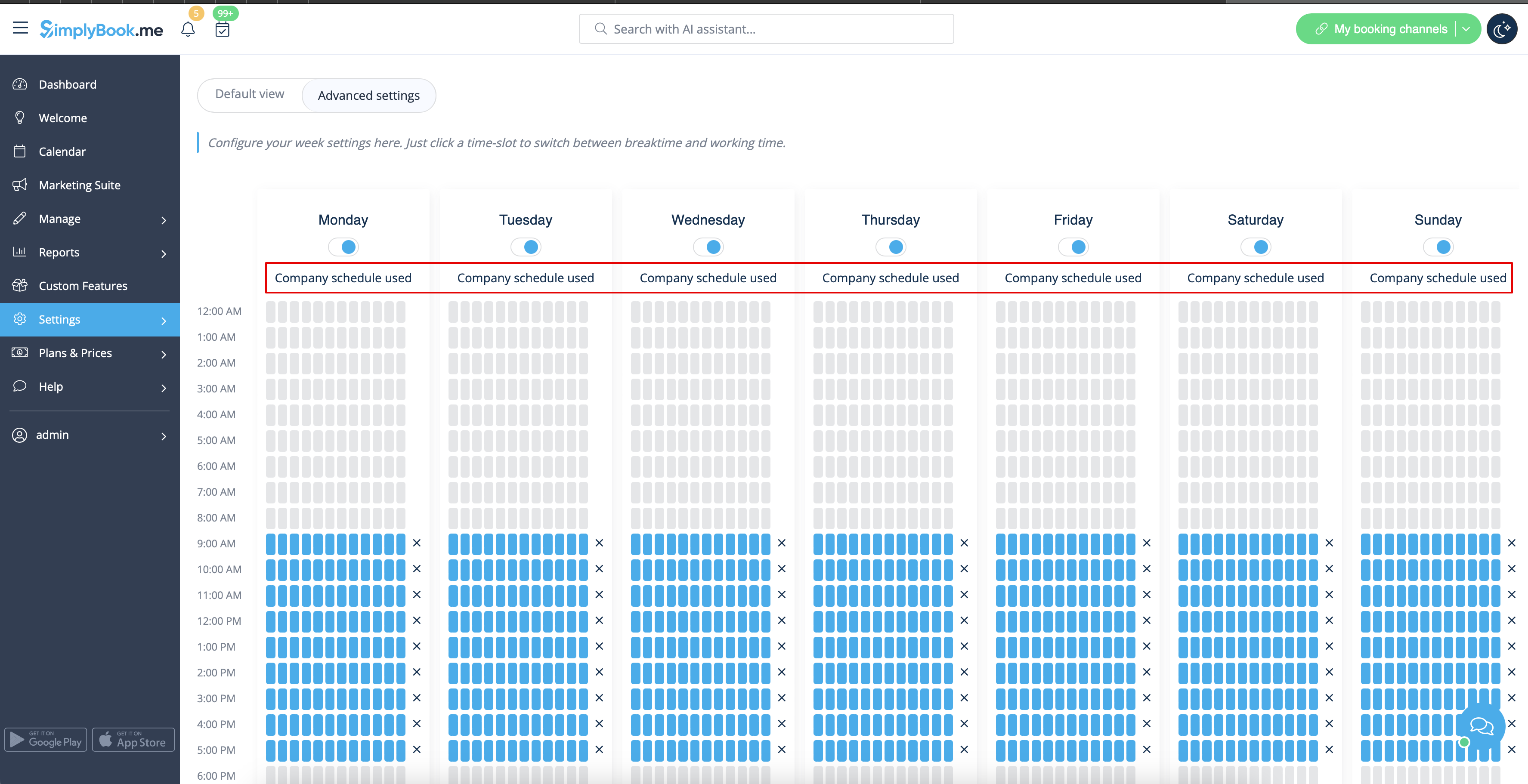
If the service has the same schedule as company you do not need to change anything there, it will be applied automatically.
You will be able to check it on Advanced schedule page.
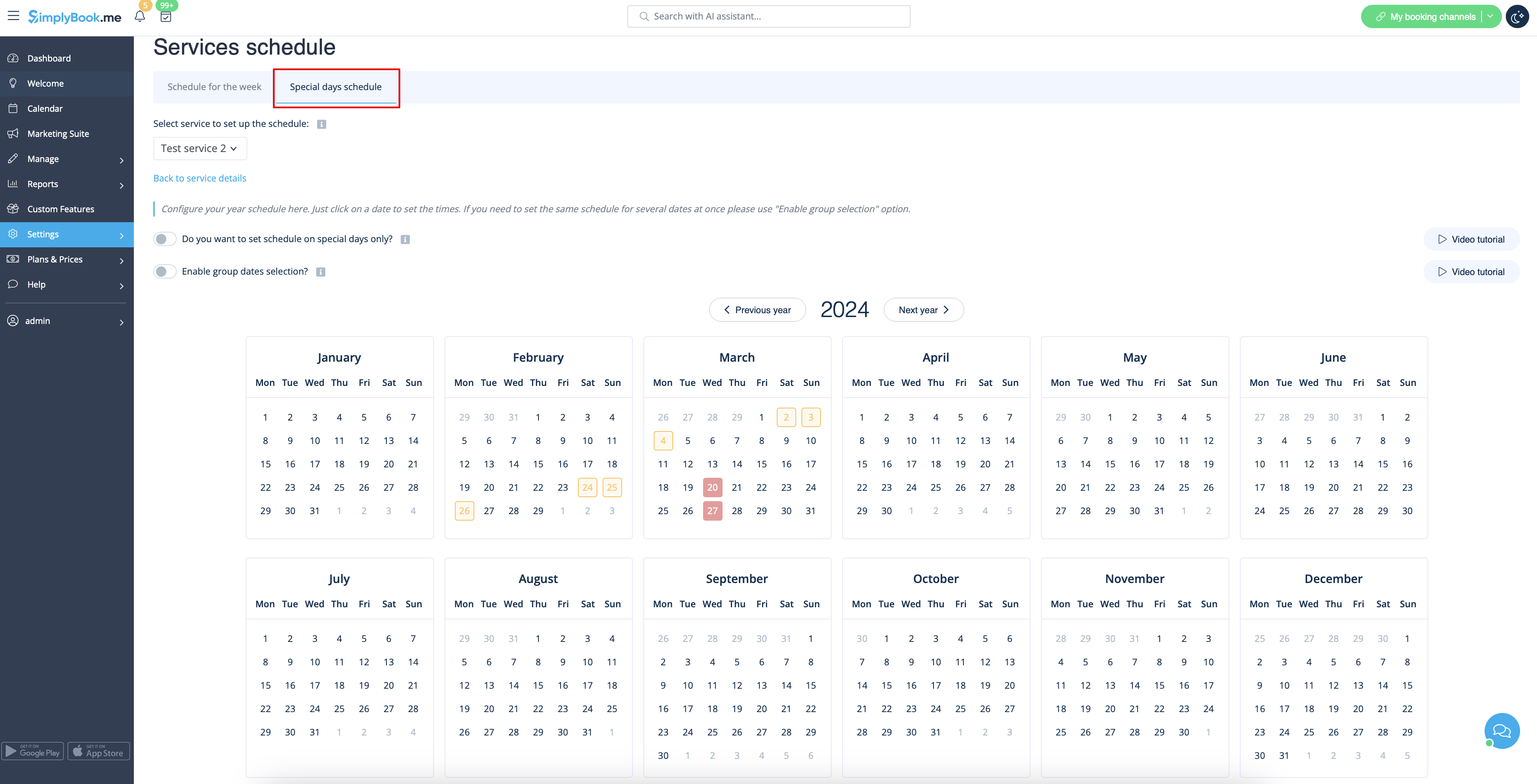
If you need to set some exceptions in service schedule for holidays or other needs please choose Special days tab there and set times for the desired dates.
How to set 24/7 or after 00.00 services
If your services will cross midnight, after you set up your availability make sure to set Allow service to extend over closing hours to Yes in Settings -> Main configuration.
- Schedules relations
- How to set service as one-time event
- How to group my services in categories
- How to require additional information from clients at checkout
- How to limit bookings per service
- How to set specific notifications per service
- How can I promote my service
- Default booking notifications
- Time and date settings
- Add reminders to book again
Adding Providers
How to add a provider
In Manage -> Service Providers press + button.
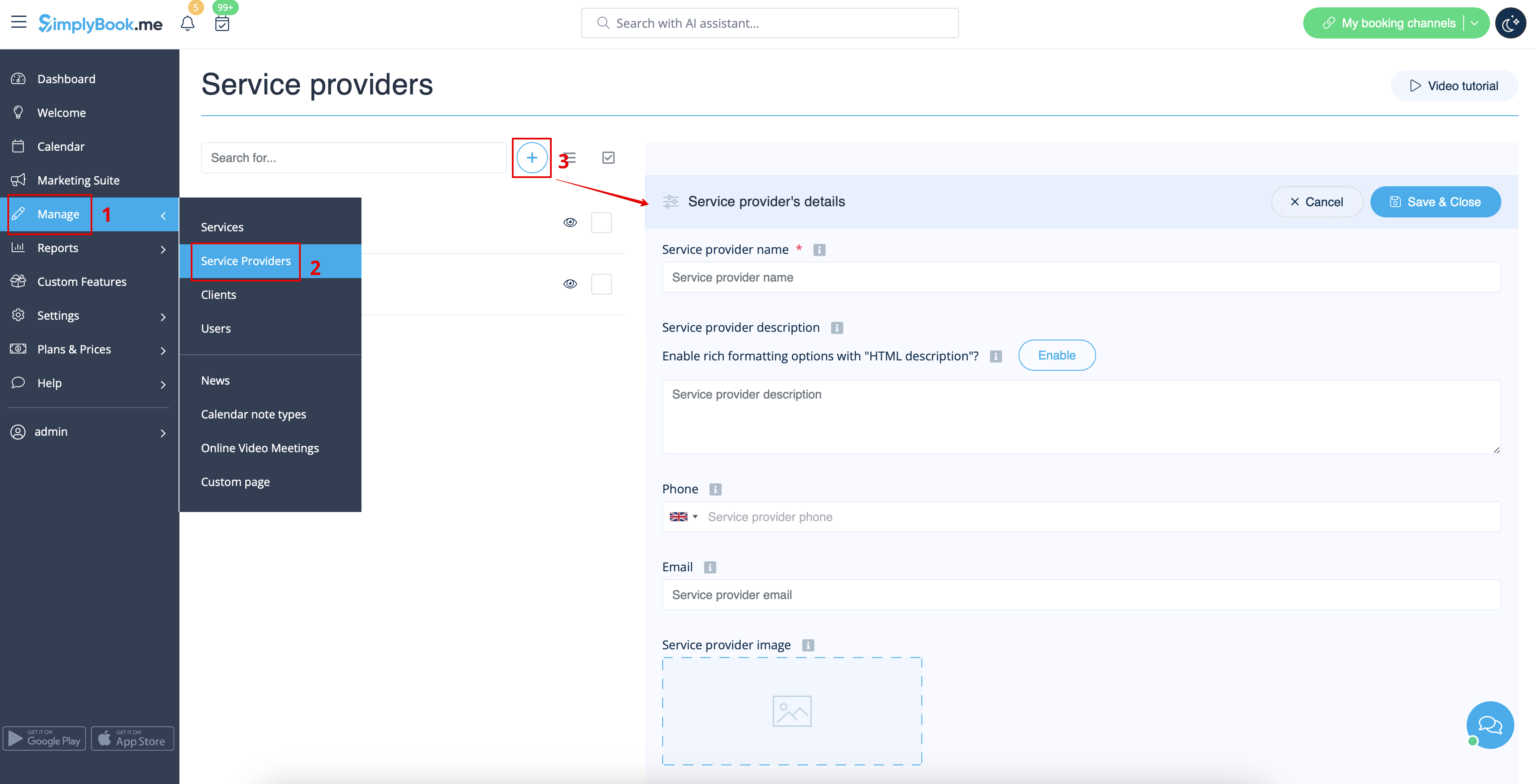
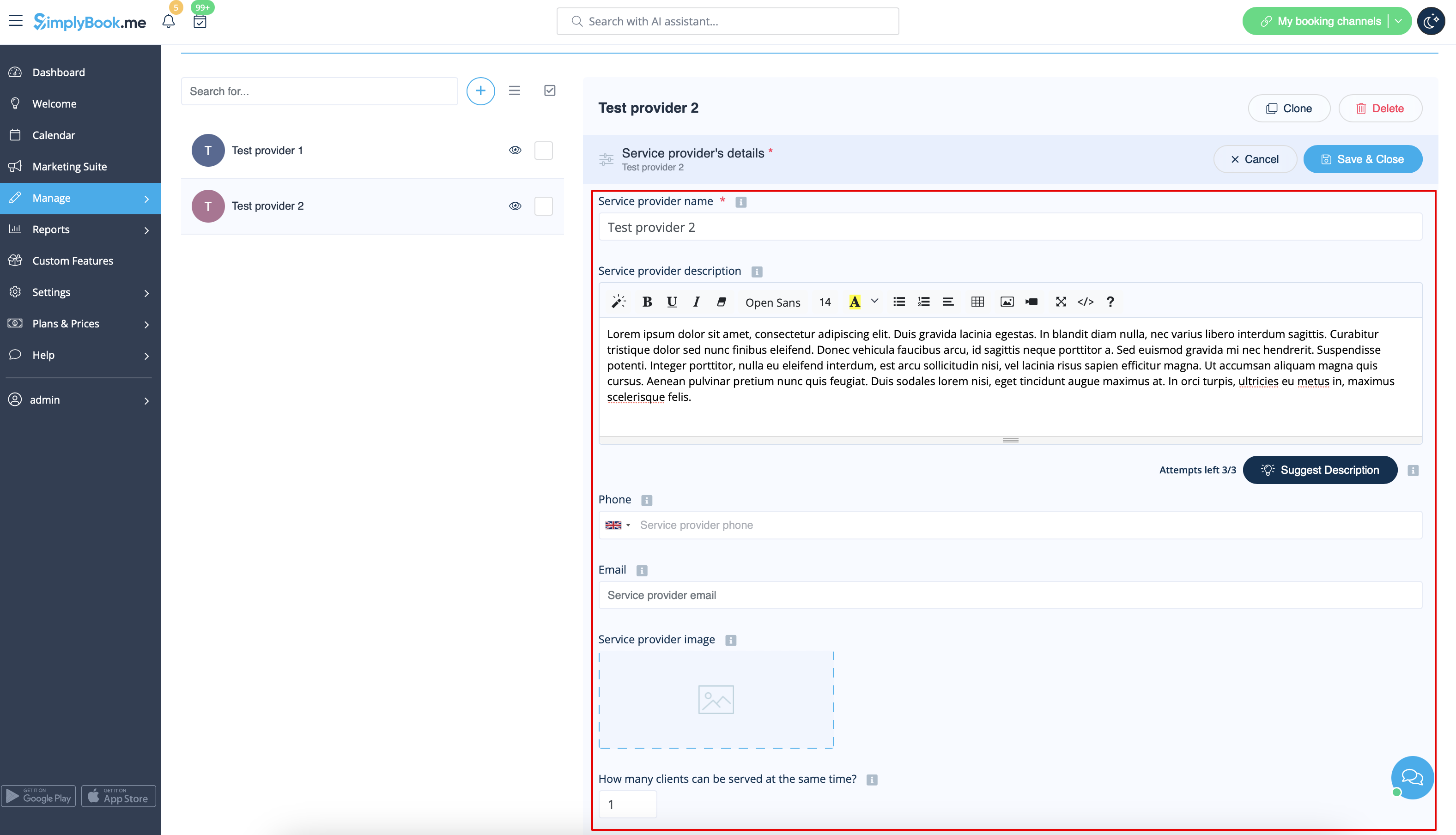
On the right side of the page insert the name of your service provider, set number of clients he/she can serve at a time and write service provider description.
You can also upload picture and set his/her phone number and email address if necessary.
Save settings.
Please note! Phone number should be added in international format for SMS notifications to be sent correctly.
How to clone a provider
It may happen that you need to create several similar providers with the same settings.
Cloning option will definitely help you.
Please select the provider you would like to make the copy of.
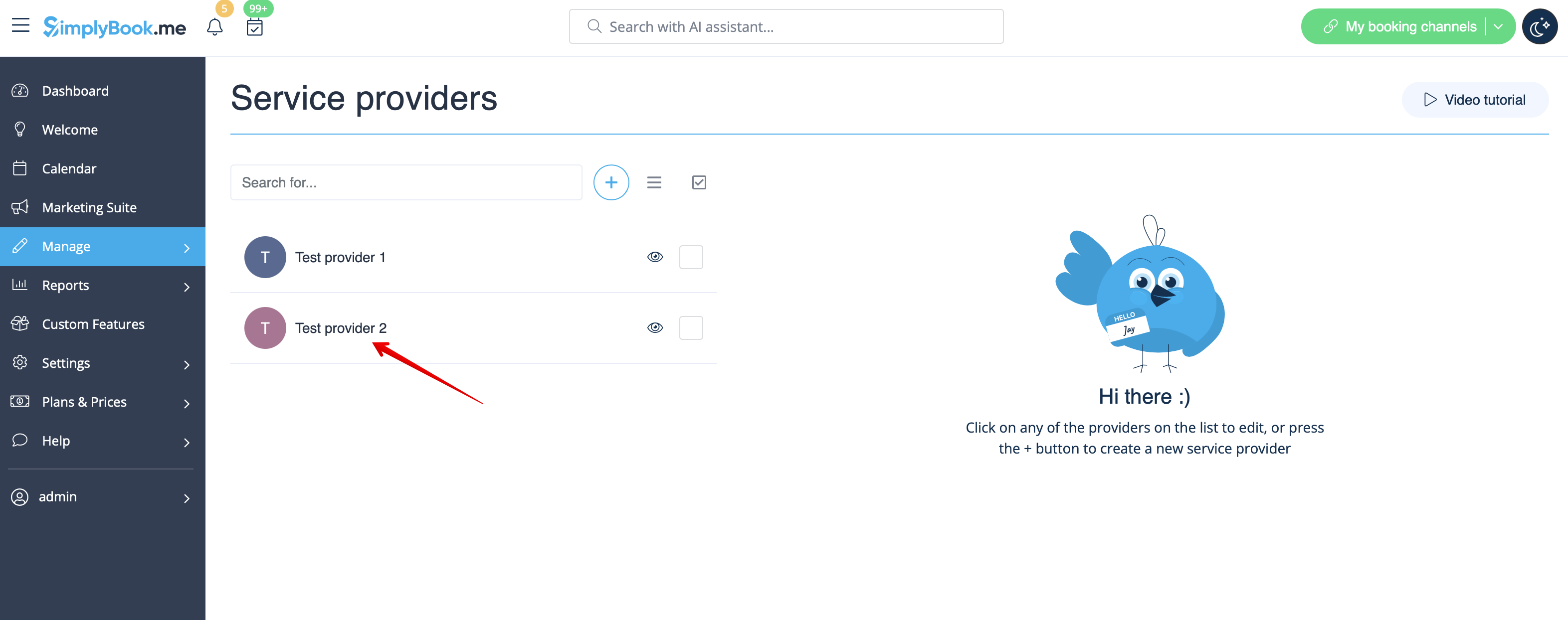
Click on Clone button in the top right corner, confirm the copying of the settings.
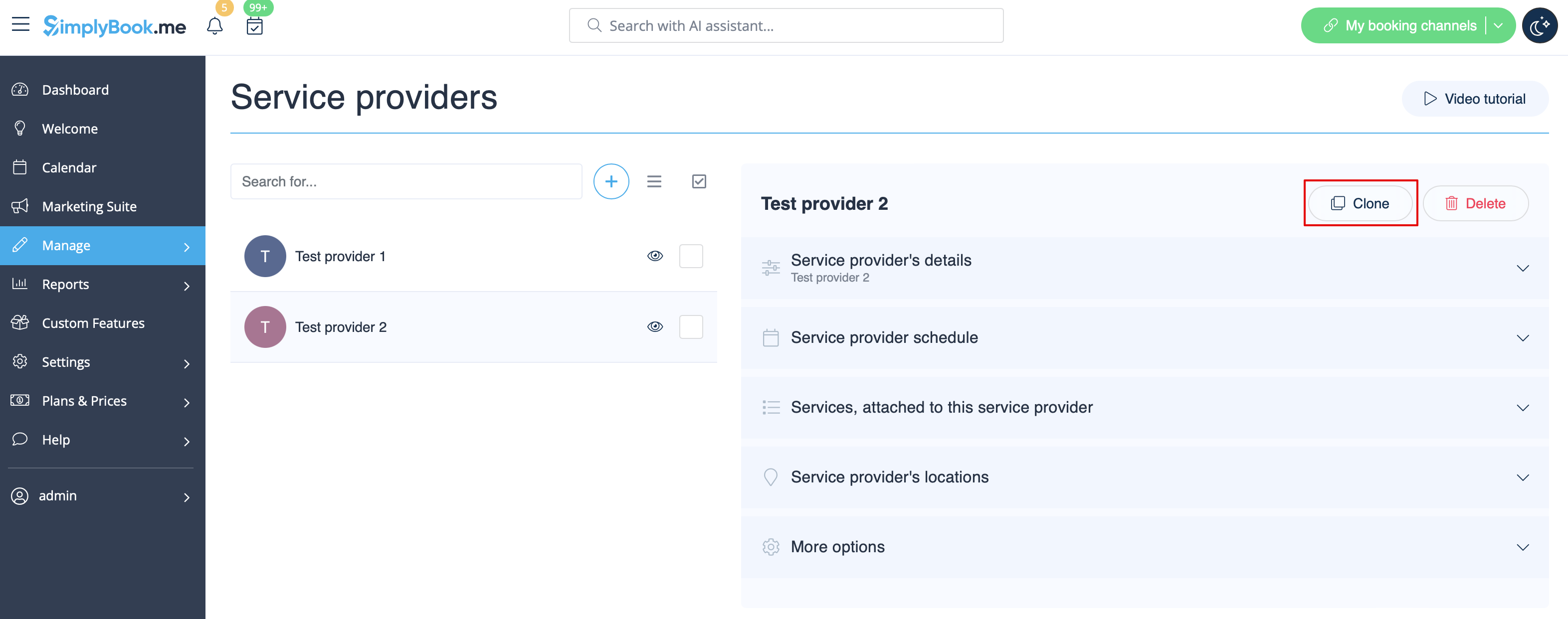
The following provider settings will be copied:
- provider name
- provider description
- provider phone and email address
- provider image
- number of clients provider can serve at a time
- provider schedule
- Calendar Sync feature settings if enabled and set
- Flexible Notifications feature settings if enabled and set
- Book Soon Notification System feature settings if enabled and set
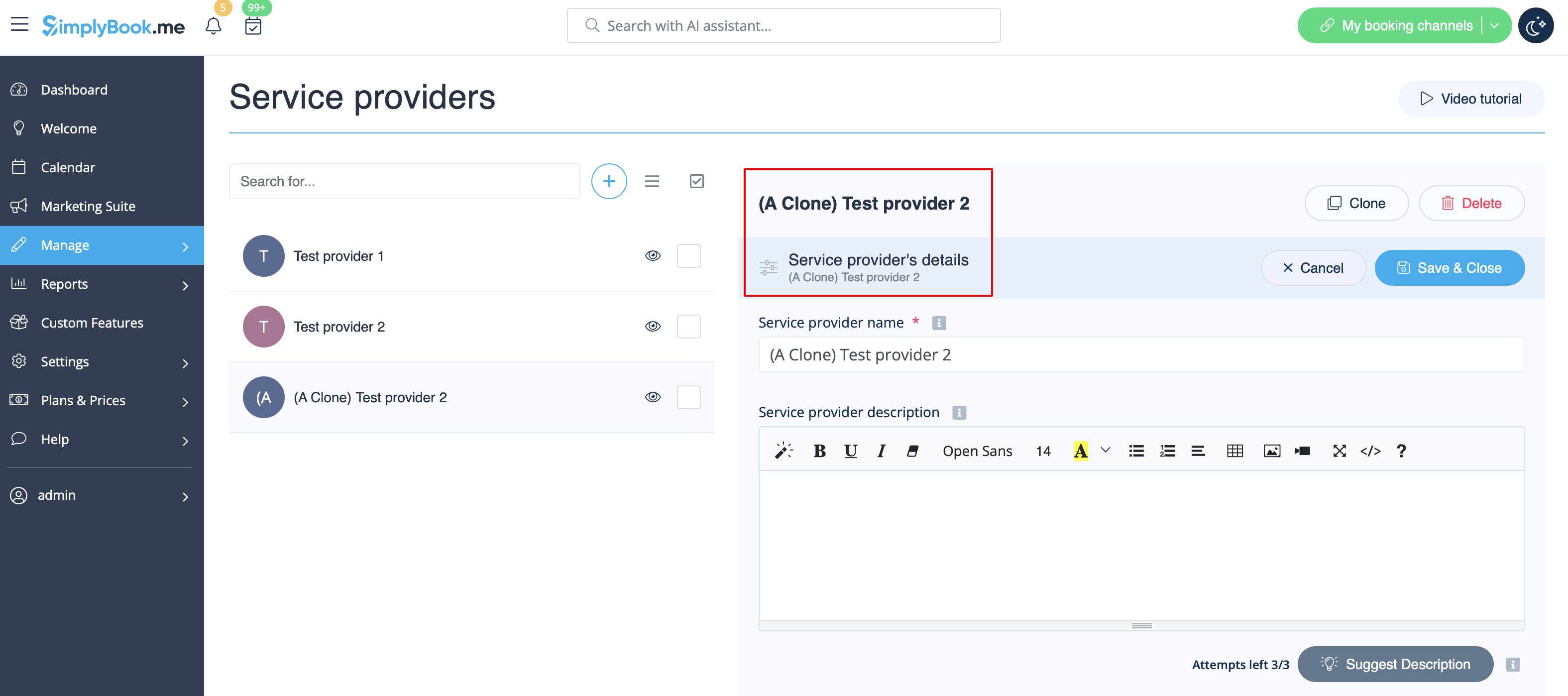
As the result, one more provider will be added with Clone added to its name so that you will be able to easily see which providers are the copies.
(You can edit these providers names to adjust them to your needs in Service provider details tab for the corresponding provider)
How to attach services to provider
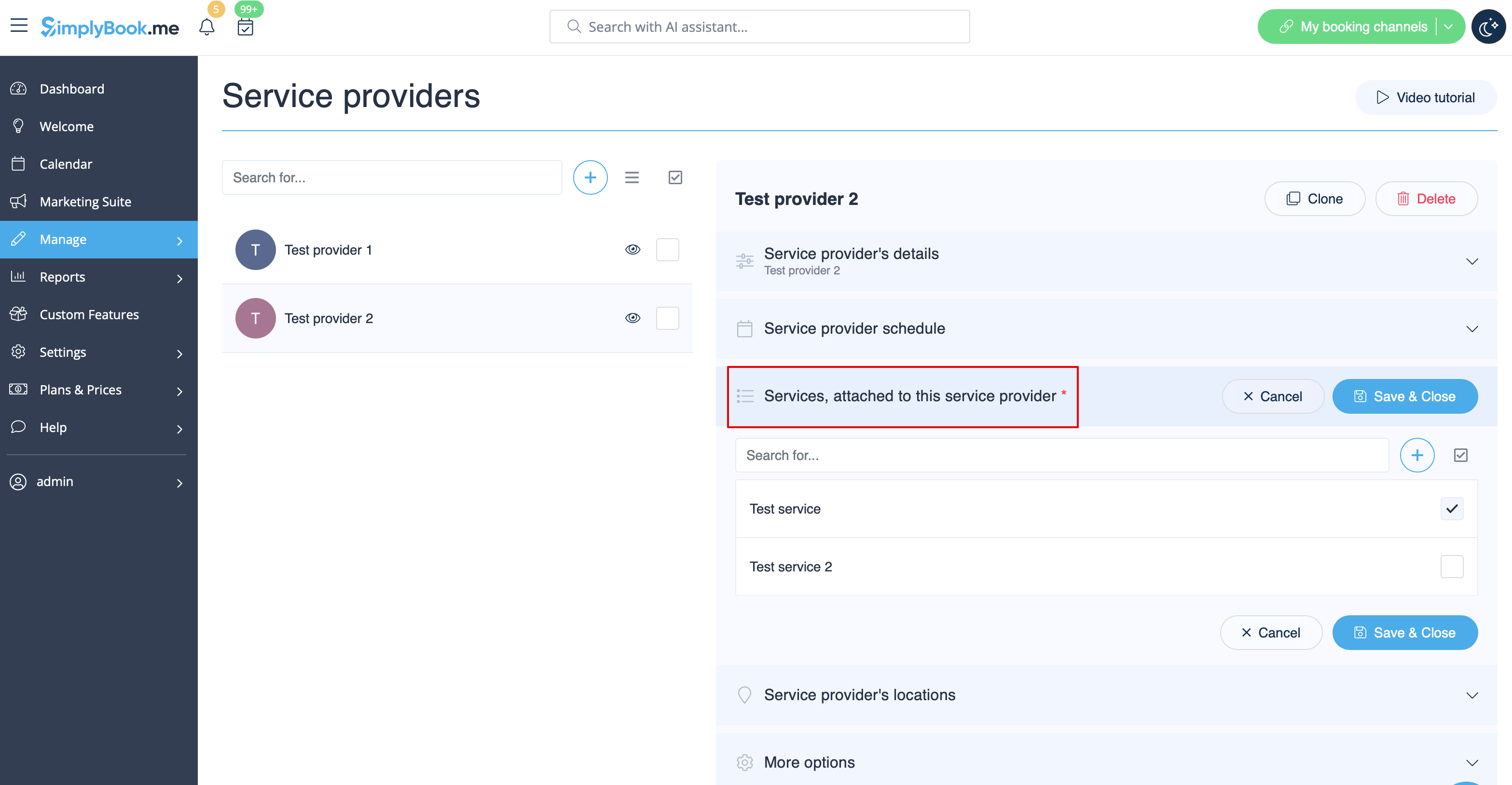
In Manage -> Service Providers -> select the provider -> switch to Services, attached to this service provider tab and check the boxes with services this provider will perform.
Save settings.
How to set schedule for provider
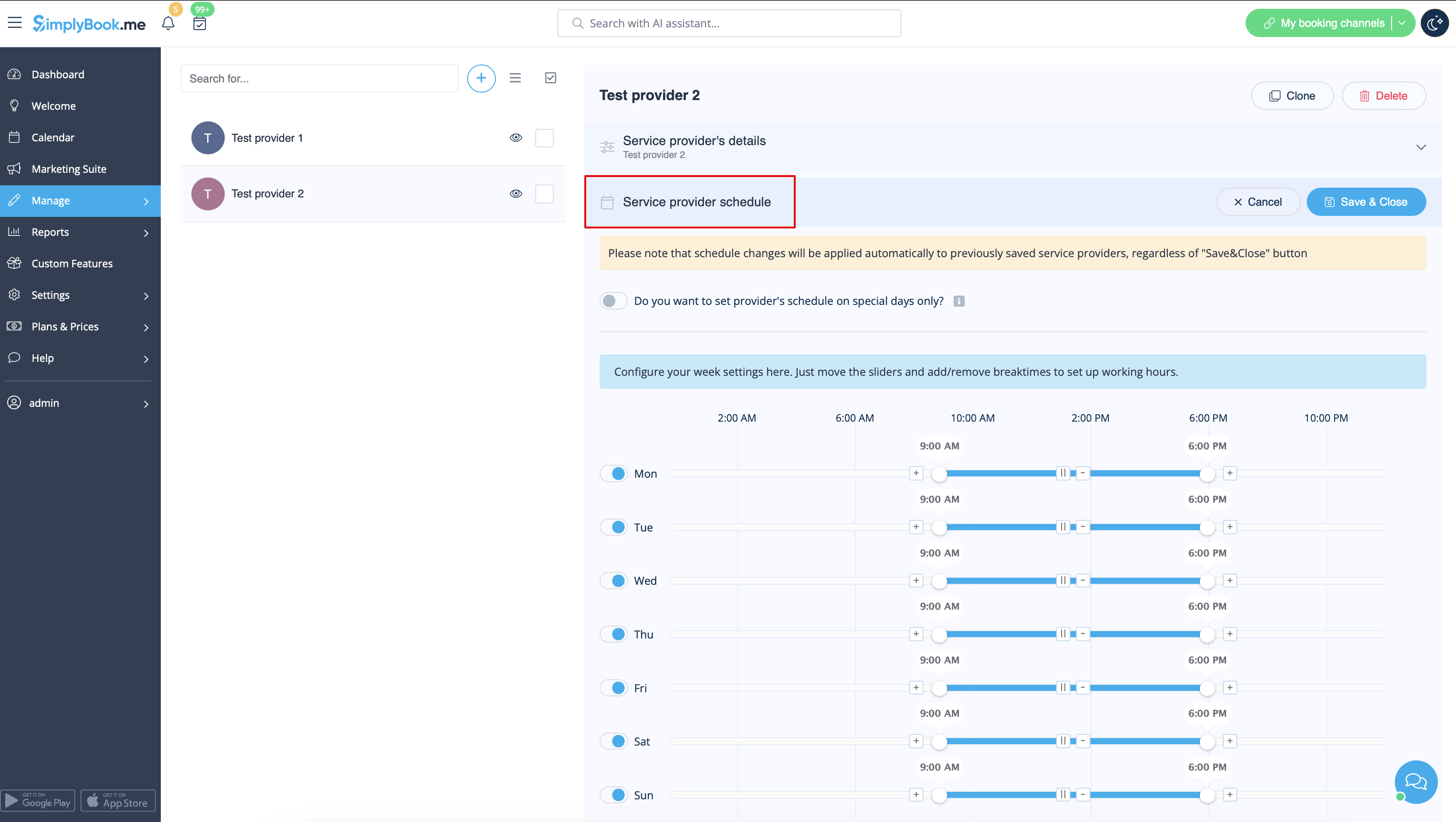
You can set regular schedule for providers in Manage -> Service Providers, choose necessary provider on the left and switch to Service provider schedule tab.
For example, if you work Monday-Friday 9a.m - 5p.m you simply set schedule for those dates by moving the sliders to desired positions(bright blue line will mean available time).
To make day of the week working/off use the switchers near days' names.

How to set schedule for holidays and other specific dates
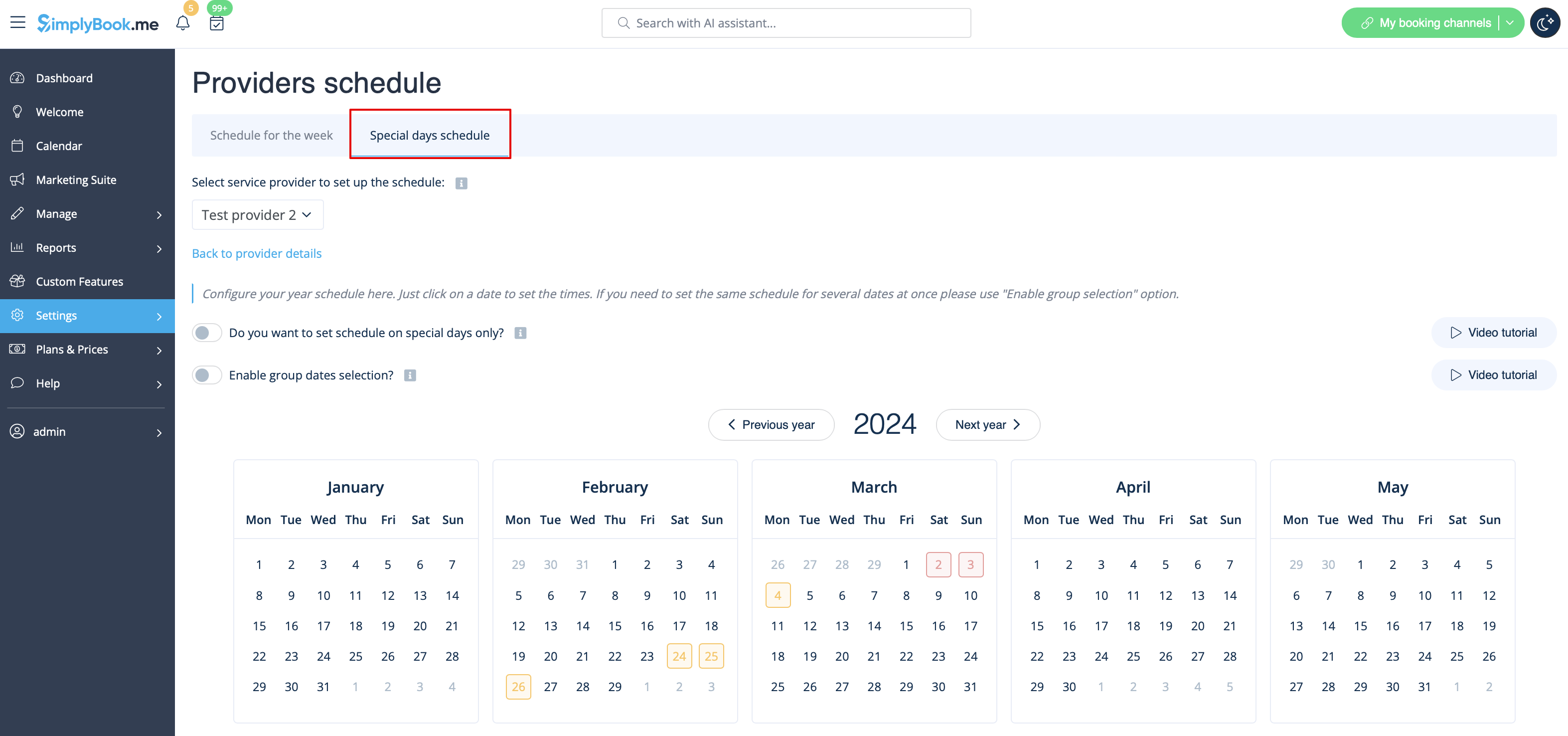
You can set schedule for some specific date for provider in Manage -> Service Providers, choose necessary provider on the left and switch to Service provider schedule tab, choose Show advanced settings option and then Special days tab.
For example, if you work differently on certain date or have day off, you can click on the date and set schedule by clicking on the corresponding slots to make them available (bright blue)/not available (light blue).
To make some date working/off-day, click on the date and use Is working day? switcher near the schedule that appears in pop-up.
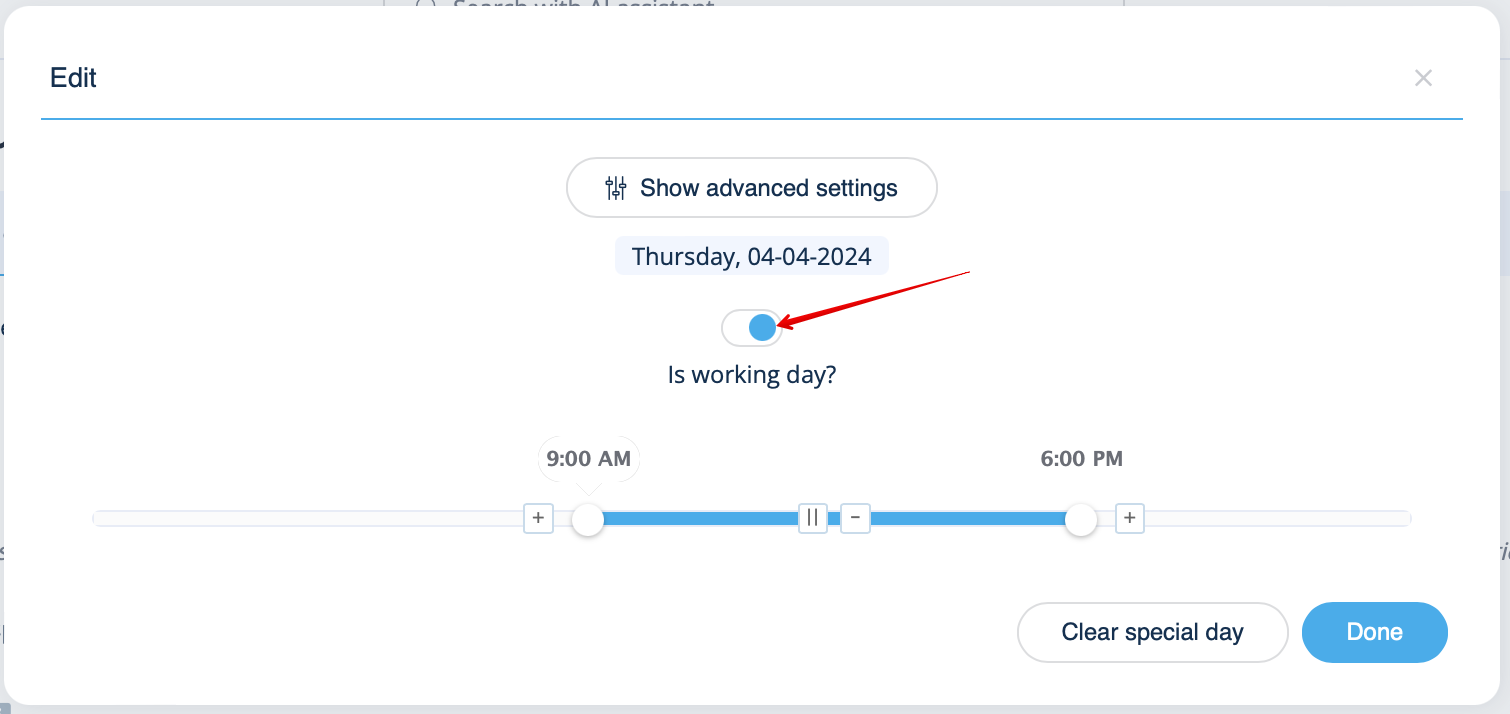
If you need to remove special day settings for some date, click on the date and press the clear special day button.