Created page with ":12. Nach der Veröffentlichung müssen Sie sich in das offizielle Line-Konto unter demselben LINE-Konto wie die Entwicklerkonsole einloggen. :Wenn Sie darauf zugreifen, klick..." |
Updating to match new version of source page Tags: Mobile edit Mobile web edit |
||
| (6 intermediate revisions by one other user not shown) | |||
| Line 3: | Line 3: | ||
{{#seo: | {{#seo: | ||
|title=Line Liff Custom Feature - SimplyBook.me | |title=Line Liff Custom Feature - SimplyBook.me | ||
|description= | |description=LINE Front-end Framework integration. Enhanced LINE messenger booking experience. Rich interface within LINE app for seamless booking flow. | ||
|titlemode=append | |titlemode=append | ||
|keywords=faq, frequently asked questions, booking software, appointment system questions, appointments online, calendar software, booking system, booking calendar, scheduling software, online appointment scheduling, online scheduling, plugins, custom features, additional functionality, line integration, line liff, book with line | |keywords=faq, frequently asked questions, booking software, appointment system questions, appointments online, calendar software, booking system, booking calendar, scheduling software, online appointment scheduling, online scheduling, plugins, custom features, additional functionality, line integration, line liff, book with line | ||
| Line 79: | Line 79: | ||
[[File:Create a rich menu line liff.png|1200px|center|link=https://help.simplybook.me/images/8/80/Create_a_rich_menu_line_liff.png]] | [[File:Create a rich menu line liff.png|1200px|center|link=https://help.simplybook.me/images/8/80/Create_a_rich_menu_line_liff.png]] | ||
:13. Füllen Sie die erforderlichen Felder aus. | |||
:13. | :Im Menü Inhalt wählen Sie die Vorlage aus und fügen das Bild hinzu. | ||
: | :Wählen Sie im Block Aktionen den Typ "Link" und fügen Sie die LIFF-URL aus dem Developer Console//LINE Login-Kanal hinzu. | ||
: | |||
[[File:Action type link.png|1200px|center|link=https://help.simplybook.me/images/4/4b/Action_type_link.png]] | [[File:Action type link.png|1200px|center|link=https://help.simplybook.me/images/4/4b/Action_type_link.png]] | ||
[[File:Line liff url.png|1200px|center|link=https://help.simplybook.me/images/0/00/Line_liff_url.png]] | [[File:Line liff url.png|1200px|center|link=https://help.simplybook.me/images/0/00/Line_liff_url.png]] | ||
:14. Um das offizielle LINE-Konto mit dem LINE-Entwicklerkonto zu verknüpfen, gehen Sie bitte zur Entwicklerkonsole und klicken Sie auf den LINE-Login-Kanal. In der Linked OA müssen Sie das offizielle Konto auswählen, um beide Teile miteinander zu verbinden. | |||
:14. | |||
[[File:Connect official account.png|1200px|center|link=https://help.simplybook.me/images/2/2e/Connect_official_account.png]] | [[File:Connect official account.png|1200px|center|link=https://help.simplybook.me/images/2/2e/Connect_official_account.png]] | ||
:15. Nach dem Öffnen der offiziellen LINE-Kontoseite in der LINE-App können Kunden auf das Menü klicken, um den Buchungsprozess zu starten. Während des Prozesses können sie die Dienstleistungen, das Datum und die Uhrzeit auswählen, die sie reservieren möchten, sich mit ihrem LINE-Konto anmelden und die Reservierung bestätigen. | |||
:15. | :Die Integration ermöglicht es den Kunden auch, ihre Buchungen in diesem In-App-Widget zu sehen. | ||
: | |||
[[File:Line app booking process.png|1200px|center|link=https://help.simplybook.me/images/0/0d/Line_app_booking_process.png]] | [[File:Line app booking process.png|1200px|center|link=https://help.simplybook.me/images/0/0d/Line_app_booking_process.png]] | ||
< | <span id="How_to_customize_LINE_Official_Account_notifications?"></span> | ||
== | ==Wie kann ich die Benachrichtigungen für das offizielle LINE-Konto anpassen?== | ||
Gehen Sie zum SimplyBook.me-Administrationsbereich und wählen Sie Konfiguration→ E-Mail- und SMS-Einstellungen. Die Texte der LINE-Buchungsbenachrichtigungen stimmen mit dem Inhalt der SMS-Benachrichtigungen überein. Wenn Sie die enthaltenen Informationen anpassen möchten, können Sie die entsprechenden Vorlagen dort bearbeiten. | |||
[[File:Sms templated path redesigned.png|1200px|center|link=https://help.simplybook.me/images/8/8d/Sms_templated_path_redesigned.png]] | [[File:Sms templated path redesigned.png|1200px|center|link=https://help.simplybook.me/images/8/8d/Sms_templated_path_redesigned.png]] | ||
'''Bemerkung:''' Wenn Sie unter Einstellungen → E-Mail- und SMS-Einstellungen die Kästchen für Kunden-SMS-Benachrichtigungen nicht aktivieren, sendet das System dennoch automatisch Terminerinnerungen und andere Terminbenachrichtigungen über LINE.<br> | |||
''' | |||
Latest revision as of 13:41, 16 February 2026

Die Integration von LINE LIFF mit SimplyBook.me bietet Unternehmen die Möglichkeit, ihren Terminbuchungsprozess und die Kundenbindung zu verbessern. Durch das Anbieten eines nahtlosen und effizienten Erlebnisses direkt in der Line Messaging App können Unternehmen Kunden anziehen und binden, ihre Abläufe rationalisieren und sich auf dem Markt behaupten.
Bitte beachten Sie! Die individuelle Funktion "Kundenfelder" ist nicht mit der LINE LIFF-Funktion kompatibel.
Wie verwenden Sie diese Funktion
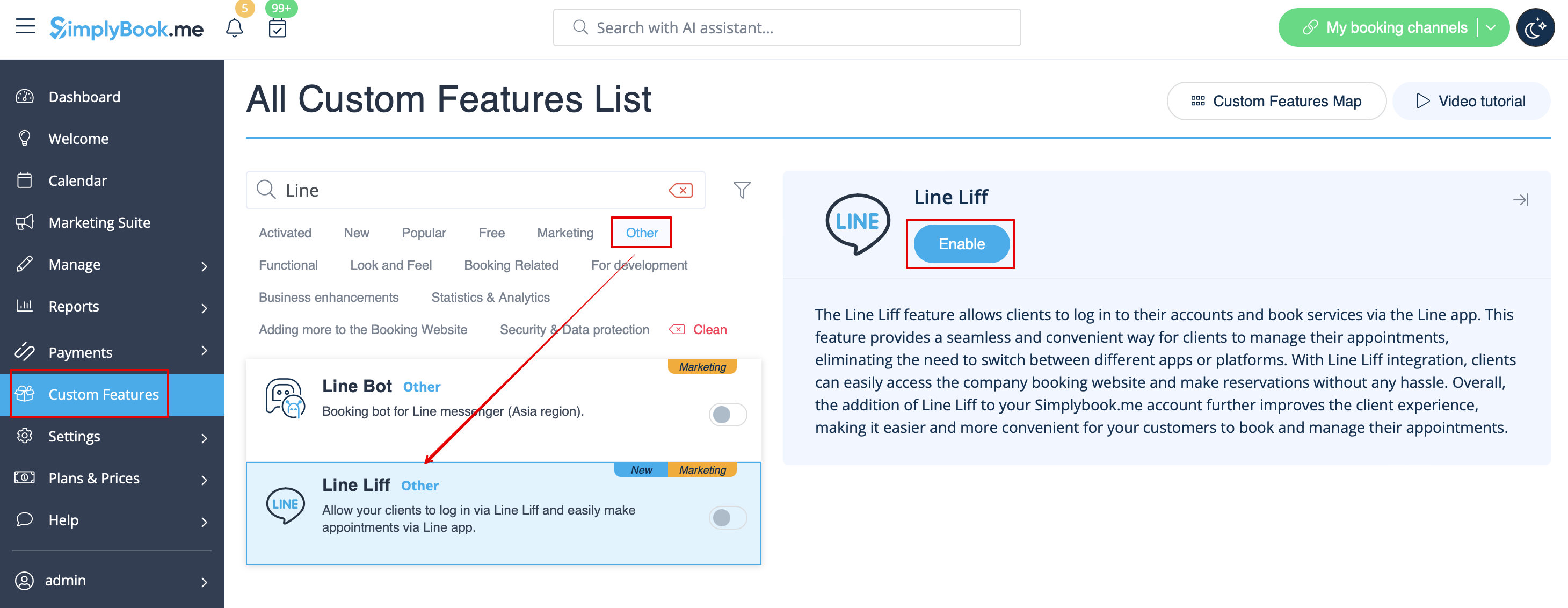
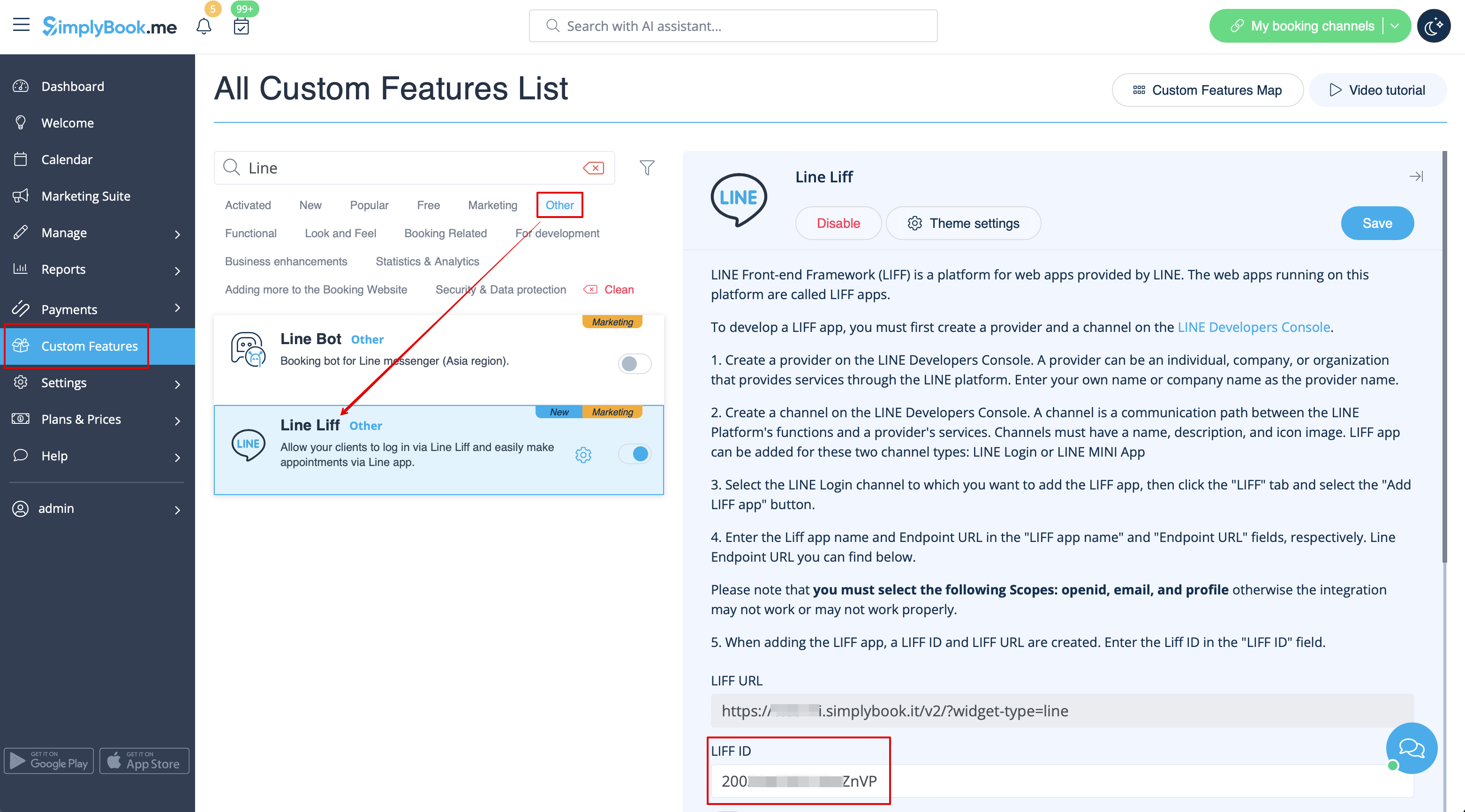
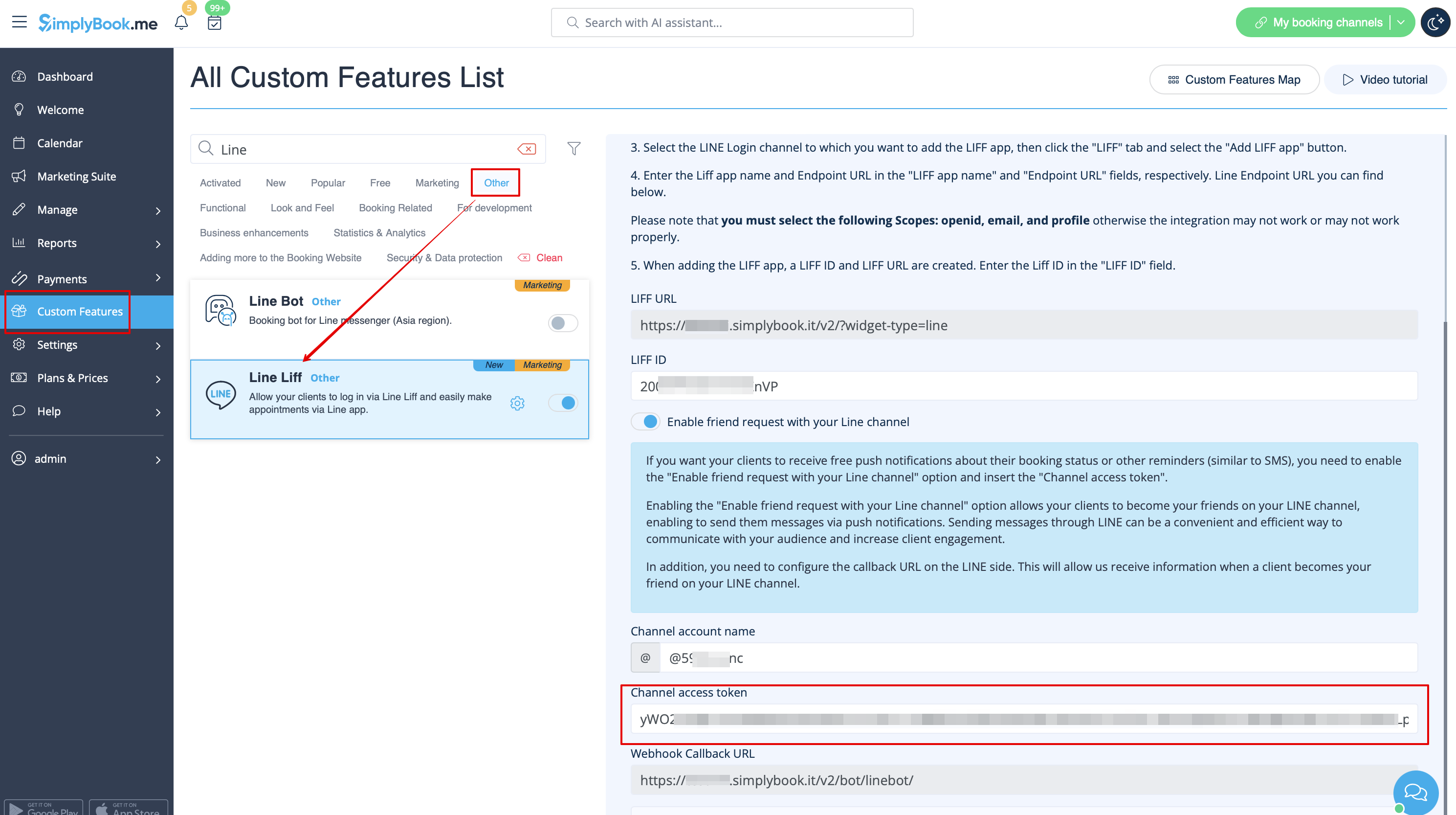
- 1. Um diese Funktion zu aktivieren, gehen Sie zum Abschnitt Individuelle Funktionen im Menü auf der linken Seite Ihrer Verwaltungsoberfläche, suchen Sie LINE LIFF und klicken Sie auf die Schaltfläche Aktivieren oder verwenden Sie den Umschalter.

- 2. Um eine LIFF-App zu integrieren, müssen Sie einen Anbieter und einen Kanal in der LINE Developers Console erstellen.
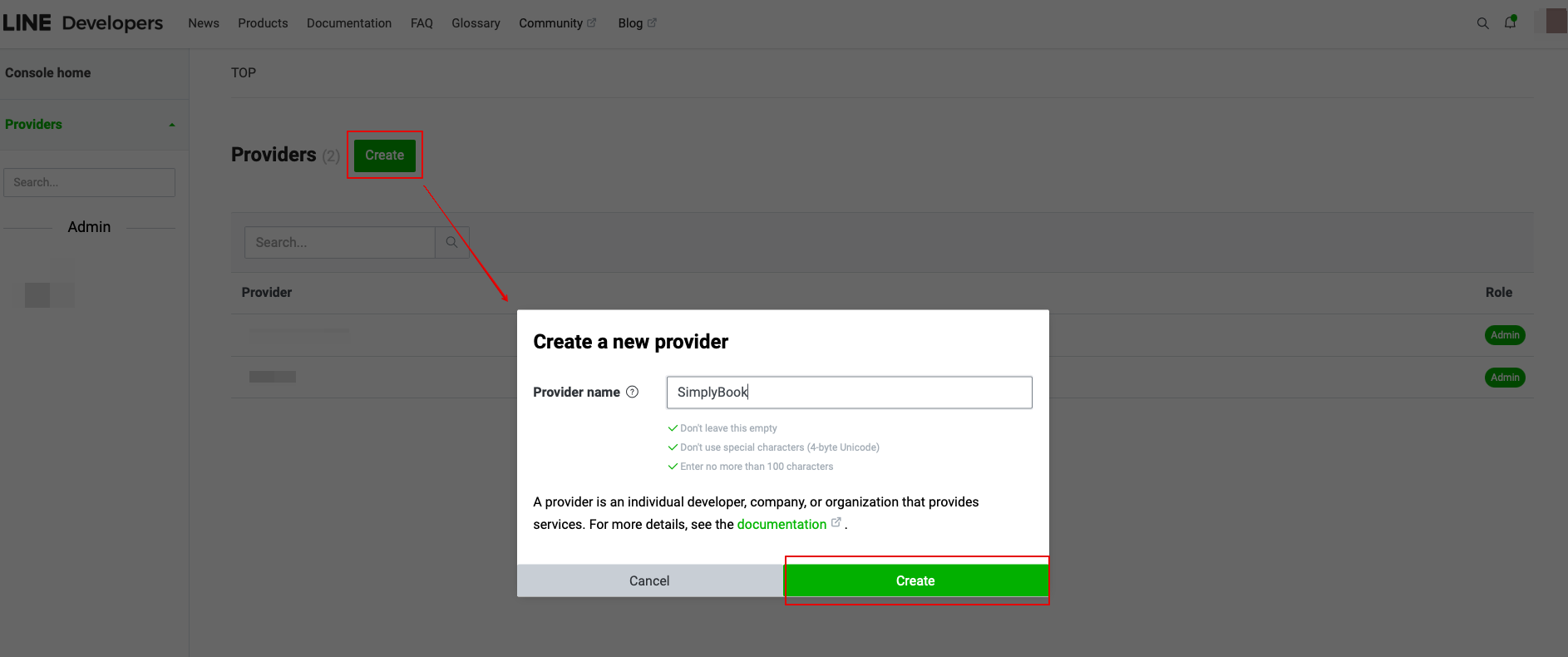
- 3. Sobald Sie sich dort angemeldet haben, fahren Sie mit der Erstellung einer Provider-Instanz fort.
- (Anbieter kann eine Einzelperson, ein Unternehmen oder eine Organisation sein, die Dienste über die LINE-Plattform anbietet)
- Geben Sie den gewünschten Namen oder Firmennamen als Anbieternamen in das entsprechende Formular ein.
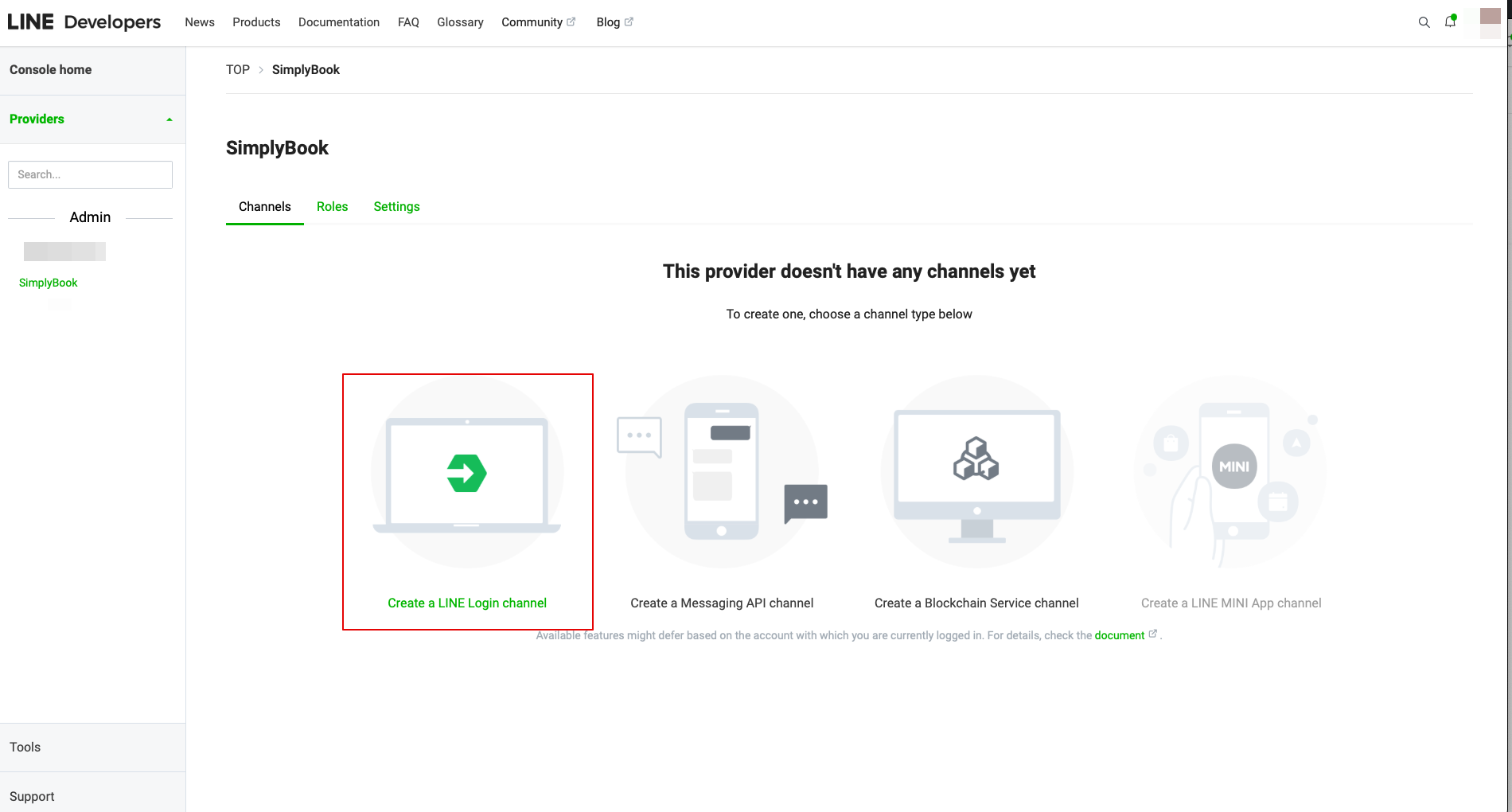
- 4. Gehen Sie dann zum Erstellen eines LINE Login-Kanals.
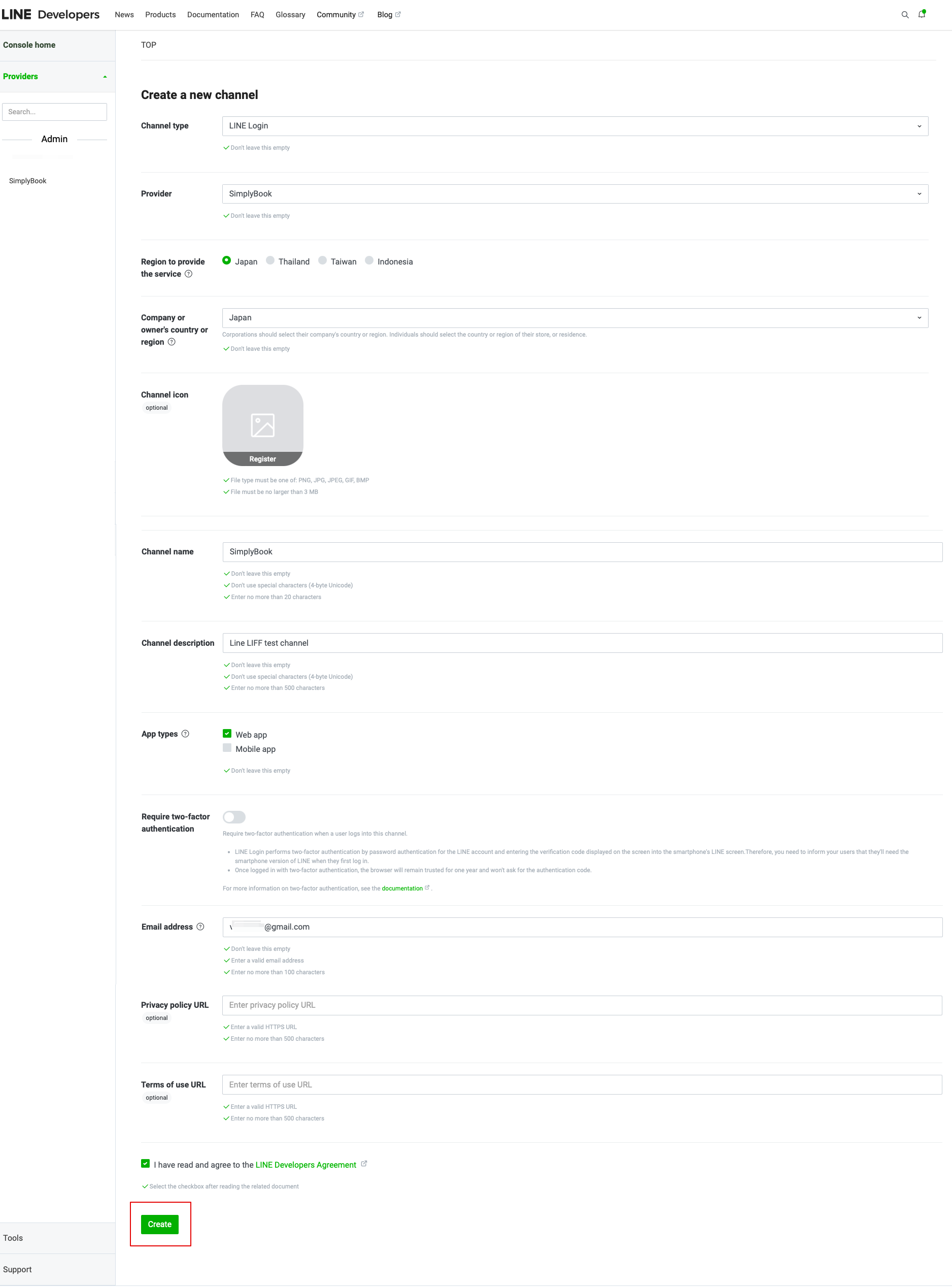
- 5. Fügen Sie die Informationen in die erforderlichen Felder ein.
- Vergewissern Sie sich, dass Sie im Abschnitt "App-Typen" die Web-App auswählen und geben Sie auch die E-Mail-Adresse ein.
- Sobald Sie die "LINE-Entwicklervereinbarung" akzeptiert haben, klicken Sie bitte auf "Erstellen", um diesen Schritt abzuschließen.
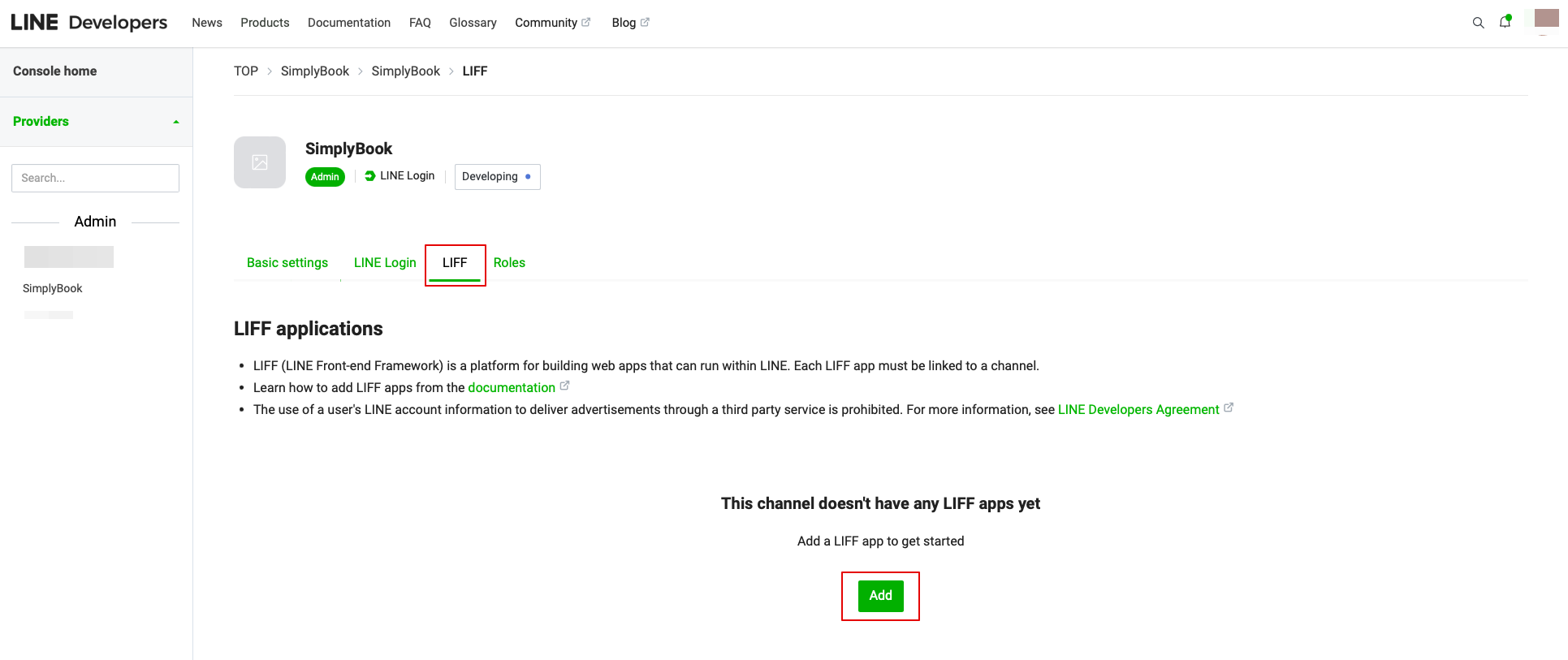
- 6. Nachdem das LINE Login erstellt wurde, klicken Sie auf den Reiter LIFF und fügen Sie dort die LIFF App hinzu.
Sie müssen die folgenden Daten eingeben:
- LIFF App Name: Ihr Markenname/Firmenname;
- Wählen Sie die App-Größe;
- Endpunkt-URL: sollte von der LIFF-URL kopiert werden (Simplybook.me LINE LIFF Funktionseinstellungen);
- (obligatorisch) Wählen Sie die folgenden Bereiche: openid und profile, andernfalls funktioniert die Integration möglicherweise nicht oder nicht richtig;
- Die Bot-Link-Funktion sollte aktiviert sein.
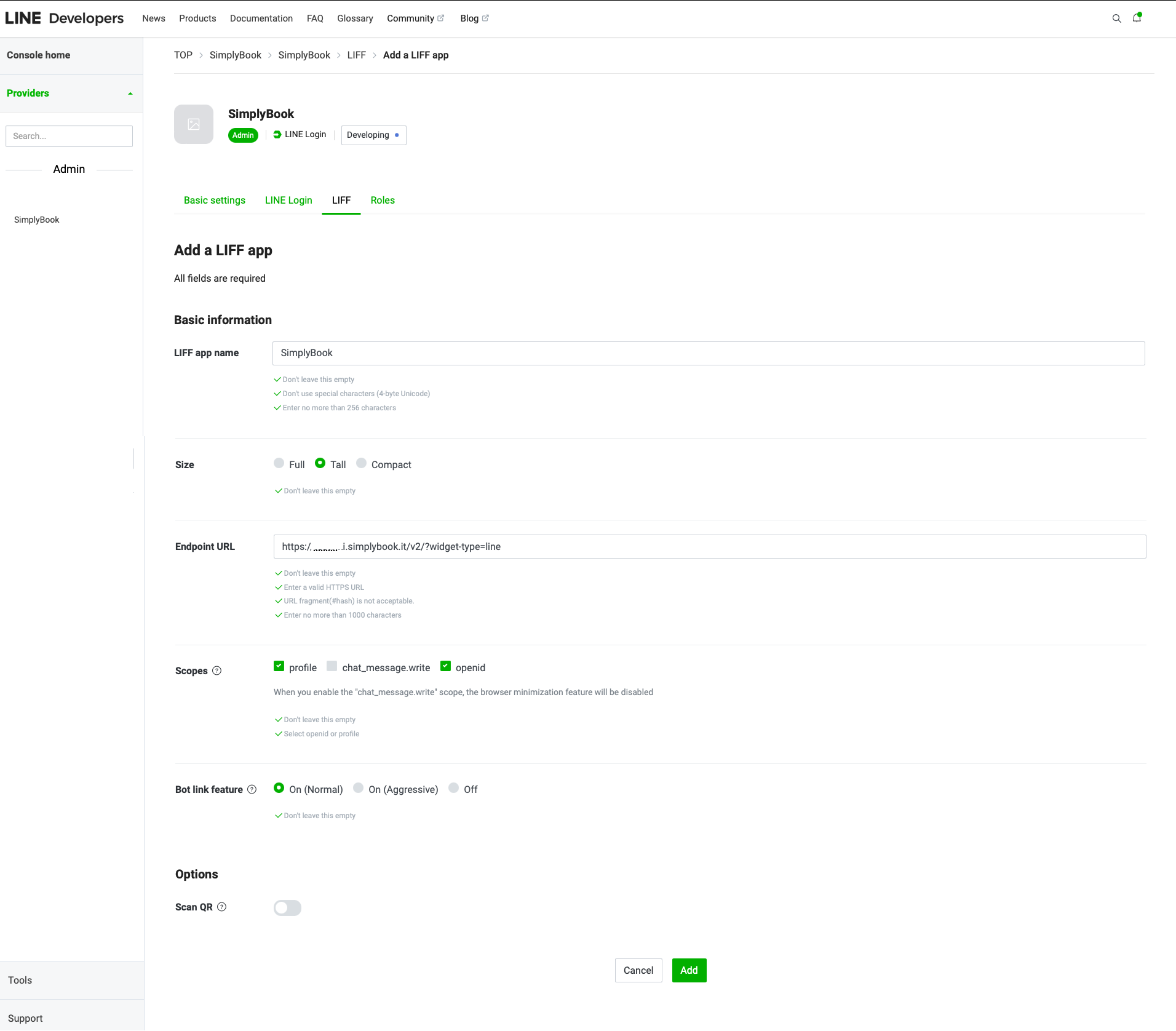
- Nachdem Sie alle oben genannten Einstellungen vorgenommen haben, klicken Sie auf die grüne Schaltfläche Hinzufügen, um LINE LIFF hinzuzufügen.
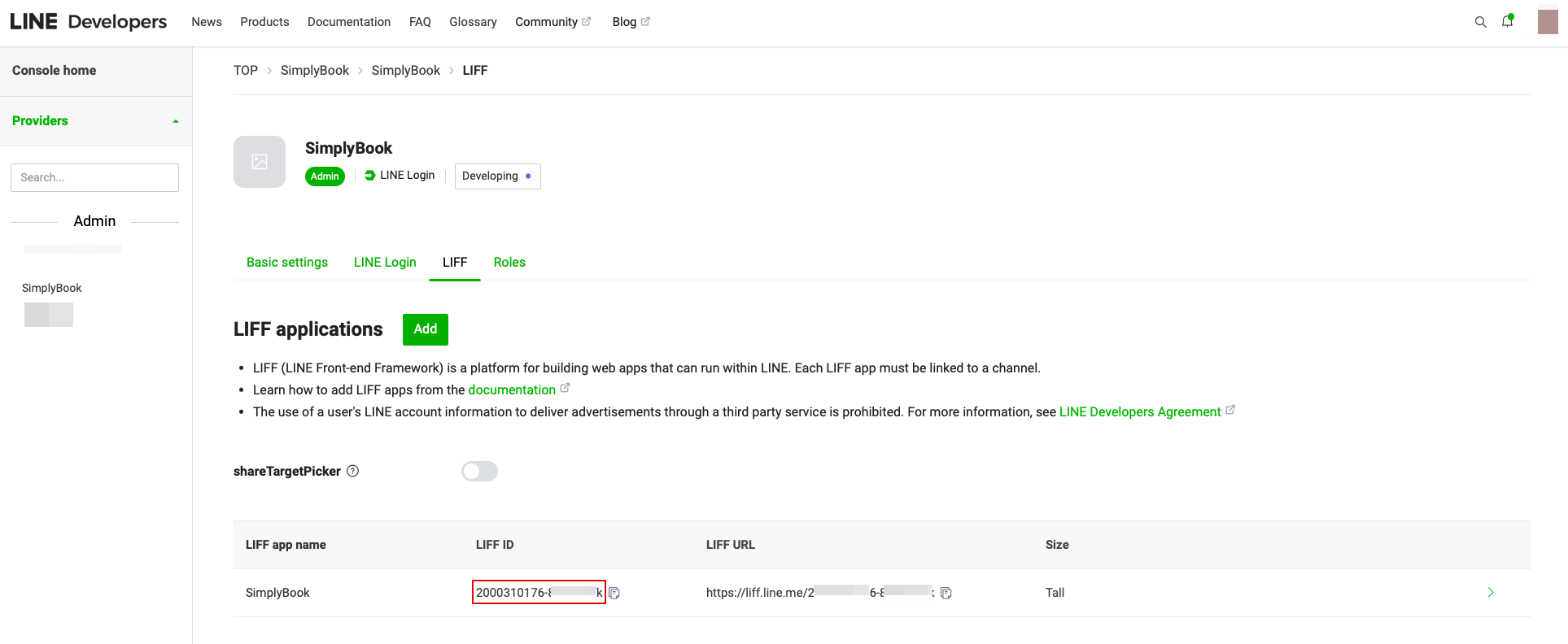
- 7. Dann werden Sie auf die Seite weitergeleitet, auf der Sie Ihre LIFF ID sehen können.
- Bitte kopieren Sie die LIFF-ID und geben Sie sie in das entsprechende Feld auf der Simplybook-Seite ein.
- 8. Wenn Sie möchten, dass Ihre Kunden Push-Benachrichtigungen über ihren Buchungsstatus oder andere Erinnerungen (ähnlich wie SMS) erhalten, können Sie die Option "Freundschaftsanfrage mit Ihrem LINE-Kanal aktivieren" in Simplybook LINE LIFF Custom Feature aktivieren und das "Channel access token" einfügen.
- (Informationen zum Erhalt des Kanalzugangs-Tokens finden Sie weiter unten in der Anleitung)
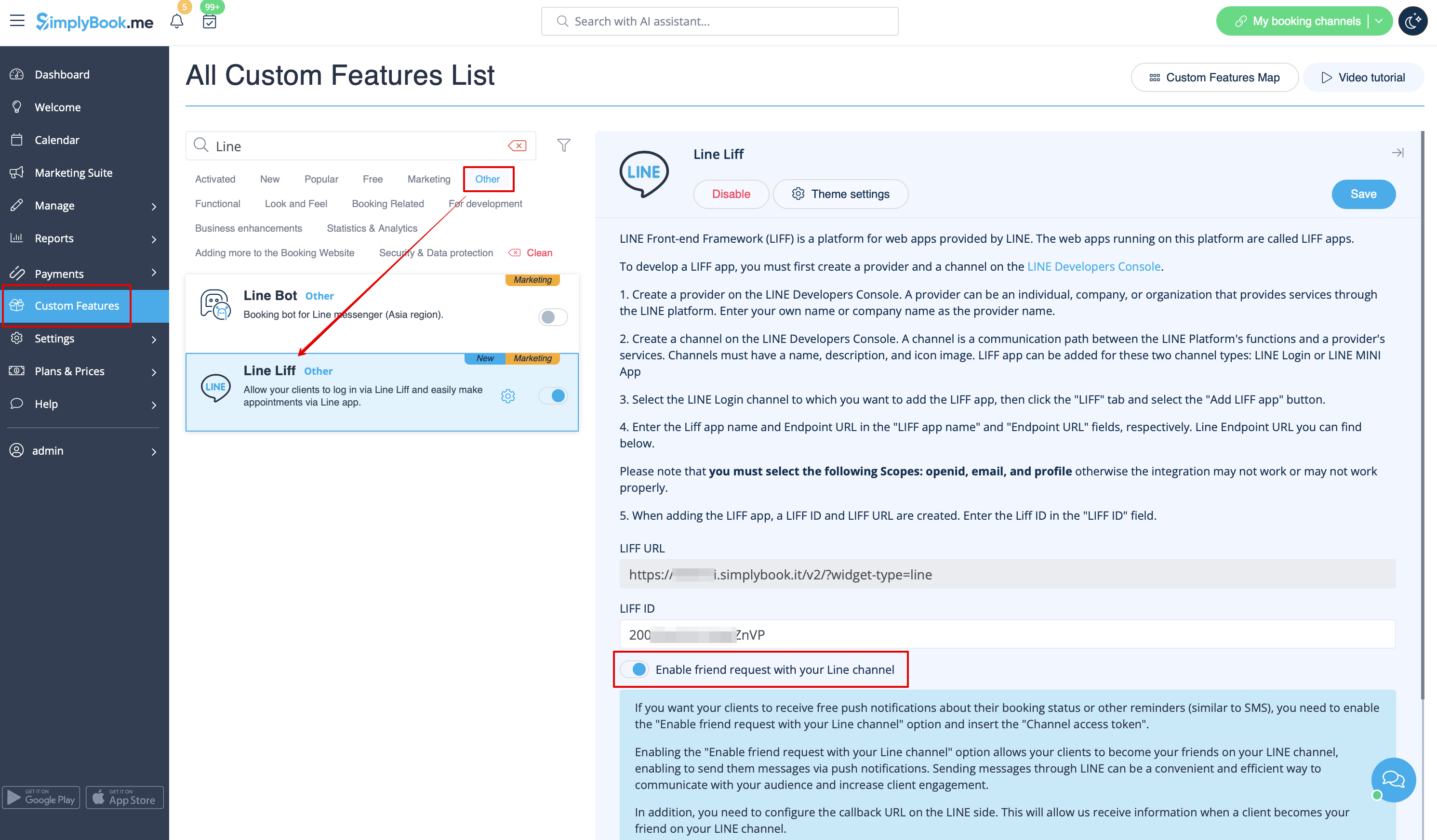
- Darüber hinaus müssen Sie die Callback-URL auf der LINE-Seite konfigurieren. Dadurch können wir Informationen erhalten, wenn ein Kunde Ihr Freund in Ihrem LINE-Kanal wird.
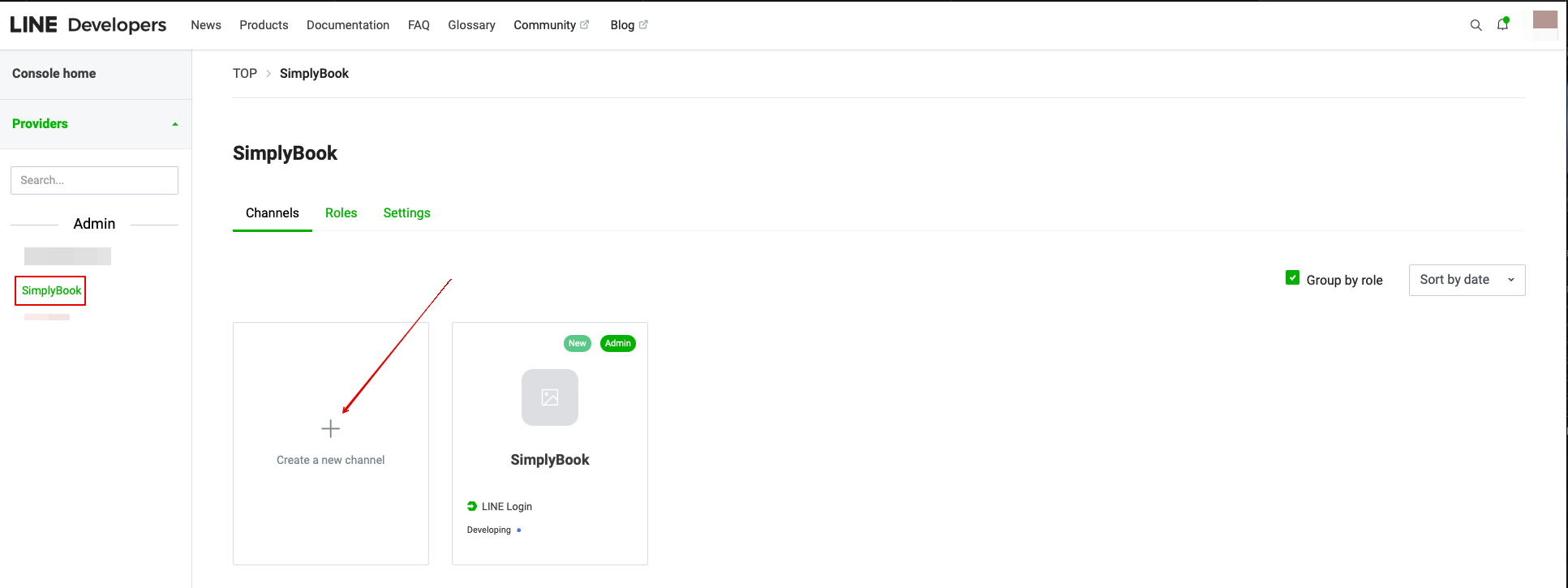
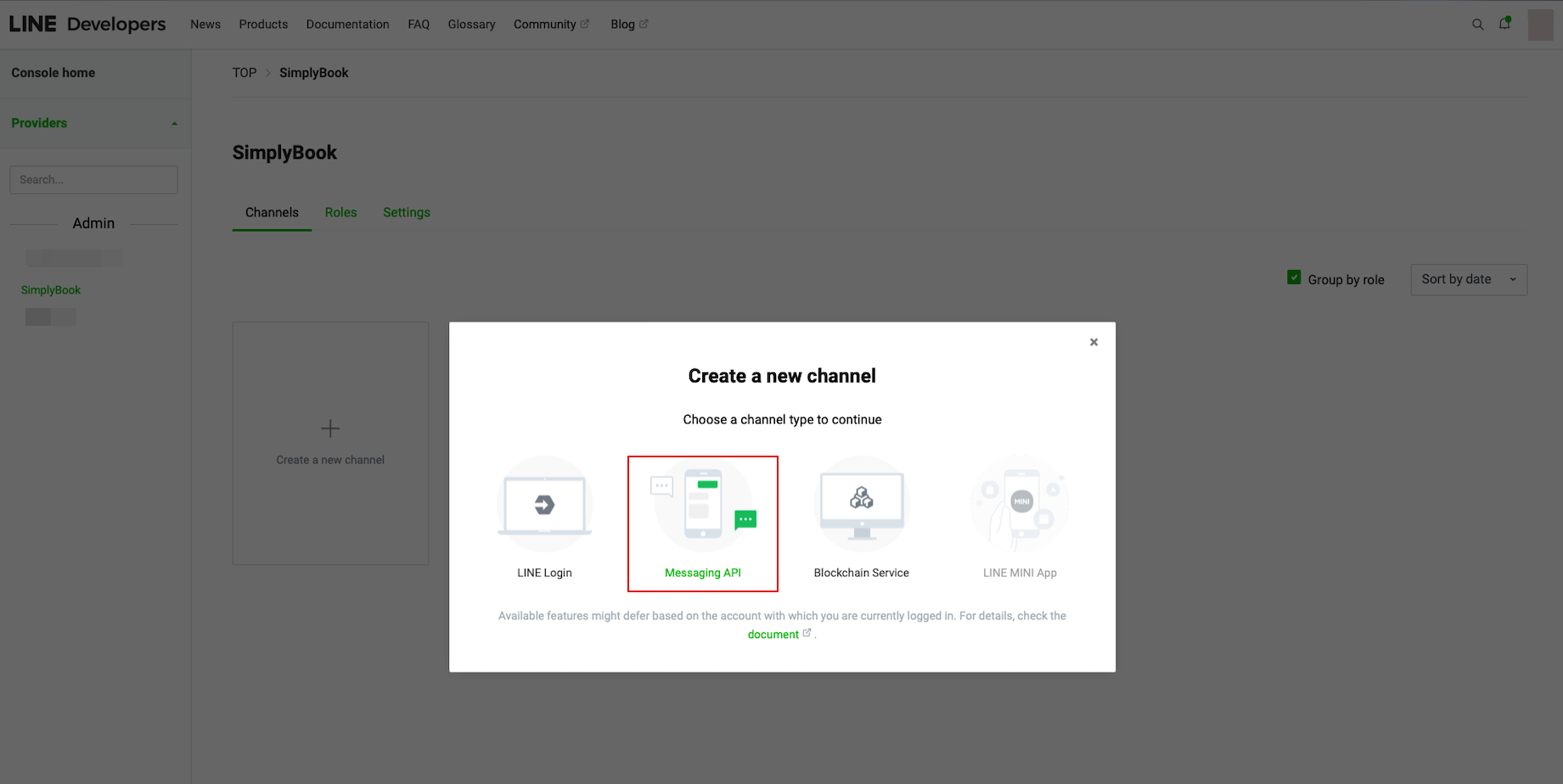
- Gehen Sie dazu in Ihre LINE LIFF Developers Konsole, wählen Sie das zuvor hinzugefügte Anbieterkonto aus und erstellen Sie einen neuen Kanal namens "Messaging API".
- (beide Kanäle müssen unter demselben Anbieter sein, damit alle Verbindungen funktionieren)
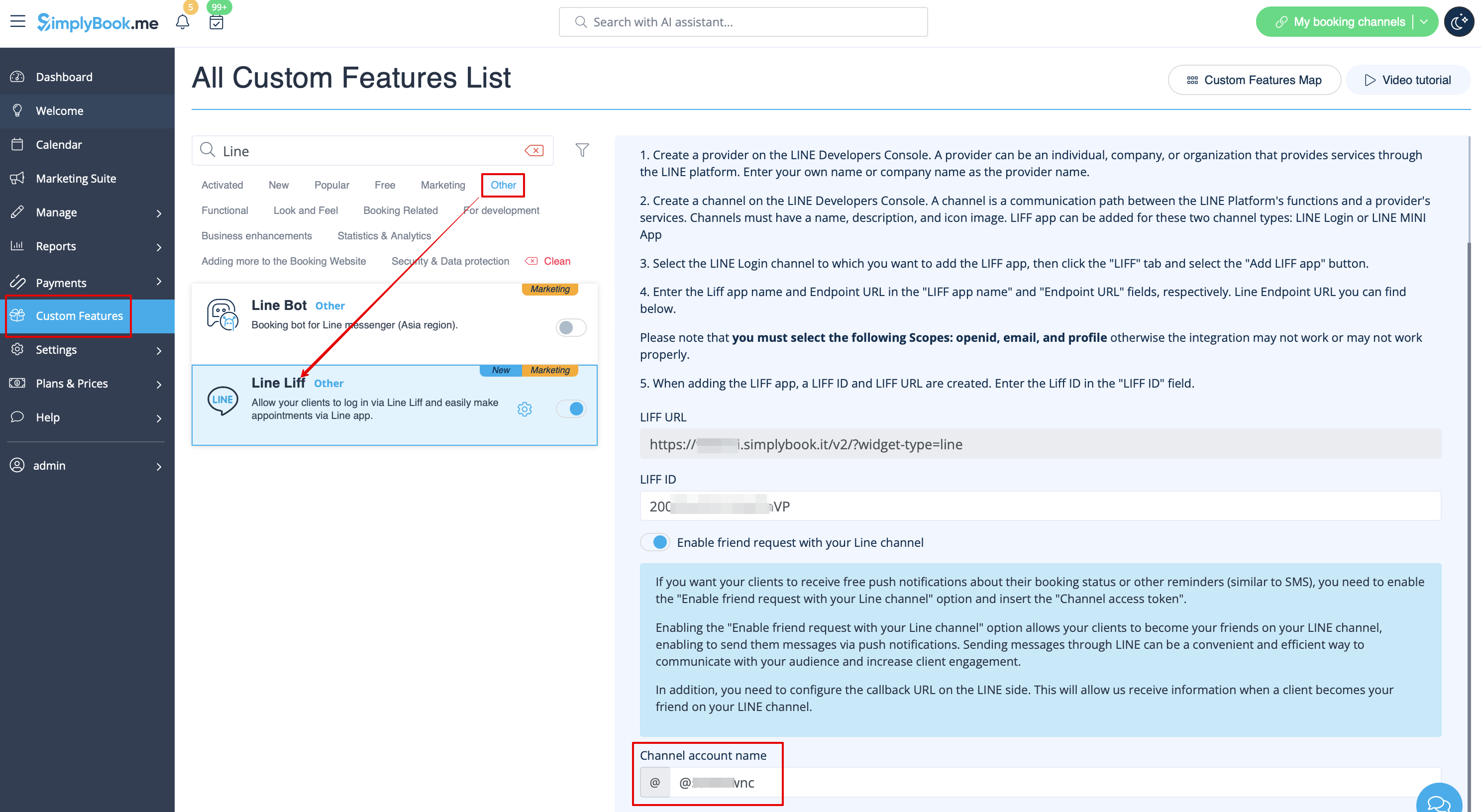
- 9. Nachdem Sie diese Einstellungen vorgenommen haben, wählen Sie die Registerkarte "Message API", um die Bot Basic ID zu erhalten. Kopieren Sie die Bot-ID und fügen Sie sie in das Feld Kanal-Kontoname von SimplyBook.me LINE LIFF Custom Feature ein.
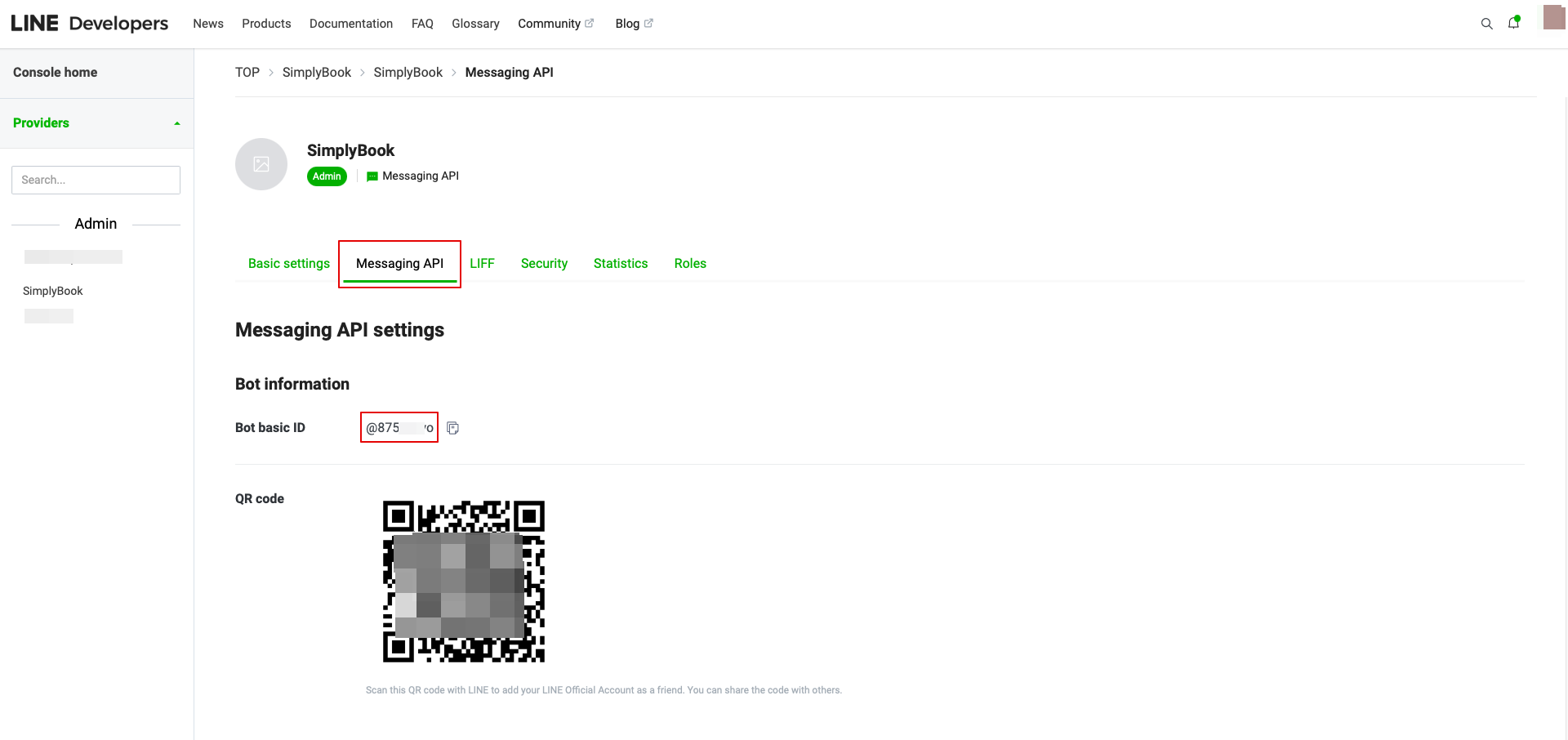
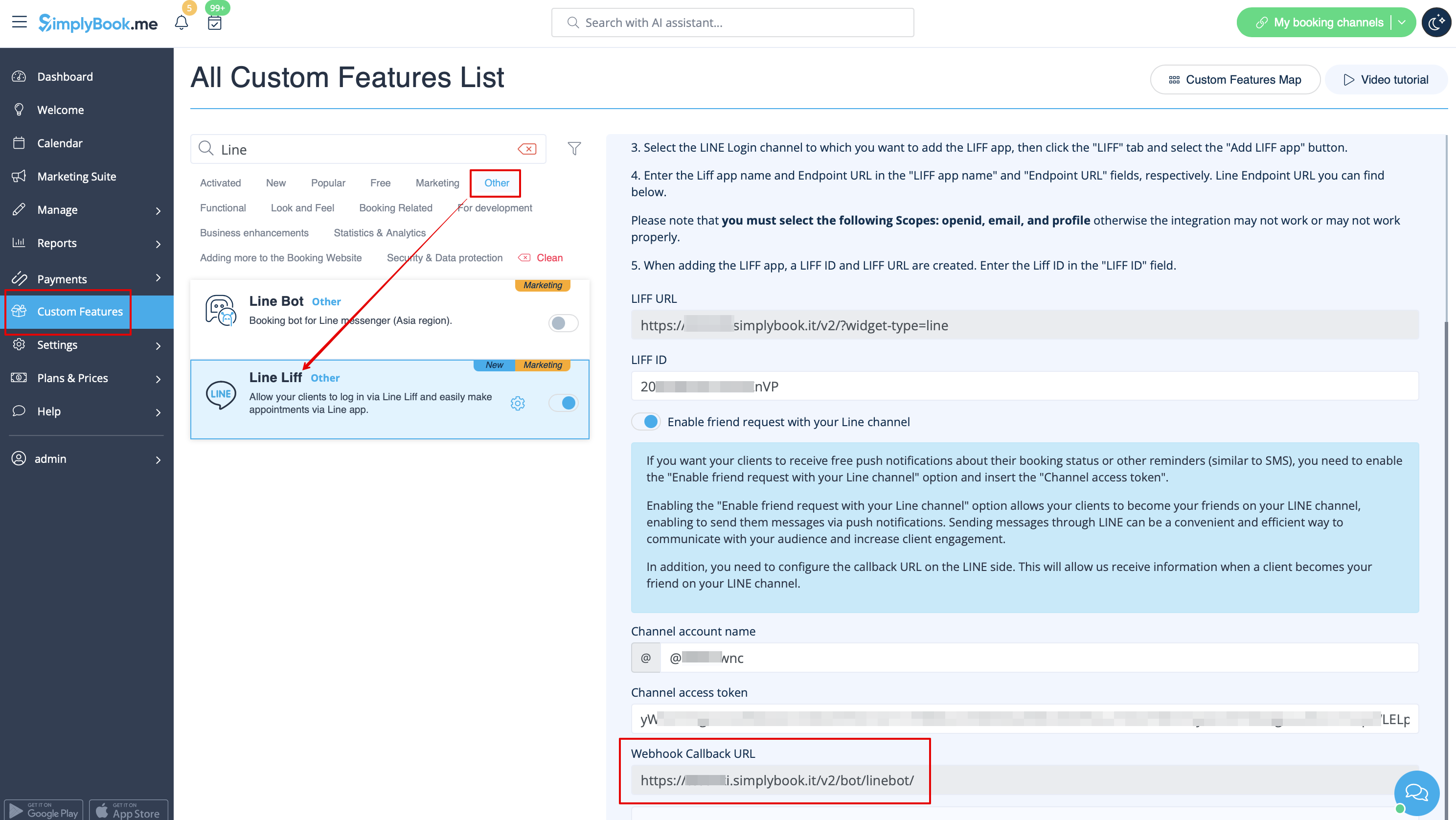
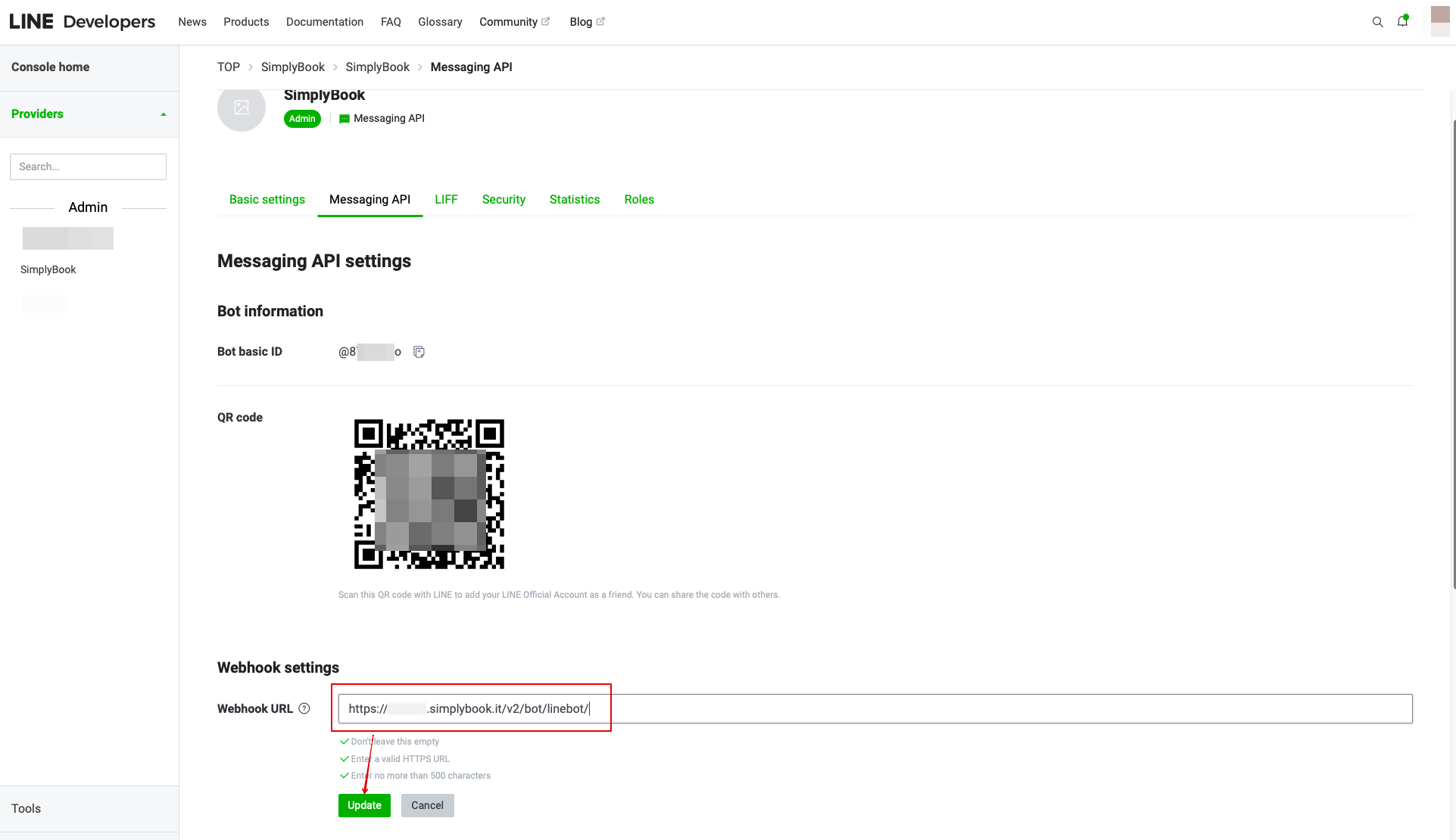
- In den Einstellungen der benutzerdefinierten Funktion können Sie auch die Webhook Callback URL sehen. Kopieren Sie diese und fügen Sie sie in das Feld Webhook URL auf der Line//Messaging API Seite ein.
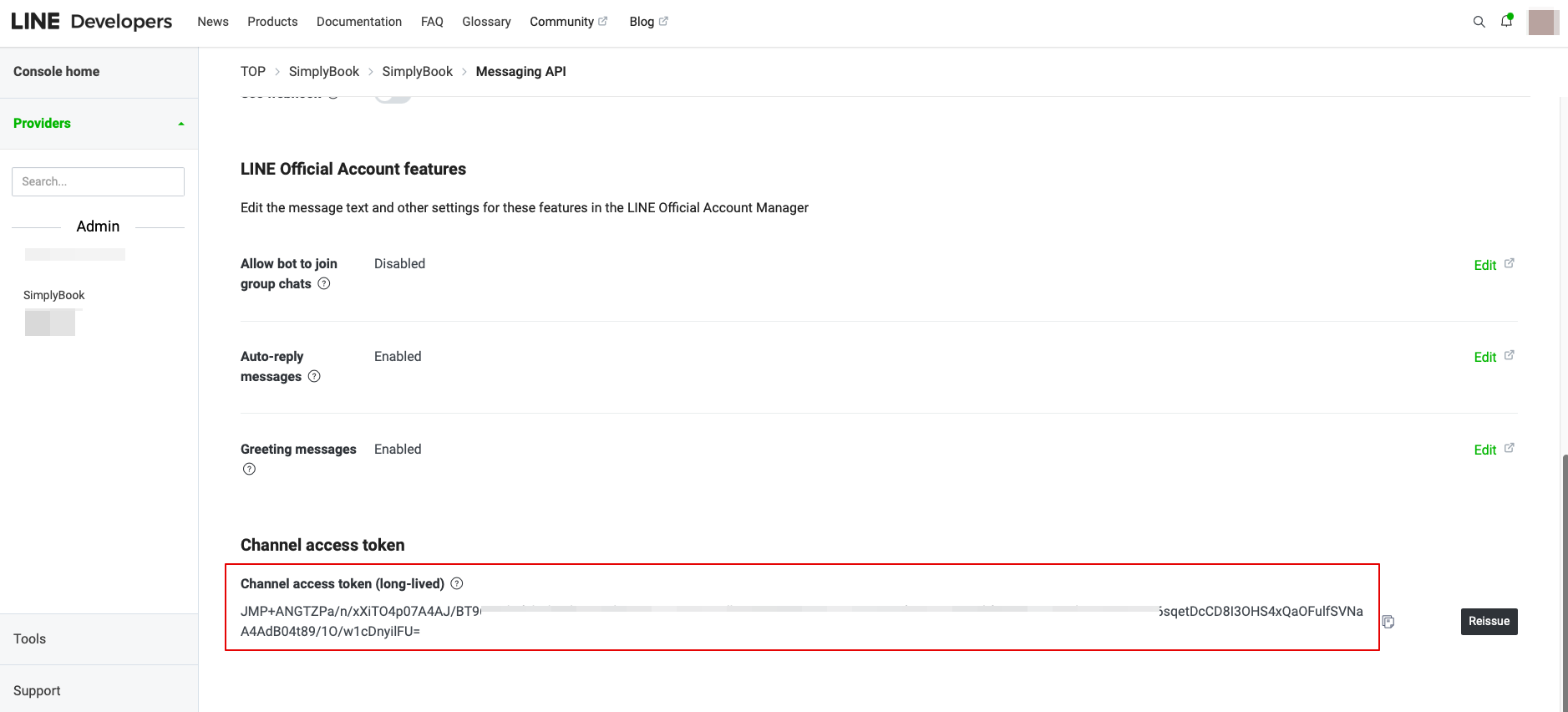
- 10. In der Messaging API auf der LINE Seite müssen Sie zum Channel access token scrollen, es ausgeben, den Ergebniswert kopieren und in die Simplybook.me LINE LIFF Einstellungen einfügen.
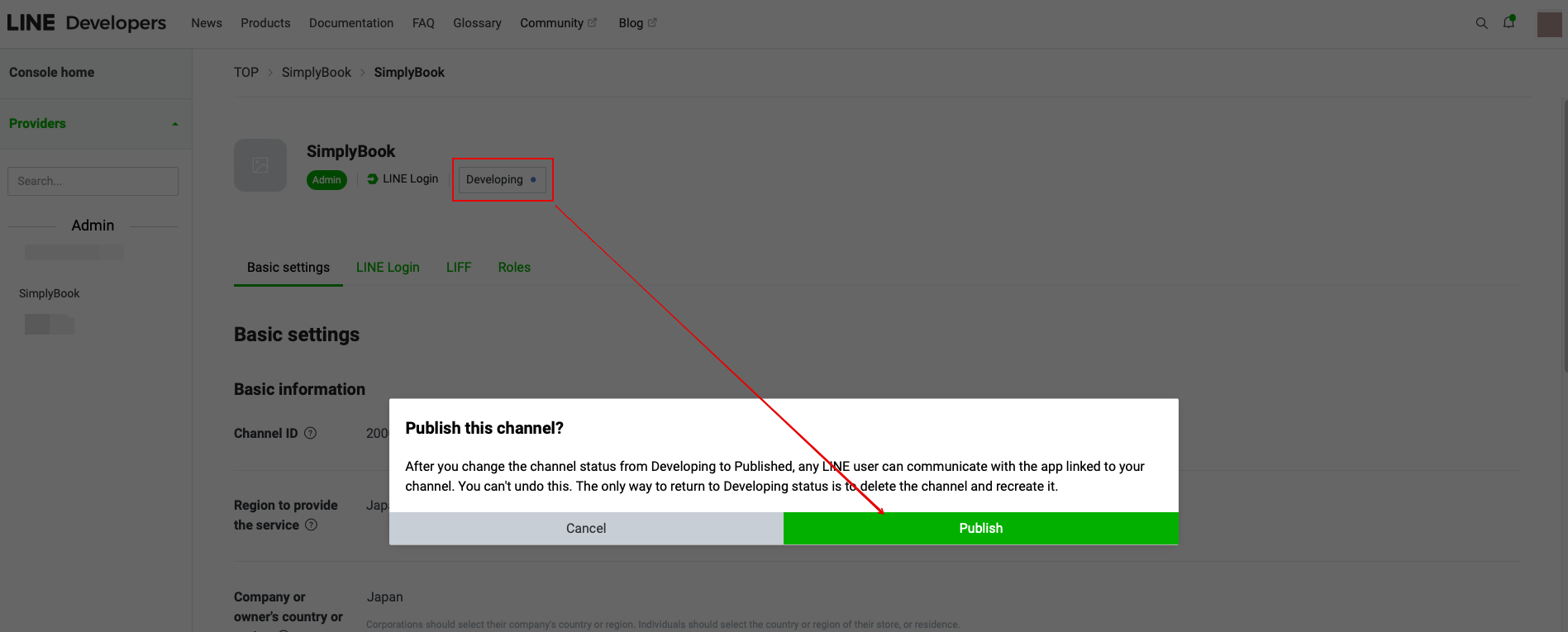
- 11. Bitte gehen Sie zurück zum LINE Login-Kanal, klicken Sie auf den Status "Developing" unter dem Kanalnamen und ändern Sie ihn auf "Publish".
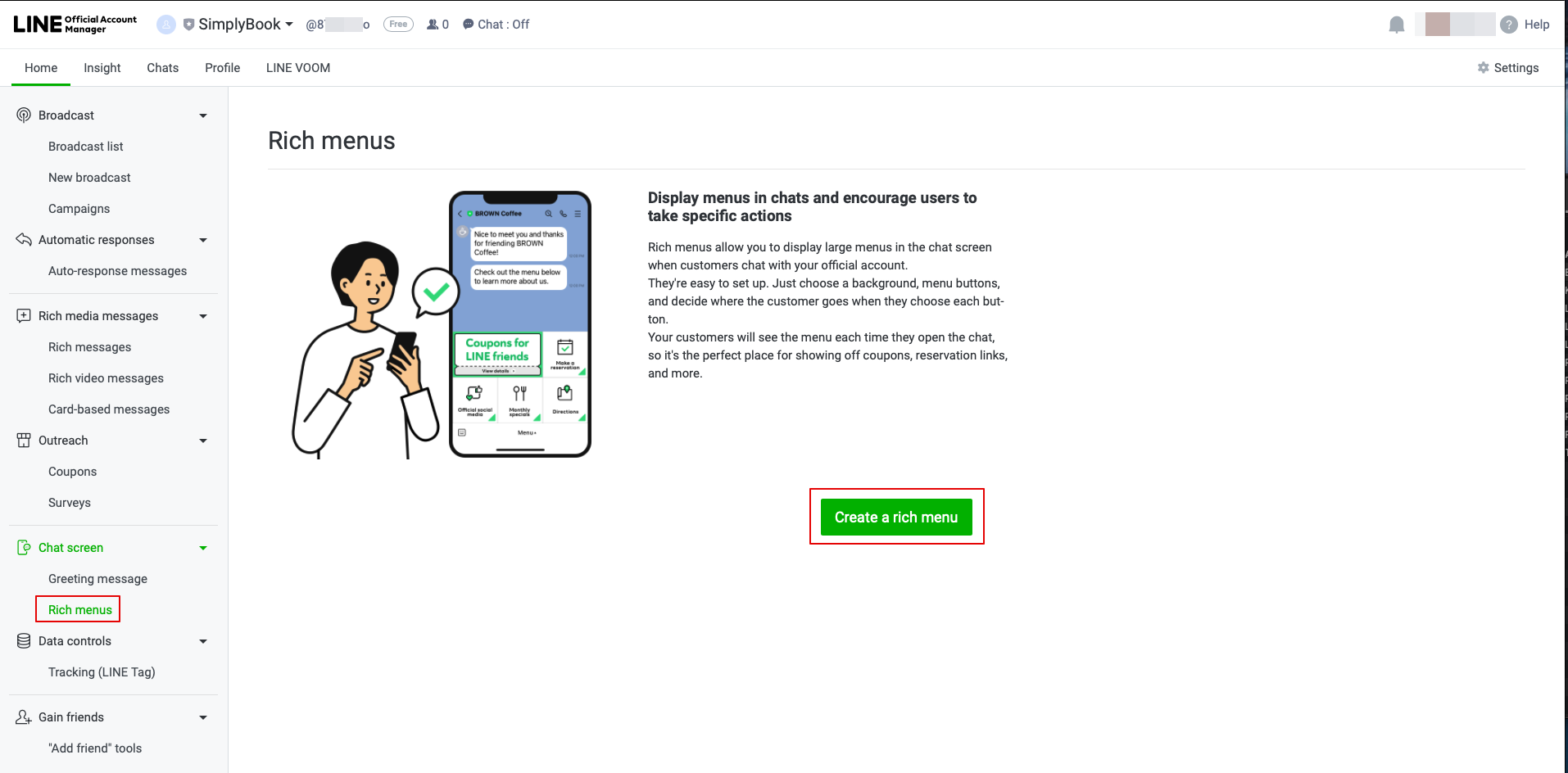
- 12. Nach der Veröffentlichung müssen Sie sich in das offizielle Line-Konto unter demselben LINE-Konto wie die Entwicklerkonsole einloggen.
- Wenn Sie darauf zugreifen, klicken Sie bitte auf die Option Rich Menu in der Navigation und erstellen Sie dort ein Rich Menu.
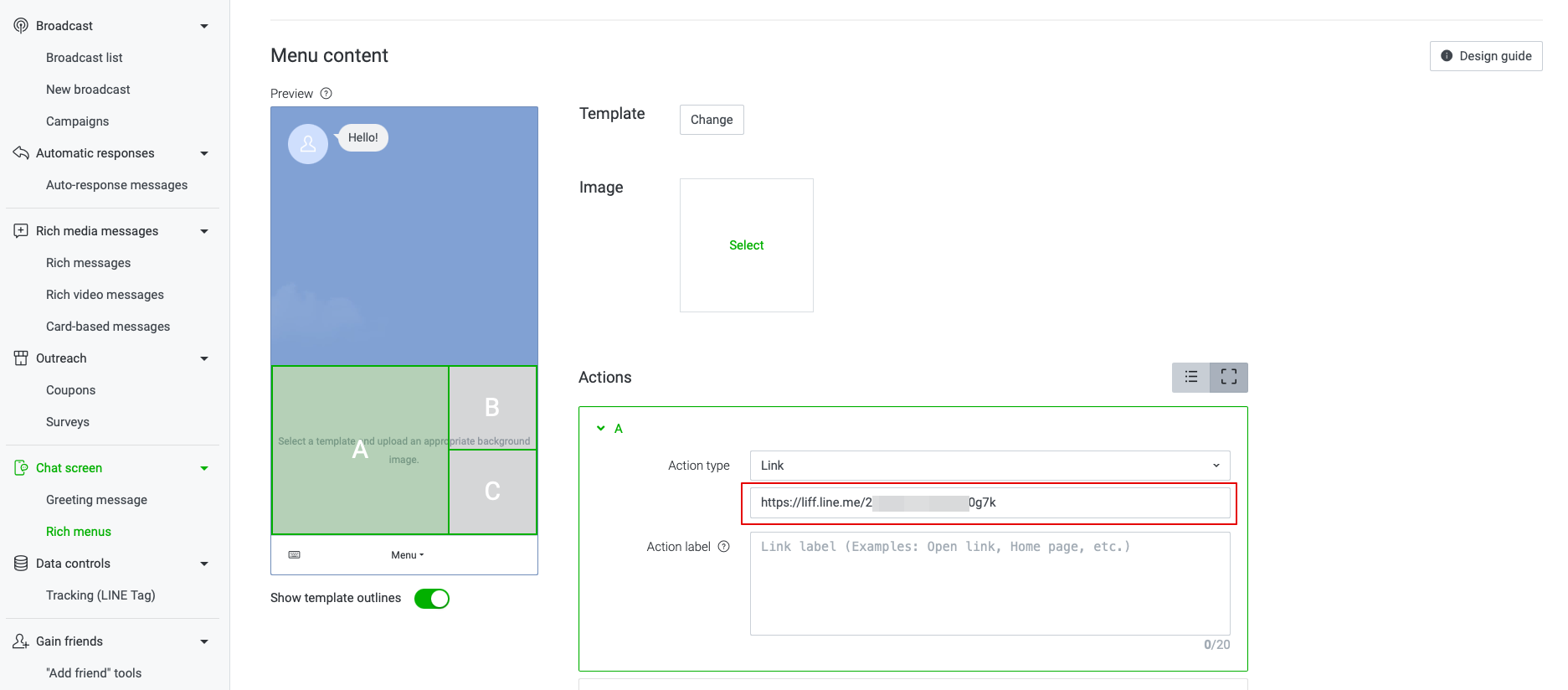
- 13. Füllen Sie die erforderlichen Felder aus.
- Im Menü Inhalt wählen Sie die Vorlage aus und fügen das Bild hinzu.
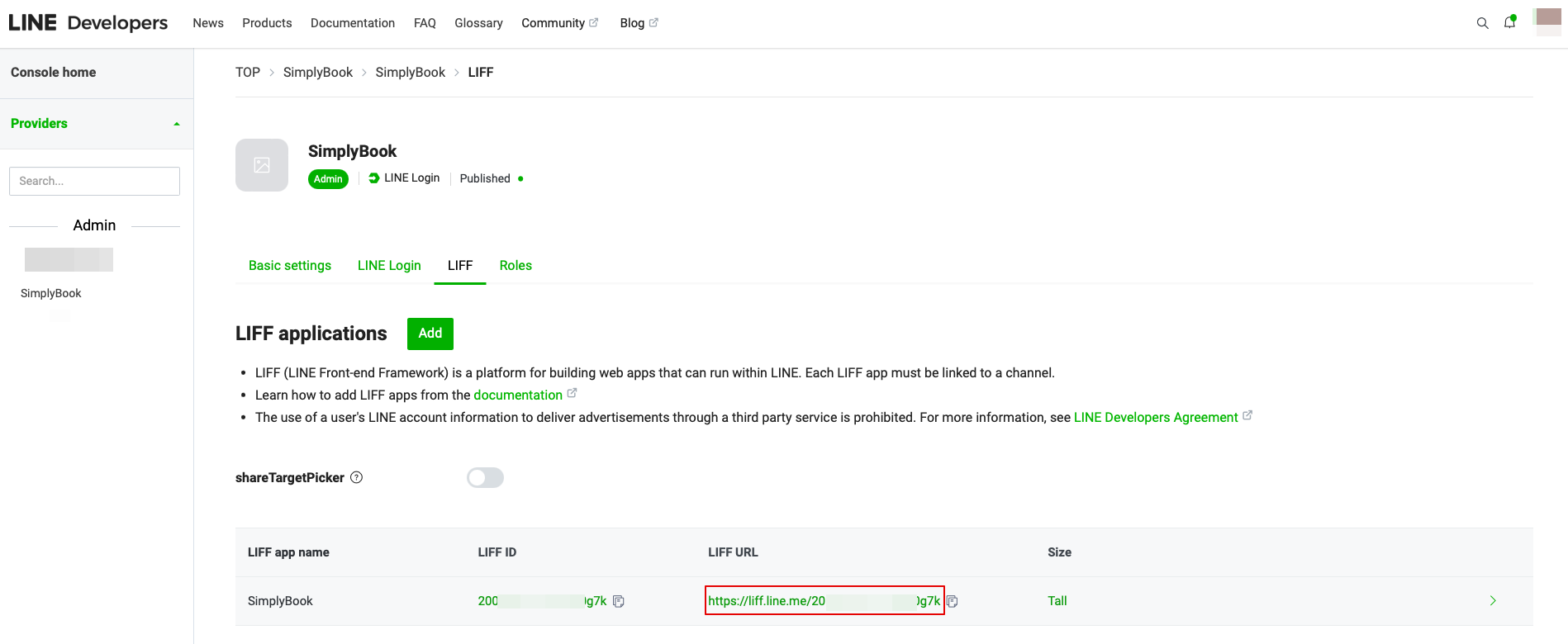
- Wählen Sie im Block Aktionen den Typ "Link" und fügen Sie die LIFF-URL aus dem Developer Console//LINE Login-Kanal hinzu.
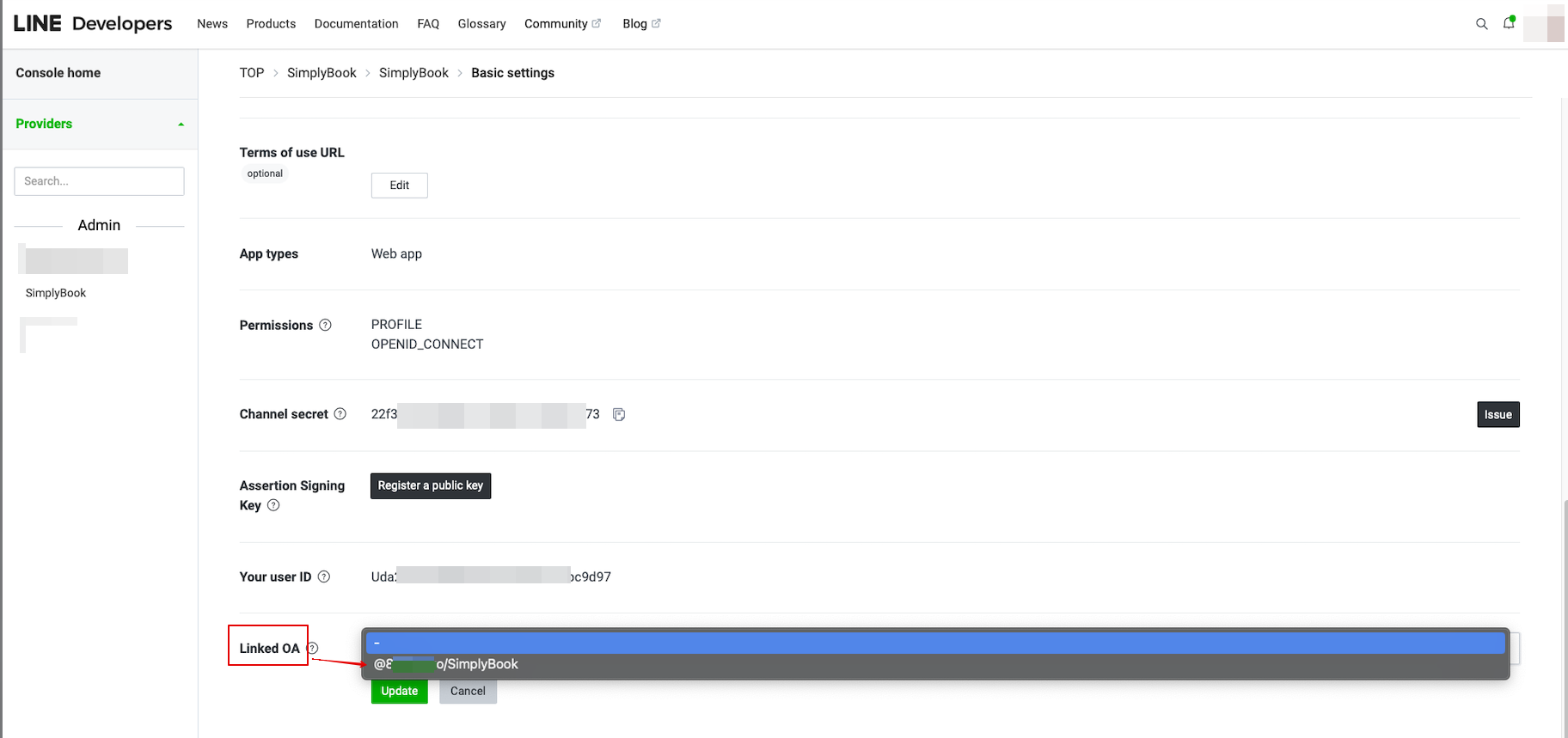
- 14. Um das offizielle LINE-Konto mit dem LINE-Entwicklerkonto zu verknüpfen, gehen Sie bitte zur Entwicklerkonsole und klicken Sie auf den LINE-Login-Kanal. In der Linked OA müssen Sie das offizielle Konto auswählen, um beide Teile miteinander zu verbinden.
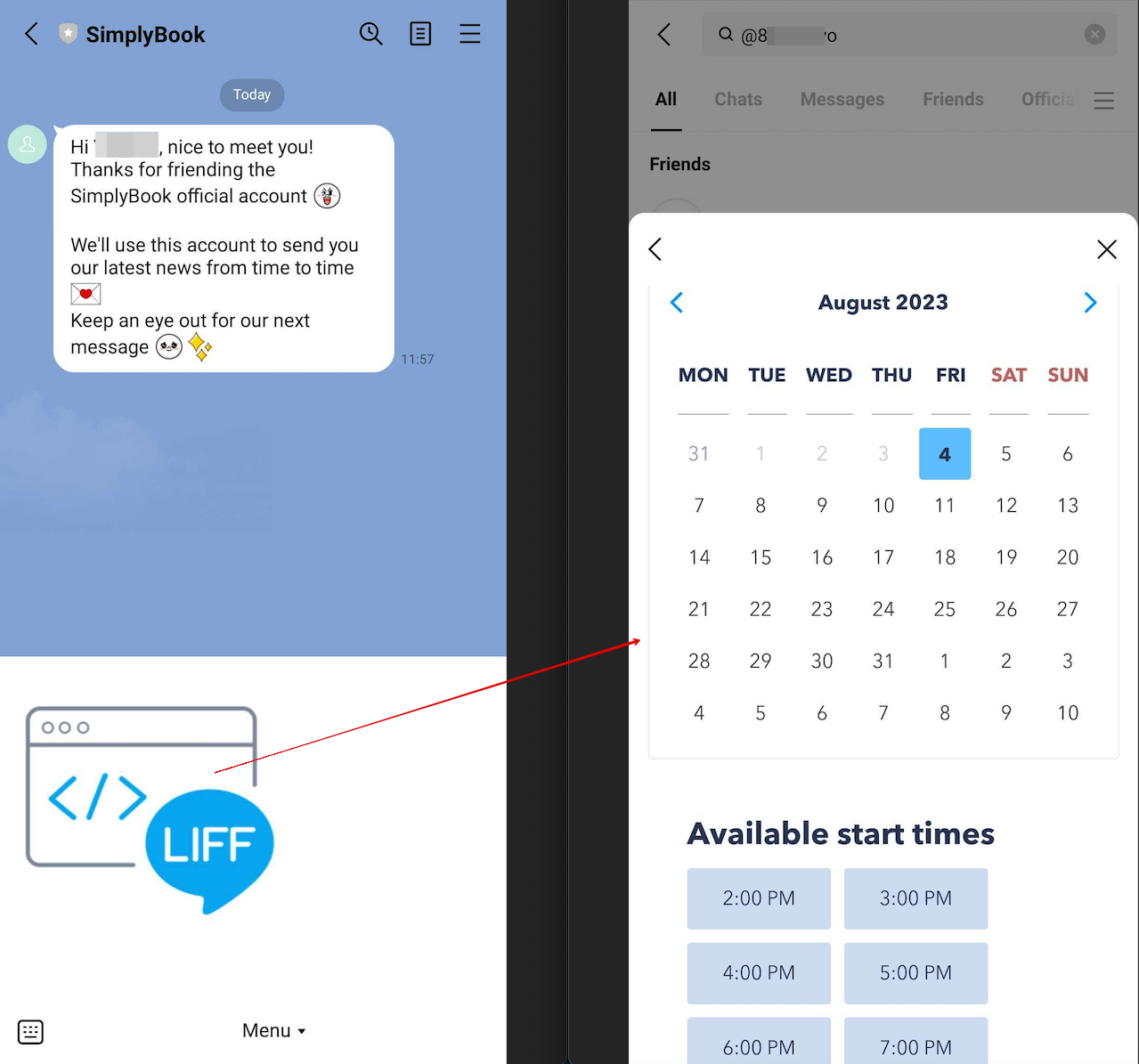
- 15. Nach dem Öffnen der offiziellen LINE-Kontoseite in der LINE-App können Kunden auf das Menü klicken, um den Buchungsprozess zu starten. Während des Prozesses können sie die Dienstleistungen, das Datum und die Uhrzeit auswählen, die sie reservieren möchten, sich mit ihrem LINE-Konto anmelden und die Reservierung bestätigen.
- Die Integration ermöglicht es den Kunden auch, ihre Buchungen in diesem In-App-Widget zu sehen.
Wie kann ich die Benachrichtigungen für das offizielle LINE-Konto anpassen?
Gehen Sie zum SimplyBook.me-Administrationsbereich und wählen Sie Konfiguration→ E-Mail- und SMS-Einstellungen. Die Texte der LINE-Buchungsbenachrichtigungen stimmen mit dem Inhalt der SMS-Benachrichtigungen überein. Wenn Sie die enthaltenen Informationen anpassen möchten, können Sie die entsprechenden Vorlagen dort bearbeiten.
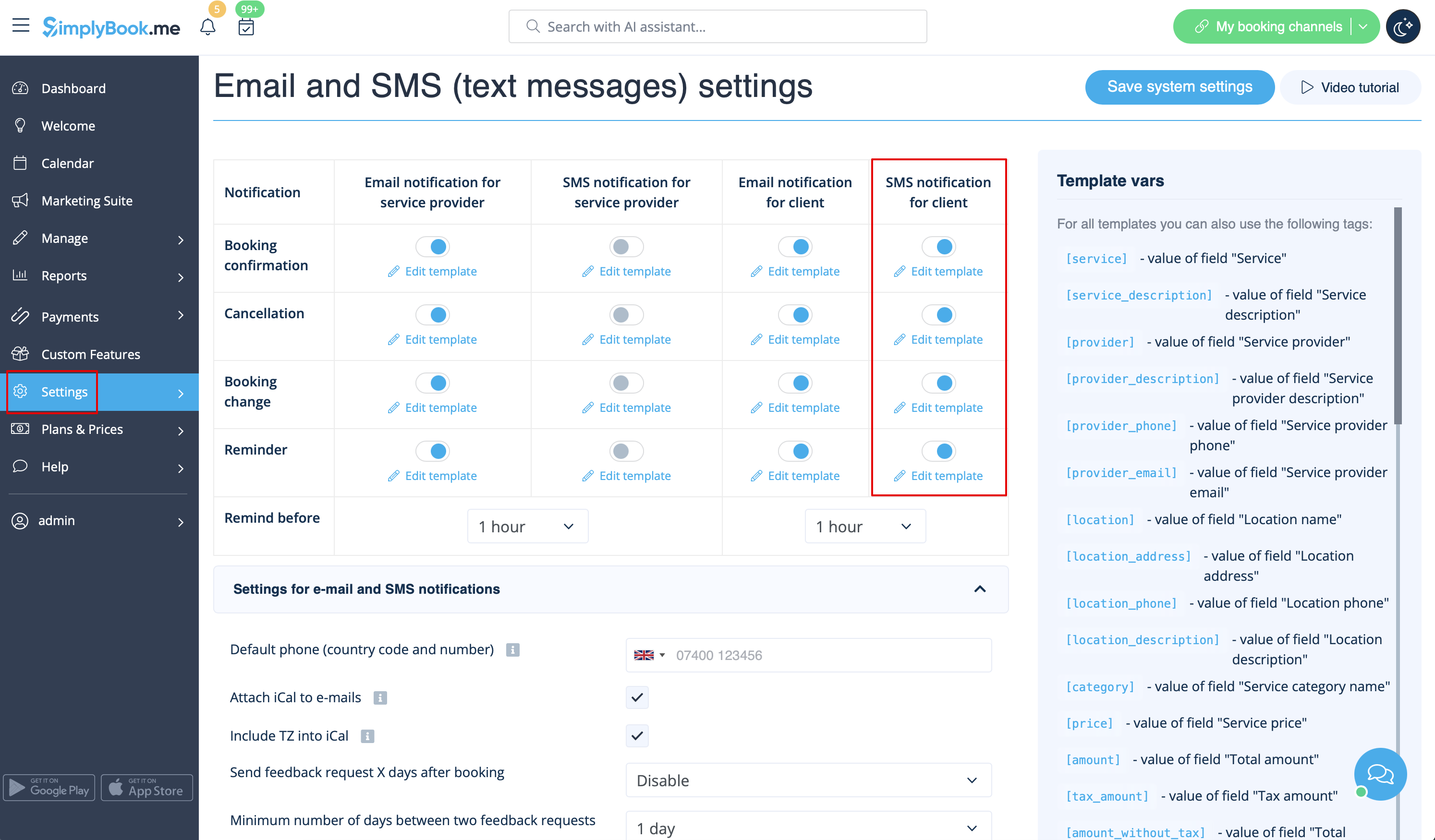
Bemerkung: Wenn Sie unter Einstellungen → E-Mail- und SMS-Einstellungen die Kästchen für Kunden-SMS-Benachrichtigungen nicht aktivieren, sendet das System dennoch automatisch Terminerinnerungen und andere Terminbenachrichtigungen über LINE.
