No edit summary |
No edit summary |
||
| (One intermediate revision by the same user not shown) | |||
| Line 4: | Line 4: | ||
{{#seo: | {{#seo: | ||
|title=Where to change my info - SimplyBook.me | |title=Where to change my info - SimplyBook.me | ||
|description= | |description=Learn fAQ on changing system information. Update company details, terminology, language. Adjust URLs, logos, themes. Guide to common customization questions. | ||
|titlemode=append | |titlemode=append | ||
|keywords=faq, frequently asked questions, booking software, appointment system questions, appointments online, calendar software, booking system, booking calendar, scheduling software, online appointment scheduling, online scheduling, plugins, custom features, custom booking page link, domain name, custom domain name, custom url | |keywords=faq, frequently asked questions, booking software, appointment system questions, appointments online, calendar software, booking system, booking calendar, scheduling software, online appointment scheduling, online scheduling, plugins, custom features, custom booking page link, domain name, custom domain name, custom url | ||
| Line 11: | Line 11: | ||
<translate> | <translate> | ||
<!--T:2--> | |||
<br/><br/> | <br/><br/> | ||
=Company title= | =Company title= | ||
<!--T:3--> | |||
In Settings // Company Information // Name. | In Settings // Company Information // Name. | ||
[[File:Company information path redesigned.png|1200px| center|link=https://help.simplybook.me/images/d/da/Company_information_path_redesigned.png]] | [[File:Company information path redesigned.png|1200px| center|link=https://help.simplybook.me/images/d/da/Company_information_path_redesigned.png]] | ||
| Line 21: | Line 23: | ||
<translate> | <translate> | ||
<!--T:4--> | |||
=Company url= | =Company url= | ||
Unfortunately, there is no option to change url within the system. In order to change it, you need to register a new company with desired url. | Unfortunately, there is no option to change url within the system. In order to change it, you need to register a new company with desired url. | ||
<!--T:5--> | |||
'''Free:''' | '''Free:''' | ||
You can create a new company with the desired name in url and manually transfer all data and settings there. You can create services and providers, and copy list of clients to new system with [[Custom_Features#Import_Clients | Import Clients Custom Feature]] (see instructions [[Importing_the_list_of_clients |here]]). Bookings and other settings cannot be transferred. <br/><br/> | You can create a new company with the desired name in url and manually transfer all data and settings there. You can create services and providers, and copy list of clients to new system with [[Custom_Features#Import_Clients | Import Clients Custom Feature]] (see instructions [[Importing_the_list_of_clients |here]]). Bookings and other settings cannot be transferred. <br/><br/> | ||
| Line 35: | Line 39: | ||
<translate> | <translate> | ||
<!--T:6--> | |||
=Company logo and background= | =Company logo and background= | ||
In Settings // Design settings // Additional theme settings. <br/> | In Settings // Design settings // Additional theme settings. <br/> | ||
| Line 41: | Line 46: | ||
<br/><br/> | <br/><br/> | ||
<!--T:7--> | |||
=Favicon= | =Favicon= | ||
The /v2/ part in the URL of the booking website cannot be removed or changed.<br> | The /v2/ part in the URL of the booking website cannot be removed or changed.<br> | ||
| Line 49: | Line 55: | ||
<translate> | <translate> | ||
<!--T:8--> | |||
=Design= | =Design= | ||
In Settings // Design settings.<br/> | In Settings // Design settings.<br/> | ||
| Line 59: | Line 66: | ||
<translate> | <translate> | ||
<!--T:9--> | |||
=Texts and language= | =Texts and language= | ||
If you need to adjust any texts on your booking page (for example change Employee to Therapist, Coach or Room), you can do it in Settings // Custom Wording & Translations. | If you need to adjust any texts on your booking page (for example change Employee to Therapist, Coach or Room), you can do it in Settings // Custom Wording & Translations. | ||
| Line 69: | Line 77: | ||
<translate> | <translate> | ||
<!--T:10--> | |||
=SEO Settings= | =SEO Settings= | ||
By default the <span style="background-color:#d4f8e5; padding:5px; border-radius:5px;">Title tag</span> is represented by your company name that you have inserted in <span style="background-color:#d4f8e5; padding:5px; border-radius:5px;">Settings</span> -> <span style="background-color:#d4f8e5; padding:5px; border-radius:5px;">Company information</span> -> <span style="background-color:#d4f8e5; padding:5px; border-radius:5px;">Name</span> and automatic addition of <span style="background-color:#d4f8e5; padding:5px; border-radius:5px;">Scheduling and Booking Website</span> text.<br> | By default the <span style="background-color:#d4f8e5; padding:5px; border-radius:5px;">Title tag</span> is represented by your company name that you have inserted in <span style="background-color:#d4f8e5; padding:5px; border-radius:5px;">Settings</span> -> <span style="background-color:#d4f8e5; padding:5px; border-radius:5px;">Company information</span> -> <span style="background-color:#d4f8e5; padding:5px; border-radius:5px;">Name</span> and automatic addition of <span style="background-color:#d4f8e5; padding:5px; border-radius:5px;">Scheduling and Booking Website</span> text.<br> | ||
| Line 83: | Line 92: | ||
<translate> | <translate> | ||
<!--T:11--> | |||
= Our Time= | = Our Time= | ||
Your time on the booking page is the time of the company's time zone. You can change your time zone in Settings -> Main configuration -> Time zone. | Your time on the booking page is the time of the company's time zone. You can change your time zone in Settings -> Main configuration -> Time zone. | ||
<!--T:12--> | |||
[[File:Timezone settings path redesigned.png|1200px|center|link=https://help.simplybook.me/images/3/3a/Timezone_settings_path_redesigned.png]] | [[File:Timezone settings path redesigned.png|1200px|center|link=https://help.simplybook.me/images/3/3a/Timezone_settings_path_redesigned.png]] | ||
<br/><br/> | <br/><br/> | ||
| Line 91: | Line 102: | ||
<translate> | <translate> | ||
<!--T:13--> | |||
=About section= | =About section= | ||
In Settings // Design settings // Home page // Company description.<br/> | In Settings // Design settings // Home page // Company description.<br/> | ||
| Line 98: | Line 110: | ||
<translate> | <translate> | ||
<!--T:14--> | |||
=Address= | =Address= | ||
In Settings // Company Information // Address.<br/> | In Settings // Company Information // Address.<br/> | ||
| Line 105: | Line 118: | ||
<translate> | <translate> | ||
<!--T:15--> | |||
=Company Contacts= | =Company Contacts= | ||
<br><br> | <br><br> | ||
| Line 128: | Line 142: | ||
<translate> | <translate> | ||
<!--T:16--> | |||
=Working hours= | =Working hours= | ||
Working hours block on the booking page:<br/> | Working hours block on the booking page:<br/> | ||
| Line 139: | Line 154: | ||
<translate> | <translate> | ||
<!--T:17--> | |||
=Calendar Layout= | =Calendar Layout= | ||
You can change calendar layout in Settings // Design settings // Calendar Layout settings // Calendar Layout drop-down<br/> | You can change calendar layout in Settings // Design settings // Calendar Layout settings // Calendar Layout drop-down<br/> | ||
| Line 157: | Line 173: | ||
<translate> | <translate> | ||
<!--T:18--> | |||
=Interval= | =Interval= | ||
You can change it in Settings // Main configuration // Timeframe.<br/> | You can change it in Settings // Main configuration // Timeframe.<br/> | ||
[[File:Timeframe setting redesigned.png|1200px| border | center|link=https://help.simplybook.me/images/3/32/Timeframe_setting_redesigned.png ]]<br/><br/> | [[File:Timeframe setting redesigned.png|1200px| border | center|link=https://help.simplybook.me/images/3/32/Timeframe_setting_redesigned.png ]]<br/><br/> | ||
<!--T:19--> | |||
You can also try to change calendar layout to flexible in order to show availability according to your interval. Check types of Calendar Layouts [[Where_to_change_my_info#Timeline| here]]. | You can also try to change calendar layout to flexible in order to show availability according to your interval. Check types of Calendar Layouts [[Where_to_change_my_info#Timeline| here]]. | ||
<br/><br/> | <br/><br/> | ||
</translate> | </translate> | ||
Latest revision as of 20:09, 9 February 2026
Company title
In Settings // Company Information // Name.
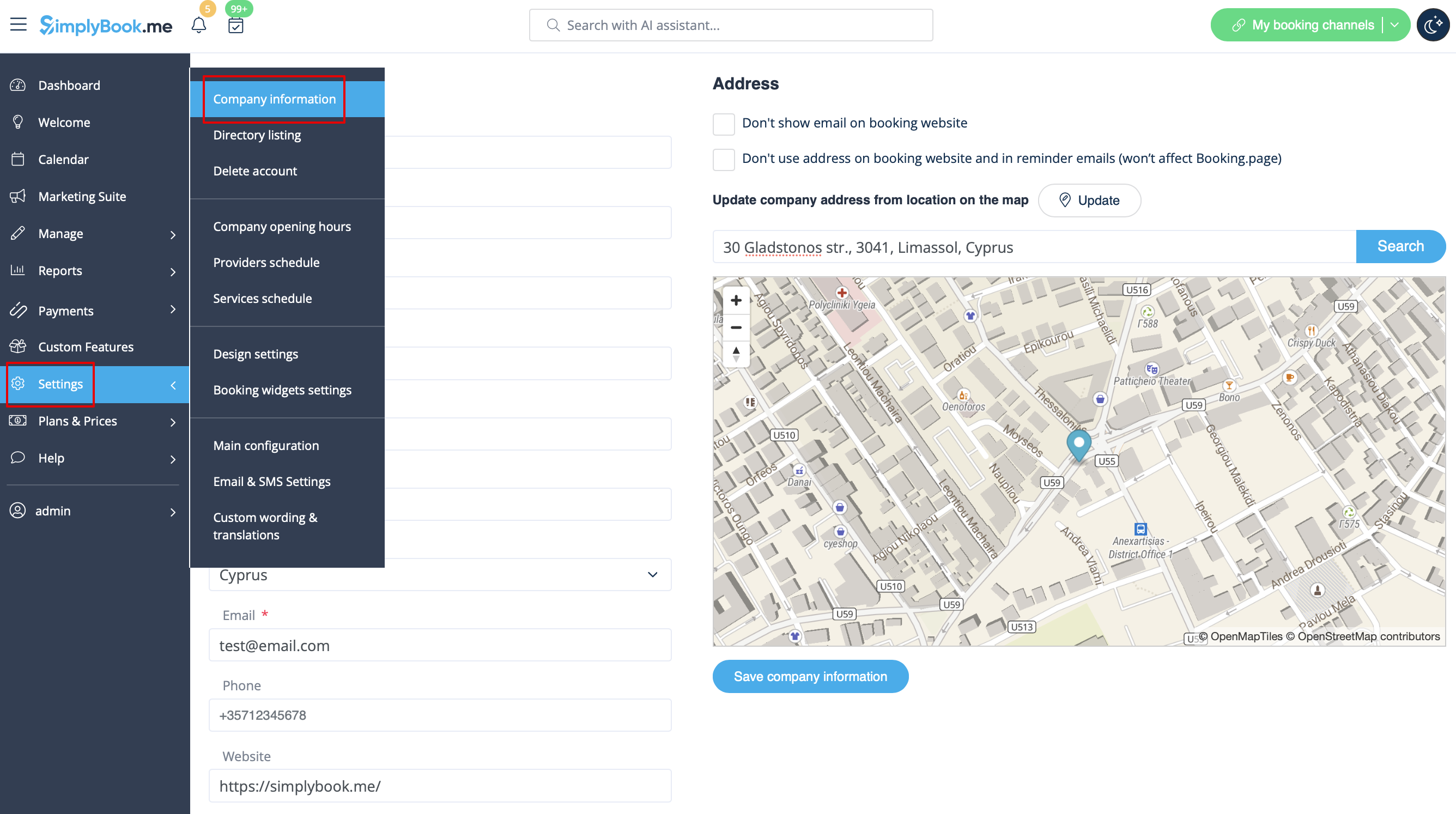
Company url
Unfortunately, there is no option to change url within the system. In order to change it, you need to register a new company with desired url.
Free:
You can create a new company with the desired name in url and manually transfer all data and settings there. You can create services and providers, and copy list of clients to new system with Import Clients Custom Feature (see instructions here). Bookings and other settings cannot be transferred.
Paid:
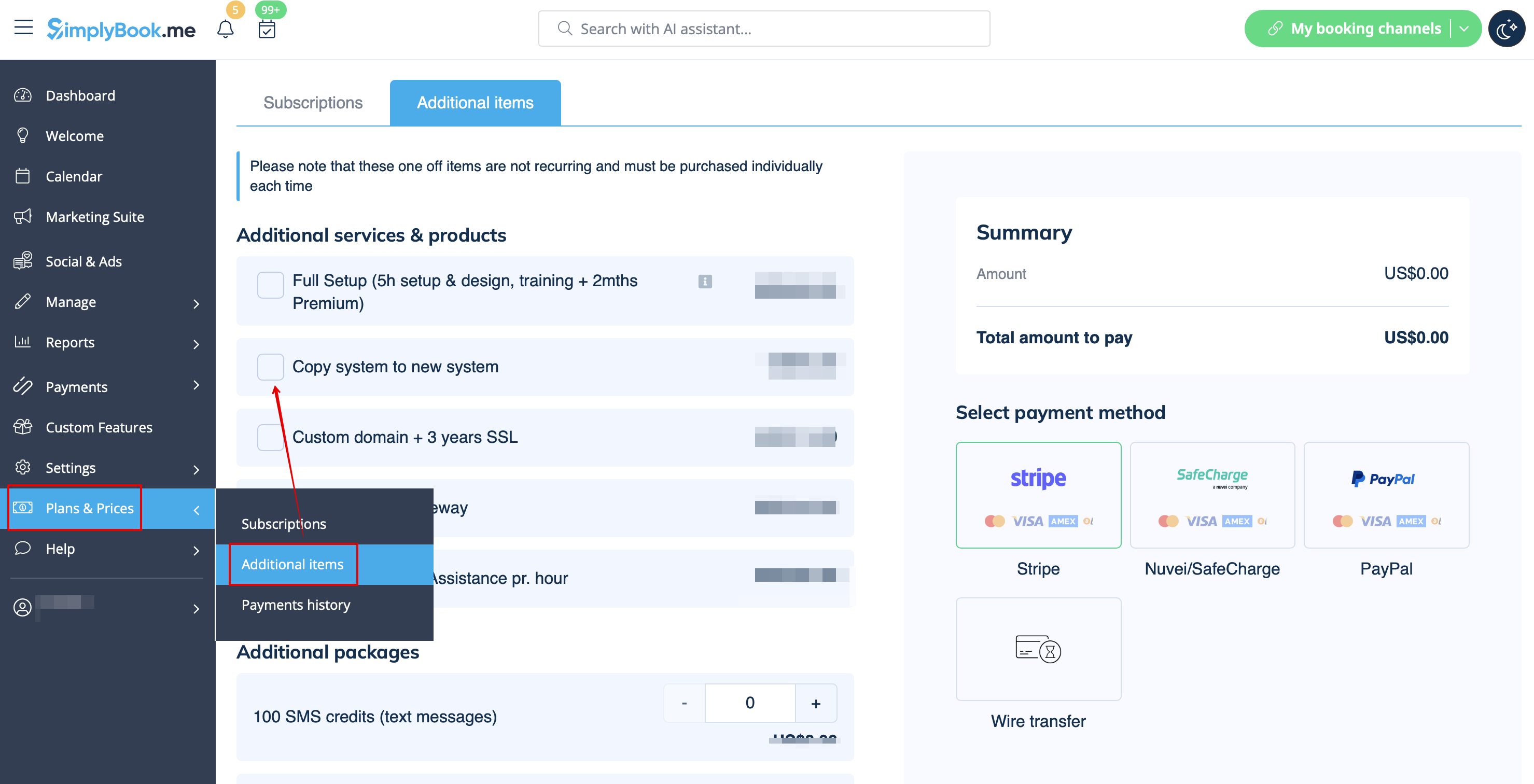
Create a new system with the desired name in url, go to Plans&Prices // Additional items and select "Copy system to new system" , make payment and our developers will transfer your data. After you made a payment, you need to contact support, tell them old company name and new company name (confirm ownership of both accounts), and request transfer of the system.
Please note! Reviews as well as HTML formatting in descriptions will not be copied to the new system.
Company logo and background
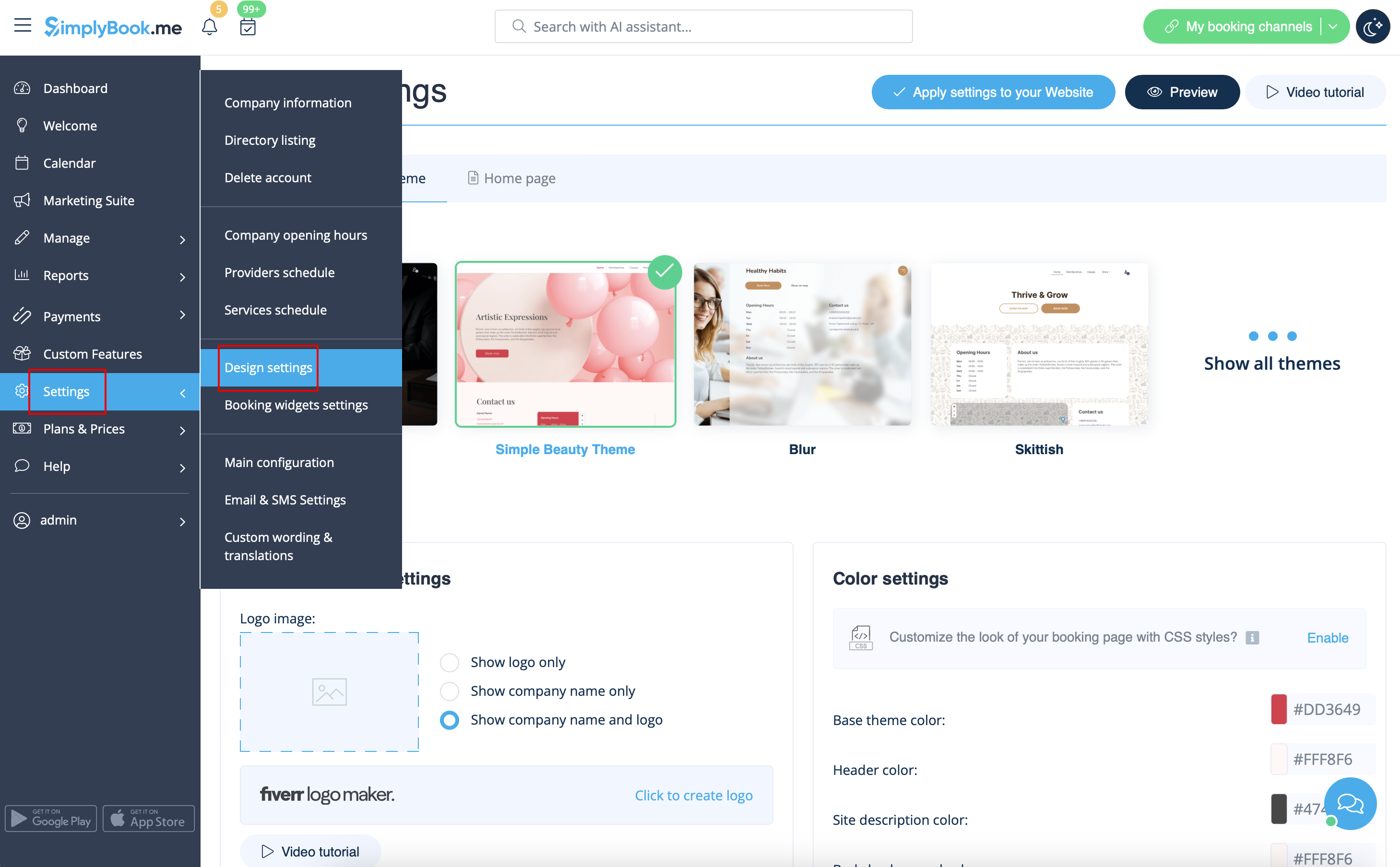
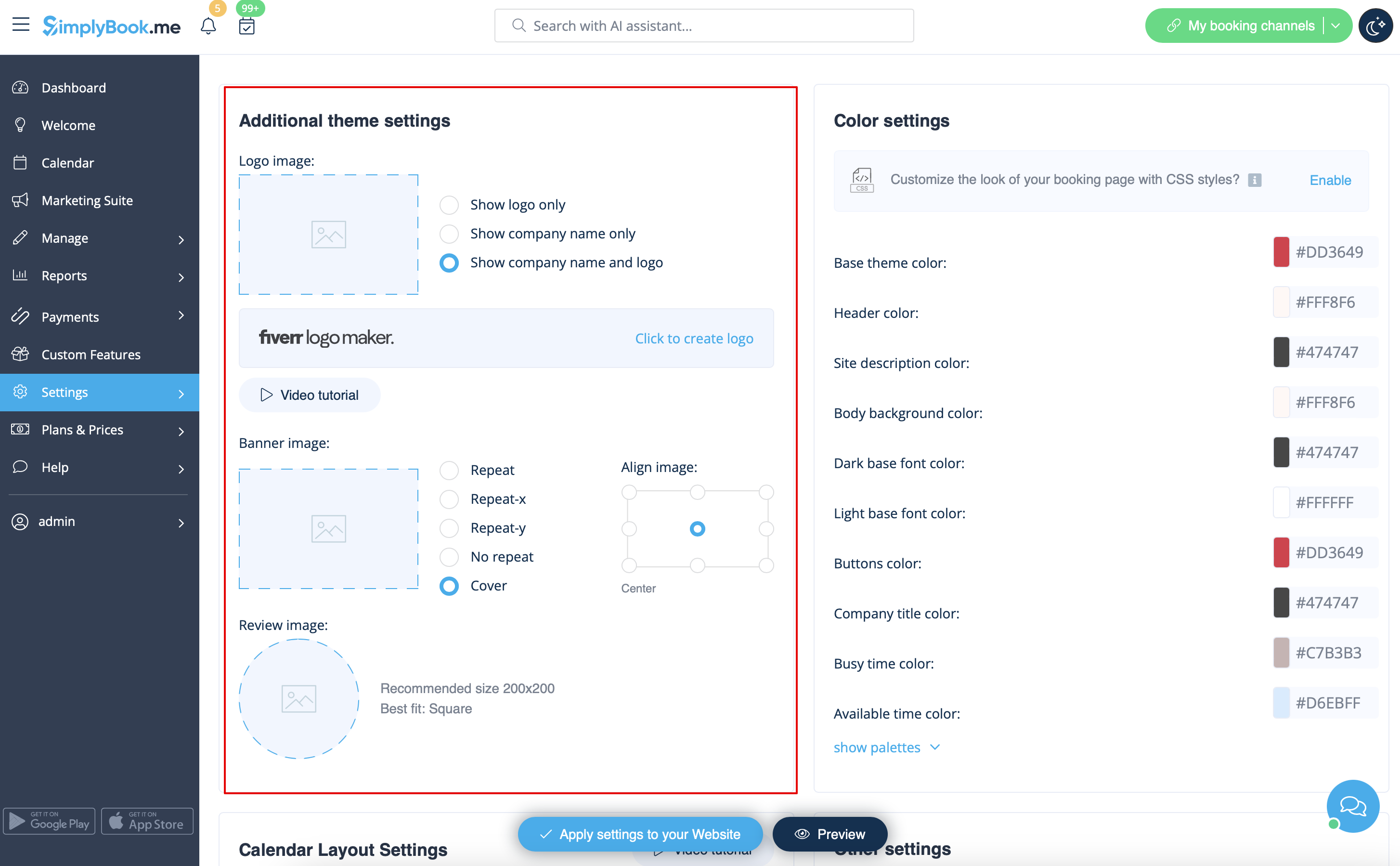
In Settings // Design settings // Additional theme settings.
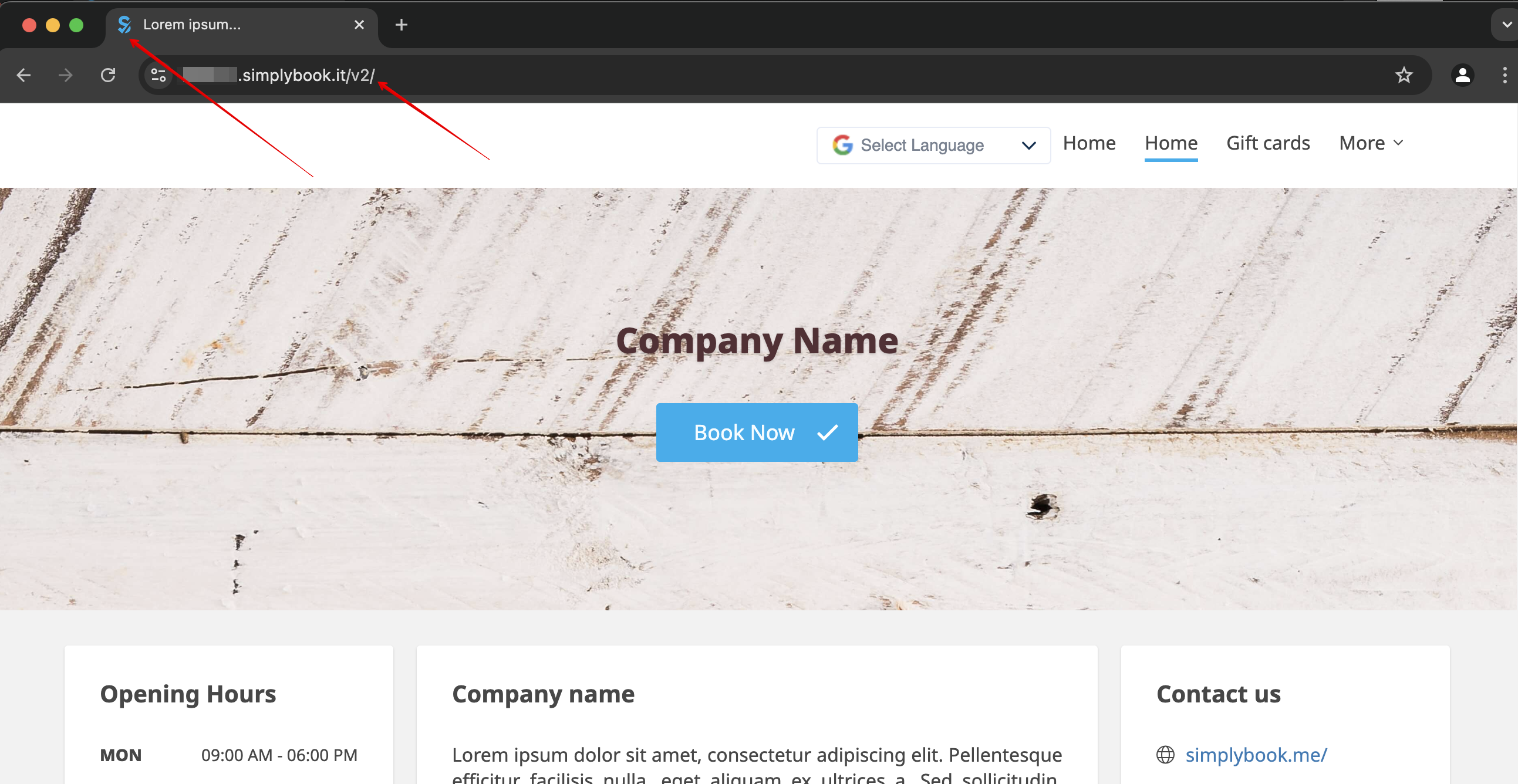
Favicon
The /v2/ part in the URL of the booking website cannot be removed or changed.
This element is fixed and cannot be altered.
Favicon (logo shown in the browser tab) can be changed on Enterprise level only.
Design
In Settings // Design settings.
- Recommended themes
- All new ones
Those themes support all new functionality and have the option to adjust the colors of your booking page.
Texts and language
If you need to adjust any texts on your booking page (for example change Employee to Therapist, Coach or Room), you can do it in Settings // Custom Wording & Translations.
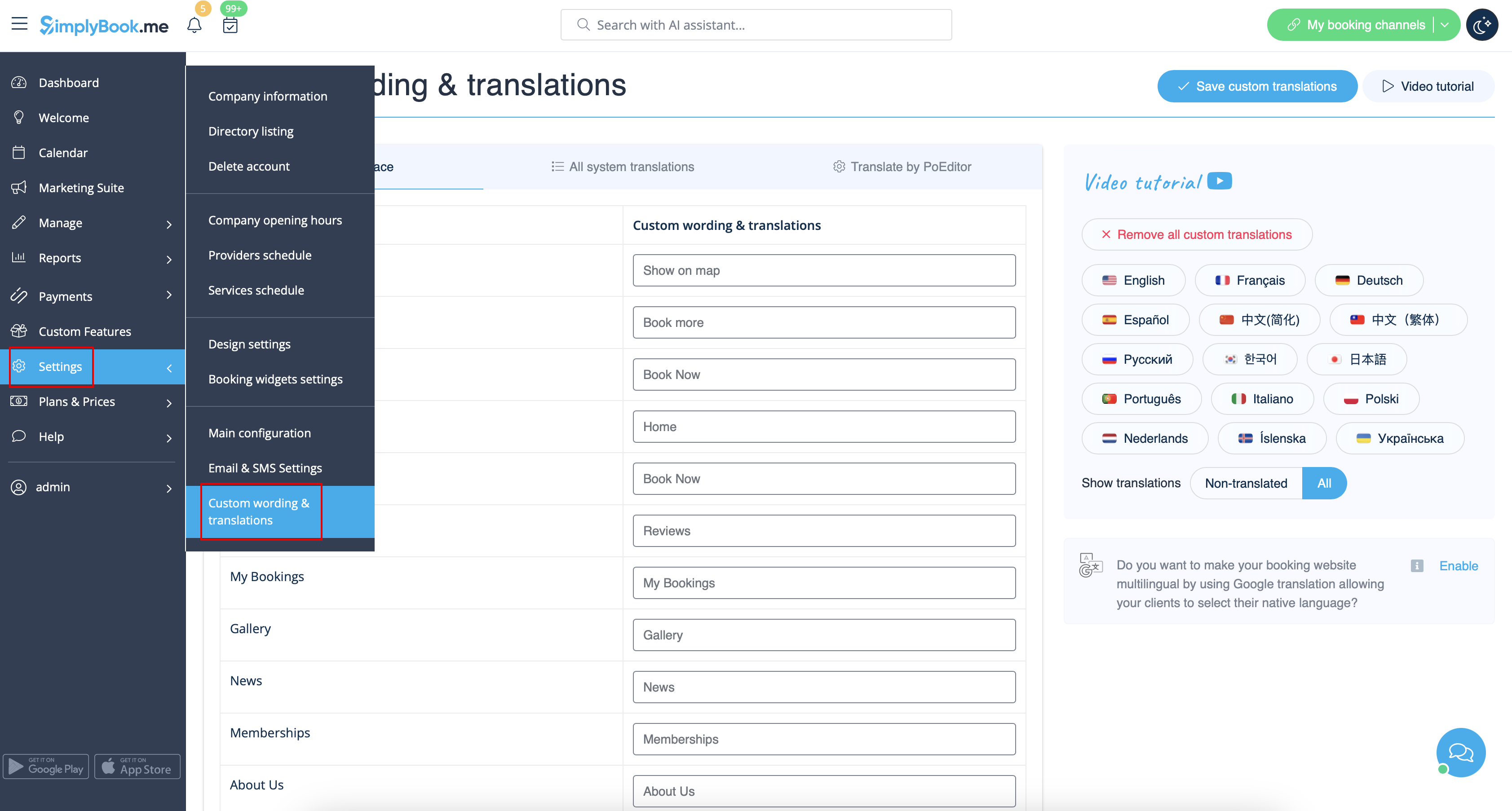
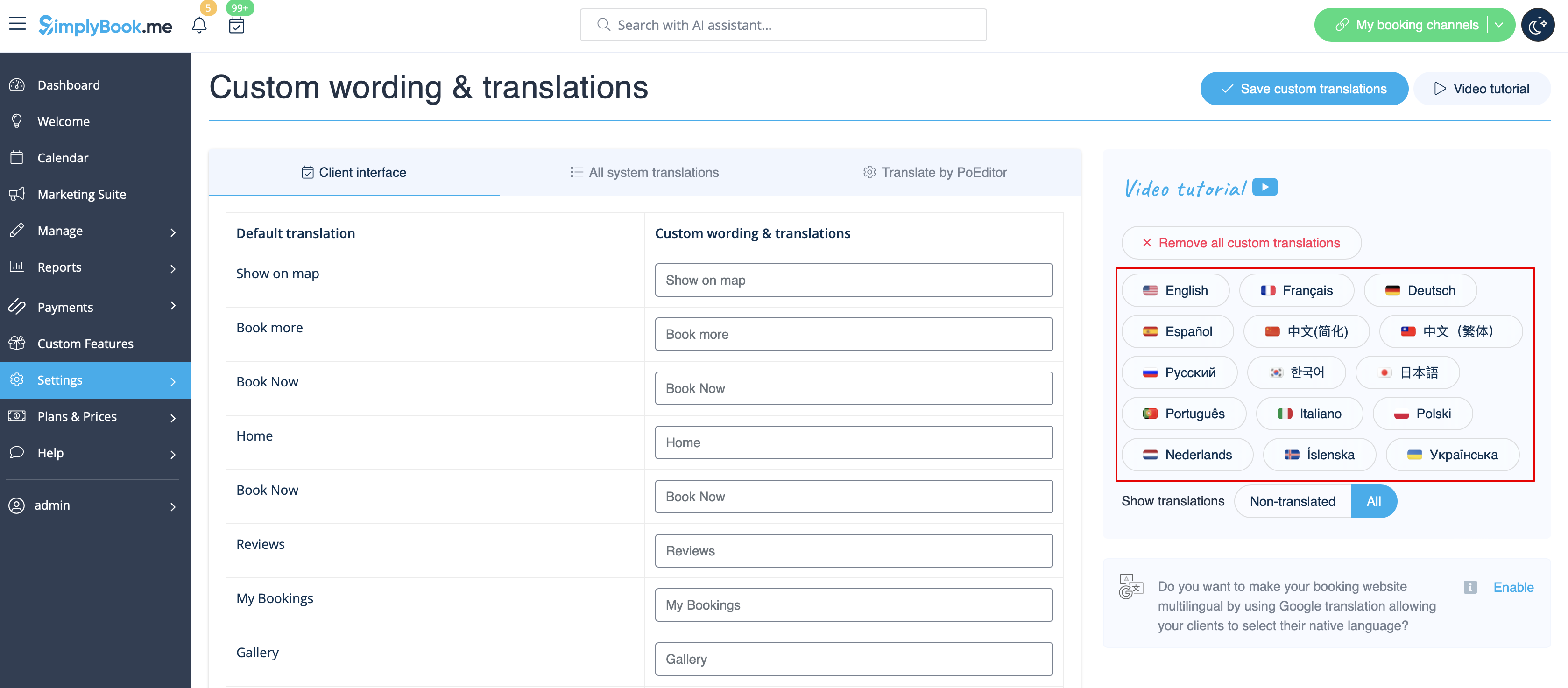
There, you can also change language of your booking page by clicking on the corresponding flag and pressing "Save custom translations". If your language is not in the list you can translate the system yourself.
SEO Settings
By default the Title tag is represented by your company name that you have inserted in Settings -> Company information -> Name and automatic addition of Scheduling and Booking Website text.
Meta description is taken from the text that you have added in Settings -> Design settings -> Home page -> description text for About Us booking website block.
If you need you can set these two options to contain different data and thus influence your booking website SEO.
To set own Title tag and Meta description please navigate to Settings -> Design settings -> Home page and add the desired texts to the corresponding fields there.
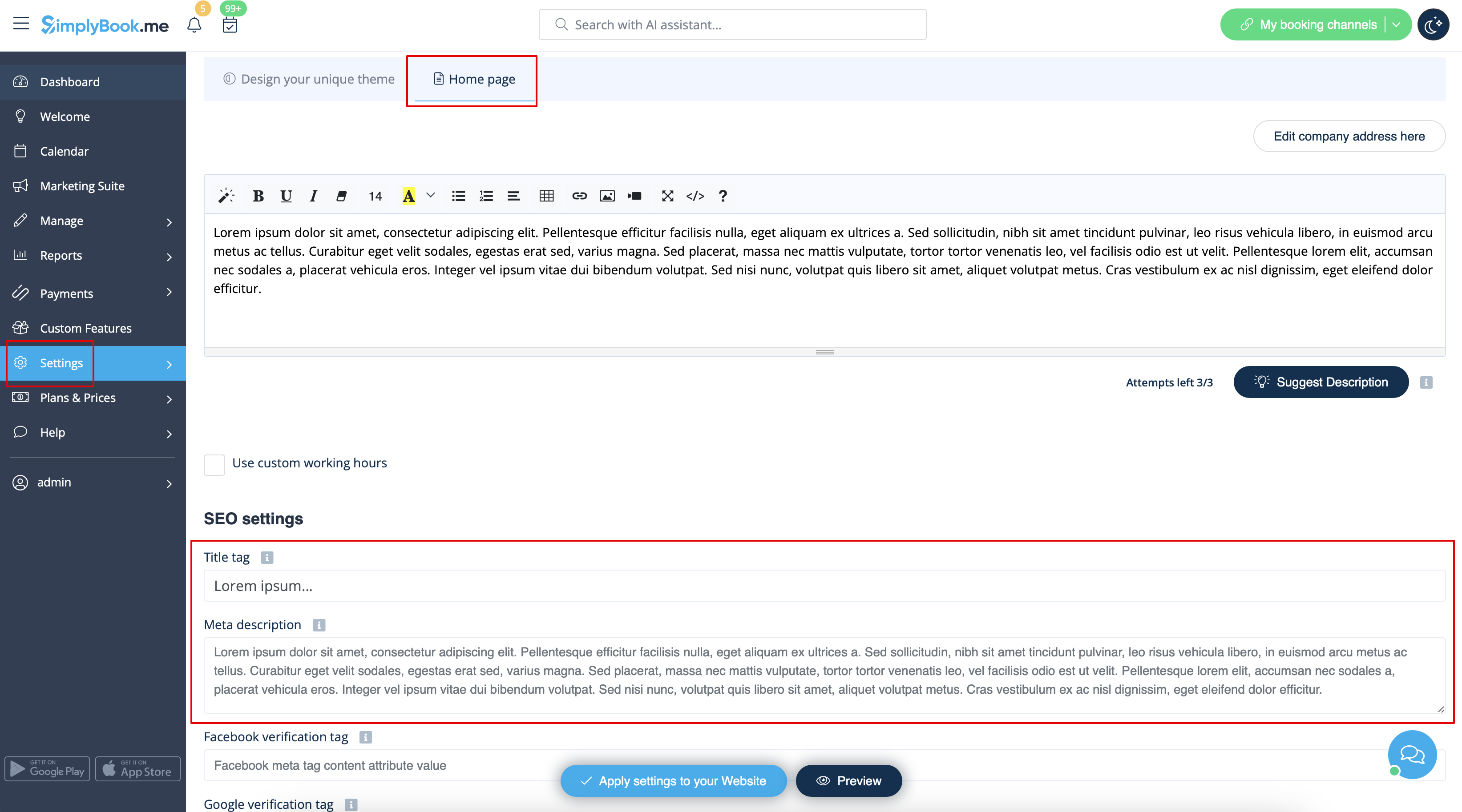
Please note!We recommend using no more than 60 symbols for Title tag.
Meta description is limited to 400 characters and if you try to add a longer abstract it will be automatically cut when saving the settings.
Our Time
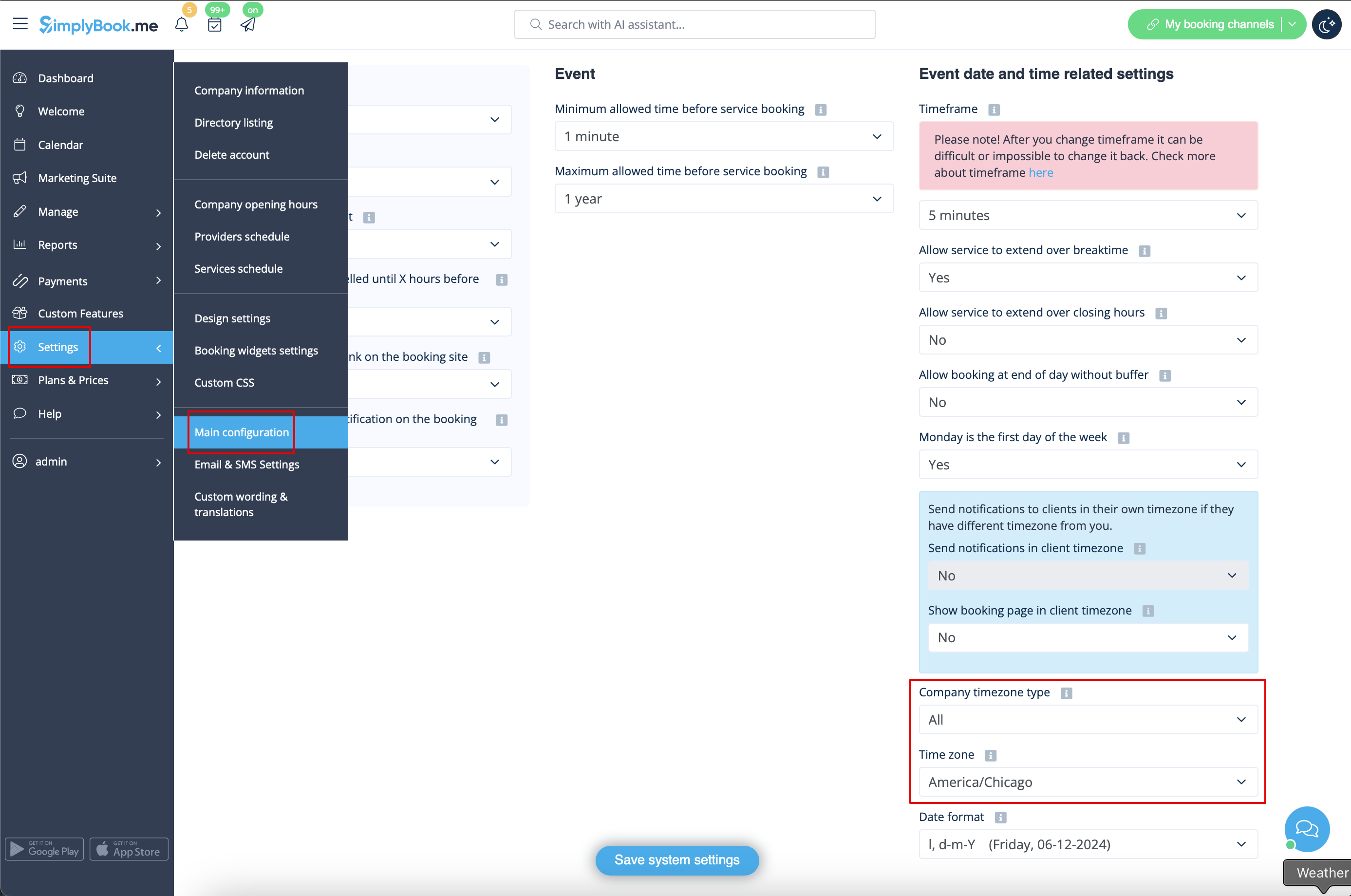
Your time on the booking page is the time of the company's time zone. You can change your time zone in Settings -> Main configuration -> Time zone.
About section
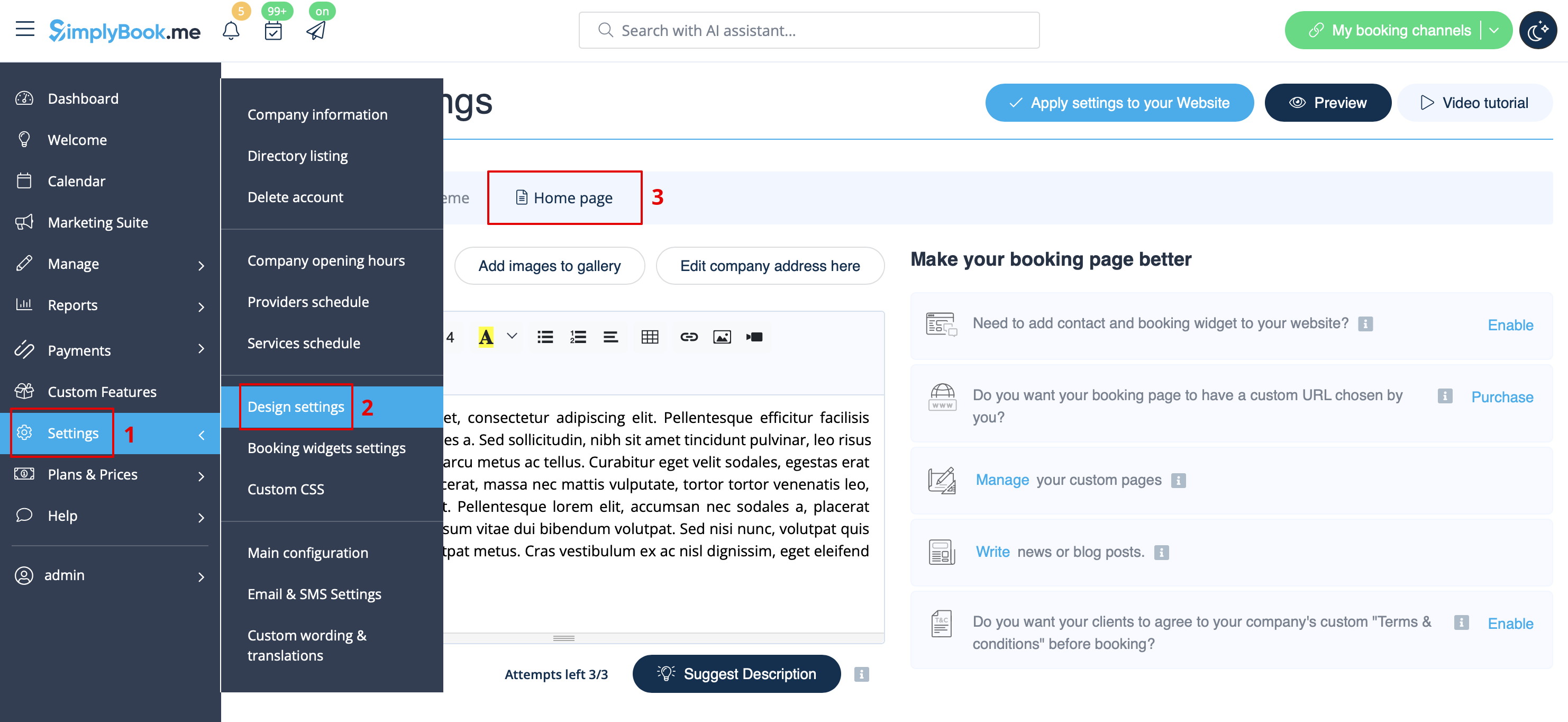
In Settings // Design settings // Home page // Company description.
Address
In Settings // Company Information // Address.
Company Contacts
You can edit them in Settings -> Company information
The following details can be added/edited:
- Email address
- Phone number
- Website address
- WhatsApp phone
- Facebook profile url
- X.com (Twitter) page link
- Instagram page url
- LinkedIn page
An example of the client side look.
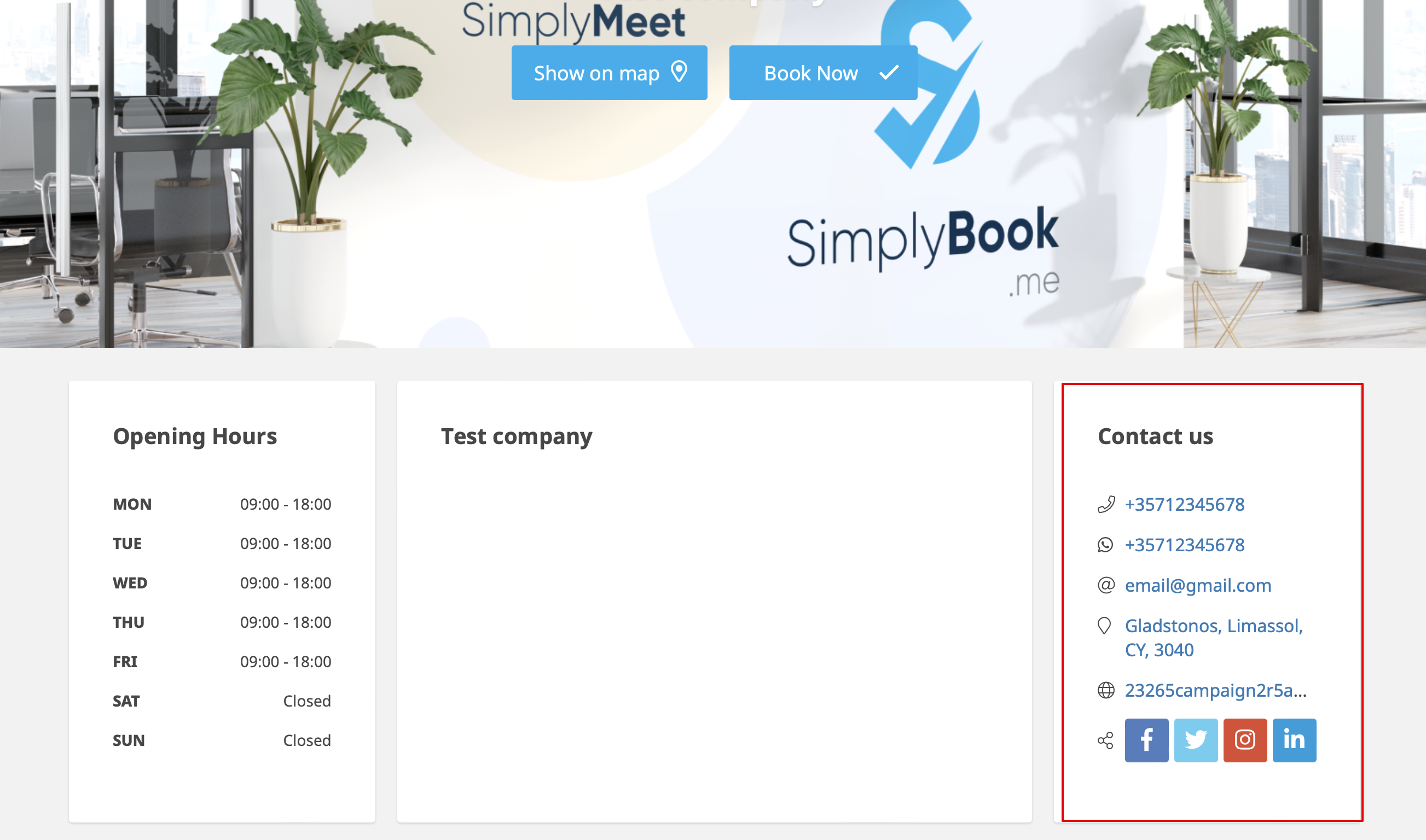
The clients will be able to, for example, click on WhatsApp number and be redirected to the WhatsApp messenger to easily contact you there.
Working hours
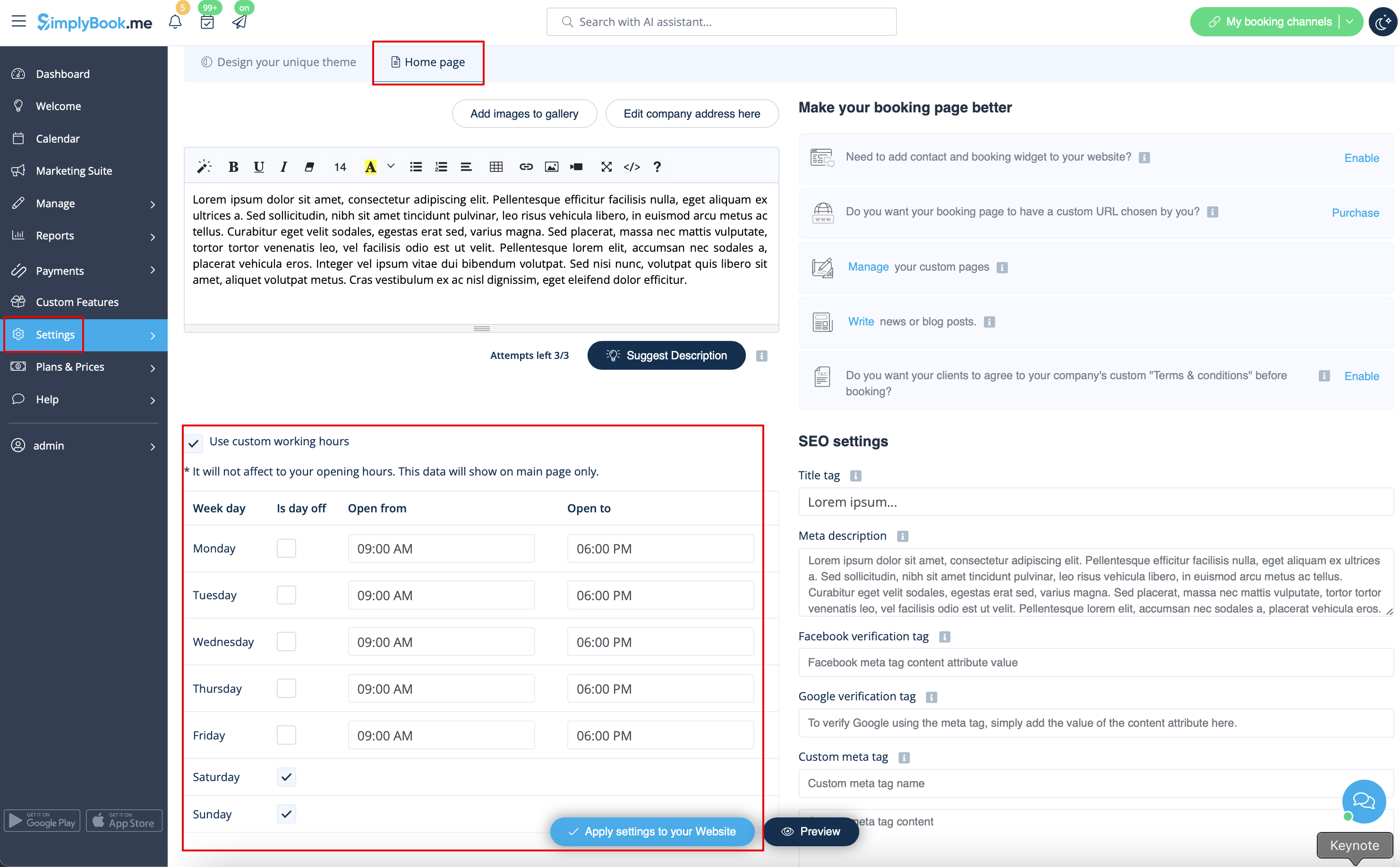
Working hours block on the booking page:

To change working hours block go to Settings // Company opening hours.
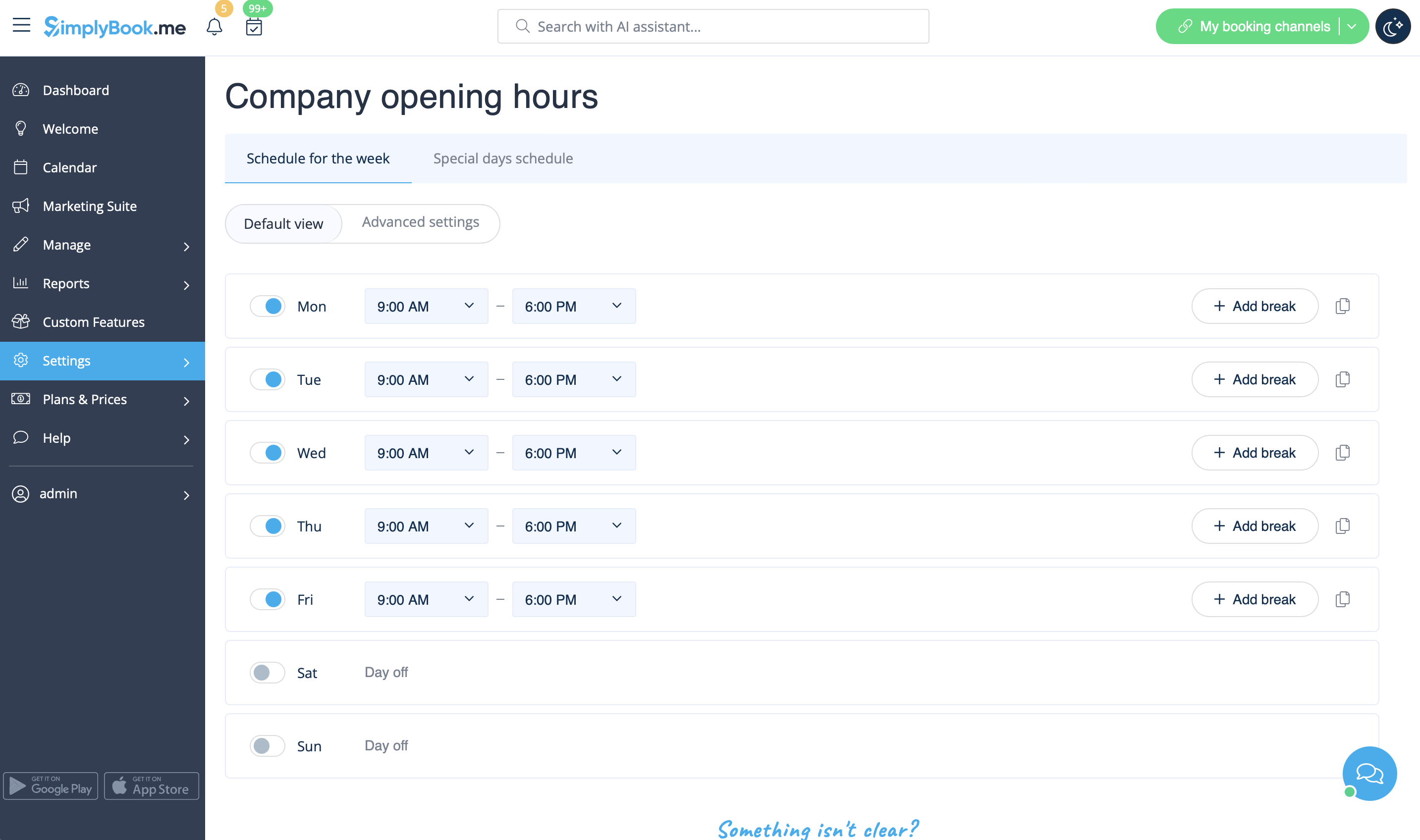
If you wish to display times different from real working hours there you can use "Use custom working hours" in Settings//Design settings//Home page.
Calendar Layout
You can change calendar layout in Settings // Design settings // Calendar Layout settings // Calendar Layout drop-down
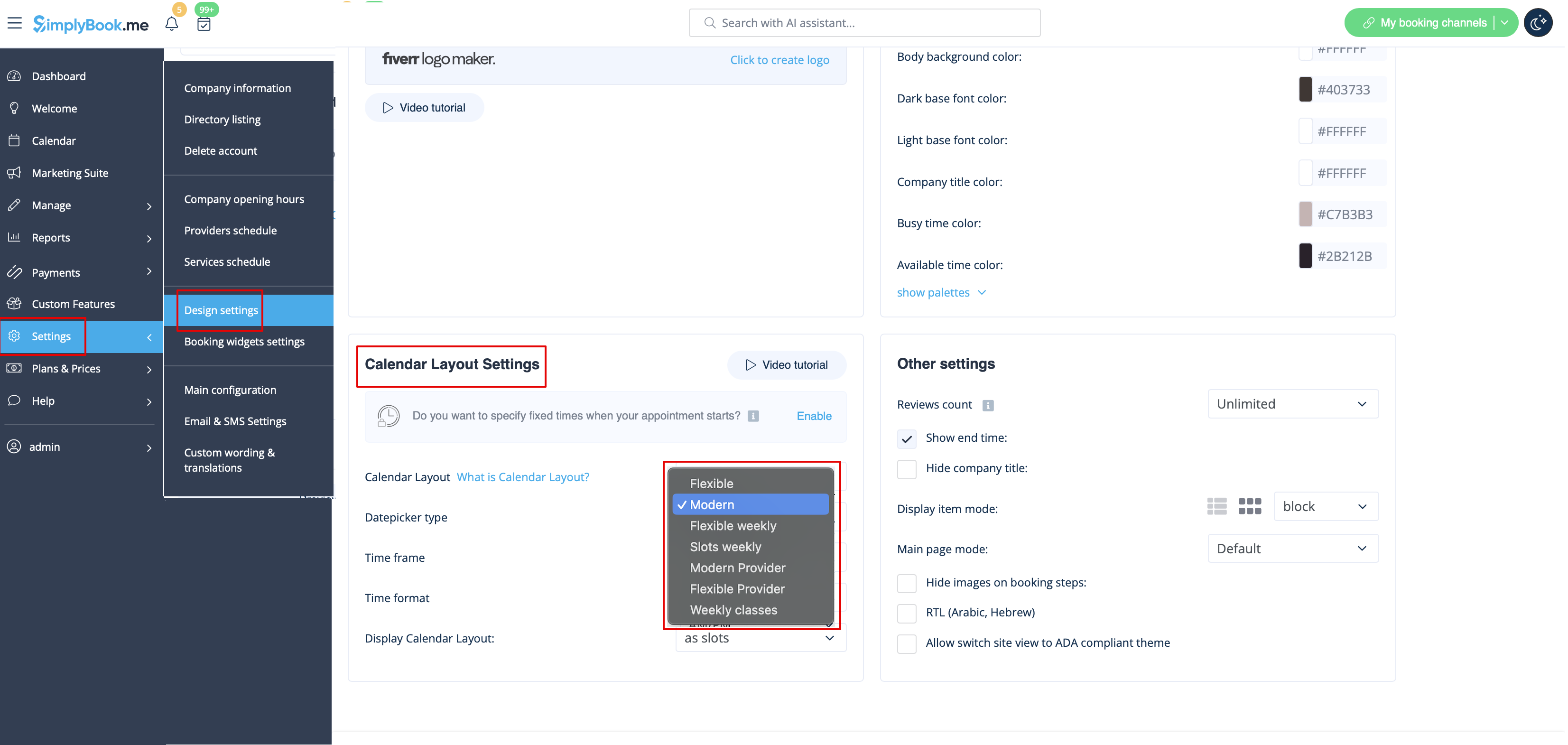
There are 9 types of calendar layout:
- Slots weekly - shows available time in the intervals equal to your service duration for a week. Starts counting from the first available time.
- Modern - shows available time in the intervals equal to your service duration for a day. Starts counting from the first available time.
- Flexible weekly - shows available time in the intervals equal to your timeframe duration for a week. Starts counting from the first available time.
- Flexible - shows available time in the intervals equal to your timeframe duration for a day. Starts counting from the first available time.
- Modern provider - shows available time for providers for chosen date. Starts counting from the first available time of all providers.
- Flexible provider- shows available times for providers in the intervals equal to your timeframe duration. Starts counting from the first available time on selected date.
- Daily Classes- shows available times for classes in the intervals equal to class duration. Starts counting from the first available time.
- Please note! Multiple Bookings custom feature currently does not work with Classes layout.
- Weekly Classes shows available times for classes in the intervals equal to class duration with weekly options. Starts counting from the first available time for a date. Only available times are displayed, unavailable slots are hidden.
If you have services that have fixed start times, you can try using Appointment at fixed time Custom Feature.
Interval
You can change it in Settings // Main configuration // Timeframe.
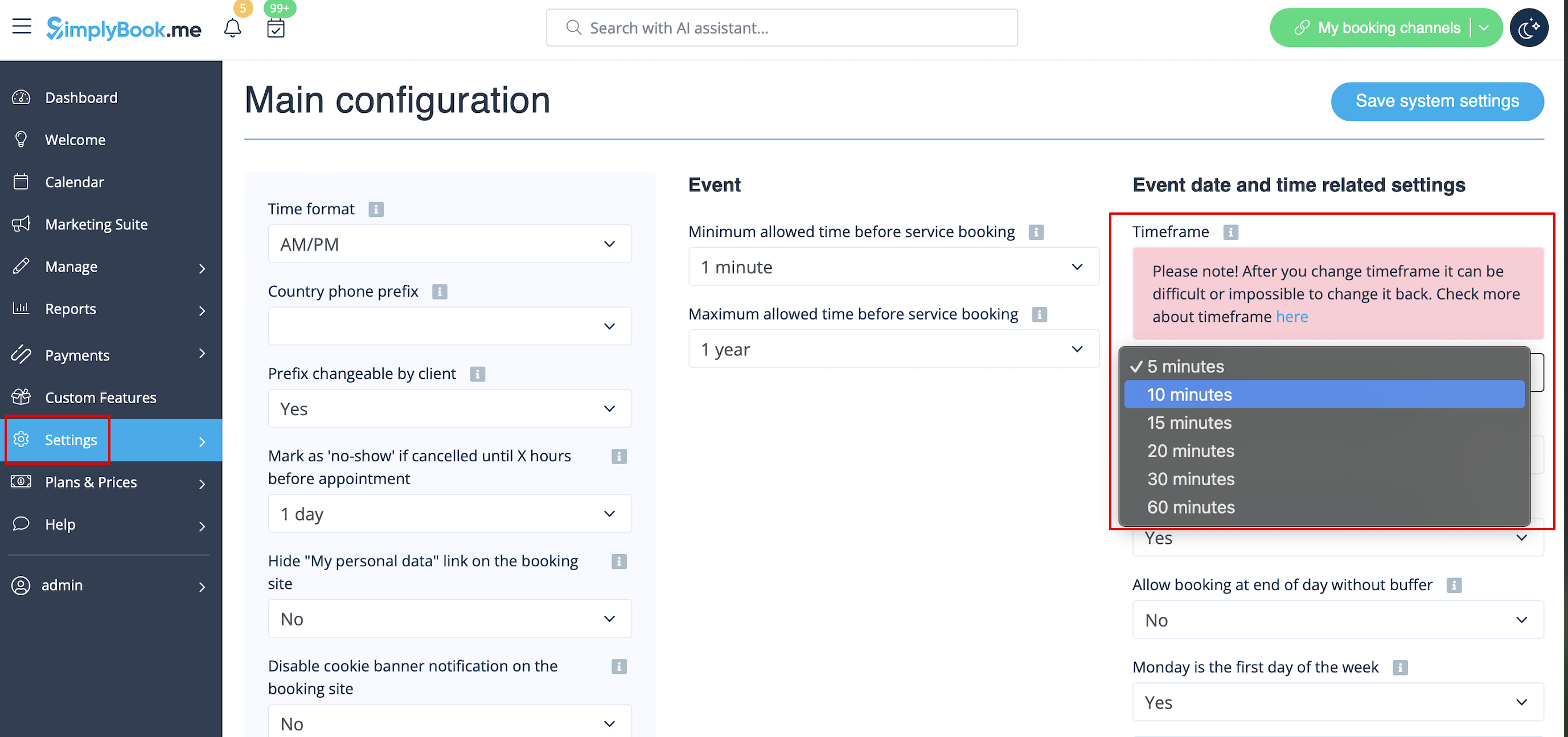
You can also try to change calendar layout to flexible in order to show availability according to your interval. Check types of Calendar Layouts here.
