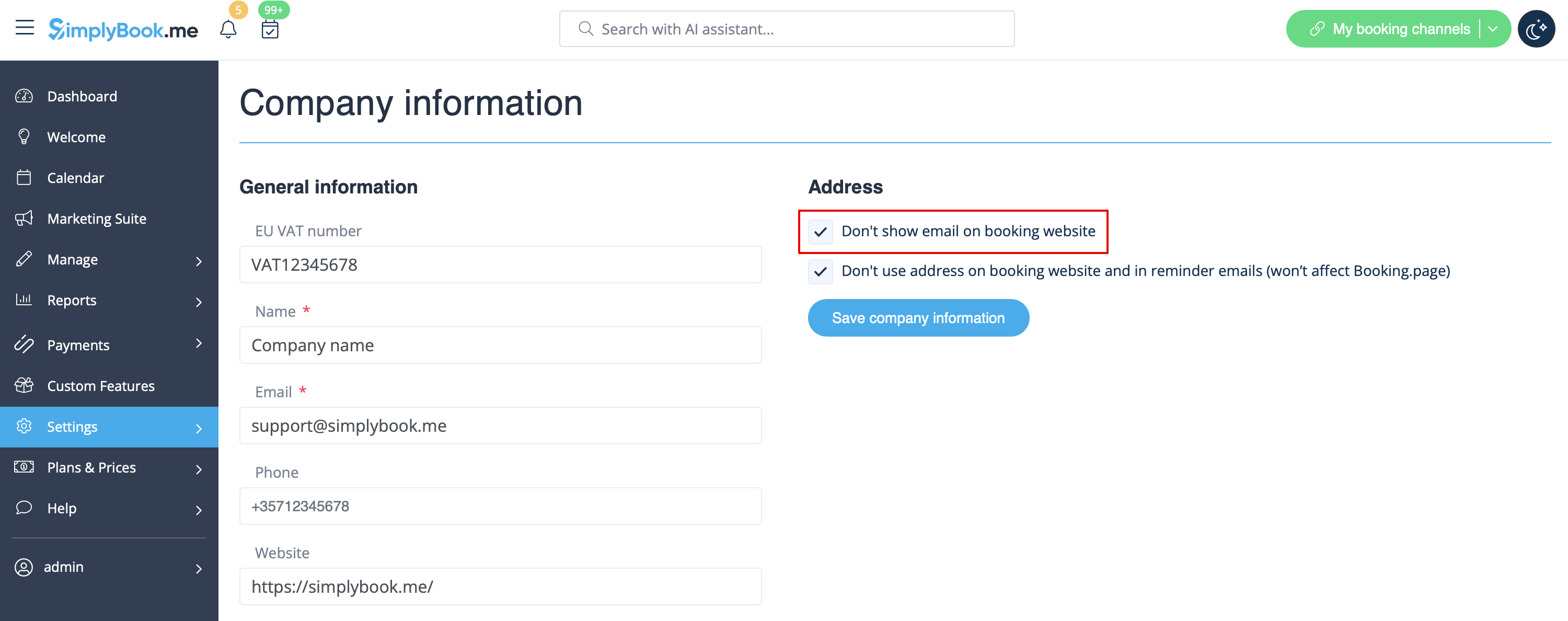
Created page with "= Virksomhedens e-mailadresse = I <span style="background-color:#d4f8e5; padding:5px; border-radius:5px;">Indstillinger</span> -> <span style="background-color:#d4f8e5; padding:5px; border-radius:5px;">Virksomhedsoplysninger</span> -> <span style="background-color:#d4f8e5; padding:5px; border-radius:5px;">Vis ikke e-mail på bookingsiden</span>.<br/> File:Hide company email redesigned.png|1200px | center|link=https://help.simplybook.me/images/3/32/Hide_company_em..." |
No edit summary Tags: Mobile edit Mobile web edit |
||
| (16 intermediate revisions by 2 users not shown) | |||
| Line 1: | Line 1: | ||
<languages/> | <languages/> | ||
{{#seo: |title=Fjern elementer fra bookingsiden - SimplyBook.me |description=Fjern | {{#seo: |title=Fjern elementer fra bookingsiden - SimplyBook.me |description=Skjul specifikke elementer på bookingsiden. Fjern servicebeskrivelser, udbyderbilleder og prisvisning. Tilpas, hvad kunder ser under booking.|titlemode=tilføj |keywords=faq, ofte stillede spørgsmål, bookingsoftware, spørgsmål til aftalesystem, aftaler online, kalendersoftware, bookingsystem, bookingkalender, planlægningssoftware, online aftaleplanlægning, online planlægning, opsætning, hjælp til opsætning, support, hjælpeindhold, fjerne elementer, justere udseende, fjerne information, fjerne link }} | ||
| Line 8: | Line 8: | ||
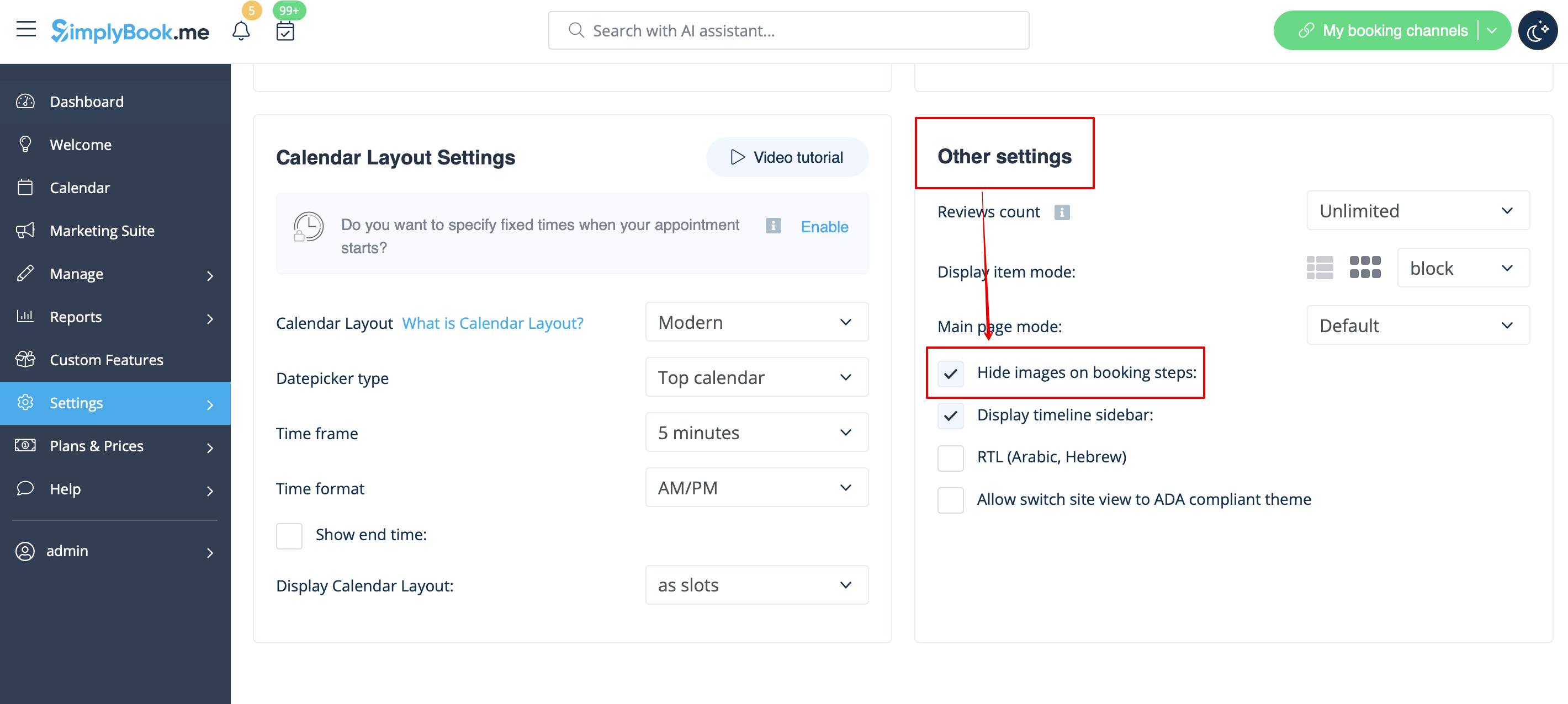
[[File:Hide images from booking steps redesigned.png|1200px|border| center|link=https://help.simplybook.me/images/d/db/Hide_images_from_booking_steps_redesigned.png]] | [[File:Hide images from booking steps redesigned.png|1200px|border| center|link=https://help.simplybook.me/images/d/db/Hide_images_from_booking_steps_redesigned.png]] | ||
= Mulighed for at betale senere = | =Mulighed for at betale senere= | ||
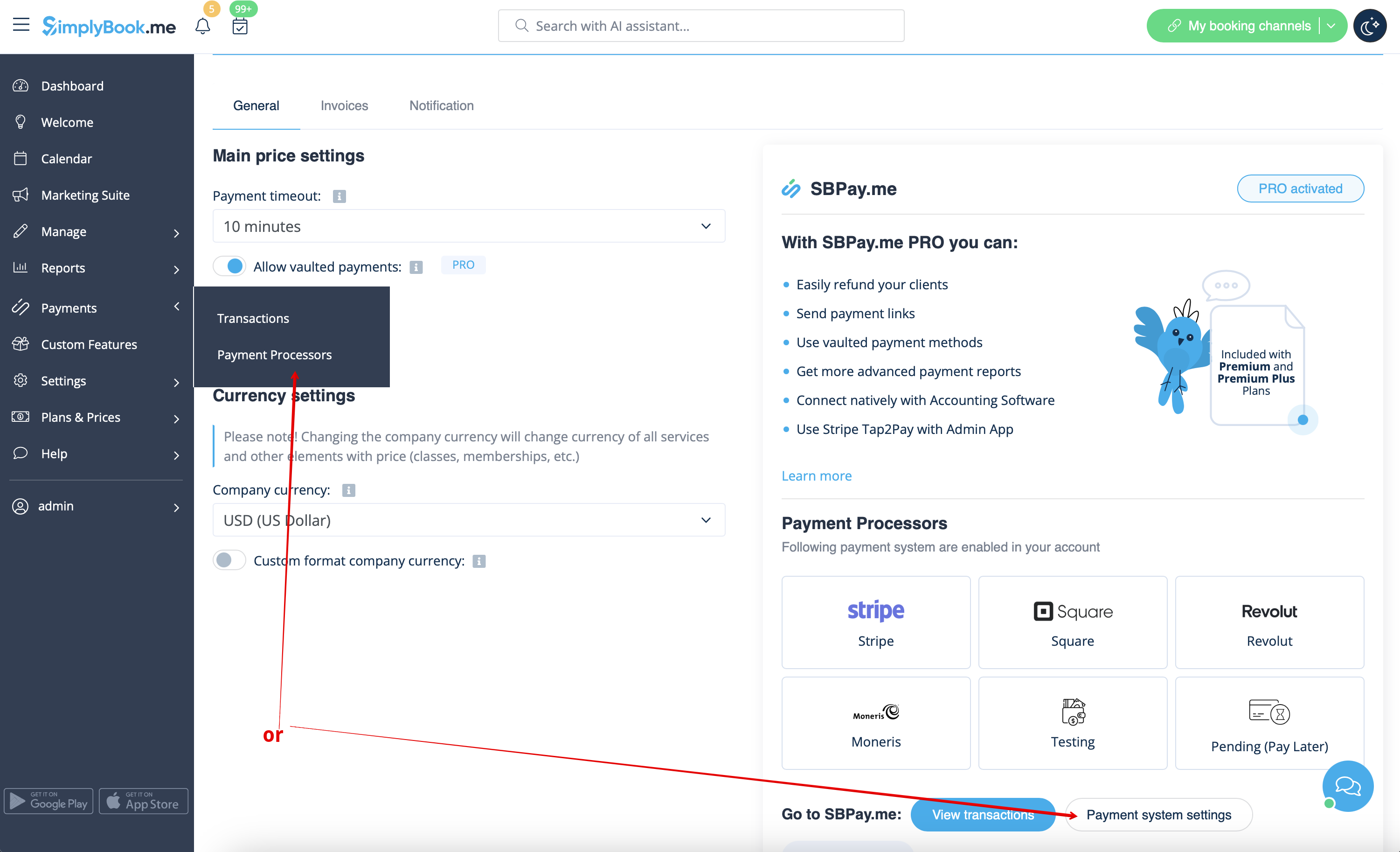
Gå til <span style="background-color:#d4f8e5; padding:5px; border-radius:5px;"> | Gå til <span style="background-color:#d4f8e5; padding:5px; border-radius:5px;">Betalinger</span> -> <span style="background-color:#d4f8e5; padding:5px; border-radius:5px;">Betalingsgateways</span> eller <span style="background-color:#d4f8e5; padding:5px; border-radius:5px;">Tilpassede funktioner</span> -> <span style="background-color:#cdeffc; padding:5px; border-radius:5px;">[[Special:MyLanguage/Accept_payments_custom_feature|Accepter betalinger]]</span> -> <span style="background-color:#d4f8e5; padding:5px; border-radius:5px;">Indstillinger</span> -> <span style="background-color:#d4f8e5; padding:5px; border-radius:5px;">Indstillinger for betalingssystem</span> for at åbne SBPay.me og deaktivere muligheden <span style="background-color:#d4f8e5; padding:5px; border-radius:5px;">Betal senere</span> der. | ||
[[File:Payment processors settings path redesigned.png|1200px| border|center|link=https://help.simplybook.me/images/6/6f/Payment_processors_settings_path_redesigned.png]] | [[File:Payment processors settings path redesigned.png|1200px| border|center|link=https://help.simplybook.me/images/6/6f/Payment_processors_settings_path_redesigned.png]] | ||
<br><br> | <br><br> | ||
= Medarbejder-trin = | = Medarbejder-trin = | ||
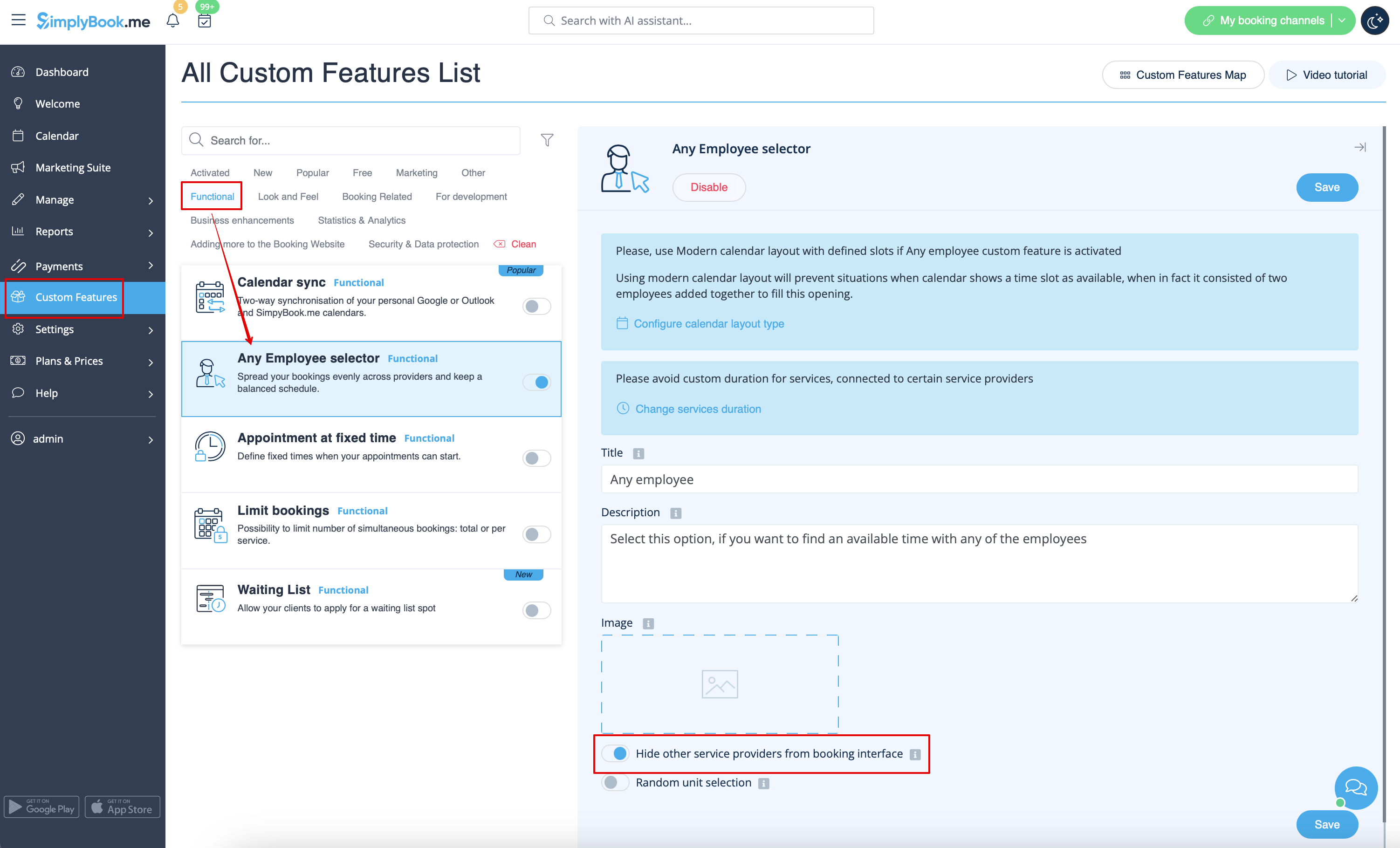
Aktivér <span style="background-color:#cdeffc; padding:5px; border-radius:5px;">[[ | Aktivér <span style="background-color:#cdeffc; padding:5px; border-radius:5px;">[[Special:MyLanguage/Any_Employee_Selector_custom_feature|Any Employee Selector]]</span> i <span style="background-color:#d4f8e5; padding:5px; border-radius:5px;">afsnittet Brugerdefinerede funktioner</span>, og i <span style="background-color:#d4f8e5; padding:5px; border-radius:5px;">indstillingerne</span> til højre på siden skal du aktivere indstillingen <span style="background-color:#d4f8e5; padding:5px; border-radius:5px;">Skjul andre tjenesteudbydere fra bookinggrænsefladen</span><br/> | ||
[[File:Any employee hide provider redesigned.png|1200px| center|link=https://help.simplybook.me/images/6/68/Any_employee_hide_provider_redesigned.png]] | [[File:Any employee hide provider redesigned.png|1200px| center|link=https://help.simplybook.me/images/6/68/Any_employee_hide_provider_redesigned.png]] | ||
<br><br> | <br><br> | ||
| Line 41: | Line 41: | ||
= Galleri = | |||
I afsnittet <span style="background-color:#d4f8e5; padding:5px; border-radius:5px;">Brugerdefinerede funktioner</span> skal du deaktivere <span style="background-color:#cdeffc; padding:5px; border-radius:5px;">[[Special:MyLanguage/Photo_Gallery_custom_feature| fotogalleri]]</span>[[File:Photo gallery disable path redesigned.png|1200px | center|link=https://help.simplybook.me/images/5/5f/Photo_gallery_disable_path_redesigned.png]] | |||
[[File:Photo gallery disable path redesigned.png|1200px | center|link=https://help.simplybook.me/images/5/5f/Photo_gallery_disable_path_redesigned.png]] | [[File:Photo gallery disable path redesigned.png|1200px | center|link=https://help.simplybook.me/images/5/5f/Photo_gallery_disable_path_redesigned.png]] | ||
<br><br> | <br><br> | ||
= Arbejdstid = | |||
= | Hvis du vil fjerne dette afsnit for nye temaer, skal du gå til <span style="background-color:#d4f8e5; padding:5px; border-radius:5px;">Indstillinger</span> -> <span style="background-color:#d4f8e5; padding:5px; border-radius:5px;">Designindstillinger</span> -> <span style="background-color:#d4f8e5; padding:5px; border-radius:5px;">Andre indstillinger</span> -> <span style="background-color:#d4f8e5; padding:5px; border-radius:5px;">Hovedsidetilstand</span> og vælge tilstand uden arbejdstid. | ||
[[File:Main page mode change redesigned.png|1200px| center|link=https://help.simplybook.me/images/b/b3/Main_page_mode_change_redesigned.png]] | [[File:Main page mode change redesigned.png|1200px| center|link=https://help.simplybook.me/images/b/b3/Main_page_mode_change_redesigned.png]] | ||
<br><br> | <br><br> | ||
<div | <div class="mw-translate-fuzzy"> | ||
=SimplyBook.me | = SimplyBook.me Vilkår og betingelser = | ||
:<span style="background-color:#ffe9e9; padding:5px; border-radius:5px;">''' | :<span style="background-color:#ffe9e9; padding:5px; border-radius:5px;">'''Bemærk''', at du skal bekræfte, at du har tilføjet oplysninger om SimplyBook.me Ltd. som leverandør til dine vilkår og betingelser.</span> | ||
For at fjerne afkrydsningsfeltet skal du have aktiveret og korrekt indstillet alle de nævnte muligheder:<br><br> | |||
Enten: <br> | |||
1. <span style="background-color:#cdeffc; padding:5px; border-radius:5px;">[[ | 1. <span style="background-color:#cdeffc; padding:5px; border-radius:5px;">[[Special:MyLanguage/SMTP_custom_feature | SMTP]]</span> + <span style="background-color:#cdeffc; padding:5px; border-radius:5px;">[[Special:MyLanguage/Custom_Domain_custom_feature | Brugerdefineret domæne]]</span> + <span style="background-color:#cdeffc; padding:5px; border-radius:5px;">[[Special:MyLanguage/Terms_and_Conditions_custom_feature | Vilkår og betingelser]]</span> + <span style="background-color:#cdeffc; padding:5px; border-radius:5px;">[[Special:MyLanguage/Design| tema]]</span> forskelligt fra tomt. <br> | ||
Eller: <br> | |||
2. <span style="background-color:#cdeffc; padding:5px; border-radius:5px;">[[ | 2. <span style="background-color:#cdeffc; padding:5px; border-radius:5px;">[[Special:MyLanguage/SMTP_custom_feature | SMTP]]</span> + <span style="background-color:#cdeffc; padding:5px; border-radius:5px;">[[Special:MyLanguage/Terms_and_Conditions_custom_feature | Vilkår]]</span> og betingelser + <span style="background-color:#cdeffc; padding:5px; border-radius:5px;">tomt [[Special:MyLanguage/Design| tema]]</span> + <span style="background-color:#cdeffc; padding:5px; border-radius:5px;">[[Special:MyLanguage/Widgets_for_your_own_website| Widget]]</span> på din hjemmeside. | ||
<br><br> | <br><br> | ||
Derefter vil du kunne aktivere <span style="background-color:#d4f8e5; padding:5px; border-radius:5px;">Jeg bekræfter, at jeg har tilføjet oplysninger om SimplyBook.me Ltd. som leverandør til mine</span> vilkår og betingelser i <span style="background-color:#d4f8e5; padding:5px; border-radius:5px;">Brugerdefinerede funktioner</span> -> <span style="background-color:#d4f8e5; padding:5px; border-radius:5px;">Vilkår</span> og betingelser, og når du har gemt indstillingerne der, vil SimplyBook.me's vilkår og betingelser blive fjernet fra reservationssiden. | |||
[[File:Terma and conditions consent redesigned.png|1200px | center|link=https://help.simplybook.me/index.php/File:Terma_and_conditions_consent_redesigned.png]] | [[File:Terma and conditions consent redesigned.png|1200px | center|link=https://help.simplybook.me/index.php/File:Terma_and_conditions_consent_redesigned.png]] | ||
<br><br> | <br><br> | ||
| Line 72: | Line 68: | ||
= Link til mine personlige data = | |||
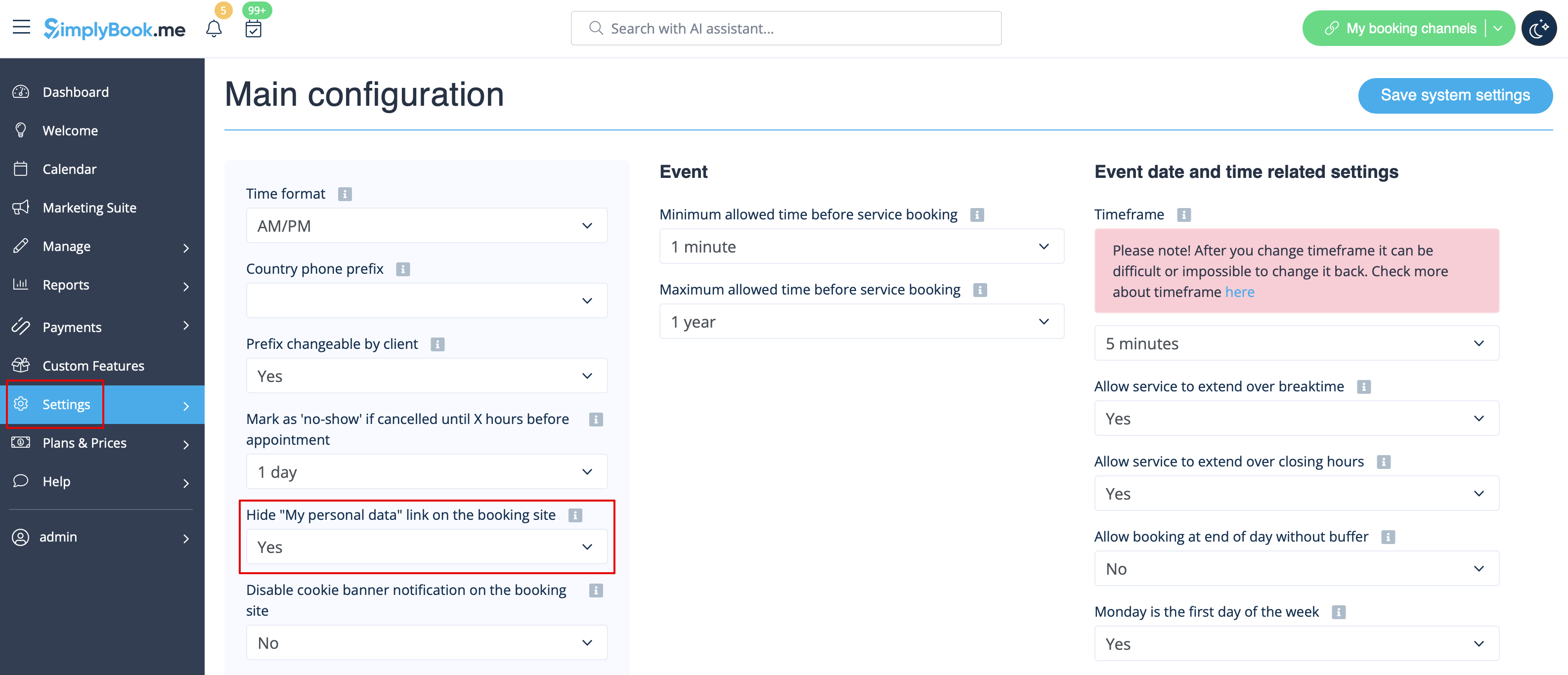
Gå til <span style="background-color:#d4f8e5; padding:5px; border-radius:5px;">Indstillinger</span> -> <span style="background-color:#d4f8e5; padding:5px; border-radius:5px;">Hovedkonfiguration</span>, og vælg <span style="background-color:#d4f8e5; padding:5px; border-radius:5px;">Ja</span> i <span style="background-color:#d4f8e5; padding:5px; border-radius:5px;">Skjul link til "Mine personlige data" på bookingsiden</span>. Gem indstillingerne. | |||
[[File:Hide personal data link redesigned.png|1200px|border|center|link=https://help.simplybook.me/images/8/80/Hide_personal_data_link_redesigned.png]] | [[File:Hide personal data link redesigned.png|1200px|border|center|link=https://help.simplybook.me/images/8/80/Hide_personal_data_link_redesigned.png]] | ||
<br><br> | <br><br> | ||
= Utilgængelige tidspunkter = | |||
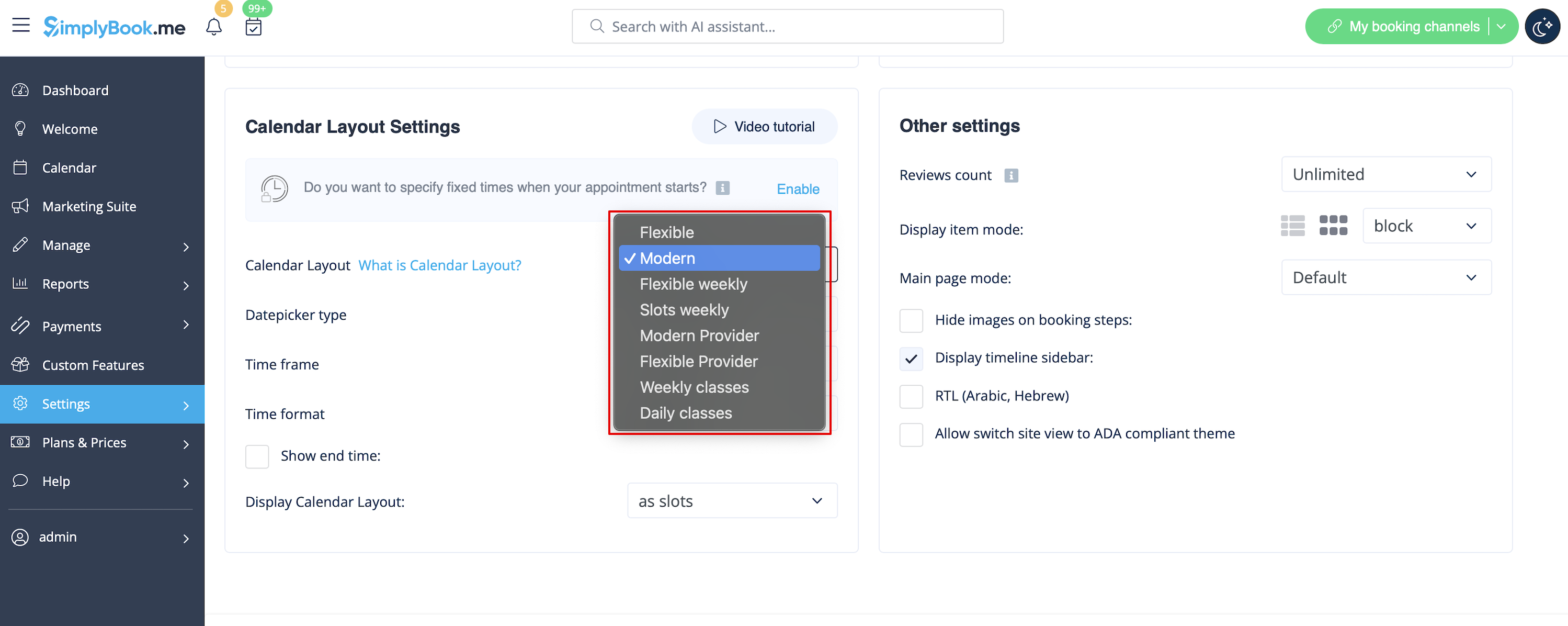
= | Vælg <span style="background-color:#d4f8e5; padding:5px; border-radius:5px;">moderne,</span> <span style="background-color:#d4f8e5; padding:5px; border-radius:5px;">moderne udbyder</span> <span style="background-color:#d4f8e5; padding:5px; border-radius:5px;">, daglig (tilgængelig med [[Special:MyLanguage/Classes_custom_feature|funktionen Klasser]] aktiveret)</span> eller <span style="background-color:#d4f8e5; padding:5px; border-radius:5px;">ugentlig klassekalenderlayout</span> i <span style="background-color:#d4f8e5; padding:5px; border-radius:5px;">Indstillinger</span> -> <span style="background-color:#d4f8e5; padding:5px; border-radius:5px;">Designindstillinger</span> -> <span style="background-color:#d4f8e5; padding:5px; border-radius:5px;">Kalenderlayout</span> -> <span style="background-color:#d4f8e5; padding:5px; border-radius:5px;">Kalenderlayoutindstillinger</span> -> <span style="background-color:#d4f8e5; padding:5px; border-radius:5px;">Kalenderlayout</span> drop-down. | ||
[[File:Calendar layout settings redesigned.png|1200px |border|center|link=https://help.simplybook.me/images/4/4d/Calendar_layout_settings_redesigned.png]]<br/><br/> | [[File:Calendar layout settings redesigned.png|1200px |border|center|link=https://help.simplybook.me/images/4/4d/Calendar_layout_settings_redesigned.png]]<br/><br/> | ||
= Deaktiver bookingside (kun tilgængelig for betalte konti) = | |||
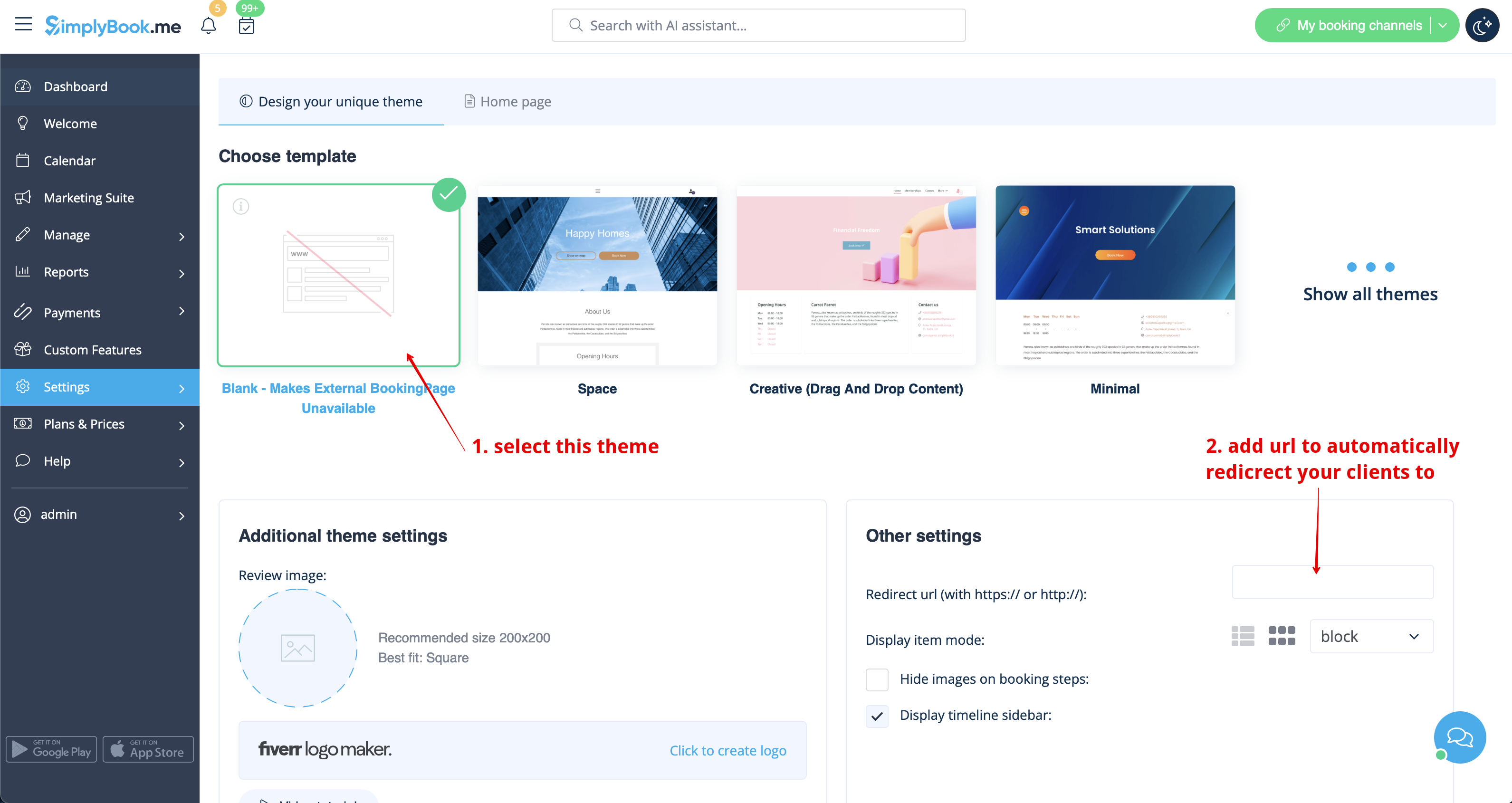
= | For ikke at vise nogen oplysninger på din bookingside (gøre den tom), kan du sætte et tomt tema på din bookingside i <span style="background-color:#d4f8e5; padding:5px; border-radius:5px;">Indstillinger</span> -> <span style="background-color:#d4f8e5; padding:5px; border-radius:5px;">Designindstillinger</span>. | ||
<br><br> | <br><br> | ||
Vælg at vise alle temaer, og vælg det sidste uden billede, tilføj linket til den side, dine kunder skal omdirigeres til, hvis de åbner din bookingside, og gem indstillingerne. | |||
[[File:Set blank theme redesigned.png|1200px| center|link=https://help.simplybook.me/images/7/74/Set_blank_theme_redesigned.png]] | [[File:Set blank theme redesigned.png|1200px| center|link=https://help.simplybook.me/images/7/74/Set_blank_theme_redesigned.png]] | ||
<br><br> | <br><br> | ||
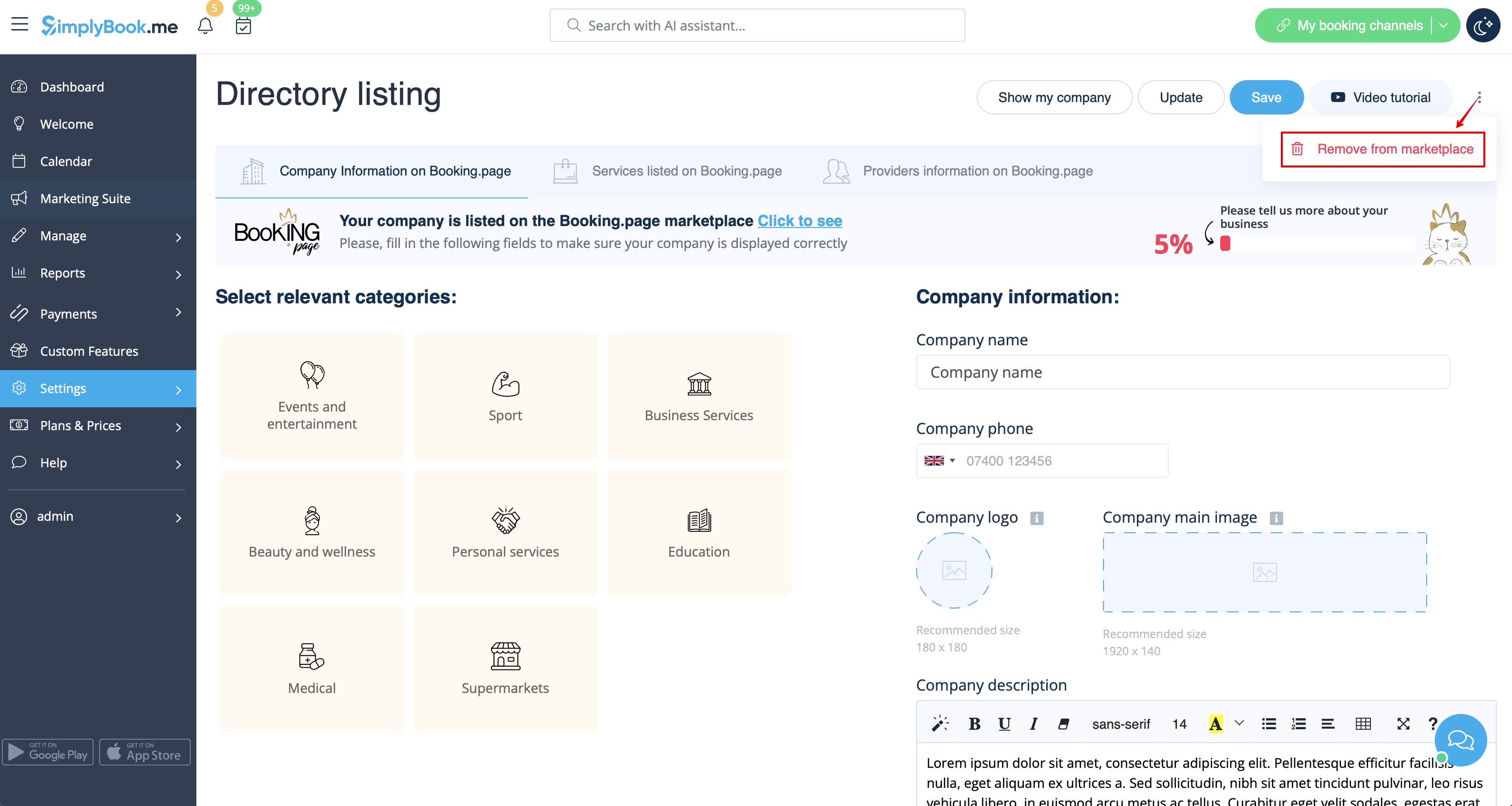
<span style="background-color:#ffe9e9; padding:5px; border-radius:5px;">'''Bemærk venligst!''' Selv med et tomt tema vil din bookingside blive vist i Google, og oplysninger vil blive vist i Booking.Page-biblioteket. For at fjerne din virksomhed fra kataloget skal du klikke på knappen <span style="background-color:#d4f8e5; padding:5px; border-radius:5px;">Fjern fra markedspladsen</span> <span style="background-color:#d4f8e5; padding:5px; border-radius:5px;">Indstillinger</span> -> <span style="background-color:#d4f8e5; padding:5px; border-radius:5px;">Katalogliste</span></span>[[File:Remove from marketplace redesigned.png|1200px| center|link=https://help.simplybook.me/images/9/90/Remove_from_marketplace_redesigned.png]] | |||
<span style="background-color:#ffe9e9; padding:5px; border-radius:5px;">''' | |||
[[File:Remove from marketplace redesigned.png|1200px| center|link=https://help.simplybook.me/images/9/90/Remove_from_marketplace_redesigned.png]] | [[File:Remove from marketplace redesigned.png|1200px| center|link=https://help.simplybook.me/images/9/90/Remove_from_marketplace_redesigned.png]] | ||
<br><br> | <br><br> | ||
= Fjernelse med brugerdefineret CSS = | |||
= | :<span style="background-color:#ffe9e9; padding:5px; border-radius:5px;">'''Bemærk venligst!''' Tilføj koden(e) for at justere stilarterne til fanen "Booking pages CSS", hvis du ønsker at redigere bookingwebstedet</span><br> | ||
:<span style="background-color:#ffe9e9; padding:5px; border-radius:5px;">''' | :<span style="background-color:#ffe9e9; padding:5px; border-radius:5px;">eller "Widget CSS", hvis du redigerer en widget på din hjemmeside.</span> | ||
:<span style="background-color:#ffe9e9; padding:5px; border-radius:5px;"> | |||
[[File:Custom css tabs redesigned.png|1200px| center|link=https://help.simplybook.me/images/1/1c/Custom_css_tabs_redesigned.png]] | [[File:Custom css tabs redesigned.png|1200px| center|link=https://help.simplybook.me/images/1/1c/Custom_css_tabs_redesigned.png]] | ||
<br><br> | <br><br> | ||
== | == Telefonfelt == | ||
<span style="background-color:#cdeffc; padding:5px; border-radius:5px;">([[ | <span style="background-color:#cdeffc; padding:5px; border-radius:5px;">([[Special:MyLanguage/Client_Login_custom_feature |Klientens login-funktion]]</span> er deaktiveret)<br> | ||
:1. | :1. Gå til <span style="background-color:#d4f8e5; padding:5px; border-radius:5px;">Indstillinger</span> -> E-mail- <span style="background-color:#d4f8e5; padding:5px; border-radius:5px;">og SMS-indstillinger</span> -> Indstillinger for e-mail- <span style="background-color:#d4f8e5; padding:5px; border-radius:5px;">og SMS-meddelelser</span> -> <span style="background-color:#d4f8e5; padding:5px; border-radius:5px;">Obligatoriske registreringsfelter</span> -> <span style="background-color:#d4f8e5; padding:5px; border-radius:5px;">E-mail</span> (for at gøre telefon ikke obligatorisk). | ||
:2. Gå til <span style="background-color:#d4f8e5; padding:5px; border-radius:5px;">Brugerdefinerede</span> funktioner -> <span style="background-color:#d4f8e5; padding:5px; border-radius:5px;">Brugerdefinerede</span> funktioner, og aktiver funktionen <span style="background-color:#d4f8e5; padding:5px; border-radius:5px;">Brugerdefineret CSS</span>. Indsæt derefter følgende kode i <span style="background-color:#d4f8e5; padding:5px; border-radius:5px;">Indstillinger</span> for denne funktion eller i <span style="background-color:#d4f8e5; padding:5px; border-radius:5px;">Brugerdefinerede funktioner</span> -> <span style="background-color:#d4f8e5; padding:5px; border-radius:5px;">Brugerdefineret</span> <span style="background-color:#d4f8e5; padding:5px; border-radius:5px;">CSS</span> i <span style="background-color:#d4f8e5; padding:5px; border-radius:5px;">CSS-vinduet for bookingsider</span> øverst: | |||
:2. | |||
<br> | <br> | ||
<pre> | <pre> | ||
.form-group.form-client-phone{ | .form-group.form-client-phone{ | ||
display: none; | |||
} | </pre> }<pre> | ||
</pre> | </pre> | ||
| Line 129: | Line 113: | ||
== E-mail-felt == | |||
<span style="background-color:#cdeffc; padding:5px; border-radius:5px;">([[Special:MyLanguage/Client_Login_custom_feature|Klientens login-funktion]]</span> er deaktiveret)<br> | |||
<span style="background-color:#cdeffc; padding:5px; border-radius:5px;">([[ | :1. Gå til <span style="background-color:#d4f8e5; padding:5px; border-radius:5px;">Indstillinger</span> -> E-mail- <span style="background-color:#d4f8e5; padding:5px; border-radius:5px;">og SMS-indstillinger</span> -> Indstillinger for e-mail- <span style="background-color:#d4f8e5; padding:5px; border-radius:5px;">og SMS-meddelelser</span> -> <span style="background-color:#d4f8e5; padding:5px; border-radius:5px;">Obligatoriske registreringsfelter</span> -> <span style="background-color:#d4f8e5; padding:5px; border-radius:5px;">Telefon</span> (for at gøre e-mail ikke obligatorisk). | ||
:1. | |||
:2. Gå til <span style="background-color:#d4f8e5; padding:5px; border-radius:5px;">Brugerdefinerede</span> funktioner -> <span style="background-color:#d4f8e5; padding:5px; border-radius:5px;">Brugerdefinerede</span> funktioner, og aktiver funktionen <span style="background-color:#d4f8e5; padding:5px; border-radius:5px;">Brugerdefineret CSS</span>. Indsæt derefter følgende kode i <span style="background-color:#d4f8e5; padding:5px; border-radius:5px;">Indstillinger</span> for denne funktion eller i <span style="background-color:#d4f8e5; padding:5px; border-radius:5px;">Brugerdefinerede funktioner</span> -> <span style="background-color:#d4f8e5; padding:5px; border-radius:5px;">Brugerdefineret</span> <span style="background-color:#d4f8e5; padding:5px; border-radius:5px;">CSS</span> i <span style="background-color:#d4f8e5; padding:5px; border-radius:5px;">CSS-vinduet for bookingsider</span> øverst: | |||
:2. | |||
<br> | <br> | ||
<pre>.form-group.form-client-email{ | <pre>.form-group.form-client-email{ | ||
display: none; | |||
} | </pre> }<pre> | ||
</pre> | </pre> | ||
| Line 149: | Line 129: | ||
== Vores tid == | |||
Gå til <span style="background-color:#d4f8e5; padding:5px; border-radius:5px;">Brugerdefinerede</span> funktioner -> <span style="background-color:#d4f8e5; padding:5px; border-radius:5px;">Brugerdefinerede</span> funktioner, og aktiver funktionen <span style="background-color:#d4f8e5; padding:5px; border-radius:5px;">Brugerdefineret CSS</span>. Derefter i denne funktion <span style="background-color:#d4f8e5; padding:5px; border-radius:5px;">Indstillinger</span> eller i <span style="background-color:#d4f8e5; padding:5px; border-radius:5px;">Brugerdefinerede funktioner</span> -> <span style="background-color:#d4f8e5; padding:5px; border-radius:5px;">Brugerdefineret</span> <span style="background-color:#d4f8e5; padding:5px; border-radius:5px;">CSS</span> indsæt følgende kode i <span style="background-color:#d4f8e5; padding:5px; border-radius:5px;">CSS-vinduet på bookingsiden</span> helt øverst:<br> | |||
<pre> | <pre> | ||
div#sb_booking_company_time { | div#sb_booking_company_time { | ||
display: none; | |||
} | } | ||
</pre> | </pre> | ||
< | <span id="May_we_send_you_promotions_and_relevant_information"></span> | ||
== | == Må vi sende dig kampagner og relevant information? == | ||
< | Gå til <span style="background-color:#d4f8e5; padding:5px; border-radius:5px;">Brugerdefinerede</span> funktioner -> <span style="background-color:#d4f8e5; padding:5px; border-radius:5px;">Brugerdefinerede</span> funktioner, og aktiver <span style="background-color:#d4f8e5; padding:5px; border-radius:5px;">brugerdefineret CSS-funktion</span>. Derefter skal du i denne <span style="background-color:#d4f8e5; padding:5px; border-radius:5px;">funktionsindstillinger</span> eller i <span style="background-color:#d4f8e5; padding:5px; border-radius:5px;">brugerdefinerede</span> funktioner -> <span style="background-color:#d4f8e5; padding:5px; border-radius:5px;">brugerdefineret</span> <span style="background-color:#d4f8e5; padding:5px; border-radius:5px;">CSS</span> indsætte følgende kode i <span style="background-color:#d4f8e5; padding:5px; border-radius:5px;">CSS-vinduet på bookingsiden</span> helt øverst:<br><br> | ||
::''Klientlogin-funktion aktiveret'': | |||
::'' | |||
<pre> | <pre> | ||
#main #client-login .custom-form #sb_terms_and_conditions .promotions-letter-flag label[role=button]{ | #main</pre><pre>#client-login .custom-form #sb_terms_and_conditions .promotions-letter-flag label[role=button]{ | ||
display: none; | |||
} | </pre> }<pre> | ||
</pre> | </pre> | ||
::'' | ::''Klientlogin-funktion deaktiveret'': | ||
<pre> | <pre> | ||
#sb-main-container #main #sb-timeline #steps #details .detail-step-wrap .detail-step .license-links-container .promotions-letter-flag label[role=button]{ | #sb-main-container #main</pre><pre>#sb-timeline #steps #details .detail-step-wrap .detail-step .license-links-container .promotions-letter-flag label[role=button]{ | ||
display: none; | |||
} | } | ||
</pre> | </pre> | ||
< | <span id="Filter_by_Services_on_Membership_page"></span> | ||
== | == Filtrer efter tjenester på siden Medlemskab == | ||
< | Gå til <span style="background-color:#d4f8e5; padding:5px; border-radius:5px;">Brugerdefinerede</span> funktioner -> <span style="background-color:#d4f8e5; padding:5px; border-radius:5px;">Brugerdefinerede</span> funktioner, og aktiver <span style="background-color:#d4f8e5; padding:5px; border-radius:5px;">brugerdefineret CSS-funktion</span>. Derefter skal du i denne <span style="background-color:#d4f8e5; padding:5px; border-radius:5px;">funktionsindstillinger</span> eller i <span style="background-color:#d4f8e5; padding:5px; border-radius:5px;">brugerdefinerede</span> funktioner -> <span style="background-color:#d4f8e5; padding:5px; border-radius:5px;">brugerdefineret</span> <span style="background-color:#d4f8e5; padding:5px; border-radius:5px;">CSS</span> indsætte følgende kode i <span style="background-color:#d4f8e5; padding:5px; border-radius:5px;">CSS-vinduet på bookingsiden</span> helt øverst:<br> | ||
<pre> | <pre> | ||
#membership-view #membership-filters { | #membership-view #membership-filters { | ||
display: none; | |||
} | } | ||
</pre> | </pre> | ||
< | <span id="Remove_banner_image"></span> | ||
== | == Fjern bannerbillede == | ||
:<span style="background-color:#ffe9e9; padding:5px; border-radius:5px;">'''Bemærk venligst!''' "Book nu" og andre knapper, der vises i toppen af banneret, vil også blive skjult. Koden fungerer muligvis ikke med nogle temaer.</span> | |||
:<span style="background-color:#ffe9e9; padding:5px; border-radius:5px;">''' | Gå venligst til <span style="background-color:#d4f8e5; padding:5px; border-radius:5px;">Brugerdefinerede</span> funktioner -> <span style="background-color:#d4f8e5; padding:5px; border-radius:5px;">Brugerdefinerede</span> funktioner og aktiver <span style="background-color:#d4f8e5; padding:5px; border-radius:5px;">brugerdefineret</span> <span style="background-color:#d4f8e5; padding:5px; border-radius:5px;">CSS-funktion</span>. Indsæt derefter følgende kode i <span style="background-color:#d4f8e5; padding:5px; border-radius:5px;">Indstillinger</span> for denne funktion eller i Brugerdefinerede <span style="background-color:#d4f8e5; padding:5px; border-radius:5px;">funktioner</span> -> <span style="background-color:#d4f8e5; padding:5px; border-radius:5px;">Brugerdefineret</span> <span style="background-color:#d4f8e5; padding:5px; border-radius:5px;">CSS</span> i <span style="background-color:#d4f8e5; padding:5px; border-radius:5px;">CSS-vinduet på bookingsiden</span> helt øverst:<br> | ||
<pre> | <pre> | ||
#main-buttons { | #main-buttons { | ||
display: none; | |||
} | } | ||
</pre> | </pre> | ||
== Fjern et specifikt element == | |||
Hvis du har brug for at fjerne et bestemt element fra din bookingside, skal du bruge <span style="background-color:#d4f8e5; padding:5px; border-radius:5px;">Custom CSS-funktionen</span> og den tilsvarende kode. Hvis du ikke kender CSS, bedes du kontakte support, og de vil oprette en anmodning for at kontrollere, om en sådan ændring er mulig.<br> | |||
<span style="background-color:#ffe9e9; padding:5px; border-radius:5px;">'''Bemærk''', at store anmodninger kan udføres mod betaling.</span> | |||
<span style="background-color:#ffe9e9; padding:5px; border-radius:5px;">''' | |||
<br><br> | <br><br> | ||
Latest revision as of 15:27, 2 February 2026
Billeder til trin for service, serviceudbyder, kategori og sted
Gå til Indstillinger -> Designindstillinger -> Andre indstillinger, og marker afkrydsningsfeltet Skjul billeder på bookingtrin. Gem indstillingerne.
Mulighed for at betale senere
Gå til Betalinger -> Betalingsgateways eller Tilpassede funktioner -> Accepter betalinger -> Indstillinger -> Indstillinger for betalingssystem for at åbne SBPay.me og deaktivere muligheden Betal senere der.
Medarbejder-trin
Aktivér Any Employee Selector i afsnittet Brugerdefinerede funktioner, og i indstillingerne til højre på siden skal du aktivere indstillingen Skjul andre tjenesteudbydere fra bookinggrænsefladen
Kort
I Indstillinger -> Virksomhedsoplysninger -> Brug ikke adresse-afkrydsningsfeltet.

Virksomhedens e-mailadresse
I Indstillinger -> Virksomhedsoplysninger -> Vis ikke e-mail på bookingsiden.
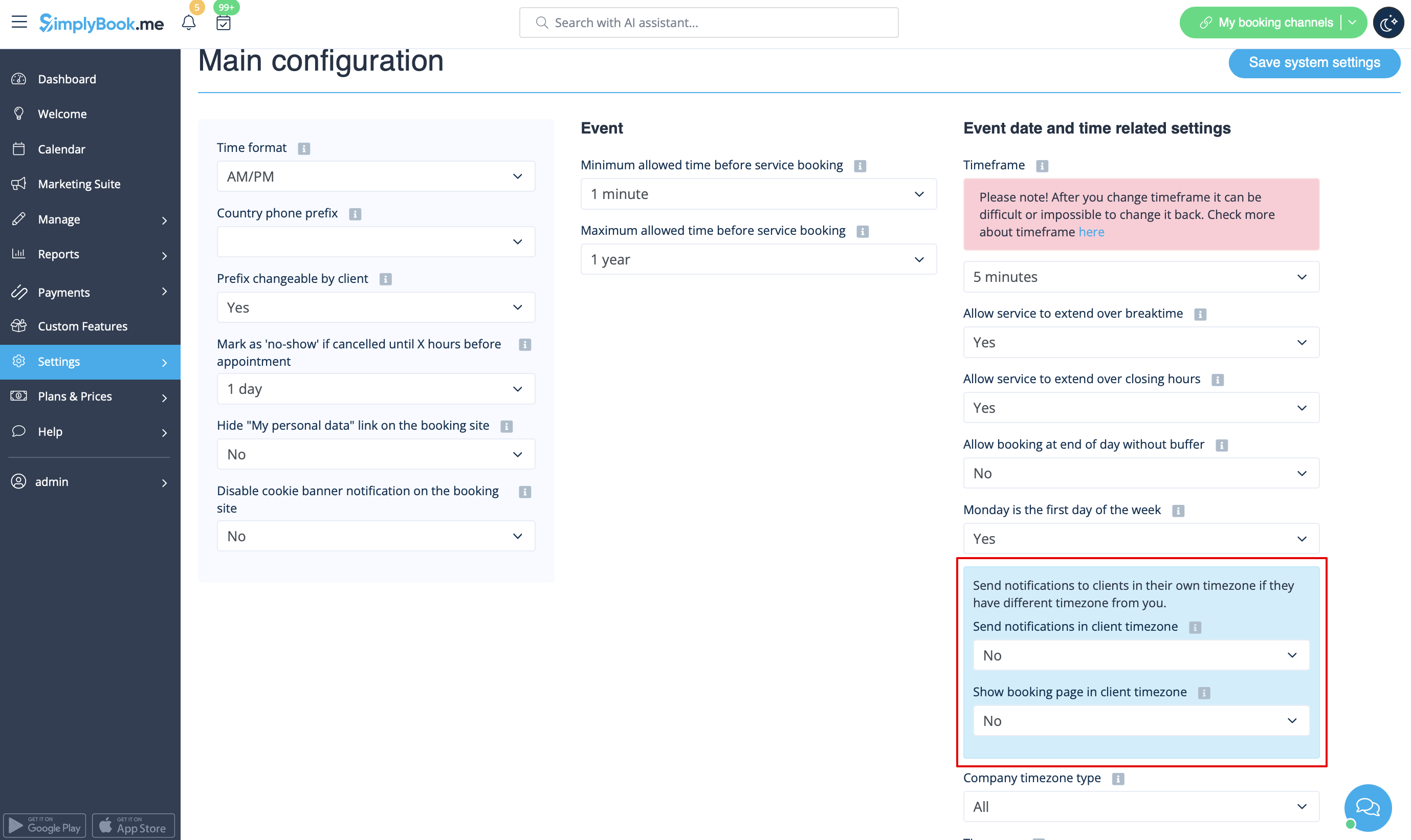
Indstillingen "Skift min tidszone"
I Indstillinger -> Hovedkonfiguration skal du sætte Vis bookingside i kundens tidszone og Send meddelelser i kundens tidszone til Nej og gemme indstillingerne.
Anmeldelser
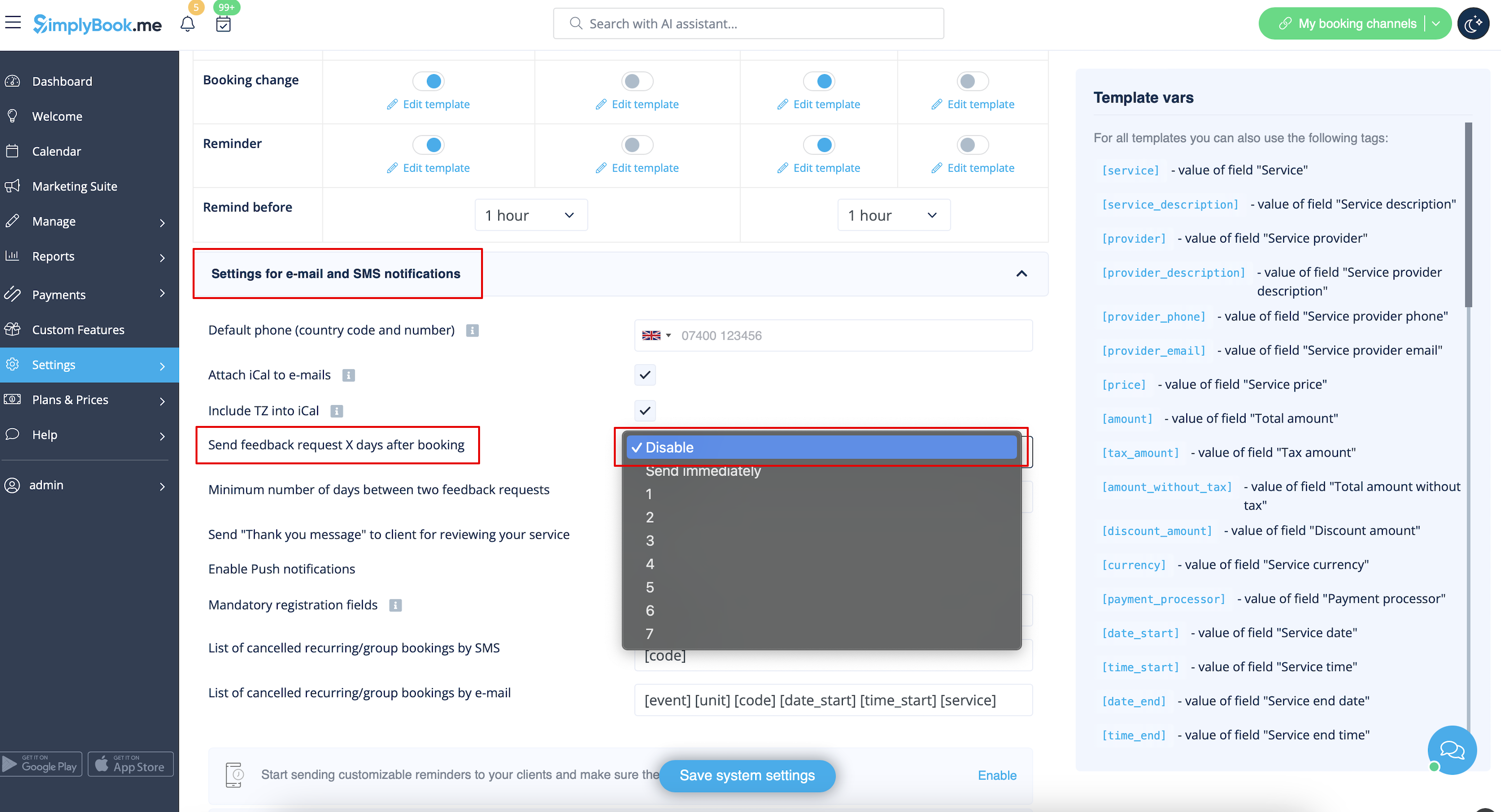
Du kan se alle dine anmeldelser på fanen Anmeldelser i menuen til venstre under Rapporter. Du kan også slette anmeldelser der, hvis det er nødvendigt. Hvis du ønsker at fjerne muligheden for at efterlade en anmeldelse på dit bookingsite og ikke sende en feedbackanmodning, skal du i Indstillinger -> E-mail- og SM S-indstillinger -> Indstillinger for e-mail- og SMS-meddelelser -> sætte Send feedbackanmodning X dage efter booking til Deaktiver
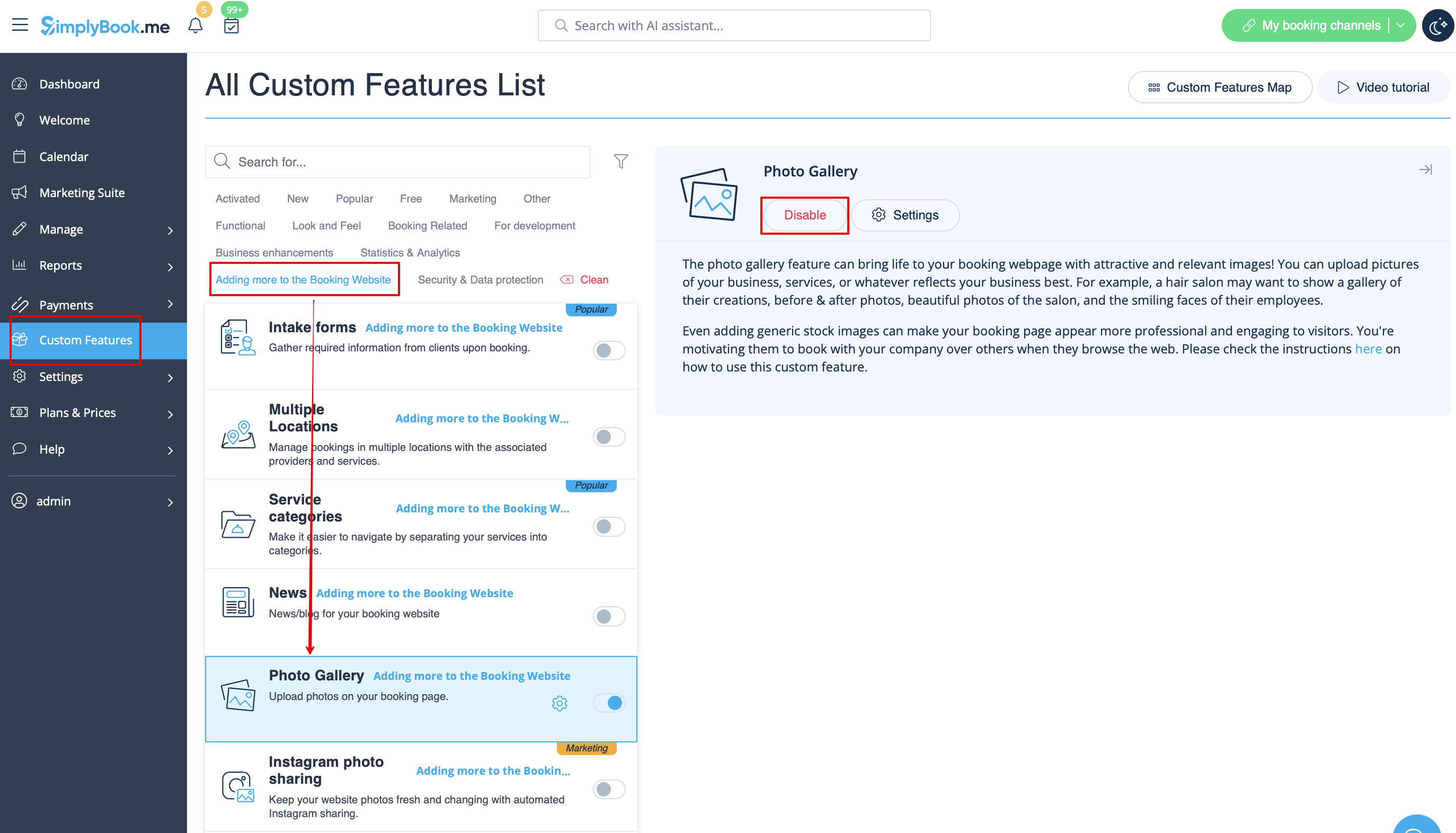
Galleri
I afsnittet Brugerdefinerede funktioner skal du deaktivere fotogalleri
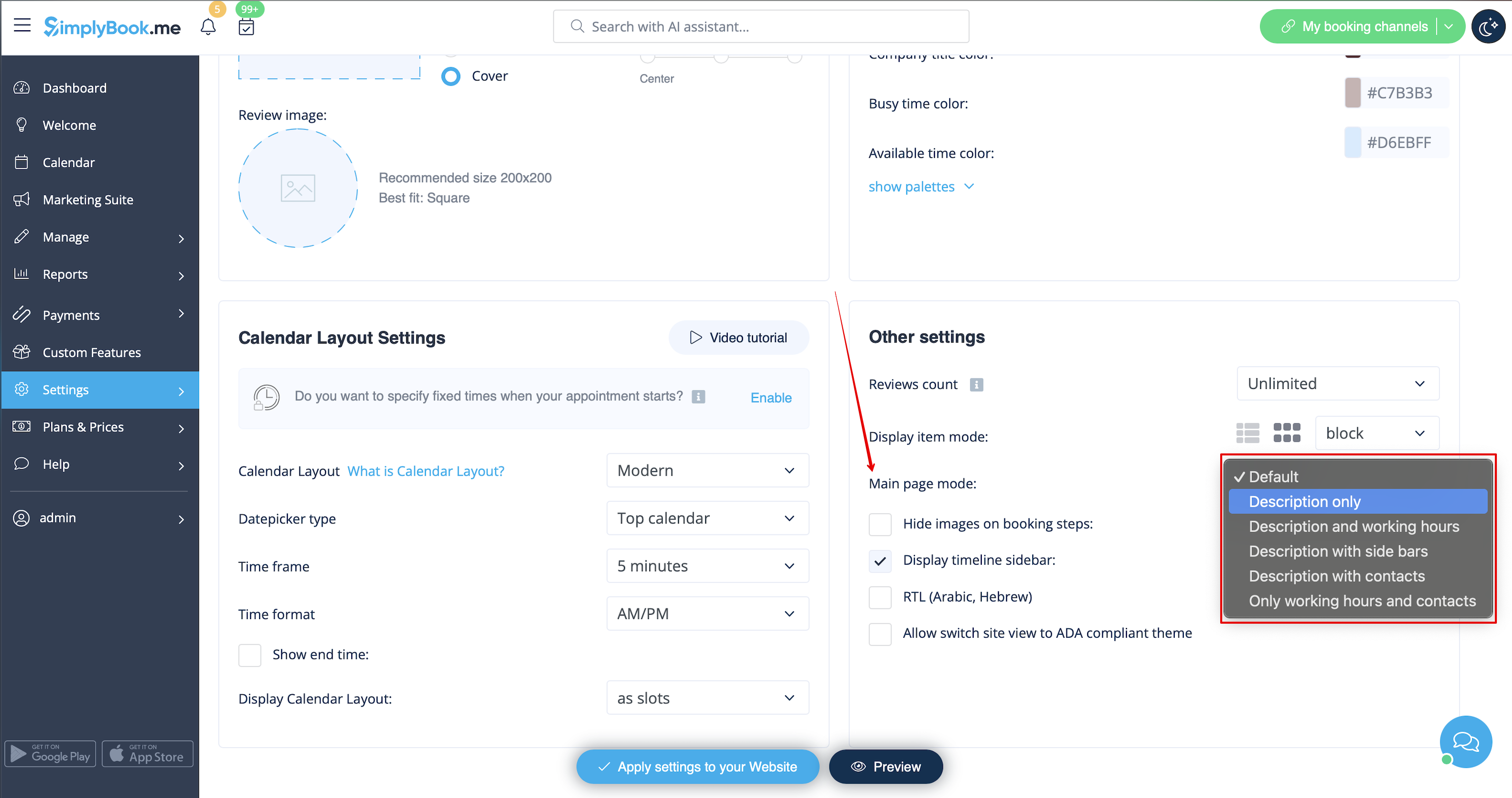
Arbejdstid
Hvis du vil fjerne dette afsnit for nye temaer, skal du gå til Indstillinger -> Designindstillinger -> Andre indstillinger -> Hovedsidetilstand og vælge tilstand uden arbejdstid.
SimplyBook.me Vilkår og betingelser
- Bemærk, at du skal bekræfte, at du har tilføjet oplysninger om SimplyBook.me Ltd. som leverandør til dine vilkår og betingelser.
For at fjerne afkrydsningsfeltet skal du have aktiveret og korrekt indstillet alle de nævnte muligheder:
Enten:
1. SMTP + Brugerdefineret domæne + Vilkår og betingelser + tema forskelligt fra tomt.
Eller:
2. SMTP + Vilkår og betingelser + tomt tema + Widget på din hjemmeside.
Derefter vil du kunne aktivere Jeg bekræfter, at jeg har tilføjet oplysninger om SimplyBook.me Ltd. som leverandør til mine vilkår og betingelser i Brugerdefinerede funktioner -> Vilkår og betingelser, og når du har gemt indstillingerne der, vil SimplyBook.me's vilkår og betingelser blive fjernet fra reservationssiden.

Link til mine personlige data
Gå til Indstillinger -> Hovedkonfiguration, og vælg Ja i Skjul link til "Mine personlige data" på bookingsiden. Gem indstillingerne.
Utilgængelige tidspunkter
Vælg moderne, moderne udbyder , daglig (tilgængelig med funktionen Klasser aktiveret) eller ugentlig klassekalenderlayout i Indstillinger -> Designindstillinger -> Kalenderlayout -> Kalenderlayoutindstillinger -> Kalenderlayout drop-down.
Deaktiver bookingside (kun tilgængelig for betalte konti)
For ikke at vise nogen oplysninger på din bookingside (gøre den tom), kan du sætte et tomt tema på din bookingside i Indstillinger -> Designindstillinger.
Vælg at vise alle temaer, og vælg det sidste uden billede, tilføj linket til den side, dine kunder skal omdirigeres til, hvis de åbner din bookingside, og gem indstillingerne.
Bemærk venligst! Selv med et tomt tema vil din bookingside blive vist i Google, og oplysninger vil blive vist i Booking.Page-biblioteket. For at fjerne din virksomhed fra kataloget skal du klikke på knappen Fjern fra markedspladsen Indstillinger -> Katalogliste
Fjernelse med brugerdefineret CSS
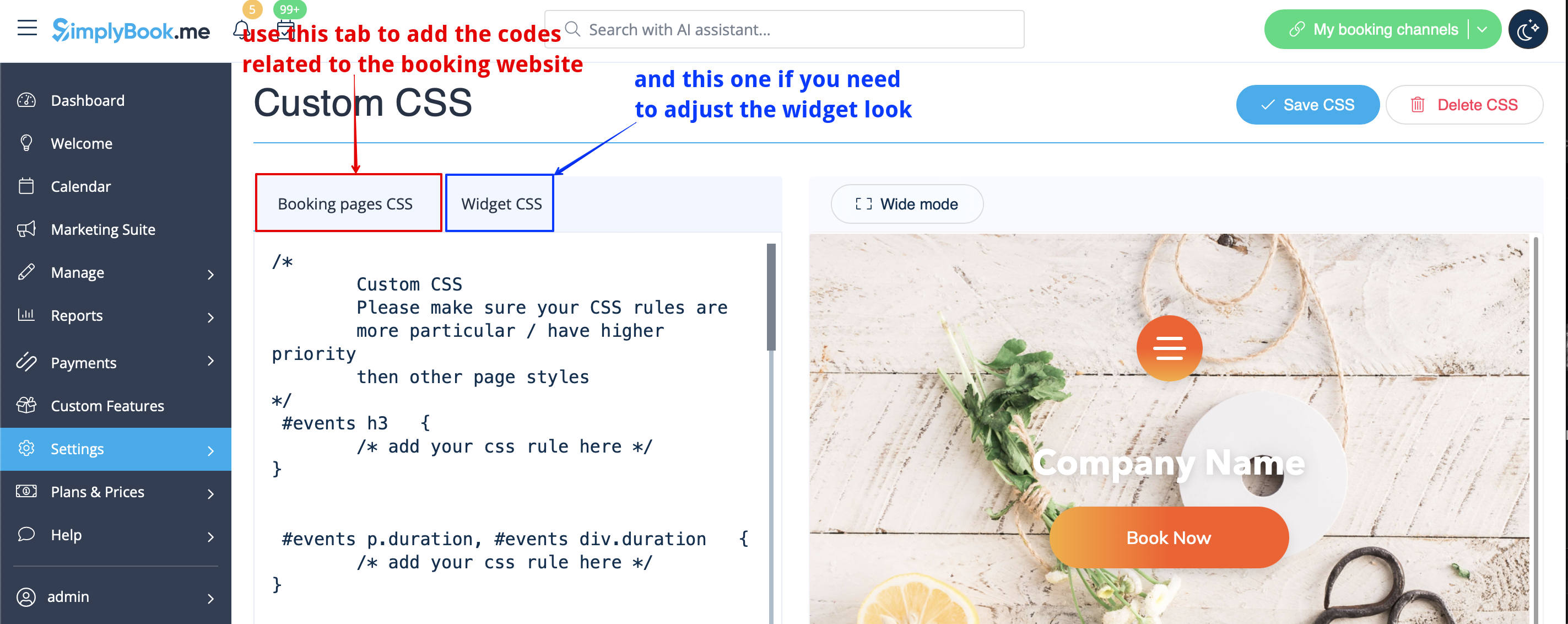
- Bemærk venligst! Tilføj koden(e) for at justere stilarterne til fanen "Booking pages CSS", hvis du ønsker at redigere bookingwebstedet
- eller "Widget CSS", hvis du redigerer en widget på din hjemmeside.
Telefonfelt
(Klientens login-funktion er deaktiveret)
- 1. Gå til Indstillinger -> E-mail- og SMS-indstillinger -> Indstillinger for e-mail- og SMS-meddelelser -> Obligatoriske registreringsfelter -> E-mail (for at gøre telefon ikke obligatorisk).
- 2. Gå til Brugerdefinerede funktioner -> Brugerdefinerede funktioner, og aktiver funktionen Brugerdefineret CSS. Indsæt derefter følgende kode i Indstillinger for denne funktion eller i Brugerdefinerede funktioner -> Brugerdefineret CSS i CSS-vinduet for bookingsider øverst:
.form-group.form-client-phone{
 display: none;
}
E-mail-felt
(Klientens login-funktion er deaktiveret)
- 1. Gå til Indstillinger -> E-mail- og SMS-indstillinger -> Indstillinger for e-mail- og SMS-meddelelser -> Obligatoriske registreringsfelter -> Telefon (for at gøre e-mail ikke obligatorisk).
- 2. Gå til Brugerdefinerede funktioner -> Brugerdefinerede funktioner, og aktiver funktionen Brugerdefineret CSS. Indsæt derefter følgende kode i Indstillinger for denne funktion eller i Brugerdefinerede funktioner -> Brugerdefineret CSS i CSS-vinduet for bookingsider øverst:
.form-group.form-client-email{
 display: none;
}
Vores tid
Gå til Brugerdefinerede funktioner -> Brugerdefinerede funktioner, og aktiver funktionen Brugerdefineret CSS. Derefter i denne funktion Indstillinger eller i Brugerdefinerede funktioner -> Brugerdefineret CSS indsæt følgende kode i CSS-vinduet på bookingsiden helt øverst:
div#sb_booking_company_time {
 display: none;
}
Må vi sende dig kampagner og relevant information?
Gå til Brugerdefinerede funktioner -> Brugerdefinerede funktioner, og aktiver brugerdefineret CSS-funktion. Derefter skal du i denne funktionsindstillinger eller i brugerdefinerede funktioner -> brugerdefineret CSS indsætte følgende kode i CSS-vinduet på bookingsiden helt øverst:
- Klientlogin-funktion aktiveret:
#main
#client-login .custom-form #sb_terms_and_conditions .promotions-letter-flag label[role=button]{
display: none;
}
- Klientlogin-funktion deaktiveret:
#sb-main-container #main
#sb-timeline #steps #details .detail-step-wrap .detail-step .license-links-container .promotions-letter-flag label[role=button]{
display: none;

}
Filtrer efter tjenester på siden Medlemskab
Gå til Brugerdefinerede funktioner -> Brugerdefinerede funktioner, og aktiver brugerdefineret CSS-funktion. Derefter skal du i denne funktionsindstillinger eller i brugerdefinerede funktioner -> brugerdefineret CSS indsætte følgende kode i CSS-vinduet på bookingsiden helt øverst:
#membership-view #membership-filters {
 display: none;
}
Fjern bannerbillede
- Bemærk venligst! "Book nu" og andre knapper, der vises i toppen af banneret, vil også blive skjult. Koden fungerer muligvis ikke med nogle temaer.
Gå venligst til Brugerdefinerede funktioner -> Brugerdefinerede funktioner og aktiver brugerdefineret CSS-funktion. Indsæt derefter følgende kode i Indstillinger for denne funktion eller i Brugerdefinerede funktioner -> Brugerdefineret CSS i CSS-vinduet på bookingsiden helt øverst:
#main-buttons {
 display: none;
}
Fjern et specifikt element
Hvis du har brug for at fjerne et bestemt element fra din bookingside, skal du bruge Custom CSS-funktionen og den tilsvarende kode. Hvis du ikke kender CSS, bedes du kontakte support, og de vil oprette en anmodning for at kontrollere, om en sådan ændring er mulig.
Bemærk, at store anmodninger kan udføres mod betaling.
