From SimplyBook.me
Created page with "Prénom et nom" |
No edit summary |
||
| (9 intermediate revisions by 2 users not shown) | |||
| Line 1: | Line 1: | ||
<languages/> | <languages/> | ||
{{#seo: |title=Prénom et nom - SimplyBook.me |description= | {{#seo: |title=Prénom et nom - SimplyBook.me |description=Configurez des champs séparés pour le prénom et le nom dans les formulaires de réservation. Séparez la collecte des noms pour une meilleure organisation des données clients et des rapports.|titlemode=ajouter |keywords=fAQ, questions fréquemment posées, logiciel de réservation, questions sur le système de rendez-vous, rendez-vous en ligne, logiciel de calendrier, système de réservation, calendrier de réservation, logiciel de planification, planification de rendez-vous en ligne, planification en ligne, plugins, fonctionnalités personnalisées, fonctionnalités supplémentaires, inscription des clients, données clients, données des clients, inscription des clients, inscription, informations supplémentaires, formulaire d'inscription des clients }} | ||
<br><br> | <br><br> | ||
:Il peut arriver que vous ayez besoin de champs distincts pour le prénom et le nom de vos clients lors du processus d'inscription. | :Il peut arriver que vous ayez besoin de champs distincts pour le prénom et le nom de vos clients lors du processus d'inscription. | ||
:C'est désormais possible grâce à notre fonctionnalité <span style="background-color:#cdeffc; padding:5px; border-radius:5px;">[[Client_Fields_Custom_Feature|« Champs client]]</span> » et à la nouvelle fonctionnalité de réorganisation. | :C'est désormais possible grâce à notre fonctionnalité <span style="background-color:#cdeffc; padding:5px; border-radius:5px;">[[Special:MyLanguage/Client_Fields_Custom_Feature|« Champs client]]</span> » et à la nouvelle fonctionnalité de réorganisation. | ||
<br><br> | <br><br> | ||
:<span style="background-color:#ffe9e9; padding:5px; border-radius:5px;">'''Remarque :''' cette configuration est disponible lorsque la fonctionnalité</span> «<span style="background-color:#ffe9e9; padding:5px; border-radius:5px;"> <span style="background-color:#cdeffc; padding:5px; border-radius:5px;">[[Client_Login_custom_feature|Connexion client]]</span> » est activée.</span> | :<span style="background-color:#ffe9e9; padding:5px; border-radius:5px;">'''Remarque :''' cette configuration est disponible lorsque la fonctionnalité</span> «<span style="background-color:#ffe9e9; padding:5px; border-radius:5px;"> <span style="background-color:#cdeffc; padding:5px; border-radius:5px;">[[Special:MyLanguage/Client_Login_custom_feature|Connexion client]]</span> » est activée.</span> | ||
<br><br> | <br><br> | ||
| Line 20: | Line 20: | ||
<br><br> | <br><br> | ||
:3. Vous verrez alors apparaître les champs d'inscription par défaut. Sélectionnez le premier champ intitulé « <span style="background-color:#d4f8e5; padding:5px; border-radius:5px;">Nom</span> » et renommez-le « <span style="background-color:#d4f8e5; padding:5px; border-radius:5px;">Prénom ».</span> Enregistrez. | |||
:3. | |||
[[File:Rename name to first name redesigned.png|1200px|border|center|link=https://help.simplybook.me/images/6/64/Rename_name_to_first_name_redesigned.png]] | [[File:Rename name to first name redesigned.png|1200px|border|center|link=https://help.simplybook.me/images/6/64/Rename_name_to_first_name_redesigned.png]] | ||
<br><br> | <br><br> | ||
:4. | :4. Cliquez sur <span style="background-color:#d4f8e5; padding:5px; border-radius:5px;">+</span> en haut pour créer un nouveau champ client, ajoutez <span style="background-color:#d4f8e5; padding:5px; border-radius:5px;">Nom de famille</span> comme <span style="background-color:#d4f8e5; padding:5px; border-radius:5px;">titre de la question</span> et sélectionnez <span style="background-color:#d4f8e5; padding:5px; border-radius:5px;">Texte -</span> Type <span style="background-color:#d4f8e5; padding:5px; border-radius:5px;">à ligne unique</span>. | ||
: | :Par défaut, le champ est obligatoire pour les clients, mais si vous souhaitez le rendre facultatif, veuillez utiliser le bouton correspondant. | ||
[[File:Last name field settings redesigned.png|1200px|border|center|link=https://help.simplybook.me/images/6/63/Last_name_field_settings_redesigned.png]] | [[File:Last name field settings redesigned.png|1200px|border|center|link=https://help.simplybook.me/images/6/63/Last_name_field_settings_redesigned.png]] | ||
<br><br> | <br><br> | ||
:5. Sélectionnez sa <span style="background-color:#d4f8e5; padding:5px; border-radius:5px;">position</span> après le prénom et enregistrez. | |||
:5. | :Si vous avez déjà enregistré le champ, utilisez <span style="background-color:#d4f8e5; padding:5px; border-radius:5px;">les flèches</span> pour le réorganiser. | ||
: | |||
[[File:Reorder client fileds redesigned.png|1200px|border|center|link=https://help.simplybook.me/images/d/df/Reorder_client_fileds_redesigned.png]] | [[File:Reorder client fileds redesigned.png|1200px|border|center|link=https://help.simplybook.me/images/d/df/Reorder_client_fileds_redesigned.png]] | ||
<br><br> | <br><br> | ||
:6. (facultatif) Ajoutez les variables souhaitées aux modèles de notifications dans <span style="background-color:#d4f8e5; padding:5px; border-radius:5px;">Paramètres</span> -> <span style="background-color:#d4f8e5; padding:5px; border-radius:5px;">Paramètres e-mail et SMS</span> (ou dans la fonctionnalité <span style="background-color:#cdeffc; padding:5px; border-radius:5px;">[[Special:MyLanguage/Flexible_Notifications_custom_feature|Notifications flexibles]]</span> si vous les avez personnalisées par service/fournisseur). | |||
:6. ( | |||
::Par exemple, vous pouvez personnaliser davantage les réservations en utilisant uniquement le prénom dans le message d'accueil. | |||
:: | ::(ici, nous utilisons <span style="background-color:#d4f8e5; padding:5px; border-radius:5px;">la variable par défaut [client]</span>, car nous avons simplement renommé le champ par défaut à l'étape n° 3) | ||
::( | |||
[[File:Client first name variable to email redesigned.png|1200px|border|center|link=https://help.simplybook.me/images/f/f5/Client_first_name_variable_to_email_redesigned.png]] | [[File:Client first name variable to email redesigned.png|1200px|border|center|link=https://help.simplybook.me/images/f/f5/Client_first_name_variable_to_email_redesigned.png]] | ||
<br><br> | <br><br> | ||
::Ou adoptez un ton plus officiel en n'utilisant que le nom de famille. | |||
:: | ::<span style="background-color:#d4f8e5; padding:5px; border-radius:5px;">(le champ client</span> est utilisé ici, tiré de l'étape n° 4) | ||
::<span style="background-color:#d4f8e5; padding:5px; border-radius:5px;">(client | |||
[[File:Client last name to notifications redesigned.png|1200px|border|center|link=https://help.simplybook.me/images/f/f2/Client_last_name_to_notifications_redesigned.png]] | [[File:Client last name to notifications redesigned.png|1200px|border|center|link=https://help.simplybook.me/images/f/f2/Client_last_name_to_notifications_redesigned.png]] | ||
<br><br> | <br><br> | ||
::Ou utilisez <span style="background-color:#d4f8e5; padding:5px; border-radius:5px;">les deux</span> si vous le souhaitez. | |||
:: | ::(variable par défaut et formulaire client combinés) | ||
::( | |||
[[File:Both client variables to email redesigned.png|1200px|border|center|link=https://help.simplybook.me/images/3/3a/Both_client_variables_to_email_redesigned.png]] | [[File:Both client variables to email redesigned.png|1200px|border|center|link=https://help.simplybook.me/images/3/3a/Both_client_variables_to_email_redesigned.png]] | ||
<br><br> | <br><br> | ||
Latest revision as of 15:06, 2 February 2026
- Il peut arriver que vous ayez besoin de champs distincts pour le prénom et le nom de vos clients lors du processus d'inscription.
- C'est désormais possible grâce à notre fonctionnalité « Champs client » et à la nouvelle fonctionnalité de réorganisation.
- Remarque : cette configuration est disponible lorsque la fonctionnalité « Connexion client » est activée.
comment utiliser les champs client
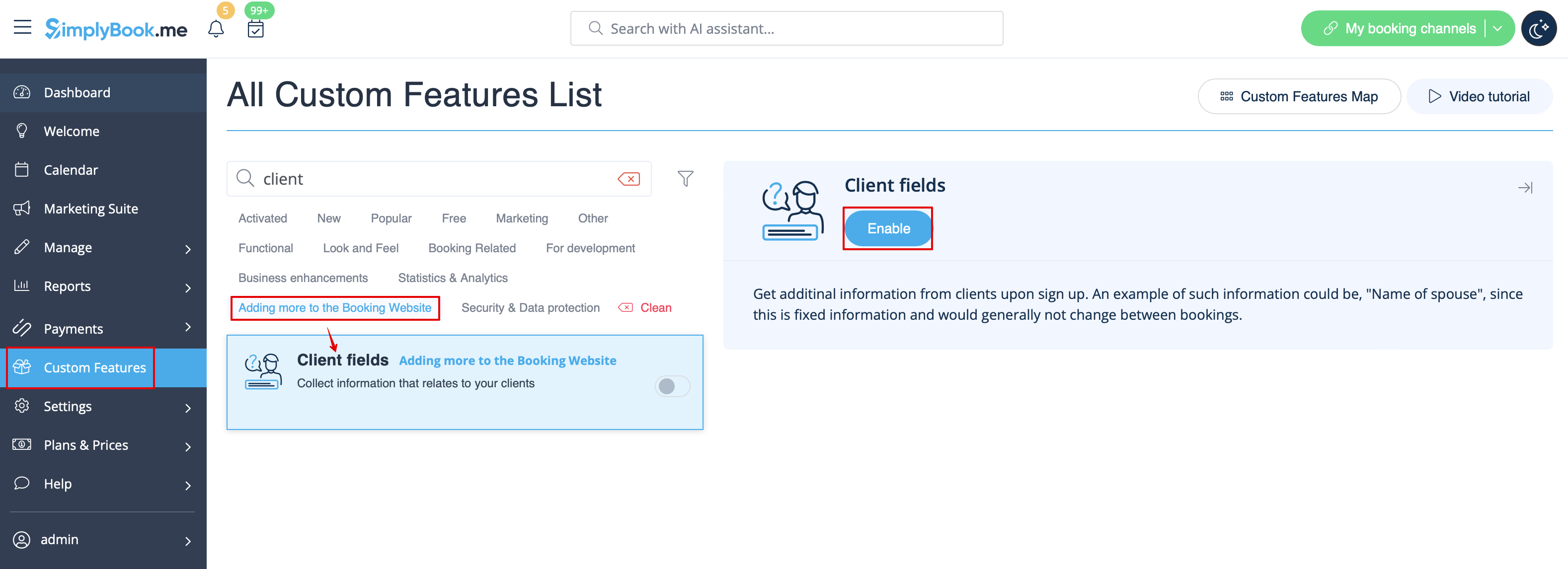
- 1. Activez la fonctionnalité personnalisée Champs client sur la page Fonctionnalités personnalisées.
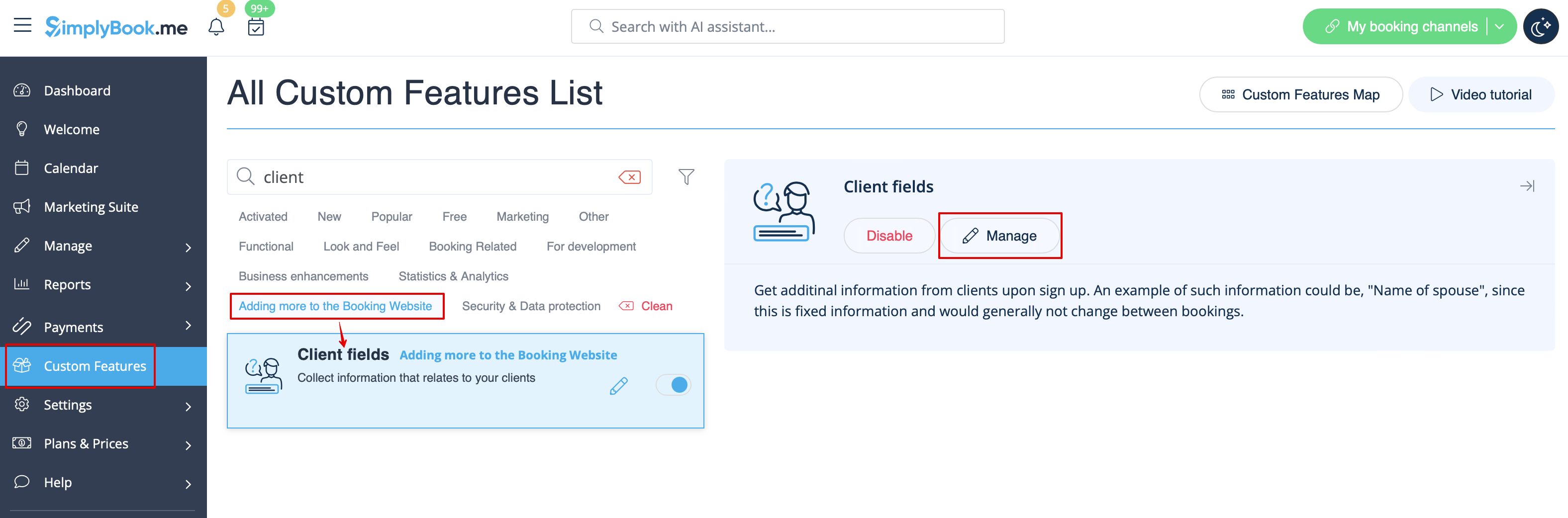
- 2. Accédez à ses paramètres en cliquant sur le lien Gérer.
- Ou accédez à Gérer -> Champs client dans le menu de gauche.
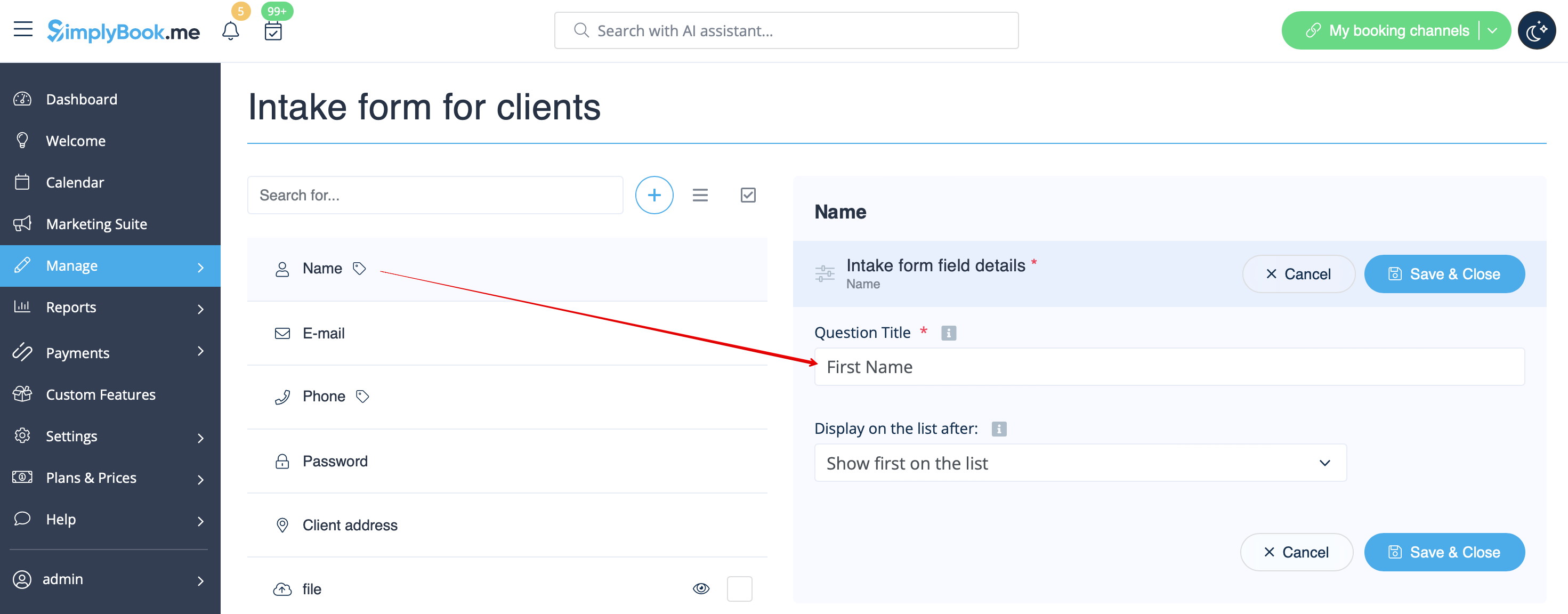
- 3. Vous verrez alors apparaître les champs d'inscription par défaut. Sélectionnez le premier champ intitulé « Nom » et renommez-le « Prénom ». Enregistrez.
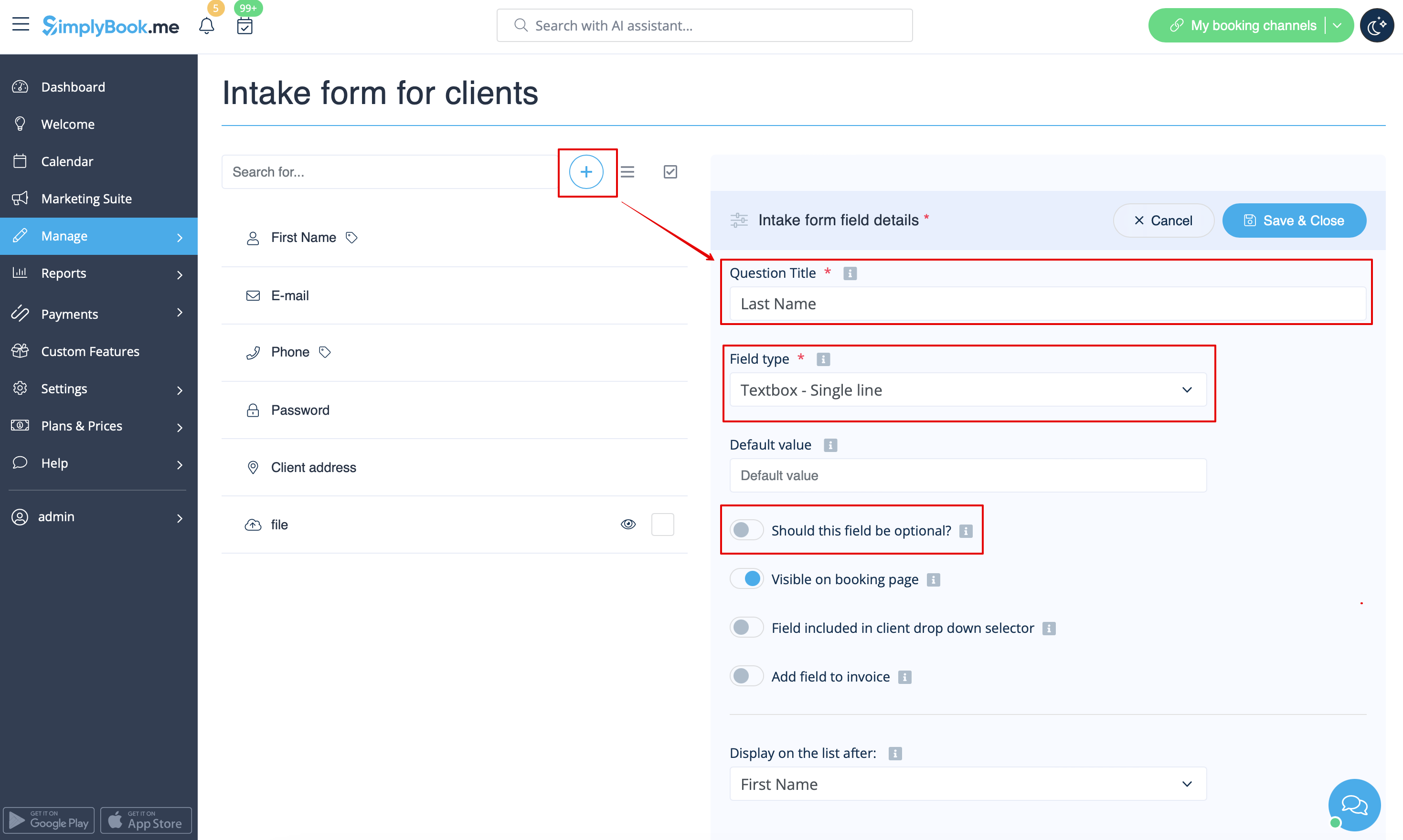
- 4. Cliquez sur + en haut pour créer un nouveau champ client, ajoutez Nom de famille comme titre de la question et sélectionnez Texte - Type à ligne unique.
- Par défaut, le champ est obligatoire pour les clients, mais si vous souhaitez le rendre facultatif, veuillez utiliser le bouton correspondant.
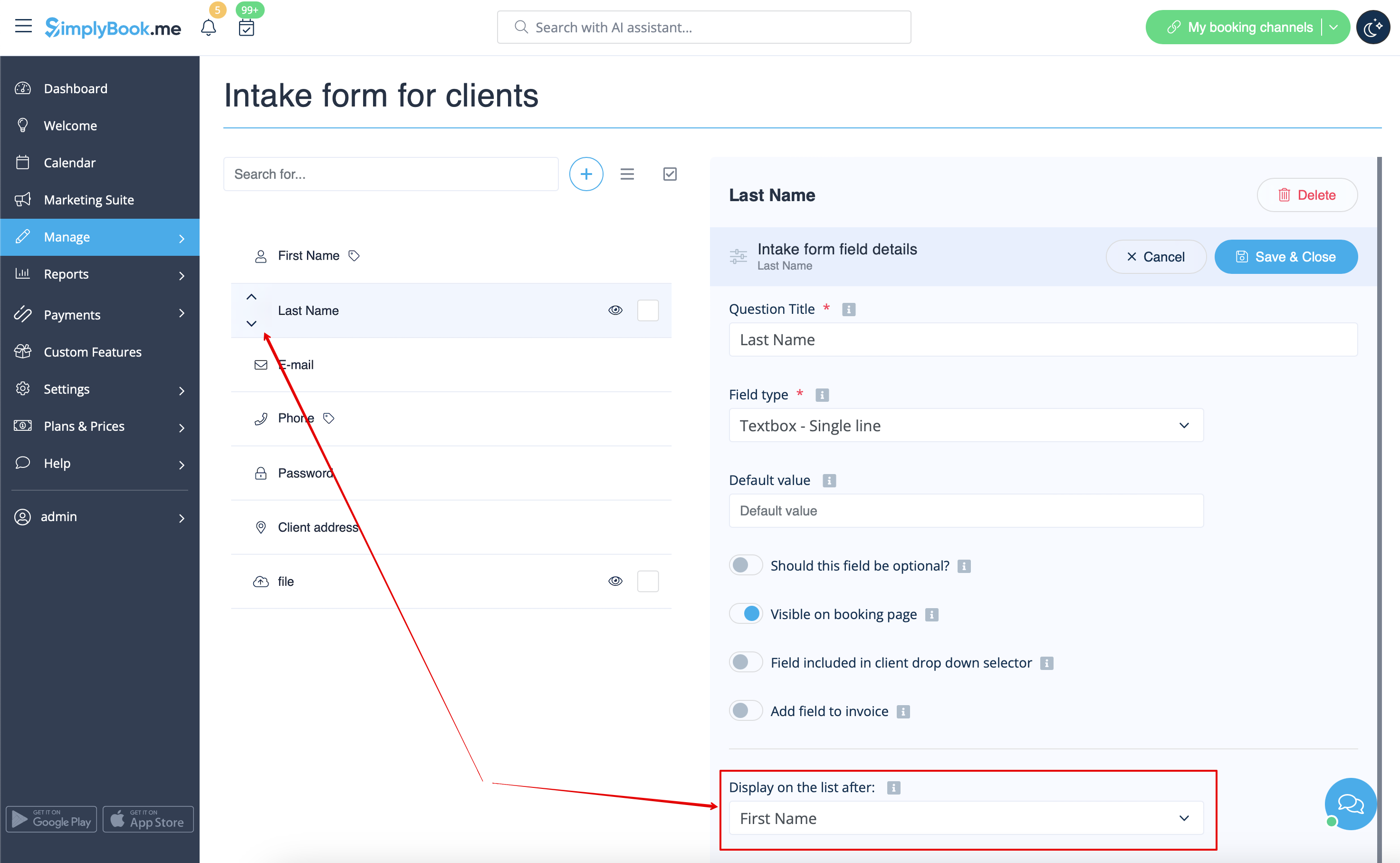
- 5. Sélectionnez sa position après le prénom et enregistrez.
- Si vous avez déjà enregistré le champ, utilisez les flèches pour le réorganiser.
- 6. (facultatif) Ajoutez les variables souhaitées aux modèles de notifications dans Paramètres -> Paramètres e-mail et SMS (ou dans la fonctionnalité Notifications flexibles si vous les avez personnalisées par service/fournisseur).
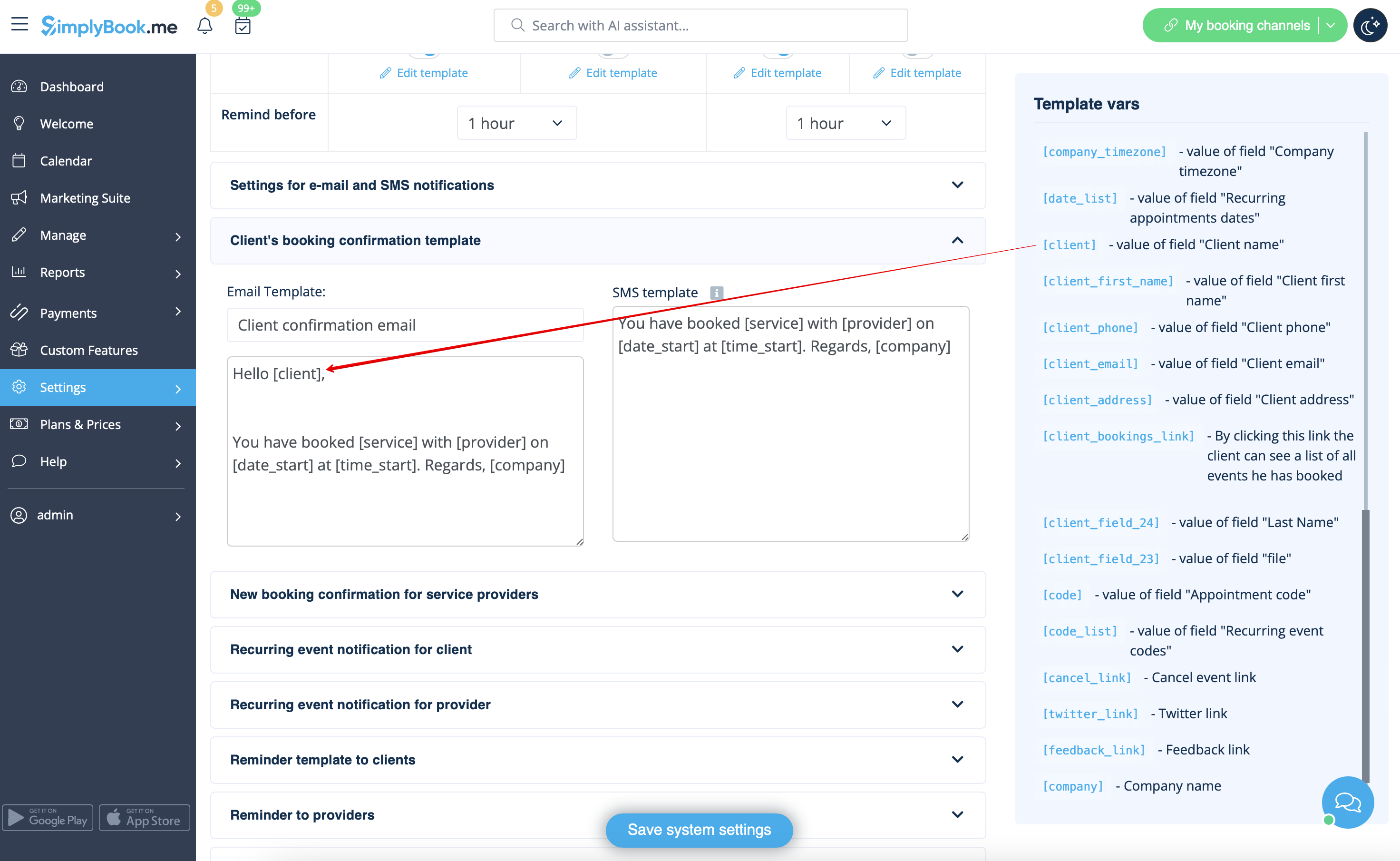
- Par exemple, vous pouvez personnaliser davantage les réservations en utilisant uniquement le prénom dans le message d'accueil.
- (ici, nous utilisons la variable par défaut [client], car nous avons simplement renommé le champ par défaut à l'étape n° 3)
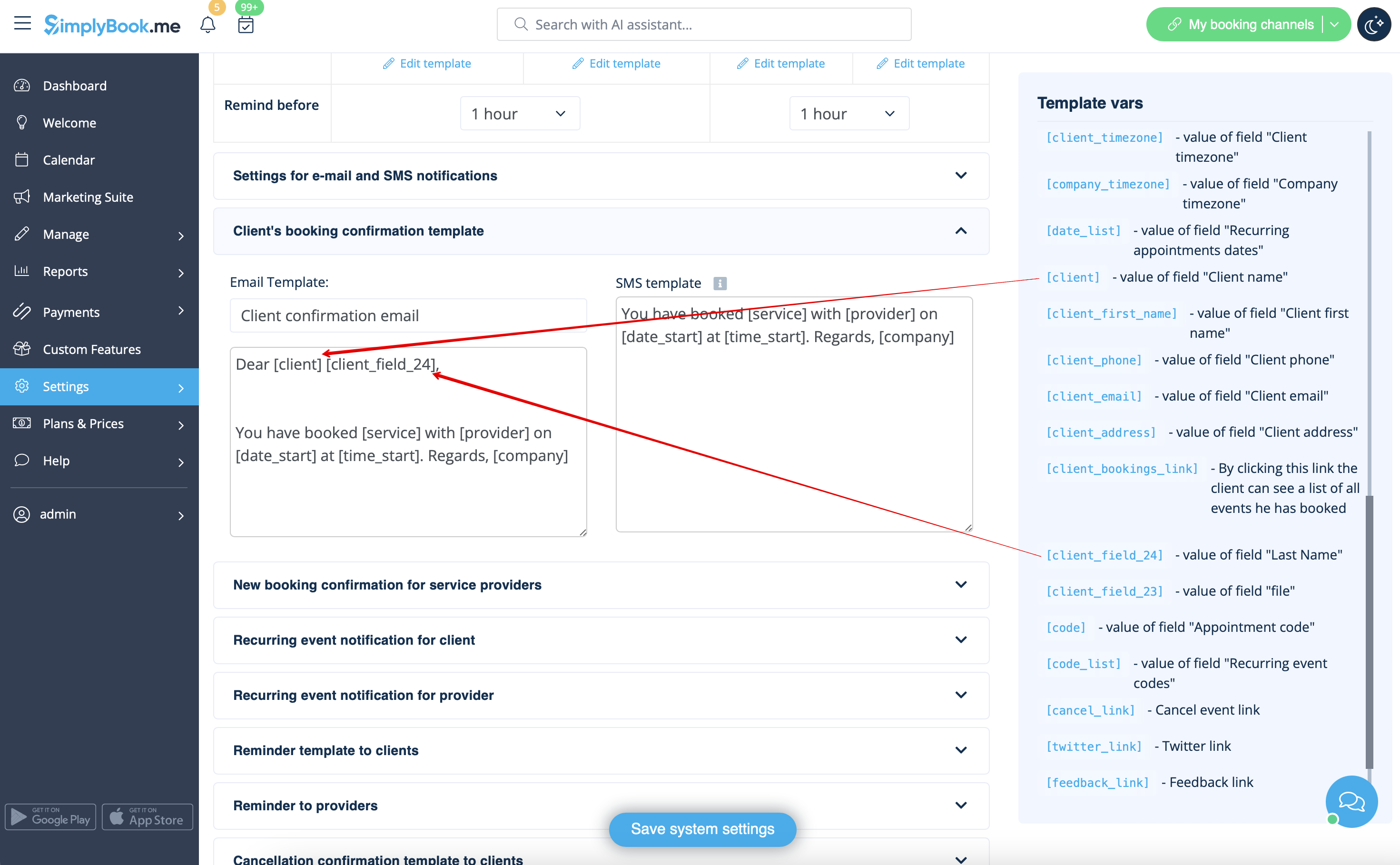
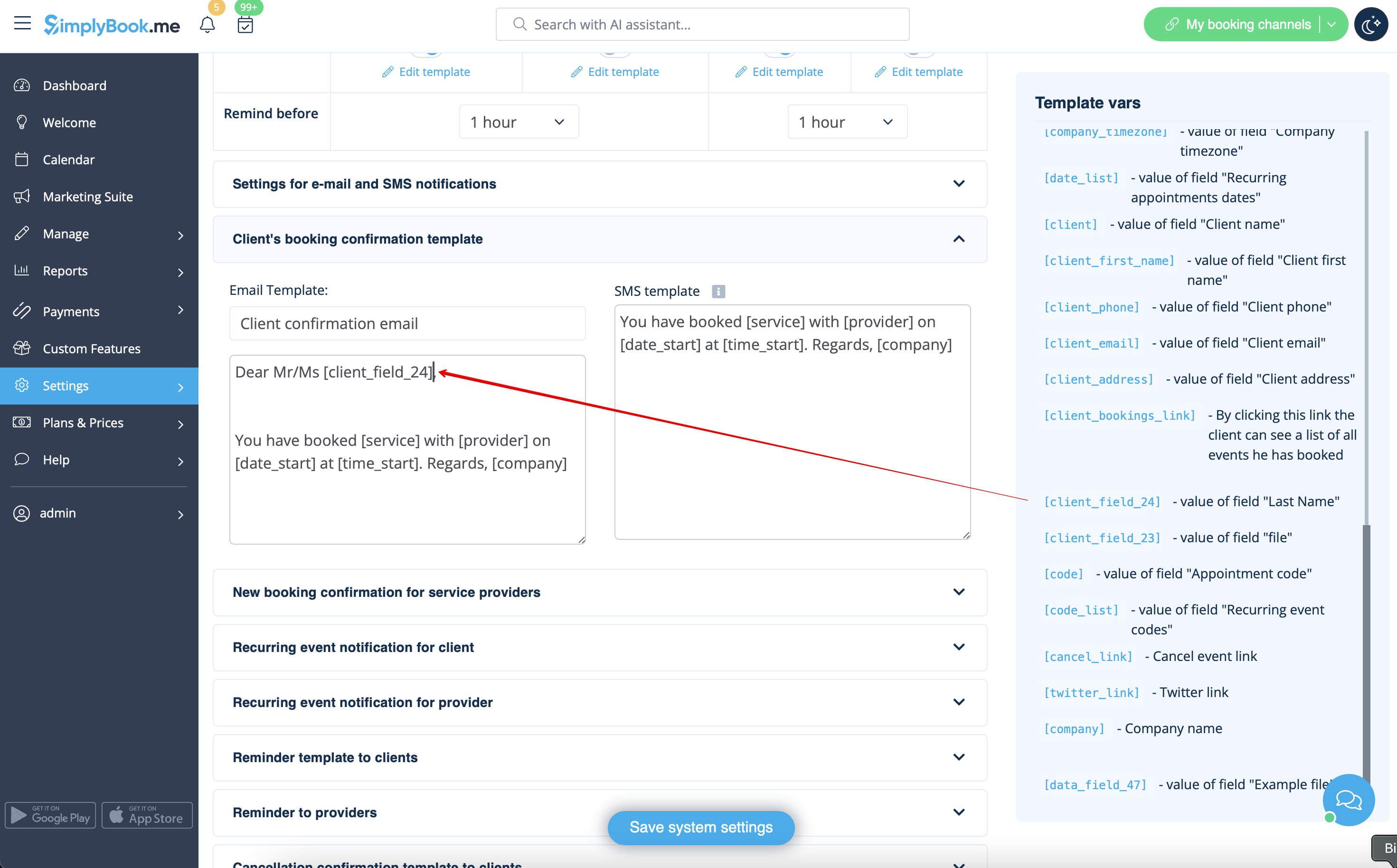
- Ou adoptez un ton plus officiel en n'utilisant que le nom de famille.
- (le champ client est utilisé ici, tiré de l'étape n° 4)
- Ou utilisez les deux si vous le souhaitez.
- (variable par défaut et formulaire client combinés)