Created page with "5. Vælg transaktionsdokumenttypen: Der er to muligheder: <span style="background-color:#d4f8e5; padding:5px; border-radius:5px;">Faktura</span> og <span style="background-color:#d4f8e5; padding:5px; border-radius:5px;">salgsbilag</span>. Faktura udløser oprettelsen af både en faktura og den tilhørende betaling i QuickBooks for hver opfyldt ordre på SimplyBook-siden. Du vil således se to poster (betaling og faktura) på QuickBooks-kontoen, der er knyttet til den sa..." Tags: Mobile edit Mobile web edit |
No edit summary |
||
| (4 intermediate revisions by 2 users not shown) | |||
| Line 1: | Line 1: | ||
<languages/> | <languages/> | ||
{{#seo: |title=QuickBooks-integration - SBPay.me |description= | {{#seo: |title=QuickBooks-integration - SBPay.me |description=Opret automatisk fakturaer eller salgskvitteringer i QuickBooks for betalte ordrer. Synkronisér transaktioner, konfigurer indbetalingskonti og håndter tilbagebetalinger. Kræver SBPay.me-integr...|titlemode=tilføj |keywords=faq, ofte stillede spørgsmål, opsætning, hjælp til opsætning, support, hjælpeindhold, regnskabsintegration, quickbooks, quickbooks-integration, faktureringsintegration, quickbooks sbpay, }} | ||
[[File:Icon quickbooks.png|left]] Denne nemme [https://sbpay.me SBPay.me-] integration med [https://quickbooks.intuit.com/eu/pricing/ Quickbooks] giver dig mulighed for automatisk at oprette fakturaer eller salgsbilag i QuickBooks for hver betalt ordre og sende dem til kunderne. | [[File:Icon quickbooks.png|left]] Denne nemme [https://sbpay.me SBPay.me-] integration med [https://quickbooks.intuit.com/eu/pricing/ Quickbooks] giver dig mulighed for automatisk at oprette fakturaer eller salgsbilag i QuickBooks for hver betalt ordre og sende dem til kunderne. | ||
<br><br> | <br><br> | ||
Video-vejledning | Video-vejledning <p><youtube>vx1WibTZ9_4</youtube></p> | ||
<span style="background-color:#ffe9e9; padding:5px; border-radius:5px;">'''Bemærk!'''</span> | <span style="background-color:#ffe9e9; padding:5px; border-radius:5px;">'''Bemærk!'''</span> | ||
| Line 47: | Line 47: | ||
<br><br> | <br><br> | ||
== Skatter == | |||
For at aktivere denne mulighed og videregive skatteoplysninger til Quickbooks skal du markere "Tilføj skatteoplysninger til transaktionsdokument" i <span style="background-color:#d4f8e5; padding:5px; border-radius:5px;">Brugerdefinerede funktioner</span> -> <span style="background-color:#d4f8e5; padding:5px; border-radius:5px;">Moms</span> i din SBPay.me-grænseflade. Vælg derefter den relevante skatteplacering. | |||
[[File:Qb tax enable path.png|1200px|center|link=https://help.simplybook.me/images/1/10/Qb_tax_enable_path.png]] | [[File:Qb tax enable path.png|1200px|center|link=https://help.simplybook.me/images/1/10/Qb_tax_enable_path.png]] | ||
<br><br> | <br><br> | ||
:''<u>For global skatteplacering</u>''<br> | |||
:''<u>For | Gå også til <span style="background-color:#d4f8e5; padding:5px; border-radius:5px;">Indstillinger</span> -> <span style="background-color:#d4f8e5; padding:5px; border-radius:5px;">Skatter</span> i SBPay.me-grænsefladen, vælg den nødvendige skat og indtast det nøjagtige skattenavn, som det er defineret i QuickBooks. | ||
[[File:Sbpay edit tax path.png|1200px|center|link=https://help.simplybook.me/images/4/43/Sbpay_edit_tax_path.png]] | [[File:Sbpay edit tax path.png|1200px|center|link=https://help.simplybook.me/images/4/43/Sbpay_edit_tax_path.png]] | ||
[[File:Qb tax global path.png|1200px|center|link=https://help.simplybook.me/images/c/cf/Qb_tax_global_path.png]] | [[File:Qb tax global path.png|1200px|center|link=https://help.simplybook.me/images/c/cf/Qb_tax_global_path.png]] | ||
<br><br> | <br><br> | ||
<span style="background-color:#ffe9e9; padding:5px; border-radius:5px;">''' | <span style="background-color:#ffe9e9; padding:5px; border-radius:5px;">'''Bemærk!'''</span> | ||
* <span style="background-color:#ffe9e9; padding:5px; border-radius:5px;"> | *<span style="background-color:#ffe9e9; padding:5px; border-radius:5px;">Skat er defineret separat for hver linje.</span> | ||
* <span style="background-color:#ffe9e9; padding:5px; border-radius:5px;"> | *<span style="background-color:#ffe9e9; padding:5px; border-radius:5px;">Alle linjer med skatter skal have samme skattetype (inklusive eller eksklusiv) i hele ordren;</span> | ||
* <span style="background-color:#ffe9e9; padding:5px; border-radius:5px;"> | *<span style="background-color:#ffe9e9; padding:5px; border-radius:5px;">Ordrer, der indeholder linjer med flere skatter, overføres ikke til Quickbooks;</span> | ||
* <span style="background-color:#ffe9e9; padding:5px; border-radius:5px;"> | *<span style="background-color:#ffe9e9; padding:5px; border-radius:5px;">Hvis ordren indeholder linjer uden pålagt skat, overføres den ikke til Quickbooks;</span> | ||
* <span style="background-color:#ffe9e9; padding:5px; border-radius:5px;"> | *<span style="background-color:#ffe9e9; padding:5px; border-radius:5px;">Ordrer, der indeholder linjer med blandede inklusive og eksklusive skatter, overføres ikke til Quickbooks;</span> | ||
* <span style="background-color:#ffe9e9; padding:5px; border-radius:5px;"> | *<span style="background-color:#ffe9e9; padding:5px; border-radius:5px;">Hvis Quickbooks-skattenavnet ikke er angivet for en skat i den pågældende ordre, overføres den ikke til Quickbooks.</span> | ||
<br><br> | <br><br> | ||
:''<u>For skatteplacering i USA</u>''<br> | |||
:''<u>For USA | For øjeblikket er det kun muligt at bruge automatiseret moms (AST) som defineret i QuickBooks. Hvis du angiver momsnavnet i SBPay. <span style="background-color:#d4f8e5; padding:5px; border-radius:5px;">me-indstillinger</span> -> <span style="background-color:#d4f8e5; padding:5px; border-radius:5px;">Moms</span>, ignoreres det.<br> | ||
For | |||
<br><br> | <br><br> | ||
<span style="background-color:#ffe9e9; padding:5px; border-radius:5px;">''' | <span style="background-color:#ffe9e9; padding:5px; border-radius:5px;">'''Bemærk!'''</span> | ||
* <span style="background-color:#ffe9e9; padding:5px; border-radius:5px;"> | *<span style="background-color:#ffe9e9; padding:5px; border-radius:5px;">-skat er defineret for hele ordren. På SBPay.me betyder dette, at ALLE linjer skal have den samme skat med den samme sats og type indstillet for hver ordrelinje;</span> | ||
* <span style="background-color:#ffe9e9; padding:5px; border-radius:5px;"> | *<span style="background-color:#ffe9e9; padding:5px; border-radius:5px;">Skat er altid eksklusiv.</span> | ||
<br><br><br><br> | <br><br><br><br> | ||
Latest revision as of 19:09, 2 February 2026

Denne nemme SBPay.me- integration med Quickbooks giver dig mulighed for automatisk at oprette fakturaer eller salgsbilag i QuickBooks for hver betalt ordre og sende dem til kunderne.
Video-vejledning
Bemærk!
- De fakturaer, der genereres i QuickBooks som følge af integrationen, indeholder ikke oplysninger om skatter og rabatter, men kun det samlede beløb. SimplyBook-fakturaer indeholder derimod oplysninger om varepriser, skatter/rabatter (hvis relevant) og det samlede beløb.
- Multivaluta skal være aktiveret i QuickBooks for transaktionsdokumenter, der involverer forskellige valutaer.
Sådan indstilles og bruges
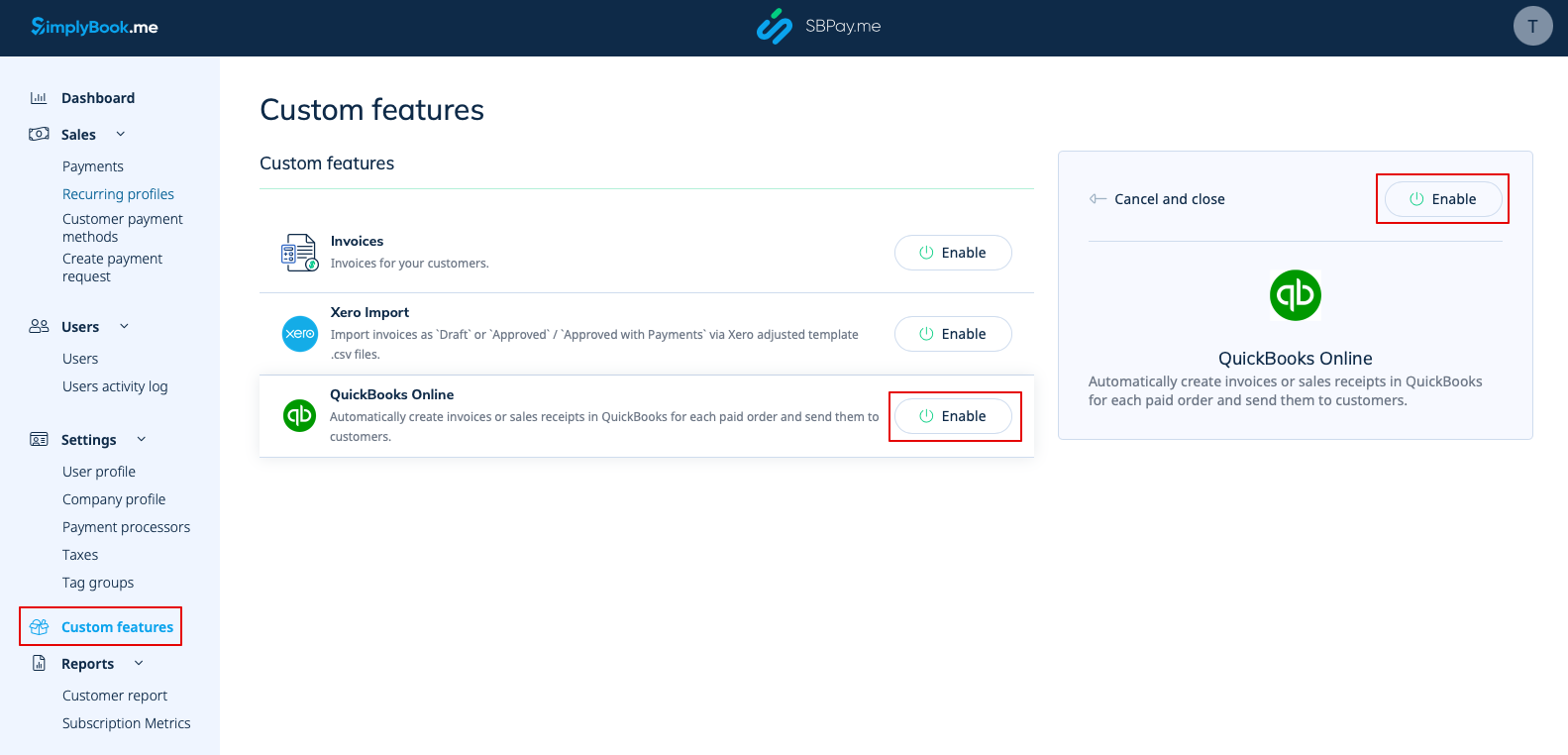
1. Gå til siden Custom Features (Tilpassede funktioner) i din SBPay.me-grænseflade, og klik på knappen Enable (Aktiver) ved siden af QuickBooks.
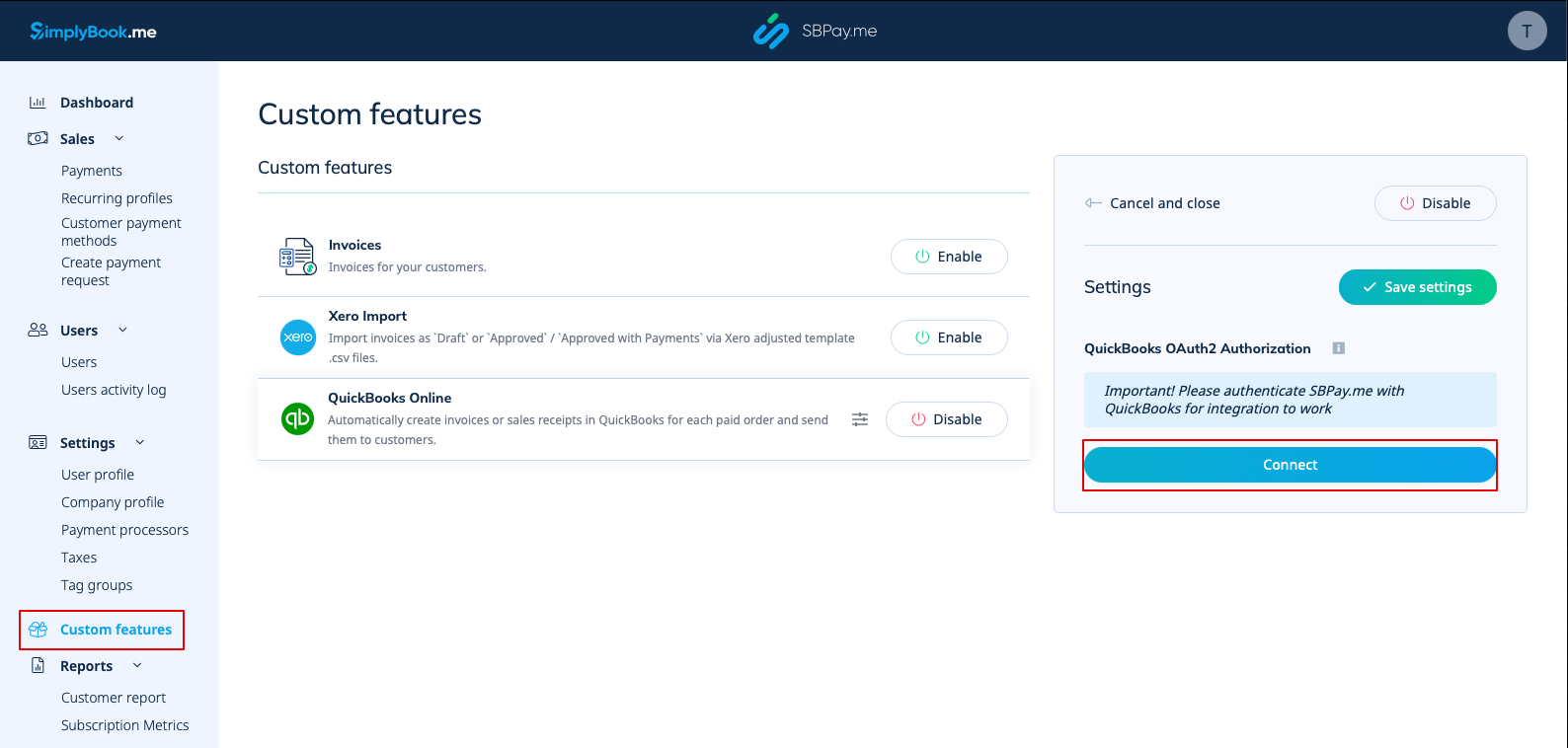
2. Når funktionen er aktiveret, skal du klikke på knappen Connect for at fortsætte med opsætningen.
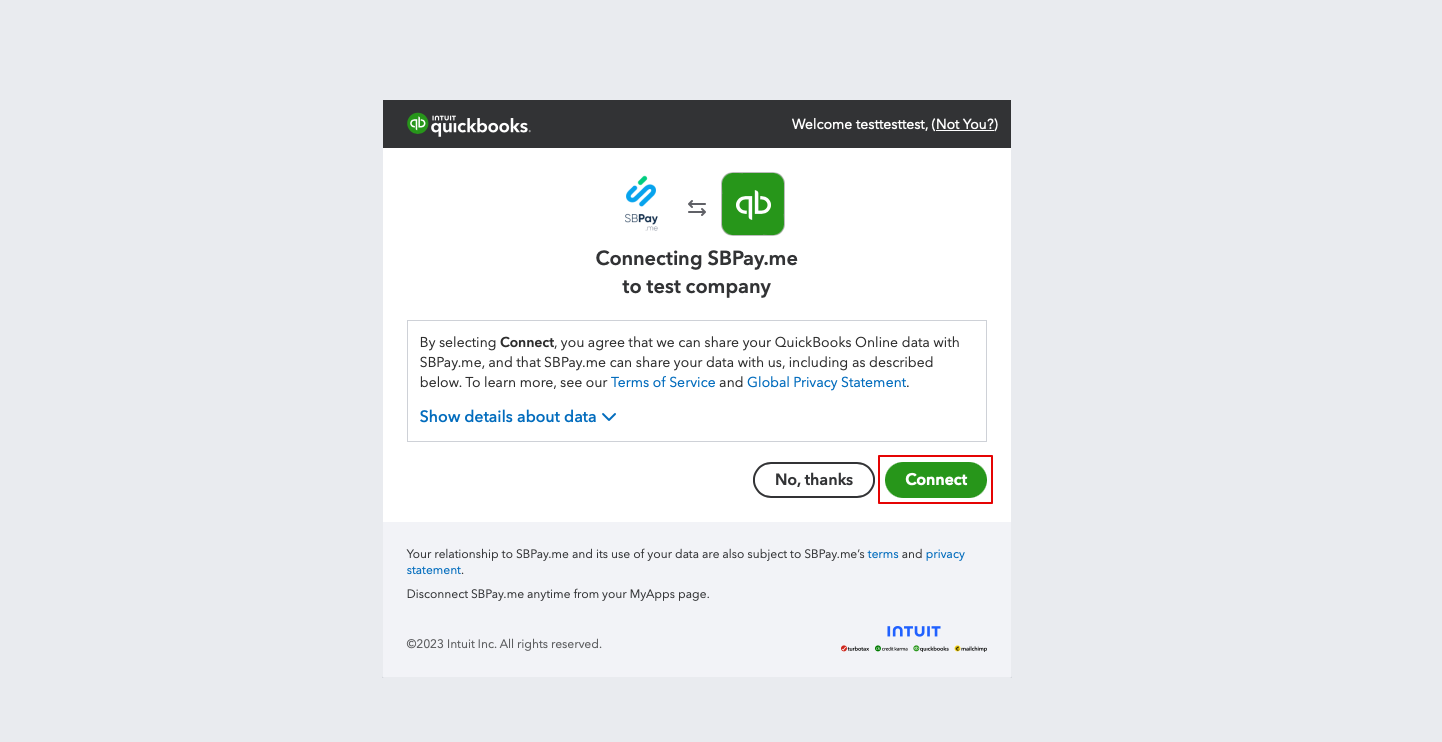
3. Du bliver bedt om at logge ind på din Quickbooks-konto for at oprette forbindelse. Hvis du allerede er logget ind i din browser, oprettes forbindelsen automatisk efter bekræftelse. Du vil også se SBPay.me i afsnittet Apps -> Mine apps i QuickBooks.
4. Når systemerne er forbundet, får du adgang til integrationsindstillingerne i SBPay.me-grænsefladen.
5. Vælg transaktionsdokumenttypen: Der er to muligheder: Faktura og salgsbilag. Faktura udløser oprettelsen af både en faktura og den tilhørende betaling i QuickBooks for hver opfyldt ordre på SimplyBook-siden. Du vil således se to poster (betaling og faktura) på QuickBooks-kontoen, der er knyttet til den samme transaktion. Salgskvittering resulterer i generering af en salgskvittering (betaling) udelukkende ved vellykket betaling for ordren.
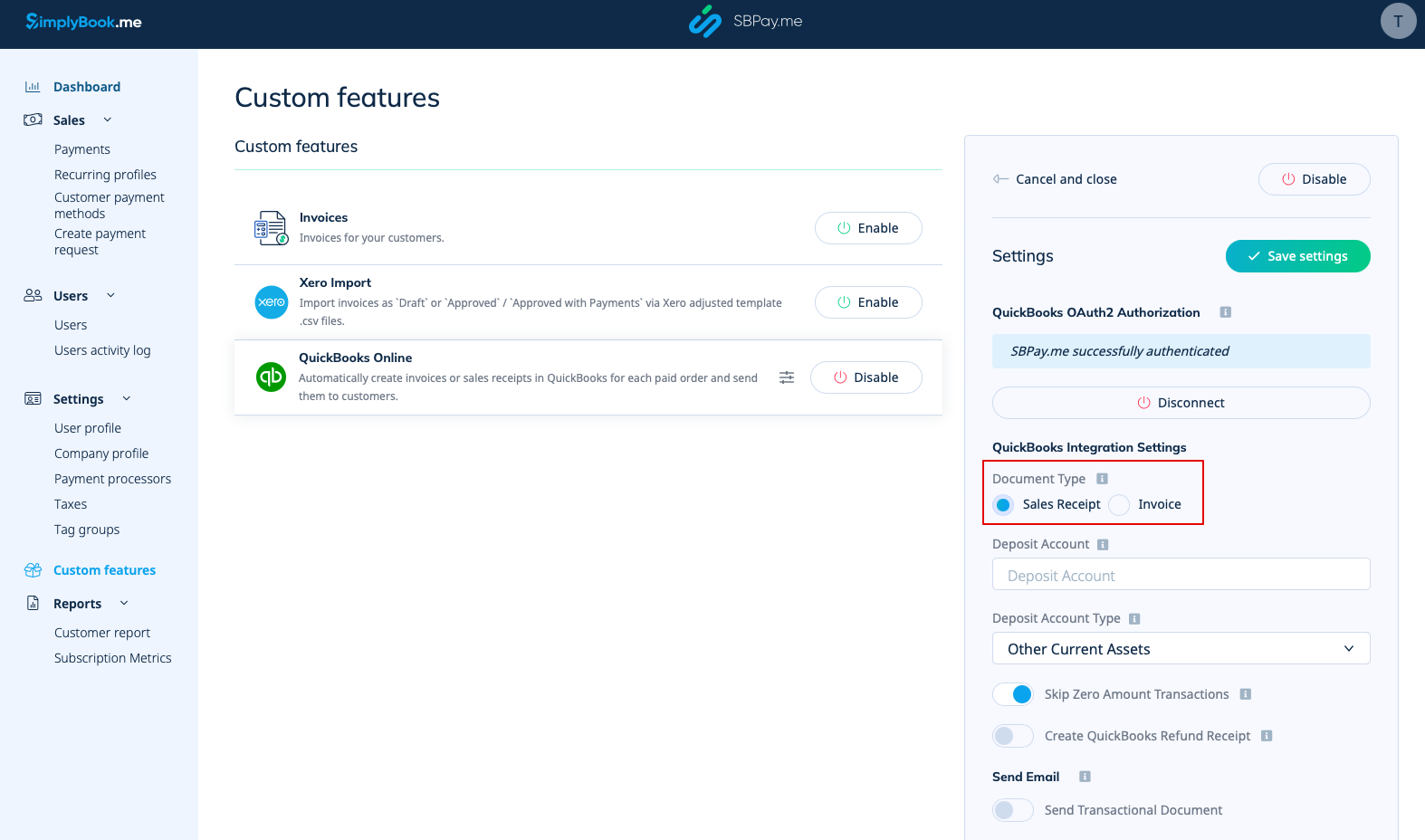
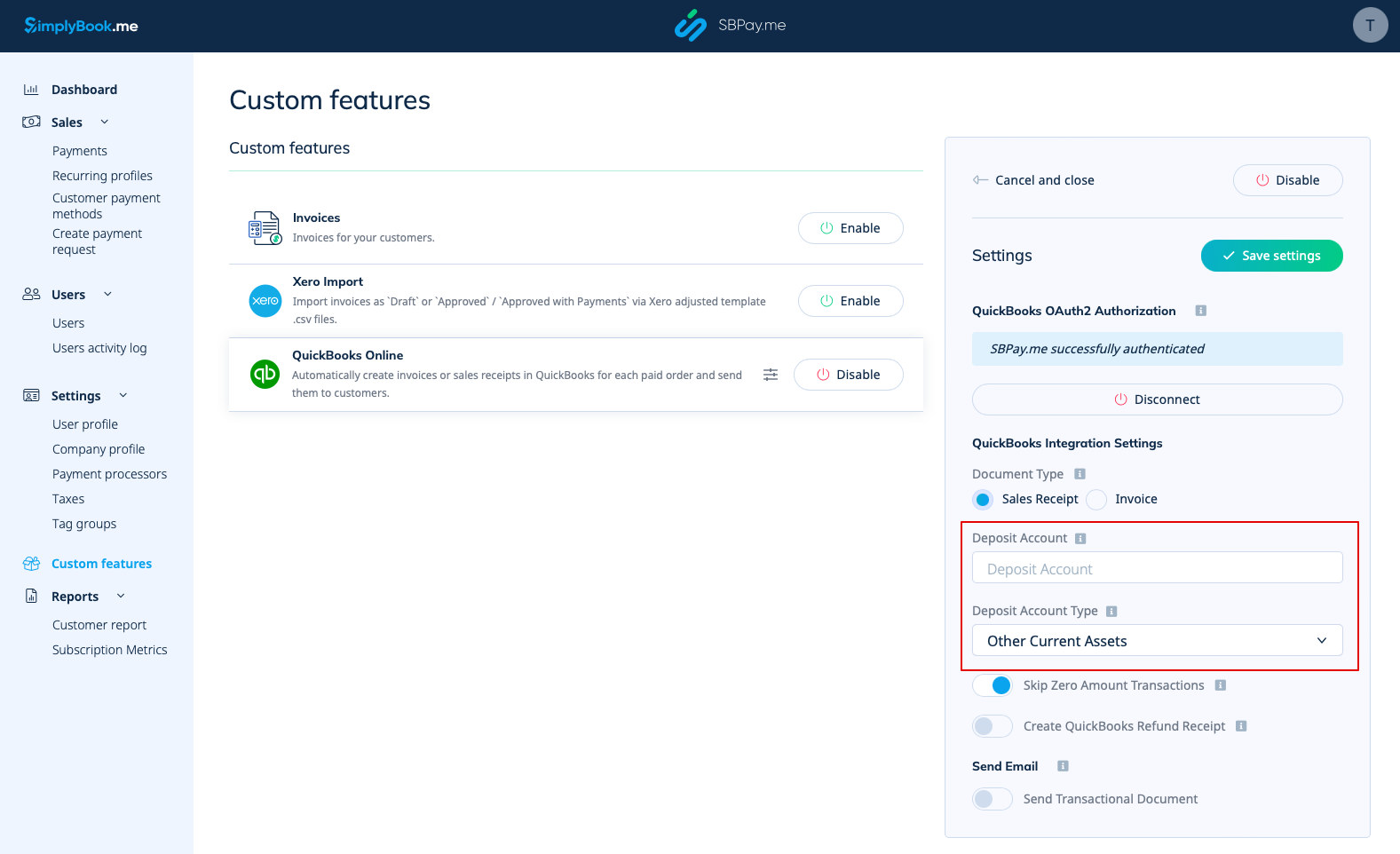
6. Du kan tilføje et indskudskontonavn og vælge indskudskontotype. Det skal være enten Anden kortfristet aktiv eller Bank (kontanter). Hvis indskudskonto ikke er angivet, bruger QuickBooks en standardkonto kaldet Ikke indbetalte midler.
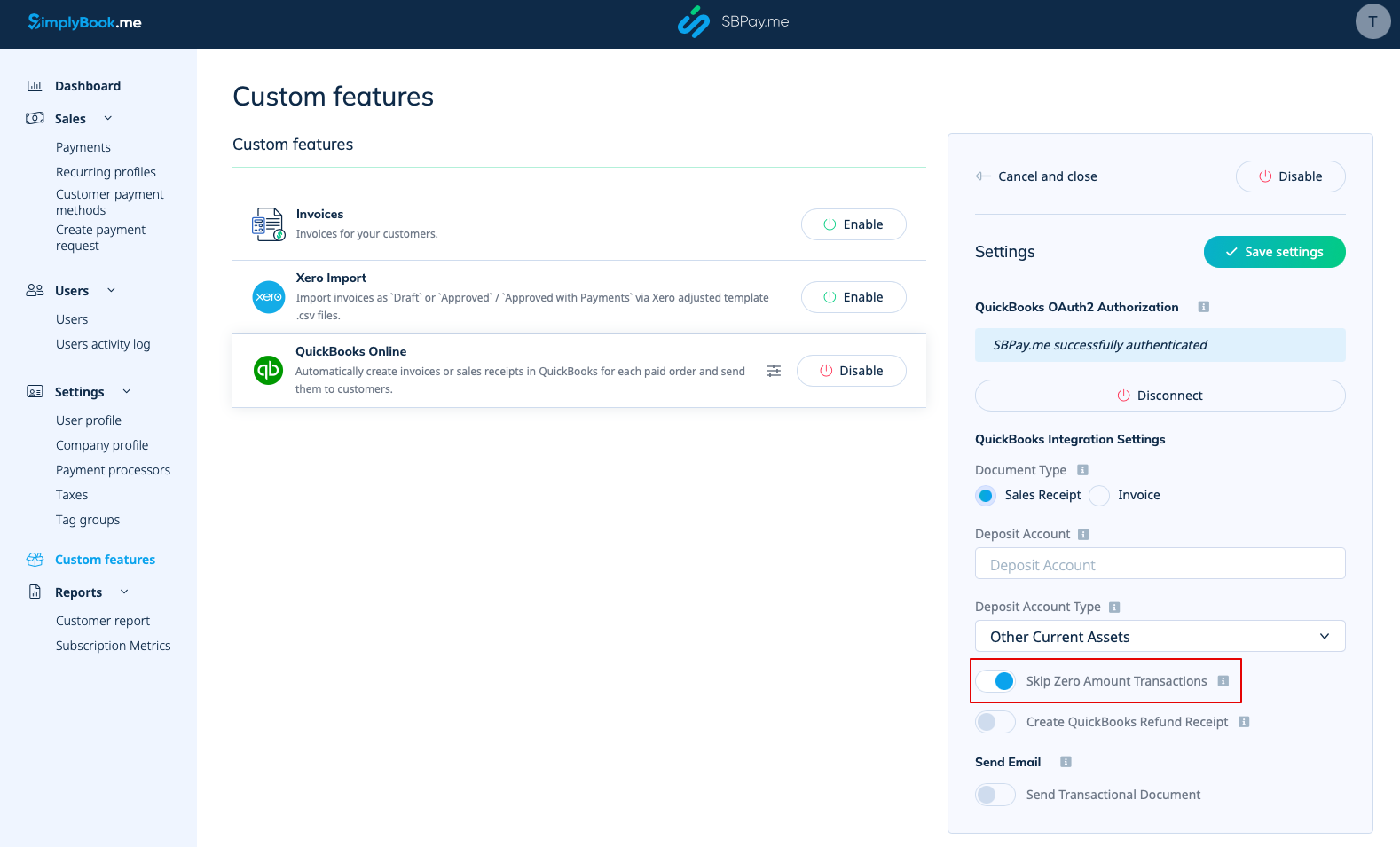
7. Spring over transaktioner med nul beløb er aktiveret som standard for at udelukke ordrer med nul beløb fra at blive overført til QuickBooks. For eksempel transaktioner, hvor rabatten blev anvendt, og det resulterende totalbeløb er 0. Du kan beholde det, som det er, hvis du ikke har brug for at se sådanne poster i Quickbooks, eller deaktivere det, hvis det er vigtigt at have dem til din bogføring.
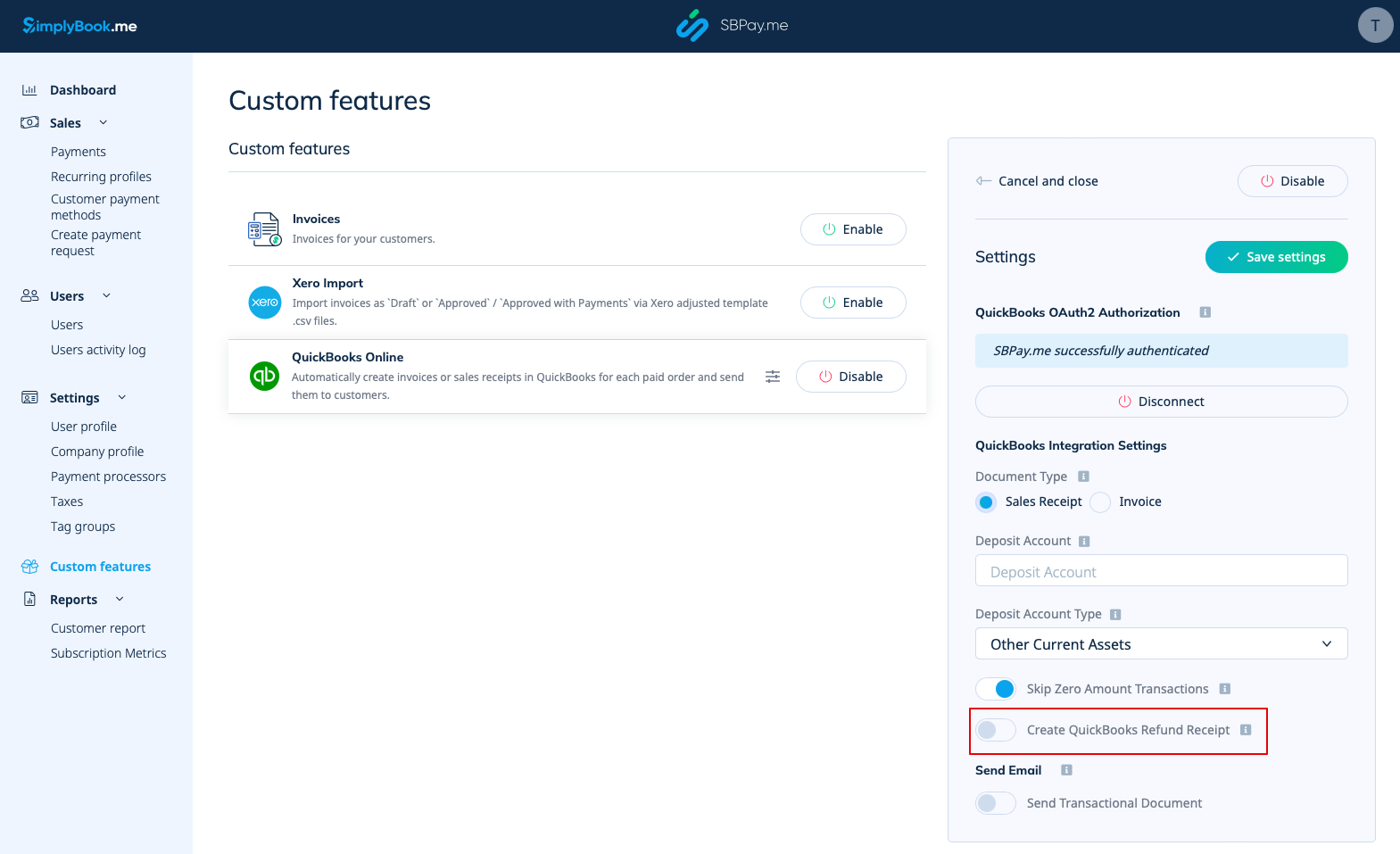
8. Du kan aktivere automatisk oprettelse af en refusionskvittering i QuickBooks, når der foretages en refusion på SBPay.me. Sørg for at inkludere indbetalingskontonavnet, hvis du vælger at aktivere denne mulighed, da det er obligatorisk for synkronisering af refusioner.
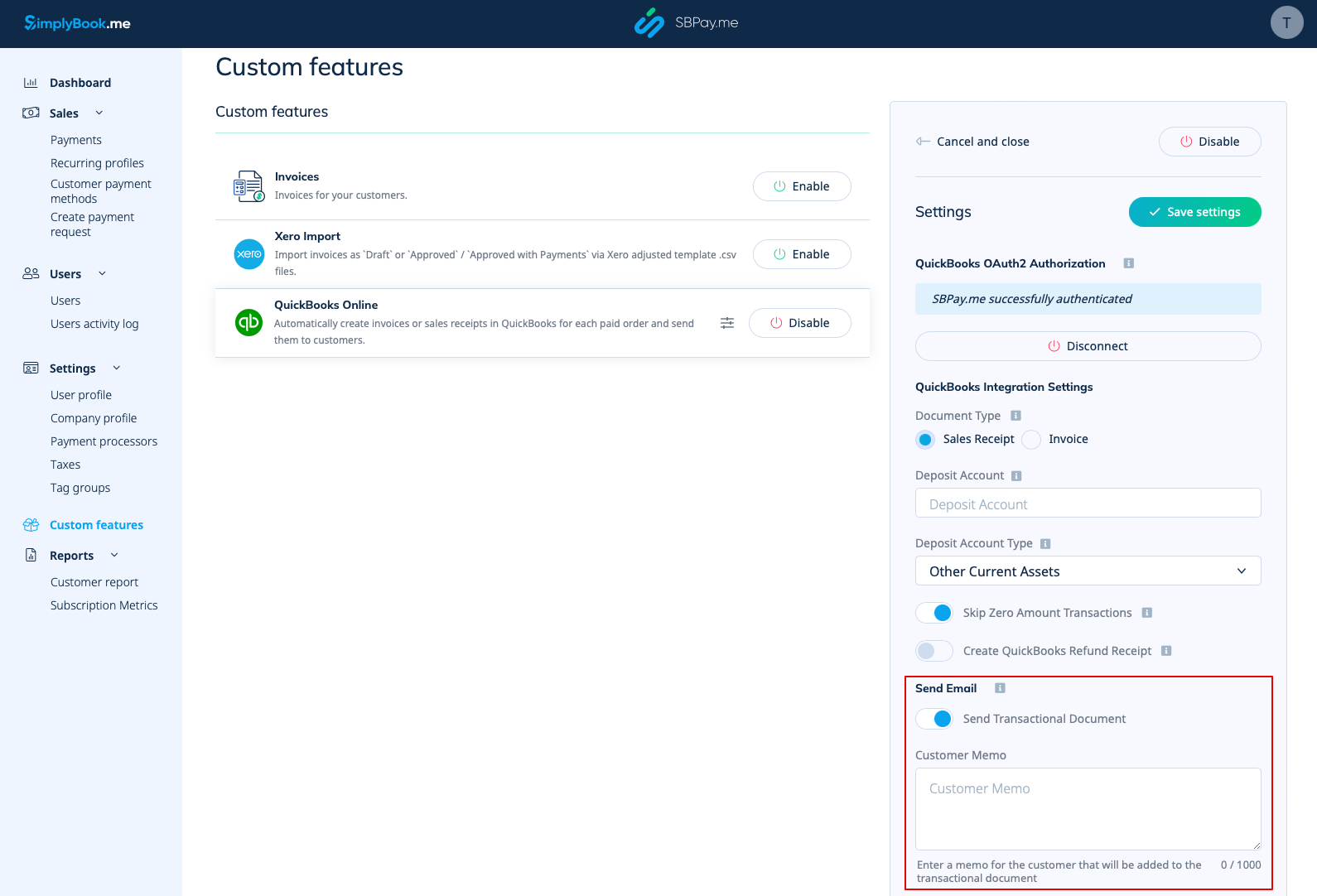
9. Der er også en mulighed for at sende et transaktionsdokument. Hvis denne mulighed er aktiveret, modtager kunden også en faktura fra QuickBooks ud over andre aktive meddelelser.
Du kan også tilføje en note, der skal vises på Quickbooks-fakturaerne.
Skatter
For at aktivere denne mulighed og videregive skatteoplysninger til Quickbooks skal du markere "Tilføj skatteoplysninger til transaktionsdokument" i Brugerdefinerede funktioner -> Moms i din SBPay.me-grænseflade. Vælg derefter den relevante skatteplacering.
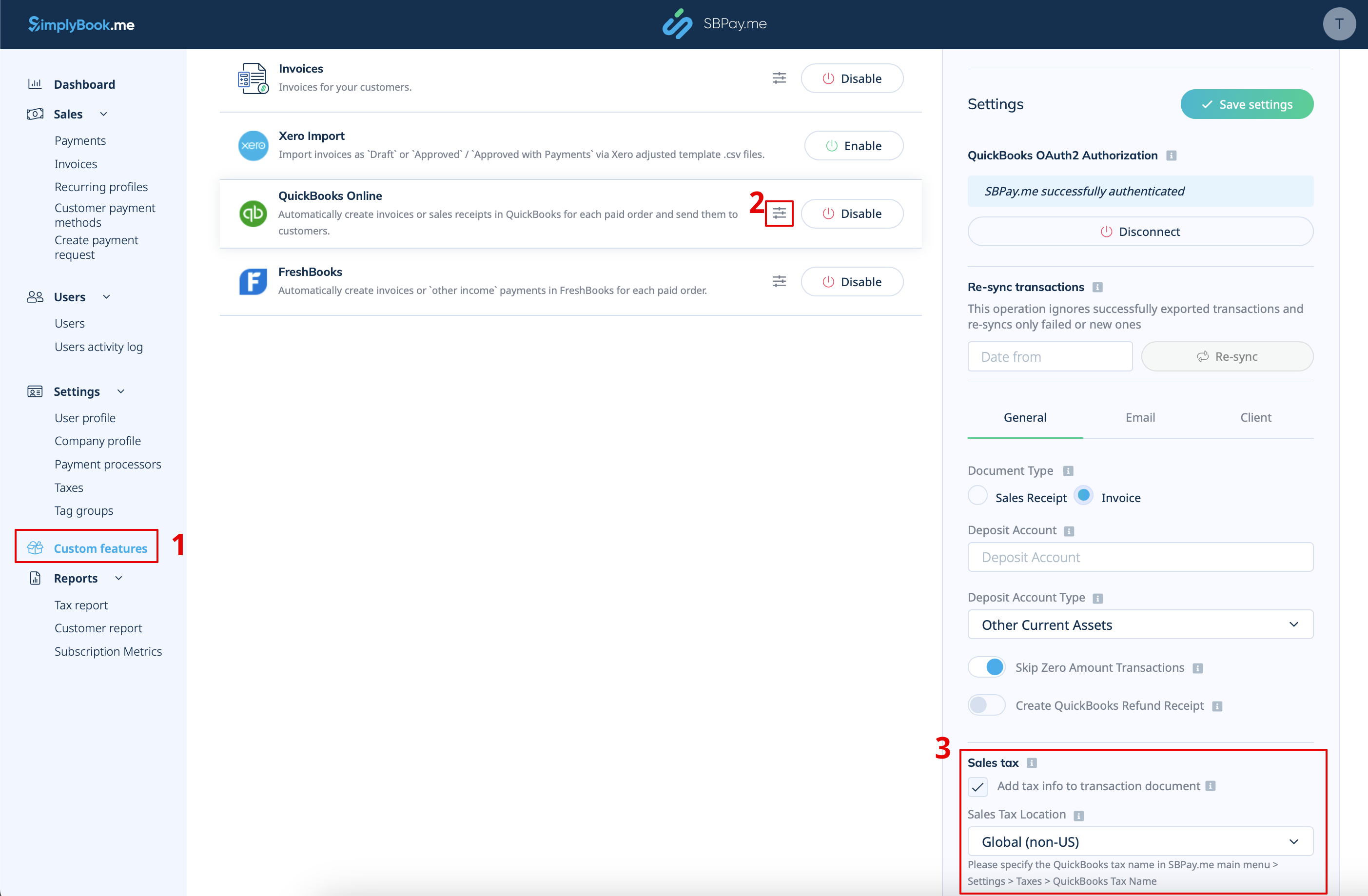
- For global skatteplacering
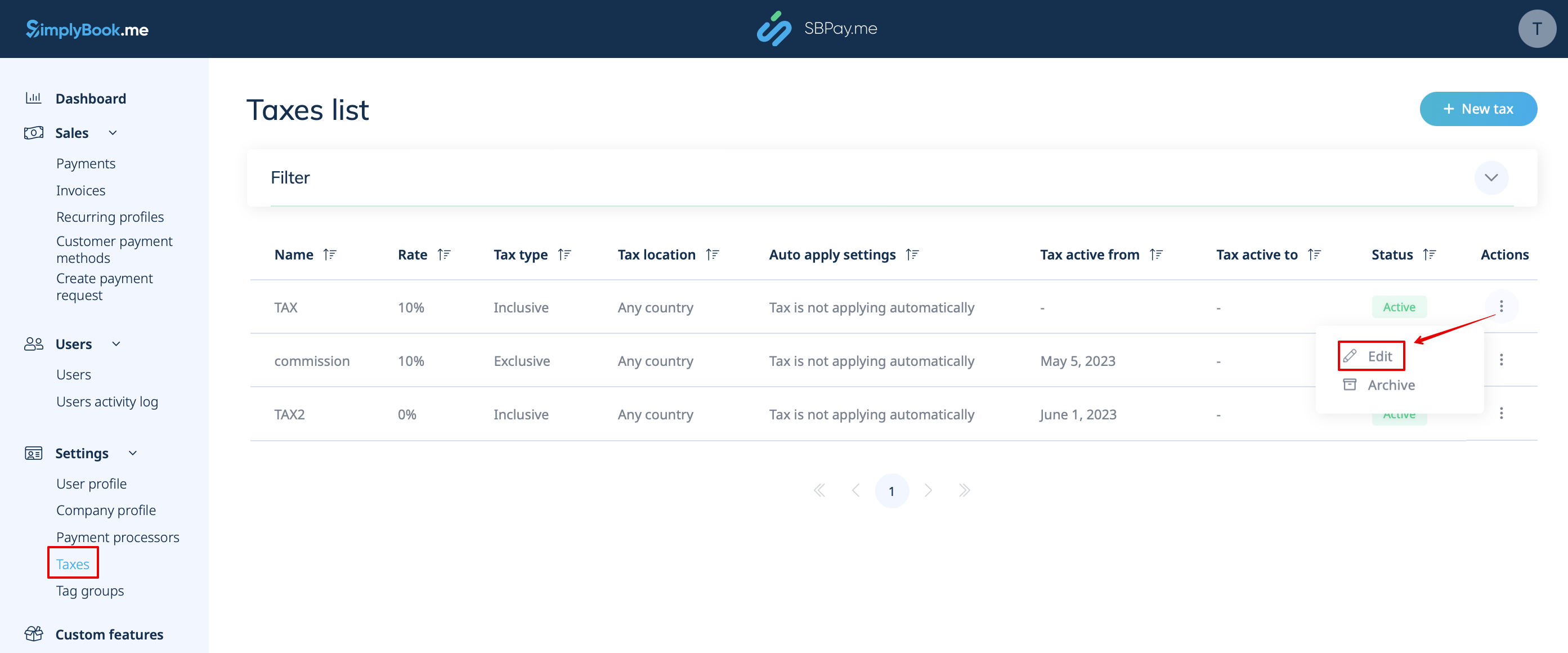
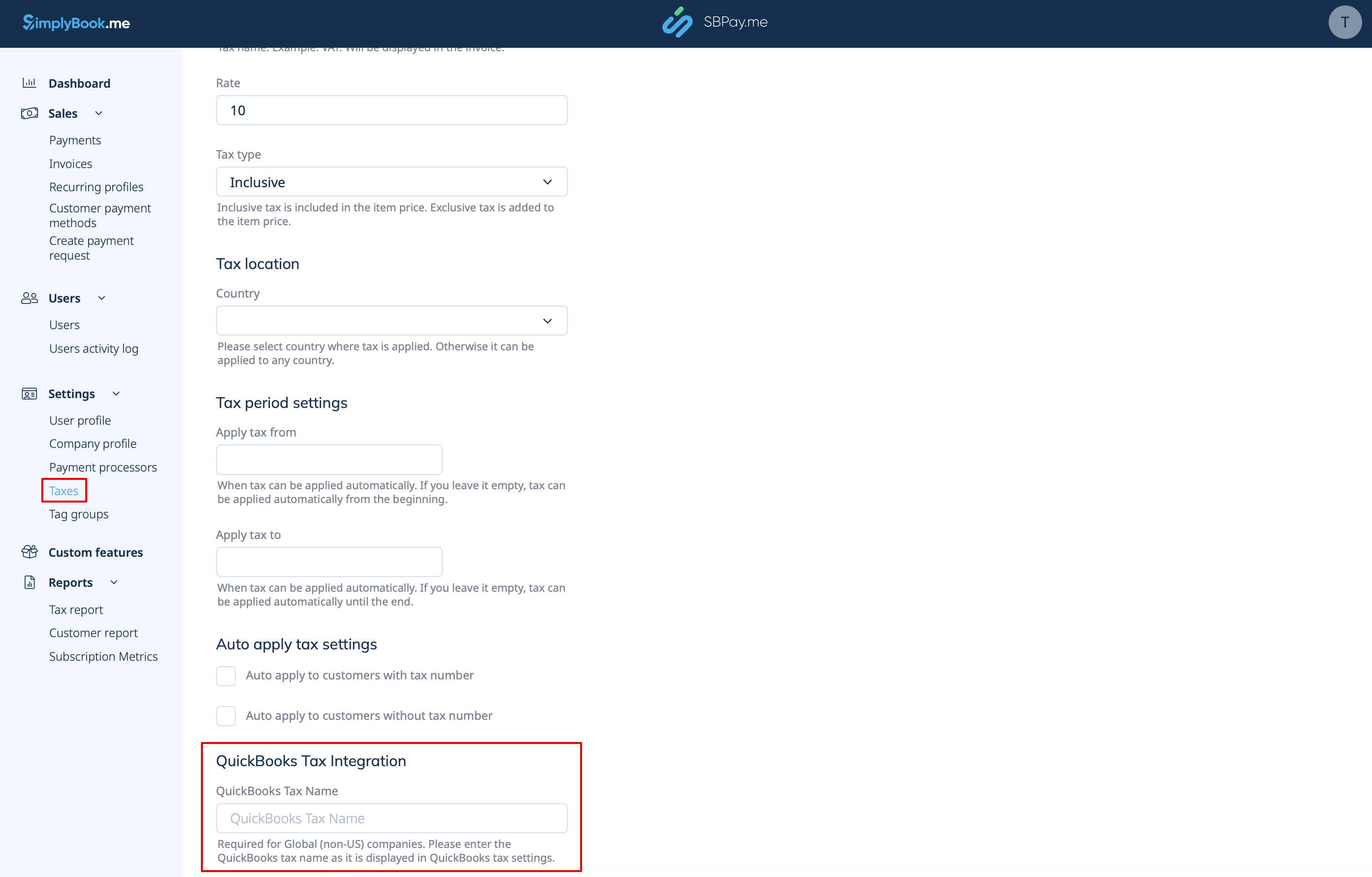
Gå også til Indstillinger -> Skatter i SBPay.me-grænsefladen, vælg den nødvendige skat og indtast det nøjagtige skattenavn, som det er defineret i QuickBooks.
Bemærk!
- Skat er defineret separat for hver linje.
- Alle linjer med skatter skal have samme skattetype (inklusive eller eksklusiv) i hele ordren;
- Ordrer, der indeholder linjer med flere skatter, overføres ikke til Quickbooks;
- Hvis ordren indeholder linjer uden pålagt skat, overføres den ikke til Quickbooks;
- Ordrer, der indeholder linjer med blandede inklusive og eksklusive skatter, overføres ikke til Quickbooks;
- Hvis Quickbooks-skattenavnet ikke er angivet for en skat i den pågældende ordre, overføres den ikke til Quickbooks.
- For skatteplacering i USA
For øjeblikket er det kun muligt at bruge automatiseret moms (AST) som defineret i QuickBooks. Hvis du angiver momsnavnet i SBPay. me-indstillinger -> Moms, ignoreres det.
Bemærk!
- -skat er defineret for hele ordren. På SBPay.me betyder dette, at ALLE linjer skal have den samme skat med den samme sats og type indstillet for hver ordrelinje;
- Skat er altid eksklusiv.
