Created page with "=== Comment associer des services à un prestataire === <br><br> Dans <span style="background-color:#d4f8e5; padding:5px; border-radius:5px;">Gérer</span> -> <span style="background-color:#d4f8e5; padding:5px; border-radius:5px;">Prestataires de services</span> -> sélectionnez le prestataire -> passez à l'onglet <span style="background-color:#d4f8e5; padding:5px; border-radius:5px;">Services, rattaché à ce prestataire de services</span> et <span style="back..." Tags: Mobile edit Mobile web edit |
No edit summary Tags: Mobile edit Mobile web edit |
||
| (2 intermediate revisions by 2 users not shown) | |||
| Line 1: | Line 1: | ||
<languages/> | <languages/> | ||
{{#seo: |title=Ajouter des services, des prestataires et des disponibilités - SimplyBook.me |description= | {{#seo: |title=Ajouter des services, des prestataires et des disponibilités - SimplyBook.me |description=Découvrez un guide étape par étape pour ajouter des services et du personnel. Définissez les durées, les tarifs et les plannings de disponibilité. Configurez les horaires de travail des prestataires et les détails des services dans le nouveau ...|titlemode=ajouter |keywords=faq, foire aux questions, logiciel de réservation, questions sur le système de rendez-vous, rendez-vous en ligne, logiciel de calendrier, système de réservation, calendrier de réservation, logiciel de planification, planification de rendez-vous en ligne, planification en ligne, configuration, aide à la configuration, assistance, contenu d'aide, ajouter un service, ajouter des services, créer des services, ajouter des prestataires, créer un prestataire, copier un service, copier un prestataire, ajouter des événements, configurer des services, configurer des prestataires }} | ||
<br> | <br> | ||
| Line 7: | Line 7: | ||
<p><youtube>https://youtu.be/JZ6RaaIN2J8?si=Bx9lCVCVSKnO_tBe</youtube></p> | <p><youtube>https://youtu.be/JZ6RaaIN2J8?si=Bx9lCVCVSKnO_tBe</youtube></p> | ||
<br> | <br> | ||
<span id="Adding_services"></span> | |||
<div class="mw-translate-fuzzy"> | |||
== Ajout de services == | == Ajout de services == | ||
:Tutoriel vidéo | :Tutoriel vidéo | ||
| Line 14: | Line 16: | ||
<br><br> | <br><br> | ||
[[File:Create new service redesigned.png|1200px | center|link=https://help.simplybook.me/images/2/2d/Create_new_service_redesigned.png]] | [[File:Create new service redesigned.png|1200px | center|link=https://help.simplybook.me/images/2/2d/Create_new_service_redesigned.png]] | ||
</div> | |||
<div lang="en" dir="ltr" class="mw-content-ltr"> | |||
===How to create a service=== | |||
In <span style="background-color:#d4f8e5; padding:5px; border-radius:5px;">Manage</span> -> <span style="background-color:#d4f8e5; padding:5px; border-radius:5px;">Services</span> press <span style="background-color:#d4f8e5; padding:5px; border-radius:5px;">+</span> button. | |||
<br><br> | |||
[[File:Create new service redesigned.png|1200px | center|link=https://help.simplybook.me/images/2/2d/Create_new_service_redesigned.png]] | |||
</div> | |||
<br><br> | <br><br> | ||
| Line 87: | Line 97: | ||
<br><br> | <br><br> | ||
<span id="Adding_Providers"></span> | |||
<div class="mw-translate-fuzzy"> | |||
== Ajouter des prestataires == | == Ajouter des prestataires == | ||
:Tutoriel vidéo | :Tutoriel vidéo | ||
| Line 92: | Line 104: | ||
=== Comment ajouter un prestataire === | === Comment ajouter un prestataire === | ||
<br><br> | <br><br> | ||
</div> | |||
<div lang="en" dir="ltr" class="mw-content-ltr"> | |||
===How to add a provider=== | |||
<br><br> | |||
</div> | |||
Dans <span style="background-color:#d4f8e5; padding:5px; border-radius:5px;">Gérer</span> -> <span style="background-color:#d4f8e5; padding:5px; border-radius:5px;">Prestataires de services</span>, appuyez sur le bouton <span style="background-color:#d4f8e5; padding:5px; border-radius:5px;">+</span>. | Dans <span style="background-color:#d4f8e5; padding:5px; border-radius:5px;">Gérer</span> -> <span style="background-color:#d4f8e5; padding:5px; border-radius:5px;">Prestataires de services</span>, appuyez sur le bouton <span style="background-color:#d4f8e5; padding:5px; border-radius:5px;">+</span>. | ||
<br><br> | <br><br> | ||
| Line 136: | Line 154: | ||
<br><br> | <br><br> | ||
=== Comment définir le planning d'un prestataire === | |||
<br><br> | <br><br> | ||
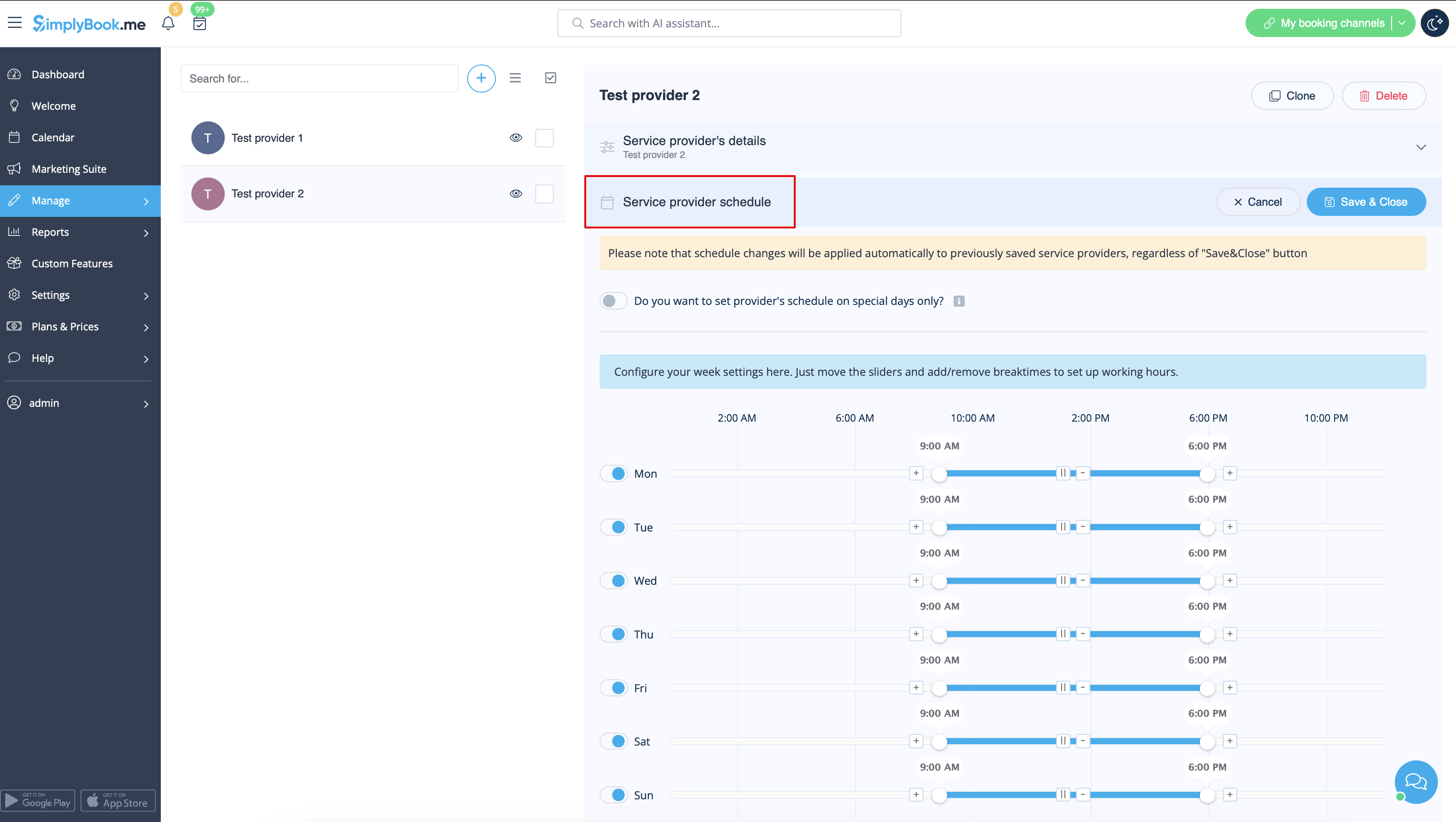
Vous pouvez définir un horaire régulier pour les prestataires dans <span style="background-color:#d4f8e5; padding:5px; border-radius:5px;">Gérer</span> -> <span style="background-color:#d4f8e5; padding:5px; border-radius:5px;">Prestataires de services</span>, sélectionnez le prestataire souhaité à gauche et passez à l'onglet <span style="background-color:#d4f8e5; padding:5px; border-radius:5px;">Horaire du prestataire de services</span>. <br>Par exemple, si vous travaillez du lundi au vendredi de 9 h à 17 h, il vous suffit de définir l'horaire pour ces dates en déplaçant les curseurs vers les positions souhaitées (la ligne bleue claire indique les heures disponibles). <br>Pour définir les jours de travail/de congé, utilisez <span style="background-color:#d4f8e5; padding:5px; border-radius:5px;">les boutons</span> à côté des noms des jours. | |||
<br><br> | <br><br> | ||
[[File:Service provider schedule path in-tab redesigned.png|1200px | center|link=https://help.simplybook.me/images/6/69/Service_provider_schedule_path_in-tab_redesigned.png]] | [[File:Service provider schedule path in-tab redesigned.png|1200px | center|link=https://help.simplybook.me/images/6/69/Service_provider_schedule_path_in-tab_redesigned.png]] | ||
<br> | <br> | ||
[[File:Provider schedule details.png | center]] | [[File:Provider schedule details.png|center]] | ||
<br><br> | <br><br> | ||
=== | === Comment définir le calendrier pour les jours fériés et autres dates spécifiques === | ||
<br><br> | <br><br> | ||
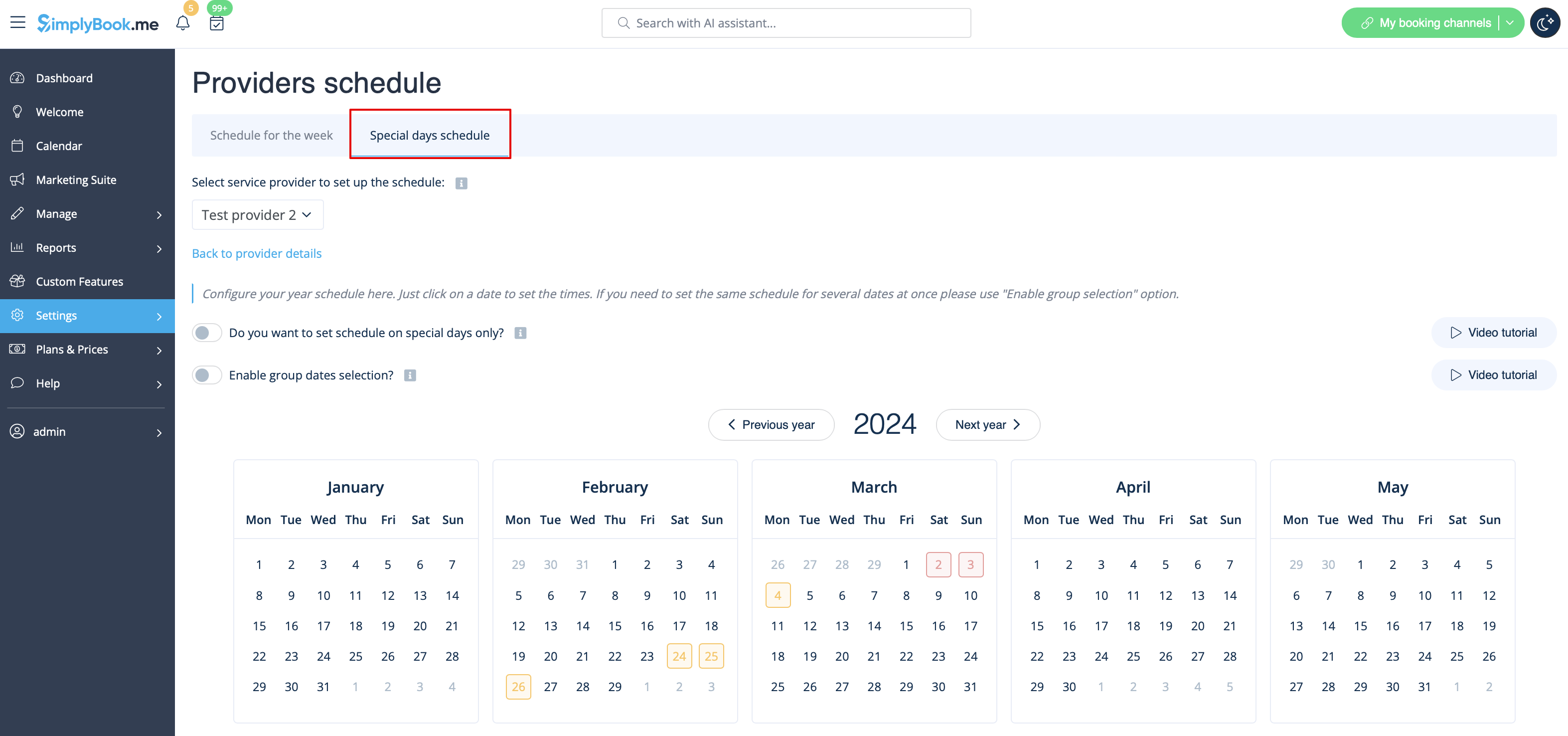
Vous pouvez définir le calendrier pour une date spécifique pour un prestataire dans <span style="background-color:#d4f8e5; padding:5px; border-radius:5px;">Gérer</span> -> <span style="background-color:#d4f8e5; padding:5px; border-radius:5px;">Prestataires de services</span>, sélectionnez le prestataire souhaité à gauche et passez à l'onglet <span style="background-color:#d4f8e5; padding:5px; border-radius:5px;">Calendrier du prestataire de services</span>, sélectionnez l'option <span style="background-color:#d4f8e5; padding:5px; border-radius:5px;">Afficher les paramètres avancés</span>, puis l'onglet <span style="background-color:#d4f8e5; padding:5px; border-radius:5px;">Jours spéciaux</span>. <br>Par exemple, si vous travaillez différemment à certaines dates ou si vous avez des jours de congé, vous pouvez cliquer sur la date et définir le calendrier en cliquant sur les créneaux correspondants pour les rendre disponibles (bleu vif) ou indisponibles (bleu clair). | |||
<br><br> | <br><br> | ||
[[File:Provider special days path.png|1200px | center|link=https://help.simplybook.me/images/a/a1/Provider_special_days_path.png]] | [[File:Provider special days path.png|1200px | center|link=https://help.simplybook.me/images/a/a1/Provider_special_days_path.png]] | ||
<br><br> | <br><br> | ||
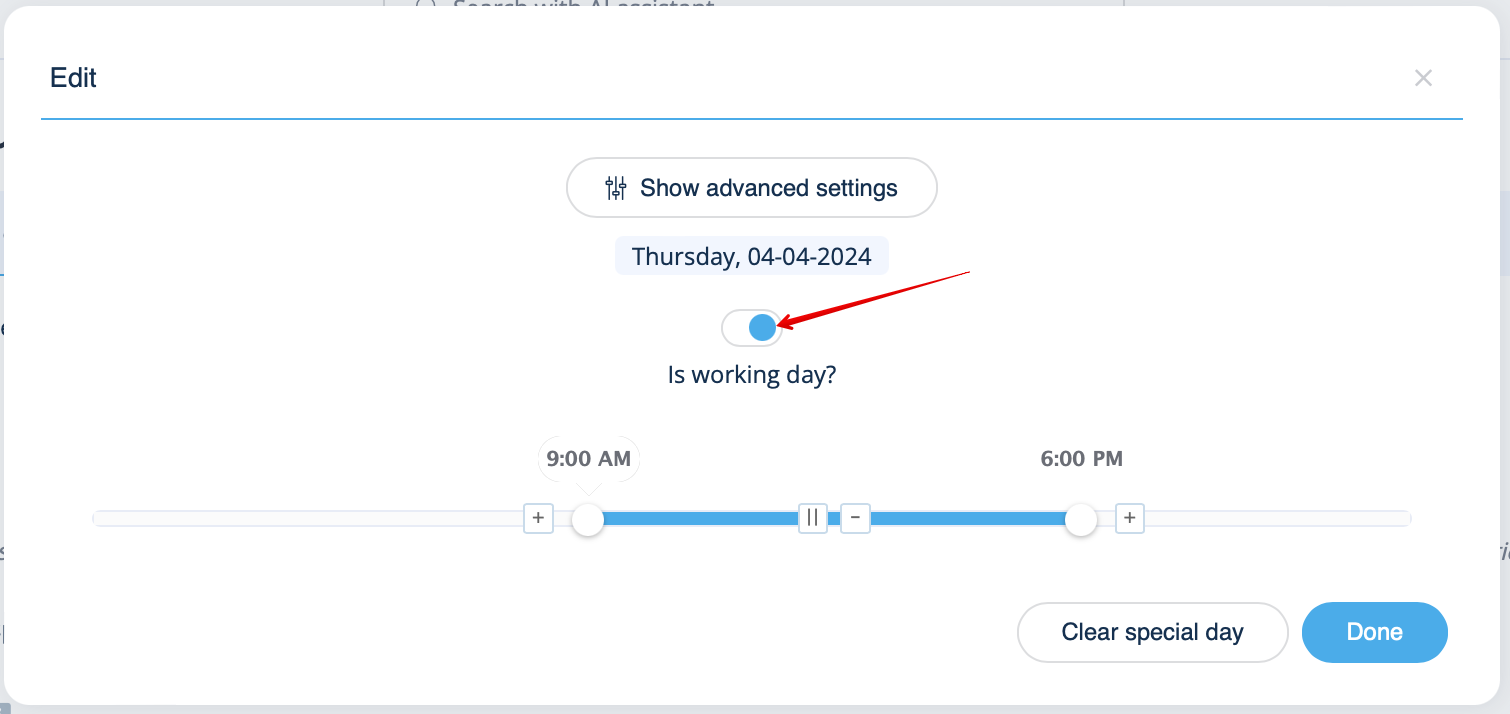
Pour rendre une date ouvrée/non ouvrée, cliquez sur la date et utilisez le bouton <span style="background-color:#d4f8e5; padding:5px; border-radius:5px;">« Jour ouvré ? »</span> situé à côté du planning qui apparaît dans la fenêtre contextuelle.<br> | |||
[[File:Is working day popup redesigned.png|800px | center|link=https://help.simplybook.me/images/8/8e/Is_working_day_popup_redesigned.png]] | [[File:Is working day popup redesigned.png|800px | center|link=https://help.simplybook.me/images/8/8e/Is_working_day_popup_redesigned.png]] | ||
<br><br> | <br><br> | ||
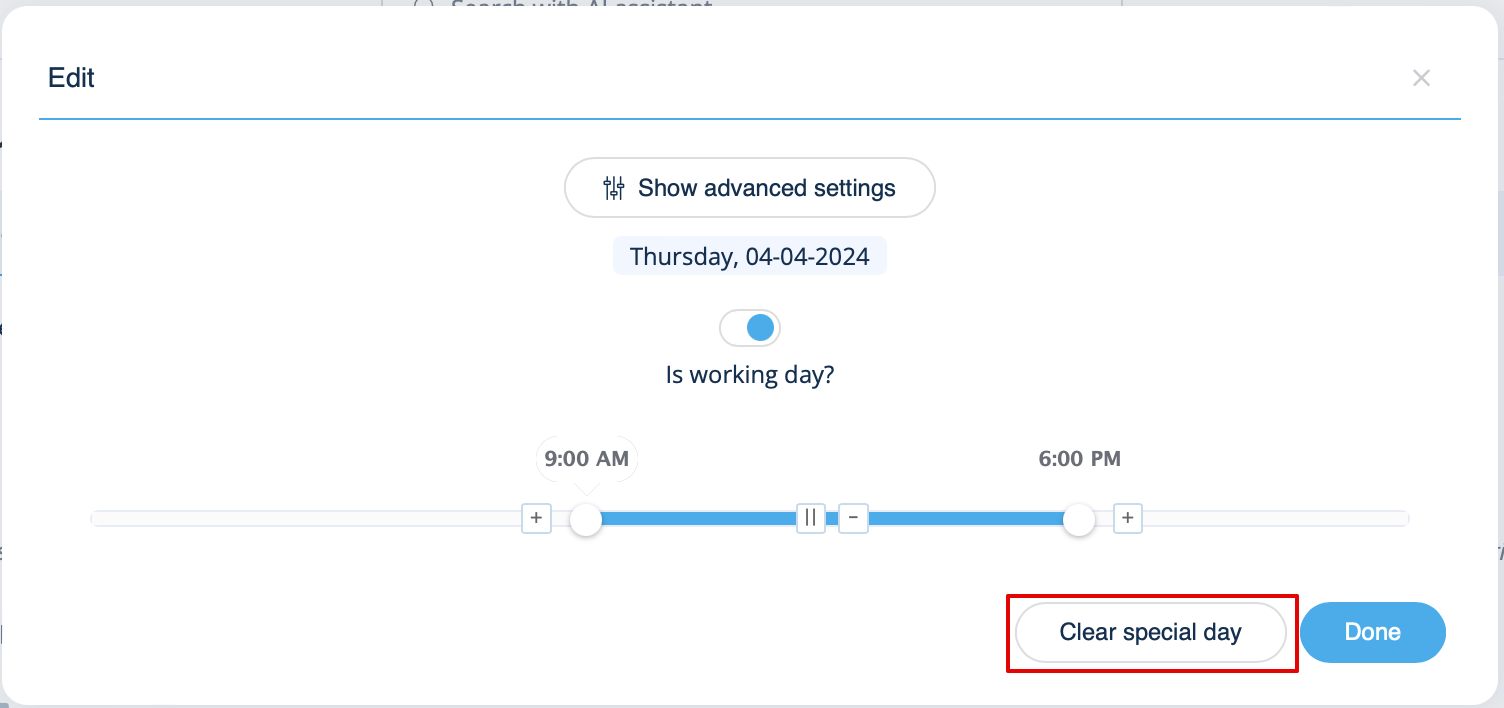
Si vous devez supprimer les paramètres de jour spécial pour une date, cliquez sur la date et appuyez sur le bouton <span style="background-color:#d4f8e5; padding:5px; border-radius:5px;">Effacer le jour spécial</span>. | |||
<br><br> | <br><br> | ||
[[File:Clear special day redesigned.png|800px | center|link=https://help.simplybook.me/images/c/c7/Clear_special_day_redesigned.png]] | [[File:Clear special day redesigned.png|800px | center|link=https://help.simplybook.me/images/c/c7/Clear_special_day_redesigned.png]] | ||
<br><br> | <br><br> | ||
<div style= "padding: 40px 30px; border-radius:20px; width: fit-content; width:-moz-max-content; background: #f1f6ff">''''' | <div style= "padding: 40px 30px; border-radius:20px; width: fit-content; width:-moz-max-content; background: #f1f6ff">'''''Vous pourriez également avoir besoin de :''''' | ||
*[[How_to_set_my_availability#I_have_both_schedules_for_services_and_for_providers| | *[[How_to_set_my_availability#I_have_both_schedules_for_services_and_for_providers|Relations entre les plannings]] | ||
*[[Calendar_Sync_custom_feature| | *[[Calendar_Sync_custom_feature|Comment synchroniser les réservations des prestataires avec le calendrier Google ou Outlook]] | ||
*[[Multiple_Locations_custom_feature| | *[[Multiple_Locations_custom_feature|Comment ajouter différents lieux de travail]] | ||
*[[Provider_Color_Coding_custom_feature| | *[[Provider_Color_Coding_custom_feature|Comment attribuer des codes couleur aux rendez-vous des prestataires]] | ||
*[[Flexible_Notifications_custom_feature| | *[[Flexible_Notifications_custom_feature|Comment définir des notifications spécifiques par prestataire]] | ||
*[[Book_Soon_Notification_System_custom_feature| | *[[Book_Soon_Notification_System_custom_feature|Ajouter des rappels pour réserver à nouveau]]</div> | ||
<br><br> | <br><br> | ||
Latest revision as of 13:20, 3 February 2026
- Voir le tutoriel vidéo sur l'ajout de services et de prestataires de services
Ajout de services
- Tutoriel vidéo
Comment créer un service
Dans Gérer -> Services, appuyez sur le bouton +.
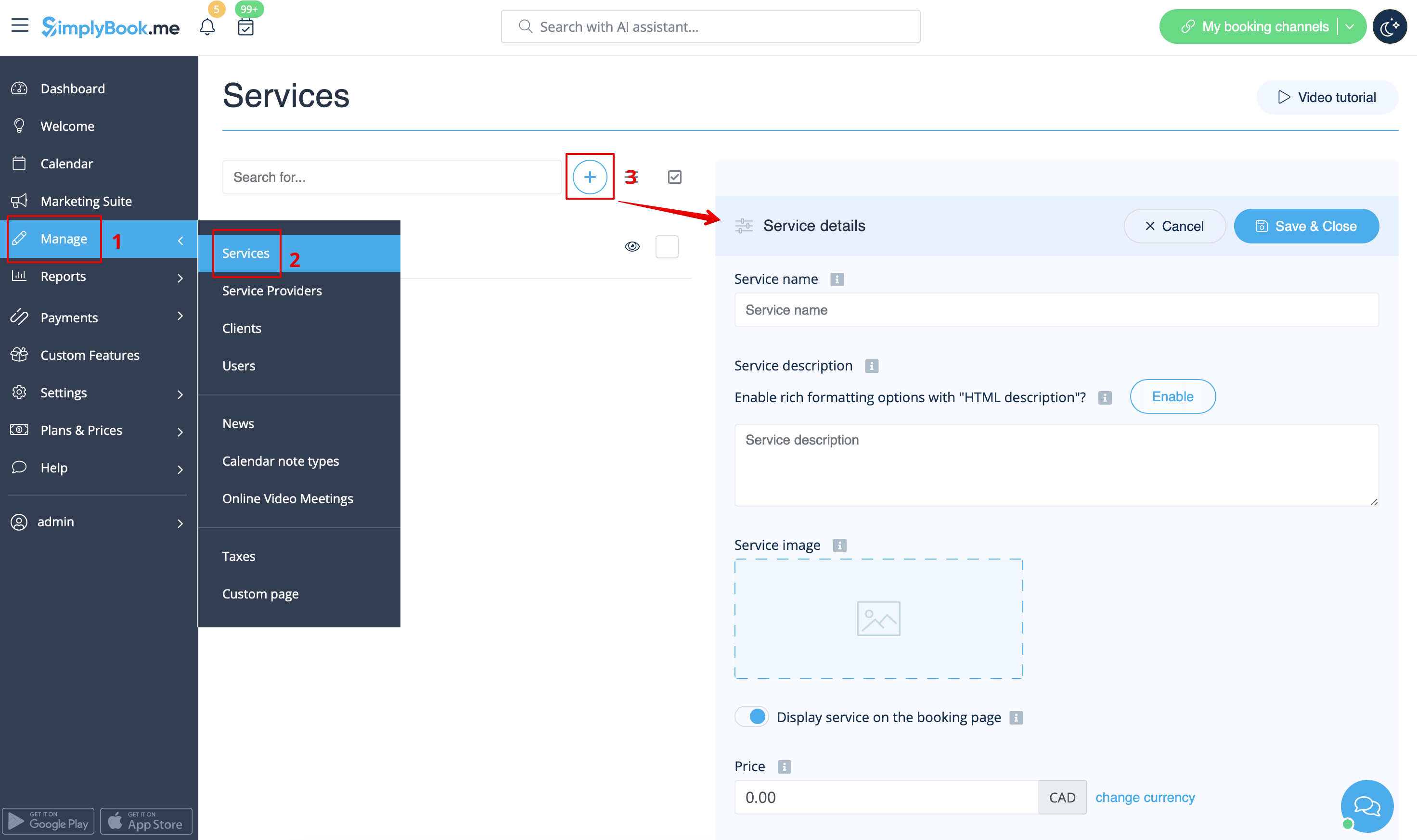
How to create a service
In Manage -> Services press + button.
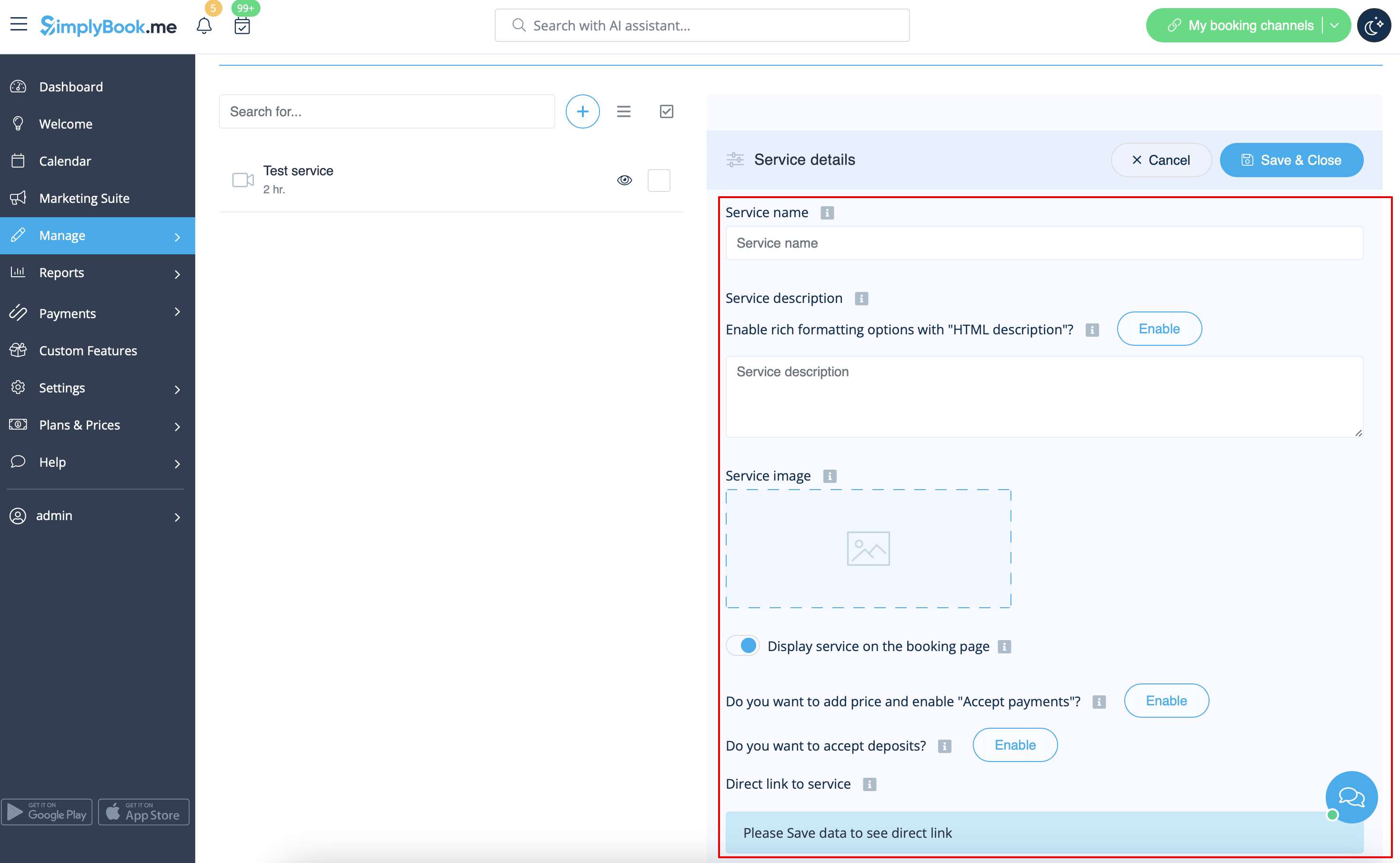
À droite de la page, insérez le nom de votre service et ajoutez sa description.
Il est possible d'utiliser le formatage HTML pour la description du service afin de modifier la police, sa couleur, etc.
Vous pouvez également télécharger une photo du service et activer les prix pour accepter les paiements en ligne.
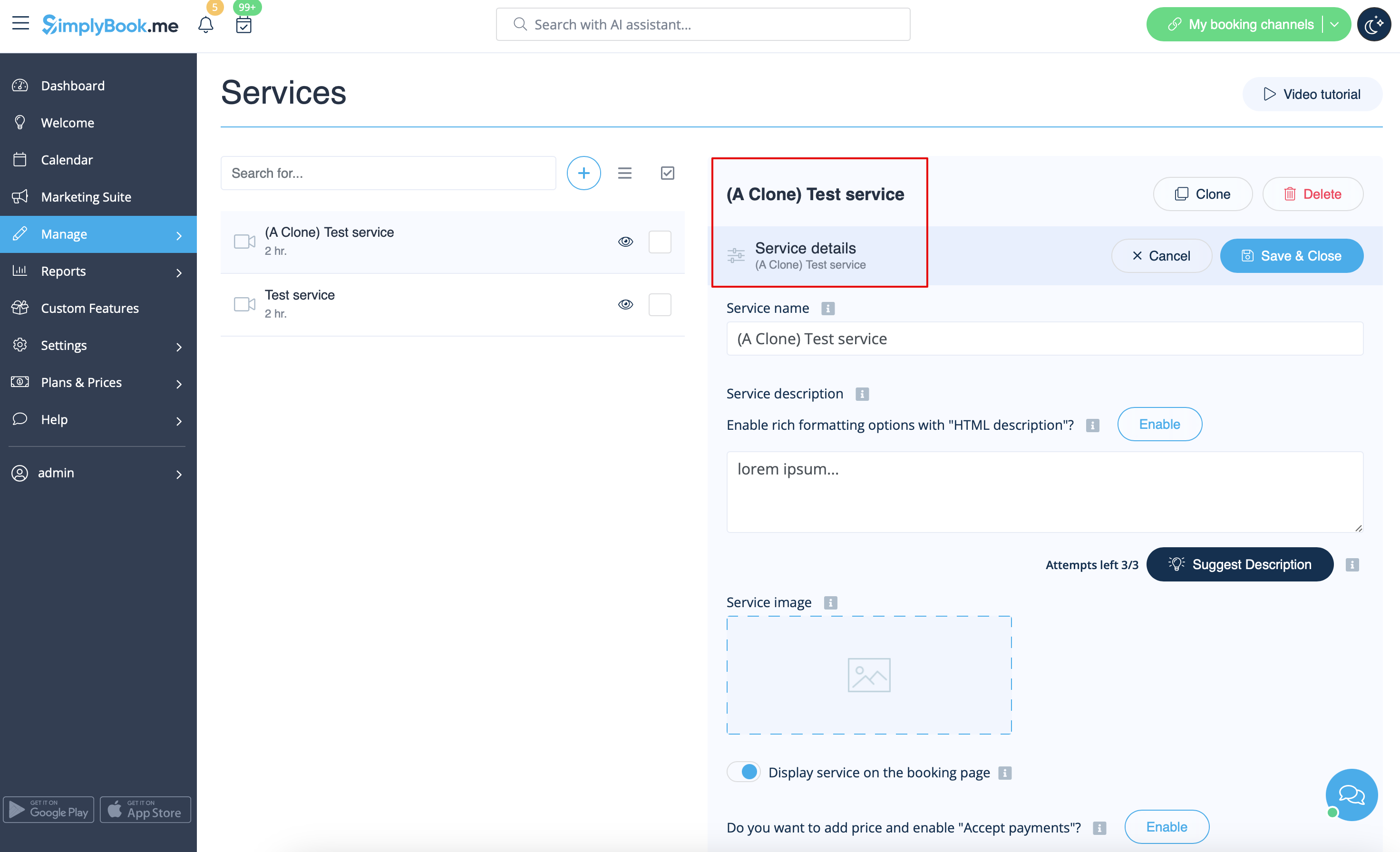
Comment cloner un service
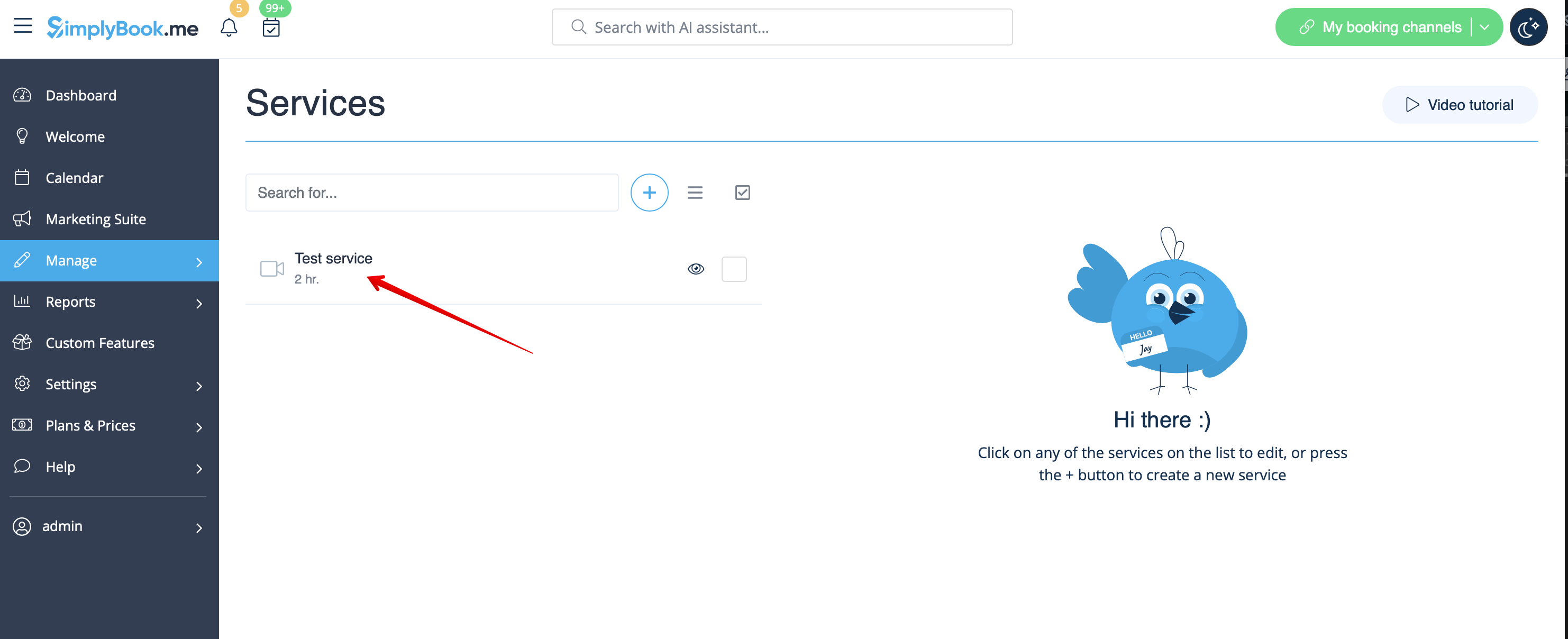
Il peut arriver que vous ayez besoin de créer plusieurs services similaires avec les mêmes paramètres.
L'option de clonage vous sera alors très utile.
Veuillez sélectionner le service dont vous souhaitez faire une copie.
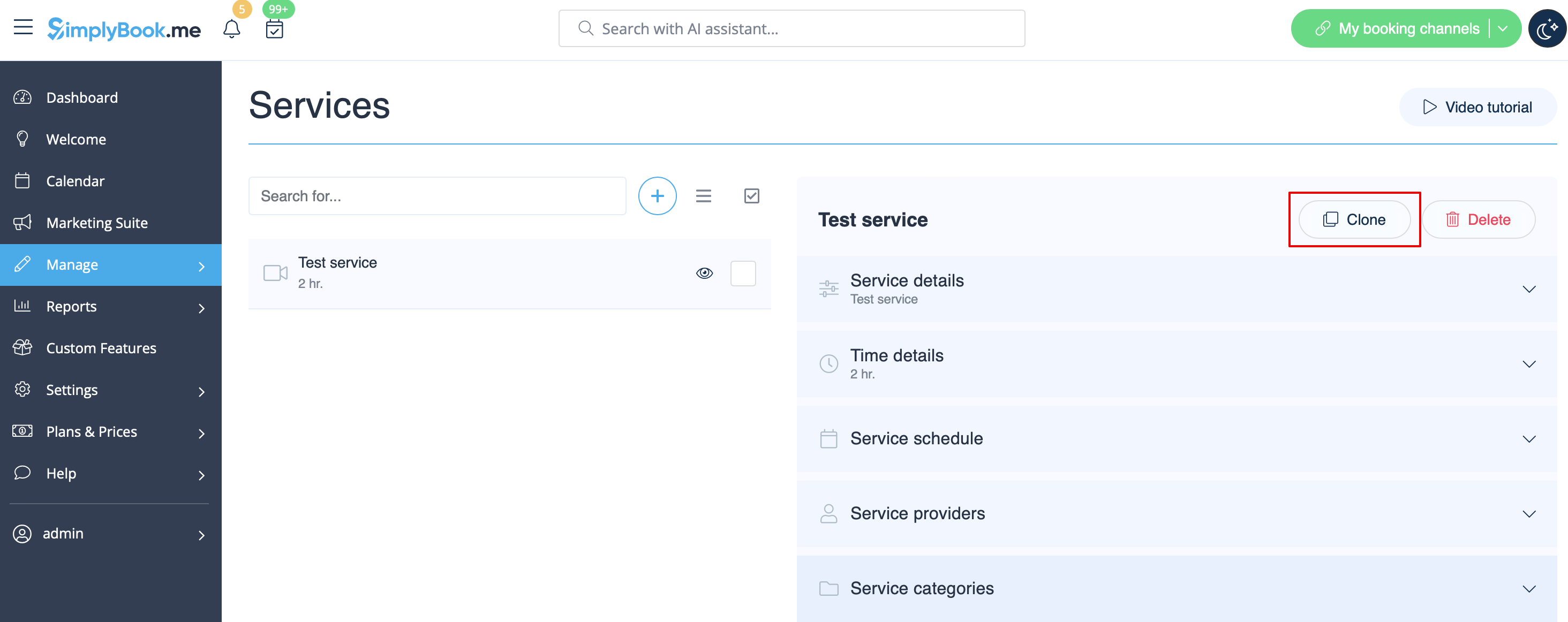
Cliquez sur le bouton Cloner dans le coin supérieur droit, puis confirmez la copie des paramètres.
Les paramètres de service suivants seront copiés :
- nom du service
- description du service
- prix du service si la fonctionnalité « Accepter les paiements » est activée et configurée
- image du service
- calendrier du service
- paramètres de la fonctionnalité « Notifications flexibles » si elle est activée et configurée
- paramètres de la fonctionnalité « Système de notification de réservation rapide » si elle est activée et configurée
- paramètres de la fonctionnalité « Rendez-vous à heure fixe » si elle est activée et configurée
Au final, un service supplémentaire sera ajouté avec la mention « Clone » à son nom afin que vous puissiez facilement identifier les services qui ont été copiés.
(Vous pouvez modifier les noms de ces services pour les adapter à vos besoins dans l'onglet Détails du service correspondant)
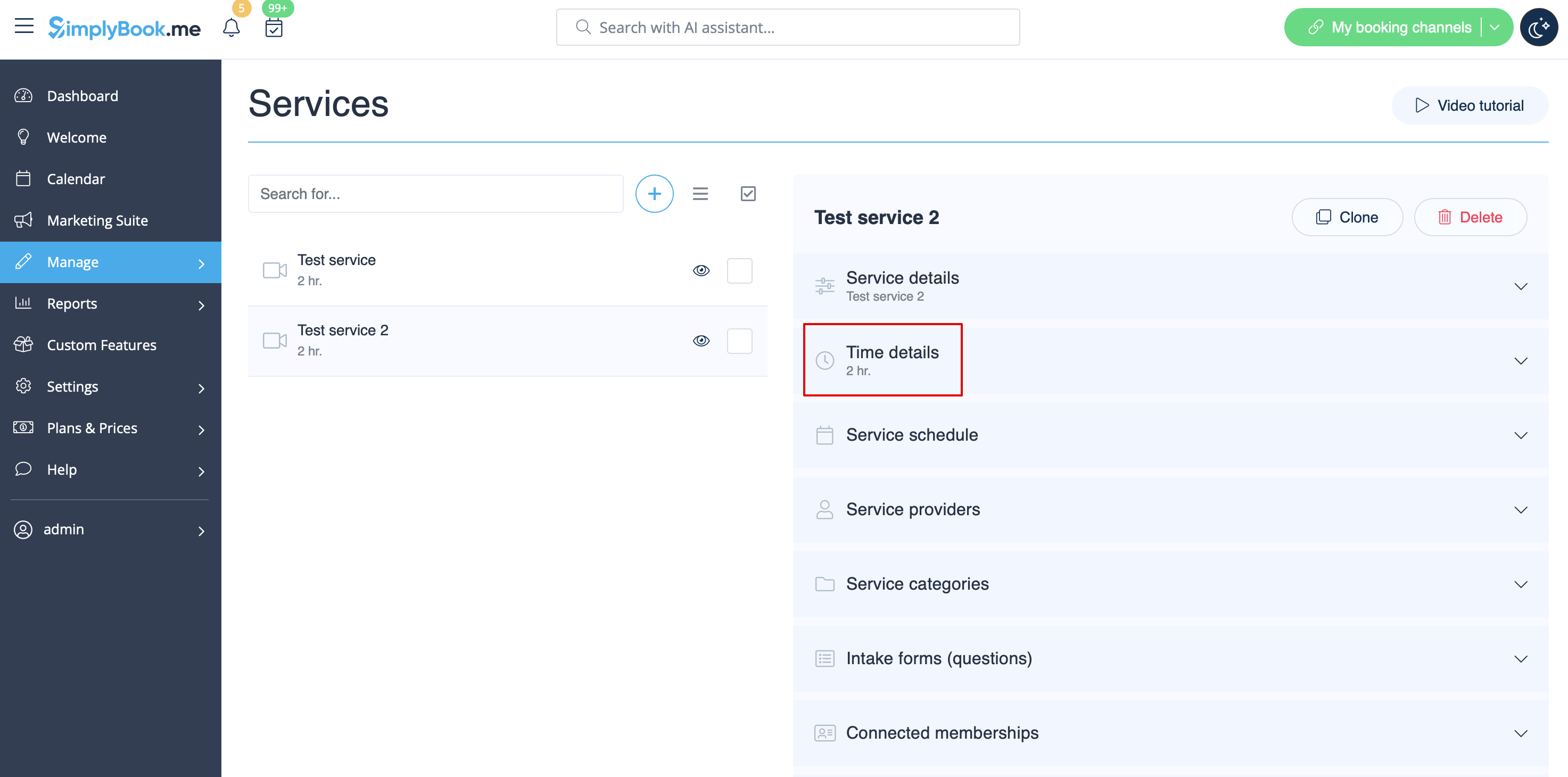
Comment définir la durée d'un service
Dans Gérer -> Services, après avoir sélectionné le service à droite de la page, choisissez l'onglet Détails du temps pour définir la durée de votre service.
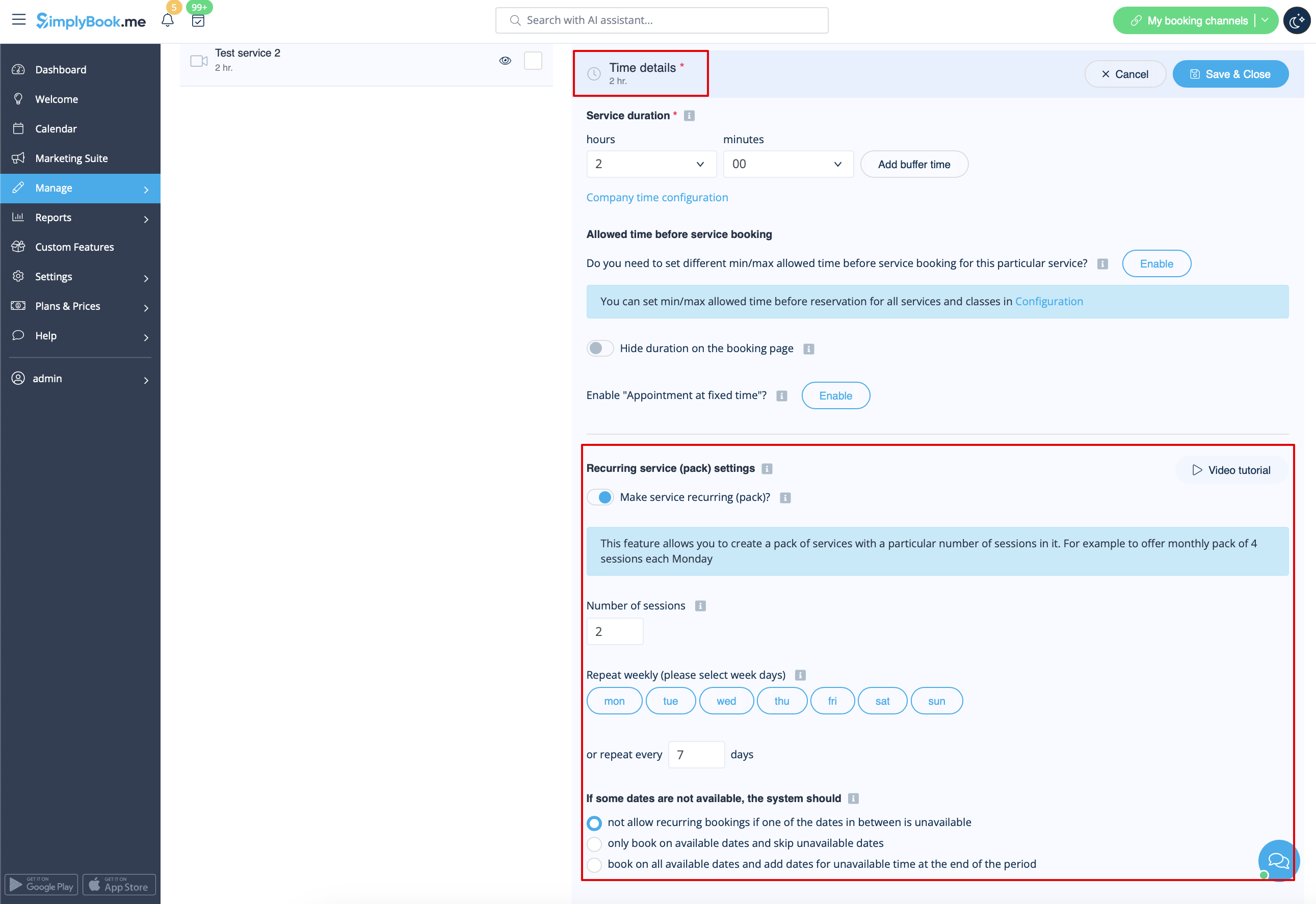
Il est également possible de définir ici un service récurrent.
Vous pouvez également définir des heures de début fixes pour votre service. Pour en savoir plus sur la fonctionnalité personnalisée Rendez-vous à heure fixe , cliquez ici.
Comment définir un horaire spécifique pour un service
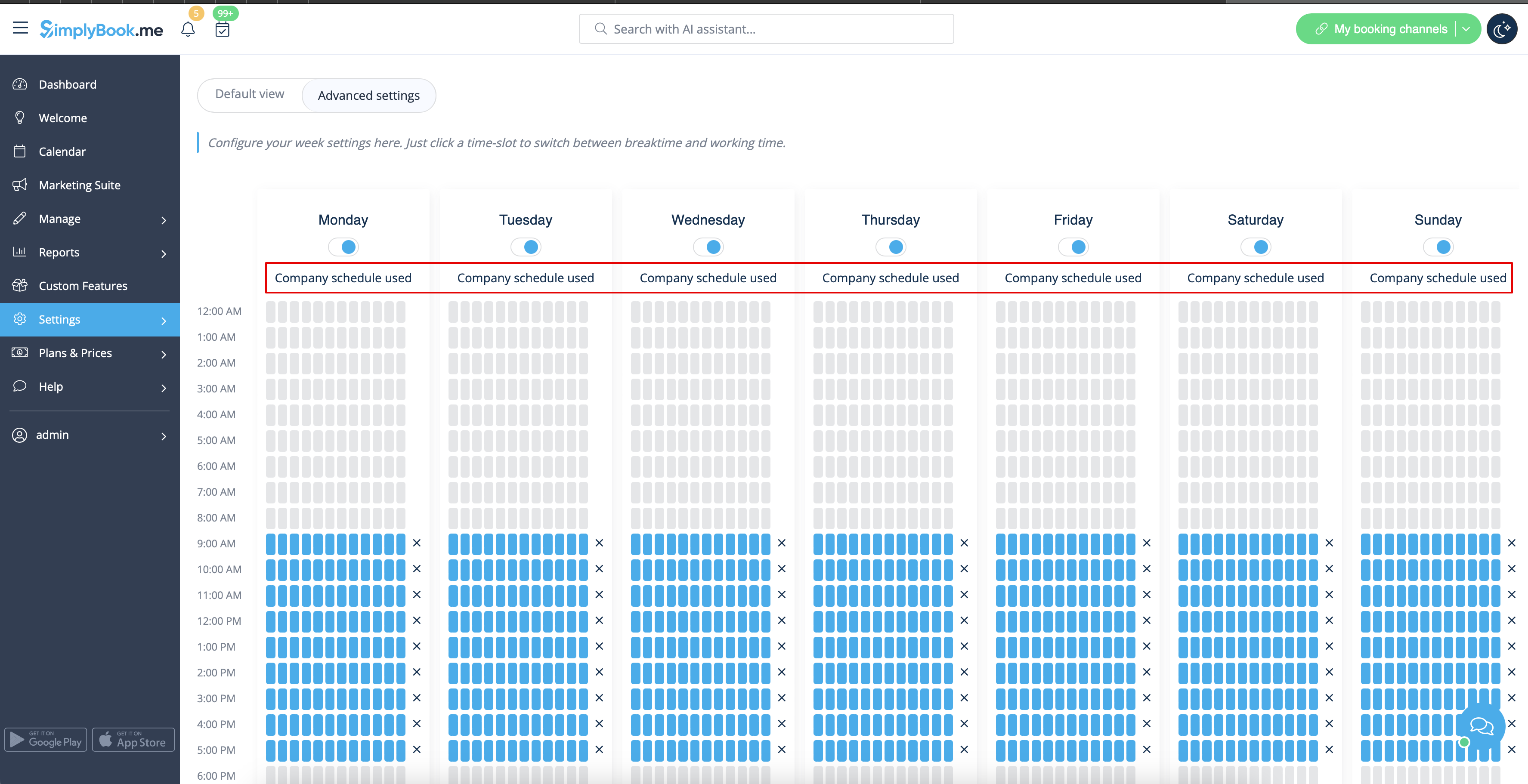
Dans Gérer -> Services -> sélectionnez le service -> onglet Calendrier du service, déplacez les curseurs pour définir les heures d'ouverture de l'
pour ce service si elles diffèrent de l'horaire habituel de l'entreprise.
Ou cliquez sur Afficher les paramètres avancés si vous préférez utiliser la vue par créneaux.
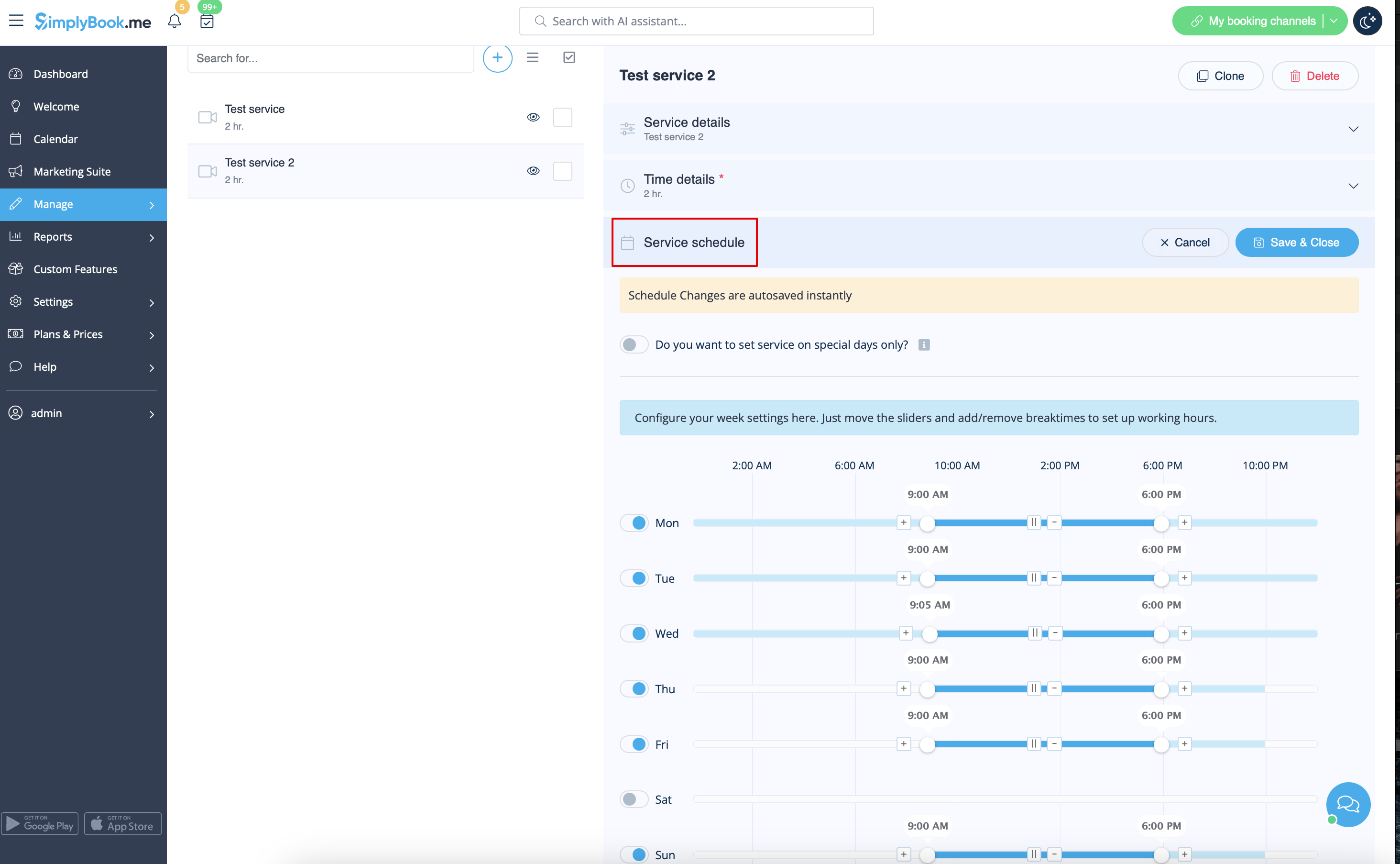
Si le service a le même horaire que l'entreprise, vous n'avez rien à modifier ici, il sera appliqué automatiquement.
Vous pourrez le vérifier sur la page « Horaires avancés ».
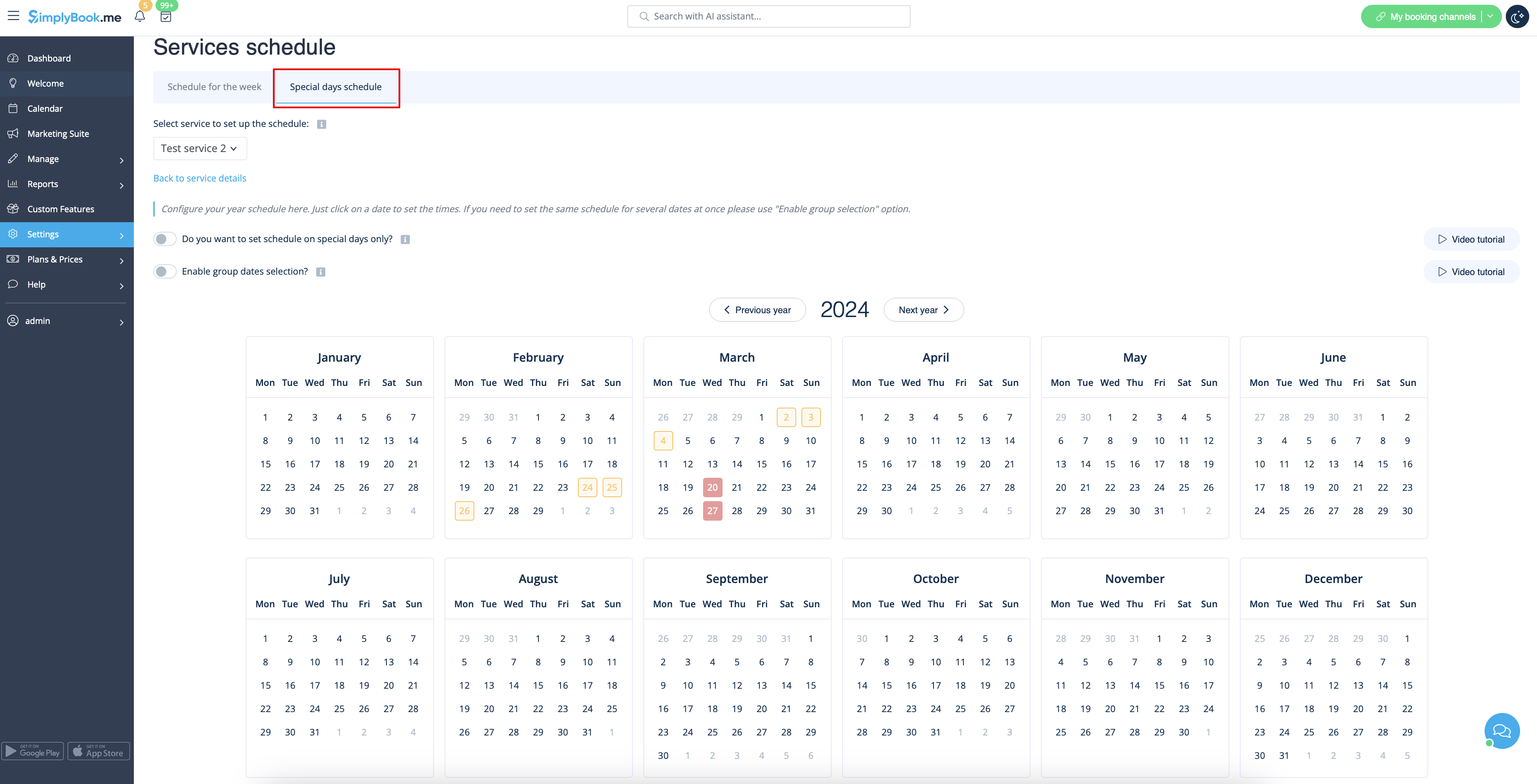
Si vous devez définir des exceptions dans le calendrier des services pour des jours fériés ou d'autres besoins, veuillez sélectionner l'onglet « Jours spéciaux » et définir les heures pour les dates souhaitées.
Comment configurer des services 24h/24, 7j/7 ou après minuit
Si vos services dépassent minuit, après avoir défini votre disponibilité, veillez à cocher l'option « Autoriser le service à dépasser les heures de fermeture » dans Paramètres -> Configuration principale.
- Relations entre les horaires
- Comment définir un service comme événement unique
- Comment regrouper mes services dans des catégories
- Comment demander des informations supplémentaires aux clients lors du paiement
- Comment limiter les réservations par service
- Comment définir des notifications spécifiques par service
- Comment promouvoir mon service
- Notifications de réservation par défaut
- Paramètres de date et d'heure
- Ajouter des rappels pour réserver à nouveau
Ajouter des prestataires
- Tutoriel vidéo
Comment ajouter un prestataire
How to add a provider
Dans Gérer -> Prestataires de services, appuyez sur le bouton +.
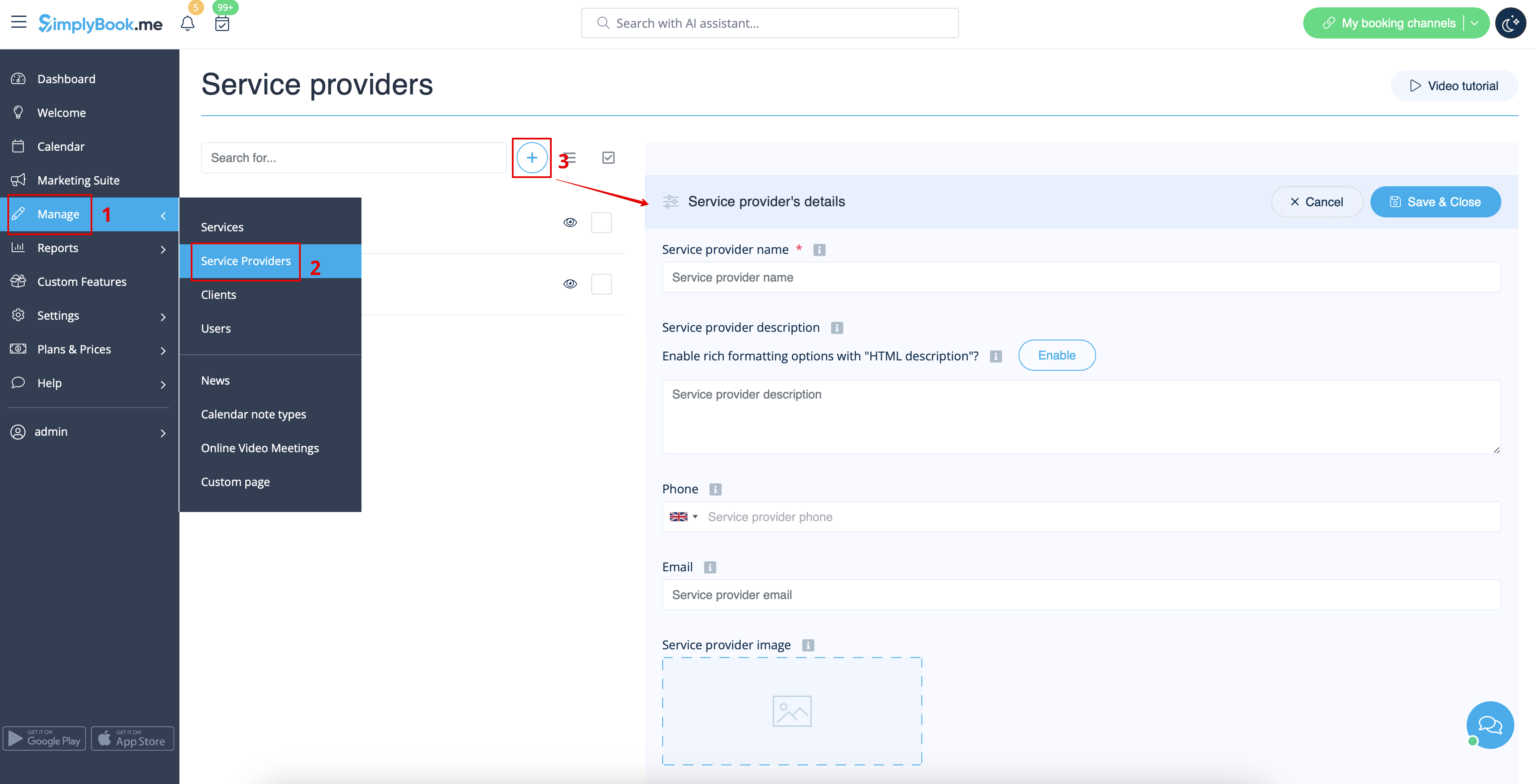
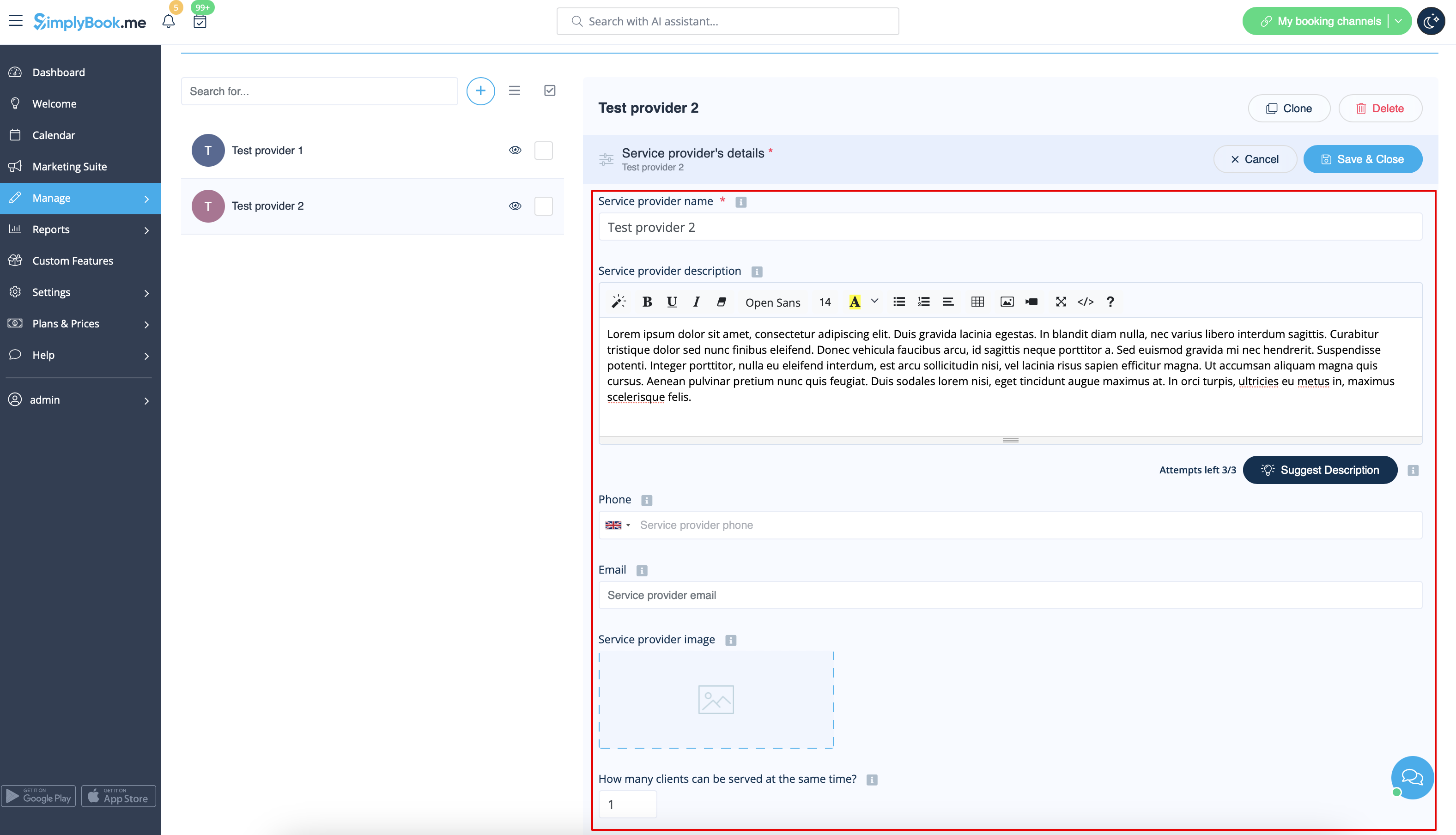
Sur le côté droit de la page, insérez le nom de votre prestataire de services, définissez le nombre de clients qu'il peut servir à la fois et rédigez une description du prestataire de services .
Vous pouvez également télécharger une photo et indiquer son numéro de téléphone et son adresse e-mail si nécessaire.
Enregistrez les paramètres.
Remarque : le numéro de téléphone doit être ajouté au format international pour que les notifications par SMS puissent être envoyées correctement.
Comment cloner un prestataire
Il peut arriver que vous ayez besoin de créer plusieurs prestataires similaires avec les mêmes paramètres.
L'option de clonage vous sera alors très utile.
Veuillez sélectionner le prestataire dont vous souhaitez faire une copie.
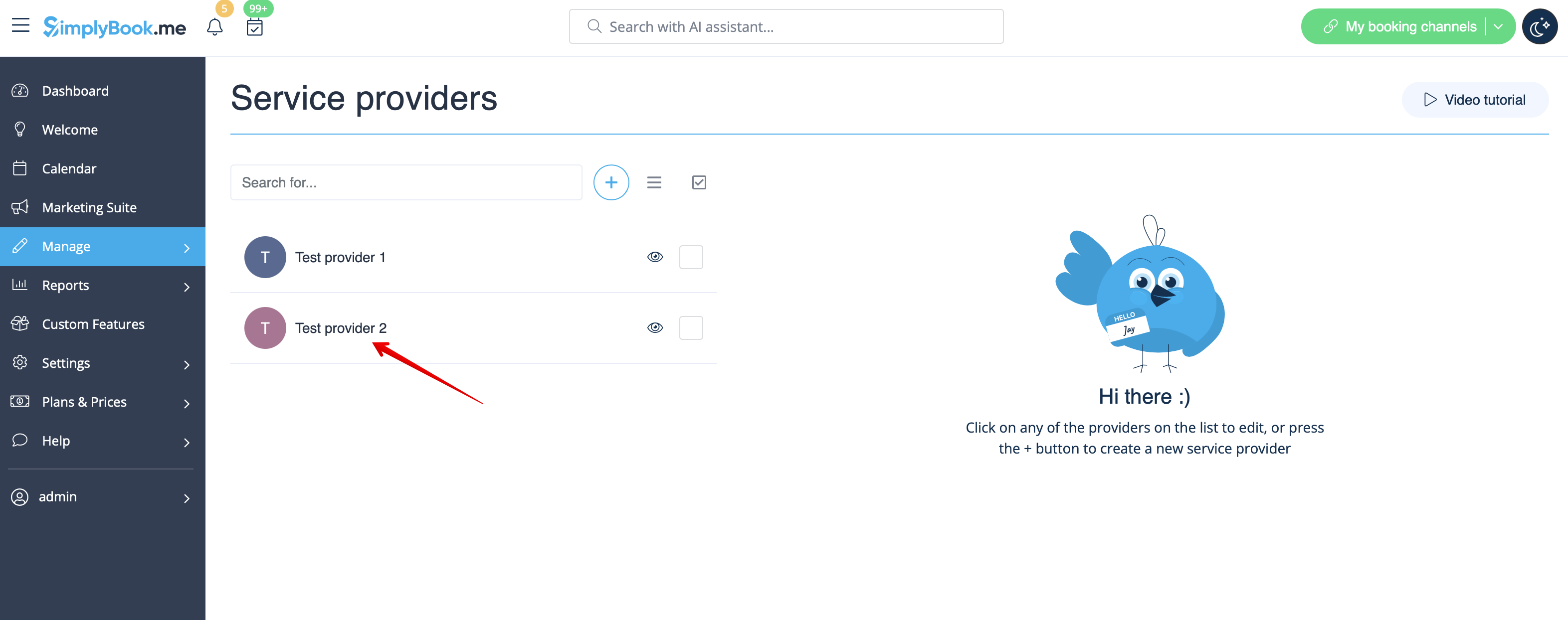
Cliquez sur le bouton Cloner dans le coin supérieur droit, puis confirmez la copie des paramètres.
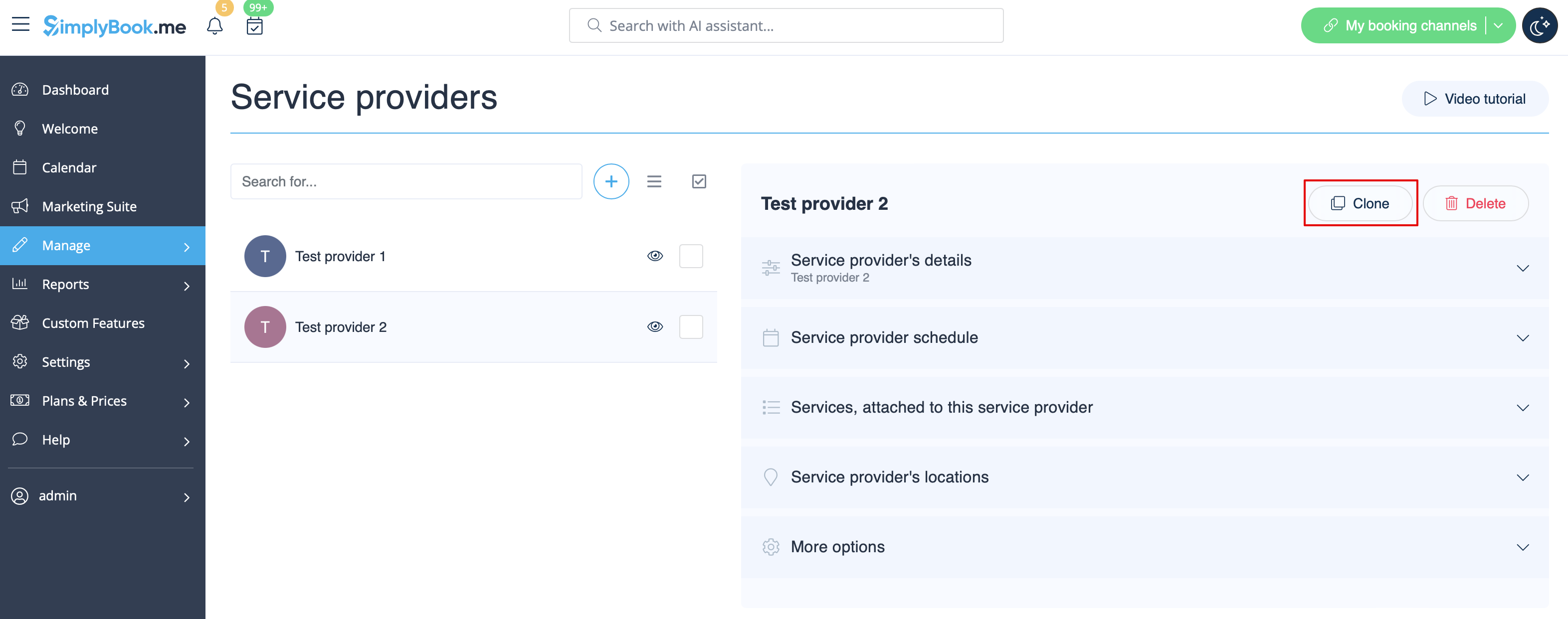
Les paramètres suivants du fournisseur seront copiés :
- nom du fournisseur
- description du fournisseur
- numéro de téléphone et adresse e-mail du fournisseur
- image du fournisseur
- nombre de clients que le fournisseur peut servir à la fois
- horaire du fournisseur
- paramètres de la fonctionnalité de synchronisation du calendrier si elle est activée et configurée
- paramètres de la fonctionnalité de notifications flexibles si elle est activée et configurée
- paramètres de la fonctionnalité du système de notification de réservation rapide si elle est activée et configurée
Au final, un fournisseur supplémentaire sera ajouté avec la mention « Clone » à son nom afin que vous puissiez facilement identifier les fournisseurs qui sont des copies.
(Vous pouvez modifier les noms de ces fournisseurs pour les adapter à vos besoins dans l'onglet « Détails du fournisseur » du fournisseur correspondant)
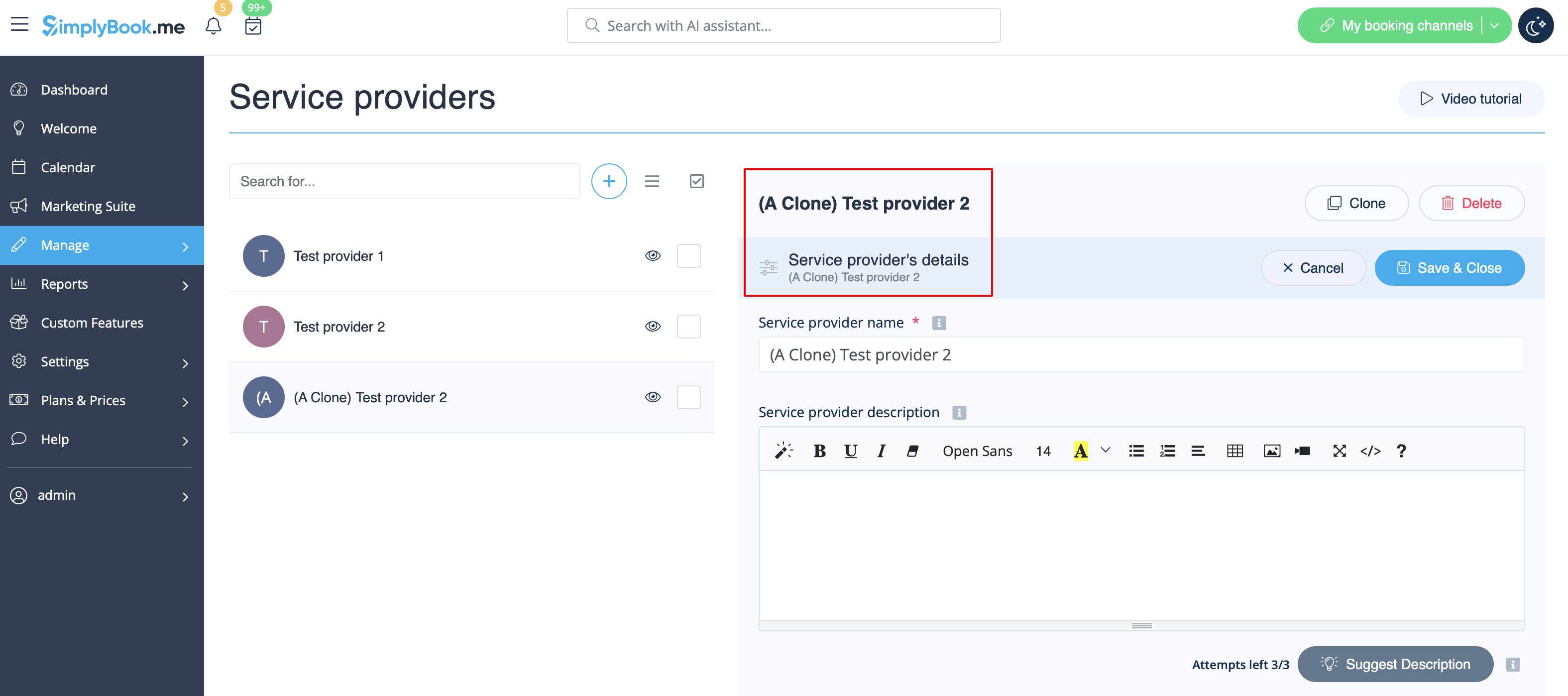
Comment associer des services à un prestataire
Dans Gérer -> Prestataires de services -> sélectionnez le prestataire -> passez à l'onglet Services, rattaché à ce prestataire de services et cochez les cases correspondant aux services que ce prestataire fournira.
Enregistrez les paramètres.
Comment définir le planning d'un prestataire
Vous pouvez définir un horaire régulier pour les prestataires dans Gérer -> Prestataires de services, sélectionnez le prestataire souhaité à gauche et passez à l'onglet Horaire du prestataire de services.
Par exemple, si vous travaillez du lundi au vendredi de 9 h à 17 h, il vous suffit de définir l'horaire pour ces dates en déplaçant les curseurs vers les positions souhaitées (la ligne bleue claire indique les heures disponibles).
Pour définir les jours de travail/de congé, utilisez les boutons à côté des noms des jours.

Comment définir le calendrier pour les jours fériés et autres dates spécifiques
Vous pouvez définir le calendrier pour une date spécifique pour un prestataire dans Gérer -> Prestataires de services, sélectionnez le prestataire souhaité à gauche et passez à l'onglet Calendrier du prestataire de services, sélectionnez l'option Afficher les paramètres avancés, puis l'onglet Jours spéciaux.
Par exemple, si vous travaillez différemment à certaines dates ou si vous avez des jours de congé, vous pouvez cliquer sur la date et définir le calendrier en cliquant sur les créneaux correspondants pour les rendre disponibles (bleu vif) ou indisponibles (bleu clair).
Pour rendre une date ouvrée/non ouvrée, cliquez sur la date et utilisez le bouton « Jour ouvré ? » situé à côté du planning qui apparaît dans la fenêtre contextuelle.
Si vous devez supprimer les paramètres de jour spécial pour une date, cliquez sur la date et appuyez sur le bouton Effacer le jour spécial.
- Relations entre les plannings
- Comment synchroniser les réservations des prestataires avec le calendrier Google ou Outlook
- Comment ajouter différents lieux de travail
- Comment attribuer des codes couleur aux rendez-vous des prestataires
- Comment définir des notifications spécifiques par prestataire
- Ajouter des rappels pour réserver à nouveau
