From SimplyBook.me
No edit summary |
No edit summary |
||
| (29 intermediate revisions by the same user not shown) | |||
| Line 1: | Line 1: | ||
<languages/> | |||
[[File: | <translate> | ||
<!--T:1--> | |||
{{#seo: | |||
|title=Time and date settings - SimplyBook.me | |||
|description=Configure timezone, date format, time display. Set company working hours, special days. Adjust how dates and times appear throughout system. | |||
|titlemode=append | |||
|keywords=faq, frequently asked questions, booking software, appointment system questions, appointments online, calendar software, booking system, booking calendar, scheduling software, online appointment scheduling, online scheduling, plugins, custom features, custom booking page link, domain name, custom domain name, custom url | |||
}} | |||
</translate> | |||
<translate> | |||
<!--T:2--> | |||
<br/><br/> | |||
=Change time format AM/PM - 24= | |||
:To adjust it please go to Settings // Main configuration // Time format<br/> | |||
[[File:Time format setting redesigned.png|1200px| center|link=https://help.simplybook.me/images/2/20/Time_format_setting_redesigned.png]]<br/><br/> | |||
:Settings// | </translate> | ||
<translate> | |||
<!--T:3--> | |||
=Change date format= | |||
:To set the desired format navigate to Settings // Main configuration // Date format.<br/><br/> | |||
[[File:Date format settings redesigned.png|1200px| center|link=https://help.simplybook.me/images/d/d2/Date_format_settings_redesigned.png]] | |||
<br/><br/> | |||
</translate> | |||
<translate> | |||
<!--T:4--> | |||
=Change time zone= | |||
:Your time on the booking page is the time of the company's time zone. You can change your time zone in Settings // Main configuration // Time zone. | |||
:'''Please note!''' Company timezone defines the timezone of all providers created within the account. It is not possible to set separate timezone per each provider. | |||
[[File:Timezone settings path redesigned.png|1200px| center|link=https://help.simplybook.me/images/3/3a/Timezone_settings_path_redesigned.png]] | |||
<br/><br/> | |||
< | </translate> | ||
[[File: | <translate> | ||
<!--T:5--> | |||
</ | =Start calendar from Sunday= | ||
:To set it go to Settings // Main configuration // Monday is first day of the week // No.<br/> | |||
[[File:First day of week redesigned.png|1200px | center|link=https://help.simplybook.me/images/9/91/First_day_of_week_redesigned.png]]<br/><br/> | |||
</translate> | |||
<translate> | |||
<!--T:6--> | |||
=Minimum allowed time before service reservation= | |||
:If you need to restrict how far in advance your clients can book, you can set Minimum allowed time before service reservation in Settings // Main configuration. For example, if now is 2pm and you have minimum time before reservation set to 3 hours, the first available time for clients will be only after 5pm. This setting can help you to better prepare for your service and avoid clients booking at the last minute before the service. | |||
[[File:Min max time before service redesigned.png|1200px| center|link=https://help.simplybook.me/images/5/5b/Min_max_time_before_service_redesigned.png]] | |||
<br/><br/> | |||
</translate> | |||
<translate> | |||
<!--T:7--> | |||
:Settings// | =Maximum allowed time before service reservation= | ||
:If you need to restrict how far ahead your clients can book, you can set Maximum allowed time before service reservation in Settings // Main configuration. For example, if now is Monday 2pm and you have maximum time before reservation set to 3 days, the last available time for clients will be only from Thursday after 2pm. | |||
[[File:Min max time before service redesigned.png|1200px| center|link=https://help.simplybook.me/images/5/5b/Min_max_time_before_service_redesigned.png]] | |||
<br/><br/> | |||
</translate> | |||
<translate> | |||
<!--T:8--> | |||
:Settings// | =Show end time= | ||
:You can decide to show or hide the timeslot end time on the booking website. It is available for the following calendar layouts: | |||
*modern | |||
*slots weekly | |||
*modern provider | |||
*weekly classes | |||
:To enable the end time display please navigate to Settings -> Design settings -> Calendar layout settings -> Show end time. Save settings.<br> | |||
[[File:Show end time redesigned.png|1200px|border|center|link=https://help.simplybook.me/images/6/6d/Show_end_time_redesigned.png]] | |||
<br/><br/> | |||
:Daily classes calendar layout shows end time on the each timeslot by default and is defined by the status of "Hide duration on the booking page" setting in Manage -> Services/Classes -> select the service/class -> Time details. | |||
<br/><br/><br/><br/> | |||
</translate> | |||
Latest revision as of 20:00, 9 February 2026
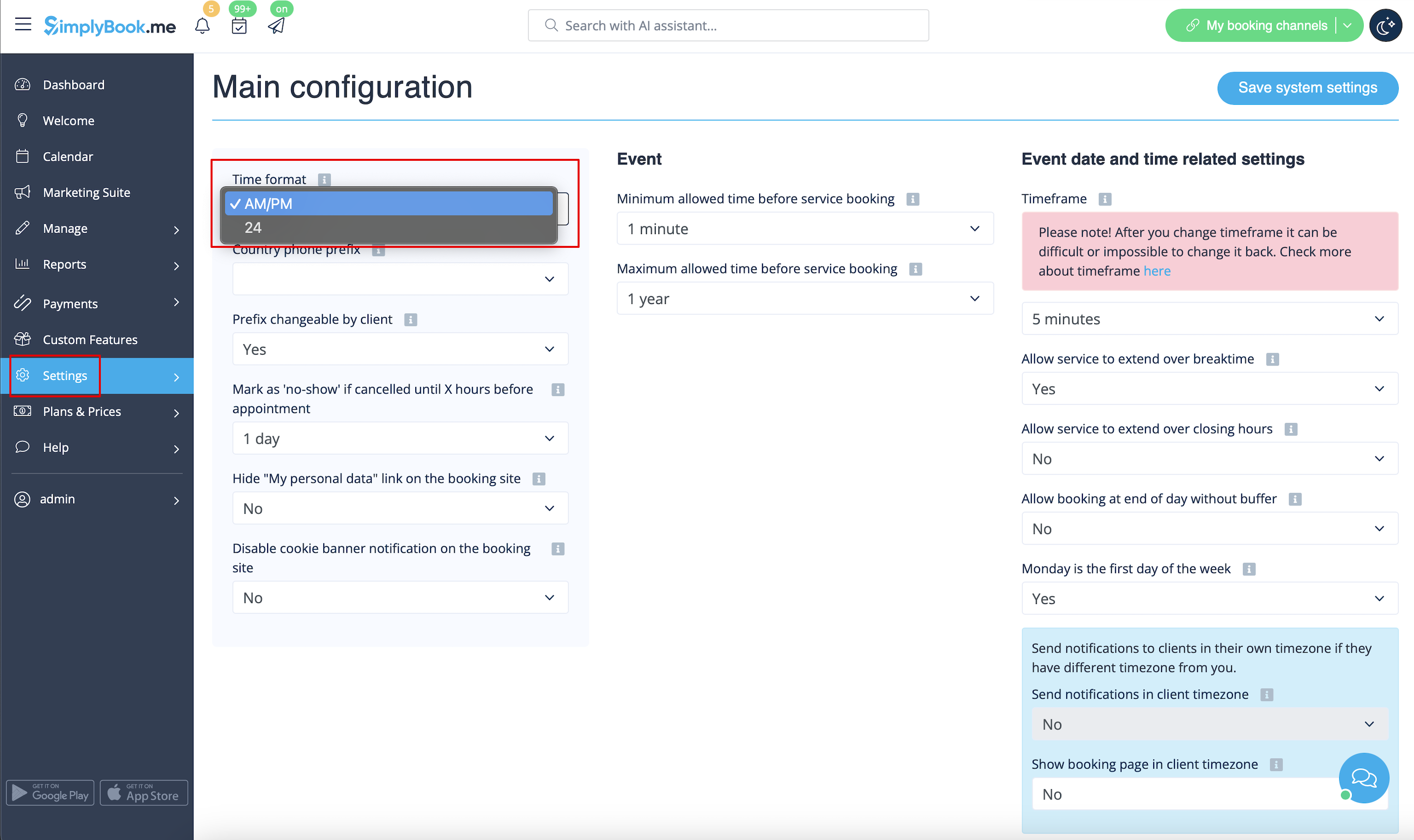
Change time format AM/PM - 24
- To adjust it please go to Settings // Main configuration // Time format
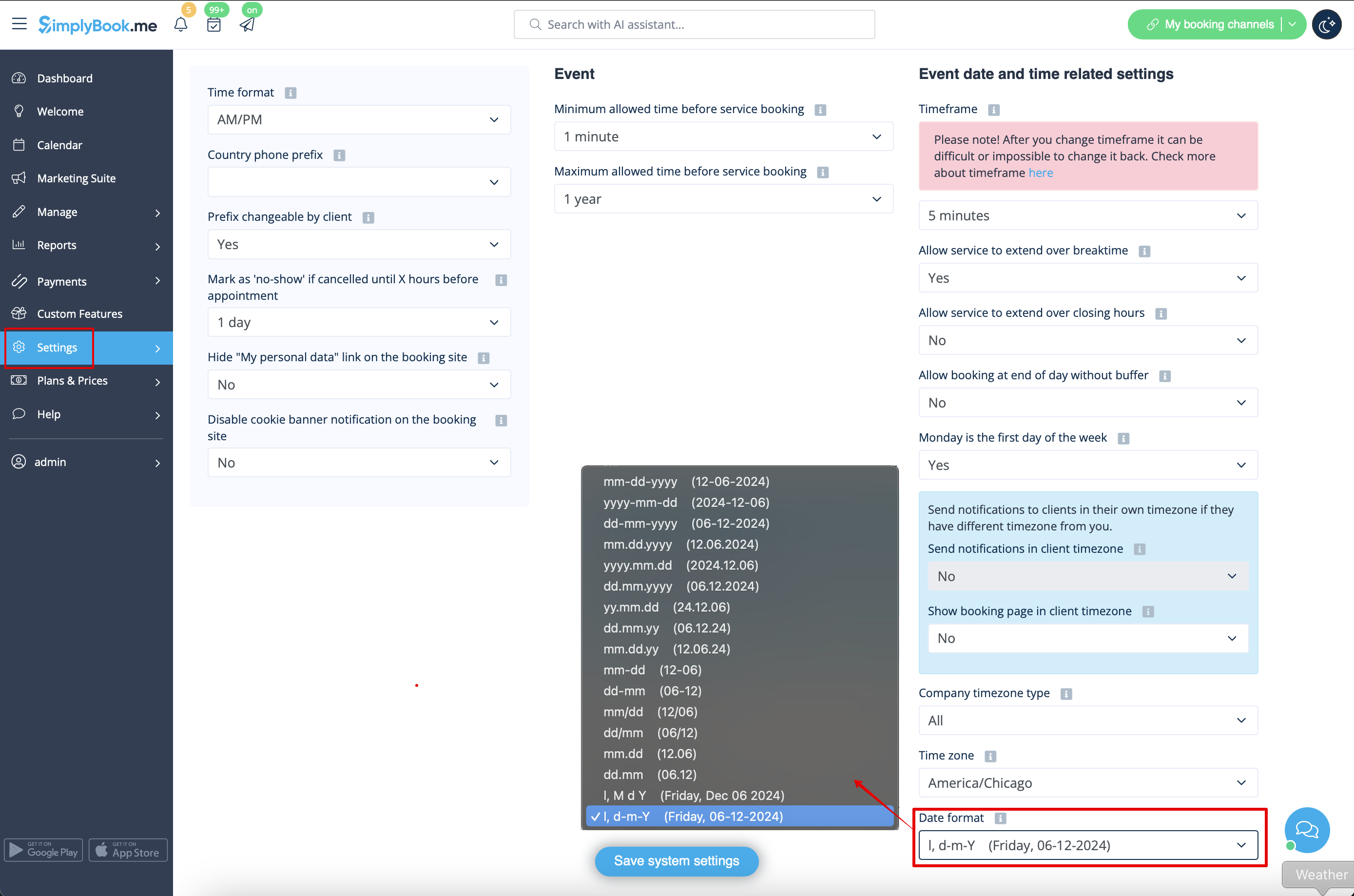
Change date format
- To set the desired format navigate to Settings // Main configuration // Date format.
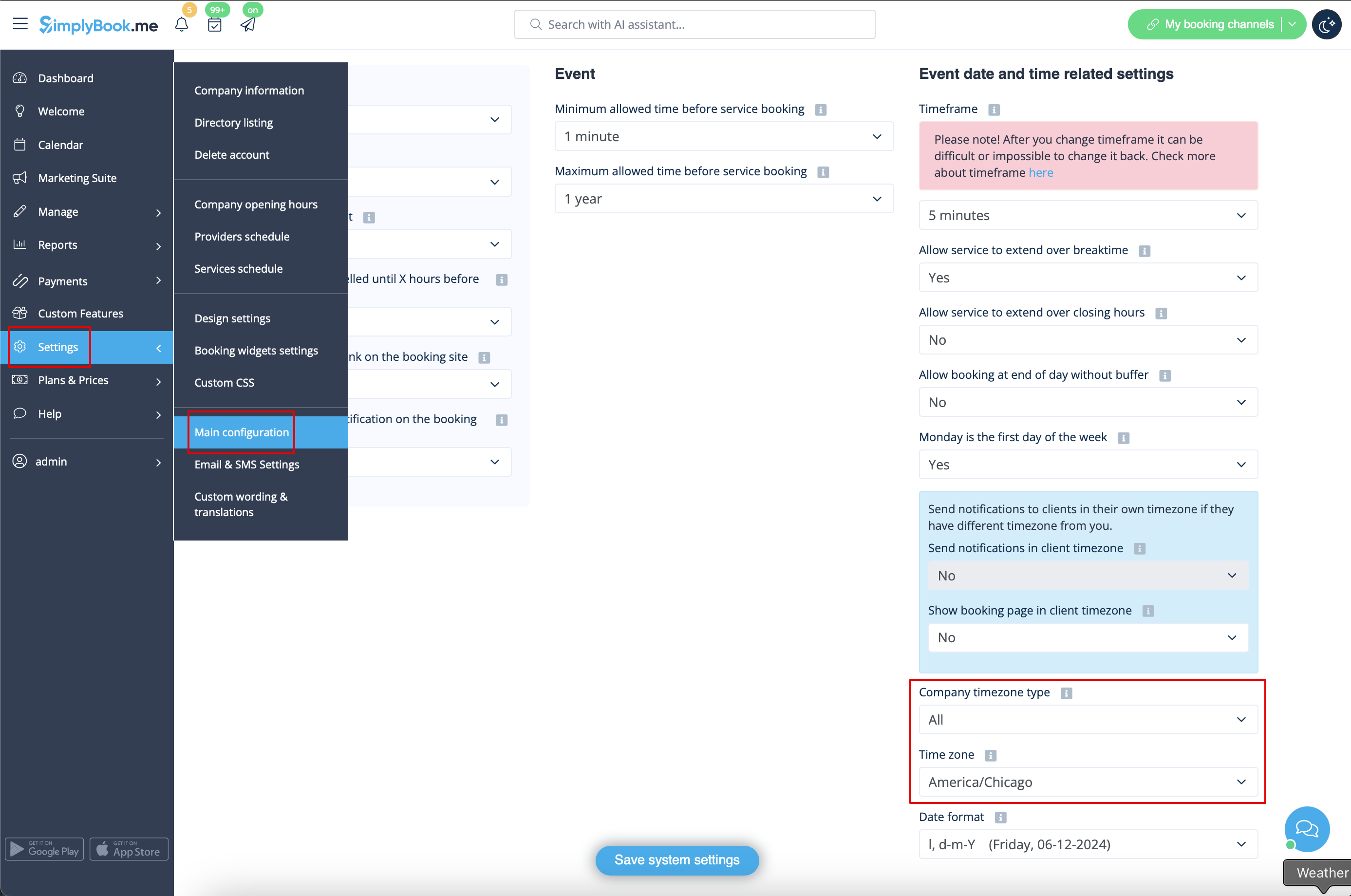
Change time zone
- Your time on the booking page is the time of the company's time zone. You can change your time zone in Settings // Main configuration // Time zone.
- Please note! Company timezone defines the timezone of all providers created within the account. It is not possible to set separate timezone per each provider.
Start calendar from Sunday
- To set it go to Settings // Main configuration // Monday is first day of the week // No.

Minimum allowed time before service reservation
- If you need to restrict how far in advance your clients can book, you can set Minimum allowed time before service reservation in Settings // Main configuration. For example, if now is 2pm and you have minimum time before reservation set to 3 hours, the first available time for clients will be only after 5pm. This setting can help you to better prepare for your service and avoid clients booking at the last minute before the service.

Maximum allowed time before service reservation
- If you need to restrict how far ahead your clients can book, you can set Maximum allowed time before service reservation in Settings // Main configuration. For example, if now is Monday 2pm and you have maximum time before reservation set to 3 days, the last available time for clients will be only from Thursday after 2pm.
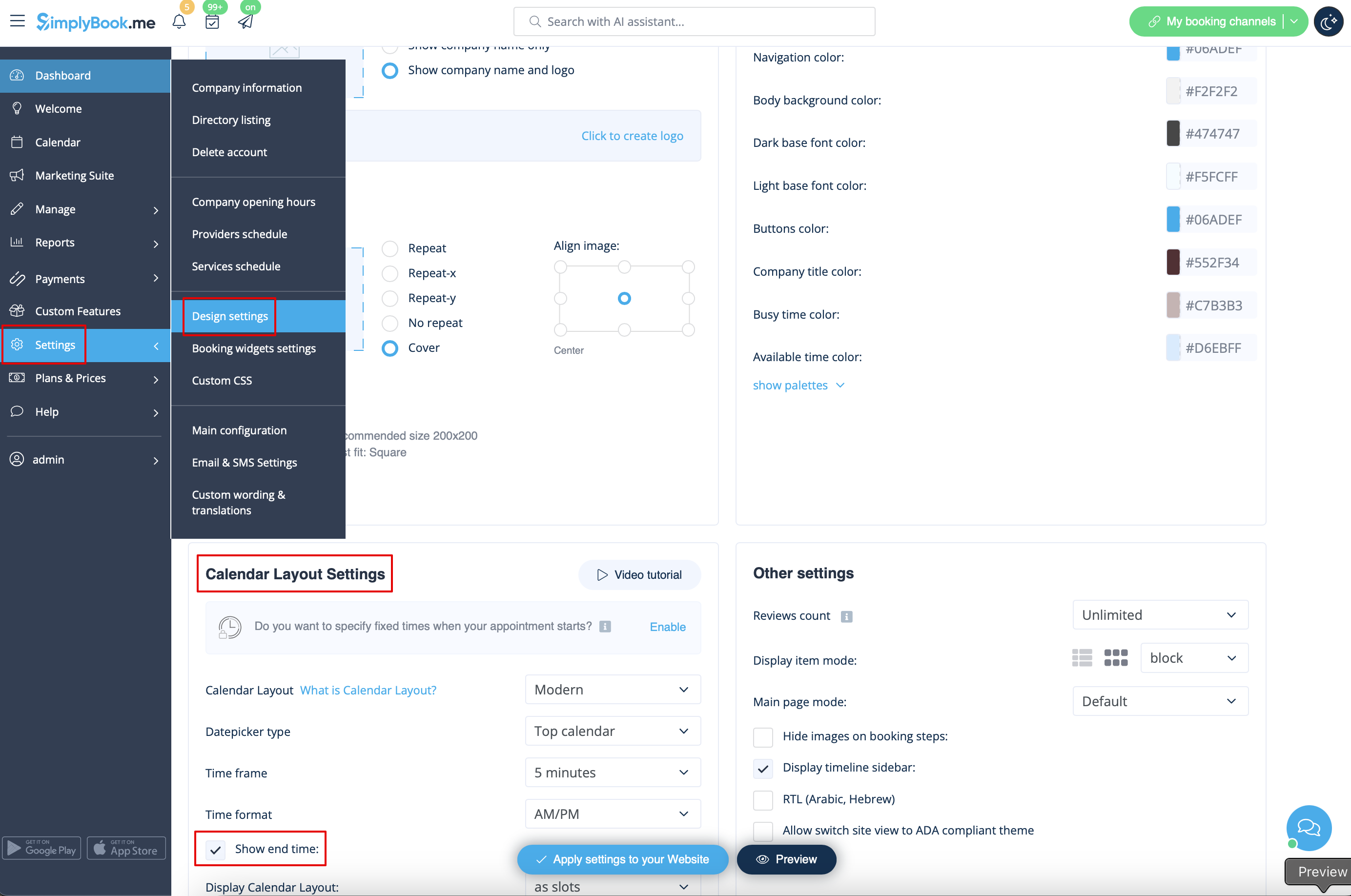
Show end time
- You can decide to show or hide the timeslot end time on the booking website. It is available for the following calendar layouts:
- modern
- slots weekly
- modern provider
- weekly classes
- To enable the end time display please navigate to Settings -> Design settings -> Calendar layout settings -> Show end time. Save settings.
- Daily classes calendar layout shows end time on the each timeslot by default and is defined by the status of "Hide duration on the booking page" setting in Manage -> Services/Classes -> select the service/class -> Time details.
