Created page with "Налаштування сповіщень" Tags: Mobile edit Mobile web edit |
No edit summary Tags: Mobile edit Mobile web edit |
||
| (71 intermediate revisions by 2 users not shown) | |||
| Line 1: | Line 1: | ||
<languages/> | <languages/> | ||
{{#seo: |title=Налаштування сповіщень — SimplyBook.me |description= | {{#seo: |title=Налаштування сповіщень — SimplyBook.me |description=Налаштовуйте шаблони сповіщень електронною поштою та SMS. Редагуйте підтвердження бронювання, нагадування та скасування. Додавайте змінні, налаштовуйте таймінг, конфігуруйте автоматизовані повідо...|titlemode=додати |keywords=fAQ, поширені запитання, програмне забезпечення для бронювання, запитання щодо системи бронювання, онлайн-бронювання, програмне забезпечення для календаря, система бронювання, календар бронювання, програмне забезпечення для планування, онлайн-планування зустрічей, онлайн-планування, налаштування, допомога з налаштування, підтримка, довідкова інформація, повідомлення, налаштування повідомлень, електронні листи, повідомлення про бронювання }} | ||
<br><br> | <br><br> | ||
<p><youtube>https://youtu.be/IZ8h3OmXTjQ</p></youtube> | <p><youtube>https://youtu.be/IZ8h3OmXTjQ</p></youtube> | ||
<br><br> | <br><br> | ||
= | = Як увімкнути/вимкнути сповіщення про бронювання та налаштувати шаблони = | ||
<br> | <br> | ||
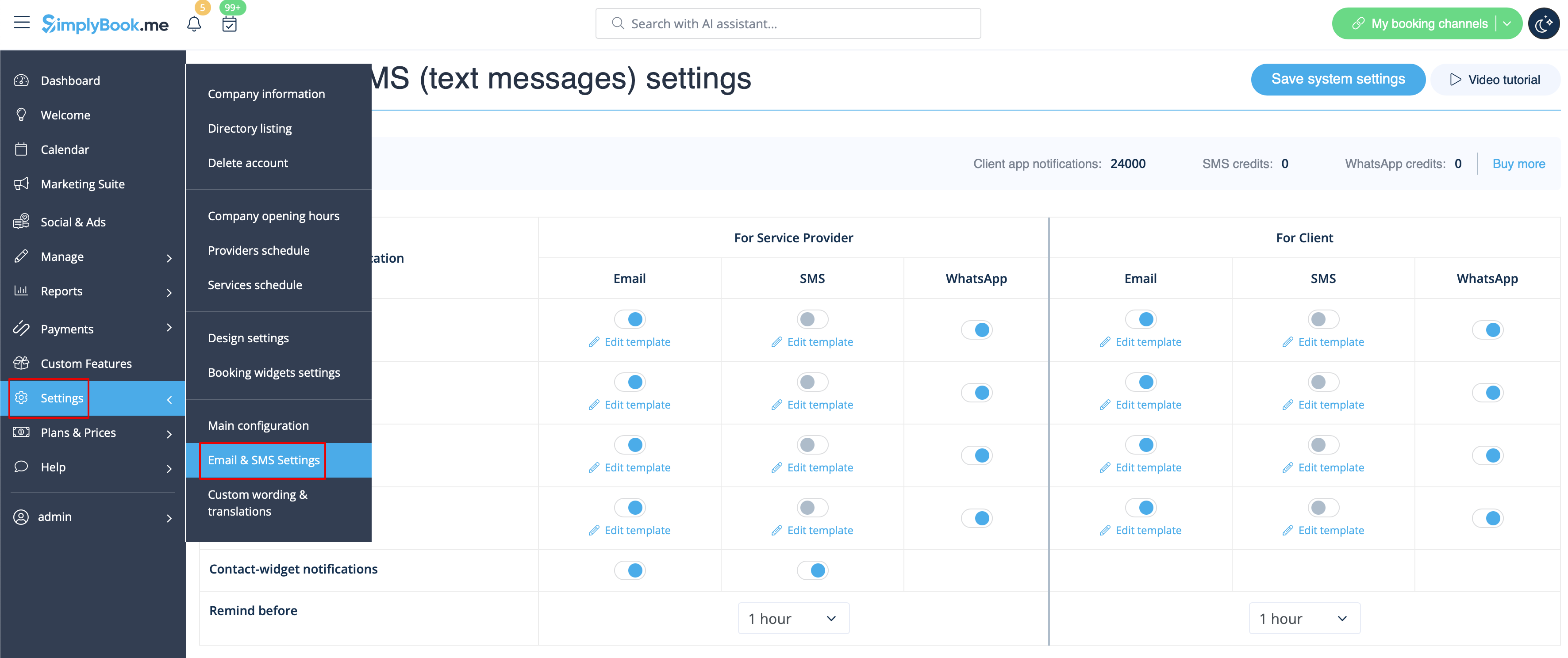
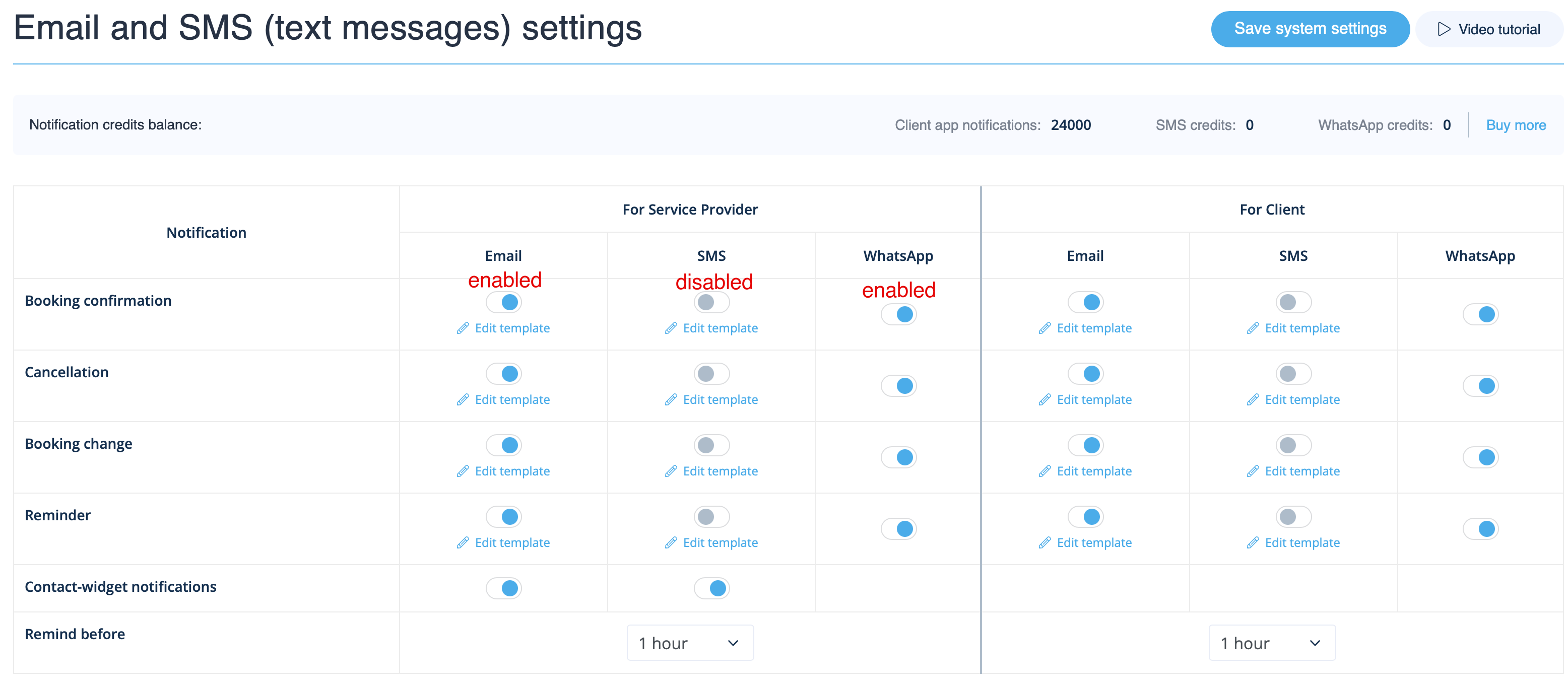
Перейдіть до <span style="background-color:#d4f8e5; padding:5px; border-radius:5px;">Налаштування</span> -> <span style="background-color:#d4f8e5; padding:5px; border-radius:5px;">Налаштування електронної пошти та SMS</span> і <span style="background-color:#d4f8e5; padding:5px; border-radius:5px;">поставте/зніміть галочки</span> у відповідних полях, щоб надсилати або не надсилати повідомлення. Ви можете змінити тексти повідомлень, щоб вони краще відповідали вашим потребам, натиснувши <span style="background-color:#d4f8e5; padding:5px; border-radius:5px;">редагувати шаблон,</span> внести зміни та зберегти налаштування системи.<br> | |||
Також ви можете встановити до трьох нагадувань як для ваших клієнтів, так і для працівників – просто встановіть час, і система автоматично надішле їх відповідно до текстів шаблону, заданих для обраного типу нагадування. | |||
[[File: | [[File:Notifications options with multiple reminders.png|1200px|border| center|link=https://help.simplybook.me/images/a/a4/Email_and_sms_settings_path_redesigned_upd.png]] | ||
<br><br> | <br><br> | ||
[[File:Notifications statuses upd.png|1200px| center|link=https://help.simplybook.me/images/e/e2/Notifications_statuses_upd.png]] | [[File:Notifications statuses upd.png|1200px| center|link=https://help.simplybook.me/images/e/e2/Notifications_statuses_upd.png]] | ||
<br><br> | <br><br> | ||
< | |||
< | <br><br> | ||
== | == Повідомлення WhatsApp == | ||
Якщо ви та ваші клієнти активно користуєтеся месенджером WhatsApp, ви можете отримувати там повідомлення, пов'язані з бронюваннями. | |||
; | ;Як користуватися | ||
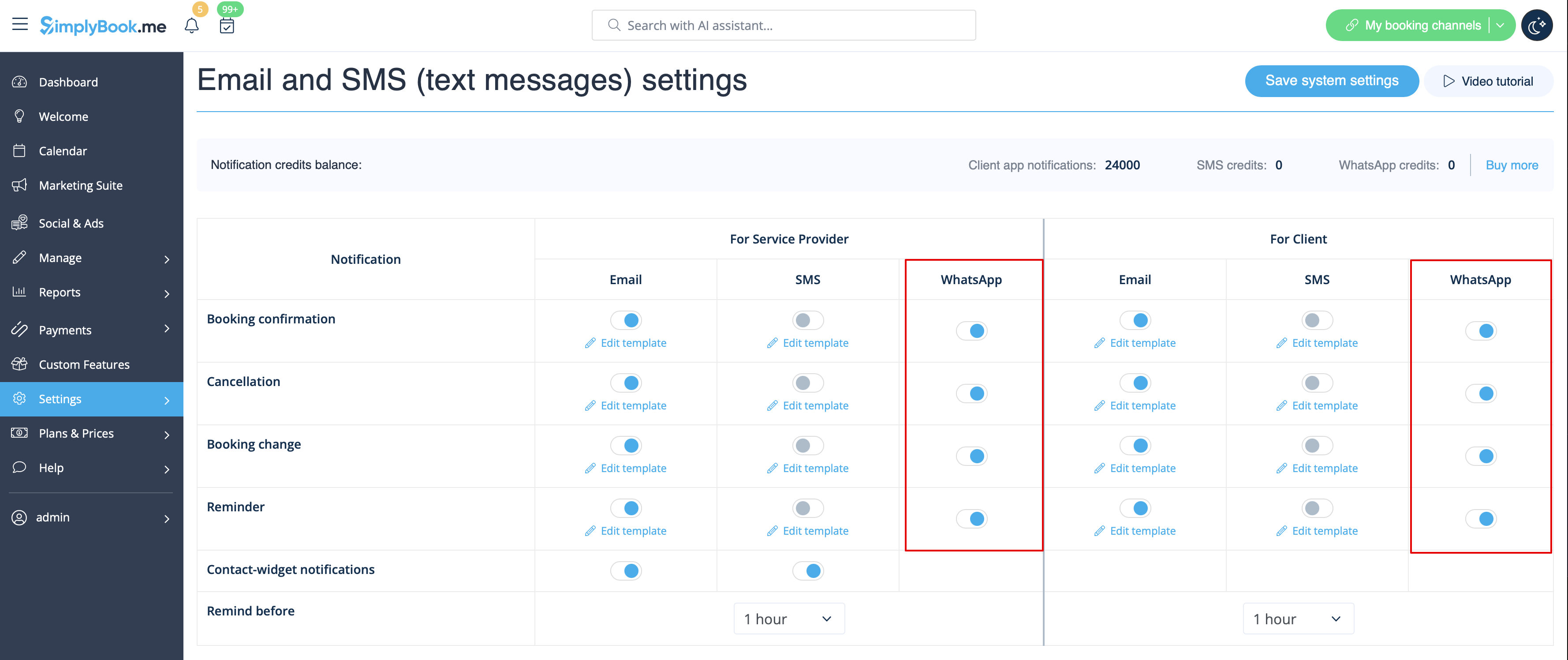
1. | 1. Увімкніть потрібні типи повідомлень WhatsApp у налаштуваннях -> Налаштування електронної пошти та SMS | ||
[[File:Whatapp notofications switchers.png|1200px|center|link=https://help.simplybook.me/images/1/14/Whatapp_notofications_switchers.png]] | [[File:Whatapp notofications switchers.png|1200px|center|link=https://help.simplybook.me/images/1/14/Whatapp_notofications_switchers.png]] | ||
<br><br> | <br><br> | ||
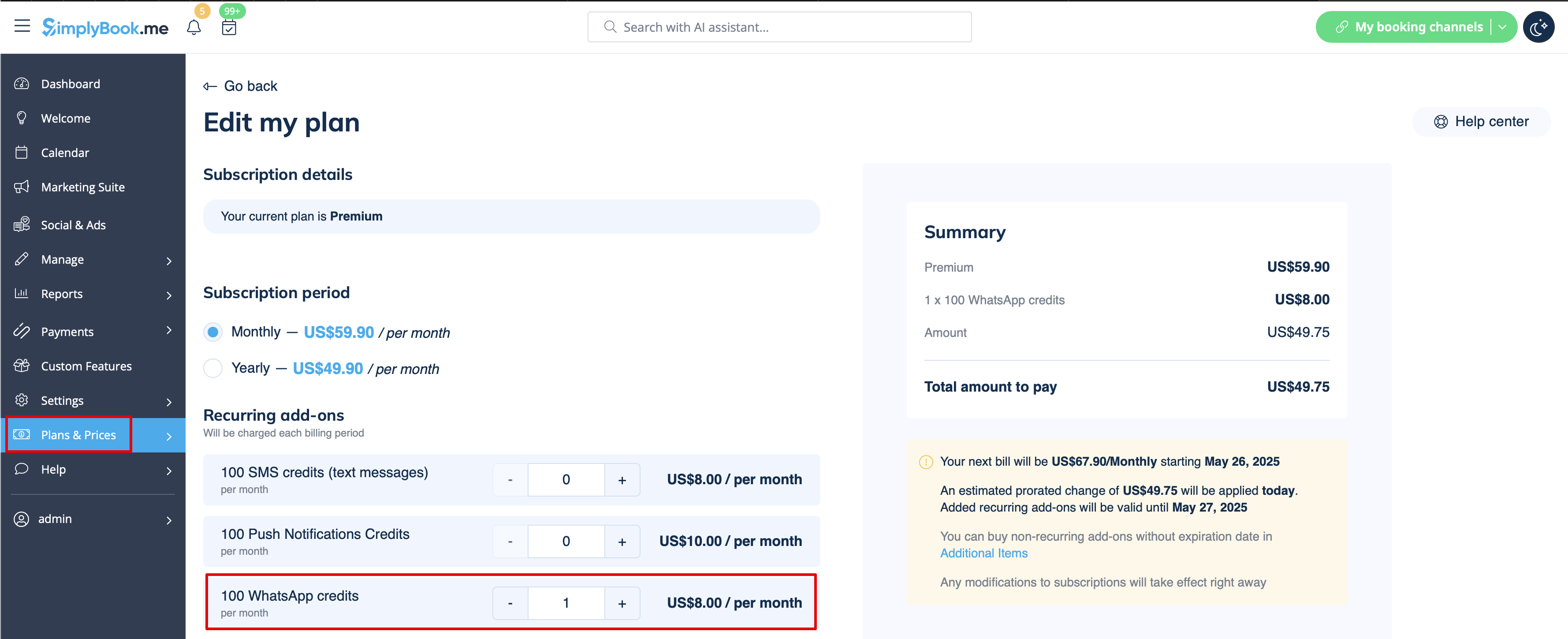
2. | 2. Придбайте кредити WhatsApp у розділі «Плани та ціни» -> «Підписки» або «Додаткові елементи», залежно від того, чи хочете ви, щоб кредити автоматично поновлювалися разом із підпискою, чи віддаєте перевагу одноразовій покупці.<br> | ||
( | (Ви також зможете переглянути повідомлення, надіслані з системи, а також кількість використаних кредитів у розділі «Звіти» -> «SMS (текстові повідомлення)» -> «Сповіщення WhatsApp») | ||
[[File:Add whatapp credits to subscription.png|1200px|center|link=https://help.simplybook.me/images/c/c8/Add_whatapp_credits_to_subscription.png]] | [[File:Add whatapp credits to subscription.png|1200px|center|link=https://help.simplybook.me/images/c/c8/Add_whatapp_credits_to_subscription.png]] | ||
<br><br> | <br><br> | ||
<span style="background-color:#ffe9e9; padding:5px; border-radius:5px;">''' | <span style="background-color:#ffe9e9; padding:5px; border-radius:5px;">'''Зверніть увагу!'''</span> | ||
<br><br> | <br><br> | ||
</ | |||
< | * <span style="background-color:#ffe9e9; padding:5px; border-radius:5px;">Щоб відповідати політикам WhatsApp, повідомлення використовують попередньо затверджені шаблони та не можуть бути змінені. Ці шаблони чітко та професійно передають основну інформацію.</span> | ||
== | * <span style="background-color:#ffe9e9; padding:5px; border-radius:5px;">Будь-яка взаємодія з клієнтом у WhatsApp (скасування клієнтом, перенесення бронювання тощо) буде коштувати кредитів.</span> <br><br> | ||
== Мобільний додаток для адміністраторів == | |||
Якщо ви використовуєте мобільний додаток для адміністратора, ви можете отримувати повідомлення, пов'язані з бронюваннями, такі як підтвердження бронювання, нагадування, повідомлення про зміну та скасування бронювання.<br> | |||
Щоб увімкнути/вимкнути ці повідомлення, перейдіть на вкладку <span style="background-color:#d4f8e5; padding:5px; border-radius:5px;">«Налаштування»</span> -> <span style="background-color:#d4f8e5; padding:5px; border-radius:5px;">«Керувати повідомленнями»</span> в мобільному додатку адміністратора. | |||
<br><br> | <br><br> | ||
< | = Як вимкнути відгуки = | ||
Ви можете переглянути всі свої відгуки у вкладці <span style="background-color:#d4f8e5; padding:5px; border-radius:5px;">«Звіти»</span> -> <span style="background-color:#d4f8e5; padding:5px; border-radius:5px;">«Відгуки»</span> в меню зліва, видалити їх або відповісти на них. Якщо ви бажаєте видалити можливість залишати відгуки та не надсилати запит на відгук, у <span style="background-color:#d4f8e5; padding:5px; border-radius:5px;">налаштуваннях</span> <span style="background-color:#d4f8e5; padding:5px; border-radius:5px;">«Налаштування</span> <span style="background-color:#d4f8e5; padding:5px; border-radius:5px;">електронної пошти</span> <span style="background-color:#d4f8e5; padding:5px; border-radius:5px;">та SMS»</span> -> <span style="background-color:#d4f8e5; padding:5px; border-radius:5px;">«Налаштування для повідомлень електронною поштою та SMS»</span> -> <span style="background-color:#d4f8e5; padding:5px; border-radius:5px;">«Кількість днів до надсилання запиту на відгук клієнту</span> <span style="background-color:#d4f8e5; padding:5px; border-radius:5px;">»</span> встановіть значення <span style="background-color:#d4f8e5; padding:5px; border-radius:5px;">«Вимкнути».</span><br/> | |||
[[File:Feedback disable path redesigned.png|1200px | center|link=https://help.simplybook.me/images/1/12/Feedback_disable_path_redesigned.png]] | [[File:Feedback disable path redesigned.png|1200px | center|link=https://help.simplybook.me/images/1/12/Feedback_disable_path_redesigned.png]] | ||
<br><br> | <br><br> | ||
= Повідомлення, пов'язані з[[Special:MyLanguage/Custom Features|користувацькими функціями]] = | |||
=[[ | Наступні спеціальні функції мають власні типи повідомлень або можуть впливати на повідомлення, що надсилаються системою: | ||
-------- | -------- | ||
==[[ | == [[Special:MyLanguage/Accept payments custom feature|Приймати платежі]] == | ||
Дозволяє надсилати: | |||
* | *Рахунки клієнтам (шаблон електронного листа) | ||
* | *Повідомлення про невдалі платежі клієнтам (шаблон електронного листа) | ||
* | *Повідомлення про невдалі платежі компанії (шаблон електронного листа) | ||
Усі ці шаблони можна редагувати в <span style="background-color:#d4f8e5; padding:5px; border-radius:5px;">розділі «Налаштування»</span> -> [[Special:MyLanguage/Accept payments custom feature|«Приймати платежі»]] -> <span style="background-color:#d4f8e5; padding:5px; border-radius:5px;">«Налаштування»</span> -> <span style="background-color:#d4f8e5; padding:5px; border-radius:5px;">«Налаштування шаблонів електронних листів</span>[[File:Accept payments notifications path redesigned.png|1200px|border|center|link=https://help.simplybook.me/images/f/fb/Accept_payments_notifications_path_redesigned.png]] | |||
[[File:Accept payments notifications path redesigned.png|1200px|border|center|link=https://help.simplybook.me/images/f/fb/Accept_payments_notifications_path_redesigned.png]] | [[File:Accept payments notifications path redesigned.png|1200px|border|center|link=https://help.simplybook.me/images/f/fb/Accept_payments_notifications_path_redesigned.png]] | ||
<br><br> | <br><br> | ||
:''[[ | :''[[Special:MyLanguage/Accept payments custom feature|Дізнайтеся більше]] про використання цієї налаштованої функції.'' | ||
-------- | -------- | ||
== [[Special:MyLanguage/Multiple Bookings custom feature|Кілька бронювань]] == | |||
==[[ | Має власні шаблони для: | ||
*Повідомлення про підтвердження бронювання клієнту (шаблони електронних листів та SMS) | |||
* | *Повідомлення про нагадування про бронювання клієнту (шаблони електронних листів та SMS) | ||
* | Обидва типи застосовуються автоматично, коли ця спеціальна функція увімкнена і клієнти роблять кілька бронювань одночасно за допомогою кнопки <span style="background-color:#d4f8e5; padding:5px; border-radius:5px;">«Додати іншу послугу»</span> під час оформлення замовлення. | ||
Тексти шаблонів можна налаштувати в <span style="background-color:#d4f8e5; padding:5px; border-radius:5px;">розділі «Спеціальні функції»</span> -> [[Special:MyLanguage/Multiple Bookings custom feature|«Кілька бронювань»]] -> у <span style="background-color:#d4f8e5; padding:5px; border-radius:5px;">правій частині</span> сторінки. | |||
[[File:Multiple bookings notifications path redesigned.png|1200px|border|center|link=https://help.simplybook.me/images/f/fc/Multiple_bookings_notifications_path_redesigned.png]] | [[File:Multiple bookings notifications path redesigned.png|1200px|border|center|link=https://help.simplybook.me/images/f/fc/Multiple_bookings_notifications_path_redesigned.png]] | ||
<br><br> | <br><br> | ||
:''[[ | :''[[Special:MyLanguage/Multiple Bookings custom feature|Дізнайтеся більше]] про використання цієї спеціальної функції.'' | ||
-------- | -------- | ||
== [[Special:MyLanguage/Group Bookings custom feature|Групові бронювання]] == | |||
==[[ | Мають спеціальні шаблони для таких типів: | ||
*Повідомлення про підтвердження бронювання клієнту (шаблони електронних листів та SMS) | |||
* | *Повідомлення про нагадування про бронювання клієнту (шаблони електронних листів та SMS) | ||
* | *Повідомлення про підтвердження бронювання постачальнику (шаблони електронних листів та SMS) | ||
* | *Повідомлення про нагадування про бронювання постачальнику (шаблони електронних листів та SMS) | ||
* | Вони будуть автоматично застосовані, коли ця спеціальна функція буде увімкнена і клієнт забронює зустріч, вибравши декількох учасників на етапі бронювання послуги. | ||
Усі шаблони можна налаштувати в <span style="background-color:#d4f8e5; padding:5px; border-radius:5px;">розділі «Налаштовані функції»</span> -> [[Special:MyLanguage/Group Bookings custom feature|«Групові бронювання»]] -> у <span style="background-color:#d4f8e5; padding:5px; border-radius:5px;">правій частині</span> сторінки. | |||
[[File:Group bookings notifications path.png|1200px|border|center|link=https://help.simplybook.me/images/6/66/Group_bookings_notifications_path.png]] | [[File:Group bookings notifications path.png|1200px|border|center|link=https://help.simplybook.me/images/6/66/Group_bookings_notifications_path.png]] | ||
<br><br> | <br><br> | ||
:''[[ | :''[[Special:MyLanguage/Group Bookings custom feature|Дізнайтеся більше]] про використання цієї налаштованої функції.'' | ||
-------- | -------- | ||
== [[Special:MyLanguage/Book Soon Notification System custom feature|Система сповіщень «Забронюйте скоро»]] == | |||
==[[ | Дозволяє надсилати нагадування про повторний візит клієнтам, які раніше зробили замовлення.<br> | ||
Шаблони можна налаштувати в <span style="background-color:#d4f8e5; padding:5px; border-radius:5px;">розділі «Налаштування»</span> -> [[Special:MyLanguage/Book Soon Notification System custom feature|«Система повідомлень «Забронюйте зараз»»]] -> <span style="background-color:#d4f8e5; padding:5px; border-radius:5px;">«Налаштування»</span> -> <span style="background-color:#d4f8e5; padding:5px; border-radius:5px;">«Додати новий»,</span> щоб створити новий шаблон (електронна пошта та SMS). | |||
Ви можете створити безліч конкретних шаблонів для певних послуг/постачальників, і вони будуть надіслані, коли минув зазначений час від моменту призначення клієнта. | |||
[[File:Book soon template redesigned.png|1200px|border|center|link=https://help.simplybook.me/images/3/36/Book_soon_template_redesigned.png]] | [[File:Book soon template redesigned.png|1200px|border|center|link=https://help.simplybook.me/images/3/36/Book_soon_template_redesigned.png]] | ||
<br><br> | <br><br> | ||
:''[[ | :''[[Special:MyLanguage/Book Soon Notification System custom feature|Дізнайтеся більше]] про використання цієї налаштованої функції.'' | ||
-------- | -------- | ||
== [[Special:MyLanguage/Coupons and Gift Cards custom feature|Купони та подарункові картки]] == | |||
==[[ | Ви можете надсилати спеціальні повідомлення в таких випадках, коли використовуєте цю спеціальну функцію: | ||
*клієнт купує подарункову картку на веб-сайті бронювання (шаблони електронних листів та SMS) | |||
* | Цей шаблон повідомлення можна ввімкнути/вимкнути та редагувати в <span style="background-color:#d4f8e5; padding:5px; border-radius:5px;">розділі «Спеціальні функції</span> » -> [[Special:MyLanguage/Coupons and Gift Cards custom feature|«Купони та подарункові картки»]] -> у <span style="background-color:#d4f8e5; padding:5px; border-radius:5px;">правій частині</span> сторінки. | ||
[[File:Coupons & gift cards notifications redesigned.png|1200px|border|center|link=https://help.simplybook.me/images/7/79/Coupons_%26_gift_cards_notifications_redesigned.png]] | [[File:Coupons & gift cards notifications redesigned.png|1200px|border|center|link=https://help.simplybook.me/images/7/79/Coupons_%26_gift_cards_notifications_redesigned.png]] | ||
<br><br> | <br><br> | ||
Крім того, якщо ви вручну видаєте подарункову картку або купон своїм клієнтам, шаблон, який буде використовуватися в цьому випадку, можна знайти в <span style="background-color:#d4f8e5; padding:5px; border-radius:5px;">розділі «Управління»</span> -> <span style="background-color:#d4f8e5; padding:5px; border-radius:5px;">«Купони та подарункові картки» </span> -> <span style="background-color:#d4f8e5; padding:5px; border-radius:5px;">«Видати подарункову картку</span> / <span style="background-color:#d4f8e5; padding:5px; border-radius:5px;">Надіслати повідомлення про купон</span> для бажаної подарункової картки / купона» -> <span style="background-color:#d4f8e5; padding:5px; border-radius:5px;">«Надіслати електронний лист / Надіслати SMS».</span> | |||
<br><br> | <br><br> | ||
:''[[ | :''[[Special:MyLanguage/Coupons and Gift Cards custom feature|Дізнайтеся більше]] про використання цієї налаштованої функції.'' | ||
-------- | -------- | ||
== [[Special:MyLanguage/Client mobile app|Мобільний додаток для клієнтів]] == | |||
==[[ | Якщо ця функція увімкнена і клієнт дозволив сповіщення, мобільний додаток надсилатиме push-сповіщення, пов'язані з бронюваннями.<br> | ||
Шаблон не можна редагувати, але ви можете переглянути звіт про сповіщення в <span style="background-color:#d4f8e5; padding:5px; border-radius:5px;">розділі «Звіти»</span> -> <span style="background-color:#d4f8e5; padding:5px; border-radius:5px;">«Звіт про push-сповіщення».</span><br> | |||
[[File:Push notifications report path redesigned.png|1200px|border|center|link=https://help.simplybook.me/images/2/24/Push_notifications_report_path_redesigned.png]] | [[File:Push notifications report path redesigned.png|1200px|border|center|link=https://help.simplybook.me/images/2/24/Push_notifications_report_path_redesigned.png]] | ||
<br><br> | <br><br> | ||
''' | '''Зверніть увагу!''' Щоб мати можливість надсилати такі повідомлення клієнтам, вам потрібно мати достатньо кредитів для push-повідомлень. | ||
<br><br> | <br><br> | ||
:''[[ | :''[[Special:MyLanguage/Client mobile app|Дізнайтеся більше]] про використання цієї спеціальної функції.'' | ||
-------- | -------- | ||
== [[Special:MyLanguage/Client Login custom feature|Вхід клієнта]] == | |||
==[[ | Якщо ви вимагаєте від клієнтів входити/реєструватися, щоб вони могли бронювати зустрічі або робити покупки на вашому веб-сайті бронювання, і у вас увімкнено спеціальну функцію входу клієнта,<br> | ||
існує три типи повідомлень, які можна надіслати клієнтам (їх не можна вимкнути): | |||
*реєстрація нового клієнта (електронна пошта) | |||
* | *відновлення пароля (електронна пошта) | ||
* | *скидання пароля або створення клієнта з інтерфейсу адміністратора (електронна пошта) | ||
* | Ви можете редагувати шаблони в <span style="background-color:#d4f8e5; padding:5px; border-radius:5px;">розділі «Налаштування»</span> -> [[Special:MyLanguage/Client Login custom feature|«Вхід клієнта]]» -> у <span style="background-color:#d4f8e5; padding:5px; border-radius:5px;">правій частині</span> сторінки. | ||
[[File:Client login notifications path redesigned.png|1200px|border|center|link=https://help.simplybook.me/images/d/d0/Client_login_notifications_path_redesigned.png]] | [[File:Client login notifications path redesigned.png|1200px|border|center|link=https://help.simplybook.me/images/d/d0/Client_login_notifications_path_redesigned.png]] | ||
<br><br> | <br><br> | ||
:''[[ | :''[[Special:MyLanguage/Client Login custom feature|Дізнайтеся більше]] про використання цієї налаштованої функції.'' | ||
-------- | -------- | ||
== [[Special:MyLanguage/Membership custom feature|Членство]] == | |||
==[[ | Коли ви продаєте членство на веб-сайті бронювання, вам також може знадобитися повідомити своїх клієнтів про різні моменти.<br> | ||
Ця спеціальна функція дозволяє надсилати: | |||
*повідомлення про активацію членства (шаблони електронних листів та SMS) | |||
* | *повідомлення про періодичний платіж (шаблони електронних листів та SMS) | ||
* | *повідомлення про помилку періодичного платежу (шаблони електронних листів та SMS) | ||
* | *повідомлення про успішне здійснення періодичного платежу (шаблони електронних листів та SMS) | ||
* | *повідомлення про закінчення терміну членства (шаблони електронних листів та SMS) | ||
* | *повідомлення про закінчення терміну членства сьогодні (шаблони електронних листів та SMS) | ||
* | *повідомлення про закінчення терміну членства (шаблони електронних листів та SMS) | ||
* | Ви можете редагувати шаблони, а також увімкнути/вимкнути певні типи повідомлень у <span style="background-color:#d4f8e5; padding:5px; border-radius:5px;">розділі «Налаштування»</span> -> [[Special:MyLanguage/Membership custom feature|«Членство»]] -> у <span style="background-color:#d4f8e5; padding:5px; border-radius:5px;">правій частині</span> сторінки. | ||
[[File:Memberships notifications path redesigned.png|1200px|border|center|link=https://help.simplybook.me/images/6/6e/Memberships_notifications_path_redesigned.png]] | [[File:Memberships notifications path redesigned.png|1200px|border|center|link=https://help.simplybook.me/images/6/6e/Memberships_notifications_path_redesigned.png]] | ||
<br><br> | <br><br> | ||
:''[[ | :''[[Special:MyLanguage/Membership custom feature|Дізнайтеся більше]] про використання цієї налаштованої функції.'' | ||
-------- | -------- | ||
== [[Special:MyLanguage/Flexible Notifications custom feature|Гнучкі сповіщення]] == | |||
==[[ | Ця спеціальна функція дозволяє налаштувати повідомлення, пов'язані з бронюванням, для певної послуги/постачальника або для обох.<br> | ||
Можна використовувати такі типи: | |||
*підтвердження бронювання клієнту (шаблони електронних листів та SMS) | |||
* | *підтвердження бронювання постачальнику (шаблони електронних листів та SMS) | ||
* | *нагадування клієнту (шаблони електронних листів та SMS) | ||
* | *нагадування постачальнику (шаблони електронних листів та SMS) | ||
* | *повідомлення про скасування клієнту (шаблони електронних листів та SMS) | ||
* | *повідомлення про скасування постачальнику (шаблони електронних листів та SMS) | ||
* | *повідомлення про зміну бронювання клієнту (шаблони електронних листів та SMS) | ||
* | *повідомлення про зміну бронювання постачальнику (шаблони електронних листів та SMS) | ||
* | *підтвердження повторюваної події клієнту (шаблони електронних листів та SMS) | ||
* | *підтвердження повторюваної події постачальнику (шаблони електронних листів та SMS) | ||
* | *повідомлення про групове скасування клієнту (шаблони електронних листів та SMS) | ||
* | *повідомлення про групове скасування постачальнику (шаблони електронних листів та SMS) | ||
* | * підтвердження[[Special:MyLanguage/Multiple Bookings custom feature|групового бронювання клієнту]] (шаблони електронних[[Special:MyLanguage/Multiple Bookings custom feature|листів]] та SMS) | ||
* [[ | * нагадування[[Special:MyLanguage/Multiple Bookings custom feature|про групове бронювання]] клієнту (шаблони електронних[[Special:MyLanguage/Multiple Bookings custom feature|листів]] та SMS) | ||
* [[ | * підтвердження[[Special:MyLanguage/Group Bookings custom feature|групового бронювання клієнту (шаблони]] електронних[[Special:MyLanguage/Group Bookings custom feature|листів]] та SMS) | ||
* [[ | * підтвердження[[Group_Bookings_custom_feature|групового бронювання]] постачальнику (шаблони[[Special:MyLanguage/Group Bookings custom feature|електронних листів]] та SMS) | ||
* [[Group_Bookings_custom_feature| | * нагадування[[Special:MyLanguage/Group Bookings custom feature|про групове бронювання]] клієнту (шаблони електронних листів та SMS) | ||
* [[ | * нагадування про[[Special:MyLanguage/Group Bookings custom feature|групові бронювання]] постачальнику (шаблони електронних листів та SMS) | ||
* [[ | Ви можете створити всі необхідні шаблони в <span style="background-color:#d4f8e5; padding:5px; border-radius:5px;">розділі «Налаштування»</span> -> [[Special:MyLanguage/Flexible Notifications custom feature|«Гнучкі повідомлення»]] -> <span style="background-color:#d4f8e5; padding:5px; border-radius:5px;">«Керувати».</span> | ||
[[File:Flexible notifications path redesigned.png|1200px|border|center|link=https://help.simplybook.me/images/5/56/Flexible_notifications_path_redesigned.png]] | [[File:Flexible notifications path redesigned.png|1200px|border|center|link=https://help.simplybook.me/images/5/56/Flexible_notifications_path_redesigned.png]] | ||
<br><br> | <br><br> | ||
Якщо вам потрібно увімкнути/вимкнути деякі з цих типів повідомлень, перейдіть до <span style="background-color:#d4f8e5; padding:5px; border-radius:5px;">«Налаштування»</span> -> <span style="background-color:#d4f8e5; padding:5px; border-radius:5px;">«Налаштування електронної пошти та SMS»</span> -> і <span style="background-color:#d4f8e5; padding:5px; border-radius:5px;">скористайтеся таблицею</span> у верхній частині сторінки.<br> | |||
''' | '''Зверніть увагу!''' Це загальні налаштування повідомлень про бронювання, тому якщо ви вимкнете деякі з них, це також вплине на подібні типи, пов'язані з іншими функціями (наприклад, якщо ви вимкнете підтвердження бронювання для постачальників, то загальні підтвердження, а також групові та періодичні підтвердження будуть вимкнені). | ||
<br><br> | <br><br> | ||
:''[[ | :''[[Special:MyLanguage/Flexible Notifications custom feature|Дізнайтеся більше]] про використання цієї налаштованої функції.'' | ||
-------- | -------- | ||
== [[Special:MyLanguage/Packages custom feature|Пакети]] == | |||
==[[ | Коли ви продаєте пакети послуг/класів/продуктів/додаткових послуг або видаєте пакети з адміністративної панелі, також можна автоматично надсилати клієнтам повідомлення про активацію пакета (електронною поштою та/або SMS).<br> | ||
Щоб редагувати текст шаблону або ввімкнути/вимкнути повідомлення, перейдіть до <span style="background-color:#d4f8e5; padding:5px; border-radius:5px;">розділу «Налаштування»</span> -> [[Special:MyLanguage/Packages custom feature|«Пакети»]] -> <span style="background-color:#d4f8e5; padding:5px; border-radius:5px;">права частина</span> сторінки. | |||
[[File:Packages notification path redesigned.png|1200px|border|center|link=https://help.simplybook.me/images/f/fd/Packages_notification_path_redesigned.png]] | [[File:Packages notification path redesigned.png|1200px|border|center|link=https://help.simplybook.me/images/f/fd/Packages_notification_path_redesigned.png]] | ||
<br><br> | <br><br> | ||
:''[[ | :''[[Special:MyLanguage/Packages custom feature|Дізнайтеся більше]] про використання цієї налаштованої функції.'' | ||
-------- | -------- | ||
== [[Special:MyLanguage/Tickets custom feature|Квитки]] == | |||
==[[ | За замовчуванням квиток автоматично надсилається на електронну адресу клієнта разом із відповідним електронним листом із підтвердженням послуги.<br> | ||
Але якщо ви використовуєте онлайн-платежі і дозволяєте вибрати опцію <span style="background-color:#d4f8e5; padding:5px; border-radius:5px;">«оплатити пізніше»</span> на веб-сайті бронювання, і клієнт вибирає її,<br> | |||
у цьому випадку квиток буде надіслано окремим електронним листом. | |||
Також у певних випадках ви можете <span style="background-color:#d4f8e5; padding:5px; border-radius:5px;">надіслати квиток</span> клієнту <span style="background-color:#d4f8e5; padding:5px; border-radius:5px;">повторно</span> (це можна зробити в <span style="background-color:#d4f8e5; padding:5px; border-radius:5px;">розділі</span> <span style="background-color:#d4f8e5; padding:5px; border-radius:5px;">«Звіти»</span> -> <span style="background-color:#d4f8e5; padding:5px; border-radius:5px;">«Звіт про квитки»).</span> | |||
Обидва шаблони повідомлень можна редагувати в <span style="background-color:#d4f8e5; padding:5px; border-radius:5px;">розділі «Налаштування»</span> -> [[Special:MyLanguage/Tickets custom feature|«Квитки»]] -> у <span style="background-color:#d4f8e5; padding:5px; border-radius:5px;">правій частині</span> сторінки. Доступні лише типи електронних листів. | |||
[[File:Tickets notificatons path redesigned.png|1200px|border|center|link=https://help.simplybook.me/images/e/ea/Tickets_notificatons_path_redesigned.png]] | [[File:Tickets notificatons path redesigned.png|1200px|border|center|link=https://help.simplybook.me/images/e/ea/Tickets_notificatons_path_redesigned.png]] | ||
<br><br> | <br><br> | ||
:''[[ | :''[[Special:MyLanguage/Tickets custom feature|Дізнайтеся більше]] про використання цієї налаштованої функції.'' | ||
-------- | -------- | ||
== [[Special:MyLanguage/Custom Email custom feature|Налаштування електронної пошти]] == | |||
==[[ | Дозволяє налаштувати дизайн повідомлень електронної пошти відповідно до вашого брендингу та смаку.<br> | ||
Щоб створити власний дизайн, перейдіть до <span style="background-color:#d4f8e5; padding:5px; border-radius:5px;">розділу «Налаштування»</span> -> [[Special:MyLanguage/Custom Email custom feature|«Налаштування електронної пошти»]] -> <span style="background-color:#d4f8e5; padding:5px; border-radius:5px;">«Створити шаблон».</span><br> | |||
[[File:Custom email template path redesigned.png|1200px|border|center|link=https://help.simplybook.me/images/4/49/Custom_email_template_path_redesigned.png]] | [[File:Custom email template path redesigned.png|1200px|border|center|link=https://help.simplybook.me/images/4/49/Custom_email_template_path_redesigned.png]] | ||
<br><br> | <br><br> | ||
За допомогою цієї налаштованої функції ви можете впливати на вигляд таких типів повідомлень: | |||
* | * загальні повідомлення, пов'язані з бронюваннями, в розділі «Налаштування» -> «Налаштування електронної пошти та SMS»; | ||
* | * електронні листи з [[Special:MyLanguage/Accept payments custom feature|налаштування «Приймати платежі»]]; | ||
* [[ | * повідомлення[[Special:MyLanguage/Group Bookings custom feature|з налаштування «Групові бронювання»]]; | ||
* [[ | * повідомлення[[Special:MyLanguage/Multiple Bookings custom feature|з налаштування «Кілька бронювань»]]; | ||
* [[ | * повідомлення[[Special:MyLanguage/Client Login custom feature|з]] налаштування[[Special:MyLanguage/Client Login custom feature|«Вхід клієнта»]]; | ||
* [[ | * повідомлення з налаштування[[Special:MyLanguage/Membership custom feature|«Членство»]]; | ||
* [[ | * повідомлення з налаштування[[Special:MyLanguage/Packages custom feature|«Пакети»]]; | ||
* [[ | * [[Special:MyLanguage/Tickets custom feature|повідомлення з налаштування «Квитки»]]; | ||
* [[ | * повідомлення з[[Special:MyLanguage/Coupons and Gift Cards custom feature|налаштування «Купони та подарункові картки»]]; | ||
* [[ | * [[Special:MyLanguage/Medical test custom feature|повідомлення з налаштування «Медичні тести»]]; | ||
* [[ | * [[Special:MyLanguage/Book Soon Notification System custom feature|повідомлення з налаштування «Система повідомлень про швидке бронювання]] ». | ||
Ця функція дозволяє протестувати кожен тип повідомлення з попередньо створеним дизайном. | |||
[[File:Custom email notification types list redesigned.png|1200px|border|center|link=https://help.simplybook.me/images/c/c2/Custom_email_notification_types_list_redesigned.png]] | [[File:Custom email notification types list redesigned.png|1200px|border|center|link=https://help.simplybook.me/images/c/c2/Custom_email_notification_types_list_redesigned.png]] | ||
Тег <nowiki>{{content}}</nowiki>, що містить інформацію про бронювання/покупку, можна редагувати у відповідних налаштуваннях функції. | |||
<br><br> | <br><br> | ||
:''[[ | :''[[Special:MyLanguage/Custom Email custom feature|Дізнайтеся більше]] про використання цієї функції.'' | ||
-------- | -------- | ||
== [[Special:MyLanguage/SMTP custom feature|SMTP]] == | |||
==[[ | Ця функція дозволяє використовувати власний SMTP-сервер для надсилання електронних листів.<br> | ||
Після введення налаштувань для тестування цієї функції доступний лише один шаблон.<br> | |||
Ви можете редагувати та використовувати шаблон тестового електронного листа в <span style="background-color:#d4f8e5; padding:5px; border-radius:5px;">розділі «Налаштування»</span> -> <span style="background-color:#d4f8e5; padding:5px; border-radius:5px;">«SMTP»</span> -> у <span style="background-color:#d4f8e5; padding:5px; border-radius:5px;">правій частині</span> сторінки. | |||
[[File:Smtp email path redesigned.png|1200px|border|center|link=https://help.simplybook.me/images/e/e4/Smtp_email_path_redesigned.png]] | [[File:Smtp email path redesigned.png|1200px|border|center|link=https://help.simplybook.me/images/e/e4/Smtp_email_path_redesigned.png]] | ||
<br><br> | <br><br> | ||
:''[[ | :''[[Special:MyLanguage/SMTP custom feature|Дізнайтеся більше]] про використання цієї налаштованої функції.'' | ||
-------- | -------- | ||
== [[Special:MyLanguage/Daily Report custom feature|Щоденний звіт]] == | |||
==[[ | Коли ви ввімкнете та налаштуєте цю спеціальну функцію, вона автоматично надсилатиме електронний звіт про нові, майбутні та скасовані зустрічі на електронну адресу вашої компанії.<br> | ||
Шаблону для редагування немає, але ви можете налаштувати елементи, що включаються, в [[Daily_Report_custom_feature|розділі]] <span style="background-color:#d4f8e5; padding:5px; border-radius:5px;">«Налаштовані функції»</span> -> [[Special:MyLanguage/Daily Report custom feature|«Щоденний звіт»]] -> у <span style="background-color:#d4f8e5; padding:5px; border-radius:5px;">правій частині</span> сторінки. | |||
[[File:Daily report settings path redesigned.png|1200px|border|center|link=https://help.simplybook.me/images/e/e2/Daily_report_settings_path_redesigned.png]] | [[File:Daily report settings path redesigned.png|1200px|border|center|link=https://help.simplybook.me/images/e/e2/Daily_report_settings_path_redesigned.png]] | ||
<br><br> | <br><br> | ||
:''[[ | :''[[Special:MyLanguage/Daily Report custom feature|Дізнайтеся більше]] про використання цієї налаштованої функції.'' | ||
-------- | -------- | ||
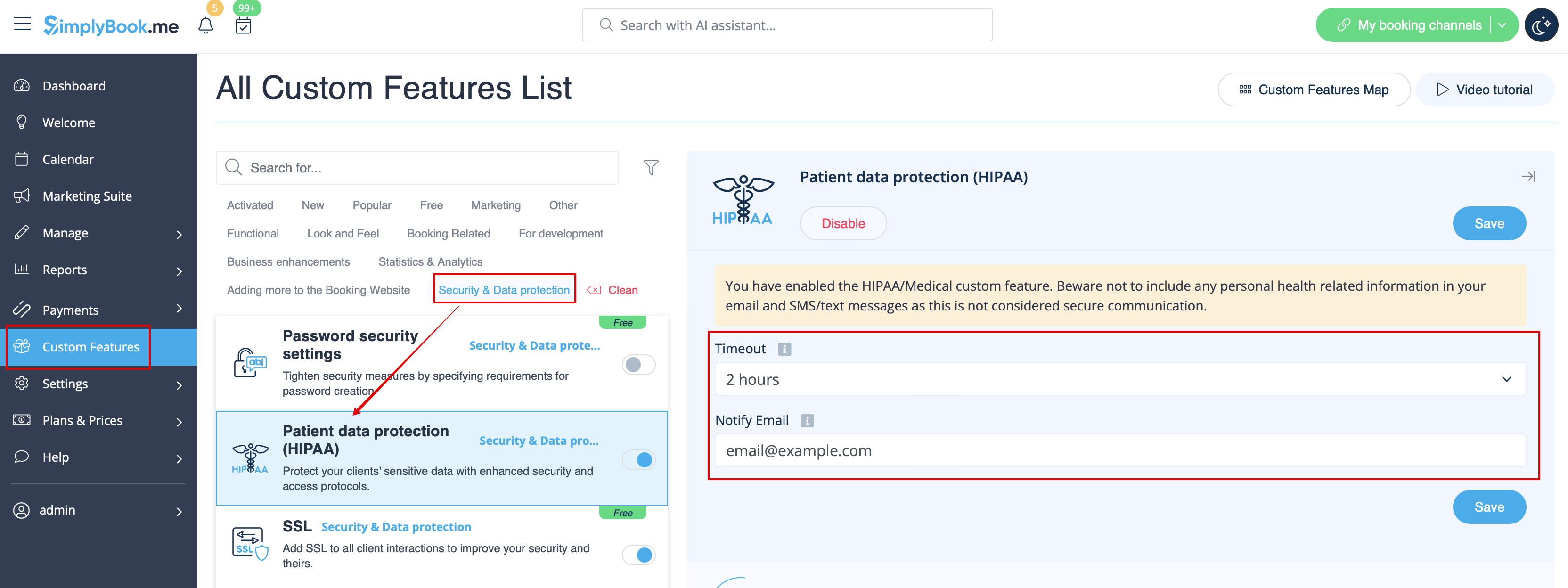
== [[Special:MyLanguage/HIPAA custom feature|HIPAA]] == | |||
==[[ | Це спеціальна функція, пов'язана з безпекою, яка дозволяє надсилати повідомлення електронною поштою, коли хтось входить у вашу систему.<br> | ||
Вона не містить шаблонів електронних листів, які можна редагувати, і її можна ввімкнути/вимкнути, додавши/видавши адресу електронної пошти в <span style="background-color:#d4f8e5; padding:5px; border-radius:5px;">розділі «Налаштування»</span> -> [[Special:MyLanguage/HIPAA custom feature|«HIPAA»]] -> у <span style="background-color:#d4f8e5; padding:5px; border-radius:5px;">правій частині</span> сторінки -> <span style="background-color:#d4f8e5; padding:5px; border-radius:5px;">«Повідомляти електронною поштою».</span> | |||
[[File:Hipaa notifications settings path redesigned.png|1200px|border|center|link=https://help.simplybook.me/images/6/66/Hipaa_notifications_settings_path_redesigned.png]] | [[File:Hipaa notifications settings path redesigned.png|1200px|border|center|link=https://help.simplybook.me/images/6/66/Hipaa_notifications_settings_path_redesigned.png]] | ||
<br><br> | <br><br> | ||
:''[[ | :''[[Special:MyLanguage/HIPAA custom feature|Дізнайтеся більше]] про використання цієї спеціальної функції.'' | ||
-------- | -------- | ||
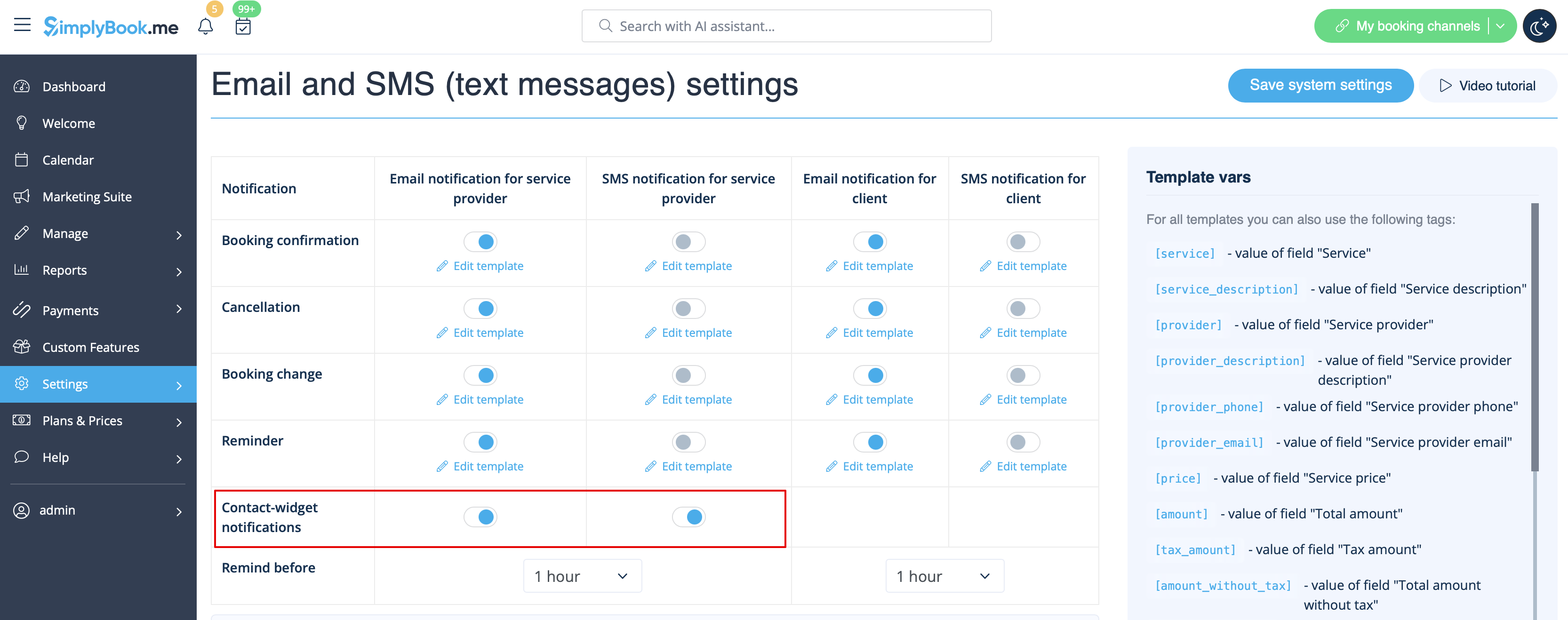
== [[CSpecial:MyLanguage/Contact Widget custom feature|Віджет контактів]] == | |||
==[[ | Оскільки ця спеціальна функція дозволяє додати контактну форму на ваш веб-сайт бронювання або створити віджет кнопки контакту, також існує функція надсилання повідомлення електронною поштою/SMS на адресу компанії, коли хтось залишає повідомлення на сайті бронювання або у віджеті, щоб ви могли відразу відповісти. | ||
Шаблону для редагування немає, але ви можете вимкнути такі повідомлення в <span style="background-color:#d4f8e5; padding:5px; border-radius:5px;">Налаштуваннях</span> -> <span style="background-color:#d4f8e5; padding:5px; border-radius:5px;">Налаштування електронної пошти та SMS</span> -> <span style="background-color:#d4f8e5; padding:5px; border-radius:5px;">Повідомлення віджету контакту.</span> | |||
[[File:Contact widget notifications enable path redesigned.png|1200px|border|center|link=https://help.simplybook.me/images/b/b5/Contact_widget_notifications_enable_path_redesigned.png]] | [[File:Contact widget notifications enable path redesigned.png|1200px|border|center|link=https://help.simplybook.me/images/b/b5/Contact_widget_notifications_enable_path_redesigned.png]] | ||
<br><br> | <br><br> | ||
:''[[ | :''[[Special:MyLanguage/Contact Widget custom feature|Дізнайтеся більше]] про використання цієї спеціальної функції.'' | ||
-------- | -------- | ||
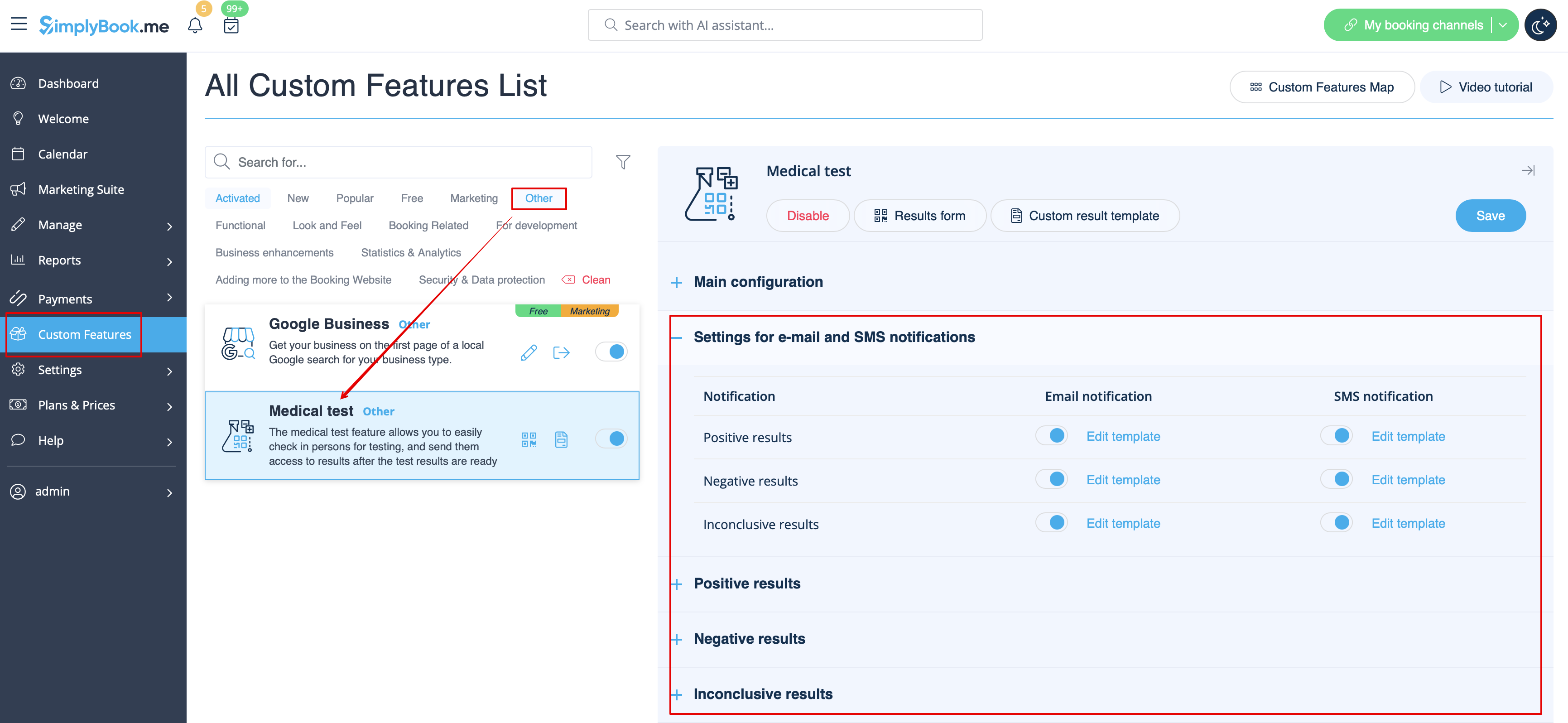
== [[Special:MyLanguage/Medical test custom feature|Медичний тест]] == | |||
==[[ | Якщо ви використовуєте цю спеціальну функцію, вам обов'язково потрібно надсилати результати тестів на електронну пошту пацієнтів.<br> | ||
У <span style="background-color:#d4f8e5; padding:5px; border-radius:5px;">розділі «Налаштовані функції»</span> -> <span style="background-color:#d4f8e5; padding:5px; border-radius:5px;">«Медичний тест»</span> -> у <span style="background-color:#d4f8e5; padding:5px; border-radius:5px;">правій частині</span> сторінки ви можете ввімкнути/вимкнути або редагувати такі шаблони: « | |||
*» (позитивні результати) (шаблони електронних листів та SMS); « | |||
* | *» (негативні результати) (шаблони електронних листів та SMS); « | ||
* | *» (невизначені результати) (шаблони електронних листів та SMS). | ||
* | |||
[[File:Medical test notifications path redesigned.png|1200px|border|center|link=https://help.simplybook.me/images/4/49/Medical_test_notifications_path_redesigned.png]] | [[File:Medical test notifications path redesigned.png|1200px|border|center|link=https://help.simplybook.me/images/4/49/Medical_test_notifications_path_redesigned.png]] | ||
Якщо вам потрібно налаштувати шаблон результатів тесту, скористайтеся <span style="background-color:#d4f8e5; padding:5px; border-radius:5px;">опцією «Налаштований шаблон результатів»</span> над шаблонами. | |||
<br><br> | <br><br> | ||
:''[[ | :''[[Special:MyLanguage/Medical test custom feature|Дізнайтеся більше]] про використання цієї налаштованої функції.'' | ||
-------- | -------- | ||
< | <span id="What_are_variables"></span> | ||
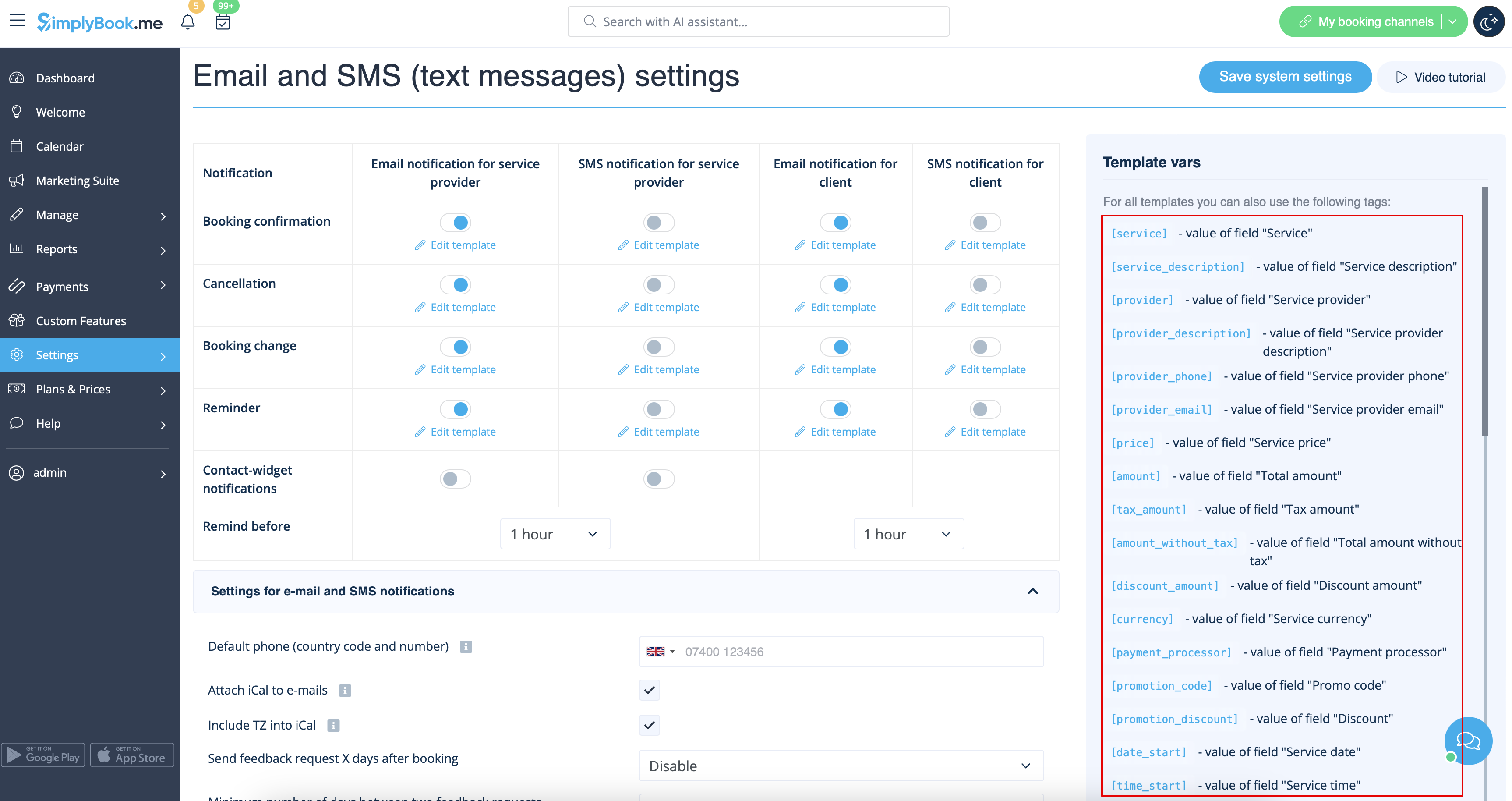
= | = Що таке змінні = | ||
Змінні — це елементи, які можна вставляти в шаблони електронних листів та SMS (<span style="background-color:#d4f8e5; padding:5px; border-radius:5px;">Налаштування</span> -> <span style="background-color:#d4f8e5; padding:5px; border-radius:5px;">Налаштування електронної пошти та SMS</span>). Ці змінні позначатимуть обраний елемент після здійснення бронювання. Наприклад, у вас є 2 постачальники: Марія та Джон. У шаблон електронного листа ви вставляєте текст «Ви забронювали послугу у [постачальника]». Якщо клієнт вибрав на сторінці бронювання постачальника Марію, він отримає такий текст: «Ви забронювали послугу у Марії», якщо вибрав Джона, він отримає текст «Ви забронювали послугу у Джона»<br> | |||
Ви завжди можете знайти змінні, які можна використовувати з певним типом повідомлення, поруч із шаблоном у правій частині сторінки або у спливаючому вікні, яке можна відкрити, натиснувши кнопку «Змінні». | |||
[[File:Variables overview redesigned.png|1200px|border|center|link=https://help.simplybook.me/images/d/d3/Variables_overview_redesigned.png]] | [[File:Variables overview redesigned.png|1200px|border|center|link=https://help.simplybook.me/images/d/d3/Variables_overview_redesigned.png]] | ||
<br><br> | <br><br> | ||
< | <span id="iCals_and_how_to_use_them"></span> | ||
=iCals | = iCals та як ними користуватися = | ||
У <span style="background-color:#d4f8e5; padding:5px; border-radius:5px;">налаштуваннях</span> -> <span style="background-color:#d4f8e5; padding:5px; border-radius:5px;">Налаштування електронної пошти та SMS</span> ви можете встановити прапорець <span style="background-color:#d4f8e5; padding:5px; border-radius:5px;">«Додавати iCal до електронних листів</span> », і тоді електронні листи будуть містити файл у форматі .isc. Після натискання на цей файл він відкриється в одному з ваших календарів (Google календар, iCalendar тощо) | |||
[[File:Ics files options redesigned.png|1200px | center|link=https://help.simplybook.me/images/2/23/Ics_files_options_redesigned.png]] | [[File:Ics files options redesigned.png|1200px | center|link=https://help.simplybook.me/images/2/23/Ics_files_options_redesigned.png]] | ||
<br><br> | <br><br> | ||
:''' | :'''Зверніть увагу''', що файли iCal не мають встановленого часового поясу, тому час у цьому файлі буде відображатися відповідно до налаштувань IP-адреси/пристрою. | ||
<br><br> | <br><br> | ||
< | <span id="Clients/Providers_do_not_receive_notifications"></span> | ||
= | = Клієнти/постачальники не отримують повідомлень = | ||
;Можливі причини | |||
; | :1. Відповідні поля в <span style="background-color:#d4f8e5; padding:5px; border-radius:5px;">Налаштування</span> -> <span style="background-color:#d4f8e5; padding:5px; border-radius:5px;">Налаштування електронної пошти та SMS</span> не відмічені. | ||
:1. | |||
:2. Клієнт/постачальник вказав неправильну електронну адресу або номер телефону. | |||
:2. | |||
:3. Електронний лист потрапив до папки «Спам» або «Соціальні мережі». Перевірте інструкції щодо додавання до білого списку [[Special:MyLanguage/Email whitelisting instructions| тут]]. | |||
:3. | |||
:4. [[Special:MyLanguage/SMTP_custom_feature| Налаштування SMTP]] не встановлено правильно. | |||
:4. [[ | |||
:5. Якщо SMS не надходять, перевірте баланс SMS у <span style="background-color:#d4f8e5; padding:5px; border-radius:5px;">розділі «Плани та ціни»</span> -> <span style="background-color:#d4f8e5; padding:5px; border-radius:5px;">«Підписки»</span> внизу сторінки. | |||
:5. | |||
<br><br> | <br><br> | ||
< | <span id="Clients/Providers_receive_wrong_notifications"></span> | ||
= | = Клієнти/постачальники отримують неправильні сповіщення = | ||
:1. Перевірте, чи у вас увімкнено спеціальні функції [[Special:MyLanguage/Multiple_Bookings_custom_featur| '''«Кілька бронювань»''']] або [[Special:MyLanguage/Group_Bookings_custom_feature| '''«Групові бронювання''']] ». Ці спеціальні функції мають власні шаблони. | |||
:1. | |||
:'''Шаблон для декількох бронювань''' (<span style="background-color:#d4f8e5; padding:5px; border-radius:5px;">Налаштування</span> -> <span style="background-color:#d4f8e5; padding:5px; border-radius:5px;">Декілька бронювань</span> -> <span style="background-color:#d4f8e5; padding:5px; border-radius:5px;">у правій частині</span> сторінки) | |||
:''' | |||
[[File:Multiple bookings notifications path redesigned.png|1200px|border | center|link=https://help.simplybook.me/images/f/fc/Multiple_bookings_notifications_path_redesigned.png]] | [[File:Multiple bookings notifications path redesigned.png|1200px|border | center|link=https://help.simplybook.me/images/f/fc/Multiple_bookings_notifications_path_redesigned.png]] | ||
<br><br> | <br><br> | ||
:''' | :'''Шаблон групових бронювань''' (<span style="background-color:#d4f8e5; padding:5px; border-radius:5px;">Налаштування</span> -> <span style="background-color:#d4f8e5; padding:5px; border-radius:5px;">Групові бронювання</span> -> <span style="background-color:#d4f8e5; padding:5px; border-radius:5px;">у правій частині</span> сторінки) | ||
[[File:Group bookings notifications path.png|1200px|border| center|link=https://help.simplybook.me/images/6/66/Group_bookings_notifications_path.png]] | [[File:Group bookings notifications path.png|1200px|border| center|link=https://help.simplybook.me/images/6/66/Group_bookings_notifications_path.png]] | ||
<br><br> | <br><br> | ||
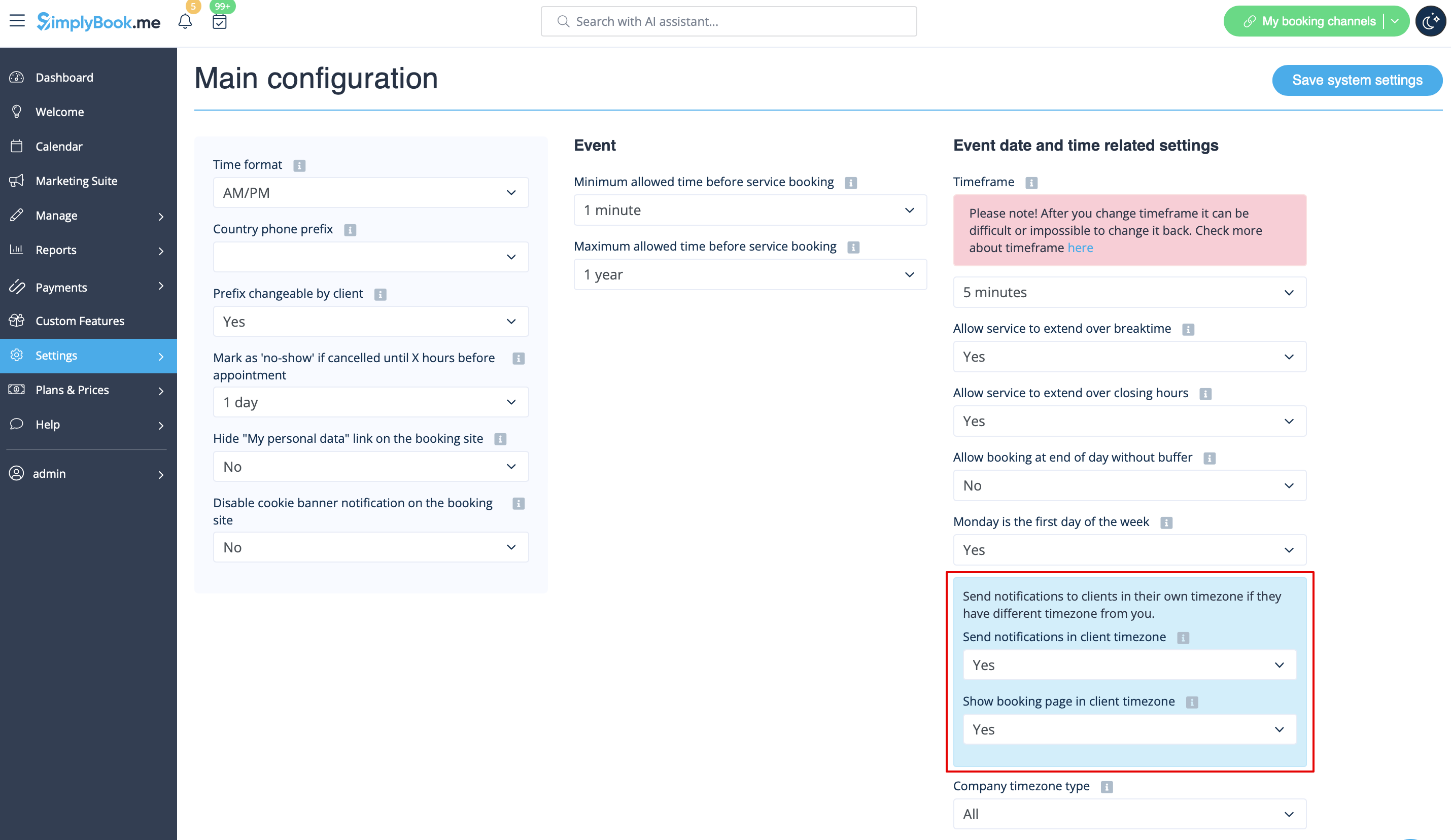
:2. | :2. Перевірте, чи увімкнено налаштування часового поясу в <span style="background-color:#d4f8e5; padding:5px; border-radius:5px;">розділі «Налаштування»</span> -> <span style="background-color:#d4f8e5; padding:5px; border-radius:5px;">«Основні налаштування».</span> У цьому випадку клієнт міг вибрати неправильний часовий пояс і отримати повідомлення в неправильному часовому поясі. | ||
[[File:Timezone settings redesigned.png|1200px | center|link=https://help.simplybook.me/images/3/35/Timezone_settings_redesigned.png]] | [[File:Timezone settings redesigned.png|1200px | center|link=https://help.simplybook.me/images/3/35/Timezone_settings_redesigned.png]] | ||
<br><br> | <br><br> | ||
= Інструкції щодо додавання адреси до списку дозволених = | |||
Ось кілька речей, які ви можете зробити, щоб бути впевненими, що отримаєте всі важливі електронні листи від команди SimplyBook.me. | |||
Ви можете очікувати системні повідомлення, наприклад, про необхідність поновлення підписки, повідомлення про бронювання та корисну інформацію про різні речі, наприклад, як отримати максимальну користь від сервісу [https://simplybook.me/ SimplyBook.me]. | |||
Незважаючи на всі переваги технологій, вони не є досконалими, і іноді системи електронної пошти та інтернет-провайдери помилково вважають легітимні листи спамом. Щоб не пропустити важливі повідомлення від нас, виконайте наступні дії: | |||
Будь ласка, додайте до білого списку всі електронні листи, що надходять з домену '''@simplybook.me'''. | |||
'''Чому?''' Тому що це повідомляє вашій поштовій службі або програмі, що ви дійсно хочете отримувати листи з цього домену, щоб вони могли переконатися, що ви їх отримаєте. | |||
''' | |||
'''Як?''' Це залежить від поштової служби та програми, але нижче ви можете ознайомитися з інформацією про деякі основні служби. Якщо ви не користуєтеся жодною з них, зверніться до розділу довідки вашої служби для отримання інформації. | |||
''' | |||
< | <span id="Using_Gmail_or_Gsuite"></span> | ||
== | == Використання Gmail або Gsuite == | ||
Відфільтруйте повідомлення від '''@simplybook.me''' і вкажіть системі, щоб вона ніколи не надсилала їх у спам: | |||
:1. Перейдіть до <span style="background-color:#d4f8e5; padding:5px; border-radius:5px;">налаштувань</span> (натисніть на значок <span style="background-color:#d4f8e5; padding:5px; border-radius:5px;">шестерні</span> вгорі праворуч) | |||
:1. | |||
[[File:Click settings.png|center]] | |||
[[File:Click settings.png| center]] | |||
:2. Виберіть вкладку <span style="background-color:#d4f8e5; padding:5px; border-radius:5px;">«Фільтри та заблоковані адреси»</span> | |||
:2. | |||
[[File:Select filters and blocked addresses.png|center]] | |||
[[File:Select filters and blocked addresses.png| center]] | |||
:3. У нижній частині вкладки натисніть посилання <span style="background-color:#d4f8e5; padding:5px; border-radius:5px;">Створити новий фільтр</span> | |||
:3. | |||
[[File:Gmail create a new filter.png|center]] | |||
[[File:Gmail create a new filter.png| center]] | |||
:4. У полі <span style="background-color:#d4f8e5; padding:5px; border-radius:5px;">«З»</span> введіть '''@simplybook.me''' | |||
:4. | :5. Натисніть <span style="background-color:#d4f8e5; padding:5px; border-radius:5px;">«Створити фільтр за цим пошуком»</span> у правому нижньому куті вікна | ||
:5. | |||
[[File:Gmail create filter with this search.png|center]] | |||
[[File:Gmail create filter with this search.png| center]] | |||
:6. Поставте галочку біля пункту <span style="background-color:#d4f8e5; padding:5px; border-radius:5px;">«Ніколи не надсилати до спаму»</span> | |||
:6. | :7. Натисніть синю кнопку <span style="background-color:#d4f8e5; padding:5px; border-radius:5px;">«Створити фільтр</span>» | ||
:7. | |||
[[File:Gmail never send it to spam.png|center]] | |||
[[File:Gmail never send it to spam.png| center]] | |||
Чудово! Тепер ви не пропустите нічого важливого від нас! | |||
'''А щоб наші електронні листи не загубилися у вкладці «Оновлення» або «Пропозиції»:''' | |||
''' | |||
:1. Знайдіть листа від SimplyBook.me у своїй поштовій скриньці | |||
:1. | |||
:2. Клацніть і перетягніть його на вкладку <span style="background-color:#d4f8e5; padding:5px; border-radius:5px;">«Основні»</span> у вашій папці вхідних повідомлень | |||
:2. | |||
[[File:Gmail move to primary tab.png|center]] | |||
[[File:Gmail move to primary tab.png| center]] | |||
<br><br> | <br><br> | ||
:3. | :3. Вас запитають, чи хочете ви робити це для майбутніх листів, тому дайте відповідь <span style="background-color:#d4f8e5; padding:5px; border-radius:5px;">«так</span>» | ||
[[File:Gmail do this with future emails from SimplyBook.me.png|center]] | |||
[[File:Gmail do this with future emails from SimplyBook.me.png| center]] | |||
<br><br> | <br><br> | ||
< | <span id="Using_Yahoo!_mail"></span> | ||
== Використання пошти Yahoo! == | |||
== | |||
:1. Коли ви відкриваєте електронне повідомлення, наведіть курсор миші на ім'я відправника. | |||
:1. | |||
:2. Натисніть три крапки у вікні інформації про відправника, що з'явиться, і натисніть <span style="background-color:#d4f8e5; padding:5px; border-radius:5px;">«Додати до контактів».</span> | |||
:2. | |||
[[File:Add to contacts yahoo.png|center]] | |||
[[File:Add to contacts yahoo.png| center]] | |||
<br><br> | <br><br> | ||
:3. | :3. Коли з'явиться форма <span style="background-color:#d4f8e5; padding:5px; border-radius:5px;">«Додати контакт»</span>, натисніть <span style="background-color:#d4f8e5; padding:5px; border-radius:5px;">«Зберегти».</span> | ||
[[File:Add contact yahoo form.PNG|center]] | |||
[[File:Add contact yahoo form.PNG| center]] | |||
<br><br> | <br><br> | ||
< | <span id="Using_Mac_Mail"></span> | ||
== Використання Mac Mail == | |||
== | |||
:1. У верхньому меню виберіть <span style="background-color:#d4f8e5; padding:5px; border-radius:5px;">Пошта</span> -> <span style="background-color:#d4f8e5; padding:5px; border-radius:5px;">Налаштування</span> | |||
:1. | |||
[[File:Step 1 - open Mail preferences.jpg|center]] | |||
[[File:Step 1 - open Mail preferences.jpg| center]] | |||
<br><br> | <br><br> | ||
:2. | :2. Потім виберіть піктограму <span style="background-color:#d4f8e5; padding:5px; border-radius:5px;">«Правила»</span>, натисніть <span style="background-color:#d4f8e5; padding:5px; border-radius:5px;">«Додати правило»</span> і введіть назву правила в полі опису. Використовуйте такі налаштування: | ||
[[File:Step 2 - open Rules configuration.jpg|center]] | |||
[[File:Step 2 - open Rules configuration.jpg| center]] | |||
<br><br> | <br><br> | ||
:3. | :3. «Якщо виконується будь-яка з наступних умов: З містить». У текстовому полі поруч <span style="background-color:#d4f8e5; padding:5px; border-radius:5px;">із «Містить»</span> введіть '''@simplybook.me''' | ||
[[File:Step 3 - add a rule for SimplyBook.me mails.jpg|center]] | |||
[[File:Step 3 - add a rule for SimplyBook.me mails.jpg| center]] | |||
:4. Виберіть <span style="background-color:#d4f8e5; padding:5px; border-radius:5px;">«Перемістити повідомлення»</span> та <span style="background-color:#d4f8e5; padding:5px; border-radius:5px;">«Вхідні»</span> з випадаючих меню, а потім натисніть <span style="background-color:#d4f8e5; padding:5px; border-radius:5px;">«OK»</span>, щоб зберегти правило. | |||
:4. | |||
<br><br> | <br><br> | ||
< | <span id="Using_Outlook"></span> | ||
== Використання Outlook == | |||
== | |||
:1. Клацніть правою кнопкою миші на повідомленні у вашій папці вхідних повідомлень. | |||
:1. | |||
:2. Виберіть <span style="background-color:#d4f8e5; padding:5px; border-radius:5px;">«Небажана пошта»</span> в меню. | |||
:2. | |||
:3. Натисніть <span style="background-color:#d4f8e5; padding:5px; border-radius:5px;">«Ніколи не блокувати відправника</span> » або <span style="background-color:#d4f8e5; padding:5px; border-radius:5px;">«Ніколи не блокувати домен відправника (@example.com)».</span> | |||
:3. | |||
[[File:Outlook not junk.jpg|center]] | |||
[[File:Outlook not junk.jpg| center]] | |||
<br><br> | <br><br> | ||
Чудово, все готово! Ми з нетерпінням чекаємо на зв'язок з вами і на розвиток вашого бізнесу! | |||
Latest revision as of 13:09, 16 March 2026
Як увімкнути/вимкнути сповіщення про бронювання та налаштувати шаблони
Перейдіть до Налаштування -> Налаштування електронної пошти та SMS і поставте/зніміть галочки у відповідних полях, щоб надсилати або не надсилати повідомлення. Ви можете змінити тексти повідомлень, щоб вони краще відповідали вашим потребам, натиснувши редагувати шаблон, внести зміни та зберегти налаштування системи.
Також ви можете встановити до трьох нагадувань як для ваших клієнтів, так і для працівників – просто встановіть час, і система автоматично надішле їх відповідно до текстів шаблону, заданих для обраного типу нагадування.
Повідомлення WhatsApp
Якщо ви та ваші клієнти активно користуєтеся месенджером WhatsApp, ви можете отримувати там повідомлення, пов'язані з бронюваннями.
- Як користуватися
1. Увімкніть потрібні типи повідомлень WhatsApp у налаштуваннях -> Налаштування електронної пошти та SMS
2. Придбайте кредити WhatsApp у розділі «Плани та ціни» -> «Підписки» або «Додаткові елементи», залежно від того, чи хочете ви, щоб кредити автоматично поновлювалися разом із підпискою, чи віддаєте перевагу одноразовій покупці.
(Ви також зможете переглянути повідомлення, надіслані з системи, а також кількість використаних кредитів у розділі «Звіти» -> «SMS (текстові повідомлення)» -> «Сповіщення WhatsApp»)
Зверніть увагу!
- Щоб відповідати політикам WhatsApp, повідомлення використовують попередньо затверджені шаблони та не можуть бути змінені. Ці шаблони чітко та професійно передають основну інформацію.
- Будь-яка взаємодія з клієнтом у WhatsApp (скасування клієнтом, перенесення бронювання тощо) буде коштувати кредитів.
Мобільний додаток для адміністраторів
Якщо ви використовуєте мобільний додаток для адміністратора, ви можете отримувати повідомлення, пов'язані з бронюваннями, такі як підтвердження бронювання, нагадування, повідомлення про зміну та скасування бронювання.
Щоб увімкнути/вимкнути ці повідомлення, перейдіть на вкладку «Налаштування» -> «Керувати повідомленнями» в мобільному додатку адміністратора.
Як вимкнути відгуки
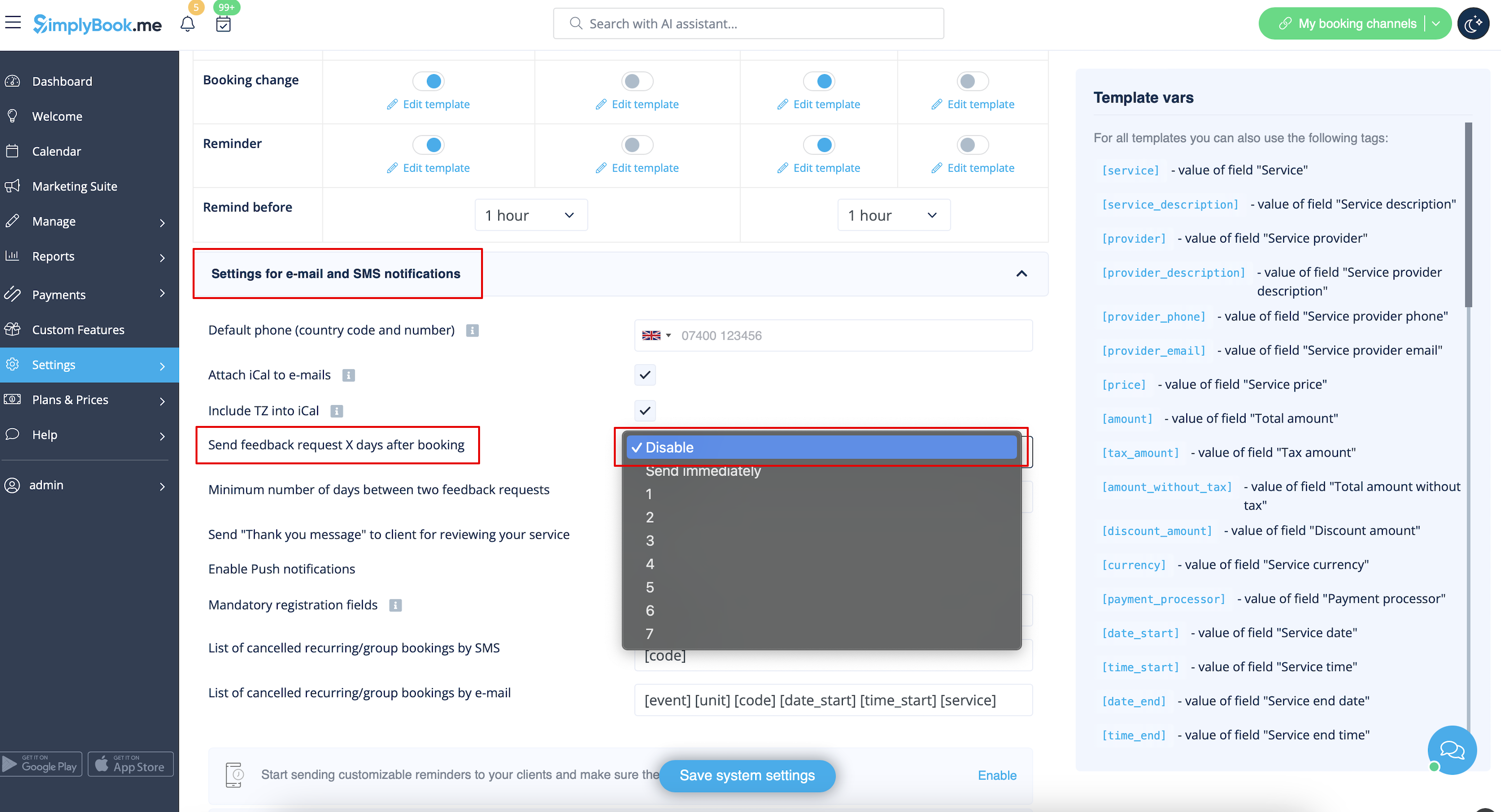
Ви можете переглянути всі свої відгуки у вкладці «Звіти» -> «Відгуки» в меню зліва, видалити їх або відповісти на них. Якщо ви бажаєте видалити можливість залишати відгуки та не надсилати запит на відгук, у налаштуваннях «Налаштування електронної пошти та SMS» -> «Налаштування для повідомлень електронною поштою та SMS» -> «Кількість днів до надсилання запиту на відгук клієнту » встановіть значення «Вимкнути».
Повідомлення, пов'язані зкористувацькими функціями
Наступні спеціальні функції мають власні типи повідомлень або можуть впливати на повідомлення, що надсилаються системою:
Приймати платежі
Дозволяє надсилати:
- Рахунки клієнтам (шаблон електронного листа)
- Повідомлення про невдалі платежі клієнтам (шаблон електронного листа)
- Повідомлення про невдалі платежі компанії (шаблон електронного листа)
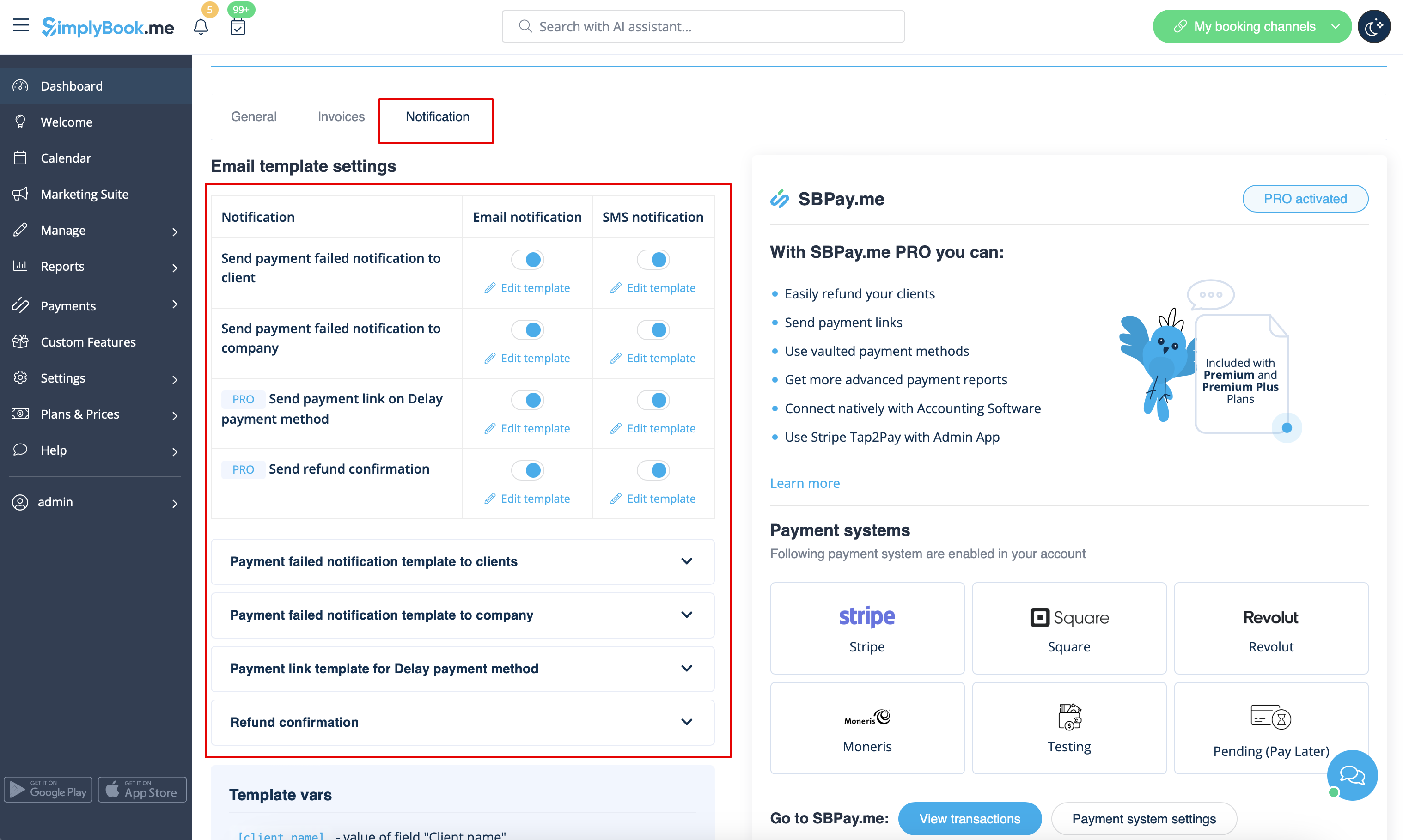
Усі ці шаблони можна редагувати в розділі «Налаштування» -> «Приймати платежі» -> «Налаштування» -> «Налаштування шаблонів електронних листів
- Дізнайтеся більше про використання цієї налаштованої функції.
Кілька бронювань
Має власні шаблони для:
- Повідомлення про підтвердження бронювання клієнту (шаблони електронних листів та SMS)
- Повідомлення про нагадування про бронювання клієнту (шаблони електронних листів та SMS)
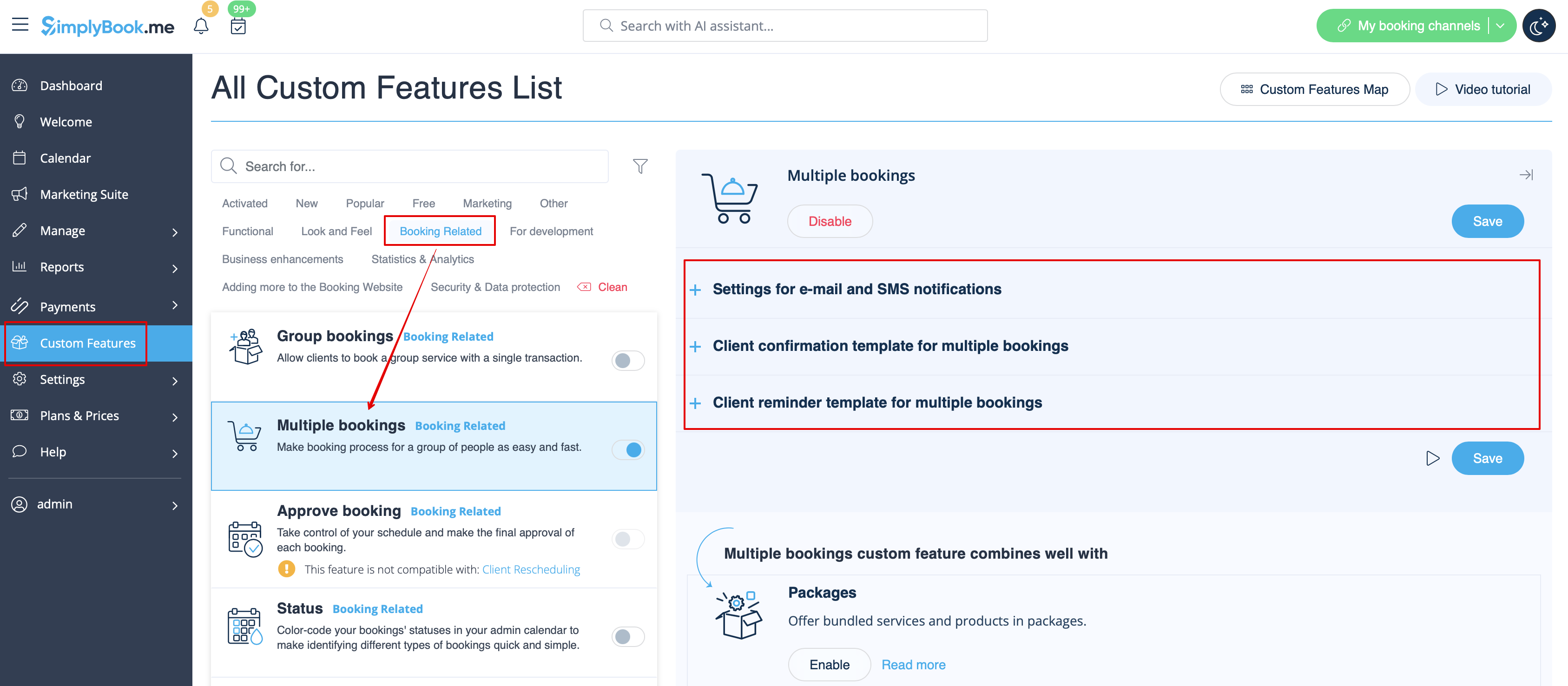
Обидва типи застосовуються автоматично, коли ця спеціальна функція увімкнена і клієнти роблять кілька бронювань одночасно за допомогою кнопки «Додати іншу послугу» під час оформлення замовлення. Тексти шаблонів можна налаштувати в розділі «Спеціальні функції» -> «Кілька бронювань» -> у правій частині сторінки.
- Дізнайтеся більше про використання цієї спеціальної функції.
Групові бронювання
Мають спеціальні шаблони для таких типів:
- Повідомлення про підтвердження бронювання клієнту (шаблони електронних листів та SMS)
- Повідомлення про нагадування про бронювання клієнту (шаблони електронних листів та SMS)
- Повідомлення про підтвердження бронювання постачальнику (шаблони електронних листів та SMS)
- Повідомлення про нагадування про бронювання постачальнику (шаблони електронних листів та SMS)
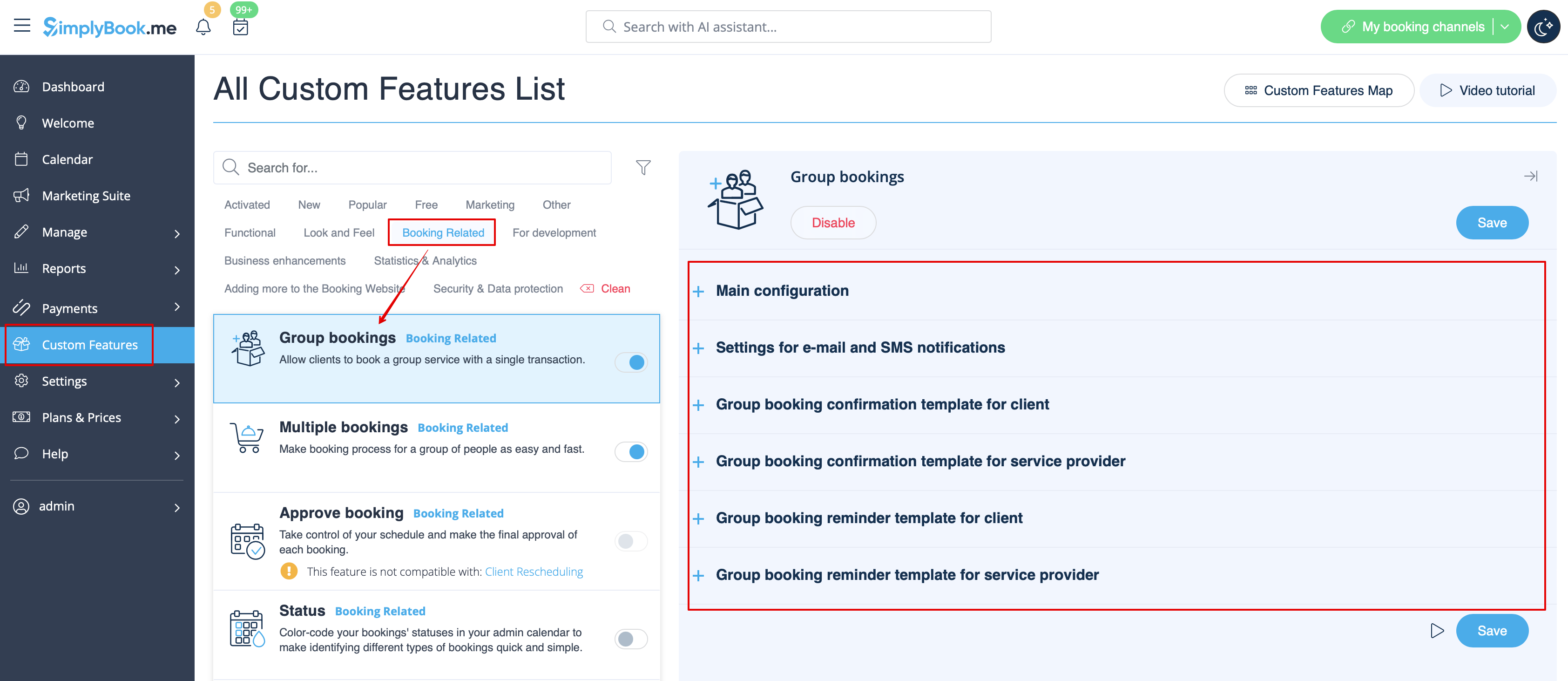
Вони будуть автоматично застосовані, коли ця спеціальна функція буде увімкнена і клієнт забронює зустріч, вибравши декількох учасників на етапі бронювання послуги. Усі шаблони можна налаштувати в розділі «Налаштовані функції» -> «Групові бронювання» -> у правій частині сторінки.
- Дізнайтеся більше про використання цієї налаштованої функції.
Система сповіщень «Забронюйте скоро»
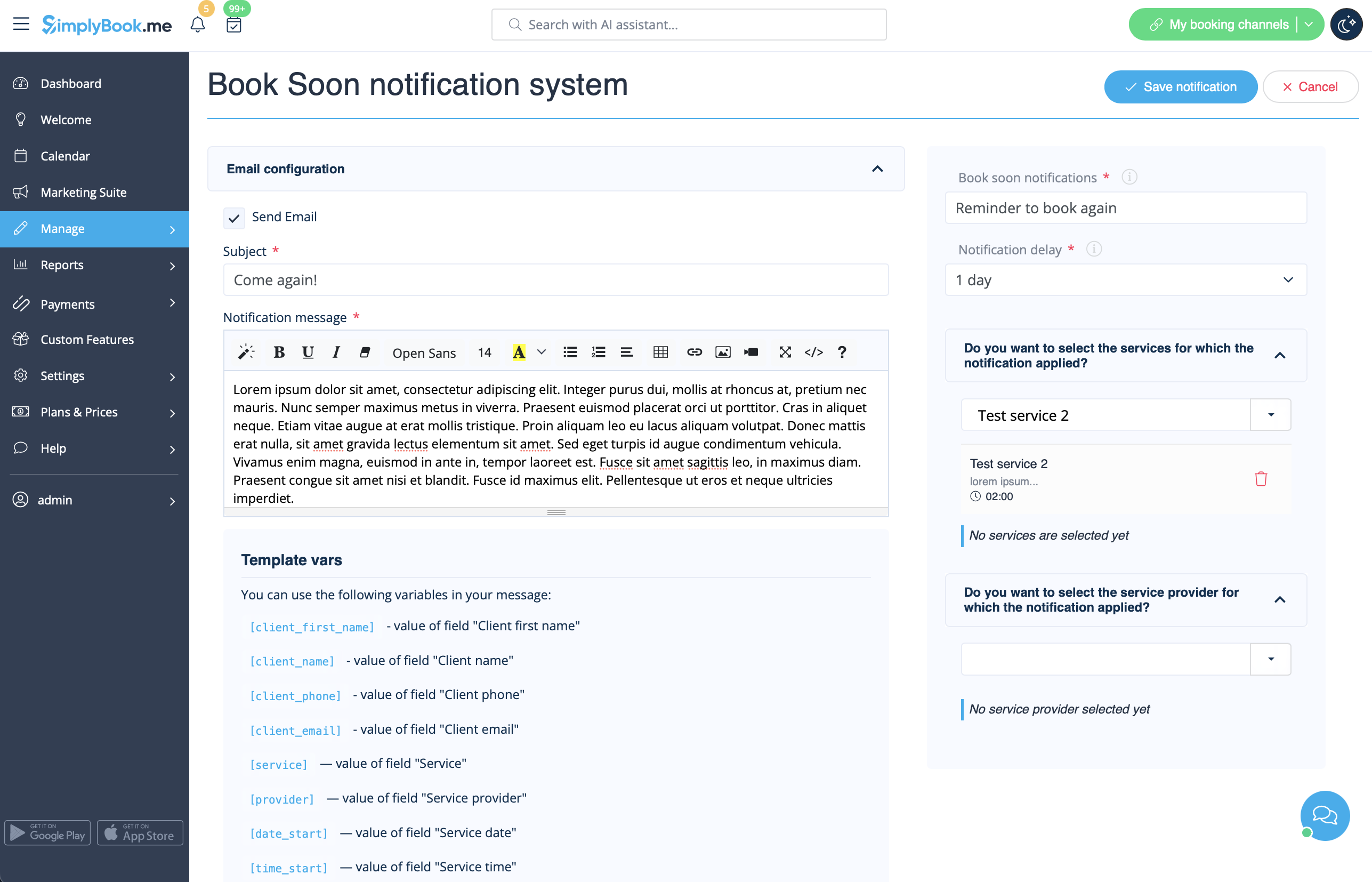
Дозволяє надсилати нагадування про повторний візит клієнтам, які раніше зробили замовлення.
Шаблони можна налаштувати в розділі «Налаштування» -> «Система повідомлень «Забронюйте зараз»» -> «Налаштування» -> «Додати новий», щоб створити новий шаблон (електронна пошта та SMS).
Ви можете створити безліч конкретних шаблонів для певних послуг/постачальників, і вони будуть надіслані, коли минув зазначений час від моменту призначення клієнта.
- Дізнайтеся більше про використання цієї налаштованої функції.
Купони та подарункові картки
Ви можете надсилати спеціальні повідомлення в таких випадках, коли використовуєте цю спеціальну функцію:
- клієнт купує подарункову картку на веб-сайті бронювання (шаблони електронних листів та SMS)
Цей шаблон повідомлення можна ввімкнути/вимкнути та редагувати в розділі «Спеціальні функції » -> «Купони та подарункові картки» -> у правій частині сторінки.
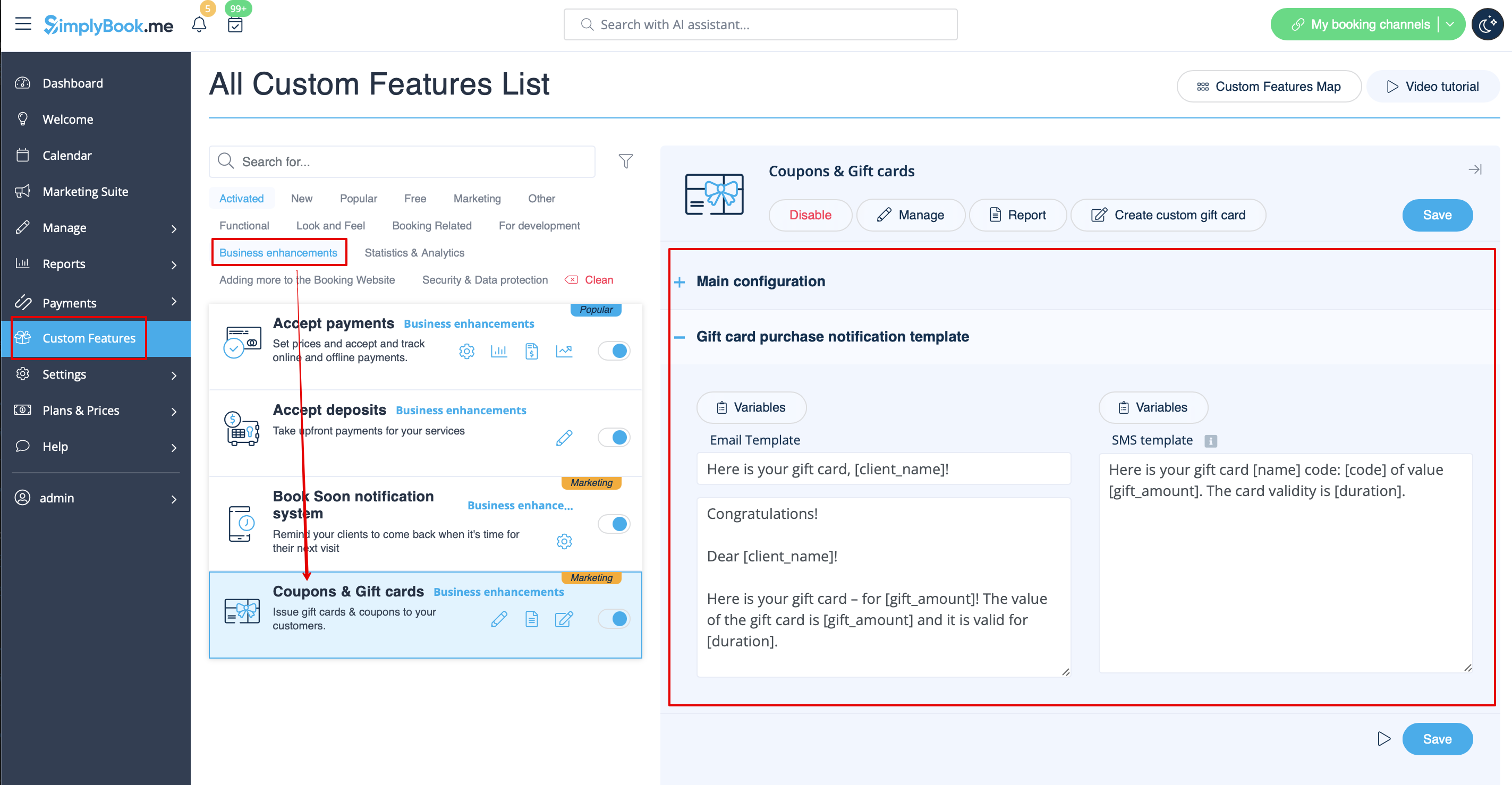
Крім того, якщо ви вручну видаєте подарункову картку або купон своїм клієнтам, шаблон, який буде використовуватися в цьому випадку, можна знайти в розділі «Управління» -> «Купони та подарункові картки» -> «Видати подарункову картку / Надіслати повідомлення про купон для бажаної подарункової картки / купона» -> «Надіслати електронний лист / Надіслати SMS».
- Дізнайтеся більше про використання цієї налаштованої функції.
Мобільний додаток для клієнтів
Якщо ця функція увімкнена і клієнт дозволив сповіщення, мобільний додаток надсилатиме push-сповіщення, пов'язані з бронюваннями.
Шаблон не можна редагувати, але ви можете переглянути звіт про сповіщення в розділі «Звіти» -> «Звіт про push-сповіщення».
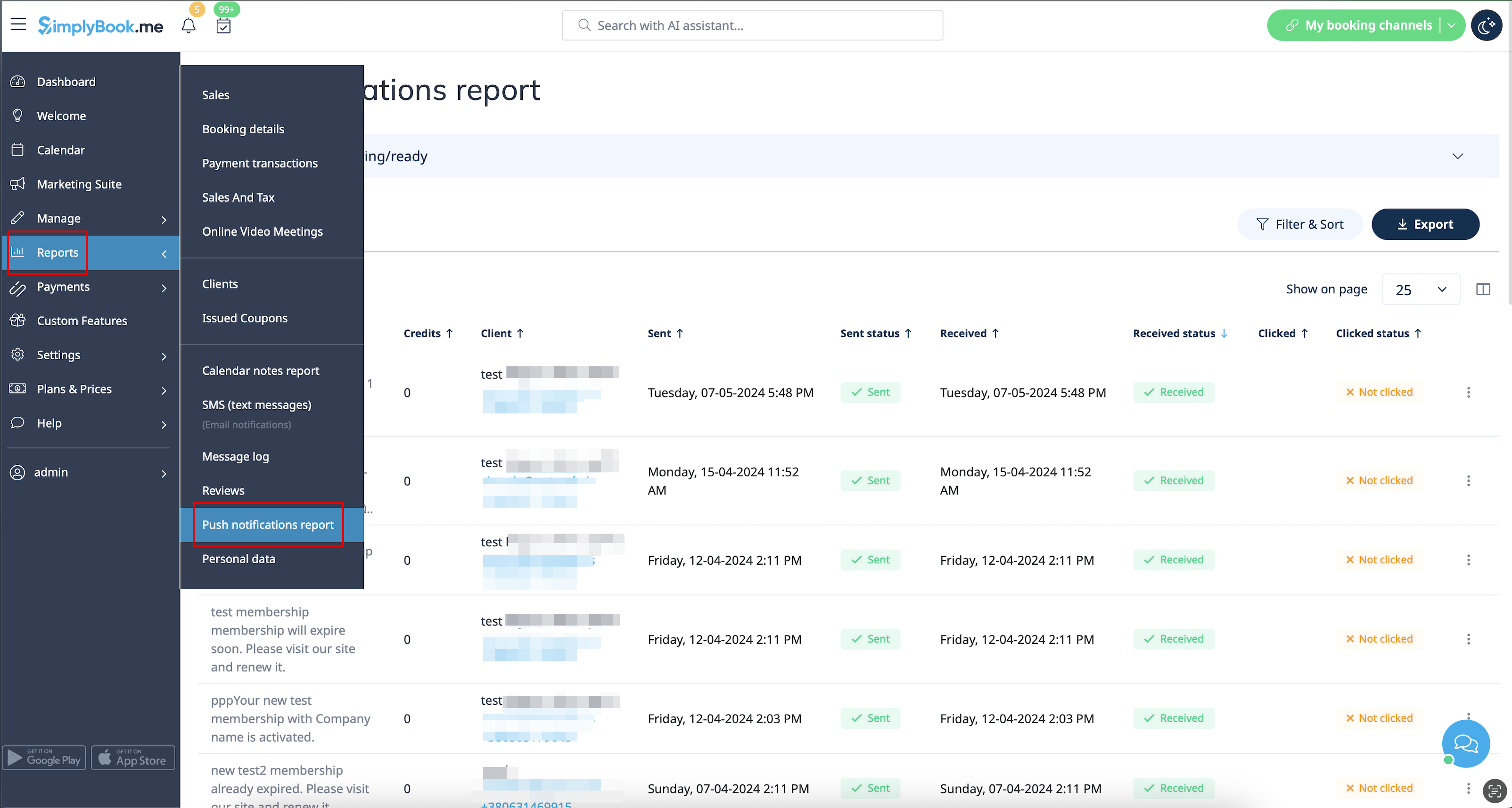
Зверніть увагу! Щоб мати можливість надсилати такі повідомлення клієнтам, вам потрібно мати достатньо кредитів для push-повідомлень.
- Дізнайтеся більше про використання цієї спеціальної функції.
Вхід клієнта
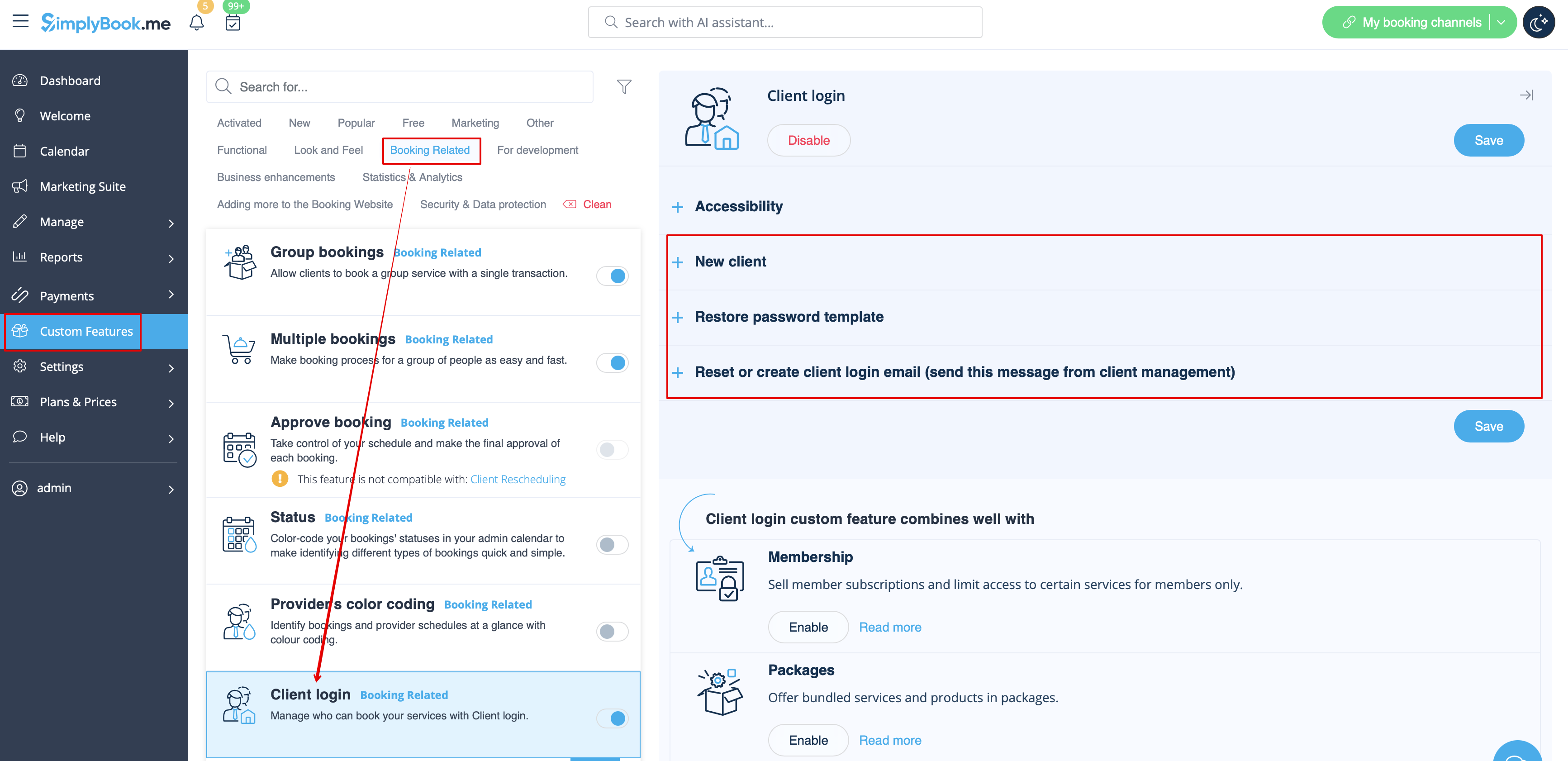
Якщо ви вимагаєте від клієнтів входити/реєструватися, щоб вони могли бронювати зустрічі або робити покупки на вашому веб-сайті бронювання, і у вас увімкнено спеціальну функцію входу клієнта,
існує три типи повідомлень, які можна надіслати клієнтам (їх не можна вимкнути):
- реєстрація нового клієнта (електронна пошта)
- відновлення пароля (електронна пошта)
- скидання пароля або створення клієнта з інтерфейсу адміністратора (електронна пошта)
Ви можете редагувати шаблони в розділі «Налаштування» -> «Вхід клієнта» -> у правій частині сторінки.
- Дізнайтеся більше про використання цієї налаштованої функції.
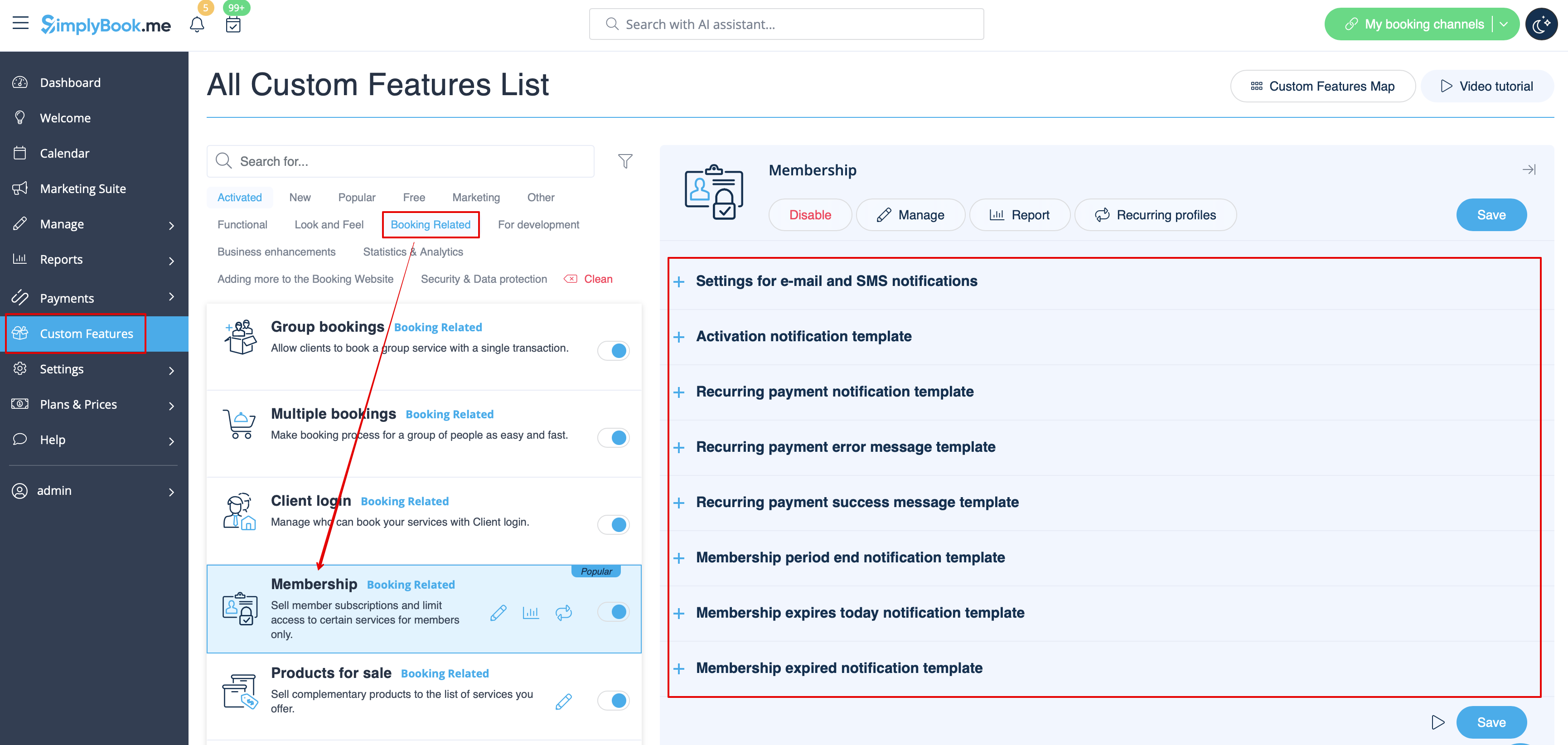
Членство
Коли ви продаєте членство на веб-сайті бронювання, вам також може знадобитися повідомити своїх клієнтів про різні моменти.
Ця спеціальна функція дозволяє надсилати:
- повідомлення про активацію членства (шаблони електронних листів та SMS)
- повідомлення про періодичний платіж (шаблони електронних листів та SMS)
- повідомлення про помилку періодичного платежу (шаблони електронних листів та SMS)
- повідомлення про успішне здійснення періодичного платежу (шаблони електронних листів та SMS)
- повідомлення про закінчення терміну членства (шаблони електронних листів та SMS)
- повідомлення про закінчення терміну членства сьогодні (шаблони електронних листів та SMS)
- повідомлення про закінчення терміну членства (шаблони електронних листів та SMS)
Ви можете редагувати шаблони, а також увімкнути/вимкнути певні типи повідомлень у розділі «Налаштування» -> «Членство» -> у правій частині сторінки.
- Дізнайтеся більше про використання цієї налаштованої функції.
Гнучкі сповіщення
Ця спеціальна функція дозволяє налаштувати повідомлення, пов'язані з бронюванням, для певної послуги/постачальника або для обох.
Можна використовувати такі типи:
- підтвердження бронювання клієнту (шаблони електронних листів та SMS)
- підтвердження бронювання постачальнику (шаблони електронних листів та SMS)
- нагадування клієнту (шаблони електронних листів та SMS)
- нагадування постачальнику (шаблони електронних листів та SMS)
- повідомлення про скасування клієнту (шаблони електронних листів та SMS)
- повідомлення про скасування постачальнику (шаблони електронних листів та SMS)
- повідомлення про зміну бронювання клієнту (шаблони електронних листів та SMS)
- повідомлення про зміну бронювання постачальнику (шаблони електронних листів та SMS)
- підтвердження повторюваної події клієнту (шаблони електронних листів та SMS)
- підтвердження повторюваної події постачальнику (шаблони електронних листів та SMS)
- повідомлення про групове скасування клієнту (шаблони електронних листів та SMS)
- повідомлення про групове скасування постачальнику (шаблони електронних листів та SMS)
- підтвердженнягрупового бронювання клієнту (шаблони електроннихлистів та SMS)
- нагадуванняпро групове бронювання клієнту (шаблони електроннихлистів та SMS)
- підтвердженнягрупового бронювання клієнту (шаблони електроннихлистів та SMS)
- підтвердженнягрупового бронювання постачальнику (шаблониелектронних листів та SMS)
- нагадуванняпро групове бронювання клієнту (шаблони електронних листів та SMS)
- нагадування прогрупові бронювання постачальнику (шаблони електронних листів та SMS)
Ви можете створити всі необхідні шаблони в розділі «Налаштування» -> «Гнучкі повідомлення» -> «Керувати».
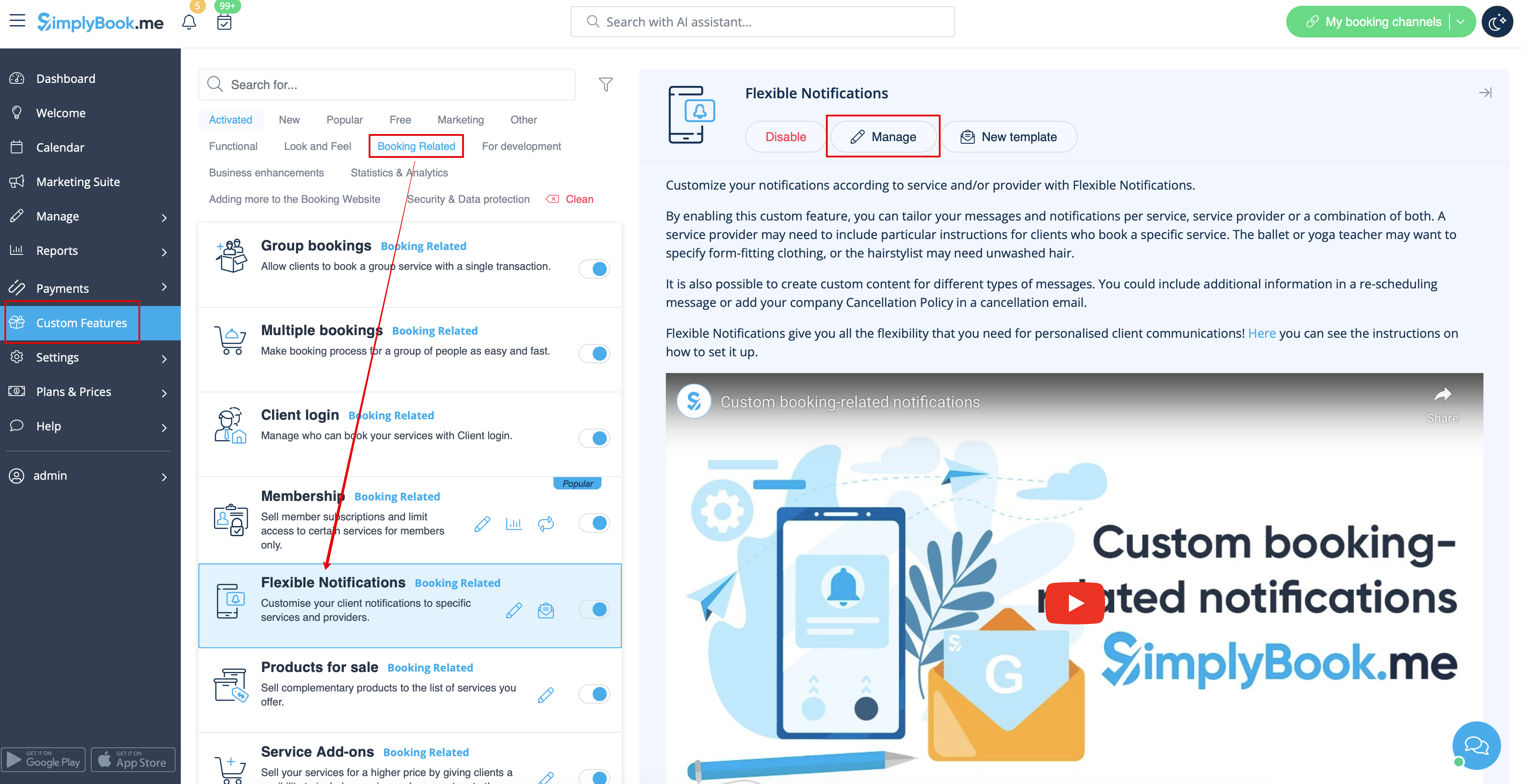
Якщо вам потрібно увімкнути/вимкнути деякі з цих типів повідомлень, перейдіть до «Налаштування» -> «Налаштування електронної пошти та SMS» -> і скористайтеся таблицею у верхній частині сторінки.
Зверніть увагу! Це загальні налаштування повідомлень про бронювання, тому якщо ви вимкнете деякі з них, це також вплине на подібні типи, пов'язані з іншими функціями (наприклад, якщо ви вимкнете підтвердження бронювання для постачальників, то загальні підтвердження, а також групові та періодичні підтвердження будуть вимкнені).
- Дізнайтеся більше про використання цієї налаштованої функції.
Пакети
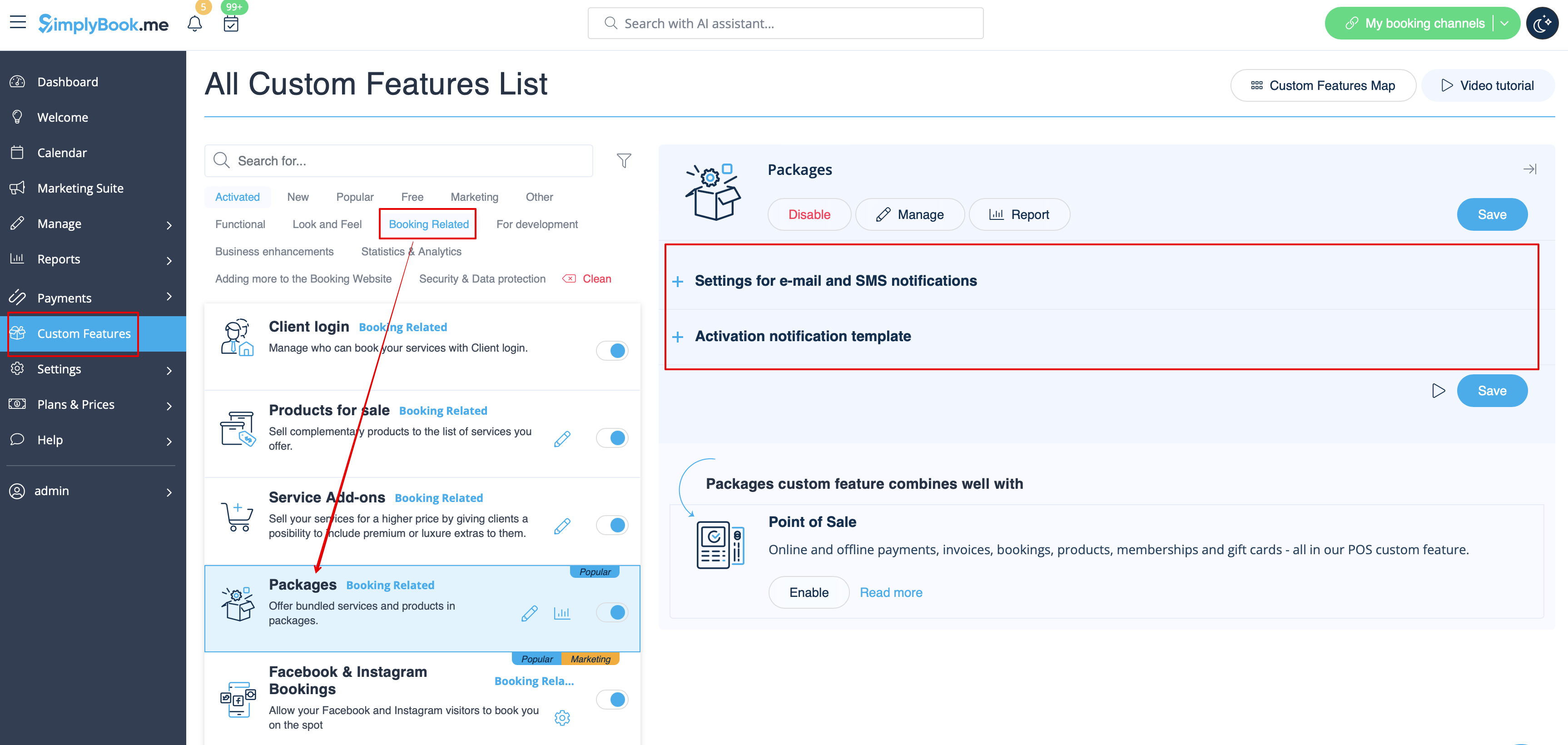
Коли ви продаєте пакети послуг/класів/продуктів/додаткових послуг або видаєте пакети з адміністративної панелі, також можна автоматично надсилати клієнтам повідомлення про активацію пакета (електронною поштою та/або SMS).
Щоб редагувати текст шаблону або ввімкнути/вимкнути повідомлення, перейдіть до розділу «Налаштування» -> «Пакети» -> права частина сторінки.
- Дізнайтеся більше про використання цієї налаштованої функції.
Квитки
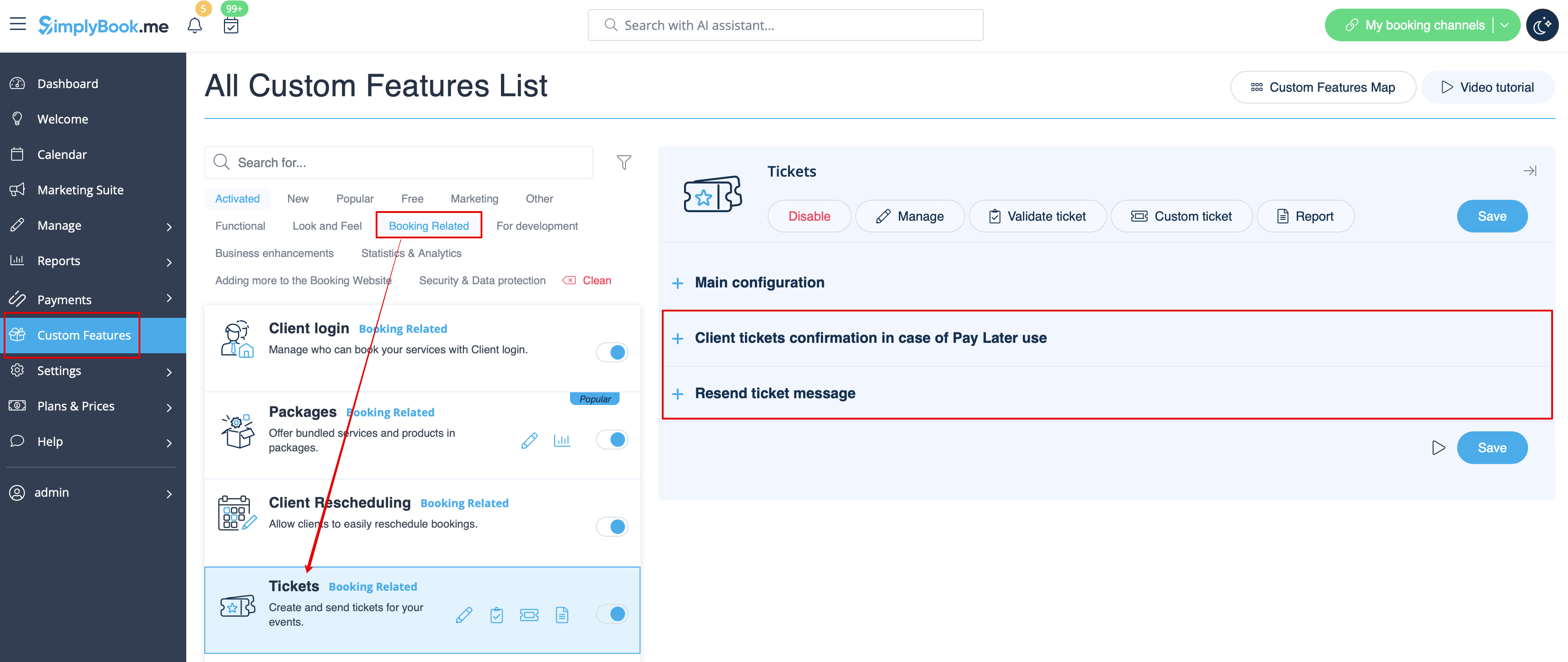
За замовчуванням квиток автоматично надсилається на електронну адресу клієнта разом із відповідним електронним листом із підтвердженням послуги.
Але якщо ви використовуєте онлайн-платежі і дозволяєте вибрати опцію «оплатити пізніше» на веб-сайті бронювання, і клієнт вибирає її,
у цьому випадку квиток буде надіслано окремим електронним листом.
Також у певних випадках ви можете надіслати квиток клієнту повторно (це можна зробити в розділі «Звіти» -> «Звіт про квитки»).
Обидва шаблони повідомлень можна редагувати в розділі «Налаштування» -> «Квитки» -> у правій частині сторінки. Доступні лише типи електронних листів.
- Дізнайтеся більше про використання цієї налаштованої функції.
Налаштування електронної пошти
Дозволяє налаштувати дизайн повідомлень електронної пошти відповідно до вашого брендингу та смаку.
Щоб створити власний дизайн, перейдіть до розділу «Налаштування» -> «Налаштування електронної пошти» -> «Створити шаблон».
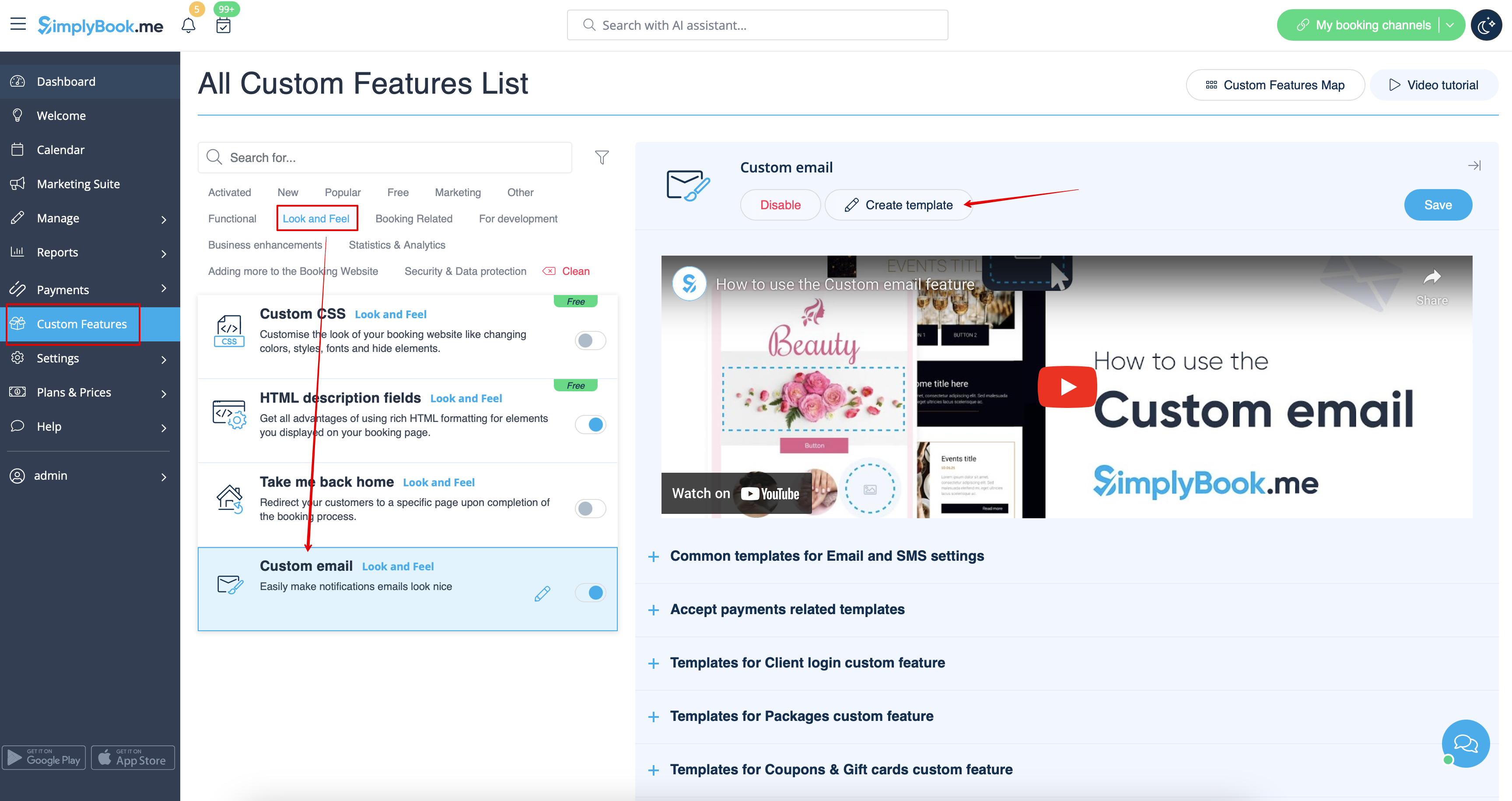
За допомогою цієї налаштованої функції ви можете впливати на вигляд таких типів повідомлень:
- загальні повідомлення, пов'язані з бронюваннями, в розділі «Налаштування» -> «Налаштування електронної пошти та SMS»;
- електронні листи з налаштування «Приймати платежі»;
- повідомленняз налаштування «Групові бронювання»;
- повідомленняз налаштування «Кілька бронювань»;
- повідомленняз налаштування«Вхід клієнта»;
- повідомлення з налаштування«Членство»;
- повідомлення з налаштування«Пакети»;
- повідомлення з налаштування «Квитки»;
- повідомлення зналаштування «Купони та подарункові картки»;
- повідомлення з налаштування «Медичні тести»;
- повідомлення з налаштування «Система повідомлень про швидке бронювання ».
Ця функція дозволяє протестувати кожен тип повідомлення з попередньо створеним дизайном.
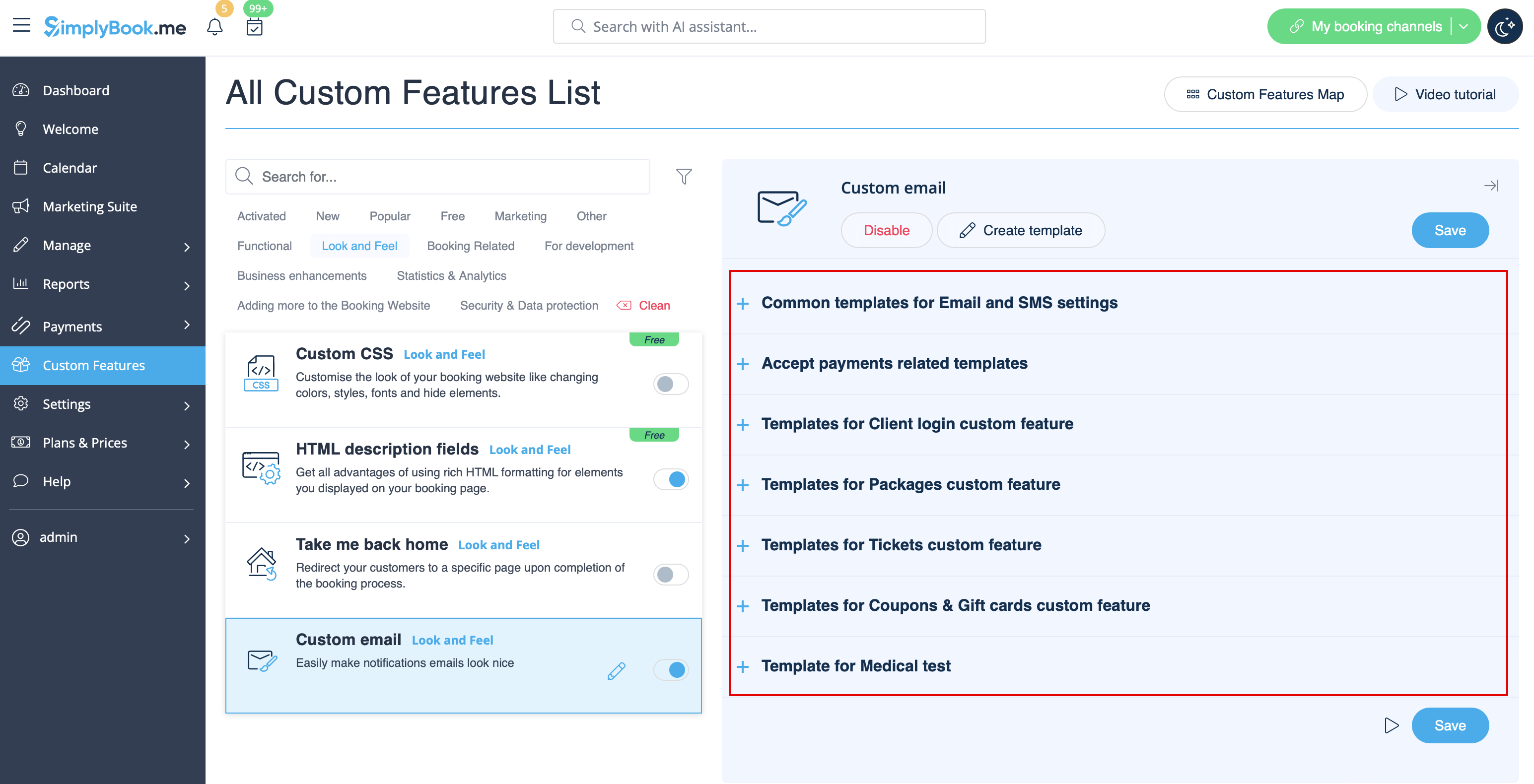
Тег {{content}}, що містить інформацію про бронювання/покупку, можна редагувати у відповідних налаштуваннях функції.
- Дізнайтеся більше про використання цієї функції.
SMTP
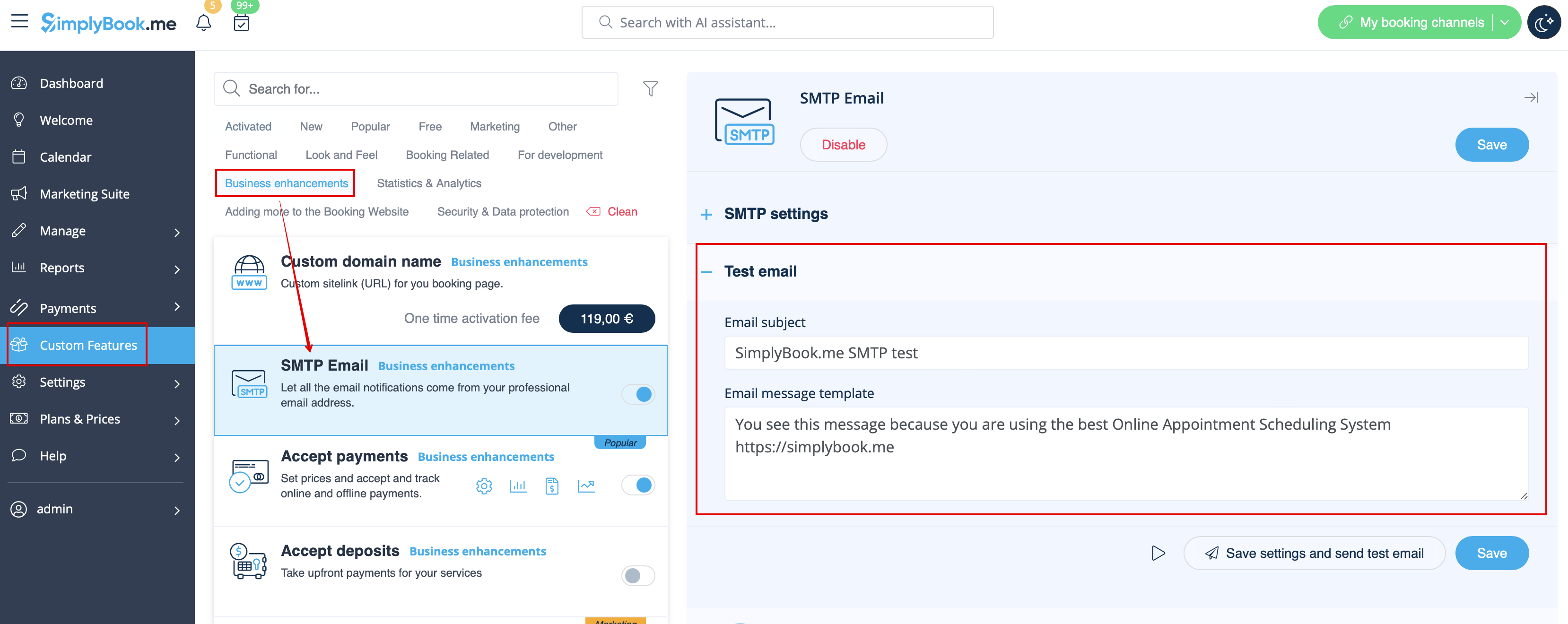
Ця функція дозволяє використовувати власний SMTP-сервер для надсилання електронних листів.
Після введення налаштувань для тестування цієї функції доступний лише один шаблон.
Ви можете редагувати та використовувати шаблон тестового електронного листа в розділі «Налаштування» -> «SMTP» -> у правій частині сторінки.
- Дізнайтеся більше про використання цієї налаштованої функції.
Щоденний звіт
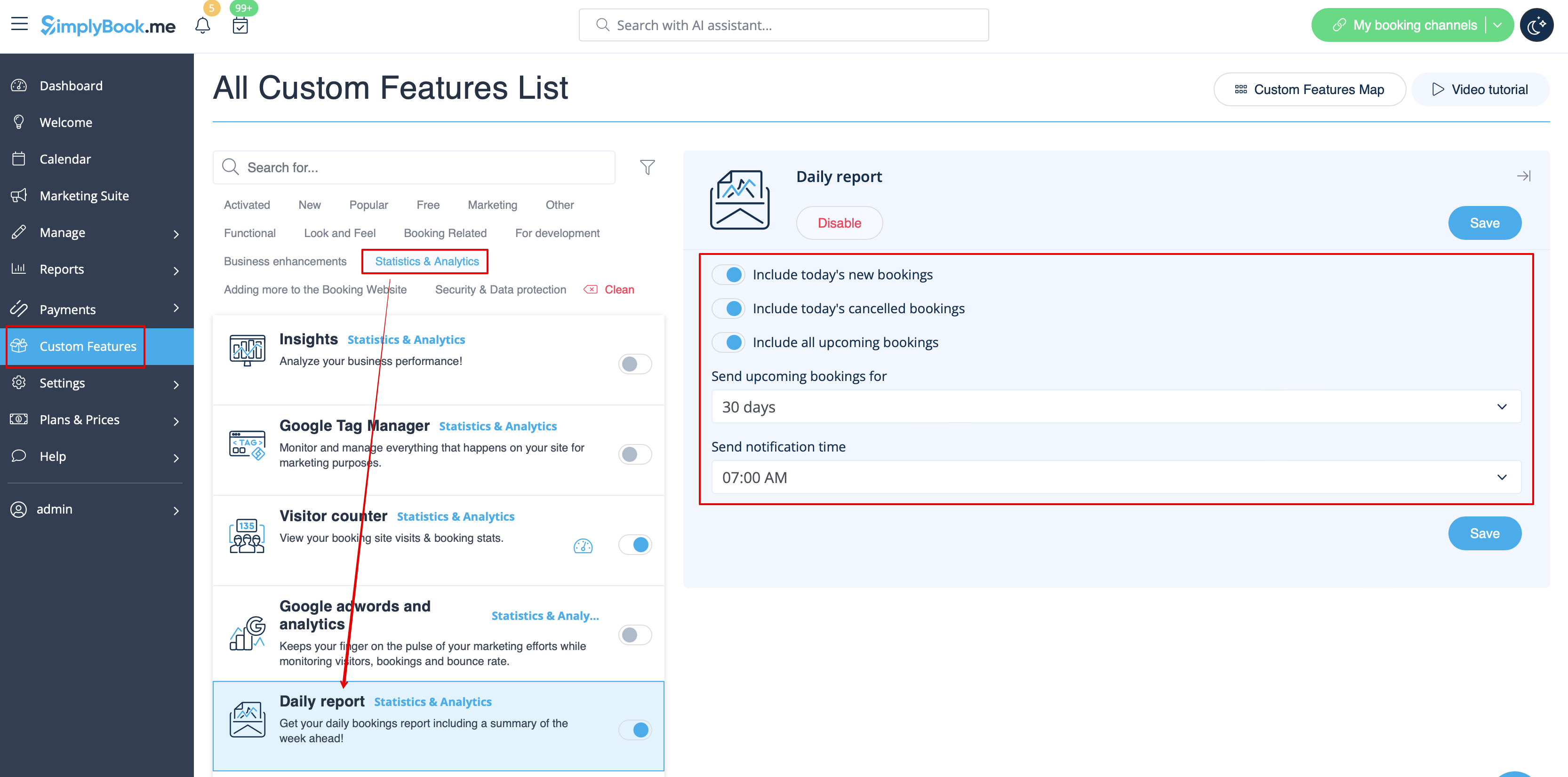
Коли ви ввімкнете та налаштуєте цю спеціальну функцію, вона автоматично надсилатиме електронний звіт про нові, майбутні та скасовані зустрічі на електронну адресу вашої компанії.
Шаблону для редагування немає, але ви можете налаштувати елементи, що включаються, в розділі «Налаштовані функції» -> «Щоденний звіт» -> у правій частині сторінки.
- Дізнайтеся більше про використання цієї налаштованої функції.
HIPAA
Це спеціальна функція, пов'язана з безпекою, яка дозволяє надсилати повідомлення електронною поштою, коли хтось входить у вашу систему.
Вона не містить шаблонів електронних листів, які можна редагувати, і її можна ввімкнути/вимкнути, додавши/видавши адресу електронної пошти в розділі «Налаштування» -> «HIPAA» -> у правій частині сторінки -> «Повідомляти електронною поштою».
- Дізнайтеся більше про використання цієї спеціальної функції.
Віджет контактів
Оскільки ця спеціальна функція дозволяє додати контактну форму на ваш веб-сайт бронювання або створити віджет кнопки контакту, також існує функція надсилання повідомлення електронною поштою/SMS на адресу компанії, коли хтось залишає повідомлення на сайті бронювання або у віджеті, щоб ви могли відразу відповісти. Шаблону для редагування немає, але ви можете вимкнути такі повідомлення в Налаштуваннях -> Налаштування електронної пошти та SMS -> Повідомлення віджету контакту.
- Дізнайтеся більше про використання цієї спеціальної функції.
Медичний тест
Якщо ви використовуєте цю спеціальну функцію, вам обов'язково потрібно надсилати результати тестів на електронну пошту пацієнтів.
У розділі «Налаштовані функції» -> «Медичний тест» -> у правій частині сторінки ви можете ввімкнути/вимкнути або редагувати такі шаблони: «
- » (позитивні результати) (шаблони електронних листів та SMS); «
- » (негативні результати) (шаблони електронних листів та SMS); «
- » (невизначені результати) (шаблони електронних листів та SMS).
Якщо вам потрібно налаштувати шаблон результатів тесту, скористайтеся опцією «Налаштований шаблон результатів» над шаблонами.
- Дізнайтеся більше про використання цієї налаштованої функції.
Що таке змінні
Змінні — це елементи, які можна вставляти в шаблони електронних листів та SMS (Налаштування -> Налаштування електронної пошти та SMS). Ці змінні позначатимуть обраний елемент після здійснення бронювання. Наприклад, у вас є 2 постачальники: Марія та Джон. У шаблон електронного листа ви вставляєте текст «Ви забронювали послугу у [постачальника]». Якщо клієнт вибрав на сторінці бронювання постачальника Марію, він отримає такий текст: «Ви забронювали послугу у Марії», якщо вибрав Джона, він отримає текст «Ви забронювали послугу у Джона»
Ви завжди можете знайти змінні, які можна використовувати з певним типом повідомлення, поруч із шаблоном у правій частині сторінки або у спливаючому вікні, яке можна відкрити, натиснувши кнопку «Змінні».
iCals та як ними користуватися
У налаштуваннях -> Налаштування електронної пошти та SMS ви можете встановити прапорець «Додавати iCal до електронних листів », і тоді електронні листи будуть містити файл у форматі .isc. Після натискання на цей файл він відкриється в одному з ваших календарів (Google календар, iCalendar тощо)
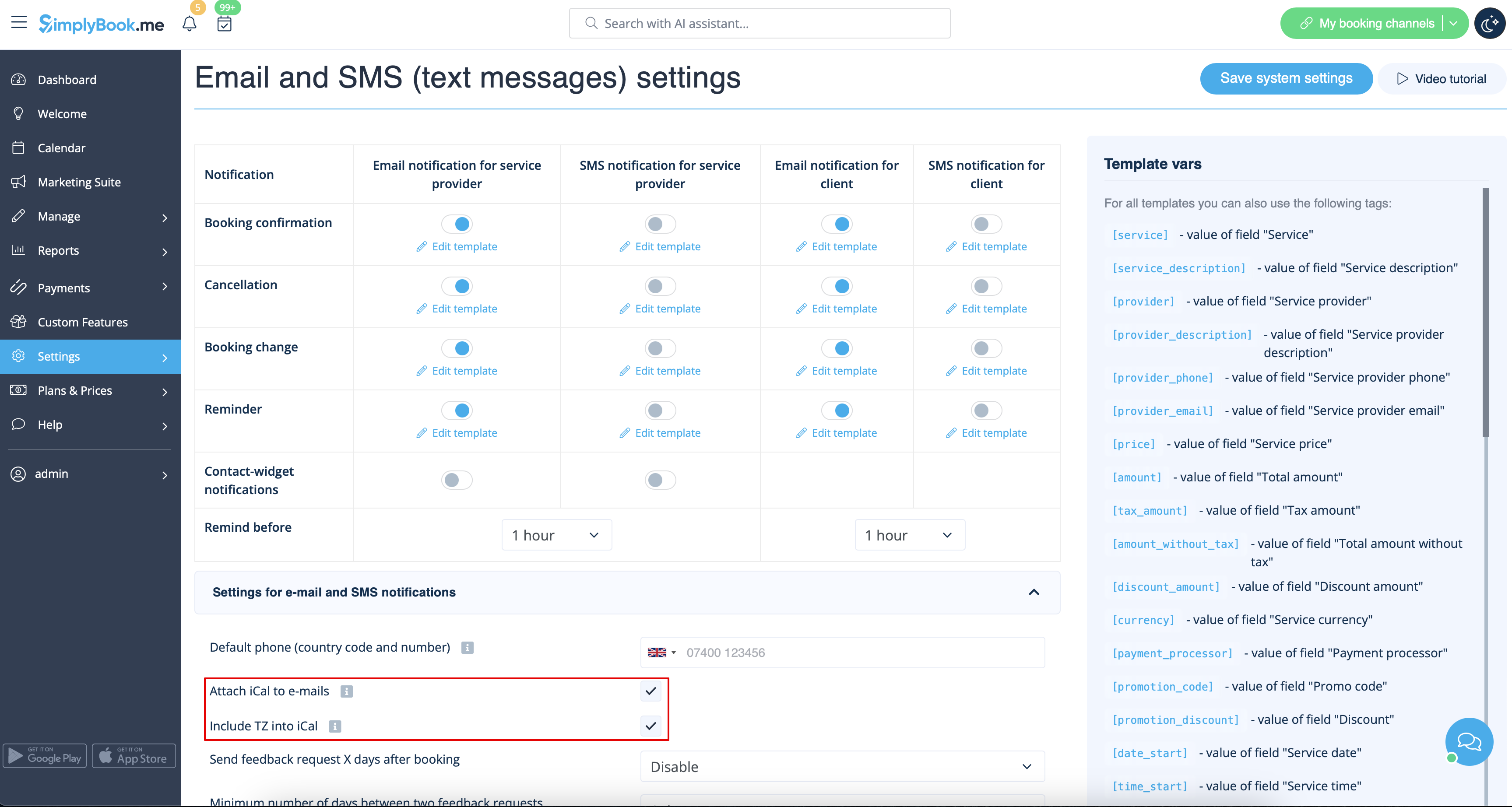
- Зверніть увагу, що файли iCal не мають встановленого часового поясу, тому час у цьому файлі буде відображатися відповідно до налаштувань IP-адреси/пристрою.
Клієнти/постачальники не отримують повідомлень
- Можливі причини
- 1. Відповідні поля в Налаштування -> Налаштування електронної пошти та SMS не відмічені.
- 2. Клієнт/постачальник вказав неправильну електронну адресу або номер телефону.
- 3. Електронний лист потрапив до папки «Спам» або «Соціальні мережі». Перевірте інструкції щодо додавання до білого списку тут.
- 4. Налаштування SMTP не встановлено правильно.
- 5. Якщо SMS не надходять, перевірте баланс SMS у розділі «Плани та ціни» -> «Підписки» внизу сторінки.
Клієнти/постачальники отримують неправильні сповіщення
- 1. Перевірте, чи у вас увімкнено спеціальні функції «Кілька бронювань» або «Групові бронювання ». Ці спеціальні функції мають власні шаблони.
- Шаблон для декількох бронювань (Налаштування -> Декілька бронювань -> у правій частині сторінки)
- Шаблон групових бронювань (Налаштування -> Групові бронювання -> у правій частині сторінки)
- 2. Перевірте, чи увімкнено налаштування часового поясу в розділі «Налаштування» -> «Основні налаштування». У цьому випадку клієнт міг вибрати неправильний часовий пояс і отримати повідомлення в неправильному часовому поясі.
Інструкції щодо додавання адреси до списку дозволених
Ось кілька речей, які ви можете зробити, щоб бути впевненими, що отримаєте всі важливі електронні листи від команди SimplyBook.me.
Ви можете очікувати системні повідомлення, наприклад, про необхідність поновлення підписки, повідомлення про бронювання та корисну інформацію про різні речі, наприклад, як отримати максимальну користь від сервісу SimplyBook.me.
Незважаючи на всі переваги технологій, вони не є досконалими, і іноді системи електронної пошти та інтернет-провайдери помилково вважають легітимні листи спамом. Щоб не пропустити важливі повідомлення від нас, виконайте наступні дії:
Будь ласка, додайте до білого списку всі електронні листи, що надходять з домену @simplybook.me.
Чому? Тому що це повідомляє вашій поштовій службі або програмі, що ви дійсно хочете отримувати листи з цього домену, щоб вони могли переконатися, що ви їх отримаєте.
Як? Це залежить від поштової служби та програми, але нижче ви можете ознайомитися з інформацією про деякі основні служби. Якщо ви не користуєтеся жодною з них, зверніться до розділу довідки вашої служби для отримання інформації.
Використання Gmail або Gsuite
Відфільтруйте повідомлення від @simplybook.me і вкажіть системі, щоб вона ніколи не надсилала їх у спам:
- 1. Перейдіть до налаштувань (натисніть на значок шестерні вгорі праворуч)

- 2. Виберіть вкладку «Фільтри та заблоковані адреси»

- 3. У нижній частині вкладки натисніть посилання Створити новий фільтр

- 4. У полі «З» введіть @simplybook.me
- 5. Натисніть «Створити фільтр за цим пошуком» у правому нижньому куті вікна

- 6. Поставте галочку біля пункту «Ніколи не надсилати до спаму»
- 7. Натисніть синю кнопку «Створити фільтр»

Чудово! Тепер ви не пропустите нічого важливого від нас!
А щоб наші електронні листи не загубилися у вкладці «Оновлення» або «Пропозиції»:
- 1. Знайдіть листа від SimplyBook.me у своїй поштовій скриньці
- 2. Клацніть і перетягніть його на вкладку «Основні» у вашій папці вхідних повідомлень

- 3. Вас запитають, чи хочете ви робити це для майбутніх листів, тому дайте відповідь «так»

Використання пошти Yahoo!
- 1. Коли ви відкриваєте електронне повідомлення, наведіть курсор миші на ім'я відправника.
- 2. Натисніть три крапки у вікні інформації про відправника, що з'явиться, і натисніть «Додати до контактів».

- 3. Коли з'явиться форма «Додати контакт», натисніть «Зберегти».

Використання Mac Mail
- 1. У верхньому меню виберіть Пошта -> Налаштування

- 2. Потім виберіть піктограму «Правила», натисніть «Додати правило» і введіть назву правила в полі опису. Використовуйте такі налаштування:

- 3. «Якщо виконується будь-яка з наступних умов: З містить». У текстовому полі поруч із «Містить» введіть @simplybook.me

- 4. Виберіть «Перемістити повідомлення» та «Вхідні» з випадаючих меню, а потім натисніть «OK», щоб зберегти правило.
Використання Outlook
- 1. Клацніть правою кнопкою миші на повідомленні у вашій папці вхідних повідомлень.
- 2. Виберіть «Небажана пошта» в меню.
- 3. Натисніть «Ніколи не блокувати відправника » або «Ніколи не блокувати домен відправника (@example.com)».

Чудово, все готово! Ми з нетерпінням чекаємо на зв'язок з вами і на розвиток вашого бізнесу!
