Created page with "{{#seo: |title=Sådan opsiger du dit abonnement på SimplyBook.me SimplyBook.me |description=Lær, hvordan du opsiger dit SimplyBook.me-abonnement i få nemme trin. Følg vores instruktioner her. |titlemode=tilføj |keywords=faq, ofte stillede spørgsmål, reservationssoftware, spørgsmål om aftalesystem, onlineaftaler, kalendersoftware, reservationssystem, reservationskalender, planlægningssoftware, onlineaftaleplanlægning, onlineplanlægning, opsætning, hjælp til..." |
No edit summary |
||
| (15 intermediate revisions by 2 users not shown) | |||
| Line 1: | Line 1: | ||
<languages/> | <languages/> | ||
{{#seo: |title=Sådan opsiger du dit abonnement på SimplyBook.me SimplyBook.me |description= | {{#seo: |title=Sådan opsiger du dit abonnement på SimplyBook.me SimplyBook.me |description=Vejledning til opsigelse af abonnement. Trin til at stoppe fakturering og eksportere data før opsigelse. Vigtige oplysninger om processen for kontolukning.|titlemode=tilføj |keywords=faq, ofte stillede spørgsmål, reservationssoftware, spørgsmål om aftalesystem, onlineaftaler, kalendersoftware, reservationssystem, reservationskalender, planlægningssoftware, onlineaftaleplanlægning, onlineplanlægning, opsætning, hjælp til opsætning, support, hjælpeindhold, opsige abonnement, ændre plan, opsige plan, ændre plan, nedgradere plan, nedgradere abonnement, slette konto }} | ||
Efterhånden som din virksomhed udvikler sig, vil dit abonnement muligvis ikke længere opfylde dine behov. Det er ikke noget problem! Du har frihed til at: | |||
<br> | <br> | ||
*Du kan nemt annullere din tilbagevendende abonnementsbetalingsprofil. | |||
* | *Vælg en anden plan, der bedre passer til dine behov. | ||
* | *Hold din konto på hold, indtil du har brug for den igen. | ||
* | *Få en mere forenklet bookingløsning <span style="background-color:#cdeffc; padding:5px; border-radius:5px;">[https://simplymeet.me/ SimplyMeet.me]</span>, hvis SimplyBook.me er for omfattende til dine behov | ||
* | |||
Vi er her for at give dig en problemfri og fleksibel oplevelse. Hvis du har spørgsmål eller brug for hjælp, står vores supportteam klar til at hjælpe. | |||
__FORCETOC__ | __FORCETOC__ | ||
== | == Sådan annulleres det betalte abonnement == | ||
Hvis du har købt en betalt plan mindst én gang, slettes kontoen ikke automatisk efter opsigelsen af abonnementet, selvom du ikke bruger den i en periode.<br> | |||
<br> | <br> | ||
Følg nedenstående trin for at opsige din tilbagevendende betaling:<br> | |||
:1. | :1. Gå til siden <span style="background-color:#d4f8e5; padding:5px; border-radius:5px;">Abonnementer</span> i din konto. | ||
:2. I det <span style="background-color:#d4f8e5; padding:5px; border-radius:5px;">øverste blok med abonnementsoplysningerne</span> skal du klikke på menuen med <span style="background-color:#d4f8e5; padding:5px; border-radius:5px;">de tre prikker</span>. | |||
:2. | |||
:3. Vælg <span style="background-color:#d4f8e5; padding:5px; border-radius:5px;">Annuller gentagelse</span>, og bekræft handlingen. | |||
:3. | |||
:4. Dette medfører ingen ekstra omkostninger. Du kan fortsætte med at bruge alle muligheder, indtil den nuværende periode udløber.<br> | |||
:4. | :Du kan til enhver tid købe det ønskede abonnement i <span style="background-color:#d4f8e5; padding:5px; border-radius:5px;">Abonnementer & priser</span> -> <span style="background-color:#d4f8e5; padding:5px; border-radius:5px;">Abonnementer</span> og oprette en ny tilbagevendende profil for en problemfri brug af systemet. | ||
: | |||
[[File:Cancel recurring payment path redesigned.png|1200px|center|link=https://help.simplybook.me/images/b/b8/Cancel_recurring_payment_path_redesigned.png]] | [[File:Cancel recurring payment path redesigned.png|1200px|center|link=https://help.simplybook.me/images/b/b8/Cancel_recurring_payment_path_redesigned.png]] | ||
<br><br> | <br><br> | ||
< | <span id="How_to_downgrade_the_subscription"></span> | ||
== Sådan nedgraderes abonnementet == | |||
== | |||
'''Bemærk!''' Det er ikke muligt at nedgradere til en gratis plan. | |||
''' | |||
:1. Gå til siden <span style="background-color:#d4f8e5; padding:5px; border-radius:5px;">Planer og priser</span> -> <span style="background-color:#d4f8e5; padding:5px; border-radius:5px;">Abonnementer</span> i din konto. | |||
:1. | |||
:2. I <span style="background-color:#d4f8e5; padding:5px; border-radius:5px;">blokken med planmuligheder</span> skal du klikke på <span style="background-color:#d4f8e5; padding:5px; border-radius:5px;">Nedgrader</span> under den ønskede plan. | |||
:2. | (Bemærk! Det er muligt at nedgradere, hvis den lavere plan kan rumme alle de elementer, der er aktiveret på din konto) | ||
( | |||
[[File:Downgrade plan path redesigned.png|1200px|center|link=https://help.simplybook.me/images/f/f4/Downgrade_plan_path_redesigned.png]] | [[File:Downgrade plan path redesigned.png|1200px|center|link=https://help.simplybook.me/images/f/f4/Downgrade_plan_path_redesigned.png]] | ||
<br><br> | <br><br> | ||
:3. | :3. Kontroller virksomhedsoplysningerne i venstre side af siden (de vil blive brugt til fakturaen) og vælg betalingsmetode. | ||
[[File:Confirm subscription update redesigned.png|1200px|center|link=https://help.simplybook.me/images/e/e3/Confirm_subscription_update_redesigned.png]] | [[File:Confirm subscription update redesigned.png|1200px|center|link=https://help.simplybook.me/images/e/e3/Confirm_subscription_update_redesigned.png]] | ||
<br><br> | <br><br> | ||
:4. | :4. Når du har foretaget betalingen, og den er modtaget af systemet, træder den nye plan i kraft. | ||
<br><br> | <br><br> | ||
== Har du brug for en enklere løsning? == | |||
<span style="background-color:#d4f8e5; padding:5px; border-radius:5px;">Kontakt vores support</span> enten via LiveChat direkte fra din konto eller send en e-mail til <span style="background-color:#cdeffc; padding:5px; border-radius:5px;">[mailto:support@simplybook.me support@simplybook.me]</span>, så hjælper vi dig gerne med at vælge den plan, der passer bedst til din virksomhed.<br><br> | |||
Du kan også tjekke vores <span style="background-color:#cdeffc; padding:5px; border-radius:5px;">[https://simplymeet.me/ SimplyMeet.me-løsning]</span>, et simpelt værktøj til mødeplanlægning med nem opsætning og en række værktøjer til din rådighed. | |||
<br><br> | <br><br> | ||
== Sådan slettes kontoen == | |||
<br> | <br> | ||
Inden du sletter din konto, kan du også overveje at opsige abonnementet, så du ikke bliver opkrævet, hvis du holder pause i din virksomhed eller har sæsonarbejde, i stedet for at slette den.<br><br> | |||
Hvis det er tilfældet, skal du følge <span style="background-color:#cdeffc; padding:5px; border-radius:5px;">[[Special:MyLanguage/How_to_Cancel_SimplyBook.me_subscription#How_to_cancel_the_paid_subscription|trinene til annullering af tilbagevendende betalinger]].</span> | |||
<br><br> | <br><br> | ||
Eller, hvis abonnementet ikke passer til dine behov, kan du købe et andet i henhold til <span style="background-color:#cdeffc; padding:5px; border-radius:5px;">[[Special:MyLanguage/How_to_Cancel_SimplyBook.me_subscription#How_to_downgrade_the_subscription|dette]].</span> | |||
<br><br> | <br><br> | ||
Du kan selvfølgelig altid kontakte vores support for at få hjælp til at vælge et nyt abonnementsplan, der passer bedst til dine aktuelle forretningsbehov. | |||
<br><br> | <br><br> | ||
Hvis du er sikker på, at du vil slette kontoen, skal du følge disse enkle trin: | |||
<br><br> | <br><br> | ||
:1. | :1. Gå til <span style="background-color:#d4f8e5; padding:5px; border-radius:5px;">Kontooplysninger</span> og klik på <span style="background-color:#d4f8e5; padding:5px; border-radius:5px;">Slet konto.</span><br> | ||
:2. Vi beder dig venligst om at angive årsagen til, at du har besluttet at slette din virksomhed. Vær opmærksom på, at dette ikke kan gendannes. Hvis du i fremtiden registrerer en ny virksomhed, kan det gamle virksomhedsnavn i URL’en ikke genbruges. | |||
:2. | [[File:Sb delete account path new flow.png|1200px|1200px| center|link=https://help.simplybook.me/images/b/b0/Sb_delete_account_path_new_flow.png]] | ||
[[File: | Når du er færdig, vil din konto blive slettet. I en bestemt periode har du mulighed for at [[Special:MyLanguage/How_to_unblock_account|gendanne]] den. Hvis ikke, vil den blive slettet permanent fra vores databaser. | ||
<br><br> | <br><br> | ||
Latest revision as of 07:52, 19 May 2026
Efterhånden som din virksomhed udvikler sig, vil dit abonnement muligvis ikke længere opfylde dine behov. Det er ikke noget problem! Du har frihed til at:
- Du kan nemt annullere din tilbagevendende abonnementsbetalingsprofil.
- Vælg en anden plan, der bedre passer til dine behov.
- Hold din konto på hold, indtil du har brug for den igen.
- Få en mere forenklet bookingløsning SimplyMeet.me, hvis SimplyBook.me er for omfattende til dine behov
Vi er her for at give dig en problemfri og fleksibel oplevelse. Hvis du har spørgsmål eller brug for hjælp, står vores supportteam klar til at hjælpe.
Sådan annulleres det betalte abonnement
Hvis du har købt en betalt plan mindst én gang, slettes kontoen ikke automatisk efter opsigelsen af abonnementet, selvom du ikke bruger den i en periode.
Følg nedenstående trin for at opsige din tilbagevendende betaling:
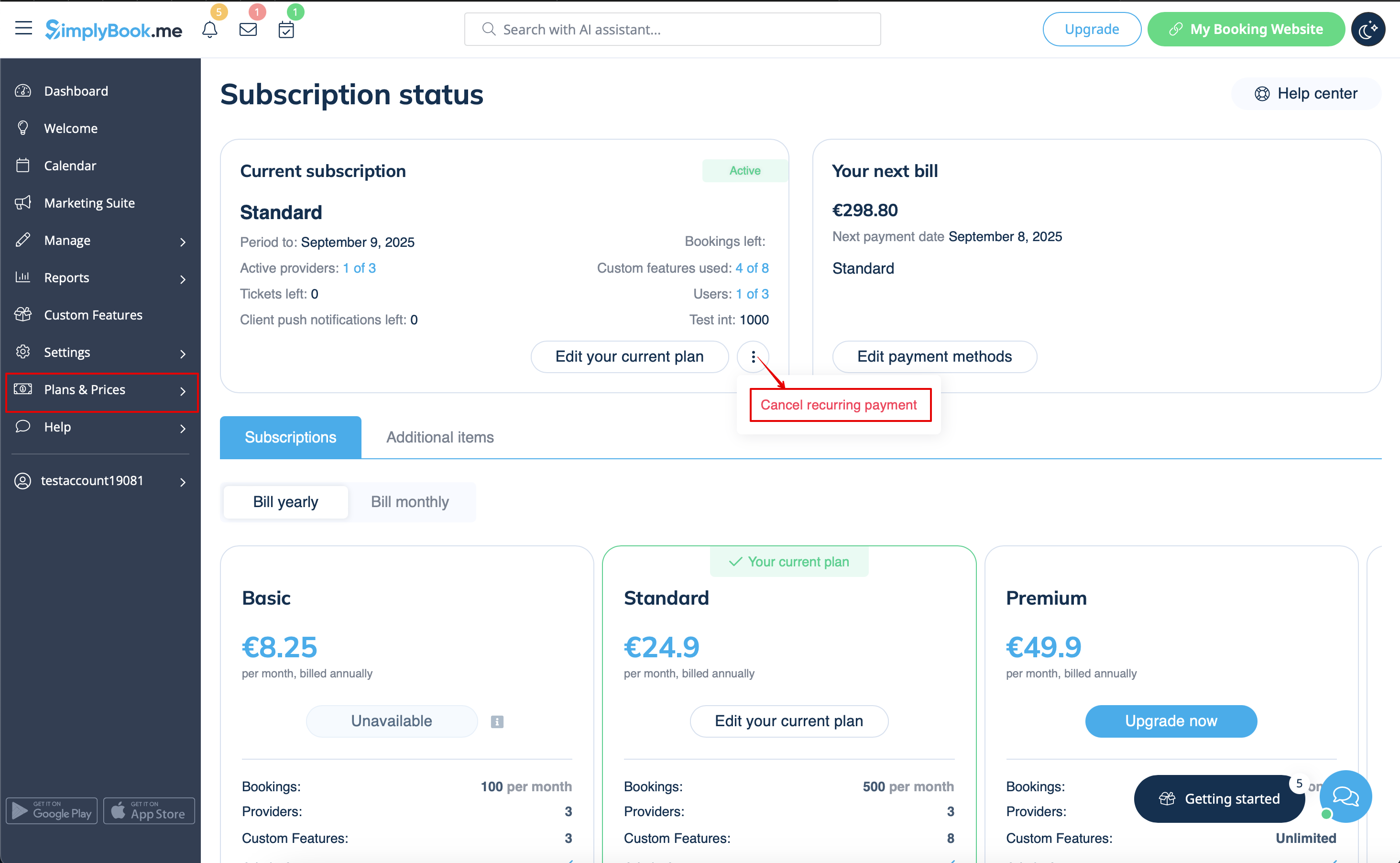
- 1. Gå til siden Abonnementer i din konto.
- 2. I det øverste blok med abonnementsoplysningerne skal du klikke på menuen med de tre prikker.
- 3. Vælg Annuller gentagelse, og bekræft handlingen.
- 4. Dette medfører ingen ekstra omkostninger. Du kan fortsætte med at bruge alle muligheder, indtil den nuværende periode udløber.
- Du kan til enhver tid købe det ønskede abonnement i Abonnementer & priser -> Abonnementer og oprette en ny tilbagevendende profil for en problemfri brug af systemet.
Sådan nedgraderes abonnementet
Bemærk! Det er ikke muligt at nedgradere til en gratis plan.
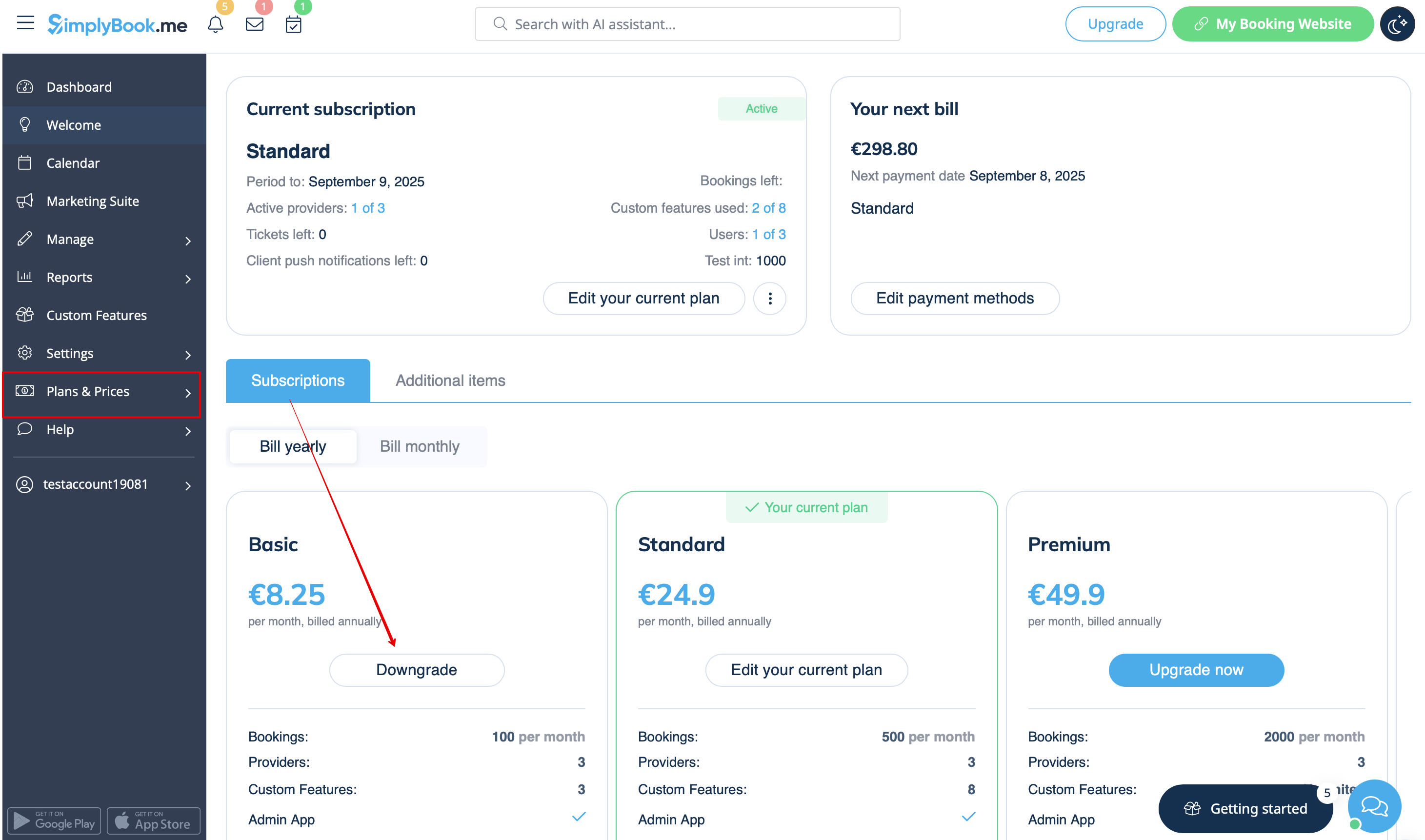
- 1. Gå til siden Planer og priser -> Abonnementer i din konto.
- 2. I blokken med planmuligheder skal du klikke på Nedgrader under den ønskede plan.
(Bemærk! Det er muligt at nedgradere, hvis den lavere plan kan rumme alle de elementer, der er aktiveret på din konto)
- 3. Kontroller virksomhedsoplysningerne i venstre side af siden (de vil blive brugt til fakturaen) og vælg betalingsmetode.
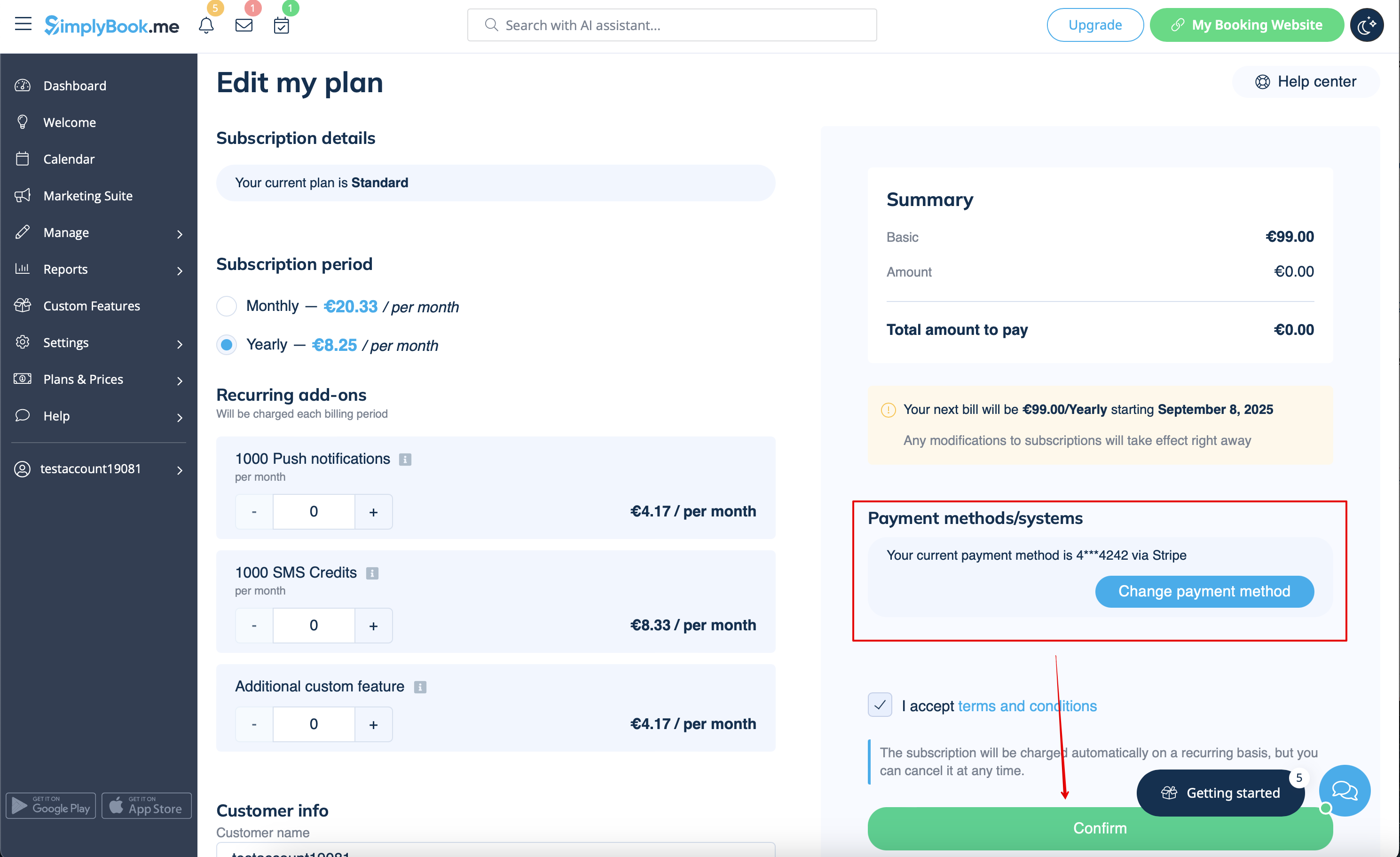
- 4. Når du har foretaget betalingen, og den er modtaget af systemet, træder den nye plan i kraft.
Har du brug for en enklere løsning?
Kontakt vores support enten via LiveChat direkte fra din konto eller send en e-mail til support@simplybook.me, så hjælper vi dig gerne med at vælge den plan, der passer bedst til din virksomhed.
Du kan også tjekke vores SimplyMeet.me-løsning, et simpelt værktøj til mødeplanlægning med nem opsætning og en række værktøjer til din rådighed.
Sådan slettes kontoen
Inden du sletter din konto, kan du også overveje at opsige abonnementet, så du ikke bliver opkrævet, hvis du holder pause i din virksomhed eller har sæsonarbejde, i stedet for at slette den.
Hvis det er tilfældet, skal du følge trinene til annullering af tilbagevendende betalinger.
Eller, hvis abonnementet ikke passer til dine behov, kan du købe et andet i henhold til dette.
Du kan selvfølgelig altid kontakte vores support for at få hjælp til at vælge et nyt abonnementsplan, der passer bedst til dine aktuelle forretningsbehov.
Hvis du er sikker på, at du vil slette kontoen, skal du følge disse enkle trin:
- 1. Gå til Kontooplysninger og klik på Slet konto.
- 2. Vi beder dig venligst om at angive årsagen til, at du har besluttet at slette din virksomhed. Vær opmærksom på, at dette ikke kan gendannes. Hvis du i fremtiden registrerer en ny virksomhed, kan det gamle virksomhedsnavn i URL’en ikke genbruges.
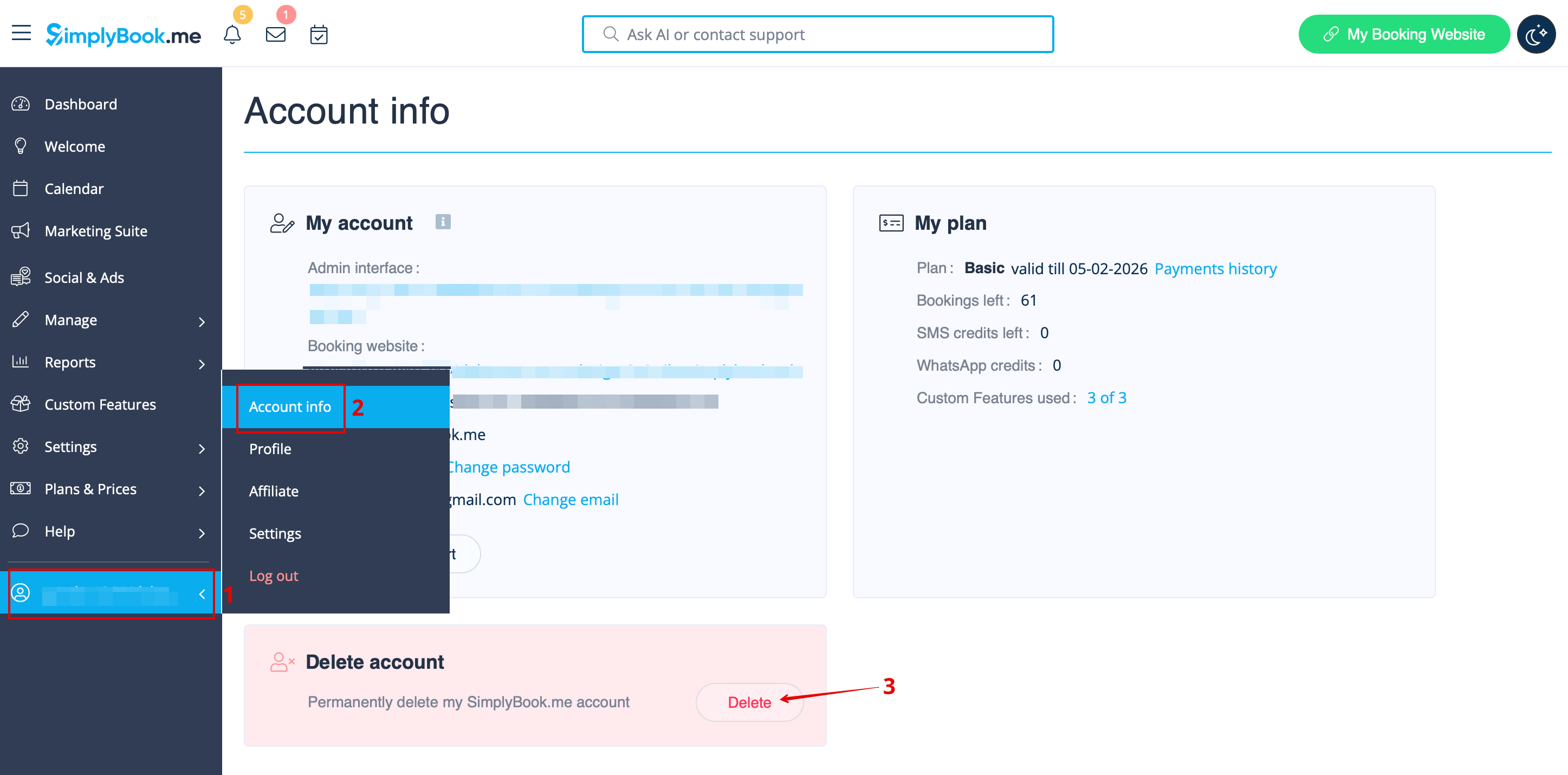
Når du er færdig, vil din konto blive slettet. I en bestemt periode har du mulighed for at gendanne den. Hvis ikke, vil den blive slettet permanent fra vores databaser.
