From SimplyBook.me
Created page with "{{#seo: |title=Google Meet-links toevoegen aan afspraken - SimplyBook.me |description=Voeg Google Meet-links toe aan uw boekingen voor virtuele afspraken. Verhoog het gemak voor uw klanten. Ontdek hier hoe! |titlemode=toevoegen |keywords=faq, veelgestelde vragen, boekingssoftware, vragen over het afspraken systeem, online afspraken, kalendersoftware, boekingssysteem, boekingskalender, planningssoftware, online afspraken plannen, online planning, installatie, hulp bij ins..." |
No edit summary Tags: Mobile edit Mobile web edit |
||
| (7 intermediate revisions by 2 users not shown) | |||
| Line 1: | Line 1: | ||
<languages/> | <languages/> | ||
{{#seo: |title=Google Meet-links toevoegen aan afspraken - SimplyBook.me |description= | {{#seo: |title=Google Meet-links toevoegen aan afspraken - SimplyBook.me |description=Google Meet integreren voor virtuele afspraken. Vergaderlinks automatisch genereren en in bevestigingen verzenden. OAuth-verbinding met het Google-account instellen.|titlemode=toevoegen |keywords=faq, veelgestelde vragen, boekingssoftware, vragen over het afspraken systeem, online afspraken, kalendersoftware, boekingssysteem, boekingskalender, planningssoftware, online afspraken plannen, online planning, installatie, hulp bij installatie, ondersteuning, helpinhoud }} | ||
<br><br> | <br><br> | ||
| Line 7: | Line 7: | ||
<br> | <br> | ||
;Hoe stel ik ' | ;Hoe stel ik ' | ||
:' in? 1. Schakel de aangepaste functie <span style="background-color:#d4f8e5; padding:5px; border-radius:5px;">[[Calendar_Sync_custom_feature|'Agendasynchronisatie' in]]</span> op de pagina <span style="background-color:#d4f8e5; padding:5px; border-radius:5px;">'Aangepaste functies'</span>, onder <span style="background-color:#d4f8e5; padding:5px; border-radius:5px;">'Functioneel</span> '. | :' in? 1. Schakel de aangepaste functie <span style="background-color:#d4f8e5; padding:5px; border-radius:5px;">[[Special:MyLanguage/Calendar_Sync_custom_feature|'Agendasynchronisatie' in]]</span> op de pagina <span style="background-color:#d4f8e5; padding:5px; border-radius:5px;">'Aangepaste functies'</span>, onder <span style="background-color:#d4f8e5; padding:5px; border-radius:5px;">'Functioneel</span> '. | ||
[[File:Calendar sync enable path redesigned.png|1200px|border|center|link=https://help.simplybook.me/images/8/8a/Calendar_sync_enable_path_redesigned.png]] | [[File:Calendar sync enable path redesigned.png|1200px|border|center|link=https://help.simplybook.me/images/8/8a/Calendar_sync_enable_path_redesigned.png]] | ||
<br><br> | <br><br> | ||
| Line 17: | Line 17: | ||
<br><br> | <br><br> | ||
hoe werkt het | |||
:1. Naast de gebruikelijke afspraakbevestiging ontvangt de klant een uitnodiging voor een Google-evenement die hij kan accepteren en aan zijn eigen agenda kan toevoegen. | |||
:1. | |||
[[File:Client google meet invitation.png|1200px|center]] | [[File:Client google meet invitation.png|1200px|center]] | ||
<br><br> | <br><br> | ||
:2. | :2. Voor de aanbieder wordt het evenement toegevoegd aan zijn/haar Google-agenda, die is gekoppeld aan het systeem met behulp van de functie <span style="background-color:#d4f8e5; padding:5px; border-radius:5px;">[[Special:MyLanguage/Calendar_Sync_custom_feature|Agenda synchroniseren]]</span>, en bevat een link naar de vergadering die kan worden gevolgd wanneer het tijd is voor de vergadering. | ||
[[File:Provider google meet link.png|1200px|center]] | [[File:Provider google meet link.png|1200px|center]] | ||
<br><br> | <br><br> | ||
:3. | :3. Als u de aangepaste functie <span style="background-color:#cdeffc; padding:5px; border-radius:5px;">[[Special:MyLanguage/Group_Bookings_custom_feature|Groepsboekingen]]</span> gebruikt en de klant meerdere deelnemers boekt, wordt de vergaderlink gegenereerd voor de eerste afspraak uit de batch en wordt er één uitnodiging naar de klant verzonden.<br> | ||
: | :Wees daarom voorzichtig met het verzetten of annuleren van afspraken die betrekking hebben op dergelijke batches, zodat de afspraak met de vergaderlink niet wordt beïnvloed als deze niet gepland is. | ||
:4. Als de boeking is gemaakt voordat u het vakje 'Google Meet-link maken' hebt aangevinkt, maar u hebt wel <span style="background-color:#d4f8e5; padding:5px; border-radius:5px;">[[Special:MyLanguage/Calendar_Sync_custom_feature|de synchronisatie met Agenda]]</span> gebruikt, moet u de vergaderlink handmatig toevoegen en de uitnodiging naar de klant sturen via Google Agenda. | |||
:4. | |||
<br><br><br><br> | <br><br><br><br> | ||
Latest revision as of 14:45, 2 February 2026
- Nu hebben we de mogelijkheid om online vergaderingen via Google Meet af te handelen.
- In slechts drie eenvoudige stappen bent u klaar.
- Hoe stel ik '
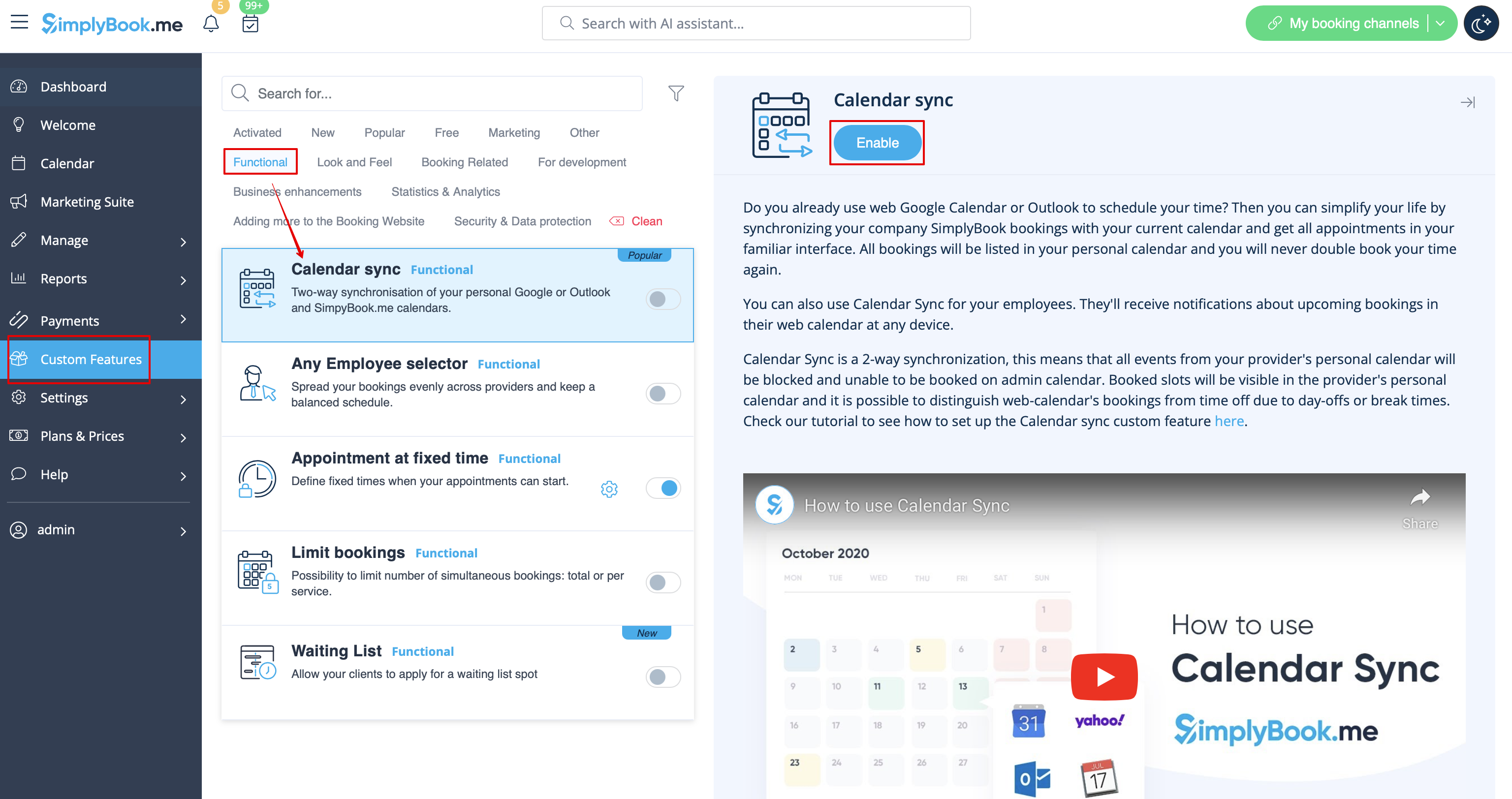
- ' in? 1. Schakel de aangepaste functie 'Agendasynchronisatie' in op de pagina 'Aangepaste functies', onder 'Functioneel '.
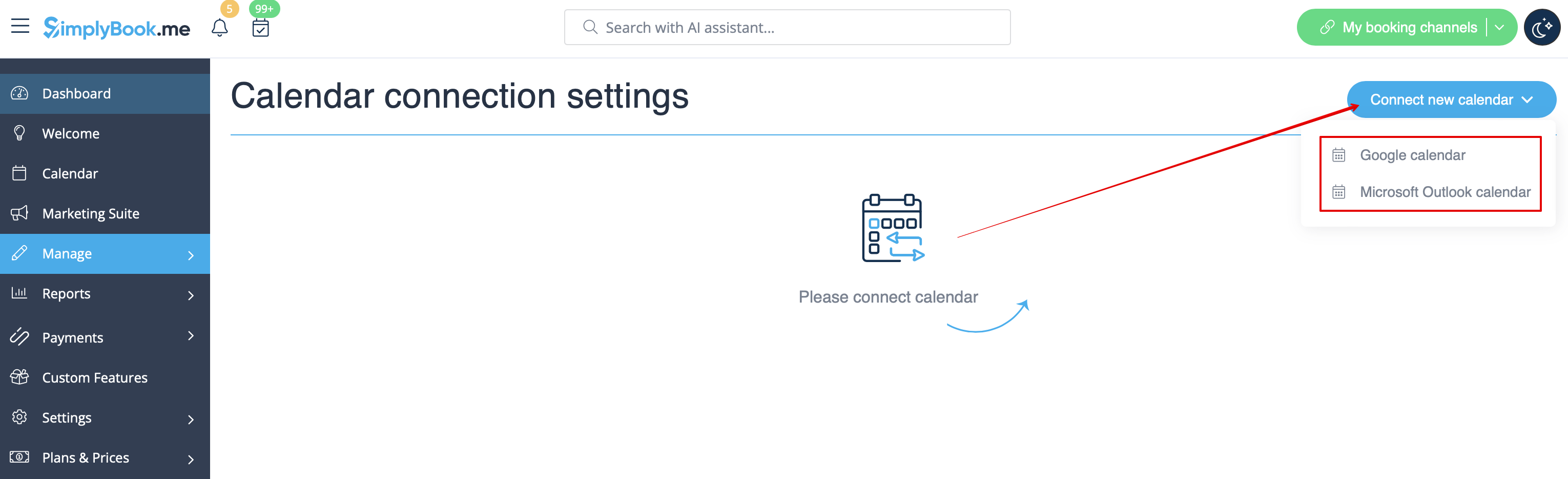
- 2. Koppel Google Agenda en koppel vervolgens de gewenste provider(s) hieraan in de instellingen van deze functie.
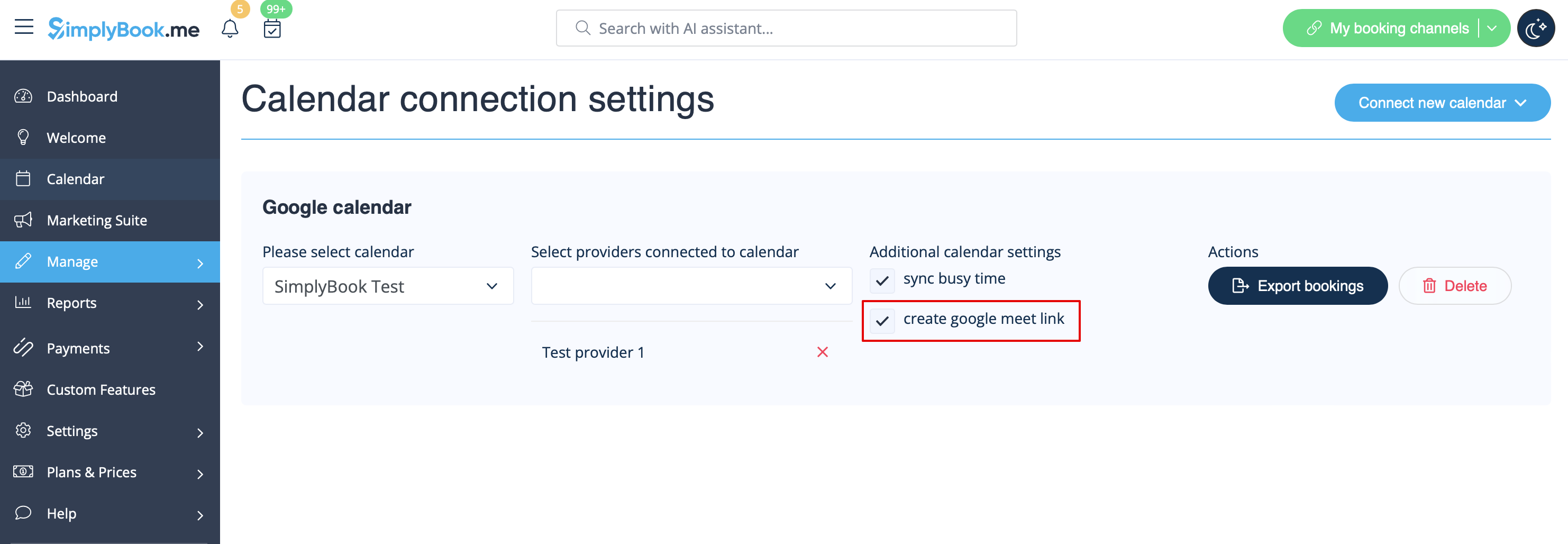
- 3. Schakel het selectievakje 'Google Meet-link maken' in en sla de instellingen op.
hoe werkt het
- 1. Naast de gebruikelijke afspraakbevestiging ontvangt de klant een uitnodiging voor een Google-evenement die hij kan accepteren en aan zijn eigen agenda kan toevoegen.

- 2. Voor de aanbieder wordt het evenement toegevoegd aan zijn/haar Google-agenda, die is gekoppeld aan het systeem met behulp van de functie Agenda synchroniseren, en bevat een link naar de vergadering die kan worden gevolgd wanneer het tijd is voor de vergadering.

- 3. Als u de aangepaste functie Groepsboekingen gebruikt en de klant meerdere deelnemers boekt, wordt de vergaderlink gegenereerd voor de eerste afspraak uit de batch en wordt er één uitnodiging naar de klant verzonden.
- Wees daarom voorzichtig met het verzetten of annuleren van afspraken die betrekking hebben op dergelijke batches, zodat de afspraak met de vergaderlink niet wordt beïnvloed als deze niet gepland is.
- 4. Als de boeking is gemaakt voordat u het vakje 'Google Meet-link maken' hebt aangevinkt, maar u hebt wel de synchronisatie met Agenda gebruikt, moet u de vergaderlink handmatig toevoegen en de uitnodiging naar de klant sturen via Google Agenda.
