From SimplyBook.me
Created page with "<br><br> :Vous avez désormais la possibilité de gérer vos réunions en ligne via Google Meet.<br> :Trois étapes simples suffisent pour être prêt. <br> ;Comment configurer l' :1. Activez la fonctionnalité personnalisée <span style="background-color:#d4f8e5; padding:5px; border-radius:5px;">« Synchronisation du calendrier</span> » dans la section <span style="background-color:#d4f8e5; padding:5px; border-radius:5px;">« Fonctionna..." |
No edit summary |
||
| Line 4: | Line 4: | ||
<br> | <br> | ||
;Comment configurer l' | ;Comment configurer l' | ||
:1. Activez la fonctionnalité personnalisée <span style="background-color:#d4f8e5; padding:5px; border-radius:5px;">[[Calendar_Sync_custom_feature|« Synchronisation du calendrier]]</span> » dans la section <span style="background-color:#d4f8e5; padding:5px; border-radius:5px;">« Fonctionnalités</span> » de la page « <span style="background-color:#d4f8e5; padding:5px; border-radius:5px;">Fonctionnalités personnalisées</span> ». | :1. Activez la fonctionnalité personnalisée <span style="background-color:#d4f8e5; padding:5px; border-radius:5px;">[[Special:MyLanguage/Calendar_Sync_custom_feature|« Synchronisation du calendrier]]</span> » dans la section <span style="background-color:#d4f8e5; padding:5px; border-radius:5px;">« Fonctionnalités</span> » de la page « <span style="background-color:#d4f8e5; padding:5px; border-radius:5px;">Fonctionnalités personnalisées</span> ». | ||
[[File:Calendar sync enable path redesigned.png|1200px|border|center|link=https://help.simplybook.me/images/8/8a/Calendar_sync_enable_path_redesigned.png]] | [[File:Calendar sync enable path redesigned.png|1200px|border|center|link=https://help.simplybook.me/images/8/8a/Calendar_sync_enable_path_redesigned.png]] | ||
<br><br> | <br><br> | ||
Latest revision as of 13:12, 15 August 2025
- Vous avez désormais la possibilité de gérer vos réunions en ligne via Google Meet.
- Trois étapes simples suffisent pour être prêt.
- Comment configurer l'
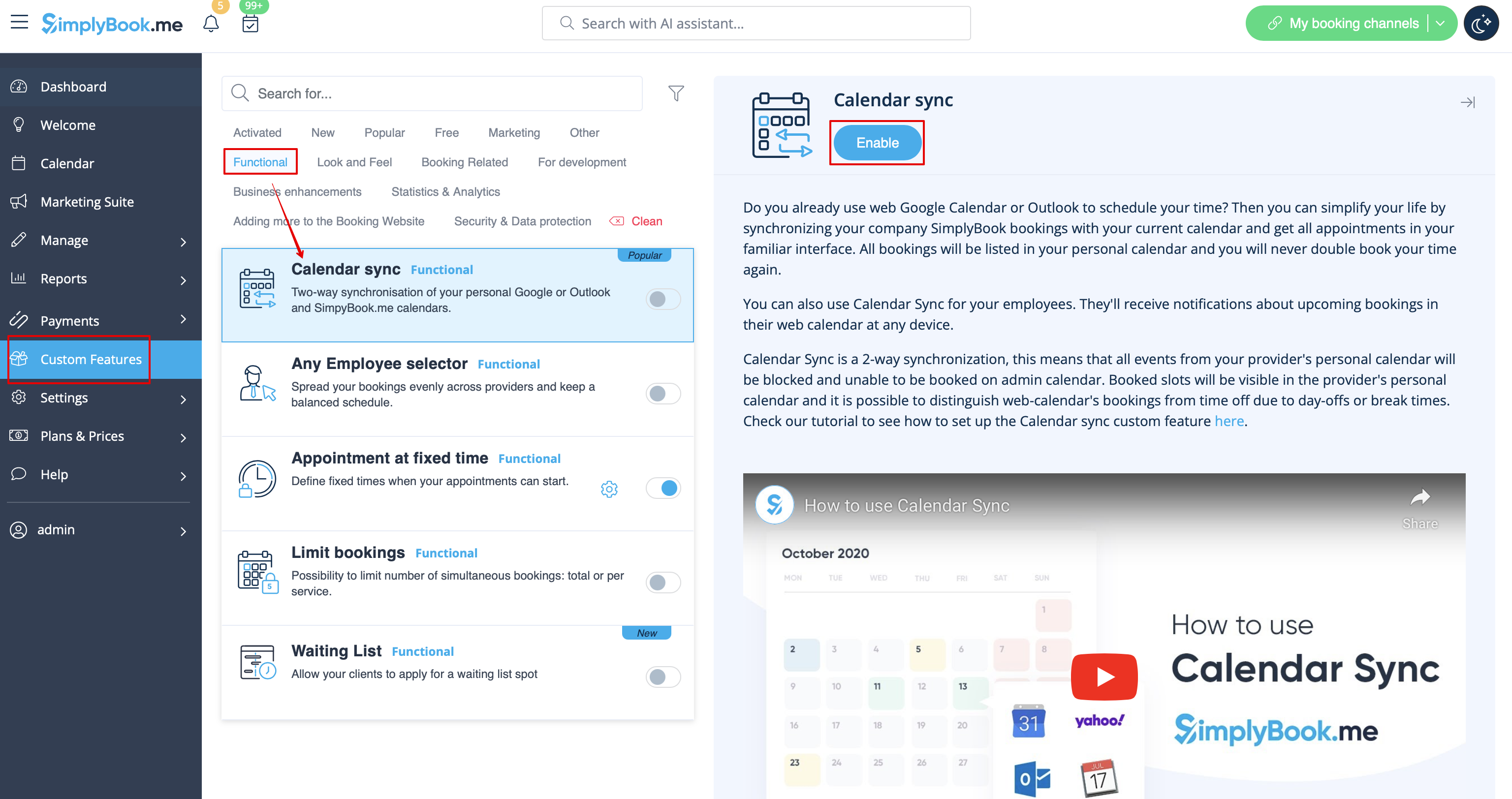
- 1. Activez la fonctionnalité personnalisée « Synchronisation du calendrier » dans la section « Fonctionnalités » de la page « Fonctionnalités personnalisées ».
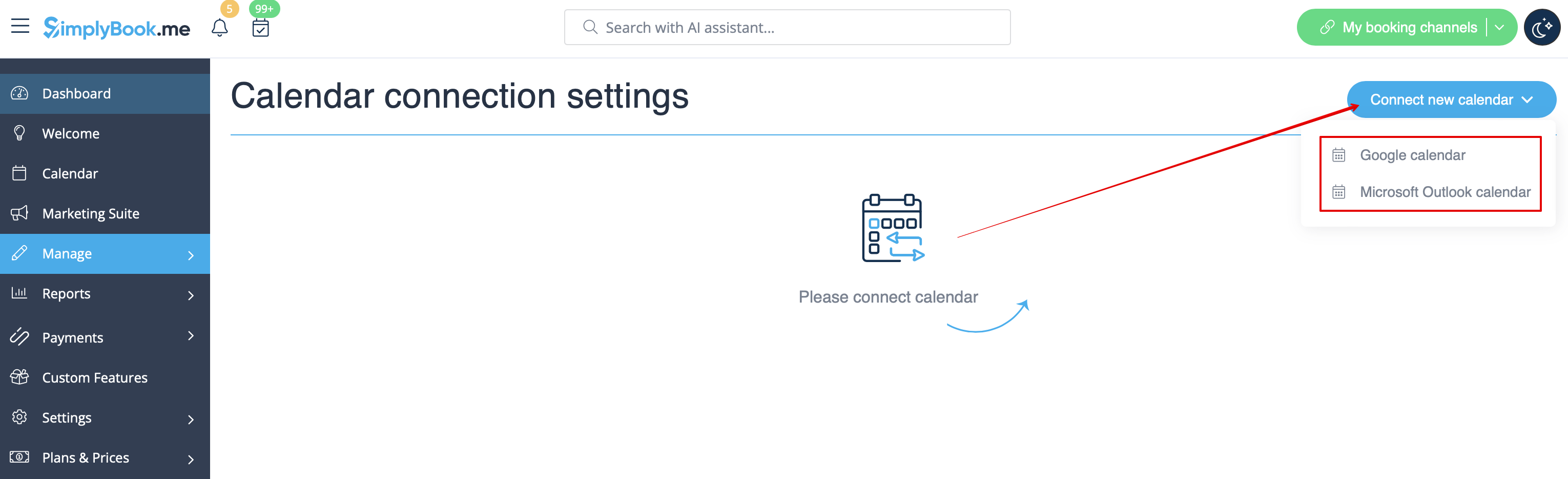
- 2. Connectez le calendrier Google, puis associez-lui le ou les prestataires souhaités dans les paramètres de cette fonctionnalité.
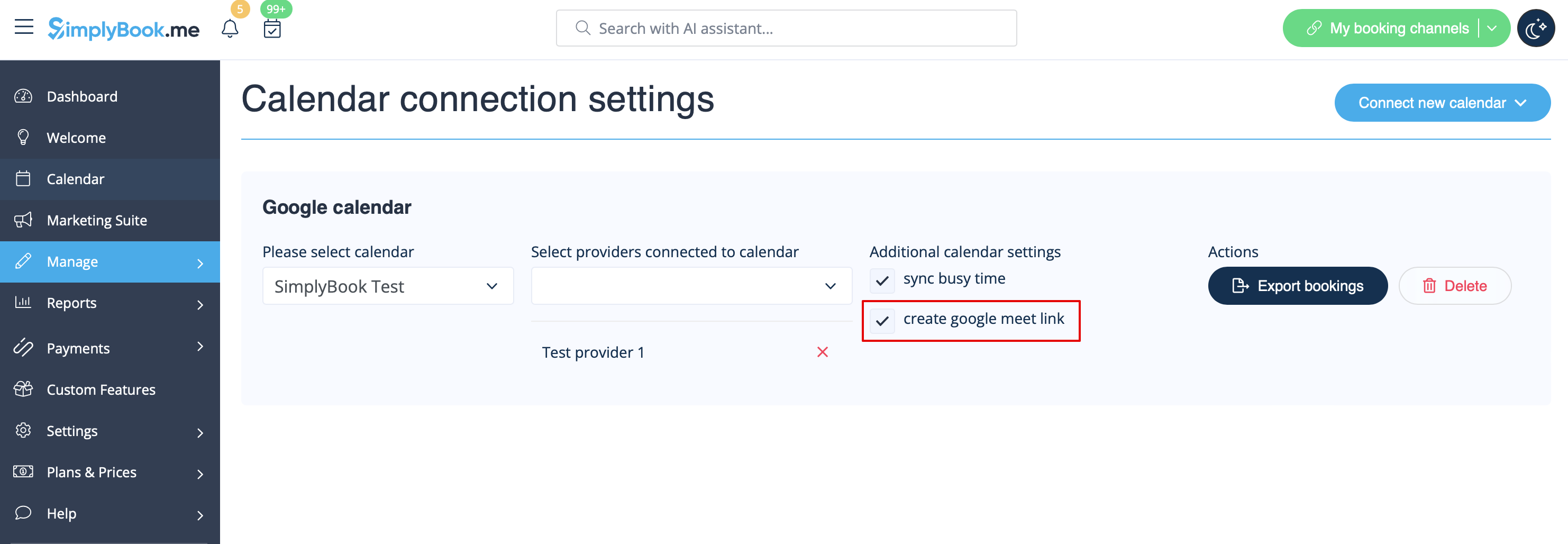
- 3. Cochez la case « Créer un lien Google Meet » et enregistrez les paramètres.