From SimplyBook.me
Created page with "Accepter les acomptes fonctionnalité personnalisée" |
No edit summary |
||
| (3 intermediate revisions by 2 users not shown) | |||
| Line 2: | Line 2: | ||
{{#seo: | {{#seo: | ||
|title=Custom Features - SimplyBook.me | |title=Custom Features - SimplyBook.me | ||
|description=Exigez des acomptes pour sécuriser les réservations. Définissez le montant de l’acompte par service. Les clients paient une partie à l’avance, le reste plus tard. Réduit les absences et garantit l’engagement. | |||
|description= | |||
|titlemode=append | |titlemode=append | ||
|keywords=faq, frequently asked questions, booking software, appointment system questions, appointments online, calendar software, booking system, booking calendar, scheduling software, online appointment scheduling, online scheduling, plugins, custom features, additional functionality, deposit, deposits, accept deposits, deposit to book | |keywords=faq, frequently asked questions, booking software, appointment system questions, appointments online, calendar software, booking system, booking calendar, scheduling software, online appointment scheduling, online scheduling, plugins, custom features, additional functionality, deposit, deposits, accept deposits, deposit to book | ||
| Line 10: | Line 8: | ||
[[File:Accept deposits icon.png|left]]<br> Utilisez les acomptes pour augmenter les chances que les clients se présentent pour le service et vous assurer que, s'ils ne se présentent pas, vous pouvez conserver l'acompte. Notez que certains clients peuvent contacter directement leur banque pour obtenir le remboursement des acomptes, auquel cas vous ne pouvez pas faire grand-chose, mais ces cas devraient être rares. | |||
[[File:Accept deposits icon.png |left]]<br> | |||
<br><br> | <br><br> | ||
<span style="background-color:#ffe9e9; padding:5px; border-radius:5px;">''' | <span style="background-color:#ffe9e9; padding:5px; border-radius:5px;">'''Remarque''':</span> | ||
*<span style="background-color:#ffe9e9; padding:5px; border-radius:5px;"> | *<span style="background-color:#ffe9e9; padding:5px; border-radius:5px;">Lorsque vous activez la fonctionnalité « Accepter les acomptes</span> »,<span style="background-color:#ffe9e9; padding:5px; border-radius:5px;"> <span style="background-color:#cdeffc; padding:5px; border-radius:5px;">[[Special:MyLanguage/Accept_payments_custom_feature|la fonctionnalité « Accepter les paiements »]]</span> est également activée.</span> | ||
*<span style="background-color:#ffe9e9; padding:5px; border-radius:5px;"> | *<span style="background-color:#ffe9e9; padding:5px; border-radius:5px;">Les montants des acomptes ne peuvent être définis que par service et/ou <span style="background-color:#cdeffc; padding:5px; border-radius:5px;">[[Special:MyLanguage/Classes_custom_feature|cours]].</span></span> | ||
*<span style="background-color:#ffe9e9; padding:5px; border-radius:5px;"> | *<span style="background-color:#ffe9e9; padding:5px; border-radius:5px;">Cette fonctionnalité n'est pas compatible avec <span style="background-color:#cdeffc; padding:5px; border-radius:5px;">[[Special:MyLanguage/Tickets custom feature|les tickets]]</span> et <span style="background-color:#cdeffc; padding:5px; border-radius:5px;">[[Special:MyLanguage/Ticket%27s_QR_Code|le code QR des tickets]]</span>.</span></span> | ||
*<span style="background-color:#ffe9e9; padding:5px; border-radius:5px;"> | *<span style="background-color:#ffe9e9; padding:5px; border-radius:5px;">Si le client souhaite appliquer <span style="background-color:#cdeffc; padding:5px; border-radius:5px;">[[Special:MyLanguage/Coupons_and_Gift_Cards_custom_feature|un code promotionnel]]</span> ou un <span style="background-color:#cdeffc; padding:5px; border-radius:5px;">[[Special:MyLanguage/Packages_custom_feature|forfait]]</span> acheté précédemment lors de l'achat, il doit payer le prix total, car ces articles ne peuvent pas être appliqués aux acomptes.</span> | ||
<br><br> | <br><br> | ||
; | ;Comment utiliser | ||
:1. Pour activer cette fonctionnalité, accédez à la page <span style="background-color:#d4f8e5; padding:5px; border-radius:5px;">Fonctionnalités personnalisées</span>, section <span style="background-color:#d4f8e5; padding:5px; border-radius:5px;">Améliorations commerciales</span>, cliquez sur <span style="background-color:#d4f8e5; padding:5px; border-radius:5px;">Accepter les acomptes</span> et placez le curseur sur la position <span style="background-color:#d4f8e5; padding:5px; border-radius:5px;">Activé</span> ou cliquez sur le bouton <span style="background-color:#d4f8e5; padding:5px; border-radius:5px;">Activer</span> à droite de la page. | |||
:1. | |||
[[File:Accept deposits enable path redesigned.png|1200px |border| center|link=https://help.simplybook.me/images/f/f8/Accept_deposits_enable_path_redesigned.png]] | [[File:Accept deposits enable path redesigned.png|1200px |border| center|link=https://help.simplybook.me/images/f/f8/Accept_deposits_enable_path_redesigned.png]] | ||
<br><br> | <br><br> | ||
:2. | :2. Vous pouvez configurer le système pour permettre aux clients de payer des acomptes uniquement via le site de réservation en désactivant l'option <span style="background-color:#d4f8e5; padding:5px; border-radius:5px;">Autoriser les clients à payer le prix total</span> à droite de la page.<br> | ||
: | :Dans ce cas, si le montant de l'acompte est indiqué par<span style="background-color:#cdeffc; padding:5px; border-radius:5px;">[[Special:MyLanguage/Classes_custom_feature|service/cours]]</span>, le client paiera ce montant pour confirmer sa réservation.<br> | ||
: | :Si seul le montant total est défini par service/cours, les clients paieront le prix total. | ||
: | :Si l'option <span style="background-color:#d4f8e5; padding:5px; border-radius:5px;">Autoriser les clients à payer le prix total</span> est activée (état par défaut) et que le montant de l'acompte est indiqué par service/cours, les clients auront le choix de payer le prix total ou l'acompte lors du paiement.<br> | ||
Vous pouvez également autoriser ou interdire la sélection de l'option « Payer plus tard » pour les paiements d'acompte. | |||
[[File:Accept payments settings redesigned.png|1200px|border| center|link=https://help.simplybook.me/images/5/5b/Accept_payments_settings_redesigned.png]] | [[File:Accept payments settings redesigned.png|1200px|border| center|link=https://help.simplybook.me/images/5/5b/Accept_payments_settings_redesigned.png]] | ||
<br><br> | <br><br> | ||
:3. | :3. Pour définir les montants des acomptes par service, veuillez vous rendre dans <span style="background-color:#d4f8e5; padding:5px; border-radius:5px;">Gérer</span> -> <span style="background-color:#d4f8e5; padding:5px; border-radius:5px;">Services (Cours)</span> ou utiliser le bouton <span style="background-color:#d4f8e5; padding:5px; border-radius:5px;">Gérer</span> à côté du titre de cette fonctionnalité personnalisée. | ||
[[File:Accept deposits manage path.png|1200px|border|center|link=https://help.simplybook.me/images/8/80/Accept_deposits_manage_path.png]] | [[File:Accept deposits manage path.png|1200px|border|center|link=https://help.simplybook.me/images/8/80/Accept_deposits_manage_path.png]] | ||
<br><br> | <br><br> | ||
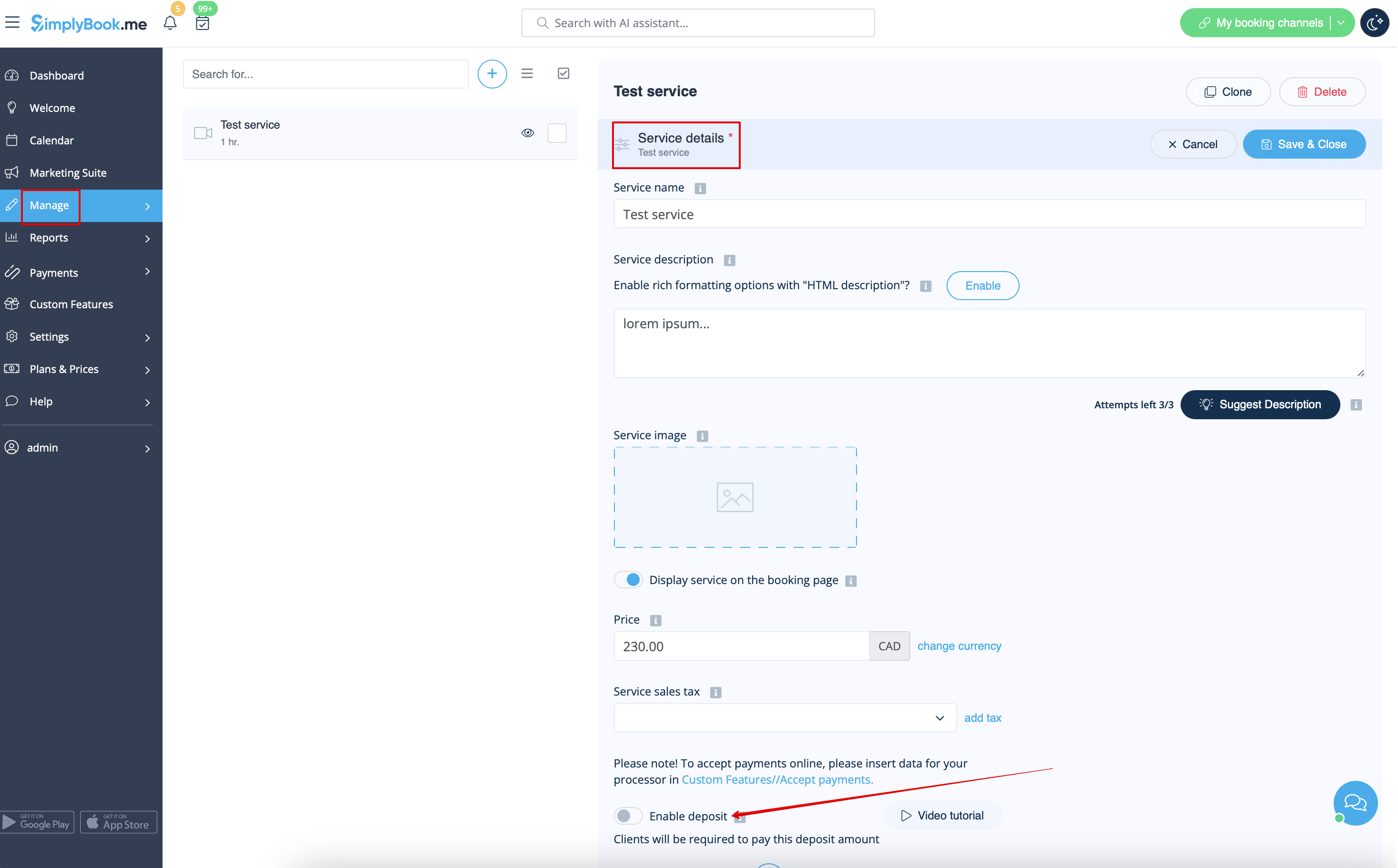
:4. | :4. Cliquez sur le nom du service/de la classe correspondant à l'élément souhaité pour ouvrir l'onglet <span style="background-color:#d4f8e5; padding:5px; border-radius:5px;">Détails du service/de la classe</span>, puis activez le bouton <span style="background-color:#d4f8e5; padding:5px; border-radius:5px;">Activer le dépôt</span>. | ||
[[File:Enable deposit per service path redesigned.png|1200px|boredr|center|link=https://help.simplybook.me/images/3/3d/Enable_deposit_per_service_path_redesigned.png]] | [[File:Enable deposit per service path redesigned.png|1200px|boredr|center|link=https://help.simplybook.me/images/3/3d/Enable_deposit_per_service_path_redesigned.png]] | ||
<br><br> | <br><br> | ||
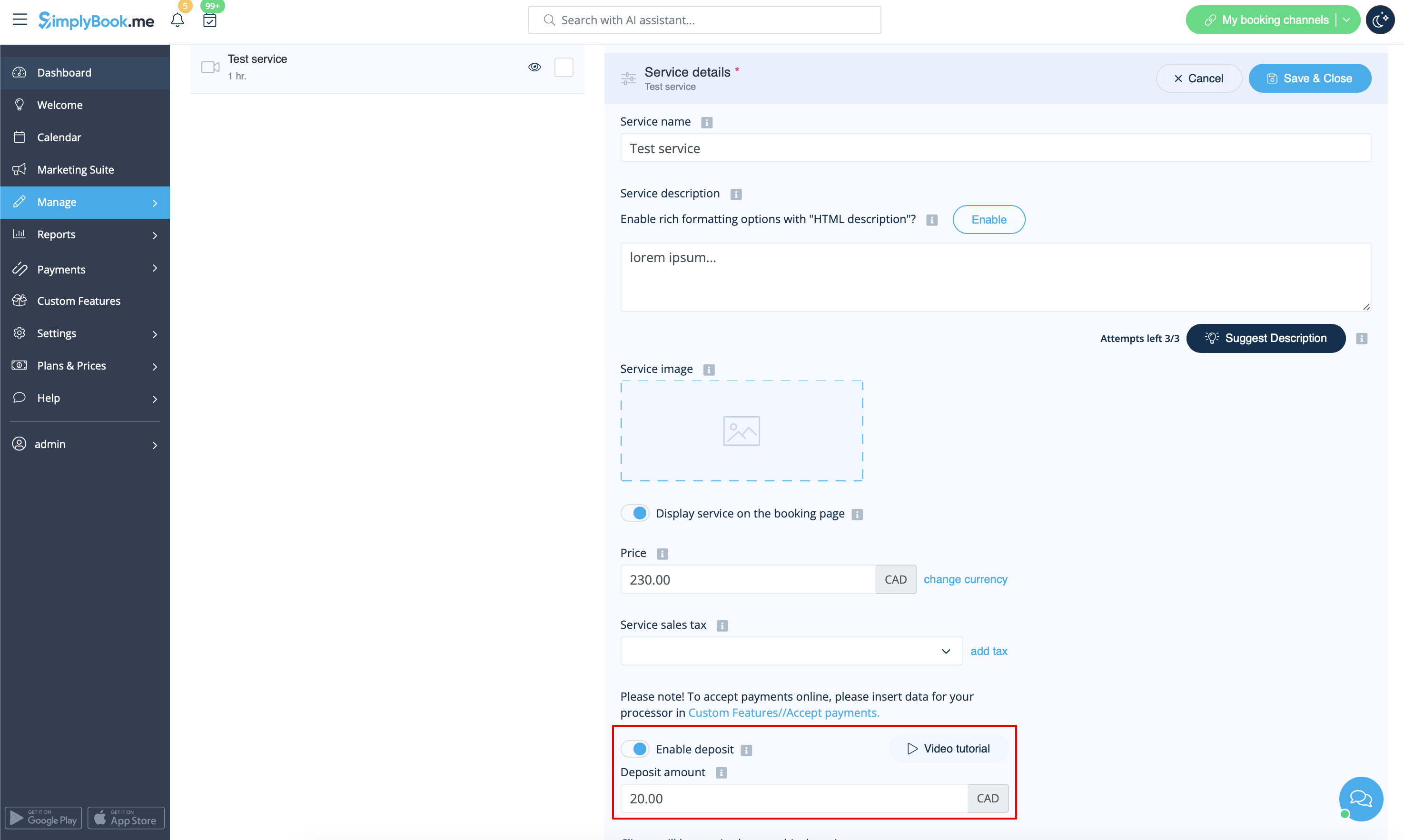
:5. | :5. Indiquez le montant que vous souhaitez recevoir à titre de dépôt pour cet élément dans la case correspondante (il doit être inférieur au prix réel, mais supérieur à 0) et enregistrez les paramètres. | ||
[[File:Deposit amount settings redesigned.png|1200px |border|center|link=https://help.simplybook.me/images/6/69/Deposit_amount_settings_redesigned.png]] | [[File:Deposit amount settings redesigned.png|1200px |border|center|link=https://help.simplybook.me/images/6/69/Deposit_amount_settings_redesigned.png]] | ||
<br><br> | <br><br> | ||
:6. | :6. Une fois tous les paramètres enregistrés, les services afficheront deux prix sur le site de réservation : le montant total et l'acompte. | ||
[[File:Deposits booking site vew upd.png|1200px |border|center]] | [[File:Deposits booking site vew upd.png|1200px |border|center]] | ||
<br><br> | <br><br> | ||
:7. | :7. Lorsque les clients paient l'acompte en ligne pour confirmer leur réservation, deux commandes/factures sont créées dans le système : une pour l'acompte et une pour le solde<br> | ||
:( | :(elles apparaîtront comme en attente jusqu'à ce que le client paie sur place et que vous les approuviez manuellement).<br> | ||
: | :Vous pouvez les gérer dans <span style="background-color:#d4f8e5; padding:5px; border-radius:5px;">Rapports</span> -> <span style="background-color:#d4f8e5; padding:5px; border-radius:5px;">Transactions de paiement.</span> | ||
[[File:Deposit &remainder invoices in the report redesigned.png|1200px|border| center|link=https://help.simplybook.me/images/7/7d/Deposit_%26remainder_invoices_in_the_report_redesigned.png]] | [[File:Deposit &remainder invoices in the report redesigned.png|1200px|border| center|link=https://help.simplybook.me/images/7/7d/Deposit_%26remainder_invoices_in_the_report_redesigned.png]] | ||
<br><br> | <br><br> | ||
: | :Ou via l'interface <span style="background-color:#cdeffc; padding:5px; border-radius:5px;">[[Special:MyLanguage/Point_of_Sale_custom_feature|Point de vente]]</span>: | ||
[[File:Deposit invoices in pos updated.png|1200px|border|center|link=https://help.simplybook.me/images/d/d7/Deposit_invoices_in_pos_updated.png]] | [[File:Deposit invoices in pos updated.png|1200px|border|center|link=https://help.simplybook.me/images/d/d7/Deposit_invoices_in_pos_updated.png]] | ||
<br><br><br><br> | <br><br><br><br> | ||
Latest revision as of 16:53, 12 February 2026

Utilisez les acomptes pour augmenter les chances que les clients se présentent pour le service et vous assurer que, s'ils ne se présentent pas, vous pouvez conserver l'acompte. Notez que certains clients peuvent contacter directement leur banque pour obtenir le remboursement des acomptes, auquel cas vous ne pouvez pas faire grand-chose, mais ces cas devraient être rares.
Remarque:
- Lorsque vous activez la fonctionnalité « Accepter les acomptes », la fonctionnalité « Accepter les paiements » est également activée.
- Les montants des acomptes ne peuvent être définis que par service et/ou cours.
- Cette fonctionnalité n'est pas compatible avec les tickets et le code QR des tickets.
- Si le client souhaite appliquer un code promotionnel ou un forfait acheté précédemment lors de l'achat, il doit payer le prix total, car ces articles ne peuvent pas être appliqués aux acomptes.
- Comment utiliser
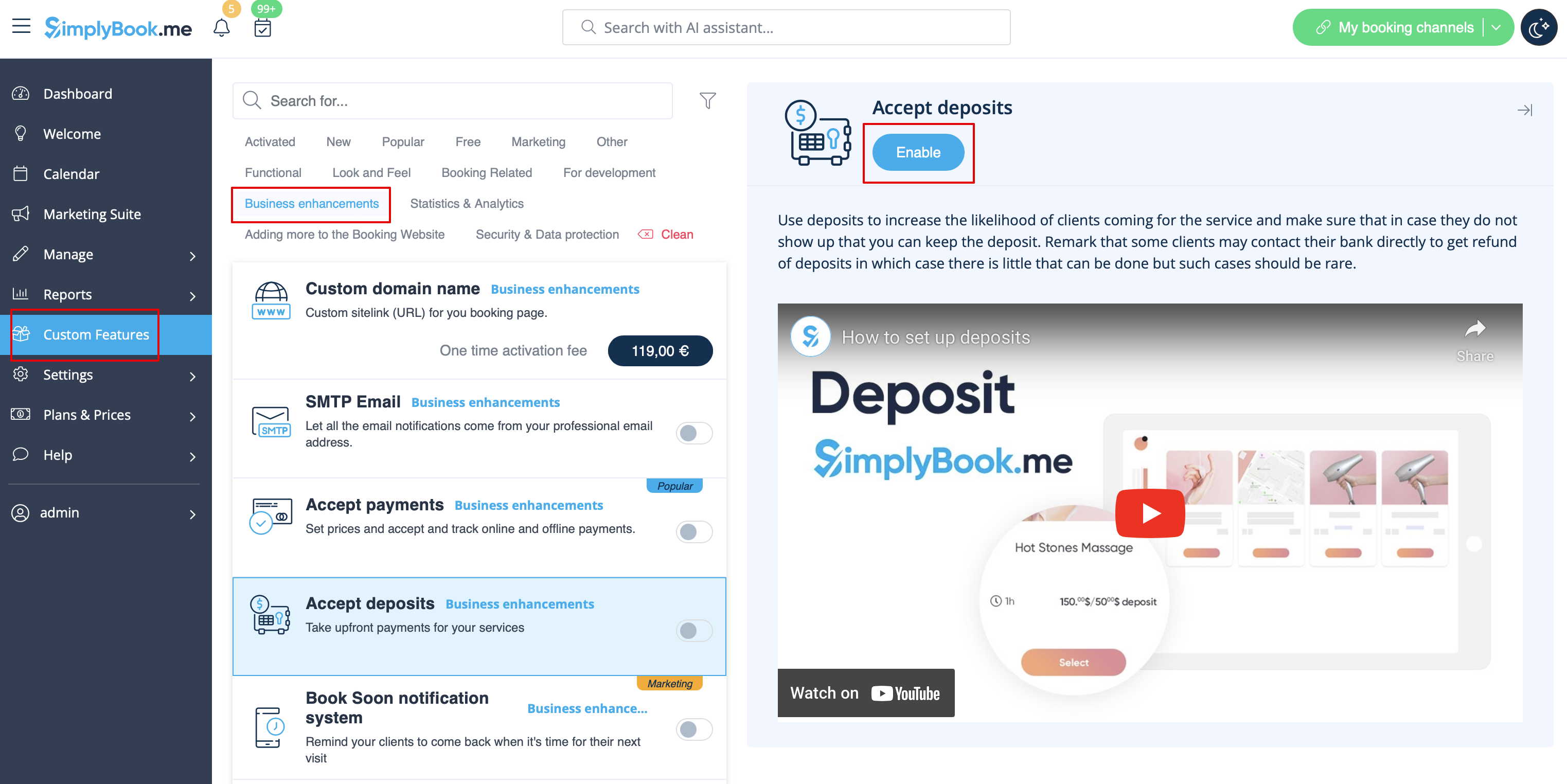
- 1. Pour activer cette fonctionnalité, accédez à la page Fonctionnalités personnalisées, section Améliorations commerciales, cliquez sur Accepter les acomptes et placez le curseur sur la position Activé ou cliquez sur le bouton Activer à droite de la page.
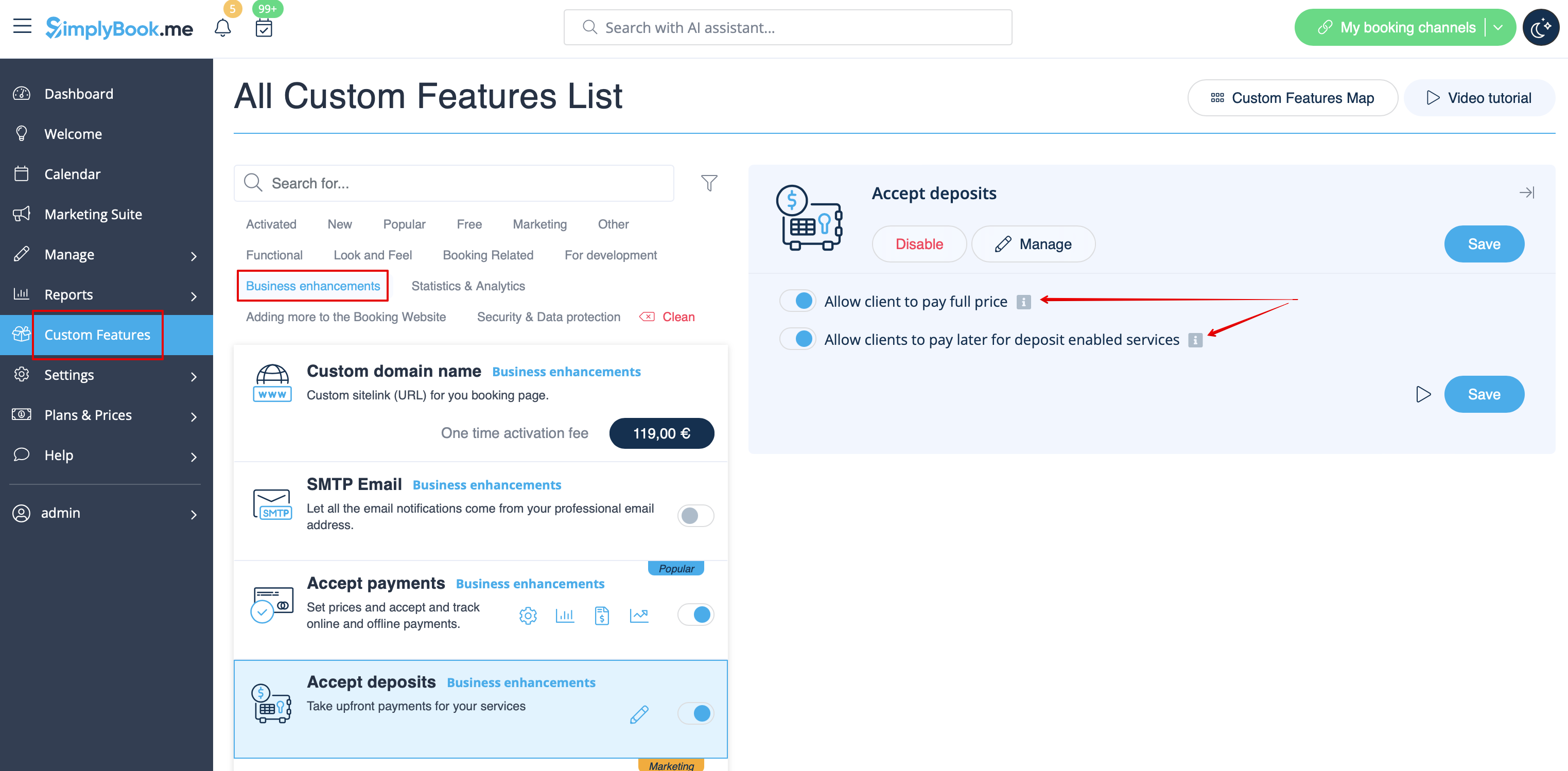
- 2. Vous pouvez configurer le système pour permettre aux clients de payer des acomptes uniquement via le site de réservation en désactivant l'option Autoriser les clients à payer le prix total à droite de la page.
- Dans ce cas, si le montant de l'acompte est indiqué parservice/cours, le client paiera ce montant pour confirmer sa réservation.
- Si seul le montant total est défini par service/cours, les clients paieront le prix total.
- Si l'option Autoriser les clients à payer le prix total est activée (état par défaut) et que le montant de l'acompte est indiqué par service/cours, les clients auront le choix de payer le prix total ou l'acompte lors du paiement.
Vous pouvez également autoriser ou interdire la sélection de l'option « Payer plus tard » pour les paiements d'acompte.
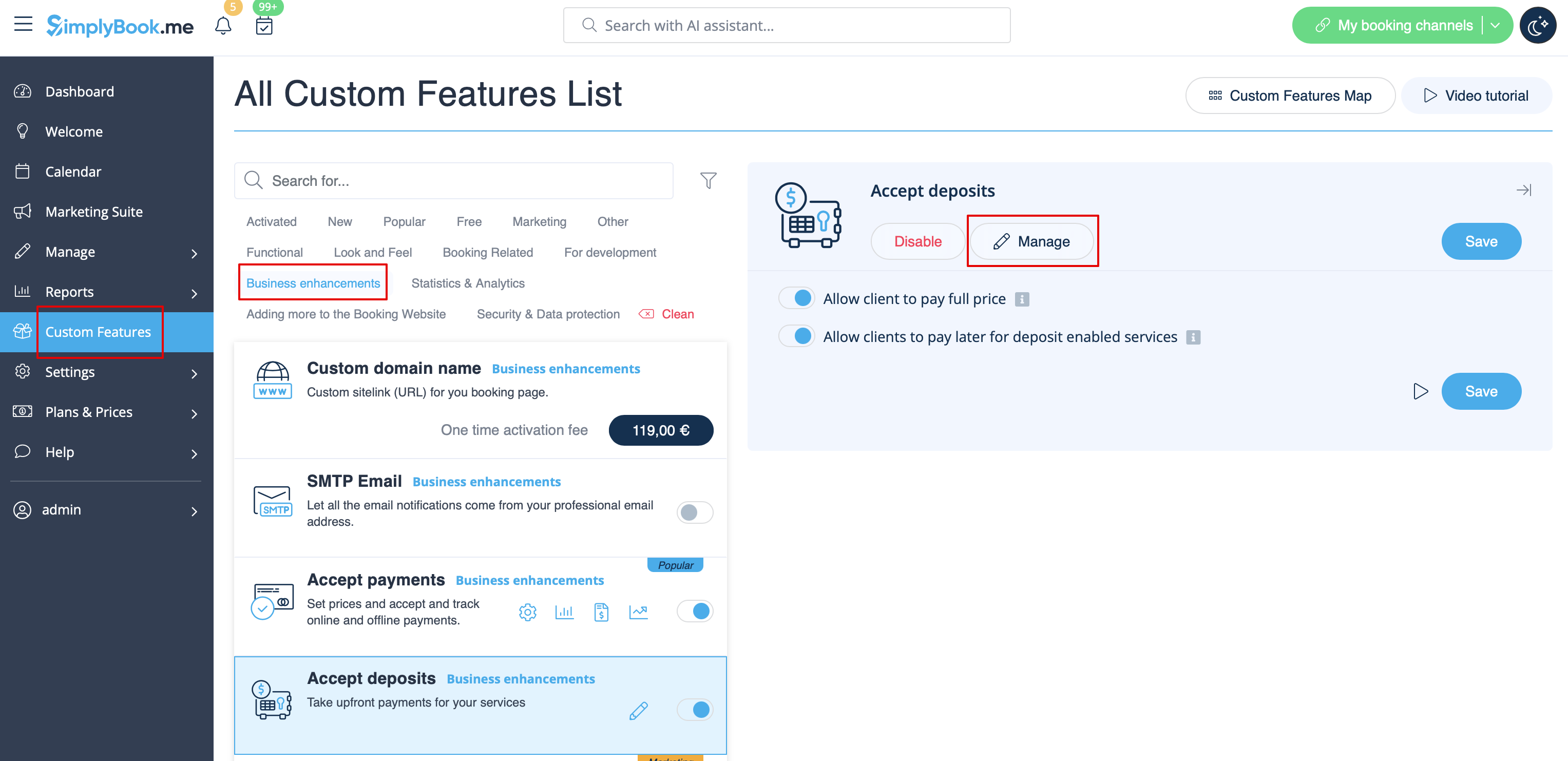
- 3. Pour définir les montants des acomptes par service, veuillez vous rendre dans Gérer -> Services (Cours) ou utiliser le bouton Gérer à côté du titre de cette fonctionnalité personnalisée.
- 4. Cliquez sur le nom du service/de la classe correspondant à l'élément souhaité pour ouvrir l'onglet Détails du service/de la classe, puis activez le bouton Activer le dépôt.
- 5. Indiquez le montant que vous souhaitez recevoir à titre de dépôt pour cet élément dans la case correspondante (il doit être inférieur au prix réel, mais supérieur à 0) et enregistrez les paramètres.
- 6. Une fois tous les paramètres enregistrés, les services afficheront deux prix sur le site de réservation : le montant total et l'acompte.

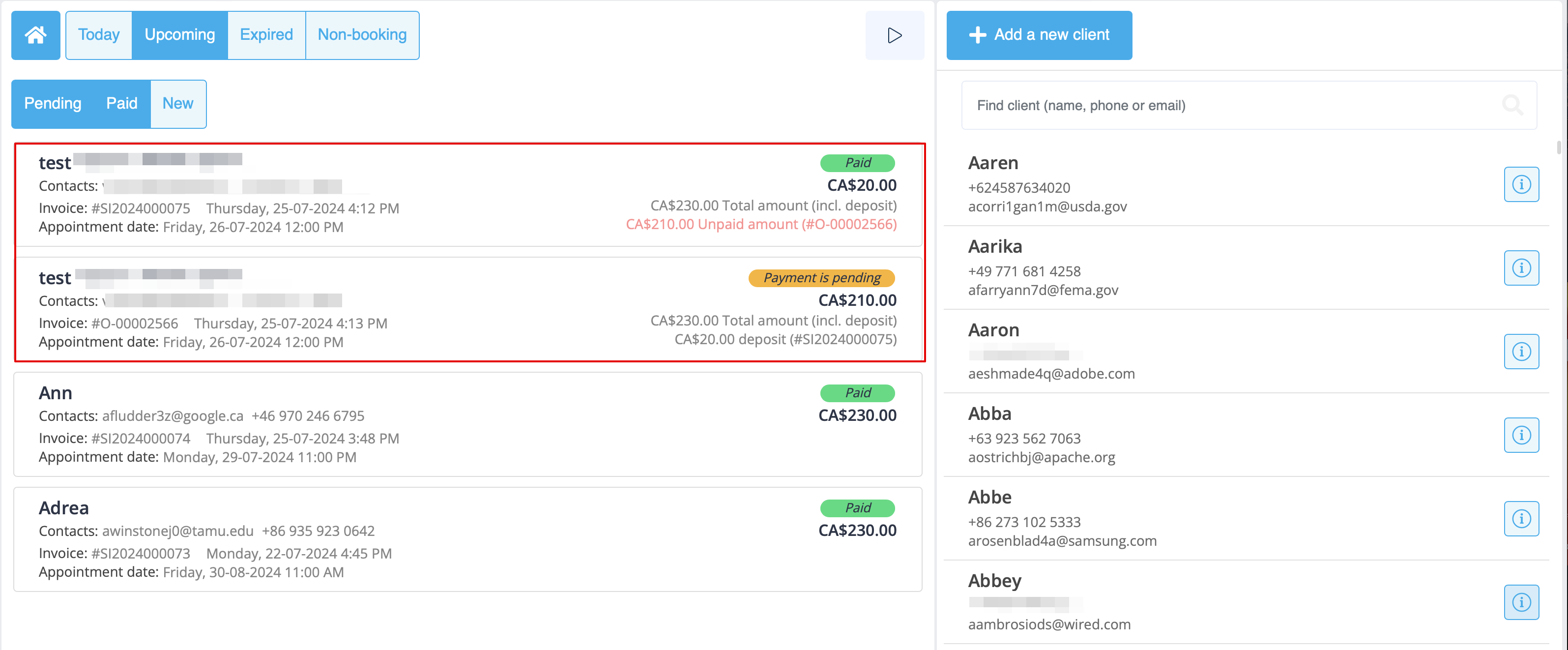
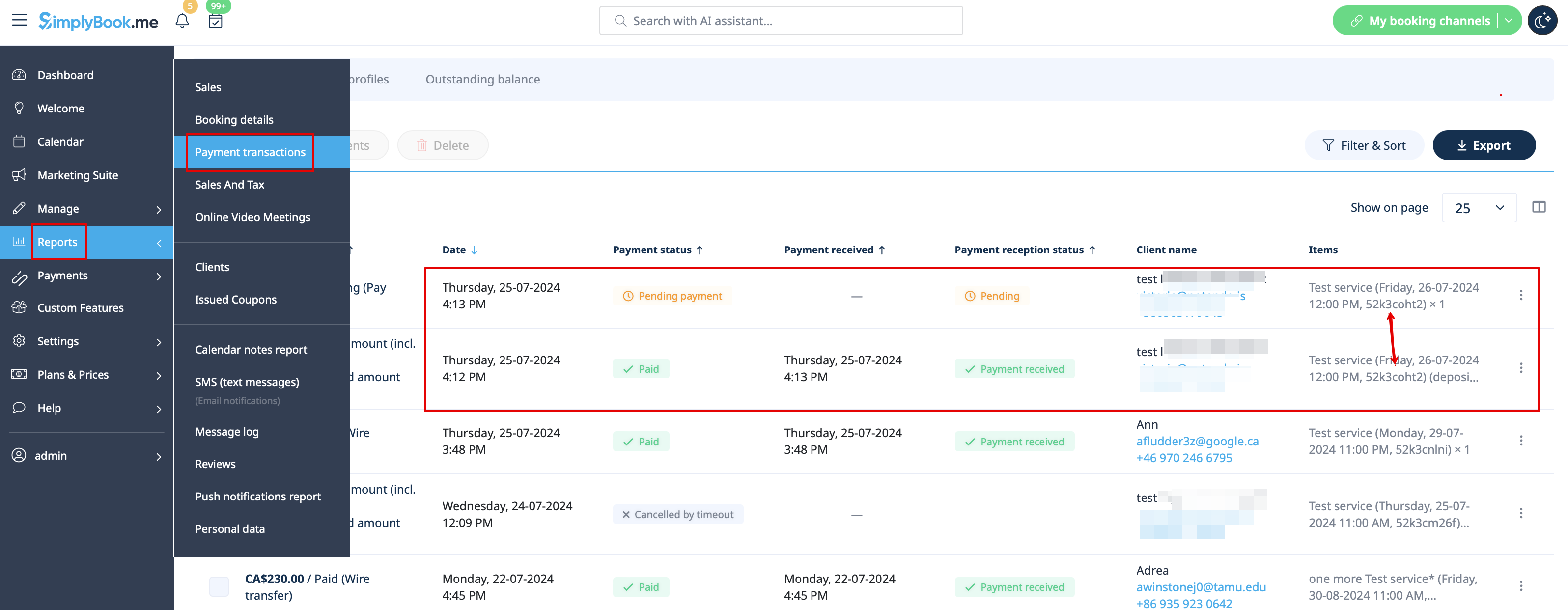
- 7. Lorsque les clients paient l'acompte en ligne pour confirmer leur réservation, deux commandes/factures sont créées dans le système : une pour l'acompte et une pour le solde
- (elles apparaîtront comme en attente jusqu'à ce que le client paie sur place et que vous les approuviez manuellement).
- Vous pouvez les gérer dans Rapports -> Transactions de paiement.
- Ou via l'interface Point de vente: