From SimplyBook.me
Marked this version for translation |
No edit summary |
||
| (One intermediate revision by the same user not shown) | |||
| Line 4: | Line 4: | ||
{{#seo: | {{#seo: | ||
|title=Multiple Bookings custom feature - SimplyBook.me | |title=Multiple Bookings custom feature - SimplyBook.me | ||
|description=Allow clients to book multiple | |description=Allow clients to book multiple appointments in one session. Book recurring sessions: weekly, monthly. Client selects number of sessions at checkout. | ||
|titlemode=append | |titlemode=append | ||
|keywords=faq, frequently asked questions, booking software, appointment system questions, appointments online, calendar software, booking system, booking calendar, scheduling software, online appointment scheduling, online scheduling, plugins, custom features, additional functionality, several bookings at once, book several services at once, cart, pay for several bookings at one go, confirm all selections at checkout, add more bookings, add more | |keywords=faq, frequently asked questions, booking software, appointment system questions, appointments online, calendar software, booking system, booking calendar, scheduling software, online appointment scheduling, online scheduling, plugins, custom features, additional functionality, several bookings at once, book several services at once, cart, pay for several bookings at one go, confirm all selections at checkout, add more bookings, add more | ||
| Line 22: | Line 22: | ||
<br><br><br> | <br><br><br> | ||
:'''Please note!''' | :'''Please note!''' | ||
*"Add another service" button will not be shown if several participants are selected with [[Custom_Features#Group_Bookings | group booking]] or if the service is recurring. | *"Add another service" button will not be shown if several participants are selected with [[Special:MyLanguage/Custom_Features#Group_Bookings | group booking]] or if the service is recurring. | ||
*This feature cannot be enabled together with [[Waiting_List_custom_feature|Waiting List]] | *This feature cannot be enabled together with [[Waiting_List_custom_feature|Waiting List]] | ||
*If [[Approve Bookings custom feature|Approve bookings]] custom feature is enabled, all appointments from multiple bookings pack are approved if one session is approved. The way around is to edit reservations you want to reschedule and cancel reservations you want to decline first, and then approve the pack. | *If [[Special:MyLanguage/Approve Bookings custom feature|Approve bookings]] custom feature is enabled, all appointments from multiple bookings pack are approved if one session is approved. The way around is to edit reservations you want to reschedule and cancel reservations you want to decline first, and then approve the pack. | ||
* In [[Special:MyLanguage/Smart Widget custom feature| Smart widget]] there is no separate button to "Add a new service". With this widget type the services are added to the cart by a click on them and the times will be booked consecutively. | |||
<br> | <br> | ||
</translate> | </translate> | ||
Latest revision as of 08:18, 16 July 2026

Allows clients to book more than one service before they check-out and pay for all booking with one payment. This Custom Feature adds "Add another service" button to the "Details" step on the booking page. This functionality allows clients to book several services/classes on different time or day of the week.
- Please note!
- "Add another service" button will not be shown if several participants are selected with group booking or if the service is recurring.
- This feature cannot be enabled together with Waiting List
- If Approve bookings custom feature is enabled, all appointments from multiple bookings pack are approved if one session is approved. The way around is to edit reservations you want to reschedule and cancel reservations you want to decline first, and then approve the pack.
- In Smart widget there is no separate button to "Add a new service". With this widget type the services are added to the cart by a click on them and the times will be booked consecutively.
- How to use
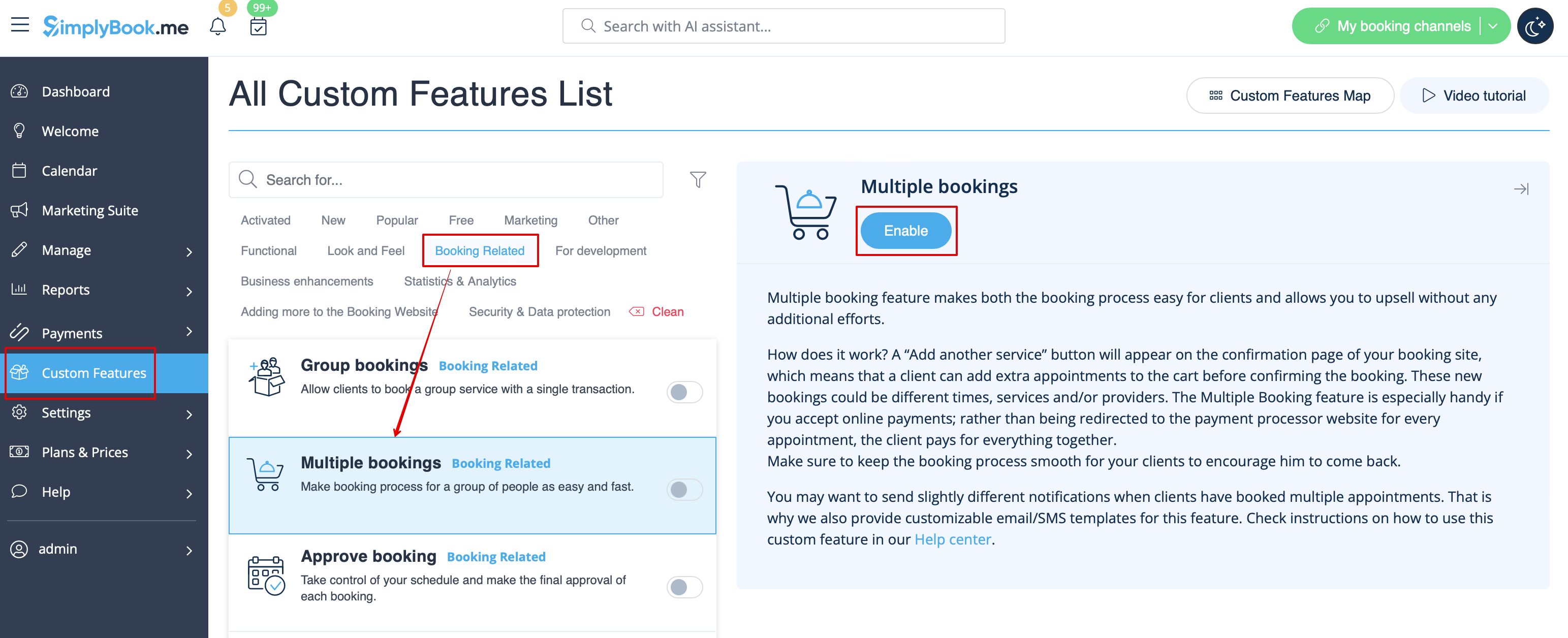
- 1. Enable Multiple bookings custom feature on your custom features page.
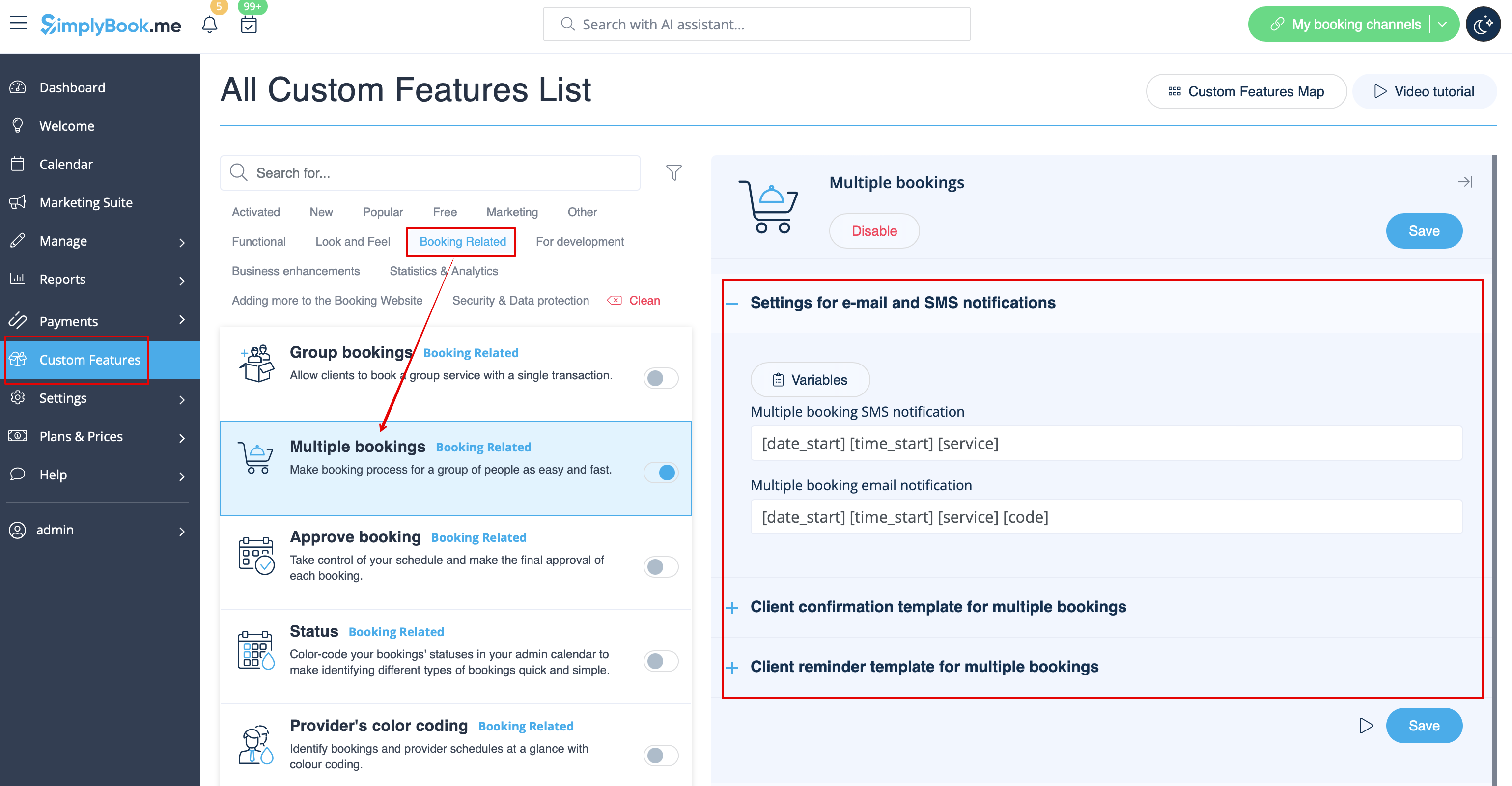
- 2. You can edit notification templates related on the right side of the page.
- 3. Here is how it will look like on the client side in one of the themes.

