From SimplyBook.me
No edit summary |
No edit summary |
||
| (One intermediate revision by the same user not shown) | |||
| Line 1: | Line 1: | ||
<languages/> | <languages/> | ||
<translate> | <translate> | ||
<!--T:1--> | |||
{{#seo: | {{#seo: | ||
|title=Status custom feature - SimplyBook.me | |title=Status custom feature - SimplyBook.me | ||
|description=Track | |description=Add custom statuses to bookings. Track appointment states: arrived, completed, paid. Useful for reception desks managing client flow and service stages. | ||
|titlemode=append | |titlemode=append | ||
|keywords=faq, frequently asked questions, booking software, appointment system questions, appointments online, calendar software, booking system, booking calendar, scheduling software, online appointment scheduling, online scheduling, plugins, custom features, additional functionality, status, bookings colors, mark bookings | |keywords=faq, frequently asked questions, booking software, appointment system questions, appointments online, calendar software, booking system, booking calendar, scheduling software, online appointment scheduling, online scheduling, plugins, custom features, additional functionality, status, bookings colors, mark bookings | ||
| Line 11: | Line 12: | ||
<translate> | <translate> | ||
<!--T:2--> | |||
<br> | <br> | ||
[[File:Status new icon.png |left]] | [[File:Status new icon.png |left]] | ||
<!--T:3--> | |||
If you have a company with many providers, and a service desk accepting clients you can add status possibility to events to see the status. This is for example used to mark appointment with one status as "client has arrived", and then another as "Client has left and paid" whatever suits your needs. | If you have a company with many providers, and a service desk accepting clients you can add status possibility to events to see the status. This is for example used to mark appointment with one status as "client has arrived", and then another as "Client has left and paid" whatever suits your needs. | ||
<br><br> | <br><br> | ||
| Line 21: | Line 24: | ||
<!--T:4--> | |||
;How to use | ;How to use | ||
:1. Activate this custom feature in the Custom Features section//Booking related. | :1. Activate this custom feature in the Custom Features section//Booking related. | ||
Latest revision as of 15:47, 5 February 2026

If you have a company with many providers, and a service desk accepting clients you can add status possibility to events to see the status. This is for example used to mark appointment with one status as "client has arrived", and then another as "Client has left and paid" whatever suits your needs.
- How to use
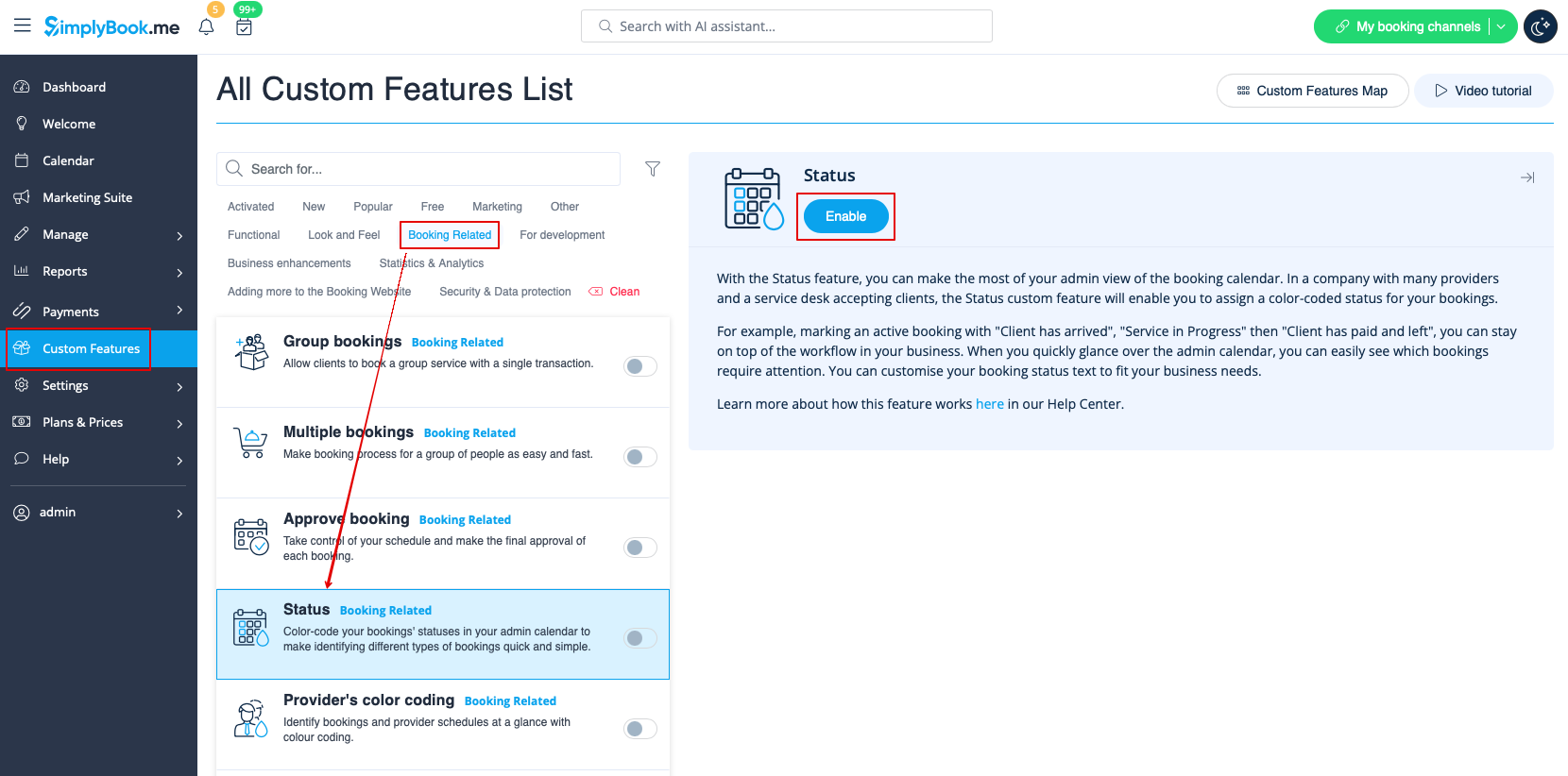
- 1. Activate this custom feature in the Custom Features section//Booking related.
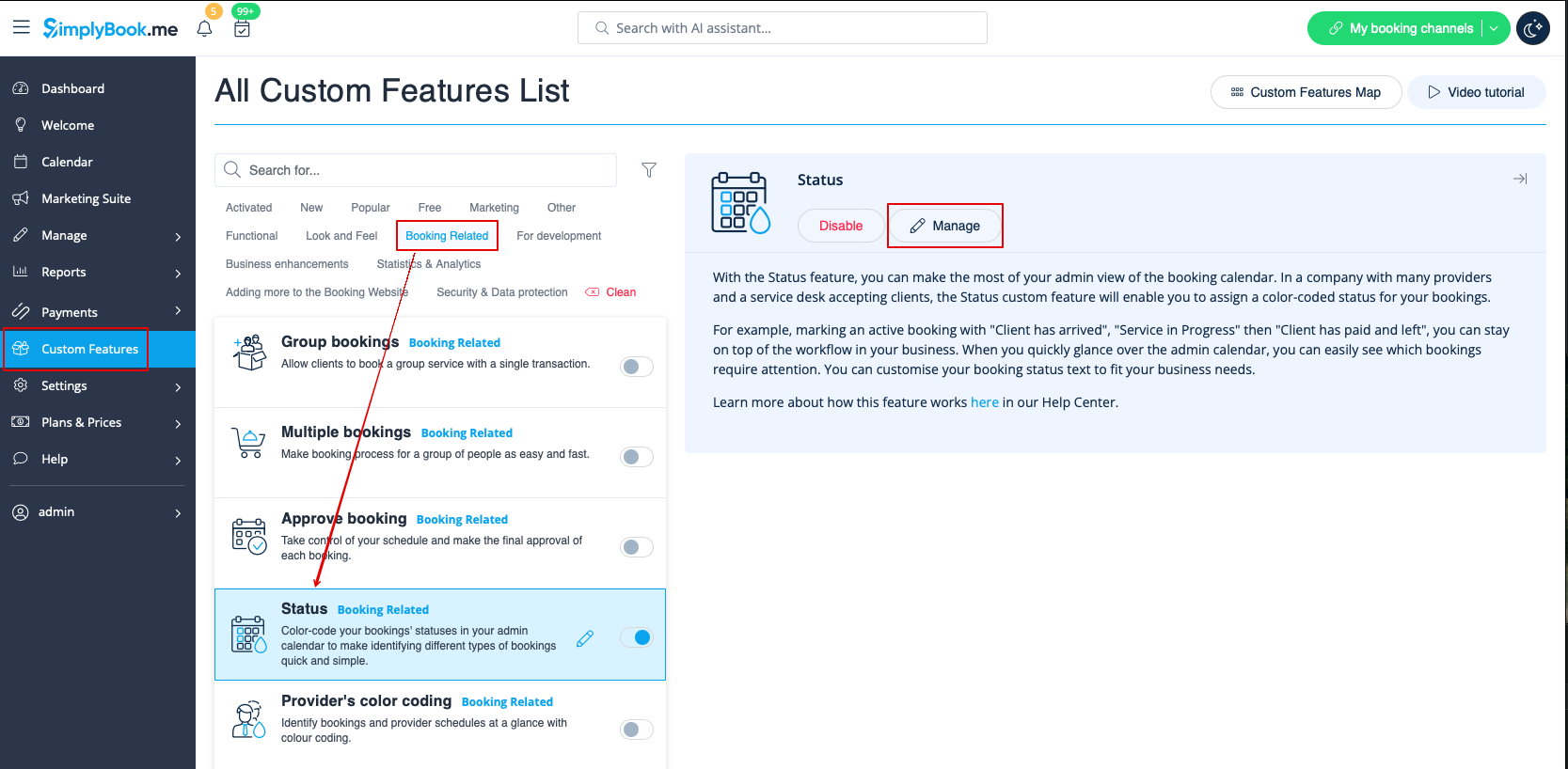
- 2. Go to the settings of this custom feature by click on "Manage".
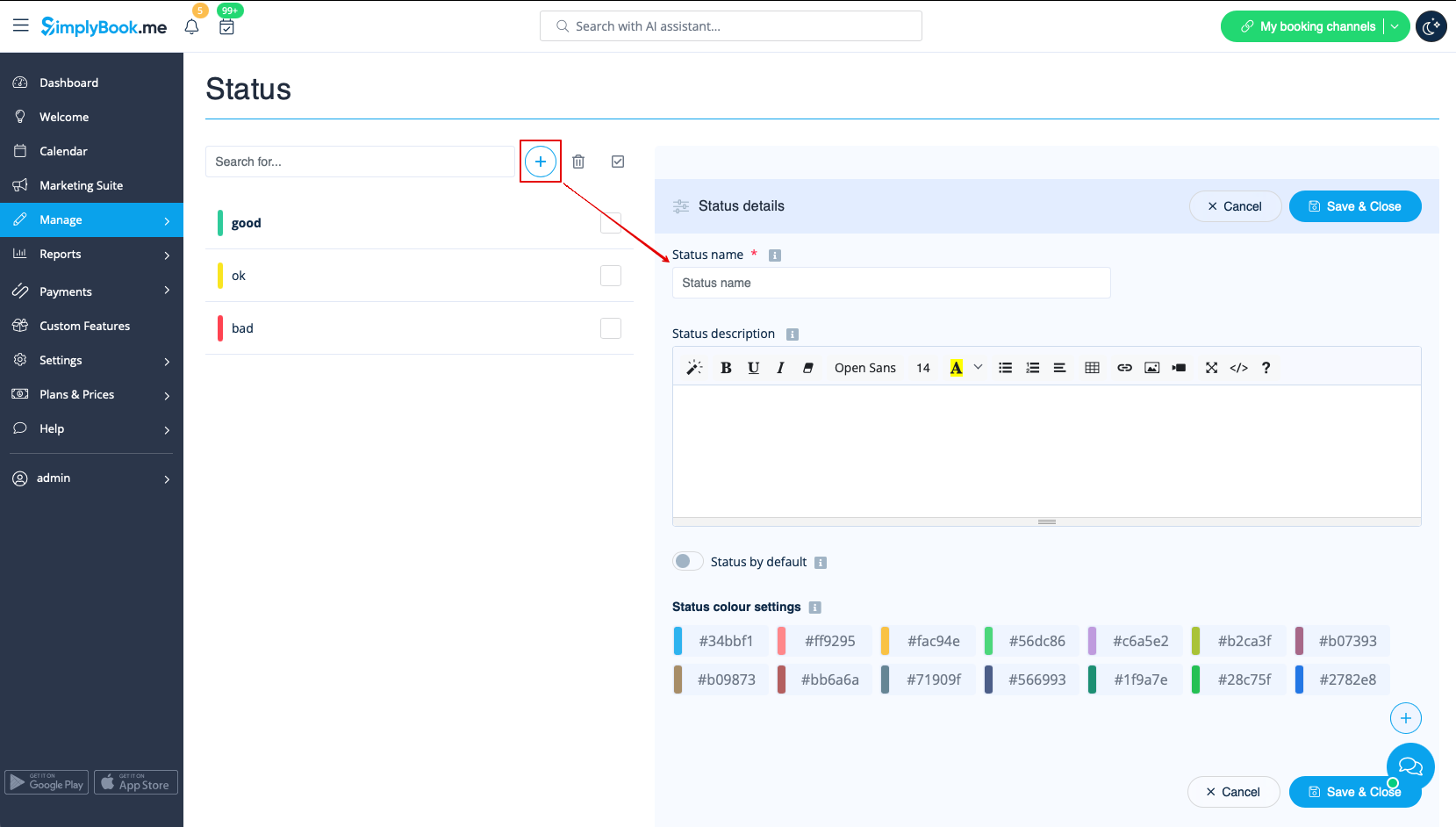
- 3. Press "+" to add new status.
- Insert "Name", "Description" and assign the color to this status. If you leave the switcher "Status by default" on, such status will automatically apply to all new bookings.