From SimplyBook.me
Updating to match new version of source page Tags: Mobile edit Mobile web edit |
Updating to match new version of source page |
||
| Line 2: | Line 2: | ||
{{#seo: | {{#seo: | ||
|title=Photo Gallery custom feature - SimplyBook.me | |title=Photo Gallery custom feature - SimplyBook.me | ||
|description=Display | |description=Display photo gallery on booking website. Upload images, create albums. Showcase services, facilities, team. Enhances visual appeal and client confidence. | ||
|titlemode=append | |titlemode=append | ||
|keywords=faq, frequently asked questions, booking software, appointment system questions, appointments online, calendar software, booking system, booking calendar, scheduling software, online appointment scheduling, online scheduling, plugins, custom features, additional functionality, gallery, photos, images, gallery on the booking site, image gallery on the booking site, photo gallery, upload images, upload photos | |keywords=faq, frequently asked questions, booking software, appointment system questions, appointments online, calendar software, booking system, booking calendar, scheduling software, online appointment scheduling, online scheduling, plugins, custom features, additional functionality, gallery, photos, images, gallery on the booking site, image gallery on the booking site, photo gallery, upload images, upload photos | ||
Latest revision as of 19:23, 2 February 2026

With Photo Gallery custom feature you can upload the photos of your services to attract more clients. Simply browse photos and they will appear on your booking page.
- How to use
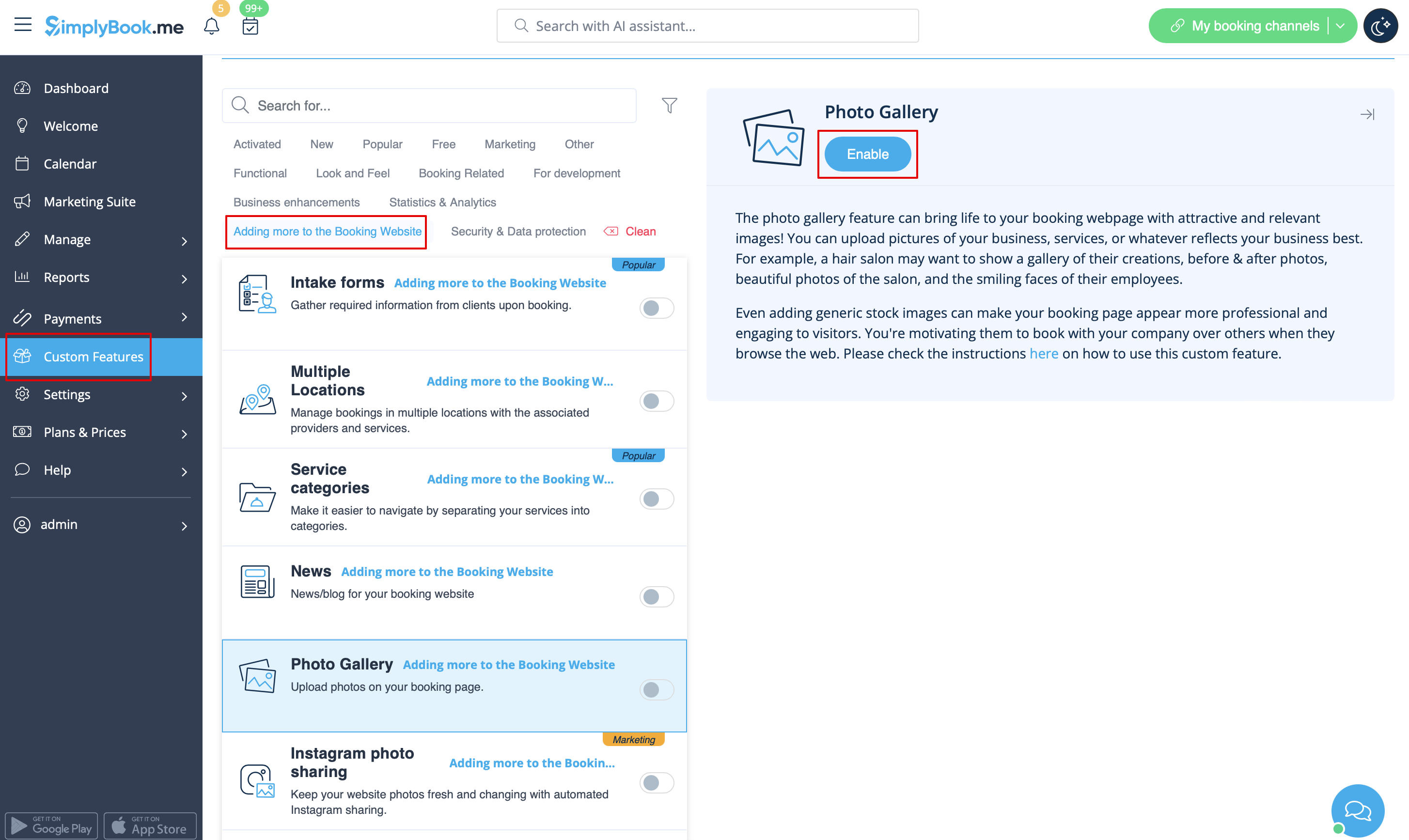
- 1. Enable Photo gallery option on your Custom Features page.
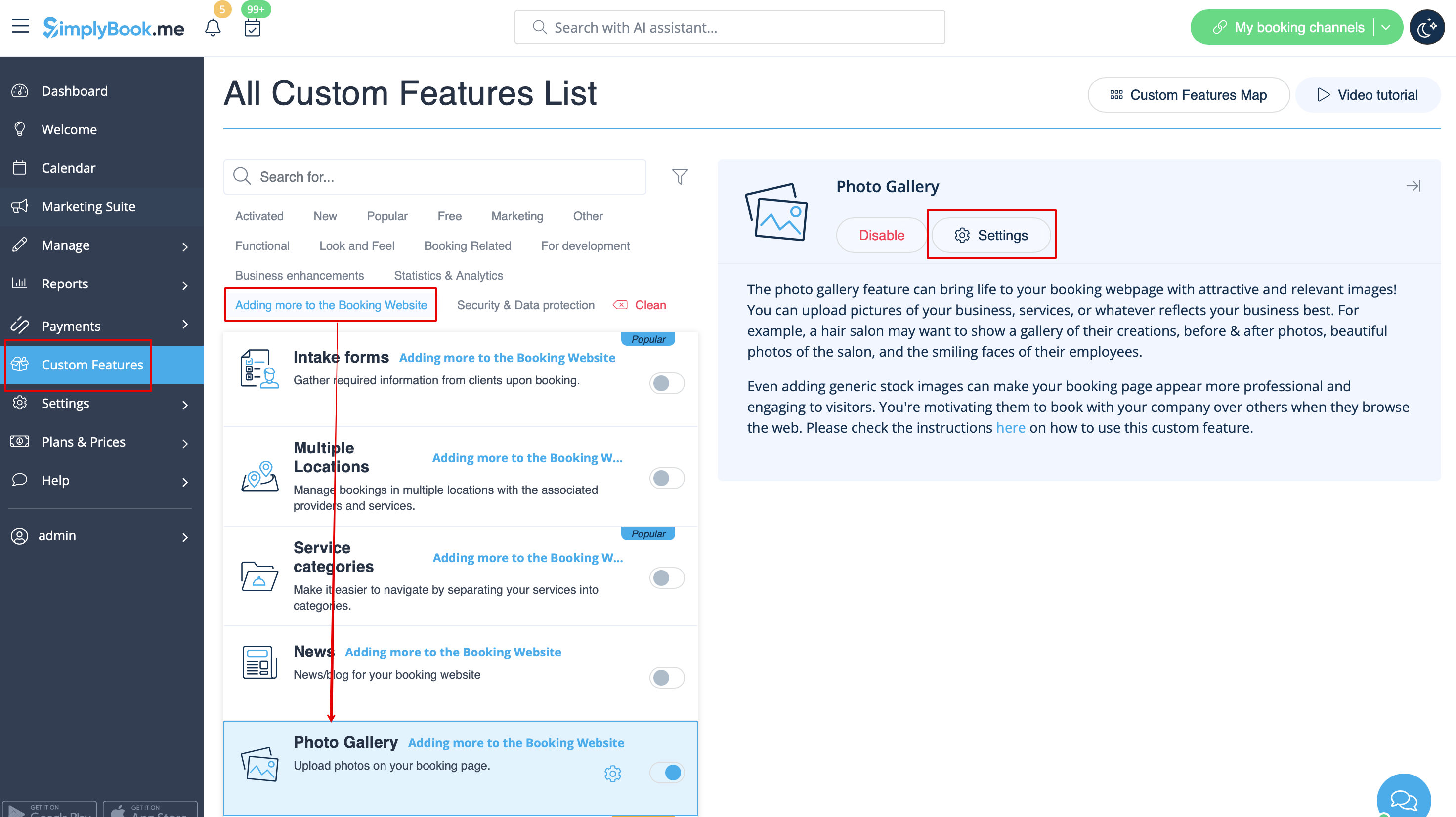
- 2. Click on "Settings" near it.
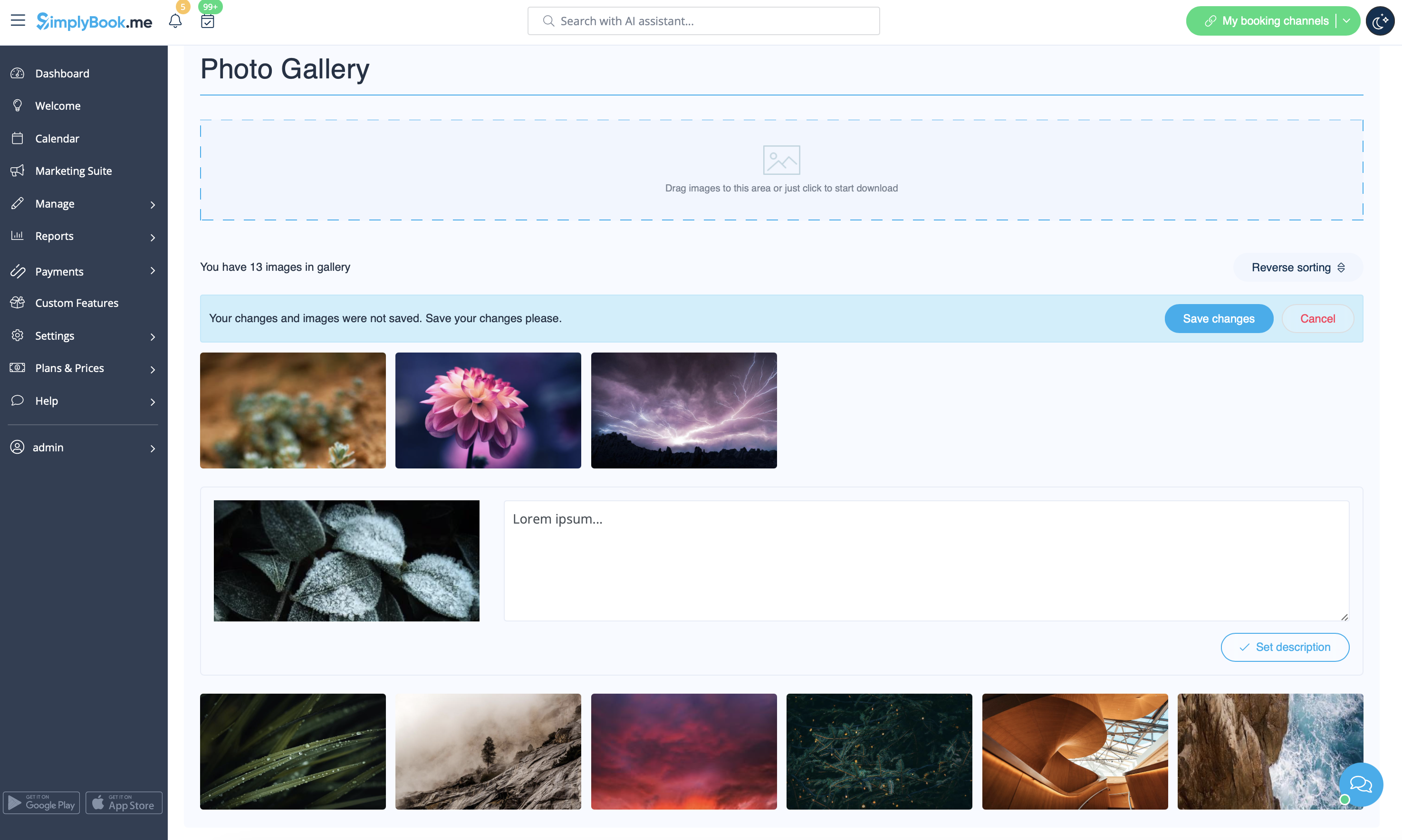
- 3. Upload the images on the page you see, add descriptions if necessary and they will appear in the separate tab on the booking site.