Created page with "Aangepaste functie voor bescherming tegen fraude/spam" |
No edit summary Tags: Mobile edit Mobile web edit |
||
| (8 intermediate revisions by 2 users not shown) | |||
| Line 3: | Line 3: | ||
{{#seo: | {{#seo: | ||
|title=Anti-Fraud/Spam Protection Custom Feature - SimplyBook.me | |title=Anti-Fraud/Spam Protection Custom Feature - SimplyBook.me | ||
|description=Voorkom spam en frauduleuze boekingen. Stel boekingslimieten per klant, tijdsbeperkingen en CAPTCHA in. Blokkeer verdachte patronen en bescherm het systeem tegen misbruik. | |||
|description= | |||
|titlemode=append | |titlemode=append | ||
|keywords=faq, frequently asked questions, booking software, appointment system questions, appointments online, calendar software, booking system, booking calendar, scheduling software, online appointment scheduling, online scheduling, plugins, custom features, additional functionality, anti-spam, anti-fraud, booking limit | |keywords=faq, frequently asked questions, booking software, appointment system questions, appointments online, calendar software, booking system, booking calendar, scheduling software, online appointment scheduling, online scheduling, plugins, custom features, additional functionality, anti-spam, anti-fraud, booking limit | ||
}} | }} | ||
[[File:Booking restriction plugin icon.png|left]] | |||
[[File:Booking restriction plugin icon.png|left]] | |||
Dit is een functie voor fraudebestrijding en spambeveiliging. Hiermee kunnen beheerders het aantal boekingen beperken dat vanaf hetzelfde e-mailadres, telefoonnummer en IP-adres kan worden gemaakt. De functie biedt verschillende opties, zoals het instellen van het maximale aantal boekingen, het definiëren van de periode waarin deze boekingen kunnen worden gemaakt en de mogelijkheid om verdachte frauduleuze activiteiten te blokkeren of te markeren. Deze functie helpt frauduleuze of spamachtige boekingen te voorkomen en beschermt de integriteit van het systeem, waardoor een soepele en betrouwbare boekingservaring voor legitieme klanten wordt gegarandeerd. | |||
'''Let op!''' Deze functie maakt het mogelijk om [[Special:MyLanguage/Recurring services(packs)|terugkerende diensten]] te boeken als de eerste datum binnen de limiet valt (zelfs als de daaropvolgende sessies daar niet binnen vallen). | |||
;Hoe te gebruiken | |||
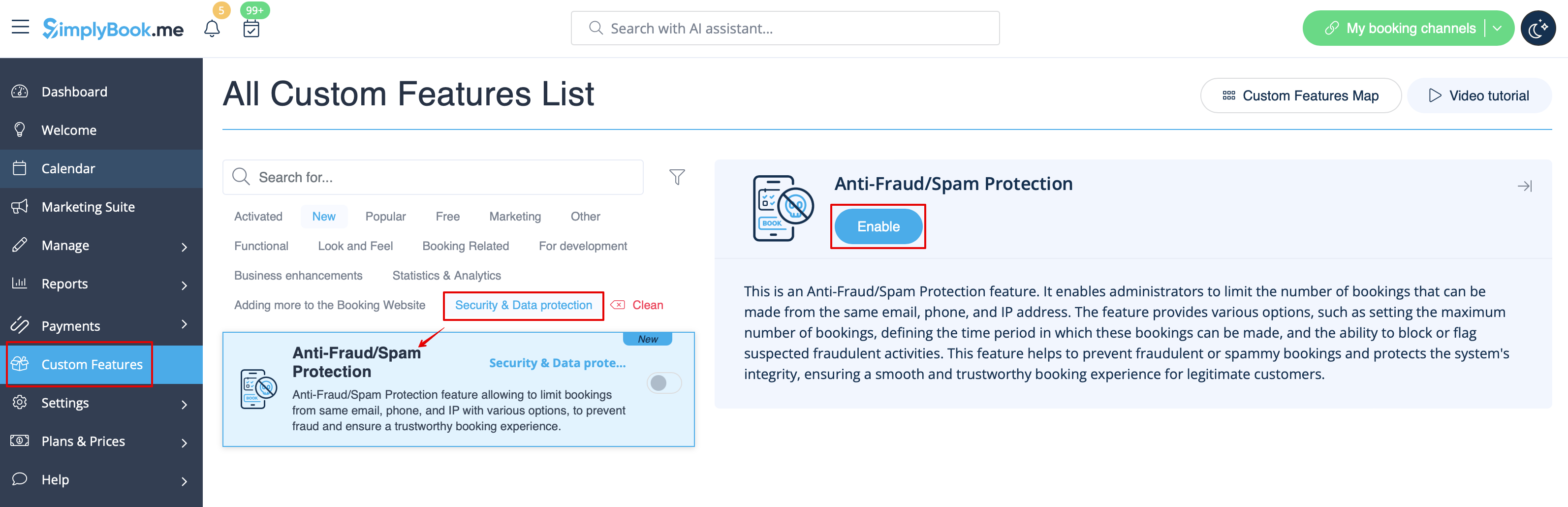
1. | 1. Schakel <span style="background-color:#d4f8e5; padding:5px; border-radius:5px;">Anti-fraude/spambescherming</span> in op uw pagina <span style="background-color:#d4f8e5; padding:5px; border-radius:5px;">Aangepaste functies</span> -> sectie <span style="background-color:#d4f8e5; padding:5px; border-radius:5px;">Beveiliging en gegevensbescherming</span>. | ||
[[File:Antispam enable path redesigned.png|1200px|border|center|link=https://help.simplybook.me/images/d/d7/Antispam_enable_path_redesigned.png]] | [[File:Antispam enable path redesigned.png|1200px|border|center|link=https://help.simplybook.me/images/d/d7/Antispam_enable_path_redesigned.png]] | ||
<br><br> | <br><br> | ||
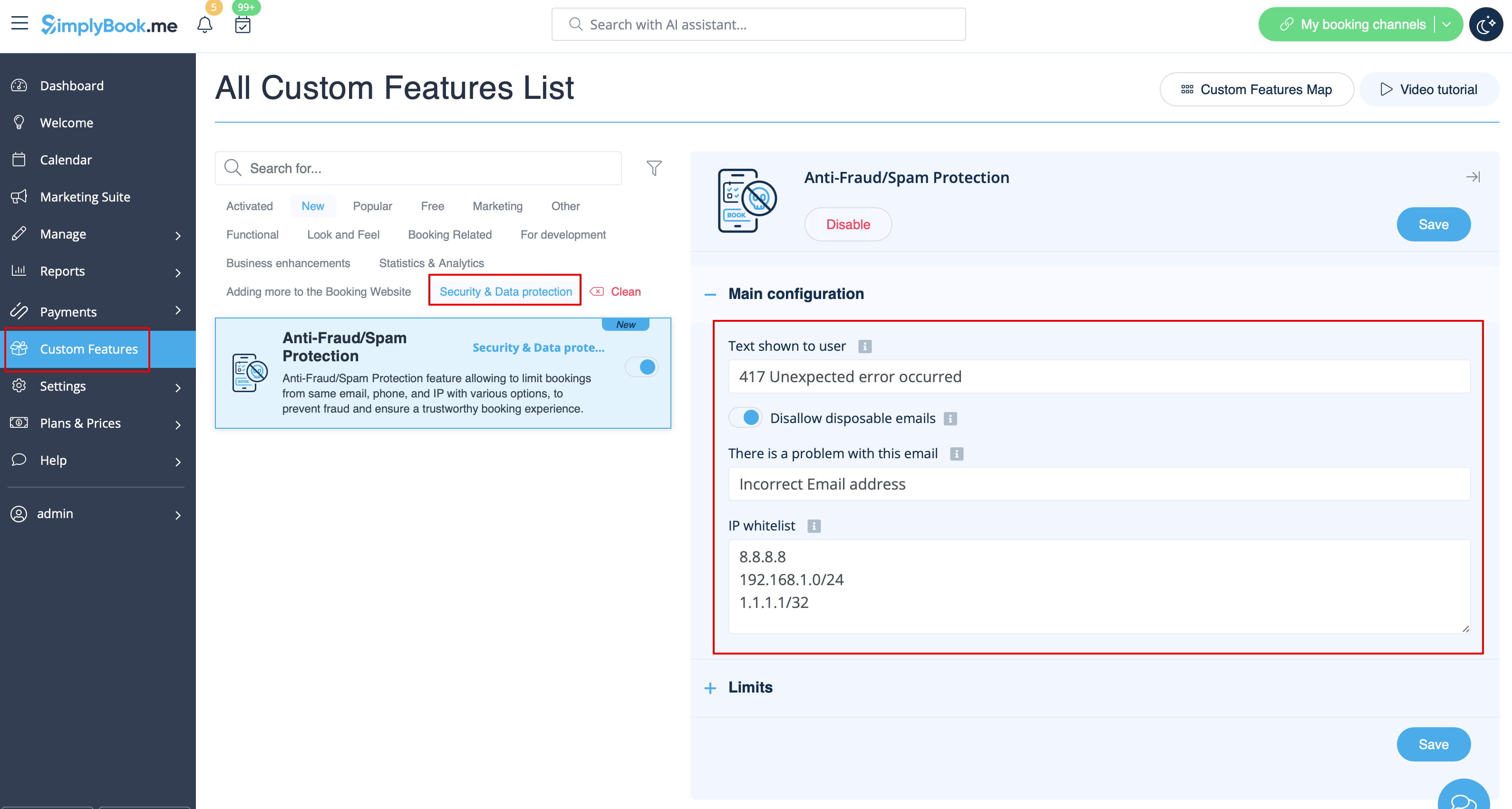
2. In | 2. In het eerste gedeelte <span style="background-color:#d4f8e5; padding:5px; border-radius:5px;">Hoofdconfiguratie</span> kunt u de foutmelding instellen die aan de klant wordt getoond als de limiet is bereikt, de optie <span style="background-color:#d4f8e5; padding:5px; border-radius:5px;">Wegwerp-e-mails niet toestaan</span> inschakelen als u het gebruik van dergelijke e-mails wilt verbieden, en IP-adressen toevoegen</span> die altijd mogen boeken (als u limieten per IP wilt gebruiken). | ||
[[File:Antispam settings main path redesigned.png|1200px|border|center|link=https://help.simplybook.me/images/0/03/Antispam_settings_main_path_redesigned.png]] | [[File:Antispam settings main path redesigned.png|1200px|border|center|link=https://help.simplybook.me/images/0/03/Antispam_settings_main_path_redesigned.png]] | ||
<br><br> | <br><br> | ||
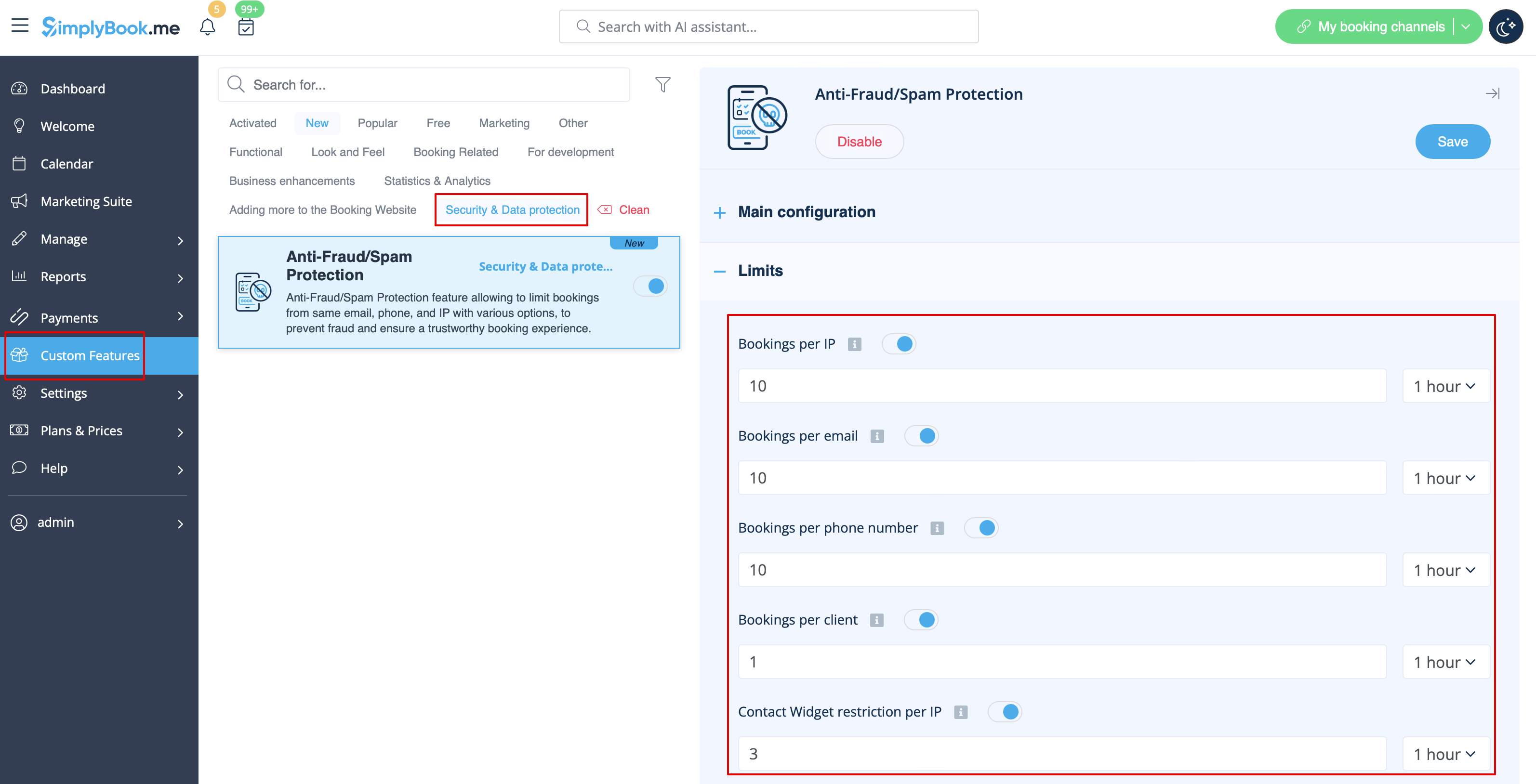
3. | 3. In het volgende gedeelte <span style="background-color:#d4f8e5; padding:5px; border-radius:5px;">Limieten</span> kunt u specifieke limieten instellen per <span style="background-color:#d4f8e5; padding:5px; border-radius:5px;">klant</span>(alleen beschikbaar als de aangepaste functie <span style="background-color:#cdeffc; padding:5px; border-radius:5px;">[[Special:MyLanguage/Client_Login_custom_feature|Klantlogin]]</span> is ingeschakeld), per <span style="background-color:#d4f8e5; padding:5px; border-radius:5px;">IP-adres</span>, per <span style="background-color:#d4f8e5; padding:5px; border-radius:5px;">e-mailadres</span> of per <span style="background-color:#d4f8e5; padding:5px; border-radius:5px;">telefoonnummer.</span> U kunt elke optie afzonderlijk of meerdere tegelijk gebruiken.<br> | ||
<span style="background-color:#ffe9e9; padding:5px; border-radius:5px;">''' | <span style="background-color:#ffe9e9; padding:5px; border-radius:5px;">'''Let op!''' Als u bepaalde IP-adressen op de witte lijst hebt staan, blijven de andere beperkingen (op basis van e-mail, telefoon of klant, indien ingesteld) van kracht voor die klant.</span> | ||
[[File:Antispam limits settings redesigned.png|1200px|border|center|link=https://help.simplybook.me/images/f/f6/Antispam_limits_settings_redesigned.png]] | [[File:Antispam limits settings redesigned.png|1200px|border|center|link=https://help.simplybook.me/images/f/f6/Antispam_limits_settings_redesigned.png]] | ||
<br><br> | <br><br> | ||
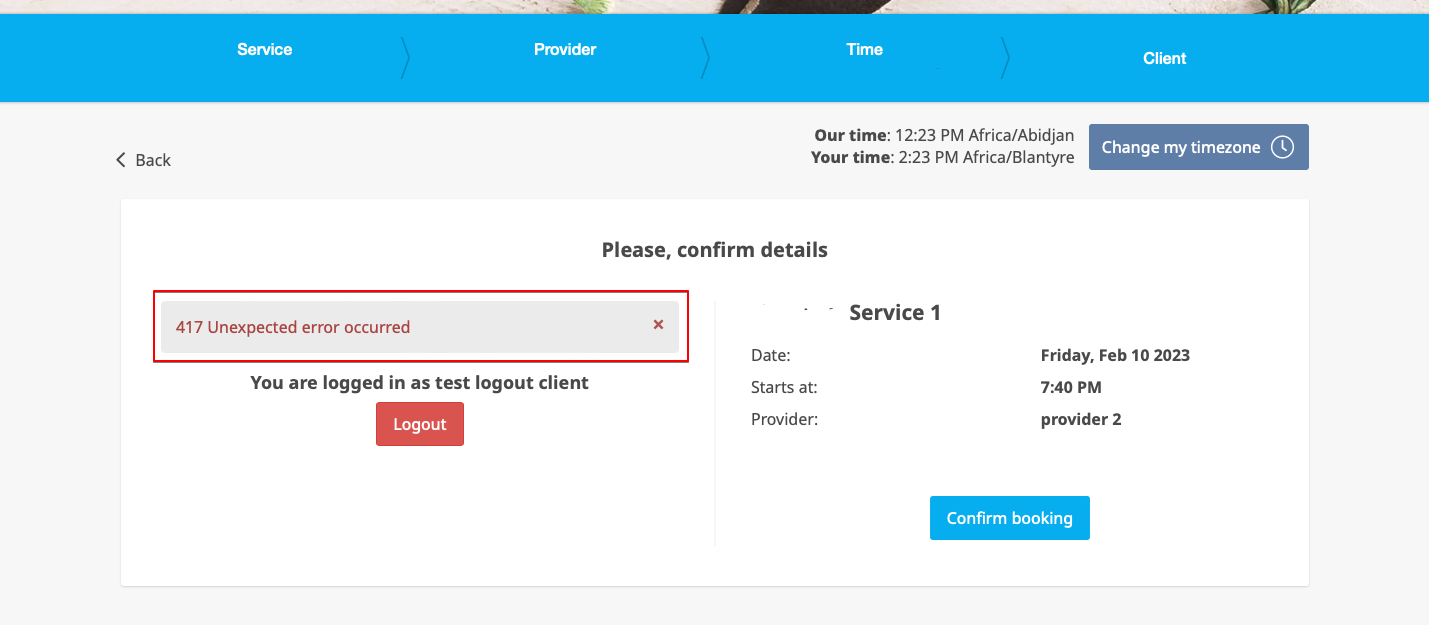
4. | 4. Wanneer de limiet is bereikt, wordt er een foutmelding weergegeven aan de klant. | ||
( | (standaardtekst gebruikt in het onderstaande voorbeeld) | ||
[[File:Booking restriction client side.png|1200px|border|center|link=https://help.simplybook.me/images/b/b2/Booking_restriction_client_side.png]] | [[File:Booking restriction client side.png|1200px|border|center|link=https://help.simplybook.me/images/b/b2/Booking_restriction_client_side.png]] | ||
<br><br> | <br><br> | ||
<br><br> | <br><br> | ||
Latest revision as of 19:41, 2 February 2026

Dit is een functie voor fraudebestrijding en spambeveiliging. Hiermee kunnen beheerders het aantal boekingen beperken dat vanaf hetzelfde e-mailadres, telefoonnummer en IP-adres kan worden gemaakt. De functie biedt verschillende opties, zoals het instellen van het maximale aantal boekingen, het definiëren van de periode waarin deze boekingen kunnen worden gemaakt en de mogelijkheid om verdachte frauduleuze activiteiten te blokkeren of te markeren. Deze functie helpt frauduleuze of spamachtige boekingen te voorkomen en beschermt de integriteit van het systeem, waardoor een soepele en betrouwbare boekingservaring voor legitieme klanten wordt gegarandeerd.
Let op! Deze functie maakt het mogelijk om terugkerende diensten te boeken als de eerste datum binnen de limiet valt (zelfs als de daaropvolgende sessies daar niet binnen vallen).
- Hoe te gebruiken
1. Schakel Anti-fraude/spambescherming in op uw pagina Aangepaste functies -> sectie Beveiliging en gegevensbescherming.
2. In het eerste gedeelte Hoofdconfiguratie kunt u de foutmelding instellen die aan de klant wordt getoond als de limiet is bereikt, de optie Wegwerp-e-mails niet toestaan inschakelen als u het gebruik van dergelijke e-mails wilt verbieden, en IP-adressen toevoegen die altijd mogen boeken (als u limieten per IP wilt gebruiken).
3. In het volgende gedeelte Limieten kunt u specifieke limieten instellen per klant(alleen beschikbaar als de aangepaste functie Klantlogin is ingeschakeld), per IP-adres, per e-mailadres of per telefoonnummer. U kunt elke optie afzonderlijk of meerdere tegelijk gebruiken.
Let op! Als u bepaalde IP-adressen op de witte lijst hebt staan, blijven de andere beperkingen (op basis van e-mail, telefoon of klant, indien ingesteld) van kracht voor die klant.
4. Wanneer de limiet is bereikt, wordt er een foutmelding weergegeven aan de klant.
(standaardtekst gebruikt in het onderstaande voorbeeld)