No edit summary |
No edit summary |
||
| (9 intermediate revisions by the same user not shown) | |||
| Line 1: | Line 1: | ||
<languages/> | |||
<translate> | |||
<!--T:1--> | |||
Sometimes you or your clients may need to reschedule bookings.<br> <br> | Sometimes you or your clients may need to reschedule bookings.<br> <br> | ||
<!--T:2--> | |||
Rescheduling from admin side:<br><br> | Rescheduling from admin side:<br><br> | ||
1. In Calendar section.<br> | 1. In Calendar section.<br> | ||
Click on the booking you wish to reschedule, then choose "Edit" and make necessary changes. Then please click on "Save" for changes to be applied.<br><br> | Click on the booking you wish to reschedule, then choose "Edit" and make necessary changes. Then please click on "Save" for changes to be applied.<br><br> | ||
[[File:Edit booking.png]]<br><br> | [[File:Edit booking path redesigned.png|1200px| center|link=https://help.simplybook.me/images/7/7b/Edit_booking_path_redesigned.png]]<br><br> | ||
2. In Reports// | 2. In Reports//Booking details.<br> | ||
Click on "View" button near corresponding booking, then choose "Edit" and make necessary changes. Then please click on "Save" for changes to be applied.<br> <br> | Click on "View" button near corresponding booking, then choose "Edit" and make necessary changes. Then please click on "Save" for changes to be applied.<br> <br> | ||
[[File:Edit booking | [[File:Edit booking from report redesigned.png|1200px| center|link=https://help.simplybook.me/images/b/b0/Edit_booking_from_report_redesigned.png]]<br><br> | ||
</translate> | |||
<translate> | |||
<!--T:3--> | |||
Rescheduling from clients side:<br><br> | Rescheduling from clients side:<br><br> | ||
1. Client can contact admin to change the booking the way described above.<br> | 1. Client can reschedule using the corresponding button or link if admin has [[Client_Rescheduling_custom_feature| Client Rescheduling]] custom feature enabled.<br> | ||
2. Client can contact admin to change the booking the way described above.<br> | |||
3. Client can cancel booking using cancellation link from e-mail notification and book new appointment at desired date/time from the booking page.<br> | |||
'''Please note''', that it is not possible to edit bookings that were already cancelled. | '''Please note''', that it is not possible to edit bookings that were already cancelled. | ||
</translate> | |||
Latest revision as of 07:59, 1 July 2025
Sometimes you or your clients may need to reschedule bookings.
Rescheduling from admin side:
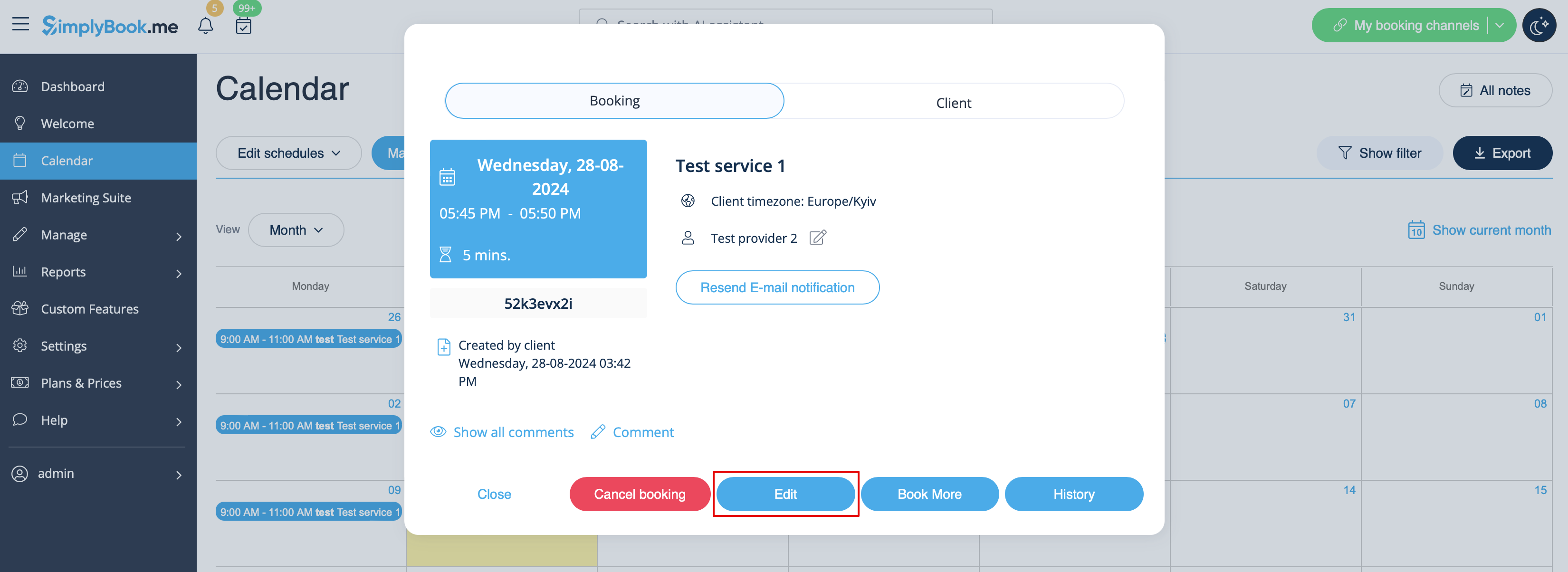
1. In Calendar section.
Click on the booking you wish to reschedule, then choose "Edit" and make necessary changes. Then please click on "Save" for changes to be applied.
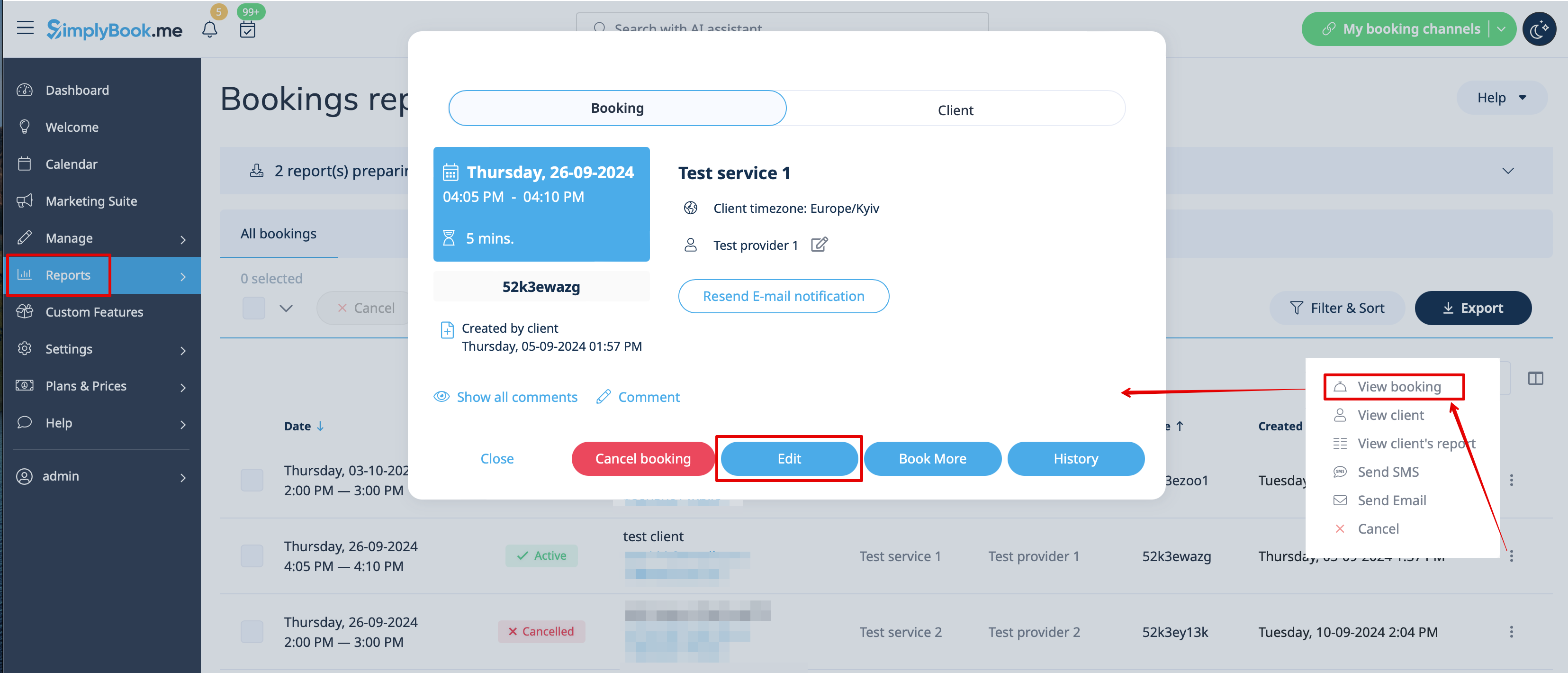
2. In Reports//Booking details.
Click on "View" button near corresponding booking, then choose "Edit" and make necessary changes. Then please click on "Save" for changes to be applied.
Rescheduling from clients side:
1. Client can reschedule using the corresponding button or link if admin has Client Rescheduling custom feature enabled.
2. Client can contact admin to change the booking the way described above.
3. Client can cancel booking using cancellation link from e-mail notification and book new appointment at desired date/time from the booking page.
Please note, that it is not possible to edit bookings that were already cancelled.
