From SimplyBook.me
No edit summary |
No edit summary |
||
| (5 intermediate revisions by the same user not shown) | |||
| Line 4: | Line 4: | ||
<translate> | <translate> | ||
<!--T:10--> | <!--T:10--> | ||
|description= | |description=Connect with Google Business Profile. Increase visibility on Google Search and Maps. Add 'Reserve with Google' button. Free feature enhances online presence. | ||
</translate> | </translate> | ||
|titlemode=append | |titlemode=append | ||
| Line 20: | Line 20: | ||
<!--T:3--> | |||
<span style="background-color: #26dd7d; padding:5px; border-radius:5px;">Free custom feature!</span> | <span style="background-color: #26dd7d; padding:5px; border-radius:5px;">Free custom feature!</span> | ||
<br><br> | <br><br> | ||
Video tutorial <p><youtube>ltT1F1jBfKk</youtube></p> | Video tutorial <p><youtube>ltT1F1jBfKk</youtube></p> | ||
<br><br> | <br><br> | ||
=Google Business= | =Google Business= | ||
| Line 30: | Line 31: | ||
;How to use: | ;How to use: | ||
<!--T:5--> | |||
:1. Enable this custom feature on your <span style="background-color:#d4f8e5; padding:5px; border-radius:5px;">Custom Features</span> page. | :1. Enable this custom feature on your <span style="background-color:#d4f8e5; padding:5px; border-radius:5px;">Custom Features</span> page. | ||
[[File:Google business enable path redesigned.png|1200px | border| center|link=https://help.simplybook.me/images/6/66/Google_business_enable_path_redesigned.png]] | [[File:Google business enable path redesigned.png|1200px | border| center|link=https://help.simplybook.me/images/6/66/Google_business_enable_path_redesigned.png]] | ||
| Line 70: | Line 72: | ||
[[File:Google business delete on google redesigned.png|1200px |border|center|link=https://help.simplybook.me/images/5/55/Google_business_delete_on_google_redesigned.png]] | [[File:Google business delete on google redesigned.png|1200px |border|center|link=https://help.simplybook.me/images/5/55/Google_business_delete_on_google_redesigned.png]] | ||
<br><br> | <br><br> | ||
=Reserve with Google= | =Reserve with Google= | ||
<!--T:6--> | <!--T:6--> | ||
| Line 77: | Line 79: | ||
<!--T:7--> | <!--T:7--> | ||
Add a <span style="background-color:#d4f8e5; padding:5px; border-radius:5px;">Book online</span> | Add a <span style="background-color:#d4f8e5; padding:5px; border-radius:5px;">Book online</span> option to your Google Business listing. Allow your clients to find you easily on Google and book your services right there via Google Search, Google Maps or Google Assistant, powered by the SimplyBook.me booking system. | ||
| Line 84: | Line 86: | ||
*<span style="background-color:#ffe9e9; padding:5px; border-radius:5px;">Reserve with Google is currently available only for supported countries listed <span style="background-color:#cdeffc; padding:5px; border-radius:5px;">[https://developers.google.com/maps-booking/policies/criteria here]</span>;</span> | *<span style="background-color:#ffe9e9; padding:5px; border-radius:5px;">Reserve with Google is currently available only for supported countries listed <span style="background-color:#cdeffc; padding:5px; border-radius:5px;">[https://developers.google.com/maps-booking/policies/criteria here]</span>;</span> | ||
*<span style="background-color:#ffe9e9; padding:5px; border-radius:5px;">Currently it is not possible to use this option for the following business categories: medical center, educational institution, government office, engineer, medical clinic, dentist, medical office, education center, event management company, city administration, embassy, general practice attorney, child care agency, university, college, school, library, financial institution.</span> | *<span style="background-color:#ffe9e9; padding:5px; border-radius:5px;">Currently it is not possible to use this option for the following business categories: medical center, educational institution, government office, engineer, medical clinic, dentist, medical office, education center, event management company, city administration, embassy, general practice attorney, child care agency, university, college, school, library, financial institution.</span> | ||
*<span style="background-color:#ffe9e9; padding:5px; border-radius:5px;">It is required to have <span style="background-color:#cdeffc; padding:5px; border-radius:5px;">[[Special:MyLanguage/ | *<span style="background-color:#ffe9e9; padding:5px; border-radius:5px;">It is required to have <span style="background-color:#cdeffc; padding:5px; border-radius:5px;">[[Special:MyLanguage/Accept payments custom feature|Accept Payments]]</span> custom feature enabled (<span style="background-color:#d4f8e5; padding:5px; border-radius:5px;">Pay later (Allow delay payment)</span> option should always be <span style="background-color:#d4f8e5; padding:5px; border-radius:5px;">On</span>) and prices should be added for all the services/classes you wish to be displayed and bookable through Google Maps;</span> | ||
*<span style="background-color:#ffe9e9; padding:5px; border-radius:5px;">All the services/classes should have descriptions to be displayed on the Google side;</span> | *<span style="background-color:#ffe9e9; padding:5px; border-radius:5px;">All the services/classes should have descriptions to be displayed on the Google side;</span> | ||
*<span style="background-color:#ffe9e9; padding:5px; border-radius:5px;">If you are using <span style="background-color:#cdeffc; padding:5px; border-radius:5px;">[[Special:MyLanguage/ | *<span style="background-color:#ffe9e9; padding:5px; border-radius:5px;">If you are using <span style="background-color:#cdeffc; padding:5px; border-radius:5px;">[[Special:MyLanguage/Intake Forms custom feature|Intake forms]]</span> feature there should be no mandatory forms added to the services you wish to be available for booking;</span> | ||
*<span style="background-color:#ffe9e9; padding:5px; border-radius:5px;">If a service is <span style="background-color:#d4f8e5; padding:5px; border-radius:5px;">[[Special:MyLanguage/Recurring_services(packs)|recurring]]</span> or connected to <span style="background-color:#cdeffc; padding:5px; border-radius:5px;">[[Special:MyLanguage/ | *<span style="background-color:#ffe9e9; padding:5px; border-radius:5px;">If a service is <span style="background-color:#d4f8e5; padding:5px; border-radius:5px;">[[Special:MyLanguage/Recurring_services(packs)|recurring]]</span> or connected to <span style="background-color:#cdeffc; padding:5px; border-radius:5px;">[[Special:MyLanguage/Membership custom feature|Membership]]</span> it will not be displayed in Reserve with Google;</span> | ||
*<span style="background-color:#ffe9e9; padding:5px; border-radius:5px;">If you are using outdated Google Calendar Sync custom feature it will not be possible to use Reserve with Google.</span> | *<span style="background-color:#ffe9e9; padding:5px; border-radius:5px;">If you are using outdated Google Calendar Sync custom feature it will not be possible to use Reserve with Google.</span> | ||
*<span style="background-color:#ffe9e9; padding:5px; border-radius:5px;">It is required to publish the company address on the booking website to sync with Google and this option to work.</span> | |||
*<span style="background-color:#ffe9e9; padding:5px; border-radius:5px;">The button will not appear if you are using the Blank page theme with a redirection to your own website</span> | |||
<!--T:9--> | <!--T:9--> | ||
| Line 99: | Line 103: | ||
[[File:Reserve with google enable path redesigned.png|1200px|border|center|link=https://help.simplybook.me/images/8/80/Reserve_with_google_enable_path_redesigned.png]] | [[File:Reserve with google enable path redesigned.png|1200px|border|center|link=https://help.simplybook.me/images/8/80/Reserve_with_google_enable_path_redesigned.png]] | ||
<br><br> | <br><br> | ||
:3. (optional) If you use <span style="background-color:#cdeffc; padding:5px; border-radius:5px;">[[Special:MyLanguage/ | :3. (optional) If you use <span style="background-color:#cdeffc; padding:5px; border-radius:5px;">[[Special:MyLanguage/Multiple Locations custom feature|Multiple Locations]]</span> custom feature, connect your <span style="background-color:#d4f8e5; padding:5px; border-radius:5px;">Google Businesses</span> to desired <span style="background-color:#d4f8e5; padding:5px; border-radius:5px;">SimplyBook.me locations.</span> | ||
:<span style="background-color:#ffe9e9; padding:5px; border-radius:5px;">'''Please note!''' It is possible to connect one SimplyBook.me location to one Google Business.</span> | :<span style="background-color:#ffe9e9; padding:5px; border-radius:5px;">'''Please note!''' It is possible to connect one SimplyBook.me location to one Google Business.</span> | ||
:<span style="background-color:#ffe9e9; padding:5px; border-radius:5px;">If you do not use <span style="background-color:#cdeffc; padding:5px; border-radius:5px;">[[Special:MyLanguage/ | :<span style="background-color:#ffe9e9; padding:5px; border-radius:5px;">If you do not use <span style="background-color:#cdeffc; padding:5px; border-radius:5px;">[[Special:MyLanguage/Multiple Locations custom feature|Multiple Locations]]</span> your main company location can be connected to one Google Business.</span> | ||
[[File:Reserve with google select location redesigned.png|1200px|border|center|link=https://help.simplybook.me/images/1/14/Reserve_with_google_select_location_redesigned.png]] | [[File:Reserve with google select location redesigned.png|1200px|border|center|link=https://help.simplybook.me/images/1/14/Reserve_with_google_select_location_redesigned.png]] | ||
<br><br> | <br><br> | ||
Latest revision as of 11:09, 18 June 2026

Easily increase your business visibility on the Internet via the Google My Business feature. It does not cost anything but increases visibility in search as well as makes your business visible on Google maps.
Free custom feature!
Video tutorial
Google Business
- How to use
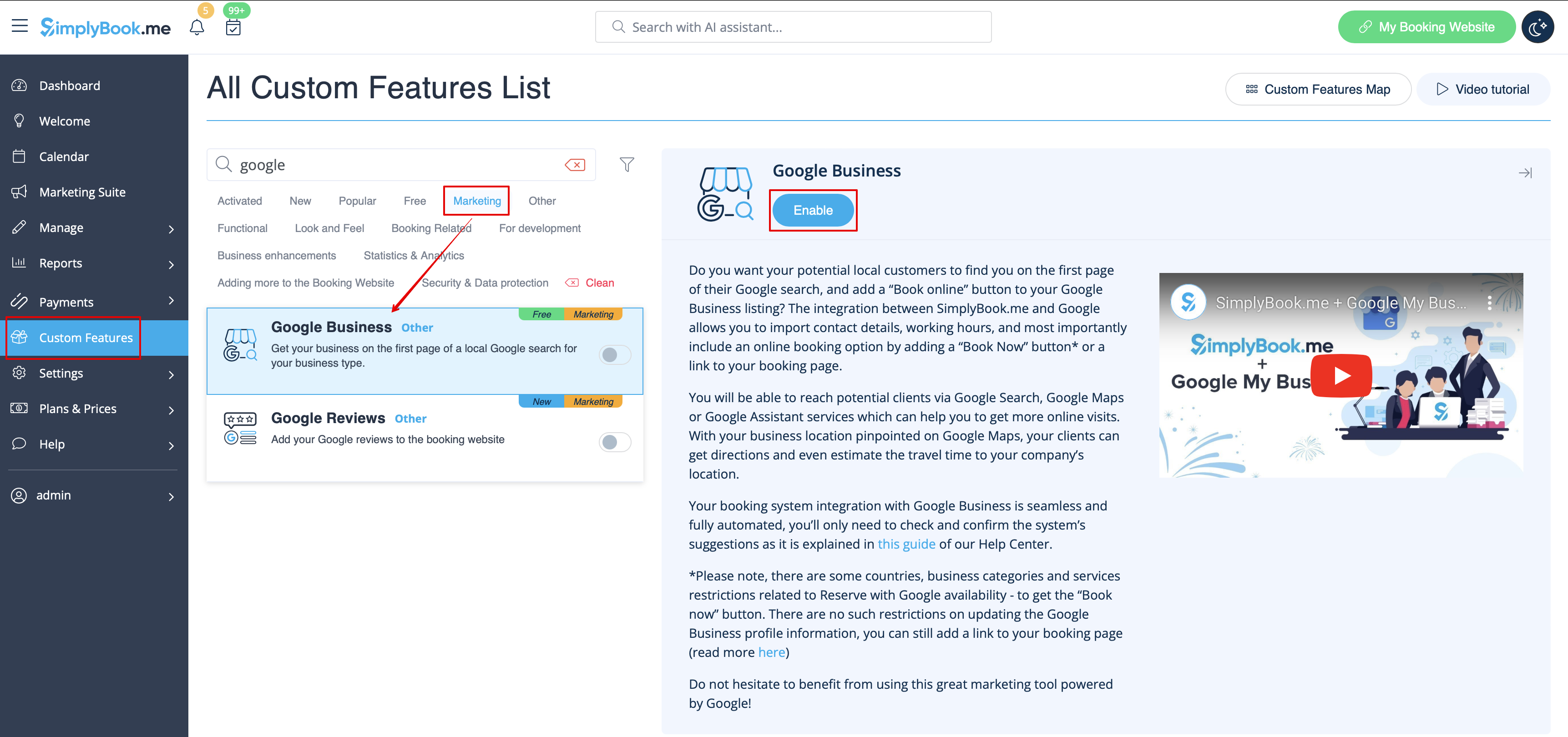
- 1. Enable this custom feature on your Custom Features page.
- 2. Navigate to Settings to create Google Business account if you do not have one yet, or connect already existing Google Business account.
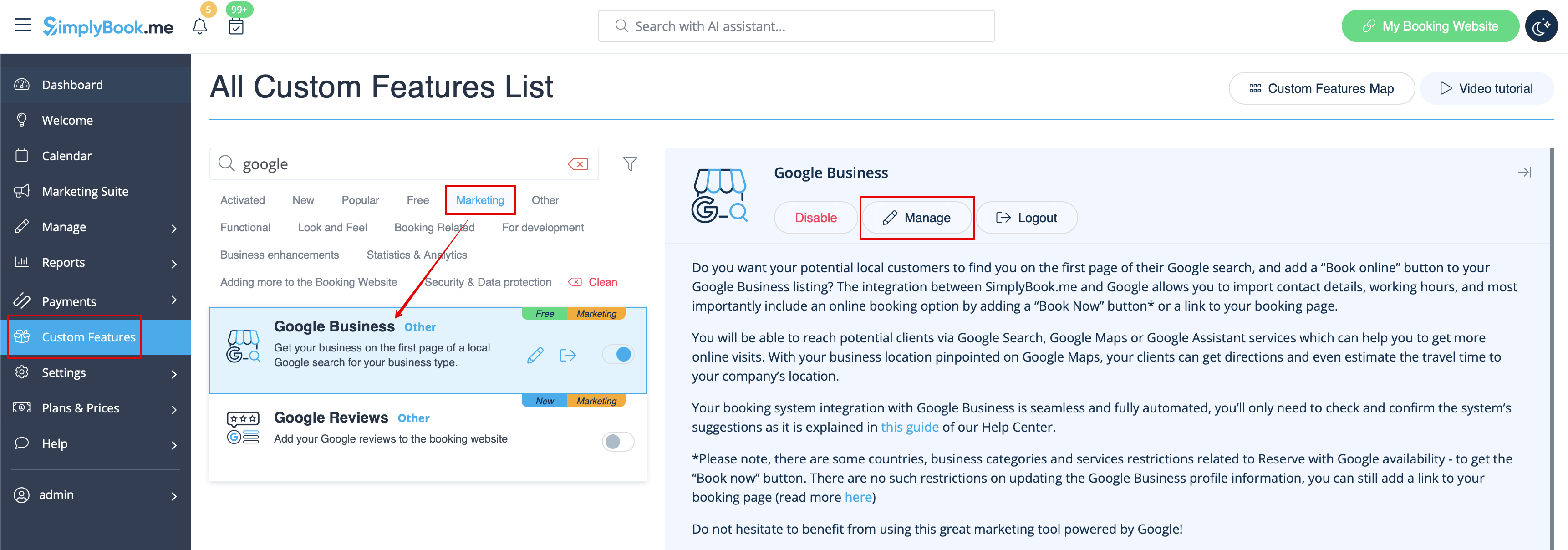

- 3. Give the necessary permissions so that it will be possible to see and edit your location(s) in SimplyBook.me.
- 4. If you already have some locations in Google Business you will be able to see them on the left side of the page.
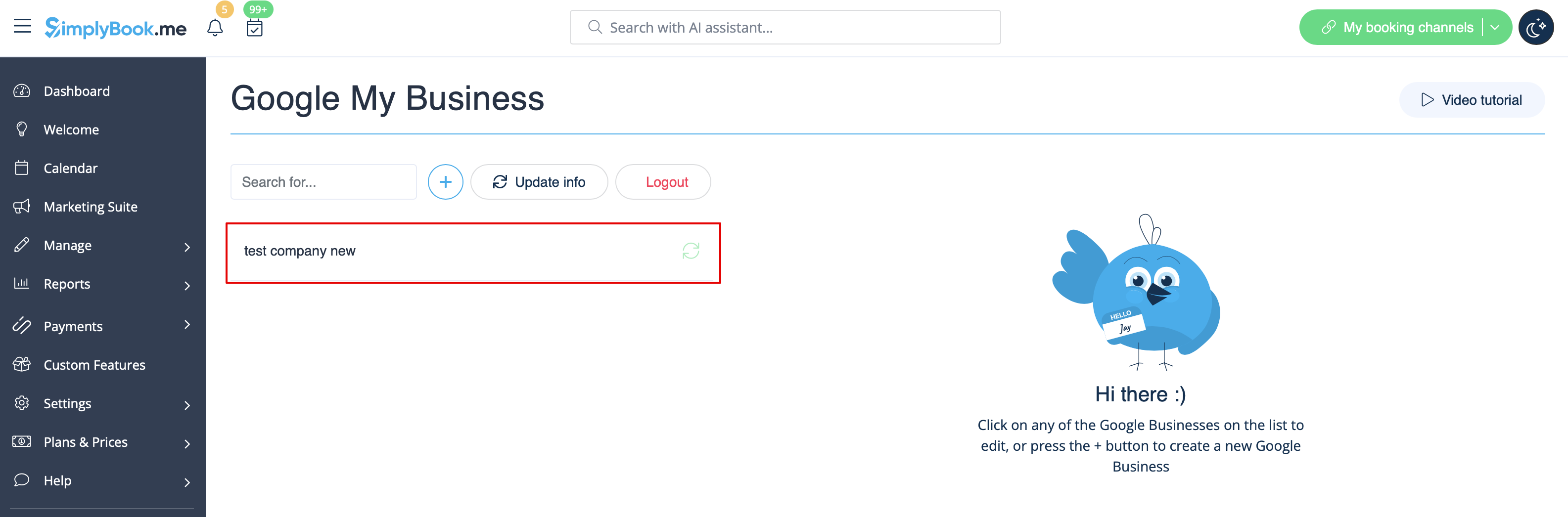
- 5. Just click on one of them if you need to make some edits and enable the option Update address in the profile, make the necessary changes and re-save the location for the information to be updated on Google side
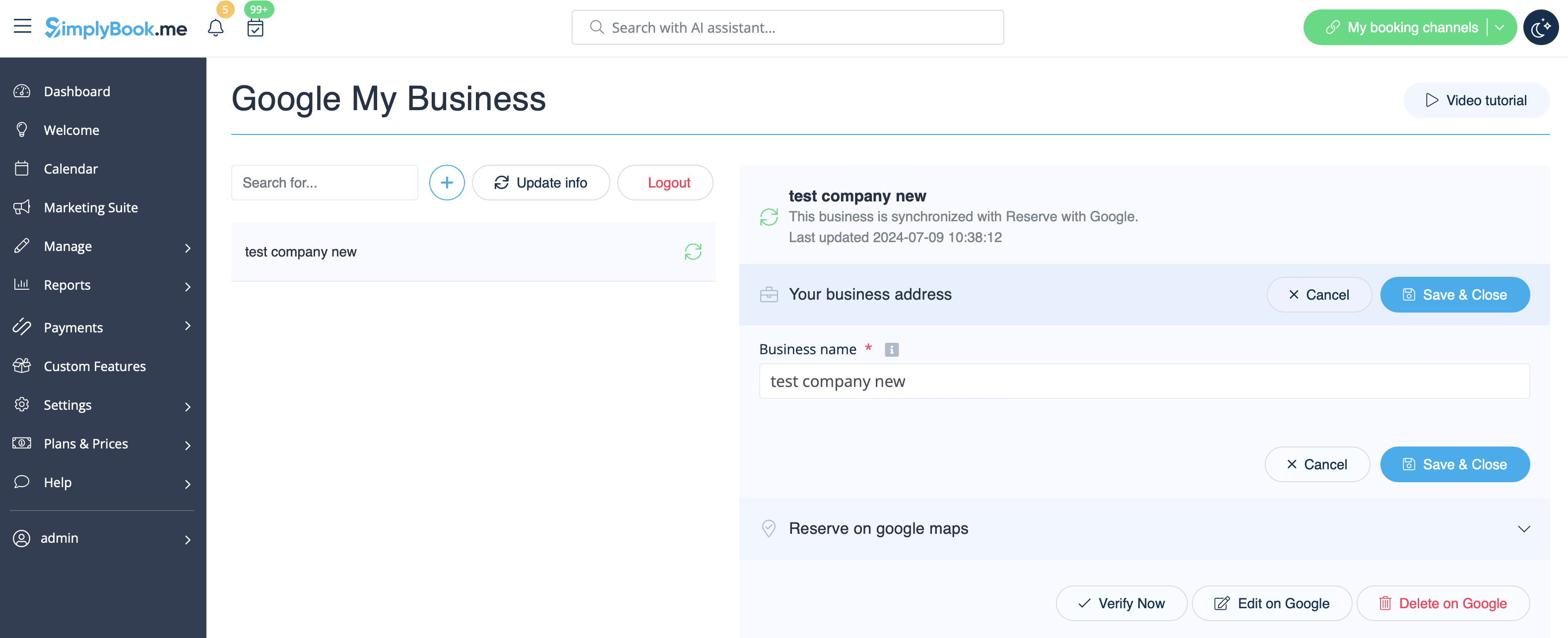
- or choose + option to add a new business address.
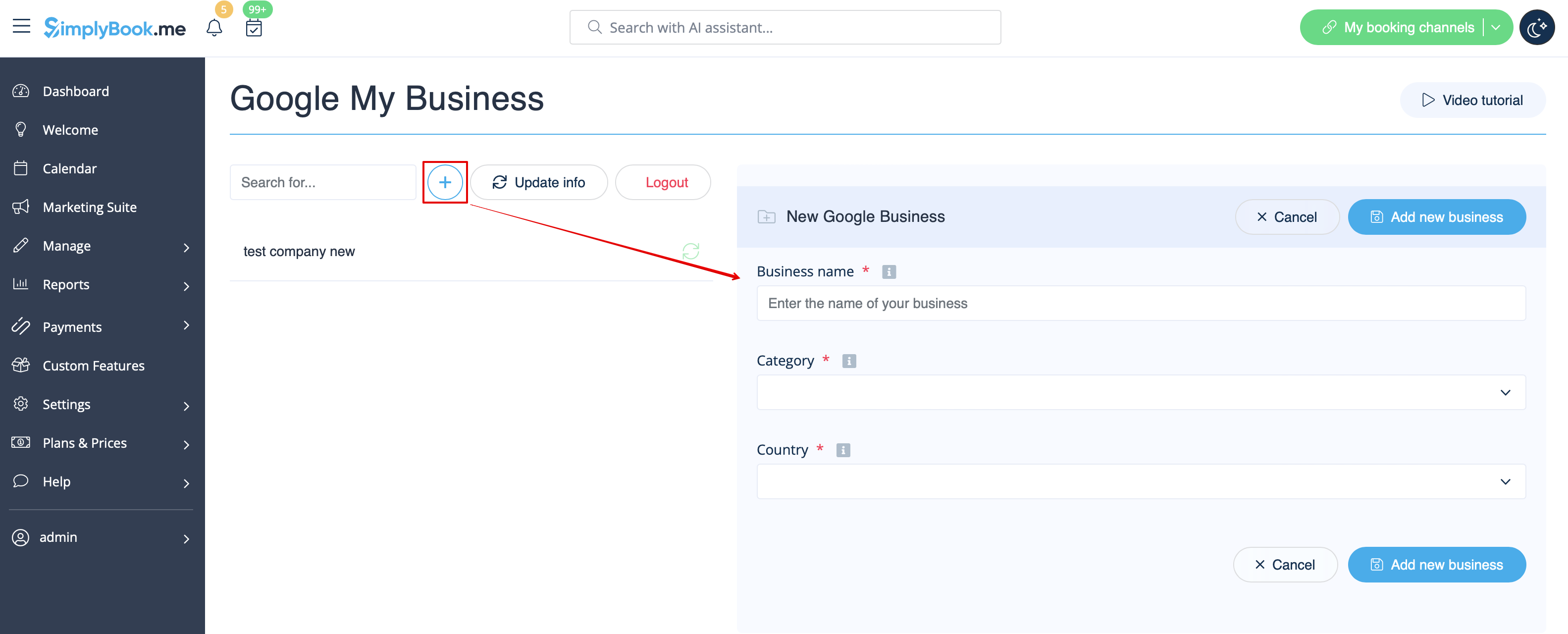
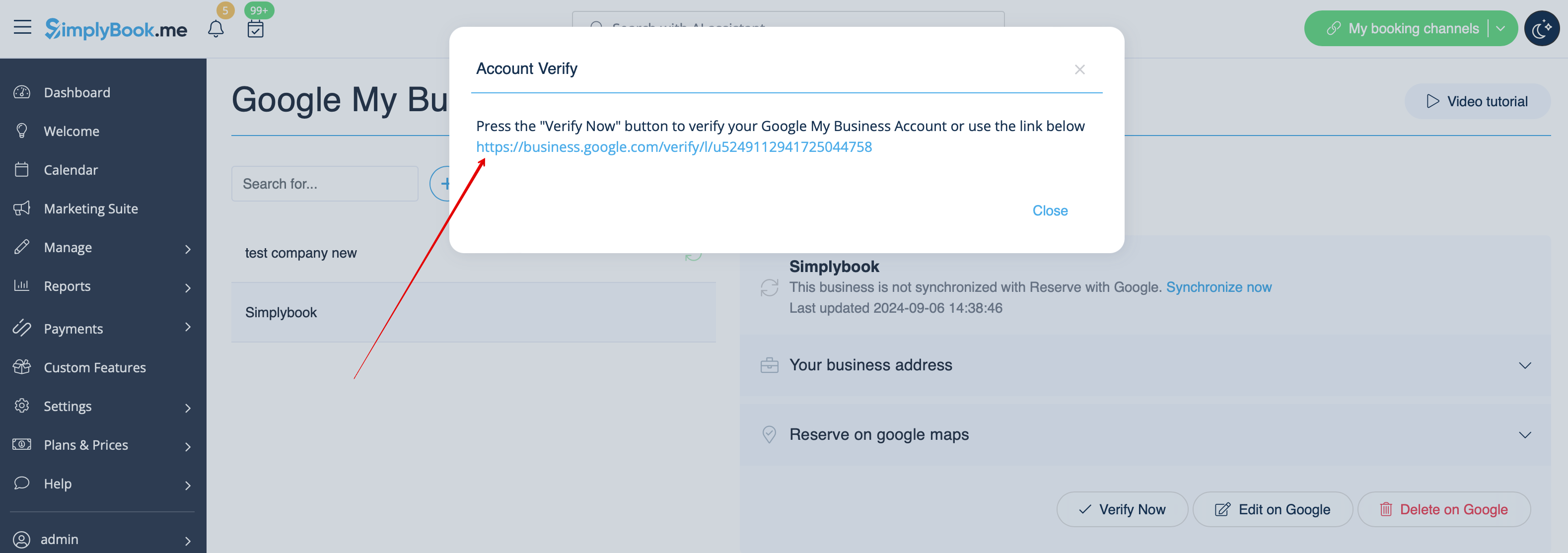
- 6. After you have added the address, click on Save and Close and you will have the possibility to proceed to the business location verification on Google side(it may take some time).
- You can also close the pop-up and get back to the verification step later(there will be Verify now button for each saved and synced business location).
- As soon as your location is verified by Google(you will see the verification process steps while following Google instuctions) your business will appear in search and on Google Maps.
- 7. When you save the location the following information is passed to Google about your company:
- business location title;
- company working hours;
- company phone number;
- booking site link;
- business category(as Google categories differ the best matching one will be found).

- Please note, if you have changed some of these details in your SimplyBook.me account you will need to re-save the business location in Google Business feature settings for the details to be updated on Google side.
- 8. You can also edit your business location details on Google side if necessary. Simply click on Edit on GMB button at the top(appears for saved and synced locations).
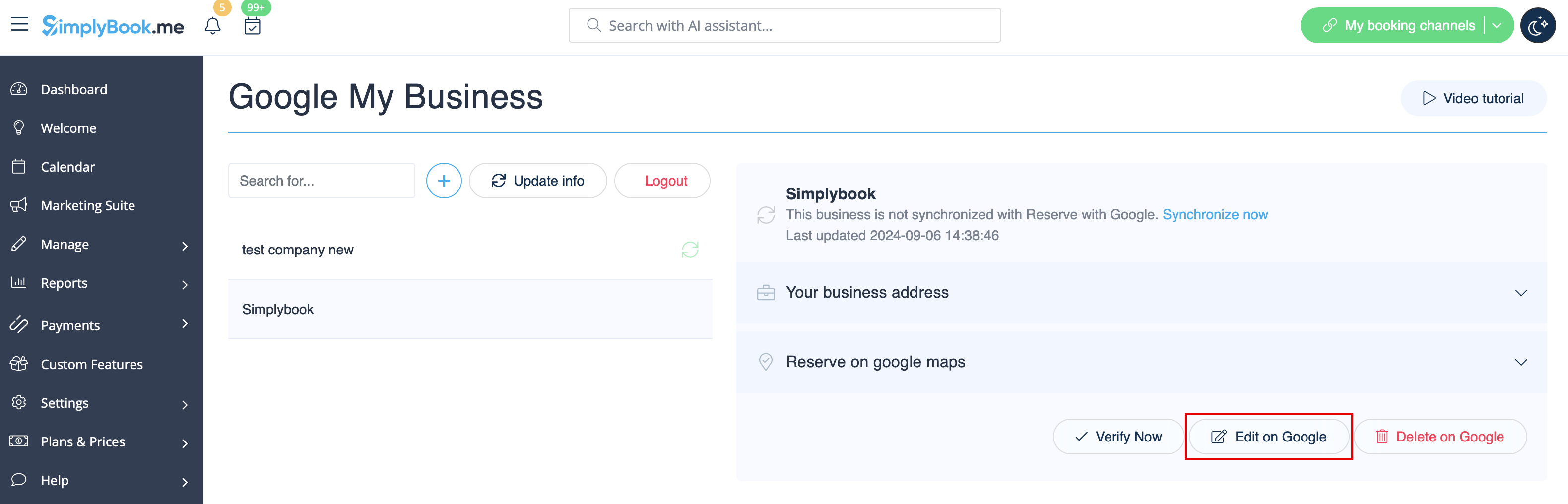
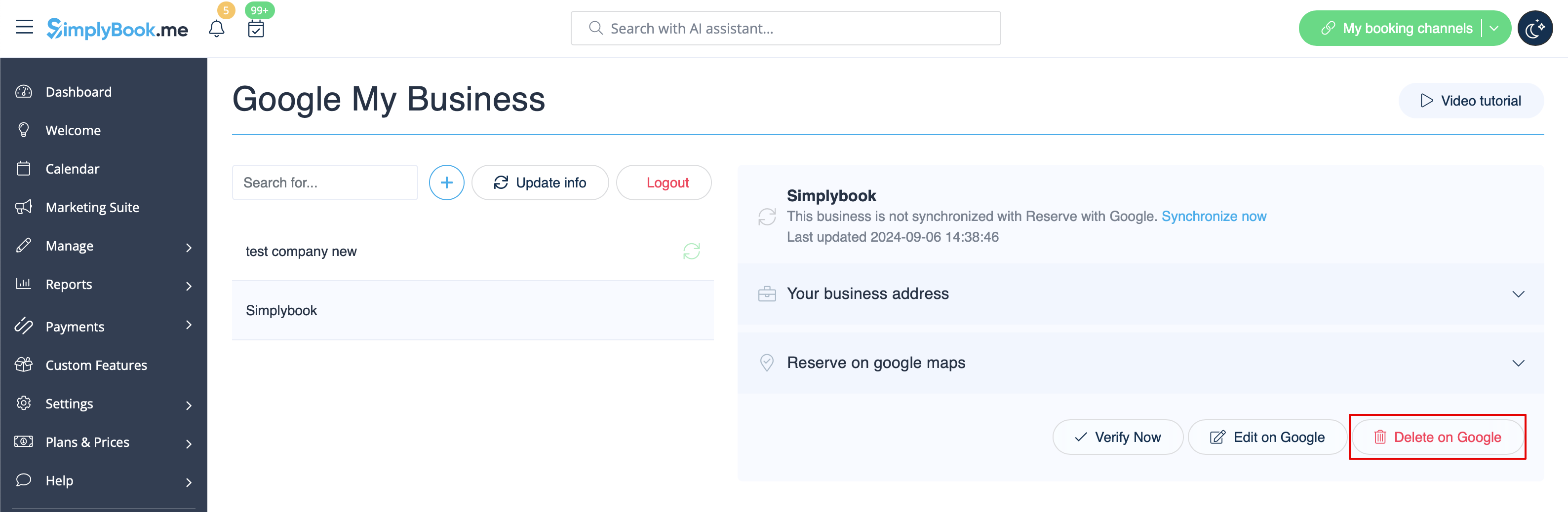
- 9. If some location(s) become not relevant for your business anymore you can easily delete them in this feature settings. Just click on Delete on GMB option.
Reserve with Google
Add a Book online option to your Google Business listing. Allow your clients to find you easily on Google and book your services right there via Google Search, Google Maps or Google Assistant, powered by the SimplyBook.me booking system.
- Please note!:
- Reserve with Google is currently available only for supported countries listed here;
- Currently it is not possible to use this option for the following business categories: medical center, educational institution, government office, engineer, medical clinic, dentist, medical office, education center, event management company, city administration, embassy, general practice attorney, child care agency, university, college, school, library, financial institution.
- It is required to have Accept Payments custom feature enabled (Pay later (Allow delay payment) option should always be On) and prices should be added for all the services/classes you wish to be displayed and bookable through Google Maps;
- All the services/classes should have descriptions to be displayed on the Google side;
- If you are using Intake forms feature there should be no mandatory forms added to the services you wish to be available for booking;
- If a service is recurring or connected to Membership it will not be displayed in Reserve with Google;
- If you are using outdated Google Calendar Sync custom feature it will not be possible to use Reserve with Google.
- It is required to publish the company address on the booking website to sync with Google and this option to work.
- The button will not appear if you are using the Blank page theme with a redirection to your own website
- How to use
- 1. Add and verify your Google Business location(s) either via SimplyBook.me platform(previous part of this tutorial) or using your Google Business interface and re-save it(them) in Google Business custom feature settings.
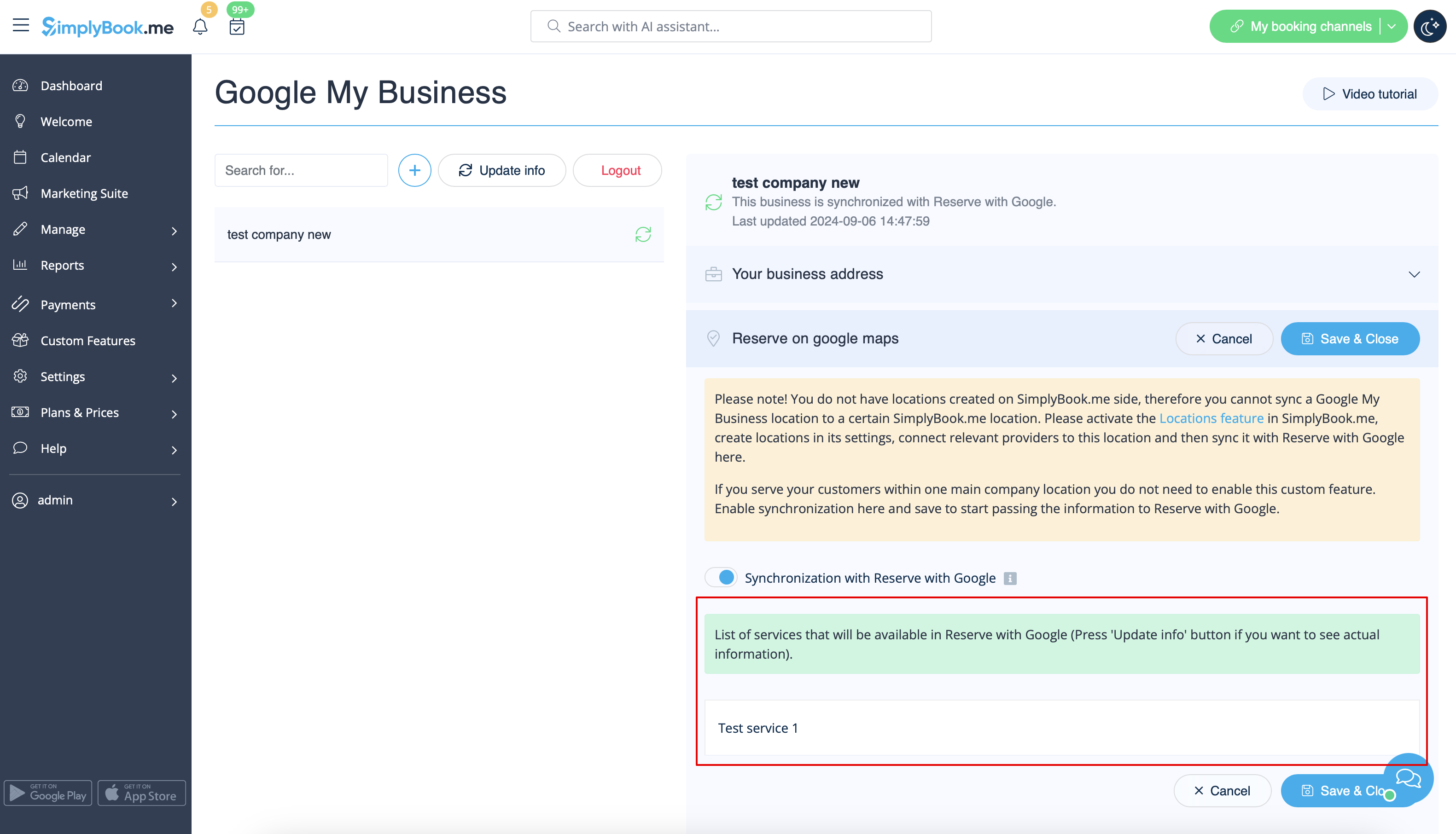
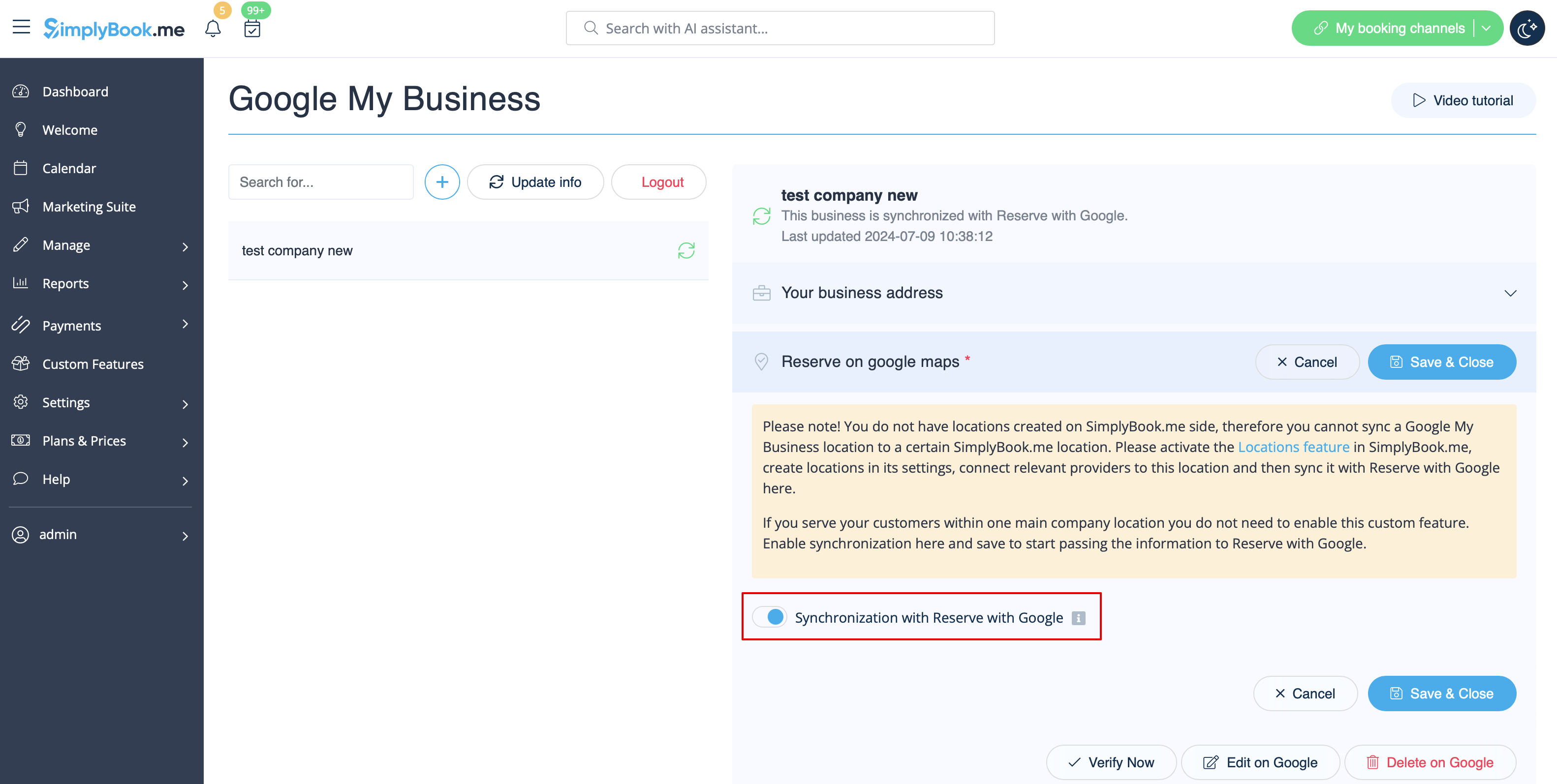
- 2. Navigate to Reserve on google maps tab and move the switcher Synchronization with Reserve with Google to an active position.
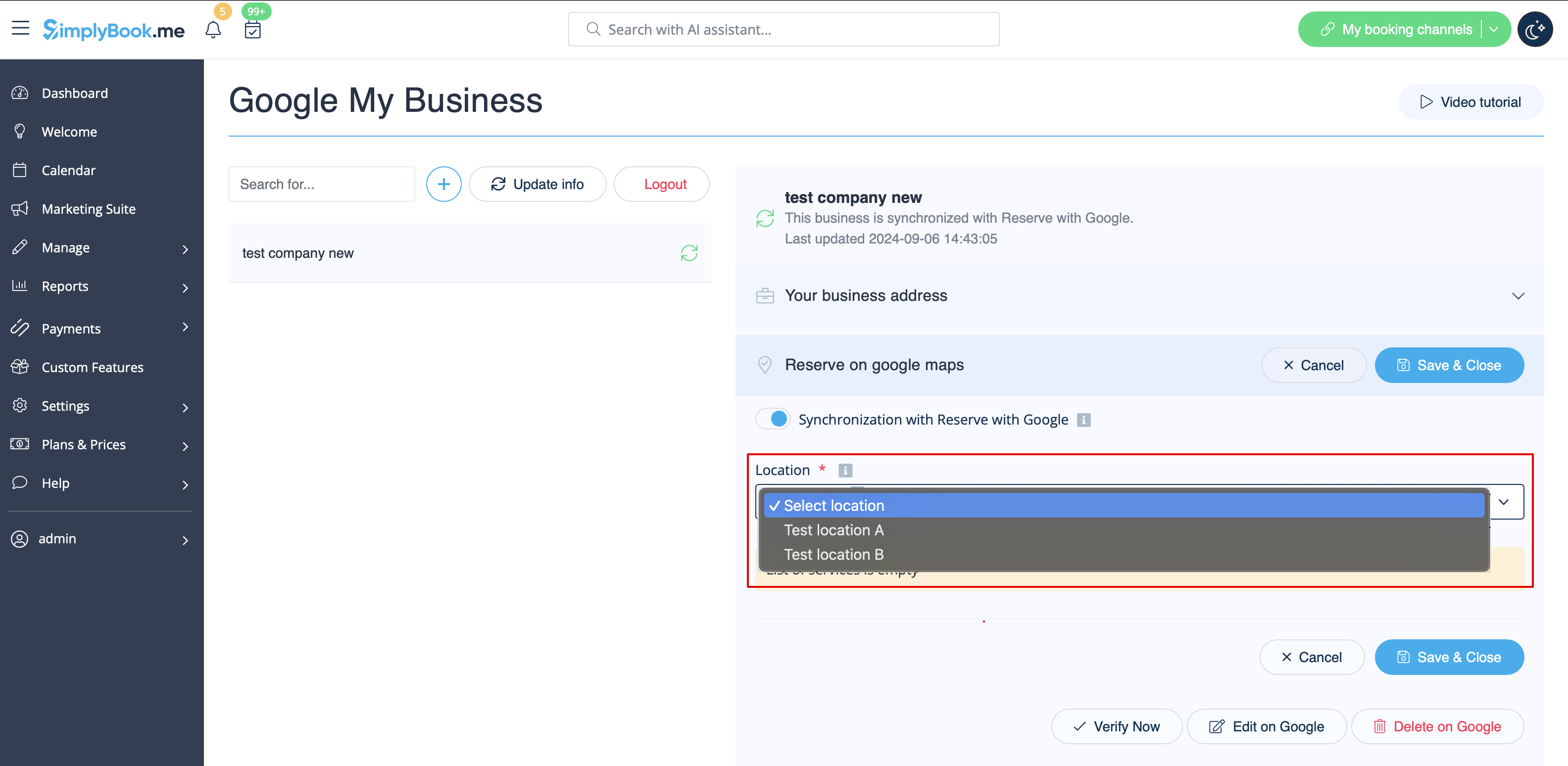
- 3. (optional) If you use Multiple Locations custom feature, connect your Google Businesses to desired SimplyBook.me locations.
- Please note! It is possible to connect one SimplyBook.me location to one Google Business.
- If you do not use Multiple Locations your main company location can be connected to one Google Business.
- 4. Save settings. Now the sync takes place and after you reload the page it will be possible to see the list of services that will be passed to Reserve with Google for booking.
- By default we gather all the information and pass the update to Google once a day, but you can use Update info button to prepare the information for transfer manually if any settings changes in your account(for example, if you have created new service) were made.