Marked this version for translation |
Marked this version for translation |
||
| (One intermediate revision by the same user not shown) | |||
| Line 14: | Line 14: | ||
<!--T:3--> | <!--T:3--> | ||
So you get an account right from [https://simplybook.me/ SimplyBook.me] or [https://simplymeet.me/ SimplyMeet.me] systems when you go to enable online payments for your services/meetings.<br> | So you get an account right from [https://simplybook.me/ SimplyBook.me] or [https://simplymeet.me/ SimplyMeet.me] systems when you go to enable online payments for your services/meetings.<br> | ||
<br><br> | <br><br></translate> | ||
<translate> | |||
<!--T:5--> | |||
==SimplyBook.me== | ==SimplyBook.me== | ||
When you create an account in SimplyBook.me and indicate service price during the registration, an SBPay.me account is automatically created for you and you will be able to access it from the left-side navigation menu. | When you create an account in SimplyBook.me and indicate service price during the registration, an SBPay.me account is automatically created for you and you will be able to access it from the left-side navigation menu. | ||
| Line 24: | Line 26: | ||
[[File:Accept payments settings path redesigned.png|1200px|center|link=https://help.simplybook.me/images/3/37/Accept_payments_settings_path_redesigned.png]] | [[File:Accept payments settings path redesigned.png|1200px|center|link=https://help.simplybook.me/images/3/37/Accept_payments_settings_path_redesigned.png]] | ||
[[File:Sbpay registration form redesigned.png|1200px|center|link=https://help.simplybook.me/images/d/dd/Sbpay_registration_form_redesigned.png]] | [[File:Sbpay registration form redesigned.png|1200px|center|link=https://help.simplybook.me/images/d/dd/Sbpay_registration_form_redesigned.png]] | ||
<br><br> | <br><br></translate> | ||
<translate> | |||
<!--T:6--> | |||
==SimplyMeet.me== | ==SimplyMeet.me== | ||
If you are a SimplyMeet.me user, you can simply go to your [https://secure.simplymeet.me/integrations Integrations] page and enable SBPay.me option there on user and/or organisation(for paid subscriptions) level.<br> | If you are a SimplyMeet.me user, you can simply go to your [https://secure.simplymeet.me/integrations Integrations] page and enable SBPay.me option there on user and/or organisation(for paid subscriptions) level.<br> | ||
Latest revision as of 08:03, 1 July 2025
Currently SBPay.me does not have a separate registration page.
So you get an account right from SimplyBook.me or SimplyMeet.me systems when you go to enable online payments for your services/meetings.
SimplyBook.me
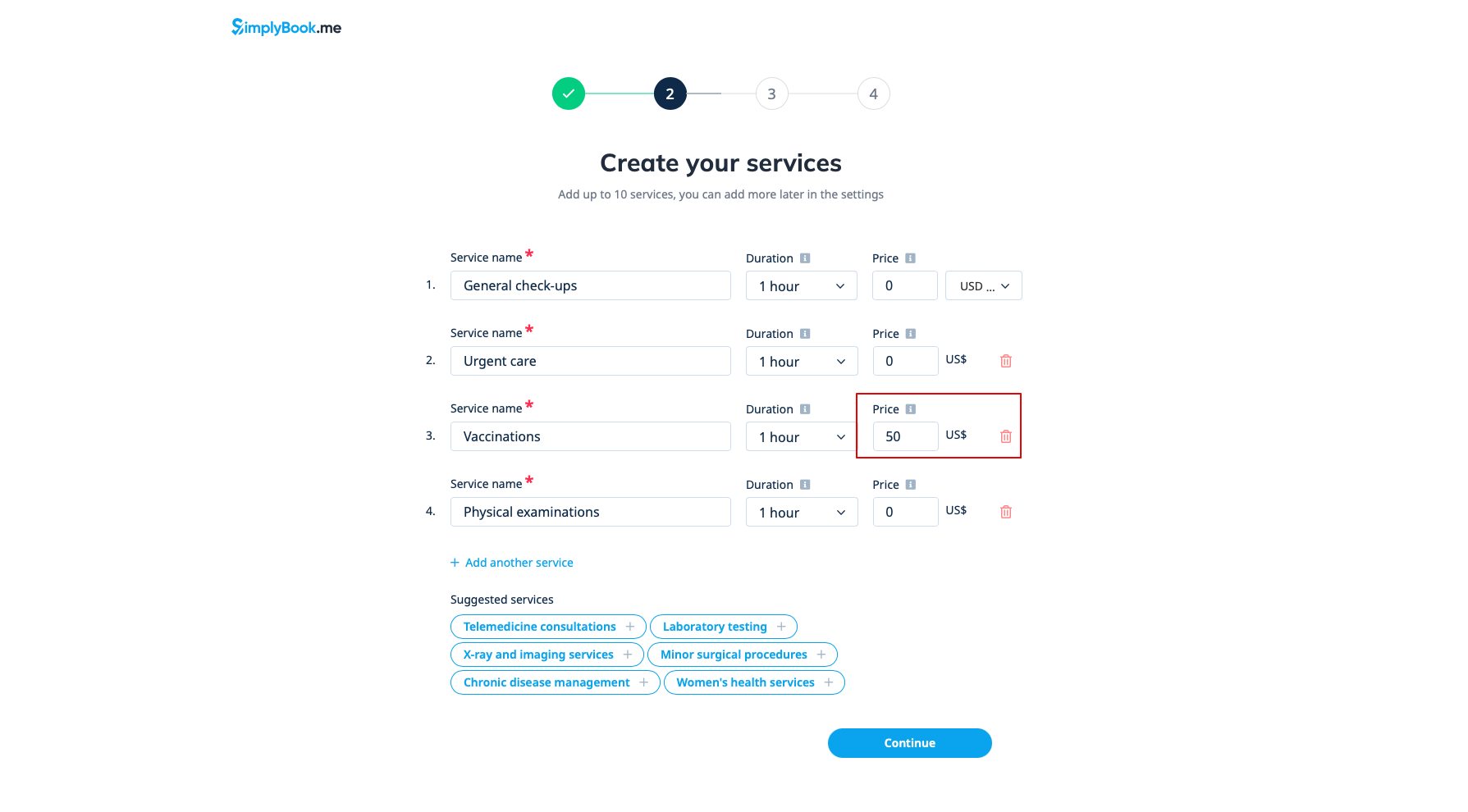
When you create an account in SimplyBook.me and indicate service price during the registration, an SBPay.me account is automatically created for you and you will be able to access it from the left-side navigation menu.
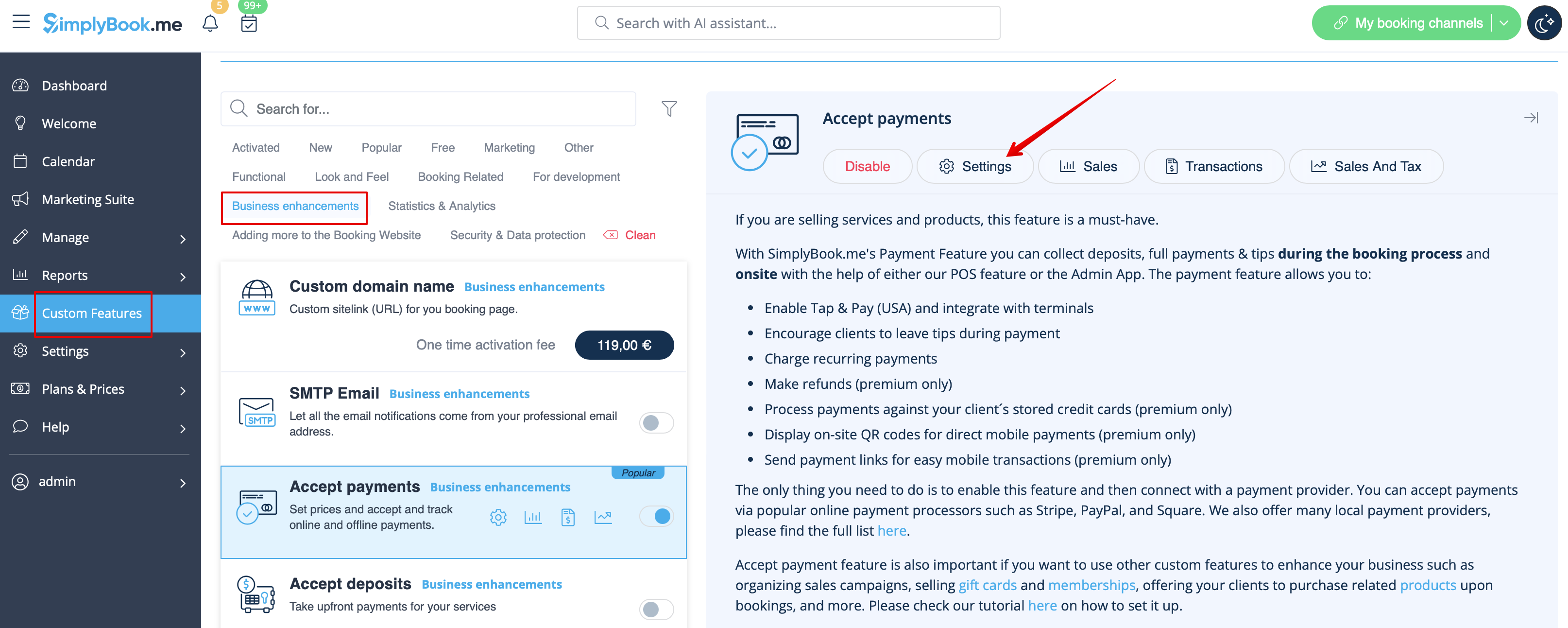
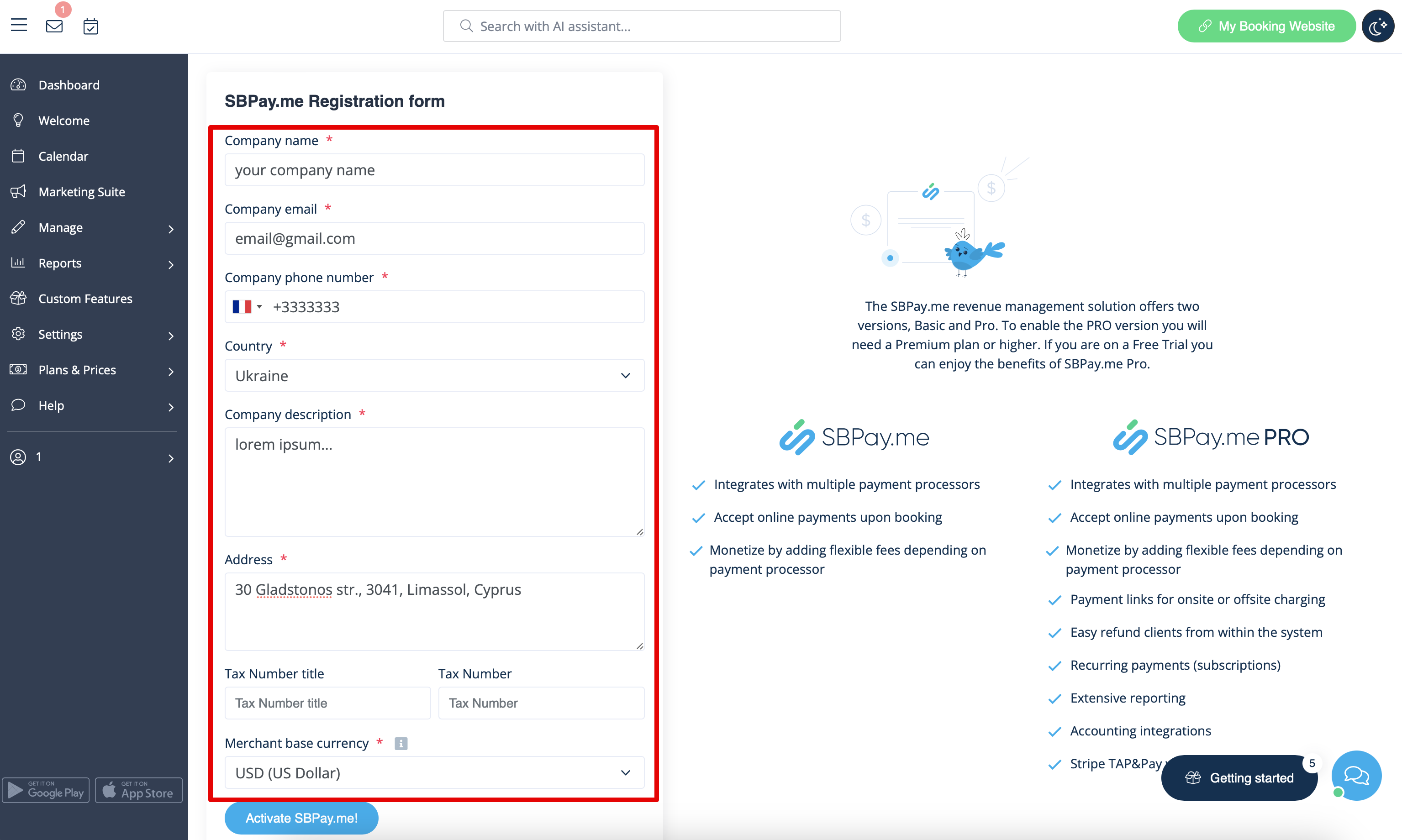
If you want to enable online payments for the already existing SimplyBook.me account, after enabling Accept payments custom feature you will have to fill in the form about your company and select the base currency.
After it is submitted, just in a few seconds the account will be created for you.
SimplyMeet.me
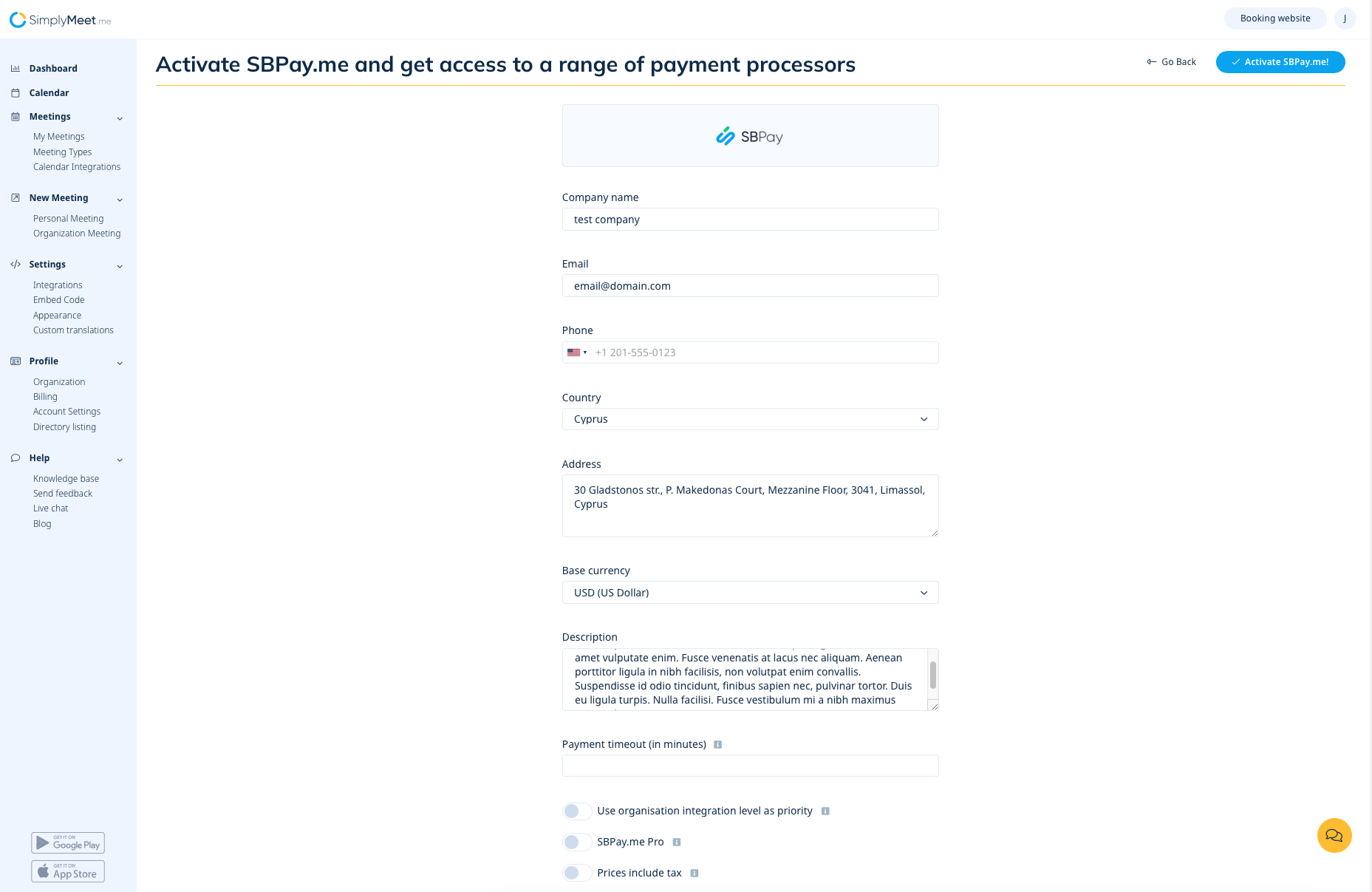
If you are a SimplyMeet.me user, you can simply go to your Integrations page and enable SBPay.me option there on user and/or organisation(for paid subscriptions) level.
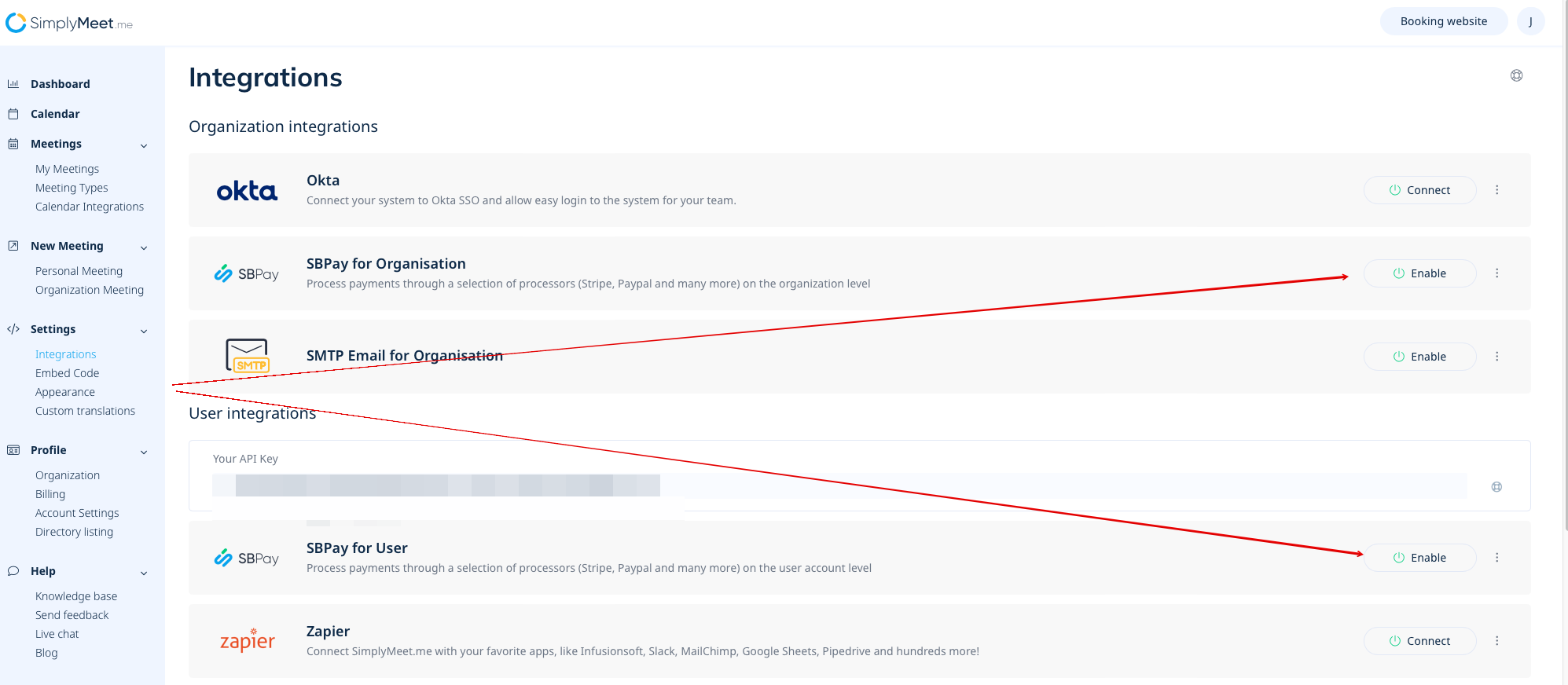
Fill in the form about the company and just in a few steps SBPay.me account is ready.