Created page with "SBPay.me - Sådan opretter du en konto" |
Created page with "== SimplyMeet.me == Hvis du er bruger af SimplyMeet.me, kan du blot gå til din [https://secure.simplymeet.me/integrations integrationsside] og aktivere SBPay.me-indstillingen på bruger- og/eller organisationsniveau (for betalte abonnementer).<br> 1200px|center|link=https://help.simplybook.me/images/6/61/Sbpay_registration_path_sm.png Udfyld formularen om virksomheden, og på få trin er din SBPay.me-konto klar. File:Sbpay regis..." |
||
| (4 intermediate revisions by 2 users not shown) | |||
| Line 1: | Line 1: | ||
<languages/> | <languages/> | ||
{{#seo: |title=SBPay.me - Sådan opretter du en konto |titlemode=tilføj |keywords=faq, ofte stillede spørgsmål, reservationssoftware, spørgsmål om aftalesystem, onlineaftaler, kalendersoftware, reservationssystem, reservationskalender, planlægningssoftware, online aftaleplanlægning, online planlægning, opsætning, hjælp til opsætning, support, hjælpeindhold, sbpay, sbpay.me, registrering i sbpay.me, sbpay-integration }} | |||
{{#seo: | [https://sbpay.me SBPay.me] har i øjeblikket ikke en separat registreringsside.<br> | ||
|title=SBPay.me - | |||
|titlemode= | |||
|keywords=faq, | |||
}} | |||
Du får altså en konto direkte fra [https://simplybook.me/ SimplyBook.me-] eller [https://simplymeet.me/ SimplyMeet.me-systemerne], når du aktiverer onlinebetalinger for dine tjenester/møder.<br> | |||
<br><br> | <br><br> | ||
==SimplyBook.me== | == SimplyBook.me == | ||
Når du opretter en konto i SimplyBook.me og angiver serviceprisen under registreringen, oprettes der automatisk en SBPay.me-konto til dig, som du kan få adgang til fra navigationsmenuen til venstre. | |||
[[File:Sb indicate price on sign up.png|1200px|center|link=https://help.simplybook.me/images/8/83/Sb_indicate_price_on_sign_up.png]] | [[File:Sb indicate price on sign up.png|1200px|center|link=https://help.simplybook.me/images/8/83/Sb_indicate_price_on_sign_up.png]] | ||
Hvis du vil aktivere onlinebetalinger for den allerede eksisterende SimplyBook.me-konto, skal du, efter at have aktiveret den tilpassede funktion [[Accept payments custom feature|Accepter betalinger]], udfylde formularen om din virksomhed og vælge basisvalutaen.<br> | |||
Når den er indsendt, oprettes kontoen til dig på få sekunder. | |||
[[File:Accept payments settings path redesigned.png|1200px|center|link=https://help.simplybook.me/images/3/37/Accept_payments_settings_path_redesigned.png]] | [[File:Accept payments settings path redesigned.png|1200px|center|link=https://help.simplybook.me/images/3/37/Accept_payments_settings_path_redesigned.png]] | ||
[[File:Sbpay registration form redesigned.png|1200px|center|link=https://help.simplybook.me/images/d/dd/Sbpay_registration_form_redesigned.png]] | [[File:Sbpay registration form redesigned.png|1200px|center|link=https://help.simplybook.me/images/d/dd/Sbpay_registration_form_redesigned.png]] | ||
<br><br> | <br><br> | ||
==SimplyMeet.me== | == SimplyMeet.me == | ||
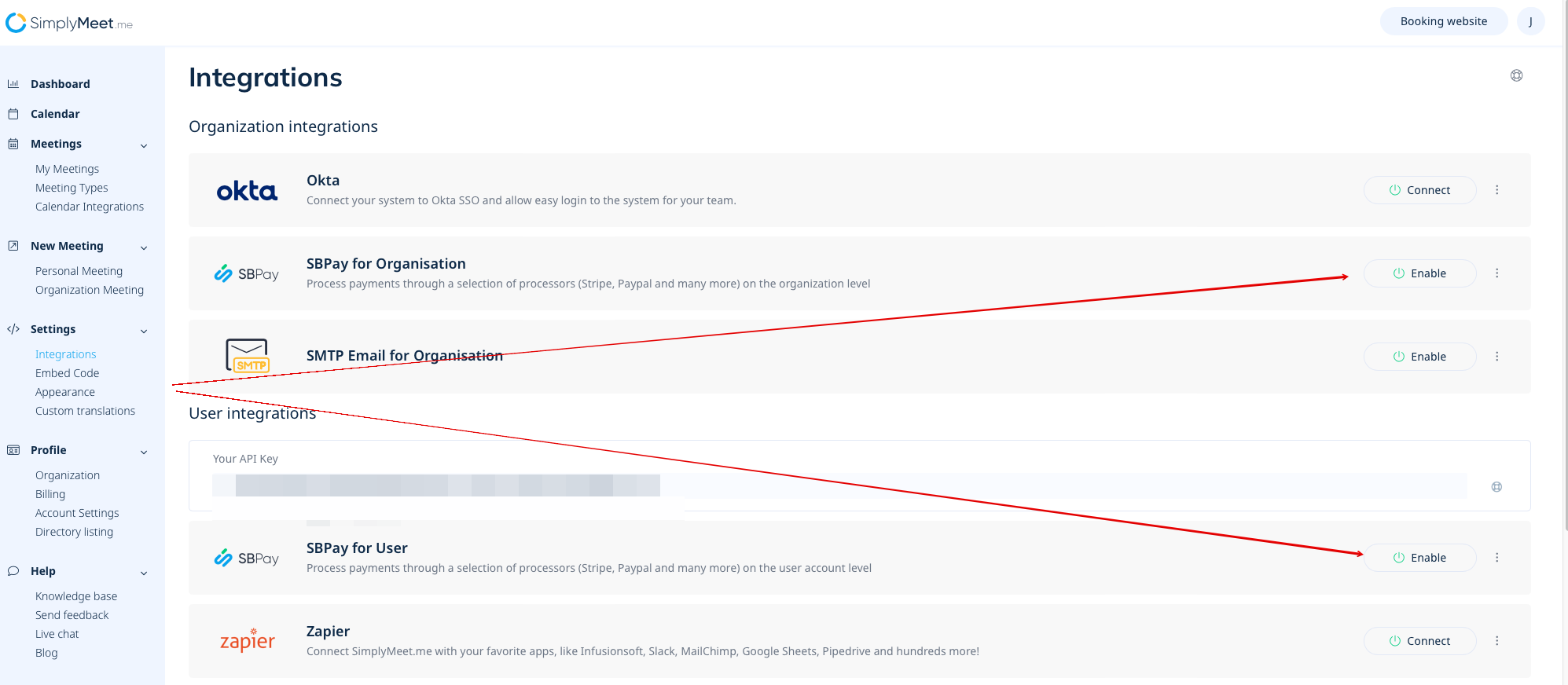
Hvis du er bruger af SimplyMeet.me, kan du blot gå til din [https://secure.simplymeet.me/integrations integrationsside] og aktivere SBPay.me-indstillingen på bruger- og/eller organisationsniveau (for betalte abonnementer).<br> | |||
[[File:Sbpay registration path sm.png|1200px|center|link=https://help.simplybook.me/images/6/61/Sbpay_registration_path_sm.png]] | [[File:Sbpay registration path sm.png|1200px|center|link=https://help.simplybook.me/images/6/61/Sbpay_registration_path_sm.png]] | ||
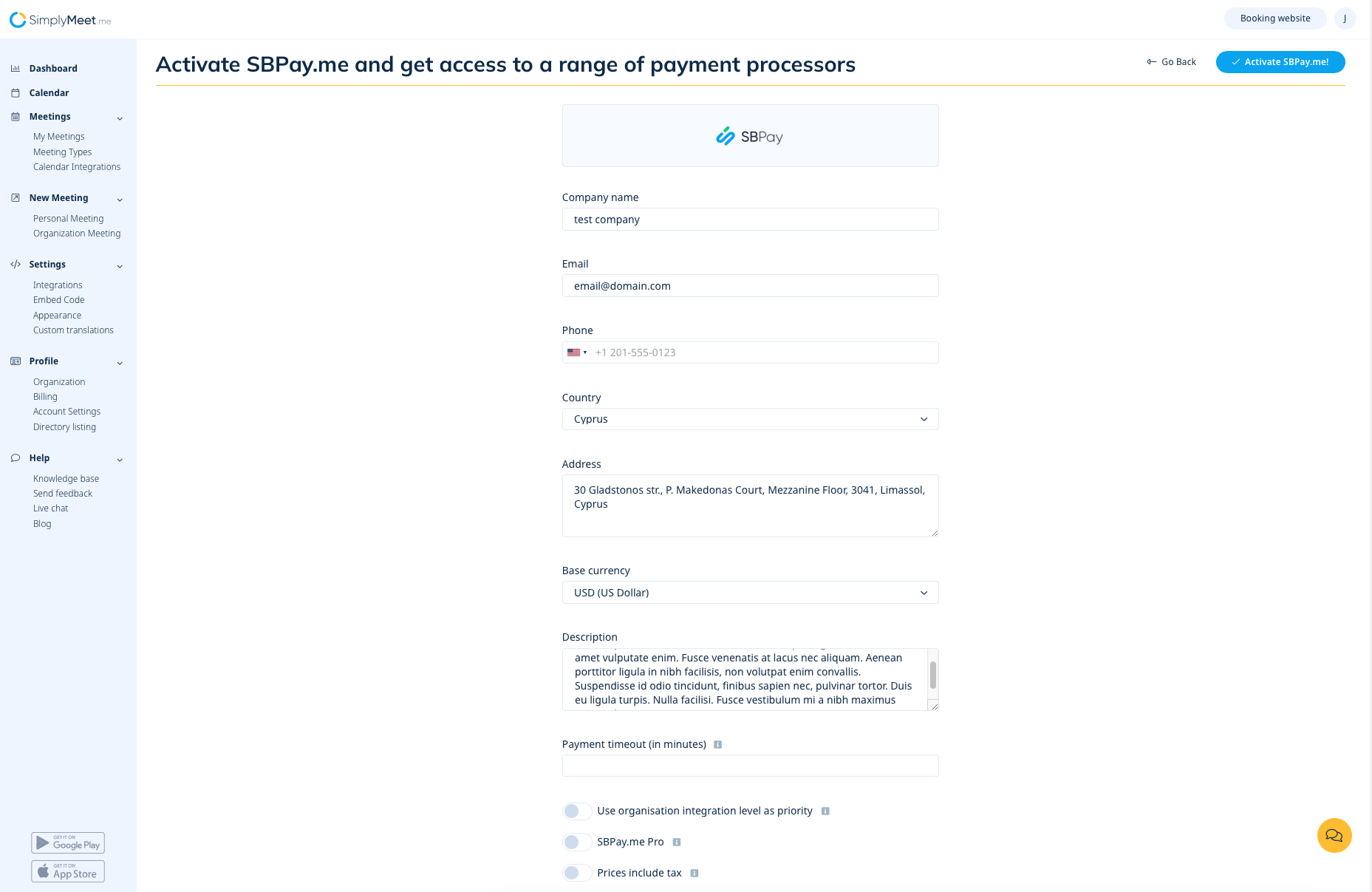
Udfyld formularen om virksomheden, og på få trin er din SBPay.me-konto klar. | |||
[[File:Sbpay registration form sm.png|1200px|center|link=https://help.simplybook.me/images/a/a7/Sbpay_registration_form_sm.png]] | [[File:Sbpay registration form sm.png|1200px|center|link=https://help.simplybook.me/images/a/a7/Sbpay_registration_form_sm.png]] | ||
<br><br> | <br><br> | ||
Latest revision as of 08:05, 1 July 2025
SBPay.me har i øjeblikket ikke en separat registreringsside.
Du får altså en konto direkte fra SimplyBook.me- eller SimplyMeet.me-systemerne, når du aktiverer onlinebetalinger for dine tjenester/møder.
SimplyBook.me
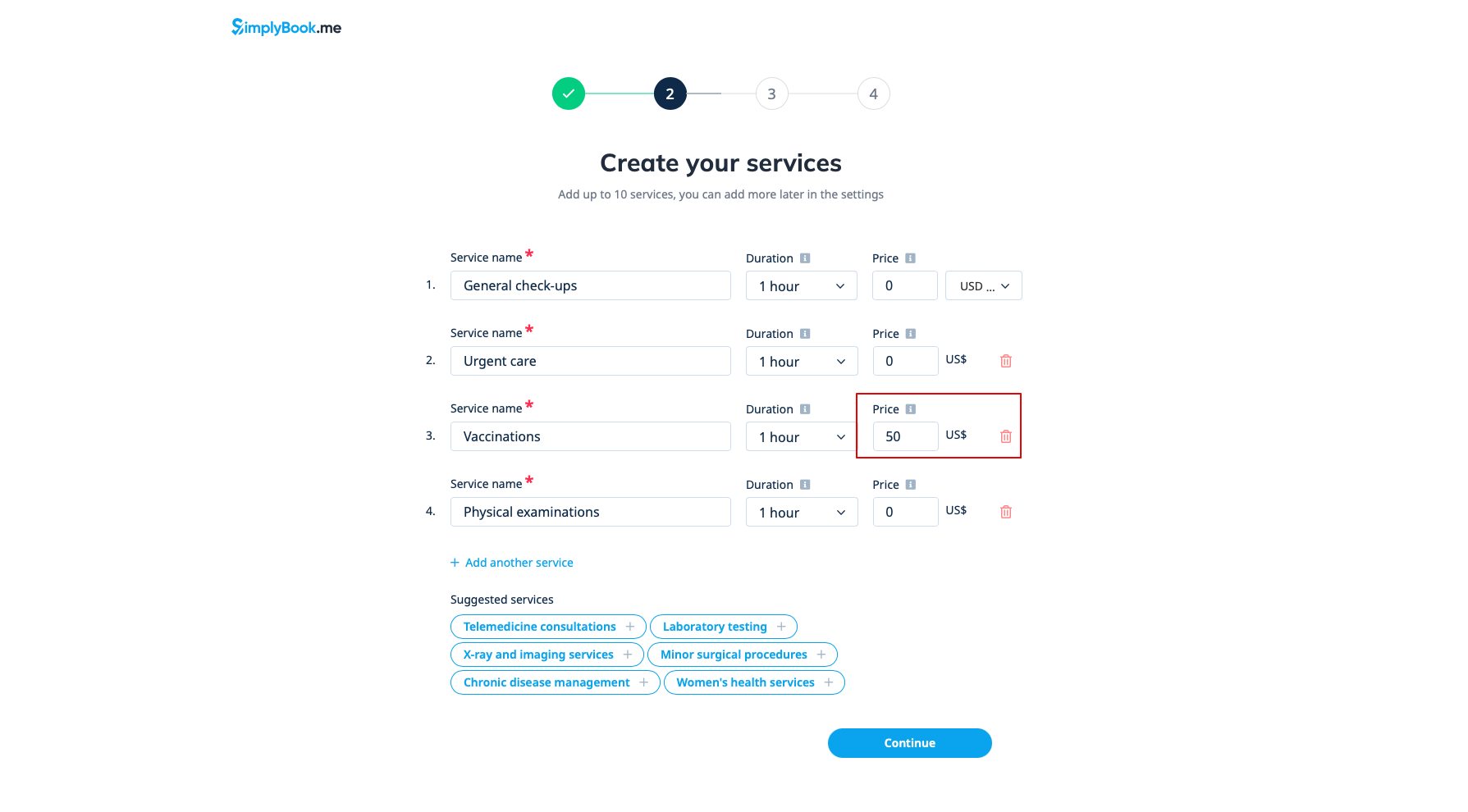
Når du opretter en konto i SimplyBook.me og angiver serviceprisen under registreringen, oprettes der automatisk en SBPay.me-konto til dig, som du kan få adgang til fra navigationsmenuen til venstre.
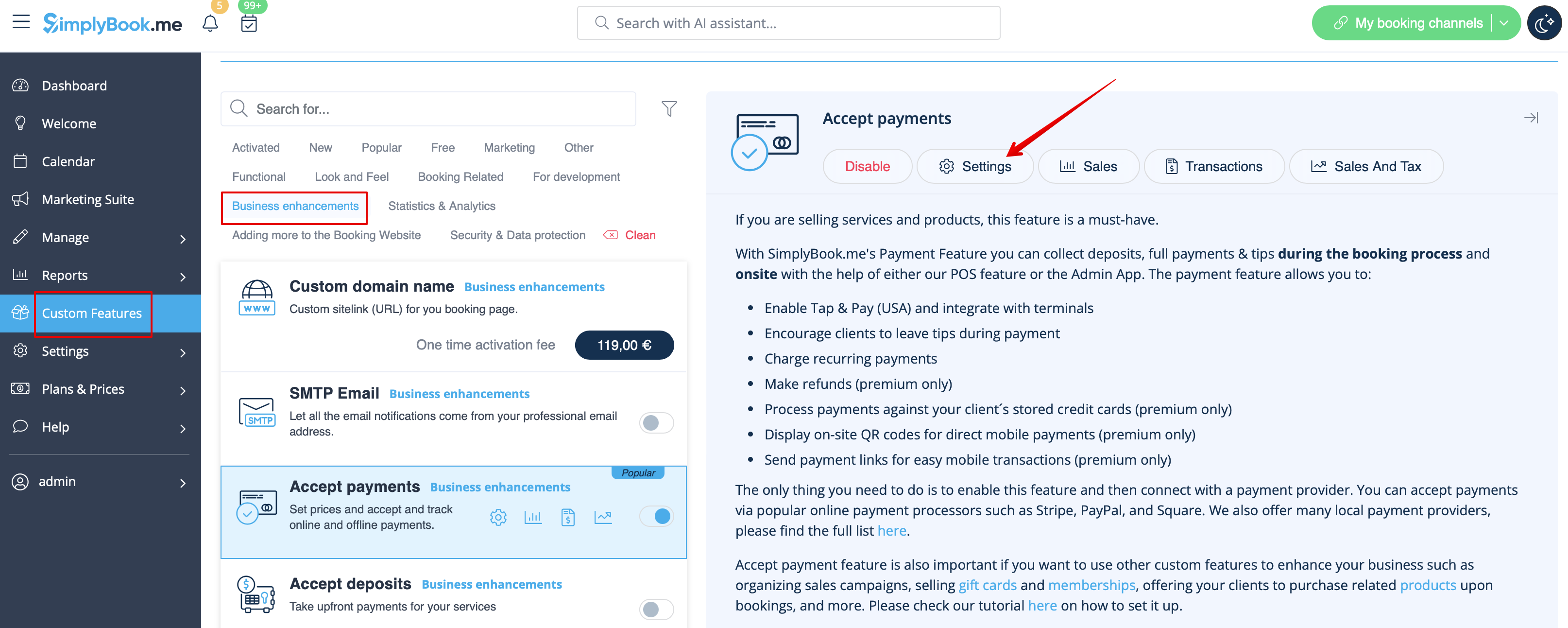
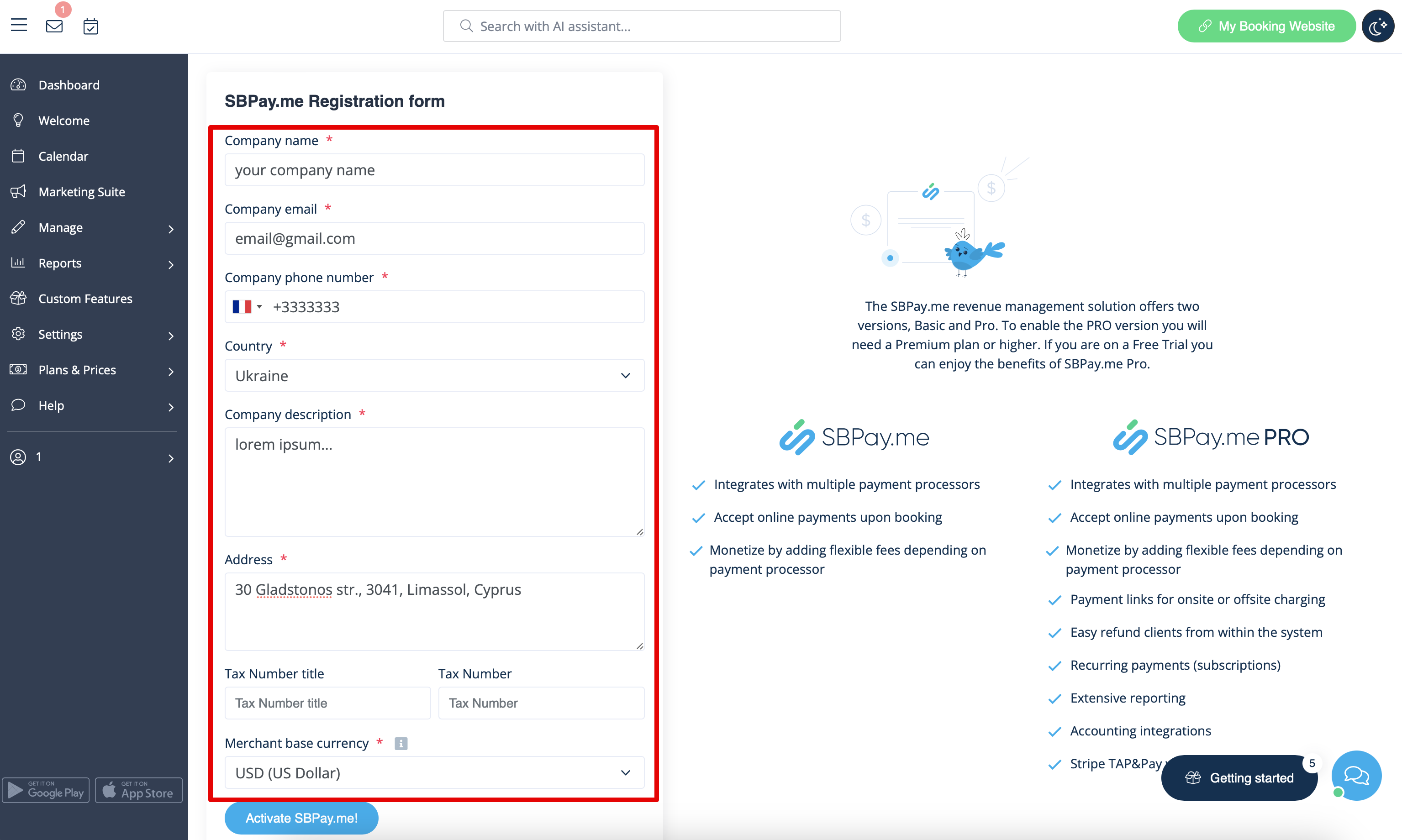
Hvis du vil aktivere onlinebetalinger for den allerede eksisterende SimplyBook.me-konto, skal du, efter at have aktiveret den tilpassede funktion Accepter betalinger, udfylde formularen om din virksomhed og vælge basisvalutaen.
Når den er indsendt, oprettes kontoen til dig på få sekunder.
SimplyMeet.me
Hvis du er bruger af SimplyMeet.me, kan du blot gå til din integrationsside og aktivere SBPay.me-indstillingen på bruger- og/eller organisationsniveau (for betalte abonnementer).
Udfyld formularen om virksomheden, og på få trin er din SBPay.me-konto klar.