No edit summary |
|||
| (3 intermediate revisions by 2 users not shown) | |||
| Line 1: | Line 1: | ||
<languages/> | <languages/> | ||
{{#seo: |title=Zugriff auf das System für andere Personen gewähren – SimplyBook.me |description= | {{#seo: |title=Zugriff auf das System für andere Personen gewähren – SimplyBook.me |description=|titlemode=anhängen |keywords=fAQ, häufig gestellte Fragen, Buchungssoftware, Fragen zum Terminsystem, Online-Termine, Kalender-Software, Buchungssystem, Buchungskalender, Terminplanungs-Software, Online-Terminplanung, Online-Terminplanung, Plugins, benutzerdefinierte Funktionen, benutzerdefinierter Link zur Buchungsseite, Domainname, benutzerdefinierter Domainname, benutzerdefinierte URL }} | ||
<br><br> | <br><br> | ||
| Line 8: | Line 8: | ||
[[File:Relate user with provider redesined.png|1200px | center|link=https://help.simplybook.me/images/4/4b/Relate_user_with_provider_redesined.png]] | [[File:Relate user with provider redesined.png|1200px | center|link=https://help.simplybook.me/images/4/4b/Relate_user_with_provider_redesined.png]] | ||
<br><br> | <br><br> | ||
Wenn Sie neue Benutzerdaten hinzufügen, aktivieren Sie einfach die Option <span style="background-color:#d4f8e5; padding:5px; border-radius:5px;">„Anmeldedaten an Benutzer senden“</span> und speichern Sie den Benutzerdatensatz.<br> | |||
Das System sendet automatisch eine E-Mail mit den Anmeldedaten gemäß der Vorlage, die Sie unter <span style="background-color:#d4f8e5; padding:5px; border-radius:5px;">„Einstellungen“</span> -> <span style="background-color:#d4f8e5; padding:5px; border-radius:5px;">„E-Mail- und SMS-Einstellungen“</span> -> <span style="background-color:#d4f8e5; padding:5px; border-radius:5px;">„Benachrichtigung bei neuer Benutzeranmeldung“</span> festgelegt haben <span style="background-color:#d4f8e5; padding:5px; border-radius:5px;">.</span> | |||
[[File:New user notification redesigned.png|1200px|border|center|link=https://help.simplybook.me/images/e/e8/New_user_notification_redesigned.png]] | [[File:New user notification redesigned.png|1200px|border|center|link=https://help.simplybook.me/images/e/e8/New_user_notification_redesigned.png]] | ||
<br><br> | <br><br> | ||
Alternativ können Sie Ihren Benutzern nach dem Speichern des Benutzers manuell den Benutzernamen und das Passwort zusammen mit dem Link zu Ihrer Administrationsseite senden. | |||
<br><br> | <br><br> | ||
Latest revision as of 16:31, 12 February 2026
Sie können unter „Verwalten“ -> „Benutzer“ einen separaten Benutzer für die Person erstellen, die Zugriff auf Ihre Verwaltungsseite benötigt, und ihr die entsprechenden Rechte zuweisen.
Eine Liste der verfügbaren Benutzerrollen finden Sie hier.
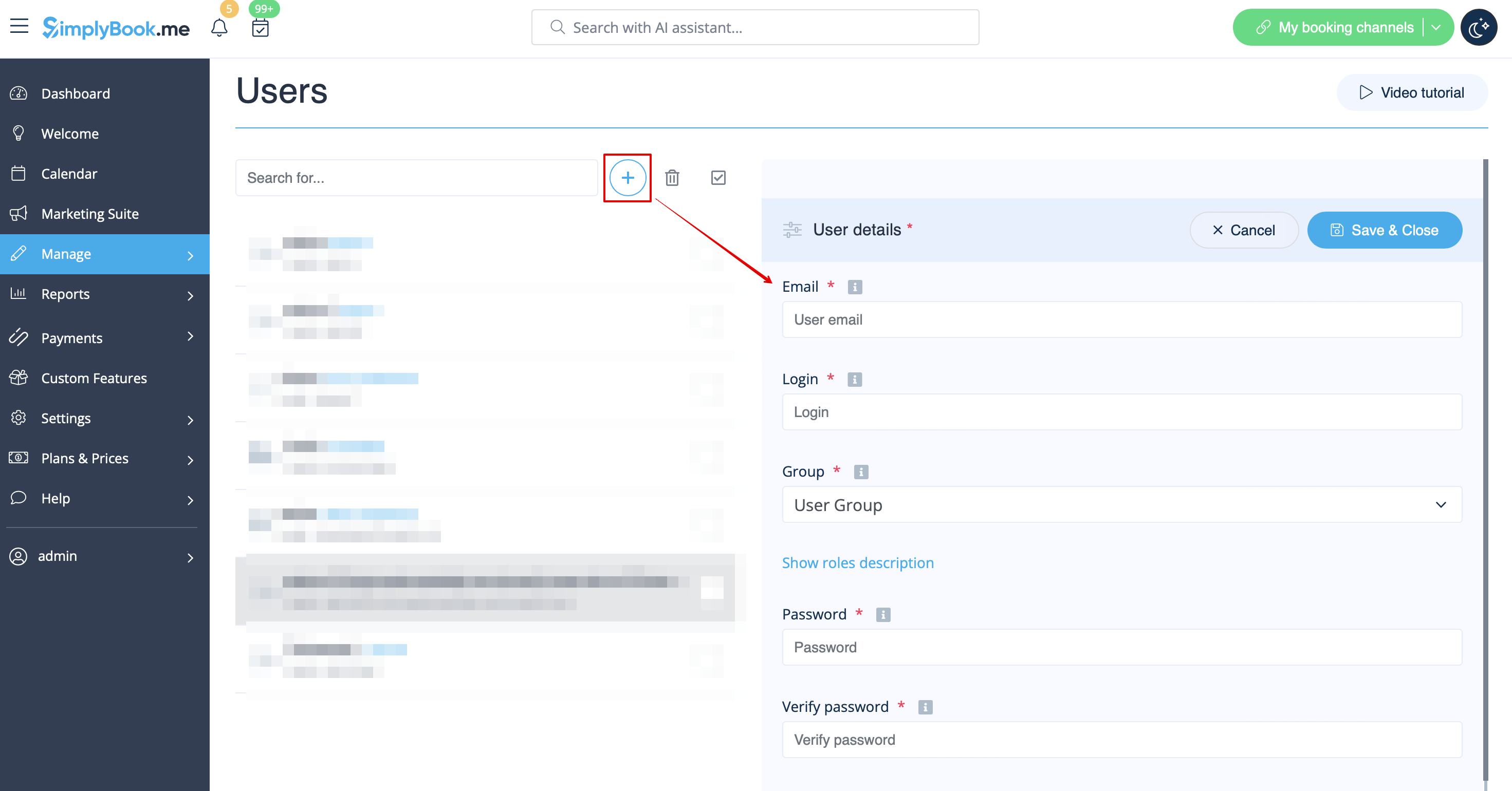
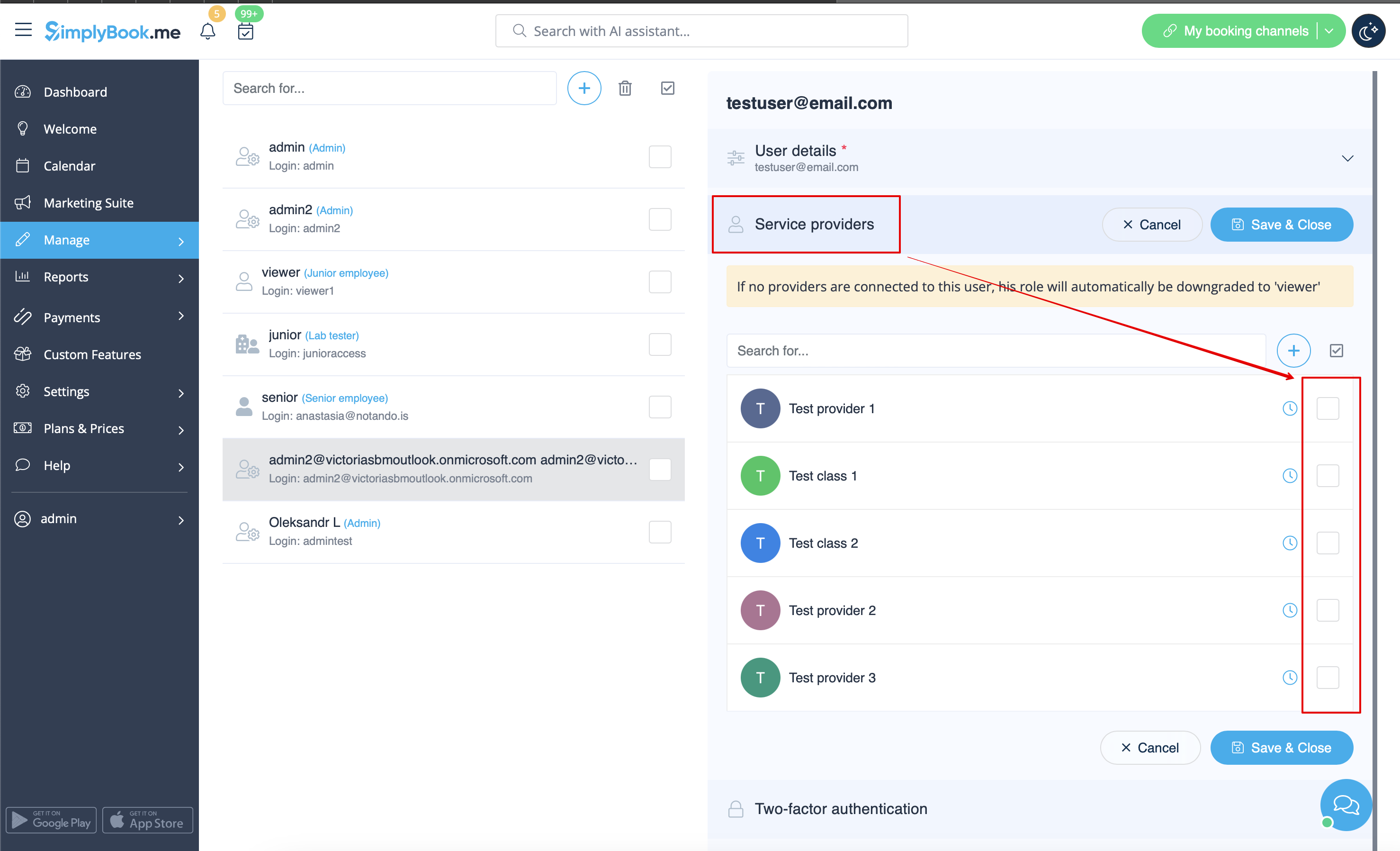
Wenn Sie neue Benutzerdaten hinzufügen, aktivieren Sie einfach die Option „Anmeldedaten an Benutzer senden“ und speichern Sie den Benutzerdatensatz.
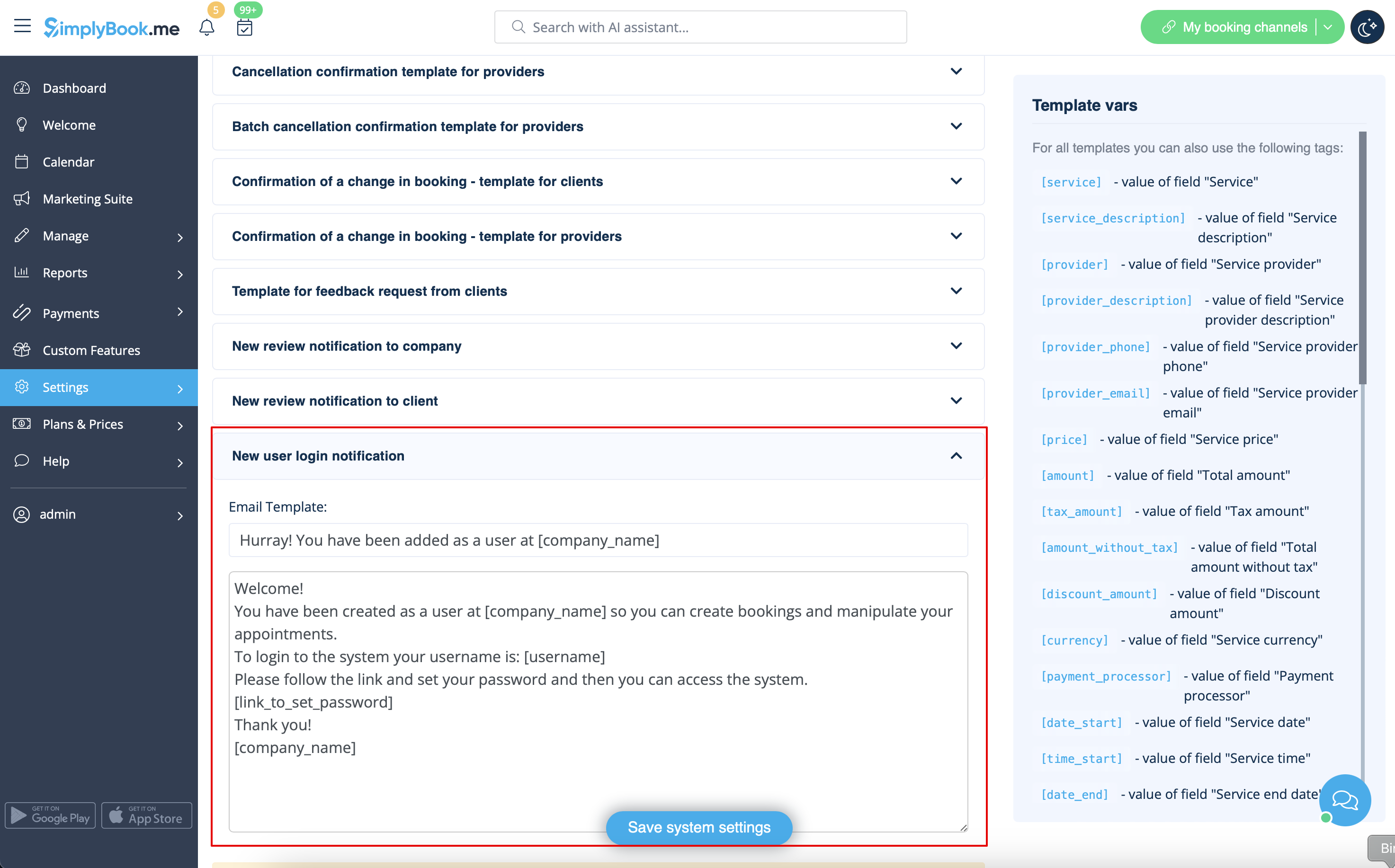
Das System sendet automatisch eine E-Mail mit den Anmeldedaten gemäß der Vorlage, die Sie unter „Einstellungen“ -> „E-Mail- und SMS-Einstellungen“ -> „Benachrichtigung bei neuer Benutzeranmeldung“ festgelegt haben .
Alternativ können Sie Ihren Benutzern nach dem Speichern des Benutzers manuell den Benutzernamen und das Passwort zusammen mit dem Link zu Ihrer Administrationsseite senden.

