Created page with "5. Nachdem Sie Ihre Zoom-Verbindung eingerichtet haben, müssen Sie nur noch die Option für Online-Meetings für Ihre Dienste aktivieren. Navigieren Sie dazu zu <span style="background-color:#d4f8e5; padding:5px; border-radius:5px;">„Verwalten“</span> -> <span style="background-color:#d4f8e5; padding:5px; border-radius:5px;">„Dienste“</span> -> klicken Sie auf den Namen des gewünschten Dienstes -> scrollen Sie nach unten zu <span style="background-col..." |
Created page with "<br><br> *Um die Integration auf der Zoom-Seite zu trennen, folgen Sie bitte [https://marketplace.zoom.us/user/installed diesem Link].<br> *Suchen Sie Simplybook.me in der Liste der verbundenen Apps (bei Bedarf können Sie die Suche verwenden).<br> *Klicken Sie auf die Schaltfläche <span style="background-color:#d4f8e5; padding:5px; border-radius:5px;">„Entfernen“</span>, um die Verbindung zu trennen.<br> *Die Integration ist nun entfernt und Sie können bei Bedarf..." |
||
| (3 intermediate revisions by the same user not shown) | |||
| Line 28: | Line 28: | ||
[[File:Enable service as online meeting redesigned.png|1200px|center|link=https://help.simplybook.me/images/e/ec/Enable_service_as_online_meeting_redesigned.png]] | [[File:Enable service as online meeting redesigned.png|1200px|center|link=https://help.simplybook.me/images/e/ec/Enable_service_as_online_meeting_redesigned.png]] | ||
<br><br> | <br><br> | ||
6. Wenn Kunden eine solche[[Classes custom feature|Dienstleistung/Klasse]] buchen, wird auf der Seite „Meine Buchungen“ ein Link zum Online-Meeting für die zugehörige Buchung angezeigt. Wenn der Termin erreicht ist, können die Kunden diesem Link folgen, um an der Besprechung teilzunehmen. | |||
6. | Auf der Admin-Seite kann der Link über das Popup-Fenster mit den Buchungsinformationen im <span style="background-color:#d4f8e5; padding:5px; border-radius:5px;">Kalender</span> oder unter <span style="background-color:#d4f8e5; padding:5px; border-radius:5px;">„Berichte“</span> -> <span style="background-color:#d4f8e5; padding:5px; border-radius:5px;">„Buchungsdetails“</span> oder unter <span style="background-color:#d4f8e5; padding:5px; border-radius:5px;">„Berichte“</span> -> <span style="background-color:#d4f8e5; padding:5px; border-radius:5px;">„Online-Videokonferenzen“</span> aufgerufen werden. | ||
<br><br> | <br><br> | ||
7. (optional) Sie können auch einen Link zu Online-Meetings zu den Benachrichtigungsvorlagen für Anbieter und Kunden hinzufügen, damit beide Seiten diese zusammen mit den Buchungsdetails erhalten. | |||
*Um dies für Ihre Kundenbenachrichtigungen zu tun, navigieren Sie bitte zu <span style="background-color:#d4f8e5; padding:5px; border-radius:5px;">Einstellungen</span> -> <span style="background-color:#d4f8e5; padding:5px; border-radius:5px;">E-Mail- und SMS-Einstellungen</span> (oder <span style="background-color:#d4f8e5; padding:5px; border-radius:5px;">Benutzerdefinierte Funktionen</span> -> <span style="background-color:#d4f8e5; padding:5px; border-radius:5px;">[[Flexible Notifications custom feature|Flexible Benachrichtigungen]]</span> -> <span style="background-color:#d4f8e5; padding:5px; border-radius:5px;">Verwalten</span>, wenn Sie benutzerdefinierte Benachrichtigungen pro Dienst und/oder Anbieter haben) und bearbeiten Sie <span style="background-color:#d4f8e5; padding:5px; border-radius:5px;">die Buchungsbestätigungsvorlage Ihres Kunden</span>, um die Variable ''[online_meeting_link]'' hinzuzufügen, damit Zoom-Links an Ihre Kunden gesendet werden. | |||
7. (optional) | Damit alles funktioniert, fügen Sie einfach die Variable ''[online_meeting_link]'' an der gewünschten Stelle in Ihrer „Buchungsbestätigungsvorlage für Kunden” ein, sodass bei der Buchung einer Dienstleistung durch einen Kunden automatisch ein Zoom-Meeting-Link anstelle der Variable generiert wird. | ||
* | |||
<br><br> | <br><br> | ||
* | *Damit Ihre Dienstleister die Zoom-Links in ihren Bestätigungen erhalten, fügen Sie bitte die Variable ''[online_meeting_provider_link]'' zu Ihrer <span style="background-color:#d4f8e5; padding:5px; border-radius:5px;">„Neue Buchungsbestätigung für Dienstleister”</span> in <span style="background-color:#d4f8e5; padding:5px; border-radius:5px;">den Einstellungen</span> -> <span style="background-color:#d4f8e5; padding:5px; border-radius:5px;">E-Mail- und SMS-Einstellungen</span> (oder <span style="background-color:#d4f8e5; padding:5px; border-radius:5px;">unter „Benutzerdefinierte Funktionen”</span> -> <span style="background-color:#d4f8e5; padding:5px; border-radius:5px;">[[Flexible Notifications custom feature|„Flexible Benachrichtigungen”]]</span> -> <span style="background-color:#d4f8e5; padding:5px; border-radius:5px;">„Verwalten”</span>, wenn Sie benutzerdefinierte Benachrichtigungen pro Dienst und/oder Anbieter eingerichtet haben) hinzu. | ||
[[File:Add meeting link to provider confirmation redesigned.png|1200px|border|center|link=https://help.simplybook.me/images/6/6c/Add_meeting_link_to_provider_confirmation_redesigned.png]] | [[File:Add meeting link to provider confirmation redesigned.png|1200px|border|center|link=https://help.simplybook.me/images/6/6c/Add_meeting_link_to_provider_confirmation_redesigned.png]] | ||
<br><br> | <br><br> | ||
;So funktioniert der Besprechungsprozess | ;So funktioniert der Besprechungsprozess | ||
| Line 54: | Line 49: | ||
4. Wenn der Zeitpunkt des Meetings gekommen ist, werden sowohl der Anbieter als auch der Kunde zur Zoom-Online-Meeting-Seite weitergeleitet. | 4. Wenn der Zeitpunkt des Meetings gekommen ist, werden sowohl der Anbieter als auch der Kunde zur Zoom-Online-Meeting-Seite weitergeleitet. | ||
<br><br> | <br><br> | ||
;So entfernen Sie die | ;So entfernen Sie''die Integrations-'' | ||
''Auf der Simplybook.me-Seite'' | ''Auf der Simplybook.me-Seite'' | ||
*Navigieren Sie in Ihrer Simplybook.me-Admin-Oberfläche zur Seite <span style="background-color:#d4f8e5; padding:5px; border-radius:5px;">„Benutzerdefinierte Funktionen“</span> und klicken Sie auf die benutzerdefinierte Funktion „Online-Videokonferenzen“, um die Einstellungen zu öffnen.<br> | *Navigieren Sie in Ihrer Simplybook.me-Admin-Oberfläche zur Seite <span style="background-color:#d4f8e5; padding:5px; border-radius:5px;">„Benutzerdefinierte Funktionen“</span> und klicken Sie auf die benutzerdefinierte Funktion „Online-Videokonferenzen“, um die Einstellungen zu öffnen.<br> | ||
| Line 61: | Line 56: | ||
[[File:Zoom disconnect path redesigned.png|1200px|center|link=https://help.simplybook.me/images/5/5a/Zoom_disconnect_path_redesigned.png]] | [[File:Zoom disconnect path redesigned.png|1200px|center|link=https://help.simplybook.me/images/5/5a/Zoom_disconnect_path_redesigned.png]] | ||
<br><br> | <br><br> | ||
''Auf der Zoom | ''Auf der Seite von Zoom''<br> | ||
<span style="background-color:#ffe9e9; padding:5px; border-radius:5px;">'''Bitte beachten Sie:''' Wenn Sie das Kontrollkästchen „Dieser App die Verwendung meiner freigegebenen Zugriffsberechtigungen | <span style="background-color:#ffe9e9; padding:5px; border-radius:5px;">'''Bitte beachten Sie:''' Wenn Sie das Kontrollkästchen „Dieser App die Verwendung meiner freigegebenen Zugriffsberechtigungen erlauben“ nicht aktiviert haben ODER Sie das verbundene Zoom-Konto zu einem anderen wechseln möchten, ist dies aufgrund technischer Einschränkungen nicht über Simplybook.me möglich.</span><br> | ||
<span style="background-color:#ffe9e9; padding:5px; border-radius:5px;">Um dies zu tun, müssen Sie Simplybook.me direkt von Zoom trennen und können anschließend ein neues Konto auf der Simplybook.me-Seite verbinden.</span> | <span style="background-color:#ffe9e9; padding:5px; border-radius:5px;">Um dies zu tun, müssen Sie Simplybook.me direkt von Zoom trennen und können anschließend ein neues Konto auf der Simplybook.me-Seite verbinden.</span> | ||
<br><br> | <br><br> | ||
| Line 71: | Line 66: | ||
[[File:Zoom disconnect from zoom side.png|1200px|center|link=https://help.simplybook.me/images/a/a4/Zoom_disconnect_from_zoom_side.png]] | [[File:Zoom disconnect from zoom side.png|1200px|center|link=https://help.simplybook.me/images/a/a4/Zoom_disconnect_from_zoom_side.png]] | ||
<br><br><br><br> | <br><br><br><br> | ||
Latest revision as of 08:10, 1 July 2025
Um eine Verbindung zu Zoom herzustellen, benötigen Sie ein Zoom-Konto. Jeder Mitwirkende mit Berechtigungen als Terminplanungsadministrator kann Simplybook.me mit Zoom verbinden.
SimplyBook.me kann nur mit einem einzigen Zoom-Konto verbunden werden.
Bitte beachten Sie:
- Zoom-Buchungen werden nicht zu Ihrer Zoom-Besprechungsseite auf der Zoom-Seite hinzugefügt. Um Online-Besprechungen zu überprüfen,verwenden Sie bitte die Filter pro Dienst im Simplybook.me-Admin-Kalender, um nur die Buchungen für den erforderlichen Dienst anzuzeigen.
- Auch nach der Verbindung mit dem Zoom-Konto ist die Videokonferenzfunktion für neue Dienste standardmäßig deaktiviert. Um Videokonferenzen zu einem neuen Dienst hinzuzufügen, gehen Sie unter „Verwalten“ ->„Dienste/Kurse“ zu „Weitere Optionen proDienst/Kurs“ und aktivieren Sie diese als Online-Meeting-Dienst.
- Kunden,die an einem Gruppenkurs teilnehmen, erhalten individuelle Zoom-Links, die jedoch alle zum selben Zoom-Meeting führen.
- Einstellungen
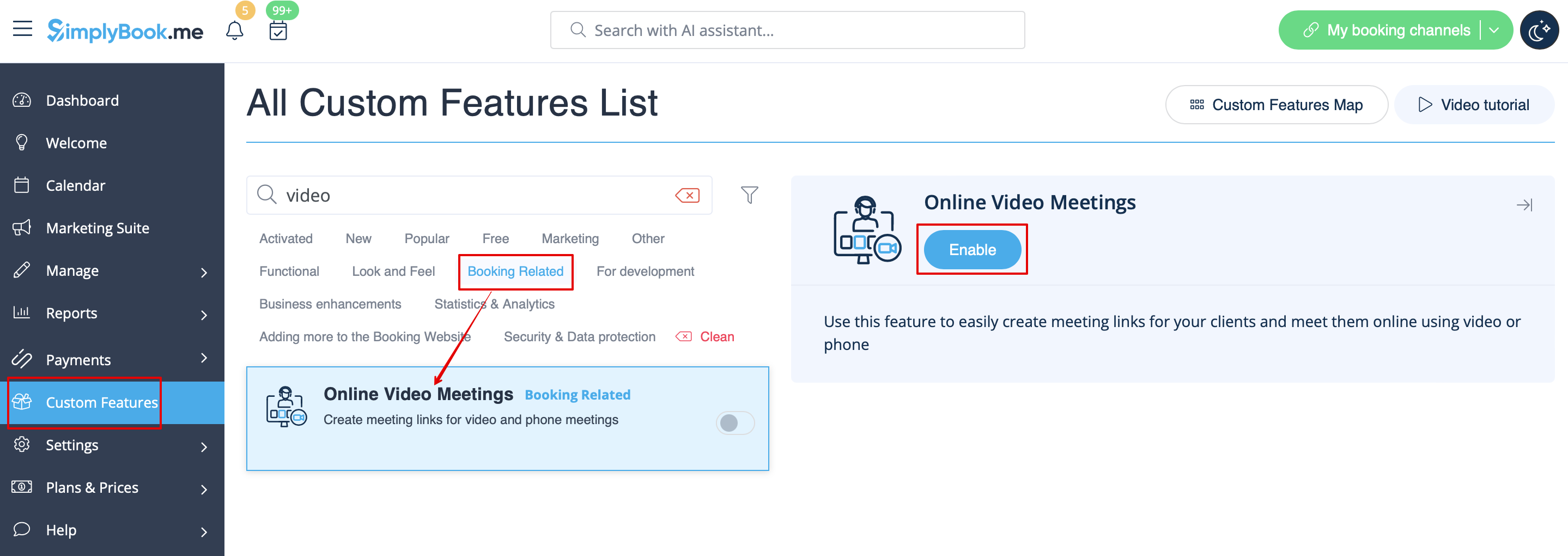
1. Aktivieren Sie die benutzerdefinierte Funktion „Online-Meetings“ in Ihrem SimplyBook.me-Konto, indem Sie in Ihrer Simplybook.me-Admin-Oberfläche zur Seite „Benutzerdefinierte Funktionen“ navigieren und auf die Schaltfläche „Aktivieren“ neben der benutzerdefinierten Funktion „Online-Videokonferenzen“ klicken.
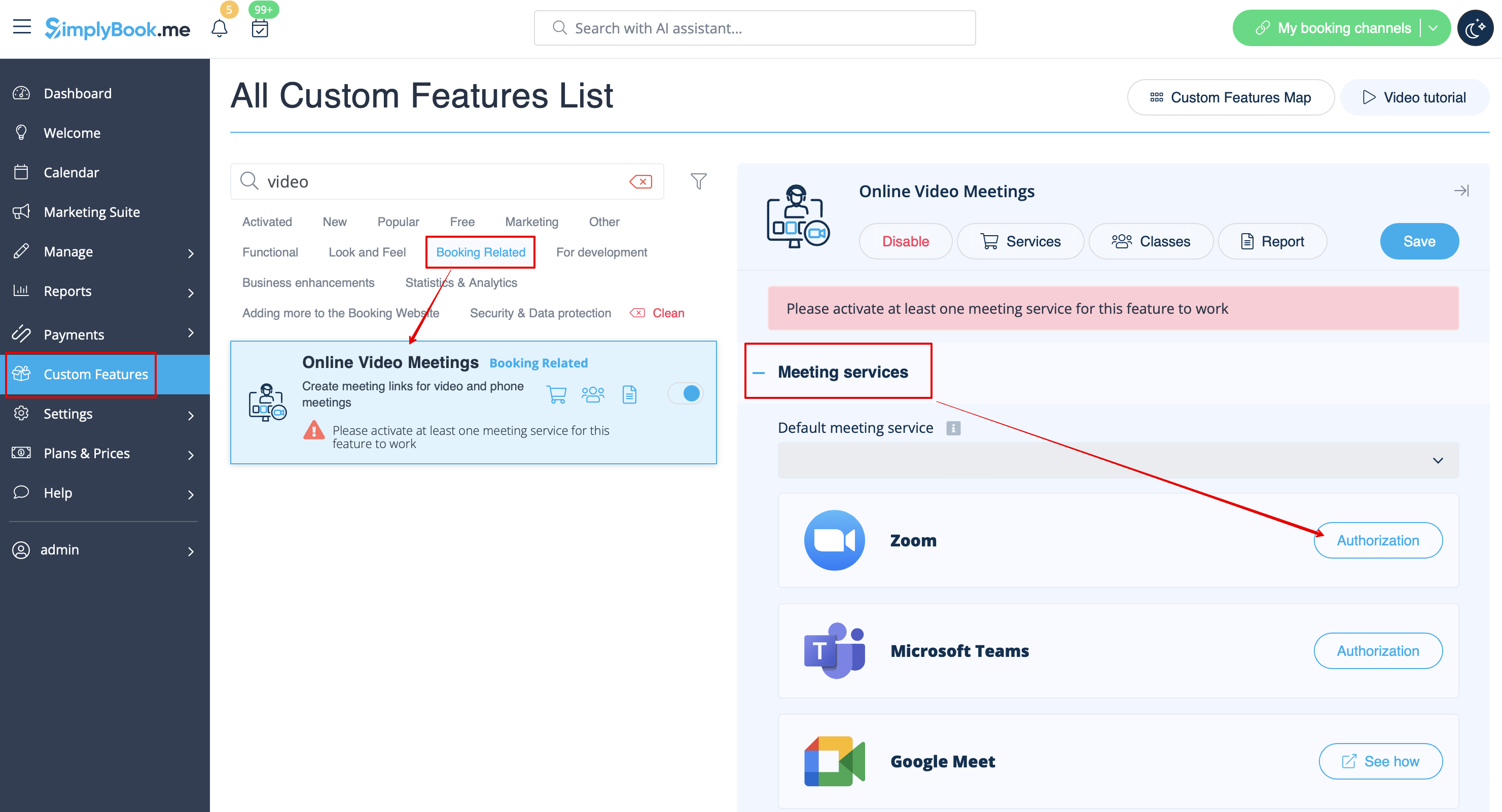
2. Klicken Sie in den Funktionseinstellungen auf die Schaltfläche „Autorisierung“ neben der Option „Zoom“, um Ihr Zoom-Konto zu verbinden.
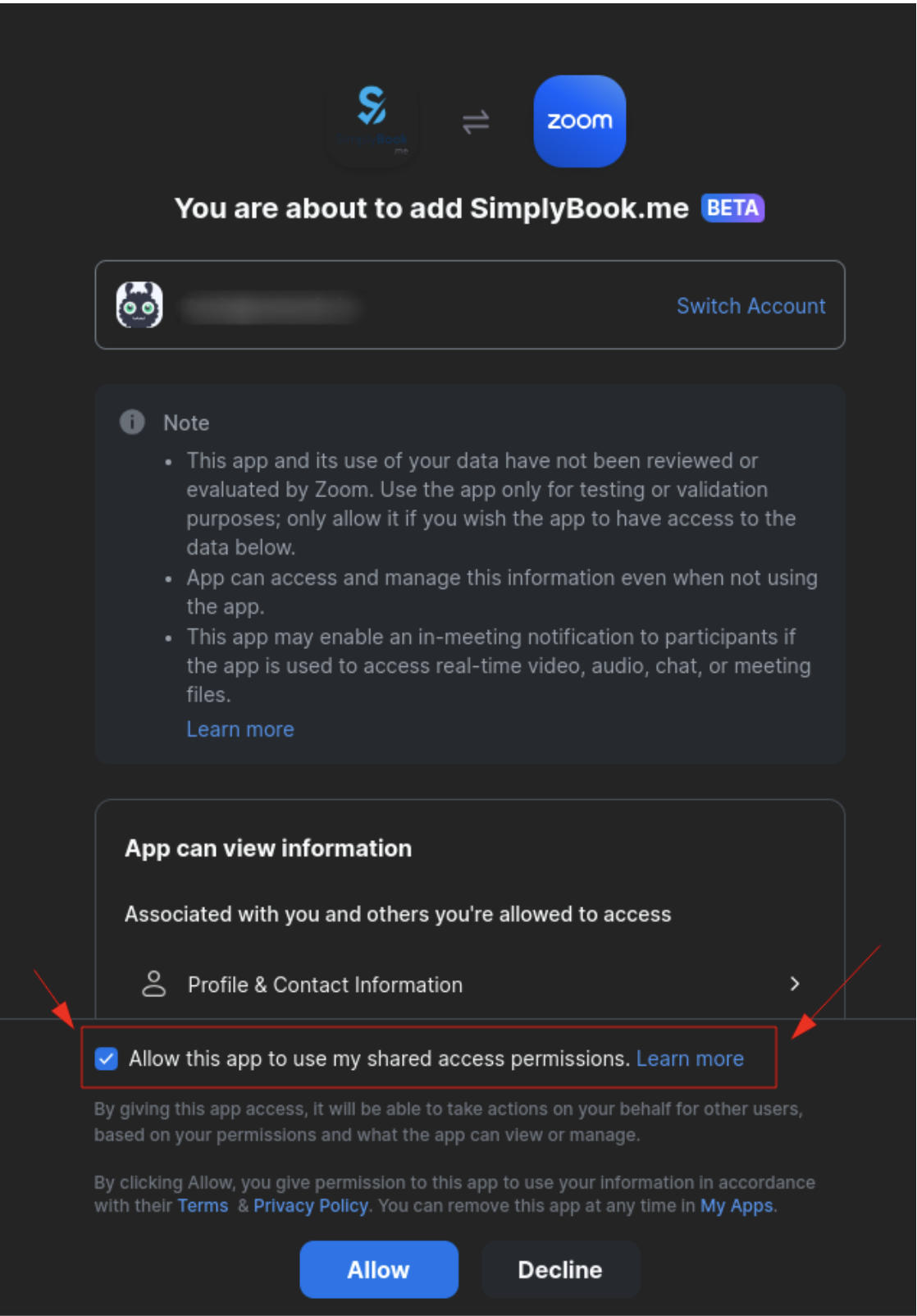
3. Geben Sie Ihre Anmeldedaten ein, um sich bei Zoom anzumelden, oder klicken Sie auf „SSO“, „Google“ oder „Facebook“, um sich über diese Dienste anzumelden.
Sie können entweder ein Zoom-Konto pro Unternehmen verbinden ODER alle Zoom-Benutzer, die Ihrem Konto hinzugefügt wurden, verbinden, indem Sie das Kontrollkästchen „Dieser App die Verwendung meiner freigegebenen Zugriffsberechtigungen erlauben“ aktivieren
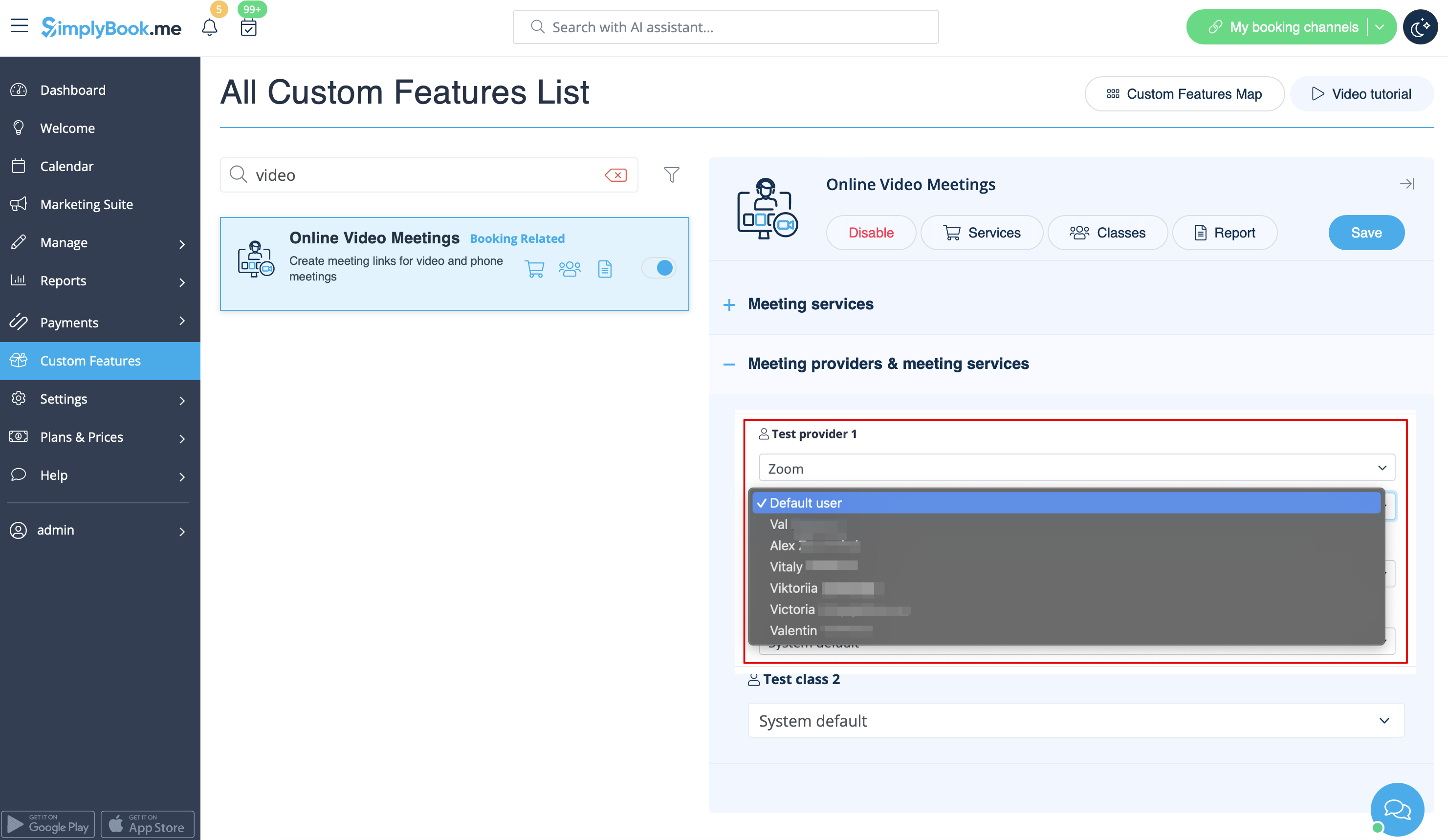
4. Nachdem Zoom autorisiert wurde, klicken Sie auf „Meeting Providers“ und „Meeting Services“ und wählen Sie die Anbieter aus, die mit Zoom verbunden werden sollen, indem Sie die Option „Zoom“ aus dem entsprechenden Dropdown-Menü auswählen. Wählen Sie im nächsten Dropdown-Menü den Zoom-Benutzer (wenn Sie mehrere Benutzer unter Ihrem Zoom-Konto haben), der mit diesem Anbieter verbunden werden soll.
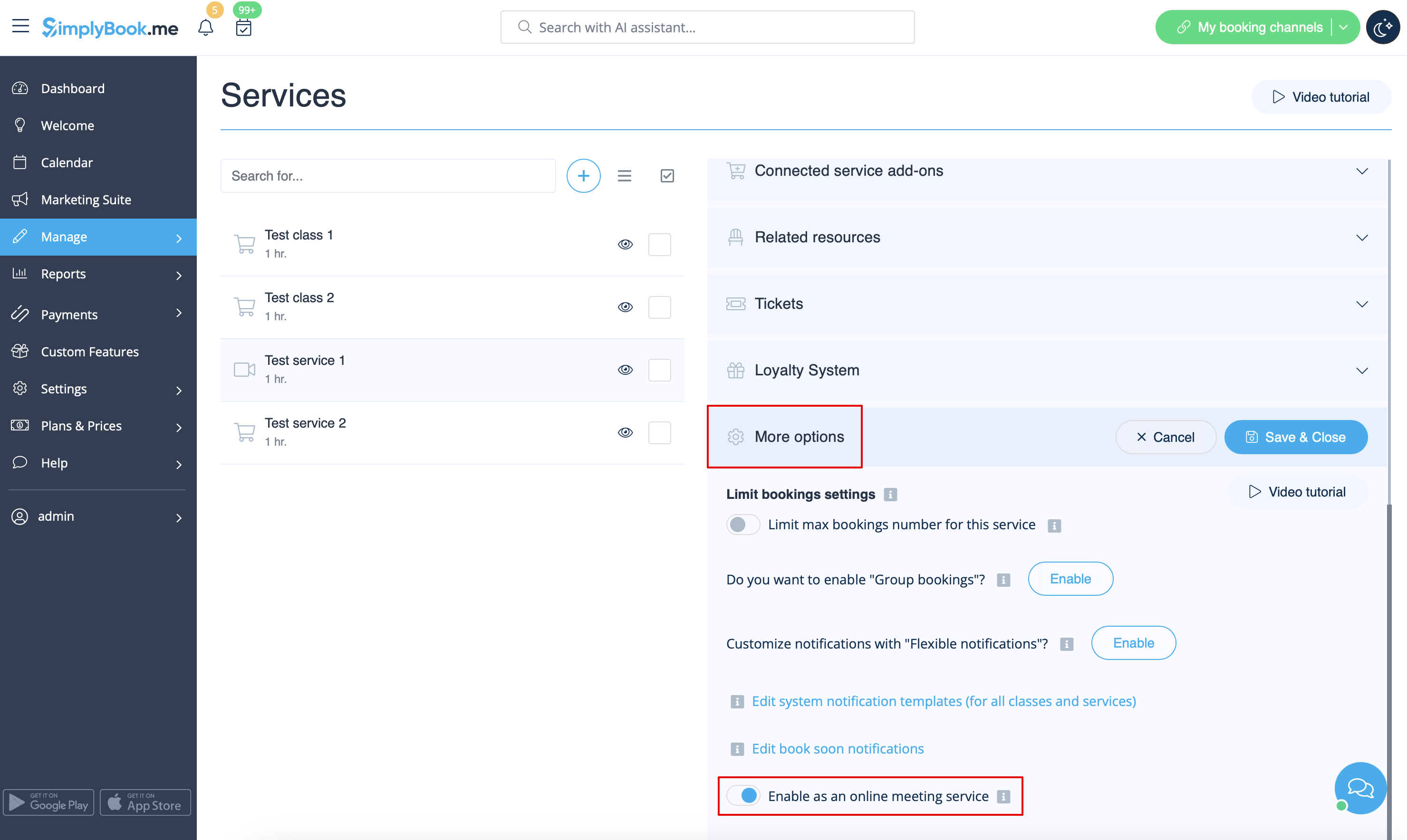
5. Nachdem Sie Ihre Zoom-Verbindung eingerichtet haben, müssen Sie nur noch die Option für Online-Meetings für Ihre Dienste aktivieren. Navigieren Sie dazu zu „Verwalten“ -> „Dienste“ -> klicken Sie auf den Namen des gewünschten Dienstes -> scrollen Sie nach unten zu „Weitere Optionen“. „
“ (in „Verwalten“ -> „Klassen“ -> klicken Sie auf den Namen der Klasse -> „Weitere Optionen“, wenn Sie die Klassenfunktion verwenden) und aktivieren Sie die Option „Als Online-Meeting-Dienst/Klasse aktivieren“.
6. Wenn Kunden eine solcheDienstleistung/Klasse buchen, wird auf der Seite „Meine Buchungen“ ein Link zum Online-Meeting für die zugehörige Buchung angezeigt. Wenn der Termin erreicht ist, können die Kunden diesem Link folgen, um an der Besprechung teilzunehmen.
Auf der Admin-Seite kann der Link über das Popup-Fenster mit den Buchungsinformationen im Kalender oder unter „Berichte“ -> „Buchungsdetails“ oder unter „Berichte“ -> „Online-Videokonferenzen“ aufgerufen werden.
7. (optional) Sie können auch einen Link zu Online-Meetings zu den Benachrichtigungsvorlagen für Anbieter und Kunden hinzufügen, damit beide Seiten diese zusammen mit den Buchungsdetails erhalten.
- Um dies für Ihre Kundenbenachrichtigungen zu tun, navigieren Sie bitte zu Einstellungen -> E-Mail- und SMS-Einstellungen (oder Benutzerdefinierte Funktionen -> Flexible Benachrichtigungen -> Verwalten, wenn Sie benutzerdefinierte Benachrichtigungen pro Dienst und/oder Anbieter haben) und bearbeiten Sie die Buchungsbestätigungsvorlage Ihres Kunden, um die Variable [online_meeting_link] hinzuzufügen, damit Zoom-Links an Ihre Kunden gesendet werden.
Damit alles funktioniert, fügen Sie einfach die Variable [online_meeting_link] an der gewünschten Stelle in Ihrer „Buchungsbestätigungsvorlage für Kunden” ein, sodass bei der Buchung einer Dienstleistung durch einen Kunden automatisch ein Zoom-Meeting-Link anstelle der Variable generiert wird.
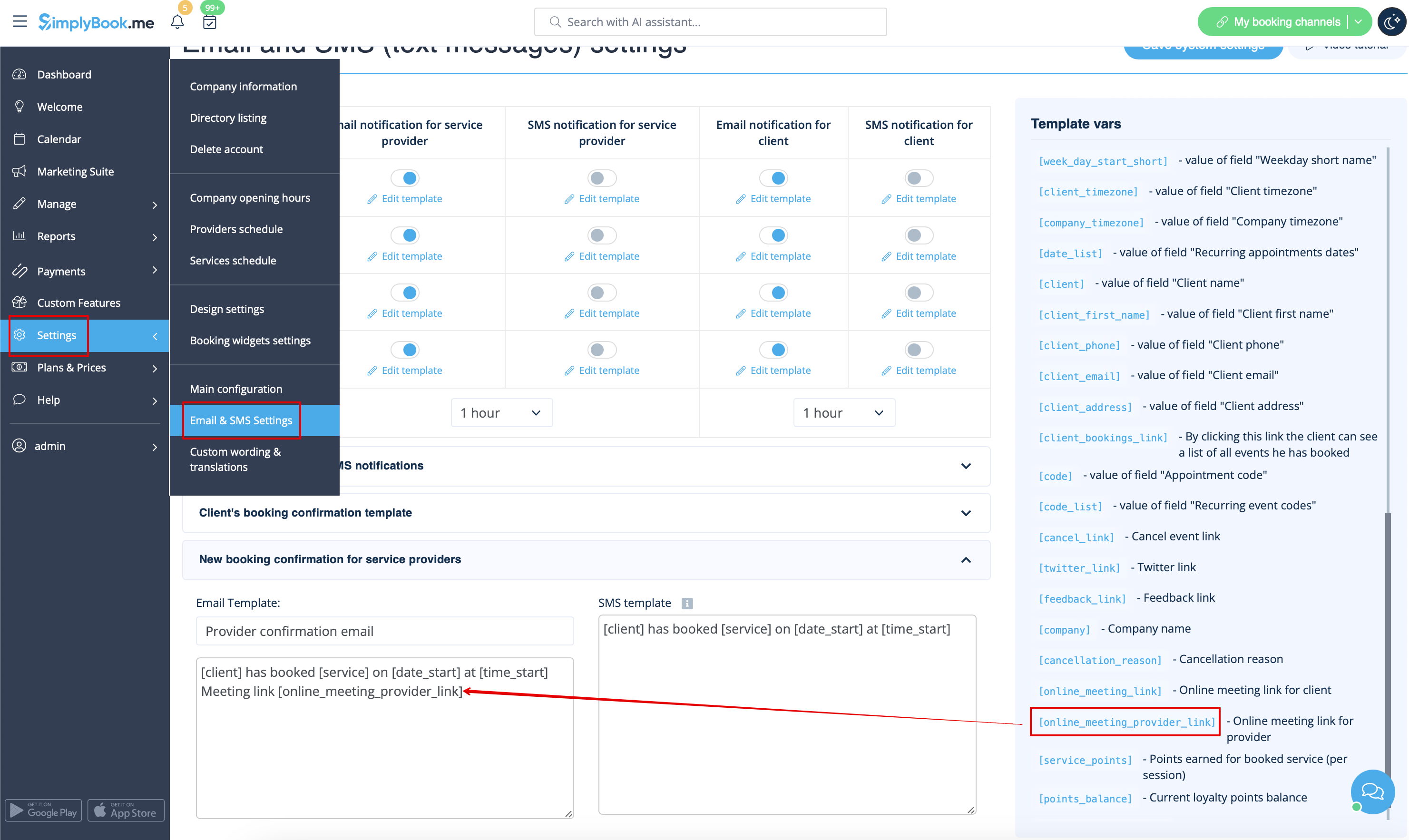
- Damit Ihre Dienstleister die Zoom-Links in ihren Bestätigungen erhalten, fügen Sie bitte die Variable [online_meeting_provider_link] zu Ihrer „Neue Buchungsbestätigung für Dienstleister” in den Einstellungen -> E-Mail- und SMS-Einstellungen (oder unter „Benutzerdefinierte Funktionen” -> „Flexible Benachrichtigungen” -> „Verwalten”, wenn Sie benutzerdefinierte Benachrichtigungen pro Dienst und/oder Anbieter eingerichtet haben) hinzu.
- So funktioniert der Besprechungsprozess
1. Nachdem alles eingerichtet ist und der Kunde dieOnline-Besprechungsdienstleistung/den Online-Kurs gebucht hat, erhalten sowohl der Kunde als auch der Anbieter (oder das Unternehmen, je nach Ihren Einstellungen) die Links zur Besprechung.
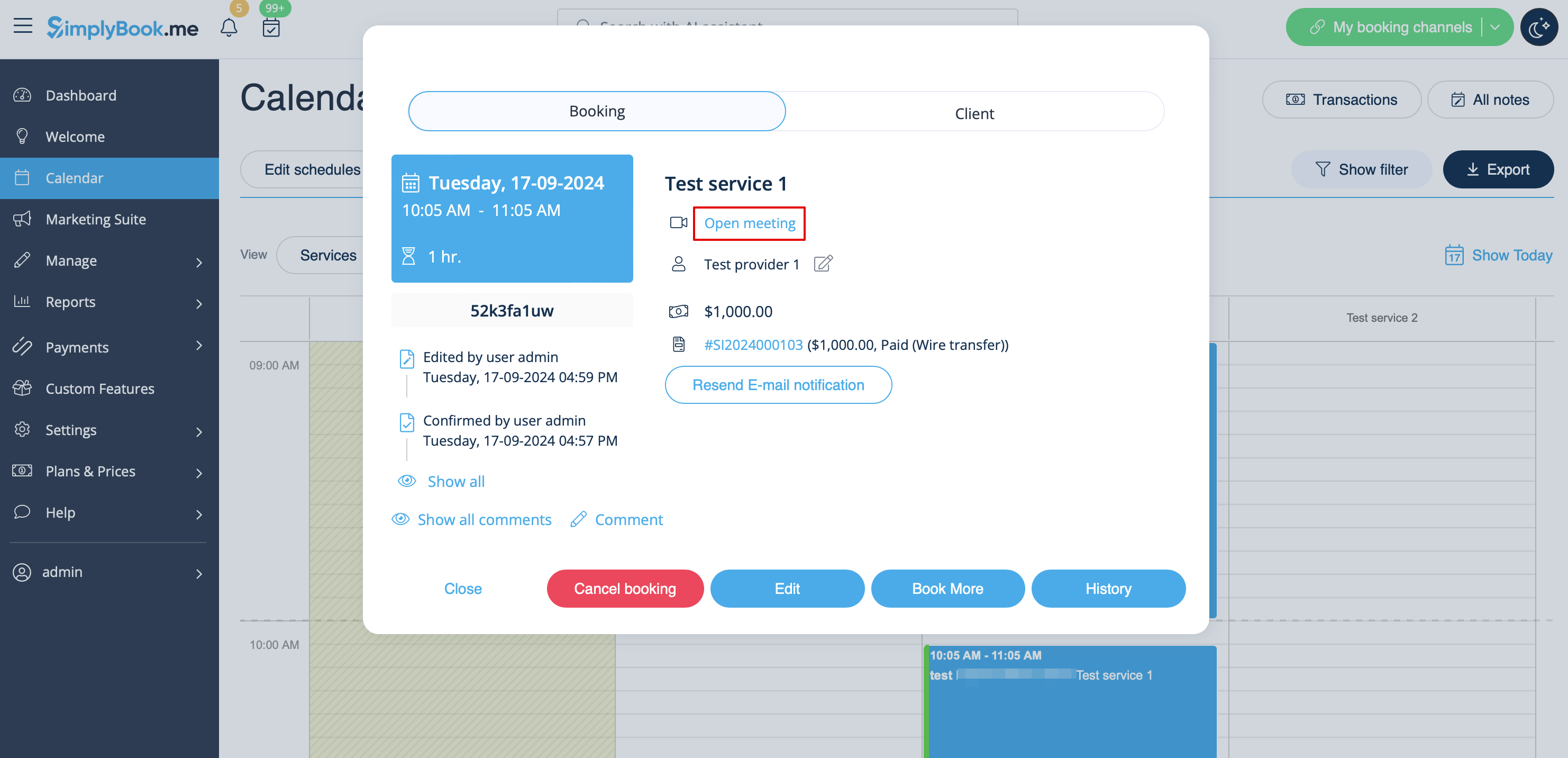
2. Auf der Admin-Seite kann der Anbieter direkt aus der Buchung im „Kalender“ zur Besprechungsseite gelangen, indem er im Popup-Fenster mit den Buchungsdetails auf den Link „Besprechung öffnen“ klickt.
3. Kunden können den Meeting-Link über die Buchungsdetails auf der Seite „Meine Buchungen“ der Buchungswebsite öffnen.
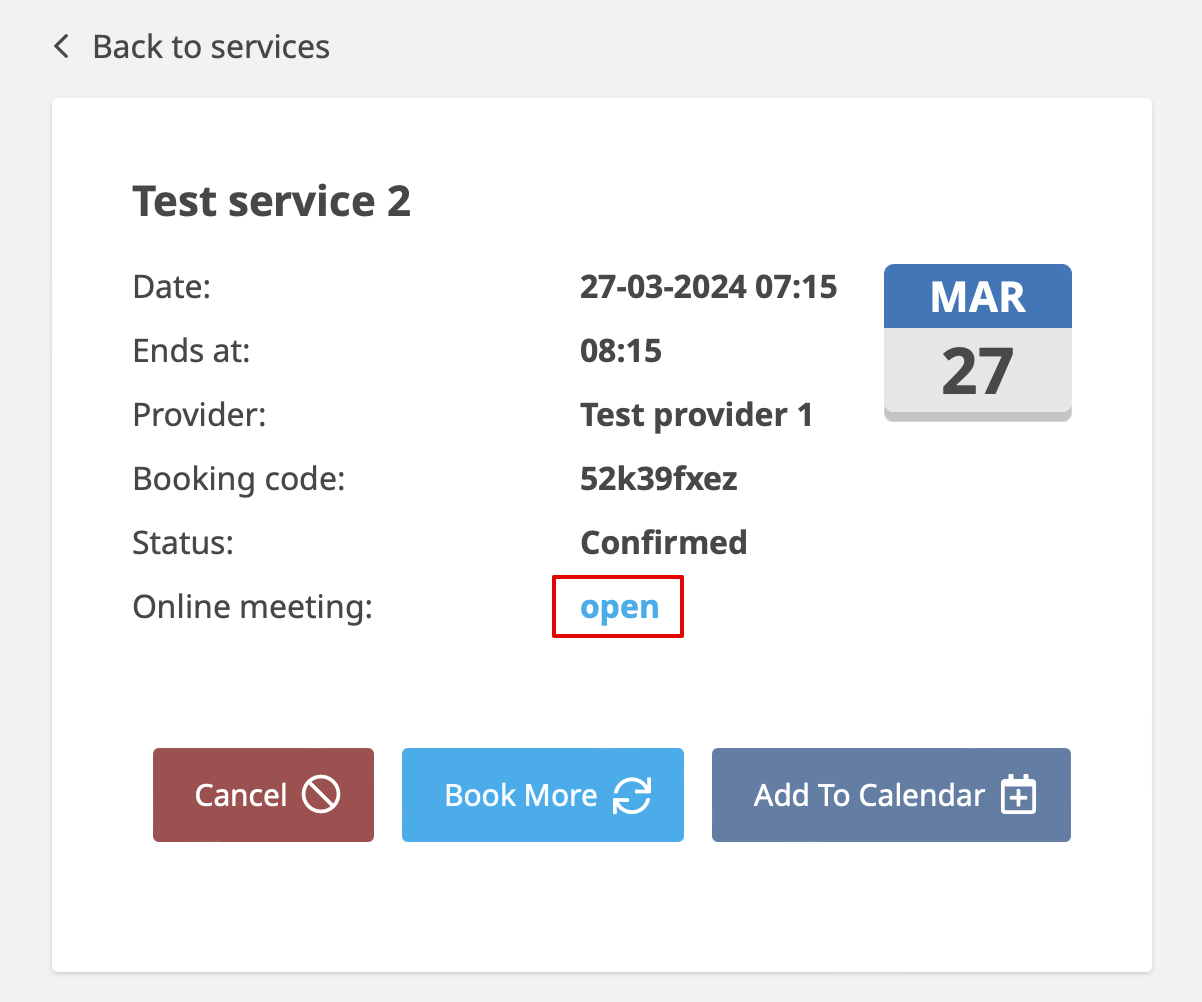
4. Wenn der Zeitpunkt des Meetings gekommen ist, werden sowohl der Anbieter als auch der Kunde zur Zoom-Online-Meeting-Seite weitergeleitet.
- So entfernen Siedie Integrations-
Auf der Simplybook.me-Seite
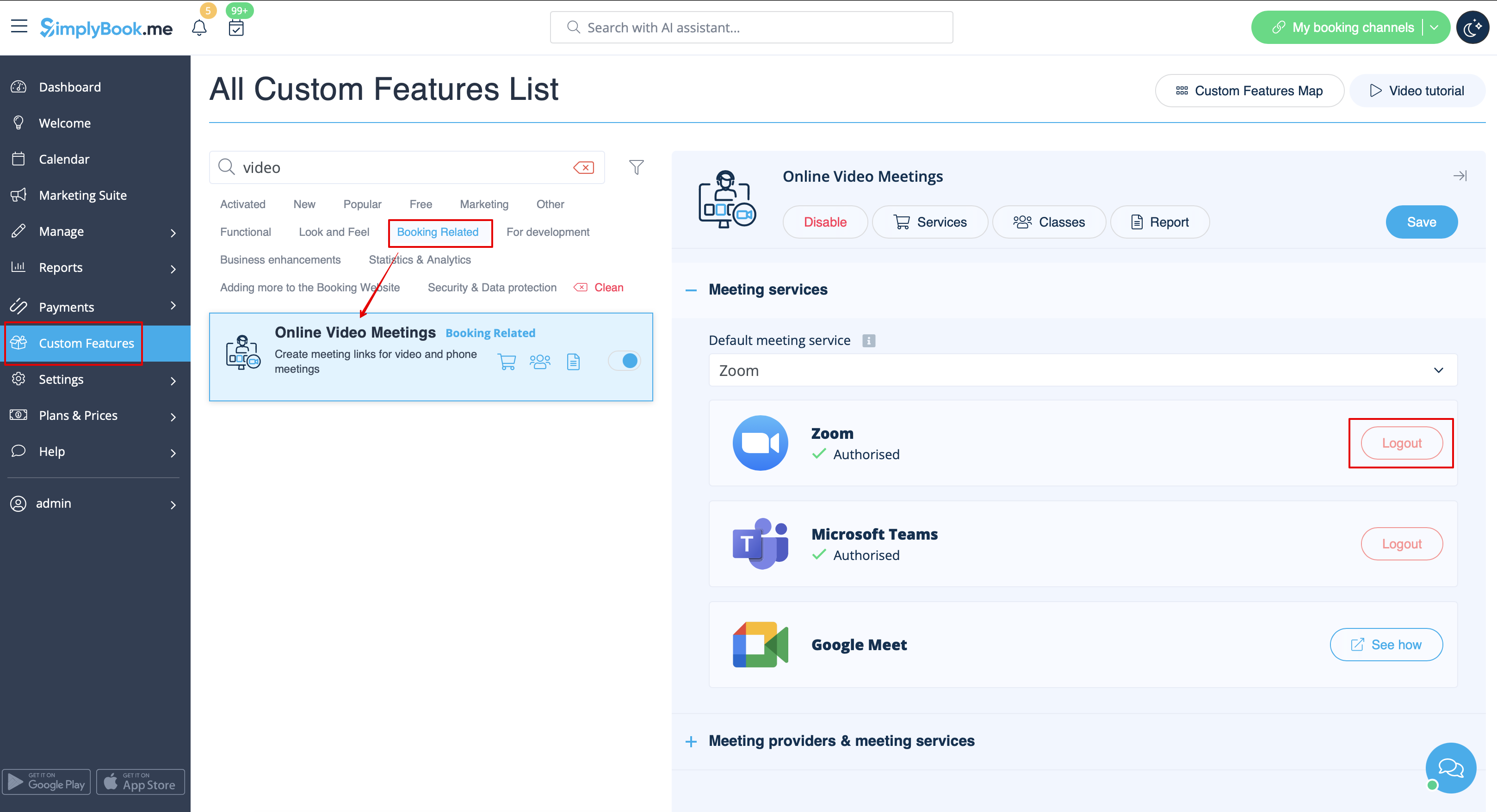
- Navigieren Sie in Ihrer Simplybook.me-Admin-Oberfläche zur Seite „Benutzerdefinierte Funktionen“ und klicken Sie auf die benutzerdefinierte Funktion „Online-Videokonferenzen“, um die Einstellungen zu öffnen.
- Suchen Sie in den Funktionseinstellungen „Zoom“ und klicken Sie auf „Abmelden“.
- Danach wird die Zoom-Integration aus Ihrem Simplybook.me-Konto entfernt.
Auf der Seite von Zoom
Bitte beachten Sie: Wenn Sie das Kontrollkästchen „Dieser App die Verwendung meiner freigegebenen Zugriffsberechtigungen erlauben“ nicht aktiviert haben ODER Sie das verbundene Zoom-Konto zu einem anderen wechseln möchten, ist dies aufgrund technischer Einschränkungen nicht über Simplybook.me möglich.
Um dies zu tun, müssen Sie Simplybook.me direkt von Zoom trennen und können anschließend ein neues Konto auf der Simplybook.me-Seite verbinden.
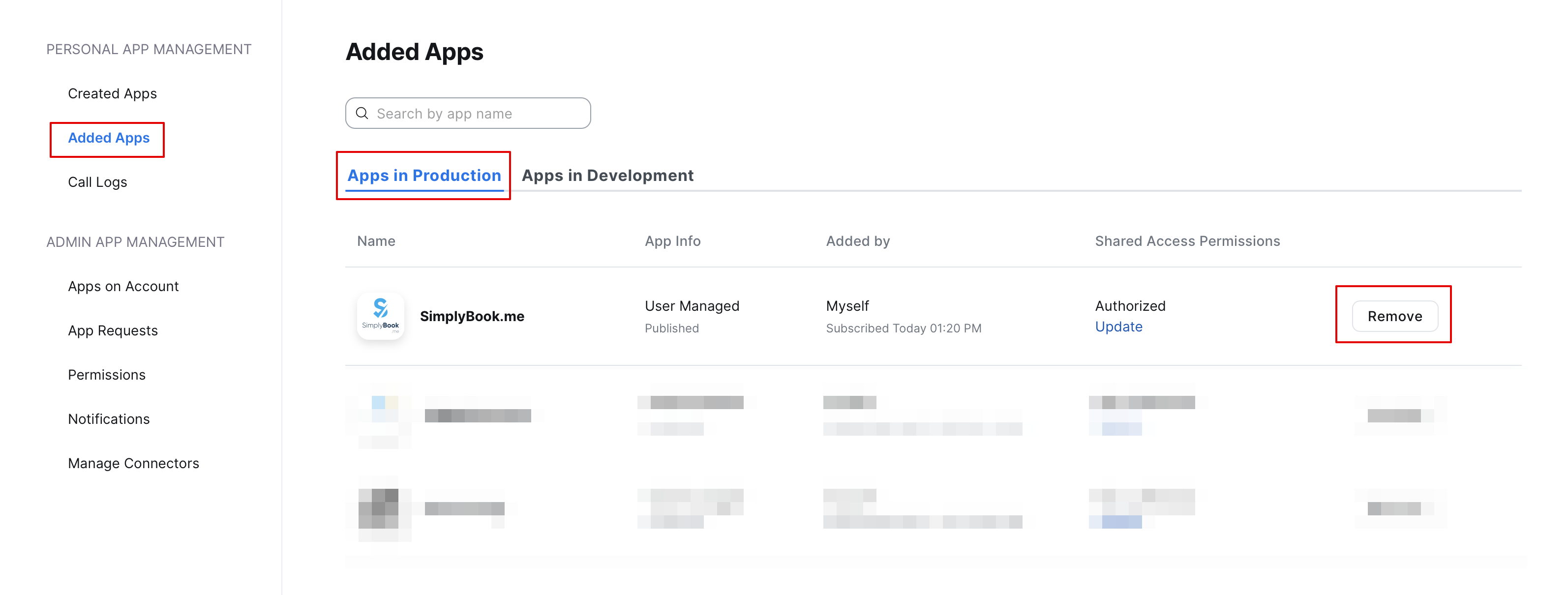
- Um die Integration auf der Zoom-Seite zu trennen, folgen Sie bitte diesem Link.
- Suchen Sie Simplybook.me in der Liste der verbundenen Apps (bei Bedarf können Sie die Suche verwenden).
- Klicken Sie auf die Schaltfläche „Entfernen“, um die Verbindung zu trennen.
- Die Integration ist nun entfernt und Sie können bei Bedarf ein anderes Konto verbinden.