No edit summary |
No edit summary |
||
| (11 intermediate revisions by the same user not shown) | |||
| Line 1: | Line 1: | ||
<languages/> | |||
<translate> | |||
<!--T:1--> | |||
{{#seo: | |||
|title=How to delete your SimplyBook.me account - SimplyBook.me | |||
|description=Delete account permanently. Step-by-step account deletion instructions. Export data before removing your booking system. Streamline appointment management. | |||
|titlemode=append | |||
|keywords=faq, frequently asked questions, booking software, appointment system questions, appointments online, calendar software, booking system, booking calendar, scheduling software, online appointment scheduling, online scheduling, plugins, custom features, custom booking page link, domain name, custom domain name, custom url | |||
}} | |||
</translate> | |||
<translate> | |||
[[ | <!--T:2--> | ||
<br><br> | |||
<br> | |||
Before the account removal you may also consider canceling the subscription to not be charged if you have a pause in your business or have a seasonal occupation instead of deleting it.<br><br> | |||
If that's the case please check <span style="background-color:#cdeffc; padding:5px; border-radius:5px;">[[Special:MyLanguage/How_to_Cancel_SimplyBook.me_subscription#How_to_cancel_the_paid_subscription|the steps for recurring payment cancellation]].</span> | |||
<br><br> | |||
Or, if the subscription does not currently fit your needs, you can buy another one according to <span style="background-color:#cdeffc; padding:5px; border-radius:5px;">[[Special:MyLanguage/How_to_Cancel_SimplyBook.me_subscription#How_to_downgrade_the_subscription|this]].</span> | |||
<br><br> | |||
Of course you can always contact our support for assistance with selecting a new subscription plan to match your current business needs in the best way. | |||
<br><br> | |||
If you are sure that you want to delete the account please follow these simple steps:<br> | |||
Please go to <span style="background-color:#d4f8e5; padding:5px; border-radius:5px;">Account info</span> -> <span style="background-color:#d4f8e5; padding:5px; border-radius:5px;">Delete account.</span><br> | |||
We kindly ask you to indicate the reason why you have decided to delete your company. Please keep in mind that it can't be restored. If you register a new company in the future, your old company name in url can't be used. | |||
</translate> | |||
<translate> | |||
<!--T:3--> | |||
[[File:Sb delete account path new flow.png|1200px|1200px| center|link=https://help.simplybook.me/images/b/b0/Sb_delete_account_path_new_flow.png]] | |||
<br><br> | |||
If you need to restore the account that you have previously deleted please follow [[How_to_unblock_account|this tutorial]]. | |||
<br><br><br><br> | |||
</translate> | |||
Latest revision as of 07:42, 19 May 2026
Before the account removal you may also consider canceling the subscription to not be charged if you have a pause in your business or have a seasonal occupation instead of deleting it.
If that's the case please check the steps for recurring payment cancellation.
Or, if the subscription does not currently fit your needs, you can buy another one according to this.
Of course you can always contact our support for assistance with selecting a new subscription plan to match your current business needs in the best way.
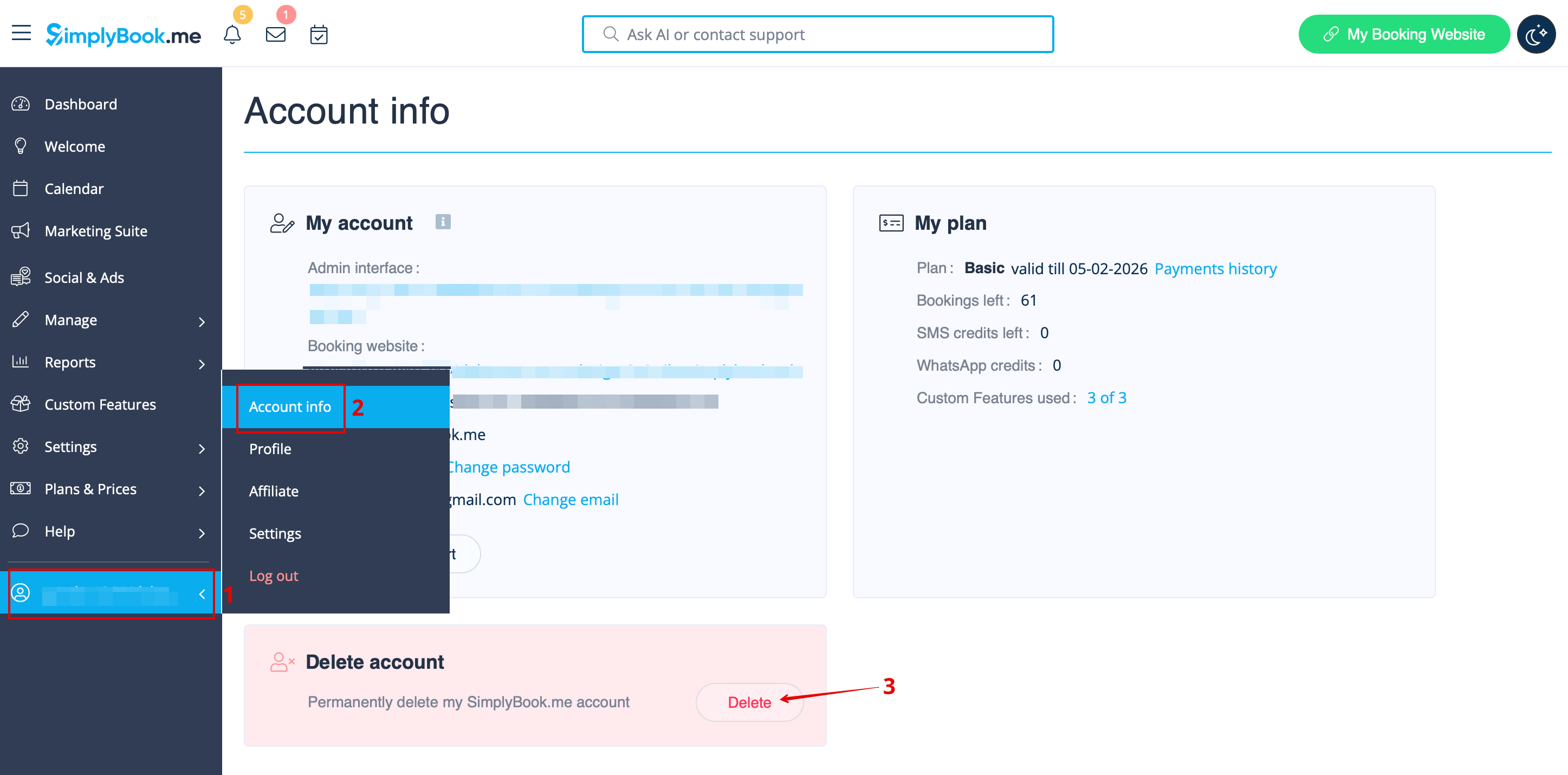
If you are sure that you want to delete the account please follow these simple steps:
Please go to Account info -> Delete account.
We kindly ask you to indicate the reason why you have decided to delete your company. Please keep in mind that it can't be restored. If you register a new company in the future, your old company name in url can't be used.
If you need to restore the account that you have previously deleted please follow this tutorial.
