Translations:AI Voice Booking/1/da: Difference between revisions

From SimplyBook.me
No edit summary
No edit summary
 
Line 26: Line 26:
<br><br><br><br>
<br><br><br><br>
==WhatsApp AI-booking==
1. Åbn https://developers.facebook.com/apps/ og klik på “Create App”:
1. Åbn [https://developers.facebook.com/apps/ Facebook-udviklere] og klik på “Create App”:
[[File:Create sb app step 1.png|1200px|center|link=https://help.simplybook.me/images/9/9c/Create_sb_app_step_1.png]]
[[File:Create sb app step 1.png|1200px|center|link=https://help.simplybook.me/images/9/9c/Create_sb_app_step_1.png]]
<br><br>
<br><br>
Line 96: Line 96:
[[File:Paste token to sbm.png|1200px|center|link=https://help.simplybook.me/images/e/e7/Paste_token_to_sbm.png]]
[[File:Paste token to sbm.png|1200px|center|link=https://help.simplybook.me/images/e/e7/Paste_token_to_sbm.png]]
<br><br>
<br><br>
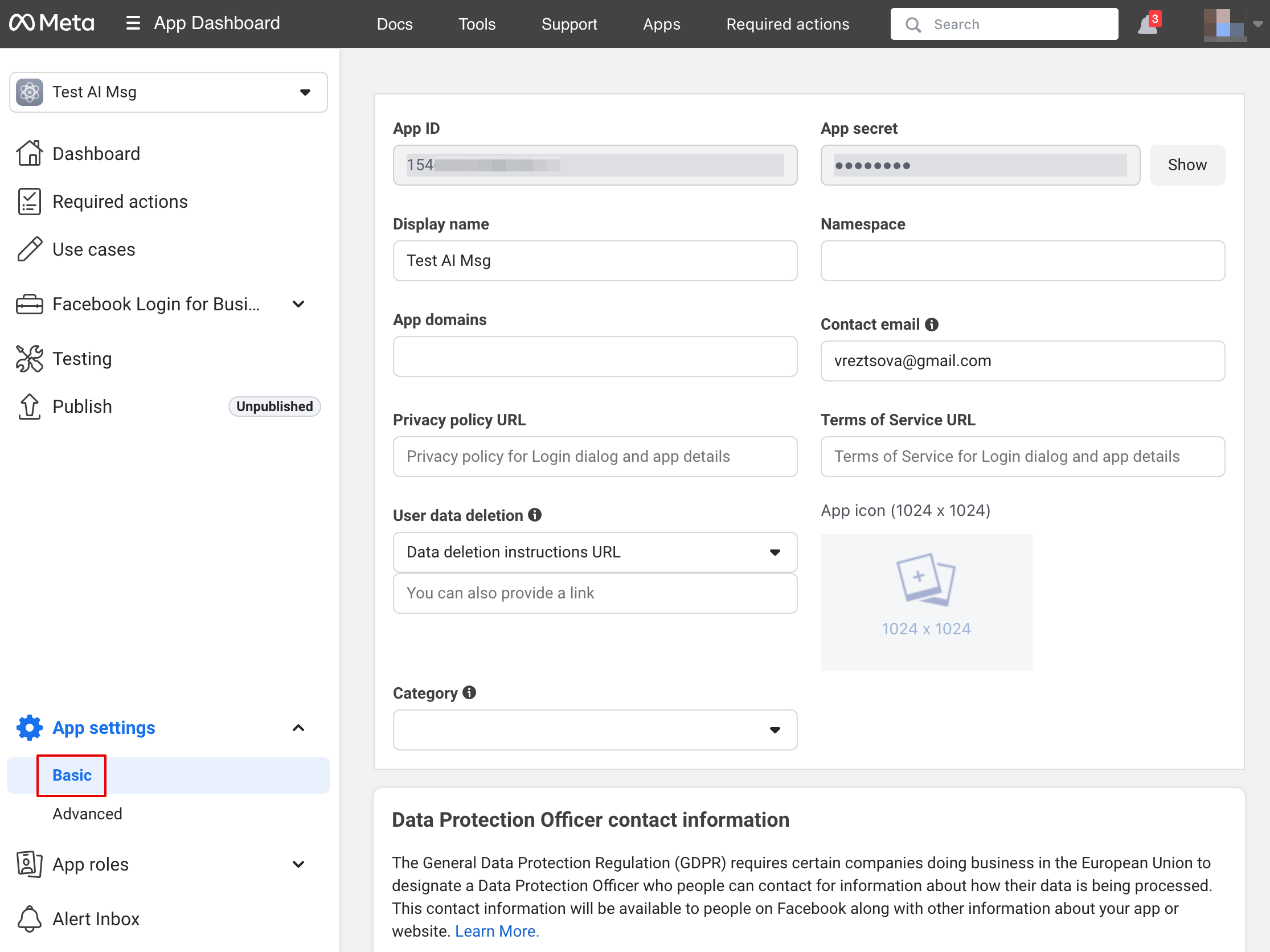
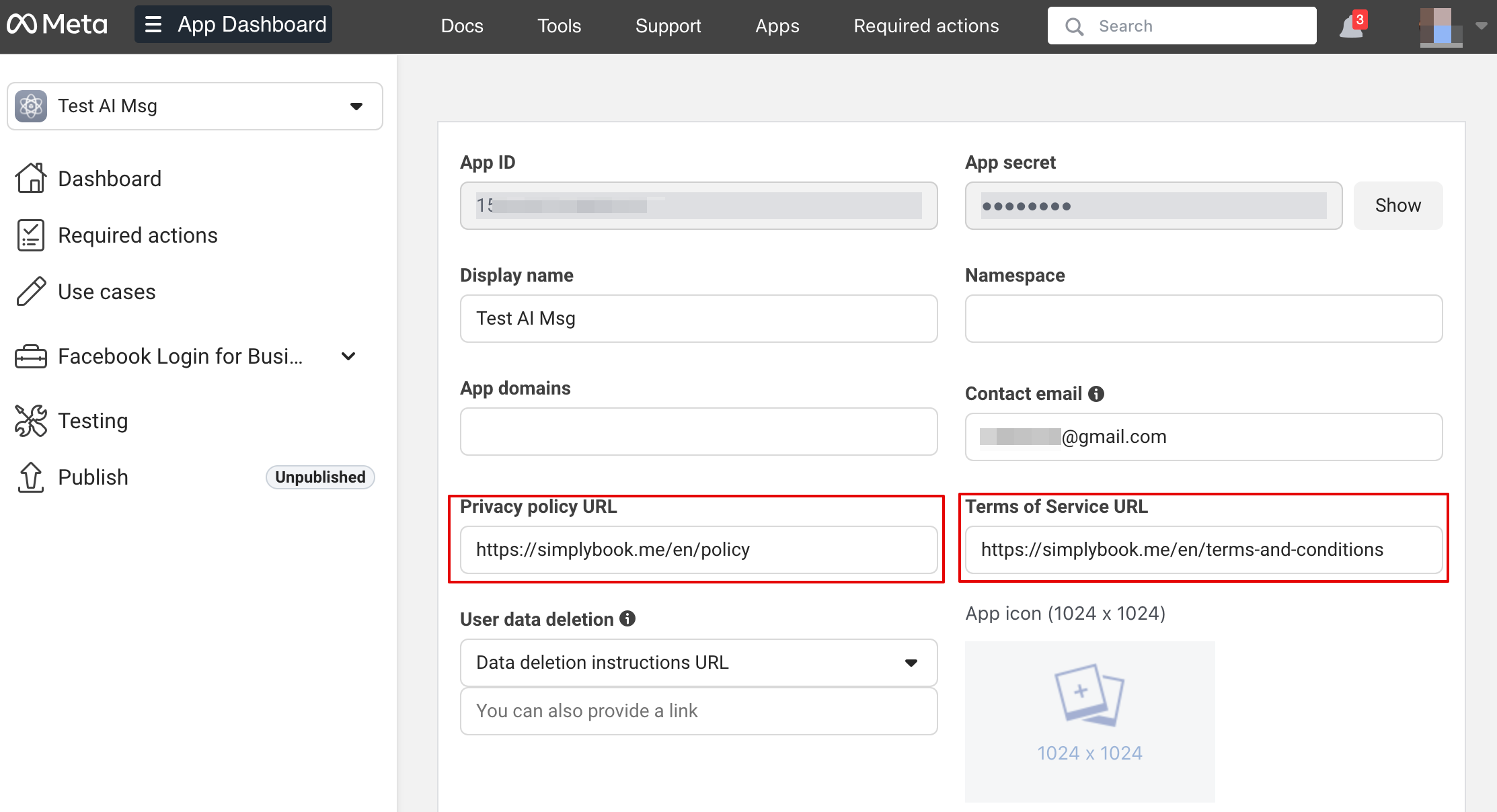
24. Gå nu tilbage til https://developers.facebook.com/apps/, vælg din app, klik på Indstillinger -> Grundlæggende. Indsæt URL’er til privatlivspolitik og servicevilkår
24. Gå nu tilbage til [https://developers.facebook.com/apps/ Facebook-udviklere], vælg din app, klik på Indstillinger -> Grundlæggende. Indsæt URL’er til privatlivspolitik og servicevilkår
[[File:App settings basic path.png|1200px|center|link=https://help.simplybook.me/images/7/70/App_settings_basic_path.png]]
[[File:App settings basic path.png|1200px|center|link=https://help.simplybook.me/images/7/70/App_settings_basic_path.png]]
[[File:Insert your terms and privacy policy links upd.png|1200px|center|link=https://help.simplybook.me/images/9/92/Insert_your_terms_and_privacy_policy_links_upd.png]]
[[File:Insert your terms and privacy policy links upd.png|1200px|center|link=https://help.simplybook.me/images/9/92/Insert_your_terms_and_privacy_policy_links_upd.png]]
Line 107: Line 107:
<br><br><br><br>
<br><br><br><br>
==Opsæt Facebook Messenger==
1. Åbn https://developers.facebook.com/apps/ og klik på “Create App”:
1. Åbn [https://developers.facebook.com/apps/ Facebook-udviklere] og klik på “Create App”:
[[File:Create sb app step 1.png|1200px|center|link=https://help.simplybook.me/images/9/9c/Create_sb_app_step_1.png]]
[[File:Create sb app step 1.png|1200px|center|link=https://help.simplybook.me/images/9/9c/Create_sb_app_step_1.png]]
<br><br>
<br><br>

Latest revision as of 11:10, 13 January 2026

Information about message (contribute)
This message has no documentation. If you know where or how this message is used, you can help other translators by adding documentation to this message.
Message definition (AI Voice Booking)
Add an AI-powered booking experience to your website and messaging channels. The assistant collects booking details, checks slot eligibility, and creates reservations automatically.
All-in-one AI booking module that connects your assistant to your website and messaging channels to take bookings and send confirmations and reminders. Configure integrations (Facebook Messenger, WhatsApp, web widget) and basic settings, then start accepting reservations automatically.
<br><br>
;How to use:
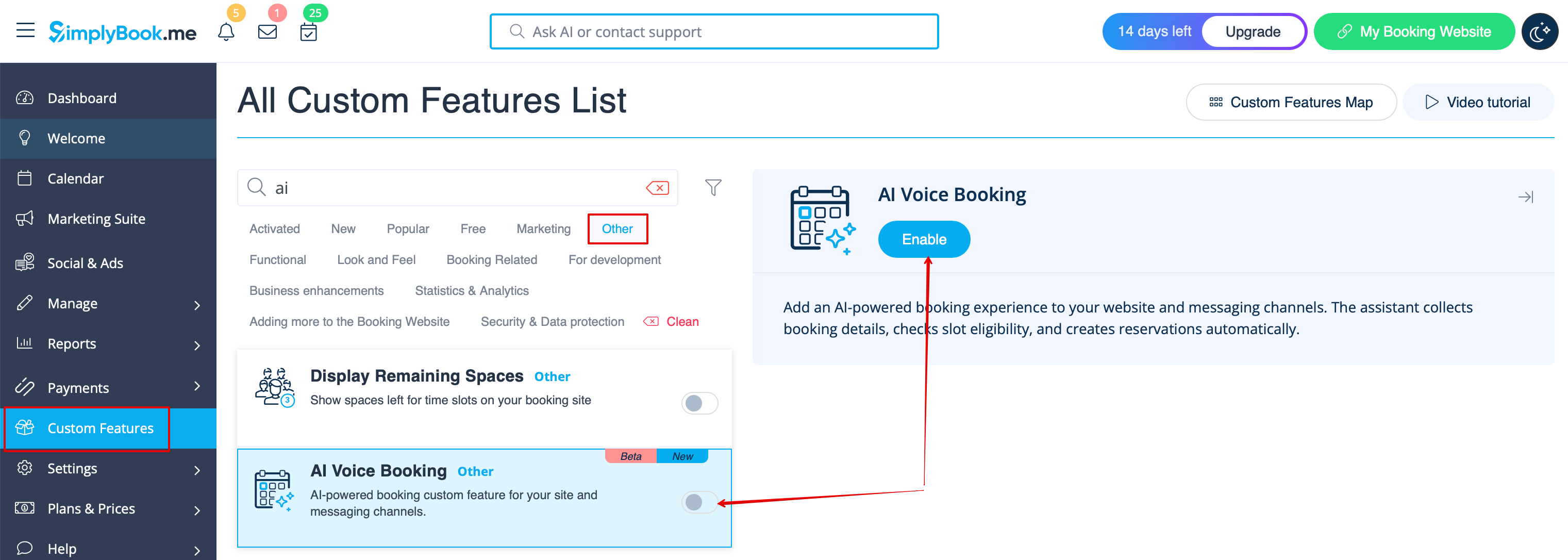
1. Enable the feature on your Custom features page -> Other -> AI Voice booking.<br>
[[File:Ai voice booking enable path.png|1200px|center|link=https://help.simplybook.me/images/1/17/Ai_voice_booking_enable_path.png]]
<br><br>
2. Get free trial credits there or purchase more AI booking credits on Plans& Prices page -> Addtional items <br>
<br><br>
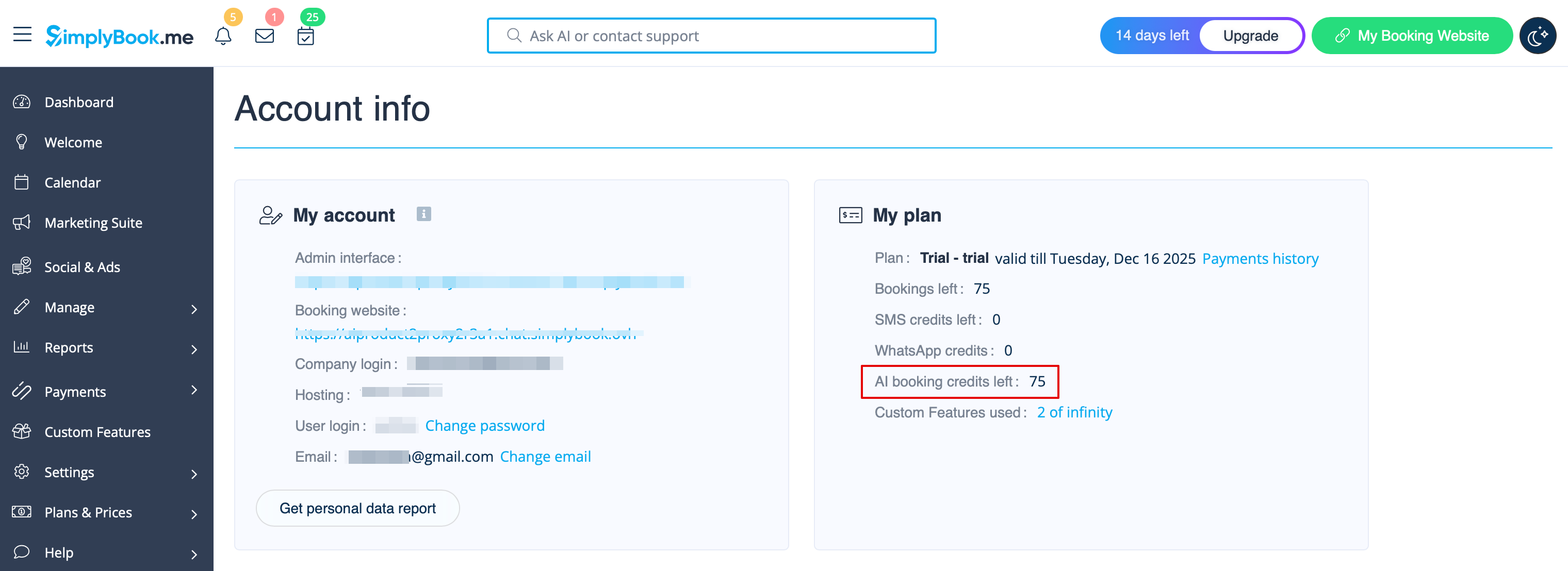
3. You will be able to see the number of remaining credits on Dashboard page or in Account info.<br>
[[File:Ai credits balance.png|1200px|center|link=https://help.simplybook.me/images/8/8c/Ai_credits_balance.png]]
<br><br>
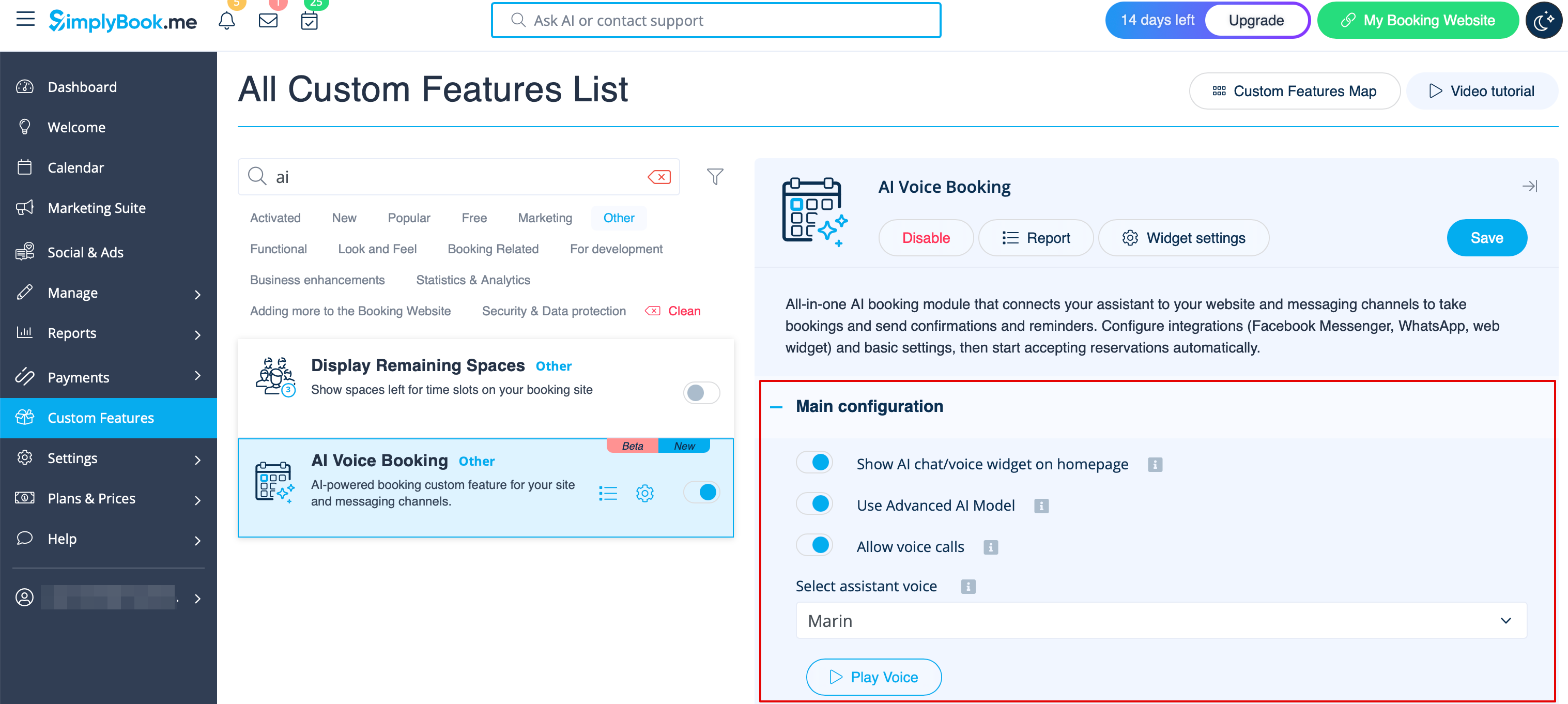
4. Get back to Custom features -> Other -> AI Voice booking to adjust the preferences for the AI voice, model, email verification text.<br>
[[File:Ai main configuration.png|1200px|center|link=https://help.simplybook.me/images/4/47/Ai_main_configuration.png]]
<br><br>
5. Now choose the option where AI booking will be available for your clients.
<br><br><br><br>
==Widget/Booking website==
1. After the credits are purchased the AI chat widget is added to your booking website by default. The clients will be able to send text or voice messages to go through the booking process with the help of AI.
<br><br>
2. If you have own website you can add AI booking widget there. Simply navigate to ‘’’Widget settings’’’ there, select the preferable colors, click on “Save & get widget color” to generate the widget code. 
[[File:Ai widget settings path.png|1200px|center|link=https://help.simplybook.me/images/d/d4/Ai_widget_settings_path.png]]
[[File:Ai widget settings view & get code.png|1200px|center|link=https://help.simplybook.me/images/4/43/Ai_widget_settings_view_%26_get_code.png]]
<br><br>
3. Navigate to your website editor and paste the code to the page where you would like the AI booking widget to be available. That’s it.
<br><br><br><br>
==WhatsApp AI booking==
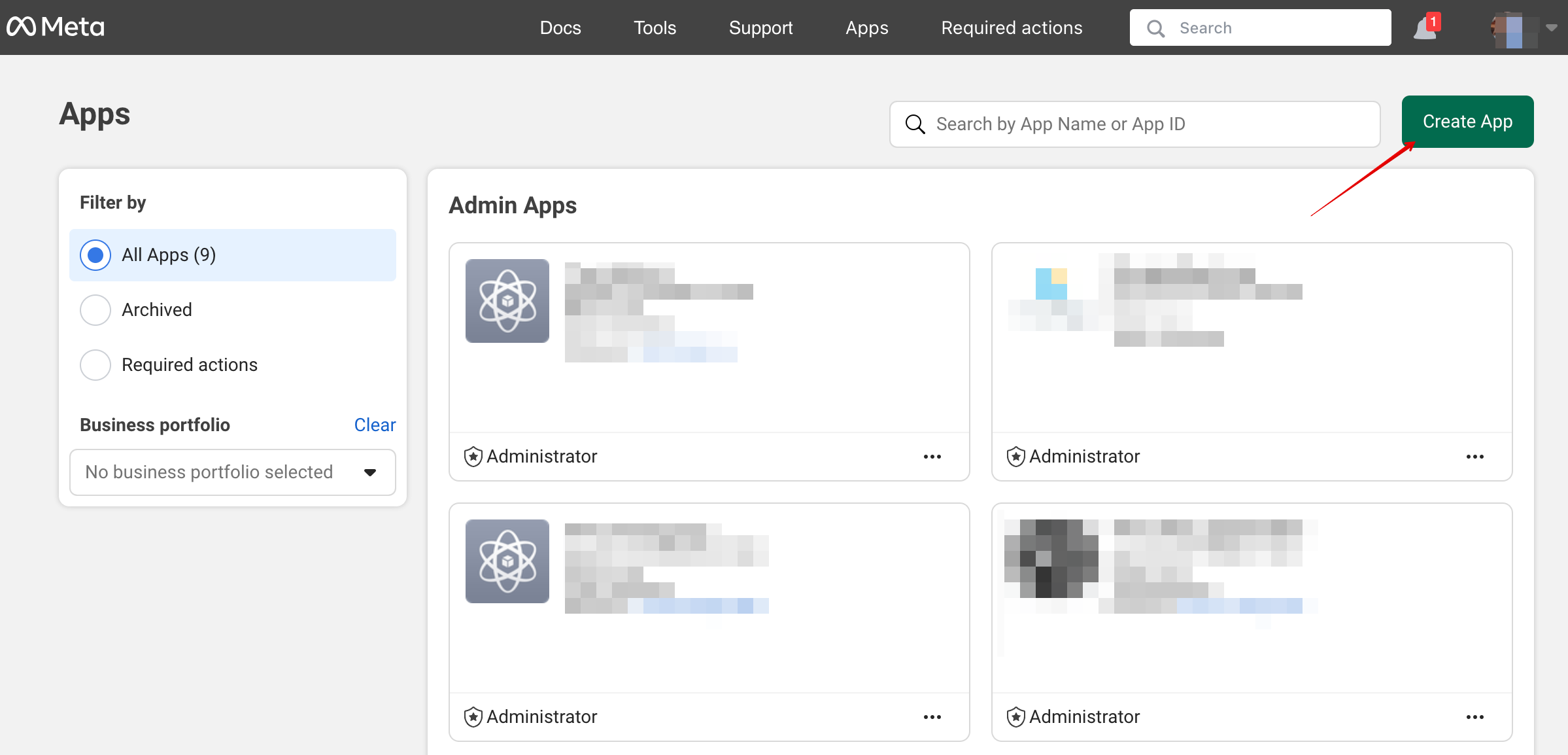
1. Open [https://developers.facebook.com/apps/ Facebook Developers] and click “Create App”:
[[File:Create sb app step 1.png|1200px|center|link=https://help.simplybook.me/images/9/9c/Create_sb_app_step_1.png]]
<br><br>
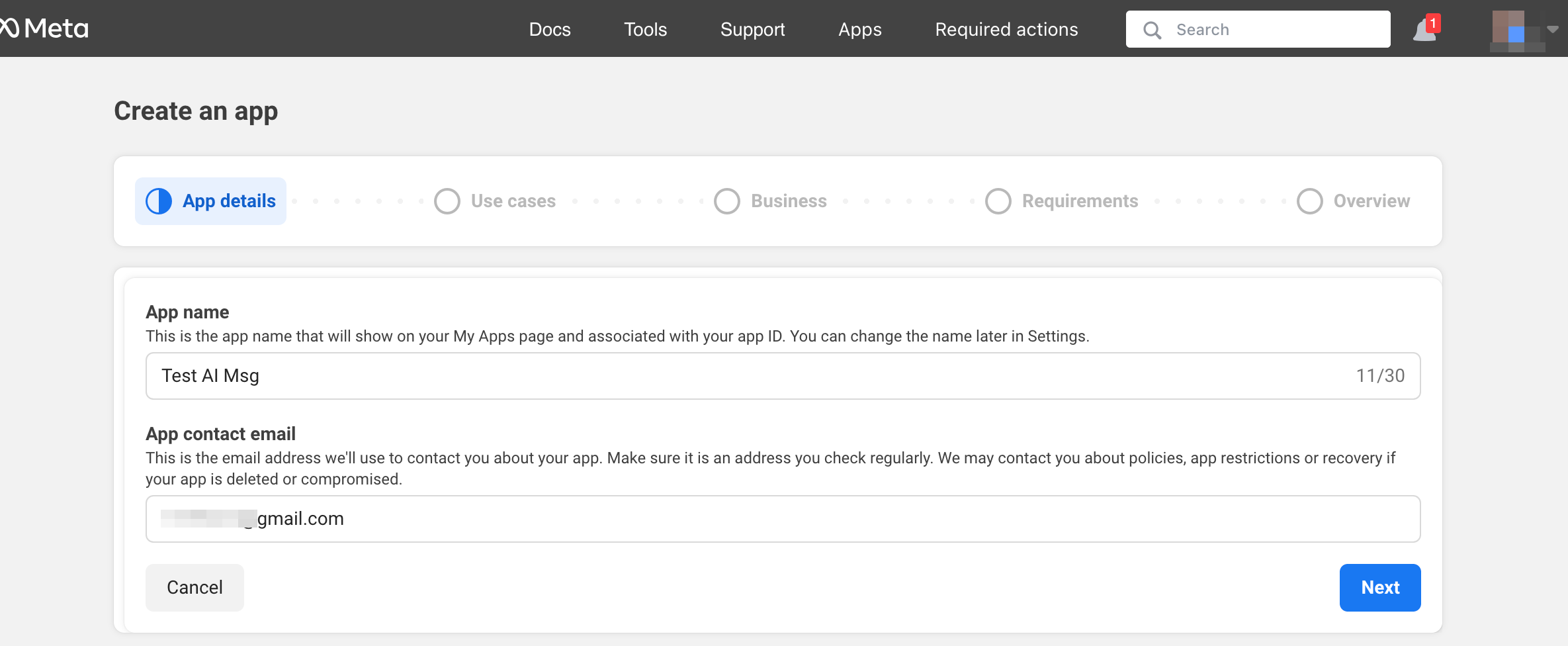
2. Enter your preferable app details:
[[File:Add app name step2.png|1200px|center|link=https://help.simplybook.me/images/d/db/Add_app_name_step2.png]]
<br><br>
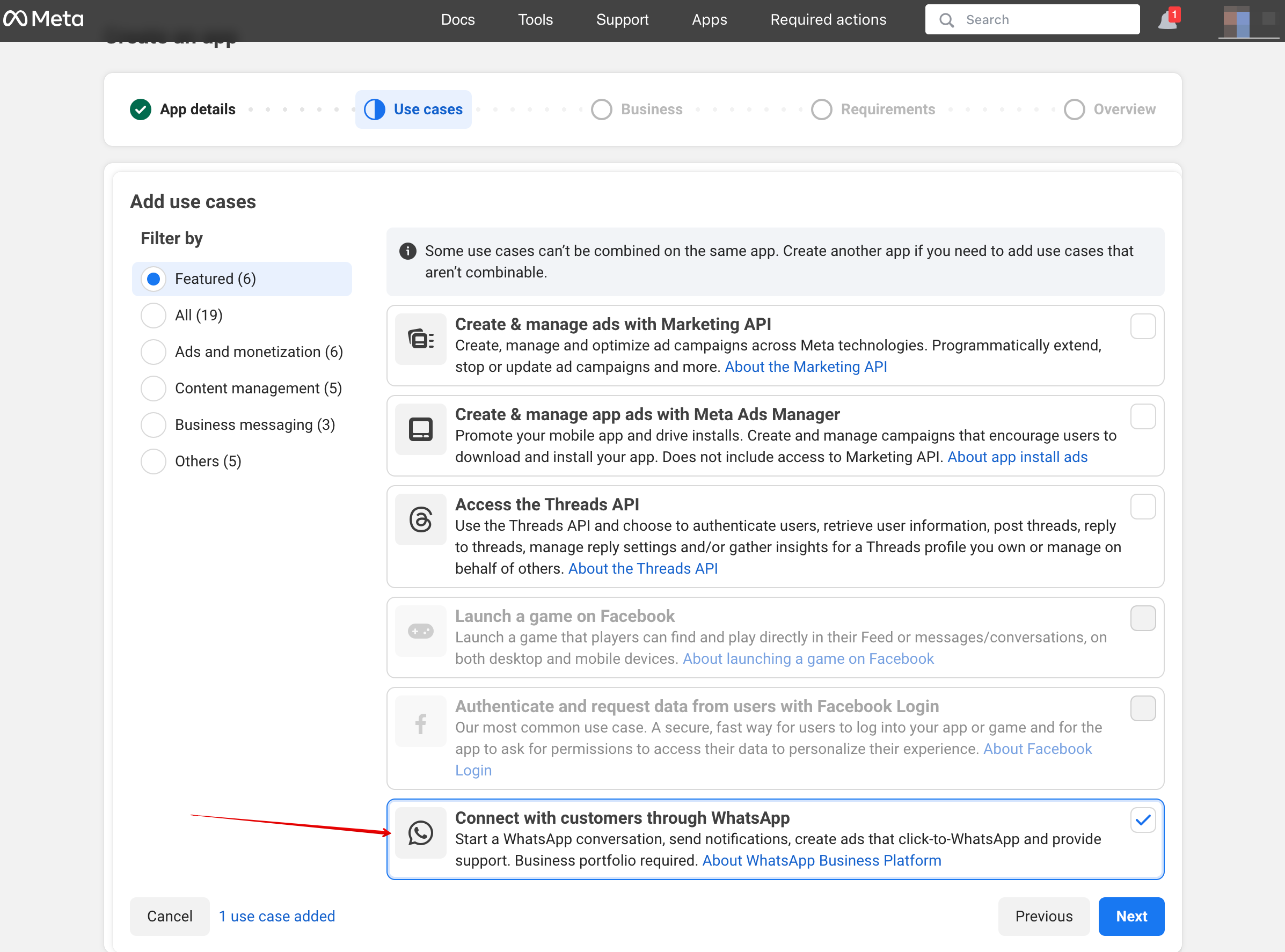
3. Select WhatsApp use case:
[[File:Connect through whatsapp step3.png|1200px|center|link=https://help.simplybook.me/images/8/8a/Connect_through_whatsapp_step3.png]]
<br><br>
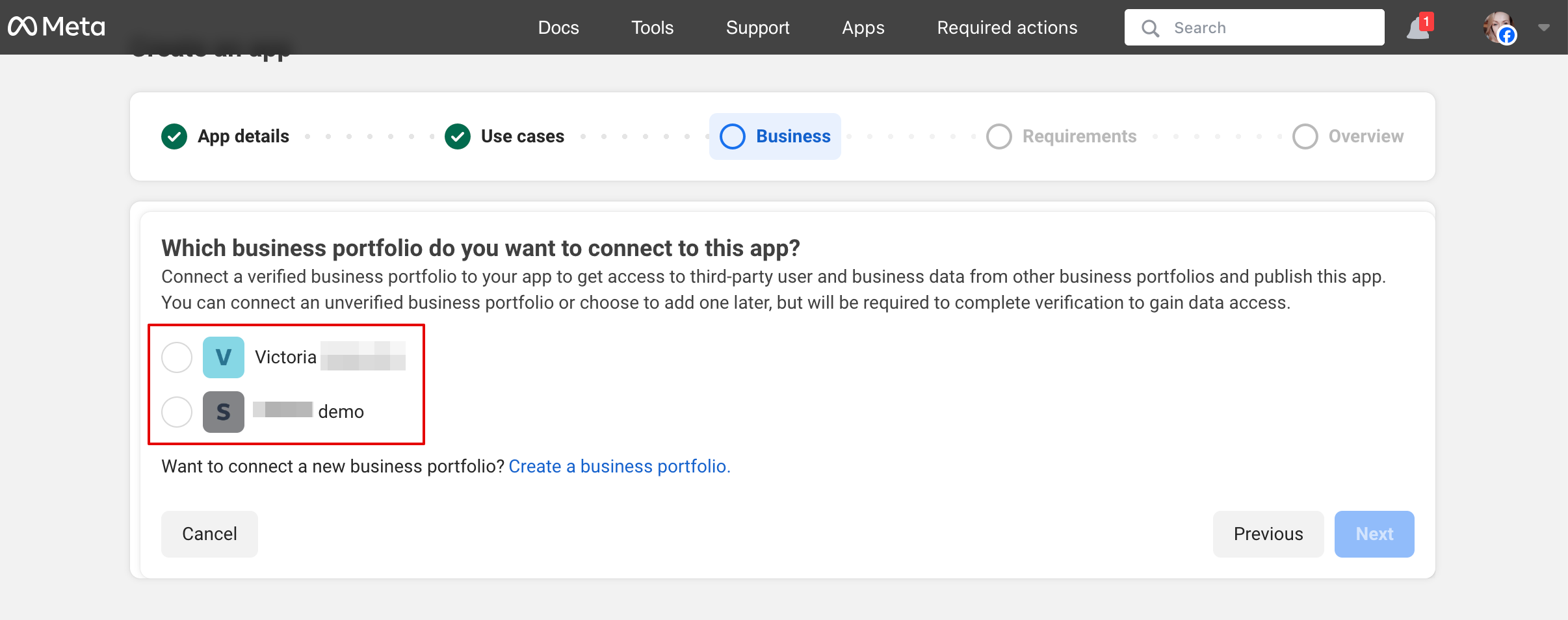
4. Select the business profile or create a new one.
[[File:Select or create business step 5.png|1200px|center|link=https://help.simplybook.me/images/1/18/Select_or_create_business_step_5.png]]
<br><br>
5. Click on “Next” to proceed:
<br><br>
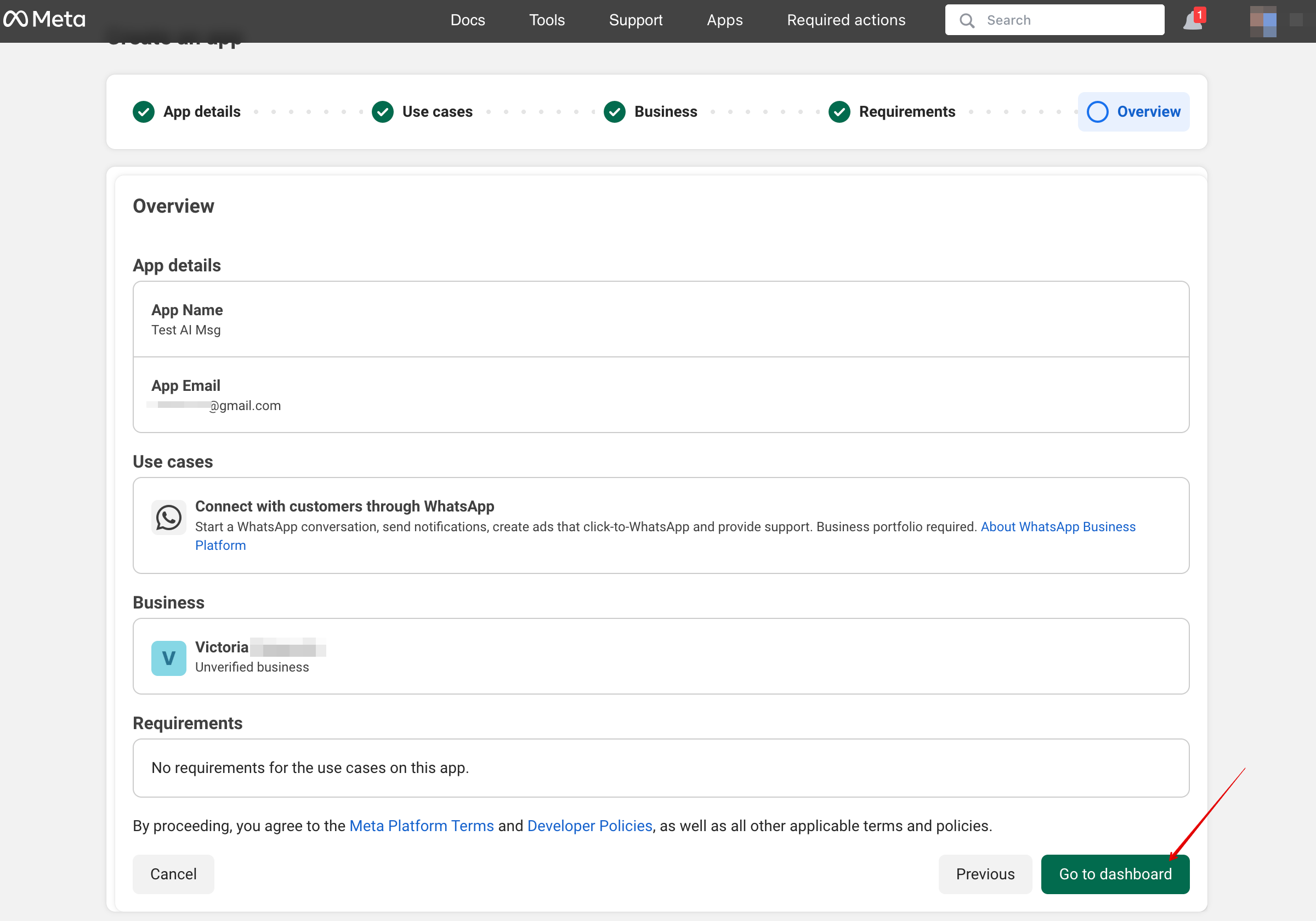
6. Review the details and click “Go to dashboard”:
[[File:Go to dashboard step 6.png|1200px|center|link=https://help.simplybook.me/images/f/fc/Go_to_dashboard_step_6.png]]
<br><br>
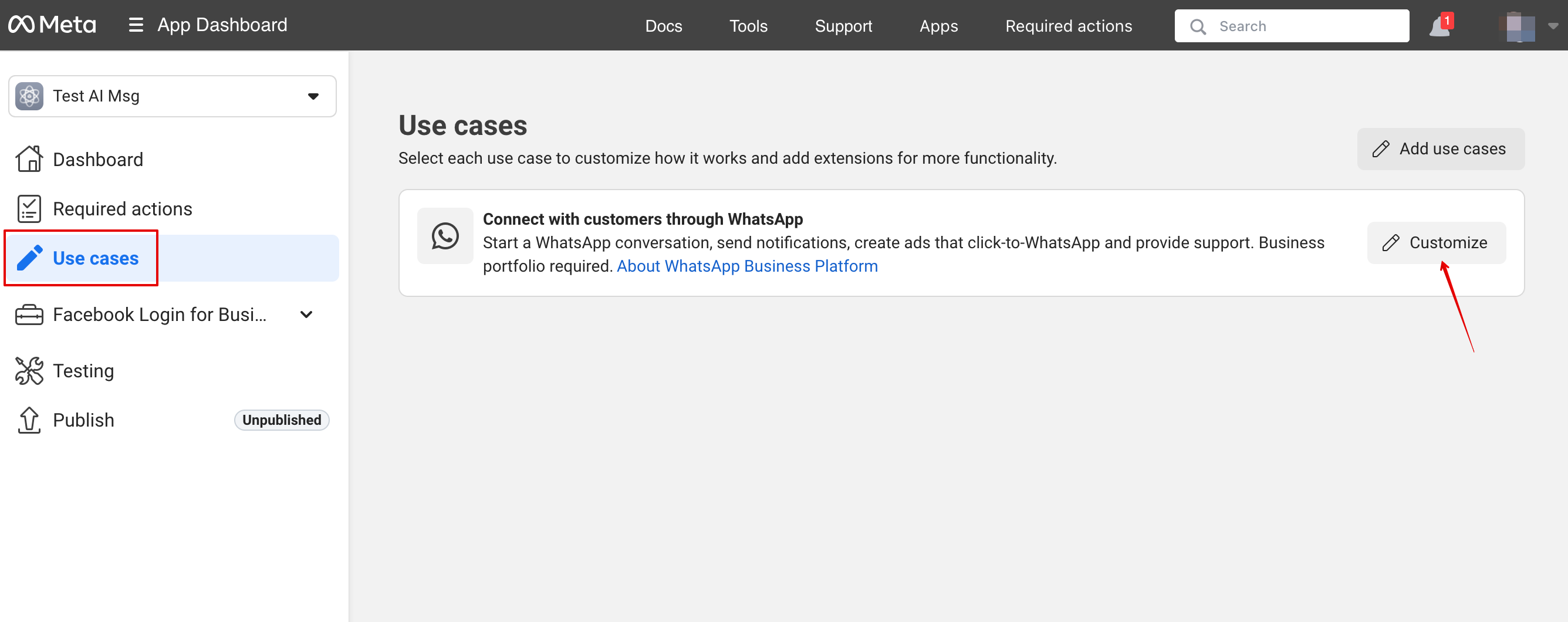
7. Select “Use cases” tab and click on “Customize” button:
[[File:User cases customize.png|1200px|center|link=https://help.simplybook.me/images/a/a7/User_cases_customize.png]]
<br><br>
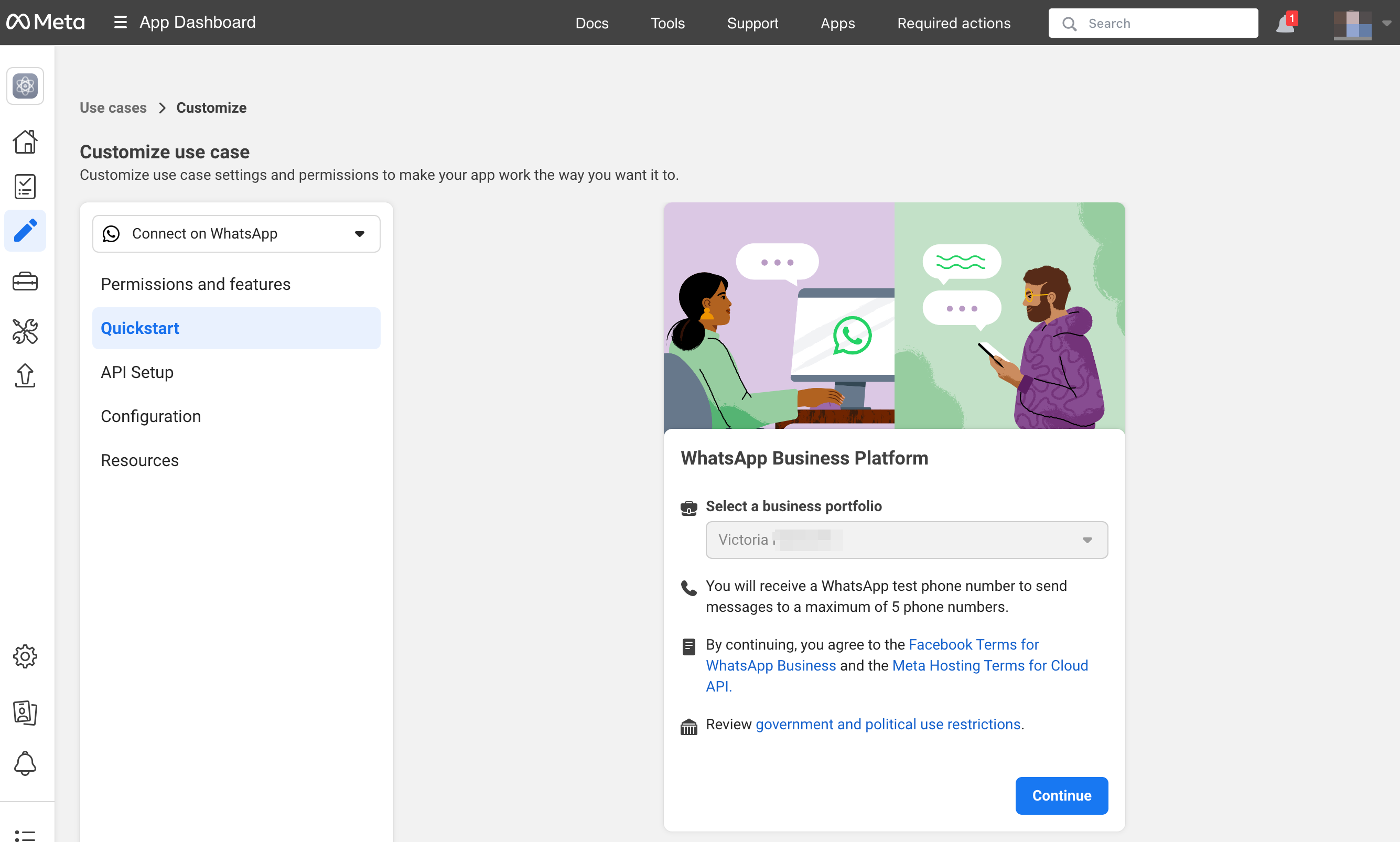
8. Accept Terms of service and confirm business profile:
[[File:Accept the terms and confirm profile.png|1200px|center|link=https://help.simplybook.me/images/8/8c/Accept_the_terms_and_confirm_profile.png]]
<br><br>
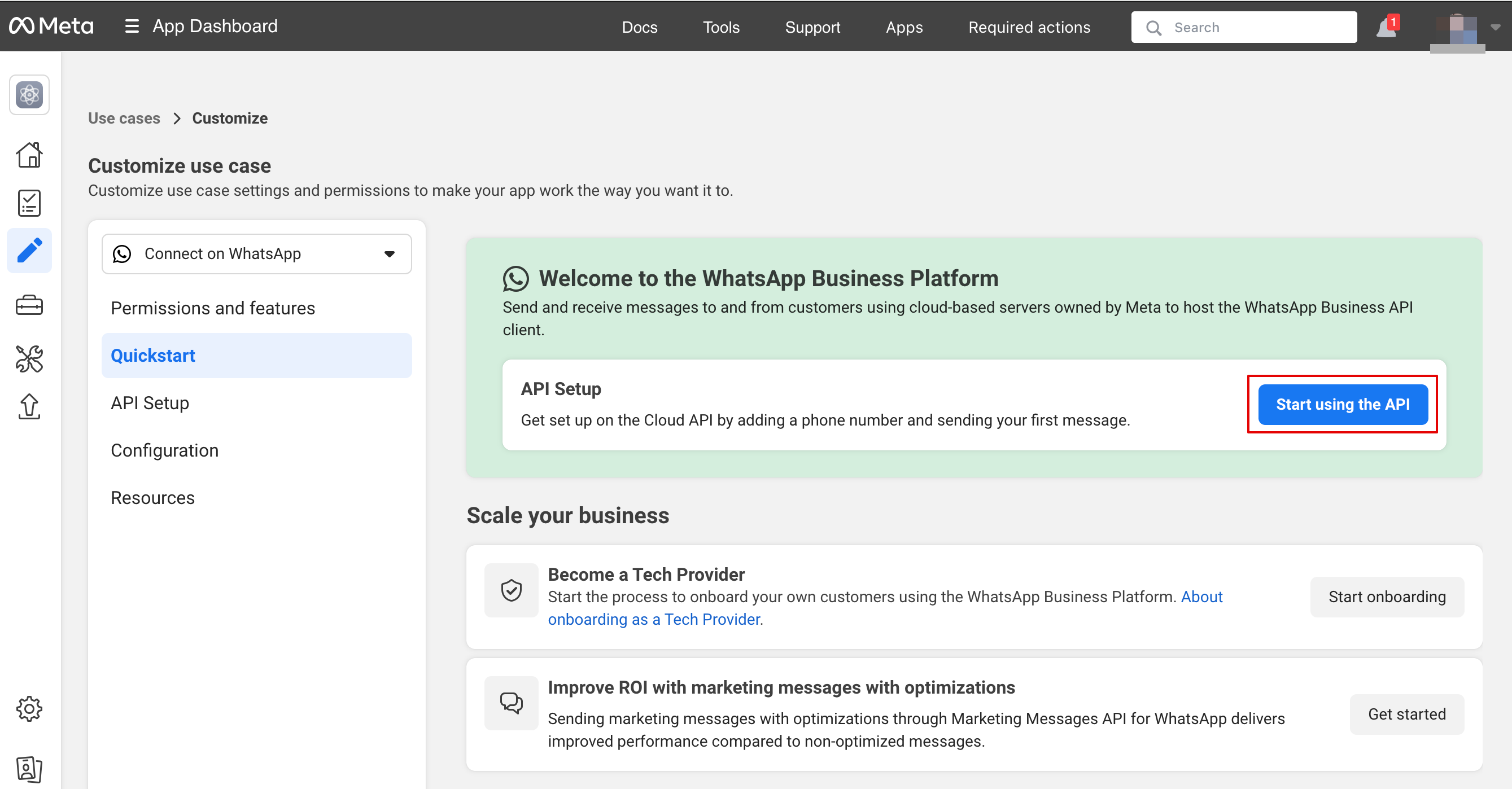
9. Choose “Start using the API”:
[[File:Start using the api.png|1200px|center|link=https://help.simplybook.me/images/1/11/Start_using_the_api.png]]
<br><br>
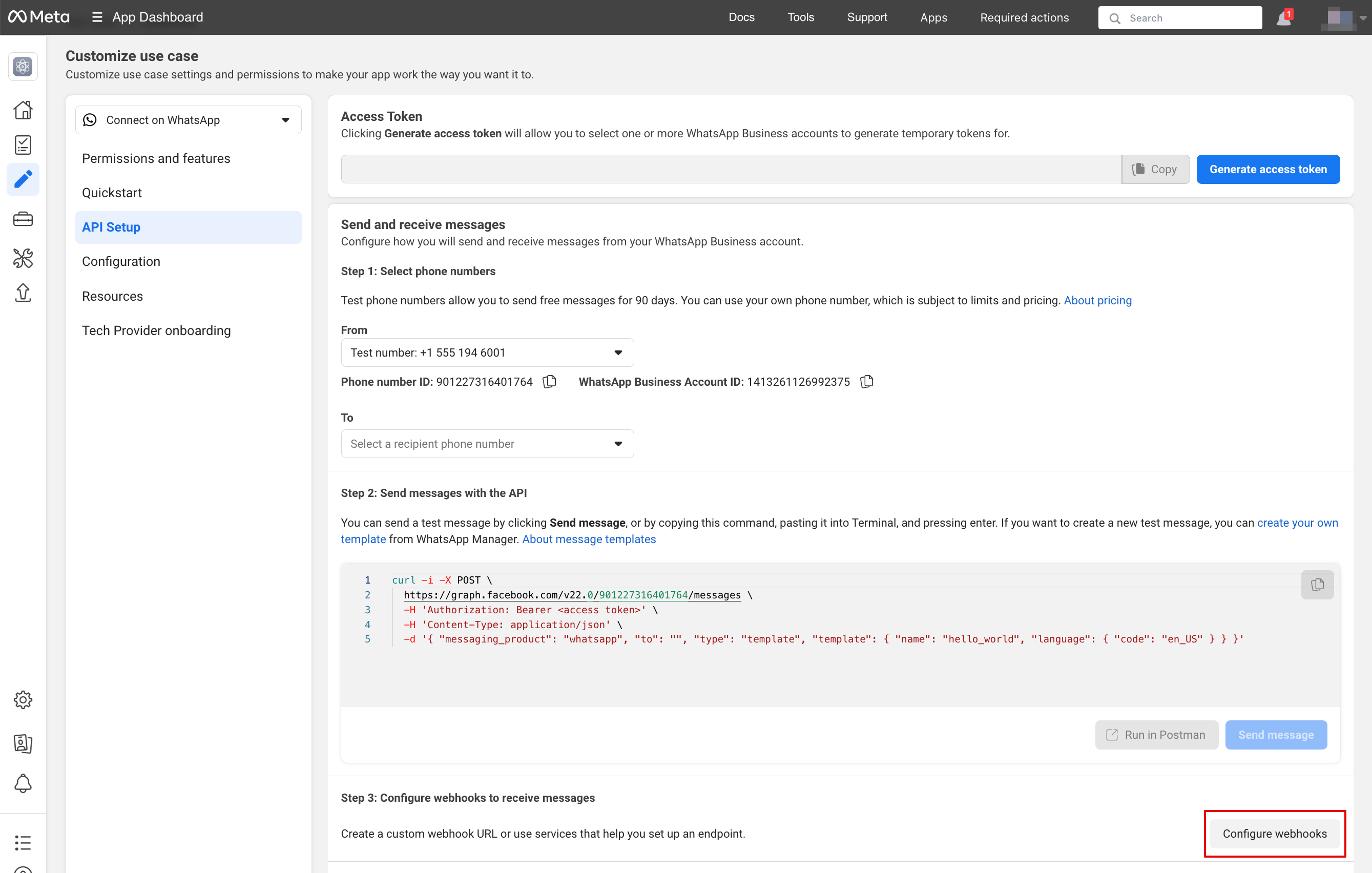
10. Then go to “Configure webhooks”:
[[File:Configure webhooks.png|1200px|center|link=https://help.simplybook.me/images/b/bc/Configure_webhooks.png]]
<br><br>
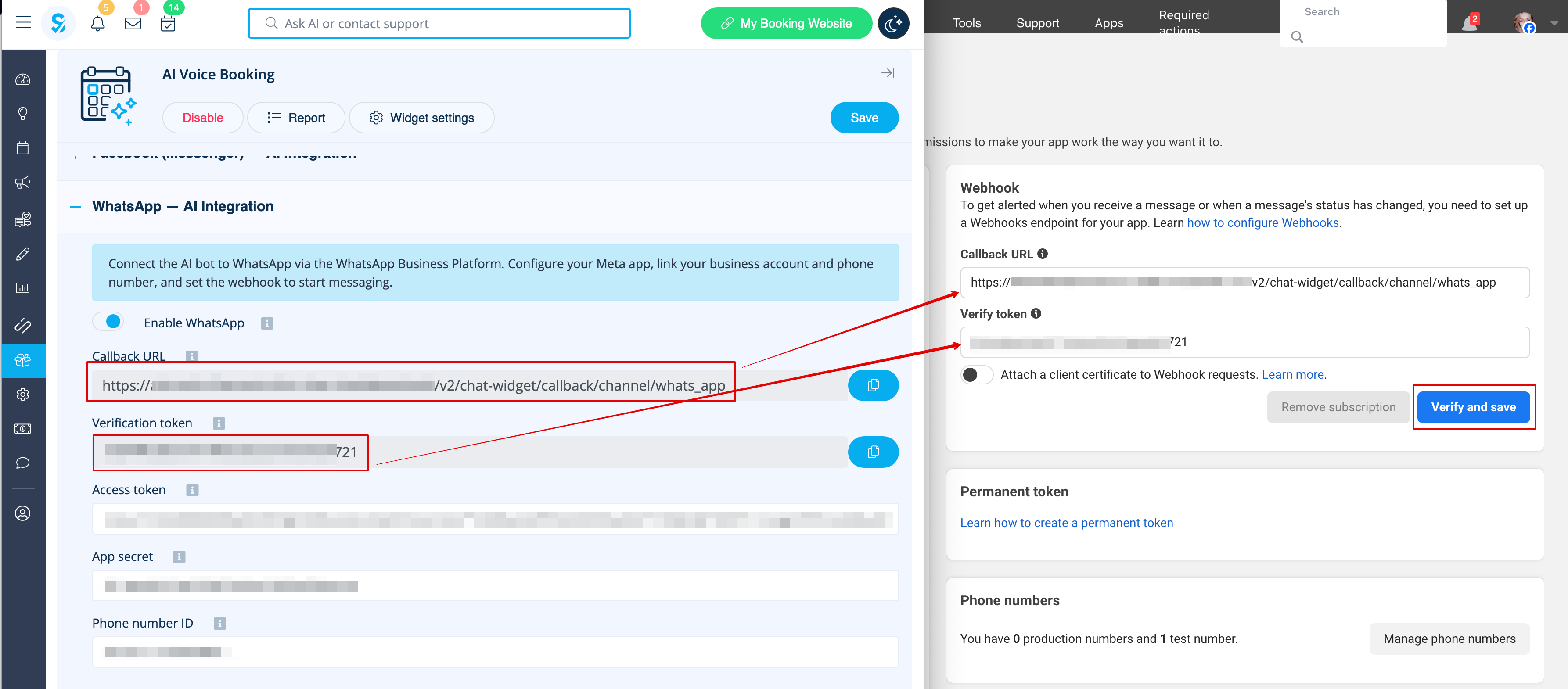
11. Copy “Callback url” and “Verification token” from your SimplyBook.me Account -> Custom features -> AI Voice booking and paste them to the corresponding fields in the app. Verify and save:
[[File:Callback and token.png|1200px|center|link=https://help.simplybook.me/images/f/f6/Callback_and_token.png]]
<br><br>
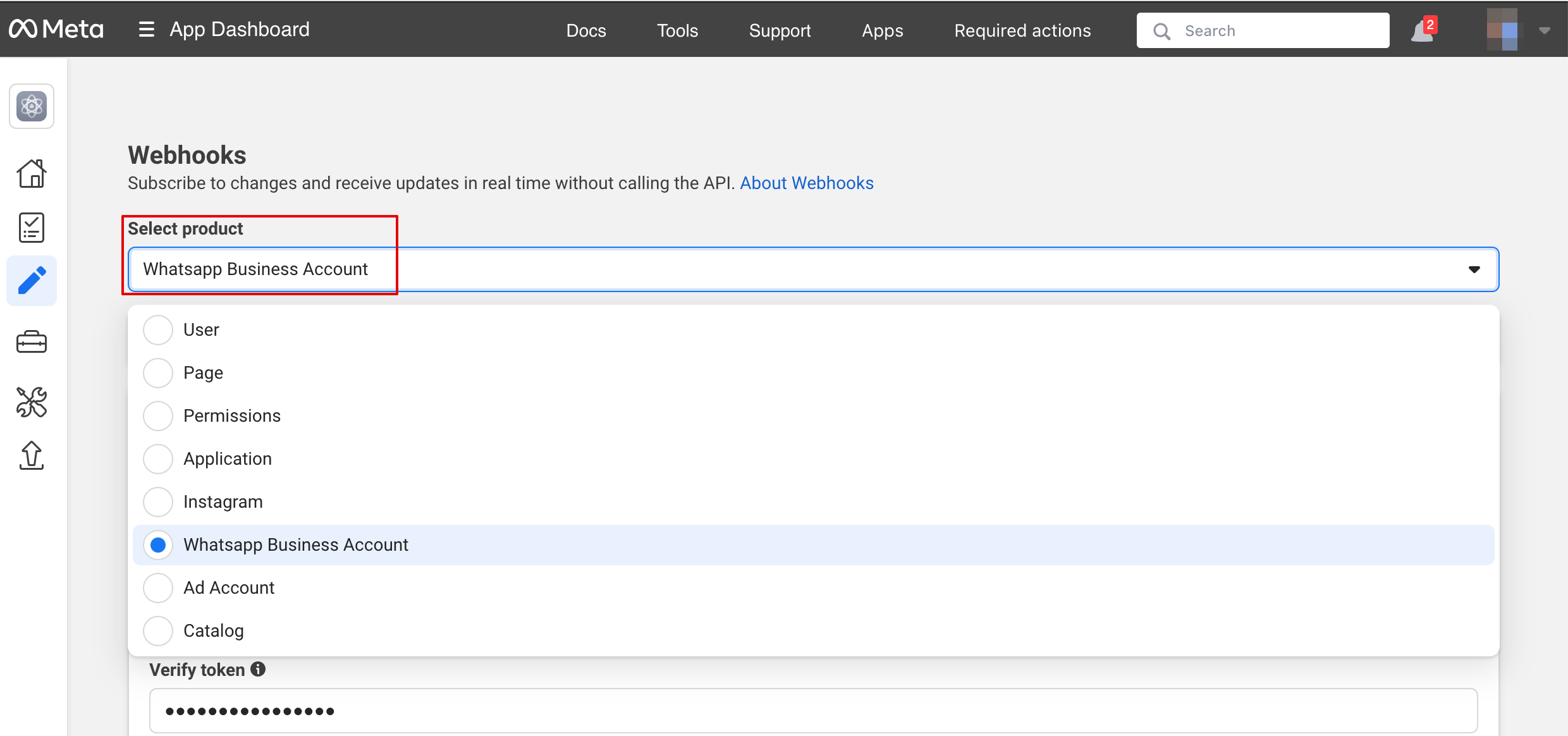
12. On the next step in the “Select product” please choose “WhatsApp Business Account”:
[[File:Select product.png|1200px|center|link=https://help.simplybook.me/images/6/66/Select_product.png]]
<br><br>
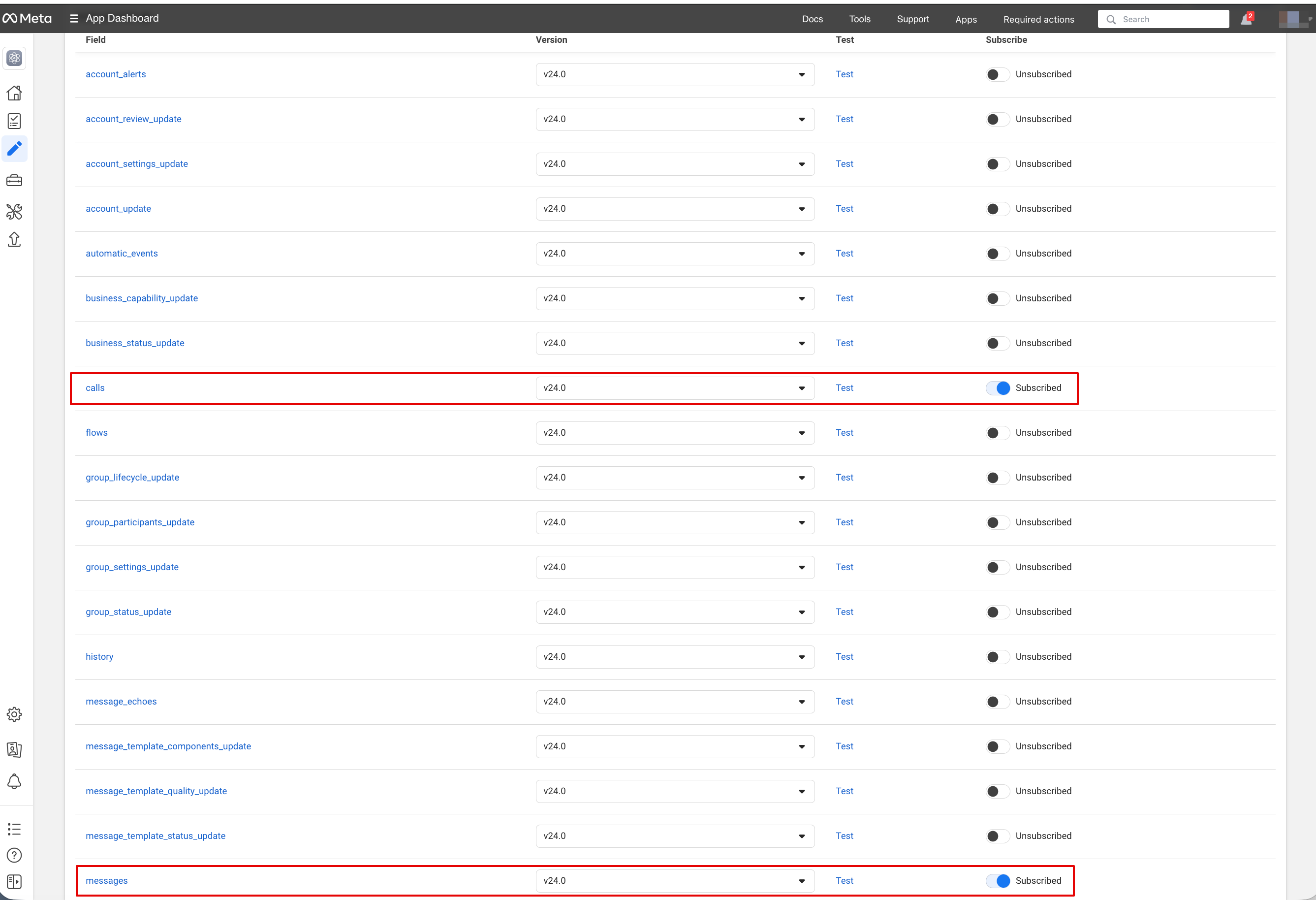
13. Then enable necessary webhooks: messages and calls (in case you want to accept calls):
[[File:Calls and msg subscriptions.png|1200px|center|link=https://help.simplybook.me/images/5/5d/Calls_and_msg_subscriptions.png]]
<br><br>
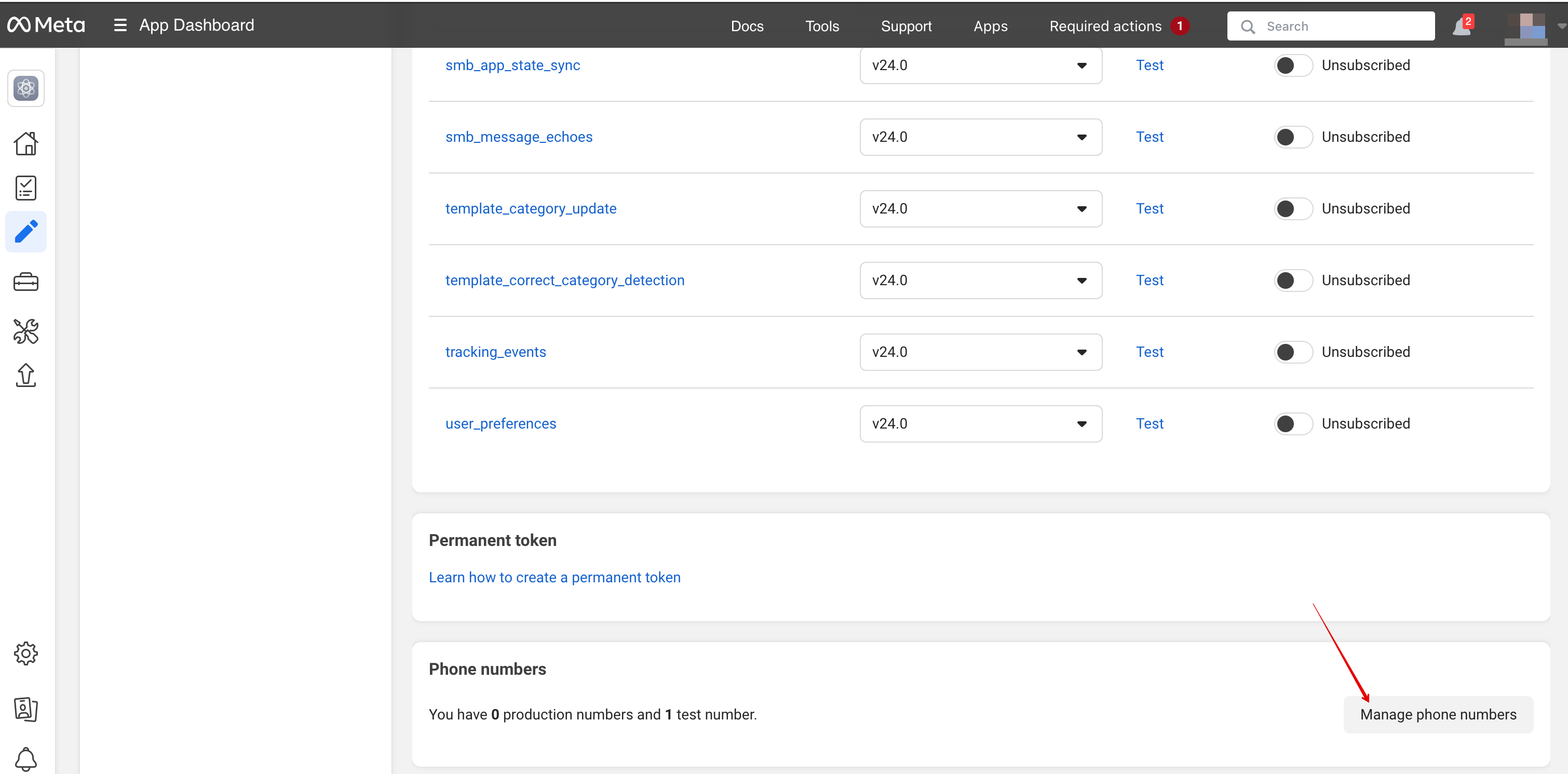
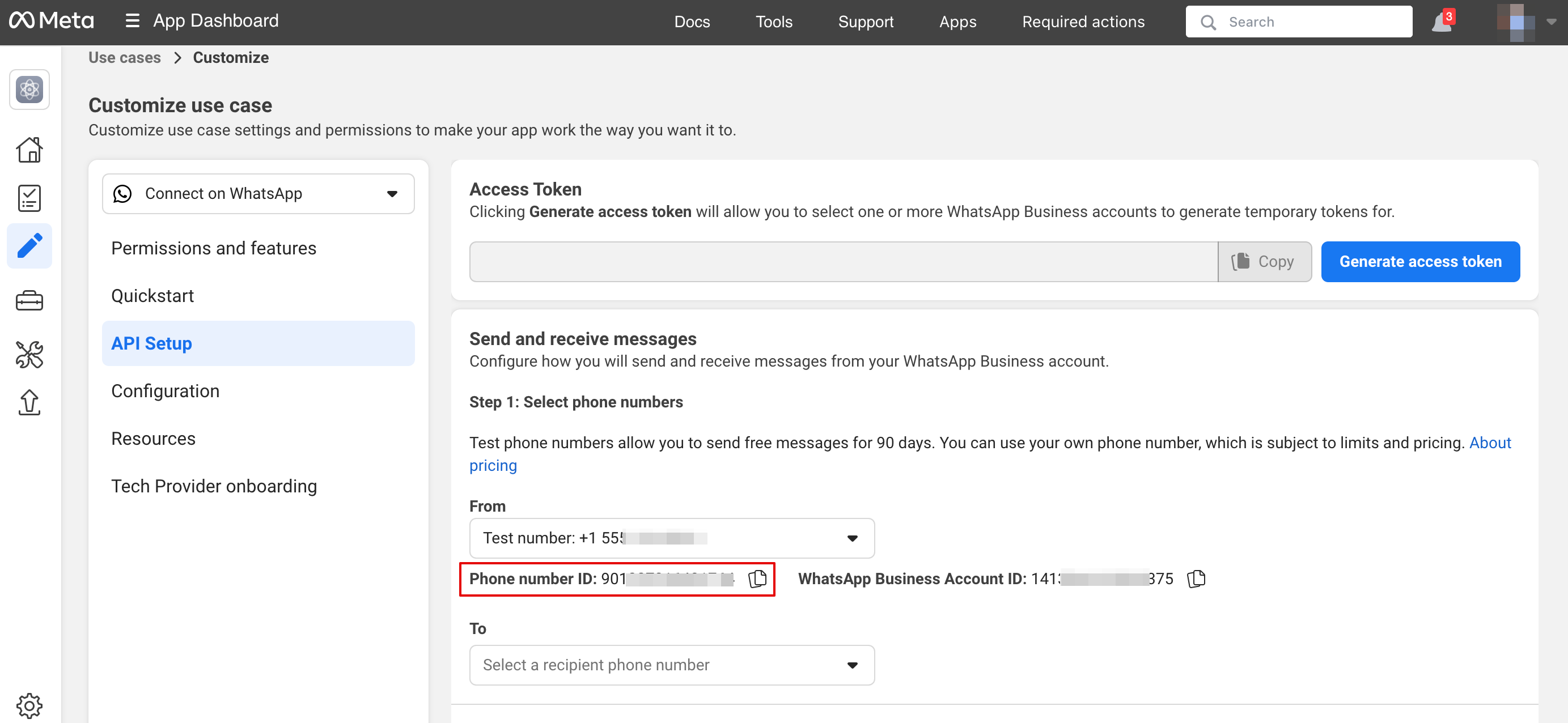
14. Now you can add phone numbers and payment method (because FB wants to charge you for messages).
Copy the phone number id from Facebook and paste it to the corresponding form in your Simplybook.me account.
[[File:Manage phone numbers.png|1200px|center|link=https://help.simplybook.me/images/b/b1/Manage_phone_numbers.png]]
[[File:Copy phone number id.png|1200px|center|link=https://help.simplybook.me/images/9/91/Copy_phone_number_id.png]]
<br><br>
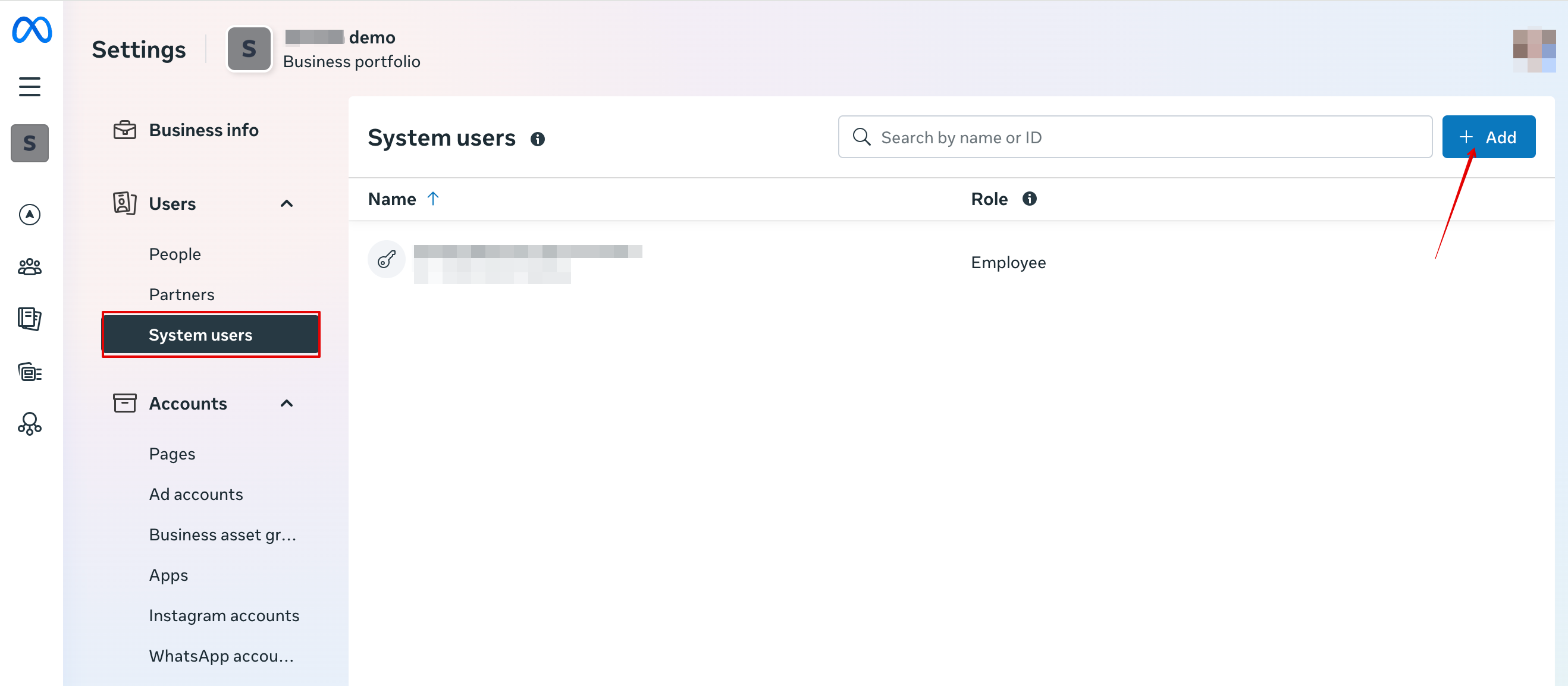
15. Now you need to create a system user. Please go to the [https://business.facebook.com/latest/settings/ Facebook Business profile] and open System users tab:
[[File:Add user facebook.png|1200px|center|link=https://help.simplybook.me/images/b/b7/Add_user_facebook.png]]
<br><br>
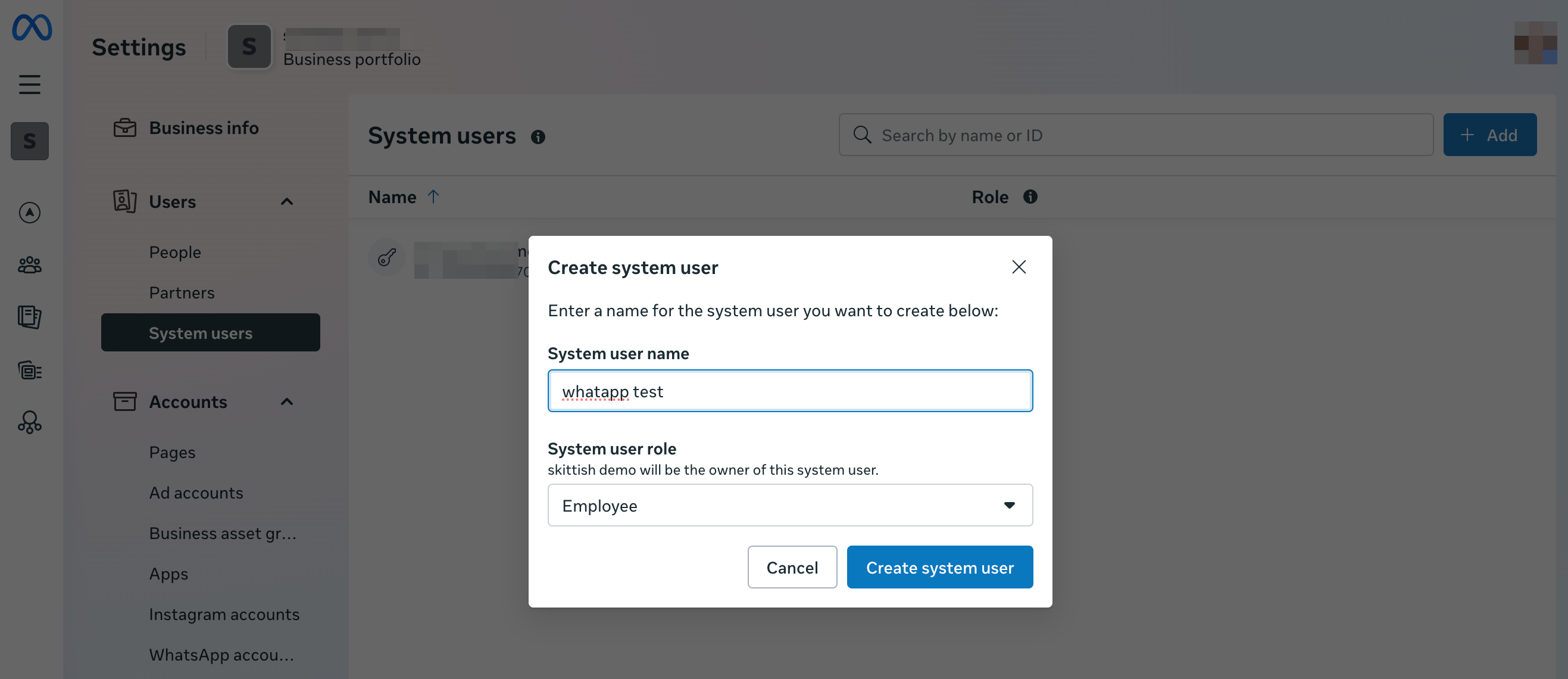
16. Click Add new user and fill user details:
[[File:Create user facebook step 2.png|1200px|center|link=https://help.simplybook.me/images/1/1b/Create_user_facebook_step_2.png]]
<br><br>
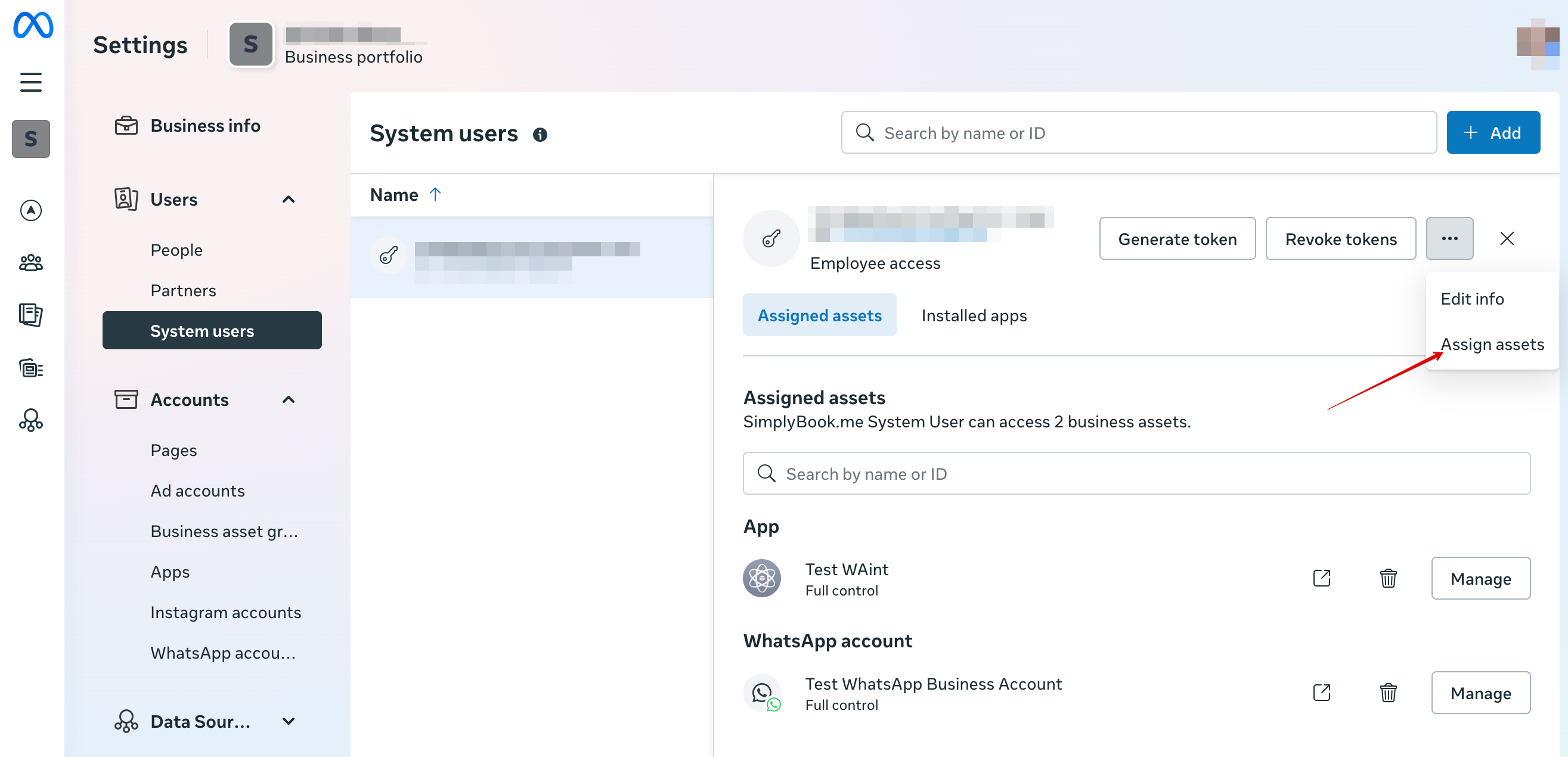
17. Then navigate to Assign Assets:
[[File:Assign assets path.png|1200px|center|link=https://help.simplybook.me/images/9/9e/Assign_assets_path.png]]
<br><br>
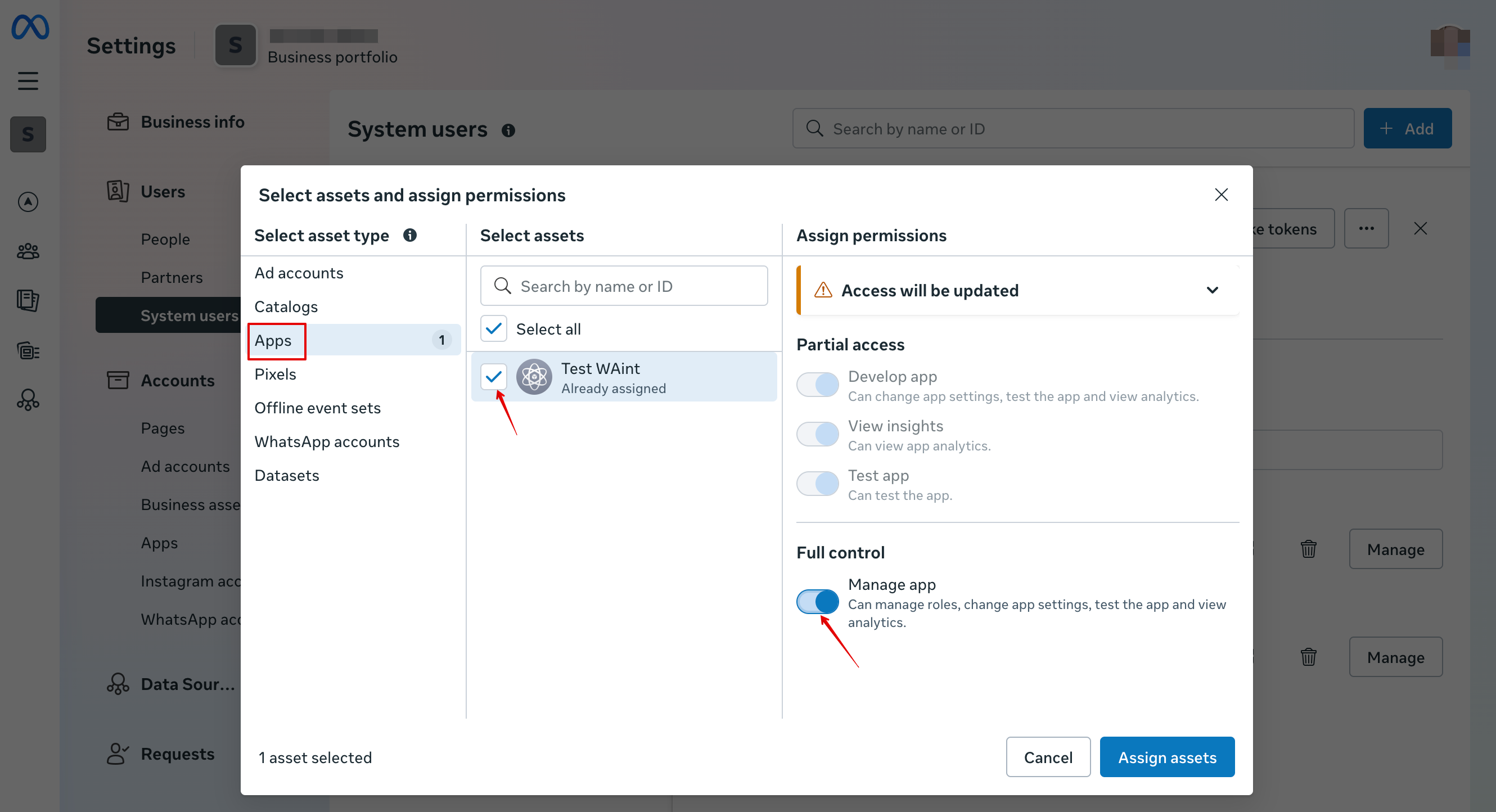
18. In Apps tab select your app and enable “Manage app” permission:
[[File:Add manage app permission.png|1200px|center|link=https://help.simplybook.me/images/f/f3/Add_manage_app_permission.png]]
<br><br>
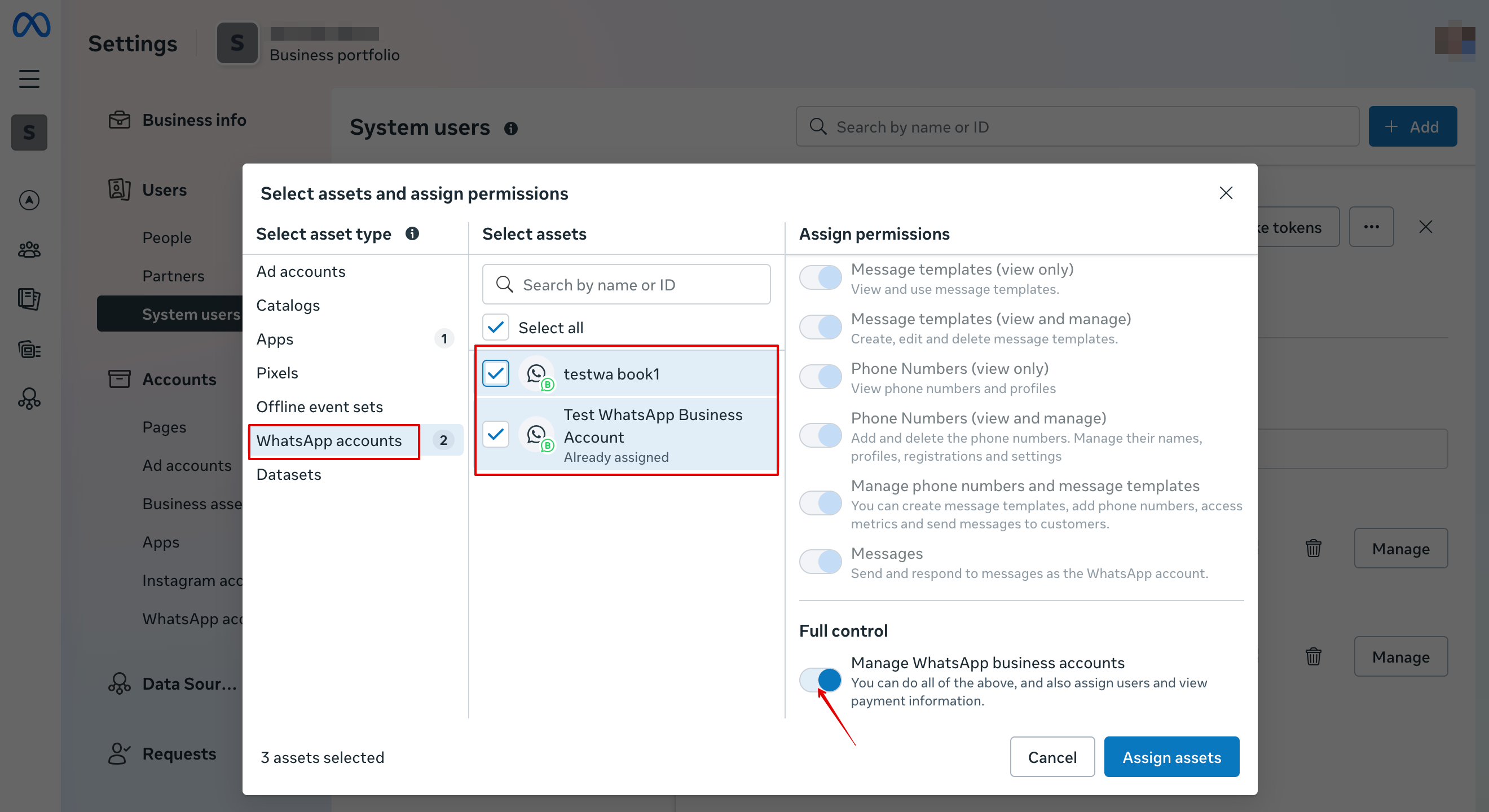
19. In WhatsApp accounts tab select your WhatsApp accounts and enable Manage WhatsApp business accounts permission:
[[File:Whatsapp acc permissions add.png|1200px|center|link=https://help.simplybook.me/images/1/17/Whatsapp_acc_permissions_add.png]]
<br><br>
20. After assigning assets click Generate Token:
[[File:Generate token path.png|1200px|center|link=https://help.simplybook.me/images/d/dd/Generate_token_path.png]]
<br><br>
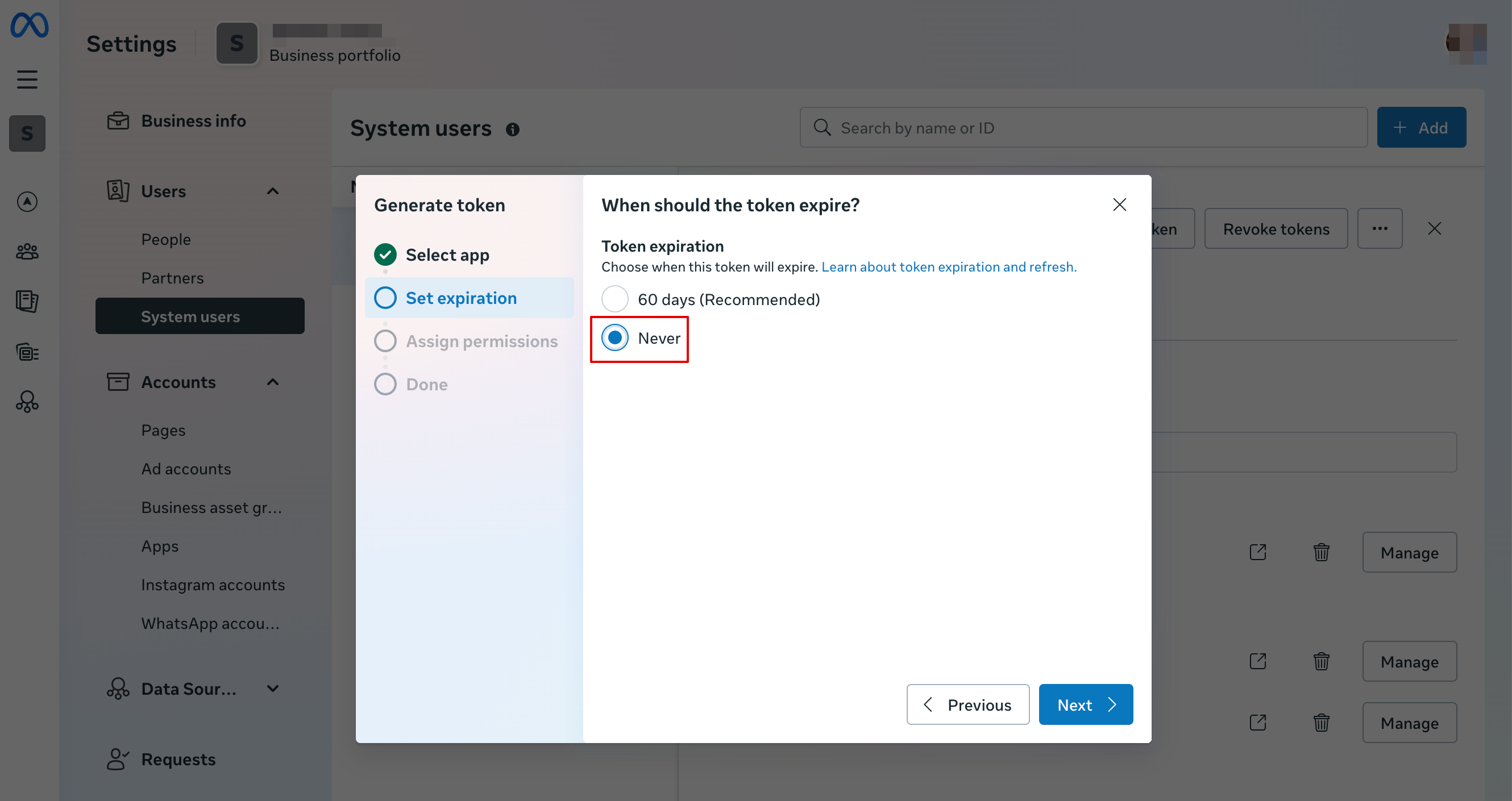
21. Select your app from the drop down menu and then set token expiration to “never”:
[[File:Token never expire.png|1200px|center|link=https://help.simplybook.me/images/2/2a/Token_never_expire.png]]
<br><br>
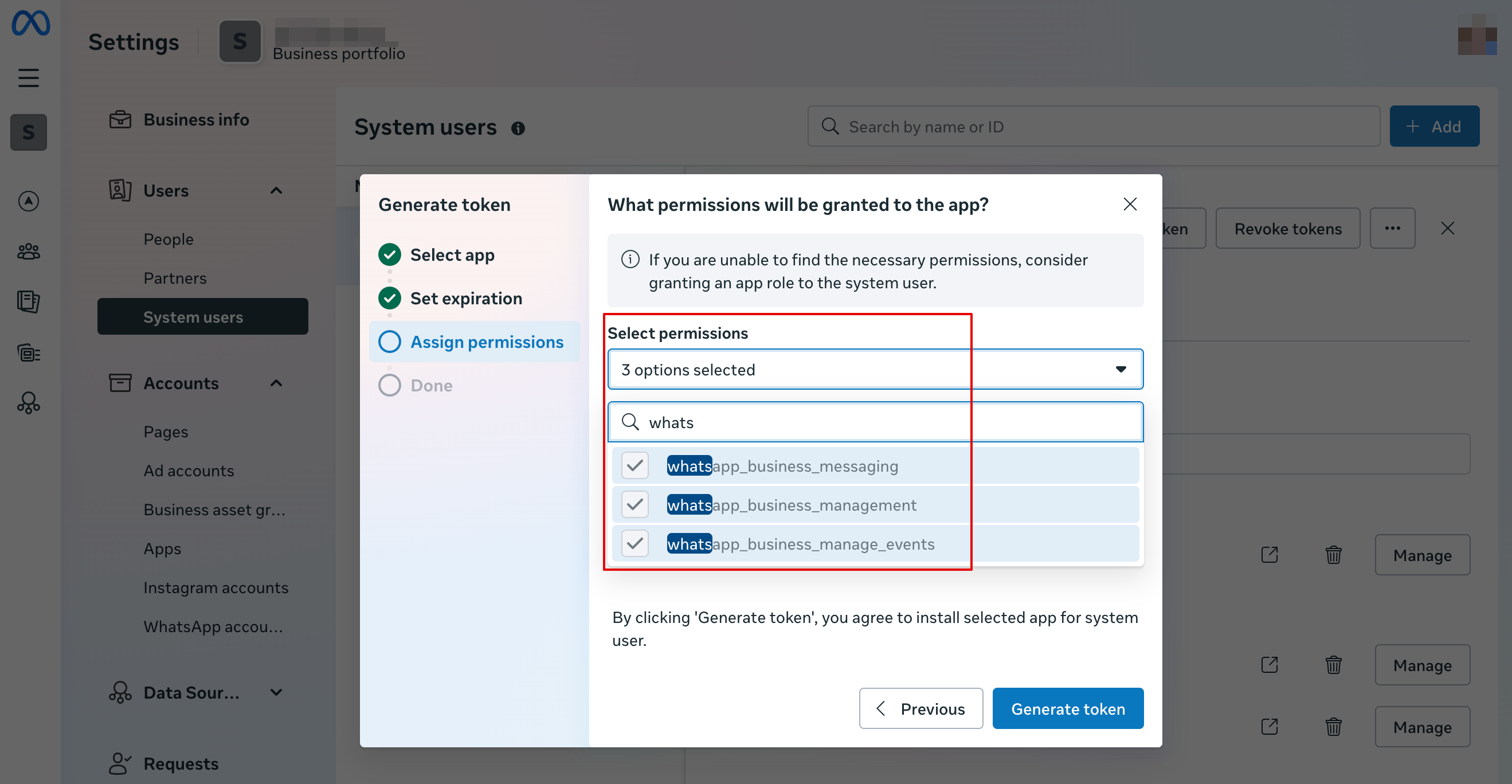
22. Select the following permissions:
[[File:Whatapp permissions.png|1200px|center|link=https://help.simplybook.me/images/9/97/Whatapp_permissions.png]]
<br><br>
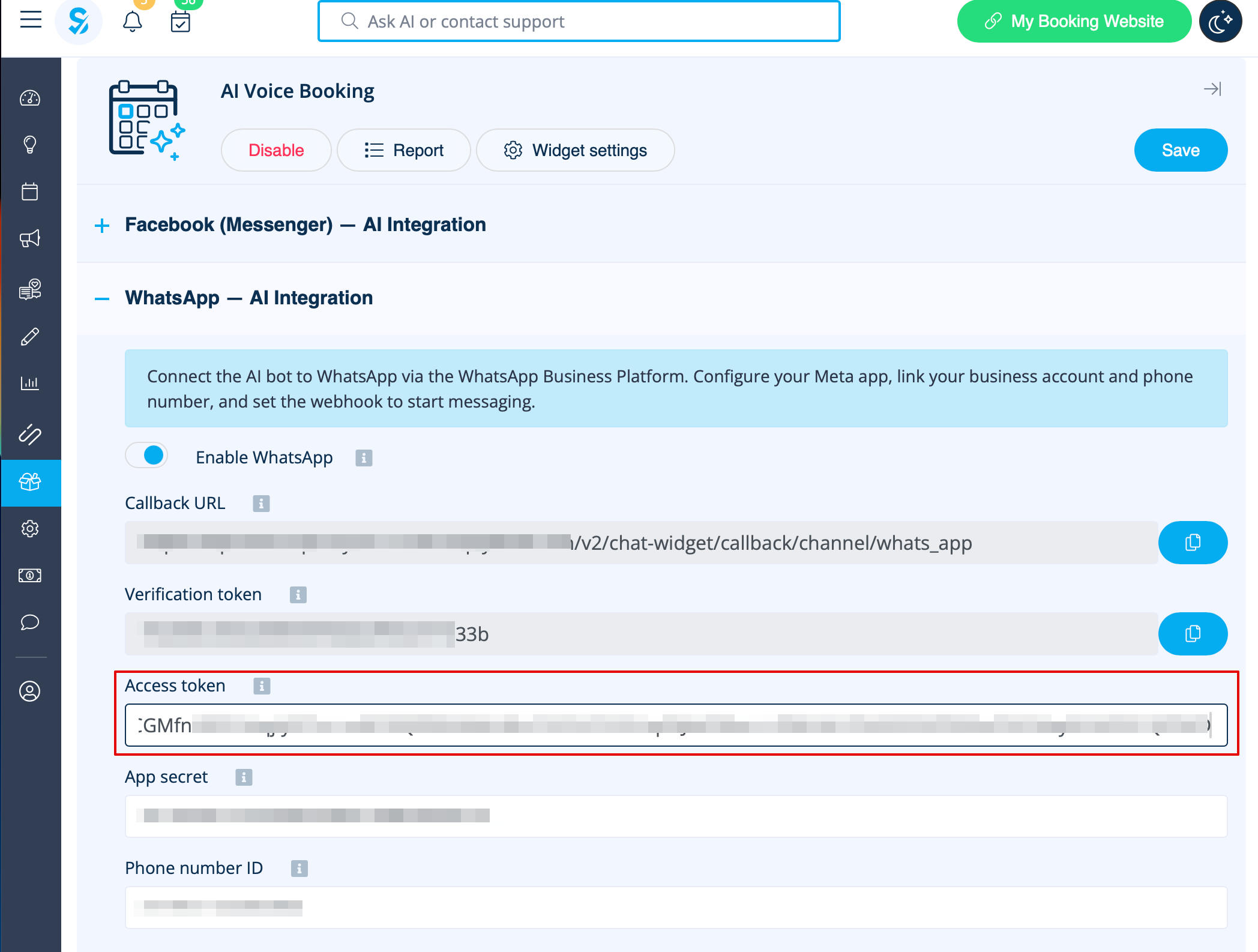
23. Copy token and paste into SB and save settings.<br>
[[File:Paste token to sbm.png|1200px|center|link=https://help.simplybook.me/images/e/e7/Paste_token_to_sbm.png]]
<br><br>
24. Now back to [https://developers.facebook.com/apps/ Facebook Developers] select your app, click Settings -> Basic. Insert Privacy policy and Terms of service URLS
[[File:App settings basic path.png|1200px|center|link=https://help.simplybook.me/images/7/70/App_settings_basic_path.png]]
[[File:Insert your terms and privacy policy links upd.png|1200px|center|link=https://help.simplybook.me/images/9/92/Insert_your_terms_and_privacy_policy_links_upd.png]]
<br><br>
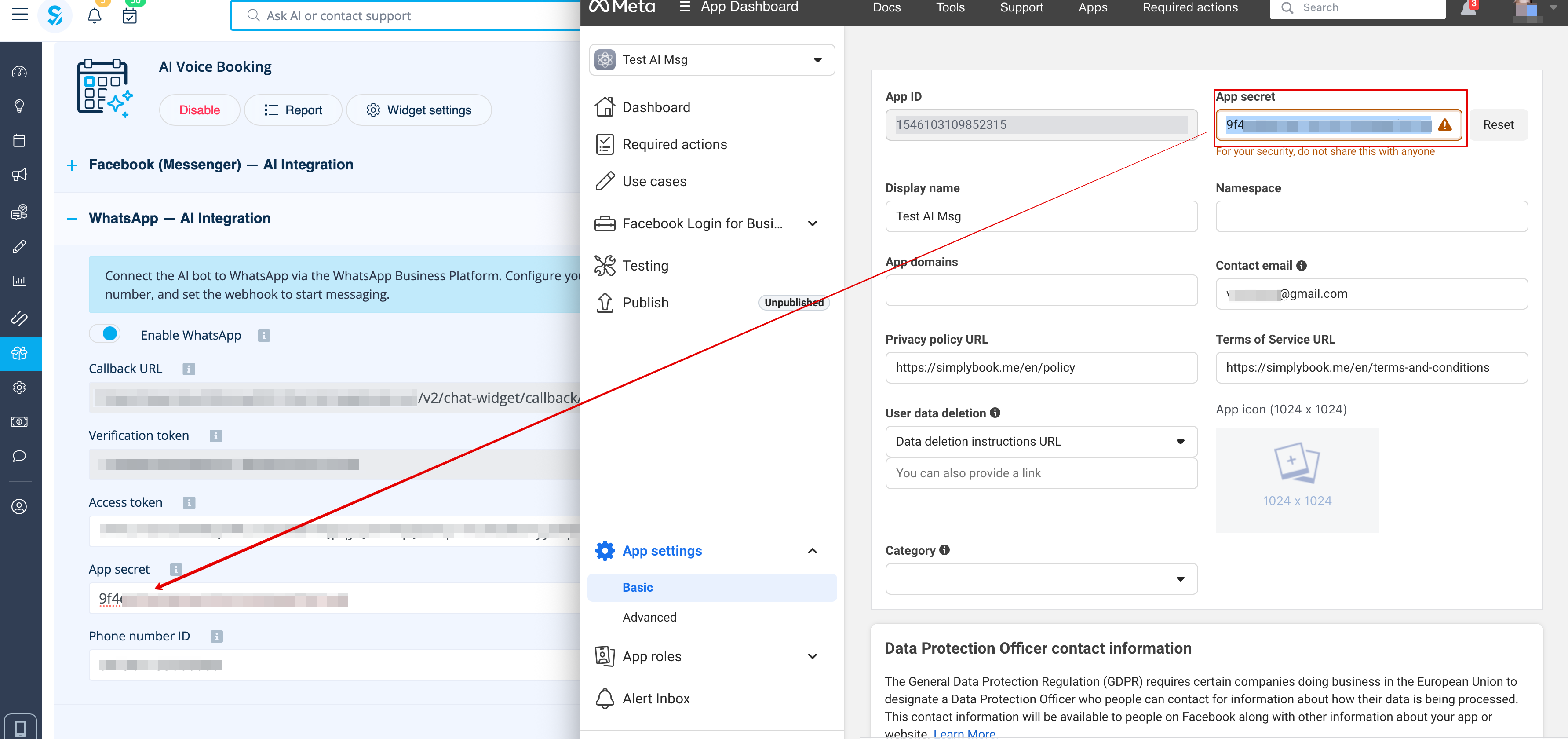
25. Copy App Secret and insert into SB.
[[File:Paste app secret to sbm.png|1200px|center|link=https://help.simplybook.me/images/2/20/Paste_app_secret_to_sbm.png]]
<br><br>
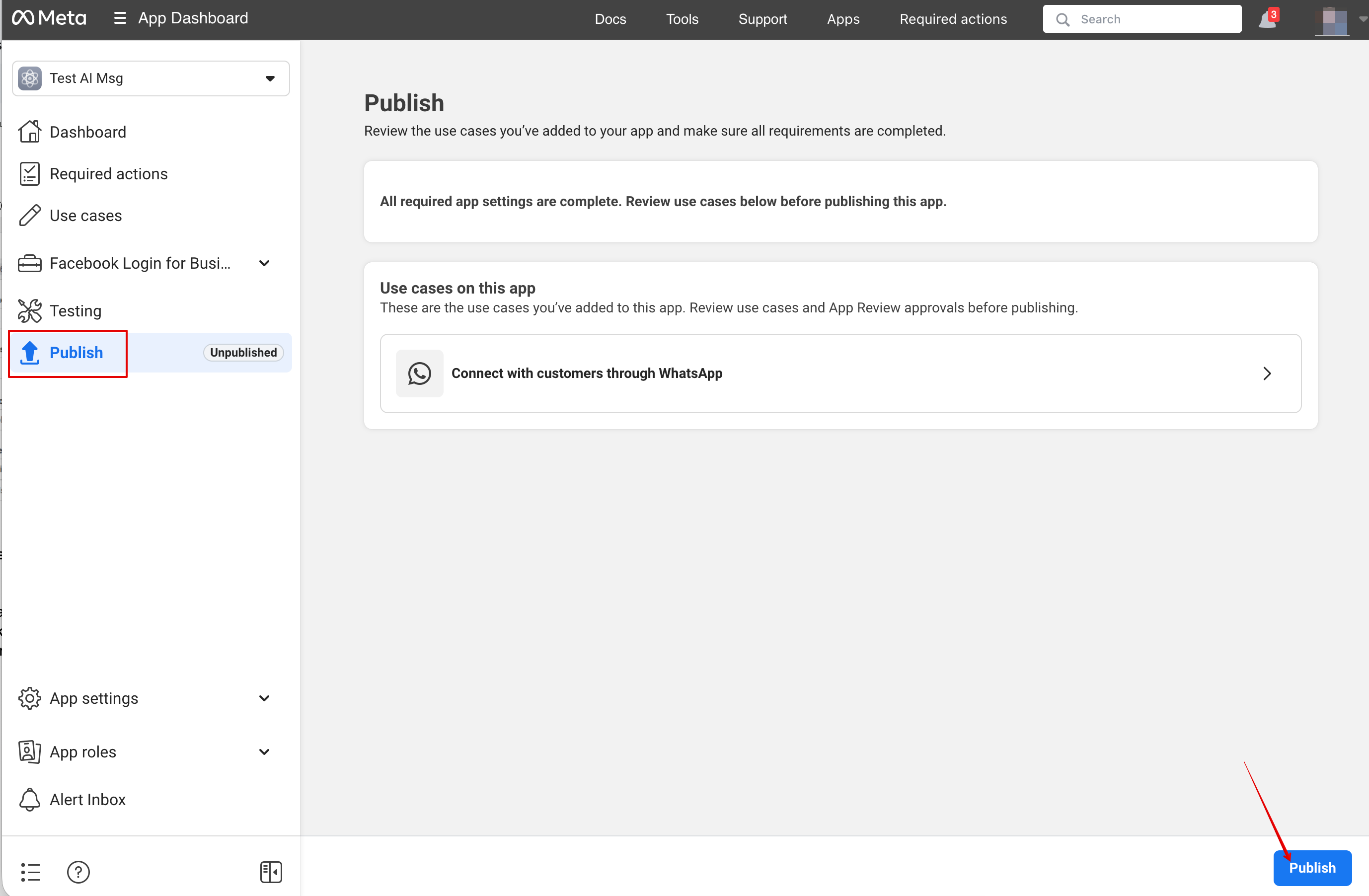
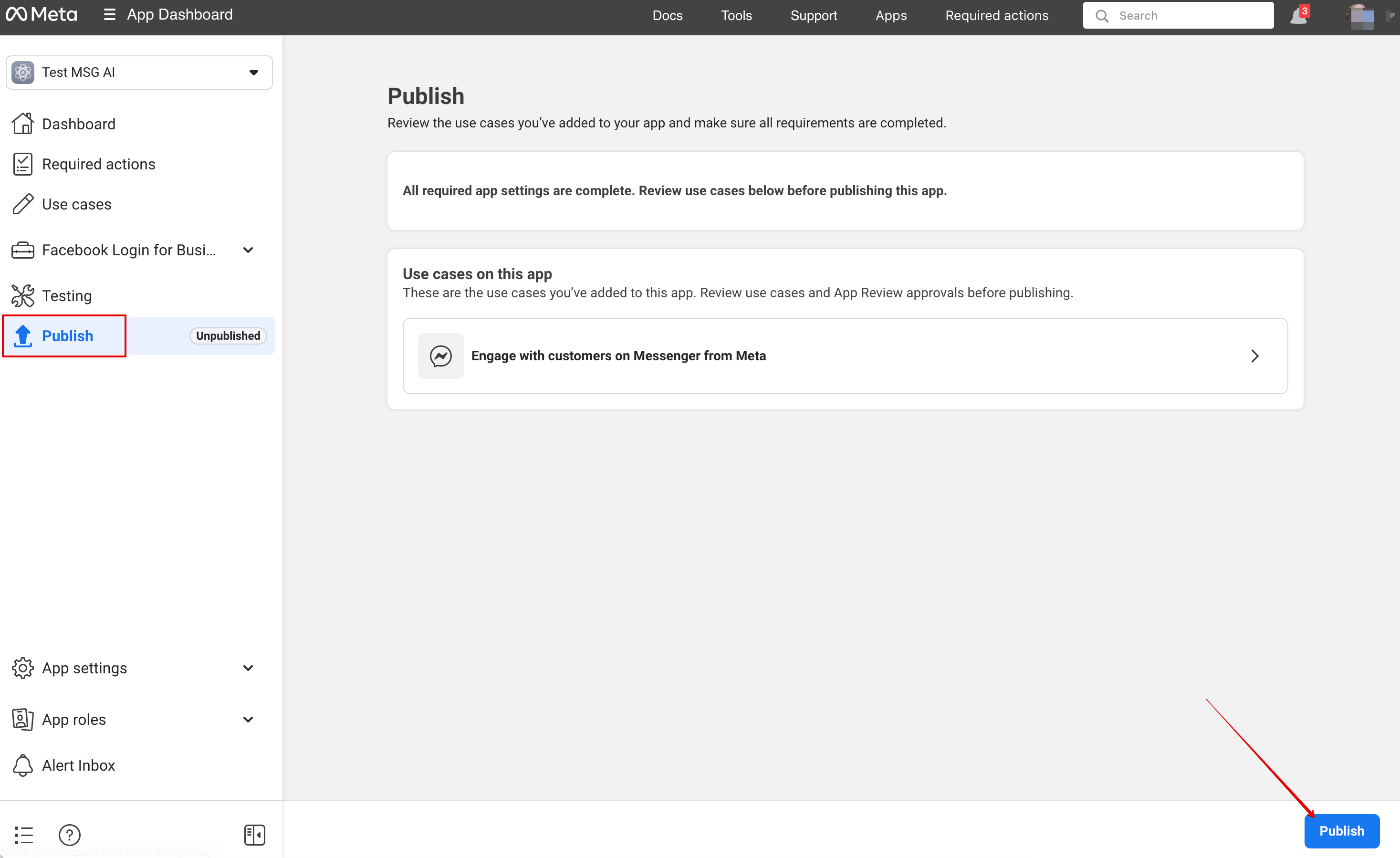
26. Now you can publish the app, provide your customers with your WhatsApp business number and let them book the services with the help of AI.
[[File:Publish wa app.png|1200px|center|link=https://help.simplybook.me/images/5/55/Publish_wa_app.png]]
<br><br><br><br>
==Setup Facebook Messenger==
1. Open [https://developers.facebook.com/apps/ Facebook Developers] and click “Create App”:
[[File:Create sb app step 1.png|1200px|center|link=https://help.simplybook.me/images/9/9c/Create_sb_app_step_1.png]]
<br><br>
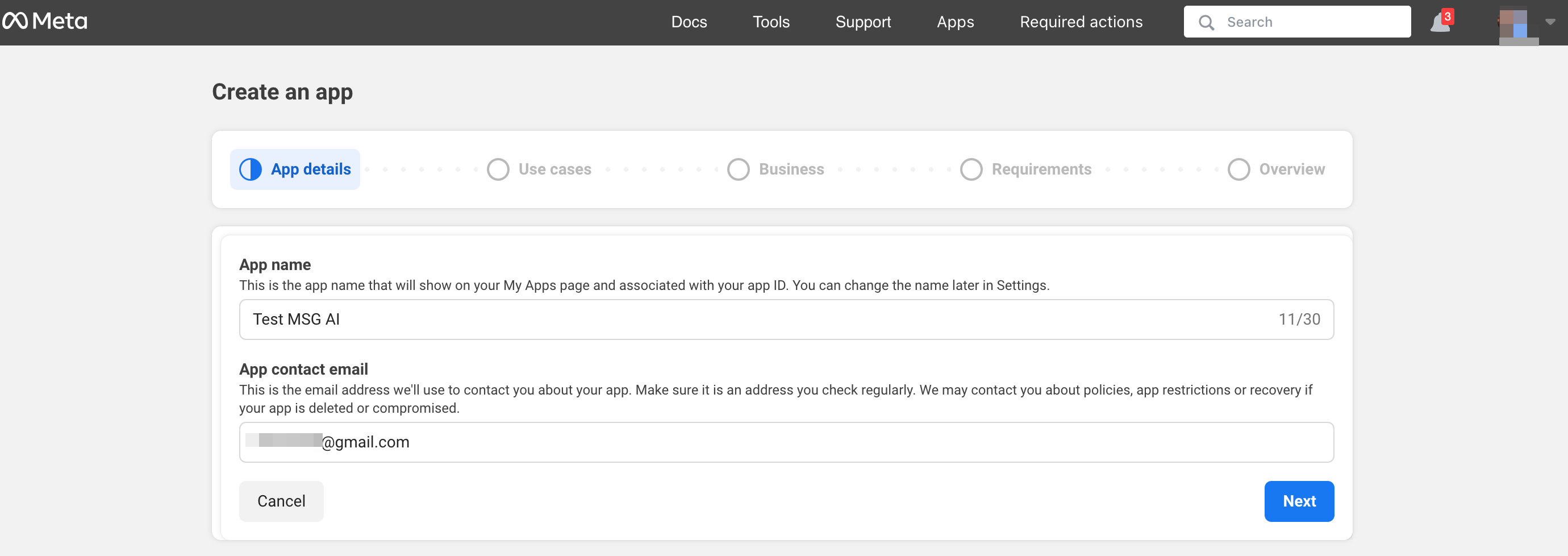
2. Enter your preferable app details:
[[File:Test messenger app create step 1.png|1200px|center|link=https://help.simplybook.me/images/c/ce/Test_messenger_app_create_step_1.png]]
<br><br>
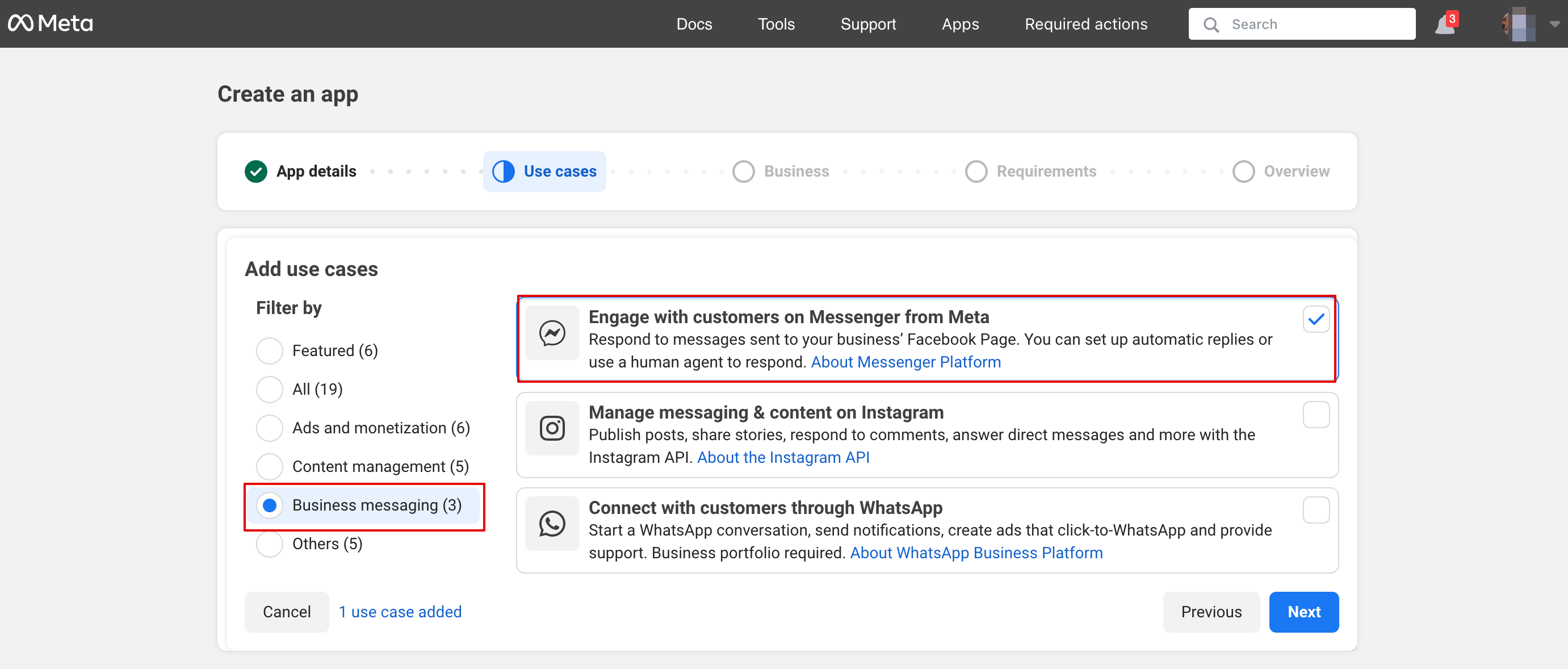
3. Select Messenger use case from the list: 
[[File:Select messenger ai.png|1200px|center|link=https://help.simplybook.me/images/7/75/Select_messenger_ai.png]]
<br><br>
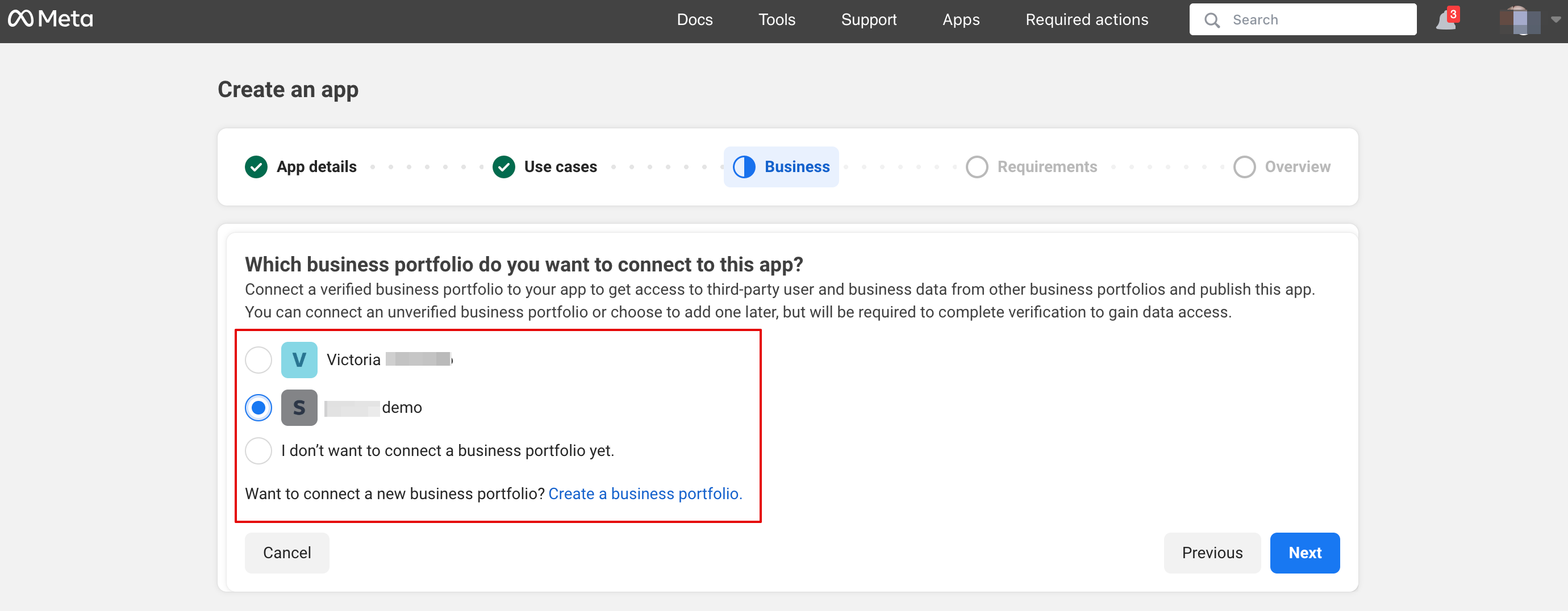
4. Choose the business profile or create a new one.
[[File:Connect msg app to business.png|1200px|center|link=https://help.simplybook.me/images/f/f8/Connect_msg_app_to_business.png]]
<br><br>
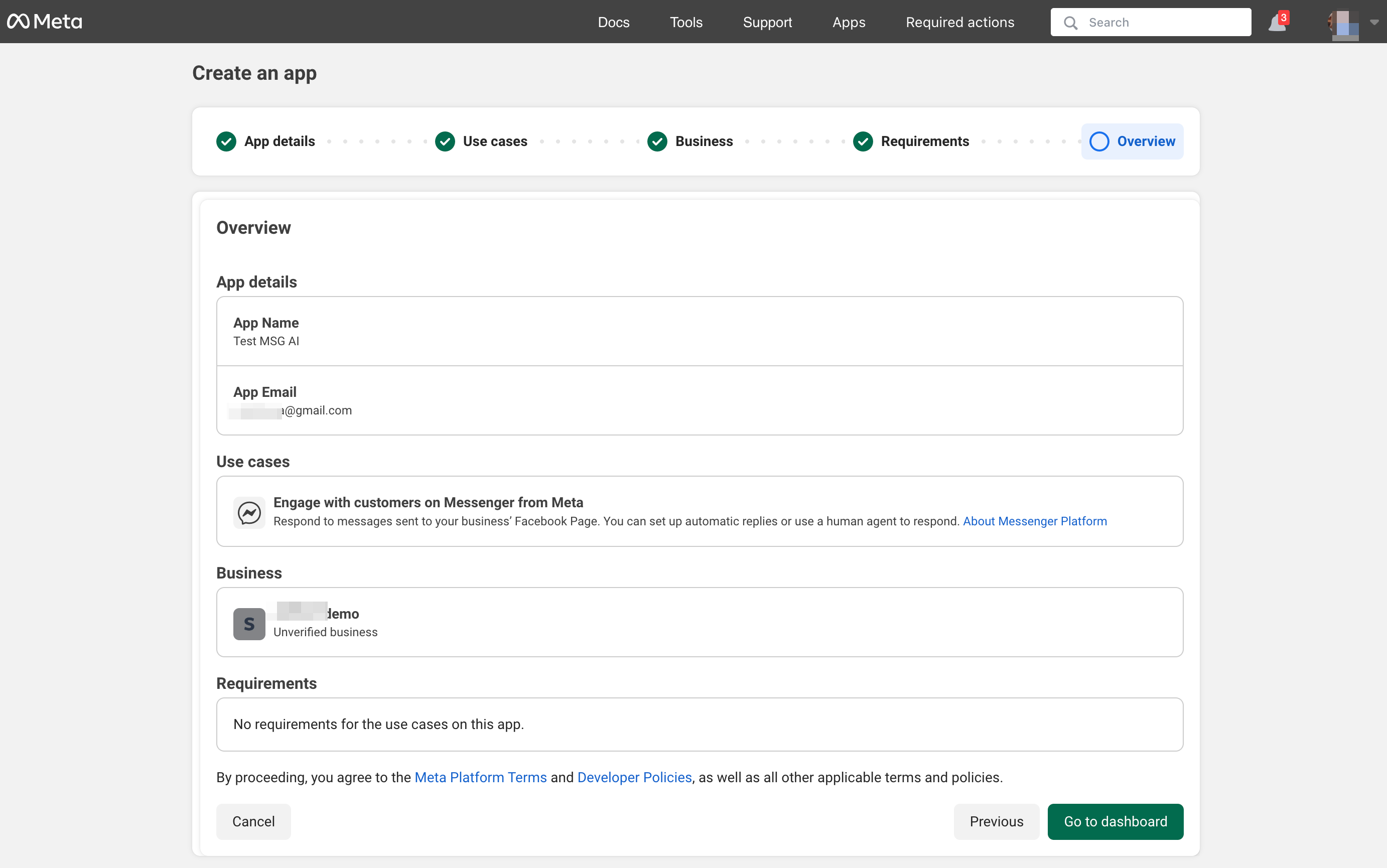
5. Proceed to app Dashboard after reviewing the details
[[File:App overview step.png|1200px|center|link=https://help.simplybook.me/images/9/96/App_overview_step.png]]
<br><br>
6. Click customize use case:
[[File:Msg customize use case.png|1200px|center|link=https://help.simplybook.me/images/a/a5/Msg_customize_use_case.png]]
<br><br>
7. In Messenger API settings insert webhook URL and verification token from SB and Click Verify and save:
[[File:Msg api settings path.png|1200px|center|link=https://help.simplybook.me/images/9/94/Msg_api_settings_path.png]]
[[File:Msg callback url and verification token.png|1200px|center|link=https://help.simplybook.me/images/7/7e/Msg_callback_url_and_verification_token.png]]
<br><br>
8. Back to Messenger API settings to connect the Facebook page where AI option will be added and generate a token. Click connect and select the page:
[[File:Msg api connect to page.png|1200px|center|link=https://help.simplybook.me/images/1/19/Msg_api_connect_to_page.png]]
<br><br>
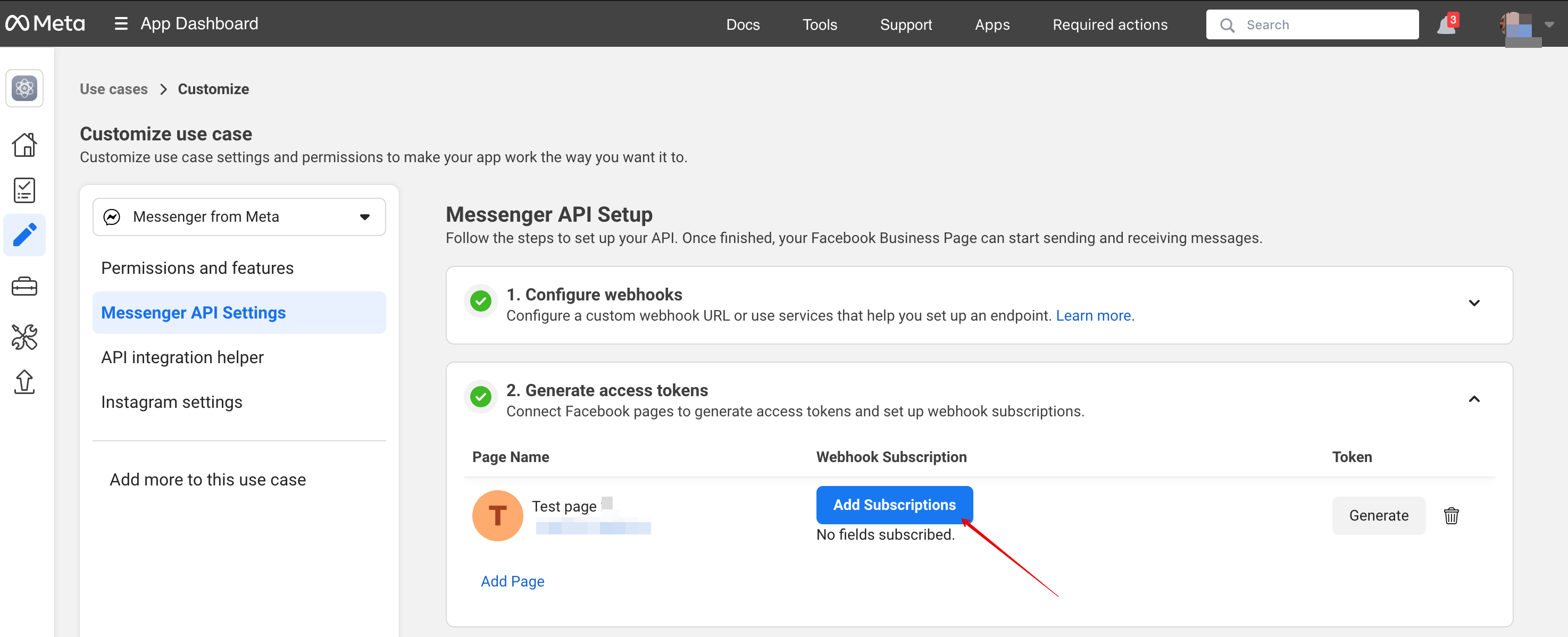
9. Click Add subscription:
[[File:Msg add subscription.png|1200px|center|link=https://help.simplybook.me/images/0/0c/Msg_add_subscription.png]]
<br><br>
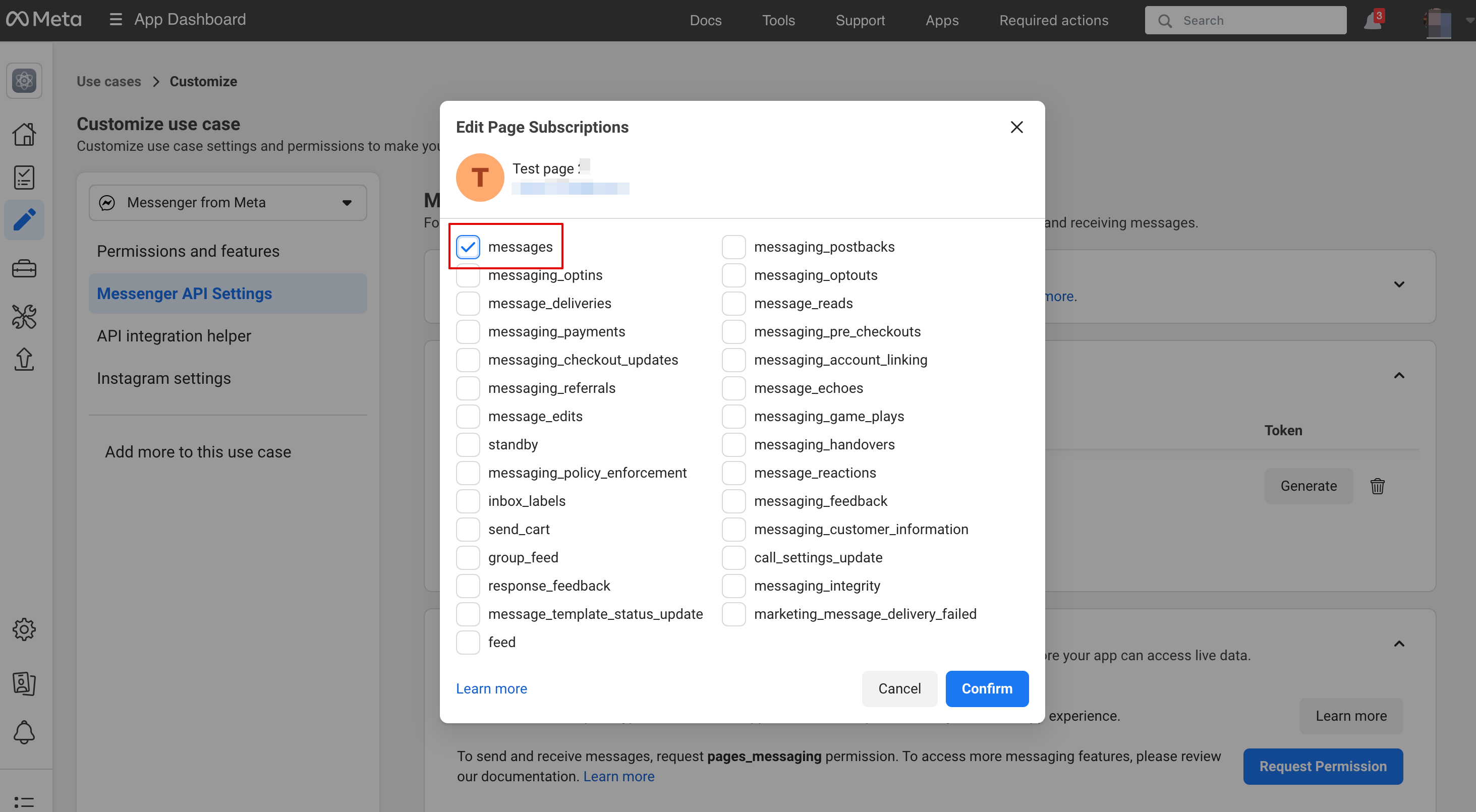
10. Select messages:
[[File:Add messages subscription.png|1200px|center|link=https://help.simplybook.me/images/6/6d/Add_messages_subscription.png]]
<br><br>
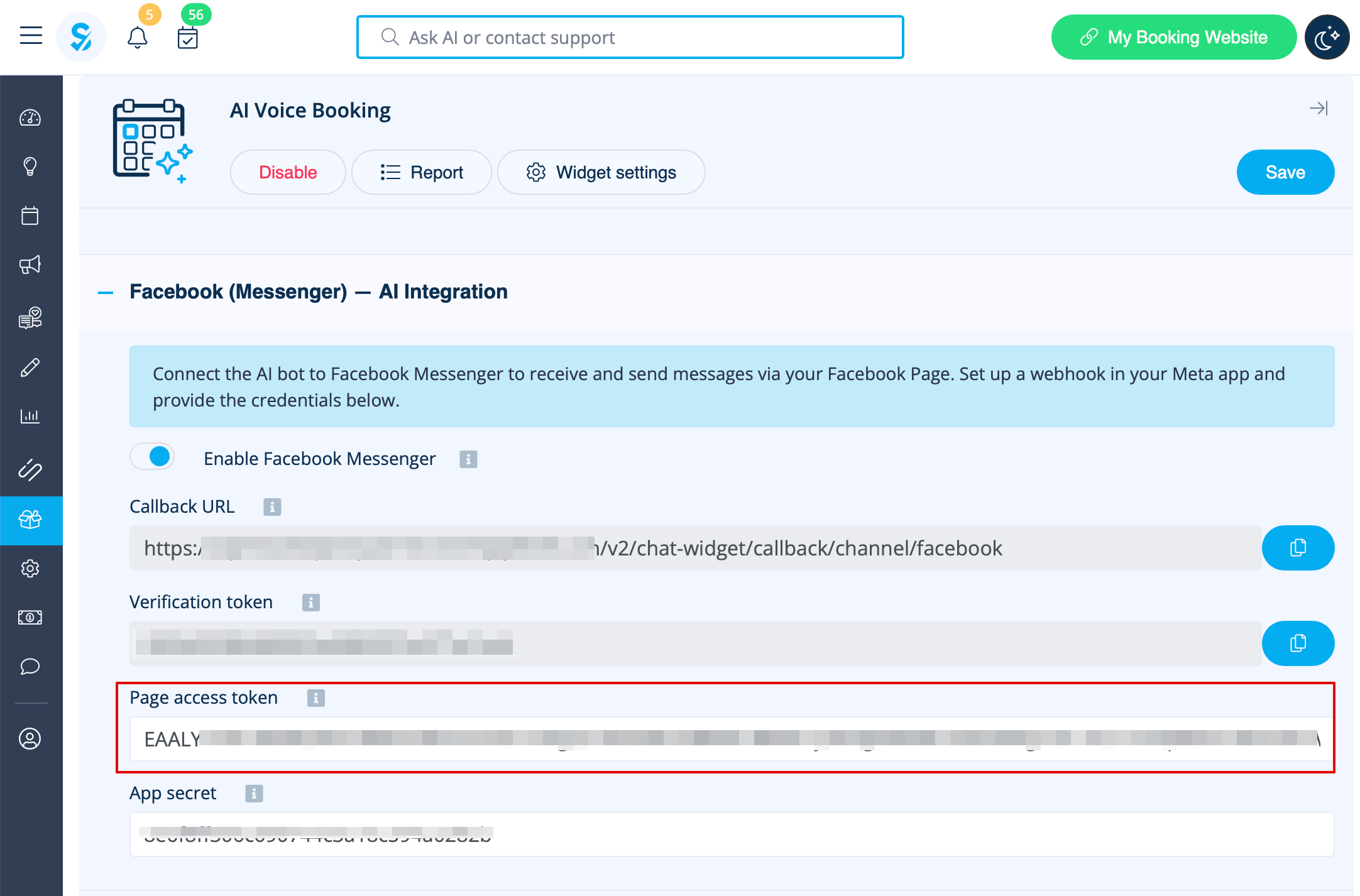
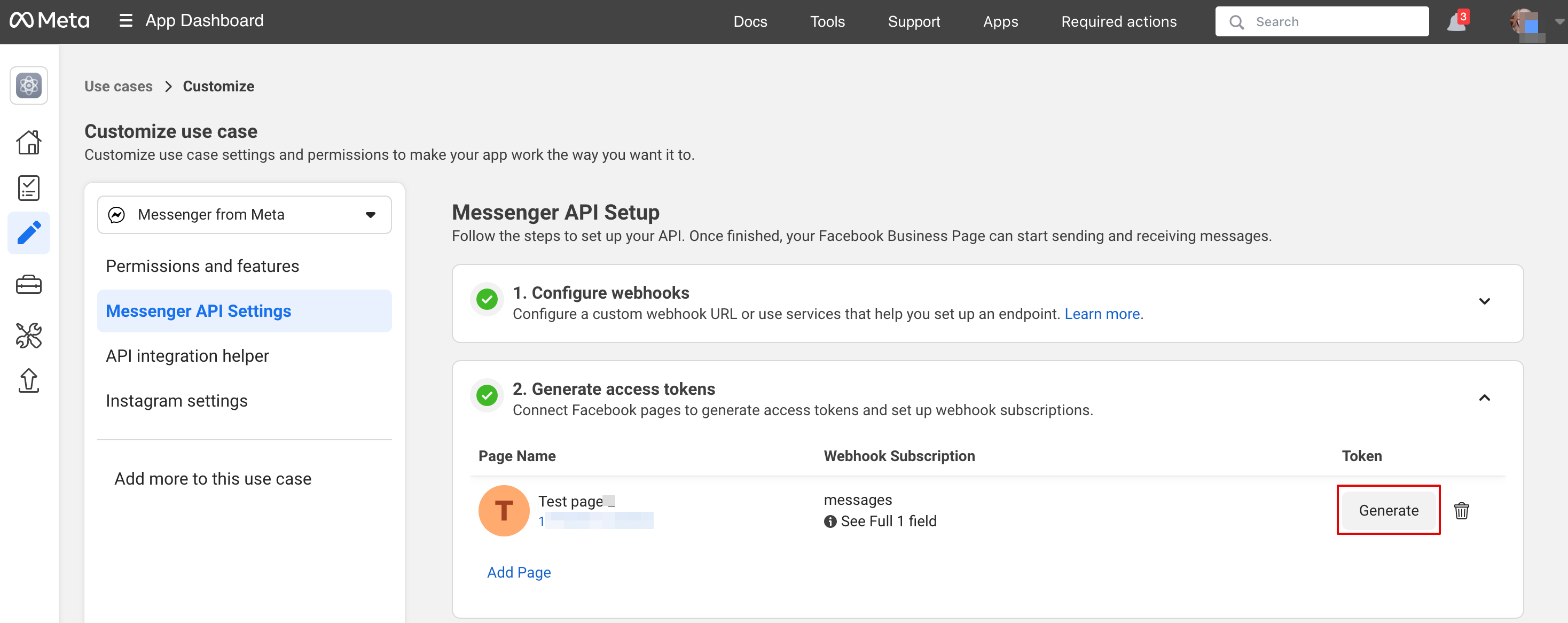
11. Click Generate token and copy token and insert into SB:
[[File:Msg generate token path.png|1200px|center|link=https://help.simplybook.me/images/5/5c/Msg_generate_token_path.png]]
[[File:Paste msg token to sbm.png|1200px|center|link=https://help.simplybook.me/images/c/ce/Paste_msg_token_to_sbm.png]]
<br><br>
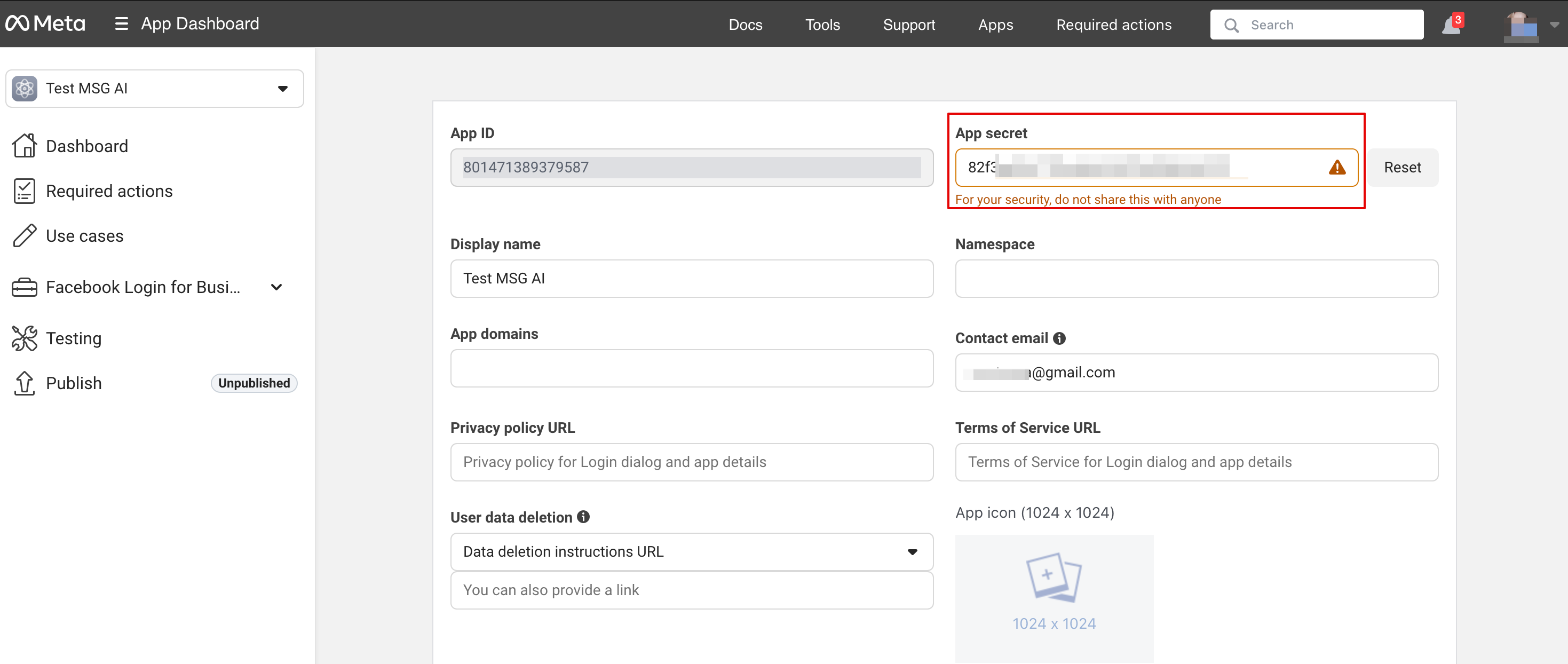
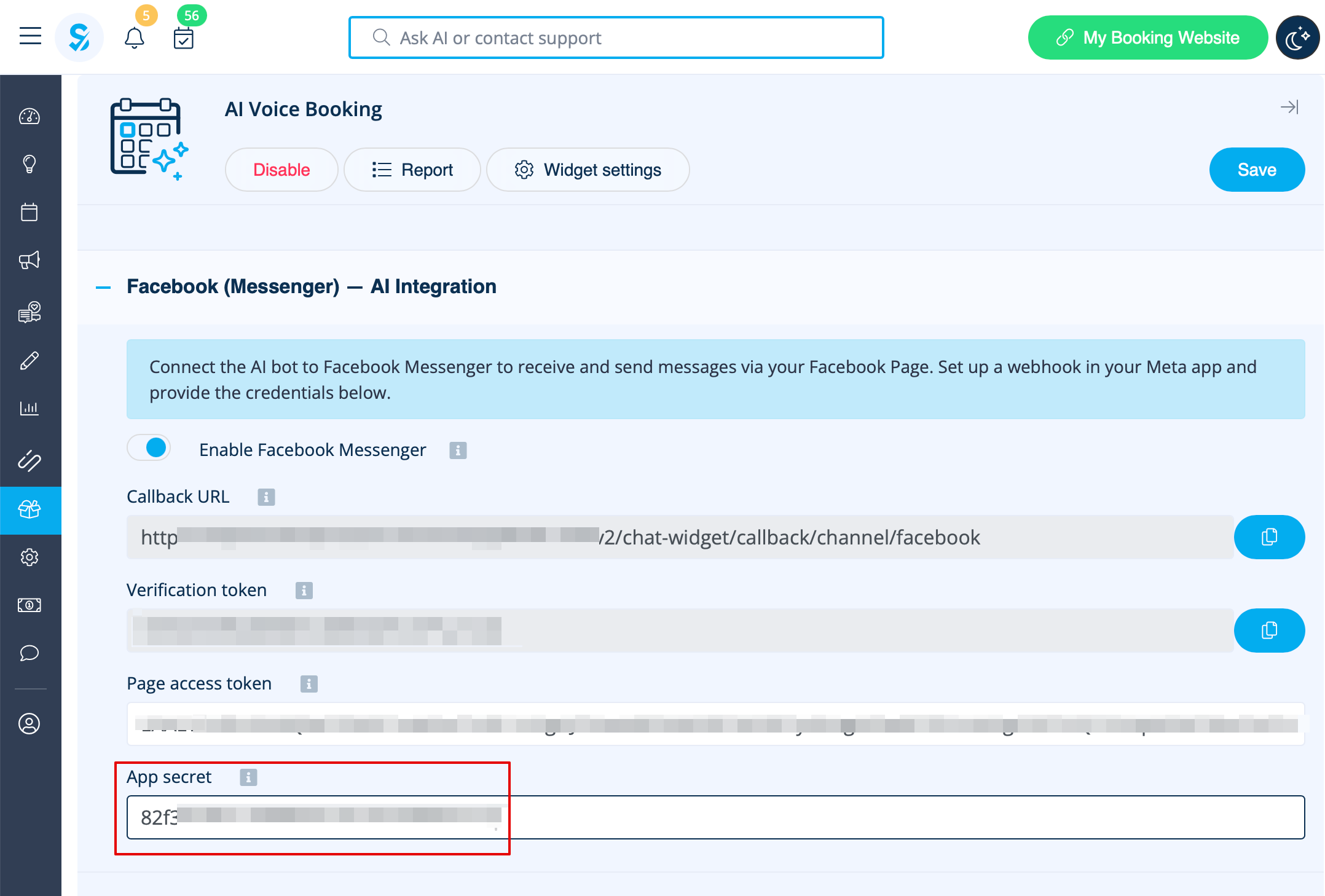
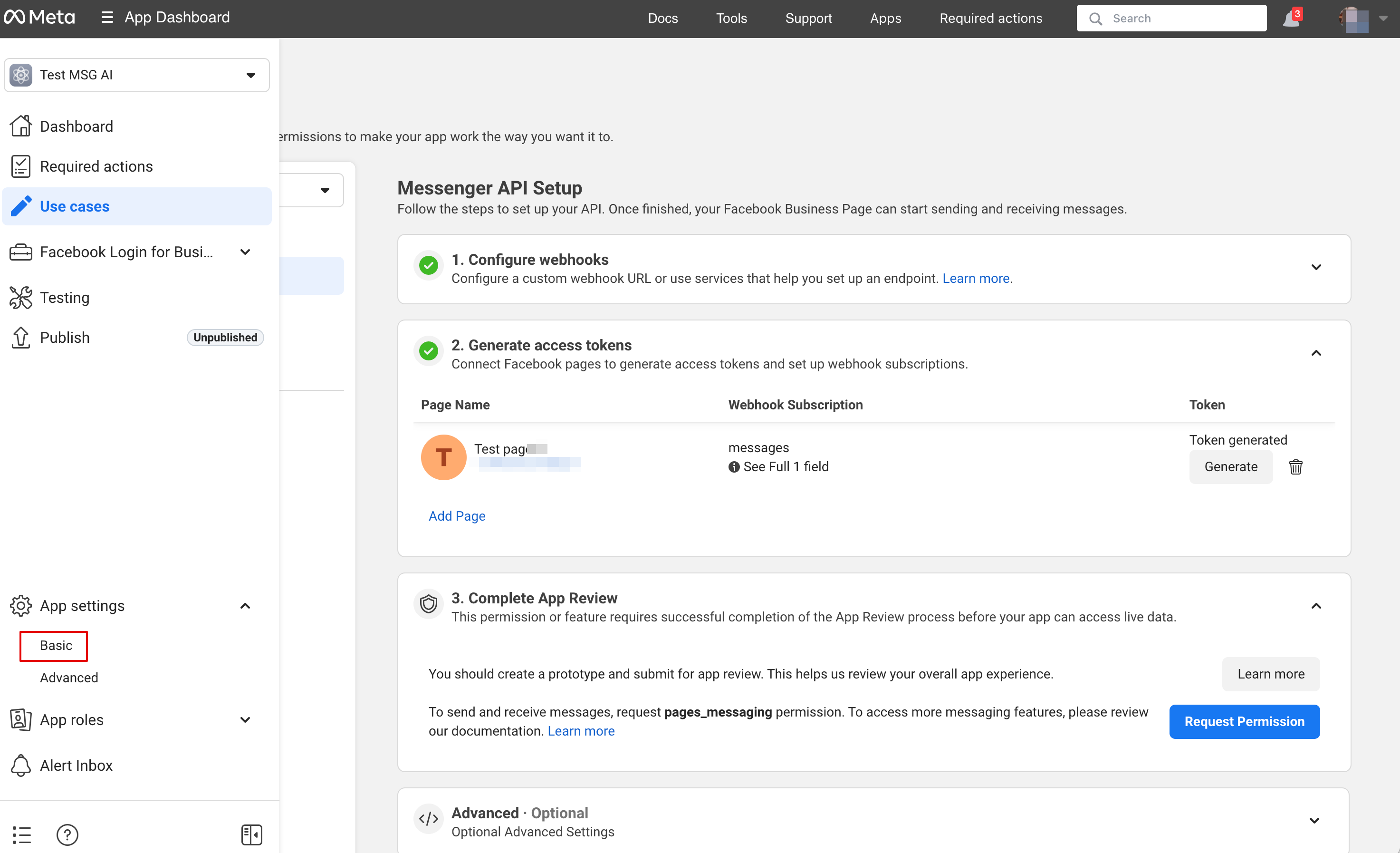
12. In Basic application settings copy App Secret and insert into SB:
[[File:Basic setting path msg.png|1200px|center|link=https://help.simplybook.me/images/8/88/Basic_setting_path_msg.png]]
[[File:Copy msg app secret.png|1200px|center|link=https://help.simplybook.me/images/6/6d/Copy_msg_app_secret.png]]
[[File:Msg insert app secret to sbm.png|1200px|center|link=https://help.simplybook.me/images/e/e8/Msg_insert_app_secret_to_sbm.png]]
<br><br>
13. Now you are ready to publish an application. And your visitors can chat with bot on your page.
[[File:Msg publish the app.png|1200px|center|link=https://help.simplybook.me/images/d/df/Msg_publish_the_app.png]]
<br><br><br><br>
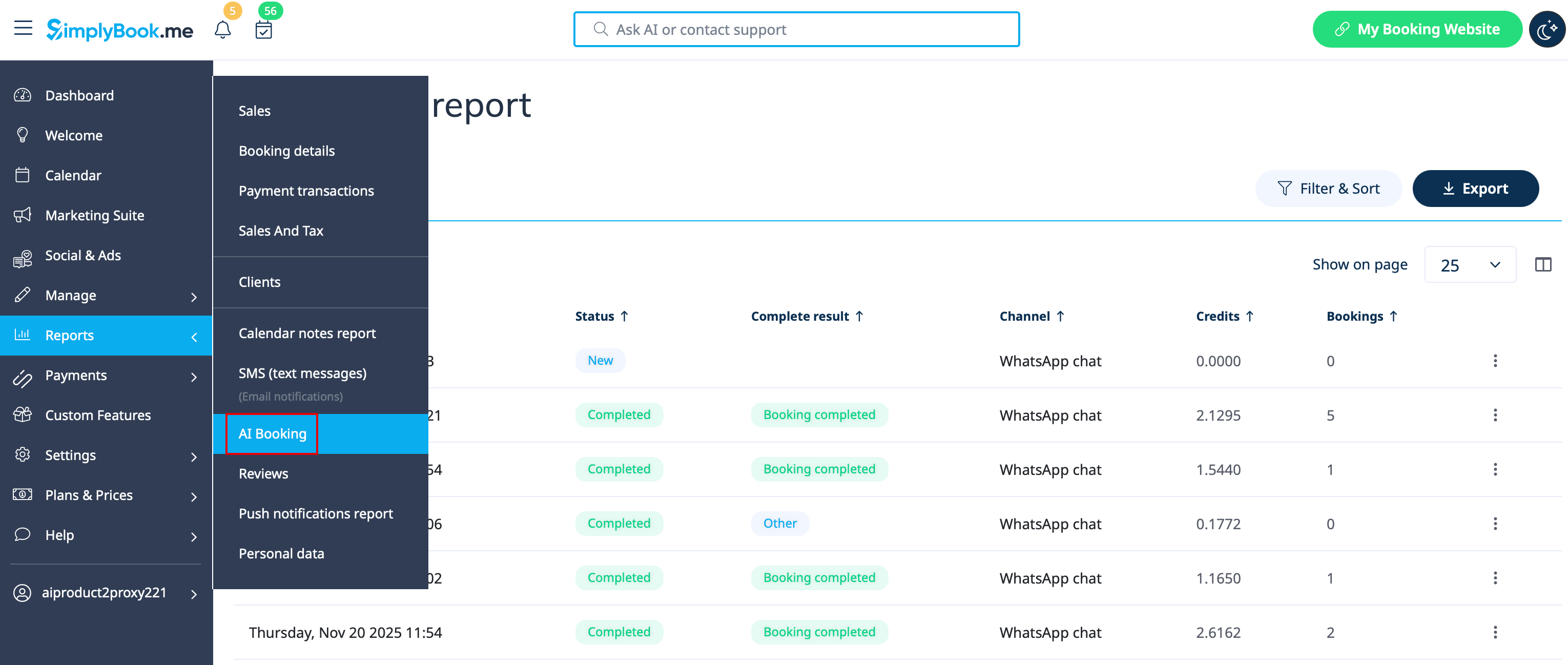
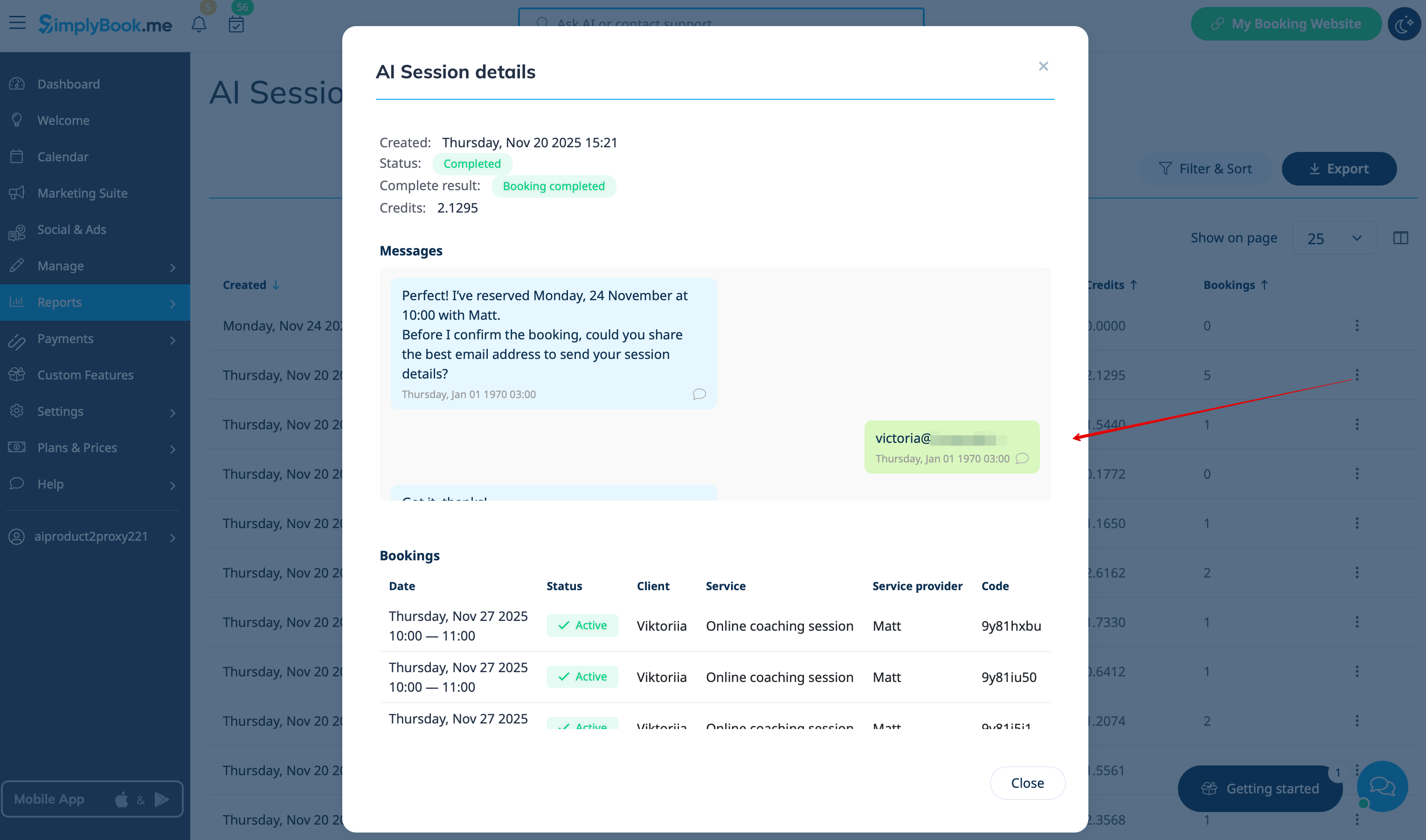
==Report==
You can see the chats, the number of credits used as well as view the session details with the related bookings info if the booking process was successful in Reports -> AI Booking
[[File:Ai report path.png|1200px|center|link=https://help.simplybook.me/images/4/41/Ai_report_path.png]]
[[File:Ai report view session details.png|1200px|center|link=https://help.simplybook.me/images/c/ca/Ai_report_view_session_details.png]]
<br><br><br><br>

Tilføj en AI-drevet bookingoplevelse til dit website og dine beskedkanaler. Assistenten indsamler bookingoplysninger, kontrollerer tilgængelighed af tider og opretter reservationer automatisk. Alt-i-én AI-bookingmodul, der forbinder din assistent med dit website og dine beskedkanaler for at modtage bookinger og sende bekræftelser og påmindelser. Konfigurer integrationer (Facebook Messenger, WhatsApp, web-widget) og grundlæggende indstillinger, og begynd derefter automatisk at modtage reservationer.

Sådan bruges det

1. Aktivér funktionen på siden Brugerdefinerede funktioner -> Andet -> AI Voice booking.


2. Få gratis prøvecredits der, eller køb flere AI-bookingcredits på siden Abonnementer & Priser -> Ekstra elementer


3. Du kan se antallet af resterende credits på Dashboard-siden eller i Kontooplysninger.


4. Gå tilbage til Brugerdefinerede funktioner -> Andet -> AI Voice booking for at justere præferencer for AI-stemme, model og tekst til e-mailbekræftelse.


5. Vælg nu den mulighed, hvor AI-booking skal være tilgængelig for dine kunder.


Widget/Bookingside

1. Når credits er købt, tilføjes AI-chatwidgetten som standard til din bookingside. Kunderne kan sende tekst- eller talebeskeder for at gennemføre bookingprocessen med hjælp fra AI.

2. Hvis du har dit eget website, kan du tilføje AI-bookingwidgetten der. Gå blot til ‘’’Widgetindstillinger’’’, vælg de ønskede farver, klik på “Gem & hent widgetfarve” for at generere widgetkoden.
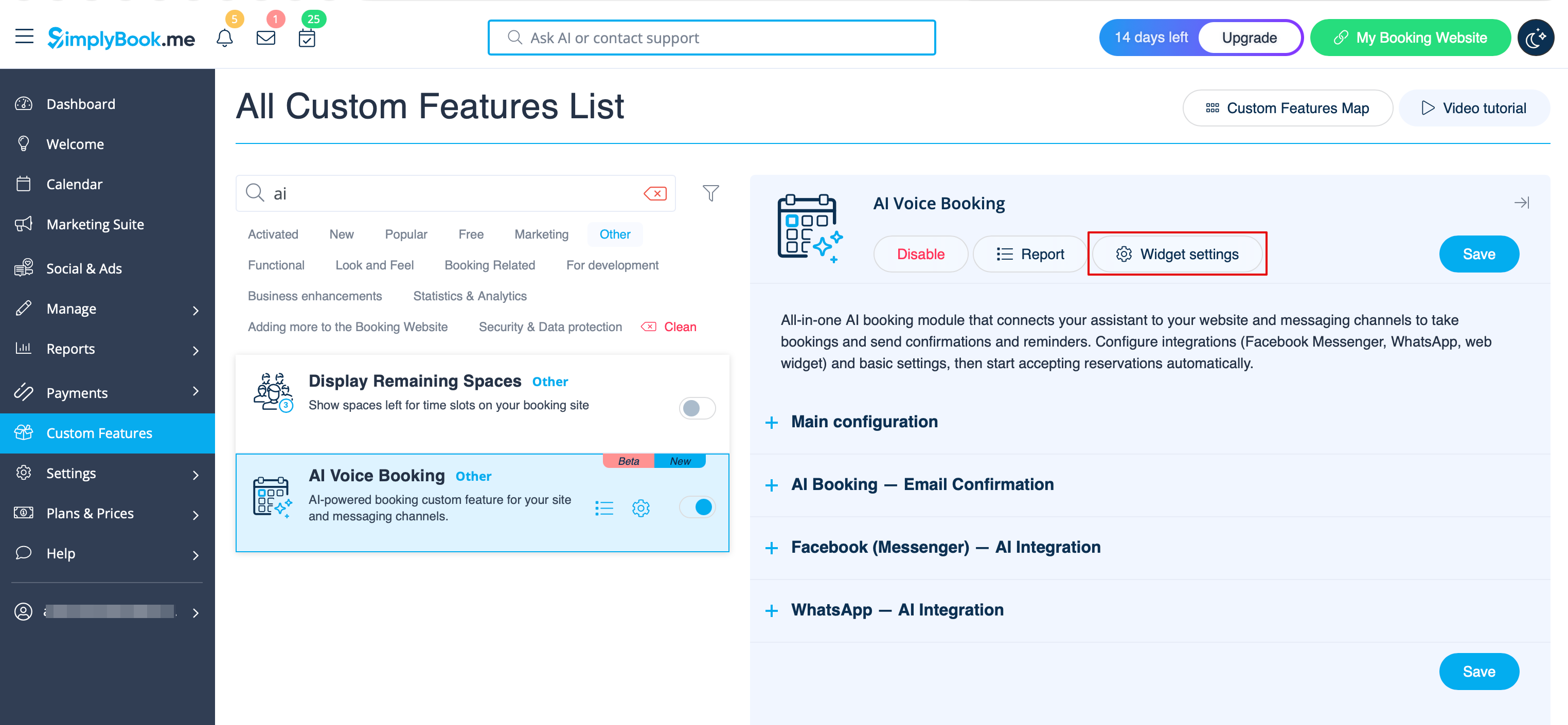
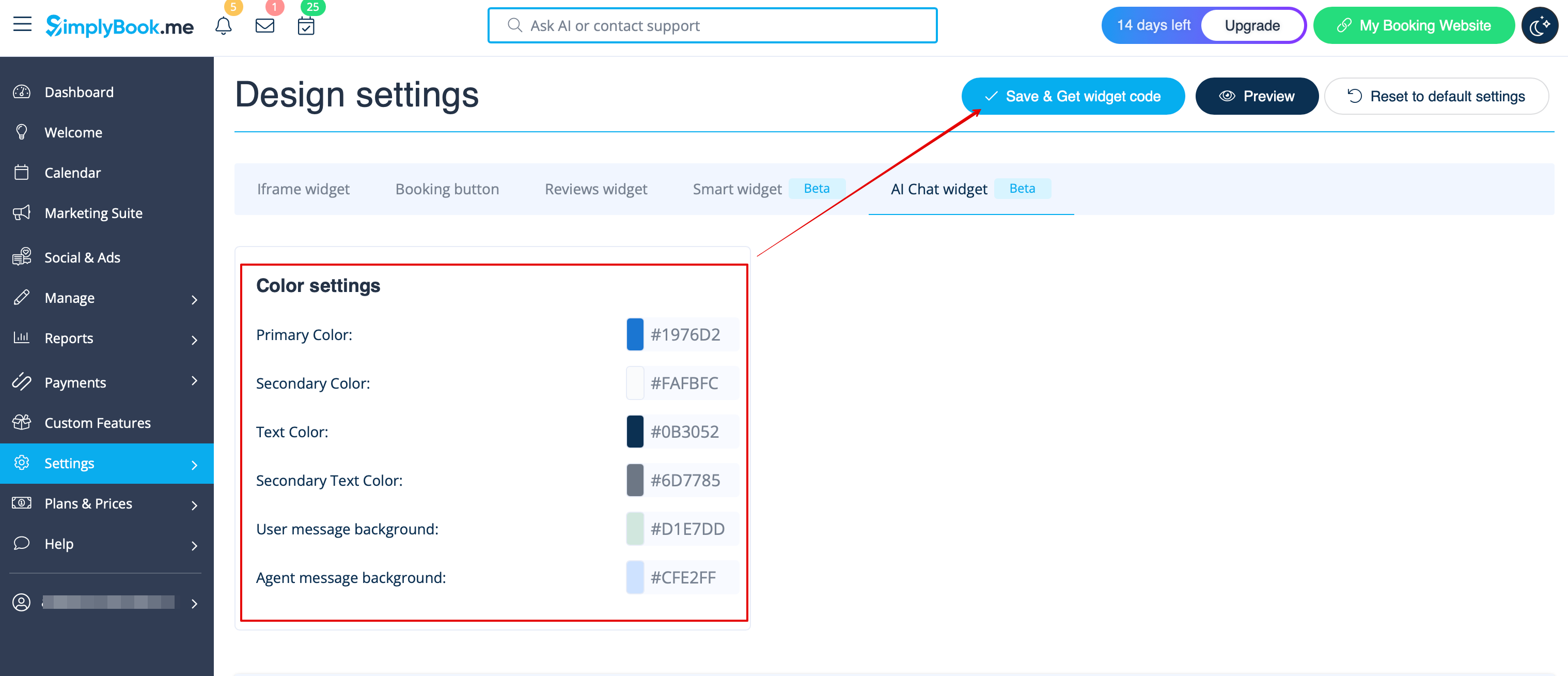

3. Gå til din website-editor og indsæt koden på den side, hvor du ønsker, at AI-bookingwidgetten skal være tilgængelig. Det er det.


WhatsApp AI-booking

1. Åbn Facebook-udviklere og klik på “Create App”:


2. Indtast dine foretrukne appoplysninger:


3. Vælg WhatsApp-brugsscenarie:


4. Vælg virksomhedsprofilen eller opret en ny.


5. Klik på “Next” for at fortsætte:

6. Gennemse detaljerne og klik på “Go to dashboard”:


7. Vælg fanen “Use cases” og klik på knappen “Customize”:


8. Accepter servicevilkårene og bekræft virksomhedsprofilen:


9. Vælg “Start using the API”:


10. Gå derefter til “Configure webhooks”:


11. Kopiér “Callback URL” og “Verification token” fra din SimplyBook.me-konto -> Brugerdefinerede funktioner -> AI Voice booking, og indsæt dem i de tilsvarende felter i appen. Bekræft og gem:


12. På næste trin i “Select product” skal du vælge “WhatsApp Business Account”:


13. Aktivér derefter de nødvendige webhooks: beskeder og opkald (hvis du vil modtage opkald):


14. Nu kan du tilføje telefonnumre og betalingsmetode (da Facebook opkræver betaling for beskeder). Kopiér telefonnummer-ID’et fra Facebook, og indsæt det i den tilsvarende formular i din SimplyBook.me-konto.

15. Nu skal du oprette en systembruger. Gå til Facebook Business-profilen og åbn fanen Systembrugere:


16. Klik på Tilføj ny bruger, og udfyld brugeroplysningerne:


17. Gå derefter til Tildel aktiver:


18. Vælg din app under fanen Apps, og aktivér tilladelsen “Manage app”:


19. Vælg dine WhatsApp-konti under fanen WhatsApp-konti, og aktivér tilladelsen Manage WhatsApp business accounts:


20. Når aktiverne er tildelt, klik på Generate Token:



21. Vælg din app i rullemenuen, og sæt tokenudløb til “never”:


22. Vælg følgende tilladelser:


23. Kopiér tokenet, indsæt det i SB, og gem indstillingerne.


24. Gå nu tilbage til Facebook-udviklere, vælg din app, klik på Indstillinger -> Grundlæggende. Indsæt URL’er til privatlivspolitik og servicevilkår

25. Kopiér App Secret, og indsæt den i SB.


26. Nu kan du udgive appen, give dine kunder dit WhatsApp Business-nummer og lade dem booke tjenester ved hjælp af AI.


Opsæt Facebook Messenger

1. Åbn Facebook-udviklere og klik på “Create App”:


2. Indtast dine foretrukne appoplysninger:


3. Vælg Messenger-brugsscenarie fra listen:


4. Vælg virksomhedsprofilen eller opret en ny.


5. Gå videre til appens Dashboard efter gennemgang af detaljerne


6. Klik på tilpas brugsscenarie:
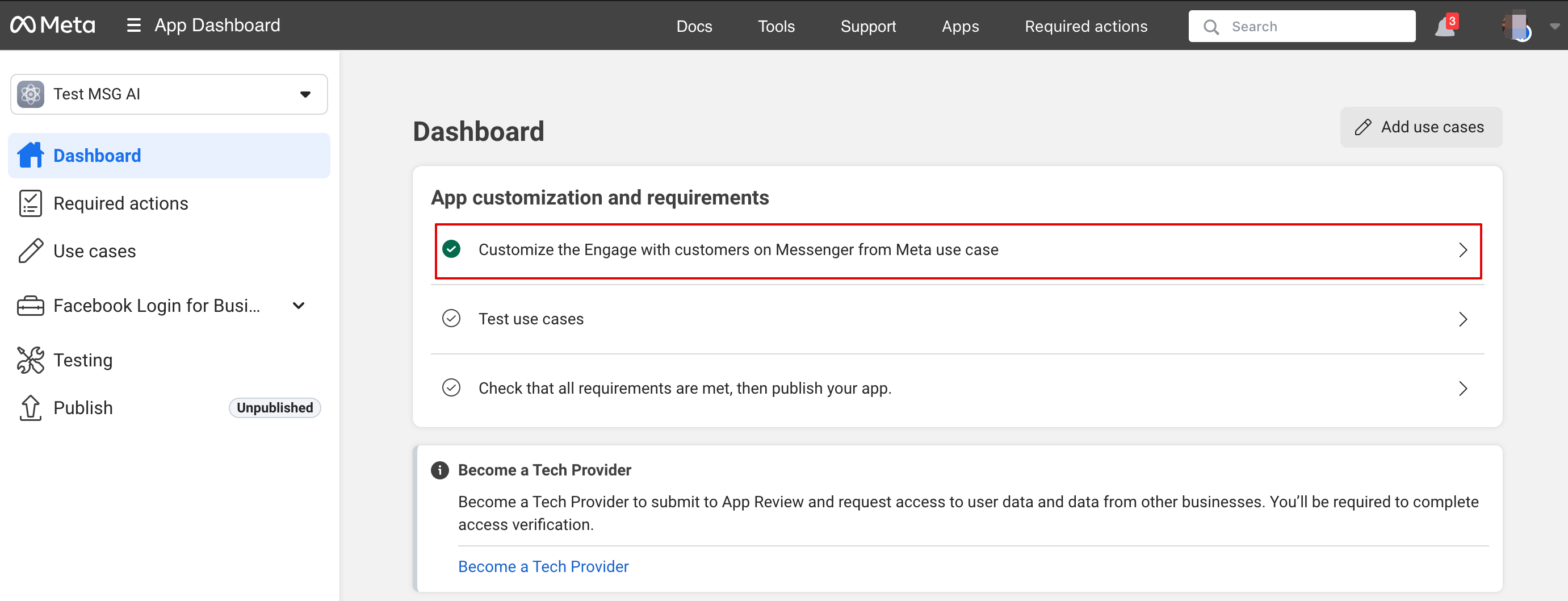


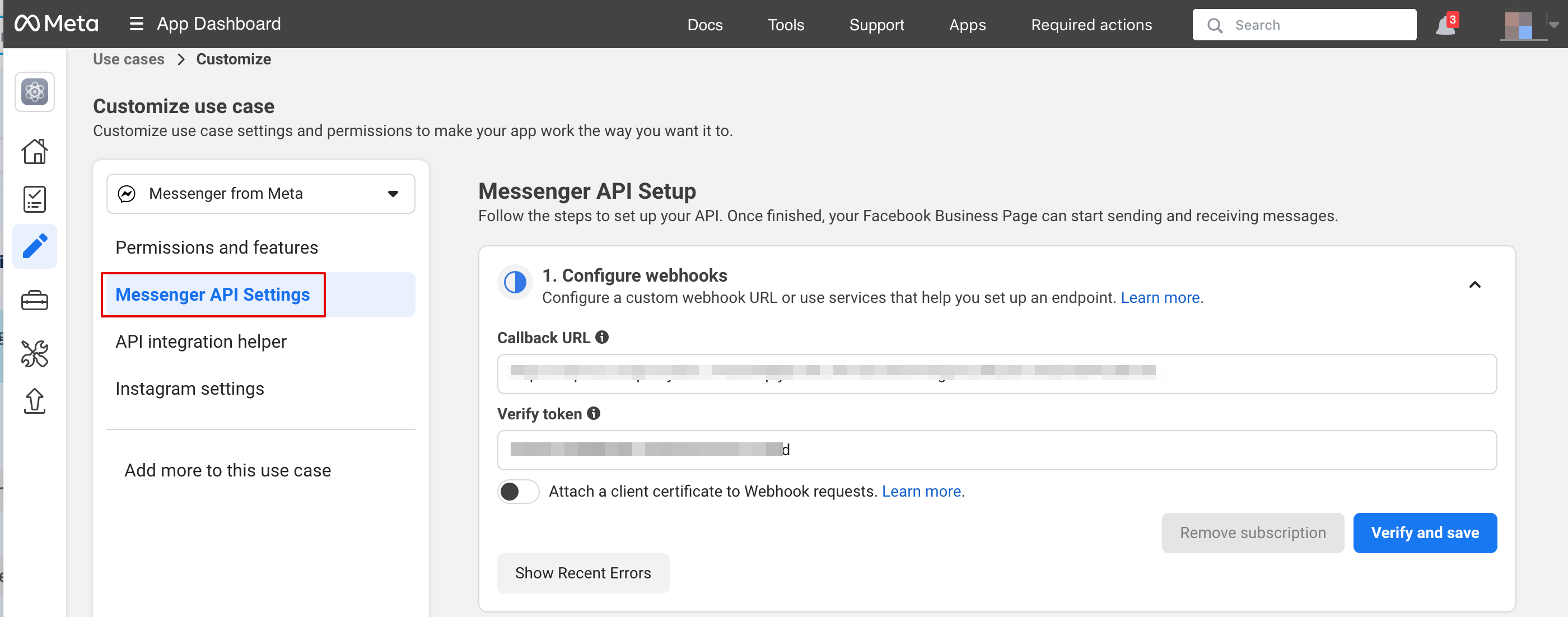
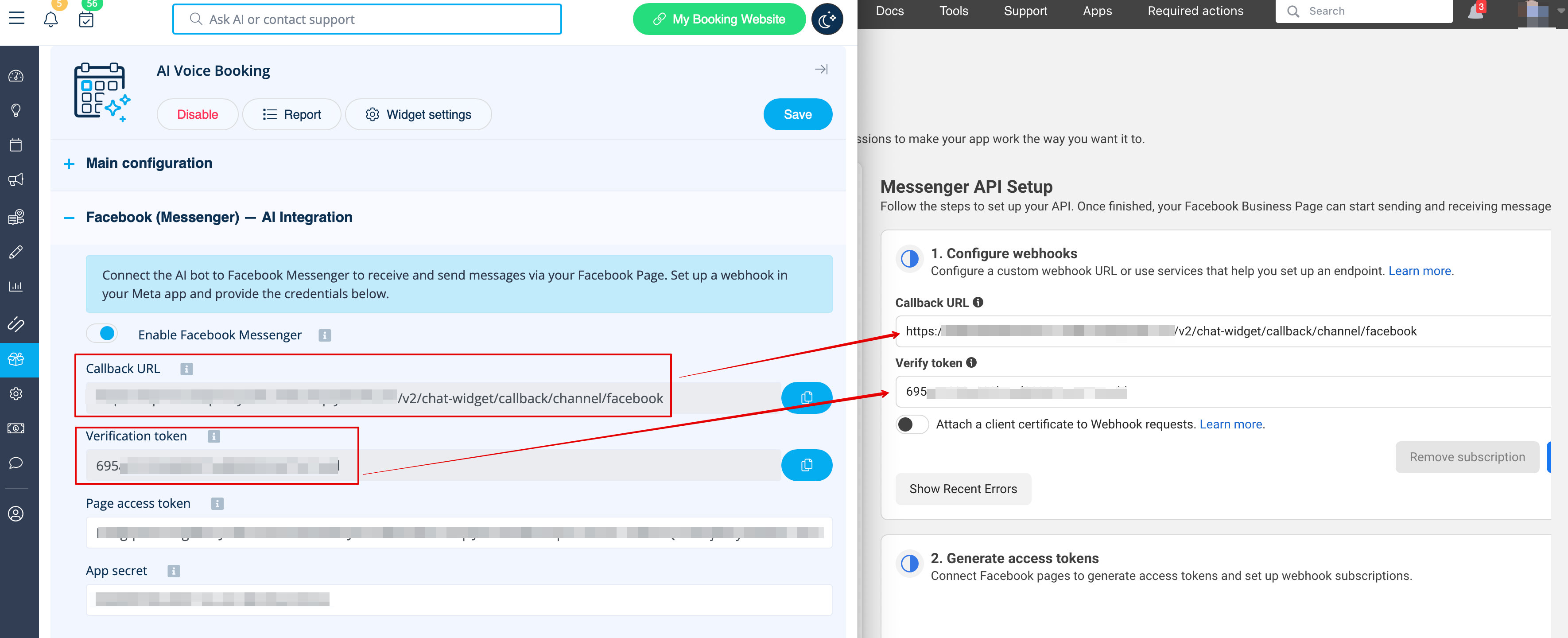
7. Indsæt webhook-URL og bekræftelsestoken fra SB i Messenger API-indstillingerne, og klik på Bekræft og gem:

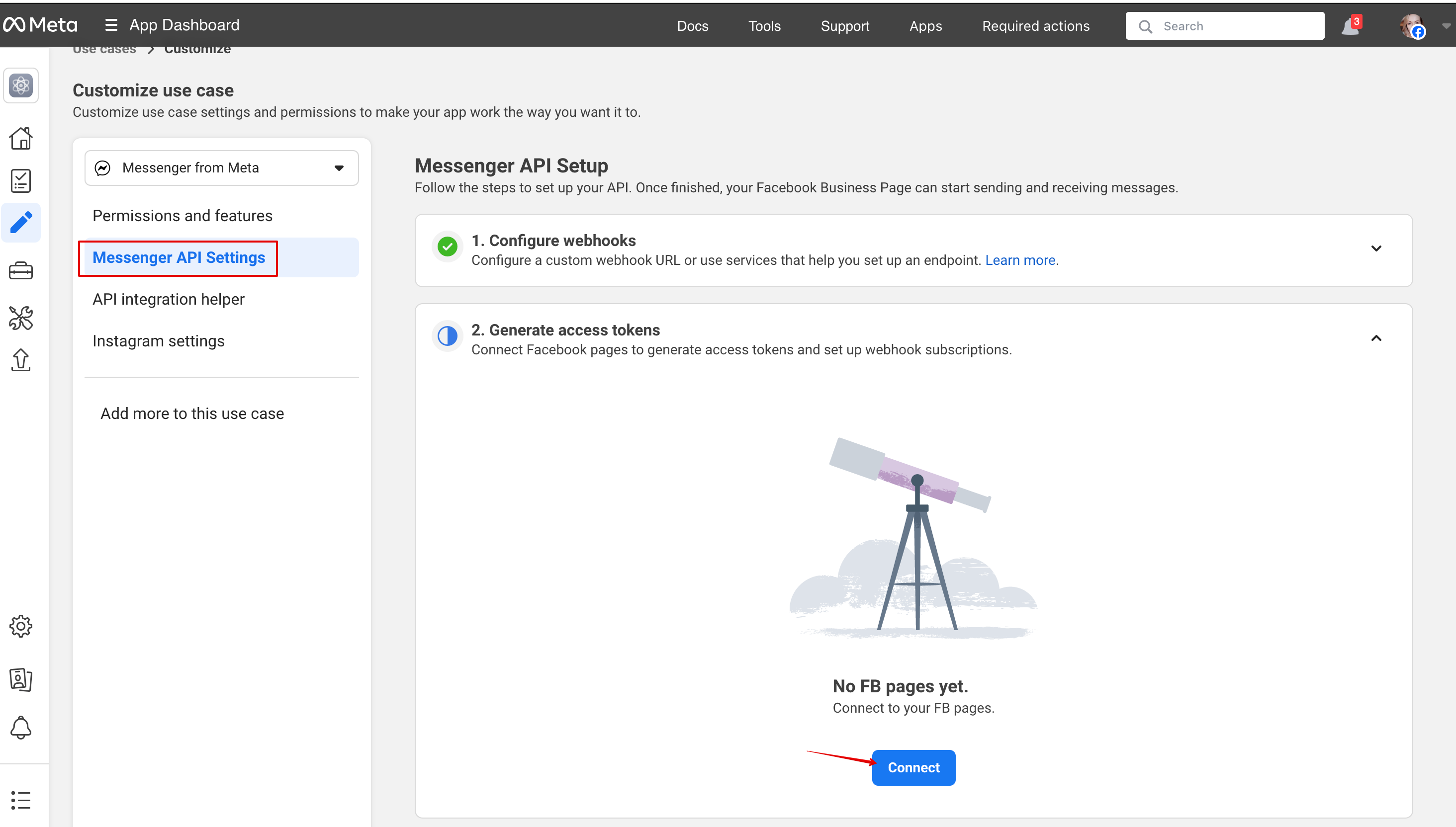
8. Gå tilbage til Messenger API-indstillingerne for at forbinde Facebook-siden, hvor AI-muligheden skal tilføjes, og generér et token. Klik på Forbind, og vælg siden:


9. Klik på Tilføj abonnement:


10. Vælg beskeder:


11. Klik på Generate Token, kopiér tokenet, og indsæt det i SB:


12. Kopiér App Secret i de grundlæggende appindstillinger, og indsæt den i SB:


13. Nu er du klar til at udgive applikationen, og dine besøgende kan chatte med botten på din side.


Rapport

Du kan se chattene, antallet af brugte credits samt se sessionsdetaljer med relaterede bookingoplysninger, hvis bookingprocessen blev gennemført, i Rapporter -> AI Booking