No edit summary |
Marked this version for translation |
||
| (6 intermediate revisions by the same user not shown) | |||
| Line 48: | Line 48: | ||
<!--T:5--> | <!--T:5--> | ||
<br><br> | <br><br> | ||
'''6 actions''' can now be used:<br> | |||
- | - ''Get booking'' - allows to get booking details by id<br> | ||
- | - ''Get client'' - allows to get client details by id<br> | ||
- | - ''Create booking'' - allows to create a new booking record<br> | ||
- | - ''Create client'' - allows to create a new client record<br> | ||
- | - ''Cancel booking'' - allows to cancel booking by id<br> | ||
<!--T:6--> | <!--T:6--> | ||
| Line 97: | Line 97: | ||
<!--T:7--> | <!--T:7--> | ||
<br><br> | <br><br> | ||
__FORCETOC__ | |||
==How to use embedded version== | |||
:1. Enable <span style="background-color:#d4f8e5; padding:5px; border-radius:5px;">Zapier connector</span> custom feature on your <span style="background-color:#d4f8e5; padding:5px; border-radius:5px;">Custom features</span> page on SimplyBook.me side. | :1. Enable <span style="background-color:#d4f8e5; padding:5px; border-radius:5px;">Zapier connector</span> custom feature on your <span style="background-color:#d4f8e5; padding:5px; border-radius:5px;">Custom features</span> page on SimplyBook.me side. | ||
[[File:Zapier enable path redesigned.png|1200px|border | center|link=https://help.simplybook.me/images/b/b9/Zapier_enable_path_redesigned.png]] | [[File:Zapier enable path redesigned.png|1200px|border | center|link=https://help.simplybook.me/images/b/b9/Zapier_enable_path_redesigned.png]] | ||
<br><br> | <br><br> | ||
<!--T:8--> | |||
:2. Connect to your Zapier account using the ‘’’Quick connect’’’ option | :2. Connect to your Zapier account using the ‘’’Quick connect’’’ option | ||
[[File:Quick connect zapier.png|1200px|border | center|link=https://help.simplybook.me/images/8/84/Quick_connect_zapier.png]] | [[File:Quick connect zapier.png|1200px|border | center|link=https://help.simplybook.me/images/8/84/Quick_connect_zapier.png]] | ||
<br><br> | <br><br> | ||
:3. | :3. And now you can manage all your Zaps without leaving your SimplyBook.me account. | ||
[[File:Zapier manage zaps in sb.png|1200px|border | center|link=https://help.simplybook.me/images/b/bd/Zapier_manage_zaps_in_sb.png]] | |||
<br><br> | |||
:4. Select '''Edit''' near the one that you've created before. You can rename them, edit the flows, enable or disable, delete if necessary. After each action the page will be refreshed and will reflect the updated Zaps information for you. | |||
[[File:Edit zaps in sb.png|1200px|border | center|link=https://help.simplybook.me/images/c/cb/Edit_zaps_in_sb.png]] | |||
<br><br> | |||
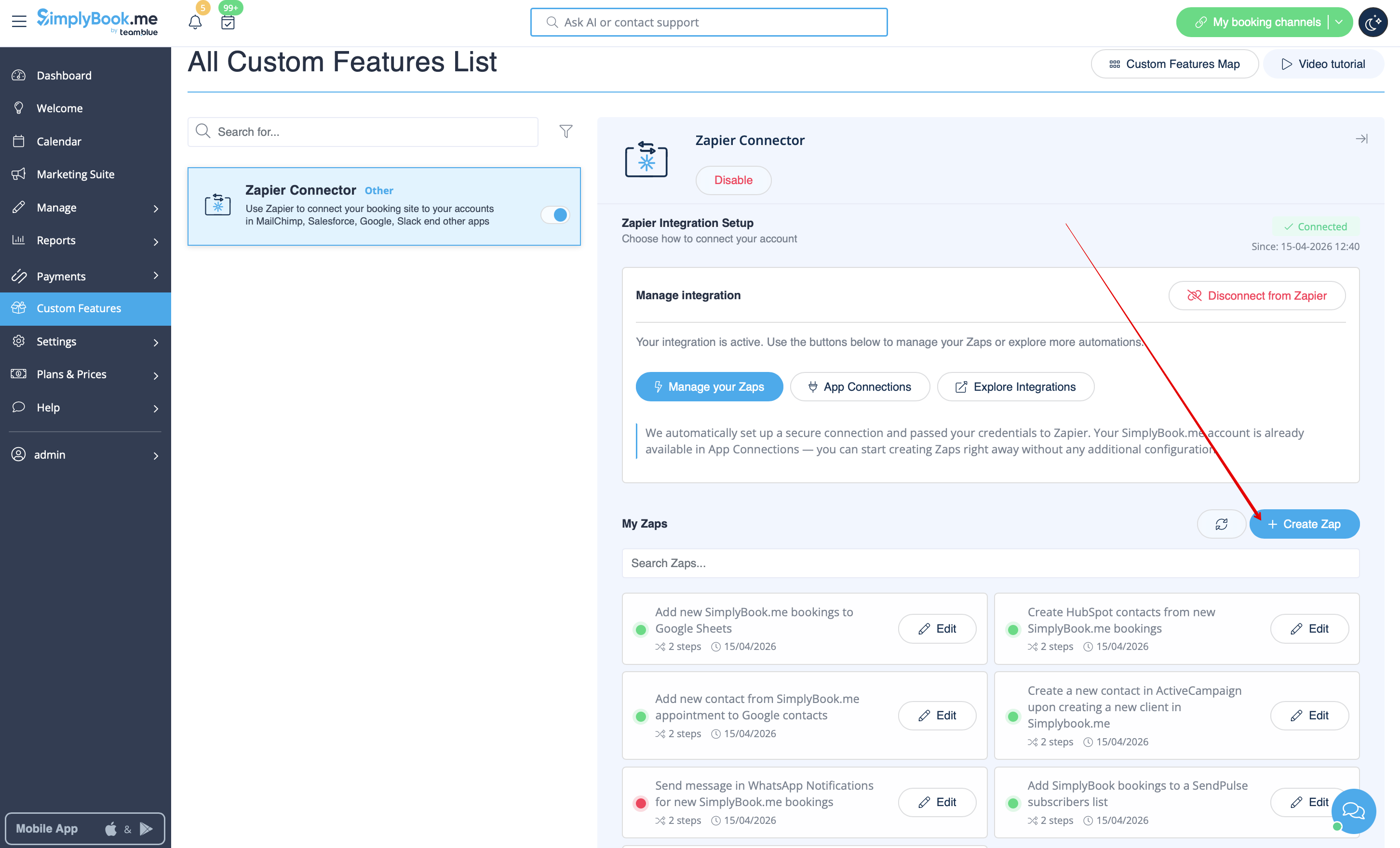
:5. If you need to create a new one please click on '''+ Create Zap''' button. | |||
[[File:Create zap path.png|1200px|border | center|link=https://help.simplybook.me/images/2/24/Create_zap_path.png]] | |||
<br><br> | |||
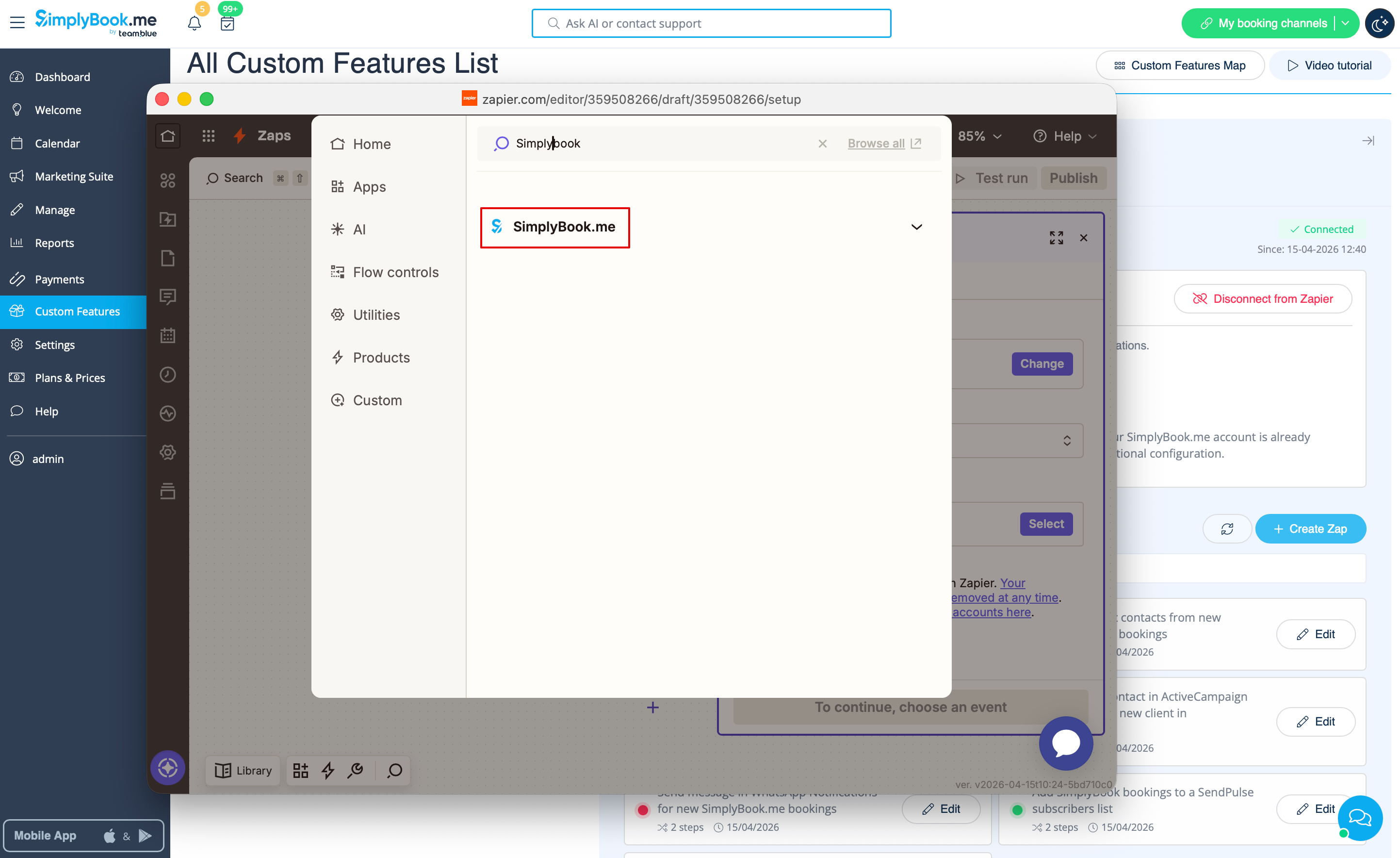
:6. In the popup that appears find SimplyBook.me in the list of apps to connect to. | |||
[[File:Zapier new sb as trigger.png|1200px|border | center|link=https://help.simplybook.me/images/1/13/Zapier_new_sb_as_trigger.png]] | |||
<br><br> | |||
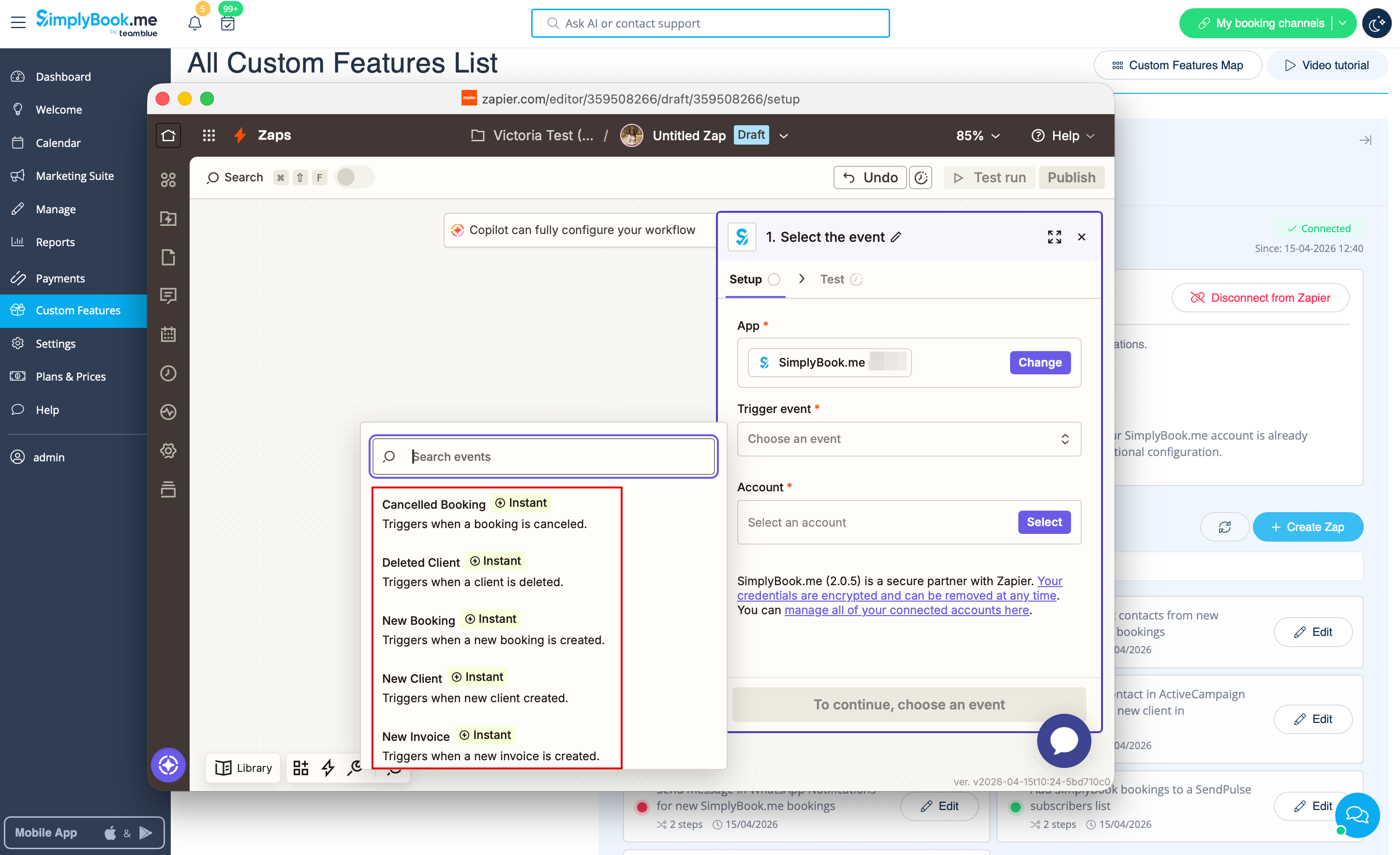
:7. Choose desirable trigger and the account that you have previously connected. Click "Continue". | |||
[[File:Zapier new choose trigger event.png|1200px|border | center|link=https://help.simplybook.me/images/4/45/Zapier_new_choose_trigger_event.png]] | |||
<br><br> | |||
:8. Test your trigger, select the sample record and proceed to the action step. | |||
<br><br> | |||
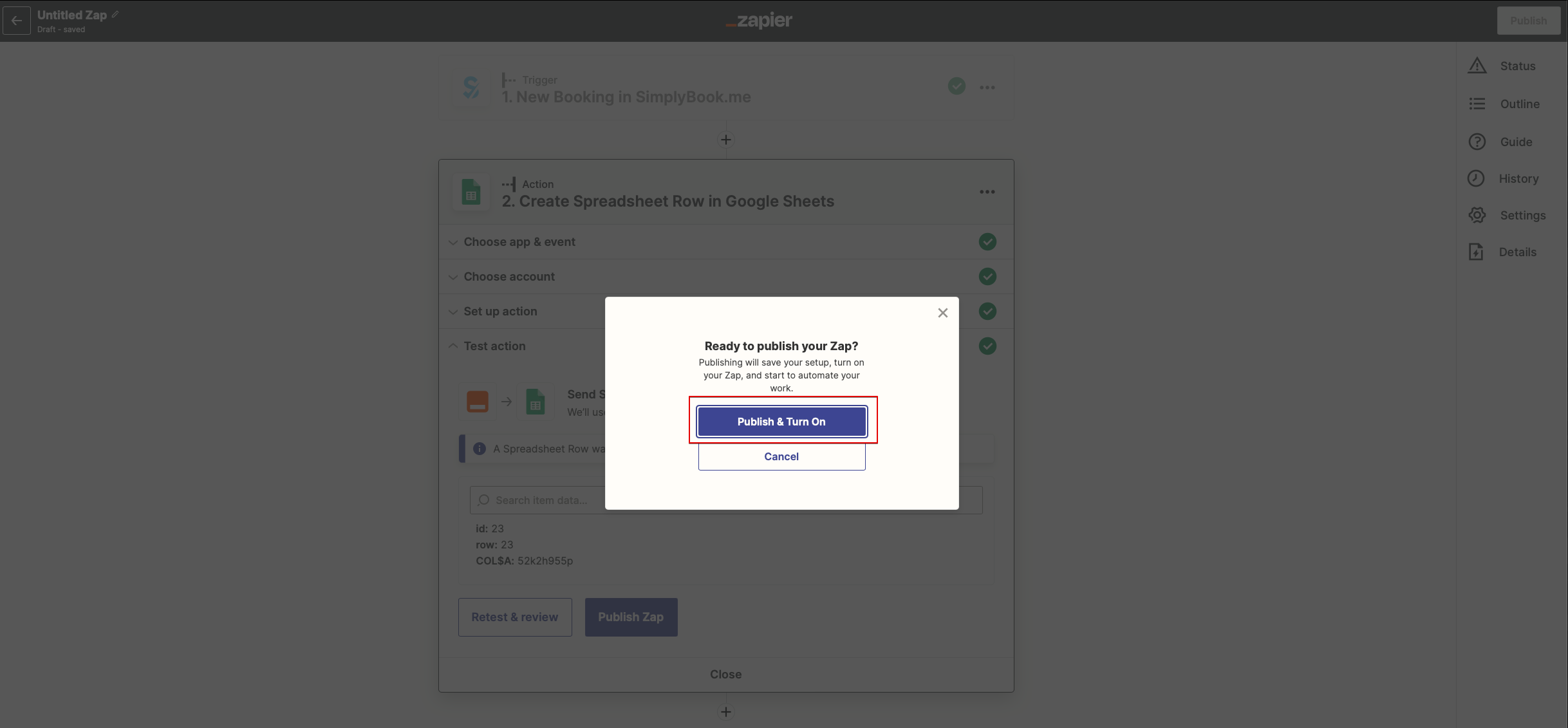
:9. Find the desirable app, connect it, test the step. Publish your Zap and close the popup. Now the page will refresh and you will see it active (with the green dot) in the list of your Zaps. | |||
<br><br><br><br> | |||
<!--T:9--> | |||
==Ho to use manual connection== | |||
:1. You can choose a manual connection by credentials. But in this case the option to manage the Zaps inside SimplyBook.me interface will not be available. | |||
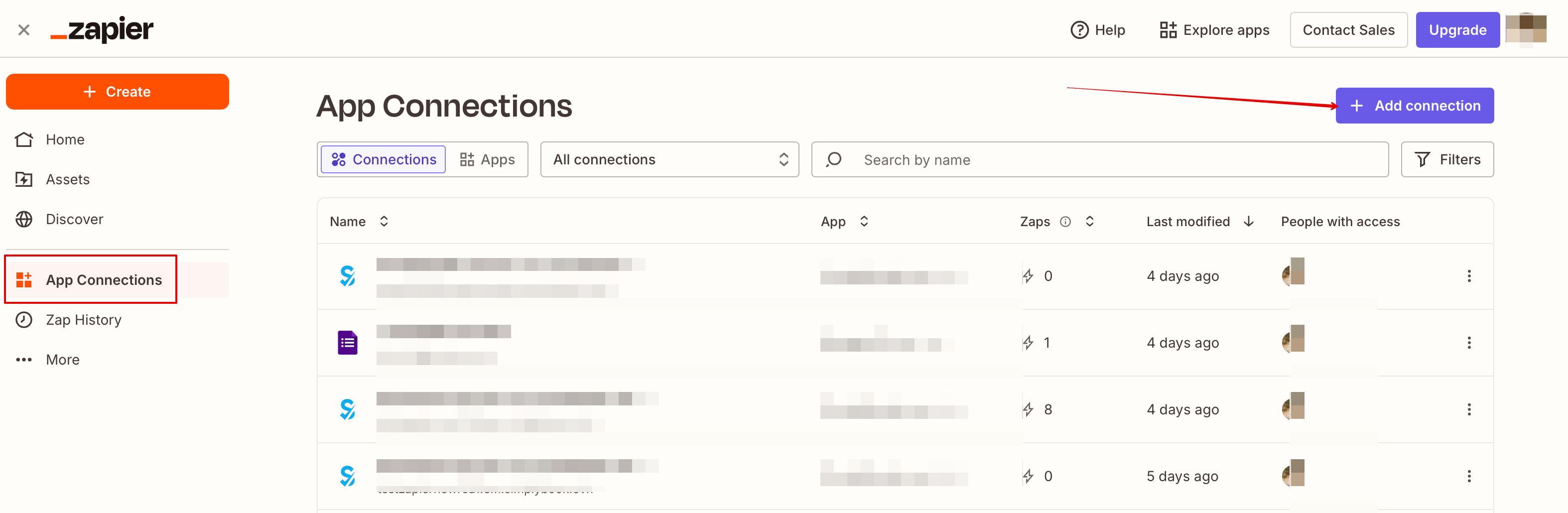
:2. Go to Zapier.com -> App connections page and click on “Add connection” button<br> | |||
[[File:Add connection zapeir side.png|1200px|border | center|link=https://help.simplybook.me/images/c/c2/Add_connection_zapeir_side.png]] | [[File:Add connection zapeir side.png|1200px|border | center|link=https://help.simplybook.me/images/c/c2/Add_connection_zapeir_side.png]] | ||
<br><br> | <br><br> | ||
:3. Select SimplyBook.me<br> | |||
:4. Copy company login, user login, generate and copy API key from your SimpyBook.me account<br> | |||
[[File:Zapier manual connection new.png|1200px|border | center|link=https://help.simplybook.me/images/c/c3/Zapier_manual_connection_new.png]] | [[File:Zapier manual connection new.png|1200px|border | center|link=https://help.simplybook.me/images/c/c3/Zapier_manual_connection_new.png]] | ||
<br><br> | <br><br> | ||
:5. Paste them to the corresponding fields on Zapier.com side and click on “Continue” option there. The account gets connected. | |||
[[File:Credentials on zapier side new.png|1200px|border | center|link=https://help.simplybook.me/images/e/e9/Credentials_on_zapier_side_new.png]] | [[File:Credentials on zapier side new.png|1200px|border | center|link=https://help.simplybook.me/images/e/e9/Credentials_on_zapier_side_new.png]] | ||
<br><br> | <br><br> | ||
: | :6. Now you can create a new Zap by clicking on <span style="background-color:#d4f8e5; padding:5px; border-radius:5px;">Create</span> button in Zapier interface. | ||
[[File: | [[File:Create new zap updated.png|1200px|border| center|link=https://help.simplybook.me/images/6/60/Create_new_zap_updated.png]] | ||
<br><br> | <br><br> | ||
: | :7. Look for Simplybook in <span style="background-color:#d4f8e5; padding:5px; border-radius:5px;">Trigger step.</span> | ||
[[File:Zapier redesigned select trigger app.png|1200px|border | center|link=https://help.simplybook.me/images/c/c1/Zapier_redesigned_select_trigger_app.png]] | [[File:Zapier redesigned select trigger app.png|1200px|border | center|link=https://help.simplybook.me/images/c/c1/Zapier_redesigned_select_trigger_app.png]] | ||
<br><br> | <br><br> | ||
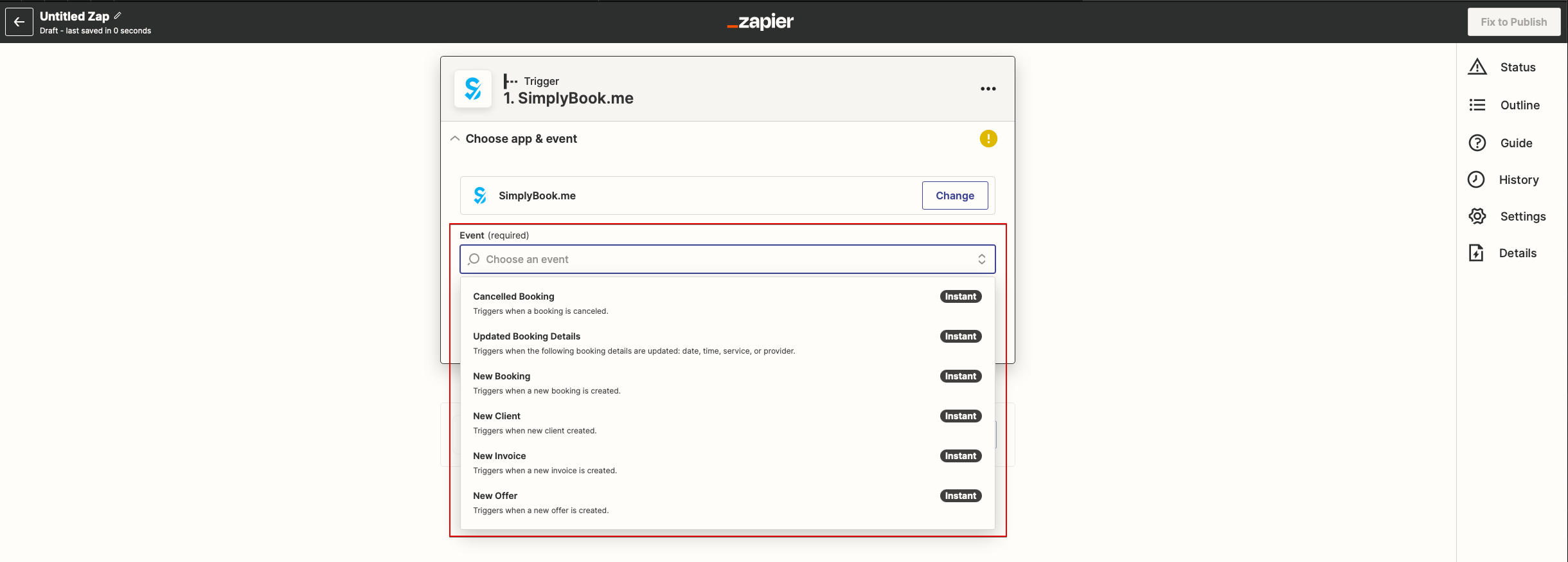
: | :8. Select the desirable trigger. | ||
[[File:Zapier redesigned choose trigger event.png|1200px|border | center|link=https://help.simplybook.me/images/9/94/Zapier_redesigned_choose_trigger_event.png]] | [[File:Zapier redesigned choose trigger event.png|1200px|border | center|link=https://help.simplybook.me/images/9/94/Zapier_redesigned_choose_trigger_event.png]] | ||
<br><br> | <br><br> | ||
: | :9. Select SimplyBook.me account you've connected before. | ||
<br><br> | <br><br> | ||
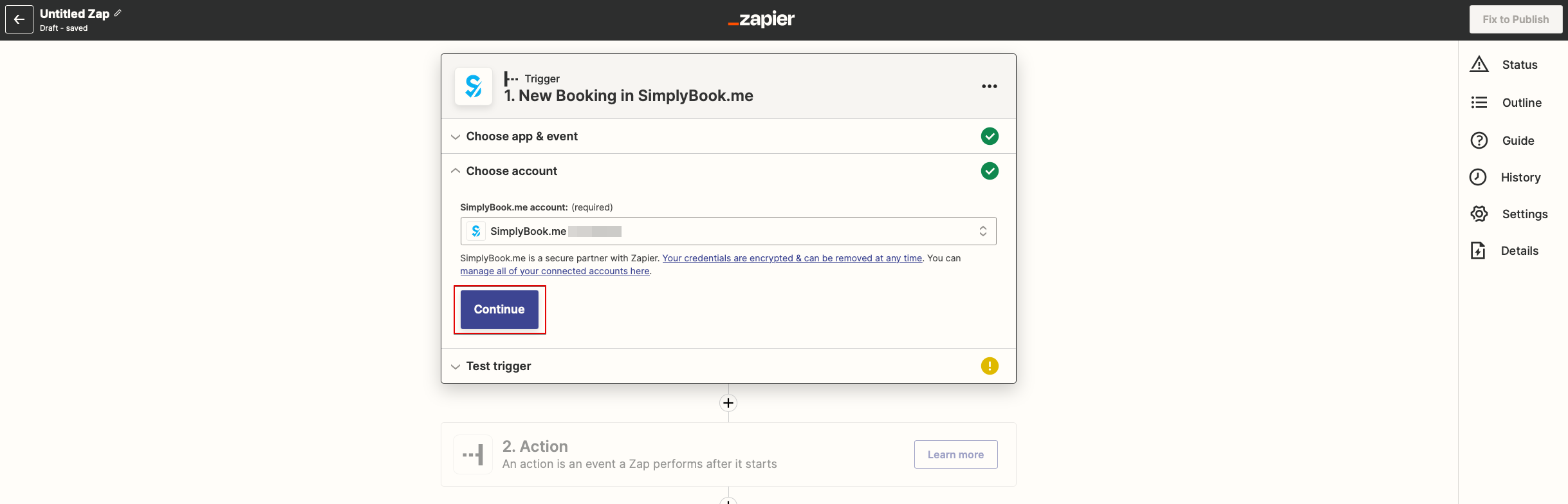
: | :10. Click <span style="background-color:#d4f8e5; padding:5px; border-radius:5px;">Continue</span> to test this step. | ||
[[File:Zapier redesigned continue to test trigger step.png|1200px|border | center|link=https://help.simplybook.me/images/b/be/Zapier_redesigned_continue_to_test_trigger_step.png]] | [[File:Zapier redesigned continue to test trigger step.png|1200px|border | center|link=https://help.simplybook.me/images/b/be/Zapier_redesigned_continue_to_test_trigger_step.png]] | ||
<br><br> | <br><br> | ||
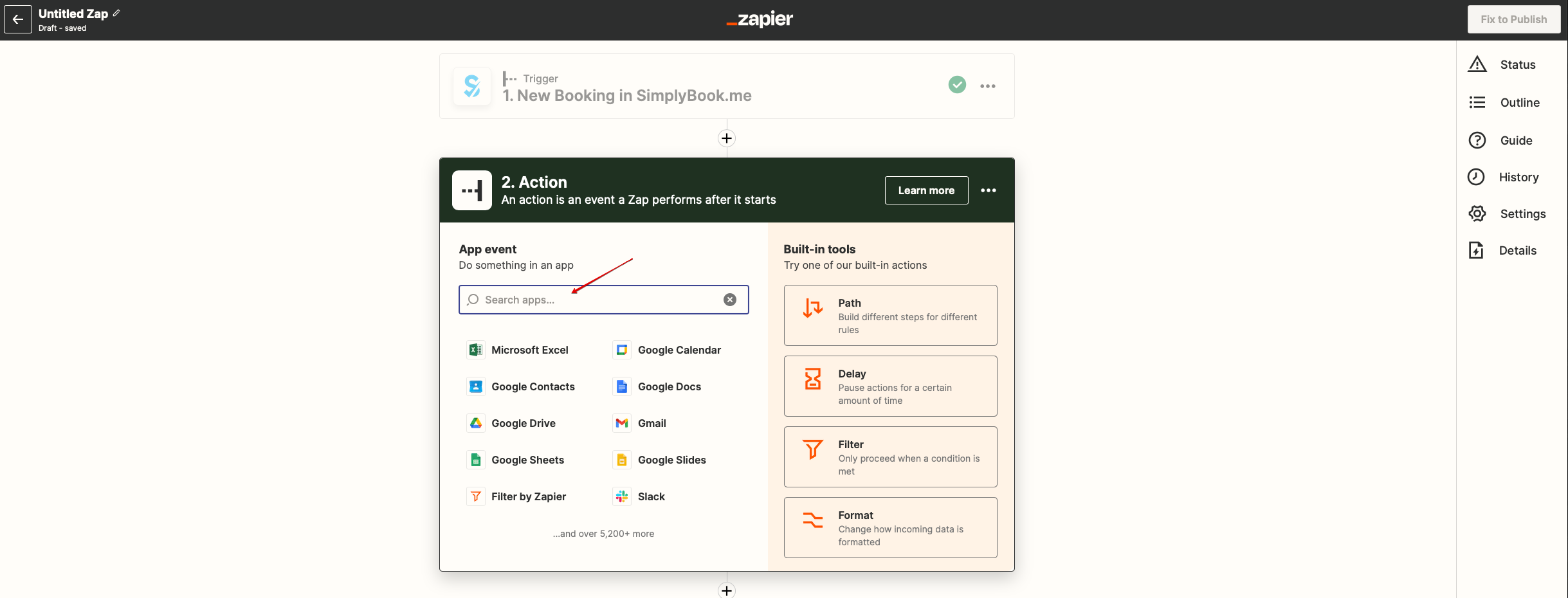
: | :11. Proceed to adding the Action step and search for the app you wish to connect SimplyBook.me to. | ||
[[File:Zapier redesigned search for the action app.png|1200px|border | center|link=https://help.simplybook.me/images/9/95/Zapier_redesigned_search_for_the_action_app.png]] | [[File:Zapier redesigned search for the action app.png|1200px|border | center|link=https://help.simplybook.me/images/9/95/Zapier_redesigned_search_for_the_action_app.png]] | ||
<br><br> | <br><br> | ||
: | :12. Connect this application account and setup the template using the available data mentioned above. | ||
<br><br> | <br><br> | ||
: | :13. You can test this step operation as well if necessary or skip it. | ||
<br><br> | <br><br> | ||
: | :14. Finish the setup, add Zap name and turn it on. | ||
[[File:Zapier redesigned enable zap.png|1200px|border | center|link=https://help.simplybook.me/images/9/9b/Zapier_redesigned_enable_zap.png]] | [[File:Zapier redesigned enable zap.png|1200px|border | center|link=https://help.simplybook.me/images/9/9b/Zapier_redesigned_enable_zap.png]] | ||
<br><br> | <br><br> | ||
</translate> | </translate> | ||
Latest revision as of 13:12, 15 April 2026

Connect SimplyBook.me with hundreds of other solutions using this feature. It contains a variety of triggers that can be used to send information to other solutions by simply using one of the available zaps or by creating a new zap. Zapier allows to integrate 2 or more web-applications via their APIs through “triggers” and “actions”. SimplyBook.me is available in Zapier as Trigger app, it means only information from SimplyBook.me is sent to Zapier (1-way integration) and via Zapier to any app that has actions.
Please note!
- Available data depends on custom features enabled;
- It doesn't work if 2-step authentication is enabled (HIPAA or Google Authenticator);
- New client trigger doesn't work with Import clients feature, but works correctly if 1 client is added manually in admin interface;
- Information about membership/promotion/package/product used is not included as it relates to invoice and not to booking;
- Comment change doesn't launch any trigger;
- To be able to use Booking change/Booking cancellation triggers in order to change existing records in Action app you need to use paid Zapier account(please check current pricing with them and if it includes multi-step zaps), as Search step is needed to find the record in action app;
- If more items are added to admin interface after ZAP was created, you need to press "Get more samples" button at "Trigger step" -> "Test this step" in Zapier to fetch new available fields and data (zap template should be changed);
- Invoice data can be sent with New Invoice trigger;
- SOAP data is not sent;
- Tax information is not sent, service price is shown without taxes added;
- It doesn't work if both Accept payments and Approve bookings are enabled, and batch bookings are partially approved.
6 triggers are now available:
• New booking - launches when new booking is created in SimplyBook.me account;
• Booking change - launches when booking is changed (change of date/time/service/provider/status/intake forms answers);
• Booking cancellation - launches upon booking cancellation;
• New client - launches when new client is added, either upon a new booking, or when admin manually adds client in SimplyBook.me admin interface.
• New Offer - launches when any new offer is created on SimplyBook.me side (can be used when Accept payments custom feature is enabled).
• New Invoice - launches when new invoice is created and paid on SimplyBook.me side (can be used when Accept payments custom feature is enabled).
6 actions can now be used:
- Get booking - allows to get booking details by id
- Get client - allows to get client details by id
- Create booking - allows to create a new booking record
- Create client - allows to create a new client record
- Cancel booking - allows to cancel booking by id
- Available data:
For booking-related triggers(New booking, Booking change, Booking cancellation):
Basic functionality (no custom features enabled):
- Company (login, name, email, phone),
- Service (name, description, duration, buffer time),
- Provider (name, description, email, phone),
- Client information (name, email, phone, address, timezone),
- Booking code (if booking is confirmed, start/end date/time).
Custom features related data:
- Accept payments (service price, currency);
- Status (name, description, color);
- Approve bookings (approval status: approved, canceled);
- Multiple Locations (location name, location address (with coordinates), location phone, location description);
- Service Categories (category name, category description);
- Service Add-ons (add-on name, add-on price);
- Intake Forms (answers).
For New client trigger:
- Client ID;
- Client name;
- Client email;
- Client phone;
- Client address;
- If client is blocked to login (if Client login custom feature is enabled);
- Client registration date.
For New Offer/Invoice triggers:
- Order ID;
- Client name / email / phone;
- Offer/Invoice description (list of items ordered, information about discount: gift card/coupon/package used);
- Order amount and currency;
- Discount amount;
- Order date and time;
- Offer/Invoice number in SimplyBook.me system (O-XXXXXX or I-XXXXXX);
- Payment processor (delay, cash, credit card, wire transfer);
- Payment status (paid, pending) and if payment is received.
How to use embedded version
- 1. Enable Zapier connector custom feature on your Custom features page on SimplyBook.me side.

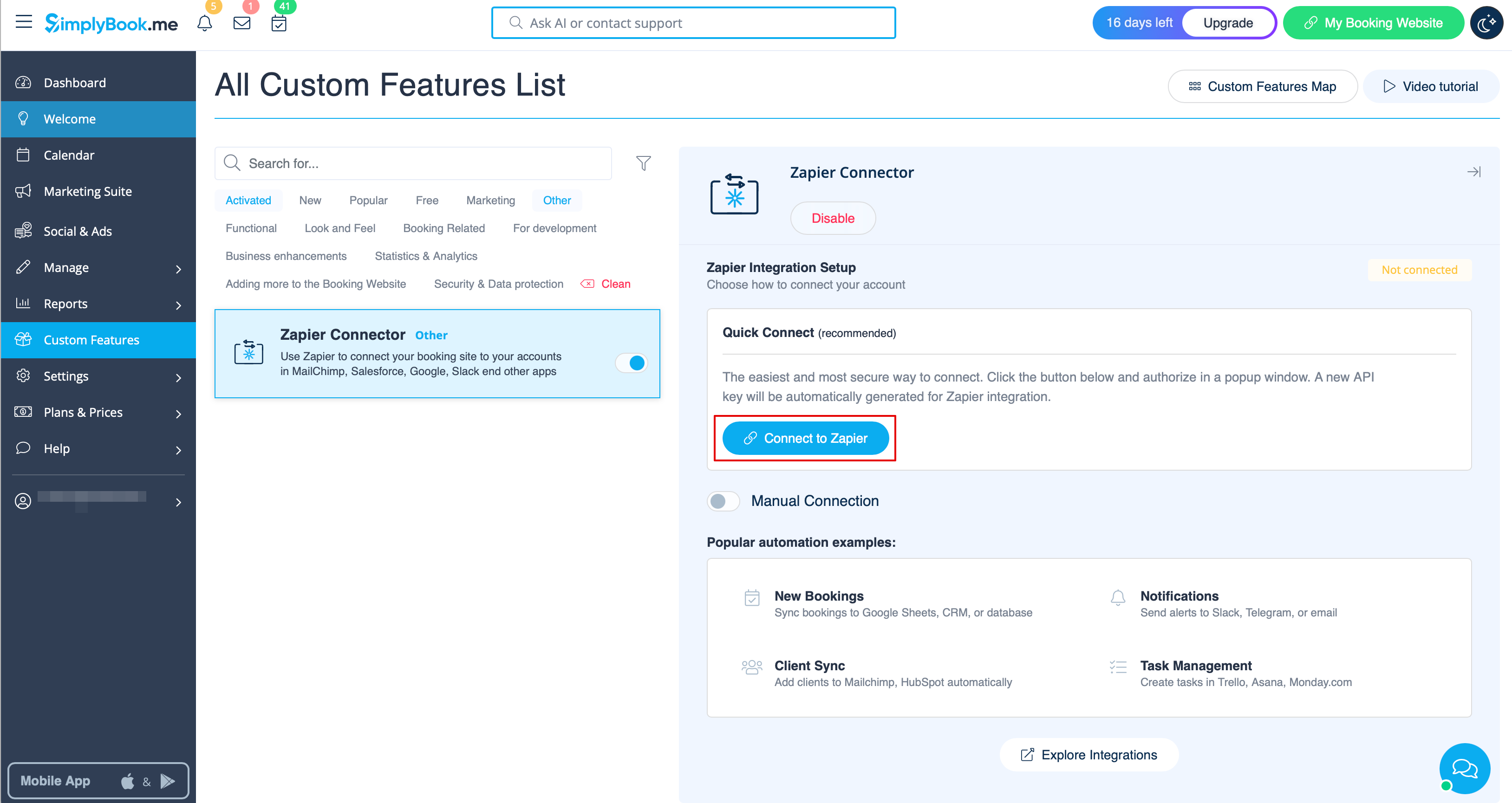
- 2. Connect to your Zapier account using the ‘’’Quick connect’’’ option
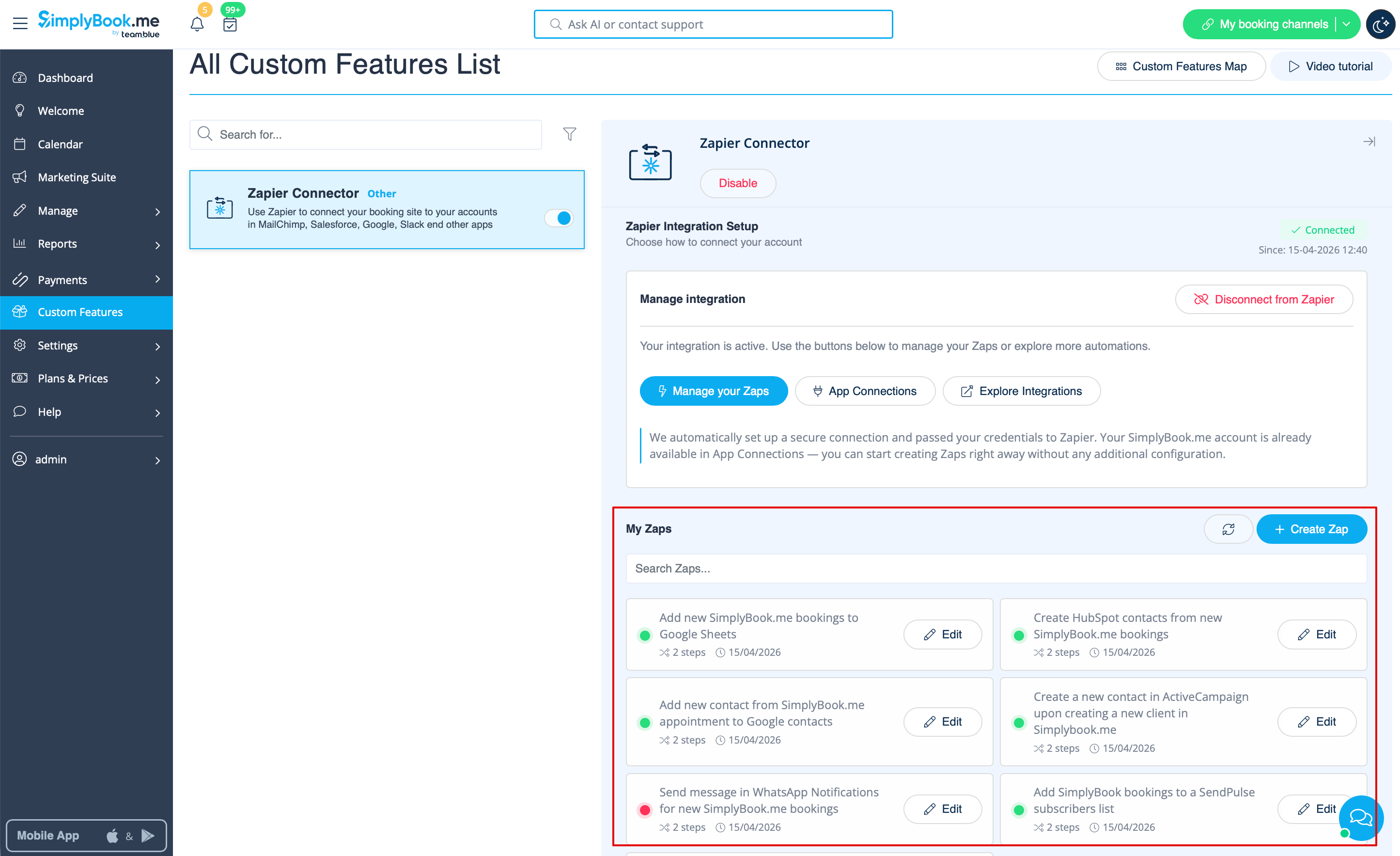
- 3. And now you can manage all your Zaps without leaving your SimplyBook.me account.
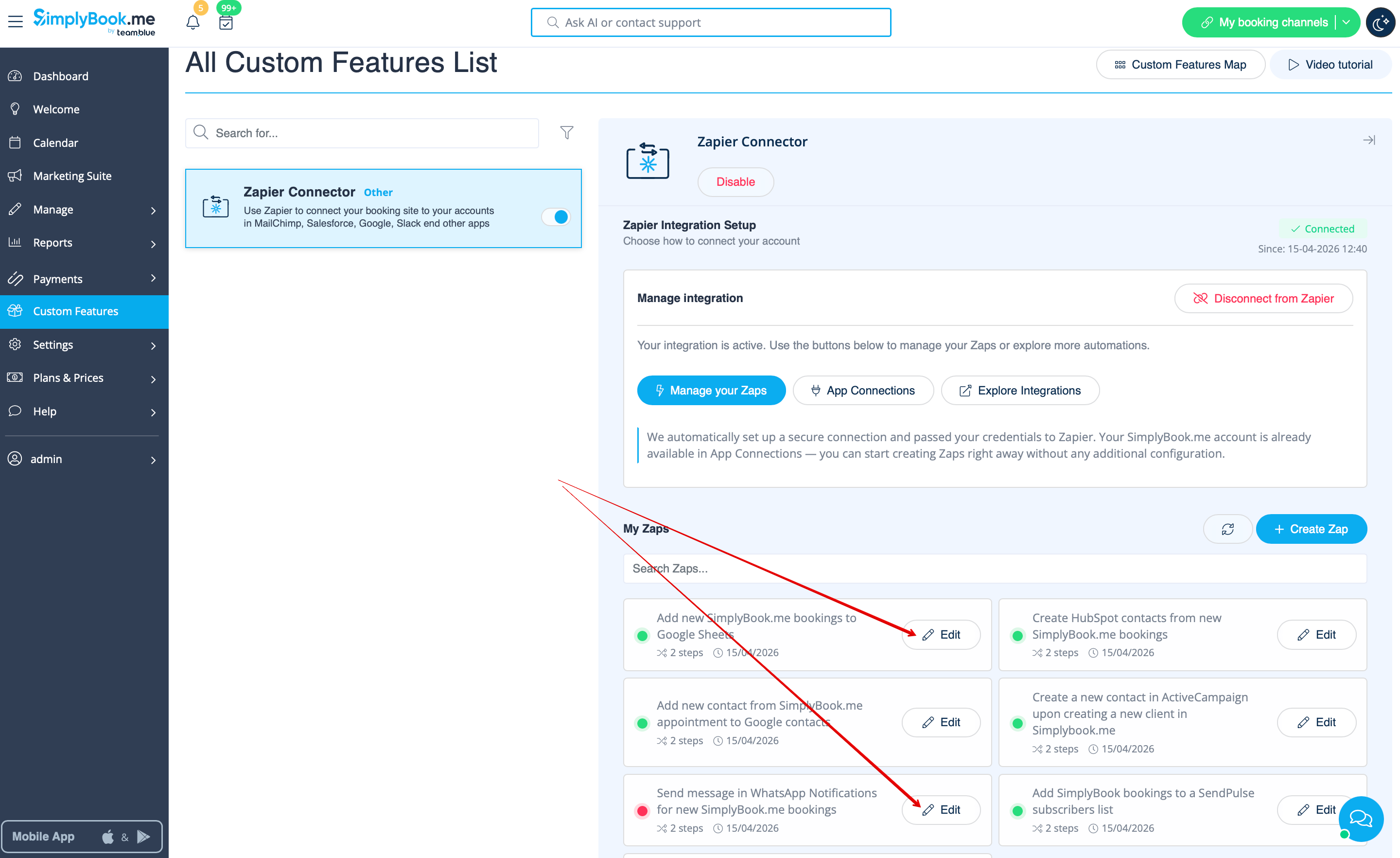
- 4. Select Edit near the one that you've created before. You can rename them, edit the flows, enable or disable, delete if necessary. After each action the page will be refreshed and will reflect the updated Zaps information for you.
- 5. If you need to create a new one please click on + Create Zap button.
- 6. In the popup that appears find SimplyBook.me in the list of apps to connect to.
- 7. Choose desirable trigger and the account that you have previously connected. Click "Continue".
- 8. Test your trigger, select the sample record and proceed to the action step.
- 9. Find the desirable app, connect it, test the step. Publish your Zap and close the popup. Now the page will refresh and you will see it active (with the green dot) in the list of your Zaps.
Ho to use manual connection
- 1. You can choose a manual connection by credentials. But in this case the option to manage the Zaps inside SimplyBook.me interface will not be available.
- 2. Go to Zapier.com -> App connections page and click on “Add connection” button
- 3. Select SimplyBook.me
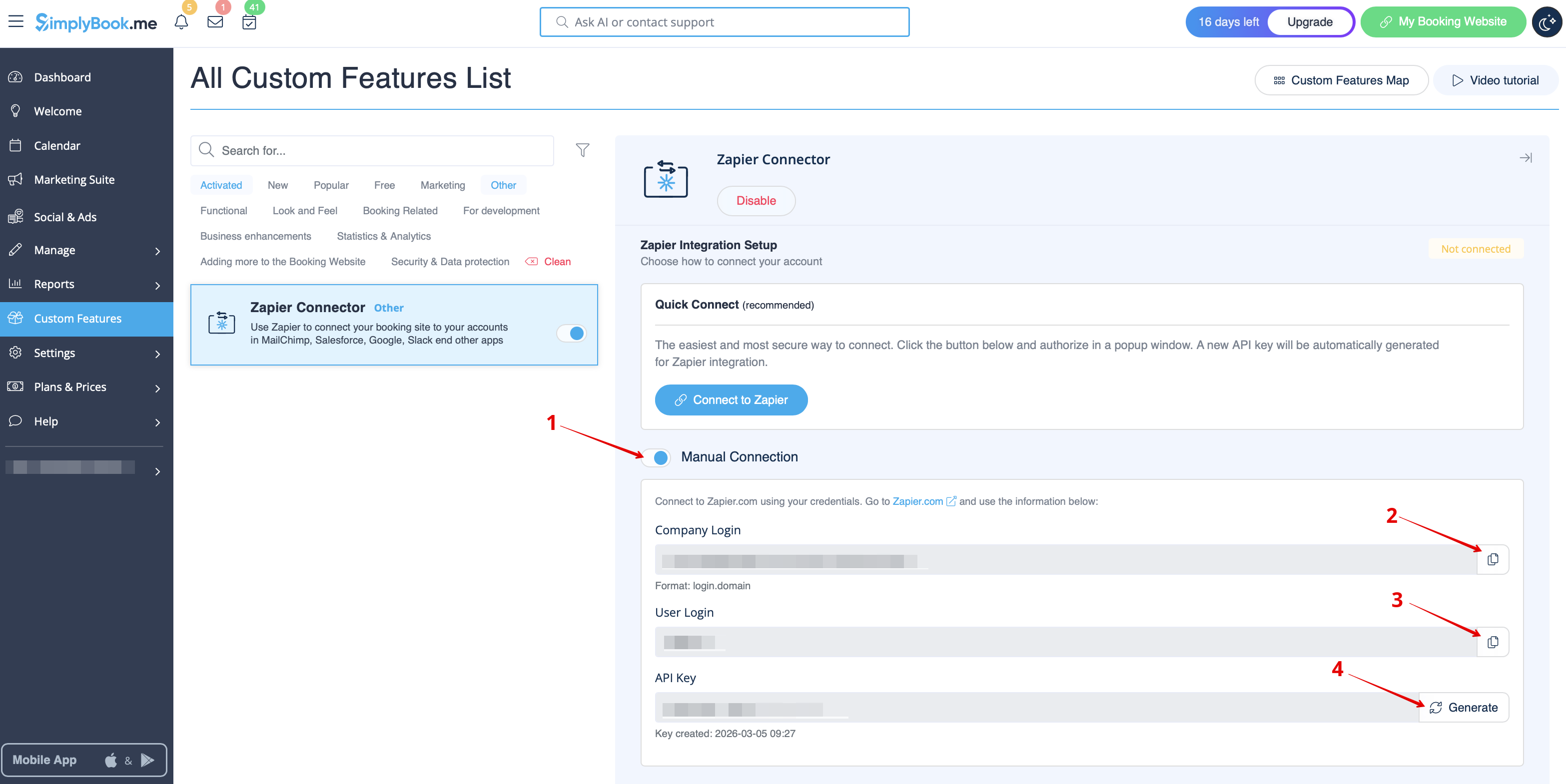
- 4. Copy company login, user login, generate and copy API key from your SimpyBook.me account
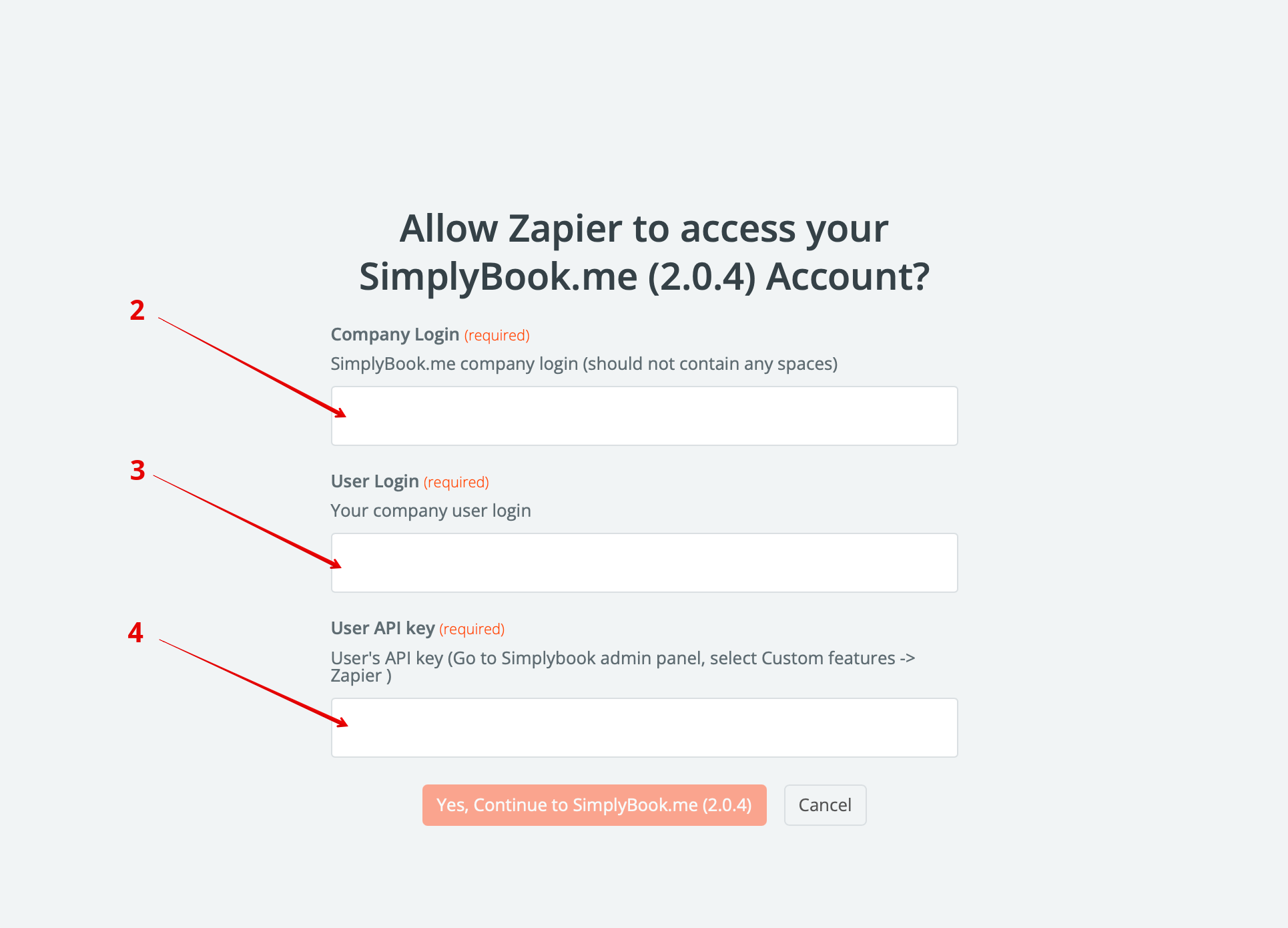
- 5. Paste them to the corresponding fields on Zapier.com side and click on “Continue” option there. The account gets connected.
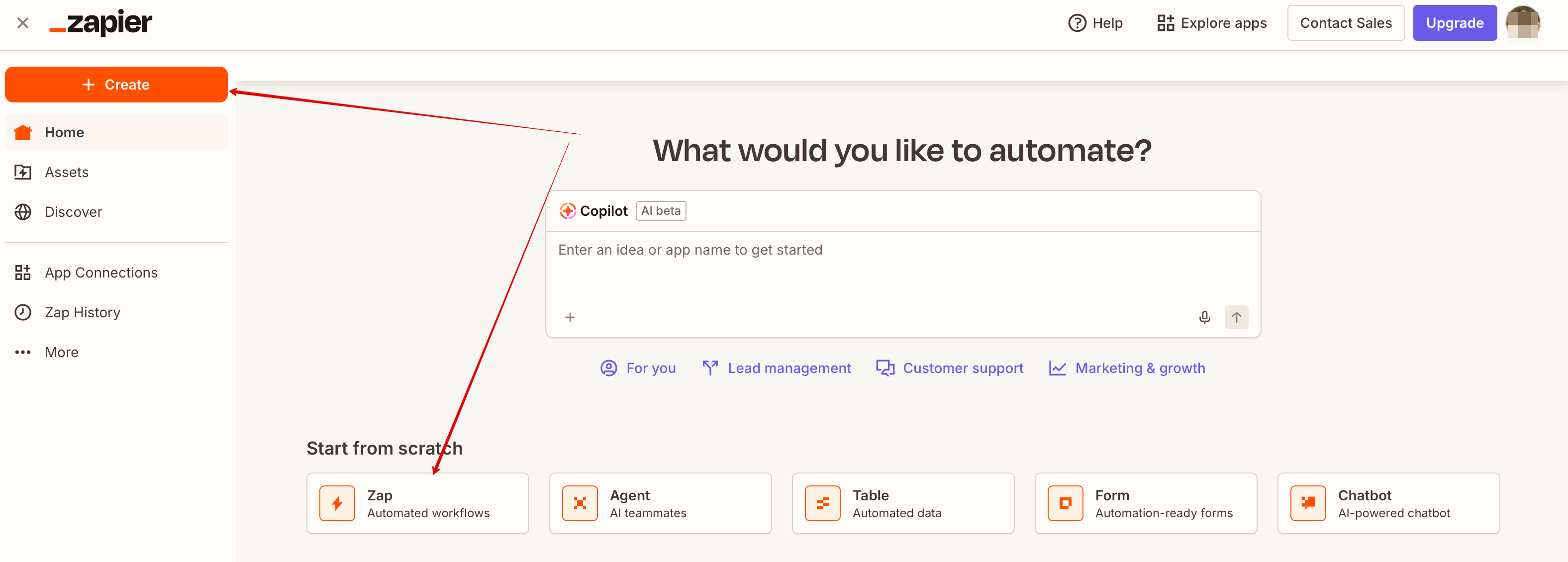
- 6. Now you can create a new Zap by clicking on Create button in Zapier interface.
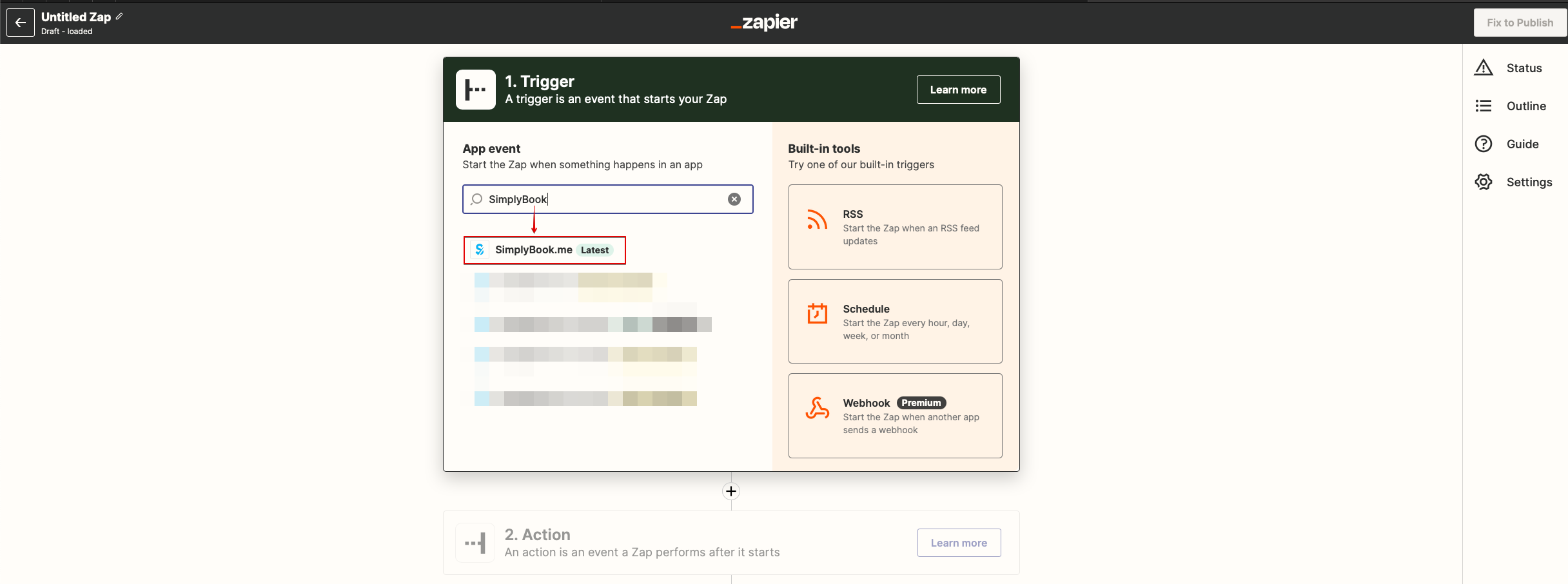
- 7. Look for Simplybook in Trigger step.
- 8. Select the desirable trigger.
- 9. Select SimplyBook.me account you've connected before.
- 10. Click Continue to test this step.
- 11. Proceed to adding the Action step and search for the app you wish to connect SimplyBook.me to.
- 12. Connect this application account and setup the template using the available data mentioned above.
- 13. You can test this step operation as well if necessary or skip it.
- 14. Finish the setup, add Zap name and turn it on.