No edit summary |
Marked this version for translation |
||
| (10 intermediate revisions by the same user not shown) | |||
| Line 1: | Line 1: | ||
<languages/> | |||
<translate> | |||
<!--T:1--> | |||
{{#seo: | {{#seo: | ||
|title=Frequently Asked Questions about Service And Provider relations in Online Booking System SimplyBook.me | |title=Frequently Asked Questions about Service And Provider relations in Online Booking System SimplyBook.me | ||
| Line 4: | Line 7: | ||
|keywords=faq, frequently asked questions, calendar software, free online calendar, free scheduling software, booking software, online booking system, booking calendar, online appointment scheduling, schedule, online booking calendar, online scheduling | |keywords=faq, frequently asked questions, calendar software, free online calendar, free scheduling software, booking software, online booking system, booking calendar, online appointment scheduling, schedule, online booking calendar, online scheduling | ||
}} | }} | ||
</translate> | |||
<translate> | |||
<!--T:2--> | |||
<div class="mw-collapsible mw-collapsed" data-expandtext="Show" data-collapsetext="Hide" style="width:800px;"> | <div class="mw-collapsible mw-collapsed" data-expandtext="Show" data-collapsetext="Hide" style="width:800px;"> | ||
<span class="qa">[[Adding_services,_providers_and_availability(new_interface)#How_to_set_specific_schedule_for_service | How to create schedules for services]]</span> | <span class="qa">[[Adding_services,_providers_and_availability(new_interface)#How_to_set_specific_schedule_for_service | How to create schedules for services]]</span> | ||
| Line 11: | Line 16: | ||
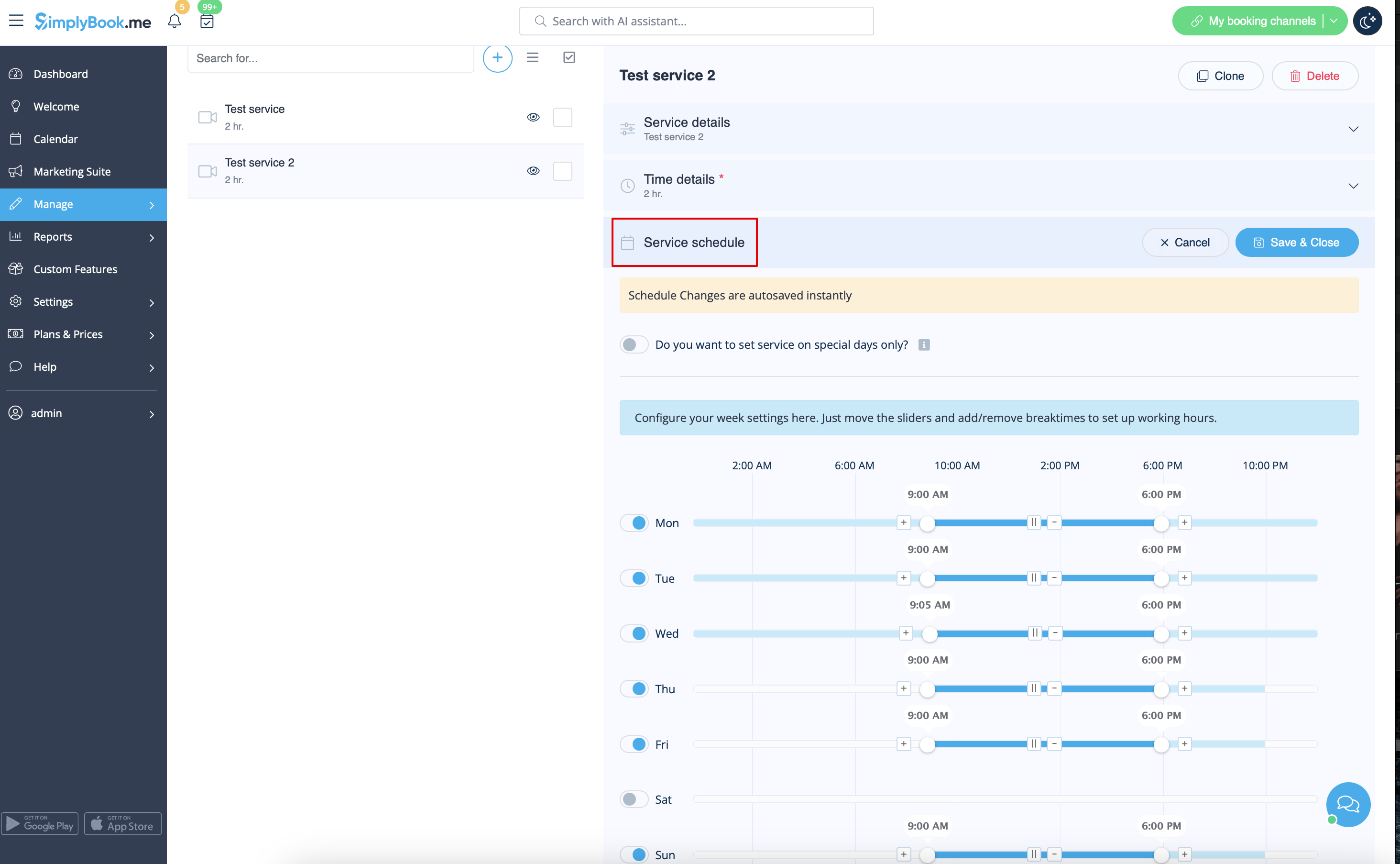
:1. Go to Manage // Services// Add service and create all necessary services.<br/> | :1. Go to Manage // Services// Add service and create all necessary services.<br/> | ||
:2. Then in Manage // Services click on "Service schedule" tab and set schedule for each service.<br/> | :2. Then in Manage // Services click on "Service schedule" tab and set schedule for each service.<br/> | ||
[[File: | [[File:Service schedule path redesigned.png|1200px | center|link=https://help.simplybook.me/images/e/ec/Service_schedule_path_redesigned.png ]]<br/><br/> | ||
</div> | </div> | ||
</div> | </div> | ||
| Line 25: | Line 27: | ||
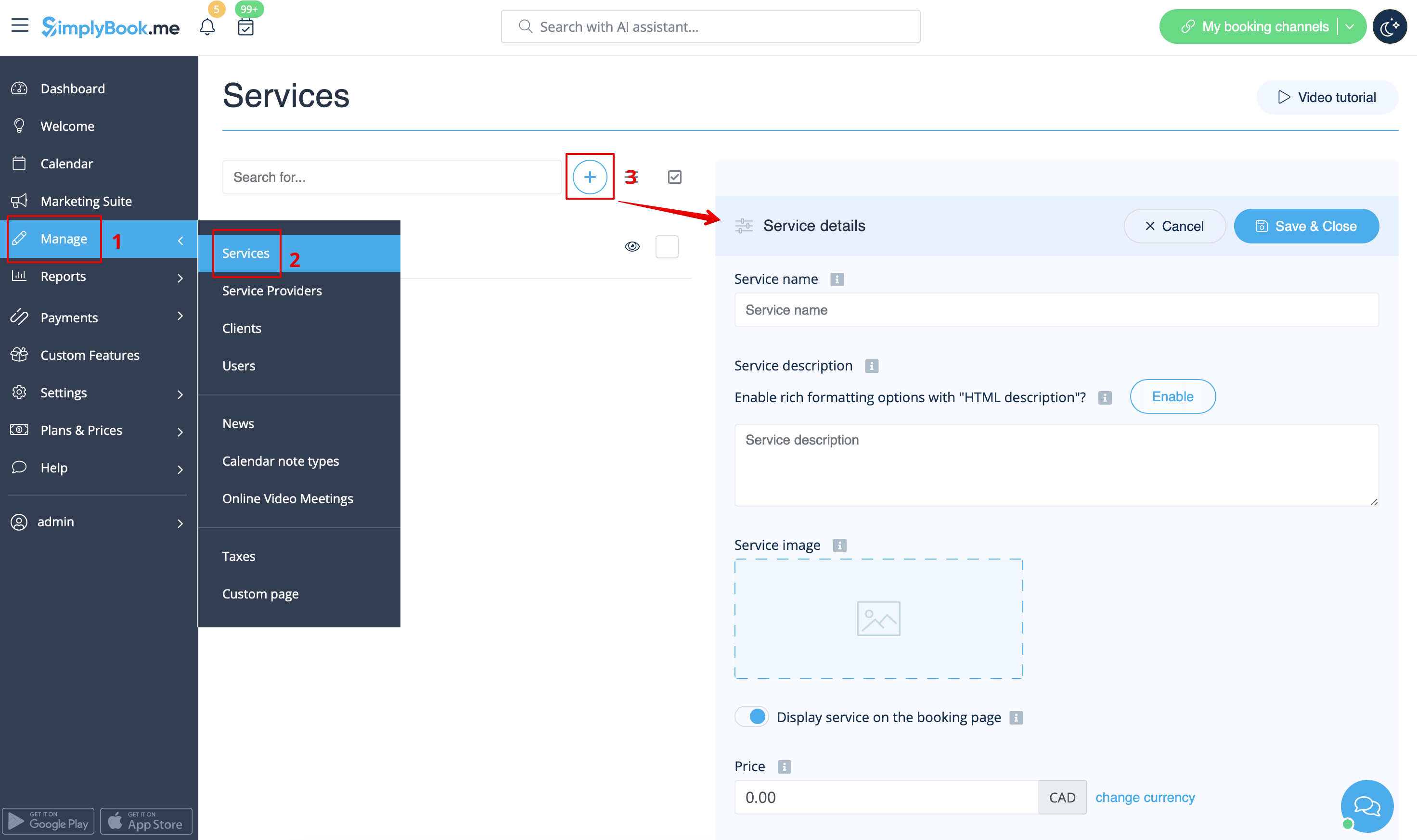
:1. In Manage//Services click on "+" icon to create new service. | :1. In Manage//Services click on "+" icon to create new service. | ||
<br> | <br> | ||
[[File:Create new service.png | center ]] | [[File:Create new service redesigned.png|1200px| center|link=https://help.simplybook.me/images/2/2d/Create_new_service_redesigned.png ]] | ||
<br> | <br> | ||
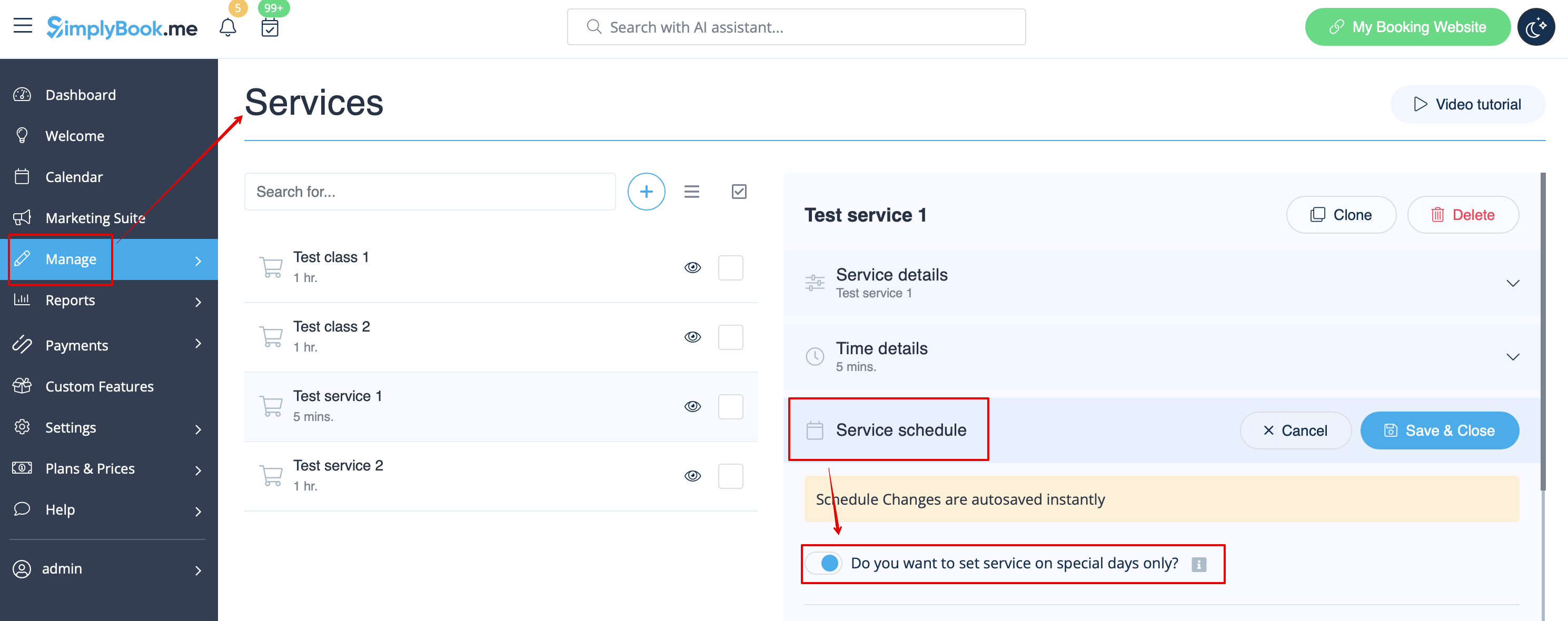
:2. In Manage//Services choose "Service schedule" tab on the newly created service switch on the option "Do you want to set service on special days only?". | :2. In Manage//Services choose "Service schedule" tab on the newly created service switch on the option "Do you want to set service on special days only?". | ||
<br> | <br> | ||
[[File: | [[File:Service special days only redesigned.png|1200px | center|link=https://help.simplybook.me/images/f/f2/Service_special_days_only_redesigned.png]] | ||
<br><br> | <br><br> | ||
:3. Then use the calendar, click on the dates that you want to open and set the schedule for these dates by moving the sliders(bright blue zone is open time). | :3. Then use the calendar, click on the dates that you want to open and set the schedule for these dates by moving the sliders(bright blue zone is open time). | ||
<br> | <br> | ||
[[File: | [[File:Events set schedule by date redesigned.png|1200px | center|link=https://help.simplybook.me/images/c/c6/Events_set_schedule_by_date_redesigned.png]] | ||
<br><br> | <br><br> | ||
:If you need to select several dates at once please switch on "Enable group dates selection?", choose the dates to edit and click on "Setup schedule" to set the times. | :If you need to select several dates at once please switch on "Enable group dates selection?", choose the dates to edit and click on "Setup schedule" to set the times. | ||
<br> | <br> | ||
[[File: | [[File:Events group dates selection redesigned.png|1200px |center|link=https://help.simplybook.me/images/6/61/Events_group_dates_selection_redesigned.png]] | ||
<br><br> | <br><br> | ||
:4. Connect service to necessary provider in "Service providers" tab. | :4. Connect service to necessary provider in "Service providers" tab. | ||
</translate> | |||
<translate> | |||
<!--T:3--> | |||
==Option 2 (as Event with the help of [[Custom_Features#Classes | Classes]] custom feature)== | ==Option 2 (as Event with the help of [[Custom_Features#Classes | Classes]] custom feature)== | ||
<br> | <br> | ||
:1. Enable Classes custom feature on your Custom features page. | :1. Enable Classes custom feature on your Custom features page. | ||
[[File:Classes enable path.png | center]] | [[File:Classes enable path redesigned.png|1200px|border | center|link=https://help.simplybook.me/images/e/ef/Classes_enable_path_redesigned.png]] | ||
<br><br> | <br><br> | ||
:2. Navigate to Manage//Classes page and create a new class. | :2. Navigate to Manage//Classes page and create a new class. | ||
[[File:Create new class | [[File:Create new class form redesigned.png|1200px | center|link=https://help.simplybook.me/images/0/04/Create_new_class_form_redesigned.png ]] | ||
<br/><br/> | <br/><br/> | ||
:3. Choose "Class schedule" tab on the newly created class and switch on the option "Do you want to set service on special days only?" | :3. Choose "Class schedule" tab on the newly created class and switch on the option "Do you want to set service on special days only?" | ||
| Line 53: | Line 57: | ||
<br><br> | <br><br> | ||
</translate> | |||
<translate> | |||
<!--T:4--> | |||
;How events(classes) work | ;How events(classes) work | ||
<br> | <br> | ||
The general logic of event(class) is creating Service + Provider related to it with dates selected in the settings of the event(class) as special days. When you use [[Custom_Features#Classes | Classes]] custom feature the event creates service+provider related to it with identical name. In order to preserve proper functioning of the event on the dates needed, you should not delete provider with identical name related to event (but you can easily change his/her name) and should not disconnect provider from the event. <br/> | The general logic of event(class) is creating Service + Provider related to it with dates selected in the settings of the event(class) as special days. When you use [[Custom_Features#Classes | Classes]] custom feature the event creates service+provider related to it with identical name. In order to preserve proper functioning of the event on the dates needed, you should not delete provider with identical name related to event (but you can easily change his/her name) and should not disconnect provider from the event. <br/> | ||
[[File:Event | [[File:Event client side booking.png|1200px|border | center]] | ||
<br><br> | <br><br> | ||
</div> | </div> | ||
| Line 67: | Line 74: | ||
You can create recurring services and enable your clients to book a particular amount of sessions. | You can create recurring services and enable your clients to book a particular amount of sessions. | ||
<br> | <br> | ||
<br> | <br></translate> | ||
<translate> | |||
<!--T:10--> | |||
'''How to create recurring service:''' | '''How to create recurring service:''' | ||
<br><br> | <br><br> | ||
:1. Go to Manage // Services // "Time details" tab on the needed service. | :1. Go to Manage // Services // "Time details" tab on the needed service. | ||
<!--T:5--> | |||
:2. Enable "Make service recurring (pack)?" there | :2. Enable "Make service recurring (pack)?" there | ||
[[File: | [[File:Recurring service settings redesigned.png|1200px| center|link=https://help.simplybook.me/images/1/10/Recurring_service_settings_redesigned.png]] | ||
<br><br> | <br><br> | ||
:4. Choose when your service will repeat. Select "Repeat weekly (please select week days)" and day/days of the week (e.g Mondays) when your service occurs. <br> | :4. Choose when your service will repeat. Select "Repeat weekly (please select week days)" and day/days of the week (e.g Mondays) when your service occurs. <br> | ||
:If you need more specific intervals, you can choose "Or repeat each" and set your service to reoccur every 14 days, for example. | :If you need more specific intervals, you can choose "Or repeat each" and set your service to reoccur every 14 days, for example. | ||
<!--T:6--> | |||
:5. Choose the mode for the bookings. Available modes: | :5. Choose the mode for the bookings. Available modes: | ||
::'''Not allow''' - not allow recurring bookings if one of dates in between unavailable (Using the example below, if 15th is busy, the system will not allow to book 1st and 8th, only days after busy day). | ::'''Not allow''' - not allow recurring bookings if one of dates in between unavailable (Using the example below, if 15th is busy, the system will not allow to book 1st and 8th, only days after busy day). | ||
| Line 83: | Line 94: | ||
::'''Add appointments''' - book on all available dates and add dates behind for unavailable in between dates (Using the example below, if 15th is busy, the system will book 1 and 8th and 22nd + 1 day instead of busy 15th, which is August 29th). | ::'''Add appointments''' - book on all available dates and add dates behind for unavailable in between dates (Using the example below, if 15th is busy, the system will book 1 and 8th and 22nd + 1 day instead of busy 15th, which is August 29th). | ||
<!--T:7--> | |||
:6. Set the number of times your service will repeat in "Repeat count". | :6. Set the number of times your service will repeat in "Repeat count". | ||
<!--T:8--> | |||
::''Example'': If you set up Mondays and repeat count 4, when clients book this service from booking page, they will book 4 Mondays at once. | ::''Example'': If you set up Mondays and repeat count 4, when clients book this service from booking page, they will book 4 Mondays at once. | ||
[[File:Recurring dates example.png |center]] | [[File:Recurring dates example.png |center]] | ||
<br><br> | <br><br> | ||
'''Please note!''' | |||
*If you make the recurring service paid, the amount that you set as the service price is the total for all the sessions.<br> | |||
It is currently not possible to set single session price for the recurring service packs.<br> | |||
That is why if you have single service and decide to make a recurring booking for it from the admin side/[[Point_of_Sale_custom_feature|POS]] interface, its price will not be multiplied by the number of selected sessions. | |||
*It is not possible to reschedule bookings related to recurring batch with [[Client Rescheduling custom feature|Client rescheduling]] feature. | |||
*When a client books a service set as recurring with a certain amount of sessions, the number of bookings that are created at one go equals the number of sessions you have set for such service. | |||
<br><br><br><br> | |||
</translate> | |||
<translate> | |||
<!--T:9--> | |||
</div> | </div> | ||
</div> | </div> | ||
| Line 99: | Line 122: | ||
</div> | </div> | ||
</div> | </div> | ||
<br/> | <br/></translate> | ||
<translate> | |||
<!--T:11--> | |||
<div class="mw-collapsible mw-collapsed" data-expandtext="Show" data-collapsetext="Hide" style="width:800px;"> | <div class="mw-collapsible mw-collapsed" data-expandtext="Show" data-collapsetext="Hide" style="width:800px;"> | ||
<span class="qa">[[Categories_and_Locations#How_to_add_Category| Having many services]]</span> | <span class="qa">[[Categories_and_Locations#How_to_add_Category| Having many services]]</span> | ||
| Line 113: | Line 138: | ||
<div class="mw-collapsible-content"> | <div class="mw-collapsible-content"> | ||
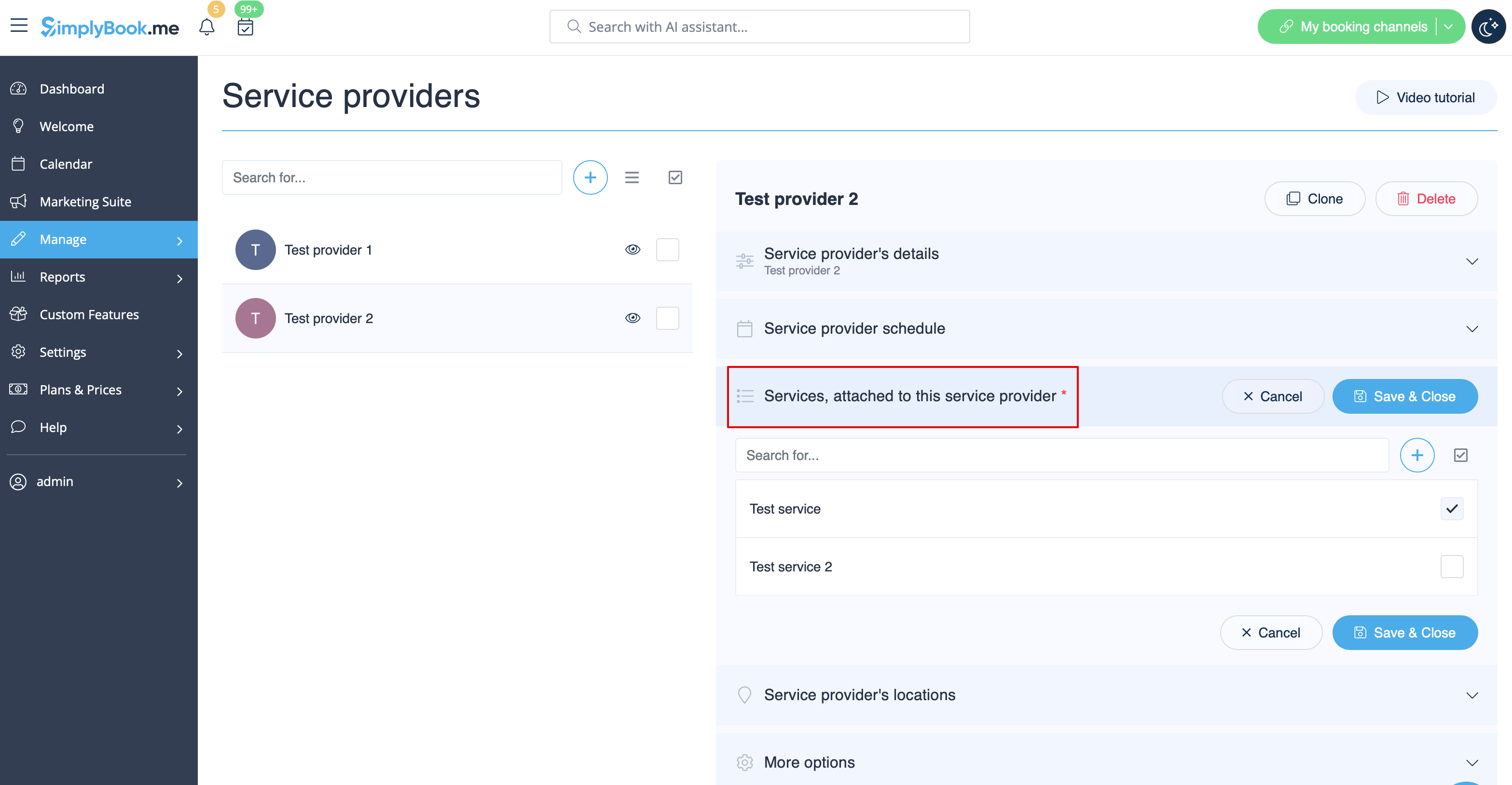
In Manage// Service Providers // select the desired provider // Services, attached to this service provider check boxes with necessary services to connect them.<br/> | In Manage// Service Providers // select the desired provider // Services, attached to this service provider check boxes with necessary services to connect them.<br/> | ||
[[File: | [[File:Provider edit attached services redesigned.png|1200px | center|link=https://help.simplybook.me/images/2/23/Provider_edit_attached_services_redesigned.png]]<br/> | ||
</div> | </div> | ||
</div> | </div> | ||
<br/> | <br/> | ||
</translate> | |||
Latest revision as of 08:04, 1 July 2025
How to create schedules for services
- In our system it is possible to set schedules for each service. In order to do this, follow the next steps:
- 1. Go to Manage // Services// Add service and create all necessary services.
- 2. Then in Manage // Services click on "Service schedule" tab and set schedule for each service.
Events (services on particular dates)
Option 1 (as Service with its own schedule)
- 1. In Manage//Services click on "+" icon to create new service.
- 2. In Manage//Services choose "Service schedule" tab on the newly created service switch on the option "Do you want to set service on special days only?".
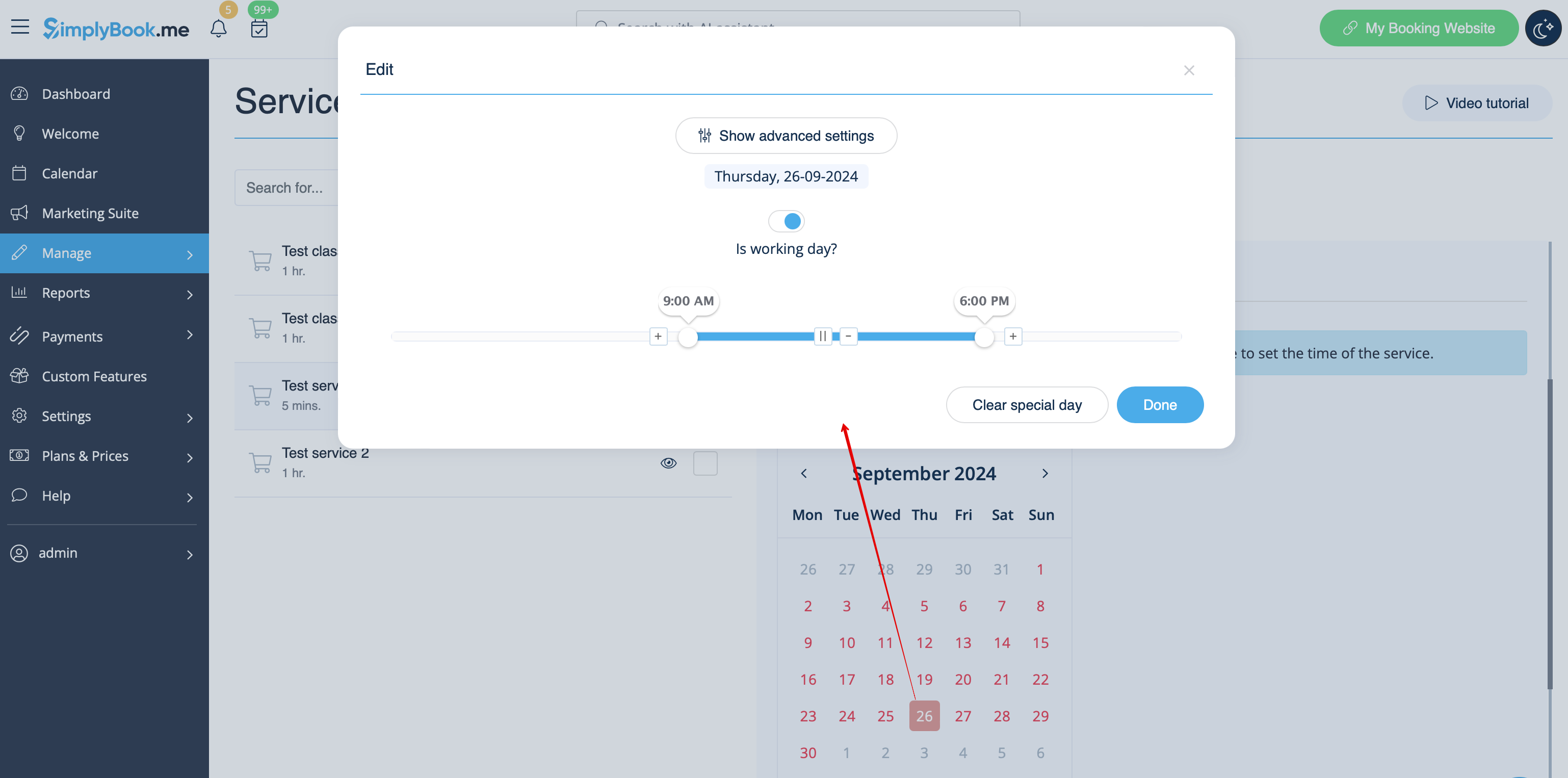
- 3. Then use the calendar, click on the dates that you want to open and set the schedule for these dates by moving the sliders(bright blue zone is open time).
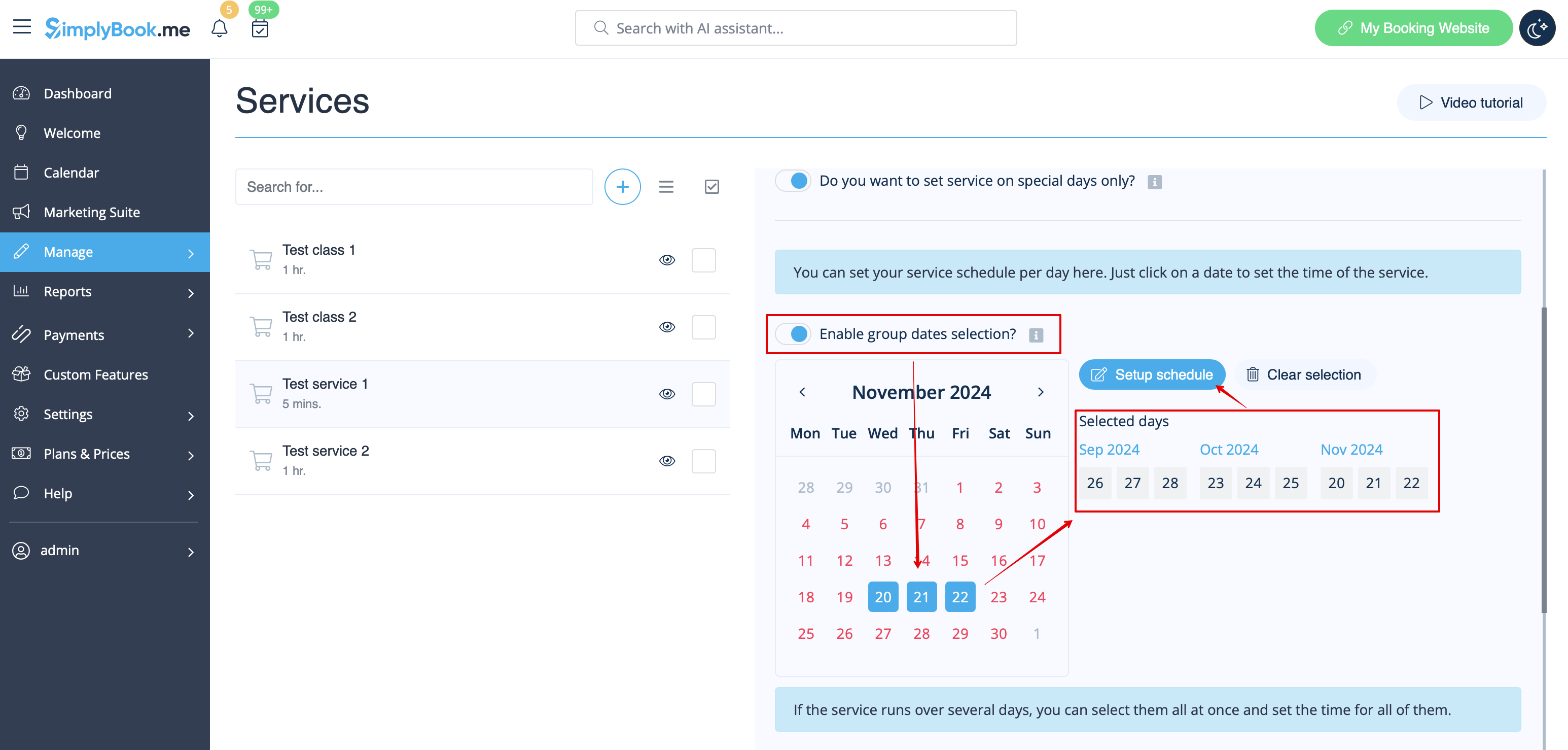
- If you need to select several dates at once please switch on "Enable group dates selection?", choose the dates to edit and click on "Setup schedule" to set the times.
- 4. Connect service to necessary provider in "Service providers" tab.
Option 2 (as Event with the help of Classes custom feature)
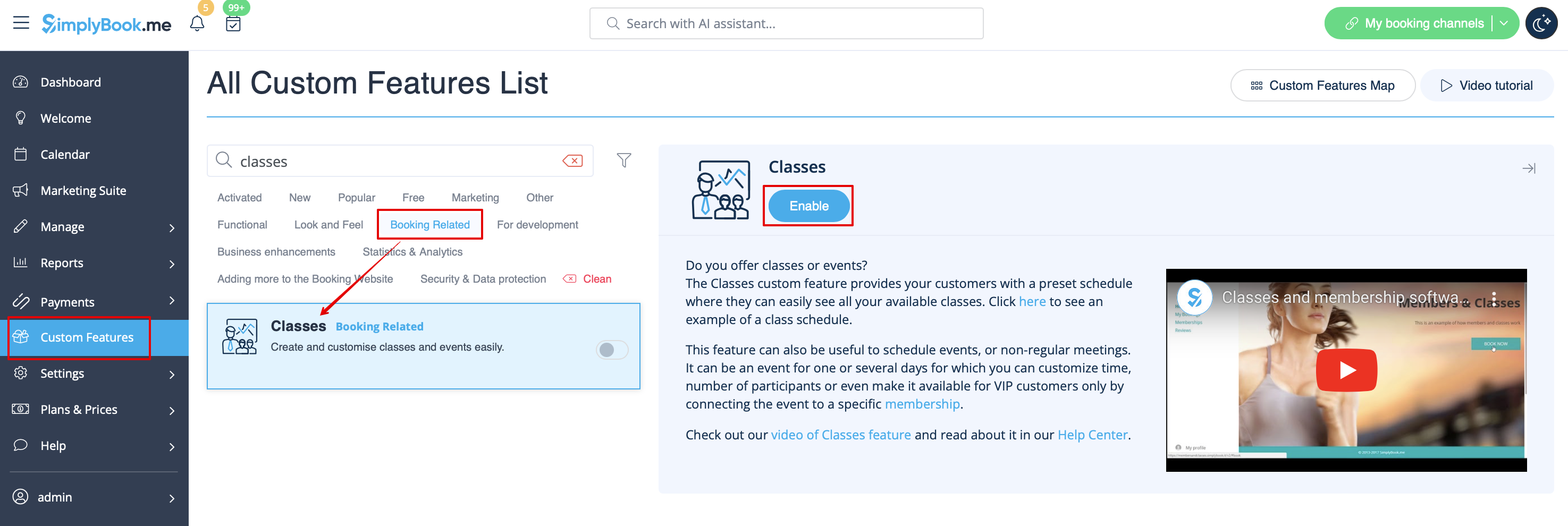
- 1. Enable Classes custom feature on your Custom features page.
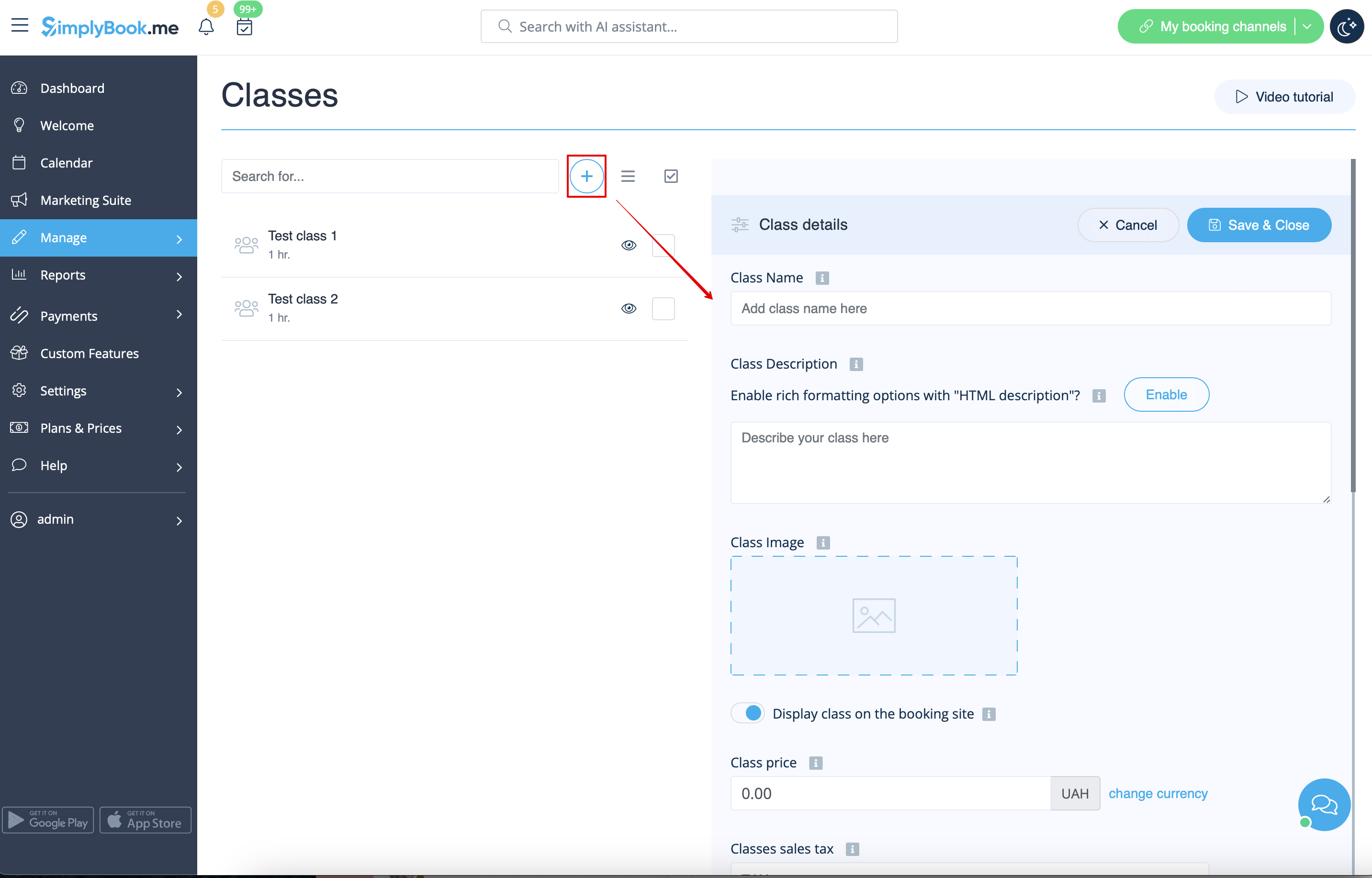
- 2. Navigate to Manage//Classes page and create a new class.
- 3. Choose "Class schedule" tab on the newly created class and switch on the option "Do you want to set service on special days only?"
- 4. Then use the calendar, click on the dates that you want to open and set the schedule for these dates by moving the sliders(bright blue zone is open time).
- How events(classes) work
The general logic of event(class) is creating Service + Provider related to it with dates selected in the settings of the event(class) as special days. When you use Classes custom feature the event creates service+provider related to it with identical name. In order to preserve proper functioning of the event on the dates needed, you should not delete provider with identical name related to event (but you can easily change his/her name) and should not disconnect provider from the event.

You can create recurring services and enable your clients to book a particular amount of sessions.
How to create recurring service:
- 1. Go to Manage // Services // "Time details" tab on the needed service.
- 2. Enable "Make service recurring (pack)?" there
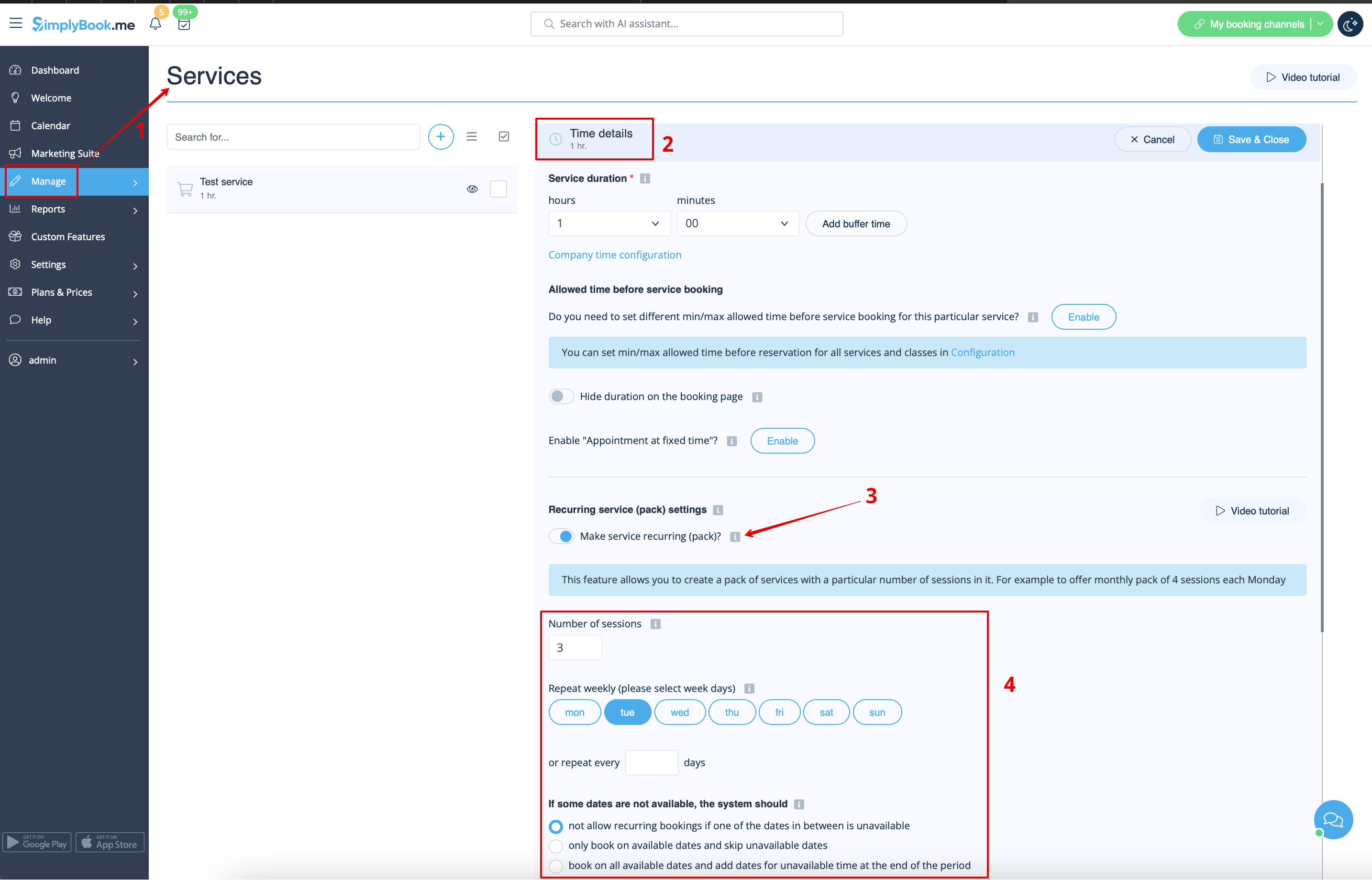
- 4. Choose when your service will repeat. Select "Repeat weekly (please select week days)" and day/days of the week (e.g Mondays) when your service occurs.
- If you need more specific intervals, you can choose "Or repeat each" and set your service to reoccur every 14 days, for example.
- 5. Choose the mode for the bookings. Available modes:
- Not allow - not allow recurring bookings if one of dates in between unavailable (Using the example below, if 15th is busy, the system will not allow to book 1st and 8th, only days after busy day).
- Book only on available date - only book on available dates and skip unavailable dates (Using the example below, if 15th is busy, the system will allow you to book 1st and 8th and 22nd (only 3 out of 4).
- Add appointments - book on all available dates and add dates behind for unavailable in between dates (Using the example below, if 15th is busy, the system will book 1 and 8th and 22nd + 1 day instead of busy 15th, which is August 29th).
- 6. Set the number of times your service will repeat in "Repeat count".
- Example: If you set up Mondays and repeat count 4, when clients book this service from booking page, they will book 4 Mondays at once.

Please note!
- If you make the recurring service paid, the amount that you set as the service price is the total for all the sessions.
It is currently not possible to set single session price for the recurring service packs.
That is why if you have single service and decide to make a recurring booking for it from the admin side/POS interface, its price will not be multiplied by the number of selected sessions.
- It is not possible to reschedule bookings related to recurring batch with Client rescheduling feature.
- When a client books a service set as recurring with a certain amount of sessions, the number of bookings that are created at one go equals the number of sessions you have set for such service.
Working on different locations
Locations are designed to group providers. Can be added with the help of Multiple Locations custom feature.
- How to add
Enable "Multiple Locations" custom feature and add locations either in the settings of the feature or in Manage//Service Providers//Add location. Click on "Location providers" tab of the location and check corresponding boxes to connect providers with location.
Categories are designed to group services. Can be added with the help of Service Categories custom feature.
- How to add
Enable Service Categories feature. In Manage//Services//Add category create all necessary categories. Click on "Category services" tab of the category and check necessary boxes to connect services with category.
Providers do only certain services
In Manage// Service Providers // select the desired provider // Services, attached to this service provider check boxes with necessary services to connect them.