From SimplyBook.me
No edit summary |
No edit summary |
||
| (5 intermediate revisions by the same user not shown) | |||
| Line 1: | Line 1: | ||
<languages/> | |||
<translate> | |||
<!--T:1--> | |||
{{#seo: | |||
|title=Go Daddy guide for SimplyBook.me | |||
|description=GoDaddy integration guide. Embed SimplyBook.me widget on GoDaddy websites. Instructions for adding booking functionality to GoDaddy-hosted sites. | |||
|titlemode=append | |||
|keywords=faq, frequently asked questions, booking software, appointment system questions, appointments online, calendar software, booking system, booking calendar, scheduling software, online appointment scheduling, online scheduling, setup, setup help, support, help content | |||
}} | |||
</translate><translate> | |||
<!--T:2--> | |||
[[File:Godaddy-logo (2).png| left]]<br><br> | [[File:Godaddy-logo (2).png| left]]<br><br> | ||
| Line 6: | Line 17: | ||
:1. In your [https://simplybook.me/ Simplybook] admin page get the code in <span style="background-color:#d4f8e5; padding:5px; border-radius:5px;">Settings</span> -> <span style="background-color:#d4f8e5; padding:5px; border-radius:5px;"> | <!--T:3--> | ||
[[File: | :1. In your [https://simplybook.me/ Simplybook] admin page get the code in <span style="background-color:#d4f8e5; padding:5px; border-radius:5px;">Settings</span> -> <span style="background-color:#d4f8e5; padding:5px; border-radius:5px;">Booking widgets settings</span> -> <span style="background-color:#d4f8e5; padding:5px; border-radius:5px;">iFrame widget</span> -> <span style="background-color:#d4f8e5; padding:5px; border-radius:5px;">Get widget code.</span> | ||
[[File:Get iframe widget code redesigned.png|1200px|border|center|link=https://help.simplybook.me/images/d/de/Get_iframe_widget_code_redesigned.png]] | |||
<br><br> | <br><br> | ||
:2. In <span style="background-color:#d4f8e5; padding:5px; border-radius:5px;">GoDaddy</span> system, Log in to your account and go to website editing. | :2. In <span style="background-color:#d4f8e5; padding:5px; border-radius:5px;">GoDaddy</span> system, Log in to your account and go to website editing. | ||
| Line 34: | Line 46: | ||
[[File:Go daddy preview.png|border|center]] | [[File:Go daddy preview.png|border|center]] | ||
<br><br><br><br> | <br><br><br><br> | ||
</translate> | |||
Latest revision as of 16:28, 12 February 2026
.png)
- 1. In your Simplybook admin page get the code in Settings -> Booking widgets settings -> iFrame widget -> Get widget code.
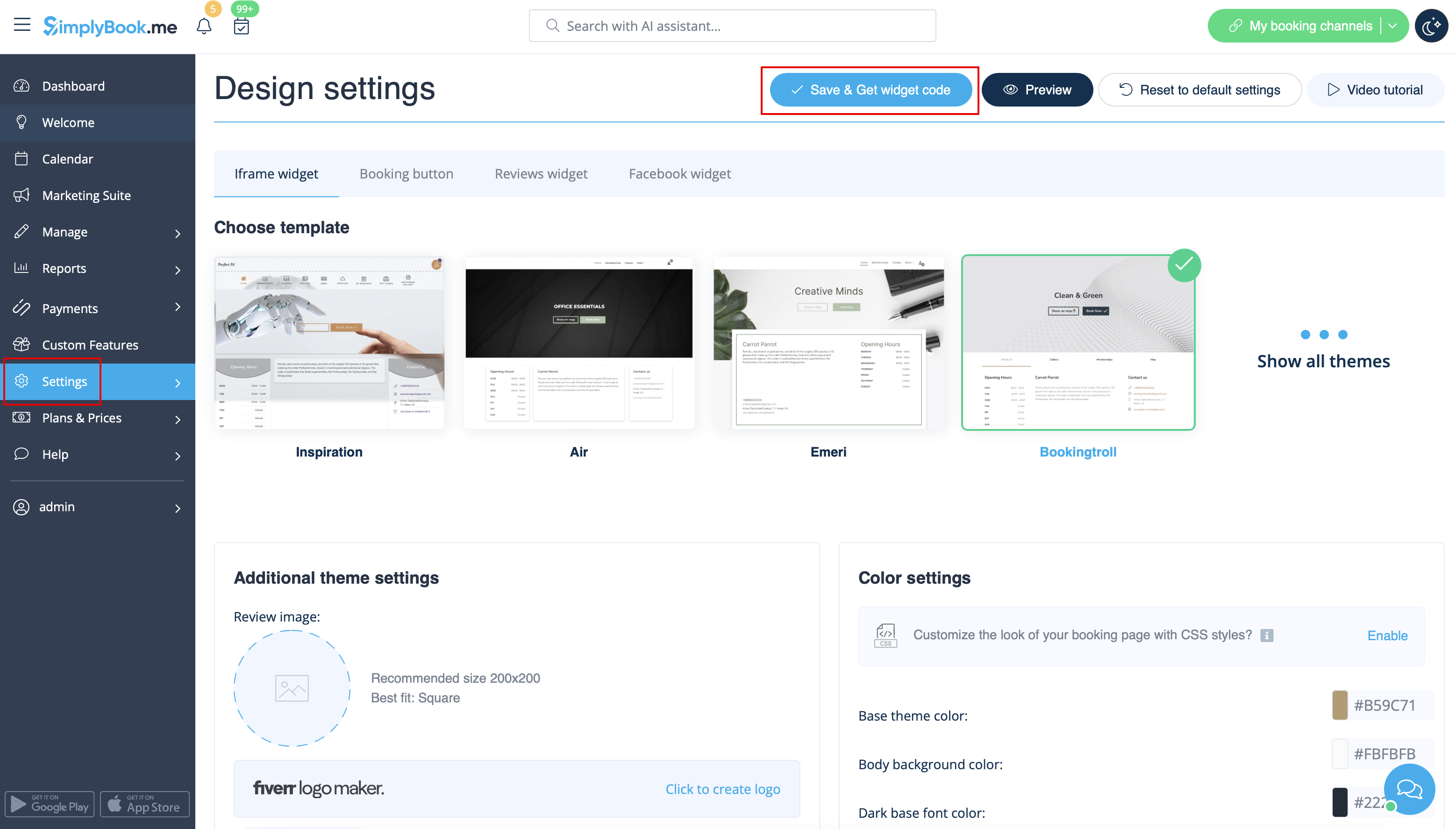
- 2. In GoDaddy system, Log in to your account and go to website editing.
- 3. Click on Pages&Sections.

- 4. Select Manage Pages option.

- 5. From the pages menu, select the page you want to modify or add a new one.

- 6. On page details add page title, set appearance options to your taste and create the page.

- 7. Proceed to adding a section.

- 8. Select to add HTML block from the side menu.

- 9. Paste the code that you have previously copied from SimplyBook.me interface to the corresponding box.

- 10. Check the preview and publish the changes.

