From SimplyBook.me
No edit summary |
|||
| (12 intermediate revisions by the same user not shown) | |||
| Line 1: | Line 1: | ||
<languages/> | |||
<translate><!--T:1--> | |||
{{#seo: | {{#seo: | ||
|title= Create And Manage Categories and Locations in Online Scheduling Software SimplyBook.me | |title= Create And Manage Categories and Locations in Online Scheduling Software SimplyBook.me | ||
|description=Organize with categories and locations. Group services by category, assign providers to locations. Manage multi-location businesses efficiently. | |||
|titlemode=append | |titlemode=append | ||
|keywords=faq, frequently asked questions, online booking system, online booking calendar, scheduling app, free scheduling software, schedule, employee scheduling software, calendar software, scheduling software, booking software, free online calendar | |keywords=faq, frequently asked questions, online booking system, online booking calendar, scheduling app, free scheduling software, schedule, employee scheduling software, calendar software, scheduling software, booking software, free online calendar | ||
}} | }} | ||
</translate> | |||
<translate> | |||
<!--T:2--> | |||
=How to add Category= | =How to add Category= | ||
<br/> | <br/> | ||
[[ | [[Special:MyLanguage/Service_Categories_custom_feature| Categories]] are designed to group services. Can be added with the help of [[Special:MyLanguage/Service_Categories_custom_feature| Service Categories]] Custom Feature. | ||
;How to add: | ;How to add: | ||
:Enable [[ | :Enable [[Special:MyLanguage/Service_Categories_custom_feature| Service Categories]] Custom Feature. Then in Manage // Services // "+" - create all necessary categories. Click on "Category services" tab for corresponding category and check the boxes with services to connect with category.<br/> | ||
[[File:Create new category path redesigned.png|1200px | center|link=https://help.simplybook.me/images/f/f1/Create_new_category_path_redesigned.png]] | |||
<br/> | <br/> | ||
</translate> | |||
<translate> | |||
<!--T:3--> | |||
=How to add Location= | =How to add Location= | ||
<br/> | <br/> | ||
[[ | [[Special:MyLanguage/Multiple_Locations_custom_feature| Locations]] are designed to group providers. Can be added with the help of [[Special:MyLanguage/Multiple_Locations_custom_feature| Multiple Locations Custom Feature]]. | ||
;How to add: | ;How to add: | ||
:Enable "[[ | :Enable "[[Special:MyLanguage/Multiple_Locations_custom_feature |Multiple Locations]]" Custom Feature and add locations either in the settings of the Custom Feature or in Manage // Service Providers // "+" to add a new location. Click on "Location providers" tab for corresponding location and check the boxes with service providers to connect to location.<br/> | ||
[[File:Create new location redesigned.png|1200px | center|link=https://help.simplybook.me/images/1/15/Create_new_location_redesigned.png]] | |||
<br/> | <br/> | ||
<br/> | <br/> | ||
</translate> | |||
<translate> | |||
<!--T:4--> | |||
=How to connect location with service= | =How to connect location with service= | ||
<br/> | <br/> | ||
| Line 29: | Line 37: | ||
:1. In Manage//Service Providers switch to “Services, attached to this service provider” tab for the selected provider and check the boxes with services this provider will perform. <br>Save settings. | :1. In Manage//Service Providers switch to “Services, attached to this service provider” tab for the selected provider and check the boxes with services this provider will perform. <br>Save settings. | ||
<br> | <br> | ||
[[File:Edit services attached to provider redesigned.png|1200px | center|link=https://help.simplybook.me/images/0/01/Edit_services_attached_to_provider_redesigned.png]] | |||
<br><br> | <br><br> | ||
:2. In Manage//Providers choose location and switch to “Location providers” tab to attach providers to this location by checking the corresponding boxes.<br> Save settings. | :2. In Manage//Providers choose location and switch to “Location providers” tab to attach providers to this location by checking the corresponding boxes.<br> Save settings. | ||
<br> | <br> | ||
[[File:Connect provider to location redesigned.png|1200px | center|link=https://help.simplybook.me/images/a/ae/Connect_provider_to_location_redesigned.png]] | |||
<br> | <br> | ||
<br/> | <br/> | ||
</translate> | |||
<translate> | |||
<!--T:5--> | |||
=How to set schedule for location= | =How to set schedule for location= | ||
<br> | <br> | ||
| Line 44: | Line 53: | ||
:1. To set individual schedule for provider please go to Manage//Service Providers, choose necessary provider on the left and switch to “Service provider schedule” tab. <br>For example, if you work Monday-Friday 9a.m - 5p.m you simply set schedule for those dates by moving the sliders to make time available (bright blue)/not available (light blue). <br>To make day of the week working/off use switchers near weekday names. | :1. To set individual schedule for provider please go to Manage//Service Providers, choose necessary provider on the left and switch to “Service provider schedule” tab. <br>For example, if you work Monday-Friday 9a.m - 5p.m you simply set schedule for those dates by moving the sliders to make time available (bright blue)/not available (light blue). <br>To make day of the week working/off use switchers near weekday names. | ||
<br><br> | <br><br> | ||
[[File:Service provider schedule for location redesigned.png|1200px | center|link=https://help.simplybook.me/images/c/c7/Service_provider_schedule_for_location_redesigned.png]] | |||
<br><br> | <br><br> | ||
:2. In Manage//Service Providers choose location and switch to “Location providers” tab to attach provider to location by checking corresponding boxes. Save settings. | :2. In Manage//Service Providers choose location and switch to “Location providers” tab to attach provider to location by checking corresponding boxes. Save settings. | ||
<br> | <br> | ||
[[File:Connect provider to location redesigned.png|1200px | center|link=https://help.simplybook.me/images/a/ae/Connect_provider_to_location_redesigned.png]] | |||
<br/> | <br/> | ||
<br/> | <br/> | ||
</translate> | |||
<translate> | |||
<!--T:6--> | |||
=How to add location variables to emails= | =How to add location variables to emails= | ||
<br/> | <br/> | ||
In Settings // Email and SMS settings insert the following variables into your email templates:<br/> | In Settings // Email and SMS settings insert the following variables into your email templates:<br/> | ||
<br> | <br> | ||
[[File:Add location variables to notifications templates.png|1200px| center|link=https://help.simplybook.me/images/2/26/Add_location_variables_to_notifications_templates.png ]] | |||
<br/><br/> | <br/><br/> | ||
:'''[location]''' - value of field "Location name" | :'''[location]''' - value of field "Location name" | ||
:'''[location_address]''' - value of field "Location address" | :'''[location_address]''' - value of field "Location address" | ||
:'''[location_phone]''' - value of field "Location phone" | :'''[location_phone]''' - value of field "Location phone" | ||
:'''[location_description]''' - value of field "Location description" | |||
<br/> | <br/> | ||
<br/> | <br/> | ||
</translate> | |||
Latest revision as of 17:29, 30 January 2026
How to add Category
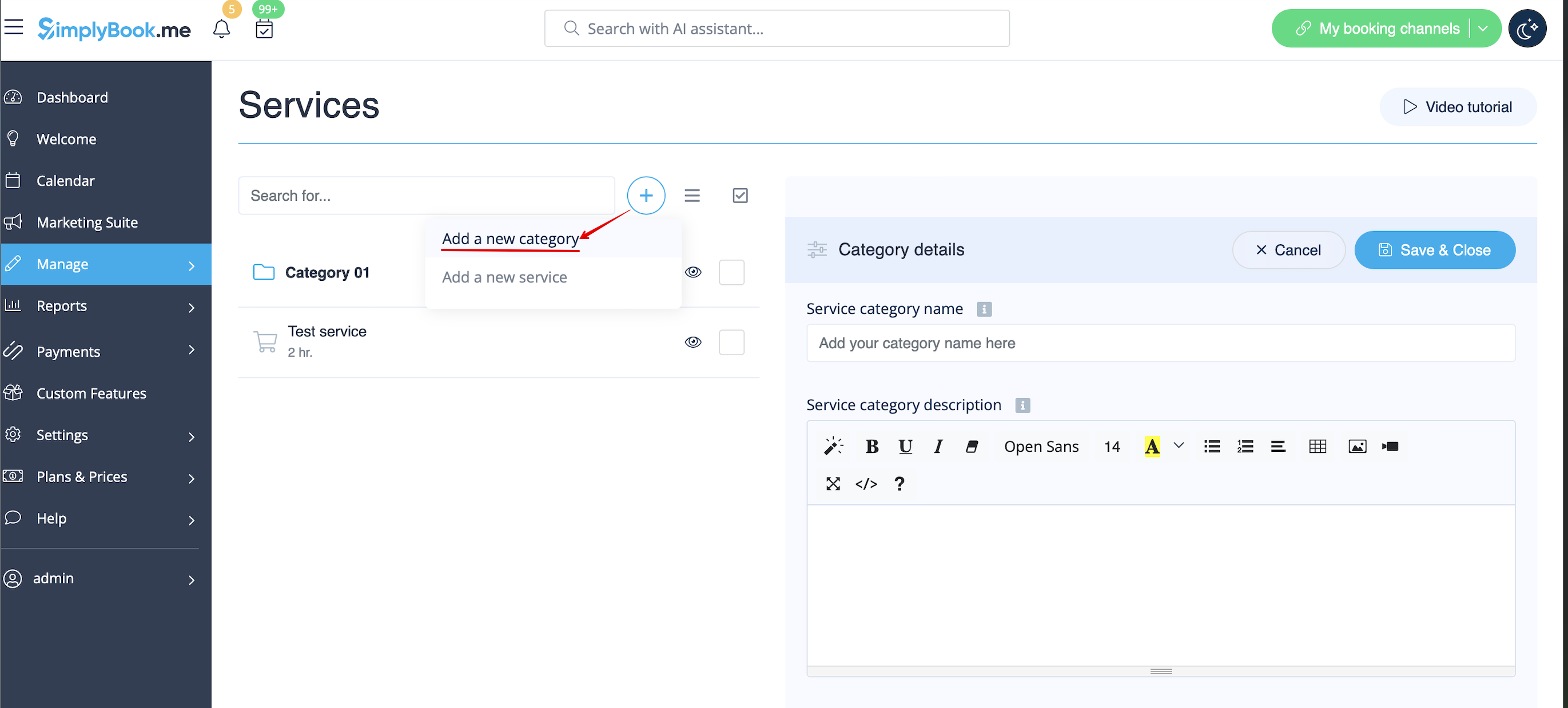
Categories are designed to group services. Can be added with the help of Service Categories Custom Feature.
- How to add
- Enable Service Categories Custom Feature. Then in Manage // Services // "+" - create all necessary categories. Click on "Category services" tab for corresponding category and check the boxes with services to connect with category.
How to add Location
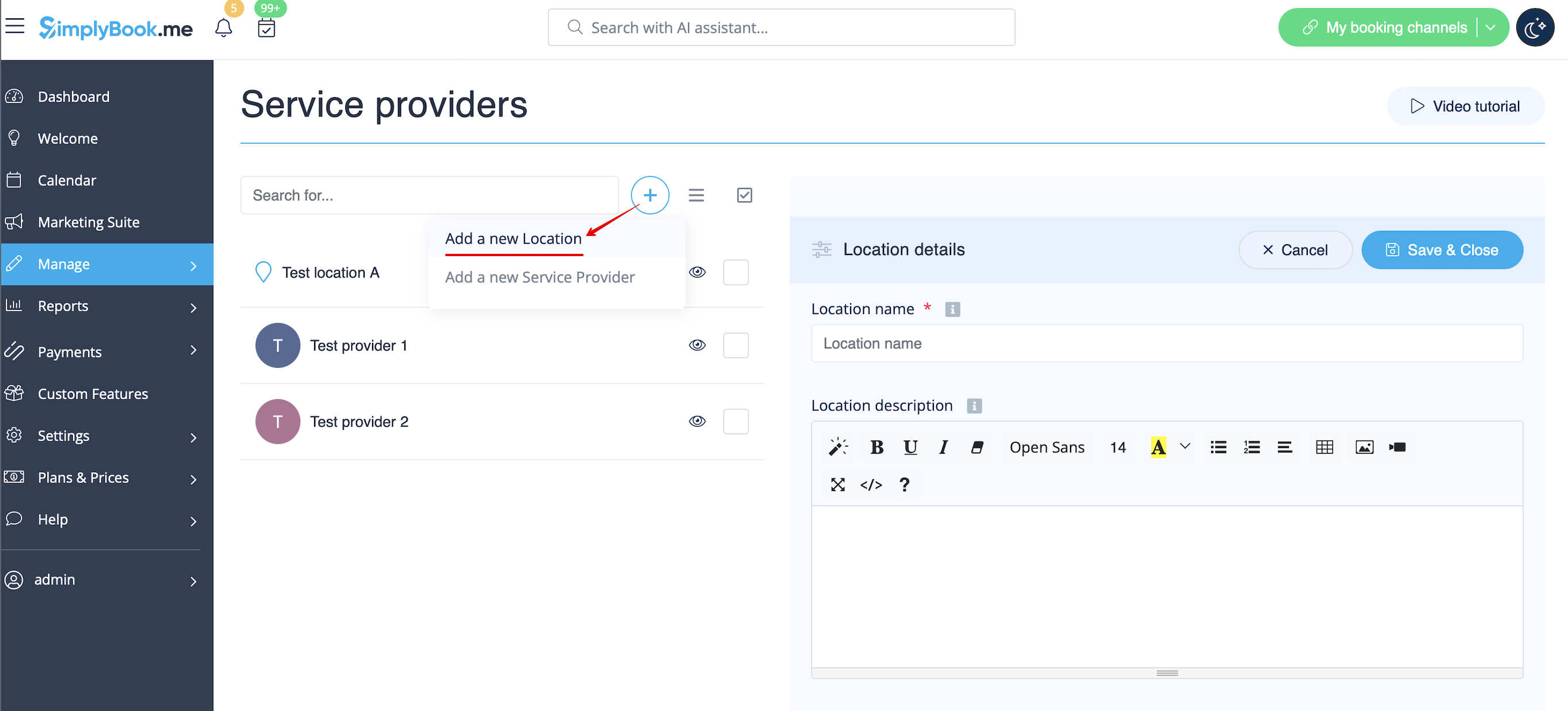
Locations are designed to group providers. Can be added with the help of Multiple Locations Custom Feature.
- How to add
- Enable "Multiple Locations" Custom Feature and add locations either in the settings of the Custom Feature or in Manage // Service Providers // "+" to add a new location. Click on "Location providers" tab for corresponding location and check the boxes with service providers to connect to location.
How to connect location with service
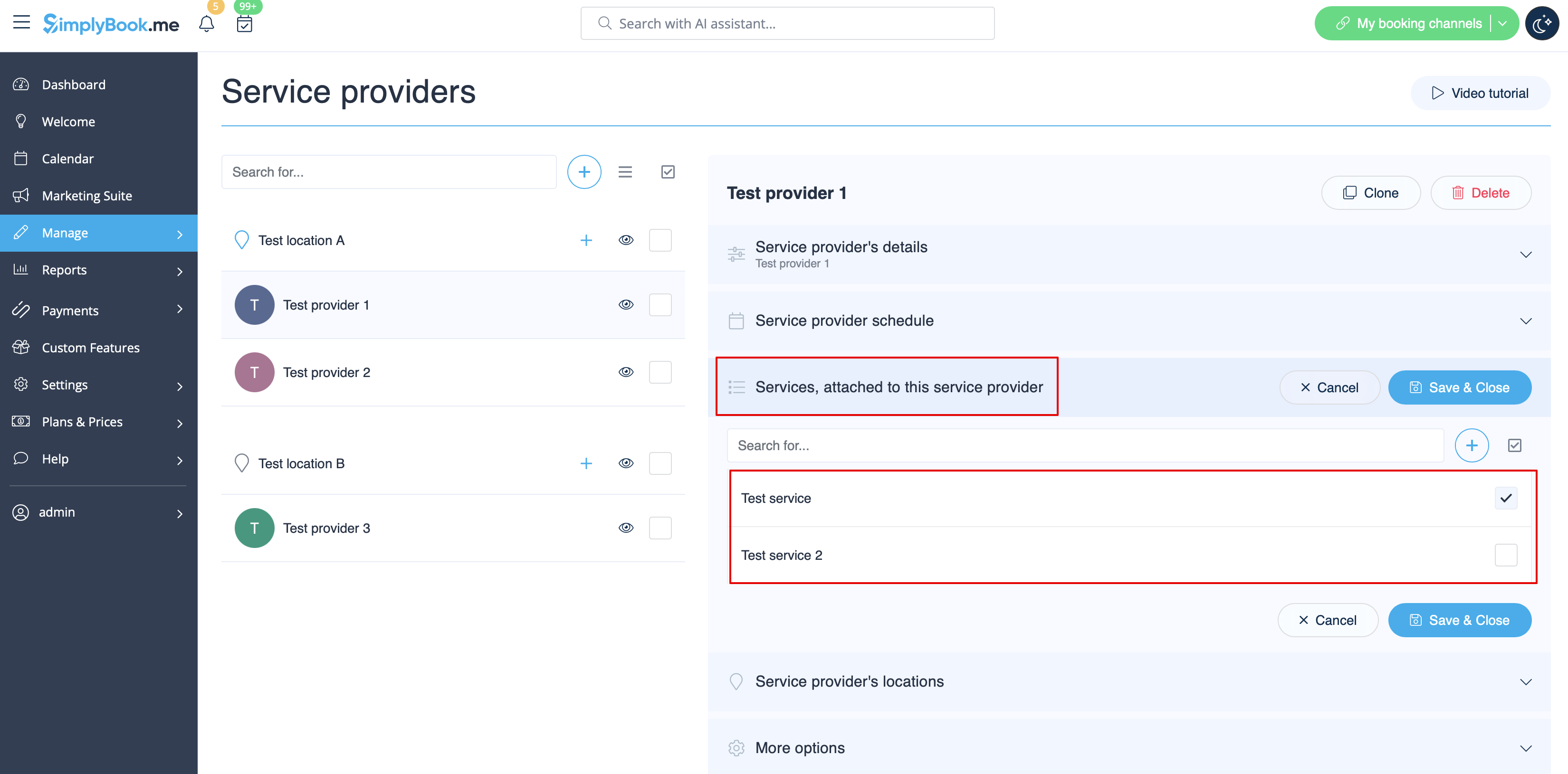
Locations can be related only to service providers, thus if you need to relate service to particular location, you need initially to relate service to service provider:
- 1. In Manage//Service Providers switch to “Services, attached to this service provider” tab for the selected provider and check the boxes with services this provider will perform.
Save settings.
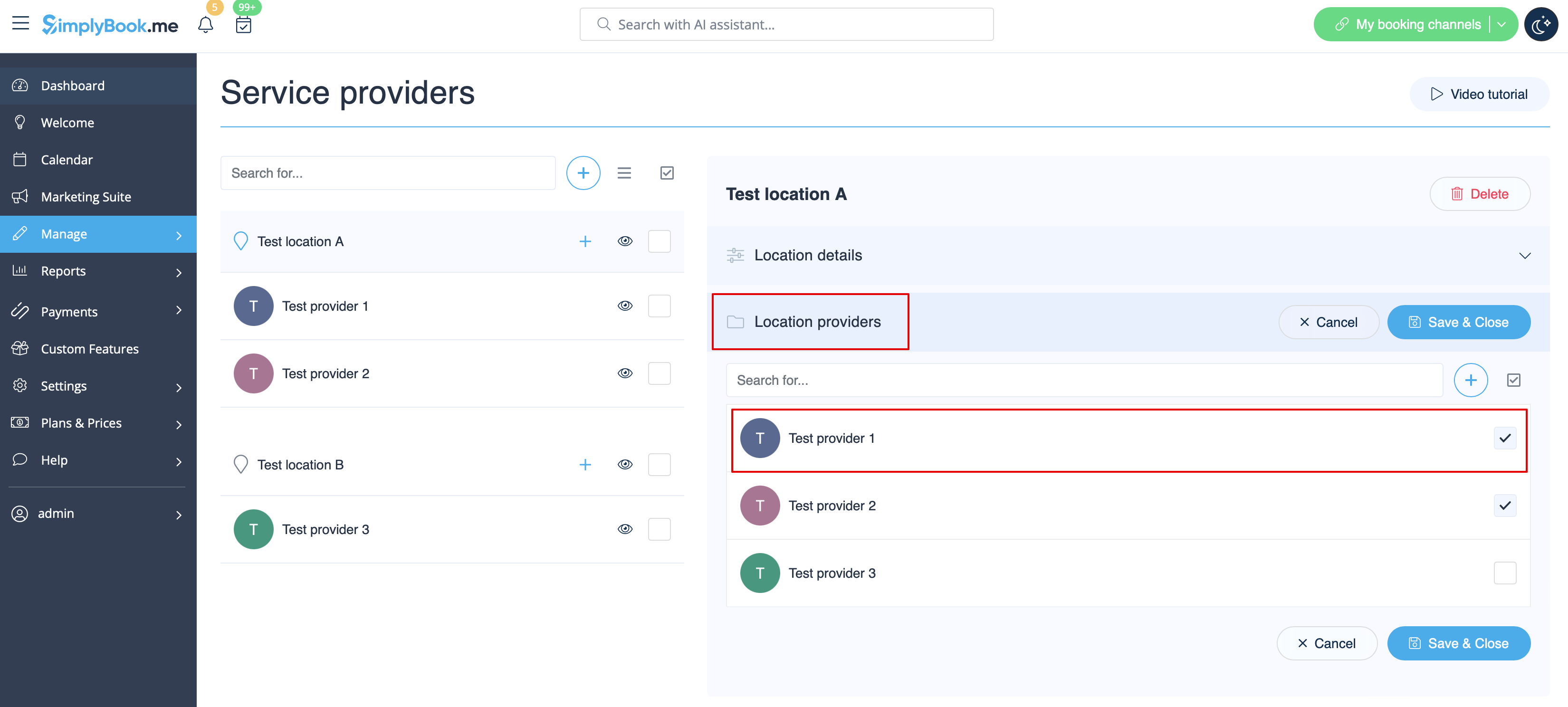
- 2. In Manage//Providers choose location and switch to “Location providers” tab to attach providers to this location by checking the corresponding boxes.
Save settings.
How to set schedule for location
You can set individual schedule for the provider and then relate provider to the location. Thus working hours of the provider related to location will automatically apply to location.
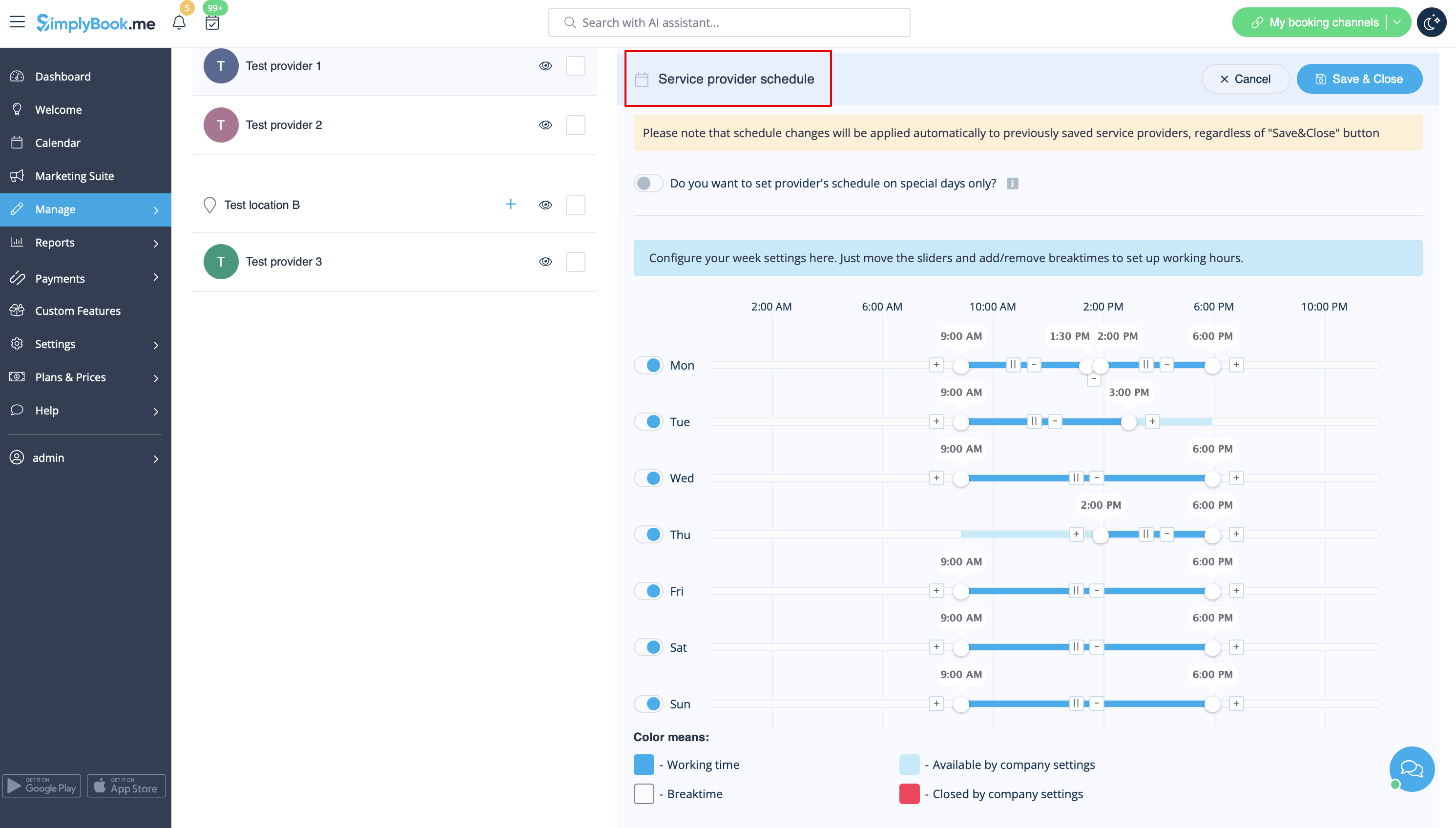
- 1. To set individual schedule for provider please go to Manage//Service Providers, choose necessary provider on the left and switch to “Service provider schedule” tab.
For example, if you work Monday-Friday 9a.m - 5p.m you simply set schedule for those dates by moving the sliders to make time available (bright blue)/not available (light blue).
To make day of the week working/off use switchers near weekday names.
- 2. In Manage//Service Providers choose location and switch to “Location providers” tab to attach provider to location by checking corresponding boxes. Save settings.
How to add location variables to emails
In Settings // Email and SMS settings insert the following variables into your email templates:
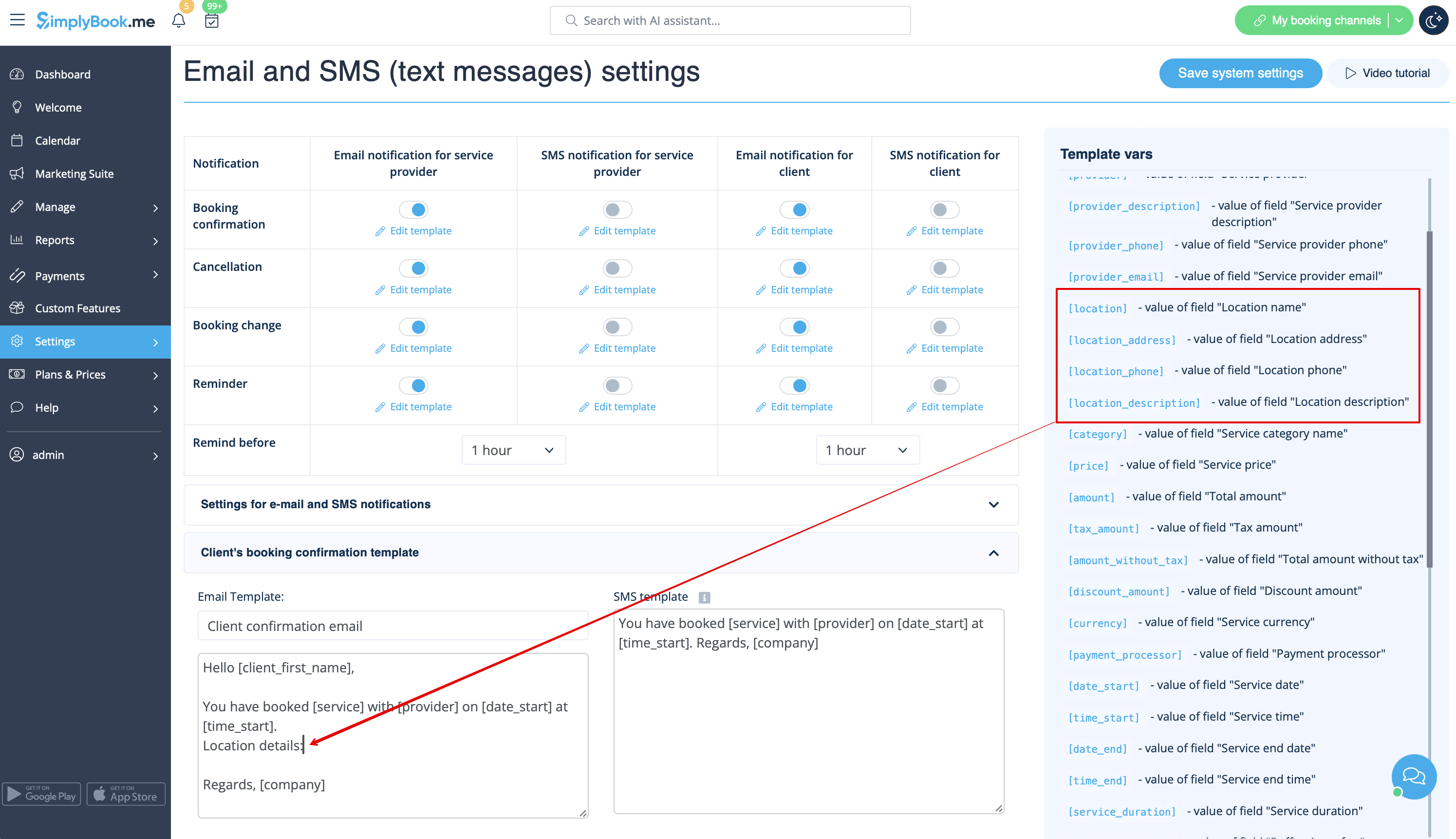
- [location] - value of field "Location name"
- [location_address] - value of field "Location address"
- [location_phone] - value of field "Location phone"
- [location_description] - value of field "Location description"
