From SimplyBook.me
No edit summary |
No edit summary |
||
| (9 intermediate revisions by the same user not shown) | |||
| Line 1: | Line 1: | ||
<languages/> | |||
{{#seo: | {{#seo: | ||
|title=Custom | |title=Facebook Pixel Custom Feature - SimplyBook.me | ||
<translate> | |||
<!--T:3--> | |||
|description=Add Facebook Pixel tracking to measure ad performance. Track bookings from Facebook ads. Create remarketing audiences, optimize campaigns effectively. | |||
</translate> | |||
|titlemode=append | |titlemode=append | ||
|keywords=faq, frequently asked questions, booking software, appointment system questions, appointments online, calendar software, booking system, booking calendar, scheduling software, online appointment scheduling, online scheduling, plugins, custom features, additional functionality, pixel, facebook pixel, facebook tracking, statistics | |keywords=faq, frequently asked questions, booking software, appointment system questions, appointments online, calendar software, booking system, booking calendar, scheduling software, online appointment scheduling, online scheduling, plugins, custom features, additional functionality, pixel, facebook pixel, facebook tracking, statistics | ||
}} | }} | ||
<translate> | |||
<!--T:1--> | |||
[[File:Tracking icon.png|left]] <br>Manage analytics for your booking website with Facebook Pixel | [[File:Tracking icon.png|left]] <br>Manage analytics for your booking website with Facebook Pixel | ||
<br><br><br><br> | <br><br><br><br> | ||
<span style="background-color:#ffe9e9; padding:5px; border-radius:5px;">'''Please Note!''' This custom feature is not compatible with <span style="background-color:#cdeffc; padding:5px; border-radius:5px;">[[Facebook_and_Instagram_Bookings |Facebook and Instagram Bookings]]</span></span> | <!--T:2--> | ||
<br><br><br><br> | <span style="background-color:#ffe9e9; padding:5px; border-radius:5px;">'''Please Note!''' This custom feature is not compatible with <span style="background-color:#cdeffc; padding:5px; border-radius:5px;">[[Special:MyLanguage/Facebook_and_Instagram_Bookings |Facebook and Instagram Bookings]]</span></span> | ||
<br><br> | |||
<span style="background-color:#cdeffc; padding:5px; border-radius:5px;">[[Special:MyLanguage/Analytics tools integration guide|Analytics tools integration guide]]</span> | |||
<br><br> | |||
;How to use | ;How to use | ||
:1. Enable <span style="background-color:#d4f8e5; padding:5px; border-radius:5px;">Facebook Pixel</span> on your <span style="background-color:#d4f8e5; padding:5px; border-radius:5px;">Custom Features</span> page, <span style="background-color:#d4f8e5; padding:5px; border-radius:5px;">Statistics and Analytics</span> section. | :1. Enable <span style="background-color:#d4f8e5; padding:5px; border-radius:5px;">Facebook Pixel</span> on your <span style="background-color:#d4f8e5; padding:5px; border-radius:5px;">Custom Features</span> page, <span style="background-color:#d4f8e5; padding:5px; border-radius:5px;">Statistics and Analytics</span> section. | ||
[[File: | [[File:Facebook pixel enable path redesigned.png|1200px|border|center|link=https://help.simplybook.me/images/6/6e/Facebook_pixel_enable_path_redesigned.png]] | ||
<br><br> | <br><br> | ||
:2. Navigate to <span style="background-color:#cdeffc; padding:5px; border-radius:5px;">[https://www.facebook.com/events_manager2/list/pixel/ Data Sources on your Facebook business page]</span> and either select the previously selected pixel or <span style="background-color:#cdeffc; padding:5px; border-radius:5px;">[[Additional_tips#Create_Facebook_pixel|create a new one]]</span> by clicking on <span style="background-color:#d4f8e5; padding:5px; border-radius:5px;">Connect data sources</span> button. | :2. Navigate to <span style="background-color:#cdeffc; padding:5px; border-radius:5px;">[https://www.facebook.com/events_manager2/list/pixel/ Data Sources on your Facebook business page]</span> and either select the previously selected pixel or <span style="background-color:#cdeffc; padding:5px; border-radius:5px;">[[Special:MyLanguage/Additional_tips#Create_Facebook_pixel|create a new one]]</span> by clicking on <span style="background-color:#d4f8e5; padding:5px; border-radius:5px;">Connect data sources</span> button. | ||
<br><br> | <br><br> | ||
:3. Copy 16-digit <span style="background-color:#d4f8e5; padding:5px; border-radius:5px;">pixel code.</span> | :3. Copy 16-digit <span style="background-color:#d4f8e5; padding:5px; border-radius:5px;">pixel code.</span> | ||
| Line 21: | Line 31: | ||
<br><br> | <br><br> | ||
:4. Paste it to the <span style="background-color:#d4f8e5; padding:5px; border-radius:5px;">Pixel ID</span> field on <span style="background-color:#d4f8e5; padding:5px; border-radius:5px;">SimplyBook.me</span> side. Save settings. | :4. Paste it to the <span style="background-color:#d4f8e5; padding:5px; border-radius:5px;">Pixel ID</span> field on <span style="background-color:#d4f8e5; padding:5px; border-radius:5px;">SimplyBook.me</span> side. Save settings. | ||
[[File: | [[File:Facebook pixel settings path redesigned.png|1200px|border|center|link=https://help.simplybook.me/images/b/ba/Facebook_pixel_settings_path_redesigned.png]] | ||
<br><br> | <br><br> | ||
:5. (optional) You can <span style="background-color:#d4f8e5; padding:5px; border-radius:5px;">test events</span> using the corresponding tab on your Facebook business page.<br> | :5. (optional) You can <span style="background-color:#d4f8e5; padding:5px; border-radius:5px;">test events</span> using the corresponding tab on your Facebook business page.<br> | ||
| Line 31: | Line 41: | ||
[[File:Facebook events parameters.png|1200px|border|center]]<br><br><br><br> | [[File:Facebook events parameters.png|1200px|border|center]]<br><br><br><br> | ||
Useful links: | Useful links: | ||
*[[Cookie Banners: Essentials and Tips for Removal]] | *[[Cookie Banners: Essentials and Tips for Removal|Cookie Banners: Essentials and Tips for Removal]] | ||
*[[Special:MyLanguage/Analytics tools integration guide|Analytics tools integration guide]] | |||
<br><br> | <br><br> | ||
</translate> | |||
Latest revision as of 15:15, 2 February 2026

Manage analytics for your booking website with Facebook Pixel
Please Note! This custom feature is not compatible with Facebook and Instagram Bookings
Analytics tools integration guide
- How to use
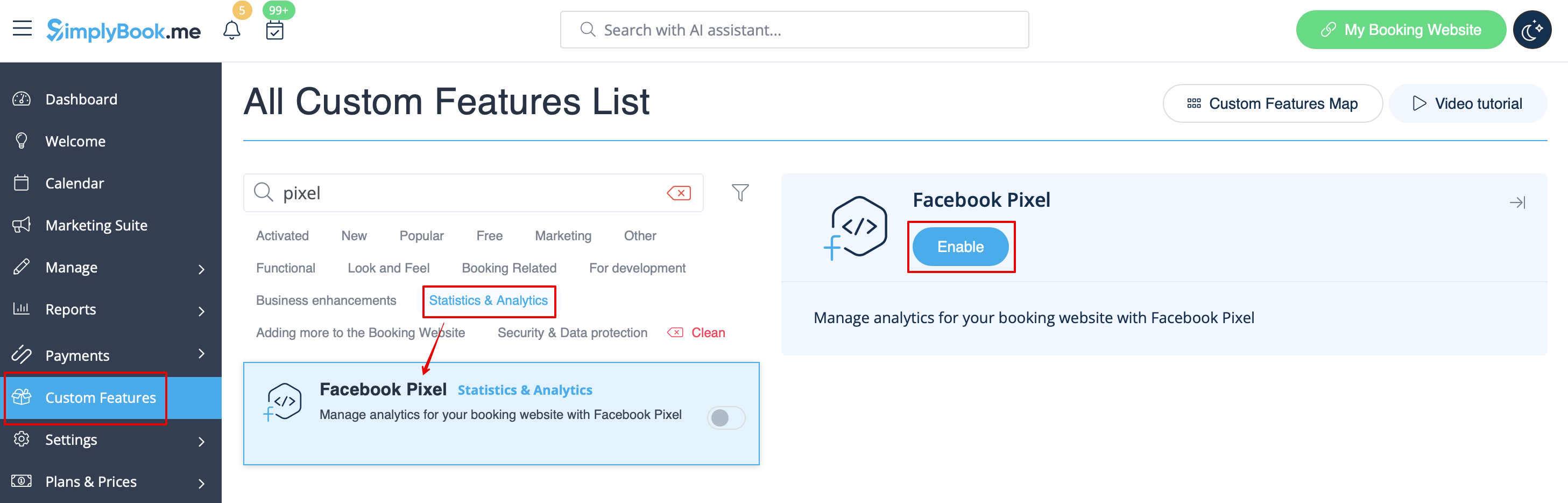
- 1. Enable Facebook Pixel on your Custom Features page, Statistics and Analytics section.
- 2. Navigate to Data Sources on your Facebook business page and either select the previously selected pixel or create a new one by clicking on Connect data sources button.
- 3. Copy 16-digit pixel code.

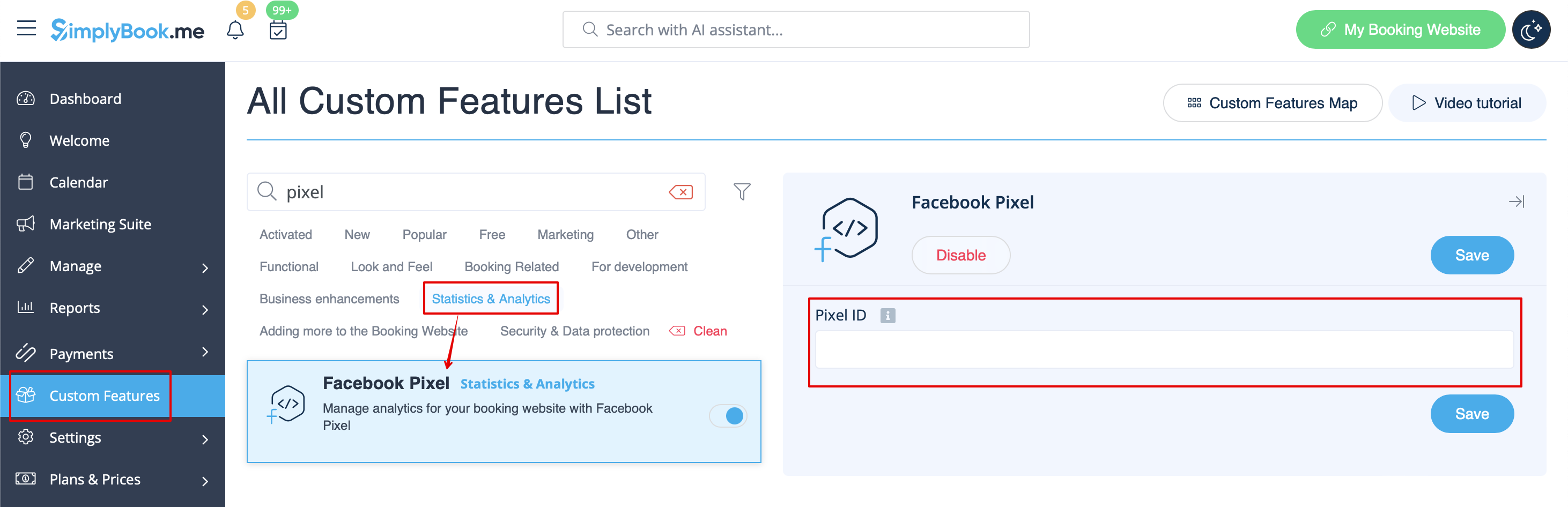
- 4. Paste it to the Pixel ID field on SimplyBook.me side. Save settings.
- 5. (optional) You can test events using the corresponding tab on your Facebook business page.
- Simply paste your booking website url there, navigate to it and go through the pages to create the activity.
- View the urls, events and their parameters. It is possible to see simple pageviews, schedule and purchase events.


- 6. In the Overview Facebook tab you will be able to see the real events with the details in parameters.

Useful links:
