From SimplyBook.me
Importing a new version from external source |
Importing a new version from external source |
||
| (One intermediate revision by the same user not shown) | |||
| Line 2: | Line 2: | ||
;How to use: | ;How to use: | ||
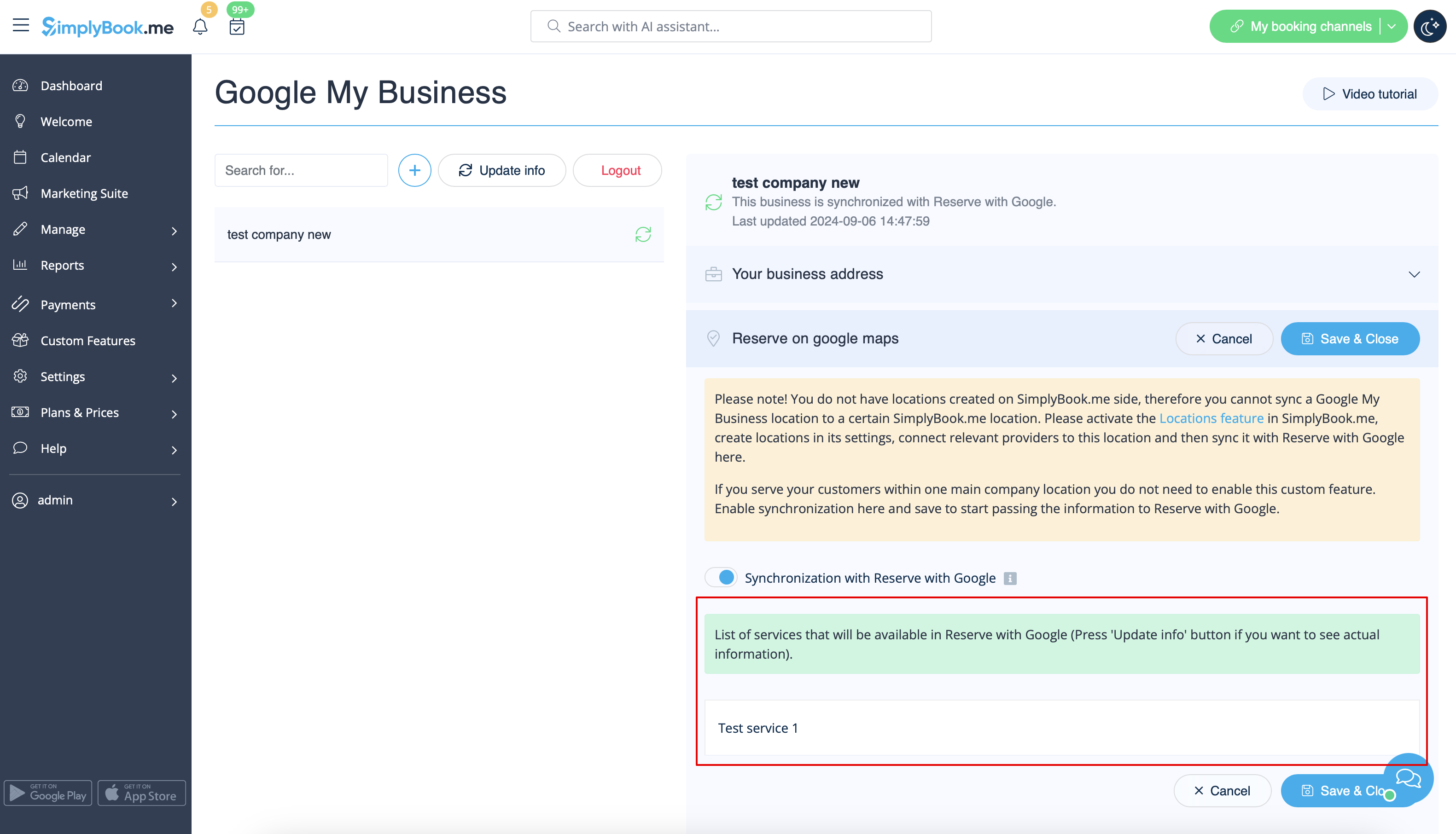
:1. Add and verify your Google Business location(s) either via <span style="background-color:#d4f8e5; padding:5px; border-radius:5px;">SimplyBook.me platform(previous part of this tutorial)</span> or using your <span style="background-color:#d4f8e5; padding:5px; border-radius:5px;">Google Business interface</span> and re-save it(them) in <span style="background-color:#d4f8e5; padding:5px; border-radius:5px;">Google Business custom feature settings.</span> | :1. Add and verify your Google Business location(s) either via <span style="background-color:#d4f8e5; padding:5px; border-radius:5px;">SimplyBook.me platform(previous part of this tutorial)</span> or using your <span style="background-color:#d4f8e5; padding:5px; border-radius:5px;">Google Business interface</span> and re-save it(them) in <span style="background-color:#d4f8e5; padding:5px; border-radius:5px;">Google Business custom feature settings.</span> | ||
[[File: | [[File:Google business existing locations redesigned.png|1200px|border|center|link=https://help.simplybook.me/images/7/71/Google_business_existing_locations_redesigned.png]] | ||
<br><br> | <br><br> | ||
:2. Navigate to <span style="background-color:#d4f8e5; padding:5px; border-radius:5px;">Reserve on google maps</span> tab and move the switcher <span style="background-color:#d4f8e5; padding:5px; border-radius:5px;">Synchronization with Reserve with Google</span> to an active position. | :2. Navigate to <span style="background-color:#d4f8e5; padding:5px; border-radius:5px;">Reserve on google maps</span> tab and move the switcher <span style="background-color:#d4f8e5; padding:5px; border-radius:5px;">Synchronization with Reserve with Google</span> to an active position. | ||
[[File:Reserve with google | [[File:Reserve with google enable path redesigned.png|1200px|border|center|link=https://help.simplybook.me/images/8/80/Reserve_with_google_enable_path_redesigned.png]] | ||
<br><br> | <br><br> | ||
: | :3. (optional) If you use <span style="background-color:#cdeffc; padding:5px; border-radius:5px;">[[Special:MyLanguage/Multiple Locations custom feature|Multiple Locations]]</span> custom feature, connect your <span style="background-color:#d4f8e5; padding:5px; border-radius:5px;">Google Businesses</span> to desired <span style="background-color:#d4f8e5; padding:5px; border-radius:5px;">SimplyBook.me locations.</span> | ||
:<span style="background-color:#ffe9e9; padding:5px; border-radius:5px;">'''Please note!''' It is possible to connect one SimplyBook.me location to one Google Business.</span> | :<span style="background-color:#ffe9e9; padding:5px; border-radius:5px;">'''Please note!''' It is possible to connect one SimplyBook.me location to one Google Business.</span> | ||
:<span style="background-color:#ffe9e9; padding:5px; border-radius:5px;">If you do not use <span style="background-color:#cdeffc; padding:5px; border-radius:5px;">[[Special:MyLanguage/ | :<span style="background-color:#ffe9e9; padding:5px; border-radius:5px;">If you do not use <span style="background-color:#cdeffc; padding:5px; border-radius:5px;">[[Special:MyLanguage/Multiple Locations custom feature|Multiple Locations]]</span> your main company location can be connected to one Google Business.</span> | ||
[[File:Reserve with google | [[File:Reserve with google select location redesigned.png|1200px|border|center|link=https://help.simplybook.me/images/1/14/Reserve_with_google_select_location_redesigned.png]] | ||
<br><br> | <br><br> | ||
: | :4. <span style="background-color:#d4f8e5; padding:5px; border-radius:5px;">Save</span> settings. Now the sync takes place and after you <span style="background-color:#d4f8e5; padding:5px; border-radius:5px;">reload the page</span> it will be possible to see the list of services that will be passed to Reserve with Google for booking. | ||
:By default we gather all the information and pass the update to Google once a day, but you can use <span style="background-color:#d4f8e5; padding:5px; border-radius:5px;">Update info</span> button to prepare the information for transfer manually if any settings changes in your account(for example, if you have created new service) were made. | :By default we gather all the information and pass the update to Google once a day, but you can use <span style="background-color:#d4f8e5; padding:5px; border-radius:5px;">Update info</span> button to prepare the information for transfer manually if any settings changes in your account(for example, if you have created new service) were made. | ||
[[File:Reserve with google | [[File:Reserve with google list of services redesigned.png|1200px|border|center|link=https://help.simplybook.me/images/d/dd/Reserve_with_google_list_of_services_redesigned.png]] | ||
<br><br> | <br><br> | ||
<br><br> | <br><br> | ||
Latest revision as of 10:57, 23 September 2025
- How to use
- 1. Add and verify your Google Business location(s) either via SimplyBook.me platform(previous part of this tutorial) or using your Google Business interface and re-save it(them) in Google Business custom feature settings.
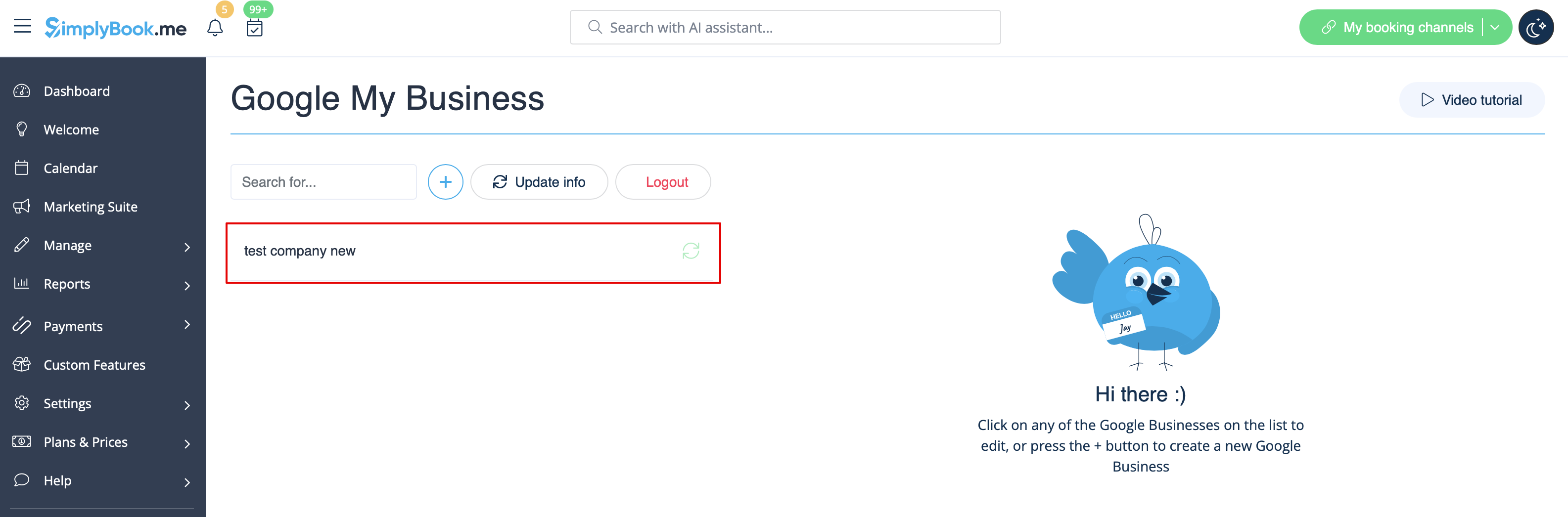
- 2. Navigate to Reserve on google maps tab and move the switcher Synchronization with Reserve with Google to an active position.
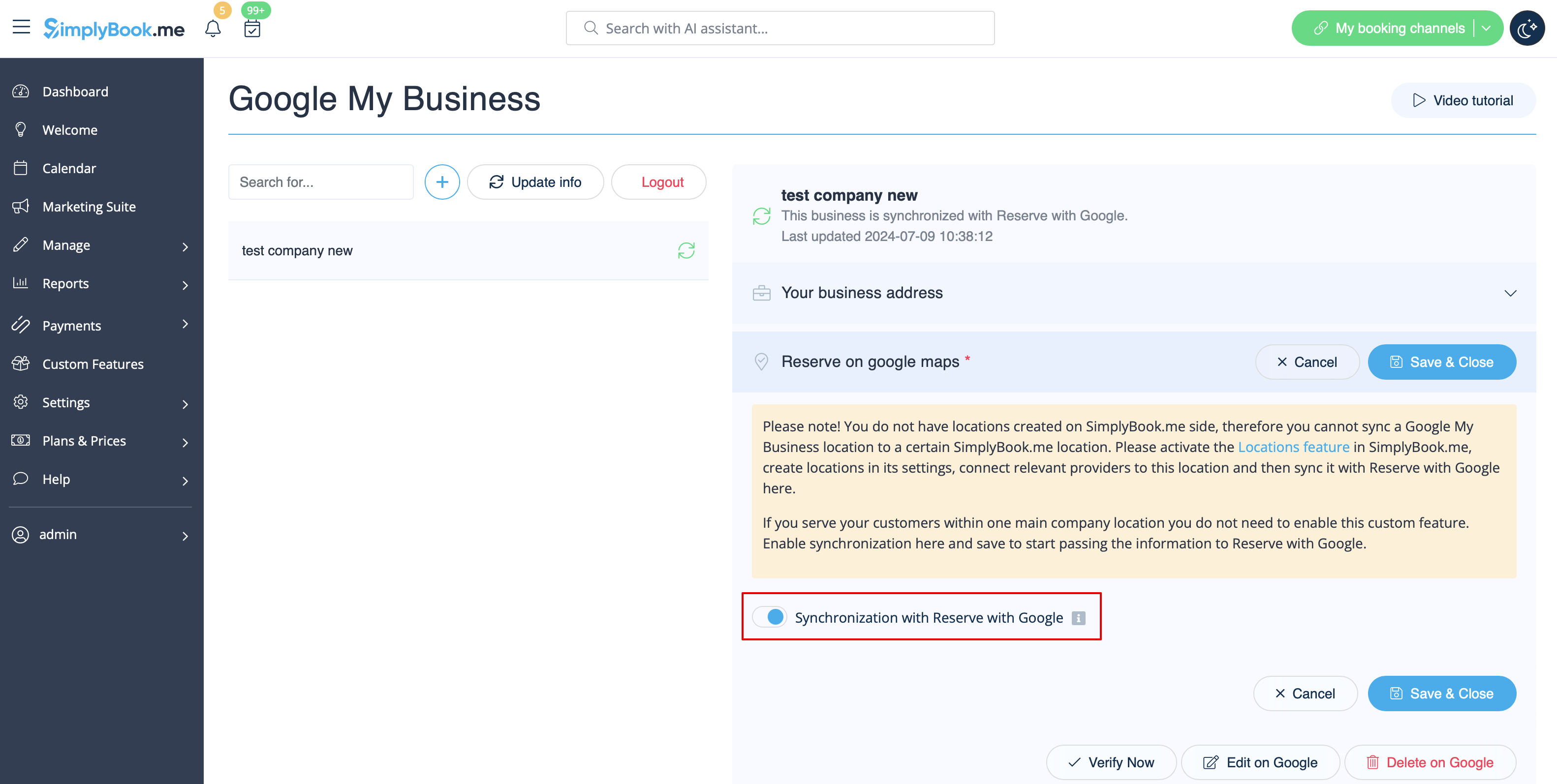
- 3. (optional) If you use Multiple Locations custom feature, connect your Google Businesses to desired SimplyBook.me locations.
- Please note! It is possible to connect one SimplyBook.me location to one Google Business.
- If you do not use Multiple Locations your main company location can be connected to one Google Business.
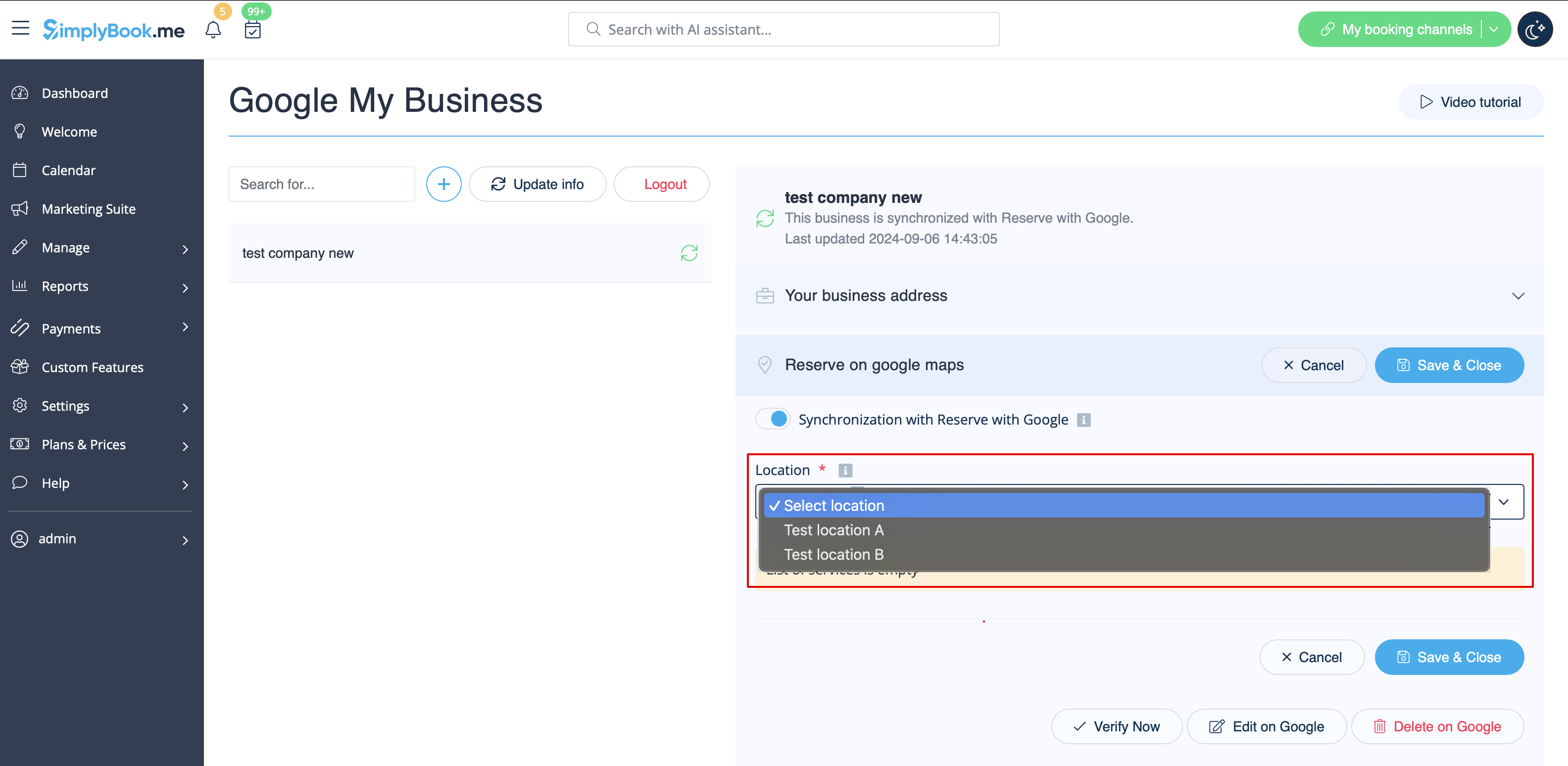
- 4. Save settings. Now the sync takes place and after you reload the page it will be possible to see the list of services that will be passed to Reserve with Google for booking.
- By default we gather all the information and pass the update to Google once a day, but you can use Update info button to prepare the information for transfer manually if any settings changes in your account(for example, if you have created new service) were made.