No edit summary |
No edit summary |
||
| (10 intermediate revisions by the same user not shown) | |||
| Line 1: | Line 1: | ||
<languages/> | |||
<translate> | |||
<!--T:1--> | |||
{{#seo: | |||
|title=Brief overview of the system - SimplyBook.me | |||
|description=Comprehensive system overview for new users. Learn admin interface navigation, main features, settings locations. Quick introduction to core functionality. | |||
|titlemode=append | |||
|keywords=faq, frequently asked questions, booking software, appointment system questions, appointments online, calendar software, booking system, booking calendar, scheduling software, online appointment scheduling, online scheduling, setup, setup help, support, help content | |||
}} | |||
</translate> | |||
<translate> | |||
<!--T:2--> | |||
<p> | <p> | ||
First you can start by checking out the 2 videos here below. They can give you a guick glance on how to start using the system. | First you can start by checking out the 2 videos here below. They can give you a guick glance on how to start using the system. | ||
</p> | </p> | ||
<br><br> | <br><br> | ||
: | </translate> | ||
<translate> | |||
<!--T:3--> | |||
:A short video on some of the things that SimplyBook.me system can do for you <p><youtube>E9jK7J312pE</youtube></p> | |||
<br><br> | <br><br> | ||
:And here is another quick video on how to get started <p><youtube> | </translate> | ||
<translate> | |||
<!--T:4--> | |||
:And here is another quick video on how to get started <p><youtube>qgMn9dKJAt4</youtube></p> | |||
<br><br> | <br><br> | ||
</translate> | |||
<translate> | |||
<!--T:5--> | |||
After you have registered your account with SimplyBook.me, the next step is to organize your working schedule, configure providers, services and plenty of other stuff. <br> | After you have registered your account with SimplyBook.me, the next step is to organize your working schedule, configure providers, services and plenty of other stuff. <br> | ||
We encourage you to check out our video channel which is full of videos to get you started. https://www.youtube.com/@SimplyBook-me<br> | We encourage you to check out our video channel which is full of videos to get you started. https://www.youtube.com/@SimplyBook-me<br> | ||
<p>When you create an account, the system automatically creates 2 pages for you: ''admin interface'' and ''booking page''. </p> | <p>When you create an account, the system automatically creates 2 pages for you: ''admin interface'' and ''booking page''. </p> | ||
<br><br> | <br><br> | ||
</translate> | |||
<translate> | |||
<!--T:6--> | |||
'''Admin interface''' is where you login and manage your bookings, settings, design etc. Clients have no access to that page. ([https://simplydemo.secure.simplybook.me/?login=admin&pass=demo&form_sent=1&_ga=1.230145695.2074619410.1477382910 '''Example''']) | '''Admin interface''' is where you login and manage your bookings, settings, design etc. Clients have no access to that page. ([https://simplydemo.secure.simplybook.me/?login=admin&pass=demo&form_sent=1&_ga=1.230145695.2074619410.1477382910 '''Example''']) | ||
</translate> | |||
<translate> | |||
< | <!--T:7--> | ||
[[File:Calendar page redesigned.png|1200px|border|center|link=https://help.simplybook.me/images/6/6a/Calendar_page_redesigned.png]] | |||
<br><br> | <br><br> | ||
</translate> | |||
<translate> | |||
<!--T:8--> | |||
'''[[Where_to_change_my_info| Booking Page]]''' is the interface for your clients. There, they can book your services and leave contact info. You can always access your booking page by clicking "My booking website" button in the upper right corner of your admin page. You will be transferred to the booking page and you can also send the url to your clients so that they can easily find your company. ([https://simplybook.me/en/booking-page-themes '''Examples''']) | '''[[Where_to_change_my_info| Booking Page]]''' is the interface for your clients. There, they can book your services and leave contact info. You can always access your booking page by clicking "My booking website" button in the upper right corner of your admin page. You will be transferred to the booking page and you can also send the url to your clients so that they can easily find your company. ([https://simplybook.me/en/booking-page-themes '''Examples''']) | ||
<!--T:9--> | |||
<nomobile>[[File:Booking page steps view v3.png|border|center]]</nomobile> | <nomobile>[[File:Booking page steps view v3.png|border|center]]</nomobile> | ||
<mobileonly>[[File:M booking page view.png|center]]</mobileonly> | <mobileonly>[[File:M booking page view.png|center]]</mobileonly> | ||
<br><br> | <br><br> | ||
</translate> | |||
<translate> | |||
<!--T:10--> | |||
=Layout and menu= | =Layout and menu= | ||
<br><br> | <br><br> | ||
| Line 28: | Line 62: | ||
:2. The first tab you see is '''Dashboard'''. It contains statistics about your performance, your current subscription package, bookings, performers, clients activity, etc. By analyzing the information you can make inferences about your business and figure out what can be done to improve it. If you need to know more about each section, just press the "i" sign. | :2. The first tab you see is '''Dashboard'''. It contains statistics about your performance, your current subscription package, bookings, performers, clients activity, etc. By analyzing the information you can make inferences about your business and figure out what can be done to improve it. If you need to know more about each section, just press the "i" sign. | ||
:3. '''Welcome''' page allows you to check general information regarding your account such as links to admin and client pages, current subscription and balance. You can also find some useful video tutorials on how to set up the system . | :3. '''Welcome''' page allows you to check general information regarding your account such as links to admin and client pages, current subscription and balance. You can also find some useful video tutorials on how to set up the system . | ||
</translate> | |||
<translate> | |||
<!--T:11--> | |||
:4. '''[[How_to_manage_bookings| Calendar]]''' is a section where you can add, edit and delete your bookings and quickly add break times. | :4. '''[[How_to_manage_bookings| Calendar]]''' is a section where you can add, edit and delete your bookings and quickly add break times. | ||
:5. '''Marketing Suite''' tab contains various tools that allow to develop your business and increase its visibility for the customers. | :5. '''Marketing Suite''' tab contains various tools that allow to develop your business and increase its visibility for the customers. | ||
| Line 53: | Line 90: | ||
::''Taxes'' tab appears if you are using [[Custom_Features#Accept_Payments | Accept payments]] custom feature and allows to create different tax options. | ::''Taxes'' tab appears if you are using [[Custom_Features#Accept_Payments | Accept payments]] custom feature and allows to create different tax options. | ||
::''[[Custom_Page_custom_feature| Custom page]]'' option is present when you have [[Custom_Page_custom_feature| Custom page]] feature enabled and gives the possibility to create additional pages and links for the booking website. | ::''[[Custom_Page_custom_feature| Custom page]]'' option is present when you have [[Custom_Page_custom_feature| Custom page]] feature enabled and gives the possibility to create additional pages and links for the booking website. | ||
</translate> | |||
<translate> | |||
<!--T:12--> | |||
:7. '''[[Booking_reports| Reports]]''' tab contains different kinds of statistics you may wish to analyze and [[Remove_Elements_from_booking_page#Reviews| reviews]] from your clients | :7. '''[[Booking_reports| Reports]]''' tab contains different kinds of statistics you may wish to analyze and [[Remove_Elements_from_booking_page#Reviews| reviews]] from your clients | ||
:8. '''[[Custom_Features|Custom Features]]'''. Custom Features are used to enhance the system and customize it in line with your needs. Please see the list of all [[Custom_Features|Custom Features and their functions here]]. | :8. '''[[Custom_Features|Custom Features]]'''. Custom Features are used to enhance the system and customize it in line with your needs. Please see the list of all [[Custom_Features|Custom Features and their functions here]]. | ||
| Line 59: | Line 99: | ||
::''[[My_subscription_and_how_to_renew| Subscriptions]]''. Here you can view different tariffs available for you and purchase or upgrade subscriptions. | ::''[[My_subscription_and_how_to_renew| Subscriptions]]''. Here you can view different tariffs available for you and purchase or upgrade subscriptions. | ||
::''[[Additional_Bookings | Additional items]]''. Here you can purchase SMS credits, additional bookings and other items. | ::''[[Additional_Bookings | Additional items]]''. Here you can purchase SMS credits, additional bookings and other items. | ||
</translate> | |||
Latest revision as of 17:47, 30 January 2026
First you can start by checking out the 2 videos here below. They can give you a guick glance on how to start using the system.
- A short video on some of the things that SimplyBook.me system can do for you
- And here is another quick video on how to get started
After you have registered your account with SimplyBook.me, the next step is to organize your working schedule, configure providers, services and plenty of other stuff.
We encourage you to check out our video channel which is full of videos to get you started. https://www.youtube.com/@SimplyBook-me
When you create an account, the system automatically creates 2 pages for you: admin interface and booking page.
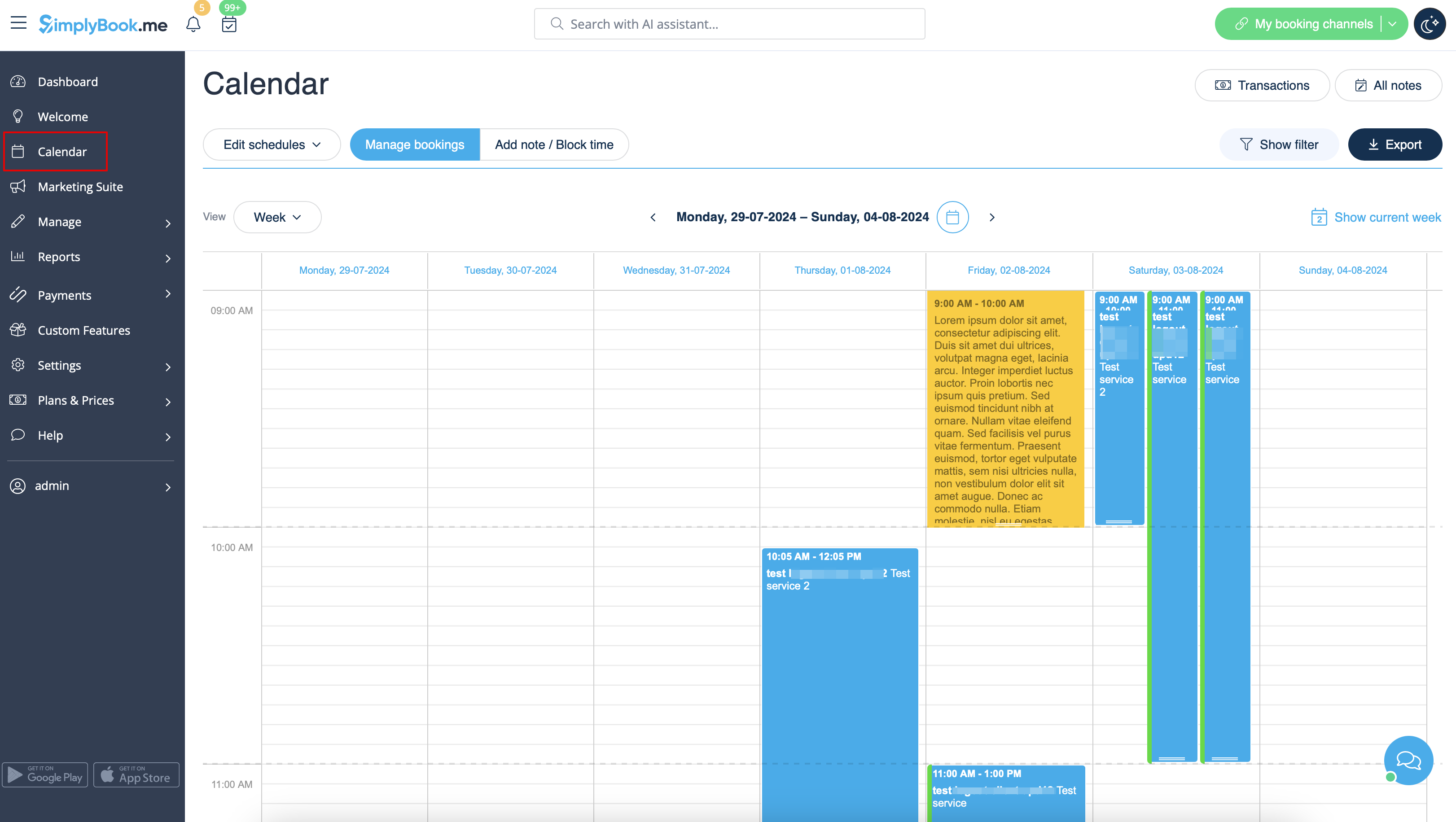
Admin interface is where you login and manage your bookings, settings, design etc. Clients have no access to that page. (Example)
Booking Page is the interface for your clients. There, they can book your services and leave contact info. You can always access your booking page by clicking "My booking website" button in the upper right corner of your admin page. You will be transferred to the booking page and you can also send the url to your clients so that they can easily find your company. (Examples)


- 1. Upper bar. Three-line button shows/hides the full menu on the left. Latest news are marked as yellow notifications. Messages are marked with red and notifications with green color.
- 2. The first tab you see is Dashboard. It contains statistics about your performance, your current subscription package, bookings, performers, clients activity, etc. By analyzing the information you can make inferences about your business and figure out what can be done to improve it. If you need to know more about each section, just press the "i" sign.
- 3. Welcome page allows you to check general information regarding your account such as links to admin and client pages, current subscription and balance. You can also find some useful video tutorials on how to set up the system .
- 4. Calendar is a section where you can add, edit and delete your bookings and quickly add break times.
- 5. Marketing Suite tab contains various tools that allow to develop your business and increase its visibility for the customers.
- 6. Manage tab contains several sections:
- Services - add, delete and edit services + create events
- Service Providers - add, delete and edit providers
- Clients - add, edit and delete clients
- Users - add, edit and delete users.
- Classes option appears when you enable Classes custom feature and allows to create classes. You can use classes option only or combine them with services. They will be displayed together on the booking site.
- Packages section appears if the corresponding custom feature is enabled and allows to sell packages containing different services, products and add-ons.
- Membership tab appears if you use Membership custom feature and allows you to create different kinds of memberships for your clients.
- Service add-ons tab will appear if you enable Service Add-Ons feature. It is one more up-selling option to enhance your business.
- Products for sale can be accessed when Products for Sale custom feature is switched on. This functionality allows you to create additional items to sell to the customers when they book.
- Coupons and gift cards section appears if you are using Coupons and Gift cards custom feature for issuing gift cards and allowing your clients to have some discounts.
- Related resources tab appears when Related Resources custom feature is enabled and allows to manage appointment related equipment.
- Intake forms tab can be seen when Intake forms custom feature is enabled. Here you can create additional questions you wish to ask your clients during the booking process.
- Client fields tab is present when the corresponding custom feature is on and allows to manage the fields for the registration form on the booking website.
- News tab appears when News custom feature is enabled and allows to create and edit the posts for the booking website.
- Status is available when the corresponding custom feature is enabled and gives access to managing the bookings statuses.
- Flexible notifications option is there when Flexible notifications is on and allows to create service and/or provider specific booking notifications.
- Book soon notification system tab s there when you have the corresponding custom feature enabled. Here you can create reminders to book your services again.
- Calendar note types submenu allows to create various color-coded notes types to be afterwards used on the Calendar page.
- Calendar sync tab appears when Calendar sync custom feature is on and allows to manage the connected Google/Outlook calendars sync options.
- Online video meetings submenu is present when the corresponding feature is enabled and allows to edit the video tool connections per system providers.
- Taxes tab appears if you are using Accept payments custom feature and allows to create different tax options.
- Custom page option is present when you have Custom page feature enabled and gives the possibility to create additional pages and links for the booking website.
- 7. Reports tab contains different kinds of statistics you may wish to analyze and reviews from your clients
- 8. Custom Features. Custom Features are used to enhance the system and customize it in line with your needs. Please see the list of all Custom Features and their functions here.
- 9. Settings section allows to set schedules for the whole company, as well as the separate services/classes and providers. It also contains various general options for your account starting from date format and notifications templates to website widgets creation.
- 10. Plans&Prices.
- Subscriptions. Here you can view different tariffs available for you and purchase or upgrade subscriptions.
- Additional items. Here you can purchase SMS credits, additional bookings and other items.
