From SimplyBook.me
Importing a new version from external source |
Importing a new version from external source |
||
| Line 1: | Line 1: | ||
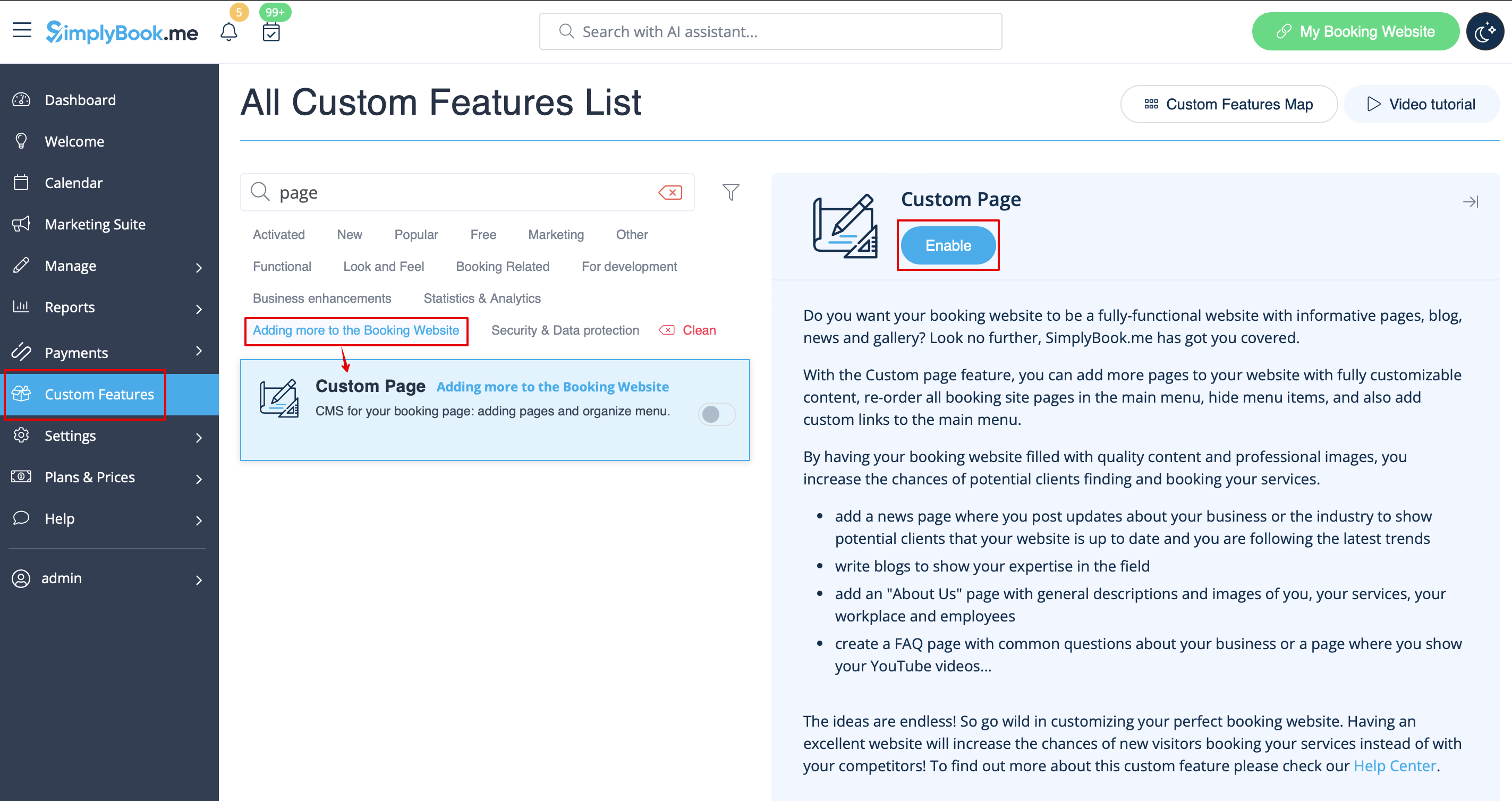
:1. Enable “Custom page” feature on your ''Custom features page -> Adding more to the Booking site'' section. | :1. Enable “Custom page” feature on your ''Custom features page -> Adding more to the Booking site'' section. | ||
[[File:Custom page enable path | [[File:Custom page enable path redesigned.png|1200px| center|link=https://help.simplybook.me/images/5/54/Custom_page_enable_path_redesigned.png]] | ||
<br><br> | <br><br> | ||
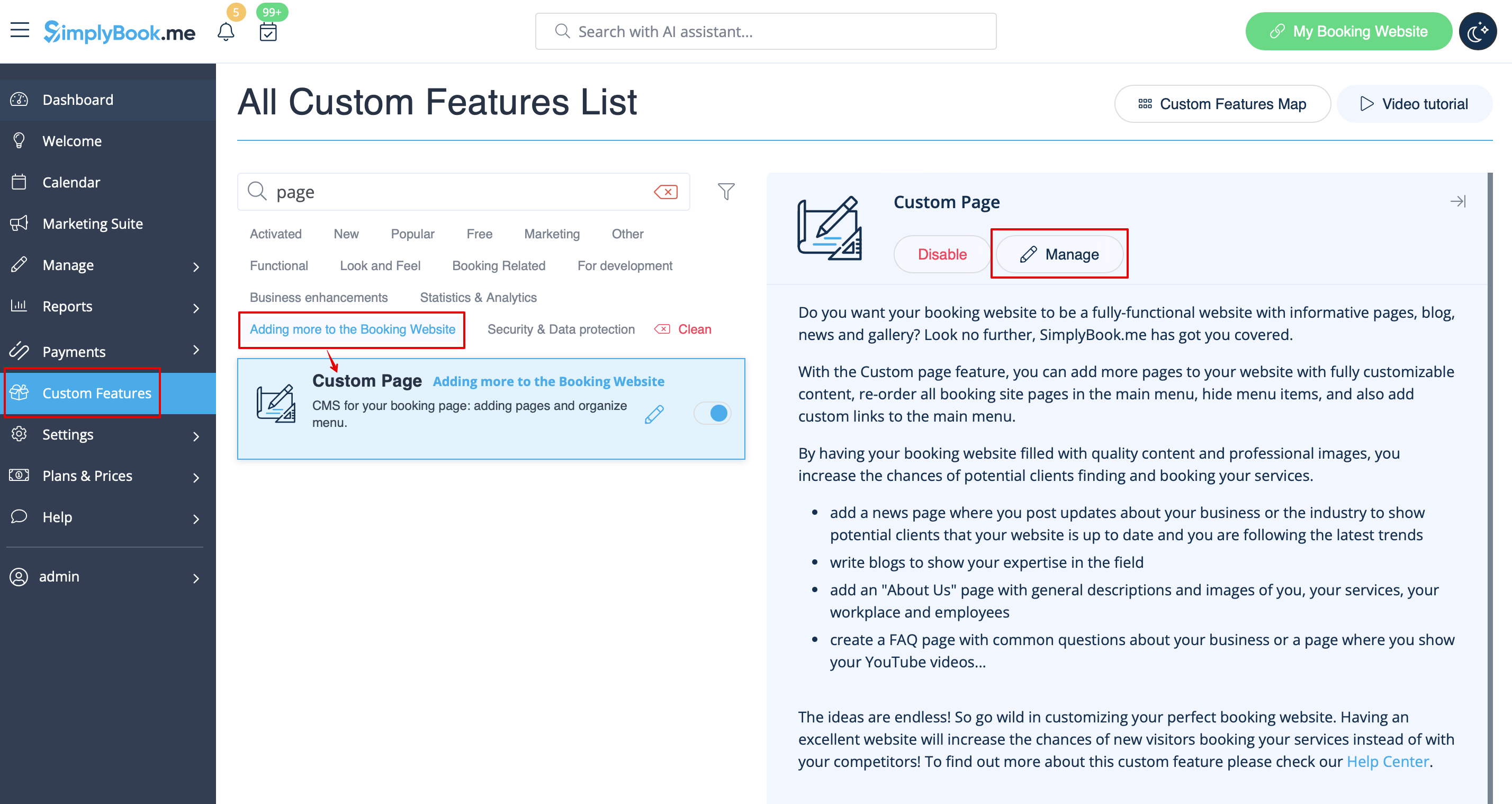
:2. Go to "Manage" to setup the desired pages. | :2. Go to "Manage" to setup the desired pages. | ||
[[File:Custom page settings path | [[File:Custom page settings path redesigned.png|1200px | center|link=https://help.simplybook.me/images/e/ee/Custom_page_settings_path_redesigned.png]] | ||
<br><br> | <br><br> | ||
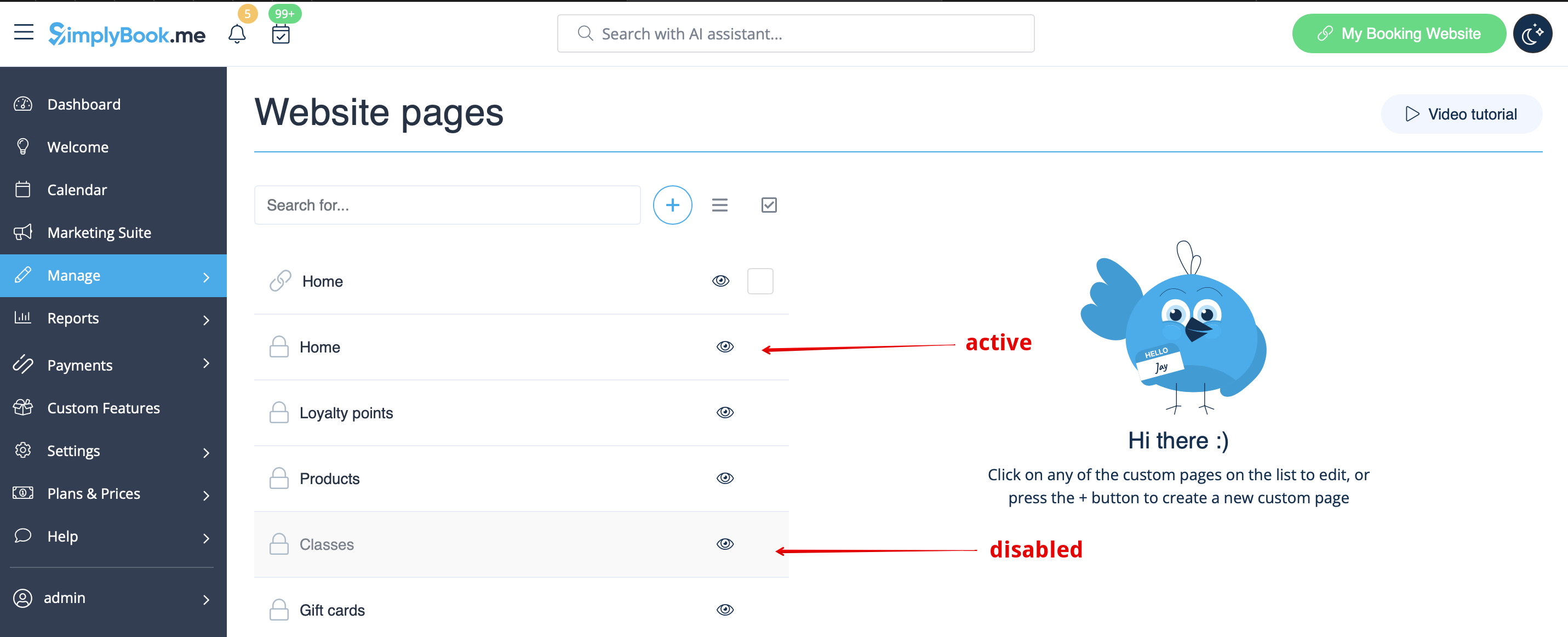
:3. On the next page you will be able to see system booking page tabs. | :3. On the next page you will be able to see system booking page tabs. | ||
:(The ones that are disabled currently are grayed out.) | :(The ones that are disabled currently are grayed out.) | ||
:System pages cannot be edited in this interface. You will need to navigate to the corresponding section using the links provided. | :System pages cannot be edited in this interface. You will need to navigate to the corresponding section using the links provided. | ||
[[File: | [[File:Custom page active and disabled pages redesigned.png|1200px | center|link=https://help.simplybook.me/images/1/14/Custom_page_active_and_disabled_pages_redesigned.png]] | ||
<br><br> | <br><br> | ||
:4. You can use arrows to re-order the tabs and “Eye” icons to hide and show pages. | :4. You can use arrows to re-order the tabs and “Eye” icons to hide and show pages. | ||
:'''Please note''', that if you hide the page it still will be possible to access it using direct link. | :'''Please note''', that if you hide the page it still will be possible to access it using direct link. | ||
[[File: | [[File:Custom page hide show reorder redesigned.png|1200px | center|link=https://help.simplybook.me/images/8/87/Custom_page_hide_show_reorder_redesigned.png]] | ||
<br><br> | <br><br> | ||
:5. If you wish to add new custom page, please click on “+” icon at the top and choose “Add custom page” option. | :5. If you wish to add new custom page, please click on “+” icon at the top and choose “Add custom page” option. | ||
[[File: | [[File:Add custom page path redesigned.png|1200px | center|link=https://help.simplybook.me/images/d/d3/Add_custom_page_path_redesigned.png]] | ||
<br><br> | <br><br> | ||
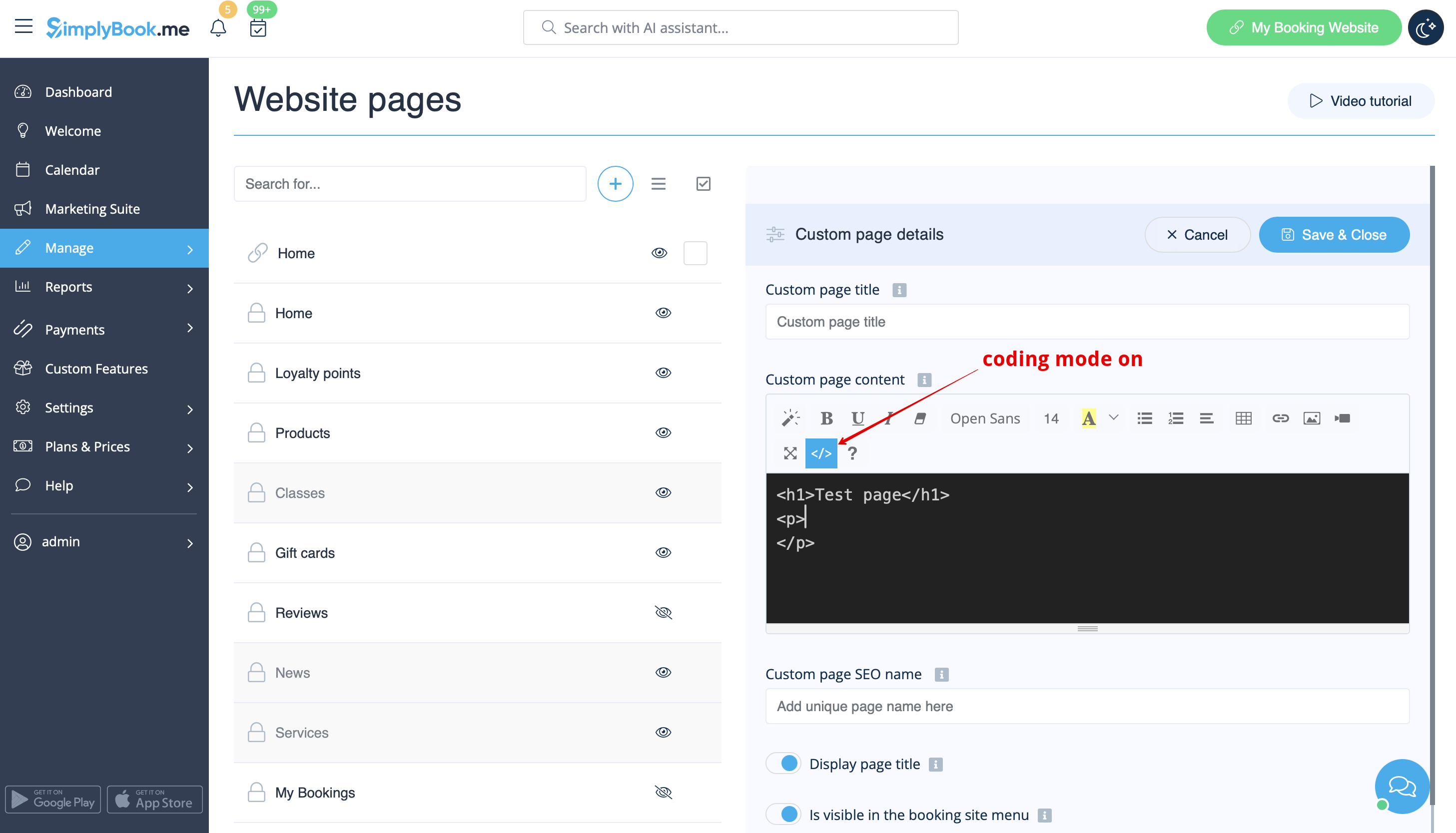
:6. On the right side the page-building menu will appear. Please add title and desired page content. | :6. On the right side the page-building menu will appear. Please add title and desired page content. | ||
:You may use built-in HTML editor to add elements or if you have HTML coding knowledge you can switch to code mode using “</>” icon. | :You may use built-in HTML editor to add elements or if you have HTML coding knowledge you can switch to code mode using “</>” icon. | ||
:'''Please note''', it is necessary to switch coding mode off before saving the page for the code to be saved correctly. | :'''Please note''', it is necessary to switch coding mode off before saving the page for the code to be saved correctly. | ||
[[File: | [[File:Custom page coding mode on redesigned.png|1200px | center|link=https://help.simplybook.me/images/9/93/Custom_page_coding_mode_on_redesigned.png]] | ||
<br><br> | <br><br> | ||
Latest revision as of 15:18, 15 January 2025
- 1. Enable “Custom page” feature on your Custom features page -> Adding more to the Booking site section.
- 2. Go to "Manage" to setup the desired pages.
- 3. On the next page you will be able to see system booking page tabs.
- (The ones that are disabled currently are grayed out.)
- System pages cannot be edited in this interface. You will need to navigate to the corresponding section using the links provided.
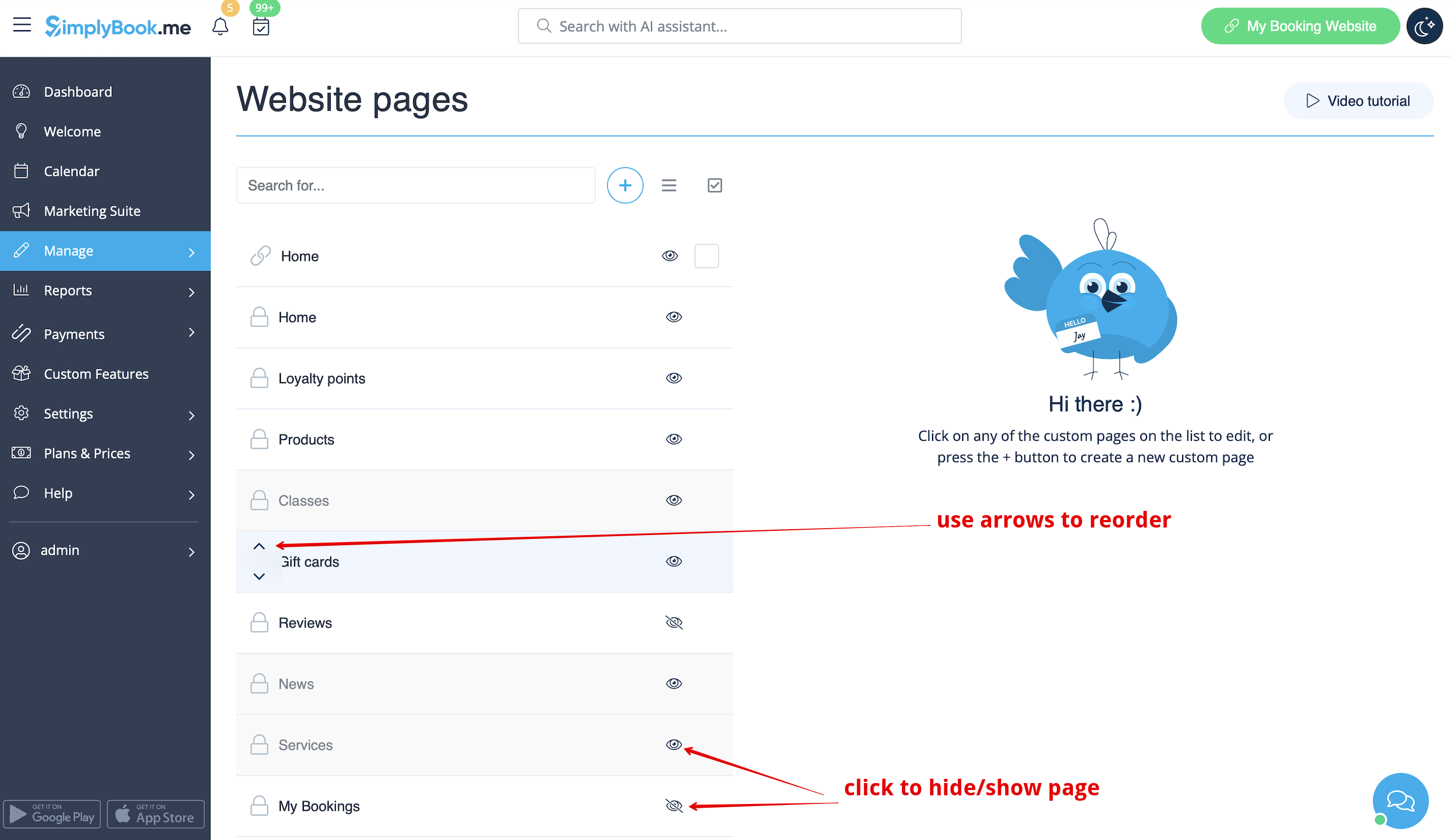
- 4. You can use arrows to re-order the tabs and “Eye” icons to hide and show pages.
- Please note, that if you hide the page it still will be possible to access it using direct link.
- 5. If you wish to add new custom page, please click on “+” icon at the top and choose “Add custom page” option.
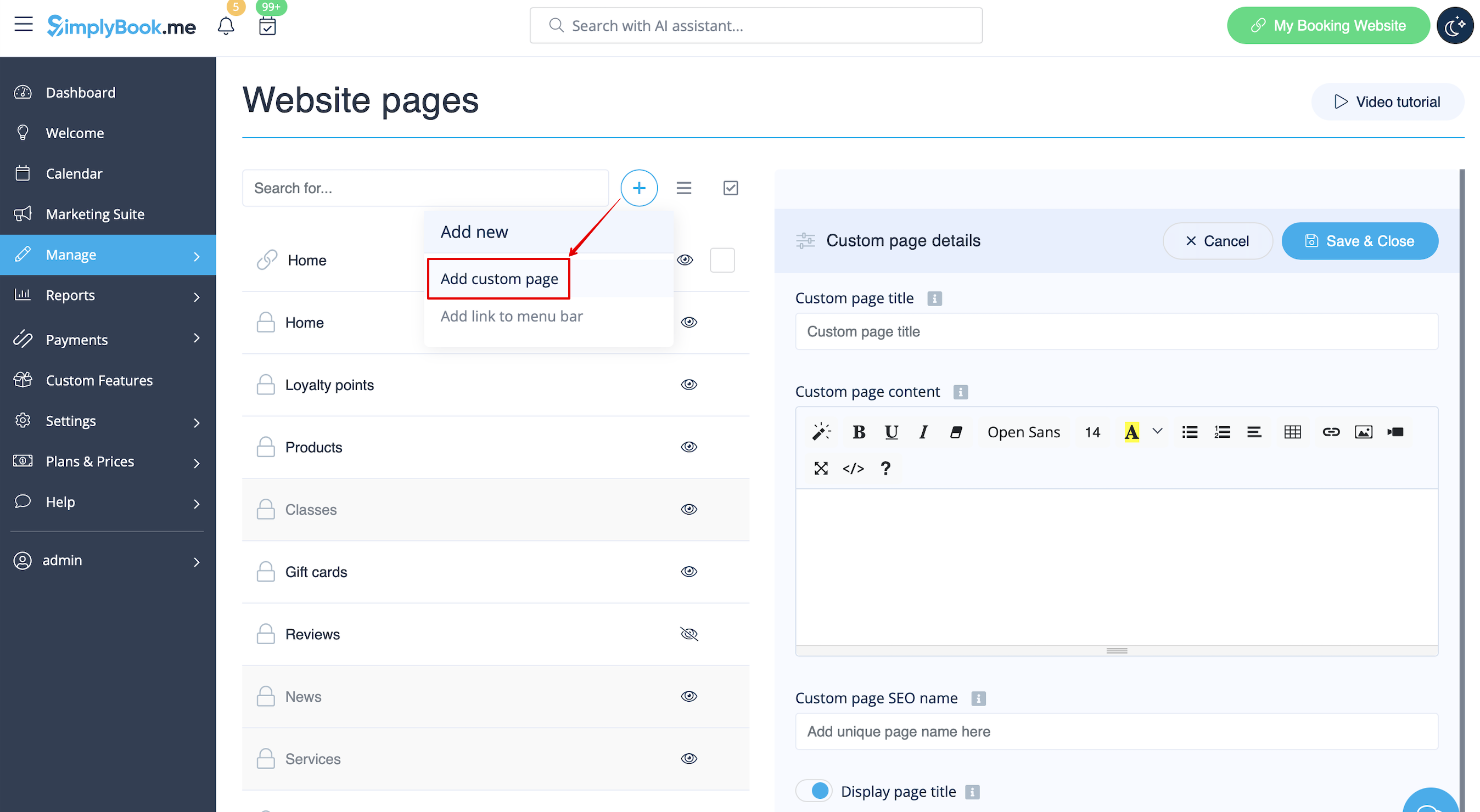
- 6. On the right side the page-building menu will appear. Please add title and desired page content.
- You may use built-in HTML editor to add elements or if you have HTML coding knowledge you can switch to code mode using “</>” icon.
- Please note, it is necessary to switch coding mode off before saving the page for the code to be saved correctly.