From SimplyBook.me
Created page with "left <br>Verwalten Sie Analysen für Ihre Buchungswebsite mit Facebook Pixel <br><br><br><br>" |
No edit summary Tags: Mobile edit Mobile web edit |
||
| (7 intermediate revisions by 2 users not shown) | |||
| Line 1: | Line 1: | ||
<languages/> | <languages/> | ||
{{#seo: | {{#seo: | ||
|title=Custom | |title=Facebook Pixel Custom Feature - SimplyBook.me | ||
|description=Facebook-Pixel-Tracking zur Buchungsseite hinzufügen. Conversions für Facebook-Anzeigen verfolgen. Anzeigenleistung messen, Remarketing-Zielgruppen erstellen. | |||
|titlemode=append | |titlemode=append | ||
|keywords=faq, frequently asked questions, booking software, appointment system questions, appointments online, calendar software, booking system, booking calendar, scheduling software, online appointment scheduling, online scheduling, plugins, custom features, additional functionality, pixel, facebook pixel, facebook tracking, statistics | |keywords=faq, frequently asked questions, booking software, appointment system questions, appointments online, calendar software, booking system, booking calendar, scheduling software, online appointment scheduling, online scheduling, plugins, custom features, additional functionality, pixel, facebook pixel, facebook tracking, statistics | ||
| Line 11: | Line 11: | ||
<br><br><br><br> | <br><br><br><br> | ||
<span style="background-color:#ffe9e9; padding:5px; border-radius:5px;">'''Bitte beachten Sie!''' Diese benutzerdefinierte Funktion ist nicht kompatibel mit <span style="background-color:#cdeffc; padding:5px; border-radius:5px;">[[Special:MyLanguage/Facebook_and_Instagram_Bookings |Facebook- und Instagram-Buchungen]]</span></span>. | |||
<span style="background-color:#ffe9e9; padding:5px; border-radius:5px;">''' | |||
<br><br> | <br><br> | ||
<span style="background-color:#cdeffc; padding:5px; border-radius:5px;">[[Special:MyLanguage/Analytics tools integration guide| | <span style="background-color:#cdeffc; padding:5px; border-radius:5px;">[[Special:MyLanguage/Analytics tools integration guide|Anleitung zur Integration von Analysetools]]</span> | ||
<br><br> | <br><br> | ||
; | ;Verwendung | ||
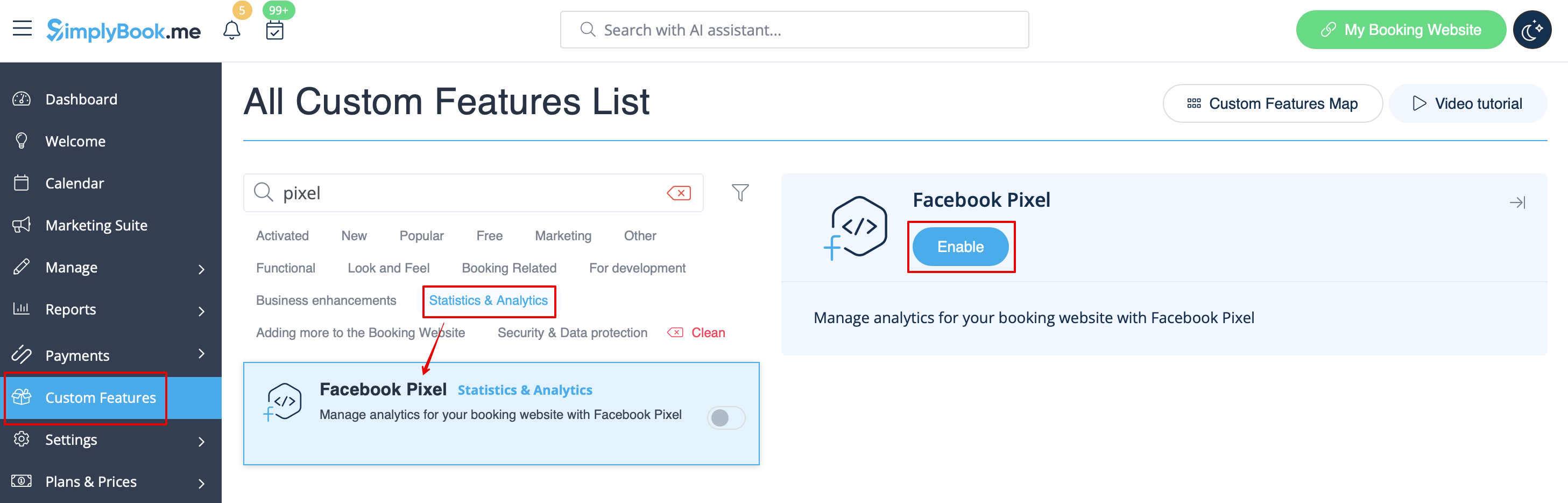
:1. | :1. Aktivieren Sie <span style="background-color:#d4f8e5; padding:5px; border-radius:5px;">Facebook Pixel</span> auf Ihrer Seite " <span style="background-color:#d4f8e5; padding:5px; border-radius:5px;">Benutzerdefinierte Funktionen</span> " im Abschnitt " <span style="background-color:#d4f8e5; padding:5px; border-radius:5px;">Statistiken und Analysen</span> ". | ||
[[File: | [[File:Facebook pixel enable path redesigned.png|1200px|border|center|link=https://help.simplybook.me/images/6/6e/Facebook_pixel_enable_path_redesigned.png]] | ||
<br><br> | <br><br> | ||
:2. | :2. Navigieren Sie <span style="background-color:#cdeffc; padding:5px; border-radius:5px;">[https://www.facebook.com/events_manager2/list/pixel/ auf Ihrer Facebook-Unternehmensseite]</span> zu <span style="background-color:#cdeffc; padding:5px; border-radius:5px;">[https://www.facebook.com/events_manager2/list/pixel/ "Datenquellen"]</span> und wählen Sie entweder das zuvor ausgewählte Pixel aus oder <span style="background-color:#cdeffc; padding:5px; border-radius:5px;">[[Special:MyLanguage/Additional_tips#Create_Facebook_pixel|erstellen Sie ein neues]]</span>, indem Sie auf die Schaltfläche <span style="background-color:#d4f8e5; padding:5px; border-radius:5px;">"Datenquellen verbinden"</span> klicken. | ||
<br><br> | <br><br> | ||
:3. | :3. Kopieren Sie <span style="background-color:#d4f8e5; padding:5px; border-radius:5px;">den</span> 16-stelligen <span style="background-color:#d4f8e5; padding:5px; border-radius:5px;">Pixel-Code.</span> | ||
[[File:Facebook copy pixel code.png|1200px|border|center]] | [[File:Facebook copy pixel code.png|1200px|border|center]] | ||
<br><br> | <br><br> | ||
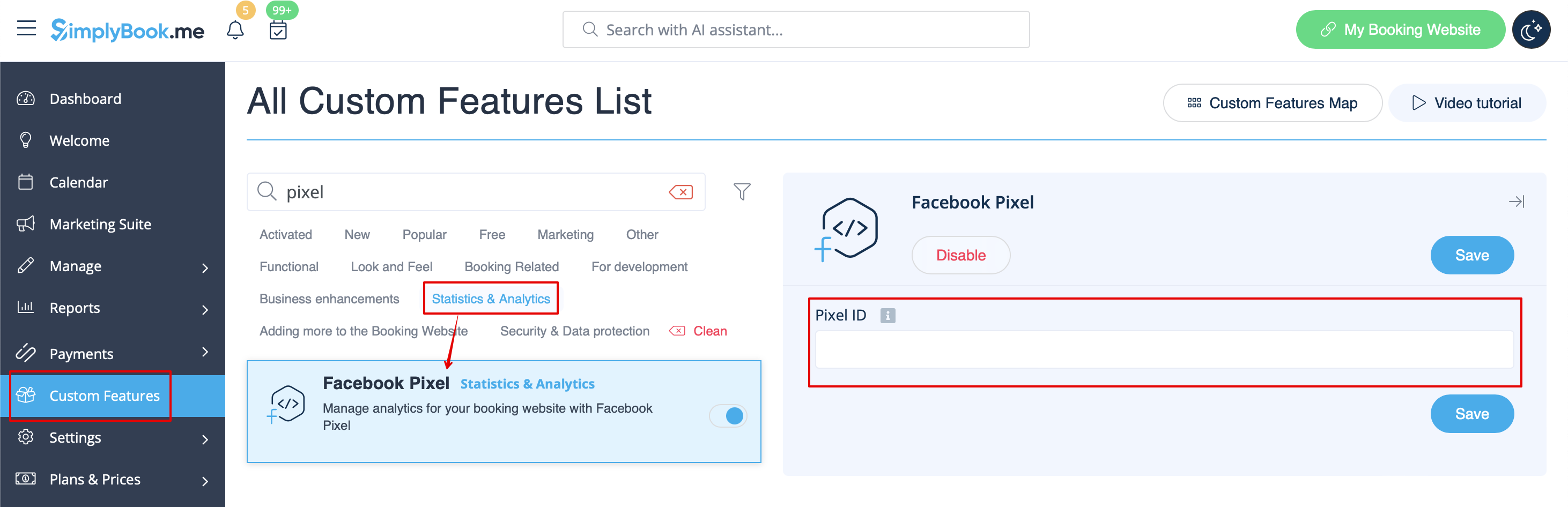
:4. | :4. Fügen Sie ihn in das Feld <span style="background-color:#d4f8e5; padding:5px; border-radius:5px;">"Pixel-ID"</span> auf <span style="background-color:#d4f8e5; padding:5px; border-radius:5px;">der SimplyBook.me-Seite</span> ein. Speichern Sie die Einstellungen. | ||
[[File: | [[File:Facebook pixel settings path redesigned.png|1200px|border|center|link=https://help.simplybook.me/images/b/ba/Facebook_pixel_settings_path_redesigned.png]] | ||
<br><br> | <br><br> | ||
:5. (optional) | :5. (optional) Sie können <span style="background-color:#d4f8e5; padding:5px; border-radius:5px;">Ereignisse</span> über die entsprechende Registerkarte auf Ihrer Facebook-Unternehmensseite <span style="background-color:#d4f8e5; padding:5px; border-radius:5px;">testen</span>.<br> | ||
: | :Fügen Sie dort einfach die URL Ihrer Buchungswebsite ein, navigieren Sie dorthin und gehen Sie die Seiten durch, um die Aktivität zu erstellen. | ||
: | :Zeigen Sie die URLs, Ereignisse und deren Parameter an. Es ist möglich, einfache Seitenaufrufe, Termine und Kaufereignisse anzuzeigen. | ||
[[File:Facebook test events.png|1200px|border|center]]<br><br> | [[File:Facebook test events.png|1200px|border|center]]<br><br> | ||
[[File:Facebook event example.png|1200px|border|center]]<br><br> | [[File:Facebook event example.png|1200px|border|center]]<br><br> | ||
:6. | :6. Auf der Registerkarte <span style="background-color:#d4f8e5; padding:5px; border-radius:5px;">"Übersicht</span> " von Facebook können Sie die tatsächlichen Veranstaltungen mit den Details in den Parametern sehen. | ||
[[File:Facebook events parameters.png|1200px|border|center]]<br><br><br><br> | [[File:Facebook events parameters.png|1200px|border|center]]<br><br><br><br> | ||
Nützliche Links: | |||
*[[Cookie Banners: Essentials and Tips for Removal|Cookie | *[[Cookie Banners: Essentials and Tips for Removal|Cookie-Banner: Grundlagen und Tipps zum Entfernen]] | ||
*[[Special:MyLanguage/Analytics tools integration guide| | *[[Special:MyLanguage/Analytics tools integration guide|Leitfaden zur Integration von Analysetools]] | ||
<br><br> | <br><br> | ||
Latest revision as of 17:26, 20 February 2026

Verwalten Sie Analysen für Ihre Buchungswebsite mit Facebook Pixel
Bitte beachten Sie! Diese benutzerdefinierte Funktion ist nicht kompatibel mit Facebook- und Instagram-Buchungen.
Anleitung zur Integration von Analysetools
- Verwendung
- 1. Aktivieren Sie Facebook Pixel auf Ihrer Seite " Benutzerdefinierte Funktionen " im Abschnitt " Statistiken und Analysen ".
- 2. Navigieren Sie auf Ihrer Facebook-Unternehmensseite zu "Datenquellen" und wählen Sie entweder das zuvor ausgewählte Pixel aus oder erstellen Sie ein neues, indem Sie auf die Schaltfläche "Datenquellen verbinden" klicken.
- 3. Kopieren Sie den 16-stelligen Pixel-Code.

- 4. Fügen Sie ihn in das Feld "Pixel-ID" auf der SimplyBook.me-Seite ein. Speichern Sie die Einstellungen.
- 5. (optional) Sie können Ereignisse über die entsprechende Registerkarte auf Ihrer Facebook-Unternehmensseite testen.
- Fügen Sie dort einfach die URL Ihrer Buchungswebsite ein, navigieren Sie dorthin und gehen Sie die Seiten durch, um die Aktivität zu erstellen.
- Zeigen Sie die URLs, Ereignisse und deren Parameter an. Es ist möglich, einfache Seitenaufrufe, Termine und Kaufereignisse anzuzeigen.


- 6. Auf der Registerkarte "Übersicht " von Facebook können Sie die tatsächlichen Veranstaltungen mit den Details in den Parametern sehen.

Nützliche Links:
