From SimplyBook.me
Updating to match new version of source page |
Updating to match new version of source page |
||
| Line 1: | Line 1: | ||
<languages/> | <languages/> | ||
{{#seo: | {{#seo: | ||
|title=Import Clients custom feature - SimplyBook.me | |title=Import Clients custom feature - SimplyBook.me | ||
|description=Import your client database into SimplyBook.me. Easily transfer client details for seamless integration. Enable this feature now! | |||
|titlemode=append | |titlemode=append | ||
|keywords=faq, frequently asked questions, booking software, appointment system questions, appointments online, calendar software, booking system, booking calendar, scheduling software, online appointment scheduling, online scheduling, plugins, custom features, additional functionality, add clients to the system, import database, import client database, import clients | |keywords=faq, frequently asked questions, booking software, appointment system questions, appointments online, calendar software, booking system, booking calendar, scheduling software, online appointment scheduling, online scheduling, plugins, custom features, additional functionality, add clients to the system, import database, import client database, import clients | ||
| Line 19: | Line 19: | ||
'''How to use this option:''' | '''How to use this option:''' | ||
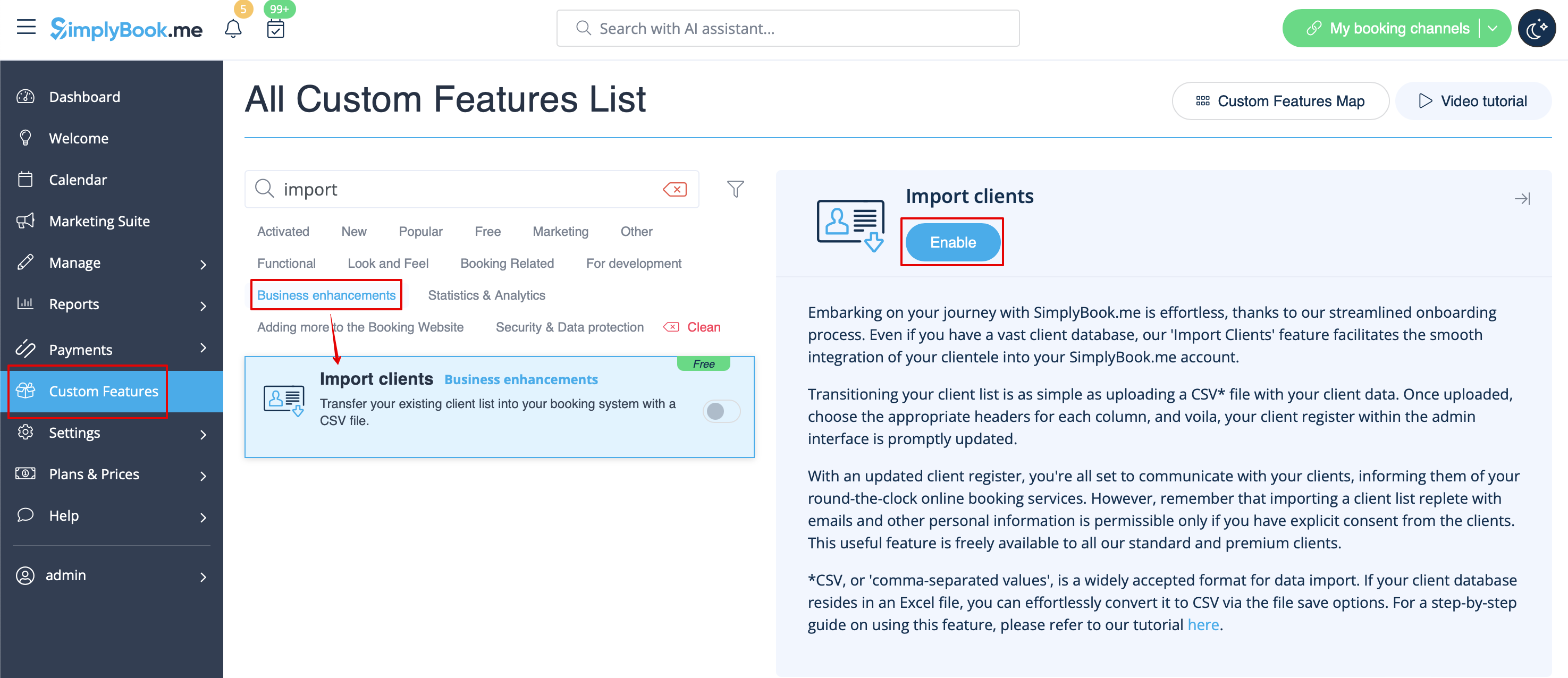
:1. Enable "Import Clients" custom feature on your Custom features page: | :1. Enable "Import Clients" custom feature on your Custom features page: | ||
[[File:Import clients enable path | [[File:Import clients enable path redesigned.png|1200px | center|link=https://help.simplybook.me/images/5/55/Import_clients_enable_path_redesigned.png]] | ||
<br><br> | <br><br> | ||
:2. Prepare your Excel file. | :2. Prepare your Excel file. | ||
| Line 27: | Line 27: | ||
<br><br> | <br><br> | ||
:3. Go to Manage//Clients//Import from CSV or simply click on "Settings" near this custom feature. | :3. Go to Manage//Clients//Import from CSV or simply click on "Settings" near this custom feature. | ||
[[ File:Import | [[ File:Import csv file path redesigned.png|1200px | center|link=https://help.simplybook.me/images/c/cb/Import_csv_file_path_redesigned.png]] | ||
<br><br> | <br><br> | ||
:4. Press "Choose file" and select the prepared file. | :4. Press "Choose file" and select the prepared file. | ||
[[File:Import | [[File:Import page redesigned.png|1200px| center|link=https://help.simplybook.me/images/0/06/Import_page_redesigned.png]] | ||
<br><br> | <br><br> | ||
:5. Assign values to the columns from drop-down lists in the upper bar (above each column, marked with black arrows). Assign "name", "email" and "phone". | :5. Assign values to the columns from drop-down lists in the upper bar (above each column, marked with black arrows). Assign "name", "email" and "phone".<br> | ||
[[File: | :(if you are using [[Special:MyLanguage/Client_Fields_Custom_Feature|Client Fields Custom Feature]] you can also import some of the forms values) | ||
[[File:Assign values to columns import redesigned.png|1200px | center|link=https://help.simplybook.me/images/b/bf/Assign_values_to_columns_import_redesigned.png]] | |||
<br><br> | <br><br> | ||
:6. Press "Confirm clients import". | :6. Press "Confirm clients import". | ||
Revision as of 15:31, 15 January 2025

Use this feature if you need to add the list of clients to your system with just several clicks. Simply upload a CSV file containing your clients data, then select headers for corresponding columns, and you will have an updated list of clients in your client register.
Free custom feature!
- Attention! It is forbidden to import a client list with emails and client information where the clients have not specifically granted you the right to do so.
- Please note that this feature is available with Standard and Premium subscriptions only(former Advanced, Gold and Platinum).
- It is only possible to import 500 clients by default. If you need to import more please contact support for details.
How to use this option:
- 1. Enable "Import Clients" custom feature on your Custom features page:
- 2. Prepare your Excel file.
- - No text above the list of clients should be written
- - Make sure all cells are correctly displayed
- - Save file in .csv format with comma separation.
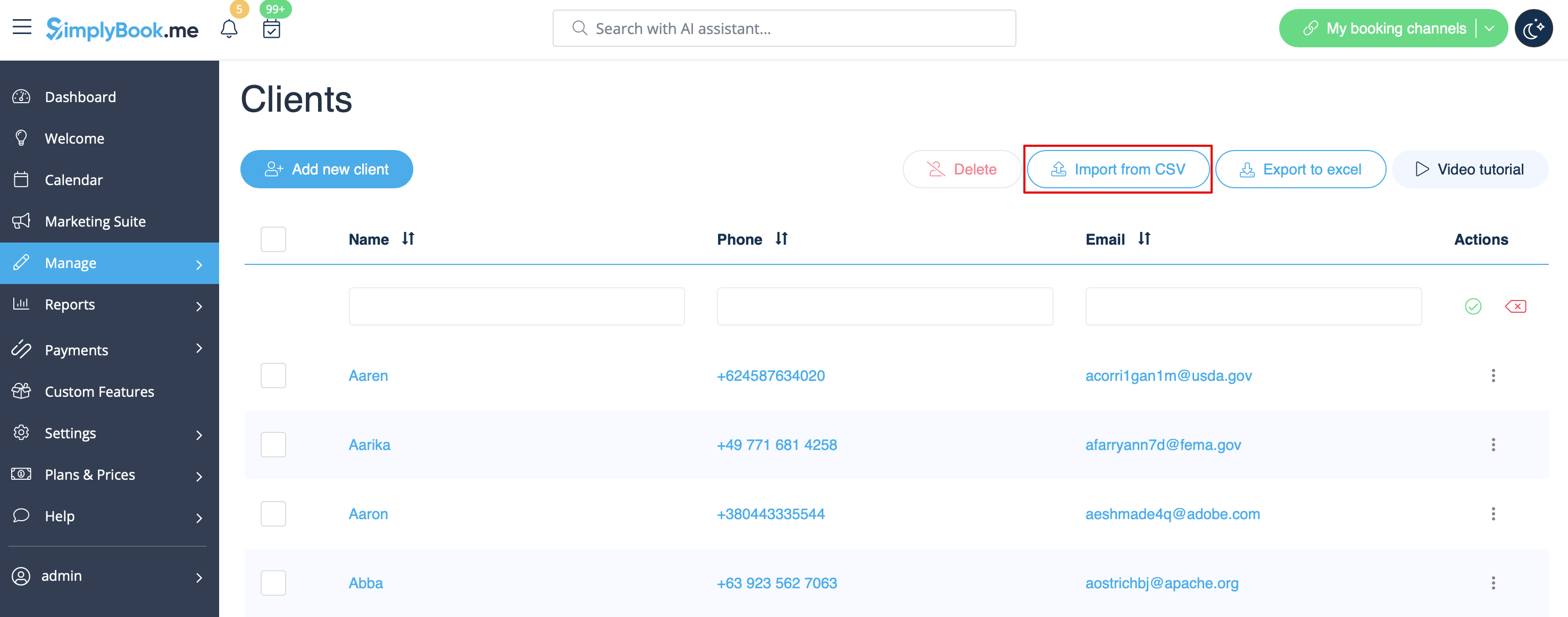
- 3. Go to Manage//Clients//Import from CSV or simply click on "Settings" near this custom feature.
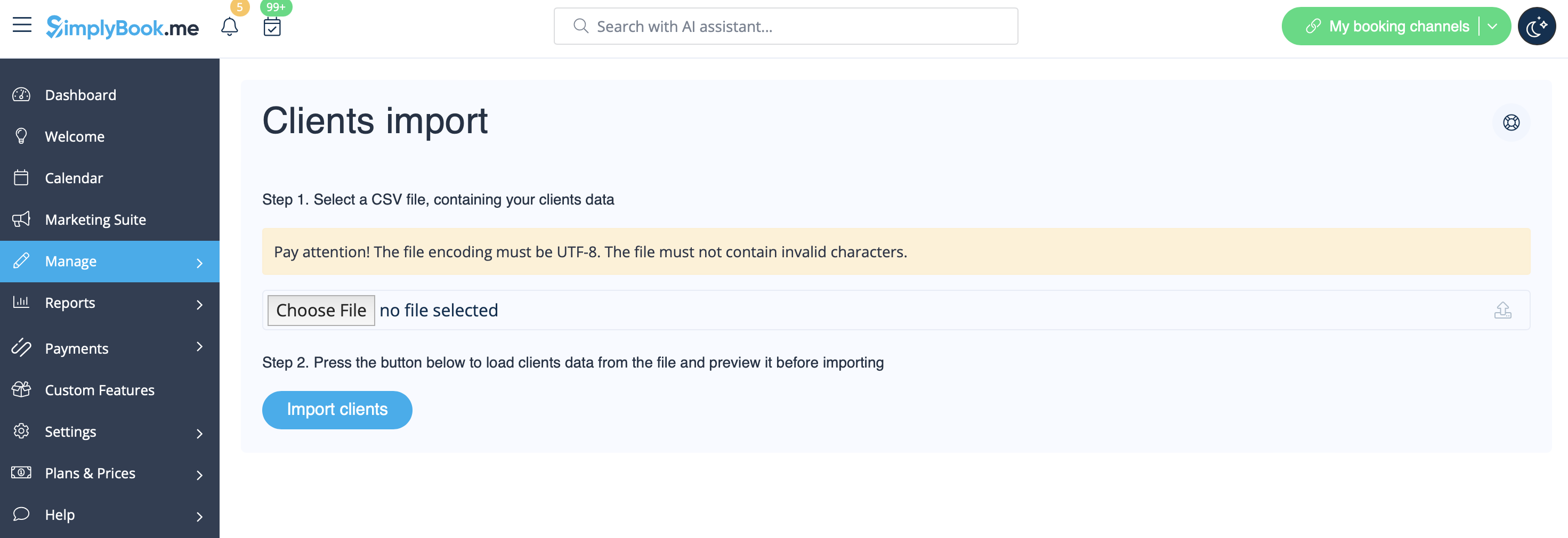
- 4. Press "Choose file" and select the prepared file.
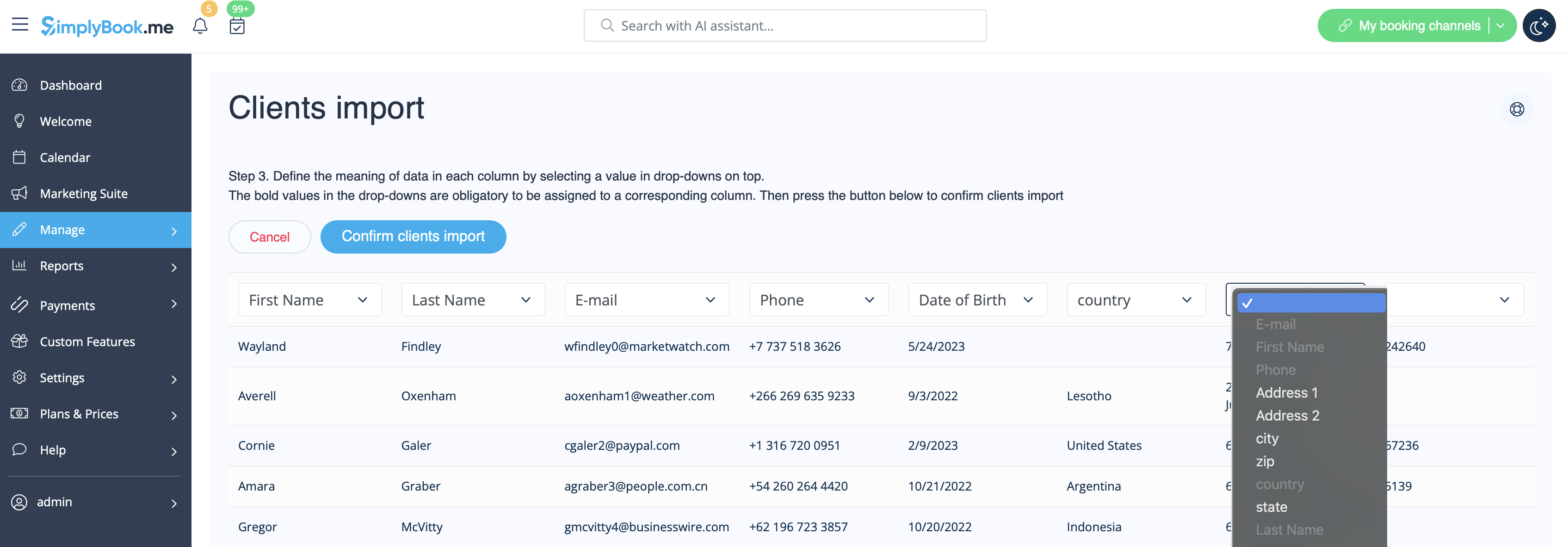
- 5. Assign values to the columns from drop-down lists in the upper bar (above each column, marked with black arrows). Assign "name", "email" and "phone".
- (if you are using Client Fields Custom Feature you can also import some of the forms values)
- 6. Press "Confirm clients import".
- Please note that only 10 clients will be shown in preview, but after you import, all clients will be shown.
- If you can't import clients, please check the possible reasons
- 1. Format of .csv file is incorrect. It should be saved in .csv with comma or tab separation.
- 2. There is some text above the data or unnecessary columns that prevent successful import. Please delete the text.
- 3. Values are not assigned. Use drop-down menus above the columns to assign values "name", "email", "phone", etc.
