From SimplyBook.me
No edit summary |
No edit summary |
||
| Line 15: | Line 15: | ||
[[File:Wp plugin settings new.png|1200px|center|link=https://help.simplybook.me/images/2/25/Wp_plugin_settings_new.png]] | [[File:Wp plugin settings new.png|1200px|center|link=https://help.simplybook.me/images/2/25/Wp_plugin_settings_new.png]] | ||
<br><br> | <br><br> | ||
:3. If you already have an account with SimplyBook.me please choose the <span style="background-color:#d4f8e5; padding:5px; border-radius:5px;"> | :3. If you already have an account with SimplyBook.me please choose the <span style="background-color:#d4f8e5; padding:5px; border-radius:5px;">Sign in here</span> option there.<br> | ||
:If you have not created it yet, simply click on <span style="background-color:#d4f8e5; padding:5px; border-radius:5px;"> | :If you have not created it yet, simply click on <span style="background-color:#d4f8e5; padding:5px; border-radius:5px;">Create free account</span> option and sign up following the suggested steps. | ||
[[File: | [[File:Wordpress new login or register.png|1200px|center|link=https://help.simplybook.me/images/9/95/Wordpress_new_login_or_register.png]] | ||
<br><br> | <br><br> | ||
:4. Log in providing <span style="background-color:#d4f8e5; padding:5px; border-radius:5px;">company login</span>, <span style="background-color:#d4f8e5; padding:5px; border-radius:5px;">user login</span> and <span style="background-color:#d4f8e5; padding:5px; border-radius:5px;">password.</span> | :4. Log in providing <span style="background-color:#d4f8e5; padding:5px; border-radius:5px;">company login</span>, <span style="background-color:#d4f8e5; padding:5px; border-radius:5px;">user login</span> and <span style="background-color:#d4f8e5; padding:5px; border-radius:5px;">password.</span> | ||
| Line 26: | Line 26: | ||
[[File:Sb confirm connection to wp new.png|1200px|center|link=https://help.simplybook.me/images/c/c1/Sb_confirm_connection_to_wp_new.png]] | [[File:Sb confirm connection to wp new.png|1200px|center|link=https://help.simplybook.me/images/c/c1/Sb_confirm_connection_to_wp_new.png]] | ||
<br><br> | <br><br> | ||
:6. Adjust the <span style="background-color:#d4f8e5; padding:5px; border-radius:5px;">design</span> settings for your widget.<br> | :6. Switch to '''Design''' tab.<br> | ||
:You can also select some predefined options for the plugin if necessary. | :Adjust the <span style="background-color:#d4f8e5; padding:5px; border-radius:5px;">design</span> settings for your widget.<br> | ||
[[File: | :You can select the preferance calendar layout, change the theme, adjust the colors and many more. | ||
:Here you can also select some predefined options for the plugin if necessary. | |||
[[File:Wordpress design settings overview.png|1200px|center|link=https://help.simplybook.me/images/5/54/Wordpress_design_settings_overview.png]] | |||
<br><br> | <br><br> | ||
:7. | :7. Save your settings and navigate to <span style="background-color:#d4f8e5; padding:5px; border-radius:5px;">General</span> tab of the plugin interface. | ||
[[File: | [[File:Wordpress plugin general tab page options.png|1200px|center|link=https://help.simplybook.me/images/d/d6/Wordpress_plugin_general_tab_page_options.png]] | ||
<br><br> | <br><br> | ||
: | :The page with the booking widget is already pre-created for you - you can edit, remove or keep it as it is.<br> | ||
[[File: | :Or you can create a new page and paste <span style="background-color:#d4f8e5; padding:5px; border-radius:5px;">[simplybook_widget]</span> tag to its body and publish the page.<br><br> | ||
:From here you can also easily access various pages on SimplyBook.me side to add or edit your services and providers, enable some additional functionality for the booking process with the Custom features. | |||
[[File:Wordress plugin general tab useful links.png|1200px|center|link=https://help.simplybook.me/images/7/7d/Wordress_plugin_general_tab_useful_links.png]] | |||
<br><br><br><br> | <br><br><br><br> | ||
==As a Widget== | ==As a Widget== | ||
Revision as of 10:35, 3 October 2024
With the help of WordPress plugin
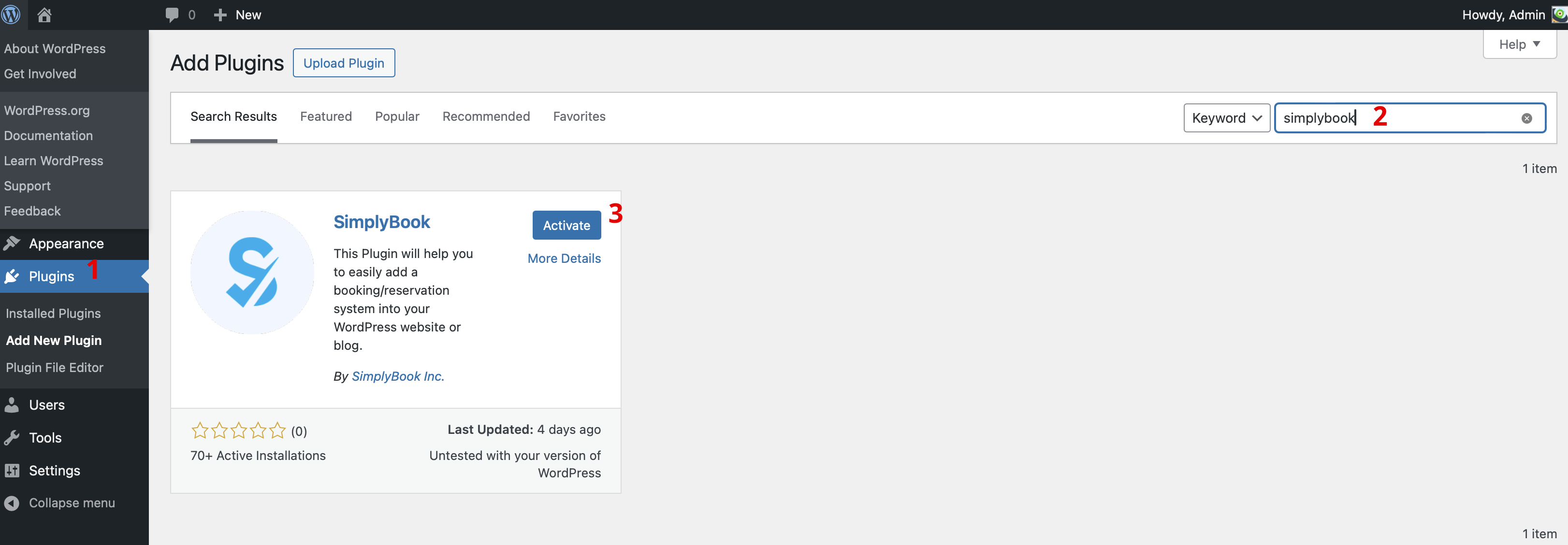
- 1. In your WordPress admin interface navigate to Plugins -> Add new Plugin and search for Simplybook.
- Install it and Activate.
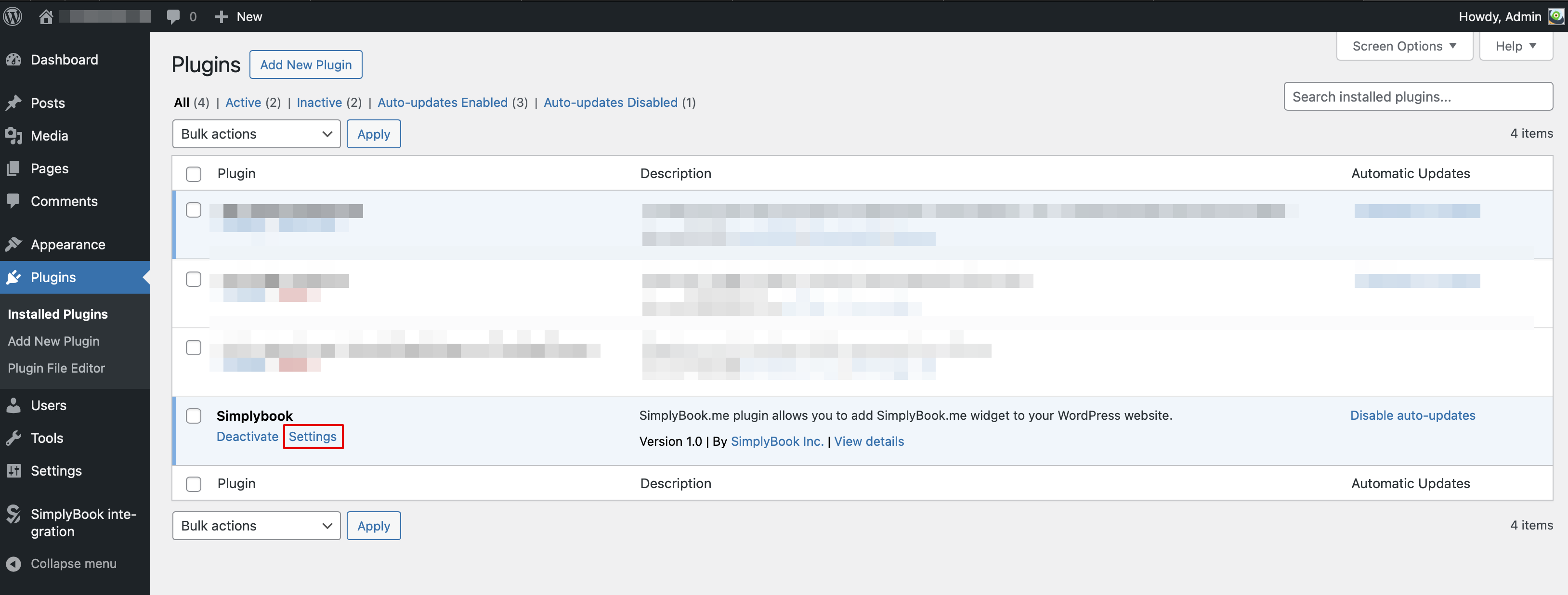
- 2. Navigate to plugin Settings.
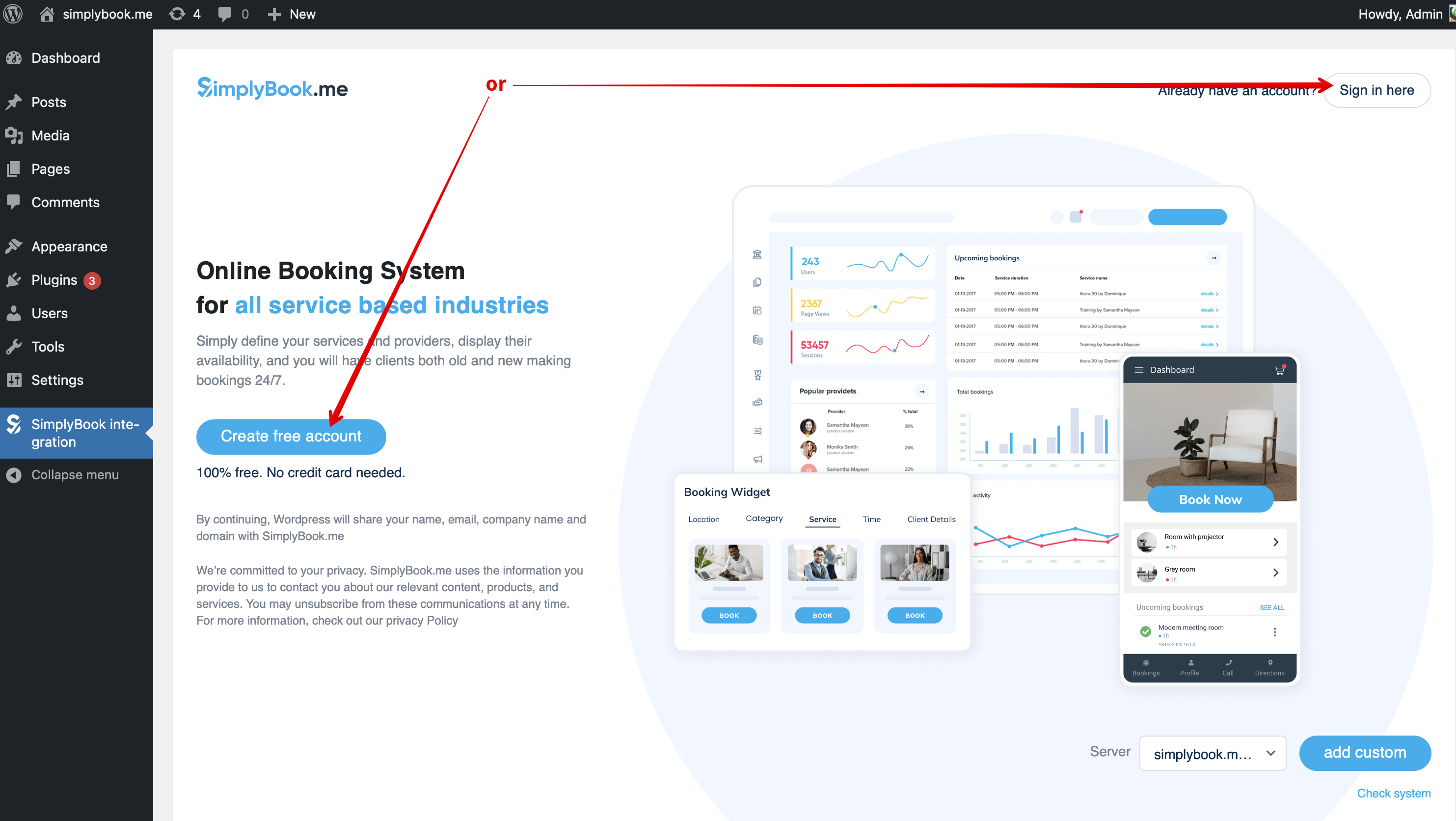
- 3. If you already have an account with SimplyBook.me please choose the Sign in here option there.
- If you have not created it yet, simply click on Create free account option and sign up following the suggested steps.
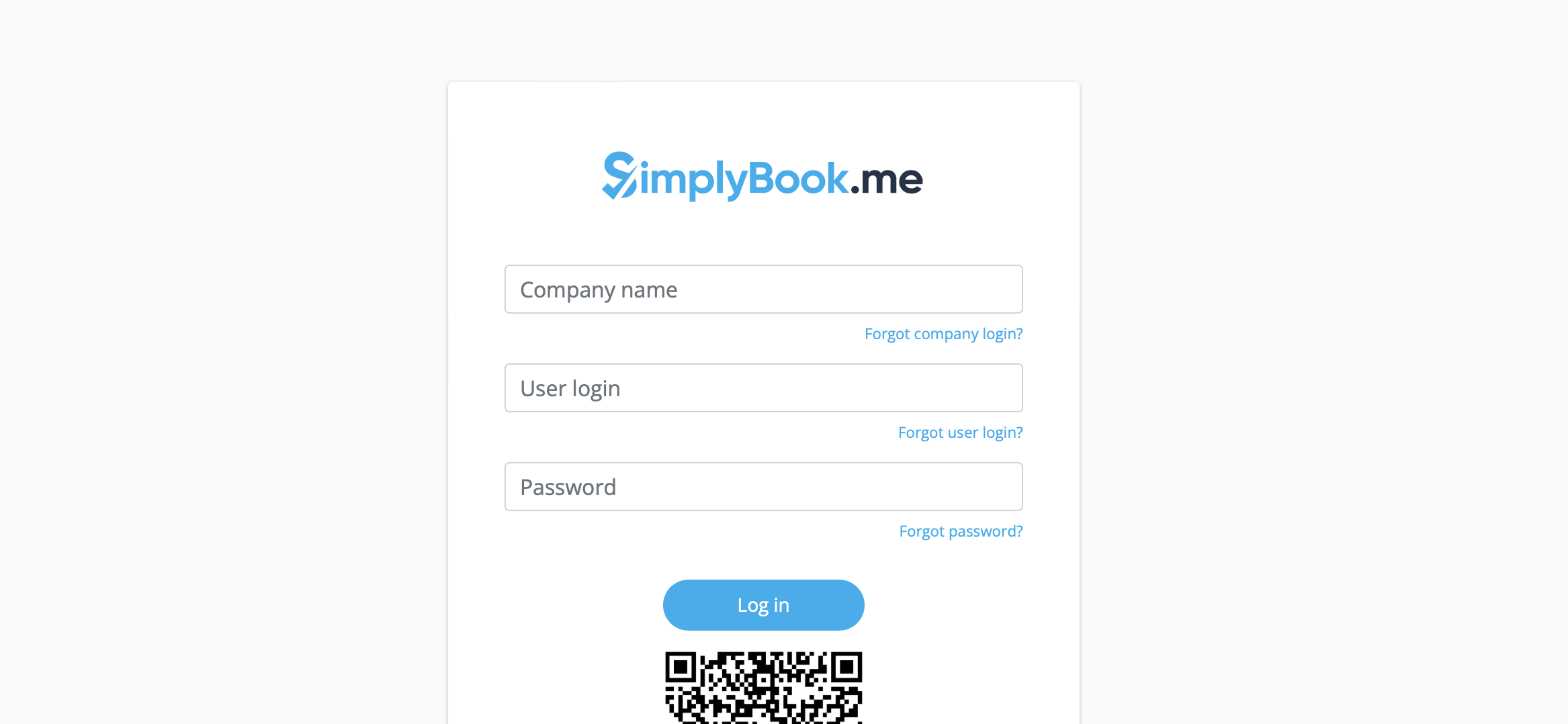
- 4. Log in providing company login, user login and password.
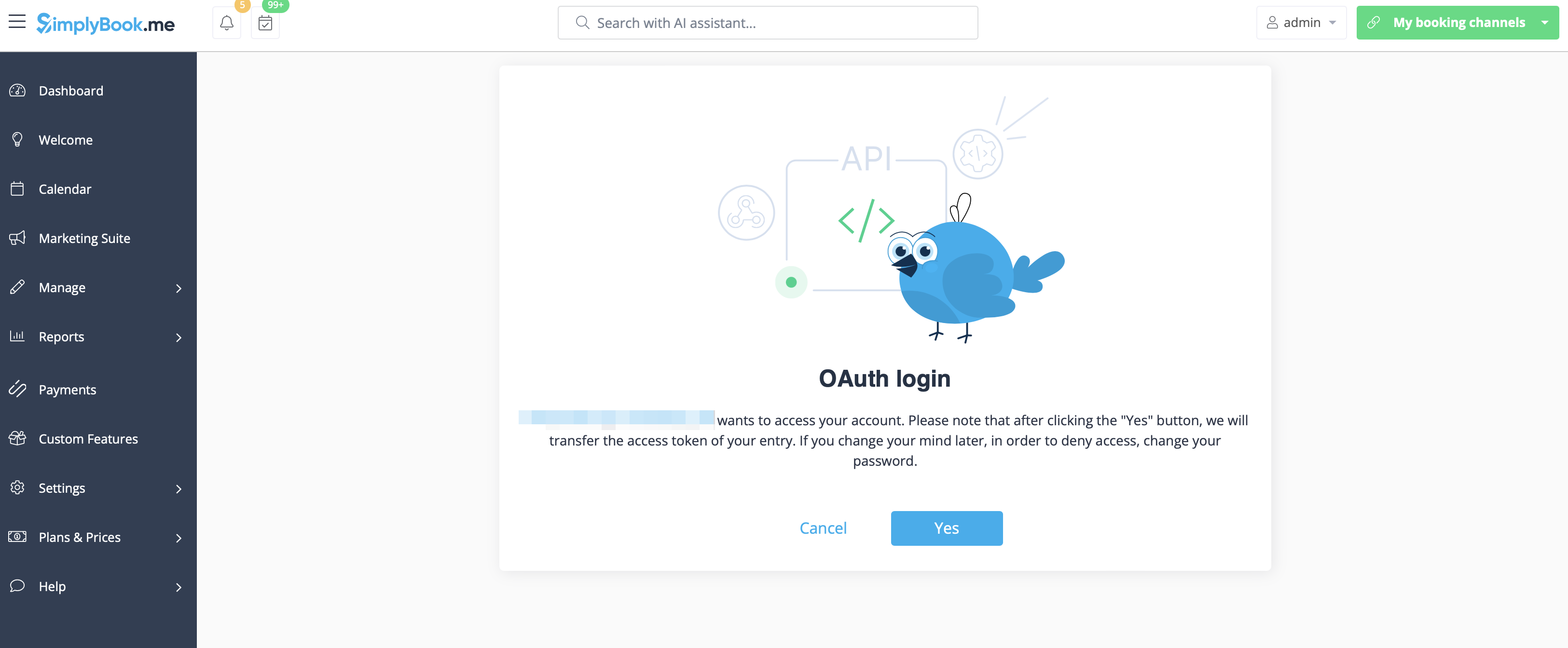
- 5. Confirm the connection between SimplyBook.me account and your WordPress system.
- You will get the one-time code to finalise the connection.
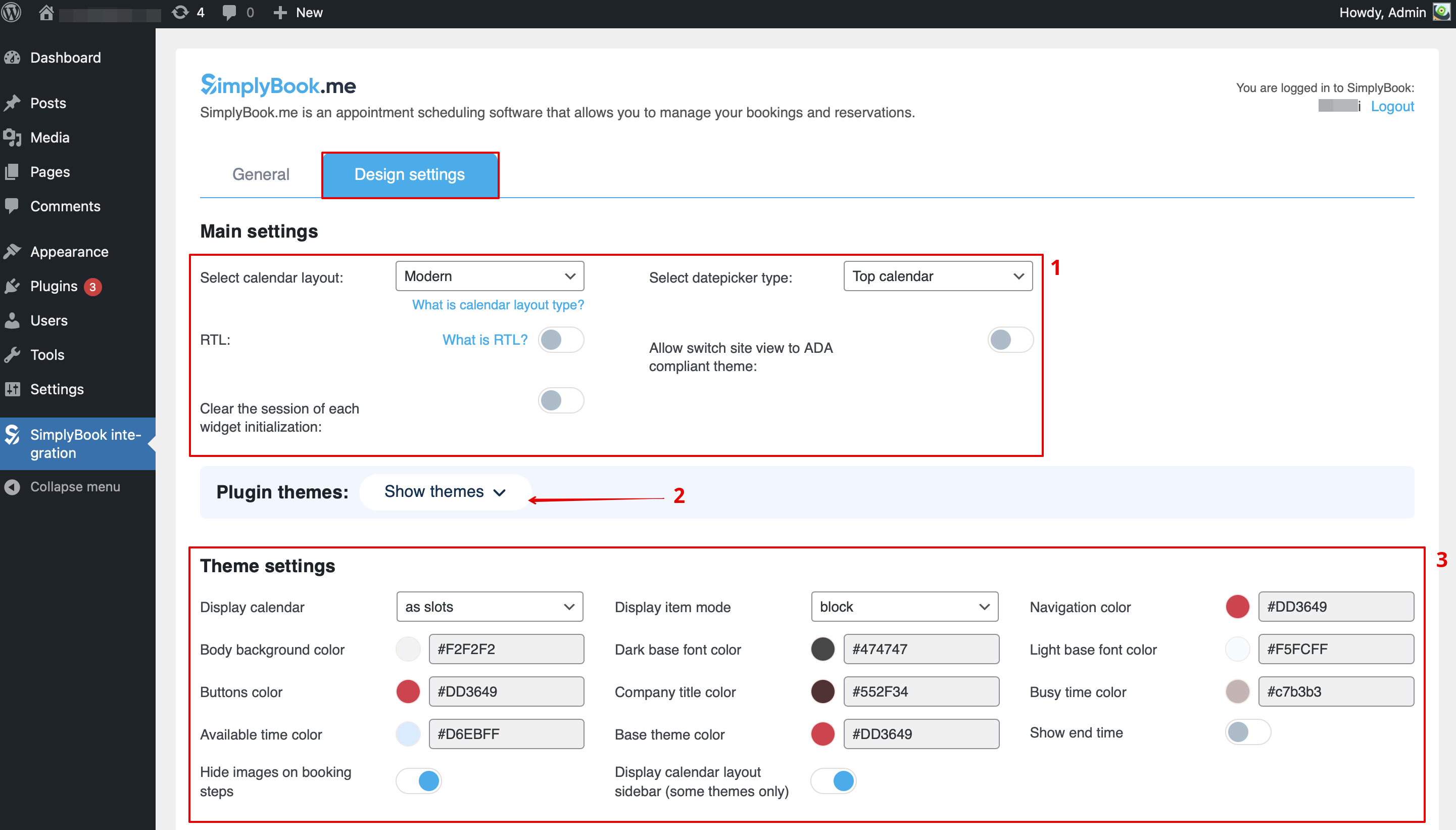
- 6. Switch to Design tab.
- Adjust the design settings for your widget.
- You can select the preferance calendar layout, change the theme, adjust the colors and many more.
- Here you can also select some predefined options for the plugin if necessary.
- 7. Save your settings and navigate to General tab of the plugin interface.
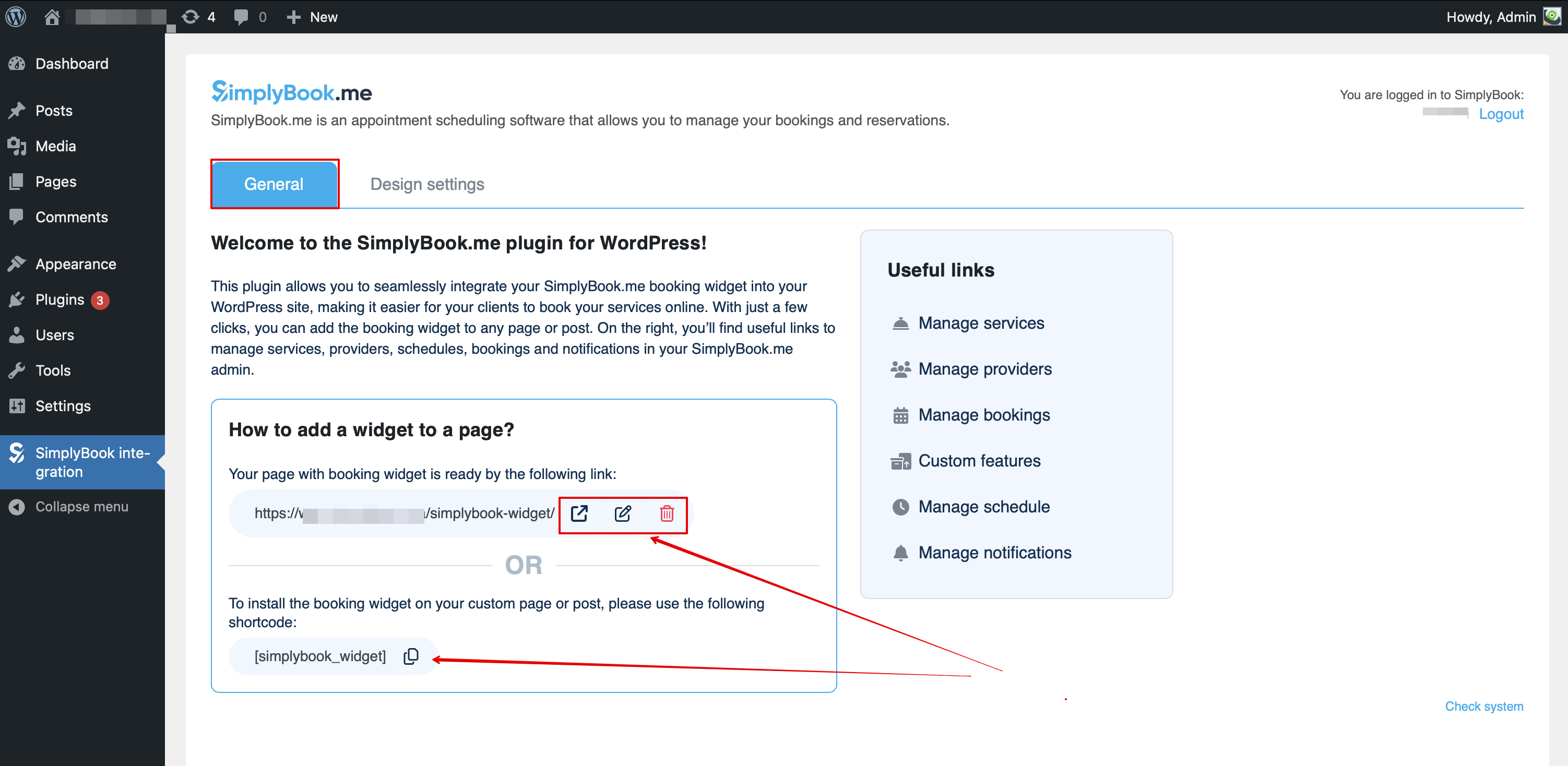
- The page with the booking widget is already pre-created for you - you can edit, remove or keep it as it is.
- Or you can create a new page and paste [simplybook_widget] tag to its body and publish the page.
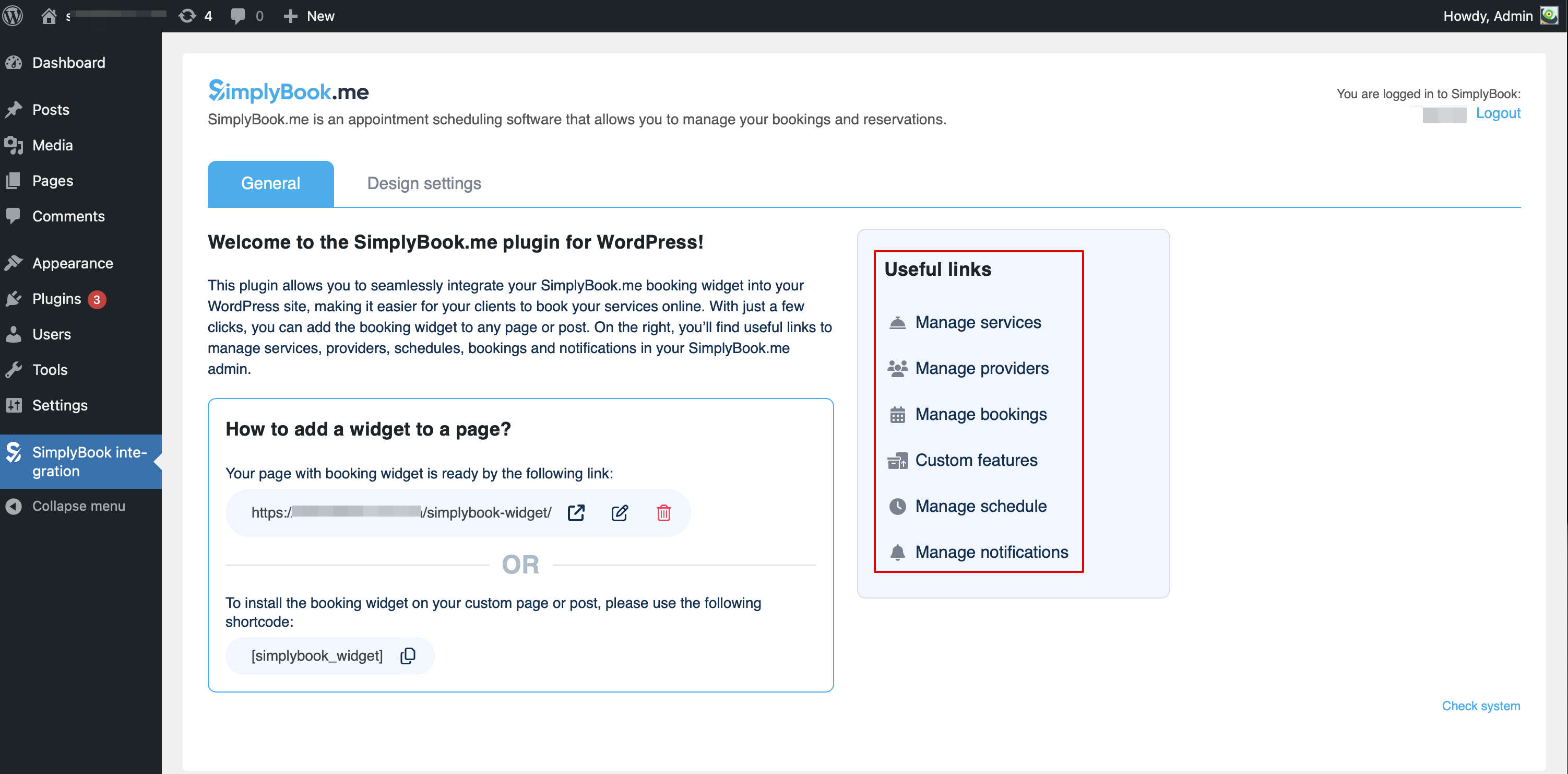
- From here you can also easily access various pages on SimplyBook.me side to add or edit your services and providers, enable some additional functionality for the booking process with the Custom features.
As a Widget
- 1. Please copy the code from Settings -> Booking widgets settings -> iFrame widget -> Get widget code.


- 2. Go to your WordPress admn side and create a new page or navigate to already created one, where you plan to add the widget. Click on + icon.

- 3. Search for HTML option.

- 4. Paste the previously copied code.

- 5. Publish your changes.
- Example (may look different depending on your WP theme and SimplyBook.me theme and settings).

