No edit summary |
No edit summary |
||
| Line 1: | Line 1: | ||
<languages/> | |||
<translate> | |||
{{#seo: | {{#seo: | ||
|title=Custom Features - SimplyBook.me | |title=Custom Features - SimplyBook.me | ||
| Line 5: | Line 7: | ||
|keywords=faq, frequently asked questions, booking software, appointment system questions, appointments online, calendar software, booking system, booking calendar, scheduling software, online appointment scheduling, online scheduling, plugins, custom features, additional functionality, campaign, campaigns, mass mailing, push notifications, push messages, informing customers | |keywords=faq, frequently asked questions, booking software, appointment system questions, appointments online, calendar software, booking system, booking calendar, scheduling software, online appointment scheduling, online scheduling, plugins, custom features, additional functionality, campaign, campaigns, mass mailing, push notifications, push messages, informing customers | ||
}} | }} | ||
</translate> | |||
<translate> | |||
| Line 15: | Line 19: | ||
* Utilize the Tags feature for more targeted communication. | * Utilize the Tags feature for more targeted communication. | ||
<br><br> | <br><br> | ||
</translate> | |||
<translate> | |||
'''Video tutorial''' [[File:Youtube-Logo.png|link=https://youtu.be/BJeo3uWGUxs]] | '''Video tutorial''' [[File:Youtube-Logo.png|link=https://youtu.be/BJeo3uWGUxs]] | ||
<br><br> | <br><br> | ||
| Line 26: | Line 32: | ||
[[File:Client side subscribe option.png|1000px|center|link=https://help.simplybook.me/images/5/5b/Client_side_subscribe_option.png]] | [[File:Client side subscribe option.png|1000px|center|link=https://help.simplybook.me/images/5/5b/Client_side_subscribe_option.png]] | ||
<br><br> | <br><br> | ||
</translate> | |||
<translate> | |||
=How to Set Up and Use:= | =How to Set Up and Use:= | ||
1. Navigate to the Custom Features page -> "Business enhancements" section and click on the "Enable" button next to Campaigns.<br> | 1. Navigate to the Custom Features page -> "Business enhancements" section and click on the "Enable" button next to Campaigns.<br> | ||
| Line 33: | Line 41: | ||
[[File:Manage campaigns path redesigned.png|1200px|center|link=https://help.simplybook.me/images/8/8e/Manage_campaigns_path_redesigned.png]] | [[File:Manage campaigns path redesigned.png|1200px|center|link=https://help.simplybook.me/images/8/8e/Manage_campaigns_path_redesigned.png]] | ||
<br><br> | <br><br> | ||
</translate> | |||
<translate> | |||
=Setting up a Campaign:= | =Setting up a Campaign:= | ||
1. Click on "Create new campaign", fill in the Campaign name, select the delivery method, and fill in the template for the chosen delivery method.<br> | 1. Click on "Create new campaign", fill in the Campaign name, select the delivery method, and fill in the template for the chosen delivery method.<br> | ||
| Line 42: | Line 52: | ||
[[File:Add trackin variable to sms campaings redesigned.png|1000px|center|link=https://help.simplybook.me/images/e/eb/Add_trackin_variable_to_sms_campaings_redesigned.png]] | [[File:Add trackin variable to sms campaings redesigned.png|1000px|center|link=https://help.simplybook.me/images/e/eb/Add_trackin_variable_to_sms_campaings_redesigned.png]] | ||
<br><br> | <br><br> | ||
</translate> | |||
<translate> | |||
2. After clicking the “Save & Close” button, this campaign appears on the left in the list with the status “New”. | 2. After clicking the “Save & Close” button, this campaign appears on the left in the list with the status “New”. | ||
<br><br> | <br><br> | ||
| Line 50: | Line 62: | ||
[[File:Selecting campaign recipients redesigned.png|1200px|center|link=https://help.simplybook.me/images/9/94/Selecting_campaign_recipients_redesigned.png]] | [[File:Selecting campaign recipients redesigned.png|1200px|center|link=https://help.simplybook.me/images/9/94/Selecting_campaign_recipients_redesigned.png]] | ||
<br><br> | <br><br> | ||
</translate> | |||
<translate> | |||
=Post-launch Insights:= | =Post-launch Insights:= | ||
After the campaign is launched, you can not edit it anymore (only name can be changed and/or the content of push message page(the one the client sees after clicking on push notification).<br> | After the campaign is launched, you can not edit it anymore (only name can be changed and/or the content of push message page(the one the client sees after clicking on push notification).<br> | ||
| Line 56: | Line 70: | ||
[[File:Campaign statistics example redesigned.png|1000px|center|link=https://help.simplybook.me/images/e/e0/Campaign_statistics_example_redesigned.png]] | [[File:Campaign statistics example redesigned.png|1000px|center|link=https://help.simplybook.me/images/e/e0/Campaign_statistics_example_redesigned.png]] | ||
<br><br> | <br><br> | ||
</translate> | |||
<translate> | |||
=Campaign Statuses:= | =Campaign Statuses:= | ||
There are different statuses you can receive after launching your campaign: | There are different statuses you can receive after launching your campaign: | ||
| Line 65: | Line 81: | ||
<span style="color:#FF3259; padding:5px; border-radius:5px;">Declined</span> - Campaign launched but had been declined after system spam check | <span style="color:#FF3259; padding:5px; border-radius:5px;">Declined</span> - Campaign launched but had been declined after system spam check | ||
<br><br><br><br> | <br><br><br><br> | ||
</translate> | |||
Revision as of 14:27, 19 May 2025

The "Campaign" custom feature is an advanced tool designed for implementing mass marketing strategies and customer engagement across diverse communication channels. It enables companies to create and optimize advertising campaigns, delivering messages in a customer-friendly manner. During campaign creation, users can choose from various message types, such as SMS, emails, and push notifications. You can manually select clients, choose all clients at once, or send campaign messages to clients under specific tags using the Tags feature. This flexibility allows you to tailor communication strategies to the specific needs and preferences of your target audience.
With this feature, you can:
- Send exclusive offers via Email to selected clients;
- Share promotions with clients through SMS;
- Keep clients informed about crucial updates via Push notifications;
- Utilize the Tags feature for more targeted communication.
Video tutorial 
Please note
- This feature is exclusively available with paid subscriptions only.
- The Client login custom feature will be automatically enabled as well.
- You need to have SMS credits in order to be able to send SMS notifications.
- Clients need to be subscribed to receive promotional messages to be able to receive campaign messages
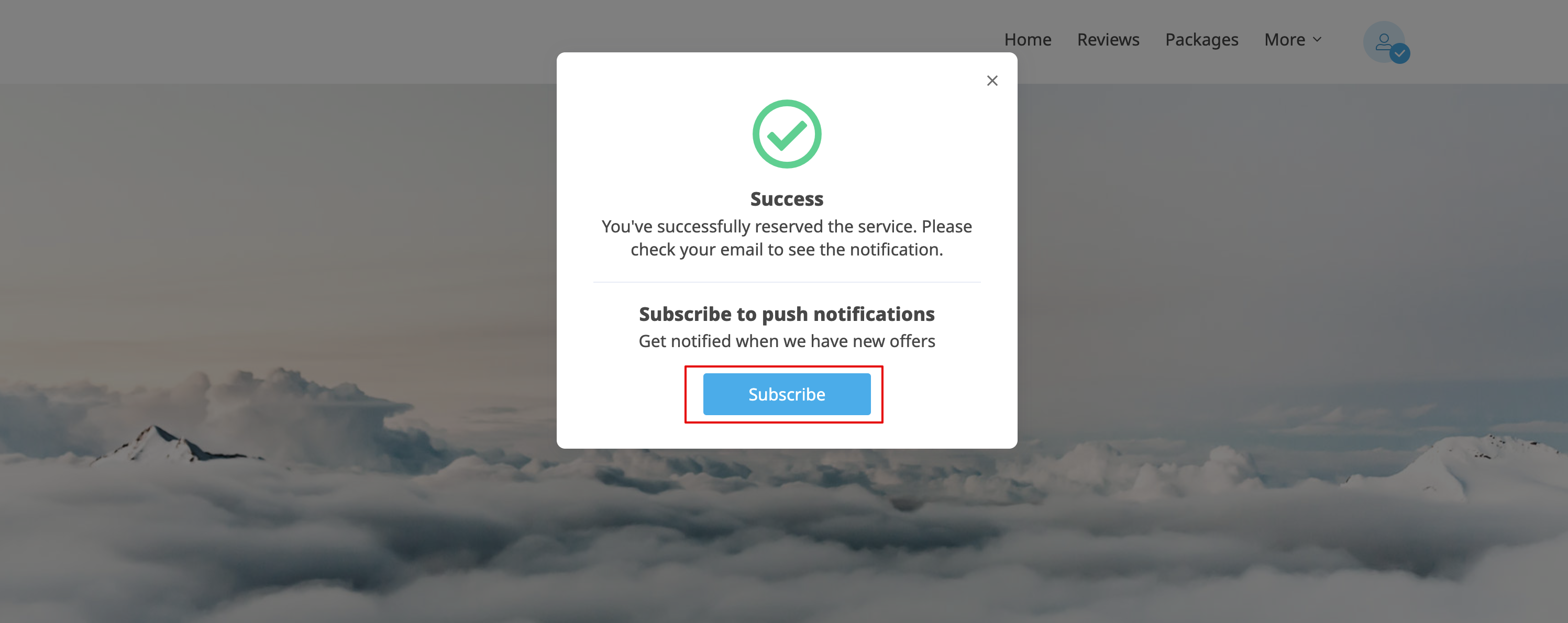
- Your clients need to allow push notifications in their browser and be subscribed to receiving them on the booking page to be able to receive Campaign push notifications
- Clients can subscribe to push notifications after the booking has been made
How to Set Up and Use:
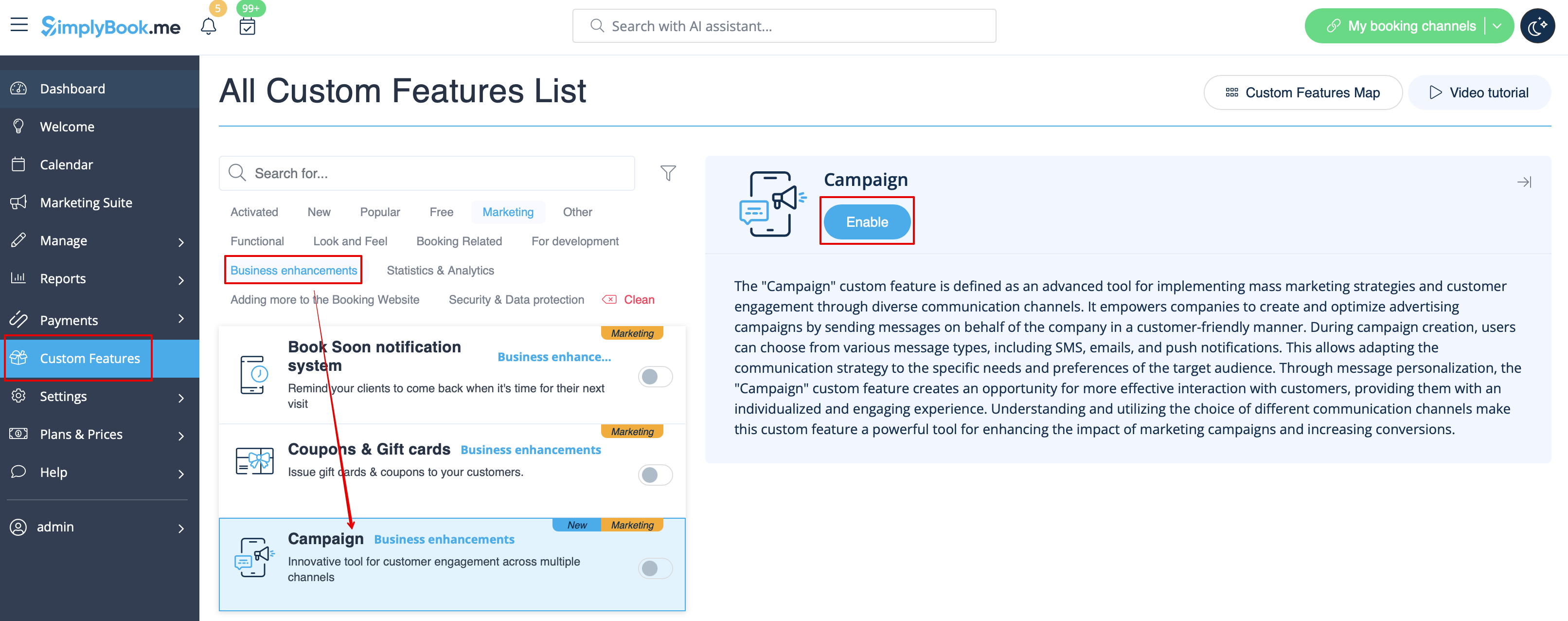
1. Navigate to the Custom Features page -> "Business enhancements" section and click on the "Enable" button next to Campaigns.
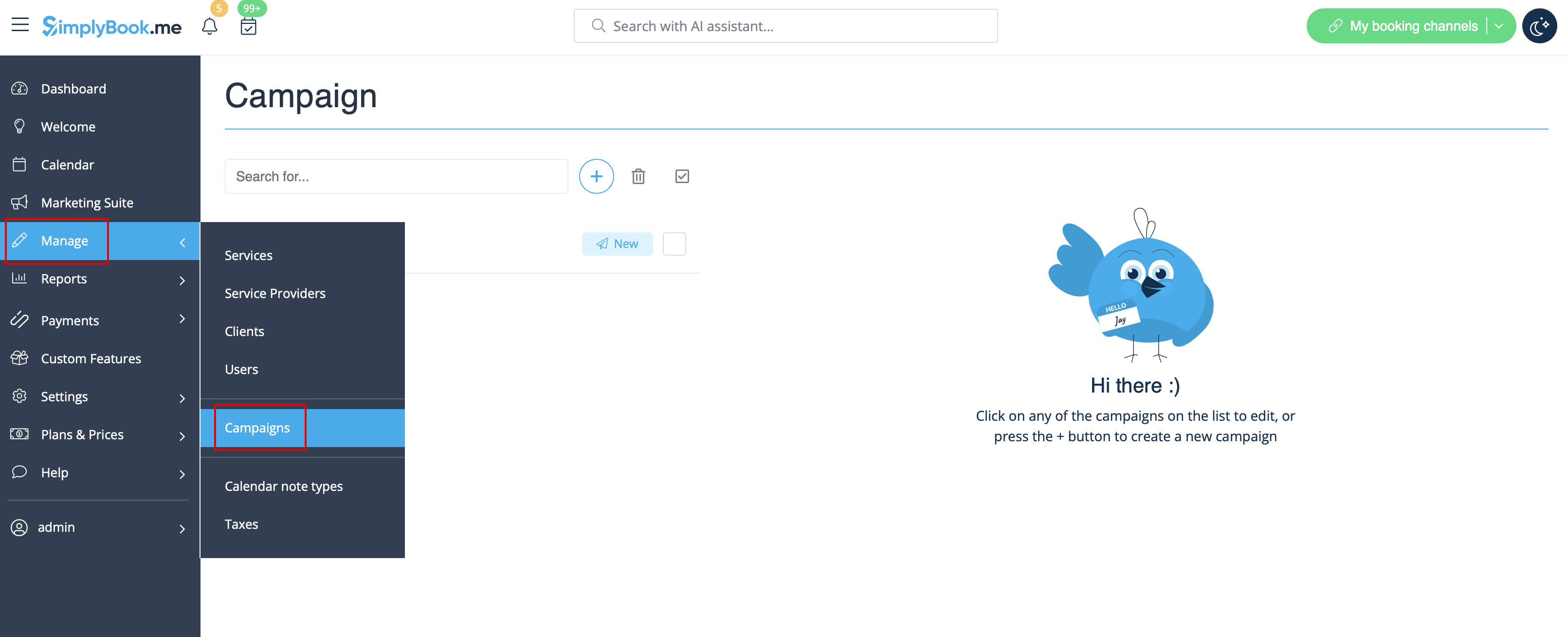
2. Once enabled, go to Manage // Campaigns to create your first campaign by clicking on the + icon. Create a new campaign template based on your needs.
Setting up a Campaign:
1. Click on "Create new campaign", fill in the Campaign name, select the delivery method, and fill in the template for the chosen delivery method.
You can choose SMS, Email and/or Push notification type.
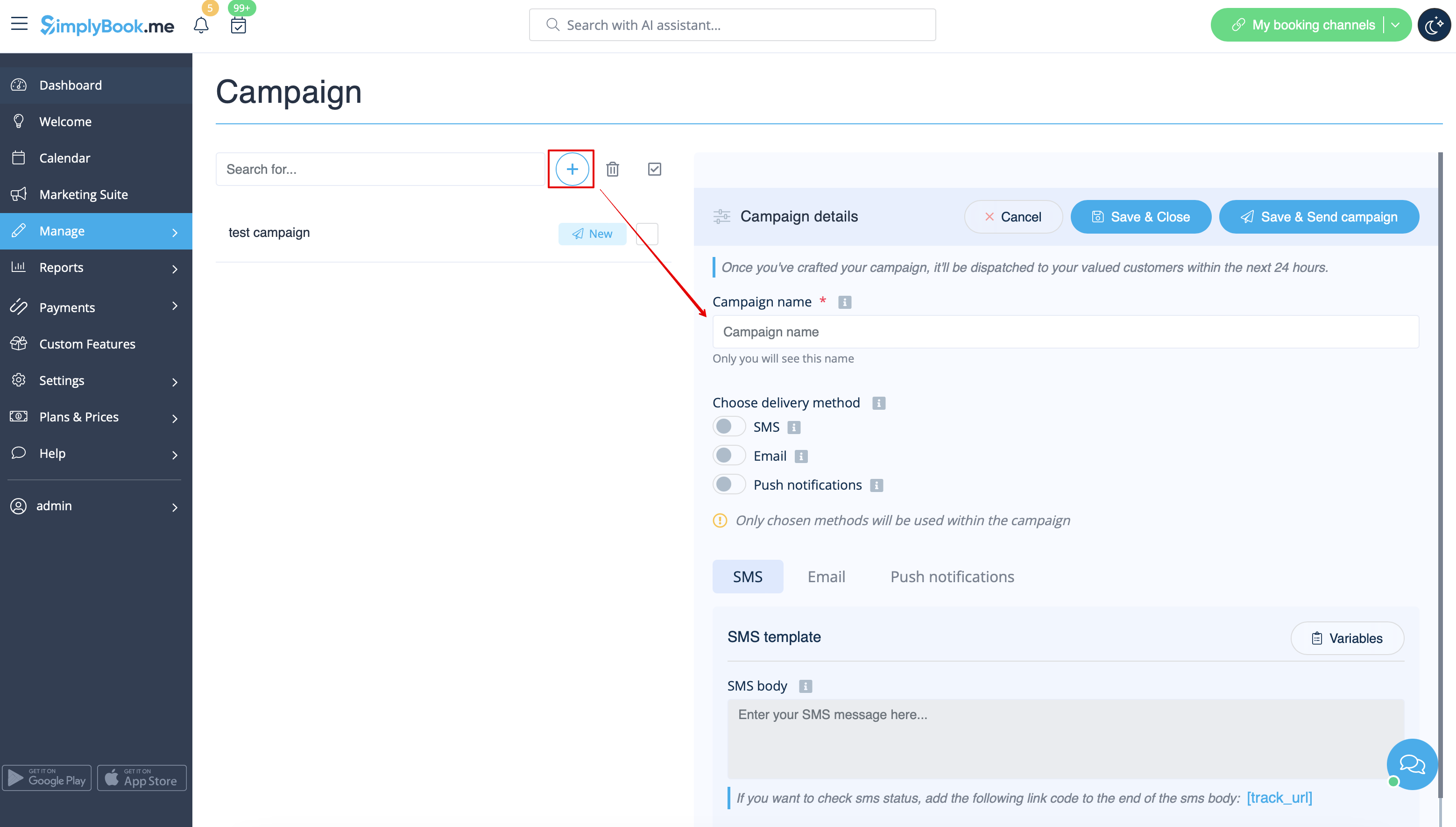
If you want to check SMS delivery status, you can add the following variable to the SMS body: [track_url] If the client opens the link such SMS will be reflected as "Opened" in the campaign statistics.
Statuses for emails and push notifications are tracked automatically.
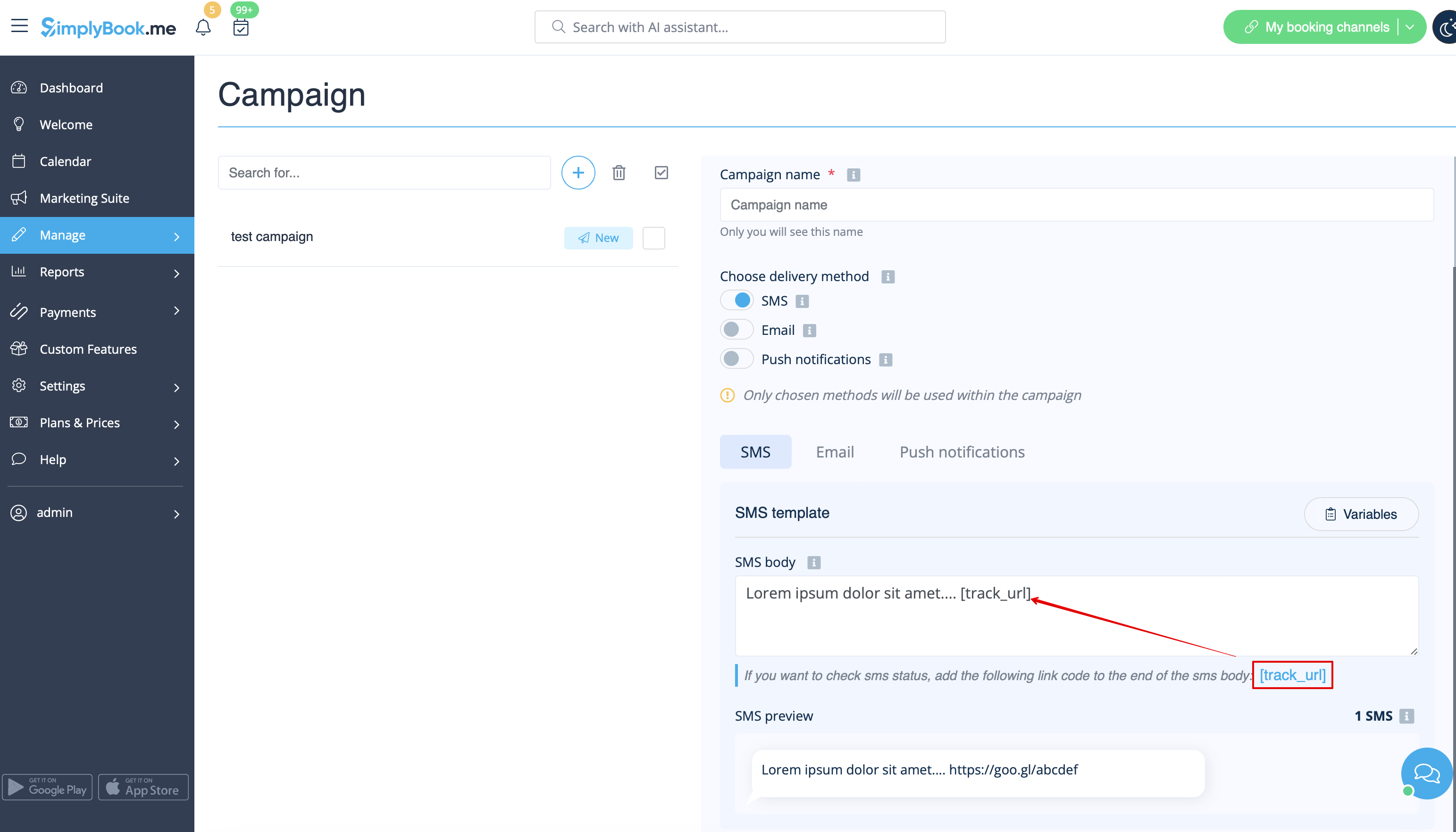
2. After clicking the “Save & Close” button, this campaign appears on the left in the list with the status “New”.
Selecting Recipients and Launching Your Campaign:
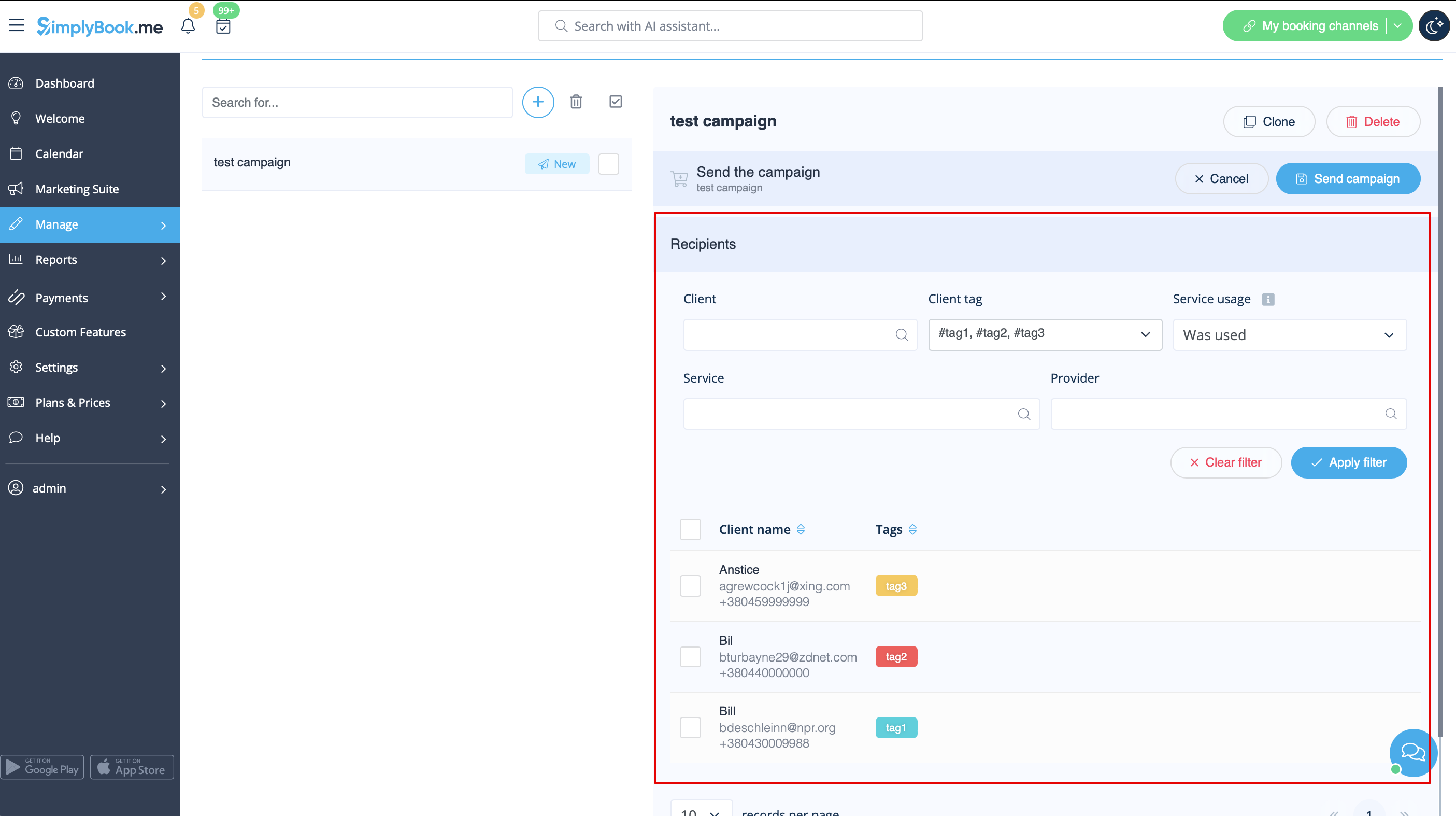
1. After all preparation is done, click on the " Save & send campaign" button to select the list of clients and send your campaign.
2. You can manually select clients one by one, use filters, choose all clients at once, or send the campaign message to clients under specific tags if you're using the Tags feature.
Post-launch Insights:
After the campaign is launched, you can not edit it anymore (only name can be changed and/or the content of push message page(the one the client sees after clicking on push notification).
If you need to send the similar campaign to your clients please use the “clone” option.
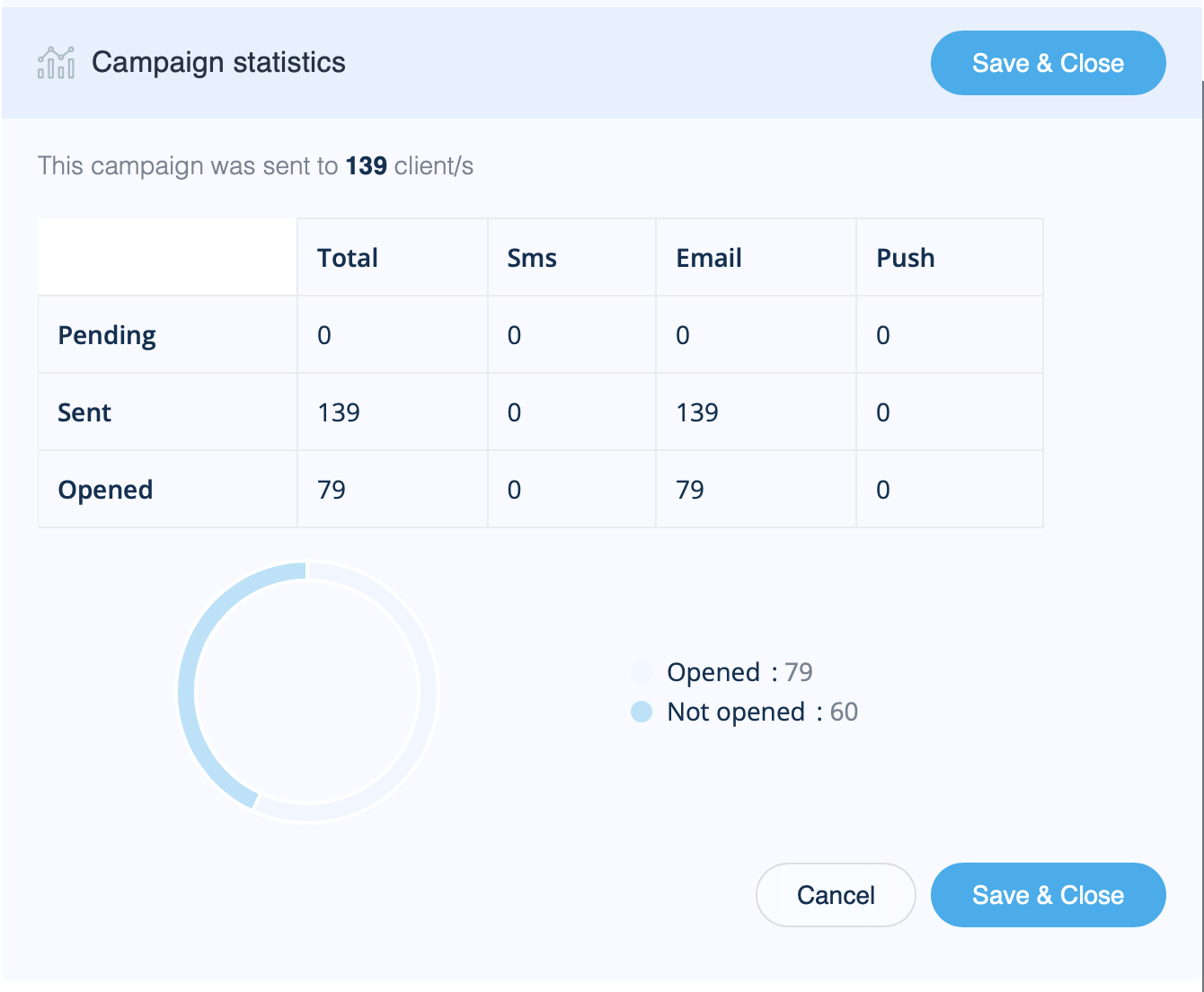
You can view Campaign statistics on the bottom right of the campaign details. It displays the numbers of sent/not sent SMS, email, and push notifications, as well as how many of them were opened by your clients.
Campaign Statuses:
There are different statuses you can receive after launching your campaign:
New - Campaign created, recipients specified, but campaign not launched
Completed - Campaign launched and ready for viewing statistics
In progress - Campaign is in process. Please await, it should be sent shortly
On review - Campaign launched and is currently on review by a system spam check
Declined - Campaign launched but had been declined after system spam check
