Created page with "= Фотогалерея = У розділі <span style="background-color:#d4f8e5; padding:5px; border-radius:5px;">Користувацькі можливості</span> вимкніть <span style="background-color:#cdeffc; padding:5px; border-radius:5px;"> Фотогалерею</span>File:Photo gallery disable path redesigned.png|1200px | center|link=https://help.simplybook.me/images/5/5f/Photo_gallery_disable_path_redesigned.png..." |
Created page with "= Загальні положення та умови SimplyBook.me = :<span style="background-color:#ffe9e9; padding:5px; border-radius:5px;">'''Зверніть увагу''', що вам необхідно підтвердити, що ви додали інформацію про SimplyBook.me Ltd. як постачальника до ваших Умов та положень</span>. Щоб зняти прапорець, вам необхідно увімкнути т..." |
||
| Line 53: | Line 53: | ||
= Загальні положення та умови SimplyBook.me = | |||
=SimplyBook.me | :<span style="background-color:#ffe9e9; padding:5px; border-radius:5px;">'''Зверніть увагу''', що вам необхідно підтвердити, що ви додали інформацію про SimplyBook.me Ltd. як постачальника до ваших Умов та положень</span>. | ||
:<span style="background-color:#ffe9e9; padding:5px; border-radius:5px;">''' | Щоб зняти прапорець, вам необхідно увімкнути та правильно налаштувати всі згадані опції:<br><br> | ||
Або: <br> | |||
1. <span style="background-color:#cdeffc; padding:5px; border-radius:5px;">[[Custom_Features#SMTP | SMTP]]</span> + <span style="background-color:#cdeffc; padding:5px; border-radius:5px;">[[Custom_Features#Custom_Domain | Власний домен]]</span> + <span style="background-color:#cdeffc; padding:5px; border-radius:5px;">[[Custom_Features#Terms_and_Conditions | Загальні положення та умови]]</span> + <span style="background-color:#cdeffc; padding:5px; border-radius:5px;">[https://help.simplybook.me/index.php/Design тема]</span>, відмінна від порожньої. <br> | |||
1. <span style="background-color:#cdeffc; padding:5px; border-radius:5px;">[[Custom_Features#SMTP | SMTP]]</span> + <span style="background-color:#cdeffc; padding:5px; border-radius:5px;">[[Custom_Features#Custom_Domain | | Або: <br> | ||
2. <span style="background-color:#cdeffc; padding:5px; border-radius:5px;">[[Custom_Features#SMTP | SMTP]]</span> + <span style="background-color:#cdeffc; padding:5px; border-radius:5px;">[[Custom_Features#Terms_and_Conditions | Умови та положення]]</span> + <span style="background-color:#cdeffc; padding:5px; border-radius:5px;">порожня [https://help.simplybook.me/index.php/Design тема]</span> + <span style="background-color:#cdeffc; padding:5px; border-radius:5px;">[https://help.simplybook.me/index.php/Widgets_for_your_own_website віджет]</span> на вашому сайті. | |||
2. <span style="background-color:#cdeffc; padding:5px; border-radius:5px;">[[Custom_Features#SMTP | SMTP]]</span> + <span style="background-color:#cdeffc; padding:5px; border-radius:5px;">[[Custom_Features#Terms_and_Conditions | | |||
<br><br> | <br><br> | ||
Після цього ви зможете увімкнути опцію <span style="background-color:#d4f8e5; padding:5px; border-radius:5px;">Я підтверджую, що я додав інформацію про SimplyBook.me Ltd. як постачальника до моїх</span> Умов та положень у розділі <span style="background-color:#d4f8e5; padding:5px; border-radius:5px;">Спеціальні функції</span> -> <span style="background-color:#d4f8e5; padding:5px; border-radius:5px;">Умови</span> та положення, і після того, як ви збережете там налаштування, прапорець Умови та положення SimplyBook.me буде видалено з сайту бронювання. | |||
[[File:Terma and conditions consent redesigned.png|1200px | center|link=https://help.simplybook.me/index.php/File:Terma_and_conditions_consent_redesigned.png]] | [[File:Terma and conditions consent redesigned.png|1200px | center|link=https://help.simplybook.me/index.php/File:Terma_and_conditions_consent_redesigned.png]] | ||
<br><br> | <br><br> | ||
= Посилання "Мої персональні дані = | |||
Перейдіть в <span style="background-color:#d4f8e5; padding:5px; border-radius:5px;">Налаштування</span> -> <span style="background-color:#d4f8e5; padding:5px; border-radius:5px;">Основна конфігурація</span> і виберіть <span style="background-color:#d4f8e5; padding:5px; border-radius:5px;">Так</span> у розділі <span style="background-color:#d4f8e5; padding:5px; border-radius:5px;">Приховати посилання "Мої персональні дані" на сайті бронювання.</span> збережіть налаштування. | |||
[[File:Hide personal data link redesigned.png|1200px|border|center|link=https://help.simplybook.me/images/8/80/Hide_personal_data_link_redesigned.png]] <span style="background-color:#d4f8e5; padding:5px; border-radius:5px;">"Мої персональні</span>[[File:Hide personal data link redesigned.png|1200px|border|center|link=https://help.simplybook.me/images/8/80/Hide_personal_data_link_redesigned.png]] | |||
[[File:Hide personal data link redesigned.png|1200px|border|center|link=https://help.simplybook.me/images/8/80/Hide_personal_data_link_redesigned.png]] | |||
<br><br> | <br><br> | ||
Revision as of 10:07, 15 May 2025
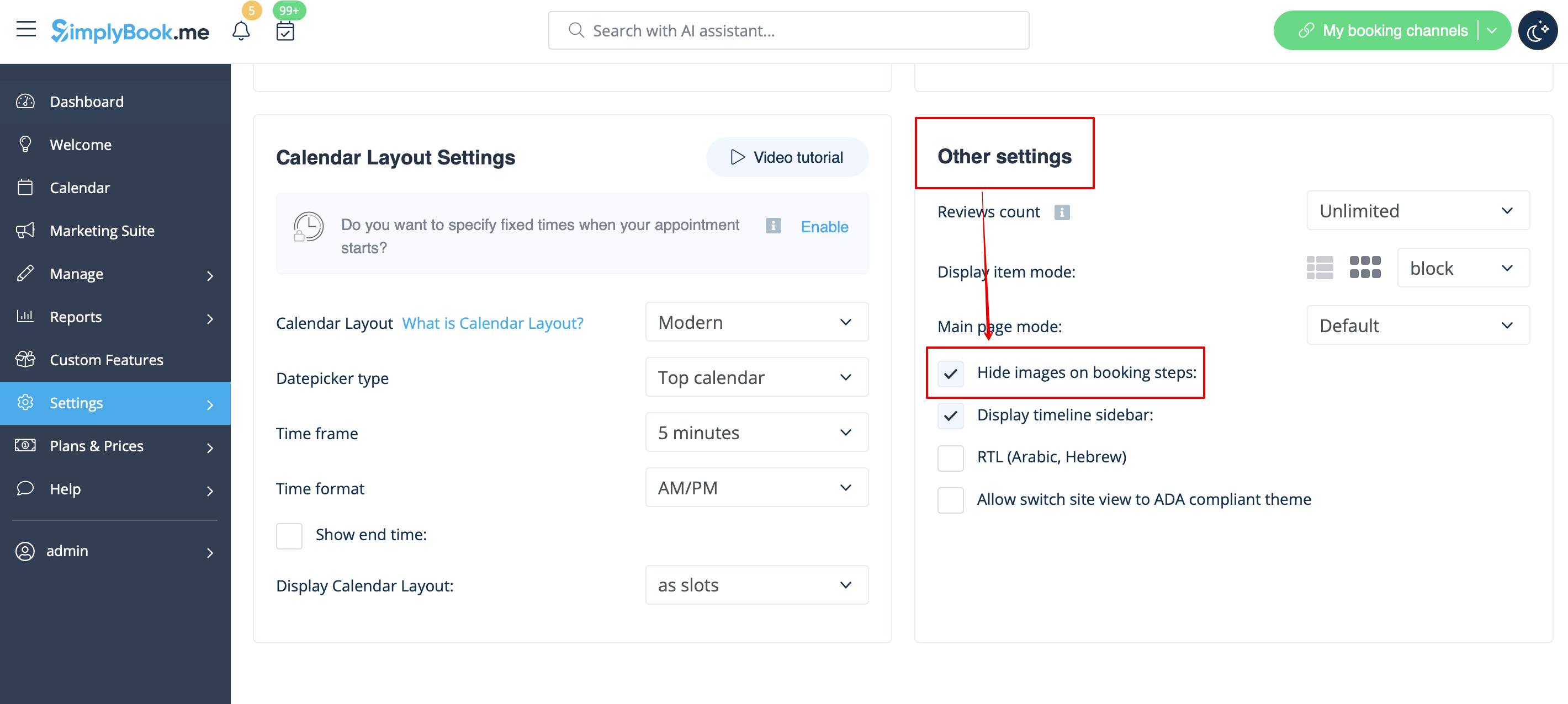
Зображення для кроків "Послуга", "Постачальник послуг", "Категорія" та "Місцезнаходження
Перейдіть до Налаштування -> Налаштування дизайну -> Інші налаштування і встановіть прапорець Приховувати зображення на кроках бронювання. Збережіть налаштування.
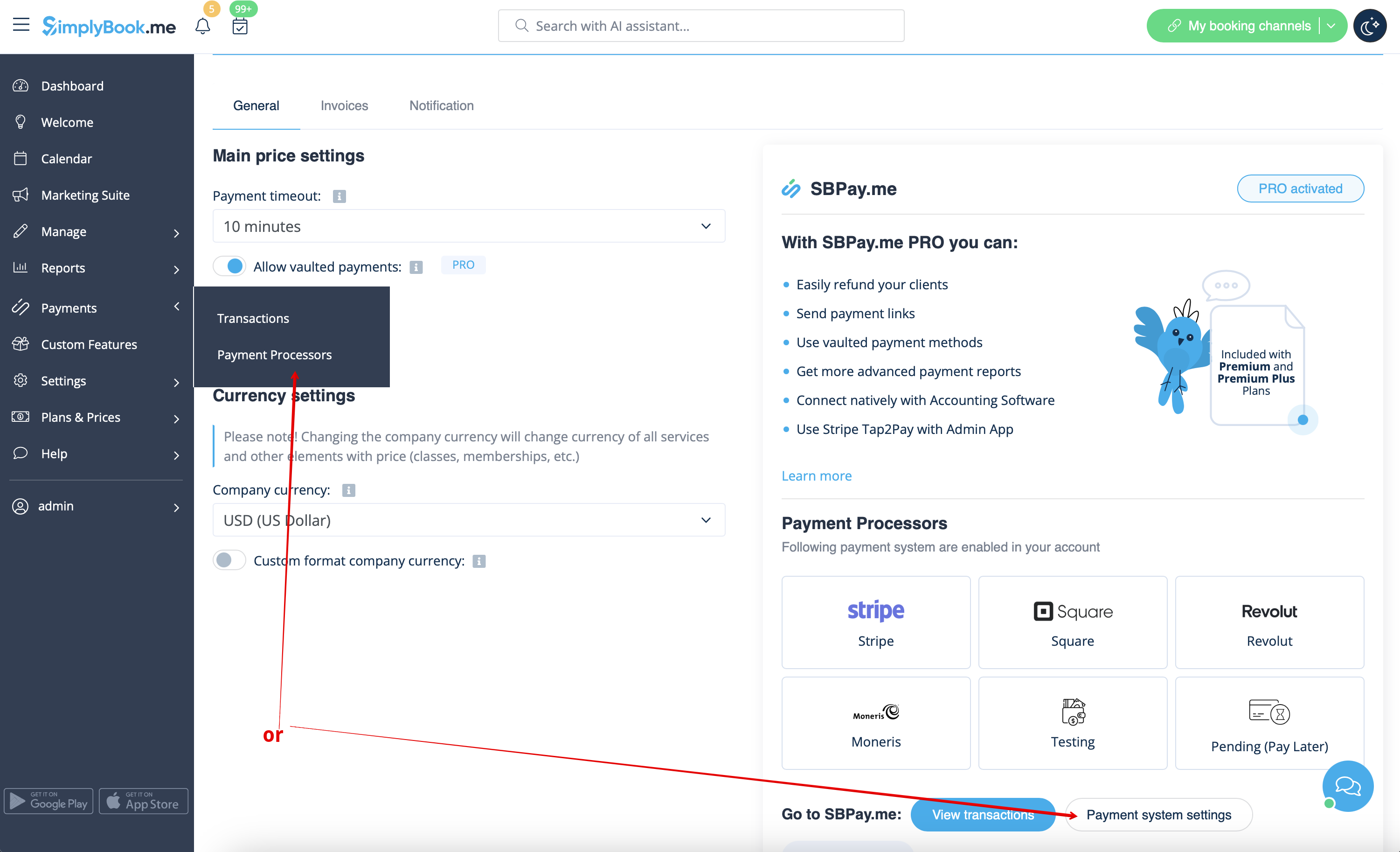
Можливість сплатити пізніше
Перейдіть до Платежі -> Платіжні системи або користувацькі функції -> Приймати платежі -> Налаштування -> Налаштування платіжної системи, щоб перейти до інтерфейсу SBPay.me і вимкнути там опцію Сплатити пізніше.
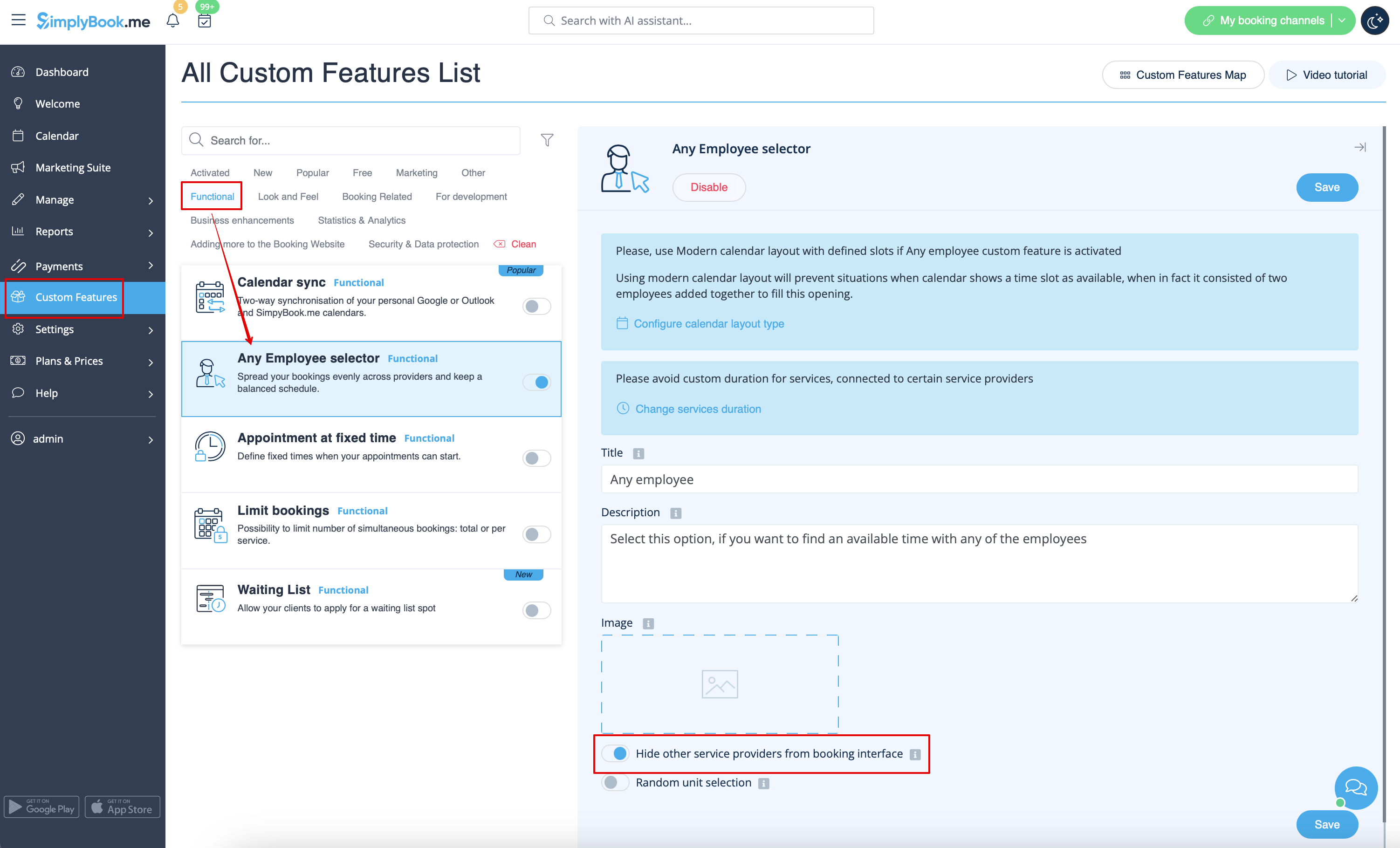
Крок для співробітника
Увімкніть селектор "Будь-який працівник " у розділі "Користувацькі функції " та в його налаштуваннях з правого боку сторінки увімкніть опцію " Приховати інших постачальників послуг з інтерфейсу бронювання
Карта
В Налаштуваннях -> Інформація про компанію -> Не використовувати адресу.

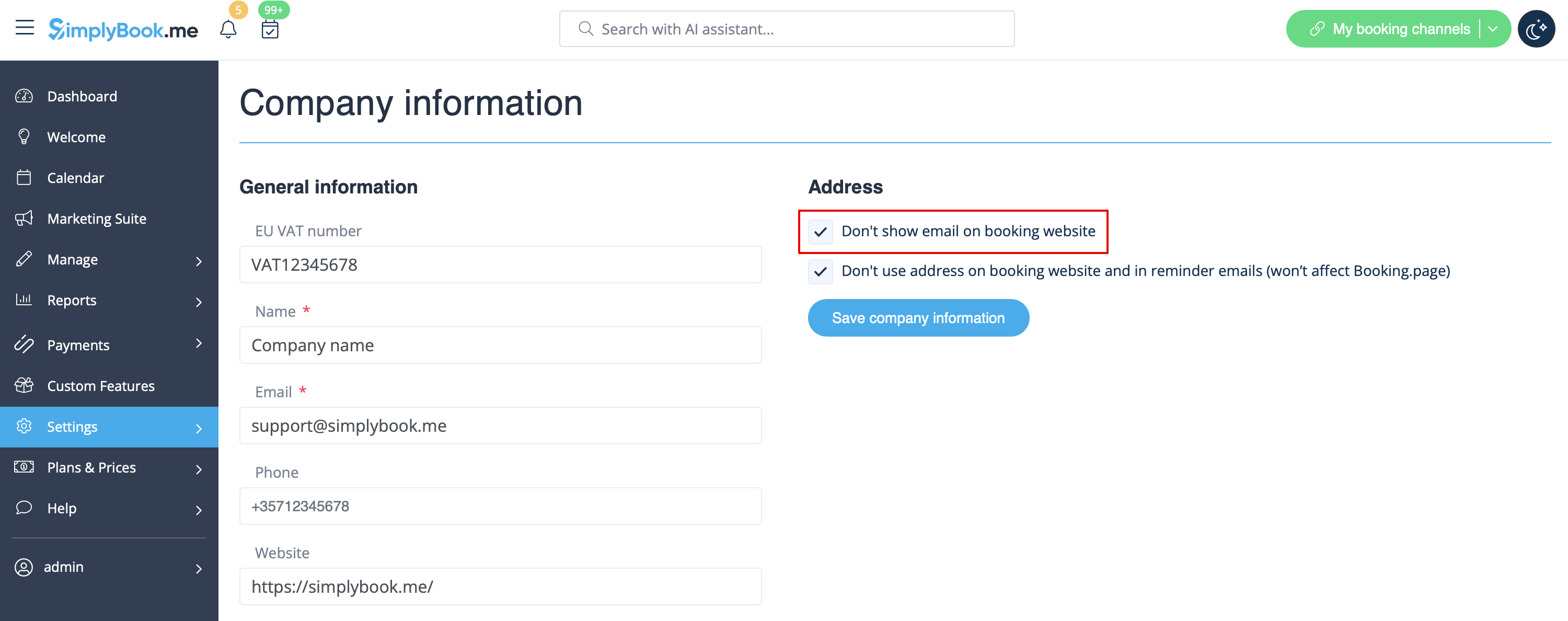
Адреса електронної пошти компанії
У Налаштуваннях -> Інформація про компанію -> Не показувати електронну пошту на сторінці бронювання встановіть прапорець.
Опція "Змінити часовий пояс"
У розділі Налаштування -> Основна конфігурація встановіть для параметрів Показувати сторінку бронювання в часовому поясі клієнта та Надсилати сповіщення в часовому поясі клієнта значення Ні та збережіть налаштування.
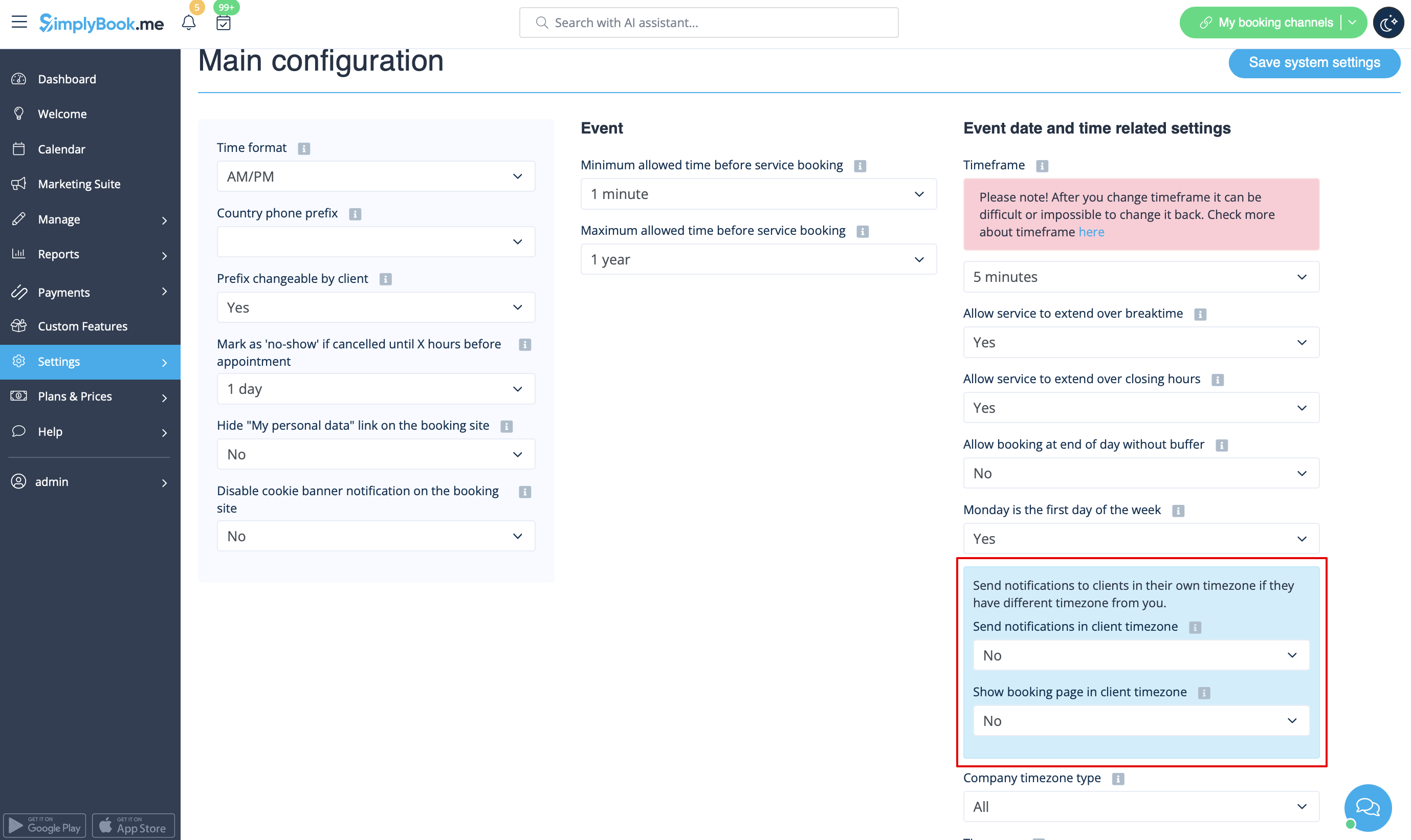
Відгуки
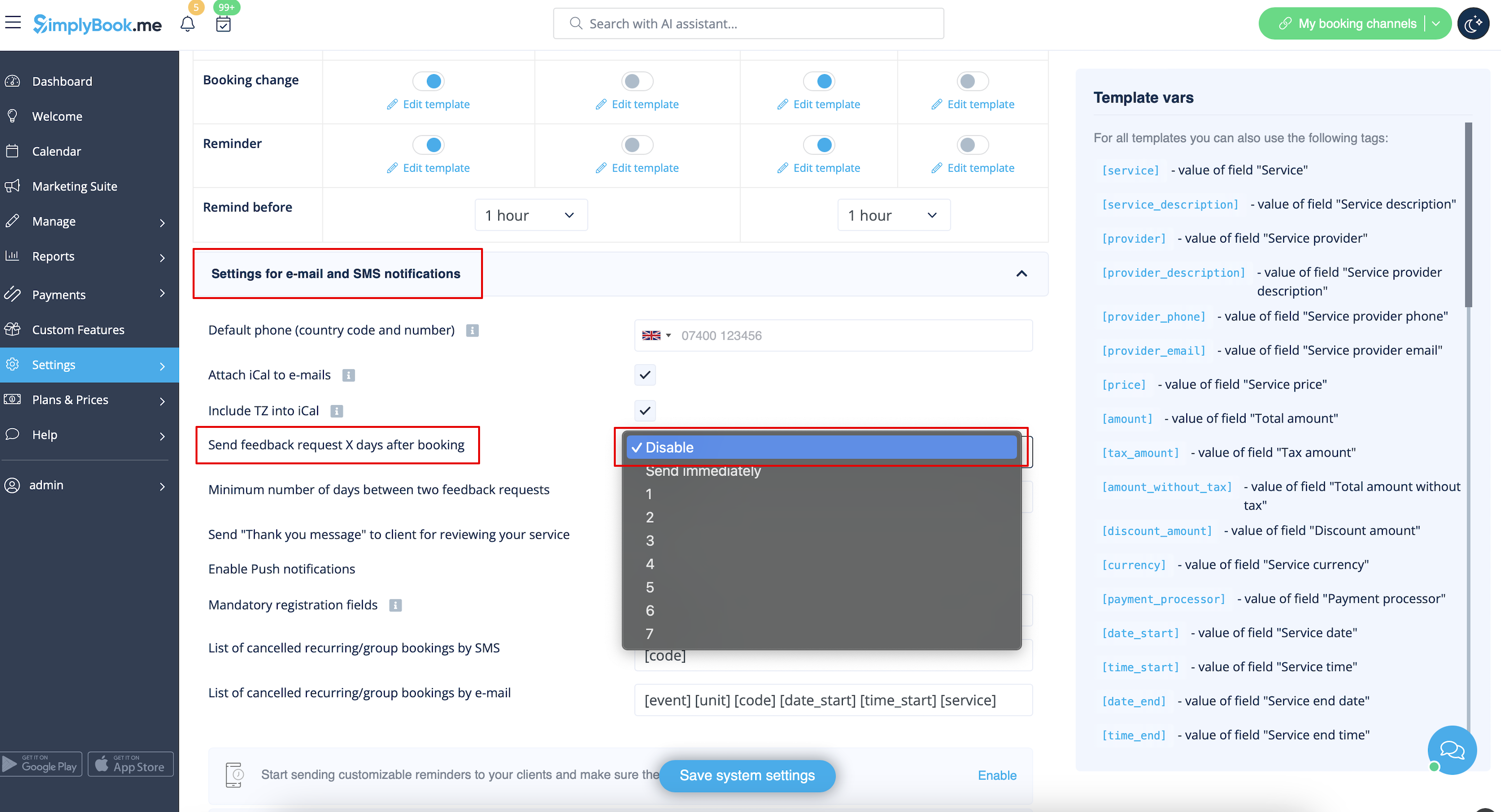
Ви можете переглянути всі свої відгуки на вкладці " Відгуки " в лівому боковому меню в розділі " Звіти". Там же ви можете видалити відгуки, якщо це необхідно. Якщо ви хочете видалити можливість залишити відгук на вашому сайті бронювання і не надсилати запит на відгук, то в Налаштуваннях -> Налаштування електронної пошти та SMS -> Налаштування сповіщень електронною поштою та SMS -> встановіть для опції Надсилати запит на відгук через X днів після бронювання значення Вимкнути.
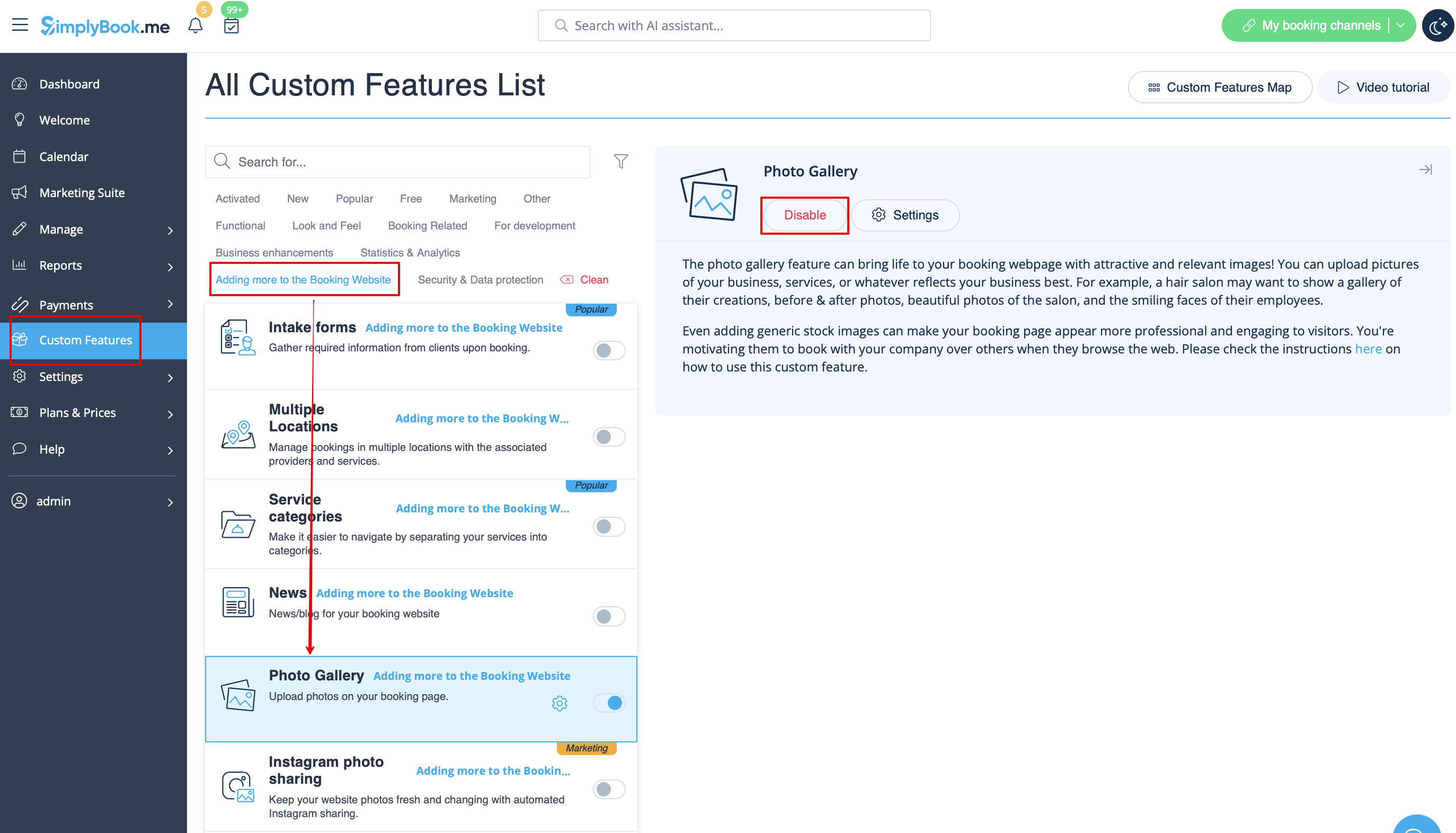
Фотогалерея
У розділі Користувацькі можливості вимкніть Фотогалерею
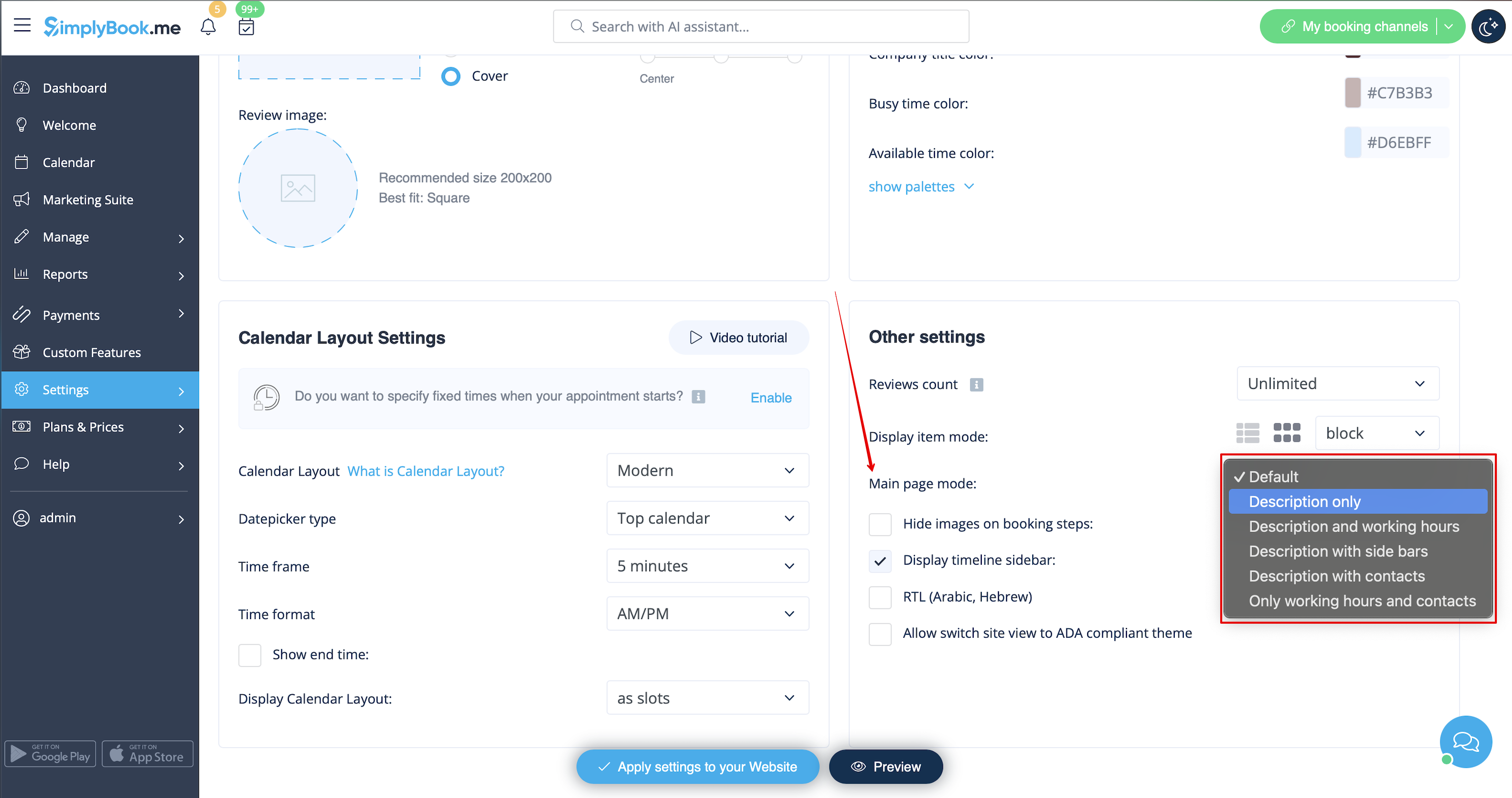
Робочі години
Якщо ви хочете видалити цей розділ для нових тем, перейдіть до Налаштування -> Налаштування дизайну -> Інші налаштування -> Режим головної сторінки і виберіть режим без робочого часу.
Загальні положення та умови SimplyBook.me
- Зверніть увагу, що вам необхідно підтвердити, що ви додали інформацію про SimplyBook.me Ltd. як постачальника до ваших Умов та положень.
Щоб зняти прапорець, вам необхідно увімкнути та правильно налаштувати всі згадані опції:
Або:
1. SMTP + Власний домен + Загальні положення та умови + тема, відмінна від порожньої.
Або:
2. SMTP + Умови та положення + порожня тема + віджет на вашому сайті.
Після цього ви зможете увімкнути опцію Я підтверджую, що я додав інформацію про SimplyBook.me Ltd. як постачальника до моїх Умов та положень у розділі Спеціальні функції -> Умови та положення, і після того, як ви збережете там налаштування, прапорець Умови та положення SimplyBook.me буде видалено з сайту бронювання.

Посилання "Мої персональні дані
Перейдіть в Налаштування -> Основна конфігурація і виберіть Так у розділі Приховати посилання "Мої персональні дані" на сайті бронювання. збережіть налаштування.
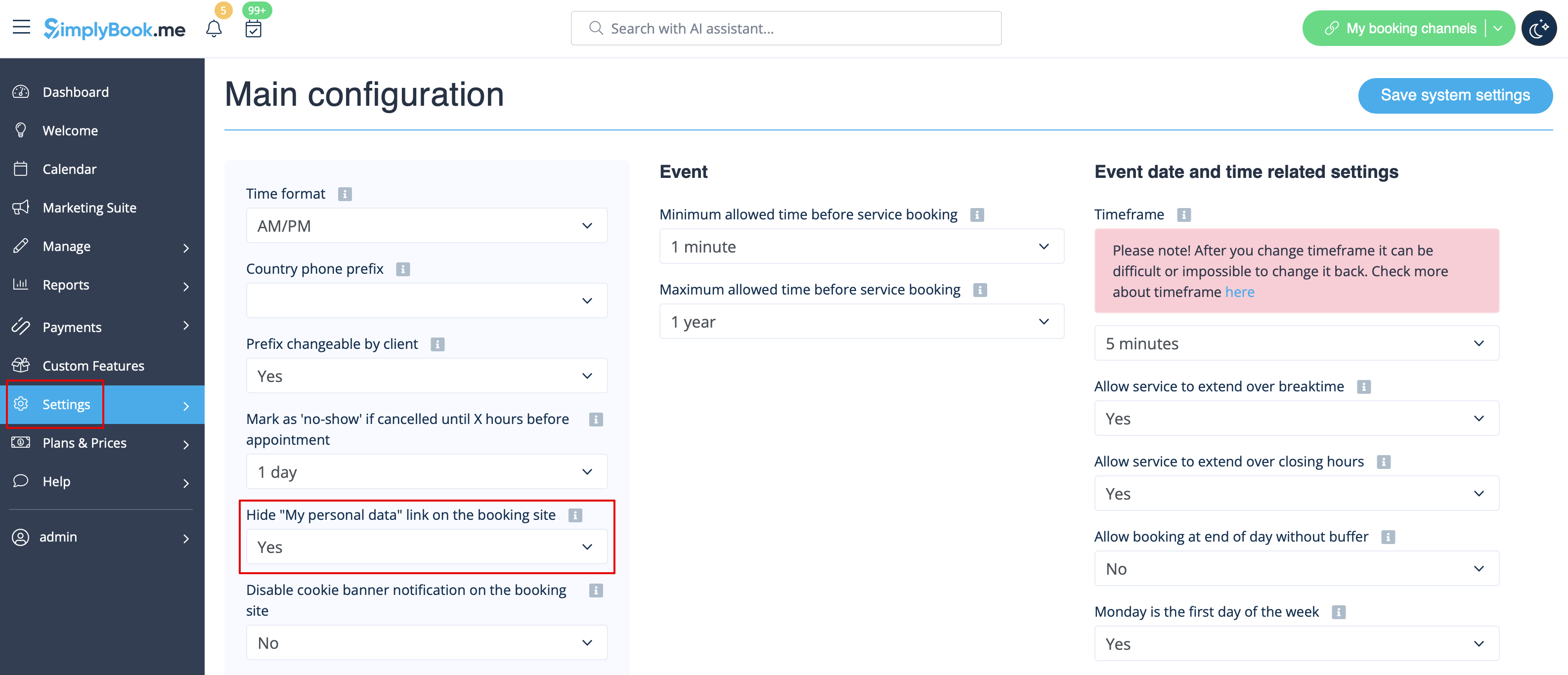
"Мої персональні
Please select modern, modern provider, daily(available with Classes feature enabled) or weekly classes calendar layout in Settings -> Design settings -> Calendar Layout -> Calendar Layout settings -> Calendar Layout drop-down.
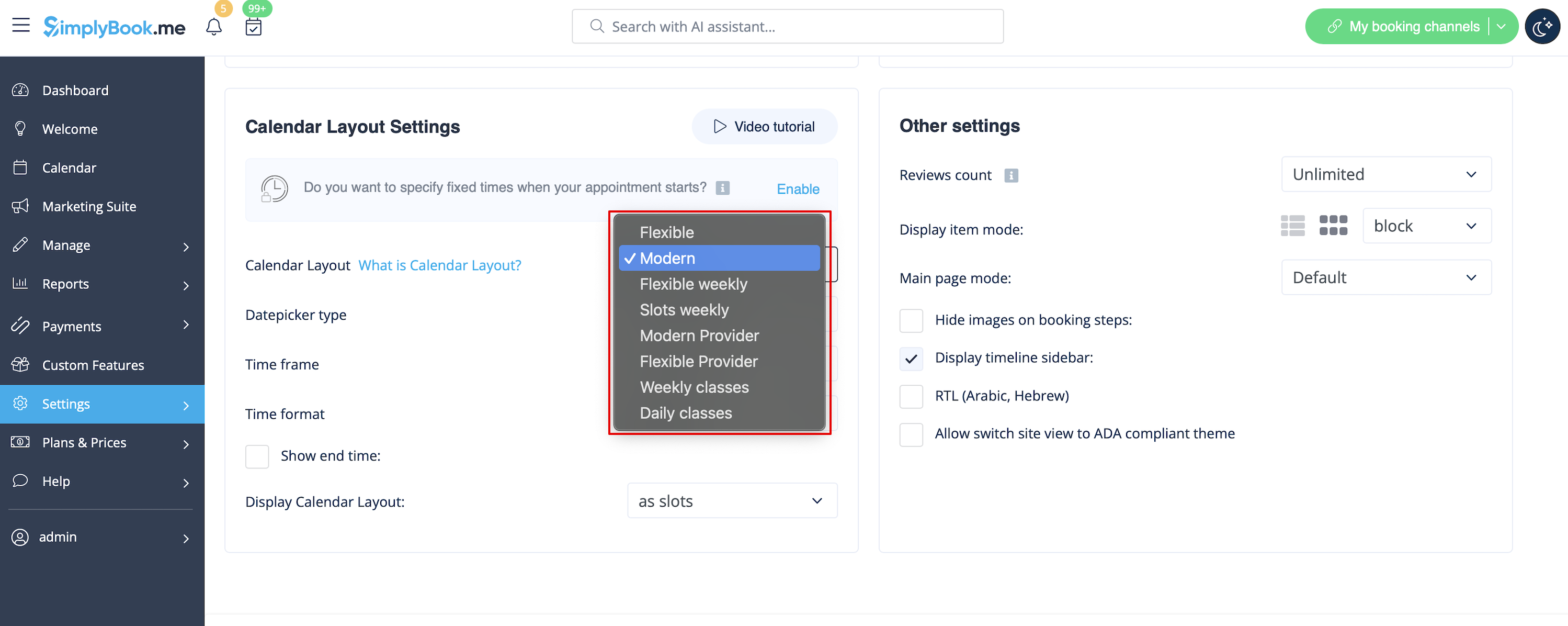
Disable booking page(available for paid accounts only)
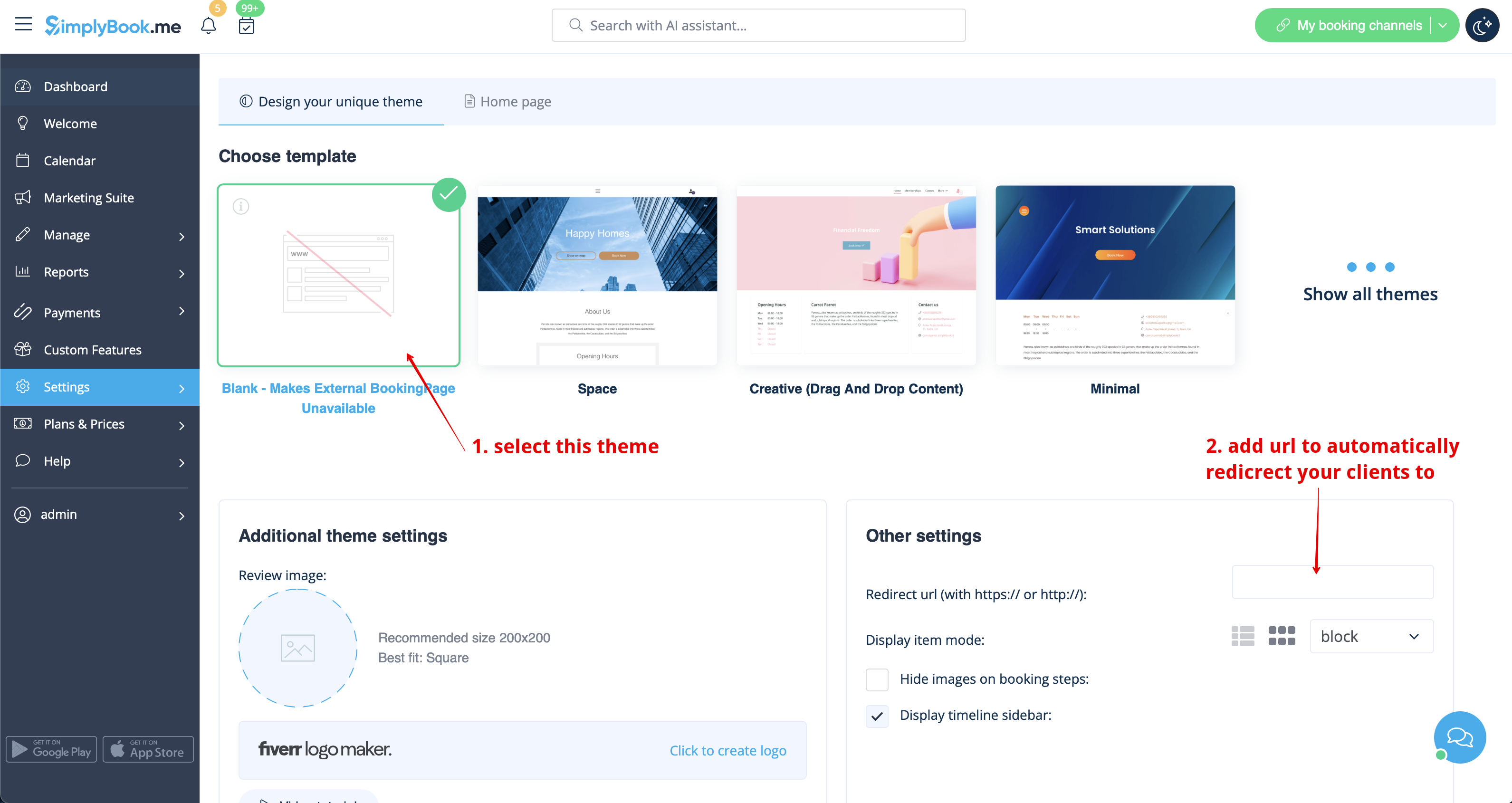
In order not to show any info on your booking page (make it blank), you can put blank theme on your booking page in Settings -> Design settings.
Please select to show all themes and choose the last one without image, add the link to the page your clients should be redirected to in case they open your booking page and save settings.
Please note! Even with blank theme your booking page will appear in Google and information will be shown in Booking.Page directory. To remove your company from directory, please click on Remove from marketplace button Settings -> Directory listing.
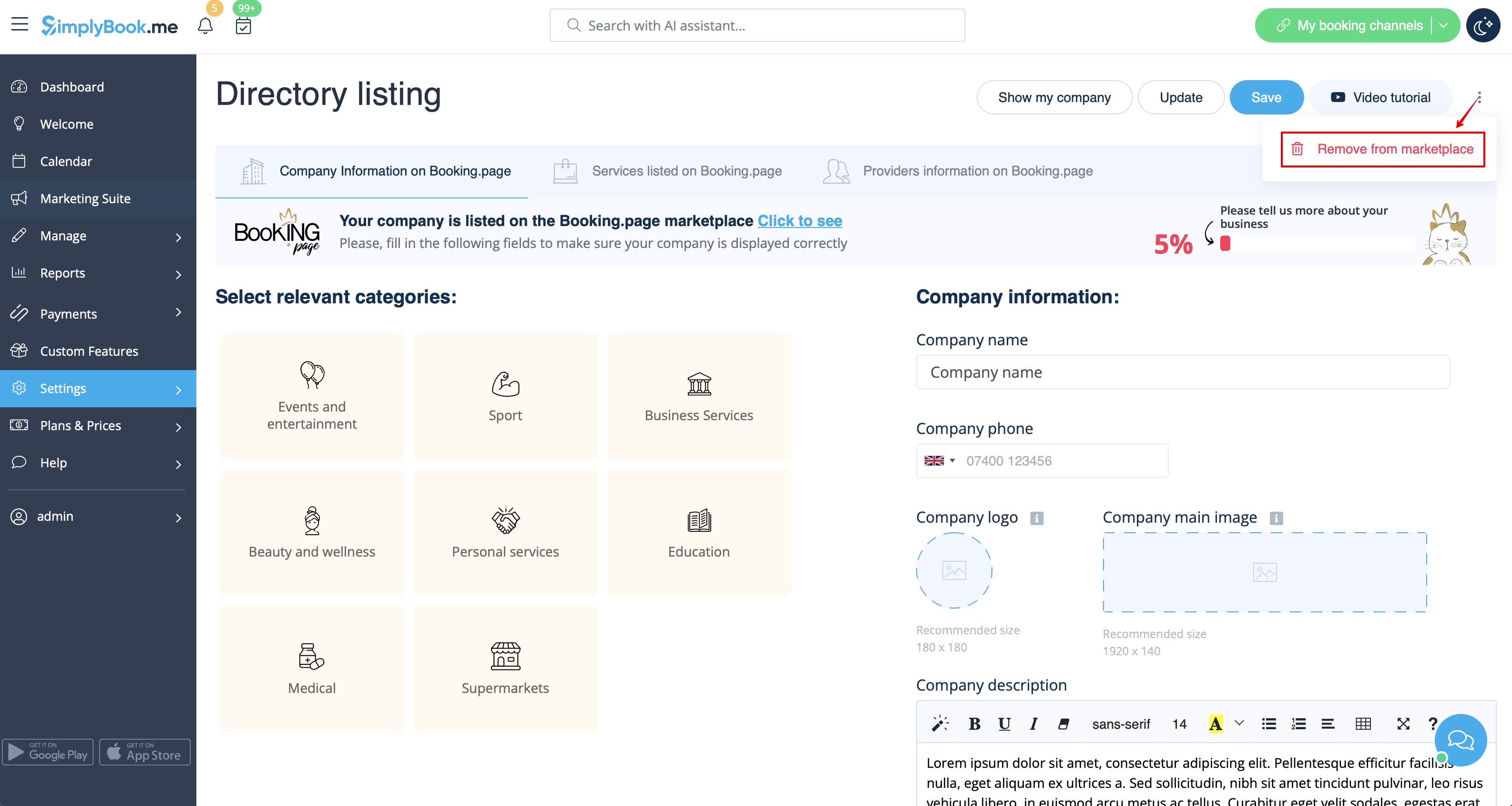
Removing with Custom CSS
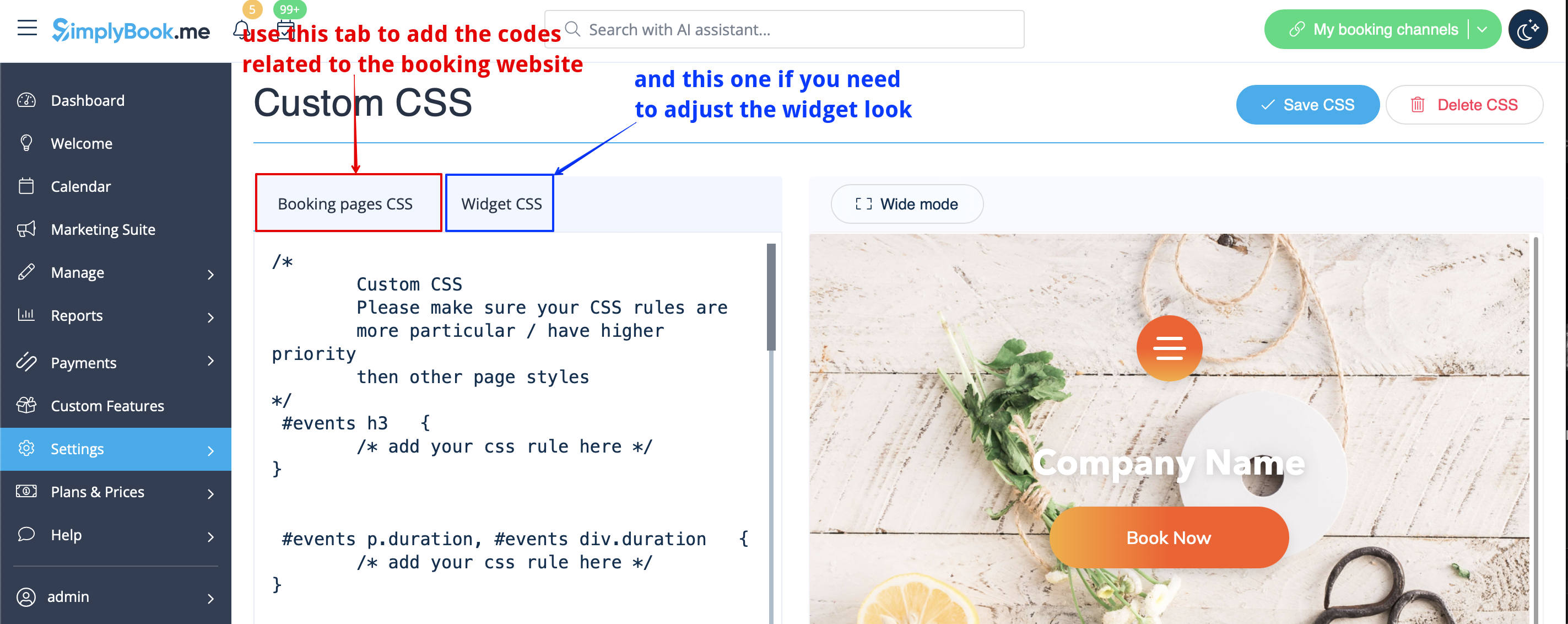
- Please note! Add the code(s) to adjust the styles to "Booking pages CSS" tab if you wish to edit the booking website
- or "Widget CSS" if you are editing widget on your website.
Phone field
(Client login feature is disabled)
- 1. Go to Settings -> Email and SMS settings -> Settings for email and SMS notifications -> Mandatory registration fields -> Email (to make phone not mandatory).
- 2. Please go to Custom Features -> Custom Features and enable Custom CSS feature. Then in this feature Settings or in Custom Features -> Custom CSS paste to Booking pages CSS window at the very top the following code:
.form-group.form-client-phone{
    display: none;
}
Email field
(Client login feature is disabled)
- 1. Go to Settings -> Email and SMS settings -> Settings for email and SMS notifications -> Mandatory registration fields -> Phone (to make email not mandatory).
- 2. Please go to Custom Features -> Custom Features and enable Custom CSS feature. Then in this feature Settings or in Custom Features -> Custom CSS paste to Booking pages CSS window at the very top the following code:
.form-group.form-client-email{
    display: none;
}
Our time
Please go to Custom Features -> Custom Features and enable Custom CSS feature. Then in this feature Settings or in Custom Features -> Custom CSS paste to Booking page CSS window at the very top the following code:
div#sb_booking_company_time {
    display: none;
}
May we send you promotions and relevant information
Please go to Custom Features -> Custom Features and enable Custom CSS feature. Then in this feature Settings or in Custom Features -> Custom CSS paste to Booking page CSS window at the very top the following code:
- Client login feature enabled:
#main #client-login .custom-form #sb_terms_and_conditions .promotions-letter-flag label[role=button]{
    display: none;
}
- Client login feature disabled:
#sb-main-container #main #sb-timeline #steps #details .detail-step-wrap .detail-step .license-links-container .promotions-letter-flag label[role=button]{
    display: none;
}
Filter by Services on Membership page
Please go to Custom Features -> Custom Features and enable Custom CSS feature. Then in this feature Settings or in Custom Features -> Custom CSS paste to Booking page CSS window at the very top the following code:
#membership-view #membership-filters {
   display: none;
}
Remove banner image
- Please note! "Book now" and other buttons that are displayed on top of banner will be hidden as well. The code may not work with some themes.
Please go to Custom Features -> Custom Features and enable Custom CSS feature. Then in this feature Settings or in Custom Features -> Custom CSS paste to Booking page CSS window at the very top the following code:
#main-buttons {
    display: none;
}
Remove some specific element
If you need to remove a specific element from your booking page, you will need to use Custom CSS feature and the corresponding code. If you don't know CSS, please contact support and they will create a request to check whether such change is possible.
Please note, that big requests may be done on a paid basis.
