Created page with "Het kan nodig zijn om bepaalde gegevens weer te geven of te verbergen of het uiterlijk te wijzigen van de facturen die het systeem naar klanten stuurt nadat zij een aankoop hebben gedaan op uw boekingswebsite.<br> U kunt de volgende items aanpassen: <br><br>" Tags: Mobile edit Mobile web edit |
Created page with "3. '''Adres van de klant.'''<br> Om het adres van de klant weer te geven, schakelt u de aangepaste functie Klantlogin in en schakelt u zowel <span style="background-color:#d4f8e5; padding:5px; border-radius:5px;">Adres weergeven op de boekingspagina</span> als <span style="background-color:#d4f8e5; padding:5px; border-radius:5px;">Adres verplicht registratieveld in</span> in het gedeelte <span style="background-color:#d4f8e5; padding:5px;..." |
||
| Line 15: | Line 15: | ||
<br><br> | <br><br> | ||
2. '''BTW-nummer van het bedrijf.'''<br> | |||
2. ''' | Als dit is toegevoegd in <span style="background-color:#d4f8e5; padding:5px; border-radius:5px;">Betalingen (SBPay.me)</span> -> <span style="background-color:#d4f8e5; padding:5px; border-radius:5px;">Betalingssystemen - </span> > <span style="background-color:#d4f8e5; padding:5px; border-radius:5px;">Instellingen</span> -> <span style="background-color:#d4f8e5; padding:5px; border-radius:5px;">Bedrijfsprofiel</span> -> <span style="background-color:#d4f8e5; padding:5px; border-radius:5px;">Belastinggegevens,</span> wordt het opgenomen in de koptekst van de factuur. | ||
[[File:Sbpay company settings page - tax info.png|1200px|border|center|link=https://help.simplybook.me/images/8/8e/Sbpay_company_settings_page_-_tax_info.png]] | [[File:Sbpay company settings page - tax info.png|1200px|border|center|link=https://help.simplybook.me/images/8/8e/Sbpay_company_settings_page_-_tax_info.png]] | ||
<br><br> | <br><br> | ||
[[File:Sbpay printed invoice example with comoany vat number.png|1200px|border|center|link=https://help.simplybook.me/images/d/d0/Sbpay_printed_invoice_example_with_comoany_vat_number.png]] | [[File:Sbpay printed invoice example with comoany vat number.png|1200px|border|center|link=https://help.simplybook.me/images/d/d0/Sbpay_printed_invoice_example_with_comoany_vat_number.png]] | ||
<br><br> | <br><br> | ||
3. '''Adres van de klant.'''<br> | |||
3. ''' | Om het adres van de klant weer te geven, schakelt u de aangepaste functie [[Client_Login_custom_feature|Klantlogin]] in en schakelt u zowel <span style="background-color:#d4f8e5; padding:5px; border-radius:5px;">Adres weergeven op de boekingspagina</span> als <span style="background-color:#d4f8e5; padding:5px; border-radius:5px;">Adres verplicht registratieveld in</span> in het gedeelte <span style="background-color:#d4f8e5; padding:5px; border-radius:5px;">Toegankelijkheid</span>. Sla de instellingen op. | ||
[[File:Make address mandatory redesigned.png|1200px|border|center|link=https://help.simplybook.me/images/6/68/Make_address_mandatory_redesigned.png]] | [[File:Make address mandatory redesigned.png|1200px|border|center|link=https://help.simplybook.me/images/6/68/Make_address_mandatory_redesigned.png]] | ||
<br><br> | <br><br> | ||
<div lang="en" dir="ltr" class="mw-content-ltr"> | <div lang="en" dir="ltr" class="mw-content-ltr"> | ||
Revision as of 15:01, 15 May 2025
Het kan nodig zijn om bepaalde gegevens weer te geven of te verbergen of het uiterlijk te wijzigen van de facturen die het systeem naar klanten stuurt nadat zij een aankoop hebben gedaan op uw boekingswebsite.
U kunt de volgende items aanpassen:
1. Bedrijfsadres.
Het bedrijfsadres dat is toegevoegd in Betalingen (SBPay.me) -> Betalingssystemen - > Instellingen -> Bedrijfsprofiel -> Adres wordt weergegeven op de facturen.
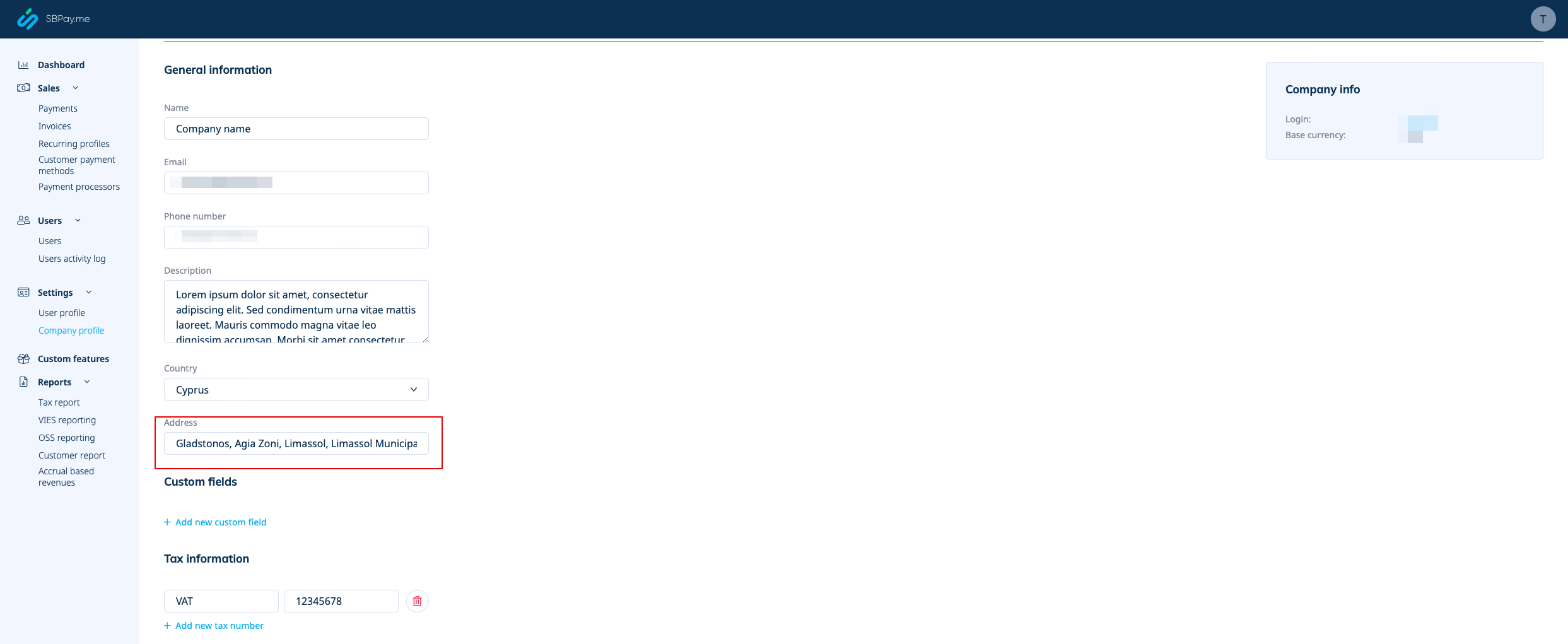
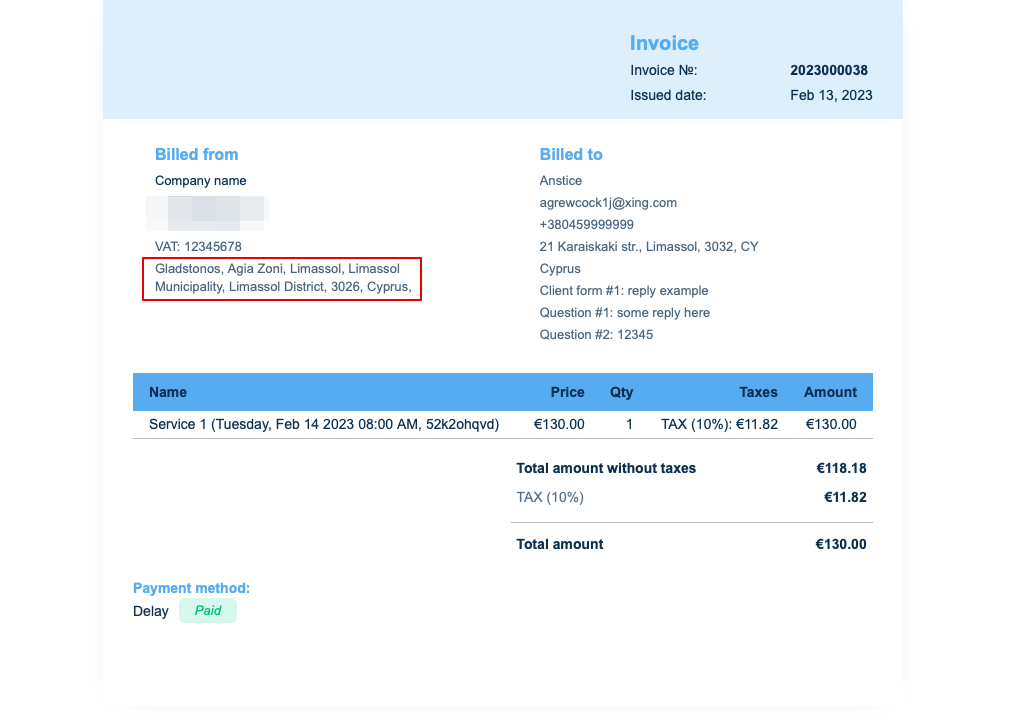
Als u dit wilt verbergen, verwijdert u gewoon het adres uit dat veld en slaat u de instellingen op.
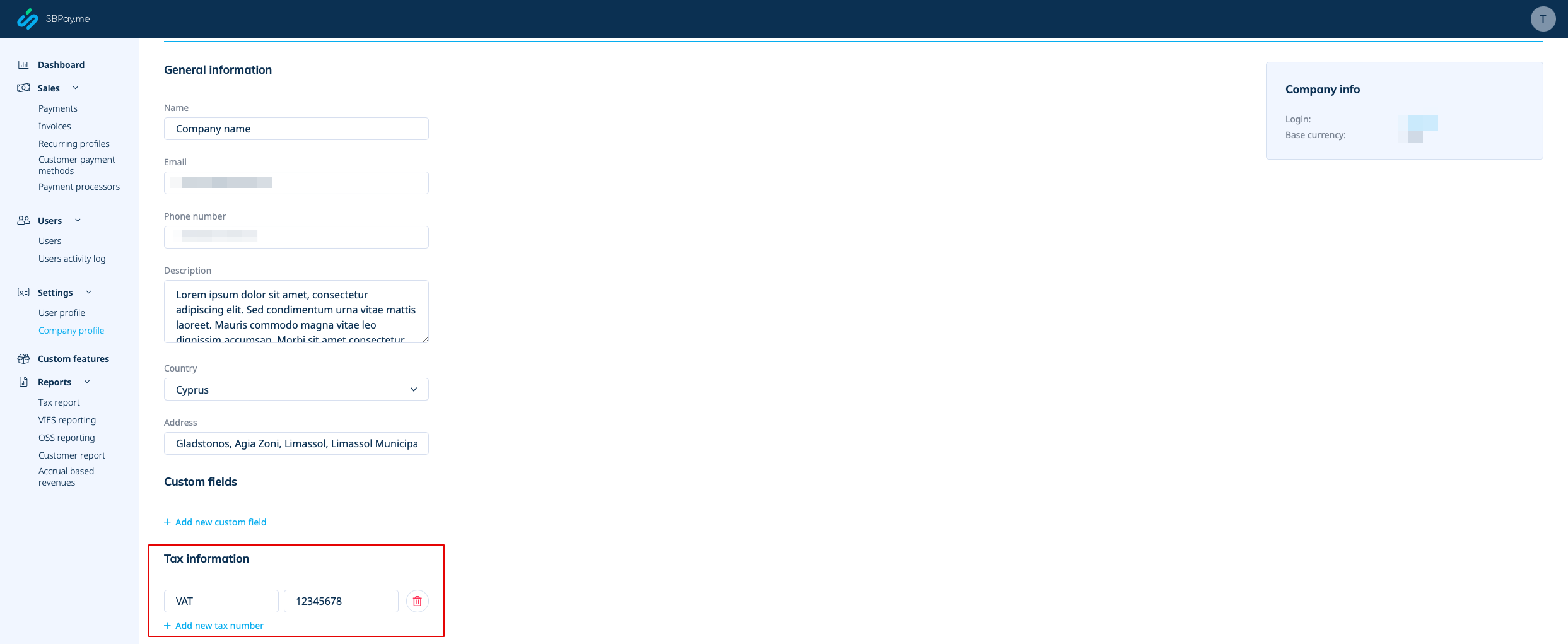
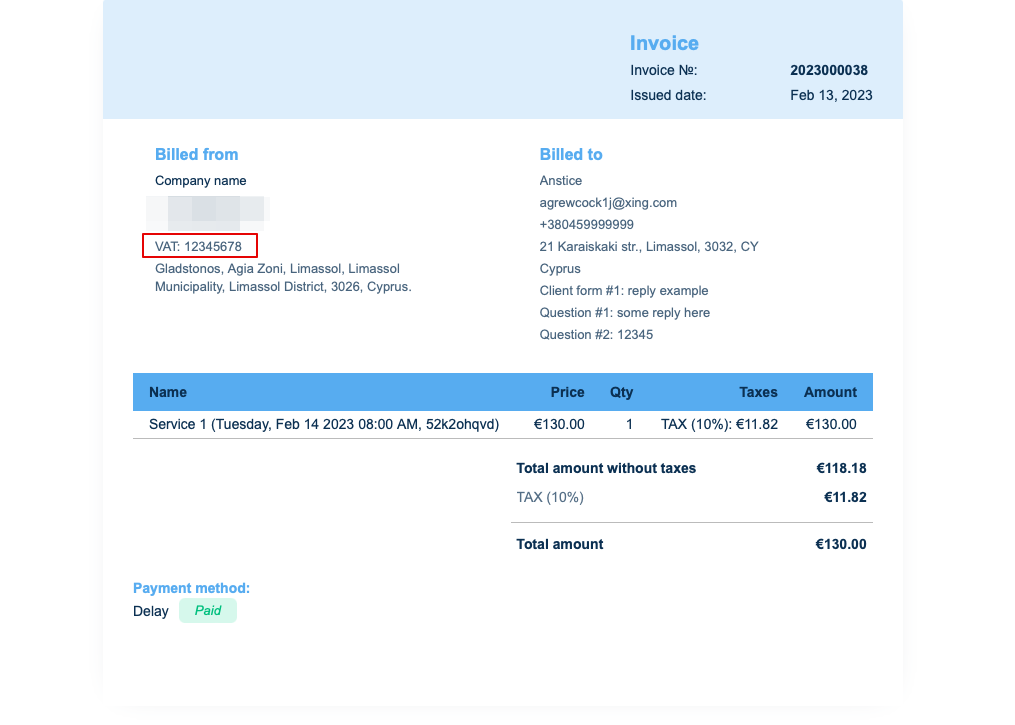
2. BTW-nummer van het bedrijf.
Als dit is toegevoegd in Betalingen (SBPay.me) -> Betalingssystemen - > Instellingen -> Bedrijfsprofiel -> Belastinggegevens, wordt het opgenomen in de koptekst van de factuur.
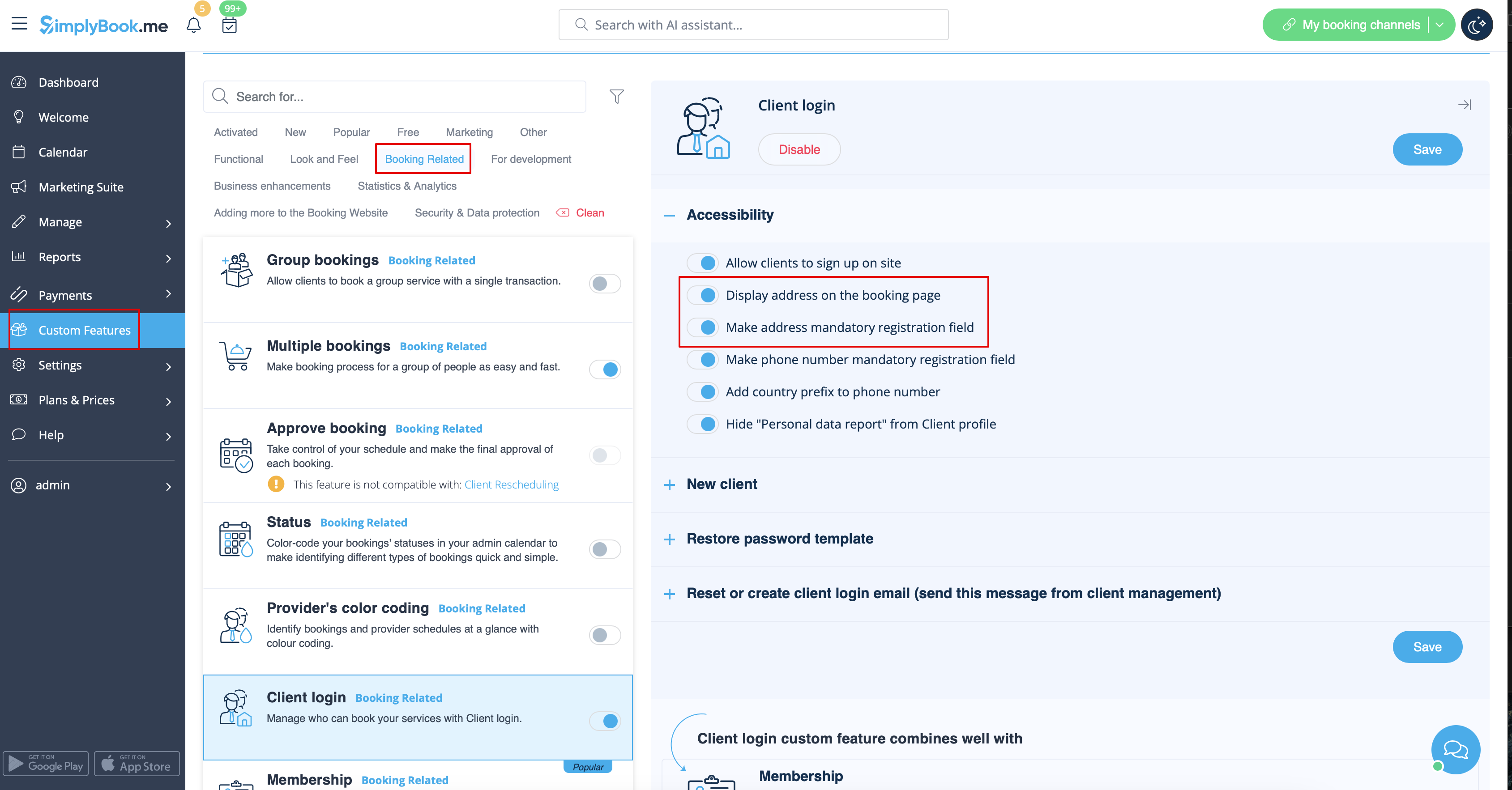
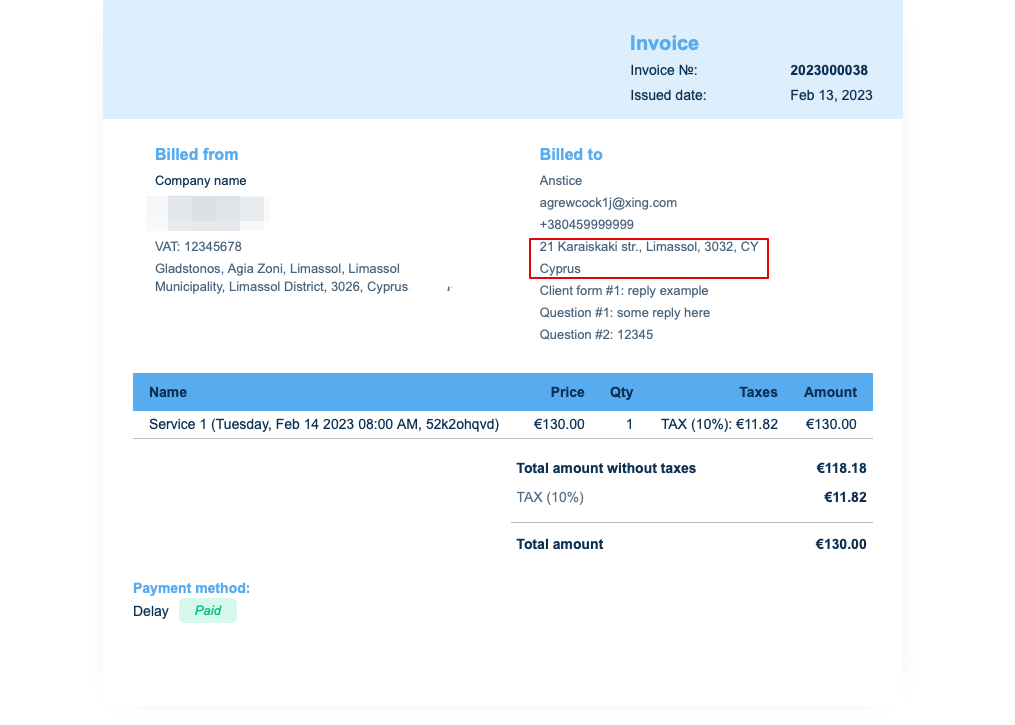
3. Adres van de klant.
Om het adres van de klant weer te geven, schakelt u de aangepaste functie Klantlogin in en schakelt u zowel Adres weergeven op de boekingspagina als Adres verplicht registratieveld in in het gedeelte Toegankelijkheid. Sla de instellingen op.
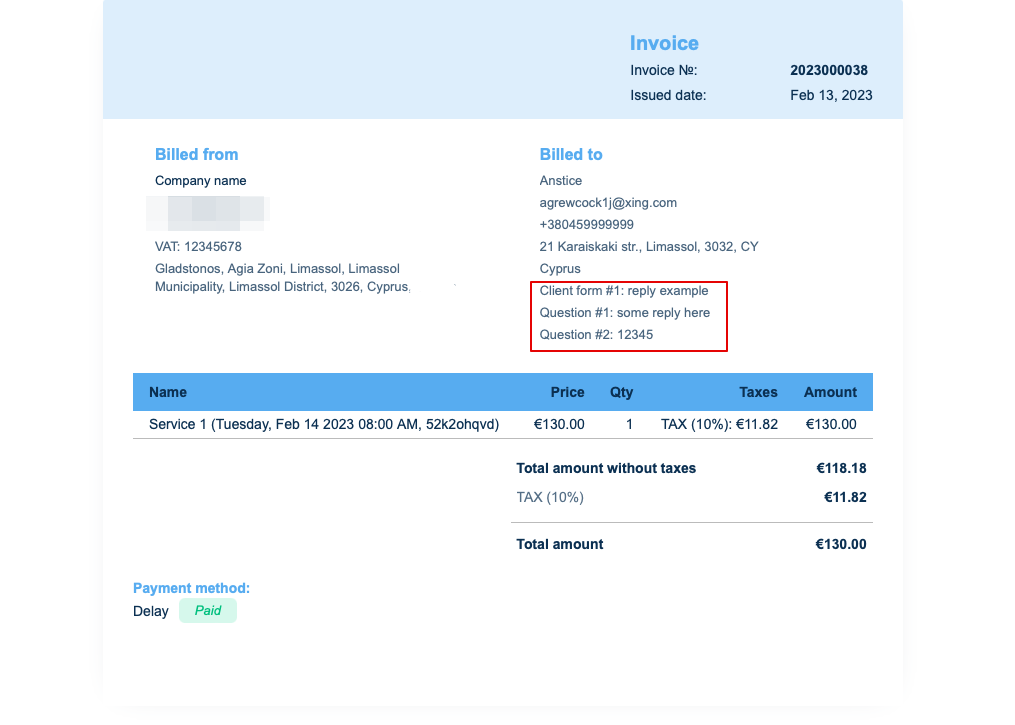
4. Intake forms and Client Fields
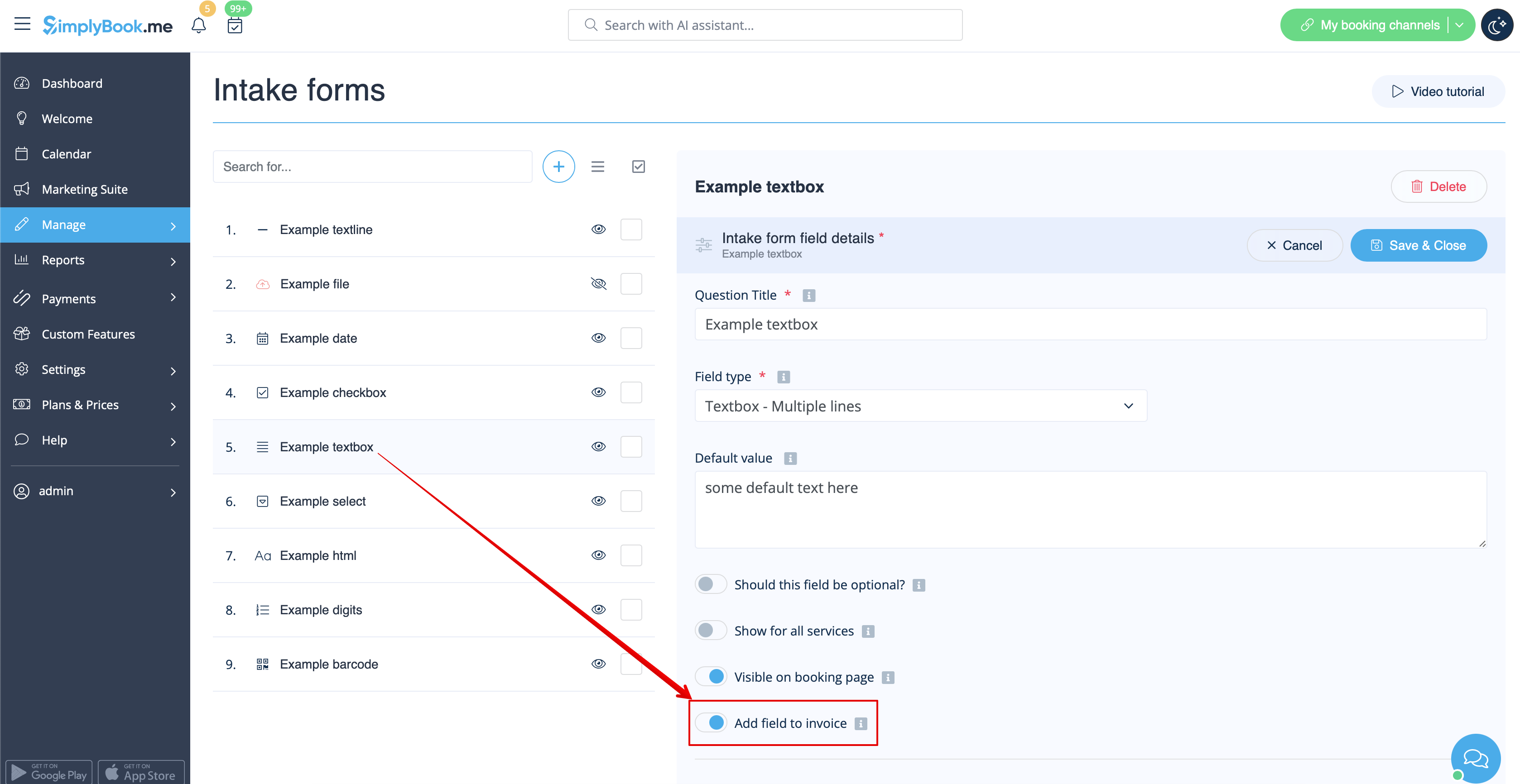
You can add certain forms to be displayed in the client information block.
If it is an intake form please go to Manage -> Intake forms -> click on the necessary form to select -> enable Add field to invoice, save settings.
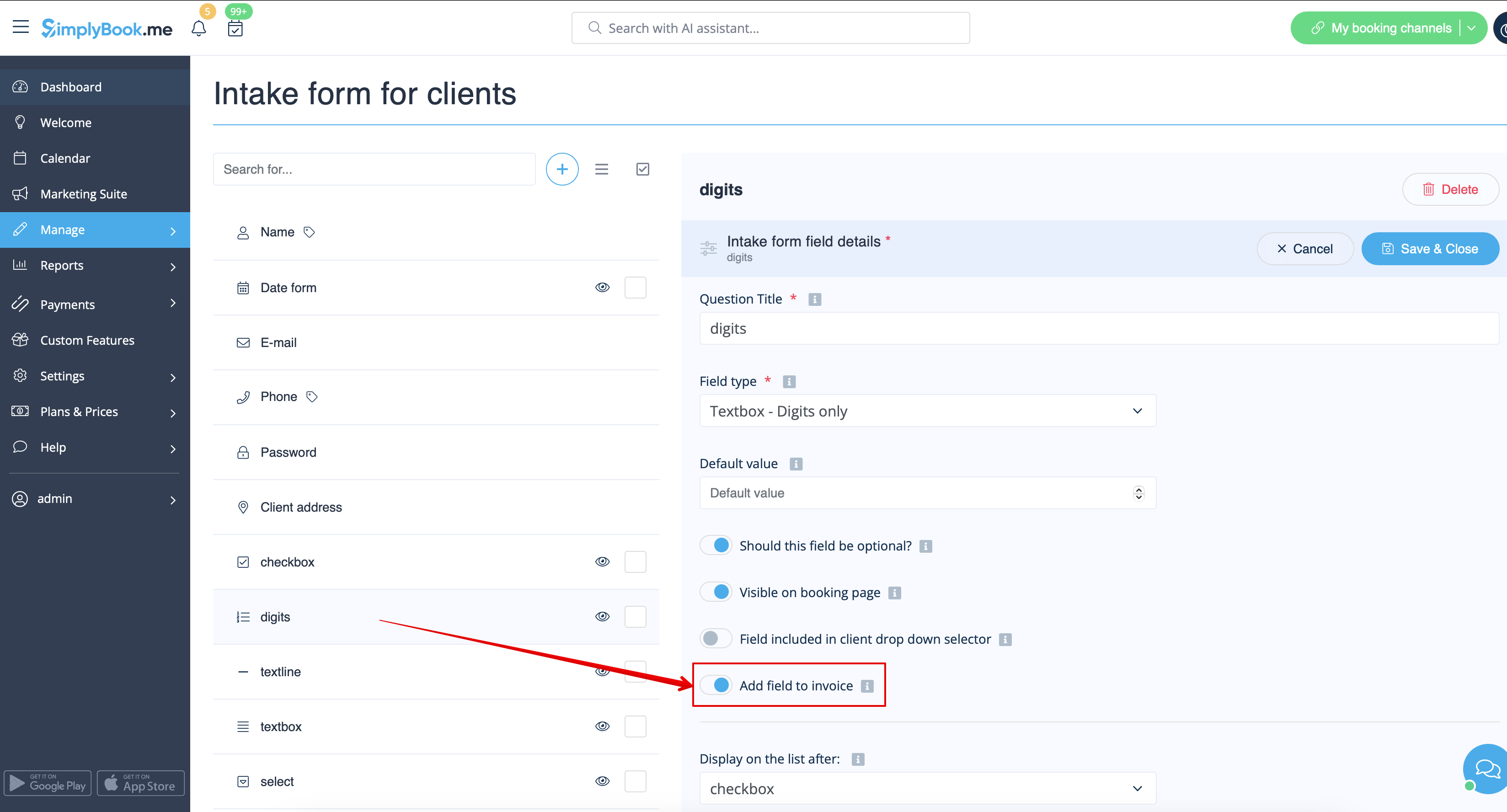
Or if you wish to add a client form then navigate to Manage -> Client fields -> click on the desired field to edit it -> enable Add field to invoice, save.
As the result both the form title and the client response will be reflected in the invoice.
5. Invoice design.
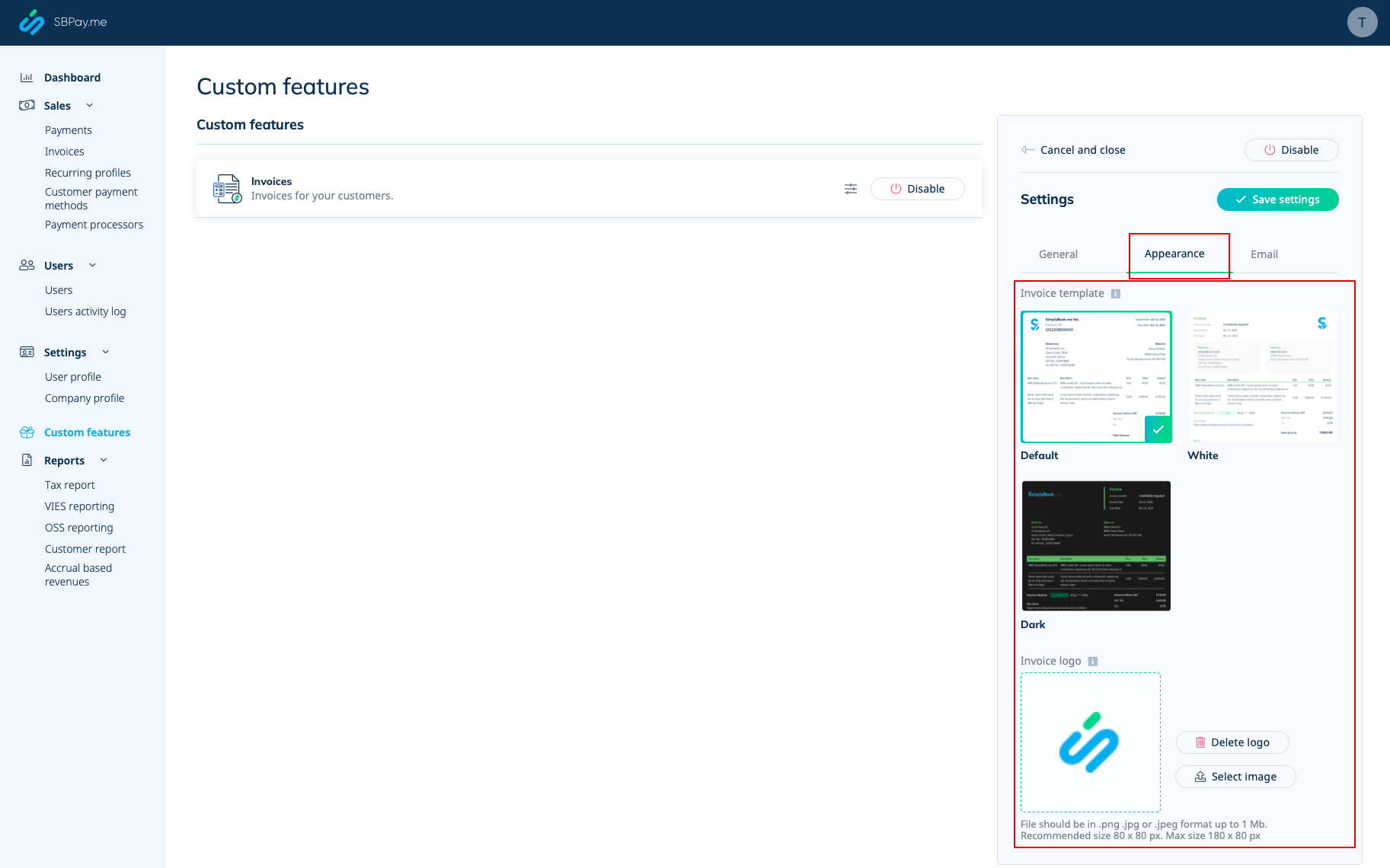
There are three templates to choose from in Payments(SBPay.me) -> Payment systems -> Custom features -> Invoices -> Settings -> Appearance.
Please cheese the one you like the most, add your comopany logo and save settings.
Please note! Importing invoices from external platforms directly into the system is not supported. However, SimplyBook.me offers integration options with various accounting software, including Xero, QuickBooks, and FreshBooks. You can efficiently manage your invoices within your preferred accounting system.
