Created page with "Hoe boekingen beheren" Tags: Mobile edit Mobile web edit |
Created page with "1. Selecteer in <span style="background-color:#d4f8e5; padding:5px; border-radius:5px;">Agenda</span> (item in het menu aan de linkerkant) de gewenste weergave, de datum waaraan u de boeking wilt toevoegen (u kunt voor het gemak ook de filters bovenaan gebruiken) en klik vervolgens op een vrije ruimte of selecteer de gewenste periode door deze te verslepen. File:Booking from admin calendar steps redesigned.png|1200px|border|center|link=https://help.simplybook.me/images..." |
||
| Line 30: | Line 30: | ||
= Hoe boekingen bewerken = | = Hoe boekingen bewerken = | ||
1. Klik in <span style="background-color:#d4f8e5; padding:5px; border-radius:5px;">Agenda</span> (item in het menu aan de linkerkant) op de boeking om de details te openen en druk vervolgens <span style="background-color:#d4f8e5; padding:5px; border-radius:5px;">op Bewerken</span> om de informatie over de boeking te wijzigen. Om de tijd van de afspraak te wijzigen, sleept u de boeking gewoon naar de gewenste beschikbare tijd. U kunt eenvoudig <span style="background-color:#d4f8e5; padding:5px; border-radius:5px;">een opmerking</span> toevoegen aan de afspraak of andere boekingen van deze klant bekijken door op de knop <span style="background-color:#d4f8e5; padding:5px; border-radius:5px;">Klanten</span> te[[File:Edit booking path redesigned.png|1200px | center|link=https://help.simplybook.me/images/7/7b/Edit_booking_path_redesigned.png]]<br/> | |||
1. | [[File:Edit booking path redesigned.png|1200px | center|link=https://help.simplybook.me/images/7/7b/Edit_booking_path_redesigned.png]] | ||
[[File:Edit booking path redesigned.png|1200px | center|link=https://help.simplybook.me/images/7/7b/Edit_booking_path_redesigned.png ]] | |||
<br/><br/> | <br/><br/> | ||
2. In <span style="background-color:#d4f8e5; padding:5px; border-radius:5px;">Rapporten</span> -> <span style="background-color:#d4f8e5; padding:5px; border-radius:5px;">Boekingsdetails.</span> Klik op de knop <span style="background-color:#d4f8e5; padding:5px; border-radius:5px;">Bekijken</span> voor de gewenste boeking om de details te openen en druk vervolgens op <span style="background-color:#d4f8e5; padding:5px; border-radius:5px;">Bewerken</span> om informatie over de boeking te wijzigen. | |||
U kunt filters gebruiken om eenvoudig uw boekingen voor een specifieke dienst, aanbieder, klant of datumrange te vinden.<br/> | |||
2. In <span style="background-color:#d4f8e5; padding:5px; border-radius:5px;"> | |||
[[File:Edit booking from report redesigned.png|1200px| center|link=https://help.simplybook.me/images/b/b0/Edit_booking_from_report_redesigned.png]] | [[File:Edit booking from report redesigned.png|1200px| center|link=https://help.simplybook.me/images/b/b0/Edit_booking_from_report_redesigned.png]] | ||
<br><br> | <br><br> | ||
<span style="background-color:#ffe9e9; padding:5px; border-radius:5px;">'''Let op!''' Het is niet mogelijk om een reeds geannuleerde boeking te wijzigen.</span> | |||
<span style="background-color:#ffe9e9; padding:5px; border-radius:5px;">''' | |||
<br><br> | <br><br> | ||
Als u uw klanten de mogelijkheid wilt bieden om zelf de datum en/of tijd van een afspraak te wijzigen, gebruik dan de aangepaste functie <span style="background-color:#cdeffc; padding:5px; border-radius:5px;">[[Client_Rescheduling_custom_feature|'Afspraak wijzigen door klant]]</span> '. | |||
<br><br> | <br><br> | ||
< | <span id="How_to_cancel_bookings"></span> | ||
= | = Hoe boekingen annuleren = | ||
1. Voor beheerders of gebruikers | |||
1. | In <span style="background-color:#d4f8e5; padding:5px; border-radius:5px;">Agenda</span> (menu aan de linkerkant) of in in <span style="background-color:#d4f8e5; padding:5px; border-radius:5px;">Rapporten</span> -> <span style="background-color:#d4f8e5; padding:5px; border-radius:5px;">Boekingsdetails.</span> Klik op de boeking om de details te openen of gebruik de optie <span style="background-color:#d4f8e5; padding:5px; border-radius:5px;">Bekijken</span> in <span style="background-color:#d4f8e5; padding:5px; border-radius:5px;">Rapporten</span> en druk vervolgens op de knop <span style="background-color:#d4f8e5; padding:5px; border-radius:5px;">Boeking annuleren</span>. <br/> | ||
In <span style="background-color:#d4f8e5; padding:5px; border-radius:5px;"> | [[File:Cancel booking in the booking info form.png|800px| center|link=https://help.simplybook.me/images/9/95/Cancel_booking_in_the_booking_info_form.png]] | ||
[[File:Cancel booking in the booking info form.png|800px| center|link=https://help.simplybook.me/images/9/95/Cancel_booking_in_the_booking_info_form.png ]] | |||
<br/><br/> | <br/><br/> | ||
<div lang="en" dir="ltr" class="mw-content-ltr"> | <div lang="en" dir="ltr" class="mw-content-ltr"> | ||
In case you need to cancel many bookings at once you can do that in <span style="background-color:#d4f8e5; padding:5px; border-radius:5px;">Reports</span> -> <span style="background-color:#d4f8e5; padding:5px; border-radius:5px;">Booking details.</span><br> | In case you need to cancel many bookings at once you can do that in <span style="background-color:#d4f8e5; padding:5px; border-radius:5px;">Reports</span> -> <span style="background-color:#d4f8e5; padding:5px; border-radius:5px;">Booking details.</span><br> | ||
Revision as of 09:49, 16 May 2025
Waar vind ik al mijn boekingen?
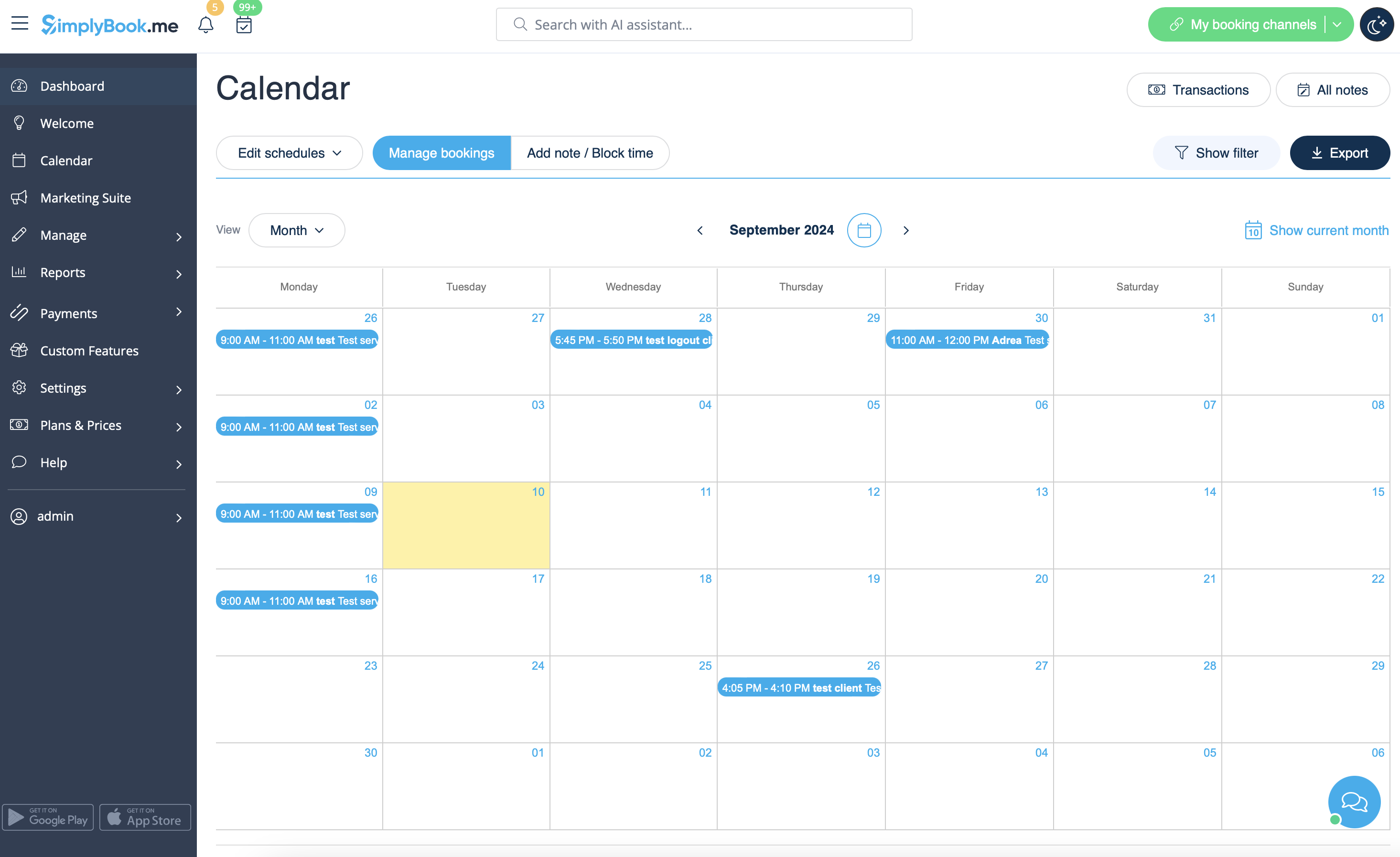
1. In Agenda (item in het menu aan de linkerkant).
(u kunt de weergave kiezen die u het beste uitkomt)
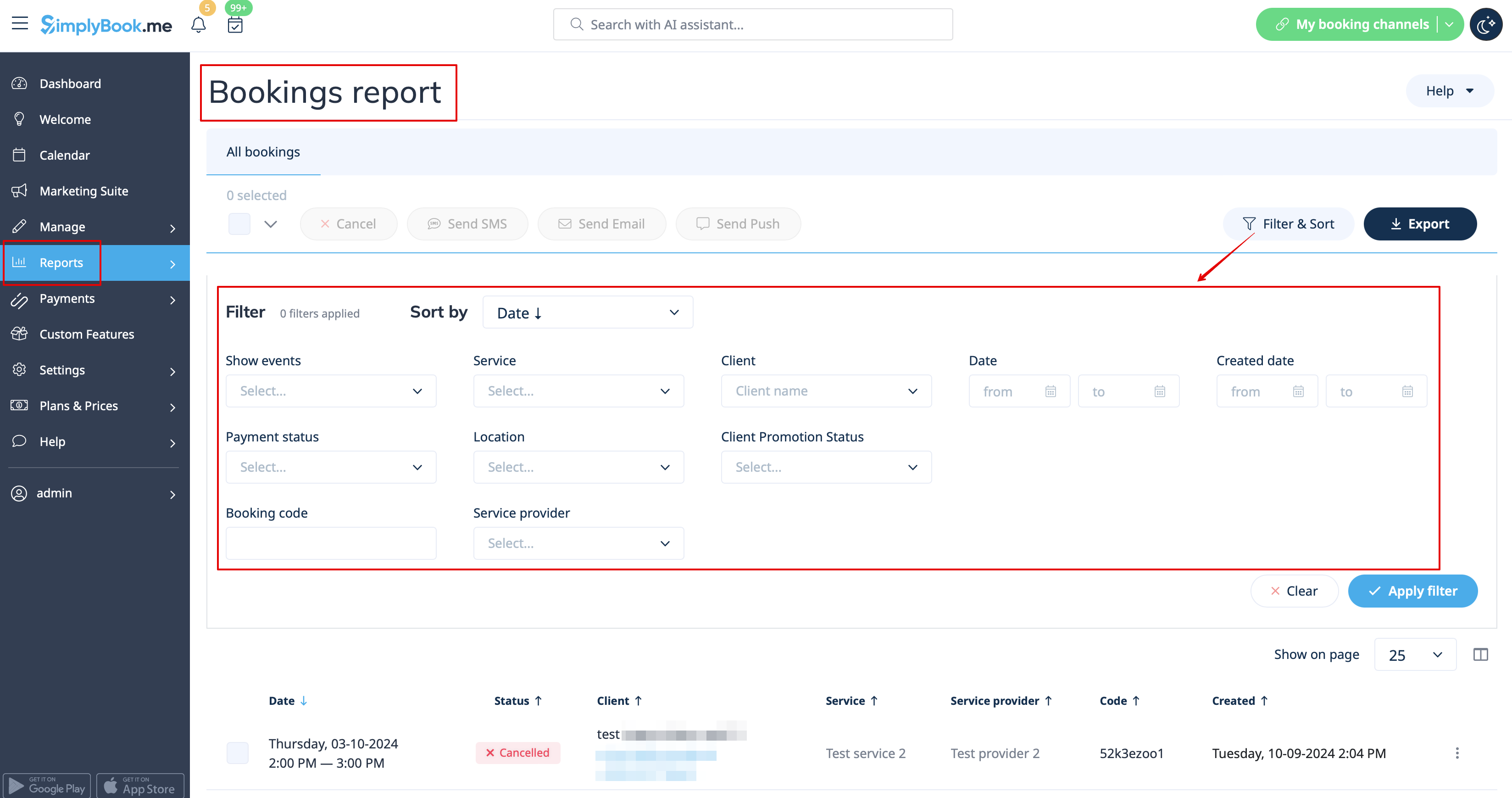
2. In Rapporten -> Boekingsdetails.
U kunt filters gebruiken om gemakkelijk uw boekingen voor een specifieke dienst, aanbieder, klant of datumrange te vinden.
Hoe te boeken vanuit de beheerdersagenda
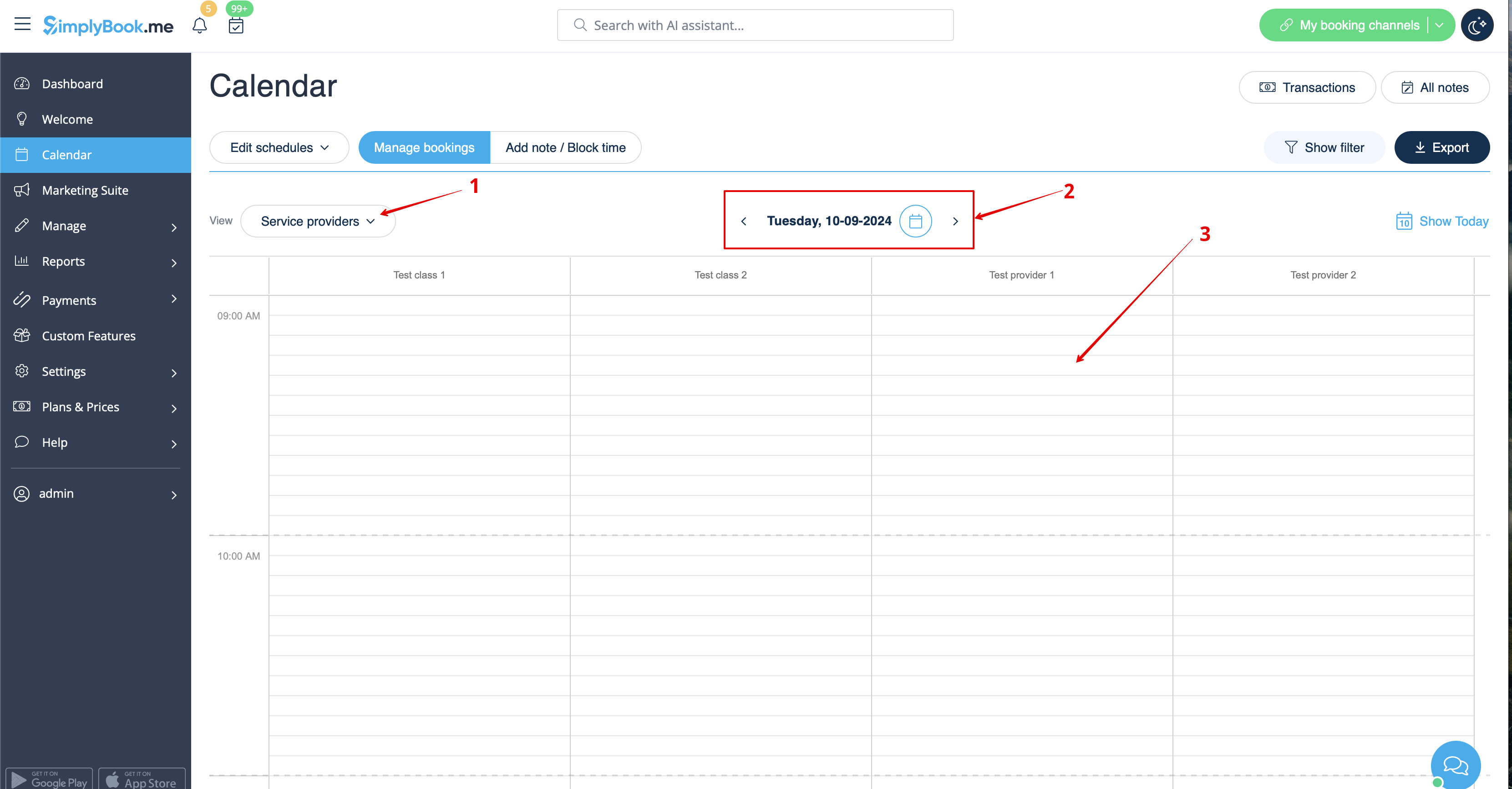
1. Selecteer in Agenda (item in het menu aan de linkerkant) de gewenste weergave, de datum waaraan u de boeking wilt toevoegen (u kunt voor het gemak ook de filters bovenaan gebruiken) en klik vervolgens op een vrije ruimte of selecteer de gewenste periode door deze te verslepen.
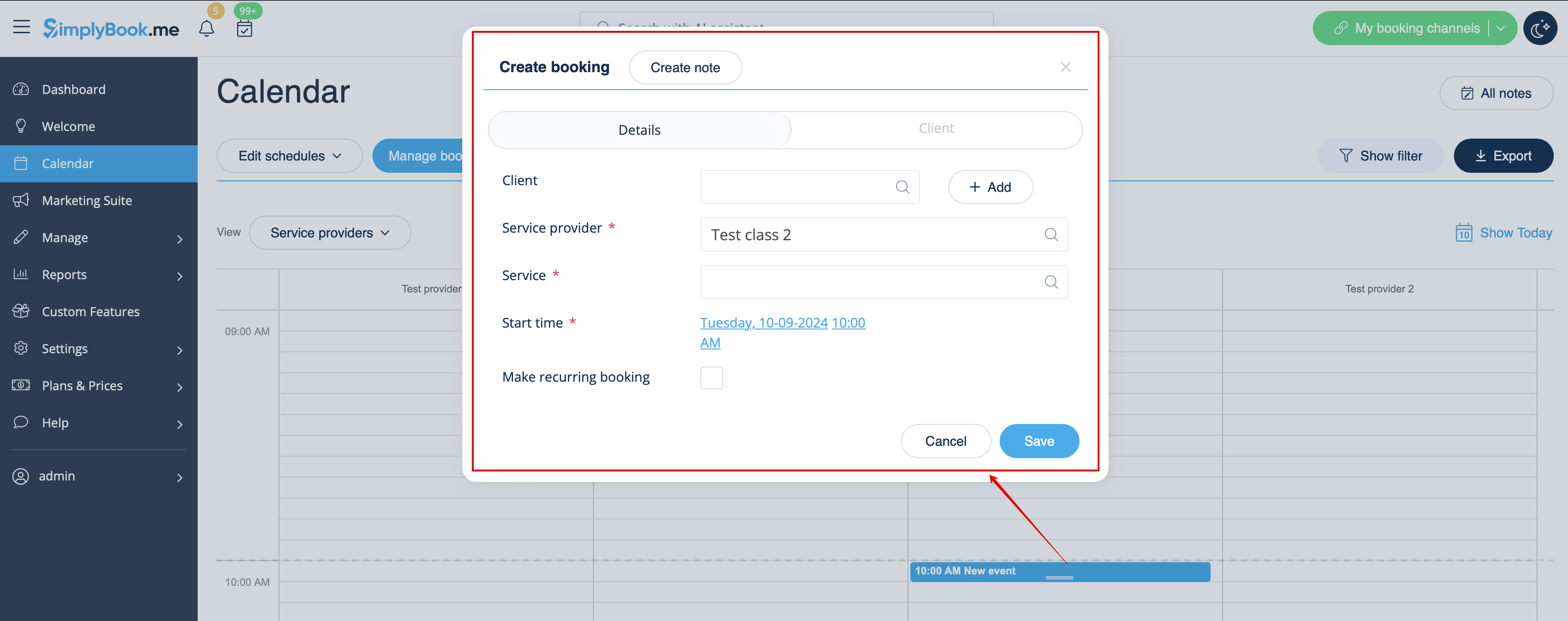
2. Vul het pop-upformulier in dat verschijnt: selecteer of voeg de klant toe, kies de aanbieder en de dienst/klasse, stel de begin- en einddatum en -tijd in. Het is mogelijk om een periode te boeken die afwijkt van de duur van de dienst en een veelvoud is van het geselecteerde tijdsbestek.
(Het kan nodig zijn om meer velden in het pop-upformulier in te vullen als u extra aangepaste functies gebruikt .
Als u bijvoorbeeld Betalingen accepteren gebruikt en wilt dat de factuur wordt gegenereerd wanneer de reservering vanuit de beheerder wordt toegevoegd, moet u het vakje Betaling ontvangen aanvinken en de gewenste betaalmethode selecteren voordat u de reservering opslaat.
Let op! Deze optie kan alleen worden geselecteerd tijdens het aanmaken van een nieuwe boeking. Als de boeking is aangemaakt zonder factuurgeneratie, maar u wilt dat de factuur wordt bijgevoegd, kunt u deze boeking annuleren en een nieuwe aanmaken met de optie 'Betaling ontvangen' geselecteerd).
Hoe boekingen bewerken
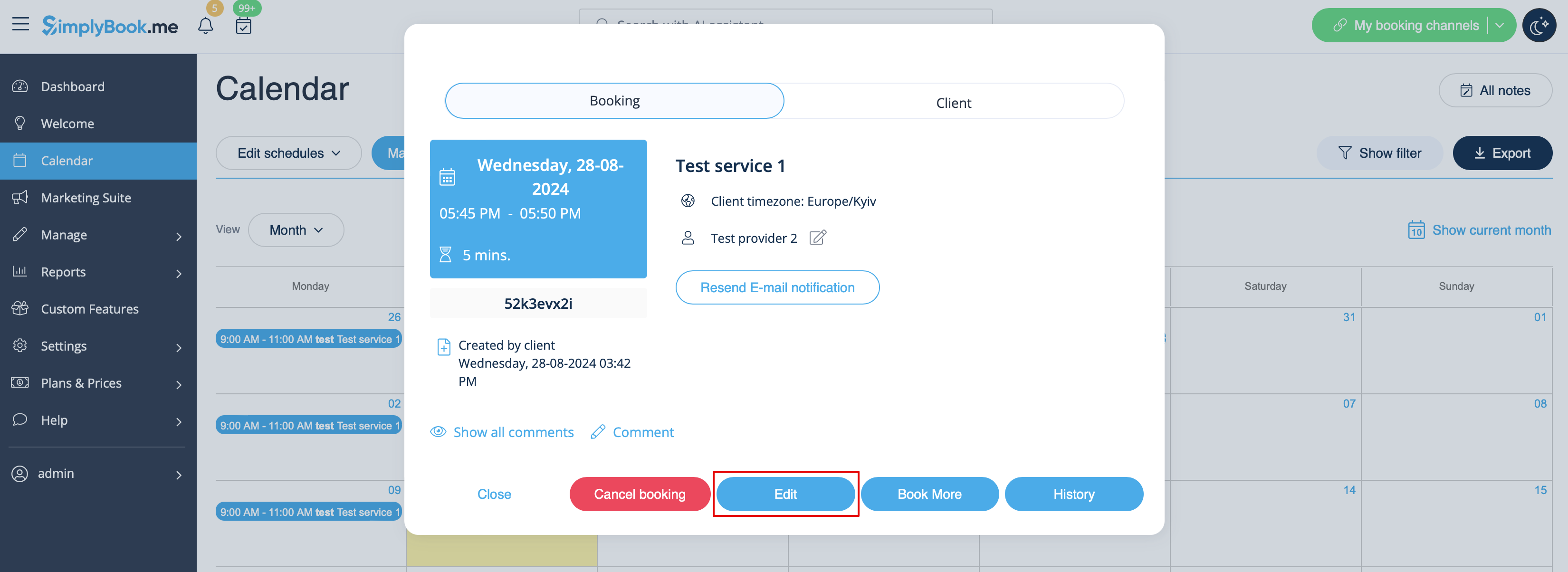
1. Klik in Agenda (item in het menu aan de linkerkant) op de boeking om de details te openen en druk vervolgens op Bewerken om de informatie over de boeking te wijzigen. Om de tijd van de afspraak te wijzigen, sleept u de boeking gewoon naar de gewenste beschikbare tijd. U kunt eenvoudig een opmerking toevoegen aan de afspraak of andere boekingen van deze klant bekijken door op de knop Klanten te
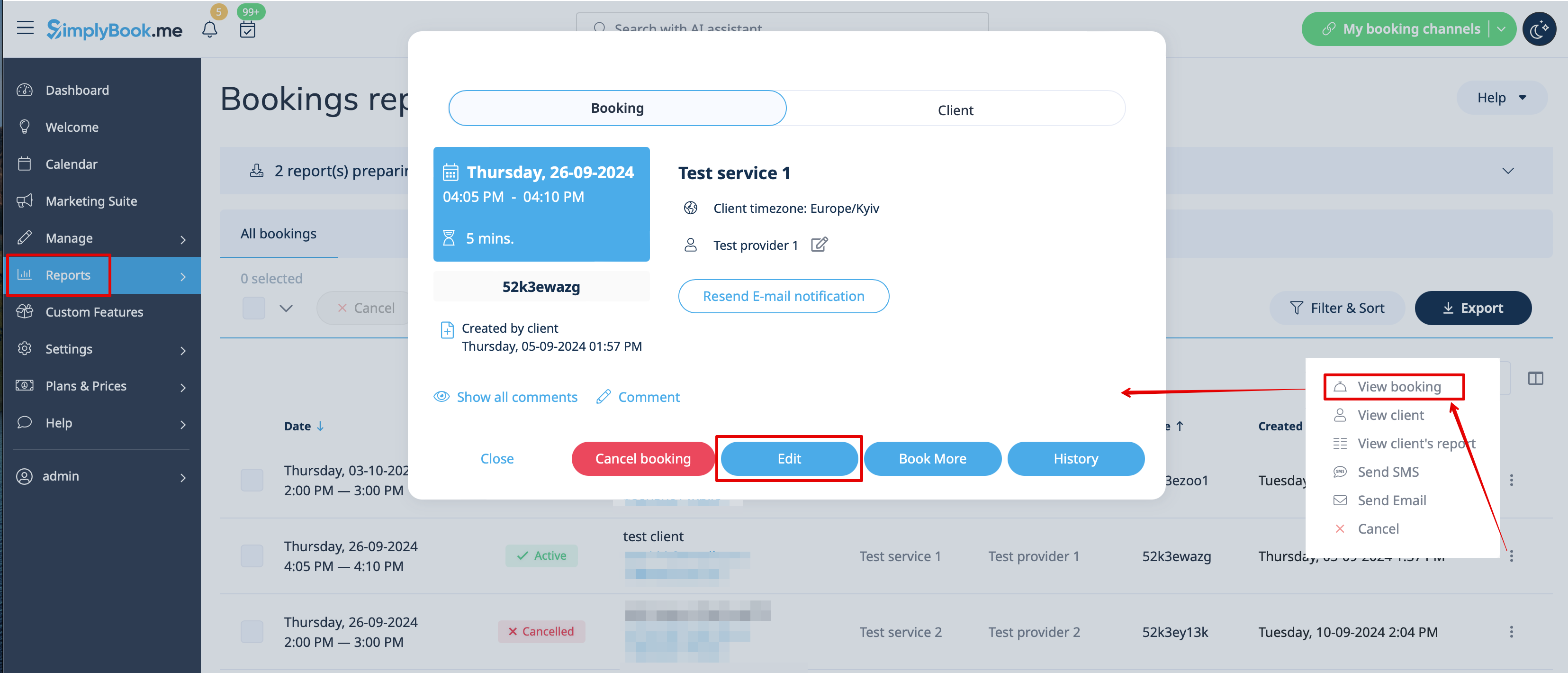
2. In Rapporten -> Boekingsdetails. Klik op de knop Bekijken voor de gewenste boeking om de details te openen en druk vervolgens op Bewerken om informatie over de boeking te wijzigen.
U kunt filters gebruiken om eenvoudig uw boekingen voor een specifieke dienst, aanbieder, klant of datumrange te vinden.
Let op! Het is niet mogelijk om een reeds geannuleerde boeking te wijzigen.
Als u uw klanten de mogelijkheid wilt bieden om zelf de datum en/of tijd van een afspraak te wijzigen, gebruik dan de aangepaste functie 'Afspraak wijzigen door klant '.
Hoe boekingen annuleren
1. Voor beheerders of gebruikers
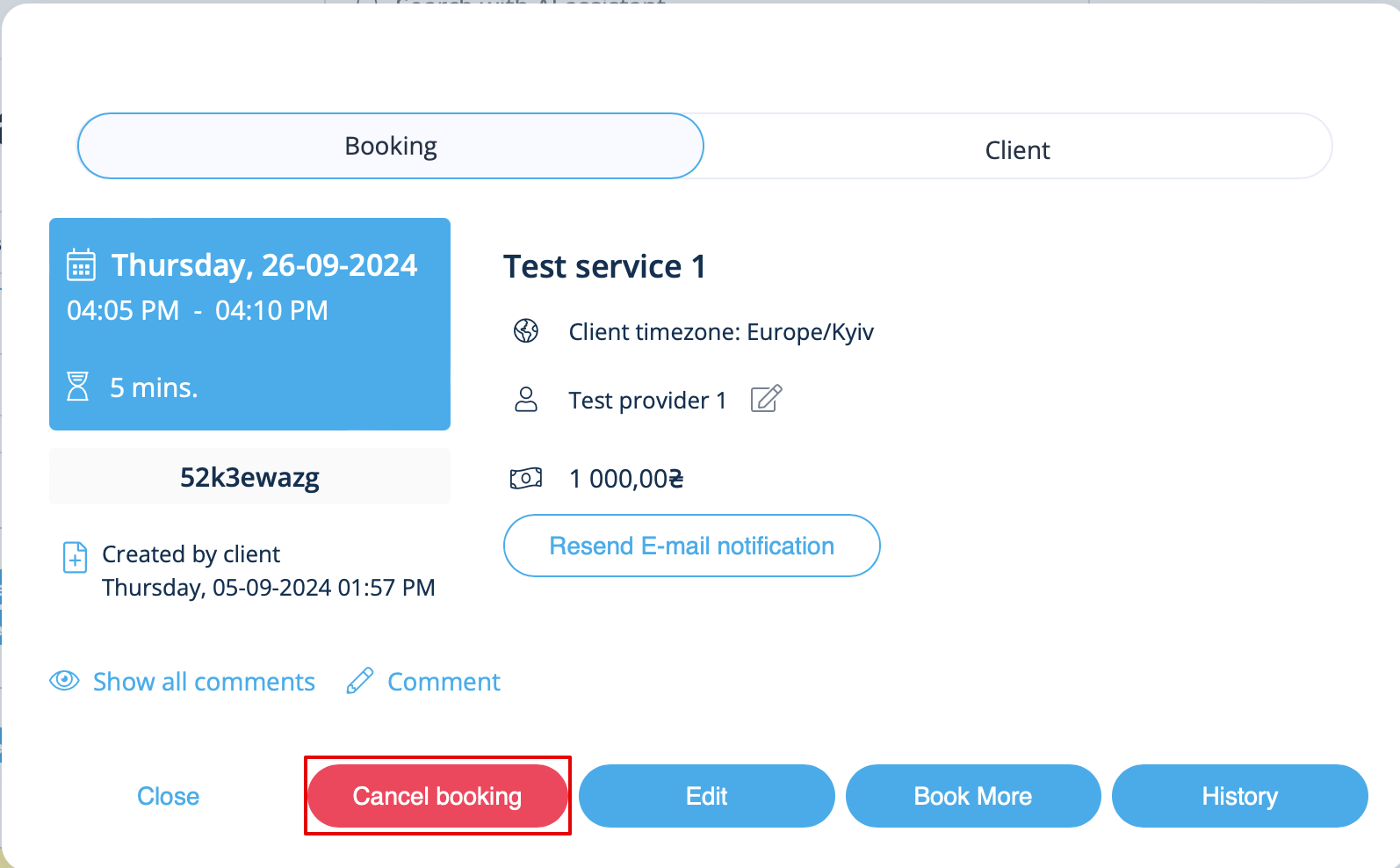
In Agenda (menu aan de linkerkant) of in in Rapporten -> Boekingsdetails. Klik op de boeking om de details te openen of gebruik de optie Bekijken in Rapporten en druk vervolgens op de knop Boeking annuleren.
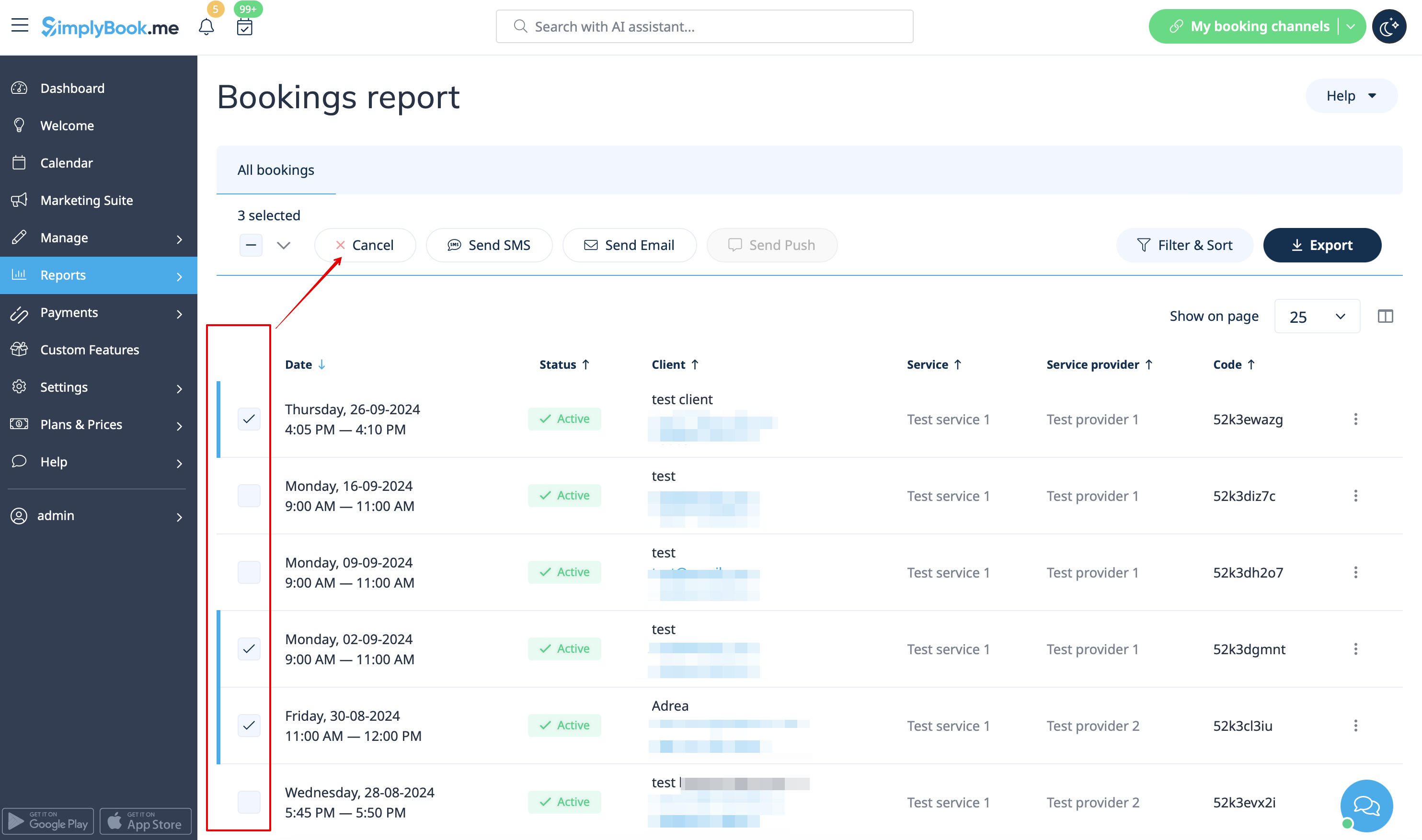
In case you need to cancel many bookings at once you can do that in Reports -> Booking details.
You can use the filter if necessary, check the boxes with the bookings to cancel and click on Cancel selected button at the top.
Please note! It is possible to cancel the appointments from one report page at a time.
2. For client To cancel their bookings, clients can click cancel link in their confirmation emails.

Or use Cancel button on the booking website, My bookings tab.
(If you want to prohibit clients from cancelling the appointments, you may need Cancellation Policy Custom Feature.)
